
Linux 查看 CPU 指令:RAM、磁碟、OS 資訊一併確認


Linux 的 CPU 核心數,只要一行 [nproc] 就能馬上看到。下表依常用順序,整理了查看 Linux CPU、Linux RAM 容量,以及磁碟與 OS 資訊的指令。
|
指令 |
查看的資訊 |
|---|---|
|
nproc |
可用的 CPU 數(邏輯核心) |
|
lscpu |
CPU 型號 · 插槽 · 核心 · 執行緒 |
|
free -h |
RAM 總量 · 已用量 · 剩餘容量 |
|
df -h |
各磁碟(檔案系統)的使用量 |
|
lsblk |
磁碟與分割區結構 |
|
cat /etc/os-release |
發行版名稱與版本 |
|
uname -r |
核心版本 |
$ nproc
2

$ lscpu
CPU(s):                2
Model name:            Intel(R) Xeon(R) Platinum 8259CL CPU @ 2.50GHz
Thread(s) per core:    2
Core(s) per socket:    1
Socket(s):             1

$ free -h
               total        used        free      shared  buff/cache   available
Mem:           3.8Gi       2.1Gi       312Mi        96Mi       1.4Gi       1.5Gi
Swap:          2.0Gi       384Mi       1.6Gi
這是 2026-10-05 在 AlmaLinux 9 伺服器上執行的結果,[CPU(s)] 是核心數乘以每核心執行緒數的值,和下方超執行緒項目說明的情況相同。
✅ 查看 Linux CPU 資訊的指令
1. cat /proc/cpuinfo
cat /proc/cpuinfo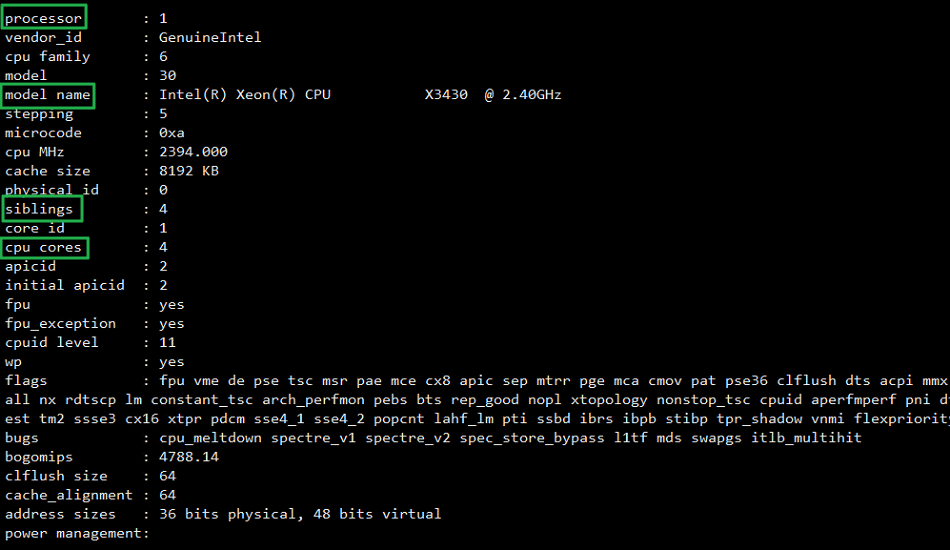
📖 展開 /proc/cpuinfo 欄位說明
2. 確認 CPU 總數與實體 CPU 數量
如果只需要核心數,[nproc] 最簡短。要把實體 CPU 與核心分開來看,就像下面這樣計算 /proc/cpuinfo 的內容。
# CPU 核心總數:確認全部(虛擬)CPU 核心為 4 個
~]# grep -c processor /proc/cpuinfo
4
# 實體 CPU 核心數
~]# grep -c ^processor /proc/cpuinfo
1
# 每個 CPU 的核心數
grep -c ^processor /proc/cpuinfo | wc -l
4
3. 超執行緒(Hyper Threading)是否啟用
siblings 值顯示為 CPU 核心數的 2 倍時,就代表已啟用 Hyper Threading 技術。
~]# cat /proc/cpuinfo | egrep 'siblings|cpu cores' | head -2
siblings : 4
cpu cores : 4
##
~]# cat /proc/cpuinfo | egrep 'siblings|cpu cores' | head -2
siblings : 2
cpu cores : 1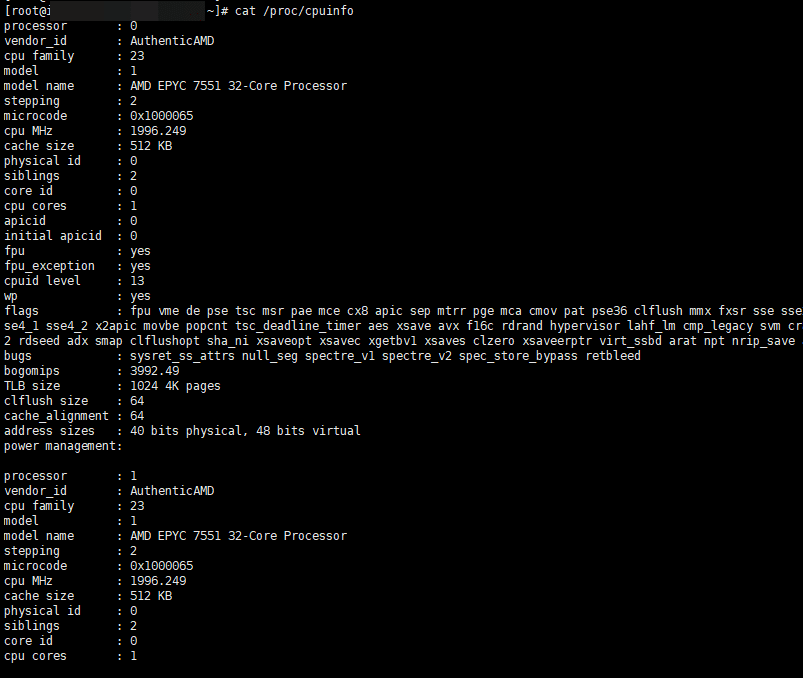
4. lscpu 指令
用 lscpu 指令可以輕鬆查看 CPU 資訊。
~]# lscpu
Architecture:            x86_64
  CPU op-mode(s):        32-bit, 64-bit
  Address sizes:         40 bits physical, 48 bits virtual
  Byte Order:            Little Endian
CPU(s):                  2
  On-line CPU(s) list:   0,1
Vendor ID:               AuthenticAMD
  BIOS Vendor ID:        QEMU
  Model name:            AMD EPYC 7551 32-Core Processor
    BIOS Model name:     pc-i440fx-4.2
    CPU family:          23
    Model:               1
    Thread(s) per core:  2
    Core(s) per socket:  1
    Socket(s):           1
    Stepping:            2
    BogoMIPS:            3992.49
    Flags:               fpu vme de pse tsc msr pae mce cx8 apic sep mtrr pge mca cmov pat pse36 clflush mmx fxsr sse sse2 ht syscall nx mmxext fxsr_opt pdpe1gb rdtscp lm rep_good nopl cpuid extd_apicid
                          tsc_known_freq pni pclmulqdq ssse3 fma cx16 sse4_1 sse4_2 x2apic movbe popcnt tsc_deadline_timer aes xsave avx f16c rdrand hypervisor lahf_lm cmp_legacy svm cr8_legacy abm sse4
                         a misalignsse 3dnowprefetch osvw topoext perfctr_core ssbd ibpb vmmcall fsgsbase tsc_adjust bmi1 avx2 smep bmi2 rdseed adx smap clflushopt sha_ni xsaveopt xsavec xgetbv1 xsaves
                         clzero xsaveerptr virt_ssbd arat npt nrip_save arch_capabilities
Virtualization features:
  Virtualization:        AMD-V
  Hypervisor vendor:     KVM
  Virtualization type:   full
Caches (sum of all):
  L1d:                   64 KiB (1 instance)
  L1i:                   64 KiB (1 instance)
  L2:                    512 KiB (1 instance)
  L3:                    16 MiB (1 instance)
NUMA:
  NUMA node(s):          1
  NUMA node0 CPU(s):     0,1
Vulnerabilities:
  Itlb multihit:         Not affected
  L1tf:                  Not affected
  Mds:                   Not affected
  Meltdown:              Not affected
  Mmio stale data:       Not affected
  Retbleed:              Mitigation; untrained return thunk; SMT vulnerable
  Spec store bypass:     Mitigation; Speculative Store Bypass disabled via prctl
  Spectre v1:            Mitigation; usercopy/swapgs barriers and __user pointer sanitization
  Spectre v2:            Mitigation; Retpolines, IBPB conditional, STIBP disabled, RSB filling, PBRSB-eIBRS Not affected
  Srbds:                 Not affected
  Tsx async abort:       Not affected
✅ 查看 Linux RAM 容量
1. cat /proc/meminfo
在 cat /proc/meminfo 中可以查看 Linux RAM 容量(目前的記憶體使用資訊)。
cat /proc/meminfo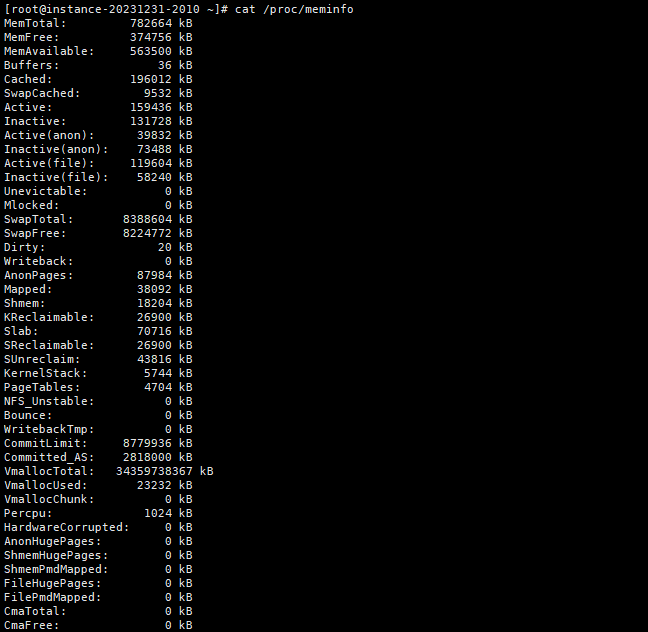
2. 使用 free 指令
用 free 指令可以更容易地查看 Linux RAM 容量,加上 -h 選項會更好讀。
~]# free -h
               total        used        free      shared  buff/cache   available
Mem:           764Mi       208Mi       370Mi        17Mi       217Mi       555Mi
Swap:          8.0Gi       159Mi       7.8Gi
~]# free -h
  total        used        free      shared  buff/cache   available
Mem:          5.8Gi       3.1Gi       754Mi        35Mi       1.9Gi       2.4Gi
Swap:         5.9Gi       808Mi       5.1Gi
✅ 查看磁碟使用量:df -h
用 df -h 指令可以查看磁碟的總使用量。
~]# df -h
Filesystem              Size  Used Avail Use% Mounted on
devtmpfs                4.0M     0  4.0M   0% /dev
tmpfs                   383M     0  383M   0% /dev/shm
tmpfs                   153M   20M  134M  13% /run
/dev/mapper/rocky-root  119G   11G  109G  10% /
/dev/sda2               994M  275M  720M  28% /boot
/dev/sda1                99M  7.0M   92M   8% /boot/efi
tmpfs                    77M     0   77M   0% /run/user/1000
~]#
磁碟與分割區如何切分,可以用 [lsblk] 查看。加上 [-e7] 會排除 snap 這類 loop 裝置,只留下實際的磁碟。重新切分分割區的方法,請見 gdisk 指令文章。
$ lsblk -e7
NAME        MAJ:MIN RM   SIZE RO TYPE MOUNTPOINTS
nvme0n1     259:0    0    80G  0 disk
├─nvme0n1p1 259:1    0     1M  0 part
├─nvme0n1p2 259:2    0   200M  0 part /boot/efi
├─nvme0n1p3 259:3    0     1G  0 part /boot
└─nvme0n1p4 259:4    0  78.8G  0 part /
✅ 查看各項伺服器資訊
## 確認伺服器型號
dmidecode -s system-product-name
## 更詳細地確認伺服器型號
dmidecode | grep "Product Name:"

# OS 類型與版本資訊(簡要)
~]# cat /etc/redhat-release
Rocky Linux release 9.3 (Blue Onyx)

# OS 類型與版本資訊(/etc/*release*)
~]# cat /etc/*release*
NAME="Rocky Linux"
VERSION="9.3 (Blue Onyx)"
ID="rocky"
ID_LIKE="rhel centos fedora"
VERSION_ID="9.3"
PLATFORM_ID="platform:el9"
PRETTY_NAME="Rocky Linux 9.3 (Blue Onyx)"
ANSI_COLOR="0;32"
LOGO="fedora-logo-icon"
CPE_NAME="cpe:/o:rocky:rocky:9::baseos"
HOME_URL="https://rockylinux.org/"
BUG_REPORT_URL="https://bugs.rockylinux.org/"
SUPPORT_END="2032-05-31"
ROCKY_SUPPORT_PRODUCT="Rocky-Linux-9"
ROCKY_SUPPORT_PRODUCT_VERSION="9.3"
REDHAT_SUPPORT_PRODUCT="Rocky Linux"
REDHAT_SUPPORT_PRODUCT_VERSION="9.3"
Rocky Linux release 9.3 (Blue Onyx)
Rocky Linux release 9.3 (Blue Onyx)
Derived from Red Hat Enterprise Linux 9.3
Rocky Linux release 9.3 (Blue Onyx)
cpe:/o:rocky:rocky:9::baseos


# OS 類型與版本資訊(rpm 指令)
~]# rpm -qa | grep release
rocky-release-cloud-9-1.el9.noarch
epel-release-9-7.el9.noarch
rocky-release-9.3-1.2.el9.noarch
remi-release-9.3-2.el9.remi.noarch

## 確認 OS 版本(/proc/version)
~]# cat /proc/version
Linux version 5.14.0-162.12.1.el9_1.0.2.x86_64 (mockbuild@dal1-prod-builder001.bld.equ.rockylinux.org) (gcc (GCC) 11.3.1 20220421 (Red Hat 11.3.1-2), GNU ld version 2.35.2-24.el9) #1 SMP PREEMPT_DYNAMIC Mon Jan 30 22:14:42 UTC 2023

## 確認 CPU 型號名稱
cat /proc/cpuinfo | grep nameℹ️ 聯盟行銷說明
本站內容包含聯盟行銷連結。訪客透過這些連結購買商品或服務時,本站會從賣家獲得佣金。在這個過程中,購買者支付的金額(遇到活動折扣時金額會降低↓)並不會因此提高。刊登的價格、折扣與庫存資訊以撰寫當時為準,可能與實際情況不同,購買前請向賣家做最後確認。商品的挑選與評價依本站自訂的標準撰寫,是否支付佣金不會影響介紹順序或評價內容。