
Linux 分割區設定方法:gdisk 指令


進行 Linux 分割區設定(建立、修改與刪除)時,會使用 fdisk 指令或 gdisk 指令。本文將介紹如何用 gdisk 編輯分割區資訊。
掛載之前,分割區設定會依照以下順序進行。
在儲存並結束之前,分割區的變更不會寫入磁碟。
[root@server ~]#
只在瀏覽器中運作,不會寫入任何實際磁碟。用 w 儲存之前,變更只存在記憶體中,用 q 離開就會消失。
✅ 用 gdisk 指令設定 Linux 分割區
gdisk 和 fdisk 一樣,是 Linux 系統中用來管理分割區的工具程式。一般磁碟容量小於 2TB 時會使用 fdisk,2TB 以上的大容量磁碟則會使用 parted 或 gdisk 進行分割。
gdisk -[選項] [目標 裝置 檔案]要確認已設定的分割區資訊,可以加上 -l 選項,使用 gdisk 或 fdisk 指令確認。
gdisk -l
Disk /dev/xvda: 10 GiB, 10737418240 bytes, 20971520 sectors
Units: sectors of 1 * 512 = 512 bytes
Sector size (logical/physical): 512 bytes / 512 bytes
I/O size (minimum/optimal): 512 bytes / 512 bytes
Disklabel type: gpt
Disk identifier: 0EF4456F-5883-478F-B913-FBB62350113E

Device       Start      End  Sectors  Size Type
/dev/xvda1    2048   204799   202752   99M EFI System
/dev/xvda2  204800  2252799  2048000 1000M Linux filesystem
/dev/xvda3 2252800  2260991     8192    4M PowerPC PReP boot
/dev/xvda4 2260992  2263039     2048    1M BIOS boot
/dev/xvda5 2265088 20969471 18704384  8.9G Linux filesystem


Disk /dev/xvdf: 3 GiB, 3221225472 bytes, 6291456 sectors
Units: sectors of 1 * 512 = 512 bytes
Sector size (logical/physical): 512 bytes / 512 bytes
I/O size (minimum/optimal): 512 bytes / 512 bytes
1. gdisk 選項
這是執行 gdisk 後出現的預設畫面。
gdisk /dev/xvdf
GPT fdisk (gdisk) version 1.0.7

Partition table scan:
  MBR: not present
  BSD: not present
  APM: not present
  GPT: not present

Creating new GPT entries in memory.

Command (? for help):
2. 執行 gdisk 並用 p 選項確認
Command (? for help): p
Disk /dev/xvda: 20971520 sectors, 10.0 GiB
Sector size (logical/physical): 512/512 bytes
Disk identifier (GUID): 0EF4456F-5883-478F-B913-FBB62350113E
Partition table holds up to 128 entries
Main partition table begins at sector 2 and ends at sector 33
First usable sector is 34, last usable sector is 20971486
Partitions will be aligned on 2048-sector boundaries
Total free space is 6077 sectors (3.0 MiB)

Number  Start (sector)    End (sector)  Size       Code  Name
   1            2048          204799   99.0 MiB    EF00  EFI System Partition
   2          204800         2252799   1000.0 MiB  8300  primary
   3         2252800         2260991   4.0 MiB     4100  primary
   4         2260992         2263039   1024.0 KiB  EF02  primary
   5         2265088        20969471   8.9 GiB     8300  primary
3. 用 gdisk 建立分割區
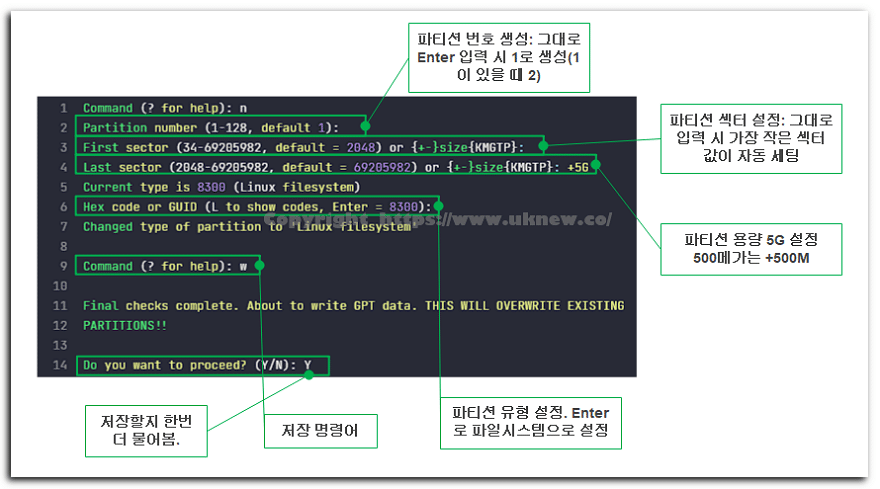
分割區類型可以用 L 指令查看。
Hex code or GUID (L to show codes, Enter = 8300): L
Type search string, or <Enter> to show all codes:
0700 Microsoft basic data                0701 Microsoft Storage Replica
0702 ArcaOS Type 1                       0c01 Microsoft reserved
2700 Windows RE                          3000 ONIE boot
3001 ONIE config                         3900 Plan 9
4100 PowerPC PReP boot                   4200 Windows LDM data
4201 Windows LDM metadata                4202 Windows Storage Spaces
7501 IBM GPFS                            7f00 ChromeOS kernel
7f01 ChromeOS root                       7f02 ChromeOS reserved
8200 Linux swap                          8300 Linux filesystem
8301 Linux reserved                      8302 Linux /home
8303 Linux x86 root (/)                  8304 Linux x86-64 root (/)
8305 Linux ARM64 root (/)                8306 Linux /srv
8307 Linux ARM32 root (/)                8308 Linux dm-crypt
8309 Linux LUKS                          830a Linux IA-64 root (/)
830b Linux x86 root verity               830c Linux x86-64 root verity
830d Linux ARM32 root verity             830e Linux ARM64 root verity
830f Linux IA-64 root verity             8310 Linux /var
8311 Linux /var/tmp                      8312 Linux user's home
8313 Linux x86 /usr                      8314 Linux x86-64 /usr
8315 Linux ARM32 /usr                    8316 Linux ARM64 /usr
8317 Linux IA-64 /usr                    8318 Linux x86 /usr verity
Press the <Enter> key to see more codes, q to quit:
輸入編號 8200 可設為 swap,輸入 8300 可設為 Linux 檔案系統,以此設定分割區類型。
4. 用 gdisk 刪除分割區
用 [d] 選項刪除分割區。輸入要刪除的分割區編號即可刪除;如果只有 1 個分割區,會自動刪除該分割區。
Command (? for help): d
Partition number (1-5): 3ℹ️ 聯盟行銷說明
本站內容包含聯盟行銷連結。訪客透過這些連結購買商品或服務時,本站會從賣家獲得佣金。在這個過程中,購買者支付的金額(遇到活動折扣時金額會降低↓)並不會因此提高。刊登的價格、折扣與庫存資訊以撰寫當時為準,可能與實際情況不同,購買前請向賣家做最後確認。商品的挑選與評價依本站自訂的標準撰寫,是否支付佣金不會影響介紹順序或評價內容。