Plugin W3 Total Cache: Cara Pengaturan Optimasi

Pemberitahuan afiliasi Ver 3.1
Pemberitahuan afiliasi Ver 3.2 (khusus seluler)
Lingkungan uji CloudwaysDebian 12Apache 2.4.69 + nginxPHP 8.2.34WordPress 7.1.3W3 Total Cache 2.10.7Diperiksa 2026-10-18

Situs WordPress pasti makin lambat setiap kali plugin dipasang. Karena itu, plugin cache sudah menjadi salah satu plugin wajib WordPress. Dengan lebih dari 1 juta instalasi aktif versi gratis dan rating 4,4 bintang, plugin W3 Total Cache (W3TC) adalah salah satu plugin yang paling banyak dipakai.

Pengaturan cache bisa membuat sebagian fungsi plugin lain yang sedang dipakai tidak berjalan, jadi jika baru mulai memakai WordPress, Anda bisa memakai plugin yang mudah diatur seperti Cache Enabler atau WP Super cache.

Jika membutuhkan pengaturan dan kontrol cache yang detail, plugin W3 Total Cache yang menawarkan fitur kuat bahkan di versi gratisnya bisa dipakai.

Ⅰ. Instalasi W3 Total Cache dan Setup Guide

  • ↳ Mesin pencari (SEO: Search Engine Optimization)
  • ↳ Optimasi performa (WPO: Web Performance Optimization)
  • ↳ Caching terintegrasi: mendukung CDN, halaman, minify, objek, fragmen, dan database.

Cari W3 Total Cache, lalu instal dan aktifkan pluginnya.

🧭 Simulator instalasi W3 Total Cache dan Setup Guide
Plugin cacheSimulator jalur
📍Plugins›Add Plugin
Memasang plugin
Ketik W3 Total Cache di kolom pencarian dan klik [Install Now]; setelah instalasi selesai, klik [Activate].
📍Performance›Setup Guide
Setup Guide
Setelah instalasi pertama, membuka [Dashboard] akan otomatis mengarahkan ke [Setup Guide], karena belum ada pengaturan apa pun.
📍Performance›Dashboard
Dasbor
Pengaturan dari panduan ditampilkan per fitur di kotak [General Settings], sedangkan pengaturan detail seperti cache halaman dilakukan di [General Settings].
example.com/wp-admin/plugin-install.php
Add Plugins Upload Plugin
Plugins extend and expand the functionality of WordPress. You may install plugins from the WordPress Plugin Directory right on this page, or upload a plugin in .zip format by clicking the button above.
Search ResultsFeaturedPopularRecommendedFavorites
Search PluginsKeyword
922 items
W3 Total Cache
Installing...ActiveMore Details
Search Engine (SEO) & Performance Optimization (WPO) via caching. Integrated caching: CDN, Page, Minify, Object, Fragment, Database support.
By BoldGrid
★★★★★ (5,421)
Last Updated: 2 weeks ago
900,000+ Active Installations
✓ Compatible with your version of WordPress
example.com/wp-admin/admin.php?page=w3tc_setup_guide
DashboardSettingsToolsInfoSupportUpgrade
W3 Total CacheSetup Guide
TOTAL CACHE: Setup Guide
  • Welcome
  • Page Cache
  • Database Cache
  • Object Cache
  • Image Converter
  • Lazy Load
  • More Caching Options
Welcome to the W3 Total Cache Setup Guide!
By allowing us to collect data about how W3 Total Cache is used, we can improve our features and experience for everyone. This data will not include any personally identifiable information. Feel free to review our terms of use and privacy policy.
AcceptDecline
SKIPNEXT
example.com/wp-admin/admin.php?page=w3tc_dashboard
DashboardSettingsToolsInfoSupportUpgrade
W3 Total CacheDashboard
Flush caches with Empty All Caches
Account
License: Free
Status: Free license, no expiration
Upgrade to W3 Total Cache Pro now to unlock additional settings and features that can further improve your site’s performance and Google PageSpeed ratings.
Learn more about Pro
General Settings
Preview Modedisabled
Page Cachedisabled
Minifydisabled
Opcode Cacheenabled
Database Cachedisabled
Object Cachedisabled
Browser Cachedisabled
CDNdisabled
Reverse Proxydisabled
Statisticsdisabled
Fragment Cachedisabled
Debugdisabled
Settings can be modified by visiting General Settings
Image Optimization Summary
Enable Image Converter
PageSpeed Report
Before you can get started using the Google PageSpeed tool, you’ll first need to authorize access. Please click here.
Klik bagian yang menyala di menu kiri atau tombol di layar.

Setelah instalasi pertama, membuka halaman [Dashboard] akan otomatis mengarahkan ke [Setup Guide], karena belum ada pengaturan apa pun.

Di Setup Guide, Anda dapat mengatur ① cache halaman, ② cache database, ③ cache objek, ④ cache browser, ⑤ optimasi gambar, ⑥ muat tertunda, dan ⑦ opsi caching lainnya.
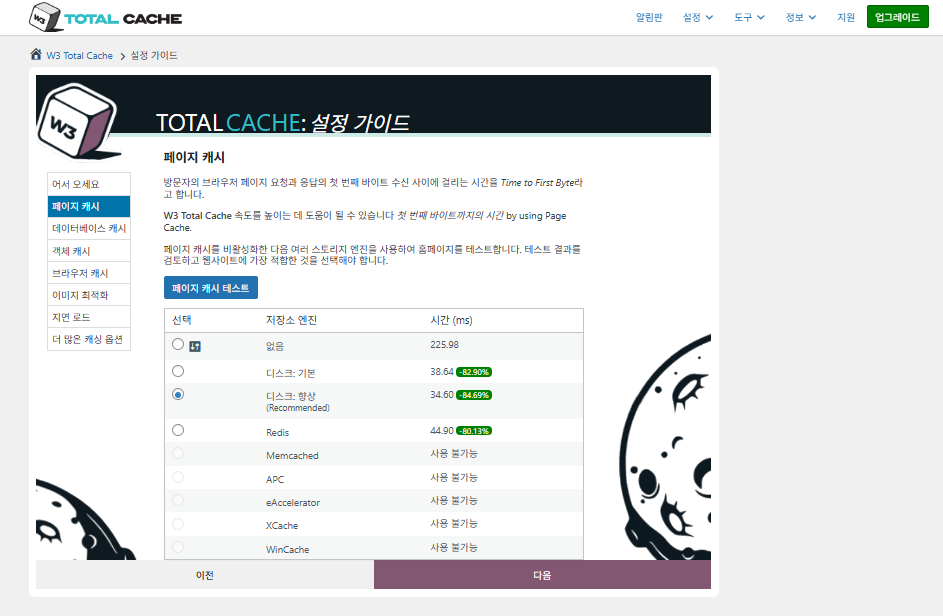
Setup Guide W3 Total Cache ① cache halaman_cache disk (pilih Enhanced)

Untuk cache halaman, rekomendasi bawaan W3TC adalah Disk: [Enhanced]. Seperti terlihat di tabel, Disk: Enhanced sekitar 10,3ms lebih cepat daripada Disk: Basic, atau sekitar 17,8% lebih baik dari sisi TTFB.
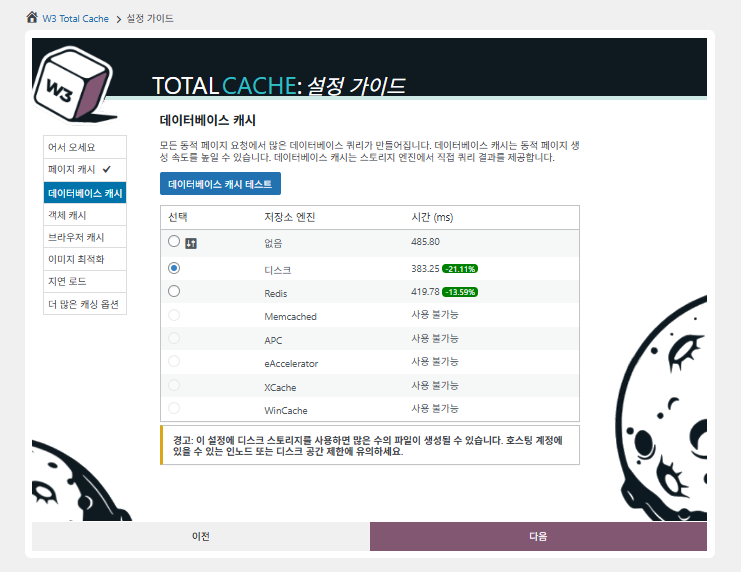
Setup Guide W3 Total Cache ② cache database_pilih cache disk

Untuk cache database, pilih cache disk.
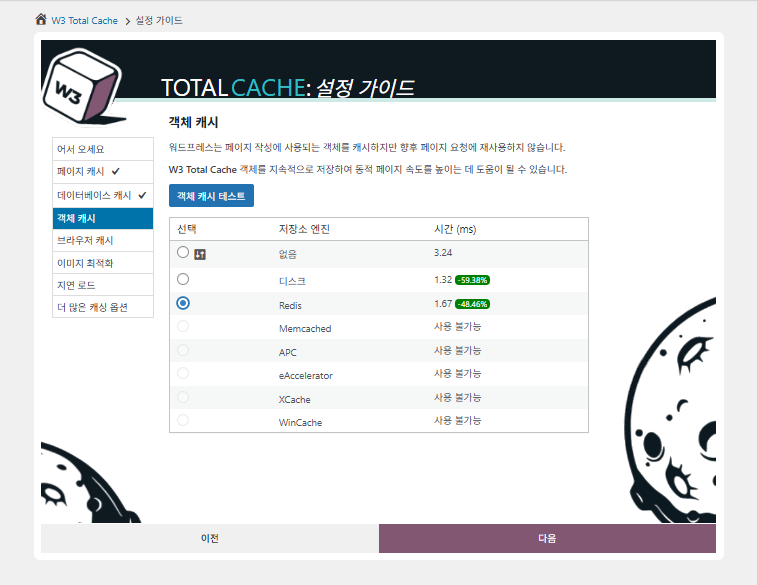
Setup Guide W3 Total Cache ③ cache objek_pilih Redis
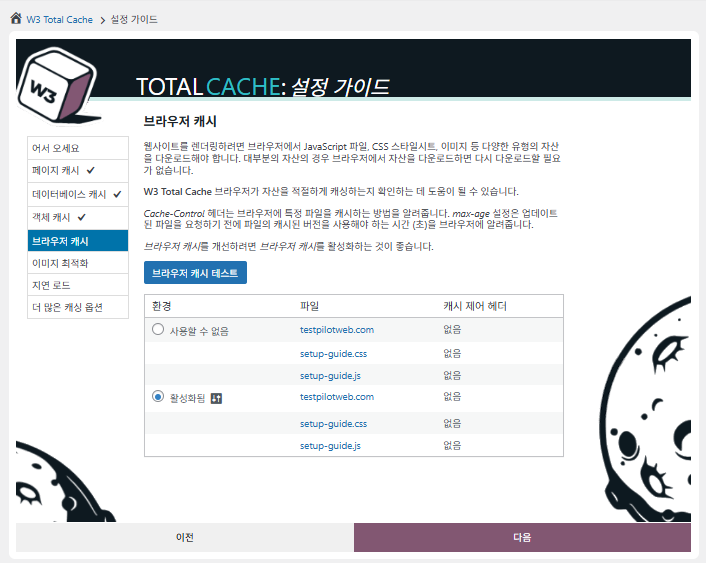
Setup Guide W3 Total Cache ④ cache browser
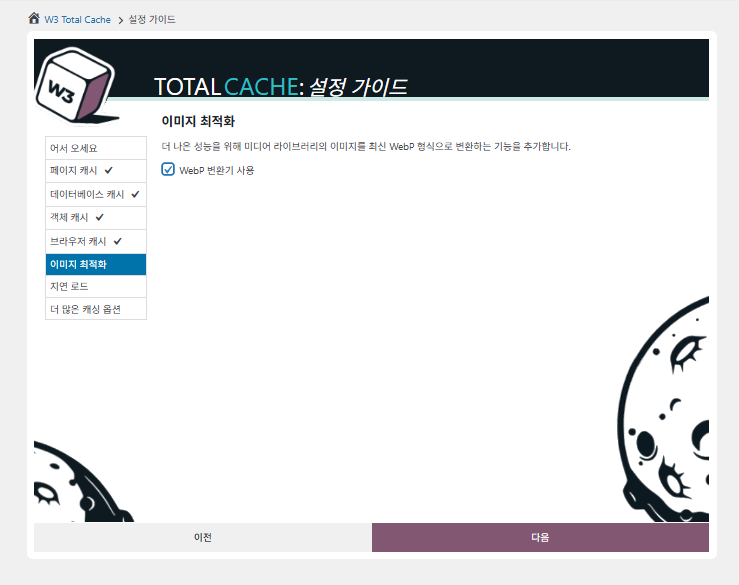
Setup Guide W3 Total Cache ⑤ optimasi gambar-memakai konverter WebP
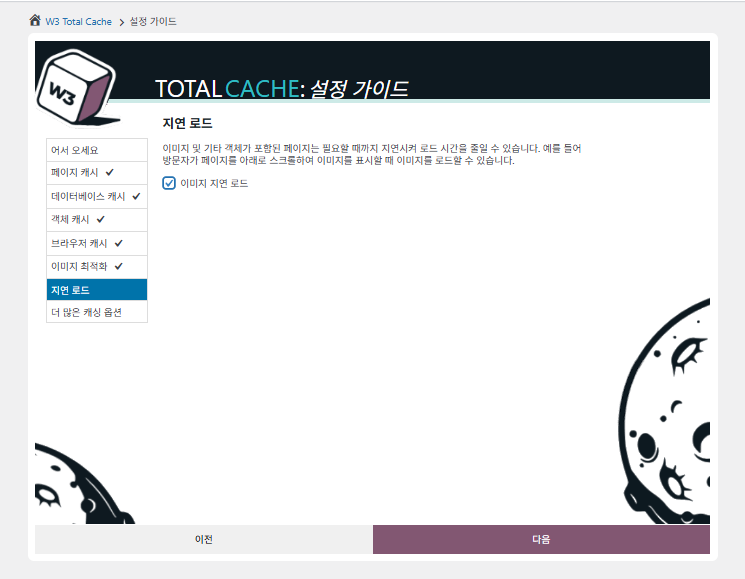
Setup Guide W3 Total Cache ⑥ muat tertunda-muat tertunda gambar
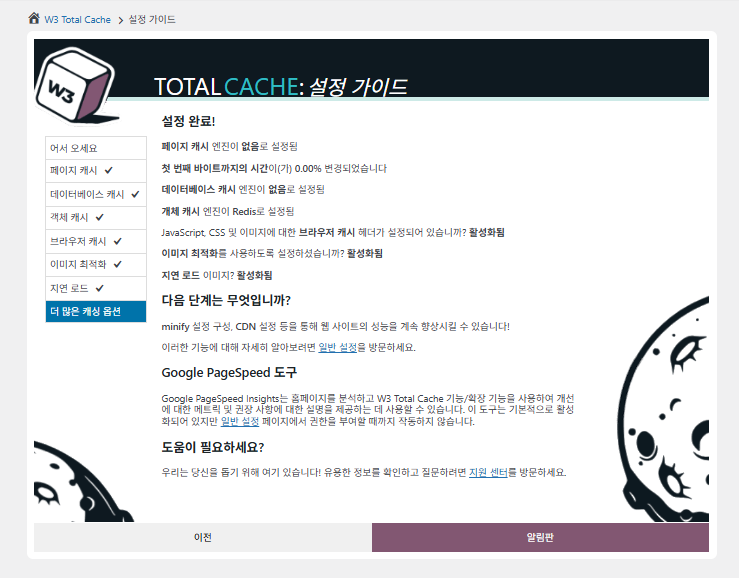
Setup Guide W3 Total Cache ⑦ opsi caching lain_atur setelah pindah ke dasbor

Pengaturan yang dibuat di panduan kini tampil di dasbor.

Klik tab [Settings] di kanan atas untuk mengatur semuanya, mulai dari [General Settings] hingga cache halaman dan lainnya.
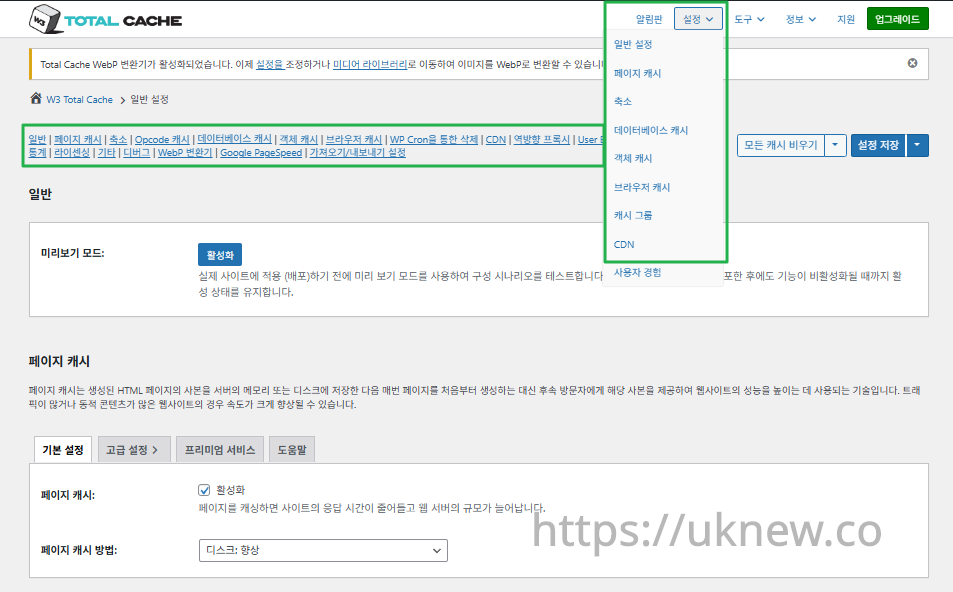
Dasbor W3TC-pengaturan__

ⓐ [Pengaturan di halaman] pada menu admin kiri dan ⓑ tab [Settings] di kanan atas masing-masing mengarah ke cache halaman, Minify dan pengaturan lanjutan lainnya. Jika membuka setiap halaman dari bagian tengah atas tab General Settings, Anda bisa melihat semua pengaturan cache halaman dan Minify, mulai dari pengaturan umum hingga Pengaturan Lanjutan.

Ⅱ. Pengaturan Cache W3 Total Cache

  • ↳ Fitur cache

Ini adalah tab General Settings di pengaturan W3TC.

🧭 Simulator pengaturan cache W3 Total Cache
Simulator jalur
📍Performance›General Settings›General
Mode pratinjau
Sebelum menerapkan perubahan cache yang sebenarnya, aktifkan [Preview mode] untuk menguji kesalahan lebih dulu.
📍Performance›General Settings›Page Cache›Advanced Settings
Cache halaman
Centang [Enable] pada [Page Cache], pastikan metodenya [Disk: Enhanced], lalu klik [Save Settings]. Opsi detail diatur di [Advanced Settings].
📍Performance›General Settings›Minify›Advanced Settings
Minify
Centang [Enable] pada [Minify] dan klik [Save Settings], lalu atur opsi minify HTML, CSS, dan JS di [Advanced Settings].
📍Performance›General Settings›Opcode Cache
Cache opcode
Untuk cache opcode, opcode yang terpasang di server diterapkan otomatis; jika tidak terpasang, opsinya diatur ke nonaktif.
📍Performance›General Settings›Database Cache›Object Cache
Cache database·objek
Centang [Enable] pada [Database Cache] dan [Object Cache], lalu simpan. Opsi detail diatur di layar [Database Cache] dan [Object Cache].
📍Performance›General Settings›Browser Cache›Advanced Settings
Cache browser
Centang [Enable] pada [Browser Cache] dan simpan, lalu atur opsi cache per jenis file di [Advanced Settings].
example.com/wp-admin/admin.php?page=w3tc_general
DashboardSettingsToolsInfoSupportUpgrade
|||||||||||||||||
Empty All Caches
General
Preview mode:
Enable
Use preview mode to test configuration scenarios prior to releasing them (deploy) on the actual site. Preview mode remains active even after deploying settings until the feature is disabled.
Page Cache
Page cache is a technique used to speed up the performance of a website by storing a copy of the generated HTML page in the server’s memory or disk, and then serving that copy to subsequent visitors instead of generating the page from scratch each time. This can result in significant speed improvements for websites with high traffic or dynamic content.
Basic SettingsPremium ServicesHelp
Page Cache:
Caching pages will reduce the response time of your site and increase the scale of your web server.
Page Cache Method:
Minify
Minification is a technique used to reduce the file size of HTML, CSS, and JavaScript files by removing unnecessary characters such as whitespace, comments, and line breaks. This process can significantly improve the load times of web pages by reducing the amount of data that needs to be downloaded by the user’s browser.
Basic SettingsPremium ServicesHelp
Minify:
Minification can decrease file size of HTML, CSS, JS and feeds respectively by ~10% on average. Learn more
Minify mode:
Auto
Manual
Select manual mode to use fields on the Minify settings tab to specify files to be minified, otherwise files will be minified automatically. Learn more
Minify Cache Method:
Learn more
HTML minifier:
Learn more
JS minifier:
CSS minifier:
Opcode Cache
Opcode cache is a powerful feature that enhances the performance of a WordPress website by caching compiled PHP code. By storing pre-compiled code in memory, opcode cache eliminates the need for repetitive interpretation and compilation of PHP files, resulting in significantly faster execution times. Opcode cache reduces server load and improves response times, ultimately enhancing the overall speed and responsiveness of your WordPress site. If opcode cache is available on the hosting server it will automatically be selected in the dropdown and enabled.
Opcode Cache
Validate timestamps:
Enable
Once enabled, each file request will update the cache with the latest version. When this setting is off, the Opcode Cache will not check, instead PHP must be restarted in order for setting changes to be reflected.
Database Cache
Enable this setting to utilize the power of caching your WordPress site’s database queries. By storing frequently accessed database queries in memory, the database cache reduces the need for repetitive database interactions, resulting in faster page load times. This feature is particularly beneficial for websites with heavy database usage, improving overall performance and delivering a smoother user experience.
Basic SettingsPremium ServicesHelp
Database Cache:
Caching database objects decreases the response time of your site. Best used if object caching is not possible.
Database Cache Method:
Object Cache
Enable this option to utilize an object cache mechanism, which significantly enhances the performance of your WordPress website. Object caching stores frequently accessed database queries and complex data structures in memory, reducing the need to retrieve them from the database repeatedly. By doing so, it minimizes the processing time required to generate dynamic content, resulting in faster page loading times and improved overall site speed. Enabling object cache is particularly beneficial for websites with heavy database usage or high traffic volumes, as it helps alleviate the strain on the server by efficiently serving cached data.
Basic SettingsPremium ServicesHelp
Object Cache:
Object caching greatly increases performance for highly dynamic sites that use the Object Cache API.
Object Cache Method:
Browser Cache
Enabling browser caching will instruct visitors’ web browsers to store static files from your WordPress website, such as images, CSS, and JavaScript files, locally on their devices. By doing so, subsequent visits to your site will retrieve these cached files from the browser’s storage, reducing the need for repeated downloads. This results in faster page loading times and a smoother browsing experience for your visitors, ultimately improving the overall speed and performance of your WordPress website.
Basic SettingsPremium ServicesHelp
Browser Cache:
Enable HTTP compression and add headers to reduce server load and decrease file load time.
example.com/wp-admin/admin.php?page=w3tc_pgcache
DashboardSettingsToolsInfoSupportUpgrade
|||||||
Empty All Caches
Always Cached extension is currently disabled. To enable the extension click here.
General
Cache front page
For many blogs this is your most visited page, it is recommended that you cache it. Learn more
Cache feeds: site, categories, tags, comments
Even if using a feed proxy service enabling this option is still recommended. Learn more
Handle XML mime type
Return correct Content-Type header for XML files (e.g., feeds and sitemaps). Learn more
Cache SSL (HTTPS>) requests
Cache SSL requests (uniquely) for improved performance. Learn more
Cache URI with query string variables
Search result (and similar) pages will be cached if enabled. Learn more
Cache 404 (not found) pages
Reduce server load by caching 404 pages. If the disk enhanced method of disk caching is used, 404 pages will be returned with a 200 response code. Use at your own risk. Learn more
Don’t cache pages for logged in users
Unauthenticated users may view a cached version of the last authenticated user’s view of a given page. Disabling this option is not recommended. Learn more
Don’t cache pages for following user roles
Select user roles that should not receive cached pages: Learn more
Administrator
Editor
Author
Contributor
Subscriber
Aliases
Cache alias hostnames:
Enable
If the same WordPress content is accessed from different domains. Learn more
Additional home URLs:
Specify full home URLs of your mirrors so that plugin will flush it’s cache when content is changed. For example: http://my-site.comhttp://www.my-site.comhttps://my-site.com Learn more
Cache Preload
Automatically prime the page cache
Automatically primes the page cache using the settings configured below. Learn more
Update interval:
900seconds
The number of seconds to wait before creating another set of cached pages. Learn more
Pages per interval:
10
Limit the number of pages to create per batch. Fewer pages may be better for under-powered servers. Learn more
Sitemap URL:
 
A compliant sitemap can be used to specify the pages to maintain in the primed cache. Pages will be cached according to the priorities specified in the XML file. Learn more
Preload the sitemap once
Stop cache preloading after every URL in the sitemap has been processed. Disable and re-enable cache preloading to start a new pass.
Preload cache upon publishing a post
Only applies to pages, posts, and custom post types whose status transitioned from a non-published status to the “published” status. Learn more
Preload cache upon updating a post
Applies after updating any page, post, or custom post type with the final status being “published”. Learn more
Purge Policy:
Specify the pages and feeds to purge when posts are created, edited, or comments posted. The defaults are recommended because additional options may reduce server performance: Learn more
Front page
Post page
Blog feed
Post comments pages
Post author pages
Post terms pages
Post comments feed
Post author feed
Post terms feeds
Daily archive pages
Monthly archive pages
Yearly archive pages
rdf
rss
rss2 (default)
atom
Choose which feed types should be automatically purged. Learn more
Purge limit:
10
Specify number of pages that lists posts (archive etc.) that should be purged on post updates etc., i.e. example.com/ ... example.com/page/5.
0 means all pages that lists posts are purged, i.e. example.com/page/2 ... Learn more
Additional pages:
Specify additional pages to purge. Including parent page in path. Ex: parent/posts. Learn more
Purge sitemaps:
([a-z0-9_\-]*?)sitemap([a-z0-9_\-]*)?\.(?:xml|xsl)
Specify a regular expression that matches your sitemaps. Learn more
REST API
Use these controls to determine how the WordPress REST API responds to visitors and integrations. Caching API responses can dramatically reduce load when headless frontends, mobile apps, or third-party services request the same data repeatedly, but you can keep responses uncached for highly dynamic endpoints or disable the API altogether when it is not needed to reduce attack surface. Learn more
REST API
Don’t cache
Cache★ PRO
Disable REST API
If you’re using the WordPress API make sure to use caching to scale performance. Show More ▾
Advanced
Late initialization:
Enable
Enables support for WordPress functionality in fragment caching for the page caching engine. Use of this feature may increase response times. Learn more
Late caching:
Enable
Overwrites key of page caching via custom filters by postponing entry extraction during the init action. Learn more
Compatibility mode:
Enable
Decreases performance by ~20% at scale in exchange for increasing interoperability with more hosting environments and WordPress idiosyncrasies. Enable this option if you experience issues with the Apache rules. Learn more
Reject HEAD requests:
Disable caching of HEAD HTTP requests
If disabled, HEAD requests can often be cached resulting in “empty pages” being returned for subsequent requests for a URL. Learn more
Maximum lifetime of cache objects:
3600seconds
Determines the natural expiration time of cache items. The higher the value, the larger the cache.
Max lifetime is limited by the W3TC_CACHE_FILE_EXPIRE_MAX constant (2592000 seconds) which can be overridden in wp-config.php.
Garbage collection interval:
3600seconds
If caching to disk, specify how frequently expired cache data is removed. For busy sites, a lower value is best. Learn more
Comment cookie lifetime:
1800seconds
Significantly reduce the default TTL for comment cookies to reduce the number of authenticated user traffic. Enter -1 to revert to default TTL. Learn more
Accepted query strings:
ScCid
_branch_match_id
_bta_c
_bta_tid
_ga
_gl
_ke
adgroupid
adid
age-verified
ao_noptimize
campaignid
campid
click_id
cn-reloaded
customid
dicbo
dm_i
ef_id
epik
fb_action_ids
fb_action_types
fb_source
fbclid
gclid
gclsrc
gdffi
gdfms
gdftrk
hsa_acc
hsa_ad
hsa_cam
hsa_grp
hsa_kw
hsa_mt
hsa_net
hsa_src
hsa_tgt
hsa_ver
igshid
li_fat_id
matomo_campaign
matomo_cid
matomo_content
matomo_group
matomo_keyword
matomo_medium
matomo_placement
matomo_source
mc_cid
mc_eid
mkcid
mkevt
mkrid
mkwid
msclkid
mtm_campaign
mtm_cid
mtm_content
mtm_group
mtm_keyword
mtm_medium
mtm_placement
mtm_source
pcrid
piwik_campaign
piwik_keyword
piwik_kwd
pk_campaign
pk_cid
pk_content
pk_keyword
pk_kwd
pk_medium
pk_source
pp
redirect_log_mongo_id
redirect_mongo_id
ref
s_kwcid
sb_referer_host
si
sscid
tblci
toolid
trk_contact
trk_module
trk_msg
trk_sid
ttclid
twclid
usqp
utm_campaign
utm_content
utm_expid
utm_id
utm_medium
utm_source
utm_term
wbraid
Always cache URLs that use these query string name-value pairs. The value part is not required. But if used, separate name-value pairs with an equals sign (i.e., name=value). Each pair should be on their own line. Learn more
Rejected user agents:
Never send cache pages for these user agents. Learn more
Rejected cookies:
wptouch_switch_toggle
Never cache pages that use the specified cookies. Learn more
Never cache the following pages:
wp-.*\.php
index\.php
Always ignore the specified pages / directories. Supports regular expressions. Learn more
Never cache pages associated with these categories:
Always ignore all pages filed under the specified category slugs. Learn more
Never cache pages that use these tags:
Always ignore all pages filed under the specified tag slugs. Learn more
Never cache pages by these authors:
Always ignore all pages filed under the specified author usernames. Learn more
Never cache pages that use these custom fields:
Always ignore all pages filed under the specified custom fields. Separate name-value pairs with an equals sign (i.e., name=value). Learn more
Cache exception list:
wp-comments-popup.php
wp-links-opml.php
wp-locations.php
Cache the specified pages / directories even if listed in the “never cache the following pages” field. Supports regular expression. Learn more
Non-trailing slash pages:
sitemap(_index)?\.xml(\.gz)?
([a-z0-9_\-]+)?sitemap\.xsl
[a-z0-9_\-]+-sitemap([0-9]+)?\.xml(\.gz)?
Cache the specified pages even if they don’t have trailing slash. Learn more
Specify page headers:
Last-Modified
Content-Type
X-Pingback
P3P
Link
Specify additional page headers to cache. Learn more
Purge via WP Cron
Enabling this will schedule a WP-Cron event that will flush the Page Cache. If you prefer to use a system cron job instead of WP-Cron, you can schedule the following command to run at your desired interval: “wp w3tc flush posts”. If the Always Cached extension is active and enabled, page cache entries will instead be added to the queue instead of being purged from the cache. Learn more
Page Cache is disabled! Enable it here to enable this feature.
Enable WP-Cron Event
Enable
Start Time
This setting controls the initial start time of the cron job. If the selected time has already passed, it will schedule the job for the following day at the selected time.
Interval
This setting controls the interval that the cron job should occur.
Note(s)
  • Enable HTTP compression in the “HTML” section on Browser Cache Settings tab.
example.com/wp-admin/admin.php?page=w3tc_minify
DashboardSettingsToolsInfoSupportUpgrade
||||||
Empty All Caches
General
Rewrite URL structure
If disabled, CSS and JS embeddings will use GET variables instead of “fancy” links. Learn more
Disable minify for logged in users
Authenticated users will not receive minified pages if this option is enabled. Learn more
Minify error notification:
Notify when minify cache creation errors occur. Learn more
HTML & XML
HTML minify settings:
Enable
Inline CSS minification
Inline JS minification
Don’t minify feeds
Line break removal
Enable HTML minification and optionally remove whitespace from inline CSS, JS, and feeds. Learn more
Ignored comment stems:
google_ad_
RSPEAK_
mfunc
Do not remove comments that contain these terms. Learn more
JS
JS minify settings:
Enable
Minify enqueued and inline JavaScript files according to the settings below. Learn more
Minify method:
Choose how JavaScript files should be combined or minified when using automatic mode. Learn more
Minify engine settings:
Operations in areas:
Embed type:
Before </head>
After <body>
Preserved comment removal (not applied when combine only is active)
Line break removal (not safe, not applied when combine only is active)
Control where scripts are placed and whether they stay blocking or load asynchronously for each template area. Learn more
HTTP/2 push
Enable
For better performance, send files to browser before they are requested when using the HTTP/2 protocol. Not supported by “Disk: Enhanced” page cache method for Nginx Learn more
CSS
CSS minify settings:
Enable
Minify stylesheets and inline CSS snippets declared in the queues below. Learn more
Minify method:
Choose how stylesheets should be combined or minified when using automatic mode. Learn more
Minify engine settings:
Preserved comment removal (not applied when combine only is active)
Line break removal (not applied when combine only is active)
Eliminate render-blocking CSS by moving it to HTTP body★ PRO
Website visitors cannot navigate your website until a given page is ready – reduce the wait time with this feature. Show More ▾
Decide where CSS is placed and whether it should load synchronously or asynchronously for each template area. Learn more
@import handling:
Control how @import rules are handled when combining and minifying stylesheets. Learn more
HTTP/2 push
Enable
For better performance, send files to browser before they are requested when using the HTTP/2 protocol. Not supported by “Disk: Enhanced” page cache method for Nginx Learn more
Advanced
Update external files every:
86400seconds
Specify the interval between download and update of external files in the minify cache. Hint: 6 hours is 21600 seconds. 12 hours is 43200 seconds. 24 hours is 86400 seconds. Learn more
Garbage collection interval:
86400seconds
If caching to disk, specify how frequently expired cache data is removed. For busy sites, a lower value is best.
Max interval is limited by the W3TC_CACHE_FILE_EXPIRE_MAX constant (2592000 seconds) which can be overridden in wp-config.php. Learn more
Never minify the following pages:
Always ignore the specified pages / directories. Use relative paths. Omit: protocol, hostname, leading forward slash and query strings. Learn more
Never minify the following JS files:
Always ignore the specified JS files. Use relative paths. Omit: protocol, hostname, leading forward slash and query strings. Learn more
Never minify the following CSS files:
Always ignore the specified CSS files. Use relative paths. Omit: protocol, hostname, leading forward slash and query strings. Learn more
Rejected user agents:
Specify user agents that will never receive minified content. Learn more
Include external files/libraries:
Specify external files/libraries that should be combined. Learn more
Use regular expressions for file name matching
If external script file names vary, use regular expressions in the “Include external files/libraries” field to simplify matching. Learn more
Purge via WP Cron
Enabling this will schedule a WP-Cron event that will flush the Minify Cache. If you prefer to use a system cron job instead of WP-Cron, you can schedule the following command to run at your desired interval: “wp w3tc flush minify”. Learn more
Minify is disabled! Enable it here to enable this feature.
Enable WP-Cron Event
Enable
Start Time
This setting controls the initial start time of the cron job. If the selected time has already passed, it will schedule the job for the following day at the selected time.
Interval
This setting controls the interval that the cron job should occur.
Note(s):
  • Enable HTTP compression in the “Cascading Style Sheets & JavaScript” section on Browser Cache Settings tab.
  • The TTL of page cache files is set via the “Expires header lifetime” field in the “Cascading Style Sheets & JavaScript” section on Browser Cache Settings tab.
example.com/wp-admin/admin.php?page=w3tc_dbcache
DashboardSettingsToolsInfoSupportUpgrade
||
Empty All Caches
Database caching via Disk is currently disabled.
General
Don’t cache queries for logged in users
Enabling this option is recommended to maintain default WordPress behavior. Learn more
Advanced
Maximum lifetime of cache objects:
180seconds
Determines the natural expiration time of unchanged cache items. The higher the value, the larger the cache. Learn more
Garbage collection interval:
3600seconds
If caching to disk, specify how frequently expired cache data is removed. For busy sites, a lower value is best. Learn more
Never cache the following pages:
Always ignore the specified pages / directories. Supports regular expressions (See FAQ). Learn more
Ignored query stems:
gdsr_
wp_rg_
_wp_session_
_wc_session_
Do not cache queries that contain these terms. Any entered prefix (set in wp-config.php) will be replaced with current database prefix (default: wp_). Query stems can be identified using debug mode. Learn more
Reject query words:
^\s*insert\b
^\s*delete\b
^\s*update\b
^\s*replace\b
^\s*create\b
^\s*alter\b
^\s*show\b
^\s*set\b
\bautoload\s+=\s+’yes’
\bsql_calc_found_rows\b
\bfound_rows\(\)
Do not cache queries that contain these words or regular expressions. Learn more
Reject constants:
APP_REQUEST
DOING_CRON
DONOTCACHEDB
SHORTINIT
XMLRPC_REQUEST
Disable caching once specified constants defined. Learn more
Enable for WP-CLI
Enable
WP-CLI already uses Memcached, Redis, and other persistent engines. Enable this only if your database cache engine is Disk and you want WP-CLI to use it. Learn more
Purge via WP Cron
Enabling this will schedule a WP-Cron event that will flush the Database Cache. If you prefer to use a system cron job instead of WP-Cron, you can schedule the following command to run at your desired interval: “wp w3tc flush db”. Learn more
Database Cache is disabled! Enable it here to enable this feature.
Enable WP-Cron Event
Enable
Start Time
This setting controls the initial start time of the cron job. If the selected time has already passed, it will schedule the job for the following day at the selected time.
Interval
This setting controls the interval that the cron job should occur.
example.com/wp-admin/admin.php?page=w3tc_objectcache
DashboardSettingsToolsInfoSupportUpgrade
|
Empty All Caches
Object caching via Disk is currently disabled.
Advanced
Default lifetime of cache objects:
180seconds
Determines the natural expiration time of unchanged cache items. The higher the value, the larger the cache. Learn more
Garbage collection interval:
600seconds
If caching to disk, specify how frequently expired cache data is removed. For busy sites, a lower value is best. Learn more
Global groups:
Groups shared amongst sites in network mode. Learn more
Non-persistent groups:
counts
plugins
Groups that should not be cached. Learn more
Enable caching for wp-admin requests
Enabling this option will increase wp-admin performance, but may cause side-effects Learn more
Store transients in database
Store transients in database even when external cache is used, which allows transient values to survive object cache cleaning/expiration Learn more
Enable for WP-CLI
Enable
WP-CLI already uses Memcached, Redis, and other persistent engines. Enable this only if your object cache engine is Disk and you want WP-CLI to use it. Learn more
Purge via WP Cron
Enabling this will schedule a WP-Cron event that will flush the Object Cache. If you prefer to use a system cron job instead of WP-Cron, you can schedule the following command to run at your desired interval: “wp w3tc flush object”. Learn more
Object Cache is disabled! Enable it here to enable this feature.
Enable WP-Cron Event
Enable
Start Time
This setting controls the initial start time of the cron job. If the selected time has already passed, it will schedule the job for the following day at the selected time.
Interval
This setting controls the interval that the cron job should occur.
example.com/wp-admin/admin.php?page=w3tc_browsercache
DashboardSettingsToolsInfoSupportUpgrade
||||
Empty All Caches
General
Specify global browser cache policy.
Set Last-Modified header
Set the Last-Modified header to enable 304 Not Modified response. Learn more
Set expires header
Set the expires header to encourage browser caching of files. Learn more
Set cache control header
Set pragma and cache-control headers to encourage browser caching of files. Learn more
Set entity tag (eTag)
Set the ETag header to encourage browser caching of files. Learn more
Set W3 Total Cache header
Set this header to assist in identifying optimized files. Learn more
Enable HTTP (gzip) compression
Reduce the download time for text-based files. Learn more
Enable HTTP (brotli) compression
Reduce the download time for text-based files. Learn more
Prevent caching of objects after settings change
Whenever settings are changed, a new query string will be generated and appended to objects allowing the new policy to be applied. Learn more
Remove query strings from static resources
Resources with a “?” in the URL are not cached by some proxy caching servers. Learn more
Prevent caching exception list:
Do not add the prevent caching query string to the specified URIs. Supports regular expressions. Learn more
Disable cookies for static files
Removes Set-Cookie header for responses. Learn more
Do not process 404 errors for static objects with WordPress
Reduce server load by allowing the web server to handle 404 (not found) errors for static files (images etc).
If enabled – you may get 404 File Not Found response for some files generated on-the-fly by WordPress plugins. You may add those file URIs to 404 error exception list below to avoid that. Learn more
404 error exception list:
robots\.txt
[a-z0-9_\-]*sitemap[a-z0-9_\.\-]*\.(xml|xsl|html)(\.gz)?
Never process 404 (not found) events for the specified URIs. Learn more
Rewrite URL structure of objects
Generate unique URI for each file protected from caching by browser. Learn more
CSS & JS
Specify browser cache policy for Cascading Style Sheets and JavaScript files.
Set Last-Modified header
Set the Last-Modified header to enable 304 Not Modified response. Learn more
Set expires header
Set the expires header to encourage browser caching of files. Learn more
Expires header lifetime:
31536000seconds
Specify how long CSS and JS files should be cached (in seconds). Learn more
Set cache control header
Set pragma and cache-control headers to encourage browser caching of files. Learn more
Cache Control policy:
Choose the Cache-Control policy applied to CSS and JS responses.
The Expires header already sets the max-age. Learn more
Set entity tag (eTag)
Set the ETag header to encourage browser caching of files. Learn more
Set W3 Total Cache header
Set this header to assist in identifying optimized files. Learn more
Enable HTTP (gzip) compression
Reduce the download time for text-based files. Learn more
Enable HTTP (brotli) compression
Reduce the download time for text-based files. Learn more
Prevent caching of objects after settings change
Whenever settings are changed, a new query string will be generated and appended to objects allowing the new policy to be applied. Learn more
Remove query strings from static resources
Resources with a “?” in the URL are not cached by some proxy caching servers. Learn more
Disable cookies for static files
Removes Set-Cookie header for responses. Learn more
HTML & XML
Specify browser cache policy for posts, pages, feeds and text-based files.
Set Last-Modified header
Set the Last-Modified header to enable 304 Not Modified response. Learn more
Set expires header
Set the expires header to encourage browser caching of files. Learn more
Expires header lifetime:
3600seconds
Max lifetime is limited by the W3TC_CACHE_FILE_EXPIRE_MAX constant (2592000 seconds) which can be overridden in wp-config.php. Learn more
Set cache control header
Set pragma and cache-control headers to encourage browser caching of files. Learn more
Cache Control policy:
Choose the Cache-Control policy applied to HTML and XML responses. Learn more
Set entity tag (ETag)
Set the ETag header to encourage browser caching of files. Learn more
Set W3 Total Cache header
Set this header to assist in identifying optimized files. Learn more
Enable HTTP (gzip) compression
Reduce the download time for text-based files. Learn more
Enable HTTP (brotli) compression
Reduce the download time for text-based files. Learn more
Media & Other Files
Set Last-Modified header
Set the Last-Modified header to enable 304 Not Modified response. Learn more
Set expires header
Set the expires header to encourage browser caching of files. Learn more
Expires header lifetime:
31536000seconds
Specify how long media and other files files should be cached (in seconds). Learn more
Set cache control header
Set pragma and cache-control headers to encourage browser caching of files. Learn more
Cache Control policy:
Choose the Cache-Control policy applied to media and other files responses.
The Expires header already sets the max-age. Learn more
Set entity tag (ETag)
Set the ETag header to encourage browser caching of files. Learn more
Set W3 Total Cache header
Set this header to assist in identifying optimized files. Learn more
Enable HTTP (gzip) compression
Reduce the download time for text-based files. Learn more
Enable HTTP (brotli) compression
Reduce the download time for text-based files. Learn more
Prevent caching of objects after settings change
Whenever settings are changed, a new query string will be generated and appended to objects allowing the new policy to be applied. Learn more
Remove query strings from static resources
Resources with a “?” in the URL are not cached by some proxy caching servers. Learn more
Disable cookies for static files
Removes Set-Cookie header for responses. Learn more
Klik bagian yang menyala di menu kiri atau tombol di layar.

1️⃣ Mode pratinjau

Sebelum menerapkan perubahan cache yang sebenarnya, Anda bisa menyalakan mode pratinjau untuk menguji kesalahan lebih dulu.

Mode pratinjau General Settings W3TC2

[Preview]: klik tombol ini untuk menguji sambil melihat pratinjau perubahan, lalu jika tidak ada masalah, klik [Deploy] untuk menerapkannya ke situs.

2️⃣ Cache halaman

Panduan sudah mengatur pengaturan dasarnya ke [Disk: Enhanced]. Nanti, jika cache yang dipakai server berubah, misalnya karena pindah server, Anda bisa mengubahnya.

Jika situs tunggal (bukan multisite) juga memakai subdomain, cache untuk domain alias juga bisa diatur.

Tingkat spesifikasi server

Interval pembaruan (detik)

Halaman per interval

Penjelasan

Server spesifikasi rendah (1vCPU/1GB atau kurang)

1800 detik (30 menit)

5

Perlu mencegah lonjakan CPU saat membuat cache. Beri interval yang longgar dan minimalkan jumlah halaman

Server spesifikasi menengah (2vCPU/2~4GB)

900 detik (15 menit)

10

Disarankan tetap memakai nilai bawaan. Mampu menangani sebagian proses bersamaan

Server berperforma tinggi (4vCPU/8GB atau lebih)

300 detik (5 menit)

20~30

Cache bisa disiapkan dengan cepat. Cocok untuk situs dengan trafik tinggi

REST API adalah antarmuka yang disediakan WordPress untuk bertukar data dengan pihak luar; melalui URL, konten bisa diminta atau dimanipulasi dalam format JSON. Dengan begitu, aplikasi seluler, aplikasi web eksternal, editor blok, dan lainnya dapat menyinkronkan atau mengubah konten WordPress secara real-time.

REST API dipakai tidak hanya untuk permintaan admin, tetapi juga pengguna biasa, dan memungkinkan komunikasi data yang efisien sehingga situs lebih fleksibel dan mudah dikembangkan.

Opsi

Penjelasan

Rekomendasi

Inisialisasi akhir

Mengizinkan pemanggilan fungsi WordPress untuk caching fragmen.

⚠️ Hanya jika butuh caching lanjutan

Caching akhir

Menunda pembuatan kunci cache sampai setelah filter pengguna, sehingga cache bisa diatur lebih detail

⚠️ Hanya saat menimpa kunci

Mode kompatibilitas

Melepas sebagian optimasi demi kompatibilitas hosting (performa turun sekitar 20%)

✅ Disarankan jika terjadi error hosting

Set karakter

Mengatasi masalah encoding terkait UTF-8

✅ Disarankan jika muncul karakter aneh

Tolak permintaan HEAD

Mencegah permintaan HEAD membuat cache kosong

✅ Mencegah halaman kosong yang tak terduga

Masa hidup maksimum objek cache

Lama item cache disimpan (detik)

⏱ Tinggi jika trafik sedikit, rendah jika banyak

Interval garbage collection

Seberapa sering data cache yang kedaluwarsa dihapus (detik)

⏱ Makin banyak trafik, makin pendek

Masa berlaku cookie komentar

Mengatur TTL cookie saat menulis komentar (bawaan 1800 detik)

✅ Berguna untuk mengurangi trafik pengguna yang login

3️⃣ Minify

Di file HTML, CSS, dan JS, Minify menghapus spasi, komentar, dan baris baru yang tidak perlu, sebuah teknik untuk memperkecil ukuran file dan mempercepat pemuatan. Proses ini tidak mengubah fungsi dan hanya membuat kode lebih ringkas sehingga browser dapat memprosesnya lebih cepat.

Opsi

Penjelasan

Rekomendasi

Otomatis

W3TC mendeteksi dan me-minify file HTML, CSS, dan JS secara otomatis.

✅ Cocok untuk sebagian besar pengguna

Manual

Baru berlaku setelah pengguna memasukkan sendiri jalur file yang akan di-minify.

⚠️ Hanya untuk pengguna mahir yang butuh kontrol presisi

Opsi

Penjelasan

Lingkungan penggunaan

Disk

Menyimpan file hasil minify di disk server

✅ Shared hosting pada umumnya, nilai bawaan

APC / APCu

Menyimpan di memori memakai cache opcode PHP

✅ Performa bagus di server dedicated/virtual

eAccelerator

Metode cache opcode PHP lama

⚠️ Hanya berlaku di server lama

XCache

Salah satu mekanisme cache PHP (hampir tidak dipakai)

❌ Tidak disarankan (usang)

WinCache

Cache PHP untuk server Windows

✅ Khusus server IIS/Windows

Memcached

Disimpan di server cache terdistribusi

✅ Multi-server, lingkungan klaster

Redis

Menyimpan cache file hasil minify di penyimpanan key-value yang cepat

✅ VPS berperforma tinggi / multi-server

Opsi

Penjelasan

Ciri

Minify (bawaan)

Minifier HTML bawaan W3TC
Menghapus spasi, baris baru, dan komentar untuk memperkecil HTML

Sangat stabil dan kompatibel dengan sebagian besar situs

HTML Tidy

Merapikan struktur HTML sekaligus me-minify
Bahkan mencoba memperbaiki kesalahan sintaks

Ada fitur koreksi struktur → berisiko merusak tata letak

OpsiPenjelasanCiriMemilih minifier JS
JSMin (bawaan)Minifier JS yang sederhana dan cepat: menghapus spasi dan komentar dasarSangat stabil, risiko konflik rendah✅ Mengutamakan kecepatan/stabilitas, situs WordPress umum
Google Closure Compiler (layanan web)Alat optimasi JS lanjutan dari Google: mengompresi lewat Google APIAkurat, tetapi pemanggilan server eksternal diperlukan → bisa lambat⚠️ API eksternal boleh dipakai, optimasi presisi diutamakan
Google Closure Compiler (Java lokal)Menjalankan mesin kompresi yang sama di lingkungan Java server sebagai ganti layanan webOptimasi lanjutan dimungkinkan, Java harus terpasang✅ Java bisa dipasang, saat ingin optimasi lanjutan
NarcissusKompresor klasik yang mem-parsing lalu membuat ulang JSCara lama, praktis tidak didukung lagi—
YUI CompressorAlat kompresi JS/CSS buatan Yahoo; bisa mempertahankan komentar yang dilindungiLama tetapi tetap stabil—
Closure (perlu diuji)——⚠️ Banyak memakai JS modern (ES6+)
OpsiPenjelasan
✅ Minify (bawaan)Cepat dan stabil, cocok untuk sebagian besar situs WordPress
⚠️ CSS TidyMerapikan struktur dan mengoreksi sintaks; gaya bisa rusak → perlu diuji
⚠️ YUI Compressor (PHP)Logika kompresi versi lama, tidak diperbarui lagi → hanya untuk situs lama
⚠️ YUI Compressor (Java)Butuh Java; kompresi presisi, tetapi tidak mendukung sintaks CSS modern

Panduan sudah mengatur pengaturan dasarnya ke [Disk: Enhanced]. Nanti, jika cache yang dipakai server berubah, misalnya karena pindah server, Anda bisa mengubahnya.

Item

Penjelasan

Tulis ulang struktur URL

Memakai struktur URL yang bersih untuk tautan CSS/JS. Jika dinonaktifkan, tautan dikeluarkan sebagai URL berbasis parameter GET seperti [?ver=xxx].

Untuk pengguna yang login,
nonaktifkan minify

Pengguna yang login melihat file asli, bukan file hasil minify. Berguna saat debugging atau pengembangan.

Minimalkan notifikasi error

Memberi tahu jika terjadi error saat membuat cache minify (Minify Cache). Jika dinonaktifkan, peringatan tidak ditampilkan.

Item

Penjelasan

Pengaturan minify HTML

Mengompresi dokumen HTML untuk memperkecil ukurannya dengan menghapus spasi, indentasi, dan sebagainya.

Minify CSS inline

Mengompresi kode CSS di dalam tag [<style>].

Minify JS inline

Mengompresi kode JS di dalam tag [<script>].

Jangan minify feed

Feed RSS/Atom (XML) tidak di-minify dan dibiarkan apa adanya.

Hapus baris baru

Menghapus karakter baris baru di HTML → ukuran file lebih kecil

Contoh

Kegunaan

google_ad_

Melindungi komentar skrip iklan Google AdSense

RSPEAK_

Melindungi komentar kode untuk pembaca layar/aksesibilitas

mfunc

Melindungi komentar cache fragmen [<!– mfunc –>] milik W3TC

Metode minify

Penjelasan

Situasi yang disarankan

Gabung & minify (Combine & Minify)

Menggabungkan beberapa file JS menjadi satu sekaligus mengompresinya

✅ Paling efektif dalam situasi umum
: file lebih sedikit + ukuran lebih kecil

Hanya gabung (Combine Only)

Menggabungkan beberapa file menjadi satu tanpa mengompresinya

⚠️ Saat khawatir terjadi konflik JS: mencegah error akibat kompresi

Hanya minify (Minify Only)

Jumlah file tetap, setiap file dikompresi sendiri-sendiri

⚠️ Lingkungan HTTP/2 + saat terjadi error JS
Saat hanya ingin memperkecil ukuran tanpa menggabungkan

Pengaturan mesin minify

Penjelasan

Posisi sisip: sebelum [</head>]

Menyisipkan JS di dalam [<head>] (berjalan sebelum halaman dimuat)

Posisi sisip: setelah [<body>]

Menyisipkan JS di bagian paling bawah halaman (berjalan setelah render)

Jenis sisip (Blocking / Non-blocking)

Apakah eksekusi JS menghentikan render halaman

Item

Penjelasan

Pengaturan yang disarankan

Aktifkan HTTP/2 Push

Server mendorong file JS lebih dulu sebelum browser memintanya

✅ Performa bisa meningkat di lingkungan HTTP/2

Catatan penting

Jika Page Cache W3TC memakai [Disk: Enhanced] + NGINX, HTTP/2 Push ❌ tidak berfungsi

✅ Paling baik di lingkungan Apache + HTTP/2

Metode minify

Penjelasan

Situasi yang disarankan

Gabung & minify

Menggabungkan file CSS lalu mengompresinya

✅ Penggunaan umum

Hanya gabung

Menggabungkan file tanpa mengompresi

⚠️ Jika khawatir terjadi konflik CSS

Hanya minify

Hanya mengompresi, tanpa menggabungkan

✅ Cocok untuk server HTTP/2

Pengaturan mesin minify

Penjelasan

Kondisi berlaku

Hapus komentar yang dilindungi(Preserved comment removal)

Menghapus info lisensi atau komentar yang dipertahankan di file CSS untuk memperkecil ukuran.

⚠️ Hanya berlaku pada [Gabung & minify] atau [Hanya minify] (※ tidak berlaku pada [Hanya gabung])

Hapus baris baru(Line break removal)

Menghapus karakter baris baru dari CSS untuk menghasilkan file yang lebih ringkas (ukuran sedikit berkurang)

⚠️ Hanya bekerja pada [Gabung & minify] atau [Hanya minify] (※ diabaikan pada [Hanya gabung])

Penanganan @import

Penjelasan

Pengaturan yang disarankan

None

Membiarkan pemanggilan CSS [@import] apa adanya

❌ Tidak disarankan (memblokir render)

Bubble

Memindahkan [@import] ke bagian atas file CSS

⚠️ Efeknya terbatas

Process

Menyertakan pemanggilan [@import] ke dalam penggabungan

✅ Disarankan (meningkatkan performa)

Item lanjutan

Penjelasan

Pengaturan yang disarankan

Interval pembaruan file eksternal(Update interval for external files)

Interval W3TC mengunduh ulang/me-minify file CSS/JS dari CDN dan URL eksternal (dalam detik)

✅ Pertahankan bawaan [86400] detik (24 jam) ※ jika ada file eksternal yang sering berubah, pertimbangkan juga [21600] (6 jam)

Interval garbage collection(Garbage collection interval)

Seberapa sering file cache kedaluwarsa dihapus (berlaku untuk cache disk)

✅ Disarankan [43200~86400] detik (boleh lebih rendah jika trafik tinggi) ※ batas atas (2592000 detik) bisa diatur di [wp-config.php]

Jangan minify halaman berikut(Never minify the following pages)

Masukkan URL yang selalu dikecualikan dari minify (jalur relatif, tanpa query)

✅ Tambahkan admin, halaman login, URL AJAX, dan sebagainya bila perlu. Contoh: [wp-login.php], [wp-admin/], [my-custom-endpoint/]

File JS yang tidak boleh di-minify

Menentukan file JS tertentu yang menimbulkan error jika di-minify

⚠️ Tambahkan saat menemukan file JS bermasalah. Contoh: [plugins/some-script.js]

File CSS yang tidak boleh di-minify

Bisa dibuat pengecualian saat terjadi konflik CSS

⚠️ Jika ada CSS yang merusak tata letak, jadikan pengecualian. Contoh: [themes/mytheme/style.css]

User agent yang ditolak

Tidak menyajikan file hasil minify untuk User-Agent tertentu (crawler, bot, dan sebagainya)

✅ Tentukan hanya bot yang perlu melewati cache. Contoh: [Lighthouse], [GTmetrix], [Chrome-Lighthouse], dll.

Sertakan file/pustaka eksternal(Include external files/libraries)

Menambahkan skrip CDN eksternal secara manual ke daftar penggabungan

⚠️ Hanya jika ingin me-minify/menggabungkan JS/CDN eksternal. Contoh: [ajax.googleapis.com/…/jquery.min.js]

Izinkan ekspresi reguler

Bisa mencocokkan dengan regex jika pola nama file tidak tetap

✅ Berguna jika skrip eksternal sering berganti nomor versi. Contoh: [cdn.example.com/js/lib-\d+\.js]

# EX: 
#File JS yang tidak boleh di-minify:
plugins/some-plugin/assets/js/legacy-script.js
wp-includes/js/jquery/jquery.js

#CSS yang tidak boleh di-minify:
themes/mytheme/style.css
# EX: 
#User agent yang ditolak:
Lighthouse
Chrome-Lighthouse
GTmetrix

Item

Penjelasan

Pengaturan yang disarankan

Gunakan event WP-Cron(Enable WP-Cron event)

Untuk menghapus/memperbarui cache halaman secara otomatis dan berkala, jadwalkan tugas WP-Cron

✅ Disarankan diaktifkan (pertahankan bawaan)

Waktu mulai(Start time)

Waktu WP-Cron pertama kali berjalan (misalnya 12:00 am)

✅ Waktu beban server rendah (misalnya antara pukul 00.00–03.00)

Interval(Interval)

WP-Cron: seberapa sering cache dihapus — Pengaturan

✅ Dua kali sehari atau per jam (situs dengan trafik tinggi)

Alternatif cron sistem

Alih-alih WP-Cron, perintah [wp w3tc flush_posts] bisa dijalankan lewat cron di tingkat OS yang sebenarnya

Disarankan untuk server berperforma tinggi (lebih akurat dan efisien daripada WP-Cron)

4️⃣ Cache opcode

Untuk cache opcode, opcode yang terpasang di server diterapkan otomatis. Jika tidak terpasang, opsinya diatur ke nonaktif.

5️⃣ Cache Database dan Cache Objek: Memcached·Redis

Opsi

Penjelasan

Lingkungan yang disarankan

Disk

Menyimpan data cache di disk server

✅ Shared hosting / lingkungan dasar

Memcached

Cache terdistribusi berbasis jaringan, cepat

✅ Multi-server / klaster

Situs WordPress pada umumnya sering hanya memakai salah satu dari Memcached atau Redis untuk cache database, tetapi di W3 Total Cache keduanya bisa dipisah: ⓐ satu untuk cache database dan ⓑ satu lagi untuk cache objek.

📌 Kasus umum: WordPress Situs
├─ Database Cache
│   └─ Memcached atau Redis · hanya satu yang digunakan
└─ Objek Cache
    └─ Sama-sama memakai Cache engine yang sama — sering terjadi

📌 W3 Total Cache (W3TC)
├─ Database Cache
│   └─ Memcached digunakan (contoh)
└─ Objek Cache
    └─ Redis digunakan (contoh)

🛠️ Penerapan strategis
└─ Cache engine sesuai peran: Terpisah Diterapkan Bisa
    ├─ Server sumber daya tersebar
    ├─ Cache hambatan berkurang
    └─ Performa Optimasi fleksibilitas terjamin

Di pengaturan W3 Total Cache, secara bawaan cache database diatur ke Memcached dan cache objek ke Redis.

Item

Penjelasan

Rekomendasi atau catatan

Masa hidup maksimum objek cache

Waktu kedaluwarsa alami item cache yang tidak berubah (detik)

[180 detik] (bawaan); terlalu besar memboroskan memori

Interval garbage collection

Seberapa sering data cache kedaluwarsa dihapus (detik)

[3600 detik] (1 jam); kurangi jika pemakaian tinggi

Jangan cache
halaman berikut

Jalur yang dikecualikan dari caching (regex bisa dipakai)

Disarankan mengecualikan halaman dinamis seperti login, keranjang, dan pencarian

Query stem yang diabaikan

Query dengan awalan yang cocok tidak di-cache

Data sesi/sementara seperti [gdsr_], [wp_rg_]

Tolak query (Query Rejects)

Mengecualikan query yang memuat kata kunci/pola tertentu (regex)

[insert], [update], [autoload], [found_rows()], dll.

Reject Constants

Menonaktifkan cache DB jika konstanta WP yang ditentukan didefinisikan

[DOING_CRON], [XMLRPC_REQUEST], dll.

Aktifkan untuk WP-CLI

Apakah cache juga dipakai saat WP-CLI berjalan

✅ Lebih cepat jika diaktifkan (hati-hati di lingkungan uji)

Opsi

Penjelasan

Lingkungan yang disarankan

Disk

Menyimpan data cache di disk server

✅ Shared hosting / lingkungan dasar

Redis

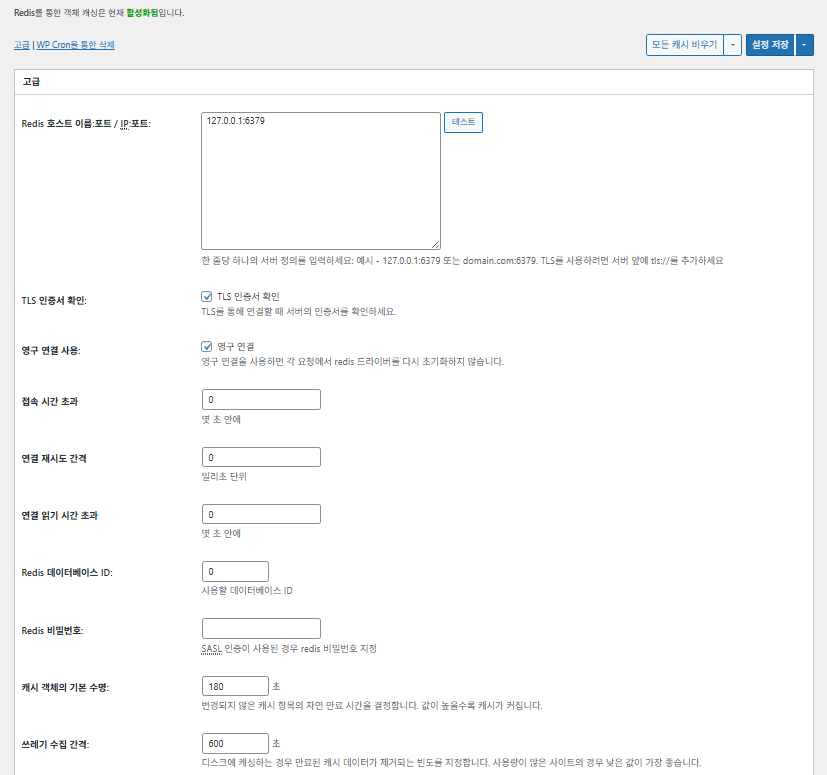
Cache cepat berbasis penyimpanan key-value, bekerja baik dengan PHP-FPM

✅ Server berperforma tinggi / VPS

Cache objek (Object) W3TC_pengaturan lanjutan 1

Item

Penjelasan

Host/IP Redis

Format [127.0.0.1:6379]. Untuk TLS, gunakan awalan [tls://]

Verifikasi sertifikat TLS

Memeriksa validitas sertifikat saat memakai TLS (opsional)

Gunakan koneksi persisten

Memakai ulang koneksi Redis untuk performa lebih baik

Batas waktu koneksi

Waktu maksimum yang diizinkan untuk terhubung ke Redis (detik)

Interval percobaan ulang koneksi

Waktu tunggu sebelum mencoba lagi setelah gagal (ms)

Batas waktu baca koneksi

Waktu maksimum menunggu respons (detik)

Redis DB ID

Menentukan nomor DB di Redis (bawaan [0])

Kata sandi Redis

Kata sandi atau input untuk autentikasi SASL

Masa hidup cache bawaan

Waktu simpan bawaan item cache (detik). Bawaan 180 detik

Interval garbage collection

Seberapa sering cache kedaluwarsa dihapus. Bawaan 600 detik

Grup global

Grup yang dibagikan dalam mode jaringan (untuk multisite)

Grup non-persisten

Grup yang dikecualikan dari caching. Contoh: [counts], [plugins]

Cache permintaan wp-admin

Menerapkan cache juga di area admin (⚠️ perlu diuji)

Simpan transient di DB

Tetap menyimpan nilai sementara di DB meski memakai cache eksternal

Aktifkan WP-CLI

Mengizinkan cache juga untuk perintah WP-CLI

6️⃣ Cache browser

Browser caching menyimpan file statis seperti gambar, CSS, dan JS di perangkat pengunjung itu sendiri, sehingga waktu muat saat kunjungan ulang jauh lebih singkat. Dengan begitu, kecepatan respons halaman dan pengalaman pengguna meningkat.

Sebagian besar pengaturan ini berfokus pada kontrol cache dan pengurangan beban server. Di situs dengan trafik tinggi atau yang mementingkan optimasi sumber daya statis, mengaktifkan banyak di antaranya tidak masalah.

ItemUmumCSS dan JSHTML dan XMLMedia dan file lainnya
Atur header [Last-Modified]Menyertakan tanggal modifikasi terakhir file agar respons 304 bisa dipakai✅ Umumnya diaktifkan✅ Cocok untuk sebagian besar server✅ Efektif untuk sebagian besar cache CDN/browser
Atur header [Expires]Membuat browser menyimpan cache file selama periode tertentu✅ Bawaan 31536000 detik (1 tahun), disarankan✅ Bawaan [3600 detik (1 jam)] ✅ Bawaan [31536000 detik] (1 tahun) → cocok untuk file statis
⏱️ Atur masa kedaluwarsa Expires—⏱️ Contoh: [31536000 detik = 1 tahun] · bisa diperpendek jika dipakai bersama CDN——
Atur header [Cache-Control]Mengontrol strategi caching dengan menambahkan header pragma dan cache-control✅ Disarankan [“public, max-age=31536000”]✅ Atur misalnya ke [“public, max-age=3600”]✅ Disarankan [“public, max-age=31536000”]
✅ Kebijakan kontrol cache—✅ Gunakan kebijakan yang menyertakan [max-age] · [“public, max-age=EXPIRES_SECONDS”] dipakai sebagai bawaan——
Atur [ETag]Menyediakan entity tag untuk mengenali file – untuk mendeteksi perubahan✅ Efektif jika dipakai di server yang sama✅ Jika cache tidak dibagikan antarserver,
disarankan dipakai
✅ Berguna jika menjalankan satu server saja
Atur header W3TCMenyisipkan header untuk mengenali apakah file dioptimasi oleh W3TC🔖 Tidak wajib, untuk analisis🔖 Tidak wajib (untuk debugging)🔖 Opsional
Kompresi gzipMetode kompresi untuk memperkecil file teks (kompatibel secara luas)✅ Didukung sebagian besar server✅ Didukung oleh sebagian besar server✅ Tidak berpengaruh pada gambar
Kompresi brotliRasio kompresi lebih tinggi dari gzip (hanya browser yang mendukung)✅ Perlu pengaturan Apache/Nginx✅ Aktifkan modul Apache/nginx✅ Hanya berlaku di browser yang mendukung
Cegah caching objek saat pengaturan berubahMenambahkan query string untuk membatalkan cache lama✅ Disarankan jika pengaturan sering berubah—✅ Perubahan file langsung diterapkan
Hapus query stringMenghapus [?] dari sumber daya statis untuk meningkatkan tingkat caching⚠️ Hanya diperlukan pada sebagian CDN/proxy—✅ Bisa diterapkan pada file berversi
Hapus cookieMenghapus header [Set-Cookie] dari respons sumber daya statis✅ Centang di sebagian besar kasus—✅ Gambar dan sejenisnya tidak perlu cookie
WordPress tidak menangani respons 404404 untuk file statis ditangani server web → beban WP berkurang———
Daftar URI pengecualian 404Menentukan pola URI tertentu yang tetap ditangani WP (misalnya sitemap, robots.txt)———
Tulis ulang struktur URL objekMembuat URI unik untuk melewati cache (misalnya bentuk [ver=xxxx])———

Ⅲ. Fitur Tambahan W3 Total Cache

  • ↳ WP Cron, CDN, reverse proxy, pengalaman pengguna, statistik, konverter WebP, Google PageSpeed, pengaturan impor/ekspor

Penghapusan cache dengan WP Cron adalah pengaturan global.

🧭 Simulator fitur tambahan W3 Total Cache
Simulator jalur
📍Performance›General Settings›Purge via WP Cron
WP Cron
Penghapusan cache dengan WP Cron adalah pengaturan global; di sini Anda menentukan waktu mulai dan intervalnya.
📍Performance›General Settings›CDN›Advanced Settings
CDN
Setelah mendaftar ke penyedia CDN, centang [Enable] pada [CDN], pilih [CDN Type], lalu simpan; opsi detail diatur di [Advanced Settings].
📍Performance›General Settings›Reverse Proxy
Reverse proxy
Centang [Enable reverse proxy caching via varnish] hanya jika memakai Varnish. Di [Varnish servers], masukkan alamat IP server Varnish.
📍Performance›General Settings›User Experience›Advanced Settings
Pengalaman pengguna
Centang [Lazy Load Images] dan simpan, lalu atur opsi muat tertunda di [Advanced Settings]. Lebih dari 50% fitur di pengaturan lanjutan hanya tersedia di versi premium.
📍Performance›General Settings›Image Converter
Konverter WebP
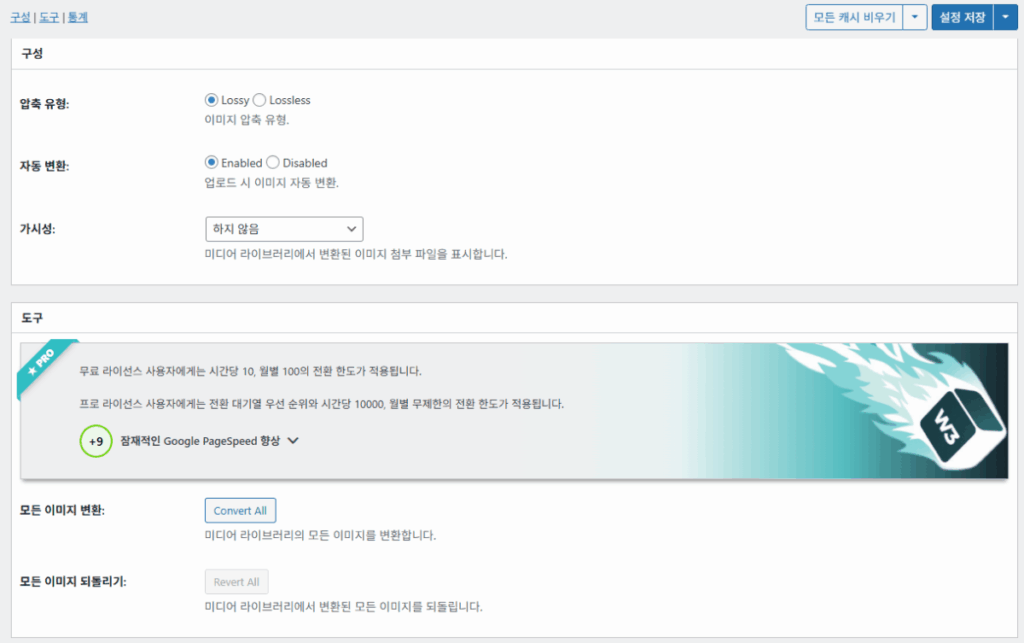
Jika [Enable Image Converter Extension] pada [Image Converter] dicentang, gambar di Pustaka Media bisa dikonversi ke format WebP atau AVIF.
example.com/wp-admin/admin.php?page=w3tc_general
DashboardSettingsToolsInfoSupportUpgrade
|||||||||||||||||
Empty All Caches
Purge via WP Cron
Enabling this will schedule a WP-Cron event that will flush all enabled Caches via a single cron job. Each cache’s advanced settings page features similar settings to this if you wish to schedule purges for specific caches only. If you prefer to use a system cron job instead of WP-Cron, you can schedule the following command to run at your desired interval: “wp w3tc flush all”. If the Always Cached extension is active and enabled, page cache entries will instead be added to the queue instead of being purged from the cache. Visit here for more information.
Enable WP-Cron Event
Enable
Start Time
This setting controls the initial start time of the cron job. If the selected time has already passed, it will schedule the job for the following day at the selected time.
Interval
This setting controls the interval that the cron job should occur.
CDN
Content Delivery Network (CDN) is a powerful feature that can significantly enhance the performance of your WordPress website. By leveraging a distributed network of servers located worldwide, a CDN helps deliver your website’s static files, such as images, CSS, and JavaScript, to visitors more efficiently. This reduces the latency and improves the loading speed of your website, resulting in a faster and smoother browsing experience for your users. With W3 Total Cache’s CDN integration, you can easily configure and connect your website to a CDN service of your choice, unleashing the full potential of your WordPress site’s speed optimization.
Basic SettingsPremium ServicesHelp
CDN:
Theme files, media library attachments, CSS, and JS files will load quickly for site visitors.
CDN Type:
Select the CDN type you wish to use.
Host the entire website with your compatible CDN provider to reduce page load time.
FSD CDN:
Enable★ PRO
Deliver visitors the lowest possible response and load times for all site content including HTML, media (e.g. images or fonts), CSS, and JavaScript. Show More ⌄ Learn more about Pro
Reverse Proxy
A reverse proxy is a server that sits between a client and a web server, acting as an intermediary for requests. It retrieves resources on behalf of the client from the server, and then returns the response to the client. By utilizing a reverse proxy, such as Varnish or Nginx, in conjunction with W3 Total Cache, you can significantly enhance the performance of your WordPress website by caching and serving static content directly from the reverse proxy server, reducing the load on your WordPress server and improving response times for visitors.
Enable reverse proxy caching via varnish
Varnish servers:
Specify the IP addresses of your varnish instances above. The VCL’s ACL must allow this request.
Trusted reverse proxies:
IP addresses or CIDR ranges of reverse proxies and load balancers in front of this site (one per line). Forwarded scheme and client-IP headers are used only for these addresses. Leave empty when PHP receives client connections directly. Developers may also supply this list via the w3tc_trusted_proxies filter.
User Experience
User Experience (UX) is a setting that focuses on enhancing the overall browsing experience for visitors of your website. By enabling this feature, you can optimize your website’s performance by minimizing load times, reducing server requests, and delivering content more efficiently. This ultimately leads to faster page loading, improved user satisfaction, and increased engagement, resulting in a speedier and more enjoyable WordPress website.
Basic Settings
Defer loading offscreen images.
Lazy Load Google Maps★ PRO
In addition to lazy loading images, with W3 Total Cache Pro you can lazy load Google Maps! More information and settings can be found on the User Experience page.
Disable Emoji
Remove emojis support from your website.
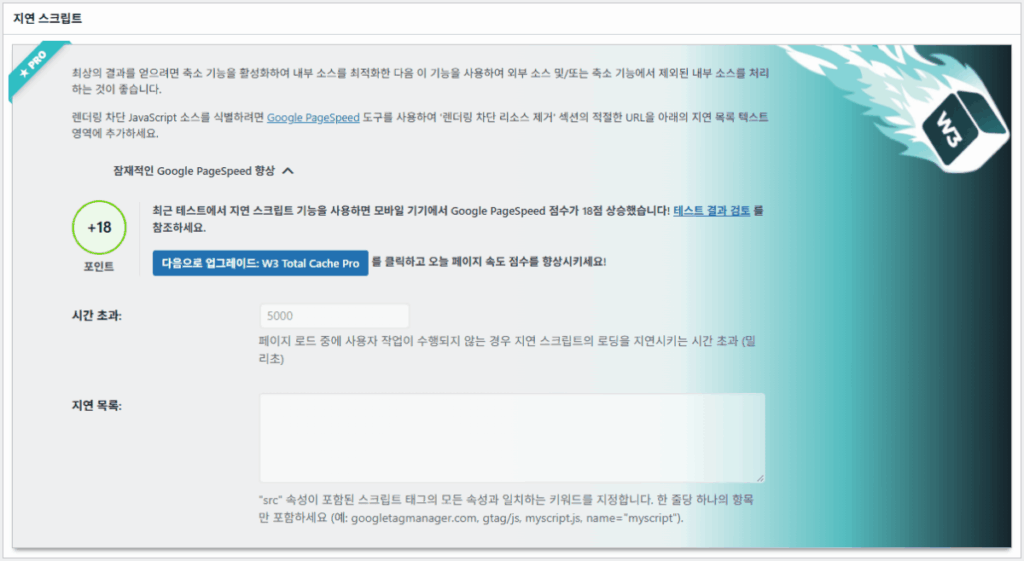
Delay Scripts★ PRO
Delay the loading of specified internal/external JavaScript sources on your pages separate from Minify.
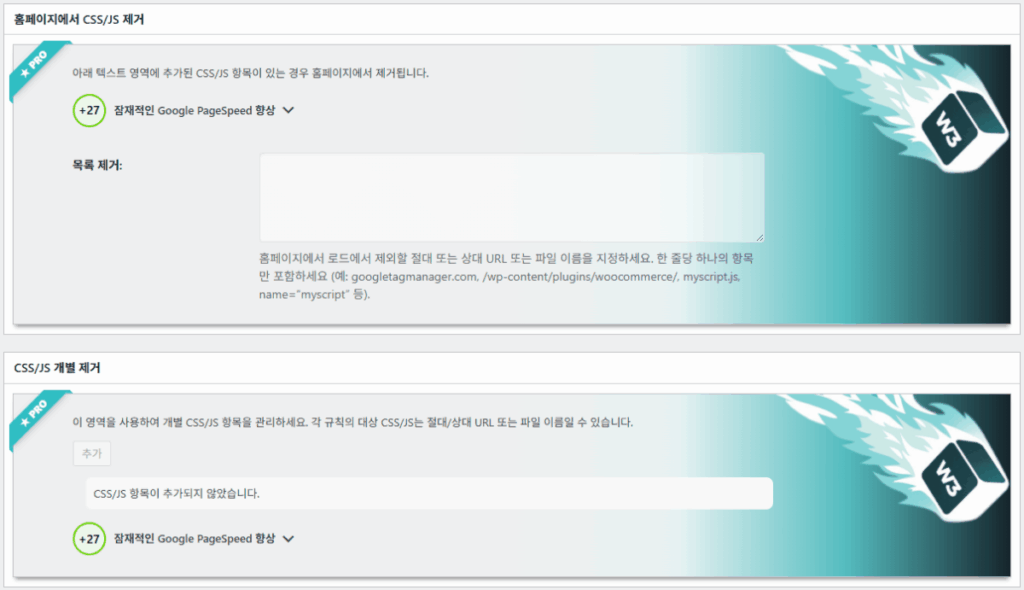
Remove Unwanted/Unused CSS/JS★ PRO
Removes specified CSS/JS tags from the homepage or on a per page basis.
Preload Requests★ PRO
DNS prefetching, pre-connecting, and preloading are essential web optimization techniques that enhance website performance by proactively resolving network-related tasks. Learn more about Pro
Disable wp-embed script
Remove wp-embed.js script from your website. oEmbed functionality still works but you will not be able to embed other WordPress posts on your pages.
Disable jquery-migrate on the front-end
Remove jquery-migrate support from your website front-end.
Image Converter
The Image Converter tool can be used to generate modern-format versions (e.g., WebP or AVIF) of media library images which offer superior lossless and lossy compression.
Enable Image Converter Extension
This extension allows for optimizing media library images to modern formats like WebP or AVIF.
As a free user you are limited to conversions of 10/hour and 100/month. The Pro license increases these rates to 10,000/hour and unlimited/month. Conversion rates are subject to change and documentation can be found here. Learn more about Pro
example.com/wp-admin/admin.php?page=w3tc_cdn
DashboardSettingsToolsInfoSupportUpgrade
||
Empty All Caches
General
Host attachments
Upload attachments
If checked, all attachments will be hosted with the CDN.
Host wp-includes/ files
Upload includes files
If checked, WordPress static core file types specified in the “wp-includes file types to upload” field below will be hosted with the CDN.
Host theme files
Upload theme files
If checked, all theme file types specified in the “theme file types to upload” field below will be hosted with the CDN.
Host minified CSS and JS files
Upload minify files
If checked, minified CSS and JS files will be hosted with the CDN.
Host custom files
Upload custom files
If checked, any file names or paths specified in the “custom file list” field below will be hosted with the CDN.
Force over-writing of existing files
If modified files are not always detected and replaced, use this option to over-write them.
Advanced
Only purge CDN manually
Purge CDN only if explicit purge button is clicked.
Disable CDN on SSL pages
When SSL pages are returned no CDN URLs will appear in HTML pages.
Use CDN links for the Media Library on admin pages
All Media Library content will use CDN links on administration pages.
Add CORS header
Add CORS headers to allow cross-domain assets usage.
Disable CDN for the following roles
Select user roles that will use the origin server exclusively:
Administrator
Editor
Author
Contributor
Subscriber
Disable CDN on the following pages:
Always ignore the specified pages / directories. Supports regular expression.
Automatically upload minify files
If CDN is enabled (and not using the origin pull method), your minified files will be automatically uploaded.
Export changed files automatically
Automatically attempt to find and upload changed files.
Auto upload interval:
3600seconds
Specify the interval between upload of changed files.
Re-transfer cycle interval:
900seconds
The number of seconds to wait before upload attempt.
Re-transfer cycle limit:
25
Number of files processed per upload attempt.
wp-includes file types to upload:
*.css;*.js;*.gif;*.png;*.jpg;*.xml
Specify the file types within the WordPress core to host with the CDN.
Theme file types to upload:
*.css;*.js;*.gif;*.png;*.jpg;*.ico;*.ttf;*.otf;*.woff;*.woff2;*.less
Specify the file types in the active theme to host with the CDN.
File types to import:
 
Automatically import files hosted with 3rd parties of these types (if used in your posts / pages) to your media library. Only common static types (images, CSS, JS, fonts, and media) are imported. Script, markup, and SVG types are ignored even if listed. Empty, *, and *.* use that static allowlist rather than every file.
Custom file list:
favicon.ico
{wp_content_dir}/gallery/*
{wp_content_dir}/uploads/avatars/*
{plugins_dir}/wordpress-seo/css/xml-sitemap.xsl
{plugins_dir}/wp-minify/min*
{plugins_dir}/*.js
{plugins_dir}/*.css
{plugins_dir}/*.gif
{plugins_dir}/*.jpg
{plugins_dir}/*.png
Specify any files outside of theme or other common directories to host with the CDN.
Rejected user agents:
Specify user agents that should not access files hosted with the CDN.
Rejected files:
{uploads_dir}/wpcf7_captcha/*
{uploads_dir}/imagerotator.swf
{plugins_dir}/wp-fb-autoconnect/facebook-platform/channel.html
Specify the path of files that should not use the CDN.
Set cookie domain to “example.com”
If using subdomain for CDN functionality, this setting helps prevent new users from sending cookies in requests to the CDN subdomain.
Note(s):
  • You can use placeholders {wp_content_dir}, {plugins_dir}, {uploads_dir} instead of writing folder paths (wp-content, wp-content/plugins, wp-content/uploads).
  • If using Amazon Web Services or Self-Hosted CDN types, enable HTTP compression in the “Media & Other Files” section on Browser Cache Settings tab.
example.com/wp-admin/admin.php?page=w3tc_userexperience
DashboardSettingsToolsInfoSupportUpgrade
Empty All Caches
Lazy loading is currently disabled.
Lazy Loading
Process HTML image tags
Process img tags
Process background images
Process background styles
Exclude words:
avia-bg-style-fixed
data-bgposition=
data-envira-src=
data-large_image=
data-lazy-original=
data-lazy-src=
data-lazyload=
data-lazysrc=
data-no-lazy=
data-src=
data-srcset=
fullurl=
lazy-slider-img=
loading=”eager”
no-lazy
rev-slidebg
skip-lazy
soliloquy-image
swatch-img
w3-total-cache
woocommerce/assets/images/placeholder.png
wpcf7_captcha
Exclude tags containing words
Threshold
 
The outer distance off the scrolling area from which to start loading the elements (example: 100px, 10%).
Script Embed method:
Use inline method only when your website has just a few pages
Google Maps
Lazy load google map
WP Google Map Plugin plugin
Google Maps Easy plugin
WP Google Maps plugin
Klik bagian yang menyala di menu kiri atau tombol di layar.

1️⃣ CDN

Fitur ini bisa diatur setelah mendaftar ke penyedia CDN.

Opsi

Penjelasan

✅ Hosting lampiran

Mengunggah lampiran seperti gambar di [wp-content/uploads] ke CDN

✅ Hosting file wp-includes

Menyertakan file statis inti WordPress (js/css, dll.) ke CDN

✅ Hosting file tema

Menyertakan file statis tema aktif (css/js/images, dll.) ke CDN

✅ Hosting file CSS/JS hasil minify

Menyajikan file CSS/JS yang di-minify W3TC dari CDN

✅ Hosting file kustom

Mendorong jalur atau nama file yang ditentukan sendiri ke CDN

⚠️ Paksa timpa file yang ada

Untuk memaksa unggah ulang jika perubahan tidak terdeteksi otomatis

Item

Penjelasan

Hapus CDN hanya secara manual

File di CDN hanya dihapus saat tombol hapus manual diklik

Nonaktifkan CDN di halaman SSL

Tidak memakai URL CDN di halaman HTTPS

Gunakan tautan CDN di admin

Menampilkan URL CDN untuk media juga di layar admin

Add CORS header

Menambahkan header respons untuk mengizinkan CORS

Nonaktifkan CDN per peran

CDN tidak diterapkan untuk peran pengguna yang dipilih (misalnya hanya admin yang memakai sumber asli)

Daftar pengecualian halaman

Jalur yang ditentukan dikecualikan dari CDN (regex bisa dipakai)

Unggah file hasil minify secara otomatis

Mengunggah file hasil minify ke CDN secara otomatis (metode Push)

Ekspor file yang berubah secara otomatis

Mengunggah otomatis saat perubahan file terdeteksi

Interval unggah otomatis

Interval unggah setelah perubahan file terdeteksi (bawaan 3600 detik)

Interval / batas pengiriman ulang

Interval percobaan ulang saat gagal dan batas jumlah file yang diproses

File wp-includes yang diunggah

Menentukan jenis file inti yang disertakan ke CDN

Jenis file tema yang diunggah

Menentukan jenis file terkait tema seperti CSS/JS/font

Jenis file yang diimpor

Menentukan syarat unduh otomatis untuk file yang ditautkan dari luar

Daftar file kustom

Menentukan jalur file satu per satu yang dikirim ke CDN (template, plugin eksternal, dll.)

User agent yang ditolak

Menentukan bot/user agent yang diblokir dari file CDN

Jalur file yang ditolak

Menentukan jalur file yang tidak memakai CDN, seperti CAPTCHA dan jalur khusus

Atur domain cookie

Menentukan domain agar cookie tidak terkirim saat memakai CDN subdomain

2️⃣ Reverse proxy

Penjelasannya memakai Varnish dan Nginx sebagai contoh, tetapi karena Nginx diatur di server, pengaturan ini diterapkan di plugin W3 Total Cache hanya jika memakai Varnish.

3️⃣ Pengalaman pengguna: muat tertunda

Lebih dari 50% fitur di pengaturan lanjutan hanya tersedia di versi premium.

Item

Penjelasan

Kapan disarankan

✅ Proses tag gambar HTML

[<img>]: tag diberi atribut lazy

Untuk muat tertunda gambar konten biasa

✅ Proses gambar latar

Menerapkan lazy pada [background-image] CSS

Untuk situs desain dengan banyak gambar latar

Kecualikan kataContoh
Atribut pengecualian lazy[data-src], [data-lazy-src], [data-no-lazy], [loading=”eager”], dll.
Kelas pengecualian lazy[no-lazy], [skip-lazy], [lazy-slider-img], [rev-slidebg], dll.
Terkait plugin/slider[soliloquy-image], [envira], [w3-total-cache], [wpcf7_captcha], dll.
Terkait WooCommerce[swatch-img], [woocommerce/…/placeholder.png], dll.

“Ambang” pada muat tertunda adalah nilai yang menentukan dari jarak berapa gambar atau elemen latar di bawah viewport (layar) browser mulai dimuat lebih dulu. Misalnya, jika diatur 100px, elemen dimuat saat pengguna menggulir hingga 100 piksel darinya; jika terlalu kecil, gambar terlambat dimuat dan bisa terlihat seperti layar kosong, jadi biasanya 100~300px sudah pas.

Berikut adalah cara penyertaan skrip.

Cara penyertaan

Penjelasan

Lokasi atau atribut

Asinkron (Async)

Berjalan paralel dengan pemuatan halaman dan tidak memblokir render

[<script async>]

Sinkron (di head)

Berjalan lebih dulu di area [<head>] dan bisa memblokir render sementara (in the head)

[<head>] atau [<script>]

Inline

Menyisipkan skrip langsung ke dokumen HTML sehingga berjalan tanpa permintaan terpisah

Disisipkan di dalam [<script>kode</script>]

Pengaturan lanjutan pengalaman pengguna W3TC 2
Pengaturan lanjutan pengalaman pengguna W3TC 3

4️⃣ Konverter WebP

Konverter WebP W3TC_detail (pengaturan lanjutan) 1
Konverter WebP W3TC_detail (pengaturan lanjutan) 2

Ⅳ. Penilaian Keseluruhan W3 Total Cache

Antarmuka (UI) W3 Total Cache tidak buruk, tetapi jelas tidak praktis. Banyak pengembang dan pengguna profesional menyampaikan hal yang sama. Dibandingkan plugin modern seperti WP Rocket atau FlyingPress, performa situsnya bisa mengimbangi, tetapi dari sisi pengalaman pengguna (UX) masih kurang.

Banyaknya fitur memang kelebihan, tetapi bagi pemula strukturnya bisa terasa terlalu rumit. Terutama karena sering berpindah antarmenu dan opsi detailnya banyak, pengembang dan pengelola situs yang berpengalaman pun bisa salah mengatur. Tentu tidak semua pengaturan bisa diingat, tetapi justru karena itu, dalam pemakaiannya ini adalah plugin caching lanjutan yang bisa disetel dengan sangat detail.

Dengan lebih dari 1 juta instalasi versi gratis, sulit menganggapnya sekadar plugin lama — pada kenyataannya, hampir tidak ada plugin cache yang bisa menandingi keragaman dan kelengkapan fiturnya.

ItemNilai (⭐)Penilaian
🎛️ Antarmuka⭐⭐⭐Banyak menu dan strukturnya rumit. Jadi penghalang bagi pengguna baru. UI terasa kuno
⚙️ Keragaman fitur⭐⭐⭐⭐⭐Cache, CDN, Redis, dan hampir semua fitur lain. Sulit menemukan fitur yang tidak ada
🛠️ Fleksibilitas pengaturan detail⭐⭐⭐⭐Hampir semua fitur bisa disetel detail. Perlu waspada konflik antarpengaturan
🚀 Peningkatan performa⭐⭐⭐⭐⭐Performa sangat baik jika diatur optimal. Efek cache objek/browser besar
🧩 Kompatibilitas⭐⭐⭐Bisa berkonflik dengan sebagian hosting, tema, dan plugin.
📄 Dokumentasi·panduan⭐⭐⭐⭐⭐Dokumentasi resmi melimpah
💡 Tingkat rekomendasi pengguna⭐⭐⭐⭐(4.5)Disarankan untuk pengguna mahir. Pemula disarankan memakai WP Rocket, Cache Enabler, dll.
📊 Nilai keseluruhan⭐⭐⭐⭐(4.5)Plugin berperforma tinggi yang berfokus pada fitur. Ada kurva belajar. Perlu mempertimbangkan tingkat kemampuan pengguna

Ⅴ. Uji Performa

Setelah plugin diatur, uji kecepatan akhir menunjukkan peningkatan kecepatan yang lebih mencolok dibanding plugin cache pada umumnya.

ℹ️ Pemberitahuan Afiliasi
Konten di situs ini berisi tautan afiliasi. Jika pengunjung membeli produk atau layanan melalui tautan tersebut, situs ini menerima komisi dari penjual. Harga yang dibayar pembeli(turun saat ada diskon promo ↓), tidak naik karena hal ini. Harga, diskon, dan informasi stok yang ditampilkan berlaku pada saat penulisan dan bisa berbeda dengan kondisi sebenarnya, jadi pastikan kembali di situs penjual sebelum membeli. Pemilihan dan penilaian produk dibuat berdasarkan standar kami sendiri, dan ada tidaknya komisi tidak memengaruhi urutan maupun isi penilaian.

Tinggalkan Balasan

Alamat email Anda tidak akan dipublikasikan. Ruas yang wajib ditandai *

Buktikan bahwa Anda manusia: 5   +   9   =