W3 Total Cache-plugin: zo stel je hem in voor optimalisatie

Affiliatemelding v3.1
Affiliatemelding v3.2 (mobiel)
Testomgeving CloudwaysDebian 12Apache 2.4.69 + nginxPHP 8.2.34WordPress 7.1.3W3 Total Cache 2.10.7Gecontroleerd op 2026-10-18

Een WordPress-site wordt onvermijdelijk trager naarmate je plugins installeert. Daarom is een cacheplugin een van de onmisbare WordPress-plugins geworden. Met meer dan 1 miljoen actieve installaties van de gratis versie en een beoordeling van 4,4 sterren is de W3 Total Cache-plugin (W3TC) een van de meest gebruikte plugins.

Omdat cache-instellingen sommige functies van andere plugins kunnen breken, kun je als je net met WordPress begint een plugin gebruiken die eenvoudig in te stellen is, zoals Cache Enabler of WP Super cache.

Heb je gedetailleerde cache-instellingen en controle nodig, dan kun je de W3 Total Cache-plugin gebruiken, die zelfs in de gratis versie krachtige functies biedt.

Ⅰ. W3 Total Cache installeren en de installatiegids

  • ↳ Zoekmachines (SEO: Search Engine Optimization)
  • ↳ Prestatieoptimalisatie (WPO: Web Performance Optimization)
  • ↳ Geïntegreerde caching: ondersteunt CDN-, pagina-, minify-, object-, fragment- en databasecaching.

Zoek naar W3 Total Cache, en installeer en activeer de plugin.

🧭 Simulator voor installatie en installatiegids van W3 Total Cache
📍Plugins›Add Plugin
Plugin installeren
Typ W3 Total Cache in het zoekvak en klik op [Install Now]; klik na de installatie op [Activate].
📍Performance›Setup Guide
Installatiegids
Na de eerste installatie brengt [Dashboard] je automatisch naar de [Setup Guide], omdat er nog niets is ingesteld.
📍Performance›Dashboard
Dashboard
Wat je in de gids instelt, wordt per functie getoond in het vak [General Settings], en gedetailleerde instellingen zoals de paginacache doe je in [General Settings].
example.com/wp-admin/plugin-install.php
Add Plugins Upload Plugin
Plugins extend and expand the functionality of WordPress. You may install plugins from the WordPress Plugin Directory right on this page, or upload a plugin in .zip format by clicking the button above.
Search ResultsFeaturedPopularRecommendedFavorites
Search PluginsKeyword
922 items
W3 Total Cache
Installing...ActiveMore Details
Search Engine (SEO) & Performance Optimization (WPO) via caching. Integrated caching: CDN, Page, Minify, Object, Fragment, Database support.
By BoldGrid
★★★★★ (5,421)
Last Updated: 2 weeks ago
900,000+ Active Installations
✓ Compatible with your version of WordPress
example.com/wp-admin/admin.php?page=w3tc_setup_guide
DashboardSettingsToolsInfoSupportUpgrade
W3 Total CacheSetup Guide
TOTAL CACHE: Setup Guide
  • Welcome
  • Page Cache
  • Database Cache
  • Object Cache
  • Image Converter
  • Lazy Load
  • More Caching Options
Welcome to the W3 Total Cache Setup Guide!
By allowing us to collect data about how W3 Total Cache is used, we can improve our features and experience for everyone. This data will not include any personally identifiable information. Feel free to review our terms of use and privacy policy.
AcceptDecline
SKIPNEXT
example.com/wp-admin/admin.php?page=w3tc_dashboard
DashboardSettingsToolsInfoSupportUpgrade
W3 Total CacheDashboard
Flush caches with Empty All Caches
Account
License: Free
Status: Free license, no expiration
Upgrade to W3 Total Cache Pro now to unlock additional settings and features that can further improve your site’s performance and Google PageSpeed ratings.
Learn more about Pro
General Settings
Preview Modedisabled
Page Cachedisabled
Minifydisabled
Opcode Cacheenabled
Database Cachedisabled
Object Cachedisabled
Browser Cachedisabled
CDNdisabled
Reverse Proxydisabled
Statisticsdisabled
Fragment Cachedisabled
Debugdisabled
Settings can be modified by visiting General Settings
Image Optimization Summary
Enable Image Converter
PageSpeed Report
Before you can get started using the Google PageSpeed tool, you’ll first need to authorize access. Please click here.
Klik op een gemarkeerd onderdeel in het linkermenu of op een knop op het scherm.

Na de eerste installatie brengt de pagina [Dashboard] je automatisch naar de [Setup Guide], omdat er nog niets is ingesteld.

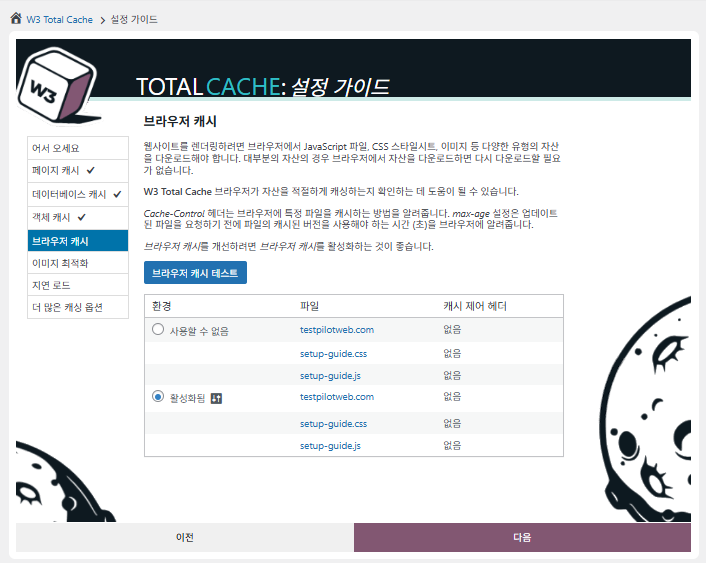
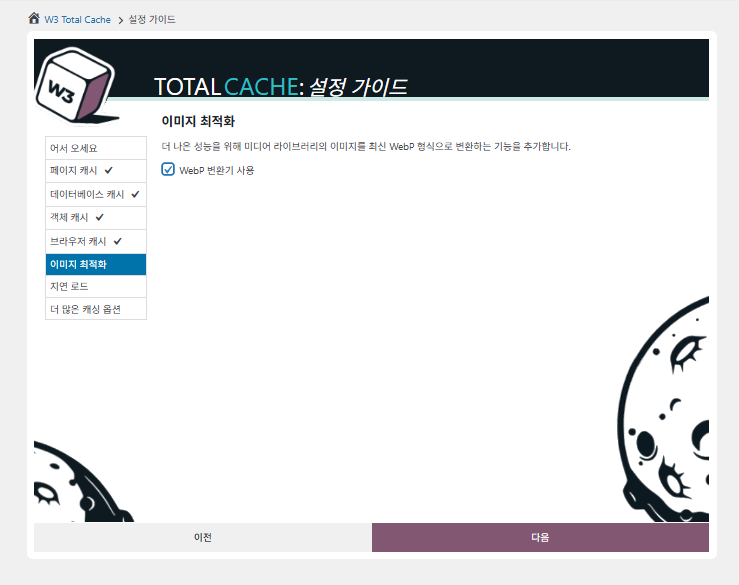
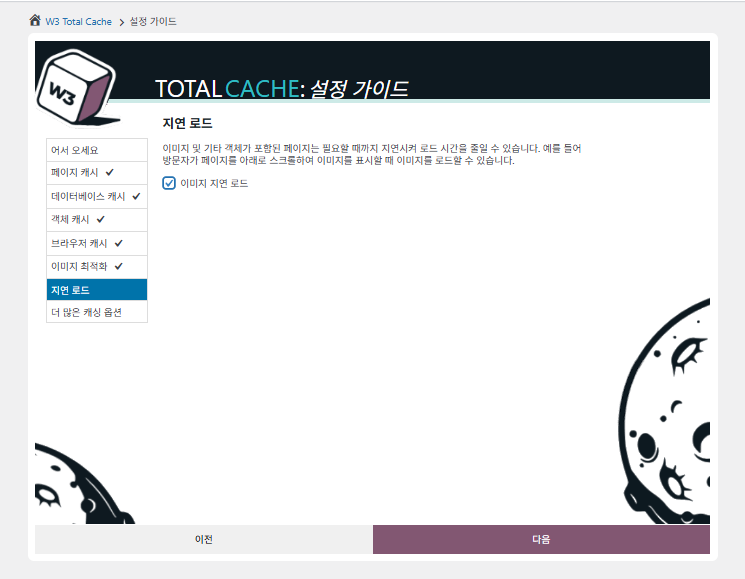
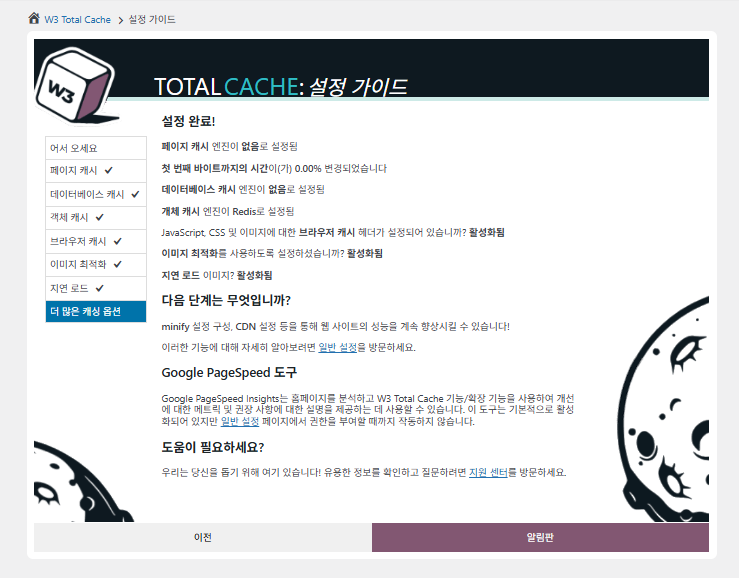
In de installatiegids stel je ① paginacache, ② databasecache, ③ objectcache, ④ browsercache, ⑤ beeldoptimalisatie, ⑥ lazy load en ⑦ andere cache-opties in.
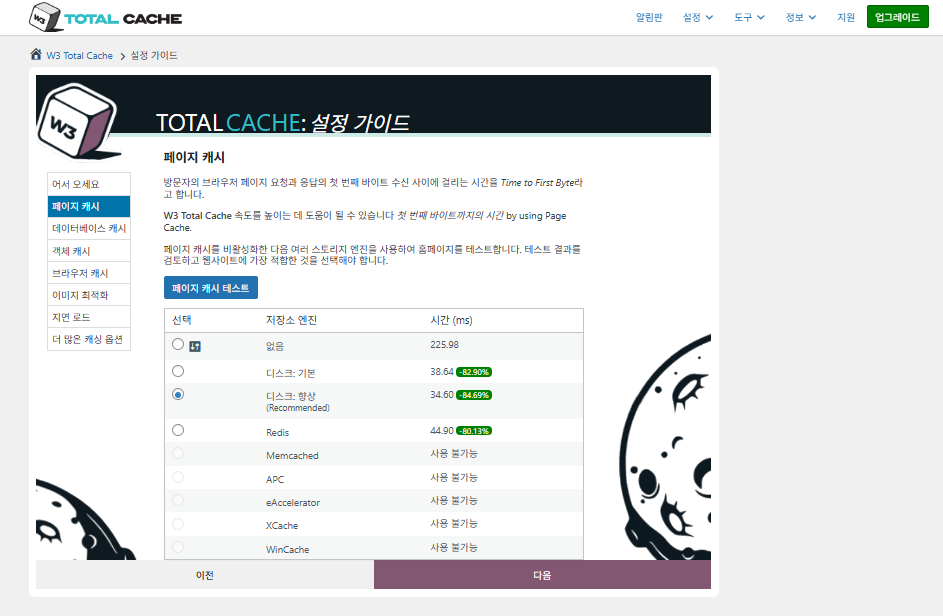
W3 Total Cache Setup Guide ① Paginacache_schijfcache (Enhanced gekozen)

Voor paginacache is de standaardaanbeveling van W3TC Disk: [Verbeterd]. Zoals de tabel laat zien, is Disk: Enhanced zo'n 10,3 ms sneller dan Disk: Basic, ongeveer 17,8% betere prestaties gemeten in TTFB.
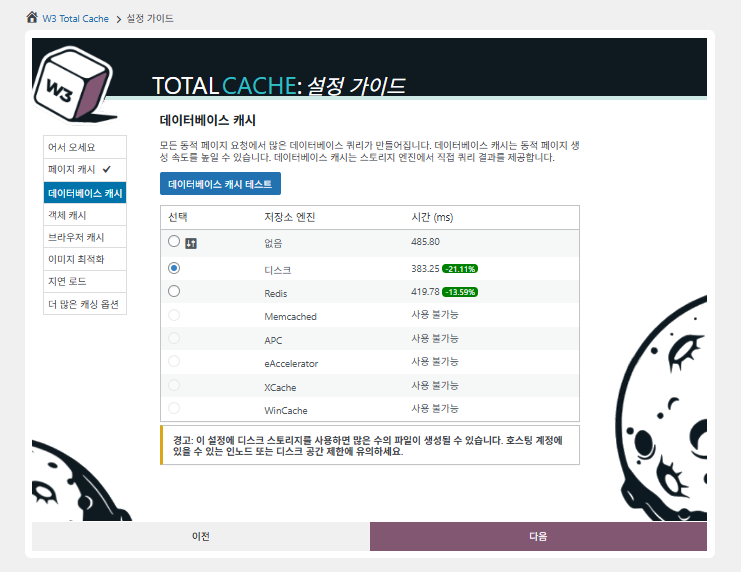
W3 Total Cache Setup Guide ② Databasecache_schijfcache gekozen

Kies voor de databasecache de schijfcache (Disk).
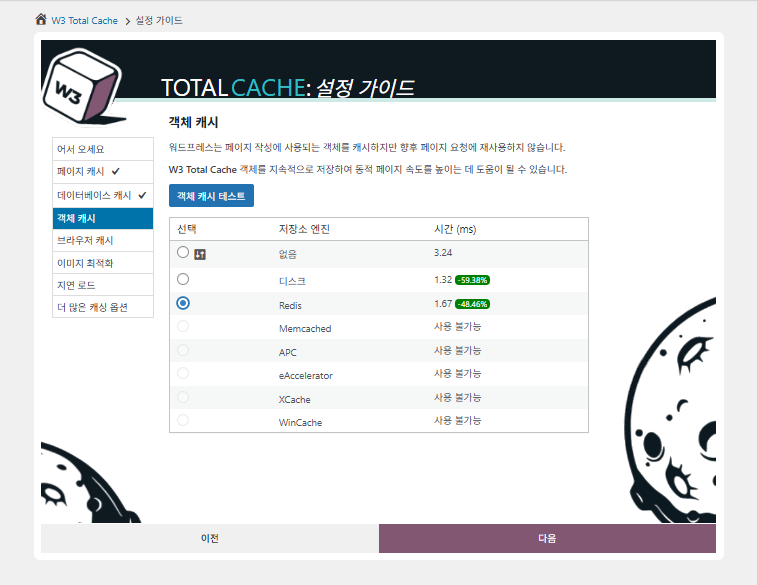
W3 Total Cache Setup Guide ③ Objectcache_Redis gekozen
W3 Total Cache Setup Guide ④ Browsercache
W3 Total Cache Setup Guide ⑤ Beeldoptimalisatie - WebP-converter
W3 Total Cache Setup Guide ⑥ Lazy load - afbeeldingen lazy laden
W3 Total Cache Setup Guide ⑦ Andere cache-opties_instellen na naar het dashboard te gaan

De instellingen uit de gids zijn nu zichtbaar op het dashboard.

Klik rechtsboven op het tabblad [Settings] om alles in te stellen, van [General Settings] tot paginacache en meer.
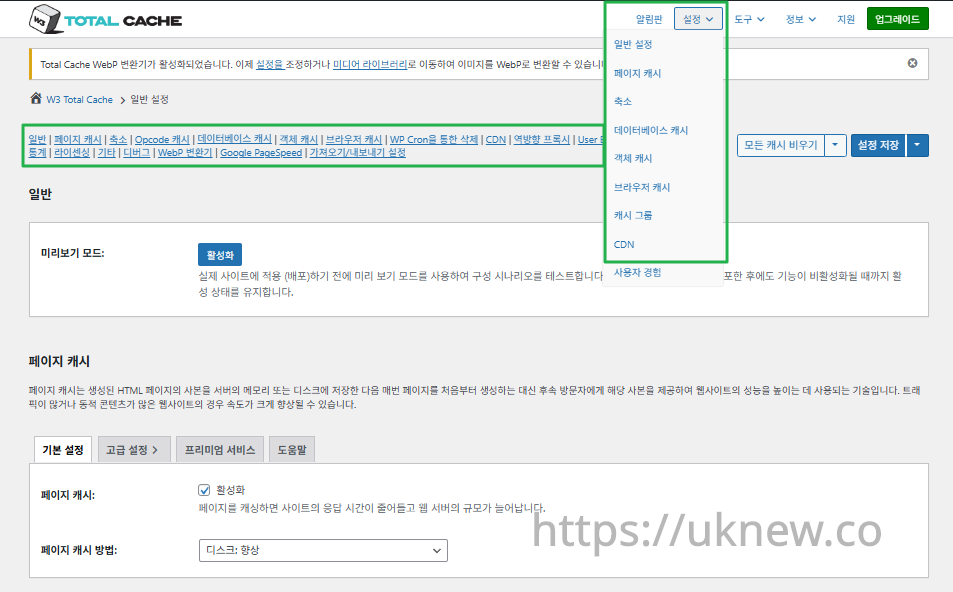
W3TC-dashboard - Instellingen__

ⓐ De [pagina-instellingen] in het linkerbeheermenu en ⓑ het tabblad [Settings] rechtsboven leiden elk naar paginacache, Minify  en andere geavanceerde instellingen. Ga je vanaf het midden bovenaan het tabblad General Settings naar elke pagina, dan zie je voor paginacache en Minify alles van de algemene instellingen tot de Geavanceerde instellingen.

Ⅱ. Cache-instellingen van W3 Total Cache

  • ↳ Cachefuncties

Dit is het tabblad General Settings in de W3TC-instellingen.

🧭 Simulator voor cache-instellingen van W3 Total Cache
Padsimulator
📍Performance›General Settings›General
Previewmodus
Voordat je echte cachewijzigingen uitrolt, kun je [Preview mode] inschakelen om vooraf op fouten te testen.
📍Performance›General Settings›Page Cache›Advanced Settings
Paginacache
Vink [Enable] aan onder [Page Cache], controleer of de methode [Disk: Enhanced] is en klik op [Save Settings]. Gedetailleerde opties stel je in bij [Advanced Settings].
📍Performance›General Settings›Minify›Advanced Settings
Minify
Vink [Enable] aan onder [Minify] en klik op [Save Settings]; stel daarna in [Advanced Settings] de minify-opties voor HTML, CSS en JS in.
📍Performance›General Settings›Opcode Cache
Opcodecache
Voor opcodecache wordt de op de server geïnstalleerde opcodecache automatisch toegepast; is er geen geïnstalleerd, dan staat deze op uitgeschakeld.
📍Performance›General Settings›Database Cache›Object Cache
Database- en objectcache
Vink [Enable] aan onder zowel [Database Cache] als [Object Cache] en sla op. Gedetailleerde opties stel je in op de schermen [Database Cache] en [Object Cache].
📍Performance›General Settings›Browser Cache›Advanced Settings
Browsercache
Vink [Enable] aan onder [Browser Cache] en sla op; stel daarna in [Advanced Settings] de cache-opties per bestandstype in.
example.com/wp-admin/admin.php?page=w3tc_general
DashboardSettingsToolsInfoSupportUpgrade
|||||||||||||||||
Empty All Caches
General
Preview mode:
Enable
Use preview mode to test configuration scenarios prior to releasing them (deploy) on the actual site. Preview mode remains active even after deploying settings until the feature is disabled.
Page Cache
Page cache is a technique used to speed up the performance of a website by storing a copy of the generated HTML page in the server’s memory or disk, and then serving that copy to subsequent visitors instead of generating the page from scratch each time. This can result in significant speed improvements for websites with high traffic or dynamic content.
Basic SettingsPremium ServicesHelp
Page Cache:
Caching pages will reduce the response time of your site and increase the scale of your web server.
Page Cache Method:
Minify
Minification is a technique used to reduce the file size of HTML, CSS, and JavaScript files by removing unnecessary characters such as whitespace, comments, and line breaks. This process can significantly improve the load times of web pages by reducing the amount of data that needs to be downloaded by the user’s browser.
Basic SettingsPremium ServicesHelp
Minify:
Minification can decrease file size of HTML, CSS, JS and feeds respectively by ~10% on average. Learn more
Minify mode:
Auto
Manual
Select manual mode to use fields on the Minify settings tab to specify files to be minified, otherwise files will be minified automatically. Learn more
Minify Cache Method:
Learn more
HTML minifier:
Learn more
JS minifier:
CSS minifier:
Opcode Cache
Opcode cache is a powerful feature that enhances the performance of a WordPress website by caching compiled PHP code. By storing pre-compiled code in memory, opcode cache eliminates the need for repetitive interpretation and compilation of PHP files, resulting in significantly faster execution times. Opcode cache reduces server load and improves response times, ultimately enhancing the overall speed and responsiveness of your WordPress site. If opcode cache is available on the hosting server it will automatically be selected in the dropdown and enabled.
Opcode Cache
Validate timestamps:
Enable
Once enabled, each file request will update the cache with the latest version. When this setting is off, the Opcode Cache will not check, instead PHP must be restarted in order for setting changes to be reflected.
Database Cache
Enable this setting to utilize the power of caching your WordPress site’s database queries. By storing frequently accessed database queries in memory, the database cache reduces the need for repetitive database interactions, resulting in faster page load times. This feature is particularly beneficial for websites with heavy database usage, improving overall performance and delivering a smoother user experience.
Basic SettingsPremium ServicesHelp
Database Cache:
Caching database objects decreases the response time of your site. Best used if object caching is not possible.
Database Cache Method:
Object Cache
Enable this option to utilize an object cache mechanism, which significantly enhances the performance of your WordPress website. Object caching stores frequently accessed database queries and complex data structures in memory, reducing the need to retrieve them from the database repeatedly. By doing so, it minimizes the processing time required to generate dynamic content, resulting in faster page loading times and improved overall site speed. Enabling object cache is particularly beneficial for websites with heavy database usage or high traffic volumes, as it helps alleviate the strain on the server by efficiently serving cached data.
Basic SettingsPremium ServicesHelp
Object Cache:
Object caching greatly increases performance for highly dynamic sites that use the Object Cache API.
Object Cache Method:
Browser Cache
Enabling browser caching will instruct visitors’ web browsers to store static files from your WordPress website, such as images, CSS, and JavaScript files, locally on their devices. By doing so, subsequent visits to your site will retrieve these cached files from the browser’s storage, reducing the need for repeated downloads. This results in faster page loading times and a smoother browsing experience for your visitors, ultimately improving the overall speed and performance of your WordPress website.
Basic SettingsPremium ServicesHelp
Browser Cache:
Enable HTTP compression and add headers to reduce server load and decrease file load time.
example.com/wp-admin/admin.php?page=w3tc_pgcache
DashboardSettingsToolsInfoSupportUpgrade
|||||||
Empty All Caches
Always Cached extension is currently disabled. To enable the extension click here.
General
Cache front page
For many blogs this is your most visited page, it is recommended that you cache it. Learn more
Cache feeds: site, categories, tags, comments
Even if using a feed proxy service enabling this option is still recommended. Learn more
Handle XML mime type
Return correct Content-Type header for XML files (e.g., feeds and sitemaps). Learn more
Cache SSL (HTTPS>) requests
Cache SSL requests (uniquely) for improved performance. Learn more
Cache URI with query string variables
Search result (and similar) pages will be cached if enabled. Learn more
Cache 404 (not found) pages
Reduce server load by caching 404 pages. If the disk enhanced method of disk caching is used, 404 pages will be returned with a 200 response code. Use at your own risk. Learn more
Don’t cache pages for logged in users
Unauthenticated users may view a cached version of the last authenticated user’s view of a given page. Disabling this option is not recommended. Learn more
Don’t cache pages for following user roles
Select user roles that should not receive cached pages: Learn more
Administrator
Editor
Author
Contributor
Subscriber
Aliases
Cache alias hostnames:
Enable
If the same WordPress content is accessed from different domains. Learn more
Additional home URLs:
Specify full home URLs of your mirrors so that plugin will flush it’s cache when content is changed. For example: http://my-site.comhttp://www.my-site.comhttps://my-site.com Learn more
Cache Preload
Automatically prime the page cache
Automatically primes the page cache using the settings configured below. Learn more
Update interval:
900seconds
The number of seconds to wait before creating another set of cached pages. Learn more
Pages per interval:
10
Limit the number of pages to create per batch. Fewer pages may be better for under-powered servers. Learn more
Sitemap URL:
 
A compliant sitemap can be used to specify the pages to maintain in the primed cache. Pages will be cached according to the priorities specified in the XML file. Learn more
Preload the sitemap once
Stop cache preloading after every URL in the sitemap has been processed. Disable and re-enable cache preloading to start a new pass.
Preload cache upon publishing a post
Only applies to pages, posts, and custom post types whose status transitioned from a non-published status to the “published” status. Learn more
Preload cache upon updating a post
Applies after updating any page, post, or custom post type with the final status being “published”. Learn more
Purge Policy:
Specify the pages and feeds to purge when posts are created, edited, or comments posted. The defaults are recommended because additional options may reduce server performance: Learn more
Front page
Post page
Blog feed
Post comments pages
Post author pages
Post terms pages
Post comments feed
Post author feed
Post terms feeds
Daily archive pages
Monthly archive pages
Yearly archive pages
rdf
rss
rss2 (default)
atom
Choose which feed types should be automatically purged. Learn more
Purge limit:
10
Specify number of pages that lists posts (archive etc.) that should be purged on post updates etc., i.e. example.com/ ... example.com/page/5.
0 means all pages that lists posts are purged, i.e. example.com/page/2 ... Learn more
Additional pages:
Specify additional pages to purge. Including parent page in path. Ex: parent/posts. Learn more
Purge sitemaps:
([a-z0-9_\-]*?)sitemap([a-z0-9_\-]*)?\.(?:xml|xsl)
Specify a regular expression that matches your sitemaps. Learn more
REST API
Use these controls to determine how the WordPress REST API responds to visitors and integrations. Caching API responses can dramatically reduce load when headless frontends, mobile apps, or third-party services request the same data repeatedly, but you can keep responses uncached for highly dynamic endpoints or disable the API altogether when it is not needed to reduce attack surface. Learn more
REST API
Don’t cache
Cache★ PRO
Disable REST API
If you’re using the WordPress API make sure to use caching to scale performance. Show More ▾
Advanced
Late initialization:
Enable
Enables support for WordPress functionality in fragment caching for the page caching engine. Use of this feature may increase response times. Learn more
Late caching:
Enable
Overwrites key of page caching via custom filters by postponing entry extraction during the init action. Learn more
Compatibility mode:
Enable
Decreases performance by ~20% at scale in exchange for increasing interoperability with more hosting environments and WordPress idiosyncrasies. Enable this option if you experience issues with the Apache rules. Learn more
Reject HEAD requests:
Disable caching of HEAD HTTP requests
If disabled, HEAD requests can often be cached resulting in “empty pages” being returned for subsequent requests for a URL. Learn more
Maximum lifetime of cache objects:
3600seconds
Determines the natural expiration time of cache items. The higher the value, the larger the cache.
Max lifetime is limited by the W3TC_CACHE_FILE_EXPIRE_MAX constant (2592000 seconds) which can be overridden in wp-config.php.
Garbage collection interval:
3600seconds
If caching to disk, specify how frequently expired cache data is removed. For busy sites, a lower value is best. Learn more
Comment cookie lifetime:
1800seconds
Significantly reduce the default TTL for comment cookies to reduce the number of authenticated user traffic. Enter -1 to revert to default TTL. Learn more
Accepted query strings:
ScCid
_branch_match_id
_bta_c
_bta_tid
_ga
_gl
_ke
adgroupid
adid
age-verified
ao_noptimize
campaignid
campid
click_id
cn-reloaded
customid
dicbo
dm_i
ef_id
epik
fb_action_ids
fb_action_types
fb_source
fbclid
gclid
gclsrc
gdffi
gdfms
gdftrk
hsa_acc
hsa_ad
hsa_cam
hsa_grp
hsa_kw
hsa_mt
hsa_net
hsa_src
hsa_tgt
hsa_ver
igshid
li_fat_id
matomo_campaign
matomo_cid
matomo_content
matomo_group
matomo_keyword
matomo_medium
matomo_placement
matomo_source
mc_cid
mc_eid
mkcid
mkevt
mkrid
mkwid
msclkid
mtm_campaign
mtm_cid
mtm_content
mtm_group
mtm_keyword
mtm_medium
mtm_placement
mtm_source
pcrid
piwik_campaign
piwik_keyword
piwik_kwd
pk_campaign
pk_cid
pk_content
pk_keyword
pk_kwd
pk_medium
pk_source
pp
redirect_log_mongo_id
redirect_mongo_id
ref
s_kwcid
sb_referer_host
si
sscid
tblci
toolid
trk_contact
trk_module
trk_msg
trk_sid
ttclid
twclid
usqp
utm_campaign
utm_content
utm_expid
utm_id
utm_medium
utm_source
utm_term
wbraid
Always cache URLs that use these query string name-value pairs. The value part is not required. But if used, separate name-value pairs with an equals sign (i.e., name=value). Each pair should be on their own line. Learn more
Rejected user agents:
Never send cache pages for these user agents. Learn more
Rejected cookies:
wptouch_switch_toggle
Never cache pages that use the specified cookies. Learn more
Never cache the following pages:
wp-.*\.php
index\.php
Always ignore the specified pages / directories. Supports regular expressions. Learn more
Never cache pages associated with these categories:
Always ignore all pages filed under the specified category slugs. Learn more
Never cache pages that use these tags:
Always ignore all pages filed under the specified tag slugs. Learn more
Never cache pages by these authors:
Always ignore all pages filed under the specified author usernames. Learn more
Never cache pages that use these custom fields:
Always ignore all pages filed under the specified custom fields. Separate name-value pairs with an equals sign (i.e., name=value). Learn more
Cache exception list:
wp-comments-popup.php
wp-links-opml.php
wp-locations.php
Cache the specified pages / directories even if listed in the “never cache the following pages” field. Supports regular expression. Learn more
Non-trailing slash pages:
sitemap(_index)?\.xml(\.gz)?
([a-z0-9_\-]+)?sitemap\.xsl
[a-z0-9_\-]+-sitemap([0-9]+)?\.xml(\.gz)?
Cache the specified pages even if they don’t have trailing slash. Learn more
Specify page headers:
Last-Modified
Content-Type
X-Pingback
P3P
Link
Specify additional page headers to cache. Learn more
Purge via WP Cron
Enabling this will schedule a WP-Cron event that will flush the Page Cache. If you prefer to use a system cron job instead of WP-Cron, you can schedule the following command to run at your desired interval: “wp w3tc flush posts”. If the Always Cached extension is active and enabled, page cache entries will instead be added to the queue instead of being purged from the cache. Learn more
Page Cache is disabled! Enable it here to enable this feature.
Enable WP-Cron Event
Enable
Start Time
This setting controls the initial start time of the cron job. If the selected time has already passed, it will schedule the job for the following day at the selected time.
Interval
This setting controls the interval that the cron job should occur.
Note(s)
  • Enable HTTP compression in the “HTML” section on Browser Cache Settings tab.
example.com/wp-admin/admin.php?page=w3tc_minify
DashboardSettingsToolsInfoSupportUpgrade
||||||
Empty All Caches
General
Rewrite URL structure
If disabled, CSS and JS embeddings will use GET variables instead of “fancy” links. Learn more
Disable minify for logged in users
Authenticated users will not receive minified pages if this option is enabled. Learn more
Minify error notification:
Notify when minify cache creation errors occur. Learn more
HTML & XML
HTML minify settings:
Enable
Inline CSS minification
Inline JS minification
Don’t minify feeds
Line break removal
Enable HTML minification and optionally remove whitespace from inline CSS, JS, and feeds. Learn more
Ignored comment stems:
google_ad_
RSPEAK_
mfunc
Do not remove comments that contain these terms. Learn more
JS
JS minify settings:
Enable
Minify enqueued and inline JavaScript files according to the settings below. Learn more
Minify method:
Choose how JavaScript files should be combined or minified when using automatic mode. Learn more
Minify engine settings:
Operations in areas:
Embed type:
Before </head>
After <body>
Preserved comment removal (not applied when combine only is active)
Line break removal (not safe, not applied when combine only is active)
Control where scripts are placed and whether they stay blocking or load asynchronously for each template area. Learn more
HTTP/2 push
Enable
For better performance, send files to browser before they are requested when using the HTTP/2 protocol. Not supported by “Disk: Enhanced” page cache method for Nginx Learn more
CSS
CSS minify settings:
Enable
Minify stylesheets and inline CSS snippets declared in the queues below. Learn more
Minify method:
Choose how stylesheets should be combined or minified when using automatic mode. Learn more
Minify engine settings:
Preserved comment removal (not applied when combine only is active)
Line break removal (not applied when combine only is active)
Eliminate render-blocking CSS by moving it to HTTP body★ PRO
Website visitors cannot navigate your website until a given page is ready – reduce the wait time with this feature. Show More ▾
Decide where CSS is placed and whether it should load synchronously or asynchronously for each template area. Learn more
@import handling:
Control how @import rules are handled when combining and minifying stylesheets. Learn more
HTTP/2 push
Enable
For better performance, send files to browser before they are requested when using the HTTP/2 protocol. Not supported by “Disk: Enhanced” page cache method for Nginx Learn more
Advanced
Update external files every:
86400seconds
Specify the interval between download and update of external files in the minify cache. Hint: 6 hours is 21600 seconds. 12 hours is 43200 seconds. 24 hours is 86400 seconds. Learn more
Garbage collection interval:
86400seconds
If caching to disk, specify how frequently expired cache data is removed. For busy sites, a lower value is best.
Max interval is limited by the W3TC_CACHE_FILE_EXPIRE_MAX constant (2592000 seconds) which can be overridden in wp-config.php. Learn more
Never minify the following pages:
Always ignore the specified pages / directories. Use relative paths. Omit: protocol, hostname, leading forward slash and query strings. Learn more
Never minify the following JS files:
Always ignore the specified JS files. Use relative paths. Omit: protocol, hostname, leading forward slash and query strings. Learn more
Never minify the following CSS files:
Always ignore the specified CSS files. Use relative paths. Omit: protocol, hostname, leading forward slash and query strings. Learn more
Rejected user agents:
Specify user agents that will never receive minified content. Learn more
Include external files/libraries:
Specify external files/libraries that should be combined. Learn more
Use regular expressions for file name matching
If external script file names vary, use regular expressions in the “Include external files/libraries” field to simplify matching. Learn more
Purge via WP Cron
Enabling this will schedule a WP-Cron event that will flush the Minify Cache. If you prefer to use a system cron job instead of WP-Cron, you can schedule the following command to run at your desired interval: “wp w3tc flush minify”. Learn more
Minify is disabled! Enable it here to enable this feature.
Enable WP-Cron Event
Enable
Start Time
This setting controls the initial start time of the cron job. If the selected time has already passed, it will schedule the job for the following day at the selected time.
Interval
This setting controls the interval that the cron job should occur.
Note(s):
  • Enable HTTP compression in the “Cascading Style Sheets & JavaScript” section on Browser Cache Settings tab.
  • The TTL of page cache files is set via the “Expires header lifetime” field in the “Cascading Style Sheets & JavaScript” section on Browser Cache Settings tab.
example.com/wp-admin/admin.php?page=w3tc_dbcache
DashboardSettingsToolsInfoSupportUpgrade
||
Empty All Caches
Database caching via Disk is currently disabled.
General
Don’t cache queries for logged in users
Enabling this option is recommended to maintain default WordPress behavior. Learn more
Advanced
Maximum lifetime of cache objects:
180seconds
Determines the natural expiration time of unchanged cache items. The higher the value, the larger the cache. Learn more
Garbage collection interval:
3600seconds
If caching to disk, specify how frequently expired cache data is removed. For busy sites, a lower value is best. Learn more
Never cache the following pages:
Always ignore the specified pages / directories. Supports regular expressions (See FAQ). Learn more
Ignored query stems:
gdsr_
wp_rg_
_wp_session_
_wc_session_
Do not cache queries that contain these terms. Any entered prefix (set in wp-config.php) will be replaced with current database prefix (default: wp_). Query stems can be identified using debug mode. Learn more
Reject query words:
^\s*insert\b
^\s*delete\b
^\s*update\b
^\s*replace\b
^\s*create\b
^\s*alter\b
^\s*show\b
^\s*set\b
\bautoload\s+=\s+’yes’
\bsql_calc_found_rows\b
\bfound_rows\(\)
Do not cache queries that contain these words or regular expressions. Learn more
Reject constants:
APP_REQUEST
DOING_CRON
DONOTCACHEDB
SHORTINIT
XMLRPC_REQUEST
Disable caching once specified constants defined. Learn more
Enable for WP-CLI
Enable
WP-CLI already uses Memcached, Redis, and other persistent engines. Enable this only if your database cache engine is Disk and you want WP-CLI to use it. Learn more
Purge via WP Cron
Enabling this will schedule a WP-Cron event that will flush the Database Cache. If you prefer to use a system cron job instead of WP-Cron, you can schedule the following command to run at your desired interval: “wp w3tc flush db”. Learn more
Database Cache is disabled! Enable it here to enable this feature.
Enable WP-Cron Event
Enable
Start Time
This setting controls the initial start time of the cron job. If the selected time has already passed, it will schedule the job for the following day at the selected time.
Interval
This setting controls the interval that the cron job should occur.
example.com/wp-admin/admin.php?page=w3tc_objectcache
DashboardSettingsToolsInfoSupportUpgrade
|
Empty All Caches
Object caching via Disk is currently disabled.
Advanced
Default lifetime of cache objects:
180seconds
Determines the natural expiration time of unchanged cache items. The higher the value, the larger the cache. Learn more
Garbage collection interval:
600seconds
If caching to disk, specify how frequently expired cache data is removed. For busy sites, a lower value is best. Learn more
Global groups:
Groups shared amongst sites in network mode. Learn more
Non-persistent groups:
counts
plugins
Groups that should not be cached. Learn more
Enable caching for wp-admin requests
Enabling this option will increase wp-admin performance, but may cause side-effects Learn more
Store transients in database
Store transients in database even when external cache is used, which allows transient values to survive object cache cleaning/expiration Learn more
Enable for WP-CLI
Enable
WP-CLI already uses Memcached, Redis, and other persistent engines. Enable this only if your object cache engine is Disk and you want WP-CLI to use it. Learn more
Purge via WP Cron
Enabling this will schedule a WP-Cron event that will flush the Object Cache. If you prefer to use a system cron job instead of WP-Cron, you can schedule the following command to run at your desired interval: “wp w3tc flush object”. Learn more
Object Cache is disabled! Enable it here to enable this feature.
Enable WP-Cron Event
Enable
Start Time
This setting controls the initial start time of the cron job. If the selected time has already passed, it will schedule the job for the following day at the selected time.
Interval
This setting controls the interval that the cron job should occur.
example.com/wp-admin/admin.php?page=w3tc_browsercache
DashboardSettingsToolsInfoSupportUpgrade
||||
Empty All Caches
General
Specify global browser cache policy.
Set Last-Modified header
Set the Last-Modified header to enable 304 Not Modified response. Learn more
Set expires header
Set the expires header to encourage browser caching of files. Learn more
Set cache control header
Set pragma and cache-control headers to encourage browser caching of files. Learn more
Set entity tag (eTag)
Set the ETag header to encourage browser caching of files. Learn more
Set W3 Total Cache header
Set this header to assist in identifying optimized files. Learn more
Enable HTTP (gzip) compression
Reduce the download time for text-based files. Learn more
Enable HTTP (brotli) compression
Reduce the download time for text-based files. Learn more
Prevent caching of objects after settings change
Whenever settings are changed, a new query string will be generated and appended to objects allowing the new policy to be applied. Learn more
Remove query strings from static resources
Resources with a “?” in the URL are not cached by some proxy caching servers. Learn more
Prevent caching exception list:
Do not add the prevent caching query string to the specified URIs. Supports regular expressions. Learn more
Disable cookies for static files
Removes Set-Cookie header for responses. Learn more
Do not process 404 errors for static objects with WordPress
Reduce server load by allowing the web server to handle 404 (not found) errors for static files (images etc).
If enabled – you may get 404 File Not Found response for some files generated on-the-fly by WordPress plugins. You may add those file URIs to 404 error exception list below to avoid that. Learn more
404 error exception list:
robots\.txt
[a-z0-9_\-]*sitemap[a-z0-9_\.\-]*\.(xml|xsl|html)(\.gz)?
Never process 404 (not found) events for the specified URIs. Learn more
Rewrite URL structure of objects
Generate unique URI for each file protected from caching by browser. Learn more
CSS & JS
Specify browser cache policy for Cascading Style Sheets and JavaScript files.
Set Last-Modified header
Set the Last-Modified header to enable 304 Not Modified response. Learn more
Set expires header
Set the expires header to encourage browser caching of files. Learn more
Expires header lifetime:
31536000seconds
Specify how long CSS and JS files should be cached (in seconds). Learn more
Set cache control header
Set pragma and cache-control headers to encourage browser caching of files. Learn more
Cache Control policy:
Choose the Cache-Control policy applied to CSS and JS responses.
The Expires header already sets the max-age. Learn more
Set entity tag (eTag)
Set the ETag header to encourage browser caching of files. Learn more
Set W3 Total Cache header
Set this header to assist in identifying optimized files. Learn more
Enable HTTP (gzip) compression
Reduce the download time for text-based files. Learn more
Enable HTTP (brotli) compression
Reduce the download time for text-based files. Learn more
Prevent caching of objects after settings change
Whenever settings are changed, a new query string will be generated and appended to objects allowing the new policy to be applied. Learn more
Remove query strings from static resources
Resources with a “?” in the URL are not cached by some proxy caching servers. Learn more
Disable cookies for static files
Removes Set-Cookie header for responses. Learn more
HTML & XML
Specify browser cache policy for posts, pages, feeds and text-based files.
Set Last-Modified header
Set the Last-Modified header to enable 304 Not Modified response. Learn more
Set expires header
Set the expires header to encourage browser caching of files. Learn more
Expires header lifetime:
3600seconds
Max lifetime is limited by the W3TC_CACHE_FILE_EXPIRE_MAX constant (2592000 seconds) which can be overridden in wp-config.php. Learn more
Set cache control header
Set pragma and cache-control headers to encourage browser caching of files. Learn more
Cache Control policy:
Choose the Cache-Control policy applied to HTML and XML responses. Learn more
Set entity tag (ETag)
Set the ETag header to encourage browser caching of files. Learn more
Set W3 Total Cache header
Set this header to assist in identifying optimized files. Learn more
Enable HTTP (gzip) compression
Reduce the download time for text-based files. Learn more
Enable HTTP (brotli) compression
Reduce the download time for text-based files. Learn more
Media & Other Files
Set Last-Modified header
Set the Last-Modified header to enable 304 Not Modified response. Learn more
Set expires header
Set the expires header to encourage browser caching of files. Learn more
Expires header lifetime:
31536000seconds
Specify how long media and other files files should be cached (in seconds). Learn more
Set cache control header
Set pragma and cache-control headers to encourage browser caching of files. Learn more
Cache Control policy:
Choose the Cache-Control policy applied to media and other files responses.
The Expires header already sets the max-age. Learn more
Set entity tag (ETag)
Set the ETag header to encourage browser caching of files. Learn more
Set W3 Total Cache header
Set this header to assist in identifying optimized files. Learn more
Enable HTTP (gzip) compression
Reduce the download time for text-based files. Learn more
Enable HTTP (brotli) compression
Reduce the download time for text-based files. Learn more
Prevent caching of objects after settings change
Whenever settings are changed, a new query string will be generated and appended to objects allowing the new policy to be applied. Learn more
Remove query strings from static resources
Resources with a “?” in the URL are not cached by some proxy caching servers. Learn more
Disable cookies for static files
Removes Set-Cookie header for responses. Learn more
Klik op een gemarkeerd onderdeel in het linkermenu of op een knop op het scherm.

1️⃣ Previewmodus

Voordat je echte cachewijzigingen uitrolt, kun je de previewmodus aanzetten om vooraf op fouten te testen.

W3TC General Settings previewmodus 2

[Preview]: klik hierop om te testen terwijl je de wijzigingen bekijkt; is alles in orde, klik dan op [Deploy] om ze op de site toe te passen.

2️⃣ Paginacache

De gids heeft de basisinstelling al op [Disk: Enhanced] gezet. Je kunt die later aanpassen als de server bijvoorbeeld na een verhuizing een andere cache gebruikt.

Gebruikt een enkele site (geen multisite) ook subdomeinen, dan kun je ook caching voor aliasdomeinen instellen.

Serverspecificatie

Update-interval (s)

Pagina's per interval

Uitleg

Server met lage specificaties (1 vCPU / 1 GB of minder)

1800 s (30 min)

5

Voorkom CPU-pieken tijdens het opbouwen van de cache: kies een ruim interval en houd het aantal pagina's minimaal

Middenklasse server (2 vCPU / 2–4 GB)

900 s (15 min)

10

Standaardwaarde houden wordt aanbevolen; kan wat gelijktijdigheid aan

Krachtige server (4 vCPU / 8 GB of meer)

300 s (5 min)

20~30

Bereidt de cache snel voor; goed voor sites met veel verkeer

REST API is de interface die WordPress biedt om data met de buitenwereld uit te wisselen; je kunt er via URL's content in JSON-formaat mee opvragen of bewerken. Zo kunnen mobiele apps, externe webapps, de blokeditor en meer WordPress-content in realtime synchroniseren of bewerken.

De REST API bedient niet alleen beheerders maar ook verzoeken van gewone gebruikers, en maakt efficiënte data-uitwisseling mogelijk die de site flexibeler en uitbreidbaarder maakt.

Optie

Uitleg

Aanbevolen

Late initialisatie

Staat toe dat WordPress-functies worden aangeroepen voor fragmentcaching.

⚠️ Alleen als je geavanceerde caching nodig hebt

Late caching

Stelt het aanmaken van de cachesleutel uit tot na gebruikersfilters, voor fijnere cachecontrole

⚠️ Alleen bij het overschrijven van sleutels

Compatibiliteitsmodus

Geeft wat optimalisaties op voor compatibiliteit met de hosting (ongeveer 20% trager)

✅ Aanbevolen bij hostingfouten

Tekenset

Lost UTF-8-coderingsproblemen op

✅ Aanbevolen als er vreemde tekens verschijnen

HEAD-verzoeken weigeren

Voorkomt dat HEAD-verzoeken lege caches aanmaken

✅ Voorkomt onverwachte lege pagina's

Maximale levensduur van cache-objecten

Hoe lang gecachte items worden bewaard (s)

⏱ Hoger bij weinig verkeer, lager bij veel verkeer

Interval voor garbage collection

Hoe vaak verlopen cachedata worden verwijderd (s)

⏱ Korter naarmate je meer verkeer hebt

Levensduur van de reactiecookie

Past de TTL van de cookie aan wanneer iemand reageert (standaard 1800 s)

✅ Handig om verkeer van ingelogde gebruikers te beperken

3️⃣ Minify

In HTML-, CSS- en JS-bestanden verwijdert Minify overbodige spaties, opmerkingen en regeleinden, om de bestandsgrootte te verkleinen en de laadsnelheid te verbeteren. Dit proces verandert de functionaliteit niet maar maakt de code slanker , zodat de browser hem sneller kan verwerken.

Optie

Uitleg

Aanbevolen

Automatisch

W3TC detecteert en verkleint HTML-, CSS- en JS-bestanden automatisch.

✅ Geschikt voor de meeste gebruikers

Handmatig

Werkt pas als je zelf de paden van de te verkleinen bestanden invoert.

⚠️ Alleen voor gevorderde gebruikers die precieze controle nodig hebben

Optie

Uitleg

Beste omgeving

Schijf (Disk)

Slaat verkleinde bestanden op de serverschijf op

✅ Typische shared hosting; de standaard

APC / APCu

Slaat op in het geheugen met de opcodecache van PHP

✅ Presteert goed op dedicated/virtuele servers

eAccelerator

Een oude opcodecache voor PHP

⚠️ Alleen relevant op oude servers

XCache

Een van de cachemechanismen van PHP (weinig gebruikt)

❌ Niet aanbevolen (verouderd)

WinCache

PHP-cache voor Windows-servers

✅ Alleen IIS/Windows-servers

Memcached

Opgeslagen op gedistribueerde cacheservers

✅ Meerdere servers, clusteropstellingen

Redis

Cachet verkleinde bestanden in een snelle key-value-store

✅ Krachtige VPS / opstellingen met meerdere servers

Optie

Uitleg

Kenmerken

Minify (standaard)

De ingebouwde HTML-minifier van W3TC
Verwijdert spaties, regeleinden en opmerkingen om de HTML te verkleinen

Zeer stabiel en compatibel met de meeste sites

HTML Tidy

Ruimt de HTML-structuur op tijdens het verkleinen
Probeert zelfs syntaxfouten te herstellen

Inclusief structuurcorrectie → risico dat de lay-out breekt

OptieUitlegKenmerkenEen JS-minifier kiezen
JSMin (standaard)Eenvoudige, snelle JS-minifier: verwijdert basale spaties en opmerkingenZeer stabiel, weinig kans op conflicten✅ Snelheid/stabiliteit voorop; gewone WordPress-sites
Google Closure Compiler (webdienst)De geavanceerde JS-optimizer van Google: comprimeert via de Google APINauwkeurig, maar een externe serveraanroep is nodig → kan traag zijn⚠️ Externe API mag; nauwkeurige optimalisatie voorop
Google Closure Compiler (lokale Java)Voert dezelfde engine in de Java-omgeving van de server uitGeavanceerde optimalisatie mogelijk, Java moet geïnstalleerd zijn✅ Java kan geïnstalleerd worden; als je geavanceerde optimalisatie wilt
NarcissusEen klassieke compressor die JS parseert en opnieuw genereertEen oude aanpak, vrijwel niet meer ondersteund—
YUI CompressorJS/CSS-compressor van Yahoo; kan behouden opmerkingen bewarenOud maar nog steeds stabiel—
Closure (moet getest worden)——⚠️ Veel moderne JS (ES6+)
OptieUitleg
✅ Minify (standaard)Snel en stabiel; geschikt voor de meeste WordPress-sites
⚠️ CSS TidyRuimt structuur op en herstelt syntax; stijlen kunnen breken → moet getest worden
⚠️ YUI Compressor (PHP)Oude compressielogica, niet meer bijgewerkt → alleen voor oude sites
⚠️ YUI Compressor (Java)Vereist Java; nauwkeurige compressie, maar geen ondersteuning voor moderne CSS-syntax

De gids heeft de basisinstelling al op [Disk: Enhanced] gezet. Je kunt die later aanpassen als de server bijvoorbeeld na een verhuizing een andere cache gebruikt.

Onderdeel

Uitleg

URL-structuur herschrijven

Gebruikt nette URL-structuren voor CSS/JS-links. Uitgeschakeld worden ze weergegeven als op GET-parameters gebaseerde URL's zoals [?ver=xxx].

Voor ingelogde gebruikers,
minify uitschakelen

Ingelogde gebruikers zien de originele bestanden, niet de verkleinde. Handig tijdens debuggen of ontwikkelen.

Foutmeldingen beperken

Waarschuwt je als er een fout optreedt bij het opbouwen van de minify-cache. Uitgeschakeld verschijnt er geen waarschuwing.

Onderdeel

Uitleg

Instellingen voor HTML-minify

Comprimeert HTML-documenten om ze kleiner te maken door spaties, inspringing en dergelijke te verwijderen.

Inline CSS verkleinen

Comprimeert de CSS-code binnen [<style>]-tags.

Inline JS verkleinen

Comprimeert de JS-code binnen [<script>]-tags.

Feeds niet verkleinen

Laat RSS/Atom-feeds (XML) onverkleind, precies zoals ze zijn.

Regeleinden verwijderen

Verwijdert regeleindetekens in de HTML → kleiner bestand

Voorbeeld

Doel

google_ad_

Beschermt de scriptopmerkingen van Google AdSense-advertenties

RSPEAK_

Beschermt codeopmerkingen voor schermlezers/toegankelijkheid

mfunc

Beschermt de fragmentcache-opmerkingen [<!– mfunc –>] van W3TC

Minify-methode

Uitleg

Aanbevolen voor

Combineren & verkleinen (Combine & Minify)

Voegt meerdere JS-bestanden samen tot één en comprimeert ze tegelijk

✅ Het meest effectief in gewone gevallen
: minder bestanden + kleiner formaat

Alleen combineren (Combine Only)

Bundelt bestanden tot één zonder ze te comprimeren

⚠️ Als JS-conflicten een zorg zijn: voorkomt fouten door compressie

Alleen verkleinen (Minify Only)

Houdt het aantal bestanden gelijk en comprimeert elk afzonderlijk

⚠️ Op HTTP/2 + bij JS-fouten
Als je alleen kleinere bestanden wilt, zonder samenvoegen

Instellingen van de minify-engine

Uitleg

Invoegpositie: vóór [</head>]

Voegt de JS in binnen [<head>] (draait voordat de pagina laadt)

Invoegpositie: na [<body>]

Voegt de JS helemaal onderaan de pagina in (draait na het renderen)

Invoegtype (Blocking / Non-blocking)

Of JS-uitvoering het renderen van de pagina pauzeert

Onderdeel

Uitleg

Aanbevolen instelling

HTTP/2 Push inschakelen

De server pusht JS-bestanden voordat de browser erom vraagt

✅ Kan de prestaties op HTTP/2 verbeteren

Aandachtspunten

Gebruikt de Page Cache van W3TC [Disk: Enhanced] met NGINX, dan werkt HTTP/2 Push ❌ niet

✅ Werkt het best met Apache + HTTP/2

Minify-methode

Uitleg

Aanbevolen voor

Combineren & verkleinen

Voegt CSS-bestanden samen en comprimeert ze daarna

✅ Algemeen gebruik

Alleen combineren

Bundelt bestanden zonder te comprimeren

⚠️ Als CSS-conflicten een zorg zijn

Alleen verkleinen

Alleen comprimeren, niet samenvoegen

✅ Geschikt voor HTTP/2-servers

Instellingen van de minify-engine

Uitleg

Geldt wanneer

Behouden opmerkingen verwijderen(Preserved comment removal)

Verwijdert licentie-informatie en behouden opmerkingen in CSS-bestanden om ze kleiner te maken.

⚠️ Geldt alleen bij [Combine & Minify] of [Minify only] (※ niet bij [Combine only])

Regeleinden verwijderen(Line break removal)

Verwijdert regeleindetekens uit CSS voor een compacter bestand (iets kleiner)

⚠️ Werkt alleen met [Combine & Minify] of [Minify only] (※ genegeerd bij [Combine only])

Afhandeling van @import

Uitleg

Aanbevolen instelling

None

Laat [@import]-aanroepen in CSS zoals ze zijn

❌ Niet aanbevolen (blokkeert het renderen)

Bubble

Verplaatst [@import] naar het begin van het CSS-bestand

⚠️ Beperkt effect

Process

Neemt [@import]-aanroepen mee in de samenvoeging

✅ Aanbevolen (verbetert de prestaties)

Geavanceerd item

Uitleg

Aanbevolen instelling

Update-interval voor externe bestanden(Update interval for external files)

Hoe vaak W3TC CSS/JS-bestanden van CDN's en externe URL's opnieuw downloadt/verkleint (in seconden)

✅ Houd de standaard [86400] s (24 uur) aan ※ veranderen externe bestanden vaak, overweeg dan [21600] (6 uur)

Interval voor garbage collection(Garbage collection interval)

Hoe vaak verlopen cachebestanden worden verwijderd (geldt voor schijfcache)

✅ [43200–86400] s aanbevolen (kan lager bij veel verkeer) ※ een bovengrens (2592000 s) kan in [wp-config.php] worden ingesteld

Deze pagina's nooit verkleinen(Never minify the following pages)

Voer de URL's in die altijd uitgesloten moeten worden van minify (relatieve paden, zonder query's)

✅ Voeg naar behoefte beheer, inlogpagina, AJAX-URL's enz. toe. Voorbeeld: [wp-login.php], [wp-admin/], [my-custom-endpoint/]

JS-bestanden die nooit verkleind worden

Geef JS-bestanden op die fouten geven als ze verkleind worden

⚠️ Voeg probleembestanden toe zodra je ze vindt. Voorbeeld: [plugins/some-script.js]

CSS-bestanden die nooit verkleind worden

Hiermee maak je uitzonderingen bij CSS-conflicten

⚠️ Maak een uitzondering voor CSS die de lay-out breekt. Voorbeeld: [themes/mytheme/style.css]

Geweigerde user agents

Levert geen verkleinde bestanden aan bepaalde user agents (crawlers, bots enz.)

✅ Geef alleen de bots op die de cache moeten omzeilen. Voorbeeld: [Lighthouse], [GTmetrix], [Chrome-Lighthouse] enz.

Externe bestanden/bibliotheken opnemen(Include external files/libraries)

Voegt externe CDN-scripts handmatig toe aan de lijst om te combineren

⚠️ Alleen als je externe JS/CDN-bestanden wilt verkleinen/samenvoegen. Voorbeeld: [ajax.googleapis.com/…/jquery.min.js]

Reguliere expressies toestaan

Laat je met regex matchen als bestandsnaampatronen variëren

✅ Handig als externe scripts vaak van versienummer veranderen. Voorbeeld: [cdn.example.com/js/lib-\d+\.js]

# EX: 
#JS-bestanden die nooit verkleind worden:
plugins/some-plugin/assets/js/legacy-script.js
wp-includes/js/jquery/jquery.js

#CSS die nooit verkleind wordt:
themes/mytheme/style.css
# EX: 
#Geweigerde user agents:
Lighthouse
Chrome-Lighthouse
GTmetrix

Onderdeel

Uitleg

Aanbevolen instelling

WP-Cron-gebeurtenis gebruiken(Enable WP-Cron event)

Om de paginacache automatisch volgens schema te legen/vernieuwen, plan je een WP-Cron-taak

✅ Inschakelen aanbevolen (standaard houden)

Starttijd(Start time)

Wanneer WP-Cron voor het eerst draait (bijv. 12:00 am)

✅ Een rustig tijdstip (bijv. tussen middernacht en 3 uur 's nachts)

Interval(Interval)

Hoe vaak WP-Cron de cache leegt Instellingen

✅ Twee keer per dag of elk uur (sites met veel verkeer)

Alternatief met systeem-cron

In plaats van WP-Cron kun je het commando [wp w3tc flush_posts] vanuit een echte cron op OS-niveau draaien

Aanbevolen op krachtige servers (nauwkeuriger en efficiënter dan WP-Cron)

4️⃣ Opcodecache

Voor opcodecache wordt de op de server geïnstalleerde opcodecache automatisch toegepast; is er geen geïnstalleerd, dan staat deze op uitgeschakeld.

5️⃣ Databasecache en objectcache: Memcached·Redis

Optie

Uitleg

Aanbevolen omgeving

Schijf

Slaat cachedata op de serverschijf op

✅ Shared hosting / basisopstellingen

Memcached

Gedistribueerde cache via het netwerk; snel

✅ Meerdere servers / cluster

Gewone WordPress-sites gebruiken voor de databasecache vaak maar één van Memcached of Redis, maar in W3 Total Cache kun je ze opsplitsen: ⓐ de ene voor de databasecache en ⓑ de andere voor de objectcache.

📌 Gewone WordPress Site
├─ Database Cache
│   └─ Memcached of Redis · slechts één gebruiken
└─ Object Cache
    └─ dezelfde Cache engine gedeeld is vaak

📌 W3 Total Cache (W3TC)
├─ Database Cache
│   └─ Memcached gebruiken (voorbeeld)
└─ Object Cache
    └─ Redis gebruiken (voorbeeld)

🛠️ Toegepaste strategie
└─ Cache engine per rol — Gescheiden Actief mogelijk
    ├─ Server resources spreiding
    ├─ Cache knelpunt verminderd
    └─ Prestaties Optimalisatie flexibiliteit gewonnen

In de instellingen van W3 Total Cache staat de databasecache standaard op Memcached en de objectcache op Redis.

Onderdeel

Uitleg

Aanbeveling of opmerking

Maximale levensduur van cache-objecten

Natuurlijke verlooptijd van ongewijzigde cache-items (s)

[180 s] (standaard); te hoog verspilt geheugen

Interval voor garbage collection

Hoe vaak verlopen cachedata worden verwijderd (s)

[3600 s] (1 uur); verlaag bij intensief gebruik

Cache de
volgende pagina's nooit

Paden die van caching worden uitgesloten (regex toegestaan)

Het uitsluiten van dynamische pagina's zoals inloggen, winkelwagen en zoeken wordt aanbevolen

Genegeerde query-stammen

Query's met een overeenkomend voorvoegsel worden niet gecachet

Sessie-/tijdelijke data zoals [gdsr_], [wp_rg_]

Query's weigeren (Query Rejects)

Sluit query's met bepaalde trefwoorden/patronen uit (regex)

[insert], [update], [autoload], [found_rows()], enz.

Reject Constants

Schakelt de DB-cache uit als de opgegeven WP-constanten gedefinieerd zijn

[DOING_CRON], [XMLRPC_REQUEST], enz.

Inschakelen voor WP-CLI

Of de cache ook wordt gebruikt als WP-CLI draait

✅ Sneller als het aanstaat (pas op in testomgevingen)

Optie

Uitleg

Aanbevolen omgeving

Schijf

Slaat cachedata op de serverschijf op

✅ Shared hosting / basisopstellingen

Redis

Snelle key-value-cache; werkt goed met PHP-FPM

✅ Krachtige servers / VPS

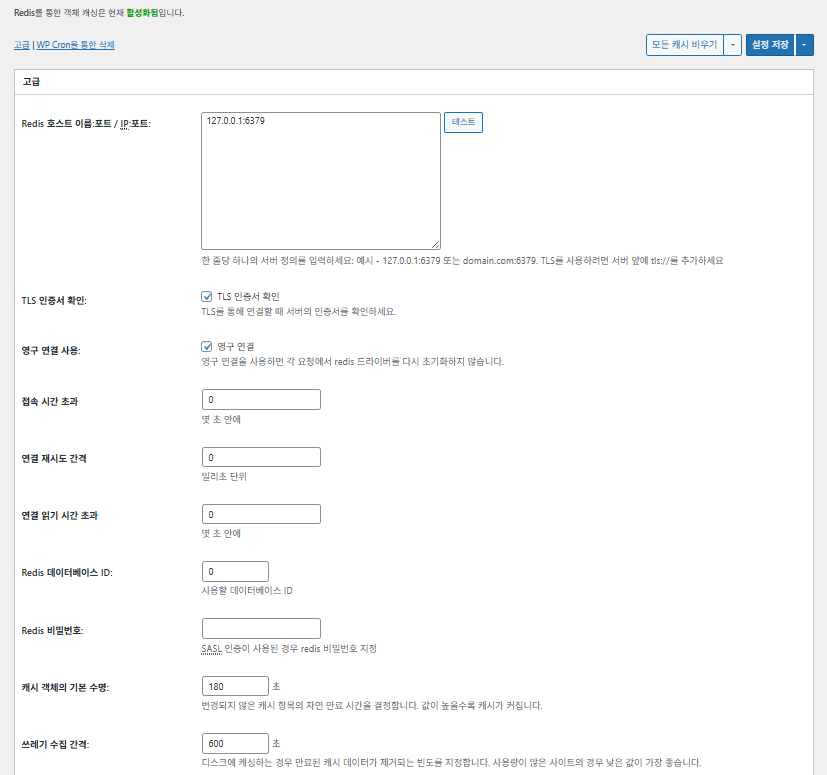
W3TC Objectcache_geavanceerde instellingen 1

Onderdeel

Uitleg

Redis-host/IP

Formaat [127.0.0.1:6379]. Gebruik voor TLS het voorvoegsel [tls://]

TLS-certificaat verifiëren

Controleert de geldigheid van het certificaat bij TLS (optioneel)

Persistente verbindingen gebruiken

Hergebruikt Redis-verbindingen voor betere prestaties

Time-out voor verbinding

Maximale tijd om verbinding met Redis te maken (s)

Interval voor nieuwe verbindingspoging

Wachttijd voor een nieuwe poging na een fout (ms)

Time-out voor lezen van verbinding

Maximale wachttijd op een antwoord (s)

Redis DB ID

Databasenummer binnen Redis (standaard [0])

Redis-wachtwoord

Invoer voor wachtwoord of SASL-authenticatie

Standaard levensduur van de cache

Standaardtijd dat cache-items worden bewaard (s). Standaard 180 s

Interval voor garbage collection

Hoe vaak verlopen cache wordt verwijderd. Standaard 600 s

Globale groepen

Groepen die in netwerkmodus worden gedeeld (voor multisite)

Niet-persistente groepen

Groepen die van caching zijn uitgesloten, bijv. [counts], [plugins]

wp-admin-verzoeken cachen

Past de cache ook toe op het beheergedeelte (⚠️ eerst testen)

Transients in database opslaan

Houdt tijdelijke waarden in de DB, ook als er een externe cache wordt gebruikt

WP-CLI inschakelen

Staat de cache ook toe voor WP-CLI-commando's

6️⃣ Browsercache

Browsercaching bewaart statische bestanden zoals afbeeldingen, CSS en JS op het apparaat van de bezoeker lokaal, waardoor de laadtijd bij herhaalde bezoeken sterk daalt. Dat verbetert de reactiesnelheid van de pagina en de gebruikerservaring.

De meeste van deze instellingen zijn gericht op cachecontrole en het verlagen van de serverbelasting. Op sites met veel verkeer of waar optimalisatie van statische bronnen belangrijk is, kun je er gerust veel inschakelen.

OnderdeelAlgemeenCSS en JSHTML en XMLMedia en andere bestanden
[Last-Modified]-header instellenVoegt de laatste wijzigingsdatum van het bestand toe om 304-antwoorden mogelijk te maken✅ In de meeste gevallen inschakelen✅ Geschikt voor de meeste servers✅ Werkt met de meeste CDN-/browsercaches
[Expires]-header instellenLaat de browser bestanden voor een bepaalde periode cachen✅ Standaard 31536000 s (1 jaar), aanbevolen✅ Standaard [3600 s (1 uur)] ✅ Standaard [31536000 s] (1 jaar) → geschikt voor statische bestanden
⏱️ De Expires-levensduur instellen—⏱️ bijv. [31536000 s = 1 jaar] · kan korter bij gebruik met een CDN——
[Cache-Control]-header instellenStuurt de cachestrategie door pragma- en cache-control-headers toe te voegen✅ [“public, max-age=31536000”] aanbevolen✅ Stel in op bijv. [“public, max-age=3600”]✅ [“public, max-age=31536000”] aanbevolen
✅ Beleid voor cachecontrole—✅ Gebruik een beleid met [max-age] · [“public, max-age=EXPIRES_SECONDS”] is de standaard——
[ETag] instellenLevert een entity tag die het bestand identificeert – om wijzigingen te detecteren✅ Effectief binnen dezelfde server✅ Worden caches niet tussen servers gedeeld,
wordt gebruik aanbevolen
✅ Handig bij één enkele server
W3TC-header instellenVoegt een header toe die laat zien of een bestand door W3TC is geoptimaliseerd🔖 Niet verplicht; voor analyse🔖 Niet verplicht (voor debuggen)🔖 Optioneel
gzip-compressieCompressie die tekstbestanden kleiner maakt (breed compatibel)✅ Ondersteund op de meeste servers✅ Ondersteund door de meeste servers✅ Geen effect op afbeeldingen
brotli-compressieHogere compressieverhouding dan gzip (alleen ondersteunde browsers)✅ Vereist Apache/Nginx-configuratie✅ Schakel de Apache/nginx-module in✅ Geldt alleen voor ondersteunde browsers
Caching van objecten na wijziging van instellingen voorkomenVoegt een querystring toe om de oude cache ongeldig te maken✅ Aanbevolen als instellingen vaak veranderen—✅ Bestandswijzigingen zijn direct zichtbaar
Querystrings verwijderenVerwijdert [?] uit statische bronnen voor betere cachebaarheid⚠️ Alleen nodig bij sommige CDN's/proxy's—✅ Toepasbaar op bestanden met versiebeheer
Cookies verwijderenVerwijdert de header [Set-Cookie] uit antwoorden voor statische bronnen✅ Vink het in de meeste gevallen aan—✅ Afbeeldingen en dergelijke hebben geen cookies nodig
WordPress geen 404's laten afhandelenDe webserver handelt 404's voor statische bestanden af → minder belasting voor WP———
Lijst met 404-uitzonderings-URI'sGeeft URI-patronen op die WP toch moet afhandelen (bijv. sitemap, robots.txt)———
URL-structuur van objecten herschrijvenGenereert unieke URI's om caches te omzeilen (bijv. [ver=xxxx])———

Ⅲ. Extra functies van W3 Total Cache

  • ↳ WP Cron, CDN, reverse proxy, gebruikerservaring, statistieken, WebP-converter, Google PageSpeed, instellingen importeren/exporteren

De cache legen via WP Cron is een globale instelling.

🧭 Simulator voor extra functies van W3 Total Cache
Padsimulator
📍Performance›General Settings›Purge via WP Cron
WP Cron
De cache legen met WP Cron is een globale instelling waarin je de starttijd en het interval instelt.
📍Performance›General Settings›CDN›Advanced Settings
CDN
Na aanmelding bij een CDN-provider vink je [Enable] aan onder [CDN], kies je het [CDN Type] en sla je op; gedetailleerde opties stel je in bij [Advanced Settings].
📍Performance›General Settings›Reverse Proxy
Reverse proxy
Vink [Enable reverse proxy caching via varnish] alleen aan als je Varnish gebruikt. Vul bij [Varnish servers] het IP-adres van je Varnish-server in.
📍Performance›General Settings›User Experience›Advanced Settings
Gebruikerservaring
Vink [Lazy Load Images] aan en sla op; stel daarna in [Advanced Settings] de lazy-load-opties in. Meer dan 50% van de functies in de geavanceerde instellingen is alleen in de premiumversie beschikbaar.
📍Performance›General Settings›Image Converter
WebP-converter
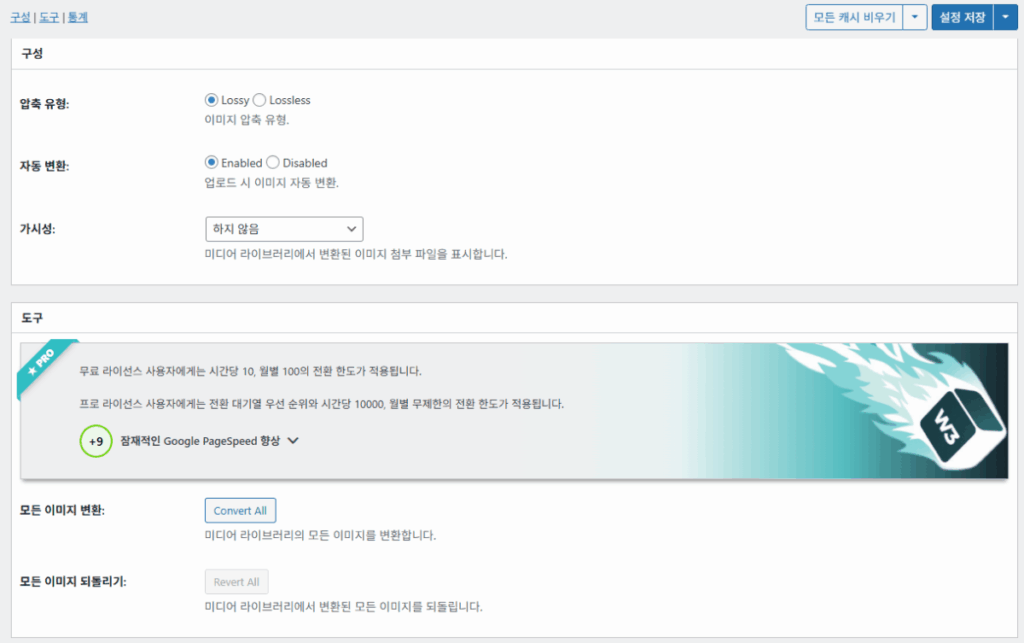
Vink je [Enable Image Converter Extension] aan onder [Image Converter], dan kun je afbeeldingen uit de mediabibliotheek naar WebP of AVIF omzetten.
example.com/wp-admin/admin.php?page=w3tc_general
DashboardSettingsToolsInfoSupportUpgrade
|||||||||||||||||
Empty All Caches
Purge via WP Cron
Enabling this will schedule a WP-Cron event that will flush all enabled Caches via a single cron job. Each cache’s advanced settings page features similar settings to this if you wish to schedule purges for specific caches only. If you prefer to use a system cron job instead of WP-Cron, you can schedule the following command to run at your desired interval: “wp w3tc flush all”. If the Always Cached extension is active and enabled, page cache entries will instead be added to the queue instead of being purged from the cache. Visit here for more information.
Enable WP-Cron Event
Enable
Start Time
This setting controls the initial start time of the cron job. If the selected time has already passed, it will schedule the job for the following day at the selected time.
Interval
This setting controls the interval that the cron job should occur.
CDN
Content Delivery Network (CDN) is a powerful feature that can significantly enhance the performance of your WordPress website. By leveraging a distributed network of servers located worldwide, a CDN helps deliver your website’s static files, such as images, CSS, and JavaScript, to visitors more efficiently. This reduces the latency and improves the loading speed of your website, resulting in a faster and smoother browsing experience for your users. With W3 Total Cache’s CDN integration, you can easily configure and connect your website to a CDN service of your choice, unleashing the full potential of your WordPress site’s speed optimization.
Basic SettingsPremium ServicesHelp
CDN:
Theme files, media library attachments, CSS, and JS files will load quickly for site visitors.
CDN Type:
Select the CDN type you wish to use.
Host the entire website with your compatible CDN provider to reduce page load time.
FSD CDN:
Enable★ PRO
Deliver visitors the lowest possible response and load times for all site content including HTML, media (e.g. images or fonts), CSS, and JavaScript. Show More ⌄ Learn more about Pro
Reverse Proxy
A reverse proxy is a server that sits between a client and a web server, acting as an intermediary for requests. It retrieves resources on behalf of the client from the server, and then returns the response to the client. By utilizing a reverse proxy, such as Varnish or Nginx, in conjunction with W3 Total Cache, you can significantly enhance the performance of your WordPress website by caching and serving static content directly from the reverse proxy server, reducing the load on your WordPress server and improving response times for visitors.
Enable reverse proxy caching via varnish
Varnish servers:
Specify the IP addresses of your varnish instances above. The VCL’s ACL must allow this request.
Trusted reverse proxies:
IP addresses or CIDR ranges of reverse proxies and load balancers in front of this site (one per line). Forwarded scheme and client-IP headers are used only for these addresses. Leave empty when PHP receives client connections directly. Developers may also supply this list via the w3tc_trusted_proxies filter.
User Experience
User Experience (UX) is a setting that focuses on enhancing the overall browsing experience for visitors of your website. By enabling this feature, you can optimize your website’s performance by minimizing load times, reducing server requests, and delivering content more efficiently. This ultimately leads to faster page loading, improved user satisfaction, and increased engagement, resulting in a speedier and more enjoyable WordPress website.
Basic Settings
Defer loading offscreen images.
Lazy Load Google Maps★ PRO
In addition to lazy loading images, with W3 Total Cache Pro you can lazy load Google Maps! More information and settings can be found on the User Experience page.
Disable Emoji
Remove emojis support from your website.
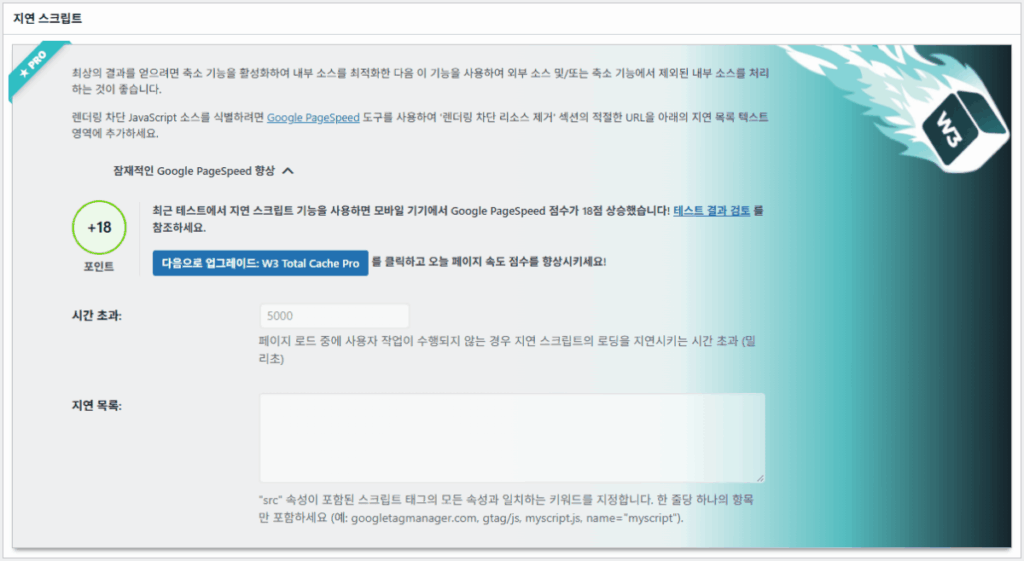
Delay Scripts★ PRO
Delay the loading of specified internal/external JavaScript sources on your pages separate from Minify.
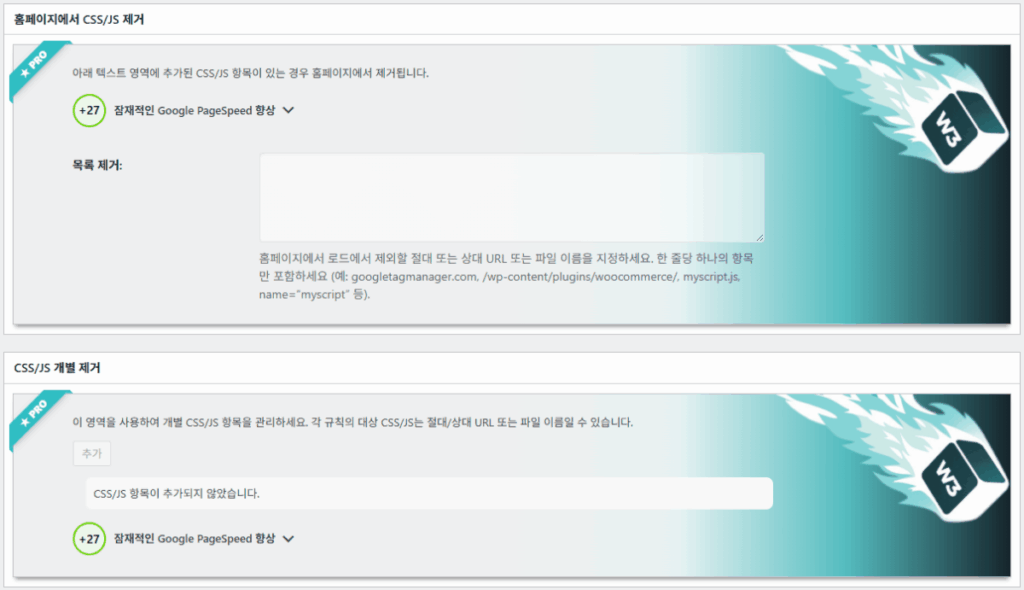
Remove Unwanted/Unused CSS/JS★ PRO
Removes specified CSS/JS tags from the homepage or on a per page basis.
Preload Requests★ PRO
DNS prefetching, pre-connecting, and preloading are essential web optimization techniques that enhance website performance by proactively resolving network-related tasks. Learn more about Pro
Disable wp-embed script
Remove wp-embed.js script from your website. oEmbed functionality still works but you will not be able to embed other WordPress posts on your pages.
Disable jquery-migrate on the front-end
Remove jquery-migrate support from your website front-end.
Image Converter
The Image Converter tool can be used to generate modern-format versions (e.g., WebP or AVIF) of media library images which offer superior lossless and lossy compression.
Enable Image Converter Extension
This extension allows for optimizing media library images to modern formats like WebP or AVIF.
As a free user you are limited to conversions of 10/hour and 100/month. The Pro license increases these rates to 10,000/hour and unlimited/month. Conversion rates are subject to change and documentation can be found here. Learn more about Pro
example.com/wp-admin/admin.php?page=w3tc_cdn
DashboardSettingsToolsInfoSupportUpgrade
||
Empty All Caches
General
Host attachments
Upload attachments
If checked, all attachments will be hosted with the CDN.
Host wp-includes/ files
Upload includes files
If checked, WordPress static core file types specified in the “wp-includes file types to upload” field below will be hosted with the CDN.
Host theme files
Upload theme files
If checked, all theme file types specified in the “theme file types to upload” field below will be hosted with the CDN.
Host minified CSS and JS files
Upload minify files
If checked, minified CSS and JS files will be hosted with the CDN.
Host custom files
Upload custom files
If checked, any file names or paths specified in the “custom file list” field below will be hosted with the CDN.
Force over-writing of existing files
If modified files are not always detected and replaced, use this option to over-write them.
Advanced
Only purge CDN manually
Purge CDN only if explicit purge button is clicked.
Disable CDN on SSL pages
When SSL pages are returned no CDN URLs will appear in HTML pages.
Use CDN links for the Media Library on admin pages
All Media Library content will use CDN links on administration pages.
Add CORS header
Add CORS headers to allow cross-domain assets usage.
Disable CDN for the following roles
Select user roles that will use the origin server exclusively:
Administrator
Editor
Author
Contributor
Subscriber
Disable CDN on the following pages:
Always ignore the specified pages / directories. Supports regular expression.
Automatically upload minify files
If CDN is enabled (and not using the origin pull method), your minified files will be automatically uploaded.
Export changed files automatically
Automatically attempt to find and upload changed files.
Auto upload interval:
3600seconds
Specify the interval between upload of changed files.
Re-transfer cycle interval:
900seconds
The number of seconds to wait before upload attempt.
Re-transfer cycle limit:
25
Number of files processed per upload attempt.
wp-includes file types to upload:
*.css;*.js;*.gif;*.png;*.jpg;*.xml
Specify the file types within the WordPress core to host with the CDN.
Theme file types to upload:
*.css;*.js;*.gif;*.png;*.jpg;*.ico;*.ttf;*.otf;*.woff;*.woff2;*.less
Specify the file types in the active theme to host with the CDN.
File types to import:
 
Automatically import files hosted with 3rd parties of these types (if used in your posts / pages) to your media library. Only common static types (images, CSS, JS, fonts, and media) are imported. Script, markup, and SVG types are ignored even if listed. Empty, *, and *.* use that static allowlist rather than every file.
Custom file list:
favicon.ico
{wp_content_dir}/gallery/*
{wp_content_dir}/uploads/avatars/*
{plugins_dir}/wordpress-seo/css/xml-sitemap.xsl
{plugins_dir}/wp-minify/min*
{plugins_dir}/*.js
{plugins_dir}/*.css
{plugins_dir}/*.gif
{plugins_dir}/*.jpg
{plugins_dir}/*.png
Specify any files outside of theme or other common directories to host with the CDN.
Rejected user agents:
Specify user agents that should not access files hosted with the CDN.
Rejected files:
{uploads_dir}/wpcf7_captcha/*
{uploads_dir}/imagerotator.swf
{plugins_dir}/wp-fb-autoconnect/facebook-platform/channel.html
Specify the path of files that should not use the CDN.
Set cookie domain to “example.com”
If using subdomain for CDN functionality, this setting helps prevent new users from sending cookies in requests to the CDN subdomain.
Note(s):
  • You can use placeholders {wp_content_dir}, {plugins_dir}, {uploads_dir} instead of writing folder paths (wp-content, wp-content/plugins, wp-content/uploads).
  • If using Amazon Web Services or Self-Hosted CDN types, enable HTTP compression in the “Media & Other Files” section on Browser Cache Settings tab.
example.com/wp-admin/admin.php?page=w3tc_userexperience
DashboardSettingsToolsInfoSupportUpgrade
Empty All Caches
Lazy loading is currently disabled.
Lazy Loading
Process HTML image tags
Process img tags
Process background images
Process background styles
Exclude words:
avia-bg-style-fixed
data-bgposition=
data-envira-src=
data-large_image=
data-lazy-original=
data-lazy-src=
data-lazyload=
data-lazysrc=
data-no-lazy=
data-src=
data-srcset=
fullurl=
lazy-slider-img=
loading=”eager”
no-lazy
rev-slidebg
skip-lazy
soliloquy-image
swatch-img
w3-total-cache
woocommerce/assets/images/placeholder.png
wpcf7_captcha
Exclude tags containing words
Threshold
 
The outer distance off the scrolling area from which to start loading the elements (example: 100px, 10%).
Script Embed method:
Use inline method only when your website has just a few pages
Google Maps
Lazy load google map
WP Google Map Plugin plugin
Google Maps Easy plugin
WP Google Maps plugin
Klik op een gemarkeerd onderdeel in het linkermenu of op een knop op het scherm.

1️⃣ CDN

Dit stel je in nadat je je bij een CDN-provider hebt aangemeld.

Optie

Uitleg

✅ Bijlagen hosten

Uploadt bijlagen zoals afbeeldingen in [wp-content/uploads] naar het CDN

✅ wp-includes-bestanden hosten

Neemt statische kernbestanden van WordPress (js/css enz.) op in het CDN

✅ Themabestanden hosten

Neemt de statische bestanden van het actieve thema (css/js/afbeeldingen enz.) op in het CDN

✅ Verkleinde CSS/JS-bestanden hosten

Levert de door W3TC verkleinde CSS/JS-bestanden vanaf het CDN

✅ Aangepaste bestanden hosten

Pusht paden of bestandsnamen die je opgeeft naar het CDN

⚠️ Bestaande bestanden geforceerd overschrijven

Om een nieuwe upload af te dwingen als wijzigingen niet automatisch worden gedetecteerd

Onderdeel

Uitleg

CDN alleen handmatig legen

Verwijdert bestanden alleen van het CDN als je op de knop voor handmatig legen klikt

CDN uitschakelen op SSL-pagina's

Gebruikt geen CDN-URL's op HTTPS-pagina's

CDN-links in het beheer gebruiken

Toont CDN-URL's voor media ook in de beheerschermen

Add CORS header

Voegt een antwoordheader toe die CORS toestaat

CDN per rol uitschakelen

Past het CDN niet toe voor geselecteerde gebruikersrollen (bijv. alleen beheerders gebruiken de origin)

Lijst met uitgesloten pagina's

Sluit de opgegeven paden uit van het CDN (regex toegestaan)

Verkleinde bestanden automatisch uploaden

Uploadt verkleinde bestanden automatisch naar het CDN (Push)

Gewijzigde bestanden automatisch exporteren

Uploadt automatisch zodra bestandswijzigingen worden gedetecteerd

Interval voor automatisch uploaden

Upload-interval nadat wijzigingen zijn gedetecteerd (standaard 3600 s)

Interval / limiet voor opnieuw verzenden

Interval voor nieuwe pogingen na fouten en een limiet op het aantal verwerkte bestanden

wp-includes-bestanden om te uploaden

Geeft op welke kernbestandstypen naar het CDN gaan

Themabestandstypen om te uploaden

Geeft themagerelateerde bestandstypen op, zoals CSS/JS/lettertypen

Bestandstypen om te importeren

Stelt voorwaarden in voor het automatisch downloaden van extern gelinkte bestanden

Aangepaste bestandenlijst

Geeft afzonderlijke bestandspaden op die naar het CDN gaan (templates, externe plugins enz.)

Geweigerde user agents

Geeft bots/user agents op die van CDN-bestanden worden geweerd

Geweigerde bestandspaden

Geeft bestandspaden op die buiten het CDN blijven, zoals CAPTCHA's en speciale paden

Cookiedomein instellen

Geeft een domein op zodat er geen cookies worden meegestuurd bij een CDN op een subdomein

2️⃣ Reverse proxy

De uitleg gebruikt Varnish en Nginx als voorbeeld, maar omdat Nginx op de server wordt geconfigureerd, pas je dit alleen in de W3 Total Cache-plugin toe als je Varnish gebruikt.

3️⃣ Gebruikerservaring: lazy load

In de geavanceerde instellingen is meer dan 50% van de functies alleen in de premiumversie beschikbaar.

Onderdeel

Uitleg

Wanneer gebruiken

✅ HTML-afbeeldingstags verwerken

[<img>]-tags krijgen het lazy-attribuut

Voor lazy loading van gewone contentafbeeldingen

✅ Achtergrondafbeeldingen verwerken

Past lazy loading toe op CSS-[background-image]

Voor designrijke sites met veel achtergrondafbeeldingen

Woorden uitsluitenVoorbeeld
Attributen uitgesloten van lazy[data-src], [data-lazy-src], [data-no-lazy], [loading=”eager”], enz.
Klassen uitgesloten van lazy[no-lazy], [skip-lazy], [lazy-slider-img], [rev-slidebg], enz.
Plugins/sliders[soliloquy-image], [envira], [w3-total-cache], [wpcf7_captcha], enz.
WooCommerce[swatch-img], [woocommerce/…/placeholder.png], enz.

De “drempel” voor lazy loading bepaalt hoe ver onder de viewport (het scherm) van de browser afbeeldingen en achtergrondelementen alvast beginnen te laden. Bij 100px bijvoorbeeld laadt een element zodra de gebruiker tot binnen 100 pixels ervan scrolt; een te kleine waarde vertraagt het laden van afbeeldingen, waardoor gebruikers lege vlakken kunnen zien, dus 100–300px is meestal geschikt.

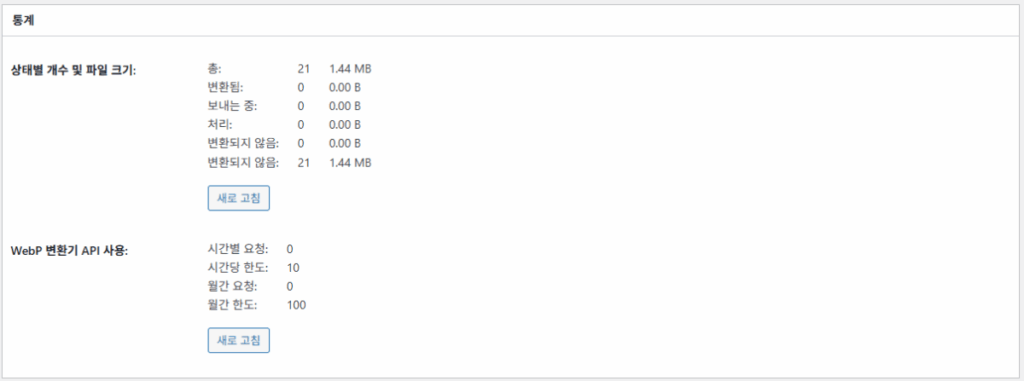
Hierna volgen de manieren om scripts in te voegen.

Invoegmethode

Uitleg

Positie of attribuut

Asynchroon (Async)

Draait parallel aan het laden van de pagina en blokkeert het renderen niet

[<script async>]

Synchroon (in de head)

Draait als eerste in het [<head>]-gedeelte en kan het renderen tijdelijk blokkeren (in the head)

[<head>] of [<script>]

Inline

Voegt het script direct in het HTML-document in, zodat het zonder apart verzoek draait

Ingevoegd binnen [<script>code</script>]

W3TC Gebruikerservaring geavanceerde instellingen 2
W3TC Gebruikerservaring geavanceerde instellingen 3

4️⃣ WebP-converter

W3TC WebP-converter_details (geavanceerde instellingen) 1
W3TC WebP-converter_details (geavanceerde instellingen) 2

Ⅳ. Totaaloordeel over W3 Total Cache

De interface (UI) van W3 Total Cache is niet slecht, maar duidelijk onhandig. Veel ontwikkelaars en professionele gebruikers wijzen op hetzelfde. Vergeleken met moderne plugins zoals WP Rocket of FlyingPress houdt hij qua siteprestaties goed mee, maar schiet de gebruikerservaring (UX) tekort.

Veel functies is een sterk punt, maar voor beginners kan de structuur te complex aanvoelen. Vooral door het vele springen tussen menu's en de vele detailopties kunnen zelfs ervaren ontwikkelaars en sitebeheerders  configuratiefouten maken. Je onthoudt natuurlijk niet elke instelling, maar in gebruik is het een geavanceerde cacheplugin die nauwkeurig afstellen mogelijk maakt.

Met meer dan 1 miljoen installaties van de gratis versie is hij moeilijk af te doen als gewoon een oude plugin — in de praktijk kunnen maar weinig cacheplugins tippen aan de breedte en rijkdom van zijn functies.

OnderdeelBeoordeling (⭐)Beoordeling
🎛️ Interface⭐⭐⭐Veel menu's en een complexe structuur; een drempel voor nieuwe gebruikers. De UI voelt gedateerd
⚙️ Breedte van functies⭐⭐⭐⭐⭐Cache, CDN, Redis en bijna elke andere functie; moeilijk iets te vinden wat ontbreekt
🛠️ Flexibiliteit bij fijnafstelling⭐⭐⭐⭐Bijna alles is fijn af te stellen; let op conflicten tussen instellingen
🚀 Prestatiewinst⭐⭐⭐⭐⭐Uitstekende prestaties na optimalisatie; object-/browsercache maken een groot verschil
🧩 Compatibiliteit⭐⭐⭐Kan conflicteren met sommige hosts, thema's en plugins.
📄 Documentatie en handleidingen⭐⭐⭐⭐⭐Uitgebreide officiële documentatie
💡 Aanbeveling voor gebruikers⭐⭐⭐⭐(4.5)Aanbevolen voor gevorderde gebruikers; beginners kiezen misschien liever WP Rocket, Cache Enabler enz.
📊 Totaalscore⭐⭐⭐⭐(4.5)Een krachtige, functiegerichte plugin. Er is een leercurve; houd rekening met je eigen niveau

Ⅴ. Prestatietest

Na het configureren van de plugin liet de laatste snelheidstest een duidelijkere snelheidswinst zien dan bij gewone cacheplugins.

ℹ️ Affiliatemelding
De content van deze site bevat affiliatelinks. Koopt een bezoeker via een van deze links een product of dienst, dan ontvangt deze site een commissie van de verkoper. Het bedrag dat de koper betaalt (bij acties gaat het omlaag ↓) wordt daardoor niet hoger. De vermelde prijzen, kortingen en voorraad gelden op het moment van schrijven en kunnen afwijken; controleer ze daarom vóór je aankoop bij de verkoper. Producten worden gekozen en beoordeeld volgens onze eigen criteria, en commissies hebben geen invloed op de volgorde of de inhoud van de beoordelingen.

Geef een reactie

Je e-mailadres wordt niet gepubliceerd. Vereiste velden zijn gemarkeerd met *

Laat zien dat je geen machine bent: 3   +   6   =