W3 Total Cache 플러그인: 최적화 세팅 방법

공정위 광고 문구 Ver 3.1
공정위 광고 문구 Ver 3.2(모바일 전용)
테스트 환경 클라우드웨이즈Debian 12Apache 2.4.69 + nginxPHP 8.2.34WordPress 7.1.3W3 Total Cache 2.10.72026-10-18 확인

워드프레스 사이트의 속도는 플러그인을 설치하면 필연적으로 느려질 수 밖에 없습니다. 결국 캐시 플러그인은 워드프레스의 필수 플러그인 중 하나로 자리 잡을 수 밖에 없습니다. 프리 버전에서 100만 명 이상의 활성 설치와 4.4점의 별점을 받은 W3 Total Cache(W3TC) 플러그인은 많은 사용자들이 사용하는 플러그인 중 하나입니다.

캐시 설정은 사용 중인 다른 플러그인의 일부 기능이 작동하지 않을 수 있기 때문에 워드프레스를 시작한 지 얼마 안되었다면, 간단하게 설정할 수 있는 Cache Enabler 또는 WP Super cache를 사용할 수 있습니다.

자세한 캐시 설정 및 제어가 필요할 경우 프리 버전에서도 강력한 기능을 제공하는 W3 Total Cache 플러그인을 사용할 수 있습니다.

Ⅰ. W3 Total Cache 설치와 설정 가이드

  • ↳ 검색 엔진(SEO: Search Engine Optimization)
  • ↳ 성능 최적화(WPO: Web Performance Optimization)
  • ↳ 통합 캐싱: CDN, 페이지, 축소, 객체, 파편화, 데이터베이스 지원.

W3 Total Cache 검색 후 플러그인 설치 및 활성화를 진행합니다.

🧭 W3 Total Cache 설치와 설정 가이드 시뮬레이터
캐시 플러그인경로 시뮬레이터
📍Plugins›Add Plugin
플러그인 설치
검색칸에 W3 Total Cache를 입력하고 [Install Now]를 누른 뒤, 설치가 끝나면 [Activate]를 누릅니다.
📍Performance›Setup Guide
설정 가이드
처음 설치 후 [Dashboard]로 이동하면 [Setup Guide]로 자동 이동합니다. 아직 어떤 설정도 되어 있지 않기 때문입니다.
📍Performance›Dashboard
대시보드
가이드에서 설정한 내용은 [General Settings] 상자에 기능별로 표시되며, 페이지 캐시 등 세부 설정은 [General Settings]에서 진행합니다.
example.com/wp-admin/plugin-install.php
Add Plugins Upload Plugin
Plugins extend and expand the functionality of WordPress. You may install plugins from the WordPress Plugin Directory right on this page, or upload a plugin in .zip format by clicking the button above.
Search ResultsFeaturedPopularRecommendedFavorites
Search PluginsKeyword
922 items
W3 Total Cache
Installing...ActiveMore Details
Search Engine (SEO) & Performance Optimization (WPO) via caching. Integrated caching: CDN, Page, Minify, Object, Fragment, Database support.
By BoldGrid
★★★★★ (5,421)
Last Updated: 2 weeks ago
900,000+ Active Installations
✓ Compatible with your version of WordPress
example.com/wp-admin/admin.php?page=w3tc_setup_guide
DashboardSettingsToolsInfoSupportUpgrade
W3 Total CacheSetup Guide
TOTAL CACHE: Setup Guide
  • Welcome
  • Page Cache
  • Database Cache
  • Object Cache
  • Image Converter
  • Lazy Load
  • More Caching Options
Welcome to the W3 Total Cache Setup Guide!
By allowing us to collect data about how W3 Total Cache is used, we can improve our features and experience for everyone. This data will not include any personally identifiable information. Feel free to review our terms of use and privacy policy.
AcceptDecline
SKIPNEXT
example.com/wp-admin/admin.php?page=w3tc_dashboard
DashboardSettingsToolsInfoSupportUpgrade
W3 Total CacheDashboard
Flush caches with Empty All Caches
Account
License: Free
Status: Free license, no expiration
Upgrade to W3 Total Cache Pro now to unlock additional settings and features that can further improve your site’s performance and Google PageSpeed ratings.
Learn more about Pro
General Settings
Preview Modedisabled
Page Cachedisabled
Minifydisabled
Opcode Cacheenabled
Database Cachedisabled
Object Cachedisabled
Browser Cachedisabled
CDNdisabled
Reverse Proxydisabled
Statisticsdisabled
Fragment Cachedisabled
Debugdisabled
Settings can be modified by visiting General Settings
Image Optimization Summary
Enable Image Converter
PageSpeed Report
Before you can get started using the Google PageSpeed tool, you’ll first need to authorize access. Please click here.
왼쪽 메뉴의 켜진 칸이나 화면의 버튼을 누릅니다.

처음 설치 후 [알림판] 페이지로 이동 시 [설정 가이드]로 자동 이동 됩니다. 아직 어떤 설정도 되어 있지 않기 때문입니다.

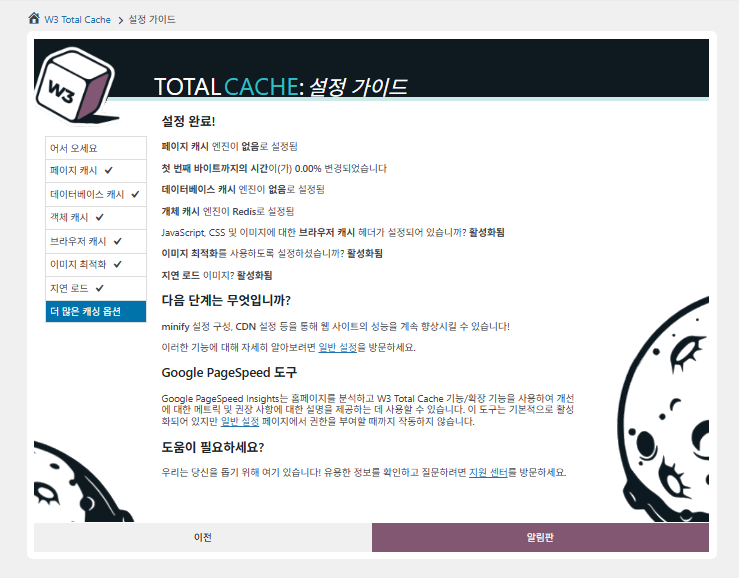
설정 가이드에서는 ①페이지 캐시, ②데이터베이스 캐시, ③객체 캐시, ④브라우저 캐시, ⑤이미지 최적화, ⑥지연로드, ⑦그 외 캐싱 옵션 설정을 진행할 수 있습니다.
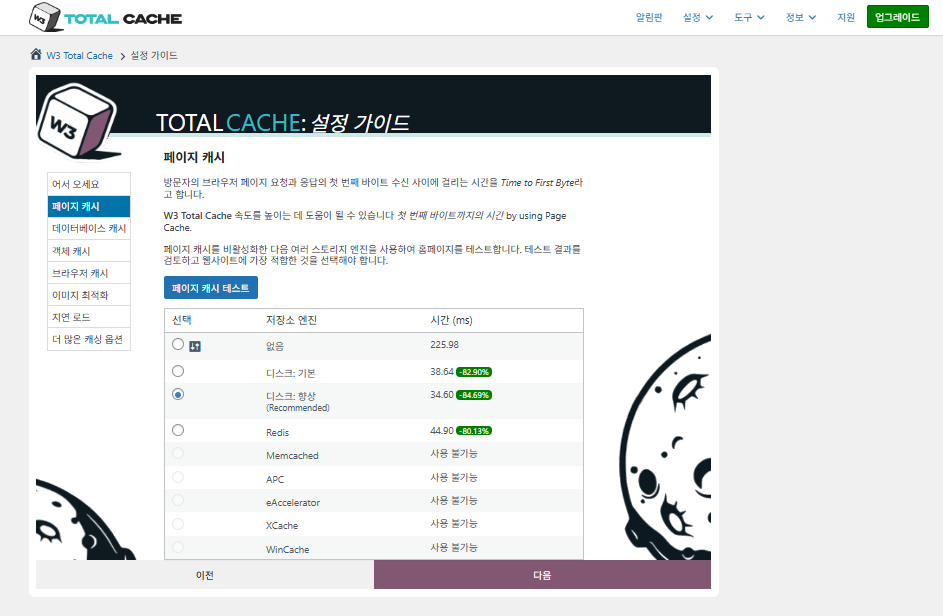
W3 Total Cache 설정 가이드 ①페이지 캐시_디스크 캐시(향상Enhanced 선택)

페이지 캐시 설정의 경우 W3TC 기본 추천이 Disk: [향상]입니다. 표에서 볼 수 있듯이 Disk: Enhanced가 Disk: Basic보다 약 10.3ms 더 빠르며, 이는 TTFB 기준으로 약 17.8% 향상된 성능입니다.
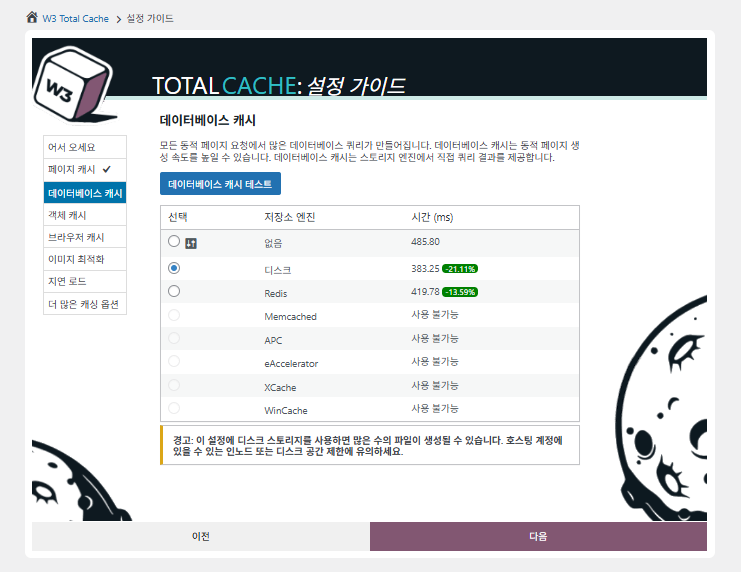
W3 Total Cache 설정 가이드 ②데이터베이스 캐시_디스크 캐시 선택

데이터베이스 캐시에서 디스크 캐시를 선택합니다.

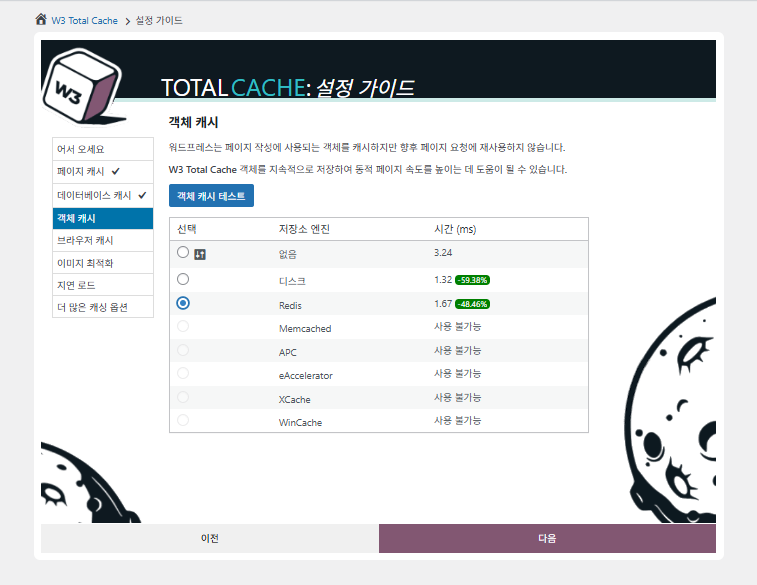
W3 Total Cache 설정 가이드 ③객체 캐시_Redis 선택
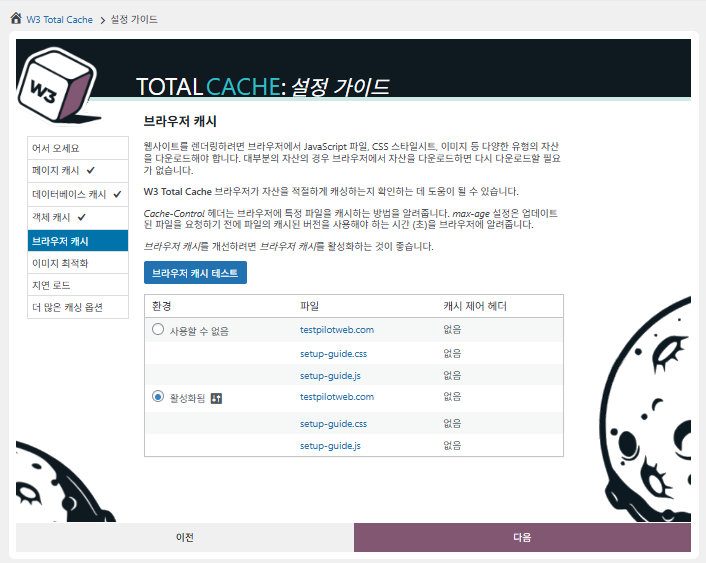
W3 Total Cache 설정 가이드 ④브라우저 캐시
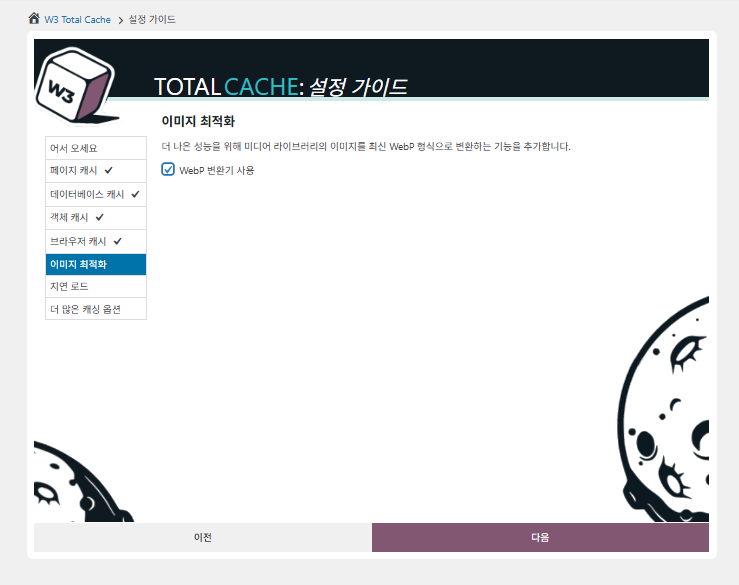
W3 Total Cache 설정 가이드 ⑤이미지 최적화-Webp 변환기 사용
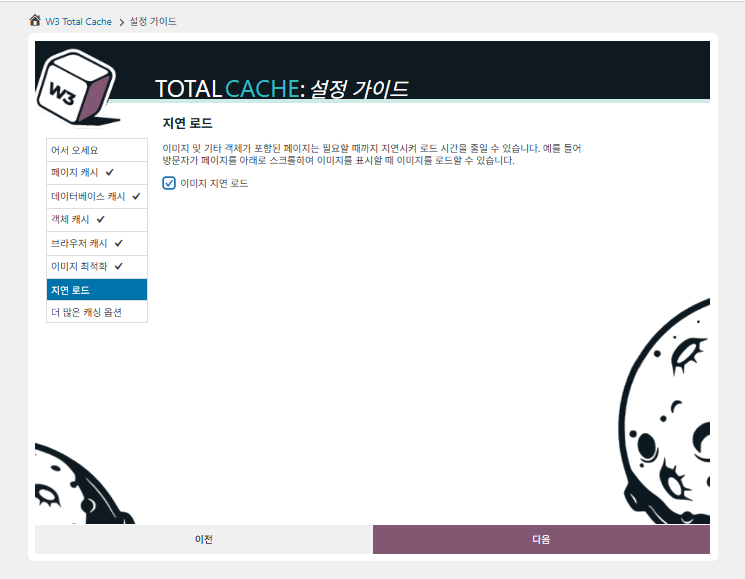
W3 Total Cache 설정 가이드 ⑥지연로드-이미지 지연로드
W3 Total Cache 설정 가이드 ⑦그 외 캐싱 옵션 설정_알림판 이동 후 설정

가이드에서 설정한 내용이 대시보드에 반영 되었습니다.

우측 상단의 [설정] 탭을 클릭해서 [일반 설정]부터 페이지 캐시 등 설정을 진행할 수 있습니다.
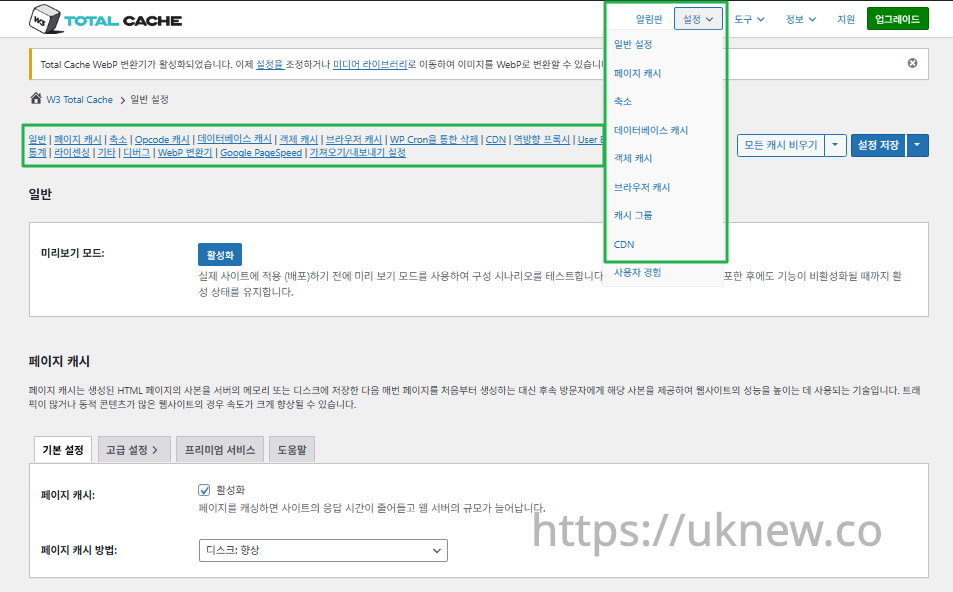
W3TC 대시보드-설정__

ⓐ좌측의 관리자 [페이지에서의 설정]과 ⓑ우측 상단의 [설정] 탭은 각각의 페이지 캐시, Minify 설정 등의 고급 설정으로 이동하며, 일반 설정 탭 중앙 상단의 각각의 페이지로 이동하면 일반 설정의 각각의 페이지 캐시와 Minify 설정 일반 설정부터 고급 설정을 확인할 수 있습니다.

Ⅱ. W3 Total Cache 캐시 설정

  • ↳ 캐시 기능

W3TC 설정 탭에서 일반 설정 탭입니다.

🧭 W3 Total Cache 캐시 설정 시뮬레이터
경로 시뮬레이터
📍Performance›General Settings›General
미리보기 모드
실제 캐시 적용 내용을 배포하기 전에 [Preview mode]를 활성화해 오류 등을 미리 테스트할 수 있습니다.
📍Performance›General Settings›Page Cache›Advanced Settings
페이지 캐시
[Page Cache]의 [Enable]을 체크하고 방식이 [Disk: Enhanced]인지 확인한 뒤 [Save Settings]를 누릅니다. 세부 항목은 [Advanced Settings]에서 설정합니다.
📍Performance›General Settings›Minify›Advanced Settings
축소
[Minify]의 [Enable]을 체크하고 [Save Settings]를 누른 뒤, [Advanced Settings]에서 HTML, CSS, JS 축소 항목을 설정합니다.
📍Performance›General Settings›Opcode Cache
Opcode 캐시
Opcode 캐시의 경우 서버에 설치된 Opcode가 자동 적용되며, 설치되지 않은 경우 비활성화로 설정됩니다.
📍Performance›General Settings›Database Cache›Object Cache
데이터베이스·객체 캐시
[Database Cache]와 [Object Cache]의 [Enable]을 각각 체크하고 저장합니다. 세부 항목은 [Database Cache]와 [Object Cache] 화면에서 설정합니다.
📍Performance›General Settings›Browser Cache›Advanced Settings
브라우저 캐시
[Browser Cache]의 [Enable]을 체크하고 저장한 뒤, [Advanced Settings]에서 파일 종류별 캐시 항목을 설정합니다.
example.com/wp-admin/admin.php?page=w3tc_general
DashboardSettingsToolsInfoSupportUpgrade
|||||||||||||||||
Empty All Caches
General
Preview mode:
Enable
Use preview mode to test configuration scenarios prior to releasing them (deploy) on the actual site. Preview mode remains active even after deploying settings until the feature is disabled.
Page Cache
Page cache is a technique used to speed up the performance of a website by storing a copy of the generated HTML page in the server’s memory or disk, and then serving that copy to subsequent visitors instead of generating the page from scratch each time. This can result in significant speed improvements for websites with high traffic or dynamic content.
Basic SettingsPremium ServicesHelp
Page Cache:
Caching pages will reduce the response time of your site and increase the scale of your web server.
Page Cache Method:
Minify
Minification is a technique used to reduce the file size of HTML, CSS, and JavaScript files by removing unnecessary characters such as whitespace, comments, and line breaks. This process can significantly improve the load times of web pages by reducing the amount of data that needs to be downloaded by the user’s browser.
Basic SettingsPremium ServicesHelp
Minify:
Minification can decrease file size of HTML, CSS, JS and feeds respectively by ~10% on average. Learn more
Minify mode:
Auto
Manual
Select manual mode to use fields on the Minify settings tab to specify files to be minified, otherwise files will be minified automatically. Learn more
Minify Cache Method:
Learn more
HTML minifier:
Learn more
JS minifier:
CSS minifier:
Opcode Cache
Opcode cache is a powerful feature that enhances the performance of a WordPress website by caching compiled PHP code. By storing pre-compiled code in memory, opcode cache eliminates the need for repetitive interpretation and compilation of PHP files, resulting in significantly faster execution times. Opcode cache reduces server load and improves response times, ultimately enhancing the overall speed and responsiveness of your WordPress site. If opcode cache is available on the hosting server it will automatically be selected in the dropdown and enabled.
Opcode Cache
Validate timestamps:
Enable
Once enabled, each file request will update the cache with the latest version. When this setting is off, the Opcode Cache will not check, instead PHP must be restarted in order for setting changes to be reflected.
Database Cache
Enable this setting to utilize the power of caching your WordPress site’s database queries. By storing frequently accessed database queries in memory, the database cache reduces the need for repetitive database interactions, resulting in faster page load times. This feature is particularly beneficial for websites with heavy database usage, improving overall performance and delivering a smoother user experience.
Basic SettingsPremium ServicesHelp
Database Cache:
Caching database objects decreases the response time of your site. Best used if object caching is not possible.
Database Cache Method:
Object Cache
Enable this option to utilize an object cache mechanism, which significantly enhances the performance of your WordPress website. Object caching stores frequently accessed database queries and complex data structures in memory, reducing the need to retrieve them from the database repeatedly. By doing so, it minimizes the processing time required to generate dynamic content, resulting in faster page loading times and improved overall site speed. Enabling object cache is particularly beneficial for websites with heavy database usage or high traffic volumes, as it helps alleviate the strain on the server by efficiently serving cached data.
Basic SettingsPremium ServicesHelp
Object Cache:
Object caching greatly increases performance for highly dynamic sites that use the Object Cache API.
Object Cache Method:
Browser Cache
Enabling browser caching will instruct visitors’ web browsers to store static files from your WordPress website, such as images, CSS, and JavaScript files, locally on their devices. By doing so, subsequent visits to your site will retrieve these cached files from the browser’s storage, reducing the need for repeated downloads. This results in faster page loading times and a smoother browsing experience for your visitors, ultimately improving the overall speed and performance of your WordPress website.
Basic SettingsPremium ServicesHelp
Browser Cache:
Enable HTTP compression and add headers to reduce server load and decrease file load time.
example.com/wp-admin/admin.php?page=w3tc_pgcache
DashboardSettingsToolsInfoSupportUpgrade
|||||||
Empty All Caches
Always Cached extension is currently disabled. To enable the extension click here.
General
Cache front page
For many blogs this is your most visited page, it is recommended that you cache it. Learn more
Cache feeds: site, categories, tags, comments
Even if using a feed proxy service enabling this option is still recommended. Learn more
Handle XML mime type
Return correct Content-Type header for XML files (e.g., feeds and sitemaps). Learn more
Cache SSL (HTTPS>) requests
Cache SSL requests (uniquely) for improved performance. Learn more
Cache URI with query string variables
Search result (and similar) pages will be cached if enabled. Learn more
Cache 404 (not found) pages
Reduce server load by caching 404 pages. If the disk enhanced method of disk caching is used, 404 pages will be returned with a 200 response code. Use at your own risk. Learn more
Don’t cache pages for logged in users
Unauthenticated users may view a cached version of the last authenticated user’s view of a given page. Disabling this option is not recommended. Learn more
Don’t cache pages for following user roles
Select user roles that should not receive cached pages: Learn more
Administrator
Editor
Author
Contributor
Subscriber
Aliases
Cache alias hostnames:
Enable
If the same WordPress content is accessed from different domains. Learn more
Additional home URLs:
Specify full home URLs of your mirrors so that plugin will flush it’s cache when content is changed. For example: http://my-site.comhttp://www.my-site.comhttps://my-site.com Learn more
Cache Preload
Automatically prime the page cache
Automatically primes the page cache using the settings configured below. Learn more
Update interval:
900seconds
The number of seconds to wait before creating another set of cached pages. Learn more
Pages per interval:
10
Limit the number of pages to create per batch. Fewer pages may be better for under-powered servers. Learn more
Sitemap URL:
 
A compliant sitemap can be used to specify the pages to maintain in the primed cache. Pages will be cached according to the priorities specified in the XML file. Learn more
Preload the sitemap once
Stop cache preloading after every URL in the sitemap has been processed. Disable and re-enable cache preloading to start a new pass.
Preload cache upon publishing a post
Only applies to pages, posts, and custom post types whose status transitioned from a non-published status to the “published” status. Learn more
Preload cache upon updating a post
Applies after updating any page, post, or custom post type with the final status being “published”. Learn more
Purge Policy:
Specify the pages and feeds to purge when posts are created, edited, or comments posted. The defaults are recommended because additional options may reduce server performance: Learn more
Front page
Post page
Blog feed
Post comments pages
Post author pages
Post terms pages
Post comments feed
Post author feed
Post terms feeds
Daily archive pages
Monthly archive pages
Yearly archive pages
rdf
rss
rss2 (default)
atom
Choose which feed types should be automatically purged. Learn more
Purge limit:
10
Specify number of pages that lists posts (archive etc.) that should be purged on post updates etc., i.e. example.com/ ... example.com/page/5.
0 means all pages that lists posts are purged, i.e. example.com/page/2 ... Learn more
Additional pages:
Specify additional pages to purge. Including parent page in path. Ex: parent/posts. Learn more
Purge sitemaps:
([a-z0-9_\-]*?)sitemap([a-z0-9_\-]*)?\.(?:xml|xsl)
Specify a regular expression that matches your sitemaps. Learn more
REST API
Use these controls to determine how the WordPress REST API responds to visitors and integrations. Caching API responses can dramatically reduce load when headless frontends, mobile apps, or third-party services request the same data repeatedly, but you can keep responses uncached for highly dynamic endpoints or disable the API altogether when it is not needed to reduce attack surface. Learn more
REST API
Don’t cache
Cache★ PRO
Disable REST API
If you’re using the WordPress API make sure to use caching to scale performance. Show More ▾
Advanced
Late initialization:
Enable
Enables support for WordPress functionality in fragment caching for the page caching engine. Use of this feature may increase response times. Learn more
Late caching:
Enable
Overwrites key of page caching via custom filters by postponing entry extraction during the init action. Learn more
Compatibility mode:
Enable
Decreases performance by ~20% at scale in exchange for increasing interoperability with more hosting environments and WordPress idiosyncrasies. Enable this option if you experience issues with the Apache rules. Learn more
Reject HEAD requests:
Disable caching of HEAD HTTP requests
If disabled, HEAD requests can often be cached resulting in “empty pages” being returned for subsequent requests for a URL. Learn more
Maximum lifetime of cache objects:
3600seconds
Determines the natural expiration time of cache items. The higher the value, the larger the cache.
Max lifetime is limited by the W3TC_CACHE_FILE_EXPIRE_MAX constant (2592000 seconds) which can be overridden in wp-config.php.
Garbage collection interval:
3600seconds
If caching to disk, specify how frequently expired cache data is removed. For busy sites, a lower value is best. Learn more
Comment cookie lifetime:
1800seconds
Significantly reduce the default TTL for comment cookies to reduce the number of authenticated user traffic. Enter -1 to revert to default TTL. Learn more
Accepted query strings:
ScCid
_branch_match_id
_bta_c
_bta_tid
_ga
_gl
_ke
adgroupid
adid
age-verified
ao_noptimize
campaignid
campid
click_id
cn-reloaded
customid
dicbo
dm_i
ef_id
epik
fb_action_ids
fb_action_types
fb_source
fbclid
gclid
gclsrc
gdffi
gdfms
gdftrk
hsa_acc
hsa_ad
hsa_cam
hsa_grp
hsa_kw
hsa_mt
hsa_net
hsa_src
hsa_tgt
hsa_ver
igshid
li_fat_id
matomo_campaign
matomo_cid
matomo_content
matomo_group
matomo_keyword
matomo_medium
matomo_placement
matomo_source
mc_cid
mc_eid
mkcid
mkevt
mkrid
mkwid
msclkid
mtm_campaign
mtm_cid
mtm_content
mtm_group
mtm_keyword
mtm_medium
mtm_placement
mtm_source
pcrid
piwik_campaign
piwik_keyword
piwik_kwd
pk_campaign
pk_cid
pk_content
pk_keyword
pk_kwd
pk_medium
pk_source
pp
redirect_log_mongo_id
redirect_mongo_id
ref
s_kwcid
sb_referer_host
si
sscid
tblci
toolid
trk_contact
trk_module
trk_msg
trk_sid
ttclid
twclid
usqp
utm_campaign
utm_content
utm_expid
utm_id
utm_medium
utm_source
utm_term
wbraid
Always cache URLs that use these query string name-value pairs. The value part is not required. But if used, separate name-value pairs with an equals sign (i.e., name=value). Each pair should be on their own line. Learn more
Rejected user agents:
Never send cache pages for these user agents. Learn more
Rejected cookies:
wptouch_switch_toggle
Never cache pages that use the specified cookies. Learn more
Never cache the following pages:
wp-.*\.php
index\.php
Always ignore the specified pages / directories. Supports regular expressions. Learn more
Never cache pages associated with these categories:
Always ignore all pages filed under the specified category slugs. Learn more
Never cache pages that use these tags:
Always ignore all pages filed under the specified tag slugs. Learn more
Never cache pages by these authors:
Always ignore all pages filed under the specified author usernames. Learn more
Never cache pages that use these custom fields:
Always ignore all pages filed under the specified custom fields. Separate name-value pairs with an equals sign (i.e., name=value). Learn more
Cache exception list:
wp-comments-popup.php
wp-links-opml.php
wp-locations.php
Cache the specified pages / directories even if listed in the “never cache the following pages” field. Supports regular expression. Learn more
Non-trailing slash pages:
sitemap(_index)?\.xml(\.gz)?
([a-z0-9_\-]+)?sitemap\.xsl
[a-z0-9_\-]+-sitemap([0-9]+)?\.xml(\.gz)?
Cache the specified pages even if they don’t have trailing slash. Learn more
Specify page headers:
Last-Modified
Content-Type
X-Pingback
P3P
Link
Specify additional page headers to cache. Learn more
Purge via WP Cron
Enabling this will schedule a WP-Cron event that will flush the Page Cache. If you prefer to use a system cron job instead of WP-Cron, you can schedule the following command to run at your desired interval: “wp w3tc flush posts”. If the Always Cached extension is active and enabled, page cache entries will instead be added to the queue instead of being purged from the cache. Learn more
Page Cache is disabled! Enable it here to enable this feature.
Enable WP-Cron Event
Enable
Start Time
This setting controls the initial start time of the cron job. If the selected time has already passed, it will schedule the job for the following day at the selected time.
Interval
This setting controls the interval that the cron job should occur.
Note(s)
  • Enable HTTP compression in the “HTML” section on Browser Cache Settings tab.
example.com/wp-admin/admin.php?page=w3tc_minify
DashboardSettingsToolsInfoSupportUpgrade
||||||
Empty All Caches
General
Rewrite URL structure
If disabled, CSS and JS embeddings will use GET variables instead of “fancy” links. Learn more
Disable minify for logged in users
Authenticated users will not receive minified pages if this option is enabled. Learn more
Minify error notification:
Notify when minify cache creation errors occur. Learn more
HTML & XML
HTML minify settings:
Enable
Inline CSS minification
Inline JS minification
Don’t minify feeds
Line break removal
Enable HTML minification and optionally remove whitespace from inline CSS, JS, and feeds. Learn more
Ignored comment stems:
google_ad_
RSPEAK_
mfunc
Do not remove comments that contain these terms. Learn more
JS
JS minify settings:
Enable
Minify enqueued and inline JavaScript files according to the settings below. Learn more
Minify method:
Choose how JavaScript files should be combined or minified when using automatic mode. Learn more
Minify engine settings:
Operations in areas:
Embed type:
Before </head>
After <body>
Preserved comment removal (not applied when combine only is active)
Line break removal (not safe, not applied when combine only is active)
Control where scripts are placed and whether they stay blocking or load asynchronously for each template area. Learn more
HTTP/2 push
Enable
For better performance, send files to browser before they are requested when using the HTTP/2 protocol. Not supported by “Disk: Enhanced” page cache method for Nginx Learn more
CSS
CSS minify settings:
Enable
Minify stylesheets and inline CSS snippets declared in the queues below. Learn more
Minify method:
Choose how stylesheets should be combined or minified when using automatic mode. Learn more
Minify engine settings:
Preserved comment removal (not applied when combine only is active)
Line break removal (not applied when combine only is active)
Eliminate render-blocking CSS by moving it to HTTP body★ PRO
Website visitors cannot navigate your website until a given page is ready – reduce the wait time with this feature. Show More ▾
Decide where CSS is placed and whether it should load synchronously or asynchronously for each template area. Learn more
@import handling:
Control how @import rules are handled when combining and minifying stylesheets. Learn more
HTTP/2 push
Enable
For better performance, send files to browser before they are requested when using the HTTP/2 protocol. Not supported by “Disk: Enhanced” page cache method for Nginx Learn more
Advanced
Update external files every:
86400seconds
Specify the interval between download and update of external files in the minify cache. Hint: 6 hours is 21600 seconds. 12 hours is 43200 seconds. 24 hours is 86400 seconds. Learn more
Garbage collection interval:
86400seconds
If caching to disk, specify how frequently expired cache data is removed. For busy sites, a lower value is best.
Max interval is limited by the W3TC_CACHE_FILE_EXPIRE_MAX constant (2592000 seconds) which can be overridden in wp-config.php. Learn more
Never minify the following pages:
Always ignore the specified pages / directories. Use relative paths. Omit: protocol, hostname, leading forward slash and query strings. Learn more
Never minify the following JS files:
Always ignore the specified JS files. Use relative paths. Omit: protocol, hostname, leading forward slash and query strings. Learn more
Never minify the following CSS files:
Always ignore the specified CSS files. Use relative paths. Omit: protocol, hostname, leading forward slash and query strings. Learn more
Rejected user agents:
Specify user agents that will never receive minified content. Learn more
Include external files/libraries:
Specify external files/libraries that should be combined. Learn more
Use regular expressions for file name matching
If external script file names vary, use regular expressions in the “Include external files/libraries” field to simplify matching. Learn more
Purge via WP Cron
Enabling this will schedule a WP-Cron event that will flush the Minify Cache. If you prefer to use a system cron job instead of WP-Cron, you can schedule the following command to run at your desired interval: “wp w3tc flush minify”. Learn more
Minify is disabled! Enable it here to enable this feature.
Enable WP-Cron Event
Enable
Start Time
This setting controls the initial start time of the cron job. If the selected time has already passed, it will schedule the job for the following day at the selected time.
Interval
This setting controls the interval that the cron job should occur.
Note(s):
  • Enable HTTP compression in the “Cascading Style Sheets & JavaScript” section on Browser Cache Settings tab.
  • The TTL of page cache files is set via the “Expires header lifetime” field in the “Cascading Style Sheets & JavaScript” section on Browser Cache Settings tab.
example.com/wp-admin/admin.php?page=w3tc_dbcache
DashboardSettingsToolsInfoSupportUpgrade
||
Empty All Caches
Database caching via Disk is currently disabled.
General
Don’t cache queries for logged in users
Enabling this option is recommended to maintain default WordPress behavior. Learn more
Advanced
Maximum lifetime of cache objects:
180seconds
Determines the natural expiration time of unchanged cache items. The higher the value, the larger the cache. Learn more
Garbage collection interval:
3600seconds
If caching to disk, specify how frequently expired cache data is removed. For busy sites, a lower value is best. Learn more
Never cache the following pages:
Always ignore the specified pages / directories. Supports regular expressions (See FAQ). Learn more
Ignored query stems:
gdsr_
wp_rg_
_wp_session_
_wc_session_
Do not cache queries that contain these terms. Any entered prefix (set in wp-config.php) will be replaced with current database prefix (default: wp_). Query stems can be identified using debug mode. Learn more
Reject query words:
^\s*insert\b
^\s*delete\b
^\s*update\b
^\s*replace\b
^\s*create\b
^\s*alter\b
^\s*show\b
^\s*set\b
\bautoload\s+=\s+’yes’
\bsql_calc_found_rows\b
\bfound_rows\(\)
Do not cache queries that contain these words or regular expressions. Learn more
Reject constants:
APP_REQUEST
DOING_CRON
DONOTCACHEDB
SHORTINIT
XMLRPC_REQUEST
Disable caching once specified constants defined. Learn more
Enable for WP-CLI
Enable
WP-CLI already uses Memcached, Redis, and other persistent engines. Enable this only if your database cache engine is Disk and you want WP-CLI to use it. Learn more
Purge via WP Cron
Enabling this will schedule a WP-Cron event that will flush the Database Cache. If you prefer to use a system cron job instead of WP-Cron, you can schedule the following command to run at your desired interval: “wp w3tc flush db”. Learn more
Database Cache is disabled! Enable it here to enable this feature.
Enable WP-Cron Event
Enable
Start Time
This setting controls the initial start time of the cron job. If the selected time has already passed, it will schedule the job for the following day at the selected time.
Interval
This setting controls the interval that the cron job should occur.
example.com/wp-admin/admin.php?page=w3tc_objectcache
DashboardSettingsToolsInfoSupportUpgrade
|
Empty All Caches
Object caching via Disk is currently disabled.
Advanced
Default lifetime of cache objects:
180seconds
Determines the natural expiration time of unchanged cache items. The higher the value, the larger the cache. Learn more
Garbage collection interval:
600seconds
If caching to disk, specify how frequently expired cache data is removed. For busy sites, a lower value is best. Learn more
Global groups:
Groups shared amongst sites in network mode. Learn more
Non-persistent groups:
counts
plugins
Groups that should not be cached. Learn more
Enable caching for wp-admin requests
Enabling this option will increase wp-admin performance, but may cause side-effects Learn more
Store transients in database
Store transients in database even when external cache is used, which allows transient values to survive object cache cleaning/expiration Learn more
Enable for WP-CLI
Enable
WP-CLI already uses Memcached, Redis, and other persistent engines. Enable this only if your object cache engine is Disk and you want WP-CLI to use it. Learn more
Purge via WP Cron
Enabling this will schedule a WP-Cron event that will flush the Object Cache. If you prefer to use a system cron job instead of WP-Cron, you can schedule the following command to run at your desired interval: “wp w3tc flush object”. Learn more
Object Cache is disabled! Enable it here to enable this feature.
Enable WP-Cron Event
Enable
Start Time
This setting controls the initial start time of the cron job. If the selected time has already passed, it will schedule the job for the following day at the selected time.
Interval
This setting controls the interval that the cron job should occur.
example.com/wp-admin/admin.php?page=w3tc_browsercache
DashboardSettingsToolsInfoSupportUpgrade
||||
Empty All Caches
General
Specify global browser cache policy.
Set Last-Modified header
Set the Last-Modified header to enable 304 Not Modified response. Learn more
Set expires header
Set the expires header to encourage browser caching of files. Learn more
Set cache control header
Set pragma and cache-control headers to encourage browser caching of files. Learn more
Set entity tag (eTag)
Set the ETag header to encourage browser caching of files. Learn more
Set W3 Total Cache header
Set this header to assist in identifying optimized files. Learn more
Enable HTTP (gzip) compression
Reduce the download time for text-based files. Learn more
Enable HTTP (brotli) compression
Reduce the download time for text-based files. Learn more
Prevent caching of objects after settings change
Whenever settings are changed, a new query string will be generated and appended to objects allowing the new policy to be applied. Learn more
Remove query strings from static resources
Resources with a “?” in the URL are not cached by some proxy caching servers. Learn more
Prevent caching exception list:
Do not add the prevent caching query string to the specified URIs. Supports regular expressions. Learn more
Disable cookies for static files
Removes Set-Cookie header for responses. Learn more
Do not process 404 errors for static objects with WordPress
Reduce server load by allowing the web server to handle 404 (not found) errors for static files (images etc).
If enabled – you may get 404 File Not Found response for some files generated on-the-fly by WordPress plugins. You may add those file URIs to 404 error exception list below to avoid that. Learn more
404 error exception list:
robots\.txt
[a-z0-9_\-]*sitemap[a-z0-9_\.\-]*\.(xml|xsl|html)(\.gz)?
Never process 404 (not found) events for the specified URIs. Learn more
Rewrite URL structure of objects
Generate unique URI for each file protected from caching by browser. Learn more
CSS & JS
Specify browser cache policy for Cascading Style Sheets and JavaScript files.
Set Last-Modified header
Set the Last-Modified header to enable 304 Not Modified response. Learn more
Set expires header
Set the expires header to encourage browser caching of files. Learn more
Expires header lifetime:
31536000seconds
Specify how long CSS and JS files should be cached (in seconds). Learn more
Set cache control header
Set pragma and cache-control headers to encourage browser caching of files. Learn more
Cache Control policy:
Choose the Cache-Control policy applied to CSS and JS responses.
The Expires header already sets the max-age. Learn more
Set entity tag (eTag)
Set the ETag header to encourage browser caching of files. Learn more
Set W3 Total Cache header
Set this header to assist in identifying optimized files. Learn more
Enable HTTP (gzip) compression
Reduce the download time for text-based files. Learn more
Enable HTTP (brotli) compression
Reduce the download time for text-based files. Learn more
Prevent caching of objects after settings change
Whenever settings are changed, a new query string will be generated and appended to objects allowing the new policy to be applied. Learn more
Remove query strings from static resources
Resources with a “?” in the URL are not cached by some proxy caching servers. Learn more
Disable cookies for static files
Removes Set-Cookie header for responses. Learn more
HTML & XML
Specify browser cache policy for posts, pages, feeds and text-based files.
Set Last-Modified header
Set the Last-Modified header to enable 304 Not Modified response. Learn more
Set expires header
Set the expires header to encourage browser caching of files. Learn more
Expires header lifetime:
3600seconds
Max lifetime is limited by the W3TC_CACHE_FILE_EXPIRE_MAX constant (2592000 seconds) which can be overridden in wp-config.php. Learn more
Set cache control header
Set pragma and cache-control headers to encourage browser caching of files. Learn more
Cache Control policy:
Choose the Cache-Control policy applied to HTML and XML responses. Learn more
Set entity tag (ETag)
Set the ETag header to encourage browser caching of files. Learn more
Set W3 Total Cache header
Set this header to assist in identifying optimized files. Learn more
Enable HTTP (gzip) compression
Reduce the download time for text-based files. Learn more
Enable HTTP (brotli) compression
Reduce the download time for text-based files. Learn more
Media & Other Files
Set Last-Modified header
Set the Last-Modified header to enable 304 Not Modified response. Learn more
Set expires header
Set the expires header to encourage browser caching of files. Learn more
Expires header lifetime:
31536000seconds
Specify how long media and other files files should be cached (in seconds). Learn more
Set cache control header
Set pragma and cache-control headers to encourage browser caching of files. Learn more
Cache Control policy:
Choose the Cache-Control policy applied to media and other files responses.
The Expires header already sets the max-age. Learn more
Set entity tag (ETag)
Set the ETag header to encourage browser caching of files. Learn more
Set W3 Total Cache header
Set this header to assist in identifying optimized files. Learn more
Enable HTTP (gzip) compression
Reduce the download time for text-based files. Learn more
Enable HTTP (brotli) compression
Reduce the download time for text-based files. Learn more
Prevent caching of objects after settings change
Whenever settings are changed, a new query string will be generated and appended to objects allowing the new policy to be applied. Learn more
Remove query strings from static resources
Resources with a “?” in the URL are not cached by some proxy caching servers. Learn more
Disable cookies for static files
Removes Set-Cookie header for responses. Learn more
왼쪽 메뉴의 켜진 칸이나 화면의 버튼을 누릅니다.

1️⃣ 미리보기 모드

실제 캐시 적용 내용을 배포하기 전에 미리보기 모드를 설정하여 오류 등을 미리 테스트 할 수 있습니다.

W3TC 일반설정 미리보기 보드2

[시사]를 클릭해서 변경 내용을 미리 보면서 테스트를 진행하고 문제가 없다면 [배포]를 클릭해서 사이트에 반영합니다.

2️⃣ 페이지 캐시

기본 설정은 [디스크:향상]으로 가이드에서 세팅 되었습니다. 차후 서버 이전 등으로 서버에서 사용하는 캐시가 다를 경우 적용할 수 있습니다.

멀티 사이트가 아닌 단일 사이트에서 서브 도메인을 추가로 사용하는 경우 별칭 도메인도 캐시 설정을 할 수 있습니다.

서버 사양 수준

업데이트 간격 (초)

간격당 페이지 수

설명

저사양 서버 (1vCPU/1GB 이하)

1800초 (30분)

5

캐시 생성 시 CPU 점유율 급등 방지 필요. 간격을 넉넉히 주고 페이지 수도 최소화

중간 사양 서버 (2vCPU/2~4GB)

900초 (15분)

10

기본값 유지 권장. 어느 정도 동시 처리 가능

고성능 서버 (4vCPU/8GB 이상)

300초 (5분)

20~30

캐시를 빠르게 준비 가능. 트래픽 높은 사이트에 유리

REST API는 WordPress가 데이터를 외부와 주고받기 위해 제공하는 인터페이스로, URL을 통해 JSON 형식으로 콘텐츠를 요청하거나 조작할 수 있게 합니다. 이를 통해 모바일 앱, 외부 웹앱, 블록 에디터 등이 워드프레스 콘텐츠를 실시간으로 연동하거나 수정할 수 있습니다.

REST API는 관리자뿐 아니라 일반 사용자 요청에도 활용되며, 효율적인 데이터 통신을 가능하게 해 사이트의 유연성과 확장성을 높여줍니다.

옵션

설명

추천

늦은 초기화

조각 캐싱을 위해 워드프레스 기능 호출을 허용합니다.

⚠️고급 캐싱 필요 시에만 사용

늦은 캐싱

캐시 키 생성을 사용자 필터 이후로 지연시켜 더 세밀한 캐시 설정 가능

⚠️ 키 덮어쓰기 시에만 사용

호환 모드

호스팅 호환성을 위해 일부 최적화를 포기 (성능 약 20% 감소)

✅ 호스팅 오류 발생 시 권장

문자 집합

UTF-8 관련 인코딩 문제를 해결

✅ 이상한 문자 출력 시 권장

HEAD 요청 거부

HEAD 요청이 빈 캐시를 생성하는 것 방지

✅ 예기치 않은 빈 페이지 방지

캐시 객체 최대 수명

캐시된 항목의 유지 시간(초)

⏱ 트래픽 적으면 높게, 많으면 낮게

쓰레기 수집 간격

만료된 캐시 데이터를 제거하는 주기(초)

⏱ 트래픽 많을수록 짧게 설정

댓글 쿠키 수명

댓글 작성 시 쿠키 TTL 조정 (기본값은 1800초)

✅ 인증 사용자 트래픽 줄일 때 유용

3️⃣ 축소(Minify)

Minify 기능은 HTML, CSS, JS 파일에서 불필요한 공백, 주석, 줄바꿈을 제거해 파일 크기를 줄이고 로딩 속도를 개선하는 기법입니다. 이 과정은 기능을 변경하지 않고 코드만 더 간결하게 만들어 브라우저가 더 빠르게 해석할 수 있게 됩니다.

옵션

설명

추천

자동

W3TC가 HTML, CSS, JS 파일을 자동으로 탐지하고 축소합니다.

✅ 대부분의 사용자에게 적합

수동

사용자가 축소할 파일 경로를 직접 입력해야만 적용됩니다.

⚠️ 정밀한 제어가 필요한 고급 사용자만 사용

옵션

설명

사용 환경

디스크 (Disk)

축소된 파일을 서버 디스크에 저장

✅ 일반적인 공유호스팅, 기본값

APC / APCu

PHP의 Opcode 캐시를 활용하여 메모리에 저장

✅ 전용/가상서버에서 성능 우수

eAccelerator

오래된 PHP Opcode 캐시 방식

⚠️ 구형 서버에서만 해당

XCache

PHP의 캐시 메커니즘 중 하나 (거의 사용되지 않음)

❌ 비권장 (구식)

WinCache

Windows 서버용 PHP 캐시

✅ IIS/Windows 서버 전용

Memcached

분산 캐시 서버에 저장

✅ 다중 서버, 클러스터 환경

Redis

빠른 키-값 저장소에 축소 파일 캐싱

✅ 고성능 VPS / 다중 서버 환경

옵션

설명

특징

축소 (Minify, 기본값)

W3TC 기본 내장 HTML 압축기
공백·줄 바꿈·주석을 제거하여 HTML 크기를 줄임

안정성 높고 대부분의 사이트와 호환됨

HTML Tidy

HTML 구조를 정리하면서 축소도 수행
구문 오류 수정까지 시도함

구조 보정 기능 포함 → 레이아웃 깨질 위험 존재

옵션설명특징JS 축소기 선택
JSMin (기본값)단순하고 빠른 JS 압축기기본적인 공백, 주석 제거안정성 높고 충돌 위험 낮음✅ 속도/안정성 중시, 일반 워드프레스 사이트
Google Closure Compiler (웹 서비스)구글의 고급 JS 최적화 도구Google API 통해 압축 수행정확도 높지만 외부 서버 호출 필요 → 느릴 수 있음⚠️ 외부 API 사용 허용, 정밀 최적화 우선
Google Closure Compiler (로컬 Java)동일한 압축 엔진을 서버 내 Java 환경에서 실행고급 최적화 가능, Java 설치 필요✅ Java 설치 가능, 고급 최적화 원할 때
NarcissusJS를 파싱하여 재생성하는 고전 압축기오래된 방식, 지원 중단 수준—
YUI CompressorYahoo에서 개발한 JS/CSS 압축 도구보존된 주석 유지 가능오래되었지만 여전히 안정적—
Closure (테스트 필요)——⚠️ 최신 JS(ES6+) 사용 많음
옵션설명
✅ 축소 (기본값)빠르고 안정적, 대부분의 워드프레스 사이트에 적합
⚠️ CSS Tidy구조 정리 및 문법 보정 기능 있음, 스타일 깨질 가능성 → 테스트 필요
⚠️ YUI Compressor (PHP)구버전 압축 로직, 업데이트 중단됨 → 구형 사이트 한정
⚠️ YUI Compressor (Java)Java 필요, 정교한 압축 가능하지만 최신 CSS 문법 미지원

기본 설정은 [디스크:향상]으로 가이드에서 세팅 되었습니다. 차후 서버 이전 등으로 서버에서 사용하는 캐시가 다를 경우 적용할 수 있습니다.

항목

설명

URL 구조 재작성

CSS/JS 링크에 깔끔한 URL 구조를 사용합니다.비활성화하면 [?ver=xxx] 같은 GET 파라미터 기반 URL로 출력됩니다.

로그인한 사용자에 대해
축소 비활성화

로그인한 사용자는 축소(Minify)된 파일이 아닌 원본 파일을 보게 됩니다.디버깅 또는 개발 중일 때 유용합니다.

오류 알림 최소화

축소 캐시(Minify Cache) 생성 시 오류가 나면 알려줍니다. 비활성화하면 경고 표시 안 함.

항목

설명

HTML 축소 설정

HTML 문서를 압축하여 용량을 줄입니다. 공백, 들여쓰기 등을 제거합니다.

인라인 CSS 축소

[<style>] 태그 안의 CSS 코드를 압축합니다.

인라인 JS 축소

[<script>] 태그 안의 JS 코드를 압축합니다.

피드를 축소하지 않음

RSS/Atom 피드(XML)는 축소하지 않고 원본 그대로 유지합니다.

줄 바꿈 제거

HTML 내 줄 바꿈 문자 제거 → 파일 크기 감소

예시

용도

google_ad_

구글 애드센스 광고 스크립트 주석 보호

RSPEAK_

스크린리더/접근성용 코드 주석 보호

mfunc

W3TC의 [<!– mfunc –>] 프래그먼트 캐시용 주석 보호

축소 방법

설명

추천 상황

결합 & 축소 (Combine & Minify)

여러 JS 파일을 하나로 결합하고 동시에 압축

✅ 일반적인 상황에서 가장 효과적
: 파일 수 감소 + 용량 축소

결합만 (Combine Only)

여러 파일을 하나로 묶되 압축은 하지 않음

⚠️ JS 충돌이 우려될 때 압축으로 인한 오류 방지

축소만 (Minify Only)

파일 수는 유지하고 개별 파일을 각각 압축

⚠️ HTTP/2 환경 + JS 오류 발생 시
병합 없이 용량만 줄이고 싶을 때

축소 엔진 설정

설명

삽입 위치: [</head>] 이전

JS를 [<head>] 안에 삽입 (페이지 로딩 전에 실행됨)

삽입 위치: [<body>] 이후

JS를 페이지 맨 하단에 삽입 (렌더링 후 실행)

삽입 유형 (Blocking / Non-blocking)

JS 실행을 페이지 렌더링 중에 멈추게 할지 여부

항목

설명

추천 설정

HTTP/2 Push활성화

JS 파일을 브라우저가 요청하기 전에 서버가 선제적으로 푸시

✅ HTTP/2 환경이면 성능 향상 가능

주의 사항

W3TC에서 Page Cache를 [Disk: Enhanced] + NGINX로 쓸 경우에는 HTTP/2 Push 작동 ❌ 안 됨

✅ Apache + HTTP/2 환경에서 가장 잘 작동

축소 방법

설명

추천 상황

결합 & 축소

CSS 파일을 병합 후 압축

✅ 일반적 사용

결합만

파일을 묶되 압축은 안 함

⚠️ CSS 충돌 우려 시

축소만

압축만 하고 병합 안 함

✅ HTTP/2 서버에서 적합

축소 엔진 설정

설명

적용 조건

보존된 주석 제거(Preserved comment removal)

CSS 파일 내의 라이선스 정보나 유지 주석을 제거하여 용량을 줄입니다.

⚠️ [결합 & 축소] 또는 [축소만]에서만 적용됨(※ [결합만]일 경우 적용되지 않음)

줄 바꿈 제거(Line break removal)

CSS에서 줄 바꿈 문자를 삭제하여 더 압축된 파일 생성 (파일 크기 소폭 감소)

⚠️ [결합 & 축소] 또는 [축소만]에서만 작동(※ [결합만]일 경우 무시됨)

가져오기 처리

설명

추천 설정

None

[@import] CSS 호출을 그대로 유지

❌ 비권장 (렌더링 차단 발생)

Bubble

[@import]를 CSS 파일 상단으로 올림

⚠️ 제한적 효과

Process

[@import] 호출을 병합 대상에 포함시킴

✅ 추천 (성능 개선 효과 있음)

고급 항목

설명

추천 설정

외부 파일 업데이트 간격(Update interval for external files)

CDN, 외부 URL의 CSS/JS 파일을 W3TC가 다시 다운로드/축소하는 간격 (초 단위)

✅ 기본값 [86400]초 (24시간) 유지※ 자주 변동되는 외부 파일 있으면 [21600](6시간)도 고려

쓰레기 수집 간격(Garbage collection interval)

만료된 캐시 파일을 삭제하는 주기 (디스크 캐시일 경우 해당)

✅ [43200~86400]초 추천 (트래픽 많으면 낮춰도 됨)※ [wp-config.php]에서 상한값(2592000초) 설정 가능

다음 페이지를 축소하지 마세요(Never minify the following pages)

축소에서 항상 제외할 URL 입력 (상대경로, 쿼리 제외)

✅ Admin, 로그인 페이지, AJAX URL 등 필요시 추가예: [wp-login.php], [wp-admin/], [my-custom-endpoint/]

절대 축소하지 않을 JS 파일

JS 파일 중 축소하면 오류 발생하는 특정 파일 지정

⚠️ 문제 JS 파일 발견 시 추가예: [plugins/some-script.js]

절대 축소하지 않을 CSS 파일

CSS 충돌 발생 시 예외 처리 가능

⚠️ 깨지는 레이아웃 CSS가 있다면 예외 처리예: [themes/mytheme/style.css]

거부된 사용자 에이전트

특정 User-Agent (크롤러, 봇 등)에 대해 축소된 파일 제공하지 않음

✅ 캐시 우회가 필요한 봇만 지정예: [Lighthouse], [GTmetrix], [Chrome-Lighthouse] 등

외부 파일/라이브러리 포함(Include external files/libraries)

외부 CDN 스크립트를 결합 대상으로 수동 추가

⚠️ 외부 JS/CDN을 축소/병합하고 싶을 때만 사용예: [ajax.googleapis.com/…/jquery.min.js]

정규식 사용 허용

파일 이름 패턴이 일정하지 않은 경우 정규식으로 매칭 가능

✅ 외부 스크립트가 버전번호로 자주 바뀌면 유용예: [cdn.example.com/js/lib-\d+\.js]

# EX: 
#절대 축소하지 않을 JS 파일:
plugins/some-plugin/assets/js/legacy-script.js
wp-includes/js/jquery/jquery.js

#절대 축소하지 않을 CSS:
themes/mytheme/style.css
# EX: 
#거부된 사용자 에이전트:
Lighthouse
Chrome-Lighthouse
GTmetrix

항목

설명

추천 설정

WP-Cron 이벤트 사용(Enable WP-Cron event)

페이지 캐시를 정기적으로 자동 삭제/갱신하기 위한 WP-Cron 작업 예약

✅ 활성화 권장 (기본값 유지)

시작 시간(Start time)

WP-Cron이 처음 실행될 시간 (12:00 am 등)

✅ 서버 부하 적은 시간 (예: 새벽 12시~3시 사이)

간격(Interval)

WP-Cron이 얼마나 자주 캐시를 삭제할지 설정

✅ 매일 두 번 또는 시간 별 (트래픽 많은 사이트)

시스템 크론 대안

WP-Cron 대신 실제 OS 수준에서 [wp w3tc flush_posts] 명령을 크론으로 실행 가능

고성능 서버에서 추천됨 (WP-Cron보다 정확하고 효율적임)

4️⃣ Opcode 캐시

Opcode 캐시의 경우 서버에 설치된 Opcode가 자동 적용됩니다. 설치되지 않은 경우 비활성화로 설정됩니다.

5️⃣ 데이터베이스 캐시와 객체 캐시: Memcached·Redis

옵션

설명

추천 환경

디스크

캐시 데이터를 서버 디스크에 저장

✅ 공유 호스팅 / 기본 환경

Memcached

네트워크 기반 분산 캐시, 속도 빠름

✅ 다중 서버 / 클러스터

일반적인 워드프레스 사이트에서는 데이터베이스 캐시로 Memcached 또는 Redis 중 하나만 사용하는 경우가 많지만, W3 Total Cache에서는 ⓐ 하나는 데이터베이스 캐시에, ⓑ 또 다른 하나는 객체 캐시에 각각 분리하여 응용할 수 있습니다.

📌 일반적인 워드프레스 사이트
├─ 데이터베이스 캐시
│   └─ Memcached 또는 Redis 중 하나만 사용
└─ 객체 캐시
    └─ 동일한 캐시 엔진을 공유하는 경우가 많음

📌 W3 Total Cache (W3TC)
├─ 데이터베이스 캐시
│   └─ Memcached 사용 (예시)
└─ 객체 캐시
    └─ Redis 사용 (예시)

🛠️ 응용 전략
└─ 캐시 엔진을 역할에 따라 분리 적용 가능
    ├─ 서버 리소스 분산
    ├─ 캐시 병목 감소
    └─ 성능 최적화 유연성 확보

W3 Total Cache 설정 상 데이터베이스 캐시는 Memcached를 설정하게 되어 있고, 객체 캐시는 Redis를 사용하도록 세팅되어 있는게 기본입니다.

항목

설명

권장 또는 참고

캐시 객체의 최대 수명

변경되지 않은 캐시 항목의 자연 만료 시간 (초)

[180초] (기본값), 너무 크면 메모리 낭비

쓰레기 수집 간격

만료된 캐시 데이터를 삭제하는 주기 (초)

[3600초] (1시간), 사용량 많으면 줄이기

다음 페이지를 캐시하지
마세요

캐싱 제외할 경로 (정규식 가능)

로그인·장바구니·검색 등 동적 페이지 제외 추천

무시된 쿼리 스템

접두사가 일치하는 쿼리는 캐시하지 않음

[gdsr_], [wp_rg_] 등 세션·임시 데이터 계열

검색어 거부(Query Rejects)

특정 키워드/패턴 포함된 쿼리 제외 (정규표현식)

[insert], [update], [autoload], [found_rows()] 등

Reject Constants

설정된 WP 상수 정의 시 DB 캐시 비활성화

[DOING_CRON], [XMLRPC_REQUEST] 등

WP-CLI에 대해 활성화

WP-CLI 동작 시에도 캐시 사용 여부

✅ 활성화 시 성능 유리 (테스트 환경 주의)

옵션

설명

추천 환경

디스크

캐시 데이터를 서버 디스크에 저장

✅ 공유 호스팅 / 기본 환경

Redis

키-값 저장소 기반 고속 캐시, PHP-FPM 환경과 잘 작동

✅ 고성능 서버 / VPS

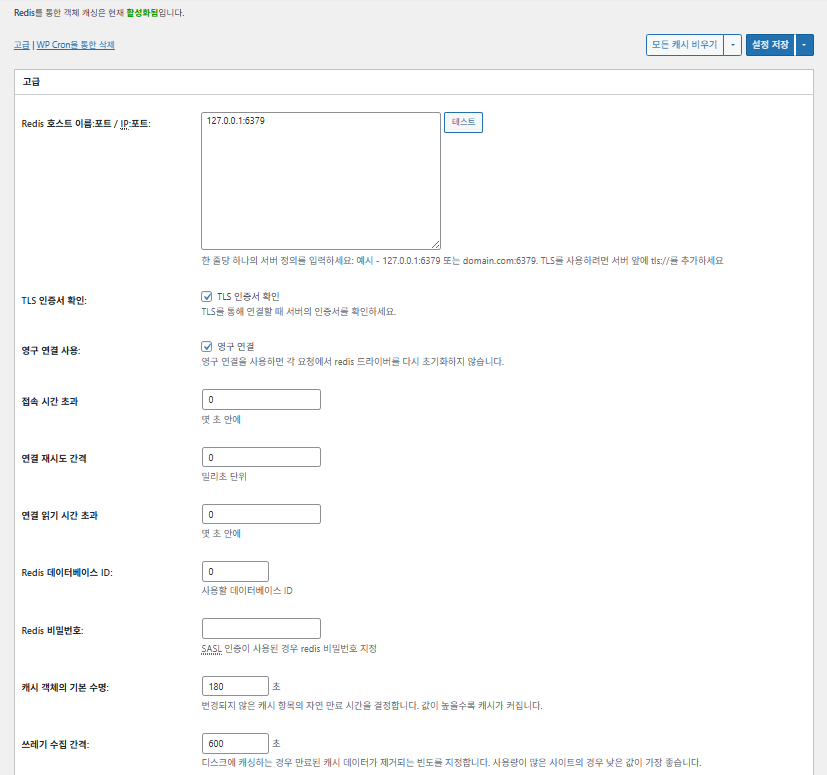
W3TC 객체(Object) 캐시_고급 설정 1

항목

설명

Redis 호스트/IP

[127.0.0.1:6379] 형식. TLS는 [tls://] 접두어 사용

TLS 인증서 확인

TLS 사용 시 인증서 유효성 확인 (선택적)

영구 연결 사용

Redis 연결을 재활용해 성능 향상

접속 시간 초과

Redis 연결 시 허용되는 최대 시간 (초)

연결 재시도 간격

실패 시 재시도까지 대기 시간 (ms)

연결 읽기 시간 초과

응답을 기다리는 최대 시간 (초)

Redis DB ID

Redis 내 DB 번호 지정 (기본 [0])

Redis 비밀번호

비밀번호 또는 SASL 인증용 입력

기본 캐시 수명

캐시 항목 기본 유지 시간 (초). 기본 180초

쓰레기 수집 간격

만료 캐시 삭제 주기. 기본 600초

전역 그룹

네트워크 모드에서 공유되는 그룹 (멀티사이트용)

비영구 그룹

캐싱 제외 대상 그룹. 예: [counts], [plugins]

wp-admin 요청 캐싱

관리자 영역에도 캐시 적용 (⚠️ 테스트 필요)

트랜지언트 DB 저장

외부 캐시 사용 중에도 DB에 임시값 유지

WP-CLI 활성화

WP-CLI 명령에도 캐시 활성화 허용

6️⃣ 브라우저 캐시

브라우저 캐싱은 방문자의 기기에 이미지, CSS, JS 같은 정적 파일을 저장해 재방문 시 로딩 속도를 크게 줄이는 기능입니다. 이를 통해 페이지 응답 속도와 사용자 경험이 향상됩니다.

대부분 캐시 제어 및 서버 부하 감소에 중점을 둔 설정들입니다. 사이트 트래픽이 많거나 정적 리소스 최적화가 중요한 환경에서는 다수 활성화해도 무방합니다.

항목일반CSS 및 JSHTML 및 XML미디어 및 기타 파일
[Last-Modified] 헤더 설정304 응답 허용을 위해 파일의 마지막 수정일자 포함✅ 대부분 활성화✅ 대부분의 서버에 적합✅ 대부분의 CDN/브라우저 캐시에 유효
[Expires] 헤더 설정브라우저가 파일을 일정 기간 캐싱하도록 유도✅ 기본값 31536000초(1년), 추천✅ 기본값 [3600초 (1시간)] ✅ [31536000초](1년) 기본 설정 → 정적 파일에 적합
⏱️ Expires 만료 시간 설정—⏱️ 예: [31536000초 = 1년] · CDN과 병행 시 짧게 조정 가능——
[Cache-Control] 헤더 설정pragma, cache-control 헤더 추가로 캐싱 전략 제어✅ [“public, max-age=31536000”] 추천✅ [“public, max-age=3600”] 등으로 설정✅ [“public, max-age=31536000”] 추천
✅ 캐시 제어 정책—✅ [max-age]를 포함한 방식 사용 · [“public, max-age=EXPIRES_SECONDS”] 기본값으로 사용——
[ETag] 설정파일 식별용 엔티티 태그 제공 – 변경 감지용✅ 동일 서버 내 활용 시 효과적✅ 서버 간 캐시 공유가 없다면
사용 권장
✅ 서버 단독 운영 시 유용함
W3TC 헤더 설정W3TC 최적화 파일 여부 식별용 헤더 삽입🔖 필수 아님, 분석 목적🔖 필수 아님 (디버깅용)🔖 사용 여부 선택 가능
gzip 압축텍스트 파일 용량 줄이기 위한 압축 방식 (대부분 호환)✅ 대부분 서버에서 지원✅ 대부분의 서버에서 지원됨✅ 이미지에는 영향 없음
brotli 압축gzip보다 더 높은 압축률을 가진 방식 (지원 브라우저 한정)✅ Apache/Nginx 설정 필요✅ Apache/nginx 모듈 활성화✅ 지원 브라우저에 한해 적용
설정 변경 시 객체 캐싱 방지쿼리 문자열 추가로 이전 캐시 무효화✅ 설정 변경이 잦을 경우 추천—✅ 파일 변경 시 즉시 반영됨
쿼리 문자열 제거정적 리소스에서 [?] 제거하여 캐싱률 향상⚠️ 일부 CDN/프록시에서만 필요—✅ 버전 관리된 파일에 적용 가능
쿠키 제거정적 리소스 응답에 [Set-Cookie] 헤더 제거✅ 대부분의 경우 체크—✅ 이미지 등은 쿠키 불필요
워드프레스가 404 응답 처리 안함정적 파일 404는 웹서버가 처리 → WP 부하 감소———
404 예외 URI 목록WP에서 직접 처리할 특정 URI 패턴 지정 (예: sitemap, robots.txt 등)———
객체 URL 구조 재작성캐시 우회를 위해 고유 URI 생성 ([ver=xxxx] 형태 등)———

Ⅲ. W3 Total Cache 부가 기능

  • ↳ WP Cron, CDN, 역방향 프록시, 사용자 경험, 통계, WebP 변환기, Google PageSpeed, 가져오기/내보내기 설정

WP Cron을 이용한 캐시 삭제는 전역 설정입니다.

🧭 W3 Total Cache 부가 기능 시뮬레이터
경로 시뮬레이터
📍Performance›General Settings›Purge via WP Cron
WP Cron
WP Cron을 이용한 캐시 삭제는 전역 설정이며, 시작 시간과 간격을 정합니다.
📍Performance›General Settings›CDN›Advanced Settings
CDN
CDN 업체 가입 후 [CDN]의 [Enable]을 체크하고 [CDN Type]을 선택한 뒤 저장하며, 세부 항목은 [Advanced Settings]에서 설정합니다.
📍Performance›General Settings›Reverse Proxy
역방향 프록시
Varnish를 사용하는 경우에만 [Enable reverse proxy caching via varnish]를 체크합니다. [Varnish servers]에는 Varnish 서버의 IP 주소를 입력합니다.
📍Performance›General Settings›User Experience›Advanced Settings
사용자 경험
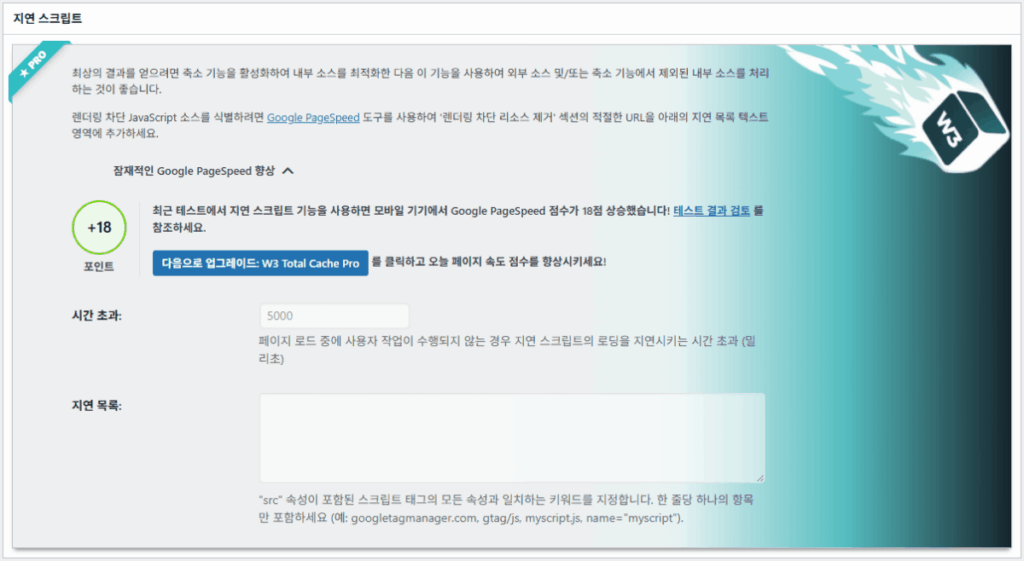
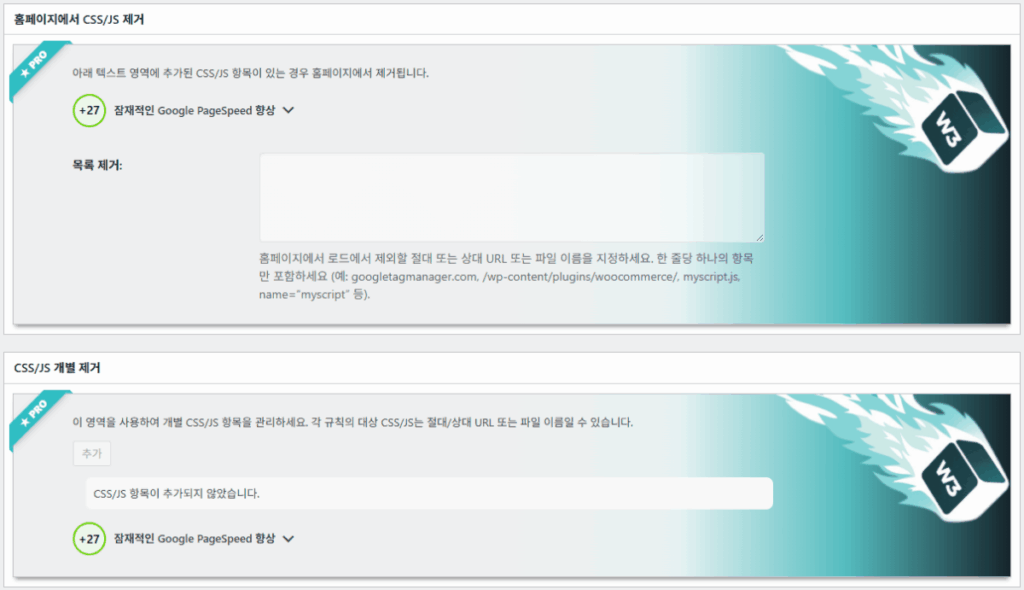
[Lazy Load Images]를 체크하고 저장한 뒤 [Advanced Settings]에서 지연 로드 항목을 설정합니다. 고급 설정에서 50% 이상의 기능은 프리미엄 버전에서 사용할 수 있습니다.
📍Performance›General Settings›Image Converter
WebP 변환기
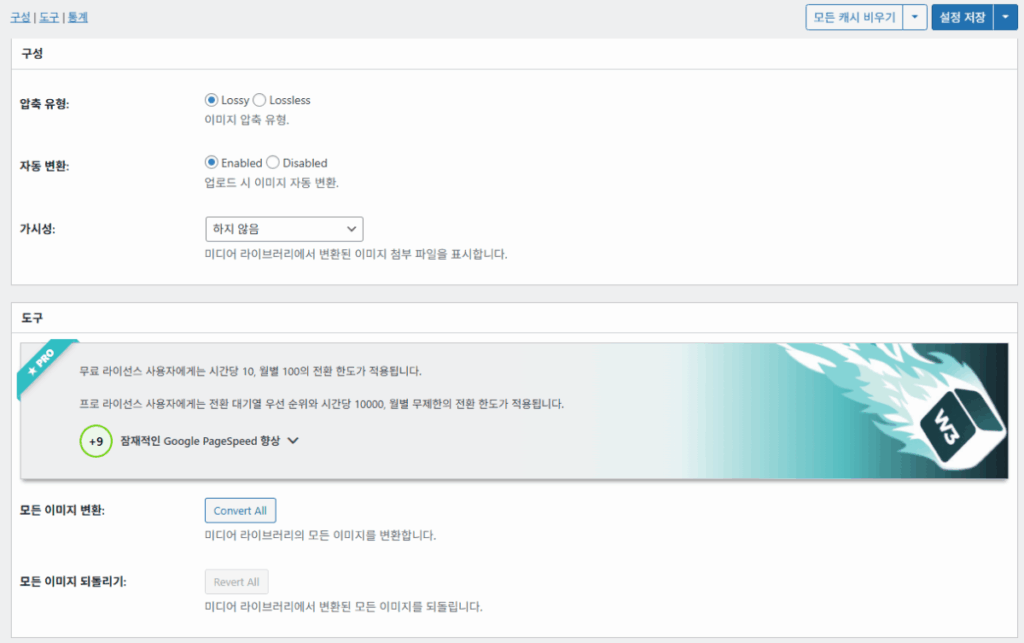
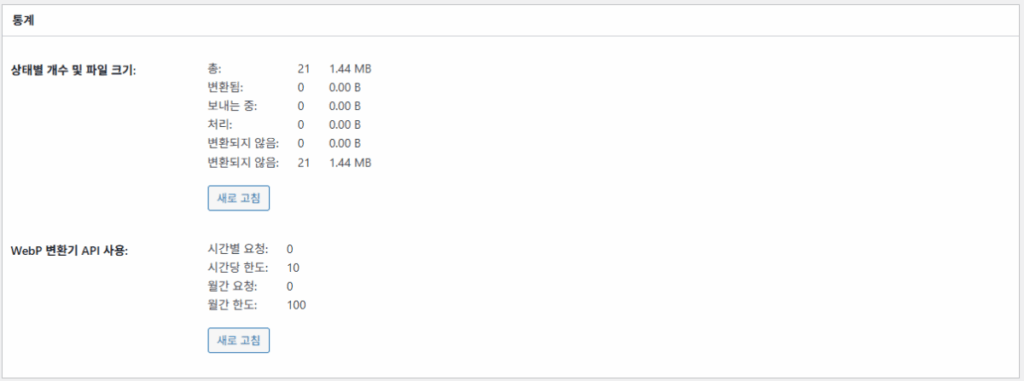
[Image Converter]의 [Enable Image Converter Extension]을 체크하면 미디어 라이브러리 이미지를 WebP나 AVIF 형식으로 변환할 수 있습니다.
example.com/wp-admin/admin.php?page=w3tc_general
DashboardSettingsToolsInfoSupportUpgrade
|||||||||||||||||
Empty All Caches
Purge via WP Cron
Enabling this will schedule a WP-Cron event that will flush all enabled Caches via a single cron job. Each cache’s advanced settings page features similar settings to this if you wish to schedule purges for specific caches only. If you prefer to use a system cron job instead of WP-Cron, you can schedule the following command to run at your desired interval: “wp w3tc flush all”. If the Always Cached extension is active and enabled, page cache entries will instead be added to the queue instead of being purged from the cache. Visit here for more information.
Enable WP-Cron Event
Enable
Start Time
This setting controls the initial start time of the cron job. If the selected time has already passed, it will schedule the job for the following day at the selected time.
Interval
This setting controls the interval that the cron job should occur.
CDN
Content Delivery Network (CDN) is a powerful feature that can significantly enhance the performance of your WordPress website. By leveraging a distributed network of servers located worldwide, a CDN helps deliver your website’s static files, such as images, CSS, and JavaScript, to visitors more efficiently. This reduces the latency and improves the loading speed of your website, resulting in a faster and smoother browsing experience for your users. With W3 Total Cache’s CDN integration, you can easily configure and connect your website to a CDN service of your choice, unleashing the full potential of your WordPress site’s speed optimization.
Basic SettingsPremium ServicesHelp
CDN:
Theme files, media library attachments, CSS, and JS files will load quickly for site visitors.
CDN Type:
Select the CDN type you wish to use.
Host the entire website with your compatible CDN provider to reduce page load time.
FSD CDN:
Enable★ PRO
Deliver visitors the lowest possible response and load times for all site content including HTML, media (e.g. images or fonts), CSS, and JavaScript. Show More ⌄ Learn more about Pro
Reverse Proxy
A reverse proxy is a server that sits between a client and a web server, acting as an intermediary for requests. It retrieves resources on behalf of the client from the server, and then returns the response to the client. By utilizing a reverse proxy, such as Varnish or Nginx, in conjunction with W3 Total Cache, you can significantly enhance the performance of your WordPress website by caching and serving static content directly from the reverse proxy server, reducing the load on your WordPress server and improving response times for visitors.
Enable reverse proxy caching via varnish
Varnish servers:
Specify the IP addresses of your varnish instances above. The VCL’s ACL must allow this request.
Trusted reverse proxies:
IP addresses or CIDR ranges of reverse proxies and load balancers in front of this site (one per line). Forwarded scheme and client-IP headers are used only for these addresses. Leave empty when PHP receives client connections directly. Developers may also supply this list via the w3tc_trusted_proxies filter.
User Experience
User Experience (UX) is a setting that focuses on enhancing the overall browsing experience for visitors of your website. By enabling this feature, you can optimize your website’s performance by minimizing load times, reducing server requests, and delivering content more efficiently. This ultimately leads to faster page loading, improved user satisfaction, and increased engagement, resulting in a speedier and more enjoyable WordPress website.
Basic Settings
Defer loading offscreen images.
Lazy Load Google Maps★ PRO
In addition to lazy loading images, with W3 Total Cache Pro you can lazy load Google Maps! More information and settings can be found on the User Experience page.
Disable Emoji
Remove emojis support from your website.
Delay Scripts★ PRO
Delay the loading of specified internal/external JavaScript sources on your pages separate from Minify.
Remove Unwanted/Unused CSS/JS★ PRO
Removes specified CSS/JS tags from the homepage or on a per page basis.
Preload Requests★ PRO
DNS prefetching, pre-connecting, and preloading are essential web optimization techniques that enhance website performance by proactively resolving network-related tasks. Learn more about Pro
Disable wp-embed script
Remove wp-embed.js script from your website. oEmbed functionality still works but you will not be able to embed other WordPress posts on your pages.
Disable jquery-migrate on the front-end
Remove jquery-migrate support from your website front-end.
Image Converter
The Image Converter tool can be used to generate modern-format versions (e.g., WebP or AVIF) of media library images which offer superior lossless and lossy compression.
Enable Image Converter Extension
This extension allows for optimizing media library images to modern formats like WebP or AVIF.
As a free user you are limited to conversions of 10/hour and 100/month. The Pro license increases these rates to 10,000/hour and unlimited/month. Conversion rates are subject to change and documentation can be found here. Learn more about Pro
example.com/wp-admin/admin.php?page=w3tc_cdn
DashboardSettingsToolsInfoSupportUpgrade
||
Empty All Caches
General
Host attachments
Upload attachments
If checked, all attachments will be hosted with the CDN.
Host wp-includes/ files
Upload includes files
If checked, WordPress static core file types specified in the “wp-includes file types to upload” field below will be hosted with the CDN.
Host theme files
Upload theme files
If checked, all theme file types specified in the “theme file types to upload” field below will be hosted with the CDN.
Host minified CSS and JS files
Upload minify files
If checked, minified CSS and JS files will be hosted with the CDN.
Host custom files
Upload custom files
If checked, any file names or paths specified in the “custom file list” field below will be hosted with the CDN.
Force over-writing of existing files
If modified files are not always detected and replaced, use this option to over-write them.
Advanced
Only purge CDN manually
Purge CDN only if explicit purge button is clicked.
Disable CDN on SSL pages
When SSL pages are returned no CDN URLs will appear in HTML pages.
Use CDN links for the Media Library on admin pages
All Media Library content will use CDN links on administration pages.
Add CORS header
Add CORS headers to allow cross-domain assets usage.
Disable CDN for the following roles
Select user roles that will use the origin server exclusively:
Administrator
Editor
Author
Contributor
Subscriber
Disable CDN on the following pages:
Always ignore the specified pages / directories. Supports regular expression.
Automatically upload minify files
If CDN is enabled (and not using the origin pull method), your minified files will be automatically uploaded.
Export changed files automatically
Automatically attempt to find and upload changed files.
Auto upload interval:
3600seconds
Specify the interval between upload of changed files.
Re-transfer cycle interval:
900seconds
The number of seconds to wait before upload attempt.
Re-transfer cycle limit:
25
Number of files processed per upload attempt.
wp-includes file types to upload:
*.css;*.js;*.gif;*.png;*.jpg;*.xml
Specify the file types within the WordPress core to host with the CDN.
Theme file types to upload:
*.css;*.js;*.gif;*.png;*.jpg;*.ico;*.ttf;*.otf;*.woff;*.woff2;*.less
Specify the file types in the active theme to host with the CDN.
File types to import:
 
Automatically import files hosted with 3rd parties of these types (if used in your posts / pages) to your media library. Only common static types (images, CSS, JS, fonts, and media) are imported. Script, markup, and SVG types are ignored even if listed. Empty, *, and *.* use that static allowlist rather than every file.
Custom file list:
favicon.ico
{wp_content_dir}/gallery/*
{wp_content_dir}/uploads/avatars/*
{plugins_dir}/wordpress-seo/css/xml-sitemap.xsl
{plugins_dir}/wp-minify/min*
{plugins_dir}/*.js
{plugins_dir}/*.css
{plugins_dir}/*.gif
{plugins_dir}/*.jpg
{plugins_dir}/*.png
Specify any files outside of theme or other common directories to host with the CDN.
Rejected user agents:
Specify user agents that should not access files hosted with the CDN.
Rejected files:
{uploads_dir}/wpcf7_captcha/*
{uploads_dir}/imagerotator.swf
{plugins_dir}/wp-fb-autoconnect/facebook-platform/channel.html
Specify the path of files that should not use the CDN.
Set cookie domain to “example.com”
If using subdomain for CDN functionality, this setting helps prevent new users from sending cookies in requests to the CDN subdomain.
Note(s):
  • You can use placeholders {wp_content_dir}, {plugins_dir}, {uploads_dir} instead of writing folder paths (wp-content, wp-content/plugins, wp-content/uploads).
  • If using Amazon Web Services or Self-Hosted CDN types, enable HTTP compression in the “Media & Other Files” section on Browser Cache Settings tab.
example.com/wp-admin/admin.php?page=w3tc_userexperience
DashboardSettingsToolsInfoSupportUpgrade
Empty All Caches
Lazy loading is currently disabled.
Lazy Loading
Process HTML image tags
Process img tags
Process background images
Process background styles
Exclude words:
avia-bg-style-fixed
data-bgposition=
data-envira-src=
data-large_image=
data-lazy-original=
data-lazy-src=
data-lazyload=
data-lazysrc=
data-no-lazy=
data-src=
data-srcset=
fullurl=
lazy-slider-img=
loading=”eager”
no-lazy
rev-slidebg
skip-lazy
soliloquy-image
swatch-img
w3-total-cache
woocommerce/assets/images/placeholder.png
wpcf7_captcha
Exclude tags containing words
Threshold
 
The outer distance off the scrolling area from which to start loading the elements (example: 100px, 10%).
Script Embed method:
Use inline method only when your website has just a few pages
Google Maps
Lazy load google map
WP Google Map Plugin plugin
Google Maps Easy plugin
WP Google Maps plugin
왼쪽 메뉴의 켜진 칸이나 화면의 버튼을 누릅니다.

1️⃣ CDN

CDN 업체 가입 후 기능 설정을 진행할 수 있습니다.

옵션

설명

✅ 첨부 파일 호스팅

[wp-content/uploads] 내 이미지 등 첨부 파일을 CDN에 업로드

✅ wp-includes 파일 호스팅

워드프레스 코어 정적 파일(js/css 등)을 CDN에 포함

✅ 테마 파일 호스팅

활성 테마의 정적 파일(css/js/images 등)을 CDN에 포함

✅ 축소된 CSS/JS 파일 호스팅

W3TC가 축소한 CSS/JS 파일을 CDN에서 제공

✅ 사용자 정의 파일 호스팅

사용자가 직접 지정한 경로 또는 파일명을 CDN으로 푸시

⚠️ 기존 파일 강제 덮어쓰기

수정사항이 자동 감지되지 않을 경우 강제 재업로드용

항목

설명

CDN 수동으로만 제거

수동 제거 버튼 클릭 시에만 CDN에서 파일 제거

SSL 페이지에서 CDN 비활성화

HTTPS 페이지에서는 CDN URL 사용 안함

관리자에서 CDN 링크 사용

관리자 화면에서도 미디어에 CDN URL 표시

Add CORS header

CORS 허용을 위한 응답 헤더 추가

역할별 CDN 비활성화

선택한 사용자 역할에만 CDN 비적용 (예: 관리자만 원본 사용)

페이지 제외 목록

지정한 경로는 CDN에서 제외 (정규식 가능)

자동으로 축소 파일 업로드

Minify된 파일 자동 CDN 업로드 (Push 방식)

변경된 파일 자동 내보내기

파일 수정 감지 시 자동 업로드

자동 업로드 간격

파일 변경 감지 후 업로드 간격 (기본 3600초)

재전송 간격 / 제한

실패 시 재시도 간격 및 처리 파일 수 제한

업로드할 wp-includes 파일

CDN에 포함할 코어 파일 형식 지정

업로드할 테마 파일 형식

CSS/JS/폰트 등 테마 관련 파일 형식 지정

가져올 파일 형식

외부 링크된 파일 자동 다운로드 조건 지정

사용자 지정 파일 목록

CDN으로 전송할 개별 파일 경로 지정 (템플릿, 외부 플러그인 등)

거부된 사용자 에이전트

CDN 파일 접근을 차단할 봇/유저에이전트 지정

거부된 파일 경로

CAPTCHA, 특수 경로 등 CDN 적용 제외 파일 경로 지정

쿠키 도메인 설정

하위 도메인 CDN 사용 시 쿠키 전송 방지를 위한 도메인 지정

2️⃣ 역방향 프록시

설명에는 Varnish 및 Nginx를 예로 들었는데 Nginx는 서버에서 설정을 하기 때문에 Varnish를 사용하는 경우에만 W3 Total Cache 플러그인에 적용합니다.

3️⃣ 사용자 경험: 지연 로드

고급 설정에서 50% 이상의 기능은 프리미엄 버전에서 사용할 수 있습니다.

항목

설명

사용 권장 시점

✅ HTML 이미지 태그 처리

[<img>] 태그에 lazy 속성 적용

일반적인 콘텐츠 이미지 지연 로딩 시

✅ 배경 이미지 처리

CSS의 [background-image]에 lazy 적용

배경 이미지가 많은 디자인 사이트일 때

단어 제외예시
Lazy 제외 속성[data-src], [data-lazy-src], [data-no-lazy], [loading=”eager”] 등
Lazy 제외 클래스[no-lazy], [skip-lazy], [lazy-slider-img], [rev-slidebg] 등
플러그인/슬라이더 관련[soliloquy-image], [envira], [w3-total-cache], [wpcf7_captcha] 등
WooCommerce 관련[swatch-img], [woocommerce/…/placeholder.png] 등

지연 로딩의 “한계점”은 브라우저 뷰포트(화면) 아래에 있는 이미지나 배경 요소가 얼마나 떨어진 거리에서 미리 로딩될지를 설정하는 값입니다. 예를 들어 100px로 설정하면, 사용자가 스크롤로 100픽셀 이내로 접근했을 때 해당 요소가 로드되며, 너무 짧게 설정하면 이미지 로딩이 늦어져 사용자에게 빈 화면처럼 보일 수 있으므로 보통 100~300px 사이가 적당합니다.

다음은 스크립트 포함 방식입니다.

포함 방식

설명

위치 또는 속성

비동기 (Async)

페이지 로딩과 병렬로 실행되며 렌더링을 차단하지 않음

[<script async>]

동기 (헤드로)

[<head>] 영역에서 먼저 실행되며 렌더링을 일시적으로 차단할 수 있음(in the head)

[<head>] 또는 [<script>]

인라인 (Inline)

HTML 문서 내에 직접 스크립트를 삽입하여 별도 요청 없이 실행

[<script>코드</script>] 내 삽입

W3TC 사용자 경험 고급 설정 2
W3TC 사용자 경험 고급 설정 3

4️⃣ WebP 변환기

W3TC WebP 변환기_상세(고급 설정) 1
W3TC WebP 변환기_상세(고급 설정) 2

Ⅳ. W3 Total Cache 종합 평가

W3 Total Cache의 인터페이스(UI)는 나쁘진 않지만 분명히 불편합니다. 많은 개발자와 전문 사용자도 같은 점을 지적합니다. WP Rocket이나 FlyingPress 같은 최신 플러그인과 비교하면 사이트 성능은 충분히 따라갈 수 있으나, 사용자 경험(UX) 측면에서는 아쉬움이 존재합니다.

기능이 많은 점은 장점이지만, 초보자 입장에선 지나치게 복잡하게 느껴질 수 있는 구조입니다. 특히, 메뉴 간 이동이 잦고 세부 옵션이 많아 숙련된 개발자 및 사이트관리자라도 설정 실수가 발생할 수 있습니다. 설정한 내용을 당연히 모두 기억하진 못하지만 그만큼 사용함에 있어 세밀한 조정이 가능한 고급 캐싱 플러그인입니다.

프리 버전에서 100만 명 이상이 설치한 플러그인으로 단순하게 낡은 플러그인으로 인식하기에는 그 기능의 다양성과 풍부함을 따라올 수 있는 캐시 플러그인은 사실 상 찾아보기 힘들 것입니다.

항목평점 (⭐ 기준)평가 내용
🎛️ 인터페이스⭐⭐⭐메뉴 수 많고 구조 복잡. 신규 사용자 진입장벽. UI는 오래된 느낌
⚙️ 기능 다양성⭐⭐⭐⭐⭐캐시, CDN, Redis 등 거의 모든 기능. 없는 기능을 찾기가 어려움
🛠️ 세부 설정 유연성⭐⭐⭐⭐거의 모든 기능 세부 조절 가능. 설정 간 충돌 주의 필요
🚀 성능 향상 효과⭐⭐⭐⭐⭐설정 최적화 시 성능 매우 우수. 객체 캐시/브라우저 캐시 효과 큼
🧩 호환성⭐⭐⭐일부 호스팅·테마·플러그인과 충돌 가능.
📄 문서화·가이드⭐⭐⭐⭐⭐공식 문서 풍부
💡 사용자 추천도⭐⭐⭐⭐(4.5)고급 사용자 추천. 초보자는 WP Rocket, Cache Enabler 등 추천
📊 종합 평점⭐⭐⭐⭐(4.5)기능성 중심의 고성능 플러그인. 학습곡선 존재. 사용자 수준 고려 필요

Ⅴ. 성능 테스트

플러그인 설정 후 최종 속도 테스트 시 일반적인 캐시 플러그인보다 더 눈에 띄는 속도 향상을 확인할 수 있었습니다.

ℹ️ 제휴 안내
본 사이트의 콘텐츠에는 제휴 링크가 포함되어 있습니다. 방문자가 이 링크를 통해 상품 또는 서비스를 구매하면 본 사이트는 판매처로부터 수수료를 지급받습니다. 이 과정에서 구매자가 지불하는 금액(이벤트 할인 시 금액이 내려갑니다↓)은 오르지 않습니다. 게시된 가격·할인·재고 정보는 작성 시점 기준이며 실제와 다를 수 있으므로, 구매 전 판매처에서 최종 확인하시기 바랍니다. 상품 선정과 평가는 자체 기준에 따라 작성되며, 수수료 지급 여부가 소개 순서나 평가 내용에 영향을 주지 않습니다.

답글 남기기

이메일 주소는 공개되지 않습니다. 필수 필드는 *로 표시됩니다

인간임을 증명하세요: 4   +   1   =