
WordPress 外掛更新:批次更新、以 zip 取代與 WP-CLI
WordPress 外掛更新,是把在「已安裝的外掛」畫面上顯示有新版本的外掛換成最新版本。在 WordPress 7.1.3 上測量各種更新方式讓訪客端切換成維護畫面多久,從控制台的更新畫面一次更新五個外掛時約 10 秒都是 503,而「已安裝的外掛」畫面的批次操作在 1~2 秒內就結束了。
1️⃣ 檢查 WordPress 外掛更新
外掛有新版本時,最先可以從左側選單 [外掛] 旁的數字看出來。這個數字是有新版本的外掛數量,在檢查的網站上顯示為 7。
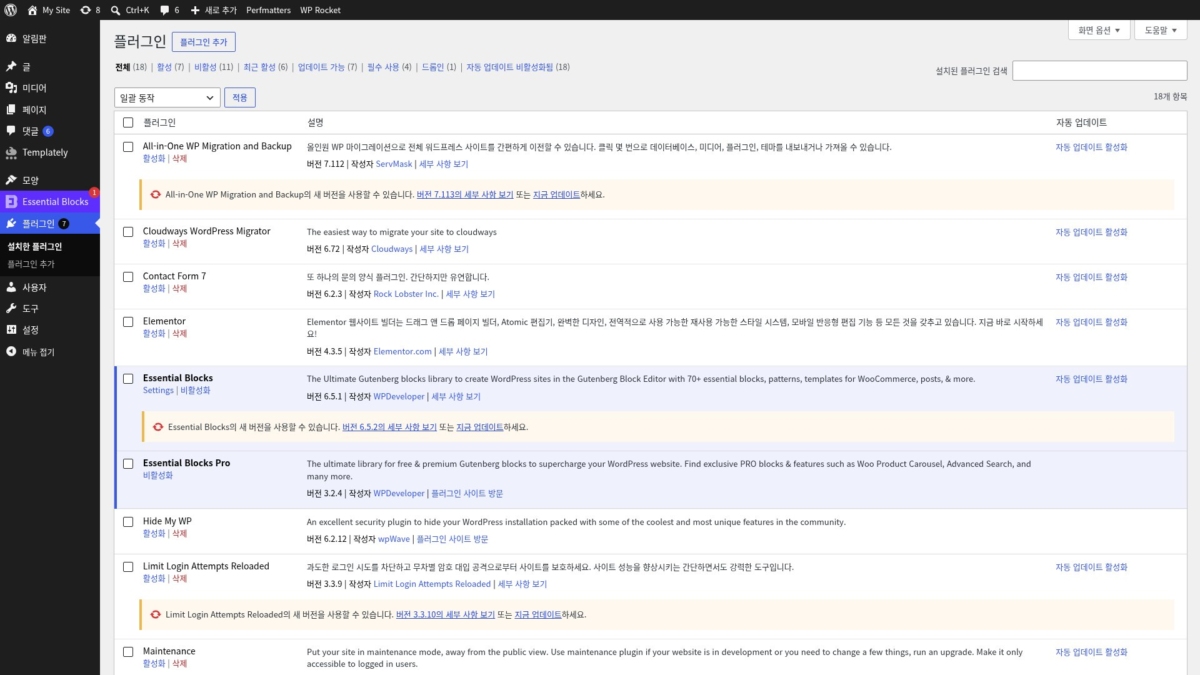
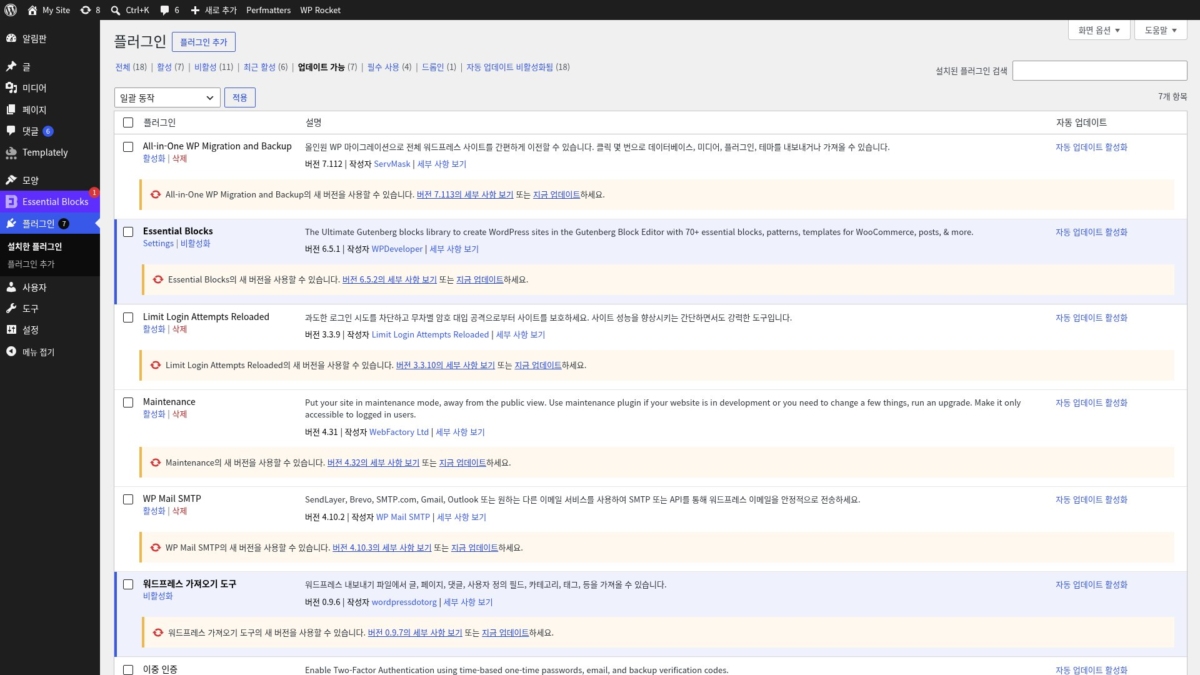
開啟 [外掛 › 已安裝的外掛] 後,該外掛那一列下方會出現像 [Maintenance 已有新版本可供下載安裝。請檢視 4.32 版的詳細資料或立即更新。] 這樣的黃色橫條。外掛很多時,按清單上方的 [已有更新可供安裝 (7)],就只會列出有新版本的外掛。
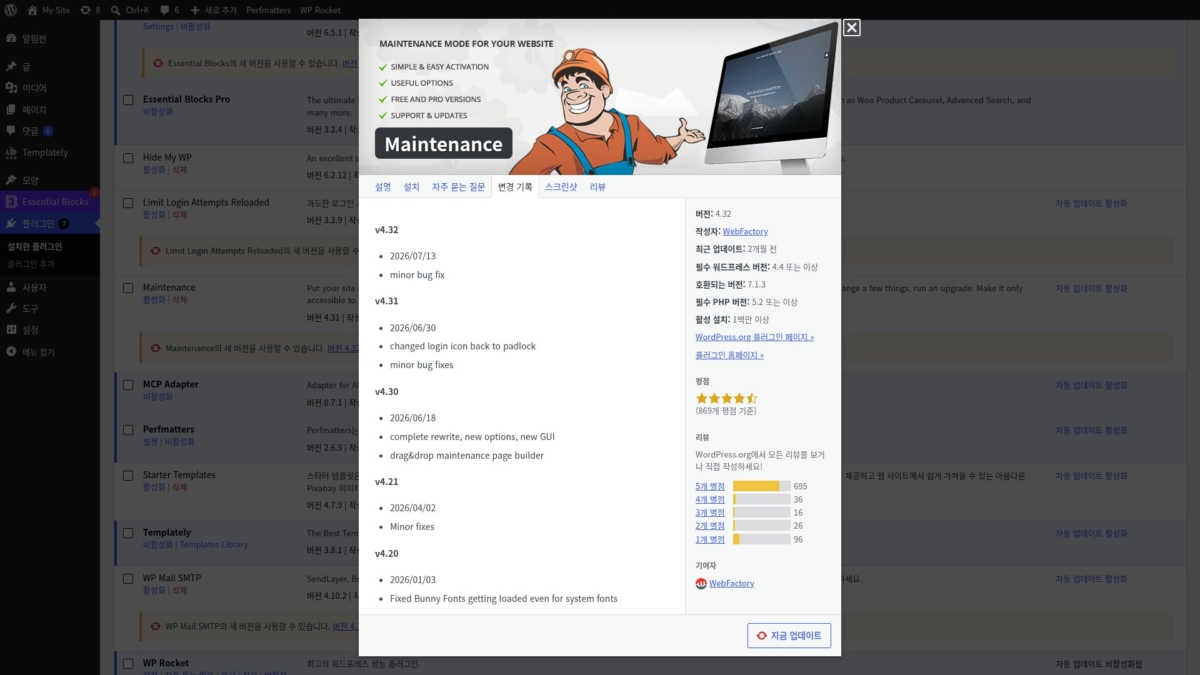
新版本列中的 [檢視 4.32 版的詳細資料] 會開啟和說明旁 [檢視詳細資料] 相同的視窗。不同之處是視窗會直接開在 [變更記錄] 分頁。
在 Maintenance 那一列按下後,視窗左側列出各版本的日期與修改內容。右側列出版本、作者、最後更新、相容的 WordPress 版本、PHP 版本需求與啟用安裝數。按視窗下方的 [立即更新],就能當場直接更新。
2️⃣ 逐一更新外掛
看完變更記錄後,用新版本列中的 [立即更新] 逐一更新。按下後該列會變成 [正在更新...],幾秒後變成 [已完成更新!],左側選單的數字也會少 1。
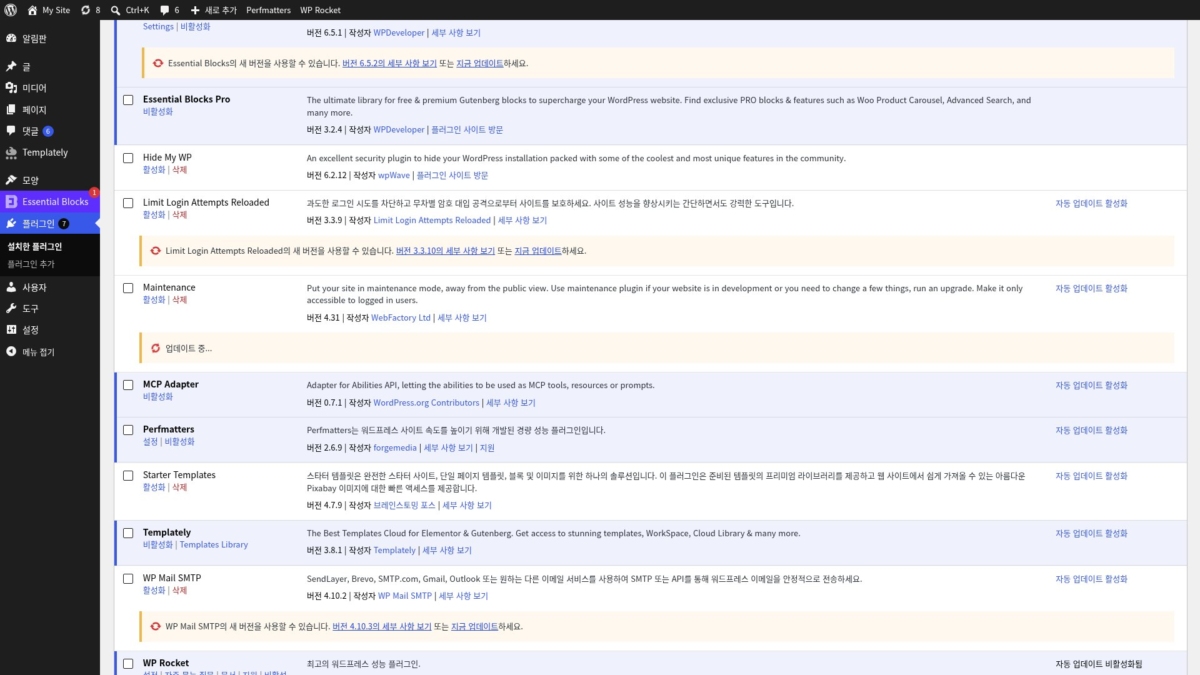
更新停用中的外掛時,訪客端畫面維持原樣。更新已啟用的 WordPress Importer 時,網站根目錄出現了 [.maintenance] 檔案,那約 2 秒內訪客看到的是回應碼 503 的維護畫面。
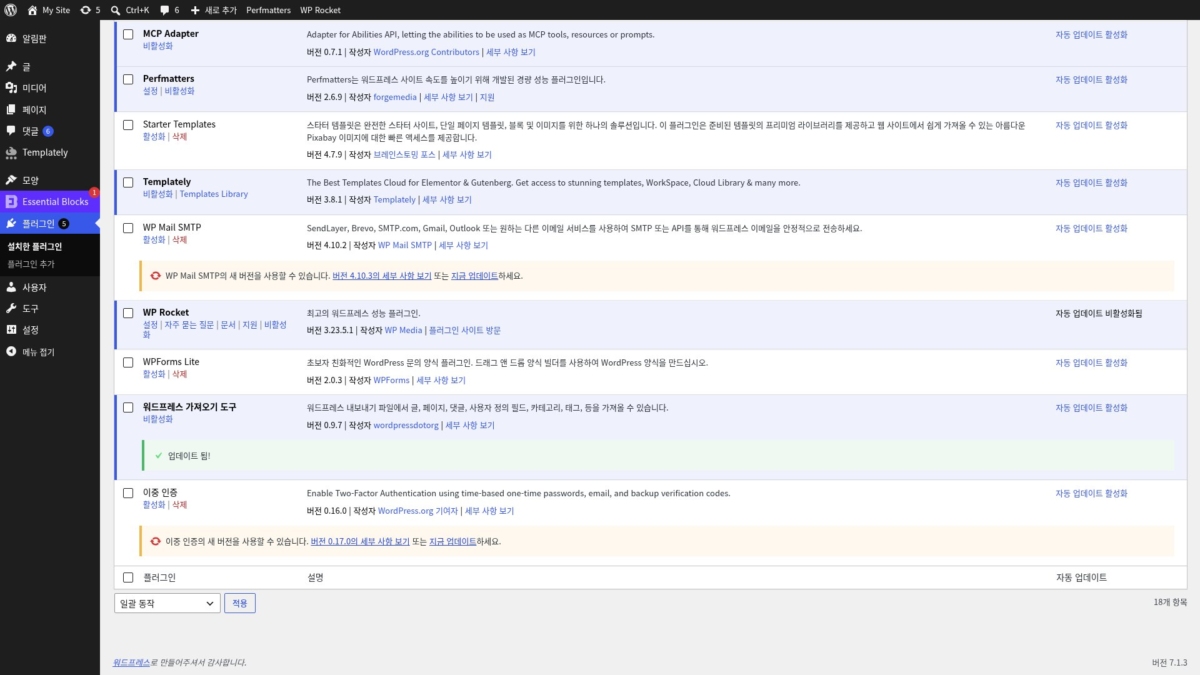
接著 Maintenance 再更新 WordPress Importer 後,左側選單的數字從 7 減為 5。更新完成的那一列,版本號也會換成新版本。
3️⃣ 批次更新外掛
要一次更新多個外掛時,用核取方塊選取外掛,在 [批次操作] 中選 [更新] 再按 [套用]。選取五個套用後,選取的列由上而下依序經過 [正在更新...],全部結束後畫面上方出現 [5 個外掛已成功更新。] 通知。
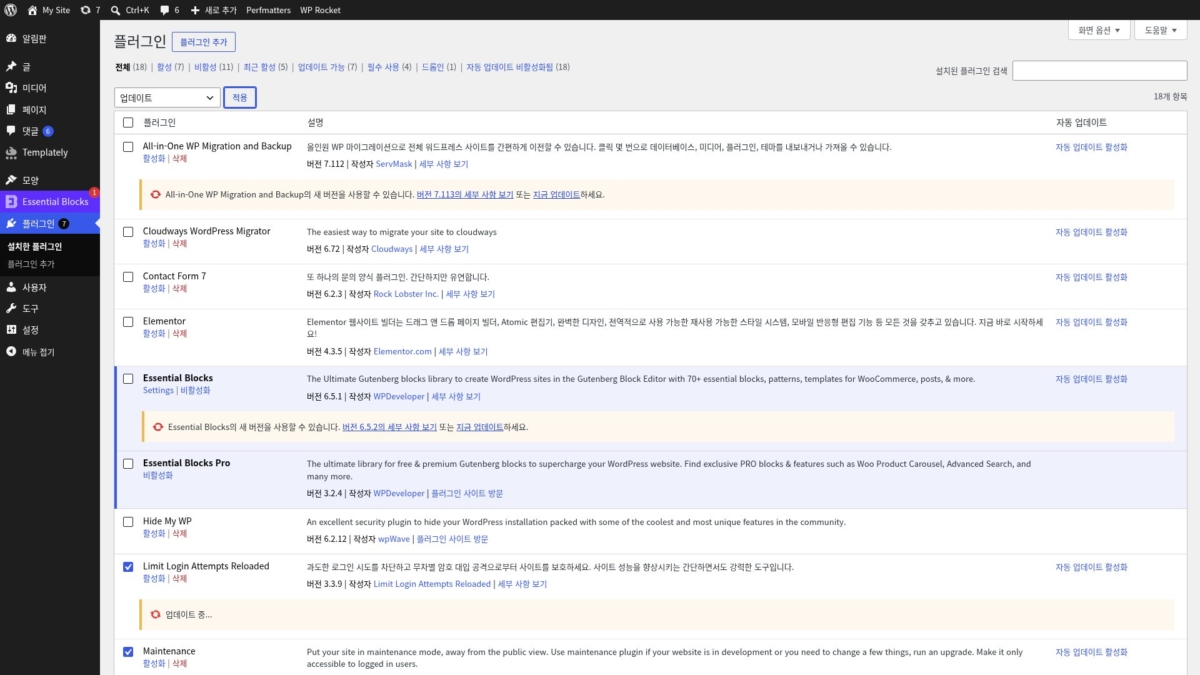
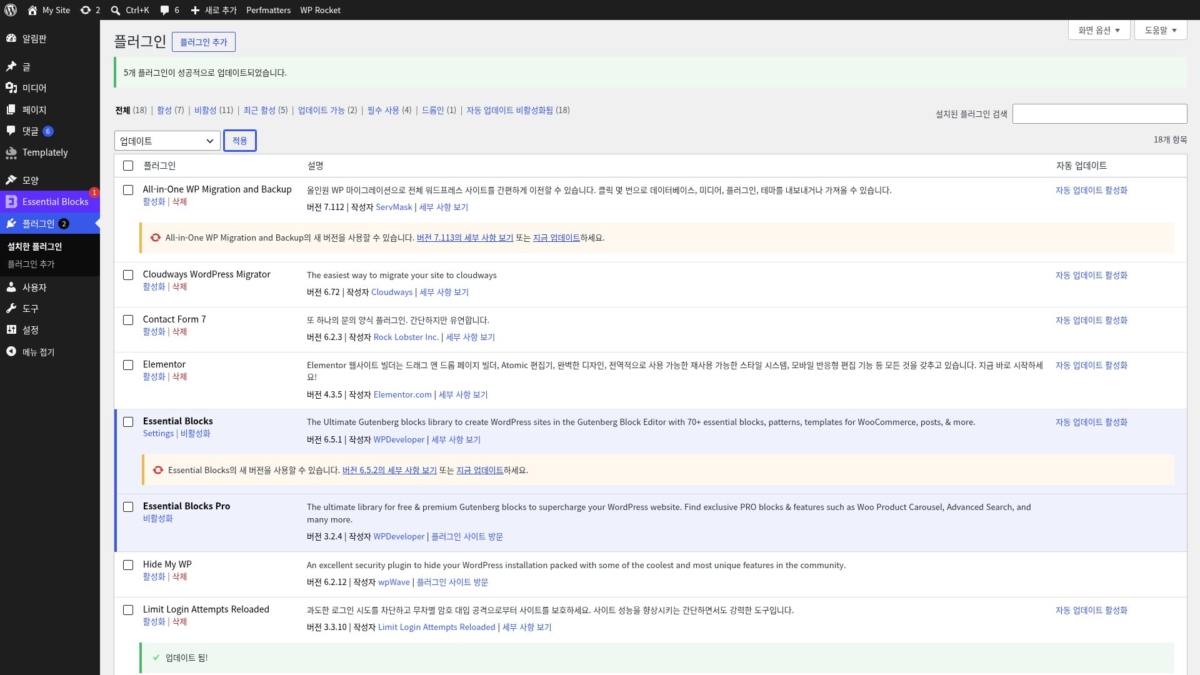
這個畫面的批次操作會依序逐一更新外掛。因此維護畫面也只在輪到已啟用的外掛時短暫出現。在五個外掛中只有一個啟用的網站上,503 回應在 1~2 秒內結束,選三個時也一樣。
若在 [控制台 › 更新] 的 WordPress 更新畫面用 [更新外掛] 按鈕更新同樣的外掛,結果就不同。只要選取的外掛中有一個已啟用,這個畫面就會一直維持維護畫面,直到整批結束。五個約 10 秒、三個約 6 秒都是 503。在訪客多的時段,「已安裝的外掛」畫面的批次操作維護時間較短。
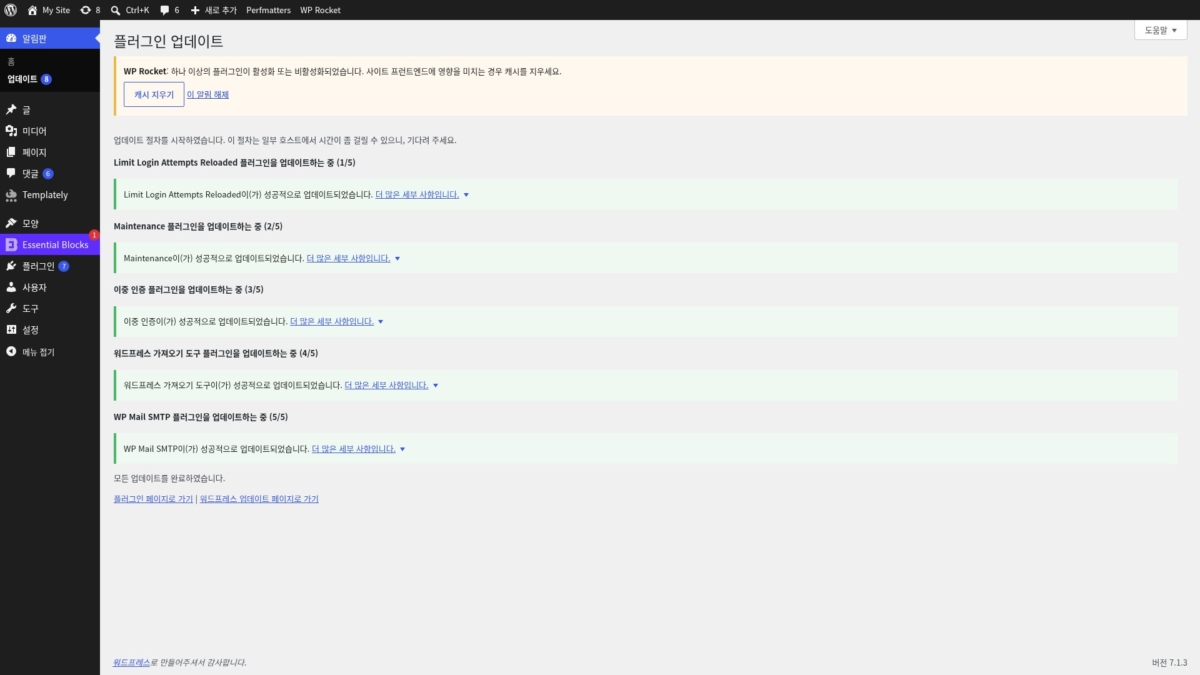
| 更新方式 | 選取數 | 維護畫面(503) |
|---|---|---|
| 立即更新、停用的外掛 | 1 | 無 |
| 立即更新、已啟用的外掛 | 1 | 約 2 秒 |
| 「已安裝的外掛」畫面批次操作 | 5 · 3 | 1~2 秒(只在輪到已啟用外掛時) |
| 控制台 › 更新畫面、更新外掛 | 5 | 約 10 秒 |
| 控制台 › 更新畫面、更新外掛 | 3 | 約 6 秒 |
| 上傳 zip 取代、停用的外掛 | 1 | 無 |
| WP-CLI update、停用的外掛 | 1 | 無 |
전체 (3) | | | |
An excellent security plugin to hide your WordPress installation packed with some of the coolest and most unique features in the community.
최고의 워드프레스 성능 플러그인.
Put your site in maintenance mode, away from the public view. Use maintenance plugin if your website is in development or you need to change a few things, run an upgrade. Make it only accessible to logged in users.
WP Maintenance plugin allows the WordPress site administrator to close the website for maintenance, enable “503 Service temporarily unavailable”, set a temporary page with authorization, which can be edited via the plugin settings. Add your logo, background image, select the desired color and text – all with easy maintenance builder. Maintenance uses Bunny Fonts for EU GDPR compliance.
Need pre-made themes and over 8 million free images to build maintenance, coming soon & landing pages faster? Have a look at WP Maintenance PRO plugin.
Having problems with spam or bots? Try our free Advanced Google ReCaptcha plugin. It’s used on over 200,000 sites and provides great protection!
- over 200 themes in the PRO version
- Full-screen background (Backstretch)
- Blur background effect
- Upload your own logo
- Configurable colors: fonts, icons, background
- Customize title, headline, text
- User login on frontend
- Admin bar status
- 503 error on/off
- Google analytics support
- Exclude selected pages from Maintenance mode
- Support for all popular caching plugins
- mtnc_load_maintenance_page_for_this_user filter for modifying show sees the maintenance page
Follow the usual routine;
- Open WordPress admin, go to Plugins, click Add New
- Enter “maintenance” in search and hit Enter
- Locate the Maintenance plugin by searching for our mascot, click “Install Now”
- Activate & open plugin’s settings page located in the main WP admin menu
Or if needed, upload manually;
- Download the plugin.
- Unzip it and upload to /wp-content/plugins/
- Open WordPress admin – Plugins and click “Activate” next to the plugin
- Activate & open plugin’s settings page located in the main WP admin menu
Try to check in different browser. If you a logged as WordPress user you see the website in normal mode.
The site will not be visible to search engines only if “503 Service Temporarily Unavailable” option is enabled.
You can use your “normal” WP administrator access or create a new user in WordPress dashboard – Users.
Please post the question on the support forum.
You can report security bugs through the Patchstack Vulnerability Disclosure Program. The Patchstack team help validate, triage and handle any security vulnerabilities. Report a security vulnerability.
- 2026/07/13
- minor bug fix
- 2026/06/30
- changed login icon back to padlock
- minor bug fixes
- 2026/06/18
- complete rewrite, new options, new GUI
- drag and drop maintenance page builder
Maintenance page with default design and layout
Log in form is built into the maintenance page
(871개 평점 기준)
WordPress.org에서 모든 리뷰를 보거나 직접 작성하세요!
4️⃣ 以 zip 檔案更新
沒有出現新版本列的外掛,就上傳 zip 檔案來取代。 安裝外掛畫面中按 [上傳外掛],選擇新版本的 zip 再按 [立即安裝],就會出現同一外掛已存在的提示,以及把目前版本與上傳版本並排比較的表格。
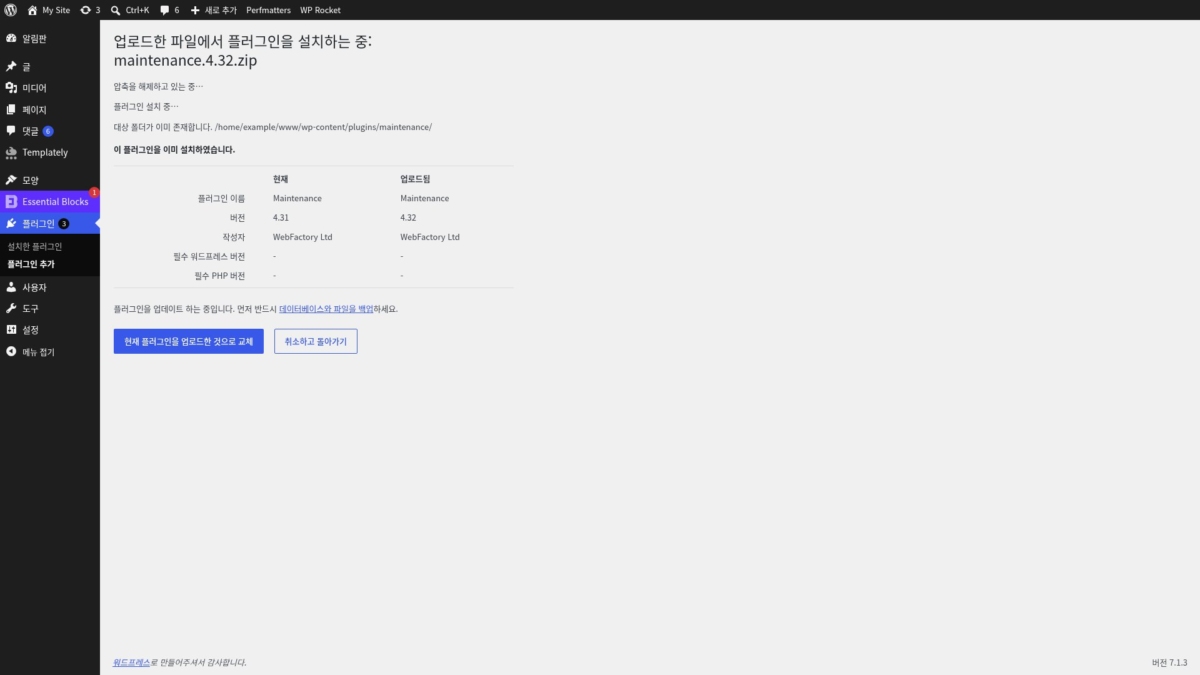
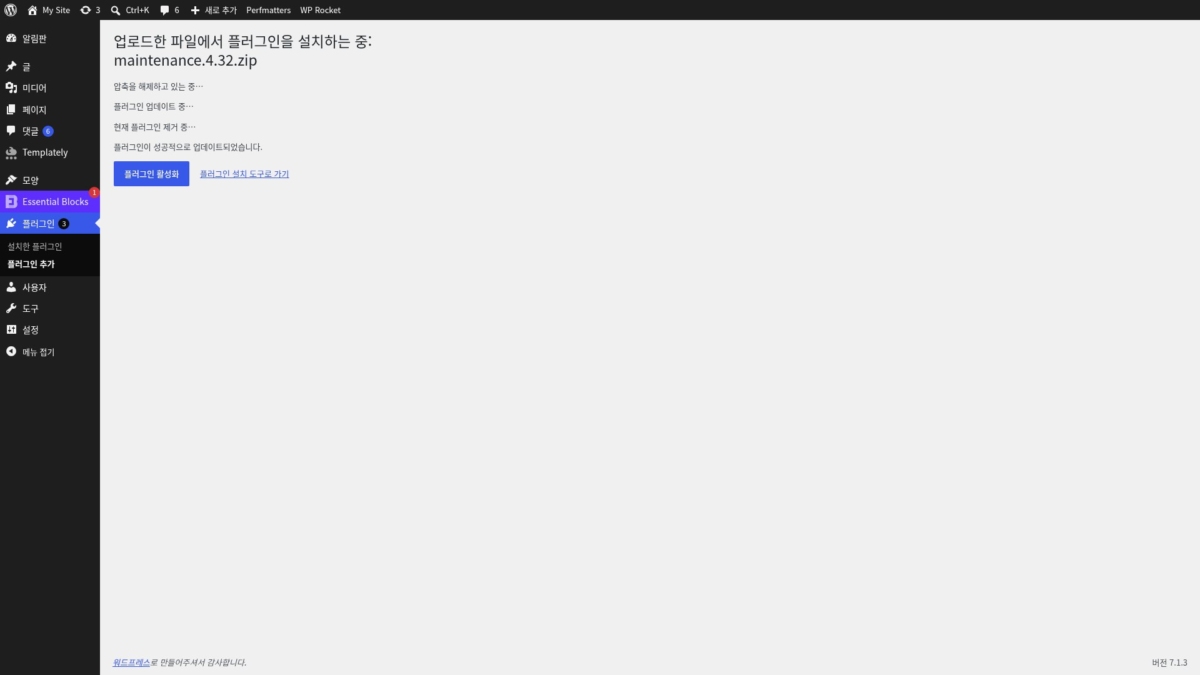
按表格下方的 [使用已上傳版本取代現有版本],就會移除目前的外掛並安裝上傳的版本。完成後出現 [外掛已成功更新。],可以用下方的 [啟用外掛] 立刻啟用。停用中的 Maintenance 用這個方式從 4.31 換成 4.32 的期間,訪客端畫面沒有 503,維持原樣。
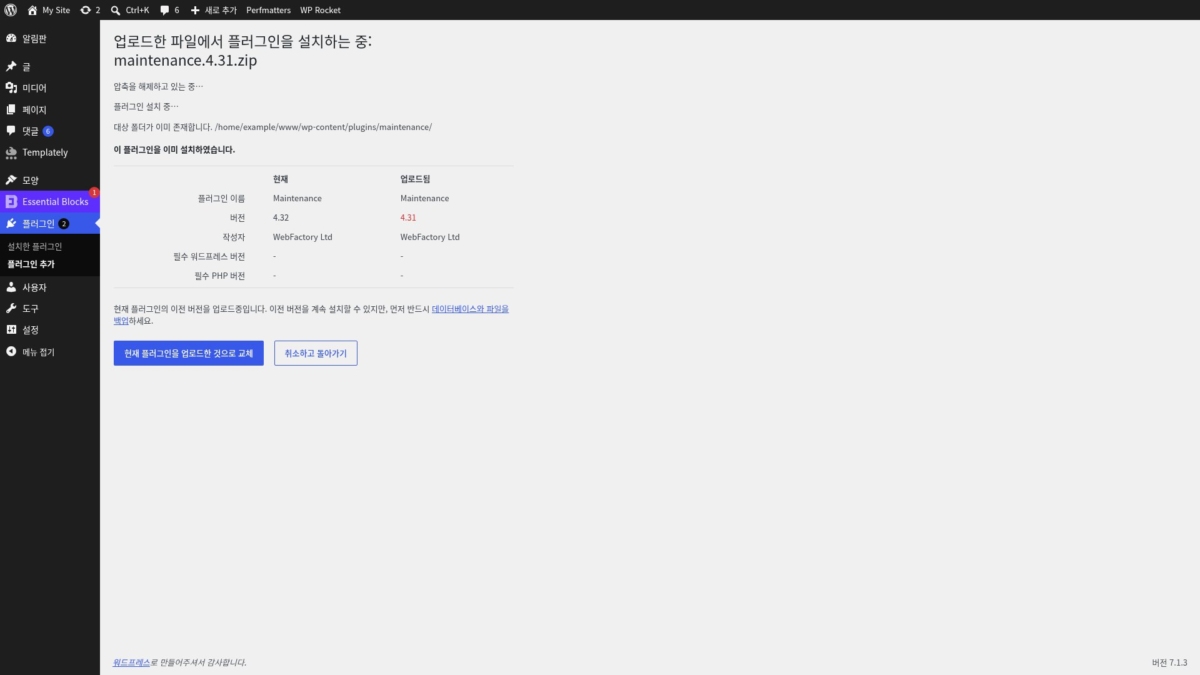
同一個畫面也能用來退回。在已安裝 4.32 的狀態下上傳 4.31 的 zip,上傳那一側的版本變成紅字,並附上正在上傳舊版本、請先備份的提示。照樣取代後,伴隨 [外掛已成功降級。] 訊息回到了 4.31。
更新後網站壞掉時,可以用這個方法馬上回到上一個版本。舊版 zip 的取得方式:在 WordPress.org 的外掛頁面開啟 [Advanced View],在下方 [Previous Versions] 選擇版本後按 [Download],就會存到電腦裡。
5️⃣ 以 WP-CLI 更新
能用 SSH 進入伺服器的話,用 WP-CLI一行指令就能完成。只提供檔案管理員的共用主機無法使用,請改用上面的畫面方法。
只想看有新版本的外掛時,加上 [--update=available]。
wp plugin list --update=available --fields=name,status,version,update_versionname status version update_version
all-in-one-wp-migration inactive 7.112 7.113
essential-blocks active 6.5.1 6.5.2
maintenance inactive 4.31 4.32更新時寫上外掛名稱執行。從下載到移除舊版本逐行輸出,最後以表格整理版本如何變化。
wp plugin update maintenance正在從 https://downloads.wordpress.org/plugin/maintenance.4.32.zip 下載更新套件...
正在解壓縮更新套件...
正在安裝最新版本...
正在移除舊版外掛...
外掛已成功更新。
Success: Updated 1 of 1 plugins.
name old_version new_version status
maintenance 4.31 4.32 Updated要退回舊版本時,在 install 加上 [--version] 與 [--force]。即使已有同名外掛,也會先刪除再安裝那個版本。
wp plugin install maintenance --version=4.31 --forceInstalling Maintenance (4.31)
正在從 https://downloads.wordpress.org/plugin/maintenance.4.31.zip 下載安裝套件...
正在解壓縮安裝套件...
正在安裝外掛...
正在移除舊版外掛...
外掛已成功更新。
Success: Installed 1 of 1 plugins.停用中的 Maintenance 用 WP-CLI 升級又降級的期間,訪客端畫面同樣沒有 503,維持原樣。
🔢 FAQ & 推薦內容



ℹ️ 聯盟行銷說明
本站內容包含聯盟行銷連結。訪客透過這些連結購買商品或服務時,本站會從賣家獲得佣金。在這個過程中,購買者支付的金額(遇到活動折扣時金額會降低↓)並不會因此提高。刊登的價格、折扣與庫存資訊以撰寫當時為準,可能與實際情況不同,購買前請向賣家做最後確認。商品的挑選與評價依本站自訂的標準撰寫,是否支付佣金不會影響介紹順序或評價內容。