Плагин W3 Total Cache: настройка для оптимизации

Уведомление о партнёрских ссылках v3.1
Уведомление о партнёрских ссылках v3.2 (мобильная версия)
Тестовая среда CloudwaysDebian 12Apache 2.4.69 + nginxPHP 8.2.34WordPress 7.1.3W3 Total Cache 2.10.7Проверено 2026-10-18

Сайт на WordPress неизбежно замедляется с каждым установленным плагином. Поэтому плагин кеширования стал одним из обязательных плагинов WordPress. С более чем 1 млн активных установок бесплатной версии и рейтингом 4,4 звезды плагин W3 Total Cache (W3TC) входит в число самых популярных плагинов.

Настройки кеша могут нарушить работу некоторых функций других используемых плагинов, поэтому, если вы только начали работать с WordPress, можно взять плагин с простой настройкой, например Cache Enabler или WP Super cache.

Если нужны детальные настройки кеша и контроль над ним, подойдёт плагин W3 Total Cache, который даже в бесплатной версии предлагает мощные функции.

Ⅰ. Установка W3 Total Cache и Setup Guide

  • ↳ Поисковые системы (SEO: Search Engine Optimization)
  • ↳ Оптимизация производительности (WPO: Web Performance Optimization)
  • ↳ Комплексное кеширование: поддержка CDN, страниц, Minify, объектов, фрагментов и базы данных.

Найдите W3 Total Cache, затем установите и активируйте плагин.

🧭 Симулятор: установка W3 Total Cache и Setup Guide
📍Plugins›Add Plugin
Установка плагина
Введите W3 Total Cache в поле поиска и нажмите [Install Now]; когда установка завершится, нажмите [Activate].
📍Performance›Setup Guide
Setup Guide
После первой установки при переходе в [Dashboard] вы автоматически попадаете в [Setup Guide], потому что ещё ничего не настроено.
📍Performance›Dashboard
Панель управления
Настройки из мастера показываются по функциям в блоке [General Settings], а детальная настройка, например кеша страниц, выполняется в [General Settings].
example.com/wp-admin/plugin-install.php
Add Plugins Upload Plugin
Plugins extend and expand the functionality of WordPress. You may install plugins from the WordPress Plugin Directory right on this page, or upload a plugin in .zip format by clicking the button above.
Search ResultsFeaturedPopularRecommendedFavorites
Search PluginsKeyword
922 items
W3 Total Cache
Installing...ActiveMore Details
Search Engine (SEO) & Performance Optimization (WPO) via caching. Integrated caching: CDN, Page, Minify, Object, Fragment, Database support.
By BoldGrid
★★★★★ (5,421)
Last Updated: 2 weeks ago
900,000+ Active Installations
✓ Compatible with your version of WordPress
example.com/wp-admin/admin.php?page=w3tc_setup_guide
DashboardSettingsToolsInfoSupportUpgrade
W3 Total CacheSetup Guide
TOTAL CACHE: Setup Guide
  • Welcome
  • Page Cache
  • Database Cache
  • Object Cache
  • Image Converter
  • Lazy Load
  • More Caching Options
Welcome to the W3 Total Cache Setup Guide!
By allowing us to collect data about how W3 Total Cache is used, we can improve our features and experience for everyone. This data will not include any personally identifiable information. Feel free to review our terms of use and privacy policy.
AcceptDecline
SKIPNEXT
example.com/wp-admin/admin.php?page=w3tc_dashboard
DashboardSettingsToolsInfoSupportUpgrade
W3 Total CacheDashboard
Flush caches with Empty All Caches
Account
License: Free
Status: Free license, no expiration
Upgrade to W3 Total Cache Pro now to unlock additional settings and features that can further improve your site’s performance and Google PageSpeed ratings.
Learn more about Pro
General Settings
Preview Modedisabled
Page Cachedisabled
Minifydisabled
Opcode Cacheenabled
Database Cachedisabled
Object Cachedisabled
Browser Cachedisabled
CDNdisabled
Reverse Proxydisabled
Statisticsdisabled
Fragment Cachedisabled
Debugdisabled
Settings can be modified by visiting General Settings
Image Optimization Summary
Enable Image Converter
PageSpeed Report
Before you can get started using the Google PageSpeed tool, you’ll first need to authorize access. Please click here.
Нажмите на активный пункт в меню слева или на кнопку на экране.

После первой установки при переходе на страницу [Dashboard] вы автоматически попадаете в [Setup Guide], потому что ещё ничего не настроено.

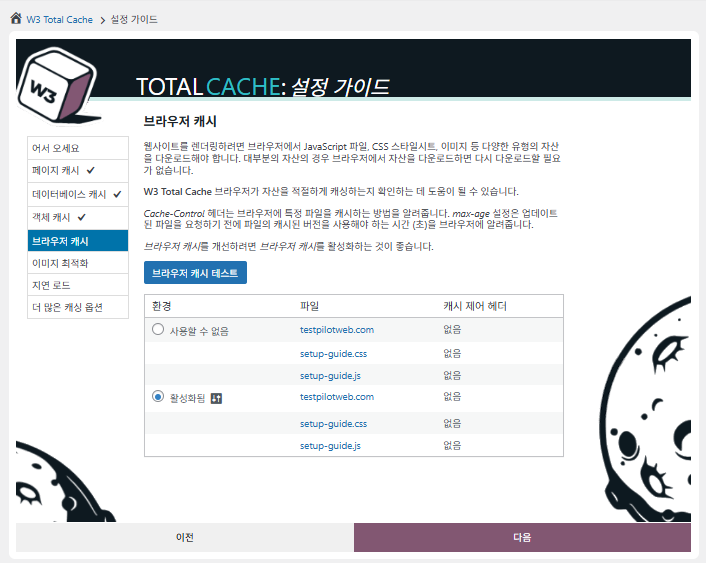
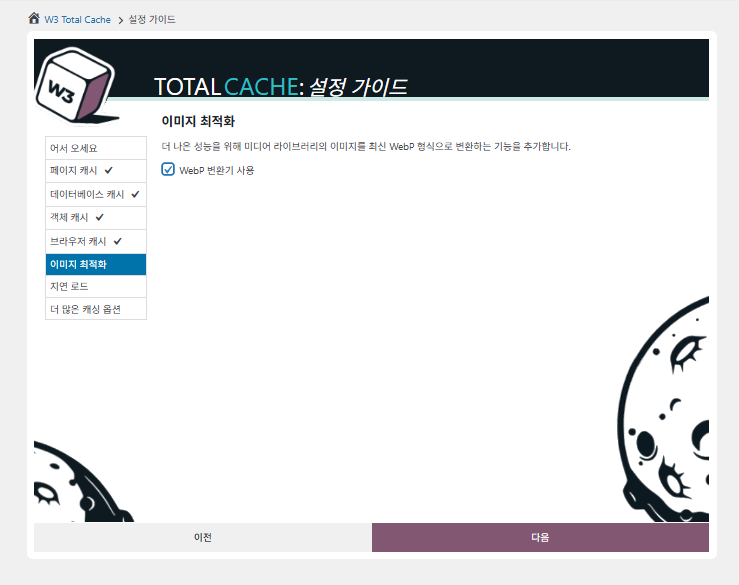
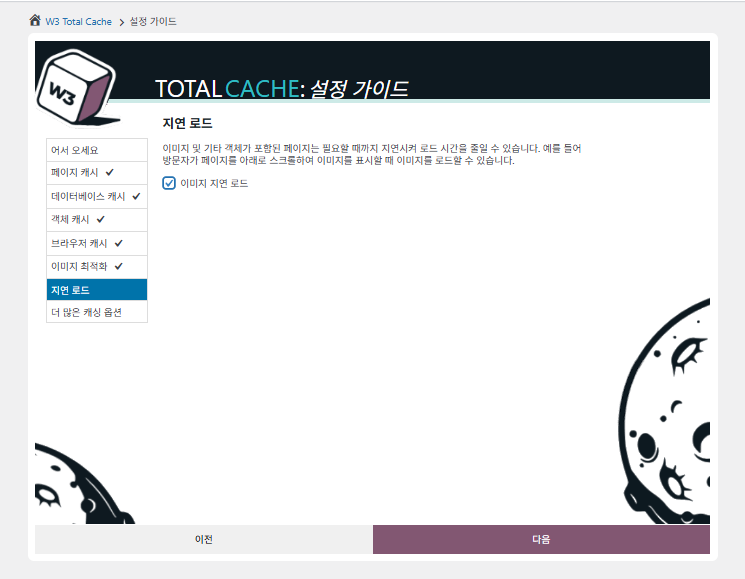
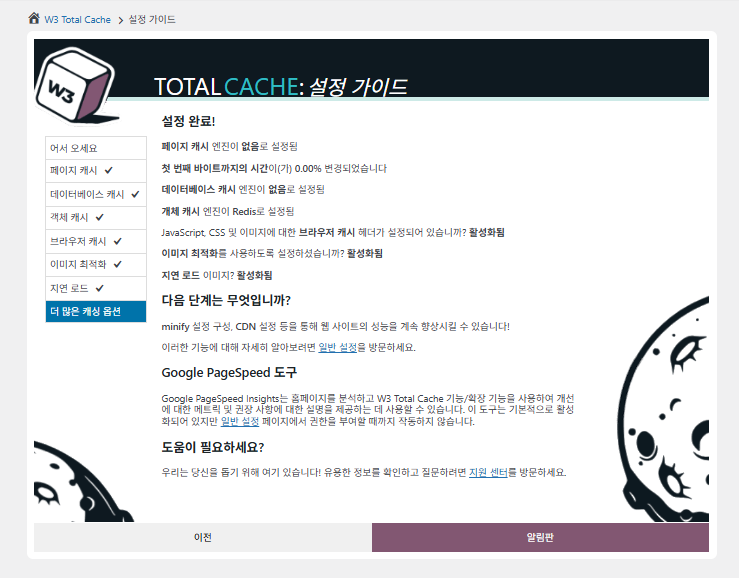
В Setup Guide можно настроить ① кеш страниц, ② кеш базы данных, ③ объектный кеш, ④ кеш браузера, ⑤ оптимизацию изображений, ⑥ отложенную загрузку и ⑦ другие параметры кеширования.
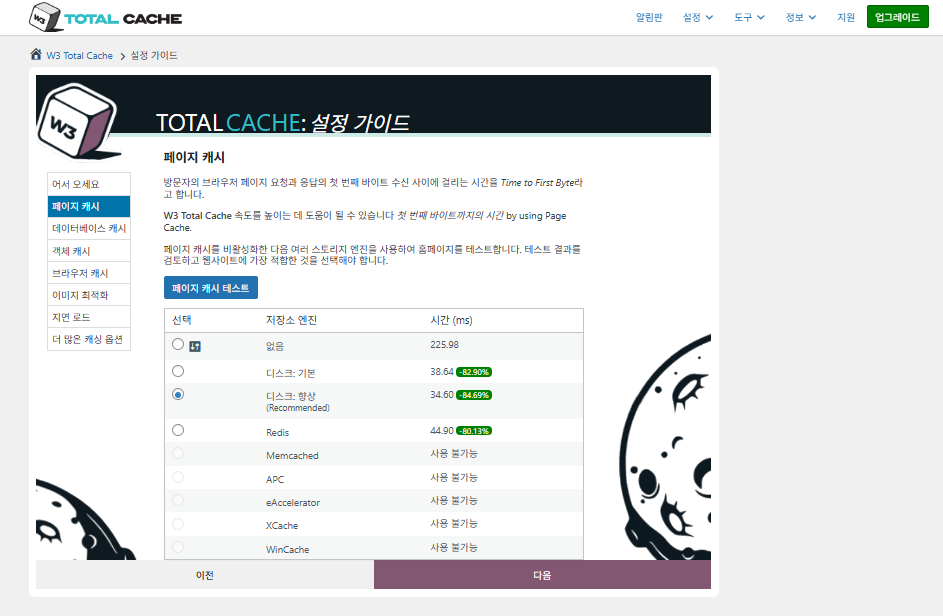
Setup Guide W3 Total Cache ① кеш страниц_дисковый кеш (выбран Enhanced)

Для кеша страниц W3TC по умолчанию рекомендует Disk: [Enhanced]. Как видно из таблицы, Disk: Enhanced примерно на 10,3 мс быстрее, чем Disk: Basic, — это около 17,8% выигрыша по TTFB.
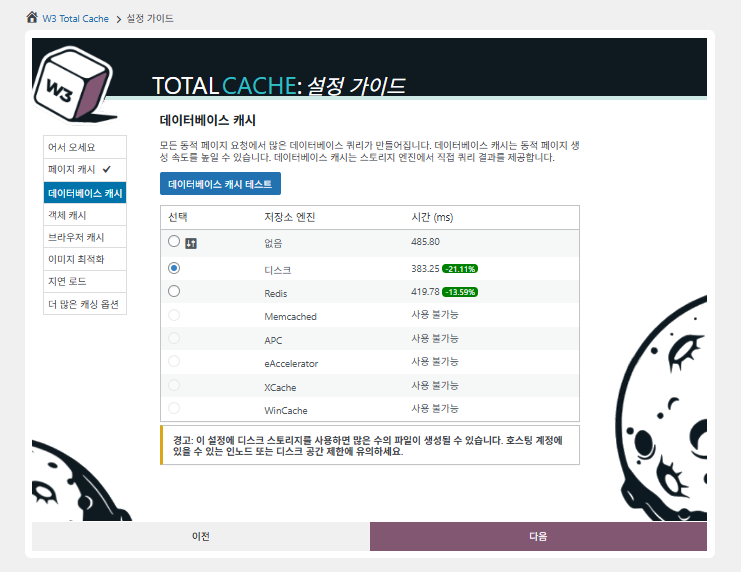
Setup Guide W3 Total Cache ② кеш базы данных_выбран дисковый кеш

Для кеша базы данных выберите дисковый кеш.
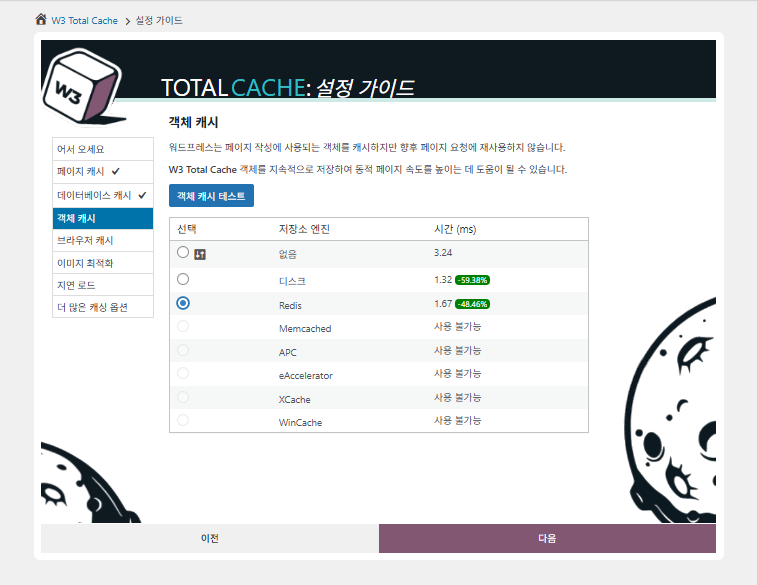
Setup Guide W3 Total Cache ③ объектный кеш_выбран Redis
Setup Guide W3 Total Cache ④ кеш браузера
Setup Guide W3 Total Cache ⑤ оптимизация изображений-конвертер WebP
Setup Guide W3 Total Cache ⑥ отложенная загрузка-изображения
Setup Guide W3 Total Cache ⑦ прочие параметры кеширования_настройка после перехода в консоль

Настройки, сделанные в мастере, теперь отображаются на панели управления.

Нажмите вкладку [Settings] в правом верхнем углу, чтобы настроить всё — от [General Settings] до кеша страниц и прочего.
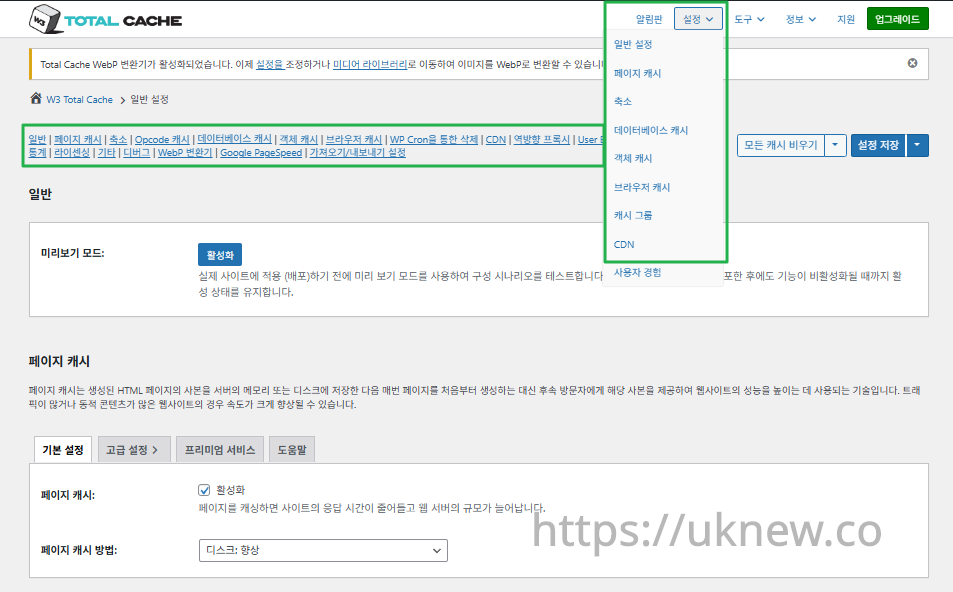
Консоль W3TC-настройки__

ⓐ [Настройки на страницах] в левом меню администратора и ⓑ вкладка [Settings] в правом верхнем углу ведут к кешу страниц, Minify и другим расширенным настройкам. Если перейти на отдельные страницы из верхней центральной части вкладки General Settings, можно просмотреть настройки кеша страниц и Minify — от общих до раздела Расширенные настройки.

Ⅱ. Настройки кеша W3 Total Cache

  • ↳ Функции кеширования

Это вкладка General Settings в настройках W3TC.

🧭 Симулятор настроек кеша W3 Total Cache
Симулятор пути
📍Performance›General Settings›General
Режим предпросмотра
Прежде чем применять изменения кеша на сайте, можно включить [Preview mode] и заранее проверить, нет ли ошибок.
📍Performance›General Settings›Page Cache›Advanced Settings
Кеш страниц
Отметьте [Enable] в разделе [Page Cache], убедитесь, что выбран способ [Disk: Enhanced], и нажмите [Save Settings]. Детальные параметры задаются в [Advanced Settings].
📍Performance›General Settings›Minify›Advanced Settings
Minify
Отметьте [Enable] в разделе [Minify], нажмите [Save Settings], а затем задайте параметры минификации HTML, CSS и JS в [Advanced Settings].
📍Performance›General Settings›Opcode Cache
Opcode-кеш
Opcode-кеш автоматически использует установленный на сервере opcode-кеш; если он не установлен, параметр отключён.
📍Performance›General Settings›Database Cache›Object Cache
Кеш БД·объектов
Отметьте [Enable] в разделах [Database Cache] и [Object Cache] и сохраните. Детальные параметры задаются на экранах [Database Cache] и [Object Cache].
📍Performance›General Settings›Browser Cache›Advanced Settings
Кеш браузера
Отметьте [Enable] в разделе [Browser Cache] и сохраните, затем задайте параметры кеша для каждого типа файлов в [Advanced Settings].
example.com/wp-admin/admin.php?page=w3tc_general
DashboardSettingsToolsInfoSupportUpgrade
|||||||||||||||||
Empty All Caches
General
Preview mode:
Enable
Use preview mode to test configuration scenarios prior to releasing them (deploy) on the actual site. Preview mode remains active even after deploying settings until the feature is disabled.
Page Cache
Page cache is a technique used to speed up the performance of a website by storing a copy of the generated HTML page in the server’s memory or disk, and then serving that copy to subsequent visitors instead of generating the page from scratch each time. This can result in significant speed improvements for websites with high traffic or dynamic content.
Basic SettingsPremium ServicesHelp
Page Cache:
Caching pages will reduce the response time of your site and increase the scale of your web server.
Page Cache Method:
Minify
Minification is a technique used to reduce the file size of HTML, CSS, and JavaScript files by removing unnecessary characters such as whitespace, comments, and line breaks. This process can significantly improve the load times of web pages by reducing the amount of data that needs to be downloaded by the user’s browser.
Basic SettingsPremium ServicesHelp
Minify:
Minification can decrease file size of HTML, CSS, JS and feeds respectively by ~10% on average. Learn more
Minify mode:
Auto
Manual
Select manual mode to use fields on the Minify settings tab to specify files to be minified, otherwise files will be minified automatically. Learn more
Minify Cache Method:
Learn more
HTML minifier:
Learn more
JS minifier:
CSS minifier:
Opcode Cache
Opcode cache is a powerful feature that enhances the performance of a WordPress website by caching compiled PHP code. By storing pre-compiled code in memory, opcode cache eliminates the need for repetitive interpretation and compilation of PHP files, resulting in significantly faster execution times. Opcode cache reduces server load and improves response times, ultimately enhancing the overall speed and responsiveness of your WordPress site. If opcode cache is available on the hosting server it will automatically be selected in the dropdown and enabled.
Opcode Cache
Validate timestamps:
Enable
Once enabled, each file request will update the cache with the latest version. When this setting is off, the Opcode Cache will not check, instead PHP must be restarted in order for setting changes to be reflected.
Database Cache
Enable this setting to utilize the power of caching your WordPress site’s database queries. By storing frequently accessed database queries in memory, the database cache reduces the need for repetitive database interactions, resulting in faster page load times. This feature is particularly beneficial for websites with heavy database usage, improving overall performance and delivering a smoother user experience.
Basic SettingsPremium ServicesHelp
Database Cache:
Caching database objects decreases the response time of your site. Best used if object caching is not possible.
Database Cache Method:
Object Cache
Enable this option to utilize an object cache mechanism, which significantly enhances the performance of your WordPress website. Object caching stores frequently accessed database queries and complex data structures in memory, reducing the need to retrieve them from the database repeatedly. By doing so, it minimizes the processing time required to generate dynamic content, resulting in faster page loading times and improved overall site speed. Enabling object cache is particularly beneficial for websites with heavy database usage or high traffic volumes, as it helps alleviate the strain on the server by efficiently serving cached data.
Basic SettingsPremium ServicesHelp
Object Cache:
Object caching greatly increases performance for highly dynamic sites that use the Object Cache API.
Object Cache Method:
Browser Cache
Enabling browser caching will instruct visitors’ web browsers to store static files from your WordPress website, such as images, CSS, and JavaScript files, locally on their devices. By doing so, subsequent visits to your site will retrieve these cached files from the browser’s storage, reducing the need for repeated downloads. This results in faster page loading times and a smoother browsing experience for your visitors, ultimately improving the overall speed and performance of your WordPress website.
Basic SettingsPremium ServicesHelp
Browser Cache:
Enable HTTP compression and add headers to reduce server load and decrease file load time.
example.com/wp-admin/admin.php?page=w3tc_pgcache
DashboardSettingsToolsInfoSupportUpgrade
|||||||
Empty All Caches
Always Cached extension is currently disabled. To enable the extension click here.
General
Cache front page
For many blogs this is your most visited page, it is recommended that you cache it. Learn more
Cache feeds: site, categories, tags, comments
Even if using a feed proxy service enabling this option is still recommended. Learn more
Handle XML mime type
Return correct Content-Type header for XML files (e.g., feeds and sitemaps). Learn more
Cache SSL (HTTPS>) requests
Cache SSL requests (uniquely) for improved performance. Learn more
Cache URI with query string variables
Search result (and similar) pages will be cached if enabled. Learn more
Cache 404 (not found) pages
Reduce server load by caching 404 pages. If the disk enhanced method of disk caching is used, 404 pages will be returned with a 200 response code. Use at your own risk. Learn more
Don’t cache pages for logged in users
Unauthenticated users may view a cached version of the last authenticated user’s view of a given page. Disabling this option is not recommended. Learn more
Don’t cache pages for following user roles
Select user roles that should not receive cached pages: Learn more
Administrator
Editor
Author
Contributor
Subscriber
Aliases
Cache alias hostnames:
Enable
If the same WordPress content is accessed from different domains. Learn more
Additional home URLs:
Specify full home URLs of your mirrors so that plugin will flush it’s cache when content is changed. For example: http://my-site.comhttp://www.my-site.comhttps://my-site.com Learn more
Cache Preload
Automatically prime the page cache
Automatically primes the page cache using the settings configured below. Learn more
Update interval:
900seconds
The number of seconds to wait before creating another set of cached pages. Learn more
Pages per interval:
10
Limit the number of pages to create per batch. Fewer pages may be better for under-powered servers. Learn more
Sitemap URL:
 
A compliant sitemap can be used to specify the pages to maintain in the primed cache. Pages will be cached according to the priorities specified in the XML file. Learn more
Preload the sitemap once
Stop cache preloading after every URL in the sitemap has been processed. Disable and re-enable cache preloading to start a new pass.
Preload cache upon publishing a post
Only applies to pages, posts, and custom post types whose status transitioned from a non-published status to the “published” status. Learn more
Preload cache upon updating a post
Applies after updating any page, post, or custom post type with the final status being “published”. Learn more
Purge Policy:
Specify the pages and feeds to purge when posts are created, edited, or comments posted. The defaults are recommended because additional options may reduce server performance: Learn more
Front page
Post page
Blog feed
Post comments pages
Post author pages
Post terms pages
Post comments feed
Post author feed
Post terms feeds
Daily archive pages
Monthly archive pages
Yearly archive pages
rdf
rss
rss2 (default)
atom
Choose which feed types should be automatically purged. Learn more
Purge limit:
10
Specify number of pages that lists posts (archive etc.) that should be purged on post updates etc., i.e. example.com/ ... example.com/page/5.
0 means all pages that lists posts are purged, i.e. example.com/page/2 ... Learn more
Additional pages:
Specify additional pages to purge. Including parent page in path. Ex: parent/posts. Learn more
Purge sitemaps:
([a-z0-9_\-]*?)sitemap([a-z0-9_\-]*)?\.(?:xml|xsl)
Specify a regular expression that matches your sitemaps. Learn more
REST API
Use these controls to determine how the WordPress REST API responds to visitors and integrations. Caching API responses can dramatically reduce load when headless frontends, mobile apps, or third-party services request the same data repeatedly, but you can keep responses uncached for highly dynamic endpoints or disable the API altogether when it is not needed to reduce attack surface. Learn more
REST API
Don’t cache
Cache★ PRO
Disable REST API
If you’re using the WordPress API make sure to use caching to scale performance. Show More ▾
Advanced
Late initialization:
Enable
Enables support for WordPress functionality in fragment caching for the page caching engine. Use of this feature may increase response times. Learn more
Late caching:
Enable
Overwrites key of page caching via custom filters by postponing entry extraction during the init action. Learn more
Compatibility mode:
Enable
Decreases performance by ~20% at scale in exchange for increasing interoperability with more hosting environments and WordPress idiosyncrasies. Enable this option if you experience issues with the Apache rules. Learn more
Reject HEAD requests:
Disable caching of HEAD HTTP requests
If disabled, HEAD requests can often be cached resulting in “empty pages” being returned for subsequent requests for a URL. Learn more
Maximum lifetime of cache objects:
3600seconds
Determines the natural expiration time of cache items. The higher the value, the larger the cache.
Max lifetime is limited by the W3TC_CACHE_FILE_EXPIRE_MAX constant (2592000 seconds) which can be overridden in wp-config.php.
Garbage collection interval:
3600seconds
If caching to disk, specify how frequently expired cache data is removed. For busy sites, a lower value is best. Learn more
Comment cookie lifetime:
1800seconds
Significantly reduce the default TTL for comment cookies to reduce the number of authenticated user traffic. Enter -1 to revert to default TTL. Learn more
Accepted query strings:
ScCid
_branch_match_id
_bta_c
_bta_tid
_ga
_gl
_ke
adgroupid
adid
age-verified
ao_noptimize
campaignid
campid
click_id
cn-reloaded
customid
dicbo
dm_i
ef_id
epik
fb_action_ids
fb_action_types
fb_source
fbclid
gclid
gclsrc
gdffi
gdfms
gdftrk
hsa_acc
hsa_ad
hsa_cam
hsa_grp
hsa_kw
hsa_mt
hsa_net
hsa_src
hsa_tgt
hsa_ver
igshid
li_fat_id
matomo_campaign
matomo_cid
matomo_content
matomo_group
matomo_keyword
matomo_medium
matomo_placement
matomo_source
mc_cid
mc_eid
mkcid
mkevt
mkrid
mkwid
msclkid
mtm_campaign
mtm_cid
mtm_content
mtm_group
mtm_keyword
mtm_medium
mtm_placement
mtm_source
pcrid
piwik_campaign
piwik_keyword
piwik_kwd
pk_campaign
pk_cid
pk_content
pk_keyword
pk_kwd
pk_medium
pk_source
pp
redirect_log_mongo_id
redirect_mongo_id
ref
s_kwcid
sb_referer_host
si
sscid
tblci
toolid
trk_contact
trk_module
trk_msg
trk_sid
ttclid
twclid
usqp
utm_campaign
utm_content
utm_expid
utm_id
utm_medium
utm_source
utm_term
wbraid
Always cache URLs that use these query string name-value pairs. The value part is not required. But if used, separate name-value pairs with an equals sign (i.e., name=value). Each pair should be on their own line. Learn more
Rejected user agents:
Never send cache pages for these user agents. Learn more
Rejected cookies:
wptouch_switch_toggle
Never cache pages that use the specified cookies. Learn more
Never cache the following pages:
wp-.*\.php
index\.php
Always ignore the specified pages / directories. Supports regular expressions. Learn more
Never cache pages associated with these categories:
Always ignore all pages filed under the specified category slugs. Learn more
Never cache pages that use these tags:
Always ignore all pages filed under the specified tag slugs. Learn more
Never cache pages by these authors:
Always ignore all pages filed under the specified author usernames. Learn more
Never cache pages that use these custom fields:
Always ignore all pages filed under the specified custom fields. Separate name-value pairs with an equals sign (i.e., name=value). Learn more
Cache exception list:
wp-comments-popup.php
wp-links-opml.php
wp-locations.php
Cache the specified pages / directories even if listed in the “never cache the following pages” field. Supports regular expression. Learn more
Non-trailing slash pages:
sitemap(_index)?\.xml(\.gz)?
([a-z0-9_\-]+)?sitemap\.xsl
[a-z0-9_\-]+-sitemap([0-9]+)?\.xml(\.gz)?
Cache the specified pages even if they don’t have trailing slash. Learn more
Specify page headers:
Last-Modified
Content-Type
X-Pingback
P3P
Link
Specify additional page headers to cache. Learn more
Purge via WP Cron
Enabling this will schedule a WP-Cron event that will flush the Page Cache. If you prefer to use a system cron job instead of WP-Cron, you can schedule the following command to run at your desired interval: “wp w3tc flush posts”. If the Always Cached extension is active and enabled, page cache entries will instead be added to the queue instead of being purged from the cache. Learn more
Page Cache is disabled! Enable it here to enable this feature.
Enable WP-Cron Event
Enable
Start Time
This setting controls the initial start time of the cron job. If the selected time has already passed, it will schedule the job for the following day at the selected time.
Interval
This setting controls the interval that the cron job should occur.
Note(s)
  • Enable HTTP compression in the “HTML” section on Browser Cache Settings tab.
example.com/wp-admin/admin.php?page=w3tc_minify
DashboardSettingsToolsInfoSupportUpgrade
||||||
Empty All Caches
General
Rewrite URL structure
If disabled, CSS and JS embeddings will use GET variables instead of “fancy” links. Learn more
Disable minify for logged in users
Authenticated users will not receive minified pages if this option is enabled. Learn more
Minify error notification:
Notify when minify cache creation errors occur. Learn more
HTML & XML
HTML minify settings:
Enable
Inline CSS minification
Inline JS minification
Don’t minify feeds
Line break removal
Enable HTML minification and optionally remove whitespace from inline CSS, JS, and feeds. Learn more
Ignored comment stems:
google_ad_
RSPEAK_
mfunc
Do not remove comments that contain these terms. Learn more
JS
JS minify settings:
Enable
Minify enqueued and inline JavaScript files according to the settings below. Learn more
Minify method:
Choose how JavaScript files should be combined or minified when using automatic mode. Learn more
Minify engine settings:
Operations in areas:
Embed type:
Before </head>
After <body>
Preserved comment removal (not applied when combine only is active)
Line break removal (not safe, not applied when combine only is active)
Control where scripts are placed and whether they stay blocking or load asynchronously for each template area. Learn more
HTTP/2 push
Enable
For better performance, send files to browser before they are requested when using the HTTP/2 protocol. Not supported by “Disk: Enhanced” page cache method for Nginx Learn more
CSS
CSS minify settings:
Enable
Minify stylesheets and inline CSS snippets declared in the queues below. Learn more
Minify method:
Choose how stylesheets should be combined or minified when using automatic mode. Learn more
Minify engine settings:
Preserved comment removal (not applied when combine only is active)
Line break removal (not applied when combine only is active)
Eliminate render-blocking CSS by moving it to HTTP body★ PRO
Website visitors cannot navigate your website until a given page is ready – reduce the wait time with this feature. Show More ▾
Decide where CSS is placed and whether it should load synchronously or asynchronously for each template area. Learn more
@import handling:
Control how @import rules are handled when combining and minifying stylesheets. Learn more
HTTP/2 push
Enable
For better performance, send files to browser before they are requested when using the HTTP/2 protocol. Not supported by “Disk: Enhanced” page cache method for Nginx Learn more
Advanced
Update external files every:
86400seconds
Specify the interval between download and update of external files in the minify cache. Hint: 6 hours is 21600 seconds. 12 hours is 43200 seconds. 24 hours is 86400 seconds. Learn more
Garbage collection interval:
86400seconds
If caching to disk, specify how frequently expired cache data is removed. For busy sites, a lower value is best.
Max interval is limited by the W3TC_CACHE_FILE_EXPIRE_MAX constant (2592000 seconds) which can be overridden in wp-config.php. Learn more
Never minify the following pages:
Always ignore the specified pages / directories. Use relative paths. Omit: protocol, hostname, leading forward slash and query strings. Learn more
Never minify the following JS files:
Always ignore the specified JS files. Use relative paths. Omit: protocol, hostname, leading forward slash and query strings. Learn more
Never minify the following CSS files:
Always ignore the specified CSS files. Use relative paths. Omit: protocol, hostname, leading forward slash and query strings. Learn more
Rejected user agents:
Specify user agents that will never receive minified content. Learn more
Include external files/libraries:
Specify external files/libraries that should be combined. Learn more
Use regular expressions for file name matching
If external script file names vary, use regular expressions in the “Include external files/libraries” field to simplify matching. Learn more
Purge via WP Cron
Enabling this will schedule a WP-Cron event that will flush the Minify Cache. If you prefer to use a system cron job instead of WP-Cron, you can schedule the following command to run at your desired interval: “wp w3tc flush minify”. Learn more
Minify is disabled! Enable it here to enable this feature.
Enable WP-Cron Event
Enable
Start Time
This setting controls the initial start time of the cron job. If the selected time has already passed, it will schedule the job for the following day at the selected time.
Interval
This setting controls the interval that the cron job should occur.
Note(s):
  • Enable HTTP compression in the “Cascading Style Sheets & JavaScript” section on Browser Cache Settings tab.
  • The TTL of page cache files is set via the “Expires header lifetime” field in the “Cascading Style Sheets & JavaScript” section on Browser Cache Settings tab.
example.com/wp-admin/admin.php?page=w3tc_dbcache
DashboardSettingsToolsInfoSupportUpgrade
||
Empty All Caches
Database caching via Disk is currently disabled.
General
Don’t cache queries for logged in users
Enabling this option is recommended to maintain default WordPress behavior. Learn more
Advanced
Maximum lifetime of cache objects:
180seconds
Determines the natural expiration time of unchanged cache items. The higher the value, the larger the cache. Learn more
Garbage collection interval:
3600seconds
If caching to disk, specify how frequently expired cache data is removed. For busy sites, a lower value is best. Learn more
Never cache the following pages:
Always ignore the specified pages / directories. Supports regular expressions (See FAQ). Learn more
Ignored query stems:
gdsr_
wp_rg_
_wp_session_
_wc_session_
Do not cache queries that contain these terms. Any entered prefix (set in wp-config.php) will be replaced with current database prefix (default: wp_). Query stems can be identified using debug mode. Learn more
Reject query words:
^\s*insert\b
^\s*delete\b
^\s*update\b
^\s*replace\b
^\s*create\b
^\s*alter\b
^\s*show\b
^\s*set\b
\bautoload\s+=\s+’yes’
\bsql_calc_found_rows\b
\bfound_rows\(\)
Do not cache queries that contain these words or regular expressions. Learn more
Reject constants:
APP_REQUEST
DOING_CRON
DONOTCACHEDB
SHORTINIT
XMLRPC_REQUEST
Disable caching once specified constants defined. Learn more
Enable for WP-CLI
Enable
WP-CLI already uses Memcached, Redis, and other persistent engines. Enable this only if your database cache engine is Disk and you want WP-CLI to use it. Learn more
Purge via WP Cron
Enabling this will schedule a WP-Cron event that will flush the Database Cache. If you prefer to use a system cron job instead of WP-Cron, you can schedule the following command to run at your desired interval: “wp w3tc flush db”. Learn more
Database Cache is disabled! Enable it here to enable this feature.
Enable WP-Cron Event
Enable
Start Time
This setting controls the initial start time of the cron job. If the selected time has already passed, it will schedule the job for the following day at the selected time.
Interval
This setting controls the interval that the cron job should occur.
example.com/wp-admin/admin.php?page=w3tc_objectcache
DashboardSettingsToolsInfoSupportUpgrade
|
Empty All Caches
Object caching via Disk is currently disabled.
Advanced
Default lifetime of cache objects:
180seconds
Determines the natural expiration time of unchanged cache items. The higher the value, the larger the cache. Learn more
Garbage collection interval:
600seconds
If caching to disk, specify how frequently expired cache data is removed. For busy sites, a lower value is best. Learn more
Global groups:
Groups shared amongst sites in network mode. Learn more
Non-persistent groups:
counts
plugins
Groups that should not be cached. Learn more
Enable caching for wp-admin requests
Enabling this option will increase wp-admin performance, but may cause side-effects Learn more
Store transients in database
Store transients in database even when external cache is used, which allows transient values to survive object cache cleaning/expiration Learn more
Enable for WP-CLI
Enable
WP-CLI already uses Memcached, Redis, and other persistent engines. Enable this only if your object cache engine is Disk and you want WP-CLI to use it. Learn more
Purge via WP Cron
Enabling this will schedule a WP-Cron event that will flush the Object Cache. If you prefer to use a system cron job instead of WP-Cron, you can schedule the following command to run at your desired interval: “wp w3tc flush object”. Learn more
Object Cache is disabled! Enable it here to enable this feature.
Enable WP-Cron Event
Enable
Start Time
This setting controls the initial start time of the cron job. If the selected time has already passed, it will schedule the job for the following day at the selected time.
Interval
This setting controls the interval that the cron job should occur.
example.com/wp-admin/admin.php?page=w3tc_browsercache
DashboardSettingsToolsInfoSupportUpgrade
||||
Empty All Caches
General
Specify global browser cache policy.
Set Last-Modified header
Set the Last-Modified header to enable 304 Not Modified response. Learn more
Set expires header
Set the expires header to encourage browser caching of files. Learn more
Set cache control header
Set pragma and cache-control headers to encourage browser caching of files. Learn more
Set entity tag (eTag)
Set the ETag header to encourage browser caching of files. Learn more
Set W3 Total Cache header
Set this header to assist in identifying optimized files. Learn more
Enable HTTP (gzip) compression
Reduce the download time for text-based files. Learn more
Enable HTTP (brotli) compression
Reduce the download time for text-based files. Learn more
Prevent caching of objects after settings change
Whenever settings are changed, a new query string will be generated and appended to objects allowing the new policy to be applied. Learn more
Remove query strings from static resources
Resources with a “?” in the URL are not cached by some proxy caching servers. Learn more
Prevent caching exception list:
Do not add the prevent caching query string to the specified URIs. Supports regular expressions. Learn more
Disable cookies for static files
Removes Set-Cookie header for responses. Learn more
Do not process 404 errors for static objects with WordPress
Reduce server load by allowing the web server to handle 404 (not found) errors for static files (images etc).
If enabled – you may get 404 File Not Found response for some files generated on-the-fly by WordPress plugins. You may add those file URIs to 404 error exception list below to avoid that. Learn more
404 error exception list:
robots\.txt
[a-z0-9_\-]*sitemap[a-z0-9_\.\-]*\.(xml|xsl|html)(\.gz)?
Never process 404 (not found) events for the specified URIs. Learn more
Rewrite URL structure of objects
Generate unique URI for each file protected from caching by browser. Learn more
CSS & JS
Specify browser cache policy for Cascading Style Sheets and JavaScript files.
Set Last-Modified header
Set the Last-Modified header to enable 304 Not Modified response. Learn more
Set expires header
Set the expires header to encourage browser caching of files. Learn more
Expires header lifetime:
31536000seconds
Specify how long CSS and JS files should be cached (in seconds). Learn more
Set cache control header
Set pragma and cache-control headers to encourage browser caching of files. Learn more
Cache Control policy:
Choose the Cache-Control policy applied to CSS and JS responses.
The Expires header already sets the max-age. Learn more
Set entity tag (eTag)
Set the ETag header to encourage browser caching of files. Learn more
Set W3 Total Cache header
Set this header to assist in identifying optimized files. Learn more
Enable HTTP (gzip) compression
Reduce the download time for text-based files. Learn more
Enable HTTP (brotli) compression
Reduce the download time for text-based files. Learn more
Prevent caching of objects after settings change
Whenever settings are changed, a new query string will be generated and appended to objects allowing the new policy to be applied. Learn more
Remove query strings from static resources
Resources with a “?” in the URL are not cached by some proxy caching servers. Learn more
Disable cookies for static files
Removes Set-Cookie header for responses. Learn more
HTML & XML
Specify browser cache policy for posts, pages, feeds and text-based files.
Set Last-Modified header
Set the Last-Modified header to enable 304 Not Modified response. Learn more
Set expires header
Set the expires header to encourage browser caching of files. Learn more
Expires header lifetime:
3600seconds
Max lifetime is limited by the W3TC_CACHE_FILE_EXPIRE_MAX constant (2592000 seconds) which can be overridden in wp-config.php. Learn more
Set cache control header
Set pragma and cache-control headers to encourage browser caching of files. Learn more
Cache Control policy:
Choose the Cache-Control policy applied to HTML and XML responses. Learn more
Set entity tag (ETag)
Set the ETag header to encourage browser caching of files. Learn more
Set W3 Total Cache header
Set this header to assist in identifying optimized files. Learn more
Enable HTTP (gzip) compression
Reduce the download time for text-based files. Learn more
Enable HTTP (brotli) compression
Reduce the download time for text-based files. Learn more
Media & Other Files
Set Last-Modified header
Set the Last-Modified header to enable 304 Not Modified response. Learn more
Set expires header
Set the expires header to encourage browser caching of files. Learn more
Expires header lifetime:
31536000seconds
Specify how long media and other files files should be cached (in seconds). Learn more
Set cache control header
Set pragma and cache-control headers to encourage browser caching of files. Learn more
Cache Control policy:
Choose the Cache-Control policy applied to media and other files responses.
The Expires header already sets the max-age. Learn more
Set entity tag (ETag)
Set the ETag header to encourage browser caching of files. Learn more
Set W3 Total Cache header
Set this header to assist in identifying optimized files. Learn more
Enable HTTP (gzip) compression
Reduce the download time for text-based files. Learn more
Enable HTTP (brotli) compression
Reduce the download time for text-based files. Learn more
Prevent caching of objects after settings change
Whenever settings are changed, a new query string will be generated and appended to objects allowing the new policy to be applied. Learn more
Remove query strings from static resources
Resources with a “?” in the URL are not cached by some proxy caching servers. Learn more
Disable cookies for static files
Removes Set-Cookie header for responses. Learn more
Нажмите на активный пункт в меню слева или на кнопку на экране.

1️⃣ Режим предпросмотра

Прежде чем применять изменения кеша на сайте, можно включить режим предпросмотра и заранее проверить, нет ли ошибок.

Режим предпросмотра General Settings W3TC2

[Preview]: нажмите эту кнопку, чтобы проверить изменения в режиме предпросмотра, и если всё в порядке, нажмите [Deploy], чтобы применить их на сайте.

2️⃣ Кеш страниц

Мастер уже выставил базовую настройку [Disk: Enhanced]. Если позже сервер будет использовать другой кеш, например после переезда на другой сервер, её можно изменить.

Если обычный сайт (не мультисайт) дополнительно использует поддомены, кеш можно настроить и для доменов-псевдонимов.

Уровень сервера

Интервал обновления (с)

Страниц за интервал

Описание

Слабый сервер (1 vCPU/1 ГБ и меньше)

1800 с (30 мин)

5

Нужно избежать скачков нагрузки на CPU при создании кеша: большой интервал и минимум страниц

Средний сервер (2 vCPU/2–4 ГБ)

900 с (15 мин)

10

Рекомендуется оставить значение по умолчанию: сервер справляется с некоторой параллельной нагрузкой

Мощный сервер (4 vCPU/8 ГБ и больше)

300 с (5 мин)

20~30

Кеш готовится быстро; подходит для сайтов с высокой посещаемостью

REST API — это интерфейс, который WordPress предоставляет для обмена данными с внешним миром: через URL можно запрашивать контент в формате JSON или управлять им. Благодаря этому мобильные приложения, внешние веб-приложения, блочный редактор и другие инструменты могут синхронизировать или изменять контент WordPress в реальном времени.

REST API обслуживает запросы не только администраторов, но и обычных пользователей и делает обмен данными эффективным, повышая гибкость и расширяемость сайта.

Опция

Описание

Рекомендуем

Поздняя инициализация

Разрешает вызов функций WordPress для кеширования фрагментов.

⚠️ Только если нужно продвинутое кеширование

Позднее кеширование

Откладывает создание ключа кеша до срабатывания пользовательских фильтров, что позволяет точнее настроить кеш

⚠️ Только при переопределении ключей

Режим совместимости

Отказывается от части оптимизаций ради совместимости с хостингом (производительность ниже примерно на 20%)

✅ Рекомендуется при ошибках хостинга

Кодировка

Устраняет проблемы с кодировкой UTF-8

✅ Рекомендуется, если выводятся странные символы

Отклонять запросы HEAD

Не даёт запросам HEAD создавать пустой кеш

✅ Предотвращает неожиданные пустые страницы

Максимальный срок жизни объектов кеша

Сколько хранятся закешированные элементы (с)

⏱ При малом трафике — больше, при большом — меньше

Интервал сборки мусора

Как часто удаляются устаревшие данные кеша (с)

⏱ Чем больше трафик, тем короче

Срок жизни cookie комментариев

Настраивает TTL cookie при отправке комментария (по умолчанию 1800 с)

✅ Полезно, чтобы снизить трафик вошедших пользователей

3️⃣ Minify

В файлах HTML, CSS и JS функция Minify удаляет лишние пробелы, комментарии и переносы строк, чтобы уменьшить размер файлов и ускорить загрузку. Этот процесс не меняет функциональность и лишь делает код компактнее, поэтому браузер обрабатывает его быстрее.

Опция

Описание

Рекомендуем

Автоматически

W3TC автоматически находит и минифицирует файлы HTML, CSS и JS.

✅ Подходит большинству пользователей

Вручную

Работает, только если пользователь сам укажет пути к файлам для минификации.

⚠️ Только для опытных пользователей, которым нужен точный контроль

Опция

Описание

Среда использования

Диск (Disk)

Хранит минифицированные файлы на диске сервера

✅ Обычный виртуальный хостинг; по умолчанию

APC / APCu

Хранит в памяти с помощью opcode-кеша PHP

✅ Хорошо работает на выделенных и виртуальных серверах

eAccelerator

Устаревший opcode-кеш PHP

⚠️ Актуально только для старых серверов

XCache

Один из механизмов кеширования PHP (почти не используется)

❌ Не рекомендуется (устарел)

WinCache

Кеш PHP для серверов Windows

✅ Только для серверов IIS/Windows

Memcached

Хранение на распределённых кеш-серверах

✅ Несколько серверов, кластер

Redis

Кеширует минифицированные файлы в быстром хранилище ключ-значение

✅ Мощный VPS / несколько серверов

Опция

Описание

Особенности

Minify (по умолчанию)

Встроенный в W3TC минификатор HTML
Удаляет пробелы, переносы строк и комментарии, уменьшая размер HTML

Очень стабилен и совместим с большинством сайтов

HTML Tidy

Наводит порядок в структуре HTML и заодно минифицирует
Даже пытается исправлять синтаксические ошибки

Есть коррекция структуры → риск сломать макет

ОпцияОписаниеОсобенностиВыбор минификатора JS
JSMin (по умолчанию)Простой и быстрый минификатор JS: удаляет основные пробелы и комментарииОчень стабилен, низкий риск конфликтов✅ Важны скорость и стабильность; обычные сайты WordPress
Google Closure Compiler (веб-сервис)Продвинутый оптимизатор JS от Google: сжимает через Google APIТочный, но требуется обращение к внешнему серверу → может работать медленно⚠️ Внешний API допустим, приоритет — точная оптимизация
Google Closure Compiler (локальный Java)Запускает тот же движок сжатия в Java-среде на сервере вместо веб-сервисаВозможна расширенная оптимизация, нужна установка Java✅ Если можно установить Java и нужна расширенная оптимизация
NarcissusКлассический минификатор, который разбирает JS и генерирует его зановоУстаревший подход, практически не поддерживается—
YUI CompressorИнструмент сжатия JS/CSS от Yahoo; может сохранять защищённые комментарииСтарый, но по-прежнему стабильный—
Closure (нужно тестировать)——⚠️ Много современного JS (ES6+)
ОпцияОписание
✅ Minify (по умолчанию)Быстрый и стабильный; подходит для большинства сайтов WordPress
⚠️ CSS TidyУпорядочивает структуру и исправляет синтаксис; стили могут сломаться → нужно тестировать
⚠️ YUI Compressor (PHP)Устаревшая логика сжатия, обновления прекращены → только для старых сайтов
⚠️ YUI Compressor (Java)Нужен Java; точное сжатие, но нет поддержки современного синтаксиса CSS

Мастер уже выставил базовую настройку [Disk: Enhanced]. Если позже сервер будет использовать другой кеш, например после переезда на другой сервер, её можно изменить.

Параметр

Описание

Перезапись структуры URL

Использует чистую структуру URL для ссылок на CSS/JS. Если отключить, выводятся URL на основе GET-параметров вида [?ver=xxx].

Для вошедших пользователей,
отключить Minify

Вошедшие пользователи видят исходные файлы, а не минифицированные. Удобно при отладке или разработке.

Минимум уведомлений об ошибках

Сообщает об ошибках при создании кеша минификации (Minify Cache). Если отключить, предупреждения не показываются.

Параметр

Описание

Настройки минификации HTML

Сжимает HTML-документы, уменьшая их размер: удаляет пробелы, отступы и т. п.

Минификация встроенного CSS

Сжимает CSS-код внутри тегов [<style>].

Минификация встроенного JS

Сжимает JS-код внутри тегов [<script>].

Не минифицировать фиды

Фиды RSS/Atom (XML) не минифицируются и остаются как есть.

Удалять переносы строк

Удаляет символы переноса строки в HTML → файл меньше

Пример

Назначение

google_ad_

Защищает комментарии в рекламных скриптах Google AdSense

RSPEAK_

Защищает комментарии в коде для экранных дикторов и доступности

mfunc

Защищает комментарии [<!– mfunc –>] фрагментного кеша W3TC

Способ минификации

Описание

Когда рекомендуется

Объединение & минификация (Combine & Minify)

Объединяет несколько файлов JS в один и одновременно сжимает

✅ Самый эффективный в обычных случаях
: меньше файлов + меньше размер

Только объединение (Combine Only)

Объединяет несколько файлов в один без сжатия

⚠️ Если есть риск конфликтов JS: предотвращает ошибки из-за сжатия

Только минификация (Minify Only)

Сохраняет число файлов и сжимает каждый по отдельности

⚠️ Среда HTTP/2 + при ошибках JS
Когда нужно только уменьшить размер без объединения

Настройки движка минификации

Описание

Место вставки: перед [</head>]

Вставляет JS внутрь [<head>] (выполняется до загрузки страницы)

Место вставки: после [<body>]

Вставляет JS в самый низ страницы (выполняется после отрисовки)

Тип вставки (Blocking / Non-blocking)

Останавливает ли выполнение JS отрисовку страницы

Параметр

Описание

Рекомендуемая настройка

Включить HTTP/2 Push

Сервер заранее отправляет файлы JS ещё до запроса браузера

✅ В среде HTTP/2 может повысить производительность

Нюансы

Если Page Cache в W3TC работает в режиме [Disk: Enhanced] + NGINX, HTTP/2 Push ❌ не работает

✅ Лучше всего работает с Apache + HTTP/2

Способ минификации

Описание

Когда рекомендуется

Объединение & минификация

Объединяет файлы CSS, затем сжимает

✅ Обычное использование

Только объединение

Объединяет файлы без сжатия

⚠️ Если есть риск конфликтов CSS

Только минификация

Только сжатие, без объединения

✅ Подходит для серверов HTTP/2

Настройки движка минификации

Описание

Условия применения

Удалять защищённые комментарии(Preserved comment removal)

Удаляет сведения о лицензии и сохраняемые комментарии в файлах CSS, уменьшая их размер.

⚠️ Работает только при [Объединение & минификация] или [Только минификация] (※ не при [Только объединение])

Удалять переносы строк(Line break removal)

Удаляет символы переноса строки в CSS, создавая более компактный файл (размер немного меньше)

⚠️ Работает только при [Объединение & минификация] или [Только минификация] (※ при [Только объединение] игнорируется)

Обработка @import

Описание

Рекомендуемая настройка

None

Оставляет вызовы CSS через [@import] как есть

❌ Не рекомендуется (блокирует отрисовку)

Bubble

Переносит [@import] в начало файла CSS

⚠️ Эффект ограничен

Process

Включает вызовы [@import] в объединение

✅ Рекомендуется (повышает производительность)

Дополнительный параметр

Описание

Рекомендуемая настройка

Интервал обновления внешних файлов(Update interval for external files)

Как часто W3TC заново загружает и минифицирует файлы CSS/JS с CDN и внешних URL (в секундах)

✅ Оставьте значение по умолчанию [86400] с (24 часа) ※ если внешние файлы часто меняются, рассмотрите [21600] (6 часов)

Интервал сборки мусора(Garbage collection interval)

Как часто удаляются устаревшие файлы кеша (для дискового кеша)

✅ Рекомендуется [43200~86400] с (при большом трафике можно меньше) ※ верхний предел (2592000 с) задаётся в [wp-config.php]

Не минифицировать следующие страницы(Never minify the following pages)

Укажите URL, которые всегда исключаются из минификации (относительные пути, без параметров запроса)

✅ При необходимости добавьте админку, страницу входа, URL AJAX и т. п. Пример: [wp-login.php], [wp-admin/], [my-custom-endpoint/]

Файлы JS, которые никогда не минифицируются

Укажите конкретные файлы JS, которые после минификации вызывают ошибки

⚠️ Добавляйте проблемные файлы JS, когда их обнаружите. Пример: [plugins/some-script.js]

Файлы CSS, которые никогда не минифицируются

Позволяет делать исключения при конфликтах CSS

⚠️ Если какой-то CSS ломает макет, добавьте его в исключения. Пример: [themes/mytheme/style.css]

Отклонённые user agent

Не отдаёт минифицированные файлы определённым User-Agent (краулерам, ботам и т. п.)

✅ Указывайте только ботов, которым нужно обходить кеш. Пример: [Lighthouse], [GTmetrix], [Chrome-Lighthouse] и т. п.

Включать внешние файлы и библиотеки(Include external files/libraries)

Вручную добавляет внешние скрипты CDN в объединение

⚠️ Только если нужно минифицировать или объединять внешние JS/CDN. Пример: [ajax.googleapis.com/…/jquery.min.js]

Разрешить регулярные выражения

Позволяет сопоставлять по регулярным выражениям, если шаблоны имён файлов меняются

✅ Полезно, если у внешних скриптов часто меняется номер версии. Пример: [cdn.example.com/js/lib-\d+\.js]

# EX: 
#Файлы JS, которые никогда не минифицируются:
plugins/some-plugin/assets/js/legacy-script.js
wp-includes/js/jquery/jquery.js

#CSS, который никогда не минифицируется:
themes/mytheme/style.css
# EX: 
#Отклонённые user agent:
Lighthouse
Chrome-Lighthouse
GTmetrix

Параметр

Описание

Рекомендуемая настройка

Использовать событие WP-Cron(Enable WP-Cron event)

Чтобы регулярно и автоматически очищать и обновлять кеш страниц, запланируйте задачу WP-Cron

✅ Рекомендуется включить (оставить по умолчанию)

Время запуска(Start time)

Когда WP-Cron запустится впервые (например, 12:00 am)

✅ Время низкой нагрузки на сервер (например, с полуночи до 3 часов ночи)

Интервал(Interval)

WP-Cron: как часто очищать кеш — Настройки

✅ Дважды в день или ежечасно (сайты с высоким трафиком)

Альтернатива: системный cron

Вместо WP-Cron можно запускать команду [wp w3tc flush_posts] через настоящий cron на уровне ОС

Рекомендуется для мощных серверов (точнее и эффективнее, чем WP-Cron)

4️⃣ Opcode-кеш

Opcode-кеш автоматически использует установленный на сервере opcode-кеш. Если он не установлен, параметр отключён.

5️⃣ Кеш базы данных и объектный кеш: Memcached·Redis

Опция

Описание

Рекомендуемая среда

Диск

Хранит данные кеша на диске сервера

✅ Виртуальный хостинг / базовая среда

Memcached

Распределённый сетевой кеш, высокая скорость

✅ Несколько серверов / кластер

Обычные сайты WordPress часто используют для кеша базы данных что-то одно — Memcached или Redis, но в W3 Total Cache их можно разделить: ⓐ один — для кеша базы данных, ⓑ другой — для объектного кеша.

📌 Обычные WordPress Сайты
├─ База данных Кеш
│   └─ Memcached или Redis · можно только один использовать
└─ Объектный Кеш
    └─ Тот же Кеш движок используется совместно — частый случай

📌 W3 Total Cache (W3TC)
├─ База данных Кеш
│   └─ Memcached использовать (пример)
└─ Объектный Кеш
    └─ Redis использовать (пример)

🛠️ Прикладная стратегия
└─ Кеш движок по ролям: Раздельно Применено Можно
    ├─ Сервер ресурсы распределены
    ├─ Кеш узких мест меньше
    └─ Производительность Оптимизация гибкость обеспечена

В настройках W3 Total Cache по умолчанию для кеша базы данных задан Memcached, а для объектного кеша — Redis.

Параметр

Описание

Рекомендация или примечание

Максимальный срок жизни объектов кеша

Естественный срок истечения неизменённых элементов кеша (с)

[180 с] (по умолчанию); слишком большое значение тратит память

Интервал сборки мусора

Как часто удаляются устаревшие данные кеша (с)

[3600 с] (1 час); при высокой нагрузке уменьшите

Не кешировать
следующие страницы

Пути, исключаемые из кеширования (можно regex)

Рекомендуется исключить динамические страницы: вход, корзину, поиск и т. п.

Игнорируемые основы запросов

Запросы с совпадающим префиксом не кешируются

Сеансовые и временные данные: [gdsr_], [wp_rg_] и т. п.

Отклонение запросов (Query Rejects)

Исключает запросы с определёнными ключевыми словами или шаблонами (regex)

[insert], [update], [autoload], [found_rows()] и т. п.

Reject Constants

Отключает кеш БД, если заданы указанные константы WP

[DOING_CRON], [XMLRPC_REQUEST] и т. п.

Включить для WP-CLI

Использовать ли кеш и при работе WP-CLI

✅ Включение выгодно для производительности (осторожно в тестовой среде)

Опция

Описание

Рекомендуемая среда

Диск

Хранит данные кеша на диске сервера

✅ Виртуальный хостинг / базовая среда

Redis

Быстрый кеш на основе хранилища ключ-значение, хорошо работает с PHP-FPM

✅ Мощные серверы / VPS

Объектный кеш (Object) W3TC_расширенные настройки 1

Параметр

Описание

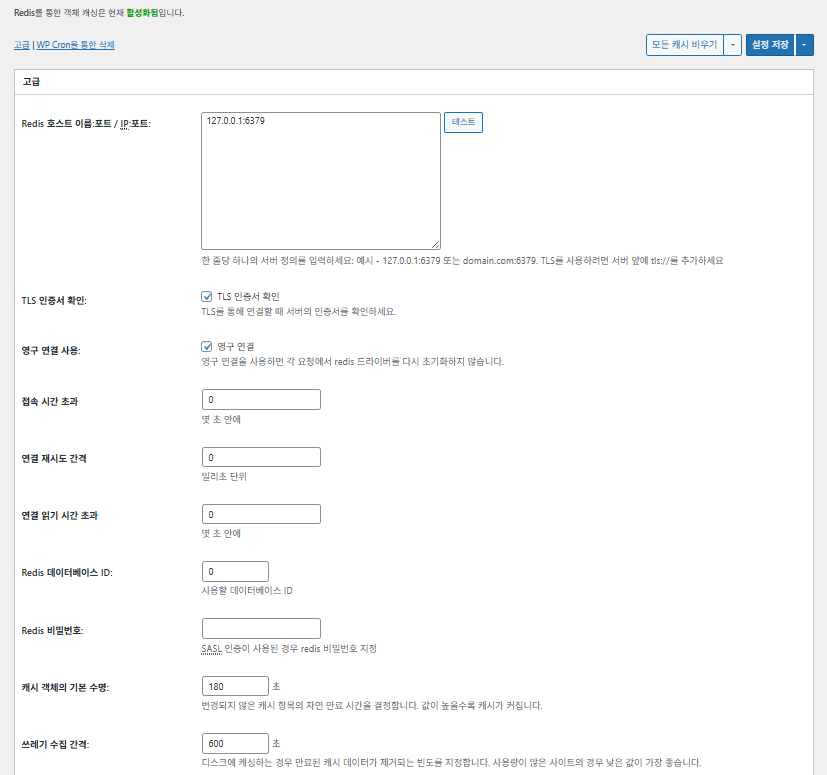
Хост/IP Redis

Формат [127.0.0.1:6379]. Для TLS используйте префикс [tls://]

Проверка сертификата TLS

Проверяет действительность сертификата при использовании TLS (необязательно)

Постоянные соединения

Повторно использует соединения с Redis для повышения производительности

Тайм-аут подключения

Максимальное время подключения к Redis (с)

Интервал повторного подключения

Ожидание перед повторной попыткой после сбоя (мс)

Тайм-аут чтения соединения

Максимальное время ожидания ответа (с)

Redis DB ID

Номер БД внутри Redis (по умолчанию [0])

Пароль Redis

Пароль или данные для аутентификации SASL

Срок жизни кеша по умолчанию

Время хранения элементов кеша по умолчанию (с). По умолчанию 180 с

Интервал сборки мусора

Как часто удаляется устаревший кеш. По умолчанию 600 с

Глобальные группы

Группы, общие в сетевом режиме (для мультисайта)

Непостоянные группы

Группы, исключённые из кеширования. Например: [counts], [plugins]

Кешировать запросы wp-admin

Применяет кеш и к админке (⚠️ нужно тестировать)

Хранить transient в БД

Сохраняет временные значения в БД даже при использовании внешнего кеша

Включить WP-CLI

Разрешает кеш и для команд WP-CLI

6️⃣ Кеш браузера

Кеширование в браузере сохраняет статические файлы — изображения, CSS и JS — на устройстве посетителя сайта, благодаря чему при повторном визите страница загружается значительно быстрее. Это ускоряет отклик страниц и улучшает пользовательский опыт.

Большинство этих настроек нацелены на управление кешем и снижение нагрузки на сервер. Если у сайта большой трафик или важна оптимизация статических ресурсов, можно смело включить многие из них.

ПараметрОбщиеCSS и JSHTML и XMLМедиа и прочие файлы
Заголовок [Last-Modified]Добавляет дату последнего изменения файла, чтобы разрешить ответы 304✅ Обычно включают✅ Подходит большинству серверов✅ Действует для большинства кешей CDN и браузеров
Заголовок [Expires]Заставляет браузер кешировать файлы на определённый срок✅ По умолчанию 31536000 с (1 год), рекомендуется✅ По умолчанию [3600 с (1 час)] ✅ По умолчанию [31536000 с] (1 год) → подходит для статических файлов
⏱️ Срок действия Expires—⏱️ Например: [31536000 с = 1 год] · при работе с CDN можно сократить——
Заголовок [Cache-Control]Управляет стратегией кеширования через заголовки pragma и cache-control✅ Рекомендуется [“public, max-age=31536000”]✅ Задайте, например, [“public, max-age=3600”]✅ Рекомендуется [“public, max-age=31536000”]
✅ Политика управления кешем—✅ Используйте вариант с [max-age] · по умолчанию применяется [“public, max-age=EXPIRES_SECONDS”]——
Настройка [ETag]Выдаёт тег сущности для идентификации файла – чтобы обнаруживать изменения✅ Эффективно в пределах одного сервера✅ Если кеш не разделяется между серверами,
рекомендуется использовать
✅ Полезно при работе на одном сервере
Заголовок W3TCДобавляет заголовок, показывающий, оптимизирован ли файл через W3TC🔖 Необязательно, для анализа🔖 Необязательно (для отладки)🔖 По желанию
Сжатие gzipСжатие для уменьшения текстовых файлов (совместимо почти везде)✅ Поддерживается большинством серверов✅ Поддерживается на большинстве серверов✅ На изображения не влияет
Сжатие brotliСтепень сжатия выше, чем у gzip (только в поддерживающих браузерах)✅ Нужна настройка Apache/Nginx✅ Включите модуль Apache/nginx✅ Действует только в поддерживающих браузерах
Не кешировать объекты после изменения настроекДобавляет строку запроса, чтобы сделать старый кеш недействительным✅ Рекомендуется при частой смене настроек—✅ Изменения файлов применяются сразу
Удалять строки запросаУдаляет [?] из статических ресурсов, повышая долю кеширования⚠️ Нужно только для некоторых CDN и прокси—✅ Можно применять к файлам с версиями
Удалять cookieУдаляет заголовок [Set-Cookie] из ответов для статических ресурсов✅ В большинстве случаев включайте—✅ Изображениям и т. п. cookie не нужны
WordPress не обрабатывает ответы 404404 для статических файлов обрабатывает веб-сервер → меньше нагрузка на WP———
Список URI-исключений для 404Задаёт шаблоны URI, которые WP обрабатывает сам (например, sitemap, robots.txt)———
Перезапись структуры URL объектовСоздаёт уникальные URI для обхода кеша (например, вида [ver=xxxx])———

Ⅲ. Дополнительные функции W3 Total Cache

  • ↳ WP Cron, CDN, обратный прокси, пользовательский опыт, статистика, конвертер WebP, Google PageSpeed, импорт и экспорт настроек

Очистка кеша через WP Cron — глобальная настройка.

🧭 Симулятор дополнительных функций W3 Total Cache
Симулятор пути
📍Performance›General Settings›Purge via WP Cron
WP Cron
Очистка кеша через WP Cron — глобальная настройка, в которой задаются время запуска и интервал.
📍Performance›General Settings›CDN›Advanced Settings
CDN
После регистрации у CDN-провайдера отметьте [Enable] в разделе [CDN], выберите [CDN Type] и сохраните; детальные параметры задаются в [Advanced Settings].
📍Performance›General Settings›Reverse Proxy
Обратный прокси
Отмечайте [Enable reverse proxy caching via varnish], только если используете Varnish. В поле [Varnish servers] введите IP-адрес сервера Varnish.
📍Performance›General Settings›User Experience›Advanced Settings
Пользовательский опыт
Отметьте [Lazy Load Images] и сохраните, затем задайте параметры отложенной загрузки в [Advanced Settings]. Более 50% функций расширенных настроек доступны только в премиум-версии.
📍Performance›General Settings›Image Converter
Конвертер WebP
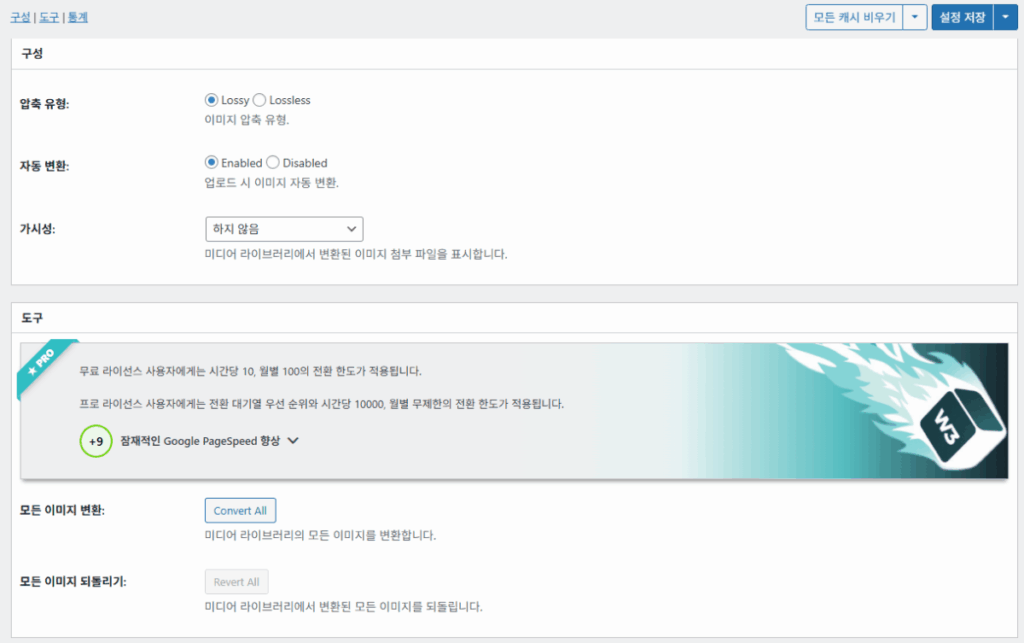
Если отметить [Enable Image Converter Extension] в разделе [Image Converter], изображения из библиотеки файлов можно конвертировать в WebP или AVIF.
example.com/wp-admin/admin.php?page=w3tc_general
DashboardSettingsToolsInfoSupportUpgrade
|||||||||||||||||
Empty All Caches
Purge via WP Cron
Enabling this will schedule a WP-Cron event that will flush all enabled Caches via a single cron job. Each cache’s advanced settings page features similar settings to this if you wish to schedule purges for specific caches only. If you prefer to use a system cron job instead of WP-Cron, you can schedule the following command to run at your desired interval: “wp w3tc flush all”. If the Always Cached extension is active and enabled, page cache entries will instead be added to the queue instead of being purged from the cache. Visit here for more information.
Enable WP-Cron Event
Enable
Start Time
This setting controls the initial start time of the cron job. If the selected time has already passed, it will schedule the job for the following day at the selected time.
Interval
This setting controls the interval that the cron job should occur.
CDN
Content Delivery Network (CDN) is a powerful feature that can significantly enhance the performance of your WordPress website. By leveraging a distributed network of servers located worldwide, a CDN helps deliver your website’s static files, such as images, CSS, and JavaScript, to visitors more efficiently. This reduces the latency and improves the loading speed of your website, resulting in a faster and smoother browsing experience for your users. With W3 Total Cache’s CDN integration, you can easily configure and connect your website to a CDN service of your choice, unleashing the full potential of your WordPress site’s speed optimization.
Basic SettingsPremium ServicesHelp
CDN:
Theme files, media library attachments, CSS, and JS files will load quickly for site visitors.
CDN Type:
Select the CDN type you wish to use.
Host the entire website with your compatible CDN provider to reduce page load time.
FSD CDN:
Enable★ PRO
Deliver visitors the lowest possible response and load times for all site content including HTML, media (e.g. images or fonts), CSS, and JavaScript. Show More ⌄ Learn more about Pro
Reverse Proxy
A reverse proxy is a server that sits between a client and a web server, acting as an intermediary for requests. It retrieves resources on behalf of the client from the server, and then returns the response to the client. By utilizing a reverse proxy, such as Varnish or Nginx, in conjunction with W3 Total Cache, you can significantly enhance the performance of your WordPress website by caching and serving static content directly from the reverse proxy server, reducing the load on your WordPress server and improving response times for visitors.
Enable reverse proxy caching via varnish
Varnish servers:
Specify the IP addresses of your varnish instances above. The VCL’s ACL must allow this request.
Trusted reverse proxies:
IP addresses or CIDR ranges of reverse proxies and load balancers in front of this site (one per line). Forwarded scheme and client-IP headers are used only for these addresses. Leave empty when PHP receives client connections directly. Developers may also supply this list via the w3tc_trusted_proxies filter.
User Experience
User Experience (UX) is a setting that focuses on enhancing the overall browsing experience for visitors of your website. By enabling this feature, you can optimize your website’s performance by minimizing load times, reducing server requests, and delivering content more efficiently. This ultimately leads to faster page loading, improved user satisfaction, and increased engagement, resulting in a speedier and more enjoyable WordPress website.
Basic Settings
Defer loading offscreen images.
Lazy Load Google Maps★ PRO
In addition to lazy loading images, with W3 Total Cache Pro you can lazy load Google Maps! More information and settings can be found on the User Experience page.
Disable Emoji
Remove emojis support from your website.
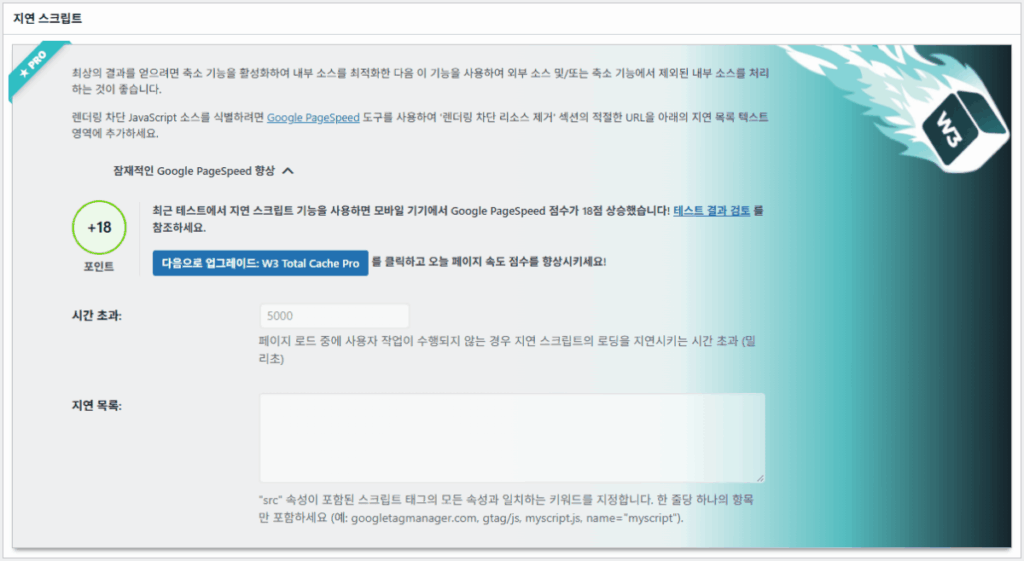
Delay Scripts★ PRO
Delay the loading of specified internal/external JavaScript sources on your pages separate from Minify.
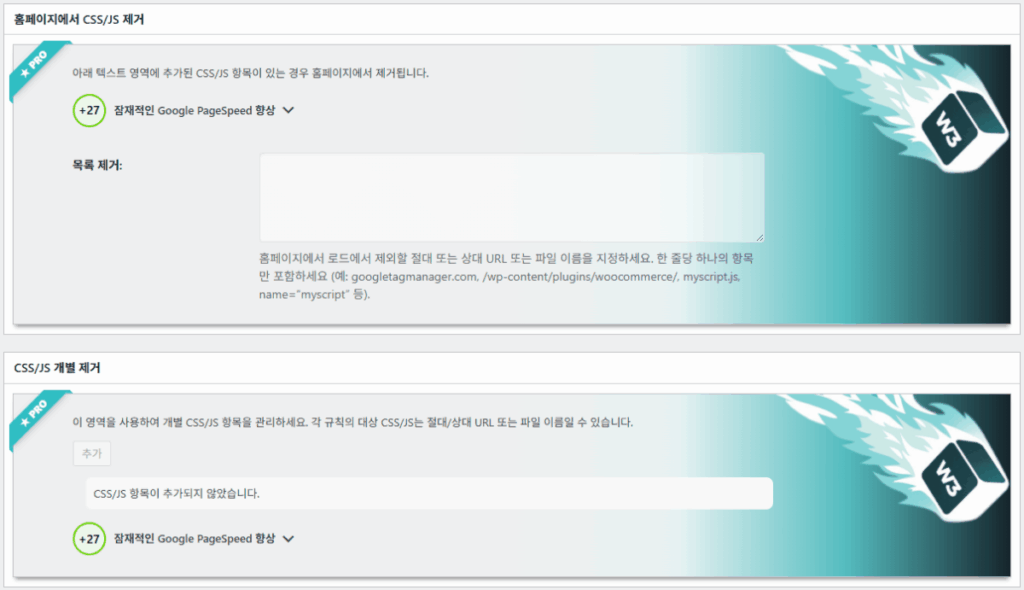
Remove Unwanted/Unused CSS/JS★ PRO
Removes specified CSS/JS tags from the homepage or on a per page basis.
Preload Requests★ PRO
DNS prefetching, pre-connecting, and preloading are essential web optimization techniques that enhance website performance by proactively resolving network-related tasks. Learn more about Pro
Disable wp-embed script
Remove wp-embed.js script from your website. oEmbed functionality still works but you will not be able to embed other WordPress posts on your pages.
Disable jquery-migrate on the front-end
Remove jquery-migrate support from your website front-end.
Image Converter
The Image Converter tool can be used to generate modern-format versions (e.g., WebP or AVIF) of media library images which offer superior lossless and lossy compression.
Enable Image Converter Extension
This extension allows for optimizing media library images to modern formats like WebP or AVIF.
As a free user you are limited to conversions of 10/hour and 100/month. The Pro license increases these rates to 10,000/hour and unlimited/month. Conversion rates are subject to change and documentation can be found here. Learn more about Pro
example.com/wp-admin/admin.php?page=w3tc_cdn
DashboardSettingsToolsInfoSupportUpgrade
||
Empty All Caches
General
Host attachments
Upload attachments
If checked, all attachments will be hosted with the CDN.
Host wp-includes/ files
Upload includes files
If checked, WordPress static core file types specified in the “wp-includes file types to upload” field below will be hosted with the CDN.
Host theme files
Upload theme files
If checked, all theme file types specified in the “theme file types to upload” field below will be hosted with the CDN.
Host minified CSS and JS files
Upload minify files
If checked, minified CSS and JS files will be hosted with the CDN.
Host custom files
Upload custom files
If checked, any file names or paths specified in the “custom file list” field below will be hosted with the CDN.
Force over-writing of existing files
If modified files are not always detected and replaced, use this option to over-write them.
Advanced
Only purge CDN manually
Purge CDN only if explicit purge button is clicked.
Disable CDN on SSL pages
When SSL pages are returned no CDN URLs will appear in HTML pages.
Use CDN links for the Media Library on admin pages
All Media Library content will use CDN links on administration pages.
Add CORS header
Add CORS headers to allow cross-domain assets usage.
Disable CDN for the following roles
Select user roles that will use the origin server exclusively:
Administrator
Editor
Author
Contributor
Subscriber
Disable CDN on the following pages:
Always ignore the specified pages / directories. Supports regular expression.
Automatically upload minify files
If CDN is enabled (and not using the origin pull method), your minified files will be automatically uploaded.
Export changed files automatically
Automatically attempt to find and upload changed files.
Auto upload interval:
3600seconds
Specify the interval between upload of changed files.
Re-transfer cycle interval:
900seconds
The number of seconds to wait before upload attempt.
Re-transfer cycle limit:
25
Number of files processed per upload attempt.
wp-includes file types to upload:
*.css;*.js;*.gif;*.png;*.jpg;*.xml
Specify the file types within the WordPress core to host with the CDN.
Theme file types to upload:
*.css;*.js;*.gif;*.png;*.jpg;*.ico;*.ttf;*.otf;*.woff;*.woff2;*.less
Specify the file types in the active theme to host with the CDN.
File types to import:
 
Automatically import files hosted with 3rd parties of these types (if used in your posts / pages) to your media library. Only common static types (images, CSS, JS, fonts, and media) are imported. Script, markup, and SVG types are ignored even if listed. Empty, *, and *.* use that static allowlist rather than every file.
Custom file list:
favicon.ico
{wp_content_dir}/gallery/*
{wp_content_dir}/uploads/avatars/*
{plugins_dir}/wordpress-seo/css/xml-sitemap.xsl
{plugins_dir}/wp-minify/min*
{plugins_dir}/*.js
{plugins_dir}/*.css
{plugins_dir}/*.gif
{plugins_dir}/*.jpg
{plugins_dir}/*.png
Specify any files outside of theme or other common directories to host with the CDN.
Rejected user agents:
Specify user agents that should not access files hosted with the CDN.
Rejected files:
{uploads_dir}/wpcf7_captcha/*
{uploads_dir}/imagerotator.swf
{plugins_dir}/wp-fb-autoconnect/facebook-platform/channel.html
Specify the path of files that should not use the CDN.
Set cookie domain to “example.com”
If using subdomain for CDN functionality, this setting helps prevent new users from sending cookies in requests to the CDN subdomain.
Note(s):
  • You can use placeholders {wp_content_dir}, {plugins_dir}, {uploads_dir} instead of writing folder paths (wp-content, wp-content/plugins, wp-content/uploads).
  • If using Amazon Web Services or Self-Hosted CDN types, enable HTTP compression in the “Media & Other Files” section on Browser Cache Settings tab.
example.com/wp-admin/admin.php?page=w3tc_userexperience
DashboardSettingsToolsInfoSupportUpgrade
Empty All Caches
Lazy loading is currently disabled.
Lazy Loading
Process HTML image tags
Process img tags
Process background images
Process background styles
Exclude words:
avia-bg-style-fixed
data-bgposition=
data-envira-src=
data-large_image=
data-lazy-original=
data-lazy-src=
data-lazyload=
data-lazysrc=
data-no-lazy=
data-src=
data-srcset=
fullurl=
lazy-slider-img=
loading=”eager”
no-lazy
rev-slidebg
skip-lazy
soliloquy-image
swatch-img
w3-total-cache
woocommerce/assets/images/placeholder.png
wpcf7_captcha
Exclude tags containing words
Threshold
 
The outer distance off the scrolling area from which to start loading the elements (example: 100px, 10%).
Script Embed method:
Use inline method only when your website has just a few pages
Google Maps
Lazy load google map
WP Google Map Plugin plugin
Google Maps Easy plugin
WP Google Maps plugin
Нажмите на активный пункт в меню слева или на кнопку на экране.

1️⃣ CDN

Настроить эту функцию можно после регистрации у CDN-провайдера.

Опция

Описание

✅ Размещение вложений

Загружает вложения, например изображения из [wp-content/uploads], в CDN

✅ Размещение файлов wp-includes

Включает статические файлы ядра WordPress (js/css и т. п.) в CDN

✅ Размещение файлов темы

Включает статические файлы активной темы (css/js/images и т. п.) в CDN

✅ Размещение минифицированных файлов CSS/JS

Отдаёт файлы CSS/JS, минифицированные W3TC, через CDN

✅ Размещение пользовательских файлов

Отправляет в CDN пути или имена файлов, указанные пользователем

⚠️ Принудительно перезаписывать существующие файлы

Для принудительной повторной загрузки, если изменения не обнаруживаются автоматически

Параметр

Описание

Очищать CDN только вручную

Удаляет файлы из CDN только по нажатию кнопки ручной очистки

Отключить CDN на страницах SSL

Не использует URL CDN на страницах HTTPS

Использовать ссылки CDN в админке

Показывает URL CDN для медиафайлов и в админке

Add CORS header

Добавляет заголовок ответа, разрешающий CORS

Отключить CDN по ролям

Не применяет CDN к выбранным ролям пользователей (например, только администраторы получают оригинал)

Список исключённых страниц

Исключает указанные пути из CDN (можно regex)

Автоматически загружать минифицированные файлы

Автоматически загружает минифицированные файлы в CDN (метод Push)

Автоматически экспортировать изменённые файлы

Автоматически загружает при обнаружении изменений файлов

Интервал автозагрузки

Интервал загрузки после обнаружения изменений (по умолчанию 3600 с)

Интервал / лимит повторной передачи

Интервал повторов при сбое и лимит обрабатываемых файлов

Загружаемые файлы wp-includes

Задаёт типы файлов ядра для CDN

Загружаемые типы файлов темы

Задаёт типы файлов темы: CSS, JS, шрифты и т. п.

Импортируемые типы файлов

Задаёт условия автоматической загрузки файлов по внешним ссылкам

Список пользовательских файлов

Задаёт пути отдельных файлов для отправки в CDN (шаблоны, сторонние плагины и т. п.)

Отклонённые user agent

Задаёт ботов и user agent, которым закрыт доступ к файлам CDN

Отклонённые пути файлов

Задаёт пути файлов, которые не идут через CDN: CAPTCHA, особые пути и т. п.

Домен cookie

Задаёт домен, чтобы cookie не отправлялись при использовании CDN на поддомене

2️⃣ Обратный прокси

В описании в качестве примеров приведены Varnish и Nginx, но Nginx настраивается на сервере, поэтому в плагине W3 Total Cache это применяется только при использовании Varnish.

3️⃣ Пользовательский опыт: отложенная загрузка

Более 50% функций расширенных настроек доступны только в премиум-версии.

Параметр

Описание

Когда использовать

✅ Обработка тегов изображений HTML

[<img>]: тегам добавляется атрибут lazy

Для отложенной загрузки обычных изображений в контенте

✅ Обработка фоновых изображений

Применяет lazy к [background-image] в CSS

Для дизайнерских сайтов с большим количеством фонов

Исключить словаПример
Атрибуты-исключения lazy[data-src], [data-lazy-src], [data-no-lazy], [loading=”eager”] и т. п.
Классы-исключения lazy[no-lazy], [skip-lazy], [lazy-slider-img], [rev-slidebg] и т. п.
Плагины и слайдеры[soliloquy-image], [envira], [w3-total-cache], [wpcf7_captcha] и т. п.
WooCommerce[swatch-img], [woocommerce/…/placeholder.png] и т. п.

«Порог» отложенной загрузки — это значение, задающее, на каком расстоянии от нижней границы области просмотра (экрана) браузера изображения и фоновые элементы начинают загружаться заранее. Например, при 100px элемент загружается, когда пользователь при прокрутке приближается к нему на 100 пикселей; слишком маленькое значение задерживает загрузку изображений, и пользователь может увидеть пустые области, поэтому обычно подходит 100~300px.

Далее — способы подключения скриптов.

Способ подключения

Описание

Расположение или атрибут

Асинхронно (Async)

Выполняется параллельно с загрузкой страницы и не блокирует отрисовку

[<script async>]

Синхронно (в head)

Выполняется первым в области [<head>] и может временно блокировать отрисовку (in the head)

[<head>] или [<script>]

Встроенно (Inline)

Вставляет скрипт прямо в HTML-документ, и он выполняется без отдельного запроса

Вставляется внутрь [<script>код</script>]

Расширенные настройки пользовательского опыта W3TC 2
Расширенные настройки пользовательского опыта W3TC 3

4️⃣ Конвертер WebP

Конвертер WebP W3TC_подробно (расширенные настройки) 1
Конвертер WebP W3TC_подробно (расширенные настройки) 2

Ⅳ. Общая оценка W3 Total Cache

Интерфейс (UI) W3 Total Cache неплохой, но явно неудобный. Многие разработчики и опытные пользователи говорят то же самое. По сравнению с современными плагинами вроде WP Rocket или FlyingPress по производительности сайта он вполне держится наравне, но в удобстве (UX) уступает.

Обилие функций — плюс, но новичку такая структура может показаться слишком сложной. Особенно из-за частых переходов между меню и множества детальных параметров даже опытные разработчики и администраторы сайтов могут ошибиться в настройках. Все настройки, конечно, не запомнить, но в работе это продвинутый плагин кеширования с возможностью тонкой настройки.

С более чем 1 млн установок бесплатной версии его трудно назвать просто устаревшим плагином: на деле почти нет плагинов кеширования, которые сравнились бы с ним по разнообразию и богатству функций.

ПараметрОценка (⭐)Комментарий
🎛️ Интерфейс⭐⭐⭐Много меню и сложная структура; высокий порог входа для новичков. UI выглядит устаревшим
⚙️ Разнообразие функций⭐⭐⭐⭐⭐Кеш, CDN, Redis и почти все остальные функции; трудно найти то, чего нет
🛠️ Гибкость тонкой настройки⭐⭐⭐⭐Почти всё настраивается детально; следите за конфликтами между настройками
🚀 Прирост производительности⭐⭐⭐⭐⭐При оптимальной настройке производительность отличная; объектный кеш и кеш браузера дают большой эффект
🧩 Совместимость⭐⭐⭐Возможны конфликты с некоторыми хостингами, темами и плагинами.
📄 Документация·руководства⭐⭐⭐⭐⭐Богатая официальная документация
💡 Насколько рекомендуют пользователи⭐⭐⭐⭐(4.5)Рекомендуется опытным пользователям; новичкам лучше WP Rocket, Cache Enabler и т. п.
📊 Итоговая оценка⭐⭐⭐⭐(4.5)Мощный плагин с упором на функции. Есть кривая обучения; учитывайте свой уровень

Ⅴ. Тест производительности

После настройки плагина итоговый тест скорости показал более заметное ускорение, чем у типичных плагинов кеширования.

ℹ️ О партнёрских ссылках
Материалы этого сайта содержат партнёрские ссылки. Если посетитель покупает товар или услугу по такой ссылке, сайт получает комиссию от продавца. При этом сумма, которую платит покупатель (при акционных скидках сумма снижается ↓), не увеличивается. Указанные цены, скидки и наличие актуальны на момент написания и могут отличаться, поэтому перед покупкой уточняйте их у продавца. Товары выбираются и оцениваются по нашим собственным критериям, а комиссия не влияет ни на порядок, ни на содержание обзоров.

Добавить комментарий

Ваш адрес email не будет опубликован. Обязательные поля помечены *

Докажите, что вы человек: 0   +   5   =