W3 Total Cache eklentisi: optimizasyon ayarları nasıl yapılır

Satış ortaklığı bildirimi v3.1
Satış ortaklığı bildirimi v3.2 (yalnızca mobil)
Test ortamı CloudwaysDebian 12Apache 2.4.69 + nginxPHP 8.2.34WordPress 7.1.3W3 Total Cache 2.10.72026-10-18 tarihinde kontrol edildi

WordPress sitesi eklenti kurdukça kaçınılmaz olarak yavaşlar. Bu yüzden önbellek eklentisi WordPress'in vazgeçilmez eklentilerinden biri hâline geldi. Ücretsiz sürümde 1 milyondan fazla aktif kurulum ve 4,4 yıldız puanıyla W3 Total Cache (W3TC) eklentisi en çok kullanılan eklentilerden biridir.

Önbellek ayarları kullandığınız diğer eklentilerin bazı özelliklerini bozabileceğinden, WordPress'e yeni başladıysanız kurulumu basit bir eklenti kullanabilirsiniz; örneğin Cache Enabler veya WP Super cache.

Ayrıntılı önbellek ayarı ve denetimi gerekiyorsa, ücretsiz sürümde bile güçlü özellikler sunan W3 Total Cache eklentisini kullanabilirsiniz.

Ⅰ. W3 Total Cache kurulumu ve kurulum rehberi

  • ↳ Arama motorları (SEO: Search Engine Optimization)
  • ↳ Performans optimizasyonu (WPO: Web Performance Optimization)
  • ↳ Bütünleşik önbellekleme: CDN, sayfa, minify, nesne, parça ve veritabanı önbelleğini destekler.

W3 Total Cache'i arayıp eklentiyi kurun ve etkinleştirin.

🧭 W3 Total Cache kurulum ve kurulum rehberi simülatörü
📍Plugins›Add Plugin
Eklenti kurulumu
Arama kutusuna W3 Total Cache yazıp [Install Now]'a tıklayın; kurulum bitince [Activate]'e tıklayın.
📍Performance›Setup Guide
Kurulum rehberi
İlk kurulumdan sonra [Dashboard]'a gidince otomatik olarak [Setup Guide] açılır; çünkü henüz hiçbir ayar yapılmamıştır.
📍Performance›Dashboard
Panel
Rehberde ayarladıklarınız [General Settings] kutusunda özellik bazında gösterilir; sayfa önbelleği gibi ayrıntılı ayarlar [General Settings]'te yapılır.
example.com/wp-admin/plugin-install.php
Add Plugins Upload Plugin
Plugins extend and expand the functionality of WordPress. You may install plugins from the WordPress Plugin Directory right on this page, or upload a plugin in .zip format by clicking the button above.
Search ResultsFeaturedPopularRecommendedFavorites
Search PluginsKeyword
922 items
W3 Total Cache
Installing...ActiveMore Details
Search Engine (SEO) & Performance Optimization (WPO) via caching. Integrated caching: CDN, Page, Minify, Object, Fragment, Database support.
By BoldGrid
★★★★★ (5,421)
Last Updated: 2 weeks ago
900,000+ Active Installations
✓ Compatible with your version of WordPress
example.com/wp-admin/admin.php?page=w3tc_setup_guide
DashboardSettingsToolsInfoSupportUpgrade
W3 Total CacheSetup Guide
TOTAL CACHE: Setup Guide
  • Welcome
  • Page Cache
  • Database Cache
  • Object Cache
  • Image Converter
  • Lazy Load
  • More Caching Options
Welcome to the W3 Total Cache Setup Guide!
By allowing us to collect data about how W3 Total Cache is used, we can improve our features and experience for everyone. This data will not include any personally identifiable information. Feel free to review our terms of use and privacy policy.
AcceptDecline
SKIPNEXT
example.com/wp-admin/admin.php?page=w3tc_dashboard
DashboardSettingsToolsInfoSupportUpgrade
W3 Total CacheDashboard
Flush caches with Empty All Caches
Account
License: Free
Status: Free license, no expiration
Upgrade to W3 Total Cache Pro now to unlock additional settings and features that can further improve your site’s performance and Google PageSpeed ratings.
Learn more about Pro
General Settings
Preview Modedisabled
Page Cachedisabled
Minifydisabled
Opcode Cacheenabled
Database Cachedisabled
Object Cachedisabled
Browser Cachedisabled
CDNdisabled
Reverse Proxydisabled
Statisticsdisabled
Fragment Cachedisabled
Debugdisabled
Settings can be modified by visiting General Settings
Image Optimization Summary
Enable Image Converter
PageSpeed Report
Before you can get started using the Google PageSpeed tool, you’ll first need to authorize access. Please click here.
Sol menüde vurgulanan öğeye ya da ekrandaki bir düğmeye tıklayın.

İlk kurulumdan sonra [Dashboard] sayfasına gidince otomatik olarak [Setup Guide] açılır; çünkü henüz hiçbir ayar yapılmamıştır.

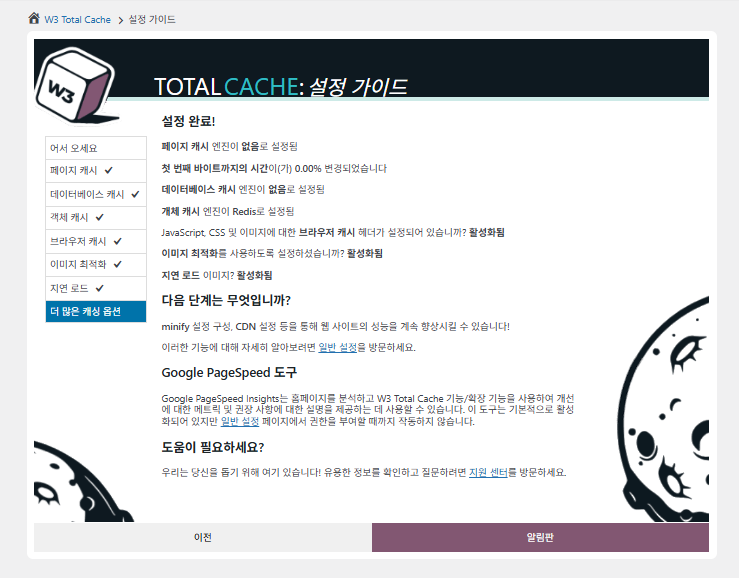
Kurulum rehberinde ① sayfa önbelleği, ② veritabanı önbelleği, ③ nesne önbelleği, ④ tarayıcı önbelleği, ⑤ görsel optimizasyonu, ⑥ lazy load ve ⑦ diğer önbellek seçeneklerini ayarlayabilirsiniz.
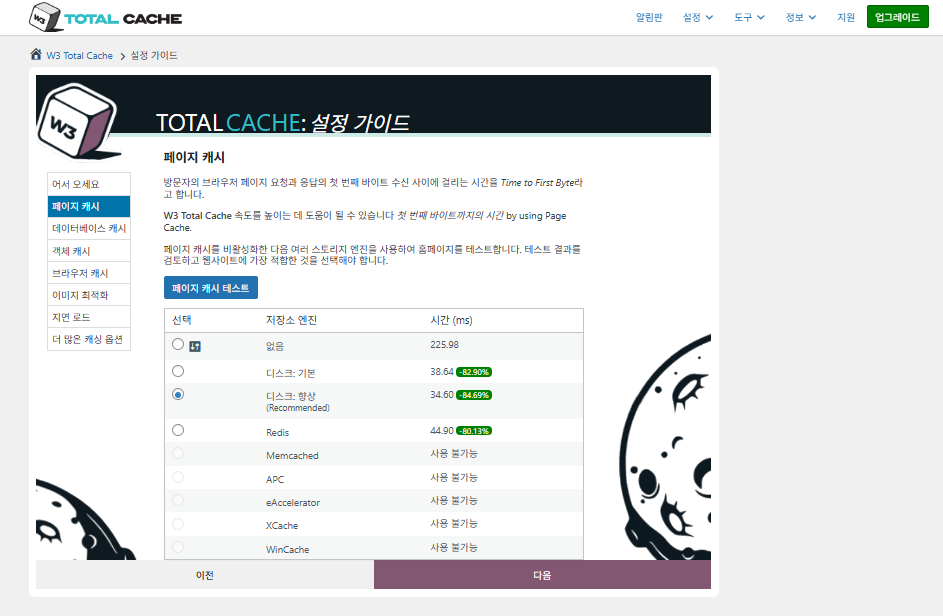
W3 Total Cache Setup Guide ① Sayfa önbelleği_disk önbelleği (Enhanced seçili)

Sayfa önbelleği için W3TC'nin varsayılan önerisi Disk: [Geliştirilmiş]. Tabloda görüldüğü gibi Disk: Enhanced, Disk: Basic'ten yaklaşık 10,3 ms daha hızlıdır; bu TTFB açısından yaklaşık %⁠17,8 daha iyi performans demektir.

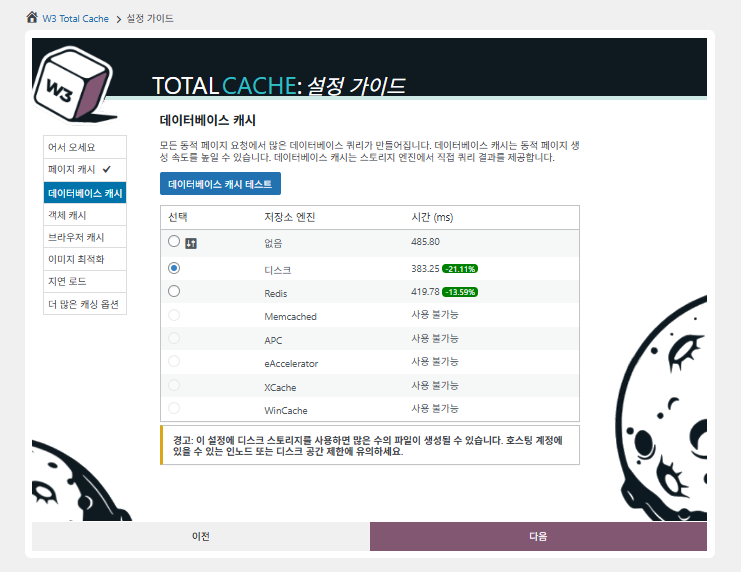
W3 Total Cache Setup Guide ② Veritabanı önbelleği_disk önbelleği seçili

Veritabanı önbelleği için disk önbelleğini seçin.
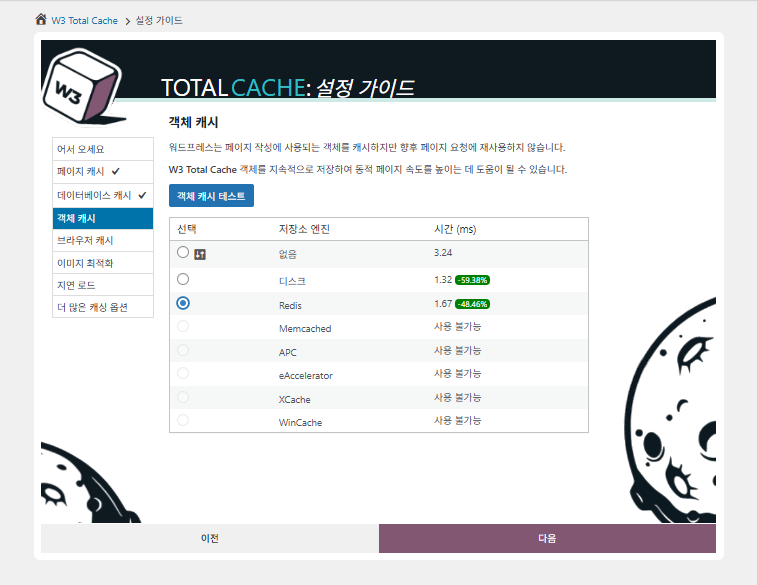
W3 Total Cache Setup Guide ③ Nesne önbelleği_Redis seçili
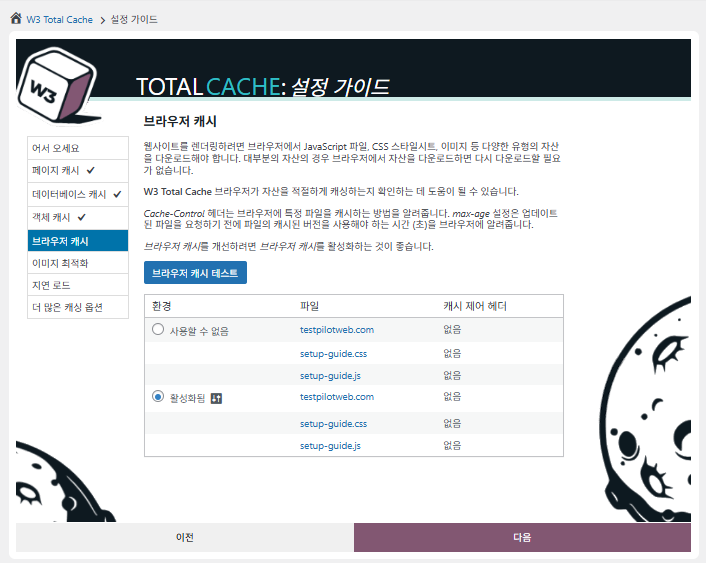
W3 Total Cache Setup Guide ④ Tarayıcı önbelleği
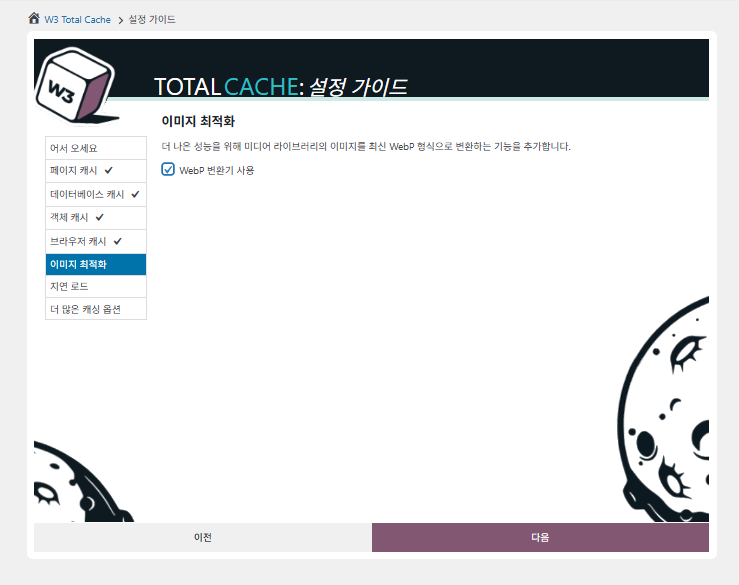
W3 Total Cache Setup Guide ⑤ Görsel optimizasyonu - WebP dönüştürücü
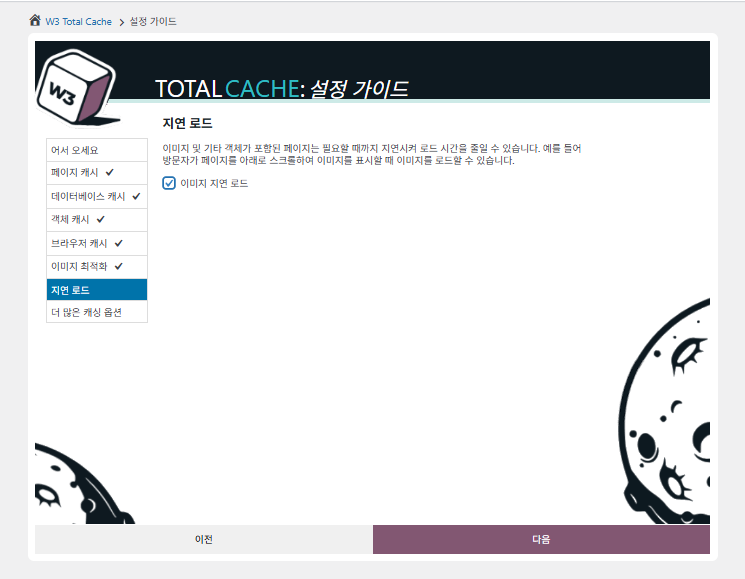
W3 Total Cache Setup Guide ⑥ Lazy load - görsellerin geç yüklenmesi
W3 Total Cache Setup Guide ⑦ Diğer önbellek seçenekleri_panoya gittikten sonra ayarla

Rehberde yapılan ayarlar artık panoya yansıdı.

[General Settings]'ten sayfa önbelleğine kadar her şeyi ayarlamak için sağ üstteki [Settings] sekmesine tıklayın.
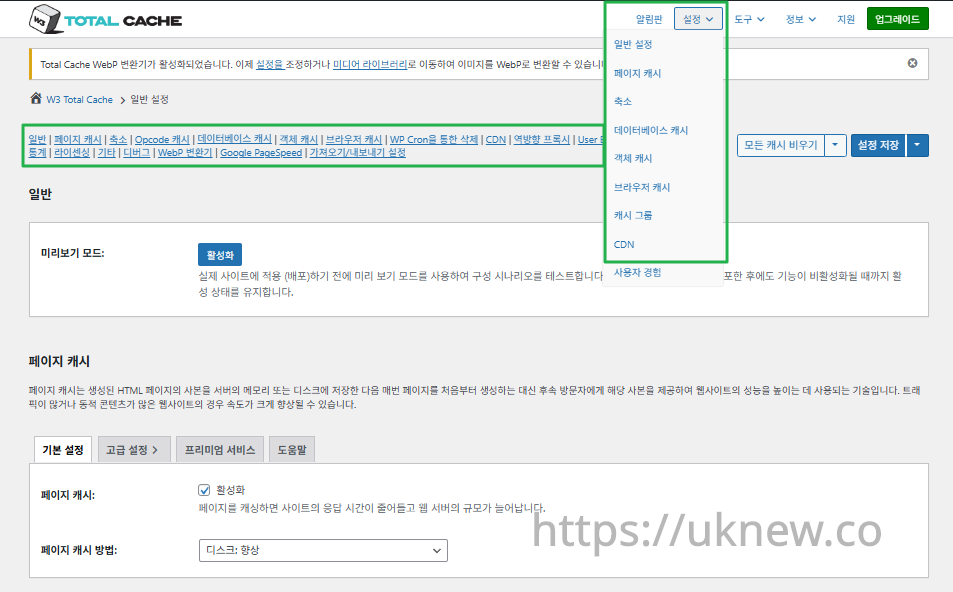
W3TC panosu - Ayarlar__

ⓐ Soldaki yönetim menüsündeki [sayfa ayarları] ve ⓑ sağ üstteki [Settings] sekmesi her biri sayfa önbelleğine, Minify  ve diğer gelişmiş ayarlaragötürür. General Settings sekmesinin üst ortasından her sayfaya giderseniz sayfa önbelleği ve Minify için genel ayarlardan şu bölüme kadar her şeyi görürsünüz: Gelişmiş ayarlar.

Ⅱ. W3 Total Cache önbellek ayarları

  • ↳ Önbellek özellikleri

Bu, W3TC ayarlarındaki General Settings sekmesidir.

🧭 W3 Total Cache önbellek ayarları simülatörü
Yol simülatörü
📍Performance›General Settings›General
Önizleme modu
Gerçek önbellek değişikliklerini yayına almadan önce [Preview mode]'u açıp hataları önceden test edebilirsiniz.
📍Performance›General Settings›Page Cache›Advanced Settings
Sayfa önbelleği
[Page Cache] altında [Enable]'ı işaretleyin, yöntemin [Disk: Enhanced] olduğunu doğrulayın ve [Save Settings]'e tıklayın. Ayrıntılı seçenekler [Advanced Settings]'te ayarlanır.
📍Performance›General Settings›Minify›Advanced Settings
Minify
[Minify] altında [Enable]'ı işaretleyip [Save Settings]'e tıklayın, ardından [Advanced Settings]'te HTML, CSS ve JS minify seçeneklerini ayarlayın.
📍Performance›General Settings›Opcode Cache
Opcode önbelleği
Opcode önbelleğinde sunucuda kurulu opcode önbelleği otomatik uygulanır; kurulu değilse devre dışı olarak ayarlanır.
📍Performance›General Settings›Database Cache›Object Cache
Veritabanı ve nesne önbelleği
[Database Cache] ve [Object Cache] altında [Enable]'ı işaretleyip kaydedin. Ayrıntılı seçenekler [Database Cache] ve [Object Cache] ekranlarında ayarlanır.
📍Performance›General Settings›Browser Cache›Advanced Settings
Tarayıcı önbelleği
[Browser Cache] altında [Enable]'ı işaretleyip kaydedin, ardından [Advanced Settings]'te dosya türüne göre önbellek seçeneklerini ayarlayın.
example.com/wp-admin/admin.php?page=w3tc_general
DashboardSettingsToolsInfoSupportUpgrade
|||||||||||||||||
Empty All Caches
General
Preview mode:
Enable
Use preview mode to test configuration scenarios prior to releasing them (deploy) on the actual site. Preview mode remains active even after deploying settings until the feature is disabled.
Page Cache
Page cache is a technique used to speed up the performance of a website by storing a copy of the generated HTML page in the server’s memory or disk, and then serving that copy to subsequent visitors instead of generating the page from scratch each time. This can result in significant speed improvements for websites with high traffic or dynamic content.
Basic SettingsPremium ServicesHelp
Page Cache:
Caching pages will reduce the response time of your site and increase the scale of your web server.
Page Cache Method:
Minify
Minification is a technique used to reduce the file size of HTML, CSS, and JavaScript files by removing unnecessary characters such as whitespace, comments, and line breaks. This process can significantly improve the load times of web pages by reducing the amount of data that needs to be downloaded by the user’s browser.
Basic SettingsPremium ServicesHelp
Minify:
Minification can decrease file size of HTML, CSS, JS and feeds respectively by ~10% on average. Learn more
Minify mode:
Auto
Manual
Select manual mode to use fields on the Minify settings tab to specify files to be minified, otherwise files will be minified automatically. Learn more
Minify Cache Method:
Learn more
HTML minifier:
Learn more
JS minifier:
CSS minifier:
Opcode Cache
Opcode cache is a powerful feature that enhances the performance of a WordPress website by caching compiled PHP code. By storing pre-compiled code in memory, opcode cache eliminates the need for repetitive interpretation and compilation of PHP files, resulting in significantly faster execution times. Opcode cache reduces server load and improves response times, ultimately enhancing the overall speed and responsiveness of your WordPress site. If opcode cache is available on the hosting server it will automatically be selected in the dropdown and enabled.
Opcode Cache
Validate timestamps:
Enable
Once enabled, each file request will update the cache with the latest version. When this setting is off, the Opcode Cache will not check, instead PHP must be restarted in order for setting changes to be reflected.
Database Cache
Enable this setting to utilize the power of caching your WordPress site’s database queries. By storing frequently accessed database queries in memory, the database cache reduces the need for repetitive database interactions, resulting in faster page load times. This feature is particularly beneficial for websites with heavy database usage, improving overall performance and delivering a smoother user experience.
Basic SettingsPremium ServicesHelp
Database Cache:
Caching database objects decreases the response time of your site. Best used if object caching is not possible.
Database Cache Method:
Object Cache
Enable this option to utilize an object cache mechanism, which significantly enhances the performance of your WordPress website. Object caching stores frequently accessed database queries and complex data structures in memory, reducing the need to retrieve them from the database repeatedly. By doing so, it minimizes the processing time required to generate dynamic content, resulting in faster page loading times and improved overall site speed. Enabling object cache is particularly beneficial for websites with heavy database usage or high traffic volumes, as it helps alleviate the strain on the server by efficiently serving cached data.
Basic SettingsPremium ServicesHelp
Object Cache:
Object caching greatly increases performance for highly dynamic sites that use the Object Cache API.
Object Cache Method:
Browser Cache
Enabling browser caching will instruct visitors’ web browsers to store static files from your WordPress website, such as images, CSS, and JavaScript files, locally on their devices. By doing so, subsequent visits to your site will retrieve these cached files from the browser’s storage, reducing the need for repeated downloads. This results in faster page loading times and a smoother browsing experience for your visitors, ultimately improving the overall speed and performance of your WordPress website.
Basic SettingsPremium ServicesHelp
Browser Cache:
Enable HTTP compression and add headers to reduce server load and decrease file load time.
example.com/wp-admin/admin.php?page=w3tc_pgcache
DashboardSettingsToolsInfoSupportUpgrade
|||||||
Empty All Caches
Always Cached extension is currently disabled. To enable the extension click here.
General
Cache front page
For many blogs this is your most visited page, it is recommended that you cache it. Learn more
Cache feeds: site, categories, tags, comments
Even if using a feed proxy service enabling this option is still recommended. Learn more
Handle XML mime type
Return correct Content-Type header for XML files (e.g., feeds and sitemaps). Learn more
Cache SSL (HTTPS>) requests
Cache SSL requests (uniquely) for improved performance. Learn more
Cache URI with query string variables
Search result (and similar) pages will be cached if enabled. Learn more
Cache 404 (not found) pages
Reduce server load by caching 404 pages. If the disk enhanced method of disk caching is used, 404 pages will be returned with a 200 response code. Use at your own risk. Learn more
Don’t cache pages for logged in users
Unauthenticated users may view a cached version of the last authenticated user’s view of a given page. Disabling this option is not recommended. Learn more
Don’t cache pages for following user roles
Select user roles that should not receive cached pages: Learn more
Administrator
Editor
Author
Contributor
Subscriber
Aliases
Cache alias hostnames:
Enable
If the same WordPress content is accessed from different domains. Learn more
Additional home URLs:
Specify full home URLs of your mirrors so that plugin will flush it’s cache when content is changed. For example: http://my-site.comhttp://www.my-site.comhttps://my-site.com Learn more
Cache Preload
Automatically prime the page cache
Automatically primes the page cache using the settings configured below. Learn more
Update interval:
900seconds
The number of seconds to wait before creating another set of cached pages. Learn more
Pages per interval:
10
Limit the number of pages to create per batch. Fewer pages may be better for under-powered servers. Learn more
Sitemap URL:
 
A compliant sitemap can be used to specify the pages to maintain in the primed cache. Pages will be cached according to the priorities specified in the XML file. Learn more
Preload the sitemap once
Stop cache preloading after every URL in the sitemap has been processed. Disable and re-enable cache preloading to start a new pass.
Preload cache upon publishing a post
Only applies to pages, posts, and custom post types whose status transitioned from a non-published status to the “published” status. Learn more
Preload cache upon updating a post
Applies after updating any page, post, or custom post type with the final status being “published”. Learn more
Purge Policy:
Specify the pages and feeds to purge when posts are created, edited, or comments posted. The defaults are recommended because additional options may reduce server performance: Learn more
Front page
Post page
Blog feed
Post comments pages
Post author pages
Post terms pages
Post comments feed
Post author feed
Post terms feeds
Daily archive pages
Monthly archive pages
Yearly archive pages
rdf
rss
rss2 (default)
atom
Choose which feed types should be automatically purged. Learn more
Purge limit:
10
Specify number of pages that lists posts (archive etc.) that should be purged on post updates etc., i.e. example.com/ ... example.com/page/5.
0 means all pages that lists posts are purged, i.e. example.com/page/2 ... Learn more
Additional pages:
Specify additional pages to purge. Including parent page in path. Ex: parent/posts. Learn more
Purge sitemaps:
([a-z0-9_\-]*?)sitemap([a-z0-9_\-]*)?\.(?:xml|xsl)
Specify a regular expression that matches your sitemaps. Learn more
REST API
Use these controls to determine how the WordPress REST API responds to visitors and integrations. Caching API responses can dramatically reduce load when headless frontends, mobile apps, or third-party services request the same data repeatedly, but you can keep responses uncached for highly dynamic endpoints or disable the API altogether when it is not needed to reduce attack surface. Learn more
REST API
Don’t cache
Cache★ PRO
Disable REST API
If you’re using the WordPress API make sure to use caching to scale performance. Show More ▾
Advanced
Late initialization:
Enable
Enables support for WordPress functionality in fragment caching for the page caching engine. Use of this feature may increase response times. Learn more
Late caching:
Enable
Overwrites key of page caching via custom filters by postponing entry extraction during the init action. Learn more
Compatibility mode:
Enable
Decreases performance by ~20% at scale in exchange for increasing interoperability with more hosting environments and WordPress idiosyncrasies. Enable this option if you experience issues with the Apache rules. Learn more
Reject HEAD requests:
Disable caching of HEAD HTTP requests
If disabled, HEAD requests can often be cached resulting in “empty pages” being returned for subsequent requests for a URL. Learn more
Maximum lifetime of cache objects:
3600seconds
Determines the natural expiration time of cache items. The higher the value, the larger the cache.
Max lifetime is limited by the W3TC_CACHE_FILE_EXPIRE_MAX constant (2592000 seconds) which can be overridden in wp-config.php.
Garbage collection interval:
3600seconds
If caching to disk, specify how frequently expired cache data is removed. For busy sites, a lower value is best. Learn more
Comment cookie lifetime:
1800seconds
Significantly reduce the default TTL for comment cookies to reduce the number of authenticated user traffic. Enter -1 to revert to default TTL. Learn more
Accepted query strings:
ScCid
_branch_match_id
_bta_c
_bta_tid
_ga
_gl
_ke
adgroupid
adid
age-verified
ao_noptimize
campaignid
campid
click_id
cn-reloaded
customid
dicbo
dm_i
ef_id
epik
fb_action_ids
fb_action_types
fb_source
fbclid
gclid
gclsrc
gdffi
gdfms
gdftrk
hsa_acc
hsa_ad
hsa_cam
hsa_grp
hsa_kw
hsa_mt
hsa_net
hsa_src
hsa_tgt
hsa_ver
igshid
li_fat_id
matomo_campaign
matomo_cid
matomo_content
matomo_group
matomo_keyword
matomo_medium
matomo_placement
matomo_source
mc_cid
mc_eid
mkcid
mkevt
mkrid
mkwid
msclkid
mtm_campaign
mtm_cid
mtm_content
mtm_group
mtm_keyword
mtm_medium
mtm_placement
mtm_source
pcrid
piwik_campaign
piwik_keyword
piwik_kwd
pk_campaign
pk_cid
pk_content
pk_keyword
pk_kwd
pk_medium
pk_source
pp
redirect_log_mongo_id
redirect_mongo_id
ref
s_kwcid
sb_referer_host
si
sscid
tblci
toolid
trk_contact
trk_module
trk_msg
trk_sid
ttclid
twclid
usqp
utm_campaign
utm_content
utm_expid
utm_id
utm_medium
utm_source
utm_term
wbraid
Always cache URLs that use these query string name-value pairs. The value part is not required. But if used, separate name-value pairs with an equals sign (i.e., name=value). Each pair should be on their own line. Learn more
Rejected user agents:
Never send cache pages for these user agents. Learn more
Rejected cookies:
wptouch_switch_toggle
Never cache pages that use the specified cookies. Learn more
Never cache the following pages:
wp-.*\.php
index\.php
Always ignore the specified pages / directories. Supports regular expressions. Learn more
Never cache pages associated with these categories:
Always ignore all pages filed under the specified category slugs. Learn more
Never cache pages that use these tags:
Always ignore all pages filed under the specified tag slugs. Learn more
Never cache pages by these authors:
Always ignore all pages filed under the specified author usernames. Learn more
Never cache pages that use these custom fields:
Always ignore all pages filed under the specified custom fields. Separate name-value pairs with an equals sign (i.e., name=value). Learn more
Cache exception list:
wp-comments-popup.php
wp-links-opml.php
wp-locations.php
Cache the specified pages / directories even if listed in the “never cache the following pages” field. Supports regular expression. Learn more
Non-trailing slash pages:
sitemap(_index)?\.xml(\.gz)?
([a-z0-9_\-]+)?sitemap\.xsl
[a-z0-9_\-]+-sitemap([0-9]+)?\.xml(\.gz)?
Cache the specified pages even if they don’t have trailing slash. Learn more
Specify page headers:
Last-Modified
Content-Type
X-Pingback
P3P
Link
Specify additional page headers to cache. Learn more
Purge via WP Cron
Enabling this will schedule a WP-Cron event that will flush the Page Cache. If you prefer to use a system cron job instead of WP-Cron, you can schedule the following command to run at your desired interval: “wp w3tc flush posts”. If the Always Cached extension is active and enabled, page cache entries will instead be added to the queue instead of being purged from the cache. Learn more
Page Cache is disabled! Enable it here to enable this feature.
Enable WP-Cron Event
Enable
Start Time
This setting controls the initial start time of the cron job. If the selected time has already passed, it will schedule the job for the following day at the selected time.
Interval
This setting controls the interval that the cron job should occur.
Note(s)
  • Enable HTTP compression in the “HTML” section on Browser Cache Settings tab.
example.com/wp-admin/admin.php?page=w3tc_minify
DashboardSettingsToolsInfoSupportUpgrade
||||||
Empty All Caches
General
Rewrite URL structure
If disabled, CSS and JS embeddings will use GET variables instead of “fancy” links. Learn more
Disable minify for logged in users
Authenticated users will not receive minified pages if this option is enabled. Learn more
Minify error notification:
Notify when minify cache creation errors occur. Learn more
HTML & XML
HTML minify settings:
Enable
Inline CSS minification
Inline JS minification
Don’t minify feeds
Line break removal
Enable HTML minification and optionally remove whitespace from inline CSS, JS, and feeds. Learn more
Ignored comment stems:
google_ad_
RSPEAK_
mfunc
Do not remove comments that contain these terms. Learn more
JS
JS minify settings:
Enable
Minify enqueued and inline JavaScript files according to the settings below. Learn more
Minify method:
Choose how JavaScript files should be combined or minified when using automatic mode. Learn more
Minify engine settings:
Operations in areas:
Embed type:
Before </head>
After <body>
Preserved comment removal (not applied when combine only is active)
Line break removal (not safe, not applied when combine only is active)
Control where scripts are placed and whether they stay blocking or load asynchronously for each template area. Learn more
HTTP/2 push
Enable
For better performance, send files to browser before they are requested when using the HTTP/2 protocol. Not supported by “Disk: Enhanced” page cache method for Nginx Learn more
CSS
CSS minify settings:
Enable
Minify stylesheets and inline CSS snippets declared in the queues below. Learn more
Minify method:
Choose how stylesheets should be combined or minified when using automatic mode. Learn more
Minify engine settings:
Preserved comment removal (not applied when combine only is active)
Line break removal (not applied when combine only is active)
Eliminate render-blocking CSS by moving it to HTTP body★ PRO
Website visitors cannot navigate your website until a given page is ready – reduce the wait time with this feature. Show More ▾
Decide where CSS is placed and whether it should load synchronously or asynchronously for each template area. Learn more
@import handling:
Control how @import rules are handled when combining and minifying stylesheets. Learn more
HTTP/2 push
Enable
For better performance, send files to browser before they are requested when using the HTTP/2 protocol. Not supported by “Disk: Enhanced” page cache method for Nginx Learn more
Advanced
Update external files every:
86400seconds
Specify the interval between download and update of external files in the minify cache. Hint: 6 hours is 21600 seconds. 12 hours is 43200 seconds. 24 hours is 86400 seconds. Learn more
Garbage collection interval:
86400seconds
If caching to disk, specify how frequently expired cache data is removed. For busy sites, a lower value is best.
Max interval is limited by the W3TC_CACHE_FILE_EXPIRE_MAX constant (2592000 seconds) which can be overridden in wp-config.php. Learn more
Never minify the following pages:
Always ignore the specified pages / directories. Use relative paths. Omit: protocol, hostname, leading forward slash and query strings. Learn more
Never minify the following JS files:
Always ignore the specified JS files. Use relative paths. Omit: protocol, hostname, leading forward slash and query strings. Learn more
Never minify the following CSS files:
Always ignore the specified CSS files. Use relative paths. Omit: protocol, hostname, leading forward slash and query strings. Learn more
Rejected user agents:
Specify user agents that will never receive minified content. Learn more
Include external files/libraries:
Specify external files/libraries that should be combined. Learn more
Use regular expressions for file name matching
If external script file names vary, use regular expressions in the “Include external files/libraries” field to simplify matching. Learn more
Purge via WP Cron
Enabling this will schedule a WP-Cron event that will flush the Minify Cache. If you prefer to use a system cron job instead of WP-Cron, you can schedule the following command to run at your desired interval: “wp w3tc flush minify”. Learn more
Minify is disabled! Enable it here to enable this feature.
Enable WP-Cron Event
Enable
Start Time
This setting controls the initial start time of the cron job. If the selected time has already passed, it will schedule the job for the following day at the selected time.
Interval
This setting controls the interval that the cron job should occur.
Note(s):
  • Enable HTTP compression in the “Cascading Style Sheets & JavaScript” section on Browser Cache Settings tab.
  • The TTL of page cache files is set via the “Expires header lifetime” field in the “Cascading Style Sheets & JavaScript” section on Browser Cache Settings tab.
example.com/wp-admin/admin.php?page=w3tc_dbcache
DashboardSettingsToolsInfoSupportUpgrade
||
Empty All Caches
Database caching via Disk is currently disabled.
General
Don’t cache queries for logged in users
Enabling this option is recommended to maintain default WordPress behavior. Learn more
Advanced
Maximum lifetime of cache objects:
180seconds
Determines the natural expiration time of unchanged cache items. The higher the value, the larger the cache. Learn more
Garbage collection interval:
3600seconds
If caching to disk, specify how frequently expired cache data is removed. For busy sites, a lower value is best. Learn more
Never cache the following pages:
Always ignore the specified pages / directories. Supports regular expressions (See FAQ). Learn more
Ignored query stems:
gdsr_
wp_rg_
_wp_session_
_wc_session_
Do not cache queries that contain these terms. Any entered prefix (set in wp-config.php) will be replaced with current database prefix (default: wp_). Query stems can be identified using debug mode. Learn more
Reject query words:
^\s*insert\b
^\s*delete\b
^\s*update\b
^\s*replace\b
^\s*create\b
^\s*alter\b
^\s*show\b
^\s*set\b
\bautoload\s+=\s+’yes’
\bsql_calc_found_rows\b
\bfound_rows\(\)
Do not cache queries that contain these words or regular expressions. Learn more
Reject constants:
APP_REQUEST
DOING_CRON
DONOTCACHEDB
SHORTINIT
XMLRPC_REQUEST
Disable caching once specified constants defined. Learn more
Enable for WP-CLI
Enable
WP-CLI already uses Memcached, Redis, and other persistent engines. Enable this only if your database cache engine is Disk and you want WP-CLI to use it. Learn more
Purge via WP Cron
Enabling this will schedule a WP-Cron event that will flush the Database Cache. If you prefer to use a system cron job instead of WP-Cron, you can schedule the following command to run at your desired interval: “wp w3tc flush db”. Learn more
Database Cache is disabled! Enable it here to enable this feature.
Enable WP-Cron Event
Enable
Start Time
This setting controls the initial start time of the cron job. If the selected time has already passed, it will schedule the job for the following day at the selected time.
Interval
This setting controls the interval that the cron job should occur.
example.com/wp-admin/admin.php?page=w3tc_objectcache
DashboardSettingsToolsInfoSupportUpgrade
|
Empty All Caches
Object caching via Disk is currently disabled.
Advanced
Default lifetime of cache objects:
180seconds
Determines the natural expiration time of unchanged cache items. The higher the value, the larger the cache. Learn more
Garbage collection interval:
600seconds
If caching to disk, specify how frequently expired cache data is removed. For busy sites, a lower value is best. Learn more
Global groups:
Groups shared amongst sites in network mode. Learn more
Non-persistent groups:
counts
plugins
Groups that should not be cached. Learn more
Enable caching for wp-admin requests
Enabling this option will increase wp-admin performance, but may cause side-effects Learn more
Store transients in database
Store transients in database even when external cache is used, which allows transient values to survive object cache cleaning/expiration Learn more
Enable for WP-CLI
Enable
WP-CLI already uses Memcached, Redis, and other persistent engines. Enable this only if your object cache engine is Disk and you want WP-CLI to use it. Learn more
Purge via WP Cron
Enabling this will schedule a WP-Cron event that will flush the Object Cache. If you prefer to use a system cron job instead of WP-Cron, you can schedule the following command to run at your desired interval: “wp w3tc flush object”. Learn more
Object Cache is disabled! Enable it here to enable this feature.
Enable WP-Cron Event
Enable
Start Time
This setting controls the initial start time of the cron job. If the selected time has already passed, it will schedule the job for the following day at the selected time.
Interval
This setting controls the interval that the cron job should occur.
example.com/wp-admin/admin.php?page=w3tc_browsercache
DashboardSettingsToolsInfoSupportUpgrade
||||
Empty All Caches
General
Specify global browser cache policy.
Set Last-Modified header
Set the Last-Modified header to enable 304 Not Modified response. Learn more
Set expires header
Set the expires header to encourage browser caching of files. Learn more
Set cache control header
Set pragma and cache-control headers to encourage browser caching of files. Learn more
Set entity tag (eTag)
Set the ETag header to encourage browser caching of files. Learn more
Set W3 Total Cache header
Set this header to assist in identifying optimized files. Learn more
Enable HTTP (gzip) compression
Reduce the download time for text-based files. Learn more
Enable HTTP (brotli) compression
Reduce the download time for text-based files. Learn more
Prevent caching of objects after settings change
Whenever settings are changed, a new query string will be generated and appended to objects allowing the new policy to be applied. Learn more
Remove query strings from static resources
Resources with a “?” in the URL are not cached by some proxy caching servers. Learn more
Prevent caching exception list:
Do not add the prevent caching query string to the specified URIs. Supports regular expressions. Learn more
Disable cookies for static files
Removes Set-Cookie header for responses. Learn more
Do not process 404 errors for static objects with WordPress
Reduce server load by allowing the web server to handle 404 (not found) errors for static files (images etc).
If enabled – you may get 404 File Not Found response for some files generated on-the-fly by WordPress plugins. You may add those file URIs to 404 error exception list below to avoid that. Learn more
404 error exception list:
robots\.txt
[a-z0-9_\-]*sitemap[a-z0-9_\.\-]*\.(xml|xsl|html)(\.gz)?
Never process 404 (not found) events for the specified URIs. Learn more
Rewrite URL structure of objects
Generate unique URI for each file protected from caching by browser. Learn more
CSS & JS
Specify browser cache policy for Cascading Style Sheets and JavaScript files.
Set Last-Modified header
Set the Last-Modified header to enable 304 Not Modified response. Learn more
Set expires header
Set the expires header to encourage browser caching of files. Learn more
Expires header lifetime:
31536000seconds
Specify how long CSS and JS files should be cached (in seconds). Learn more
Set cache control header
Set pragma and cache-control headers to encourage browser caching of files. Learn more
Cache Control policy:
Choose the Cache-Control policy applied to CSS and JS responses.
The Expires header already sets the max-age. Learn more
Set entity tag (eTag)
Set the ETag header to encourage browser caching of files. Learn more
Set W3 Total Cache header
Set this header to assist in identifying optimized files. Learn more
Enable HTTP (gzip) compression
Reduce the download time for text-based files. Learn more
Enable HTTP (brotli) compression
Reduce the download time for text-based files. Learn more
Prevent caching of objects after settings change
Whenever settings are changed, a new query string will be generated and appended to objects allowing the new policy to be applied. Learn more
Remove query strings from static resources
Resources with a “?” in the URL are not cached by some proxy caching servers. Learn more
Disable cookies for static files
Removes Set-Cookie header for responses. Learn more
HTML & XML
Specify browser cache policy for posts, pages, feeds and text-based files.
Set Last-Modified header
Set the Last-Modified header to enable 304 Not Modified response. Learn more
Set expires header
Set the expires header to encourage browser caching of files. Learn more
Expires header lifetime:
3600seconds
Max lifetime is limited by the W3TC_CACHE_FILE_EXPIRE_MAX constant (2592000 seconds) which can be overridden in wp-config.php. Learn more
Set cache control header
Set pragma and cache-control headers to encourage browser caching of files. Learn more
Cache Control policy:
Choose the Cache-Control policy applied to HTML and XML responses. Learn more
Set entity tag (ETag)
Set the ETag header to encourage browser caching of files. Learn more
Set W3 Total Cache header
Set this header to assist in identifying optimized files. Learn more
Enable HTTP (gzip) compression
Reduce the download time for text-based files. Learn more
Enable HTTP (brotli) compression
Reduce the download time for text-based files. Learn more
Media & Other Files
Set Last-Modified header
Set the Last-Modified header to enable 304 Not Modified response. Learn more
Set expires header
Set the expires header to encourage browser caching of files. Learn more
Expires header lifetime:
31536000seconds
Specify how long media and other files files should be cached (in seconds). Learn more
Set cache control header
Set pragma and cache-control headers to encourage browser caching of files. Learn more
Cache Control policy:
Choose the Cache-Control policy applied to media and other files responses.
The Expires header already sets the max-age. Learn more
Set entity tag (ETag)
Set the ETag header to encourage browser caching of files. Learn more
Set W3 Total Cache header
Set this header to assist in identifying optimized files. Learn more
Enable HTTP (gzip) compression
Reduce the download time for text-based files. Learn more
Enable HTTP (brotli) compression
Reduce the download time for text-based files. Learn more
Prevent caching of objects after settings change
Whenever settings are changed, a new query string will be generated and appended to objects allowing the new policy to be applied. Learn more
Remove query strings from static resources
Resources with a “?” in the URL are not cached by some proxy caching servers. Learn more
Disable cookies for static files
Removes Set-Cookie header for responses. Learn more
Sol menüde vurgulanan öğeye ya da ekrandaki bir düğmeye tıklayın.

1️⃣ Önizleme modu

Gerçek önbellek değişikliklerini yayına almadan önce önizleme modunu açıp hataları önceden test edebilirsiniz.

W3TC General Settings önizleme modu 2

[Preview]: değişiklikleri önizleyerek test etmek için tıklayın; sorun yoksa siteye uygulamak için [Deploy]'a tıklayın.

2️⃣ Sayfa önbelleği

Rehber temel ayarı zaten [Disk: Enhanced] olarak yaptı. Örneğin sunucu taşıma sonrası sunucu farklı bir önbellek kullanıyorsa daha sonra değiştirebilirsiniz.

Çoklu site olmayan tek bir site alt alan adı da kullanıyorsa takma ad alan adları için de önbellek ayarlayabilirsiniz.

Sunucu donanım düzeyi

Güncelleme aralığı (sn)

Aralık başına sayfa

Açıklama

Düşük donanımlı sunucu (1 vCPU / 1 GB ve altı)

1800 sn (30 dk)

5

Önbellek oluşturulurken CPU sıçramalarını önleyin: aralığı geniş tutun, sayfa sayısını en aza indirin

Orta düzey sunucu (2 vCPU / 2–4 GB)

900 sn (15 dk)

10

Varsayılanı korumanız önerilir; bir miktar eşzamanlılığı kaldırır

Yüksek performanslı sunucu (4 vCPU / 8 GB ve üzeri)

300 sn (5 dk)

20~30

Önbelleği hızla hazırlar; trafiği yüksek siteler için uygundur

REST API, WordPress'in dış dünyayla veri alışverişi için sunduğu arayüzdür; URL'ler üzerinden JSON biçiminde içerik istemenizi veya değiştirmenizi sağlar. Bu sayede mobil uygulamalar, harici web uygulamaları, blok düzenleyici ve diğerleri WordPress içeriğini gerçek zamanlı eşitleyebilir veya düzenleyebilir.

REST API yalnızca yöneticilere değil normal kullanıcıların isteklerine de hizmet eder; verimli veri alışverişiyle siteyi daha esnek ve genişletilebilir yapar.

Seçenek

Açıklama

Öneri

Geç başlatma

Parça önbelleklemesi için WordPress işlevlerinin çağrılmasına izin verir.

⚠️ Yalnızca gelişmiş önbellekleme gerektiğinde

Geç önbellekleme

Önbellek anahtarı oluşturmayı kullanıcı filtrelerinden sonraya erteler; daha ince önbellek denetimi sağlar

⚠️ Yalnızca anahtarları geçersiz kılarken

Uyumluluk modu

Barındırma uyumluluğu için bazı optimizasyonlardan vazgeçer (yaklaşık %⁠20 daha yavaş)

✅ Barındırma hatalarında önerilir

Karakter kümesi

UTF-8 kodlama sorunlarını giderir

✅ Garip karakterler çıkarsa önerilir

HEAD isteklerini reddet

HEAD isteklerinin boş önbellek oluşturmasını önler

✅ Beklenmedik boş sayfaları önler

Önbellek nesnelerinin azami ömrü

Önbelleğe alınan öğelerin tutulma süresi (sn)

⏱ Trafik azsa yüksek, çoksa düşük

Çöp toplama aralığı

Süresi dolan önbellek verisinin silinme sıklığı (sn)

⏱ Trafik arttıkça kısaltın

Yorum çerezi ömrü

Biri yorum yaptığında çerez TTL'sini ayarlar (varsayılan 1800 sn)

✅ Oturum açmış kullanıcı trafiğini azaltmada işe yarar

3️⃣ Minify

Minify, HTML, CSS ve JS dosyalarında gereksiz boşlukları, yorumları ve satır sonlarını kaldırarak, dosya boyutunu küçültüp yükleme hızını artıran bir tekniktir. Bu işlem işlevi değiştirmez yalnızca kodu daha yalın hâle getirir ; böylece tarayıcı kodu daha hızlı yorumlar.

Seçenek

Açıklama

Öneri

Otomatik

W3TC, HTML, CSS ve JS dosyalarını otomatik olarak algılayıp küçültür.

✅ Çoğu kullanıcıya uygundur

Manuel

Yalnızca küçültülecek dosya yollarını kendiniz girdiğinizde uygulanır.

⚠️ Yalnızca hassas denetim gereken ileri düzey kullanıcılar için

Seçenek

Açıklama

En uygun ortam

Disk

Küçültülmüş dosyaları sunucu diskinde saklar

✅ Tipik paylaşımlı barındırma; varsayılan

APC / APCu

PHP'nin opcode önbelleğiyle bellekte saklar

✅ Ayrılmış/sanal sunucularda iyi performans verir

eAccelerator

Eski bir PHP opcode önbelleği

⚠️ Yalnızca eski sunucularda geçerli

XCache

PHP'nin önbellek mekanizmalarından biri (nadiren kullanılır)

❌ Önerilmez (eski)

WinCache

Windows sunucular için PHP önbelleği

✅ Yalnızca IIS/Windows sunucular

Memcached

Dağıtık önbellek sunucularında saklanır

✅ Çoklu sunucu, küme kurulumları

Redis

Küçültülmüş dosyaları hızlı bir anahtar-değer deposunda önbelleğe alır

✅ Yüksek performanslı VPS / çoklu sunucu kurulumları

Seçenek

Açıklama

Özellik

Minify (varsayılan)

W3TC'nin yerleşik HTML küçültücüsü
HTML'yi küçültmek için boşlukları, satır sonlarını ve yorumları kaldırır

Çok kararlıdır ve çoğu siteyle uyumludur

HTML Tidy

Küçültürken HTML yapısını da düzenler
Sözdizimi hatalarını bile düzeltmeye çalışır

Yapı düzeltmesi içerir → düzen bozulma riski

SeçenekAçıklamaÖzellikJS küçültücü seçimi
JSMin (varsayılan)Basit, hızlı JS küçültücü: temel boşlukları ve yorumları kaldırırÇok kararlı, çakışma riski düşük✅ Önce hız/kararlılık; tipik WordPress siteleri
Google Closure Compiler (web hizmeti)Google'ın gelişmiş JS optimize edicisi: Google API üzerinden sıkıştırırDoğru sonuç verir, ama harici sunucu çağrısı gerekir → yavaş olabilir⚠️ Harici API kullanımı uygun; önce hassas optimizasyon
Google Closure Compiler (yerel Java)Aynı motoru sunucudaki Java ortamında çalıştırırGelişmiş optimizasyon mümkün, Java kurulu olmalı✅ Java kurulabiliyorsa; gelişmiş optimizasyon istediğinizde
NarcissusJS'yi ayrıştırıp yeniden üreten klasik bir sıkıştırıcıEski bir yöntem, neredeyse desteklenmiyor—
YUI CompressorYahoo'nun geliştirdiği JS/CSS sıkıştırıcı; korunan yorumları tutabilirEski ama hâlâ kararlı—
Closure (test gerekir)——⚠️ Çok sayıda modern JS (ES6+)
SeçenekAçıklama
✅ Minify (varsayılan)Hızlı ve kararlı; çoğu WordPress sitesine uygun
⚠️ CSS TidyYapıyı düzenler ve sözdizimini düzeltir; stiller bozulabilir → test gerekir
⚠️ YUI Compressor (PHP)Eski sıkıştırma mantığı, artık güncellenmiyor → yalnızca eski siteler
⚠️ YUI Compressor (Java)Java gerekir; hassas sıkıştırma ama modern CSS sözdizimi desteği yok

Rehber temel ayarı zaten [Disk: Enhanced] olarak yaptı. Örneğin sunucu taşıma sonrası sunucu farklı bir önbellek kullanıyorsa daha sonra değiştirebilirsiniz.

Öğe

Açıklama

URL yapısını yeniden yaz

CSS/JS bağlantıları için temiz URL yapısı kullanır. Kapatılırsa GET parametresine dayalı [?ver=xxx] gibi URL'ler olarak çıkar.

Oturum açmış kullanıcılar için,
minify'ı kapat

Oturum açmış kullanıcılar küçültülmüş değil özgün dosyaları görür. Hata ayıklarken veya geliştirirken işe yarar.

Hata bildirimlerini azalt

Minify önbelleği oluşturulurken hata olursa sizi uyarır. Kapatılırsa uyarı gösterilmez.

Öğe

Açıklama

HTML minify ayarları

HTML belgelerini sıkıştırarak boyutunu küçültür; boşlukları, girintileri vb. kaldırır.

Satır içi CSS küçültme

[<style>] etiketleri içindeki CSS kodunu sıkıştırır.

Satır içi JS küçültme

[<script>] etiketleri içindeki JS kodunu sıkıştırır.

Beslemeleri küçültme

RSS/Atom beslemelerini (XML) küçültmeden olduğu gibi bırakır.

Satır sonlarını kaldır

HTML'deki satır sonu karakterlerini kaldırır → daha küçük dosya

Örnek

Amaç

google_ad_

Google AdSense reklam betiği yorumlarını korur

RSPEAK_

Ekran okuyucu/erişilebilirlik kod yorumlarını korur

mfunc

W3TC'nin [<!– mfunc –>] parça önbelleği yorumlarını korur

Minify yöntemi

Açıklama

Önerilen durum

Birleştir & küçült (Combine & Minify)

Birden çok JS dosyasını tek dosyada birleştirip aynı anda sıkıştırır

✅ Tipik durumlarda en etkilisi
: daha az dosya + daha küçük boyut

Yalnızca birleştir (Combine Only)

Dosyaları sıkıştırmadan tek dosyada toplar

⚠️ JS çakışmasından endişe ediliyorsa: sıkıştırmanın yol açtığı hataları önler

Yalnızca küçült (Minify Only)

Dosya sayısını korur ve her birini ayrı ayrı sıkıştırır

⚠️ HTTP/2 ortamında + JS hatası olduğunda
Birleştirmeden yalnızca boyutu küçültmek istediğinizde

Minify motoru ayarları

Açıklama

Ekleme konumu: [</head>] öncesi

JS'yi [<head>] içine ekler (sayfa yüklenmeden önce çalışır)

Ekleme konumu: [<body>] sonrası

JS'yi sayfanın en altına ekler (oluşturmadan sonra çalışır)

Ekleme türü (Blocking / Non-blocking)

JS yürütmesinin sayfa oluşturmayı durdurup durdurmayacağı

Öğe

Açıklama

Önerilen ayar

HTTP/2 Push'u etkinleştir

Sunucu JS dosyalarını tarayıcı istemeden önce gönderir

✅ HTTP/2'de performansı artırabilir

Dikkat edilecekler

W3TC'nin Page Cache'i NGINX ile [Disk: Enhanced] kullanıyorsa HTTP/2 Push ❌ çalışmaz

✅ En iyi Apache + HTTP/2 ile çalışır

Minify yöntemi

Açıklama

Önerilen durum

Birleştir & küçült

CSS dosyalarını birleştirip sonra sıkıştırır

✅ Genel kullanım

Yalnızca birleştir

Dosyaları sıkıştırmadan toplar

⚠️ CSS çakışmasından endişe ediliyorsa

Yalnızca küçült

Yalnızca sıkıştırır, birleştirmez

✅ HTTP/2 sunucularına uygundur

Minify motoru ayarları

Açıklama

Uygulandığı durum

Korunan yorumları kaldır(Preserved comment removal)

CSS dosyalarındaki lisans notlarını ve korunan yorumları kaldırarak boyutu küçültür.

⚠️ Yalnızca [Combine & Minify] veya [Minify only] ile uygulanır (※ [Combine only] ile değil)

Satır sonlarını kaldır(Line break removal)

CSS'teki satır sonu karakterlerini silerek daha sıkı bir dosya üretir (biraz daha küçük)

⚠️ Yalnızca [Combine & Minify] veya [Minify only] ile çalışır (※ [Combine only] ile yok sayılır)

@import işleme

Açıklama

Önerilen ayar

None

CSS [@import] çağrılarını olduğu gibi bırakır

❌ Önerilmez (oluşturmayı engeller)

Bubble

[@import]'u CSS dosyasının en üstüne taşır

⚠️ Sınırlı etki

Process

[@import] çağrılarını birleştirmeye dâhil eder

✅ Önerilir (performansı artırır)

Gelişmiş öğe

Açıklama

Önerilen ayar

Harici dosyalar için güncelleme aralığı(Update interval for external files)

W3TC'nin CDN'lerden ve harici URL'lerden CSS/JS dosyalarını ne sıklıkla yeniden indirip küçülttüğü (saniye)

✅ Varsayılan [86400] sn (24 saat) kalsın ※ harici dosyalar sık değişiyorsa [21600] (6 saat) düşünün

Çöp toplama aralığı(Garbage collection interval)

Süresi dolan önbellek dosyalarının silinme sıklığı (disk önbelleği için geçerli)

✅ [43200–86400] sn önerilir (trafik yüksekse düşürülebilir) ※ üst sınır (2592000 sn) [wp-config.php] içinde ayarlanabilir

Aşağıdaki sayfaları asla küçültme(Never minify the following pages)

Minify'dan her zaman hariç tutulacak URL'leri girin (göreli yollar, sorgular hariç)

✅ Gerekirse yönetim, giriş sayfası, AJAX URL'leri vb. ekleyin. Örnek: [wp-login.php], [wp-admin/], [my-custom-endpoint/]

Asla küçültülmeyecek JS dosyaları

Küçültülünce hata veren JS dosyalarını belirtin

⚠️ Sorunlu JS dosyalarını bulduğunuzda ekleyin. Örnek: [plugins/some-script.js]

Asla küçültülmeyecek CSS dosyaları

CSS çakışmalarında istisna tanımlamanızı sağlar

⚠️ Düzeni bozan CSS için istisna tanımlayın. Örnek: [themes/mytheme/style.css]

Reddedilen kullanıcı aracıları

Belirli kullanıcı aracılarına (tarayıcı botlar vb.) küçültülmüş dosya sunmaz

✅ Yalnızca önbelleği atlaması gereken botları belirtin. Örnek: [Lighthouse], [GTmetrix], [Chrome-Lighthouse] vb.

Harici dosyaları/kütüphaneleri dâhil et(Include external files/libraries)

Harici CDN betiklerini birleştirme listesine elle ekler

⚠️ Yalnızca harici JS/CDN dosyalarını küçültmek/birleştirmek istediğinizde. Örnek: [ajax.googleapis.com/…/jquery.min.js]

Düzenli ifadelere izin ver

Dosya adı kalıpları değişkense regex ile eşleştirmenizi sağlar

✅ Harici betikler sürüm numarasıyla sık değişiyorsa işe yarar. Örnek: [cdn.example.com/js/lib-\d+\.js]

# EX: 
#Asla küçültülmeyecek JS dosyaları:
plugins/some-plugin/assets/js/legacy-script.js
wp-includes/js/jquery/jquery.js

#Asla küçültülmeyecek CSS:
themes/mytheme/style.css
# EX: 
#Reddedilen kullanıcı aracıları:
Lighthouse
Chrome-Lighthouse
GTmetrix

Öğe

Açıklama

Önerilen ayar

WP-Cron olayını kullan(Enable WP-Cron event)

Sayfa önbelleğini düzenli olarak otomatik temizlemek/yenilemek için WP-Cron görevi zamanlayın

✅ Etkinleştirilmesi önerilir (varsayılanı koruyun)

Başlangıç saati(Start time)

WP-Cron'un ilk çalışacağı saat (ör. 12:00 am)

✅ Yükün az olduğu bir saat (ör. gece yarısı ile 03.00 arası)

Aralık(Interval)

WP-Cron'un önbelleği ne sıklıkla temizleyeceği Ayarlar

✅ Günde iki kez veya saatlik (trafiği yüksek siteler)

Sistem cron alternatifi

WP-Cron yerine [wp w3tc flush_posts] komutunu gerçek işletim sistemi düzeyindeki cron'dan çalıştırabilirsiniz

Yüksek performanslı sunucularda önerilir (WP-Cron'dan daha doğru ve verimli)

4️⃣ Opcode önbelleği

Opcode önbelleğinde sunucuda kurulu opcode önbelleği otomatik uygulanır; kurulu değilse devre dışı olarak ayarlanır.

5️⃣ Veritabanı önbelleği ve nesne önbelleği: Memcached·Redis

Seçenek

Açıklama

Önerilen ortam

Disk

Önbellek verisini sunucu diskinde saklar

✅ Paylaşımlı barındırma / temel kurulumlar

Memcached

Ağ tabanlı dağıtık önbellek; hızlı

✅ Çoklu sunucu / küme

Tipik WordPress sitelerinde veritabanı önbelleği için çoğunlukla Memcached veya Redis'ten yalnızca biri kullanılır; W3 Total Cache'te ise ikisini ayırabilirsiniz: ⓐ biri veritabanı önbelleğine, ⓑ diğeri nesne önbelleğine.

📌 Tipik WordPress Site
├─ Veritabanı Önbellek
│   └─ Memcached veya Redis · yalnızca biri kullanılır
└─ Nesne Önbellek
    └─ aynı Önbellek motoru paylaşılır durumu yaygın

📌 W3 Total Cache (W3TC)
├─ Veritabanı Önbellek
│   └─ Memcached kullanılır (örnek)
└─ Nesne Önbellek
    └─ Redis kullanılır (örnek)

🛠️ Uygulama stratejisi
└─ Önbellek motoru rolüne göre Ayrı Uygulandı mümkün
    ├─ Sunucu kaynak dağıtımı
    ├─ Önbellek darboğaz azaltılır
    └─ Performans Optimizasyon esnekliği sağlanır

W3 Total Cache ayarlarında varsayılan olarak veritabanı önbelleği Memcached'e, nesne önbelleği Redis'e ayarlıdır.

Öğe

Açıklama

Öneri veya not

Önbellek nesnelerinin azami ömrü

Değişmeyen önbellek öğelerinin doğal sona erme süresi (sn)

[180 sn] (varsayılan); çok yüksekse bellek israfı olur

Çöp toplama aralığı

Süresi dolan önbellek verisinin silinme sıklığı (sn)

[3600 sn] (1 saat); yoğun kullanımda düşürün

Aşağıdaki
sayfaları asla önbelleğe alma

Önbellekten hariç tutulacak yollar (regex kullanılabilir)

Giriş, sepet ve arama gibi dinamik sayfaların hariç tutulması önerilir

Yok sayılan sorgu kökleri

Öneki eşleşen sorgular önbelleğe alınmaz

[gdsr_], [wp_rg_] gibi oturum/geçici veriler

Sorguları reddet (Query Rejects)

Belirli anahtar sözcük/kalıp içeren sorguları hariç tutar (regex)

[insert], [update], [autoload], [found_rows()] vb.

Reject Constants

Belirtilen WP sabitleri tanımlıysa DB önbelleğini kapatır

[DOING_CRON], [XMLRPC_REQUEST] vb.

WP-CLI için etkinleştir

WP-CLI çalışırken de önbelleğin kullanılıp kullanılmayacağı

✅ Açıkken daha hızlı (test ortamlarında dikkat)

Seçenek

Açıklama

Önerilen ortam

Disk

Önbellek verisini sunucu diskinde saklar

✅ Paylaşımlı barındırma / temel kurulumlar

Redis

Hızlı anahtar-değer önbelleği; PHP-FPM ile iyi çalışır

✅ Yüksek performanslı sunucular / VPS

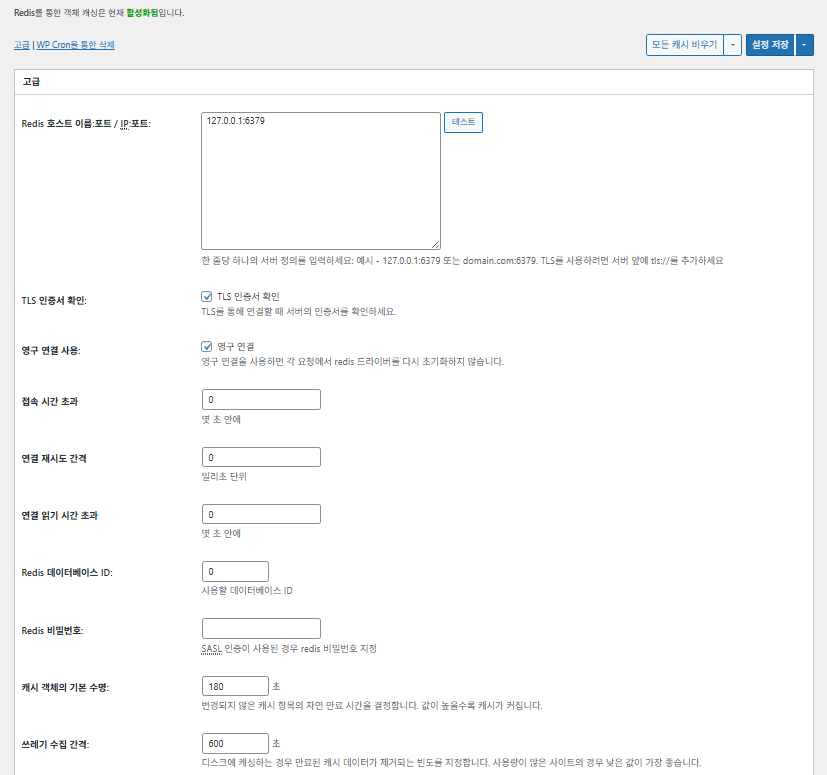
W3TC Nesne önbelleği_gelişmiş ayarlar 1

Öğe

Açıklama

Redis ana makine/IP

Biçim [127.0.0.1:6379]. TLS için [tls://] önekini kullanın

TLS sertifikasını doğrula

TLS kullanırken sertifikanın geçerliliğini denetler (isteğe bağlı)

Kalıcı bağlantı kullan

Daha iyi performans için Redis bağlantılarını yeniden kullanır

Bağlantı zaman aşımı

Redis'e bağlanmak için izin verilen azami süre (sn)

Bağlantı yeniden deneme aralığı

Hatadan sonra yeniden denemeden önce bekleme (ms)

Bağlantı okuma zaman aşımı

Yanıt için azami bekleme süresi (sn)

Redis DB ID

Redis içindeki veritabanı numarası (varsayılan [0])

Redis parolası

Parola veya SASL kimlik doğrulama girişi

Varsayılan önbellek ömrü

Önbellek öğelerinin varsayılan tutulma süresi (sn). Varsayılan 180 sn

Çöp toplama aralığı

Süresi dolan önbelleğin silinme sıklığı. Varsayılan 600 sn

Genel gruplar

Ağ modunda paylaşılan gruplar (çoklu site için)

Kalıcı olmayan gruplar

Önbellekten hariç tutulan gruplar, ör. [counts], [plugins]

wp-admin isteklerini önbelleğe al

Önbelleği yönetim alanına da uygular (⚠️ önce test edin)

Transient'leri veritabanında sakla

Harici önbellek kullanılırken bile geçici değerleri DB'de tutar

WP-CLI'yi etkinleştir

Önbelleğe WP-CLI komutları için de izin verir

6️⃣ Tarayıcı önbelleği

Tarayıcı önbelleği resim, CSS ve JS gibi statik dosyaları ziyaretçinin cihazında yerel olarak saklayarak tekrar ziyaretlerde yükleme süresini büyük ölçüde kısaltır. Bu, sayfa yanıt hızını ve kullanıcı deneyimini iyileştirir.

Bu ayarların çoğu önbellek denetimi ve sunucu yükünü azaltma odaklıdır. Trafiği yüksek ya da statik kaynak optimizasyonunun önemli olduğu sitelerde çoğunu etkinleştirebilirsiniz.

ÖğeGenelCSS ve JSHTML ve XMLOrtam ve diğer dosyalar
[Last-Modified] başlığını ayarla304 yanıtlarına izin vermek için dosyanın son değiştirilme tarihini ekler✅ Çoğu durumda etkinleştirin✅ Çoğu sunucuya uygun✅ Çoğu CDN/tarayıcı önbelleğiyle çalışır
[Expires] başlığını ayarlaTarayıcının dosyaları belirli bir süre önbelleğe almasını sağlar✅ Varsayılan 31536000 sn (1 yıl), önerilir✅ Varsayılan [3600 sn (1 saat)] ✅ Varsayılan [31536000 sn] (1 yıl) → statik dosyalara uygun
⏱️ Expires süresini ayarla—⏱️ ör. [31536000 sn = 1 yıl] · CDN ile birlikte kısaltılabilir——
[Cache-Control] başlığını ayarlapragma ve cache-control başlıkları ekleyerek önbellek stratejisini denetler✅ [“public, max-age=31536000”] önerilir✅ Ör. [“public, max-age=3600”] olarak ayarlayın✅ [“public, max-age=31536000”] önerilir
✅ Önbellek denetim politikası—✅ [max-age] içeren bir politika kullanın · varsayılan [“public, max-age=EXPIRES_SECONDS”]——
[ETag] ayarlaDosyayı tanımlayan bir varlık etiketi sağlar – değişiklikleri algılamak için✅ Aynı sunucu içinde etkili✅ Sunucular arasında önbellek paylaşılmıyorsa
kullanılması önerilir
✅ Tek sunucu çalıştırırken yararlı
W3TC başlığını ayarlaBir dosyanın W3TC tarafından optimize edilip edilmediğini gösteren başlık ekler🔖 Zorunlu değil; analiz için🔖 Zorunlu değil (hata ayıklama için)🔖 İsteğe bağlı
gzip sıkıştırmaMetin dosyalarını küçülten sıkıştırma (geniş uyumlu)✅ Çoğu sunucuda desteklenir✅ Çoğu sunucu tarafından desteklenir✅ Görselleri etkilemez
brotli sıkıştırmagzip'ten daha yüksek sıkıştırma oranı (yalnızca destekleyen tarayıcılar)✅ Apache/Nginx yapılandırması gerekir✅ Apache/nginx modülünü etkinleştirin✅ Yalnızca destekleyen tarayıcılarda geçerli
Ayar değişikliğinden sonra nesnelerin önbelleğe alınmasını önleEski önbelleği geçersiz kılmak için sorgu dizesi ekler✅ Ayarlar sık değişiyorsa önerilir—✅ Dosya değişiklikleri hemen yansır
Sorgu dizelerini kaldırÖnbelleğe alınabilirliği artırmak için statik kaynaklardan [?] kaldırır⚠️ Yalnızca bazı CDN/proxy'lerde gerekir—✅ Sürümlenmiş dosyalara uygulanabilir
Çerezleri kaldırStatik kaynak yanıtlarından [Set-Cookie] başlığını kaldırır✅ Çoğu durumda işaretleyin—✅ Görseller vb. çerez gerektirmez
404'leri WordPress'e işletmeStatik dosyaların 404'lerini web sunucusu işler → WP'ye daha az yük———
404 istisna URI listesiWP'nin yine de işlemesi gereken URI kalıplarını belirtir (ör. sitemap, robots.txt)———
Nesne URL yapısını yeniden yazÖnbellekleri atlatmak için benzersiz URI'ler üretir (ör. [ver=xxxx])———

Ⅲ. W3 Total Cache ek özellikleri

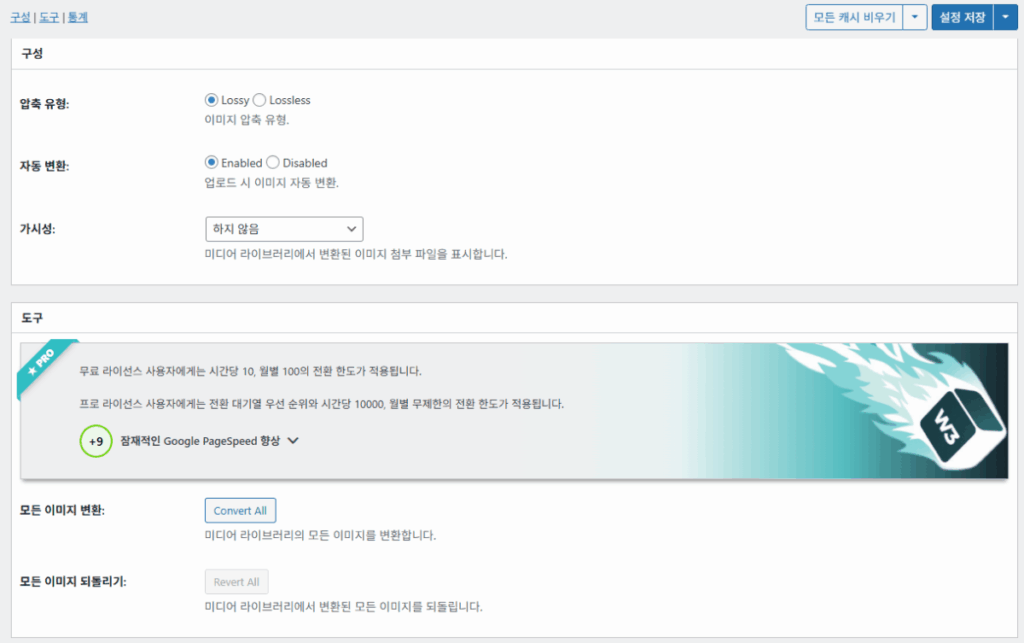
  • ↳ WP Cron, CDN, ters proxy, kullanıcı deneyimi, istatistikler, WebP dönüştürücü, Google PageSpeed, ayarları içe/dışa aktarma

WP Cron ile önbellek temizleme genel bir ayardır.

🧭 W3 Total Cache ek özellikler simülatörü
Yol simülatörü
📍Performance›General Settings›Purge via WP Cron
WP Cron
WP Cron ile önbellek temizleme, başlangıç saatini ve aralığı belirlediğiniz genel bir ayardır.
📍Performance›General Settings›CDN›Advanced Settings
CDN
Bir CDN sağlayıcısına kaydolduktan sonra [CDN] altında [Enable]'ı işaretleyin, [CDN Type]'ı seçip kaydedin; ayrıntılı seçenekler [Advanced Settings]'te ayarlanır.
📍Performance›General Settings›Reverse Proxy
Ters proxy
[Enable reverse proxy caching via varnish]'i yalnızca Varnish kullanıyorsanız işaretleyin. [Varnish servers] alanına Varnish sunucunuzun IP adresini girin.
📍Performance›General Settings›User Experience›Advanced Settings
Kullanıcı deneyimi
[Lazy Load Images]'ı işaretleyip kaydedin, ardından [Advanced Settings]'te lazy load seçeneklerini ayarlayın. Gelişmiş ayarlardaki özelliklerin %⁠50'den fazlası premium sürümde kullanılabilir.
📍Performance›General Settings›Image Converter
WebP dönüştürücü
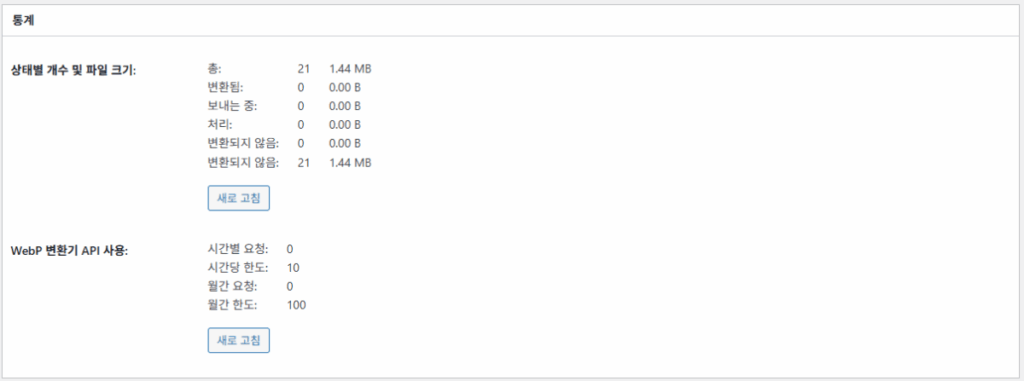
[Image Converter] altında [Enable Image Converter Extension]'ı işaretlerseniz Ortam Kütüphanesi görsellerini WebP veya AVIF'e dönüştürebilirsiniz.
example.com/wp-admin/admin.php?page=w3tc_general
DashboardSettingsToolsInfoSupportUpgrade
|||||||||||||||||
Empty All Caches
Purge via WP Cron
Enabling this will schedule a WP-Cron event that will flush all enabled Caches via a single cron job. Each cache’s advanced settings page features similar settings to this if you wish to schedule purges for specific caches only. If you prefer to use a system cron job instead of WP-Cron, you can schedule the following command to run at your desired interval: “wp w3tc flush all”. If the Always Cached extension is active and enabled, page cache entries will instead be added to the queue instead of being purged from the cache. Visit here for more information.
Enable WP-Cron Event
Enable
Start Time
This setting controls the initial start time of the cron job. If the selected time has already passed, it will schedule the job for the following day at the selected time.
Interval
This setting controls the interval that the cron job should occur.
CDN
Content Delivery Network (CDN) is a powerful feature that can significantly enhance the performance of your WordPress website. By leveraging a distributed network of servers located worldwide, a CDN helps deliver your website’s static files, such as images, CSS, and JavaScript, to visitors more efficiently. This reduces the latency and improves the loading speed of your website, resulting in a faster and smoother browsing experience for your users. With W3 Total Cache’s CDN integration, you can easily configure and connect your website to a CDN service of your choice, unleashing the full potential of your WordPress site’s speed optimization.
Basic SettingsPremium ServicesHelp
CDN:
Theme files, media library attachments, CSS, and JS files will load quickly for site visitors.
CDN Type:
Select the CDN type you wish to use.
Host the entire website with your compatible CDN provider to reduce page load time.
FSD CDN:
Enable★ PRO
Deliver visitors the lowest possible response and load times for all site content including HTML, media (e.g. images or fonts), CSS, and JavaScript. Show More ⌄ Learn more about Pro
Reverse Proxy
A reverse proxy is a server that sits between a client and a web server, acting as an intermediary for requests. It retrieves resources on behalf of the client from the server, and then returns the response to the client. By utilizing a reverse proxy, such as Varnish or Nginx, in conjunction with W3 Total Cache, you can significantly enhance the performance of your WordPress website by caching and serving static content directly from the reverse proxy server, reducing the load on your WordPress server and improving response times for visitors.
Enable reverse proxy caching via varnish
Varnish servers:
Specify the IP addresses of your varnish instances above. The VCL’s ACL must allow this request.
Trusted reverse proxies:
IP addresses or CIDR ranges of reverse proxies and load balancers in front of this site (one per line). Forwarded scheme and client-IP headers are used only for these addresses. Leave empty when PHP receives client connections directly. Developers may also supply this list via the w3tc_trusted_proxies filter.
User Experience
User Experience (UX) is a setting that focuses on enhancing the overall browsing experience for visitors of your website. By enabling this feature, you can optimize your website’s performance by minimizing load times, reducing server requests, and delivering content more efficiently. This ultimately leads to faster page loading, improved user satisfaction, and increased engagement, resulting in a speedier and more enjoyable WordPress website.
Basic Settings
Defer loading offscreen images.
Lazy Load Google Maps★ PRO
In addition to lazy loading images, with W3 Total Cache Pro you can lazy load Google Maps! More information and settings can be found on the User Experience page.
Disable Emoji
Remove emojis support from your website.
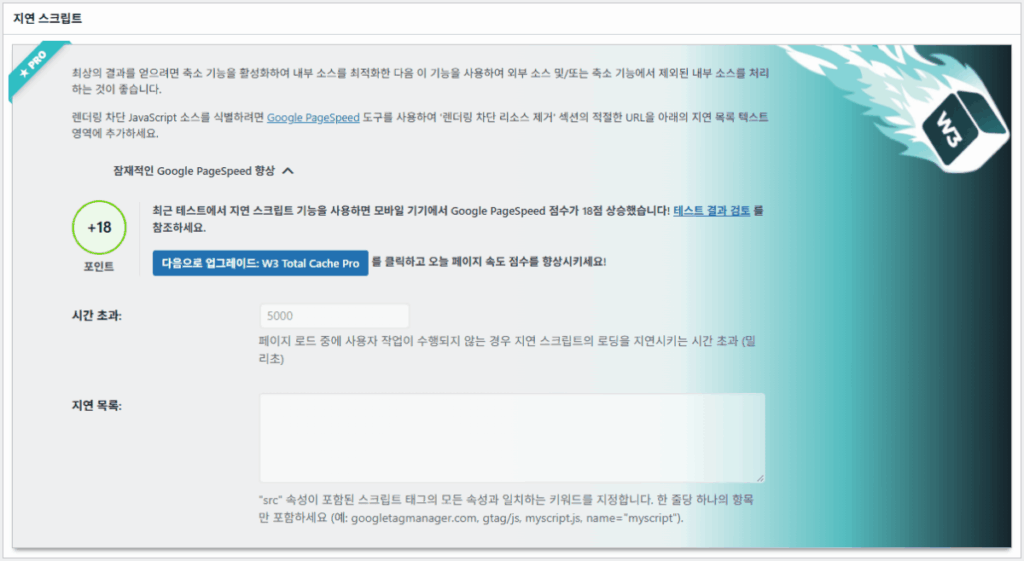
Delay Scripts★ PRO
Delay the loading of specified internal/external JavaScript sources on your pages separate from Minify.
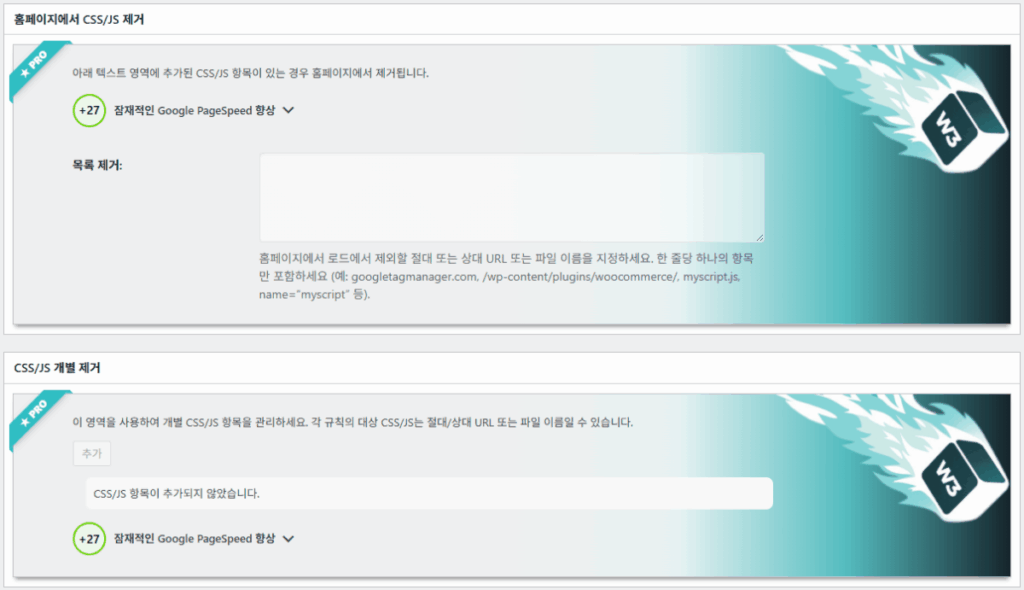
Remove Unwanted/Unused CSS/JS★ PRO
Removes specified CSS/JS tags from the homepage or on a per page basis.
Preload Requests★ PRO
DNS prefetching, pre-connecting, and preloading are essential web optimization techniques that enhance website performance by proactively resolving network-related tasks. Learn more about Pro
Disable wp-embed script
Remove wp-embed.js script from your website. oEmbed functionality still works but you will not be able to embed other WordPress posts on your pages.
Disable jquery-migrate on the front-end
Remove jquery-migrate support from your website front-end.
Image Converter
The Image Converter tool can be used to generate modern-format versions (e.g., WebP or AVIF) of media library images which offer superior lossless and lossy compression.
Enable Image Converter Extension
This extension allows for optimizing media library images to modern formats like WebP or AVIF.
As a free user you are limited to conversions of 10/hour and 100/month. The Pro license increases these rates to 10,000/hour and unlimited/month. Conversion rates are subject to change and documentation can be found here. Learn more about Pro
example.com/wp-admin/admin.php?page=w3tc_cdn
DashboardSettingsToolsInfoSupportUpgrade
||
Empty All Caches
General
Host attachments
Upload attachments
If checked, all attachments will be hosted with the CDN.
Host wp-includes/ files
Upload includes files
If checked, WordPress static core file types specified in the “wp-includes file types to upload” field below will be hosted with the CDN.
Host theme files
Upload theme files
If checked, all theme file types specified in the “theme file types to upload” field below will be hosted with the CDN.
Host minified CSS and JS files
Upload minify files
If checked, minified CSS and JS files will be hosted with the CDN.
Host custom files
Upload custom files
If checked, any file names or paths specified in the “custom file list” field below will be hosted with the CDN.
Force over-writing of existing files
If modified files are not always detected and replaced, use this option to over-write them.
Advanced
Only purge CDN manually
Purge CDN only if explicit purge button is clicked.
Disable CDN on SSL pages
When SSL pages are returned no CDN URLs will appear in HTML pages.
Use CDN links for the Media Library on admin pages
All Media Library content will use CDN links on administration pages.
Add CORS header
Add CORS headers to allow cross-domain assets usage.
Disable CDN for the following roles
Select user roles that will use the origin server exclusively:
Administrator
Editor
Author
Contributor
Subscriber
Disable CDN on the following pages:
Always ignore the specified pages / directories. Supports regular expression.
Automatically upload minify files
If CDN is enabled (and not using the origin pull method), your minified files will be automatically uploaded.
Export changed files automatically
Automatically attempt to find and upload changed files.
Auto upload interval:
3600seconds
Specify the interval between upload of changed files.
Re-transfer cycle interval:
900seconds
The number of seconds to wait before upload attempt.
Re-transfer cycle limit:
25
Number of files processed per upload attempt.
wp-includes file types to upload:
*.css;*.js;*.gif;*.png;*.jpg;*.xml
Specify the file types within the WordPress core to host with the CDN.
Theme file types to upload:
*.css;*.js;*.gif;*.png;*.jpg;*.ico;*.ttf;*.otf;*.woff;*.woff2;*.less
Specify the file types in the active theme to host with the CDN.
File types to import:
 
Automatically import files hosted with 3rd parties of these types (if used in your posts / pages) to your media library. Only common static types (images, CSS, JS, fonts, and media) are imported. Script, markup, and SVG types are ignored even if listed. Empty, *, and *.* use that static allowlist rather than every file.
Custom file list:
favicon.ico
{wp_content_dir}/gallery/*
{wp_content_dir}/uploads/avatars/*
{plugins_dir}/wordpress-seo/css/xml-sitemap.xsl
{plugins_dir}/wp-minify/min*
{plugins_dir}/*.js
{plugins_dir}/*.css
{plugins_dir}/*.gif
{plugins_dir}/*.jpg
{plugins_dir}/*.png
Specify any files outside of theme or other common directories to host with the CDN.
Rejected user agents:
Specify user agents that should not access files hosted with the CDN.
Rejected files:
{uploads_dir}/wpcf7_captcha/*
{uploads_dir}/imagerotator.swf
{plugins_dir}/wp-fb-autoconnect/facebook-platform/channel.html
Specify the path of files that should not use the CDN.
Set cookie domain to “example.com”
If using subdomain for CDN functionality, this setting helps prevent new users from sending cookies in requests to the CDN subdomain.
Note(s):
  • You can use placeholders {wp_content_dir}, {plugins_dir}, {uploads_dir} instead of writing folder paths (wp-content, wp-content/plugins, wp-content/uploads).
  • If using Amazon Web Services or Self-Hosted CDN types, enable HTTP compression in the “Media & Other Files” section on Browser Cache Settings tab.
example.com/wp-admin/admin.php?page=w3tc_userexperience
DashboardSettingsToolsInfoSupportUpgrade
Empty All Caches
Lazy loading is currently disabled.
Lazy Loading
Process HTML image tags
Process img tags
Process background images
Process background styles
Exclude words:
avia-bg-style-fixed
data-bgposition=
data-envira-src=
data-large_image=
data-lazy-original=
data-lazy-src=
data-lazyload=
data-lazysrc=
data-no-lazy=
data-src=
data-srcset=
fullurl=
lazy-slider-img=
loading=”eager”
no-lazy
rev-slidebg
skip-lazy
soliloquy-image
swatch-img
w3-total-cache
woocommerce/assets/images/placeholder.png
wpcf7_captcha
Exclude tags containing words
Threshold
 
The outer distance off the scrolling area from which to start loading the elements (example: 100px, 10%).
Script Embed method:
Use inline method only when your website has just a few pages
Google Maps
Lazy load google map
WP Google Map Plugin plugin
Google Maps Easy plugin
WP Google Maps plugin
Sol menüde vurgulanan öğeye ya da ekrandaki bir düğmeye tıklayın.

1️⃣ CDN

Bunu bir CDN sağlayıcısına kaydolduktan sonra ayarlayabilirsiniz.

Seçenek

Açıklama

✅ Ekleri barındır

[wp-content/uploads] içindeki görseller gibi ekleri CDN'e yükler

✅ wp-includes dosyalarını barındır

WordPress çekirdek statik dosyalarını (js/css vb.) CDN'e dâhil eder

✅ Tema dosyalarını barındır

Etkin temanın statik dosyalarını (css/js/görseller vb.) CDN'e dâhil eder

✅ Küçültülmüş CSS/JS dosyalarını barındır

W3TC'nin küçülttüğü CSS/JS dosyalarını CDN'den sunar

✅ Özel dosyaları barındır

Belirttiğiniz yolları veya dosya adlarını CDN'e gönderir

⚠️ Mevcut dosyaların üzerine zorla yaz

Değişiklikler otomatik algılanmadığında yeniden yüklemeyi zorlamak için

Öğe

Açıklama

CDN'i yalnızca elle temizle

Dosyaları yalnızca elle temizleme düğmesine tıkladığınızda CDN'den kaldırır

SSL sayfalarında CDN'i kapat

HTTPS sayfalarında CDN URL'leri kullanmaz

Yönetim panelinde CDN bağlantılarını kullan

Ortam için CDN URL'lerini yönetim ekranlarında da gösterir

Add CORS header

CORS'a izin veren bir yanıt başlığı ekler

Role göre CDN'i kapat

Seçili kullanıcı rolleri için CDN uygulamaz (ör. yalnızca yöneticiler kaynağı kullanır)

Sayfa hariç tutma listesi

Belirtilen yolları CDN'den hariç tutar (regex kullanılabilir)

Küçültülmüş dosyaları otomatik yükle

Küçültülmüş dosyaları CDN'e otomatik yükler (Push)

Değişen dosyaları otomatik dışa aktar

Dosya değişikliği algılandığında otomatik yükler

Otomatik yükleme aralığı

Değişiklik algılandıktan sonra yükleme aralığı (varsayılan 3600 sn)

Yeniden aktarım aralığı / sınırı

Hatalardan sonra yeniden deneme aralığı ve işlenen dosya sayısı sınırı

Yüklenecek wp-includes dosyaları

Hangi çekirdek dosya türlerinin CDN'e gideceğini belirtir

Yüklenecek tema dosya türleri

CSS/JS/yazı tipi gibi temayla ilgili dosya türlerini belirtir

İçe aktarılacak dosya türleri

Harici bağlantılı dosyaların otomatik indirilme koşullarını belirler

Özel dosya listesi

CDN'e gönderilecek tek tek dosya yollarını belirtir (şablonlar, harici eklentiler vb.)

Reddedilen kullanıcı aracıları

CDN dosyalarına erişimi engellenecek botları/kullanıcı aracılarını belirtir

Reddedilen dosya yolları

CAPTCHA'lar ve özel yollar gibi CDN dışında kalacak dosya yollarını belirtir

Çerez alan adını ayarla

Alt alan adı CDN'i kullanılırken çerez gönderilmesini önlemek için alan adı belirtir

2️⃣ Ters proxy

Açıklamada Varnish ve Nginx örnek verilmiş, ancak Nginx sunucuda ayarlandığından bunu yalnızca Varnish kullanıyorsanız W3 Total Cache eklentisinde uygulayın.

3️⃣ Kullanıcı deneyimi: lazy load

Gelişmiş ayarlarda özelliklerin %⁠50'den fazlası yalnızca premium sürümde kullanılabilir.

Öğe

Açıklama

Ne zaman kullanılır

✅ HTML görsel etiketlerini işle

[<img>] etiketlerine lazy özniteliği uygulanır

Sıradan içerik görsellerini geç yüklemek için

✅ Arka plan görsellerini işle

CSS [background-image] öğelerine lazy loading uygular

Çok sayıda arka plan görseli olan tasarım ağırlıklı siteler için

Sözcükleri hariç tutÖrnek
Lazy dışı öznitelikler[data-src], [data-lazy-src], [data-no-lazy], [loading=”eager”] vb.
Lazy dışı sınıflar[no-lazy], [skip-lazy], [lazy-slider-img], [rev-slidebg] vb.
Eklentiler/kaydırıcılar[soliloquy-image], [envira], [w3-total-cache], [wpcf7_captcha] vb.
WooCommerce[swatch-img], [woocommerce/…/placeholder.png] vb.

Lazy loading “eşiği”, tarayıcı görünüm alanının (ekranın) ne kadar altındaki görsellerin ve arka plan öğelerinin önceden yüklenmeye başlayacağını belirler. Örneğin 100px ile kullanıcı öğeye 100 piksel yaklaşacak kadar kaydırınca öğe yüklenir; çok küçük bir değer görsellerin geç yüklenmesine ve kullanıcının boş alan görmesine yol açabilir, bu yüzden genellikle 100–300px uygundur.

Sırada betik ekleme yöntemleri var.

Ekleme yöntemi

Açıklama

Konum veya öznitelik

Eşzamansız (Async)

Sayfa yüklenmesiyle paralel çalışır ve oluşturmayı engellemez

[<script async>]

Eşzamanlı (head içinde)

[<head>] alanında önce çalışır ve oluşturmayı geçici olarak engelleyebilir (in the head)

[<head>] veya [<script>]

Satır içi (Inline)

Betiği doğrudan HTML belgesine ekler; ayrı bir istek olmadan çalışır

[<script>kod</script>] içine eklenir

W3TC Kullanıcı deneyimi gelişmiş ayarlar 2
W3TC Kullanıcı deneyimi gelişmiş ayarlar 3

4️⃣ WebP dönüştürücü

W3TC WebP dönüştürücü_ayrıntılar (gelişmiş ayarlar) 1
W3TC WebP dönüştürücü_ayrıntılar (gelişmiş ayarlar) 2

Ⅳ. W3 Total Cache genel değerlendirme

W3 Total Cache'in arayüzü (UI) kötü değil ama açıkça kullanışsız. Birçok geliştirici ve profesyonel kullanıcı da aynı noktayı belirtiyor. WP Rocket veya FlyingPress gibi modern eklentilerle karşılaştırıldığında site performansında yetişebilir, ama kullanıcı deneyimi (UX) açısından eksik kalır.

Çok özellik olması bir güçtür, ama yeni başlayanlar için yapı fazla karmaşık gelebilir. Özellikle menüler arasında sık geçiş ve çok sayıda ayrıntılı seçenek nedeniyle deneyimli geliştiriciler ve site yöneticileri bile  yapılandırma hatası yapabilir. Elbette her ayarı hatırlamazsınız, ama kullanımda bu ince ayar yapılabilen gelişmiş bir önbellek eklentisidir.

Ücretsiz sürümü 1 milyondan fazla kurulan bu eklentiyi yalnızca eski bir eklenti diye geçmek zor; pratikte özelliklerinin çeşitliliğine ve zenginliğine yetişebilen önbellek eklentisi pek yoktur.

ÖğePuan (⭐)Değerlendirme
🎛️ Arayüz⭐⭐⭐Çok menü ve karmaşık yapı; yeni kullanıcılar için engel. UI eski hissettiriyor
⚙️ Özellik çeşitliliği⭐⭐⭐⭐⭐Önbellek, CDN, Redis ve neredeyse her özellik; eksik bir şey bulmak zor
🛠️ İnce ayar esnekliği⭐⭐⭐⭐Neredeyse her şey ince ayarlanabilir; ayarlar arası çakışmalara dikkat
🚀 Performans kazancı⭐⭐⭐⭐⭐Optimize edilince mükemmel performans; nesne/tarayıcı önbelleği büyük fark yaratır
🧩 Uyumluluk⭐⭐⭐Bazı barındırma, tema ve eklentilerle çakışabilir.
📄 Belgeler ve rehberler⭐⭐⭐⭐⭐Kapsamlı resmî belgeler
💡 Kullanıcı önerisi⭐⭐⭐⭐(4.5)İleri düzey kullanıcılara önerilir; yeni başlayanlar WP Rocket, Cache Enabler vb. tercih edebilir
📊 Genel puan⭐⭐⭐⭐(4.5)Güçlü, özellik odaklı bir eklenti. Bir öğrenme eğrisi var; kendi seviyenizi göz önünde bulundurun

Ⅴ. Performans testi

Eklenti ayarlandıktan sonra son hız testi, sıradan önbellek eklentilerinden daha belirgin bir hız artışı gösterdi.

ℹ️ Satış ortaklığı bildirimi
Bu sitenin içeriklerinde satış ortaklığı bağlantıları bulunur. Bir ziyaretçi bu bağlantılar üzerinden ürün veya hizmet satın alırsa bu site satıcıdan komisyon alır. Bu süreçte alıcının ödediği tutar (kampanya indirimlerinde tutar düşer↓) artmaz. Yayımlanan fiyat, indirim ve stok bilgileri yazının yazıldığı zamana aittir ve gerçek durumdan farklı olabilir; bu yüzden satın almadan önce son bilgiyi satıcıdan kontrol etmenizi rica ederiz. Ürünler kendi ölçütlerimize göre seçilir ve değerlendirilir; komisyon alınıp alınmaması tanıtım sırasını veya değerlendirme içeriğini etkilemez.

Bir yanıt yazın

E-posta adresiniz yayınlanmayacak. Gerekli alanlar * ile işaretlenmişlerdir

İnsan olduğunuzu kanıtlayın: 0   +   8   =