Plugin W3 Total Cache: cách thiết lập tối ưu

Thông báo tiếp thị liên kết Ver 3.1
Thông báo tiếp thị liên kết Ver 3.2 (chỉ trên di động)
Môi trường thử nghiệm CloudwaysDebian 12Apache 2.4.69 + nginxPHP 8.2.34WordPress 7.1.3W3 Total Cache 2.10.7Kiểm tra ngày 2026-10-18

Trang WordPress chắc chắn sẽ chậm đi mỗi khi cài thêm plugin. Vì vậy, plugin cache đã trở thành một trong những plugin không thể thiếu của WordPress. Với hơn 1 triệu lượt cài đặt đang hoạt động ở bản miễn phí và điểm đánh giá 4,4 sao, plugin W3 Total Cache (W3TC) là một trong những plugin được dùng nhiều nhất.

Vì cài đặt cache có thể khiến một số tính năng của plugin khác đang dùng không hoạt động, nếu mới bắt đầu dùng WordPress, bạn có thể dùng plugin dễ cài đặt như Cache Enabler hoặc WP Super cache.

Nếu cần cài đặt và kiểm soát cache chi tiết, bạn có thể dùng plugin W3 Total Cache, vốn có nhiều tính năng mạnh ngay cả ở bản miễn phí.

Ⅰ. Cài đặt W3 Total Cache và Setup Guide

  • ↳ Công cụ tìm kiếm (SEO: Search Engine Optimization)
  • ↳ Tối ưu hiệu năng (WPO: Web Performance Optimization)
  • ↳ Caching tích hợp: hỗ trợ CDN, trang, minify, đối tượng, phân mảnh và cơ sở dữ liệu.

Tìm W3 Total Cache, rồi cài đặt và kích hoạt plugin.

🧭 Trình mô phỏng cài đặt W3 Total Cache và Setup Guide
Plugin cacheTrình mô phỏng đường dẫn
📍Plugins›Add Plugin
Cài đặt plugin
Nhập W3 Total Cache vào ô tìm kiếm và nhấp [Install Now]; khi cài đặt xong, nhấp [Activate].
📍Performance›Setup Guide
Setup Guide
Sau lần cài đặt đầu tiên, khi vào [Dashboard], bạn sẽ được tự động chuyển đến [Setup Guide] vì chưa có cài đặt nào.
📍Performance›Dashboard
Trang quản trị
Nội dung đã cài đặt trong hướng dẫn được hiển thị theo từng tính năng trong hộp [General Settings], còn cài đặt chi tiết như page cache thực hiện trong [General Settings].
example.com/wp-admin/plugin-install.php
Add Plugins Upload Plugin
Plugins extend and expand the functionality of WordPress. You may install plugins from the WordPress Plugin Directory right on this page, or upload a plugin in .zip format by clicking the button above.
Search ResultsFeaturedPopularRecommendedFavorites
Search PluginsKeyword
922 items
W3 Total Cache
Installing...ActiveMore Details
Search Engine (SEO) & Performance Optimization (WPO) via caching. Integrated caching: CDN, Page, Minify, Object, Fragment, Database support.
By BoldGrid
★★★★★ (5,421)
Last Updated: 2 weeks ago
900,000+ Active Installations
✓ Compatible with your version of WordPress
example.com/wp-admin/admin.php?page=w3tc_setup_guide
DashboardSettingsToolsInfoSupportUpgrade
W3 Total CacheSetup Guide
TOTAL CACHE: Setup Guide
  • Welcome
  • Page Cache
  • Database Cache
  • Object Cache
  • Image Converter
  • Lazy Load
  • More Caching Options
Welcome to the W3 Total Cache Setup Guide!
By allowing us to collect data about how W3 Total Cache is used, we can improve our features and experience for everyone. This data will not include any personally identifiable information. Feel free to review our terms of use and privacy policy.
AcceptDecline
SKIPNEXT
example.com/wp-admin/admin.php?page=w3tc_dashboard
DashboardSettingsToolsInfoSupportUpgrade
W3 Total CacheDashboard
Flush caches with Empty All Caches
Account
License: Free
Status: Free license, no expiration
Upgrade to W3 Total Cache Pro now to unlock additional settings and features that can further improve your site’s performance and Google PageSpeed ratings.
Learn more about Pro
General Settings
Preview Modedisabled
Page Cachedisabled
Minifydisabled
Opcode Cacheenabled
Database Cachedisabled
Object Cachedisabled
Browser Cachedisabled
CDNdisabled
Reverse Proxydisabled
Statisticsdisabled
Fragment Cachedisabled
Debugdisabled
Settings can be modified by visiting General Settings
Image Optimization Summary
Enable Image Converter
PageSpeed Report
Before you can get started using the Google PageSpeed tool, you’ll first need to authorize access. Please click here.
Bấm vào mục đang sáng ở menu trái hoặc nút trên màn hình.

Sau lần cài đặt đầu tiên, khi vào trang [Dashboard], bạn sẽ được tự động chuyển đến [Setup Guide] vì chưa có cài đặt nào.

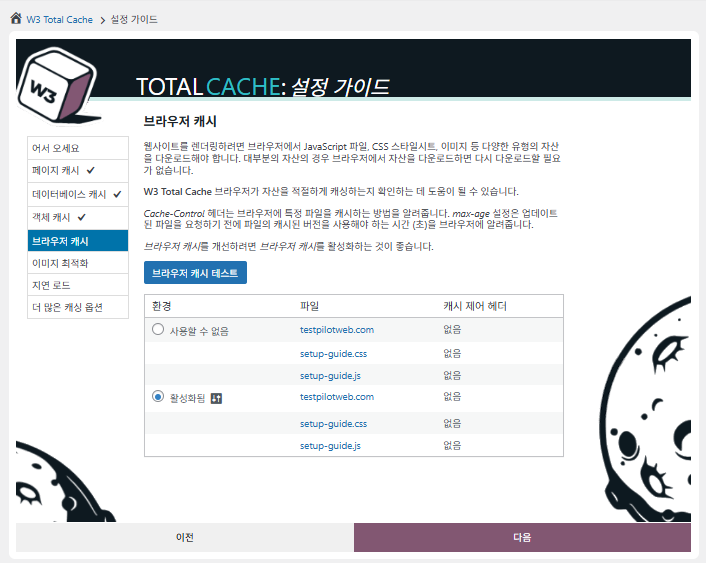
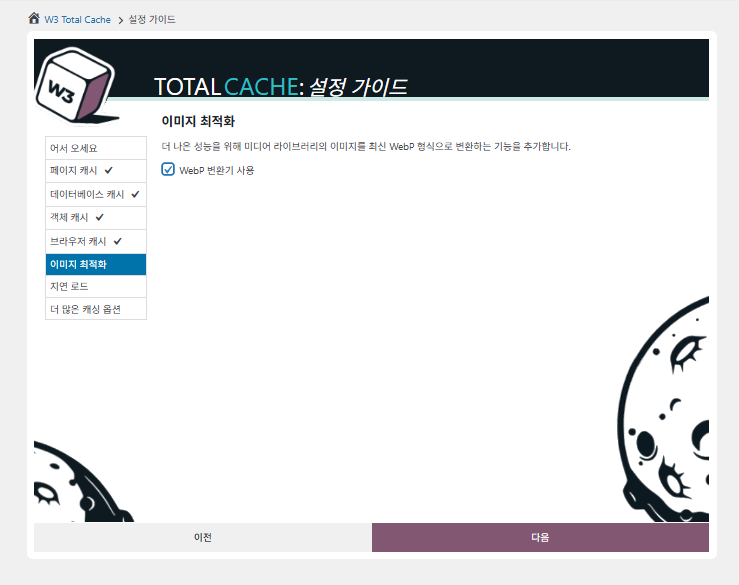
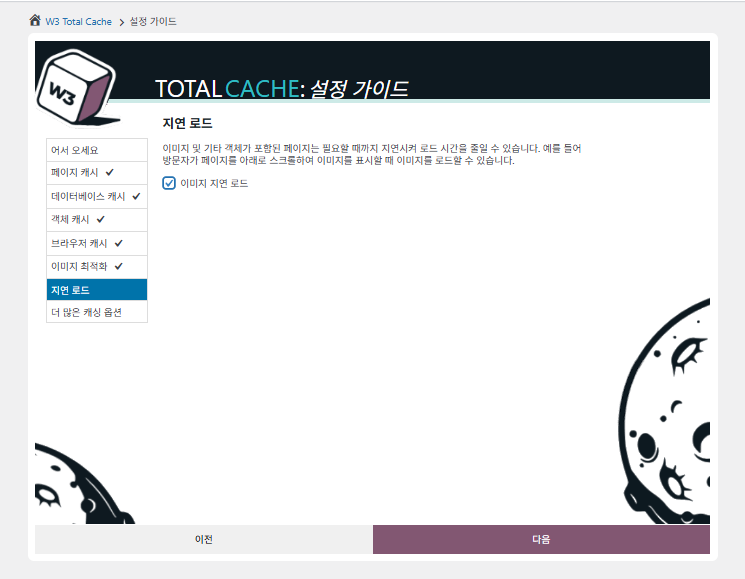
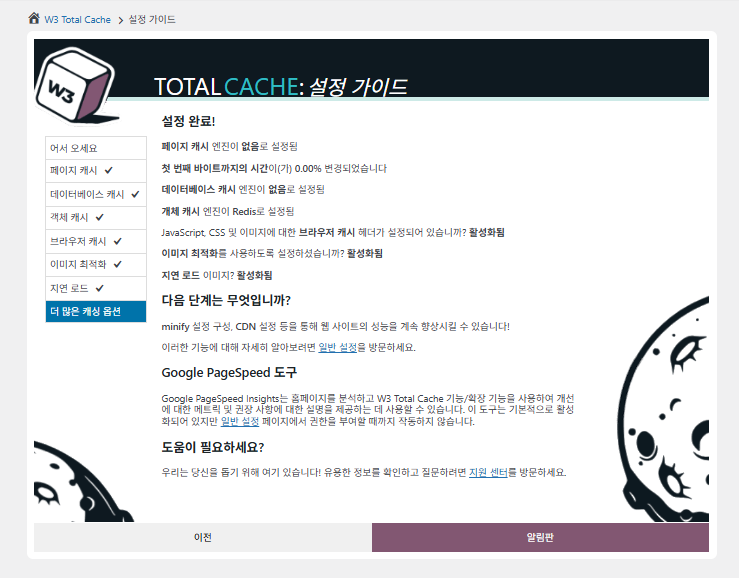
Trong Setup Guide, bạn có thể cài đặt ① page cache, ② cache cơ sở dữ liệu, ③ cache đối tượng, ④ cache trình duyệt, ⑤ tối ưu hình ảnh, ⑥ tải trì hoãn và ⑦ các tùy chọn caching khác.
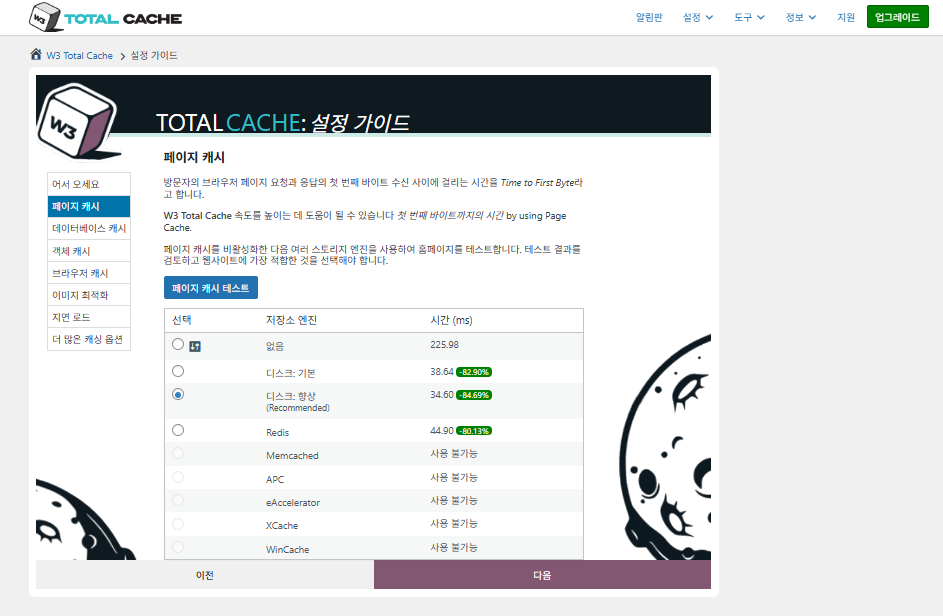
Setup Guide của W3 Total Cache ① page cache_cache đĩa (chọn Enhanced)

Với cài đặt page cache, đề xuất mặc định của W3TC là Disk: [Enhanced]. Như bảng cho thấy, Disk: Enhanced nhanh hơn Disk: Basic khoảng 10,3ms, tức hiệu năng tốt hơn khoảng 17,8% xét theo TTFB.
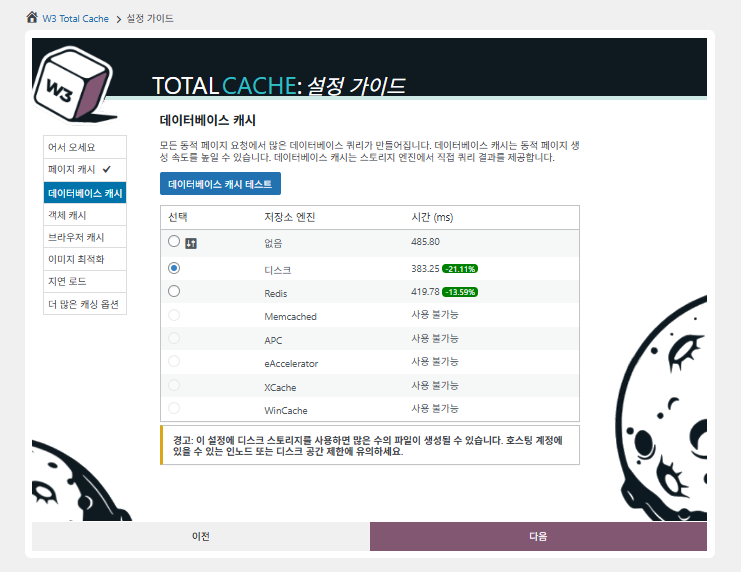
Setup Guide của W3 Total Cache ② cache cơ sở dữ liệu_chọn cache đĩa

Ở mục cache cơ sở dữ liệu, chọn cache đĩa.
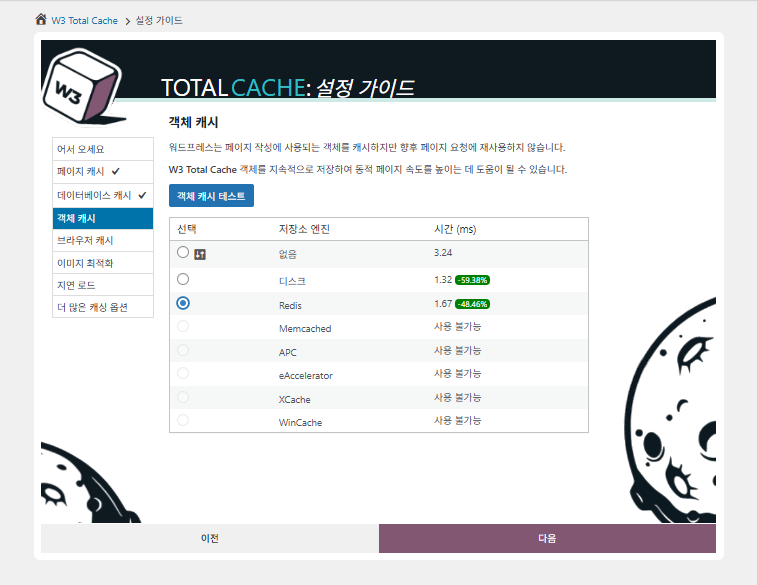
Setup Guide của W3 Total Cache ③ cache đối tượng_chọn Redis
Setup Guide của W3 Total Cache ④ cache trình duyệt
Setup Guide của W3 Total Cache ⑤ tối ưu hình ảnh-dùng trình chuyển đổi WebP
Setup Guide của W3 Total Cache ⑥ tải trì hoãn-tải trì hoãn hình ảnh
Setup Guide của W3 Total Cache ⑦ các tùy chọn caching khác_cài đặt sau khi vào bảng điều khiển

Các cài đặt trong hướng dẫn đã hiển thị trên bảng điều khiển.

Nhấp tab [Settings] ở góc trên bên phải để cài đặt mọi thứ, từ [General Settings] đến page cache và các mục khác.
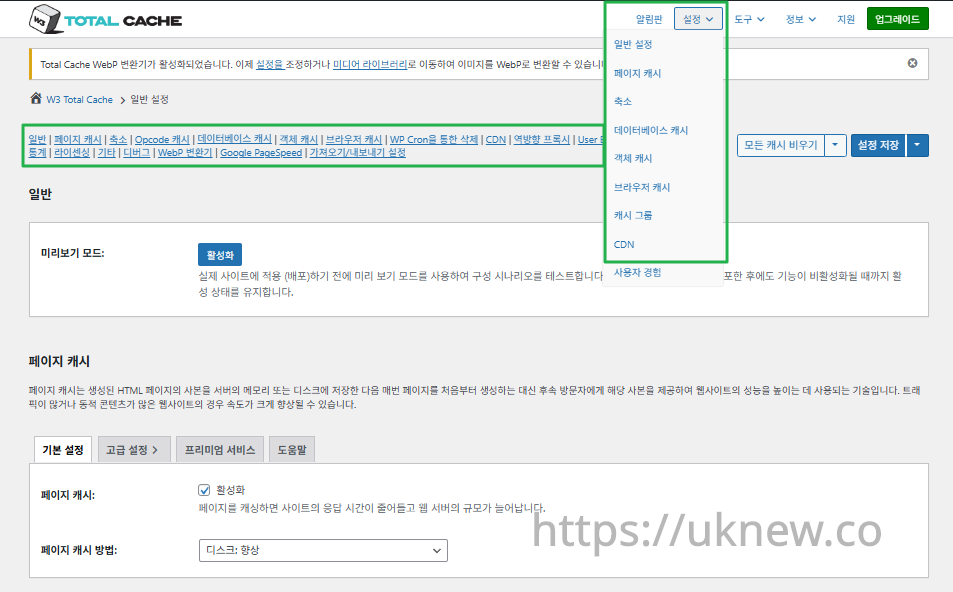
Bảng điều khiển W3TC-cài đặt__

ⓐ [Cài đặt trên từng trang] ở menu quản trị bên trái và ⓑ tab [Settings] ở góc trên bên phải đều dẫn đến page cache, Minify và các cài đặt nâng cao khác. Khi vào từng trang ở giữa phía trên tab General Settings, bạn có thể xem toàn bộ cài đặt của page cache và Minify, từ cài đặt chung đến Cài đặt nâng cao.

Ⅱ. Cài đặt cache của W3 Total Cache

  • ↳ Tính năng cache

Đây là tab General Settings trong phần cài đặt W3TC.

🧭 Trình mô phỏng cài đặt cache W3 Total Cache
Trình mô phỏng đường dẫn
📍Performance›General Settings›General
Chế độ xem trước
Trước khi triển khai thay đổi cache thực tế, bạn có thể bật [Preview mode] để thử lỗi trước.
📍Performance›General Settings›Page Cache›Advanced Settings
Page cache
Đánh dấu [Enable] ở [Page Cache], kiểm tra phương thức là [Disk: Enhanced] rồi nhấp [Save Settings]. Các mục chi tiết được cài đặt trong [Advanced Settings].
📍Performance›General Settings›Minify›Advanced Settings
Minify
Đánh dấu [Enable] ở [Minify] và nhấp [Save Settings], sau đó cài đặt các mục minify HTML, CSS, JS trong [Advanced Settings].
📍Performance›General Settings›Opcode Cache
Cache opcode
Với cache opcode, opcode đã cài trên máy chủ được áp dụng tự động; nếu chưa cài, mục này được đặt thành tắt.
📍Performance›General Settings›Database Cache›Object Cache
Cache CSDL·đối tượng
Đánh dấu [Enable] ở cả [Database Cache] và [Object Cache] rồi lưu. Các mục chi tiết được cài đặt trên màn hình [Database Cache] và [Object Cache].
📍Performance›General Settings›Browser Cache›Advanced Settings
Cache trình duyệt
Đánh dấu [Enable] ở [Browser Cache] rồi lưu, sau đó cài đặt các mục cache theo từng loại tệp trong [Advanced Settings].
example.com/wp-admin/admin.php?page=w3tc_general
DashboardSettingsToolsInfoSupportUpgrade
|||||||||||||||||
Empty All Caches
General
Preview mode:
Enable
Use preview mode to test configuration scenarios prior to releasing them (deploy) on the actual site. Preview mode remains active even after deploying settings until the feature is disabled.
Page Cache
Page cache is a technique used to speed up the performance of a website by storing a copy of the generated HTML page in the server’s memory or disk, and then serving that copy to subsequent visitors instead of generating the page from scratch each time. This can result in significant speed improvements for websites with high traffic or dynamic content.
Basic SettingsPremium ServicesHelp
Page Cache:
Caching pages will reduce the response time of your site and increase the scale of your web server.
Page Cache Method:
Minify
Minification is a technique used to reduce the file size of HTML, CSS, and JavaScript files by removing unnecessary characters such as whitespace, comments, and line breaks. This process can significantly improve the load times of web pages by reducing the amount of data that needs to be downloaded by the user’s browser.
Basic SettingsPremium ServicesHelp
Minify:
Minification can decrease file size of HTML, CSS, JS and feeds respectively by ~10% on average. Learn more
Minify mode:
Auto
Manual
Select manual mode to use fields on the Minify settings tab to specify files to be minified, otherwise files will be minified automatically. Learn more
Minify Cache Method:
Learn more
HTML minifier:
Learn more
JS minifier:
CSS minifier:
Opcode Cache
Opcode cache is a powerful feature that enhances the performance of a WordPress website by caching compiled PHP code. By storing pre-compiled code in memory, opcode cache eliminates the need for repetitive interpretation and compilation of PHP files, resulting in significantly faster execution times. Opcode cache reduces server load and improves response times, ultimately enhancing the overall speed and responsiveness of your WordPress site. If opcode cache is available on the hosting server it will automatically be selected in the dropdown and enabled.
Opcode Cache
Validate timestamps:
Enable
Once enabled, each file request will update the cache with the latest version. When this setting is off, the Opcode Cache will not check, instead PHP must be restarted in order for setting changes to be reflected.
Database Cache
Enable this setting to utilize the power of caching your WordPress site’s database queries. By storing frequently accessed database queries in memory, the database cache reduces the need for repetitive database interactions, resulting in faster page load times. This feature is particularly beneficial for websites with heavy database usage, improving overall performance and delivering a smoother user experience.
Basic SettingsPremium ServicesHelp
Database Cache:
Caching database objects decreases the response time of your site. Best used if object caching is not possible.
Database Cache Method:
Object Cache
Enable this option to utilize an object cache mechanism, which significantly enhances the performance of your WordPress website. Object caching stores frequently accessed database queries and complex data structures in memory, reducing the need to retrieve them from the database repeatedly. By doing so, it minimizes the processing time required to generate dynamic content, resulting in faster page loading times and improved overall site speed. Enabling object cache is particularly beneficial for websites with heavy database usage or high traffic volumes, as it helps alleviate the strain on the server by efficiently serving cached data.
Basic SettingsPremium ServicesHelp
Object Cache:
Object caching greatly increases performance for highly dynamic sites that use the Object Cache API.
Object Cache Method:
Browser Cache
Enabling browser caching will instruct visitors’ web browsers to store static files from your WordPress website, such as images, CSS, and JavaScript files, locally on their devices. By doing so, subsequent visits to your site will retrieve these cached files from the browser’s storage, reducing the need for repeated downloads. This results in faster page loading times and a smoother browsing experience for your visitors, ultimately improving the overall speed and performance of your WordPress website.
Basic SettingsPremium ServicesHelp
Browser Cache:
Enable HTTP compression and add headers to reduce server load and decrease file load time.
example.com/wp-admin/admin.php?page=w3tc_pgcache
DashboardSettingsToolsInfoSupportUpgrade
|||||||
Empty All Caches
Always Cached extension is currently disabled. To enable the extension click here.
General
Cache front page
For many blogs this is your most visited page, it is recommended that you cache it. Learn more
Cache feeds: site, categories, tags, comments
Even if using a feed proxy service enabling this option is still recommended. Learn more
Handle XML mime type
Return correct Content-Type header for XML files (e.g., feeds and sitemaps). Learn more
Cache SSL (HTTPS>) requests
Cache SSL requests (uniquely) for improved performance. Learn more
Cache URI with query string variables
Search result (and similar) pages will be cached if enabled. Learn more
Cache 404 (not found) pages
Reduce server load by caching 404 pages. If the disk enhanced method of disk caching is used, 404 pages will be returned with a 200 response code. Use at your own risk. Learn more
Don’t cache pages for logged in users
Unauthenticated users may view a cached version of the last authenticated user’s view of a given page. Disabling this option is not recommended. Learn more
Don’t cache pages for following user roles
Select user roles that should not receive cached pages: Learn more
Administrator
Editor
Author
Contributor
Subscriber
Aliases
Cache alias hostnames:
Enable
If the same WordPress content is accessed from different domains. Learn more
Additional home URLs:
Specify full home URLs of your mirrors so that plugin will flush it’s cache when content is changed. For example: http://my-site.comhttp://www.my-site.comhttps://my-site.com Learn more
Cache Preload
Automatically prime the page cache
Automatically primes the page cache using the settings configured below. Learn more
Update interval:
900seconds
The number of seconds to wait before creating another set of cached pages. Learn more
Pages per interval:
10
Limit the number of pages to create per batch. Fewer pages may be better for under-powered servers. Learn more
Sitemap URL:
 
A compliant sitemap can be used to specify the pages to maintain in the primed cache. Pages will be cached according to the priorities specified in the XML file. Learn more
Preload the sitemap once
Stop cache preloading after every URL in the sitemap has been processed. Disable and re-enable cache preloading to start a new pass.
Preload cache upon publishing a post
Only applies to pages, posts, and custom post types whose status transitioned from a non-published status to the “published” status. Learn more
Preload cache upon updating a post
Applies after updating any page, post, or custom post type with the final status being “published”. Learn more
Purge Policy:
Specify the pages and feeds to purge when posts are created, edited, or comments posted. The defaults are recommended because additional options may reduce server performance: Learn more
Front page
Post page
Blog feed
Post comments pages
Post author pages
Post terms pages
Post comments feed
Post author feed
Post terms feeds
Daily archive pages
Monthly archive pages
Yearly archive pages
rdf
rss
rss2 (default)
atom
Choose which feed types should be automatically purged. Learn more
Purge limit:
10
Specify number of pages that lists posts (archive etc.) that should be purged on post updates etc., i.e. example.com/ ... example.com/page/5.
0 means all pages that lists posts are purged, i.e. example.com/page/2 ... Learn more
Additional pages:
Specify additional pages to purge. Including parent page in path. Ex: parent/posts. Learn more
Purge sitemaps:
([a-z0-9_\-]*?)sitemap([a-z0-9_\-]*)?\.(?:xml|xsl)
Specify a regular expression that matches your sitemaps. Learn more
REST API
Use these controls to determine how the WordPress REST API responds to visitors and integrations. Caching API responses can dramatically reduce load when headless frontends, mobile apps, or third-party services request the same data repeatedly, but you can keep responses uncached for highly dynamic endpoints or disable the API altogether when it is not needed to reduce attack surface. Learn more
REST API
Don’t cache
Cache★ PRO
Disable REST API
If you’re using the WordPress API make sure to use caching to scale performance. Show More ▾
Advanced
Late initialization:
Enable
Enables support for WordPress functionality in fragment caching for the page caching engine. Use of this feature may increase response times. Learn more
Late caching:
Enable
Overwrites key of page caching via custom filters by postponing entry extraction during the init action. Learn more
Compatibility mode:
Enable
Decreases performance by ~20% at scale in exchange for increasing interoperability with more hosting environments and WordPress idiosyncrasies. Enable this option if you experience issues with the Apache rules. Learn more
Reject HEAD requests:
Disable caching of HEAD HTTP requests
If disabled, HEAD requests can often be cached resulting in “empty pages” being returned for subsequent requests for a URL. Learn more
Maximum lifetime of cache objects:
3600seconds
Determines the natural expiration time of cache items. The higher the value, the larger the cache.
Max lifetime is limited by the W3TC_CACHE_FILE_EXPIRE_MAX constant (2592000 seconds) which can be overridden in wp-config.php.
Garbage collection interval:
3600seconds
If caching to disk, specify how frequently expired cache data is removed. For busy sites, a lower value is best. Learn more
Comment cookie lifetime:
1800seconds
Significantly reduce the default TTL for comment cookies to reduce the number of authenticated user traffic. Enter -1 to revert to default TTL. Learn more
Accepted query strings:
ScCid
_branch_match_id
_bta_c
_bta_tid
_ga
_gl
_ke
adgroupid
adid
age-verified
ao_noptimize
campaignid
campid
click_id
cn-reloaded
customid
dicbo
dm_i
ef_id
epik
fb_action_ids
fb_action_types
fb_source
fbclid
gclid
gclsrc
gdffi
gdfms
gdftrk
hsa_acc
hsa_ad
hsa_cam
hsa_grp
hsa_kw
hsa_mt
hsa_net
hsa_src
hsa_tgt
hsa_ver
igshid
li_fat_id
matomo_campaign
matomo_cid
matomo_content
matomo_group
matomo_keyword
matomo_medium
matomo_placement
matomo_source
mc_cid
mc_eid
mkcid
mkevt
mkrid
mkwid
msclkid
mtm_campaign
mtm_cid
mtm_content
mtm_group
mtm_keyword
mtm_medium
mtm_placement
mtm_source
pcrid
piwik_campaign
piwik_keyword
piwik_kwd
pk_campaign
pk_cid
pk_content
pk_keyword
pk_kwd
pk_medium
pk_source
pp
redirect_log_mongo_id
redirect_mongo_id
ref
s_kwcid
sb_referer_host
si
sscid
tblci
toolid
trk_contact
trk_module
trk_msg
trk_sid
ttclid
twclid
usqp
utm_campaign
utm_content
utm_expid
utm_id
utm_medium
utm_source
utm_term
wbraid
Always cache URLs that use these query string name-value pairs. The value part is not required. But if used, separate name-value pairs with an equals sign (i.e., name=value). Each pair should be on their own line. Learn more
Rejected user agents:
Never send cache pages for these user agents. Learn more
Rejected cookies:
wptouch_switch_toggle
Never cache pages that use the specified cookies. Learn more
Never cache the following pages:
wp-.*\.php
index\.php
Always ignore the specified pages / directories. Supports regular expressions. Learn more
Never cache pages associated with these categories:
Always ignore all pages filed under the specified category slugs. Learn more
Never cache pages that use these tags:
Always ignore all pages filed under the specified tag slugs. Learn more
Never cache pages by these authors:
Always ignore all pages filed under the specified author usernames. Learn more
Never cache pages that use these custom fields:
Always ignore all pages filed under the specified custom fields. Separate name-value pairs with an equals sign (i.e., name=value). Learn more
Cache exception list:
wp-comments-popup.php
wp-links-opml.php
wp-locations.php
Cache the specified pages / directories even if listed in the “never cache the following pages” field. Supports regular expression. Learn more
Non-trailing slash pages:
sitemap(_index)?\.xml(\.gz)?
([a-z0-9_\-]+)?sitemap\.xsl
[a-z0-9_\-]+-sitemap([0-9]+)?\.xml(\.gz)?
Cache the specified pages even if they don’t have trailing slash. Learn more
Specify page headers:
Last-Modified
Content-Type
X-Pingback
P3P
Link
Specify additional page headers to cache. Learn more
Purge via WP Cron
Enabling this will schedule a WP-Cron event that will flush the Page Cache. If you prefer to use a system cron job instead of WP-Cron, you can schedule the following command to run at your desired interval: “wp w3tc flush posts”. If the Always Cached extension is active and enabled, page cache entries will instead be added to the queue instead of being purged from the cache. Learn more
Page Cache is disabled! Enable it here to enable this feature.
Enable WP-Cron Event
Enable
Start Time
This setting controls the initial start time of the cron job. If the selected time has already passed, it will schedule the job for the following day at the selected time.
Interval
This setting controls the interval that the cron job should occur.
Note(s)
  • Enable HTTP compression in the “HTML” section on Browser Cache Settings tab.
example.com/wp-admin/admin.php?page=w3tc_minify
DashboardSettingsToolsInfoSupportUpgrade
||||||
Empty All Caches
General
Rewrite URL structure
If disabled, CSS and JS embeddings will use GET variables instead of “fancy” links. Learn more
Disable minify for logged in users
Authenticated users will not receive minified pages if this option is enabled. Learn more
Minify error notification:
Notify when minify cache creation errors occur. Learn more
HTML & XML
HTML minify settings:
Enable
Inline CSS minification
Inline JS minification
Don’t minify feeds
Line break removal
Enable HTML minification and optionally remove whitespace from inline CSS, JS, and feeds. Learn more
Ignored comment stems:
google_ad_
RSPEAK_
mfunc
Do not remove comments that contain these terms. Learn more
JS
JS minify settings:
Enable
Minify enqueued and inline JavaScript files according to the settings below. Learn more
Minify method:
Choose how JavaScript files should be combined or minified when using automatic mode. Learn more
Minify engine settings:
Operations in areas:
Embed type:
Before </head>
After <body>
Preserved comment removal (not applied when combine only is active)
Line break removal (not safe, not applied when combine only is active)
Control where scripts are placed and whether they stay blocking or load asynchronously for each template area. Learn more
HTTP/2 push
Enable
For better performance, send files to browser before they are requested when using the HTTP/2 protocol. Not supported by “Disk: Enhanced” page cache method for Nginx Learn more
CSS
CSS minify settings:
Enable
Minify stylesheets and inline CSS snippets declared in the queues below. Learn more
Minify method:
Choose how stylesheets should be combined or minified when using automatic mode. Learn more
Minify engine settings:
Preserved comment removal (not applied when combine only is active)
Line break removal (not applied when combine only is active)
Eliminate render-blocking CSS by moving it to HTTP body★ PRO
Website visitors cannot navigate your website until a given page is ready – reduce the wait time with this feature. Show More ▾
Decide where CSS is placed and whether it should load synchronously or asynchronously for each template area. Learn more
@import handling:
Control how @import rules are handled when combining and minifying stylesheets. Learn more
HTTP/2 push
Enable
For better performance, send files to browser before they are requested when using the HTTP/2 protocol. Not supported by “Disk: Enhanced” page cache method for Nginx Learn more
Advanced
Update external files every:
86400seconds
Specify the interval between download and update of external files in the minify cache. Hint: 6 hours is 21600 seconds. 12 hours is 43200 seconds. 24 hours is 86400 seconds. Learn more
Garbage collection interval:
86400seconds
If caching to disk, specify how frequently expired cache data is removed. For busy sites, a lower value is best.
Max interval is limited by the W3TC_CACHE_FILE_EXPIRE_MAX constant (2592000 seconds) which can be overridden in wp-config.php. Learn more
Never minify the following pages:
Always ignore the specified pages / directories. Use relative paths. Omit: protocol, hostname, leading forward slash and query strings. Learn more
Never minify the following JS files:
Always ignore the specified JS files. Use relative paths. Omit: protocol, hostname, leading forward slash and query strings. Learn more
Never minify the following CSS files:
Always ignore the specified CSS files. Use relative paths. Omit: protocol, hostname, leading forward slash and query strings. Learn more
Rejected user agents:
Specify user agents that will never receive minified content. Learn more
Include external files/libraries:
Specify external files/libraries that should be combined. Learn more
Use regular expressions for file name matching
If external script file names vary, use regular expressions in the “Include external files/libraries” field to simplify matching. Learn more
Purge via WP Cron
Enabling this will schedule a WP-Cron event that will flush the Minify Cache. If you prefer to use a system cron job instead of WP-Cron, you can schedule the following command to run at your desired interval: “wp w3tc flush minify”. Learn more
Minify is disabled! Enable it here to enable this feature.
Enable WP-Cron Event
Enable
Start Time
This setting controls the initial start time of the cron job. If the selected time has already passed, it will schedule the job for the following day at the selected time.
Interval
This setting controls the interval that the cron job should occur.
Note(s):
  • Enable HTTP compression in the “Cascading Style Sheets & JavaScript” section on Browser Cache Settings tab.
  • The TTL of page cache files is set via the “Expires header lifetime” field in the “Cascading Style Sheets & JavaScript” section on Browser Cache Settings tab.
example.com/wp-admin/admin.php?page=w3tc_dbcache
DashboardSettingsToolsInfoSupportUpgrade
||
Empty All Caches
Database caching via Disk is currently disabled.
General
Don’t cache queries for logged in users
Enabling this option is recommended to maintain default WordPress behavior. Learn more
Advanced
Maximum lifetime of cache objects:
180seconds
Determines the natural expiration time of unchanged cache items. The higher the value, the larger the cache. Learn more
Garbage collection interval:
3600seconds
If caching to disk, specify how frequently expired cache data is removed. For busy sites, a lower value is best. Learn more
Never cache the following pages:
Always ignore the specified pages / directories. Supports regular expressions (See FAQ). Learn more
Ignored query stems:
gdsr_
wp_rg_
_wp_session_
_wc_session_
Do not cache queries that contain these terms. Any entered prefix (set in wp-config.php) will be replaced with current database prefix (default: wp_). Query stems can be identified using debug mode. Learn more
Reject query words:
^\s*insert\b
^\s*delete\b
^\s*update\b
^\s*replace\b
^\s*create\b
^\s*alter\b
^\s*show\b
^\s*set\b
\bautoload\s+=\s+’yes’
\bsql_calc_found_rows\b
\bfound_rows\(\)
Do not cache queries that contain these words or regular expressions. Learn more
Reject constants:
APP_REQUEST
DOING_CRON
DONOTCACHEDB
SHORTINIT
XMLRPC_REQUEST
Disable caching once specified constants defined. Learn more
Enable for WP-CLI
Enable
WP-CLI already uses Memcached, Redis, and other persistent engines. Enable this only if your database cache engine is Disk and you want WP-CLI to use it. Learn more
Purge via WP Cron
Enabling this will schedule a WP-Cron event that will flush the Database Cache. If you prefer to use a system cron job instead of WP-Cron, you can schedule the following command to run at your desired interval: “wp w3tc flush db”. Learn more
Database Cache is disabled! Enable it here to enable this feature.
Enable WP-Cron Event
Enable
Start Time
This setting controls the initial start time of the cron job. If the selected time has already passed, it will schedule the job for the following day at the selected time.
Interval
This setting controls the interval that the cron job should occur.
example.com/wp-admin/admin.php?page=w3tc_objectcache
DashboardSettingsToolsInfoSupportUpgrade
|
Empty All Caches
Object caching via Disk is currently disabled.
Advanced
Default lifetime of cache objects:
180seconds
Determines the natural expiration time of unchanged cache items. The higher the value, the larger the cache. Learn more
Garbage collection interval:
600seconds
If caching to disk, specify how frequently expired cache data is removed. For busy sites, a lower value is best. Learn more
Global groups:
Groups shared amongst sites in network mode. Learn more
Non-persistent groups:
counts
plugins
Groups that should not be cached. Learn more
Enable caching for wp-admin requests
Enabling this option will increase wp-admin performance, but may cause side-effects Learn more
Store transients in database
Store transients in database even when external cache is used, which allows transient values to survive object cache cleaning/expiration Learn more
Enable for WP-CLI
Enable
WP-CLI already uses Memcached, Redis, and other persistent engines. Enable this only if your object cache engine is Disk and you want WP-CLI to use it. Learn more
Purge via WP Cron
Enabling this will schedule a WP-Cron event that will flush the Object Cache. If you prefer to use a system cron job instead of WP-Cron, you can schedule the following command to run at your desired interval: “wp w3tc flush object”. Learn more
Object Cache is disabled! Enable it here to enable this feature.
Enable WP-Cron Event
Enable
Start Time
This setting controls the initial start time of the cron job. If the selected time has already passed, it will schedule the job for the following day at the selected time.
Interval
This setting controls the interval that the cron job should occur.
example.com/wp-admin/admin.php?page=w3tc_browsercache
DashboardSettingsToolsInfoSupportUpgrade
||||
Empty All Caches
General
Specify global browser cache policy.
Set Last-Modified header
Set the Last-Modified header to enable 304 Not Modified response. Learn more
Set expires header
Set the expires header to encourage browser caching of files. Learn more
Set cache control header
Set pragma and cache-control headers to encourage browser caching of files. Learn more
Set entity tag (eTag)
Set the ETag header to encourage browser caching of files. Learn more
Set W3 Total Cache header
Set this header to assist in identifying optimized files. Learn more
Enable HTTP (gzip) compression
Reduce the download time for text-based files. Learn more
Enable HTTP (brotli) compression
Reduce the download time for text-based files. Learn more
Prevent caching of objects after settings change
Whenever settings are changed, a new query string will be generated and appended to objects allowing the new policy to be applied. Learn more
Remove query strings from static resources
Resources with a “?” in the URL are not cached by some proxy caching servers. Learn more
Prevent caching exception list:
Do not add the prevent caching query string to the specified URIs. Supports regular expressions. Learn more
Disable cookies for static files
Removes Set-Cookie header for responses. Learn more
Do not process 404 errors for static objects with WordPress
Reduce server load by allowing the web server to handle 404 (not found) errors for static files (images etc).
If enabled – you may get 404 File Not Found response for some files generated on-the-fly by WordPress plugins. You may add those file URIs to 404 error exception list below to avoid that. Learn more
404 error exception list:
robots\.txt
[a-z0-9_\-]*sitemap[a-z0-9_\.\-]*\.(xml|xsl|html)(\.gz)?
Never process 404 (not found) events for the specified URIs. Learn more
Rewrite URL structure of objects
Generate unique URI for each file protected from caching by browser. Learn more
CSS & JS
Specify browser cache policy for Cascading Style Sheets and JavaScript files.
Set Last-Modified header
Set the Last-Modified header to enable 304 Not Modified response. Learn more
Set expires header
Set the expires header to encourage browser caching of files. Learn more
Expires header lifetime:
31536000seconds
Specify how long CSS and JS files should be cached (in seconds). Learn more
Set cache control header
Set pragma and cache-control headers to encourage browser caching of files. Learn more
Cache Control policy:
Choose the Cache-Control policy applied to CSS and JS responses.
The Expires header already sets the max-age. Learn more
Set entity tag (eTag)
Set the ETag header to encourage browser caching of files. Learn more
Set W3 Total Cache header
Set this header to assist in identifying optimized files. Learn more
Enable HTTP (gzip) compression
Reduce the download time for text-based files. Learn more
Enable HTTP (brotli) compression
Reduce the download time for text-based files. Learn more
Prevent caching of objects after settings change
Whenever settings are changed, a new query string will be generated and appended to objects allowing the new policy to be applied. Learn more
Remove query strings from static resources
Resources with a “?” in the URL are not cached by some proxy caching servers. Learn more
Disable cookies for static files
Removes Set-Cookie header for responses. Learn more
HTML & XML
Specify browser cache policy for posts, pages, feeds and text-based files.
Set Last-Modified header
Set the Last-Modified header to enable 304 Not Modified response. Learn more
Set expires header
Set the expires header to encourage browser caching of files. Learn more
Expires header lifetime:
3600seconds
Max lifetime is limited by the W3TC_CACHE_FILE_EXPIRE_MAX constant (2592000 seconds) which can be overridden in wp-config.php. Learn more
Set cache control header
Set pragma and cache-control headers to encourage browser caching of files. Learn more
Cache Control policy:
Choose the Cache-Control policy applied to HTML and XML responses. Learn more
Set entity tag (ETag)
Set the ETag header to encourage browser caching of files. Learn more
Set W3 Total Cache header
Set this header to assist in identifying optimized files. Learn more
Enable HTTP (gzip) compression
Reduce the download time for text-based files. Learn more
Enable HTTP (brotli) compression
Reduce the download time for text-based files. Learn more
Media & Other Files
Set Last-Modified header
Set the Last-Modified header to enable 304 Not Modified response. Learn more
Set expires header
Set the expires header to encourage browser caching of files. Learn more
Expires header lifetime:
31536000seconds
Specify how long media and other files files should be cached (in seconds). Learn more
Set cache control header
Set pragma and cache-control headers to encourage browser caching of files. Learn more
Cache Control policy:
Choose the Cache-Control policy applied to media and other files responses.
The Expires header already sets the max-age. Learn more
Set entity tag (ETag)
Set the ETag header to encourage browser caching of files. Learn more
Set W3 Total Cache header
Set this header to assist in identifying optimized files. Learn more
Enable HTTP (gzip) compression
Reduce the download time for text-based files. Learn more
Enable HTTP (brotli) compression
Reduce the download time for text-based files. Learn more
Prevent caching of objects after settings change
Whenever settings are changed, a new query string will be generated and appended to objects allowing the new policy to be applied. Learn more
Remove query strings from static resources
Resources with a “?” in the URL are not cached by some proxy caching servers. Learn more
Disable cookies for static files
Removes Set-Cookie header for responses. Learn more
Bấm vào mục đang sáng ở menu trái hoặc nút trên màn hình.

1️⃣ Chế độ xem trước

Trước khi triển khai thay đổi cache thực tế, bạn có thể bật chế độ xem trước để thử lỗi trước.

Chế độ xem trước General Settings W3TC2

[Preview]: nhấp nút này để thử nghiệm trong khi xem trước các thay đổi, nếu không có vấn đề gì thì nhấp [Deploy] để áp dụng lên trang web.

2️⃣ Page cache

Hướng dẫn đã đặt cài đặt cơ bản thành [Disk: Enhanced]. Sau này, nếu máy chủ dùng loại cache khác, chẳng hạn do chuyển máy chủ, bạn có thể đổi lại.

Nếu một trang đơn (không phải multisite) dùng thêm tên miền phụ, bạn cũng có thể cài đặt cache cho tên miền bí danh.

Mức cấu hình máy chủ

Khoảng thời gian cập nhật (giây)

Số trang mỗi lượt

Mô tả

Máy chủ cấu hình thấp (1vCPU/1GB trở xuống)

1800 giây (30 phút)

5

Cần tránh CPU tăng vọt khi tạo cache. Đặt khoảng thời gian rộng và giảm số trang tối đa

Máy chủ cấu hình trung bình (2vCPU/2~4GB)

900 giây (15 phút)

10

Nên giữ giá trị mặc định. Có thể xử lý đồng thời ở mức nhất định

Máy chủ hiệu năng cao (4vCPU/8GB trở lên)

300 giây (5 phút)

20~30

Chuẩn bị cache nhanh. Phù hợp với trang có lưu lượng cao

REST API là giao diện mà WordPress cung cấp để trao đổi dữ liệu với bên ngoài, cho phép yêu cầu hoặc thao tác nội dung ở định dạng JSON qua URL. Nhờ đó, ứng dụng di động, ứng dụng web bên ngoài, trình soạn thảo khối và nhiều công cụ khác có thể đồng bộ hoặc chỉnh sửa nội dung WordPress theo thời gian thực.

REST API không chỉ phục vụ quản trị viên mà còn cả yêu cầu của người dùng thông thường, giúp trao đổi dữ liệu hiệu quả, nhờ đó trang web linh hoạt và dễ mở rộng hơn.

Tùy chọn

Mô tả

Đề xuất

Khởi tạo muộn

Cho phép gọi các hàm WordPress để cache phân mảnh.

⚠️ Chỉ dùng khi cần caching nâng cao

Cache muộn

Trì hoãn việc tạo khóa cache đến sau bộ lọc người dùng, cho phép cài đặt cache chi tiết hơn

⚠️ Chỉ dùng khi ghi đè khóa

Chế độ tương thích

Bỏ một số tối ưu để tương thích với hosting (hiệu năng giảm khoảng 20%)

✅ Nên dùng khi gặp lỗi hosting

Bộ ký tự

Khắc phục lỗi mã hóa liên quan đến UTF-8

✅ Nên dùng khi xuất hiện ký tự lạ

Từ chối yêu cầu HEAD

Ngăn yêu cầu HEAD tạo cache rỗng

✅ Ngăn trang trắng bất ngờ

Thời gian sống tối đa của đối tượng cache

Thời gian giữ các mục đã cache (giây)

⏱ Lưu lượng ít thì đặt cao, nhiều thì đặt thấp

Khoảng thời gian thu gom rác

Chu kỳ xóa dữ liệu cache đã hết hạn (giây)

⏱ Lưu lượng càng nhiều, đặt càng ngắn

Thời hạn cookie bình luận

Điều chỉnh TTL của cookie khi viết bình luận (mặc định 1800 giây)

✅ Hữu ích khi muốn giảm lưu lượng của người dùng đã đăng nhập

3️⃣ Minify

Trong các tệp HTML, CSS, JS, Minify loại bỏ khoảng trắng, chú thích và dấu xuống dòng không cần thiết, một kỹ thuật giúp giảm kích thước tệp và cải thiện tốc độ tải. Quá trình này không thay đổi chức năng mà chỉ làm mã gọn hơn giúp trình duyệt xử lý nhanh hơn.

Tùy chọn

Mô tả

Đề xuất

Tự động

W3TC tự động phát hiện và minify các tệp HTML, CSS, JS.

✅ Phù hợp với hầu hết người dùng

Thủ công

Chỉ áp dụng khi người dùng tự nhập đường dẫn các tệp cần minify.

⚠️ Chỉ dành cho người dùng nâng cao cần kiểm soát chính xác

Tùy chọn

Mô tả

Môi trường sử dụng

Đĩa (Disk)

Lưu tệp đã minify trên đĩa máy chủ

✅ Shared hosting thông thường, giá trị mặc định

APC / APCu

Lưu trong bộ nhớ bằng cache opcode của PHP

✅ Hiệu năng tốt trên máy chủ riêng/ảo

eAccelerator

Cách cache opcode PHP cũ

⚠️ Chỉ áp dụng cho máy chủ cũ

XCache

Một trong các cơ chế cache của PHP (hầu như không dùng)

❌ Không khuyến nghị (lỗi thời)

WinCache

Cache PHP cho máy chủ Windows

✅ Chỉ dành cho máy chủ IIS/Windows

Memcached

Lưu trên máy chủ cache phân tán

✅ Nhiều máy chủ, môi trường cụm

Redis

Cache tệp đã minify trong kho key-value tốc độ cao

✅ VPS hiệu năng cao / nhiều máy chủ

Tùy chọn

Mô tả

Đặc điểm

Minify (mặc định)

Trình nén HTML tích hợp sẵn của W3TC
Loại bỏ khoảng trắng, dấu xuống dòng và chú thích để giảm kích thước HTML

Ổn định cao và tương thích với hầu hết các trang

HTML Tidy

Vừa sắp xếp cấu trúc HTML vừa minify
Thậm chí cố sửa lỗi cú pháp

Có tính năng chỉnh cấu trúc → có nguy cơ vỡ bố cục

Tùy chọnMô tảĐặc điểmChọn trình minify JS
JSMin (mặc định)Trình nén JS đơn giản, nhanh: loại bỏ khoảng trắng và chú thích cơ bảnỔn định cao, ít nguy cơ xung đột✅ Ưu tiên tốc độ/ổn định, trang WordPress thông thường
Google Closure Compiler (dịch vụ web)Công cụ tối ưu JS nâng cao của Google: nén qua Google APIChính xác cao nhưng cần gọi máy chủ bên ngoài → có thể chậm⚠️ Cho phép dùng API bên ngoài, ưu tiên tối ưu chính xác
Google Closure Compiler (Java cục bộ)Chạy cùng công cụ nén trong môi trường Java trên máy chủ thay cho dịch vụ webCó thể tối ưu nâng cao, cần cài Java✅ Có thể cài Java, khi muốn tối ưu nâng cao
NarcissusTrình nén cổ điển phân tích cú pháp rồi tạo lại JSCách làm cũ, gần như đã ngừng hỗ trợ—
YUI CompressorCông cụ nén JS/CSS do Yahoo phát triển; có thể giữ lại chú thích được bảo toànCũ nhưng vẫn ổn định—
Closure (cần thử nghiệm)——⚠️ Dùng nhiều JS hiện đại (ES6+)
Tùy chọnMô tả
✅ Minify (mặc định)Nhanh và ổn định, phù hợp với hầu hết trang WordPress
⚠️ CSS TidyCó tính năng sắp xếp cấu trúc và sửa cú pháp; kiểu dáng có thể bị vỡ → cần thử nghiệm
⚠️ YUI Compressor (PHP)Logic nén phiên bản cũ, đã ngừng cập nhật → chỉ cho trang cũ
⚠️ YUI Compressor (Java)Cần Java; nén tinh vi nhưng không hỗ trợ cú pháp CSS mới

Hướng dẫn đã đặt cài đặt cơ bản thành [Disk: Enhanced]. Sau này, nếu máy chủ dùng loại cache khác, chẳng hạn do chuyển máy chủ, bạn có thể đổi lại.

Hạng mục

Mô tả

Viết lại cấu trúc URL

Dùng cấu trúc URL gọn gàng cho liên kết CSS/JS. Nếu tắt, liên kết sẽ được xuất thành URL dựa trên tham số GET như [?ver=xxx].

Với người dùng đã đăng nhập,
tắt minify

Người dùng đã đăng nhập sẽ thấy tệp gốc, không phải tệp đã minify. Hữu ích khi gỡ lỗi hoặc đang phát triển.

Giảm thiểu thông báo lỗi

Thông báo khi có lỗi lúc tạo cache minify (Minify Cache). Nếu tắt, sẽ không hiện cảnh báo.

Hạng mục

Mô tả

Cài đặt minify HTML

Nén tài liệu HTML để giảm dung lượng bằng cách loại bỏ khoảng trắng, thụt lề và những thứ tương tự.

Minify CSS nội tuyến

Nén mã CSS bên trong thẻ [<style>].

Minify JS nội tuyến

Nén mã JS bên trong thẻ [<script>].

Không minify feed

Feed RSS/Atom (XML) không bị minify mà giữ nguyên bản gốc.

Xóa dấu xuống dòng

Xóa ký tự xuống dòng trong HTML → giảm kích thước tệp

Ví dụ

Mục đích

google_ad_

Bảo vệ chú thích trong script quảng cáo Google AdSense

RSPEAK_

Bảo vệ chú thích mã dành cho trình đọc màn hình/trợ năng

mfunc

Bảo vệ chú thích [<!– mfunc –>] dùng cho cache phân mảnh của W3TC

Phương thức minify

Mô tả

Trường hợp nên dùng

Gộp & minify (Combine & Minify)

Gộp nhiều tệp JS thành một và nén cùng lúc

✅ Hiệu quả nhất trong trường hợp thông thường
: ít tệp hơn + dung lượng nhỏ hơn

Chỉ gộp (Combine Only)

Gộp nhiều tệp thành một nhưng không nén

⚠️ Khi lo ngại xung đột JS: tránh lỗi do nén

Chỉ minify (Minify Only)

Giữ nguyên số tệp và nén riêng từng tệp

⚠️ Môi trường HTTP/2 + khi phát sinh lỗi JS
Khi chỉ muốn giảm dung lượng mà không gộp

Cài đặt engine minify

Mô tả

Vị trí chèn: trước [</head>]

Chèn JS vào trong [<head>] (chạy trước khi trang tải)

Vị trí chèn: sau [<body>]

Chèn JS ở cuối trang (chạy sau khi kết xuất)

Kiểu chèn (Blocking / Non-blocking)

Việc chạy JS có tạm dừng quá trình kết xuất trang hay không

Hạng mục

Mô tả

Cài đặt đề xuất

Bật HTTP/2 Push

Máy chủ chủ động đẩy tệp JS trước khi trình duyệt yêu cầu

✅ Có thể cải thiện hiệu năng trong môi trường HTTP/2

Lưu ý

Nếu Page Cache của W3TC dùng [Disk: Enhanced] + NGINX, HTTP/2 Push ❌ không hoạt động

✅ Hoạt động tốt nhất trong môi trường Apache + HTTP/2

Phương thức minify

Mô tả

Trường hợp nên dùng

Gộp & minify

Gộp tệp CSS rồi nén

✅ Dùng thông thường

Chỉ gộp

Gộp tệp nhưng không nén

⚠️ Khi lo ngại xung đột CSS

Chỉ minify

Chỉ nén, không gộp

✅ Phù hợp với máy chủ HTTP/2

Cài đặt engine minify

Mô tả

Điều kiện áp dụng

Xóa chú thích được bảo toàn(Preserved comment removal)

Xóa thông tin giấy phép hoặc chú thích được giữ lại trong tệp CSS để giảm dung lượng.

⚠️ Chỉ áp dụng với [Gộp & minify] hoặc [Chỉ minify] (※ không áp dụng với [Chỉ gộp])

Xóa dấu xuống dòng(Line break removal)

Xóa ký tự xuống dòng trong CSS để tạo tệp gọn hơn (kích thước giảm nhẹ)

⚠️ Chỉ hoạt động với [Gộp & minify] hoặc [Chỉ minify] (※ bị bỏ qua với [Chỉ gộp])

Xử lý @import

Mô tả

Cài đặt đề xuất

None

Giữ nguyên các lệnh gọi CSS [@import]

❌ Không khuyến nghị (gây chặn kết xuất)

Bubble

Đưa [@import] lên đầu tệp CSS

⚠️ Hiệu quả hạn chế

Process

Đưa các lệnh gọi [@import] vào danh sách gộp

✅ Khuyến nghị (cải thiện hiệu năng)

Mục nâng cao

Mô tả

Cài đặt đề xuất

Khoảng thời gian cập nhật tệp bên ngoài(Update interval for external files)

Khoảng thời gian W3TC tải lại/minify các tệp CSS/JS từ CDN và URL bên ngoài (tính bằng giây)

✅ Giữ mặc định [86400] giây (24 giờ) ※ nếu có tệp bên ngoài thay đổi thường xuyên, cân nhắc [21600] (6 giờ)

Khoảng thời gian thu gom rác(Garbage collection interval)

Chu kỳ xóa tệp cache đã hết hạn (áp dụng cho cache đĩa)

✅ Nên đặt [43200~86400] giây (lưu lượng cao có thể thấp hơn) ※ có thể đặt giới hạn trên (2592000 giây) trong [wp-config.php]

Không minify các trang sau(Never minify the following pages)

Nhập các URL luôn loại trừ khỏi minify (đường dẫn tương đối, không gồm truy vấn)

✅ Thêm trang quản trị, trang đăng nhập, URL AJAX… khi cần. Ví dụ: [wp-login.php], [wp-admin/], [my-custom-endpoint/]

Tệp JS không bao giờ minify

Chỉ định các tệp JS cụ thể gây lỗi khi minify

⚠️ Thêm khi phát hiện tệp JS có vấn đề. Ví dụ: [plugins/some-script.js]

Tệp CSS không bao giờ minify

Có thể đặt ngoại lệ khi xảy ra xung đột CSS

⚠️ Nếu có CSS làm vỡ bố cục, hãy đặt ngoại lệ. Ví dụ: [themes/mytheme/style.css]

User agent bị từ chối

Không phục vụ tệp đã minify cho một số User-Agent (crawler, bot…)

✅ Chỉ chỉ định bot cần bỏ qua cache. Ví dụ: [Lighthouse], [GTmetrix], [Chrome-Lighthouse]…

Bao gồm tệp/thư viện bên ngoài(Include external files/libraries)

Thêm thủ công script CDN bên ngoài vào danh sách gộp

⚠️ Chỉ dùng khi muốn minify/gộp JS/CDN bên ngoài. Ví dụ: [ajax.googleapis.com/…/jquery.min.js]

Cho phép dùng biểu thức chính quy

Có thể khớp bằng regex khi mẫu tên tệp không cố định

✅ Hữu ích khi script bên ngoài thường đổi số phiên bản. Ví dụ: [cdn.example.com/js/lib-\d+\.js]

# EX: 
#Tệp JS không bao giờ minify:
plugins/some-plugin/assets/js/legacy-script.js
wp-includes/js/jquery/jquery.js

#CSS không bao giờ minify:
themes/mytheme/style.css
# EX: 
#User agent bị từ chối:
Lighthouse
Chrome-Lighthouse
GTmetrix

Hạng mục

Mô tả

Cài đặt đề xuất

Dùng sự kiện WP-Cron(Enable WP-Cron event)

Để tự động xóa/làm mới page cache định kỳ, lên lịch tác vụ WP-Cron

✅ Nên bật (giữ mặc định)

Thời gian bắt đầu(Start time)

Thời điểm WP-Cron chạy lần đầu (ví dụ 12:00 am)

✅ Thời điểm máy chủ ít tải (ví dụ từ 0 giờ đến 3 giờ sáng)

Khoảng thời gian(Interval)

WP-Cron: bao lâu xóa cache một lần — Cài đặt

✅ Hai lần mỗi ngày hoặc mỗi giờ (trang có lưu lượng cao)

Phương án thay thế: cron hệ thống

Thay vì WP-Cron, có thể chạy lệnh [wp w3tc flush_posts] bằng cron thực sự ở cấp hệ điều hành

Khuyến nghị cho máy chủ hiệu năng cao (chính xác và hiệu quả hơn WP-Cron)

4️⃣ Cache opcode

Với cache opcode, opcode đã cài trên máy chủ được áp dụng tự động. Nếu chưa cài, mục này được đặt thành tắt.

5️⃣ Cache cơ sở dữ liệu và cache đối tượng: Memcached·Redis

Tùy chọn

Mô tả

Môi trường đề xuất

Ổ đĩa

Lưu dữ liệu cache trên đĩa máy chủ

✅ Shared hosting / môi trường cơ bản

Memcached

Cache phân tán qua mạng, tốc độ nhanh

✅ Nhiều máy chủ / cụm

Các trang WordPress thông thường hay chỉ dùng một trong hai Memcached hoặc Redis cho cache cơ sở dữ liệu, nhưng trong W3 Total Cache có thể tách riêng: ⓐ một cái cho cache cơ sở dữ liệu, ⓑ cái còn lại cho cache đối tượng.

📌 Thông thường: WordPress Website
├─ Cơ sở dữ liệu Cache
│   └─ Memcached hoặc Redis · chỉ một cái được sử dụng
└─ Object Cache
    └─ Cùng một Cache engine được dùng chung là trường hợp phổ biến

📌 W3 Total Cache (W3TC)
├─ Cơ sở dữ liệu Cache
│   └─ Memcached được sử dụng (ví dụ)
└─ Object Cache
    └─ Redis được sử dụng (ví dụ)

🛠️ Ứng dụng chiến lược
└─ Cache engine theo vai trò: Tách biệt Áp dụng Có thể
    ├─ Server tài nguyên phân tán
    ├─ Cache nghẽn cổ chai giảm
    └─ Hiệu suất Tối ưu hóa linh hoạt hơn

Trong cài đặt của W3 Total Cache, mặc định cache cơ sở dữ liệu dùng Memcached và cache đối tượng dùng Redis.

Hạng mục

Mô tả

Khuyến nghị hoặc ghi chú

Thời gian sống tối đa của đối tượng cache

Thời gian hết hạn tự nhiên của các mục cache không thay đổi (giây)

[180 giây] (mặc định); quá lớn sẽ lãng phí bộ nhớ

Khoảng thời gian thu gom rác

Chu kỳ xóa dữ liệu cache đã hết hạn (giây)

[3600 giây] (1 giờ); giảm xuống nếu dùng nhiều

Không cache
các trang sau

Đường dẫn loại khỏi caching (dùng được regex)

Nên loại trừ các trang động như đăng nhập, giỏ hàng, tìm kiếm

Query stem bị bỏ qua

Không cache các truy vấn có tiền tố khớp

Dữ liệu phiên/tạm thời như [gdsr_], [wp_rg_]

Từ chối truy vấn (Query Rejects)

Loại trừ truy vấn chứa từ khóa/mẫu nhất định (biểu thức chính quy)

[insert], [update], [autoload], [found_rows()]…

Reject Constants

Tắt cache DB khi các hằng số WP đã chỉ định được định nghĩa

[DOING_CRON], [XMLRPC_REQUEST]…

Bật cho WP-CLI

Có dùng cache cả khi WP-CLI chạy hay không

✅ Bật lên có lợi về hiệu năng (cẩn thận với môi trường thử nghiệm)

Tùy chọn

Mô tả

Môi trường đề xuất

Ổ đĩa

Lưu dữ liệu cache trên đĩa máy chủ

✅ Shared hosting / môi trường cơ bản

Redis

Cache tốc độ cao dựa trên kho key-value, hoạt động tốt với PHP-FPM

✅ Máy chủ hiệu năng cao / VPS

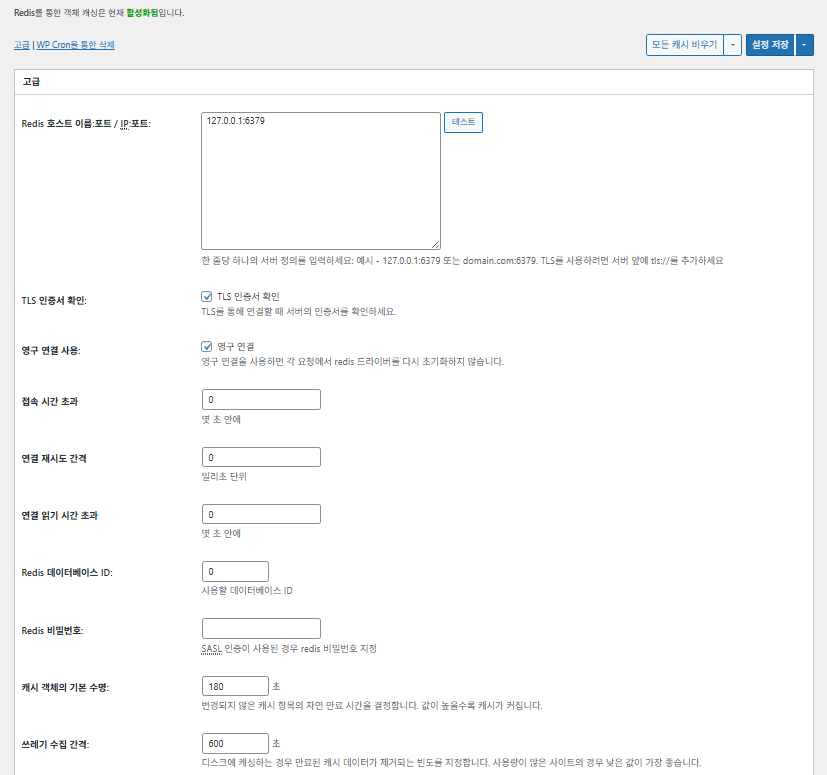
Cache đối tượng (Object) W3TC_cài đặt nâng cao 1

Hạng mục

Mô tả

Host/IP Redis

Định dạng [127.0.0.1:6379]. Với TLS, dùng tiền tố [tls://]

Xác minh chứng chỉ TLS

Kiểm tra tính hợp lệ của chứng chỉ khi dùng TLS (tùy chọn)

Dùng kết nối liên tục

Tái sử dụng kết nối Redis để cải thiện hiệu năng

Hết thời gian kết nối

Thời gian tối đa cho phép khi kết nối Redis (giây)

Khoảng thời gian thử kết nối lại

Thời gian chờ trước khi thử lại sau khi thất bại (ms)

Hết thời gian đọc kết nối

Thời gian tối đa chờ phản hồi (giây)

Redis DB ID

Chỉ định số DB trong Redis (mặc định [0])

Mật khẩu Redis

Mật khẩu hoặc thông tin xác thực SASL

Thời gian sống cache mặc định

Thời gian giữ mặc định của mục cache (giây). Mặc định 180 giây

Khoảng thời gian thu gom rác

Chu kỳ xóa cache hết hạn. Mặc định 600 giây

Nhóm toàn cục

Các nhóm được chia sẻ ở chế độ mạng (cho multisite)

Nhóm không lưu lâu dài

Các nhóm loại khỏi caching. Ví dụ: [counts], [plugins]

Cache yêu cầu wp-admin

Áp dụng cache cả cho khu vực quản trị (⚠️ cần thử nghiệm)

Lưu transient vào DB

Vẫn giữ giá trị tạm trong DB ngay cả khi đang dùng cache bên ngoài

Bật WP-CLI

Cho phép bật cache cả với lệnh WP-CLI

6️⃣ Cache trình duyệt

Cache trình duyệt lưu các tệp tĩnh như hình ảnh, CSS, JS trên thiết bị của khách truy cập đó, giúp giảm đáng kể thời gian tải khi truy cập lại. Nhờ đó, tốc độ phản hồi trang và trải nghiệm người dùng được cải thiện.

Phần lớn các cài đặt này tập trung vào kiểm soát cache và giảm tải máy chủ. Với trang có lưu lượng cao hoặc cần tối ưu tài nguyên tĩnh, bật nhiều mục cũng không sao.

Hạng mụcTổng quanCSS và JSHTML và XMLPhương tiện và tệp khác
Đặt header [Last-Modified]Đưa ngày sửa đổi cuối của tệp vào để cho phép phản hồi 304✅ Thường nên bật✅ Phù hợp với hầu hết máy chủ✅ Có hiệu lực với hầu hết cache CDN/trình duyệt
Đặt header [Expires]Khiến trình duyệt cache tệp trong một khoảng thời gian✅ Mặc định 31536000 giây (1 năm), khuyến nghị✅ Mặc định [3600 giây (1 giờ)] ✅ Mặc định [31536000 giây] (1 năm) → phù hợp với tệp tĩnh
⏱️ Đặt thời gian hết hạn Expires—⏱️ Ví dụ: [31536000 giây = 1 năm] · có thể rút ngắn khi dùng cùng CDN——
Đặt header [Cache-Control]Kiểm soát chiến lược caching bằng cách thêm header pragma, cache-control✅ Khuyến nghị [“public, max-age=31536000”]✅ Đặt chẳng hạn thành [“public, max-age=3600”]✅ Khuyến nghị [“public, max-age=31536000”]
✅ Chính sách kiểm soát cache—✅ Dùng cách có [max-age] · [“public, max-age=EXPIRES_SECONDS”] được dùng làm mặc định——
Đặt [ETag]Cung cấp entity tag để nhận diện tệp – dùng phát hiện thay đổi✅ Hiệu quả khi dùng trong cùng một máy chủ✅ Nếu không chia sẻ cache giữa các máy chủ,
nên dùng
✅ Hữu ích khi vận hành một máy chủ duy nhất
Đặt header W3TCChèn header để nhận biết tệp có được W3TC tối ưu hay không🔖 Không bắt buộc, dùng để phân tích🔖 Không bắt buộc (để gỡ lỗi)🔖 Tùy chọn
Nén gzipPhương thức nén để giảm dung lượng tệp văn bản (tương thích rộng)✅ Hầu hết máy chủ hỗ trợ✅ Được hầu hết máy chủ hỗ trợ✅ Không ảnh hưởng đến hình ảnh
Nén brotliTỷ lệ nén cao hơn gzip (chỉ trình duyệt hỗ trợ)✅ Cần cấu hình Apache/Nginx✅ Bật mô-đun Apache/nginx✅ Chỉ áp dụng cho trình duyệt hỗ trợ
Ngăn cache đối tượng khi thay đổi cài đặtThêm chuỗi truy vấn để vô hiệu hóa cache cũ✅ Khuyến nghị khi thường xuyên thay đổi cài đặt—✅ Thay đổi tệp được áp dụng ngay
Xóa chuỗi truy vấnXóa [?] khỏi tài nguyên tĩnh để tăng tỷ lệ cache⚠️ Chỉ cần với một số CDN/proxy—✅ Có thể áp dụng cho tệp có quản lý phiên bản
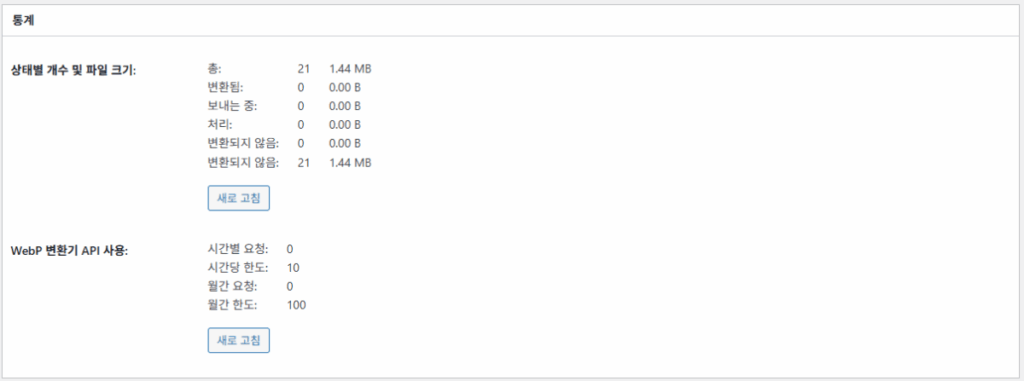
Xóa cookieXóa header [Set-Cookie] khỏi phản hồi của tài nguyên tĩnh✅ Đánh dấu trong hầu hết trường hợp—✅ Hình ảnh và tương tự không cần cookie
WordPress không xử lý phản hồi 404404 của tệp tĩnh do máy chủ web xử lý → giảm tải cho WP———
Danh sách URI ngoại lệ 404Chỉ định các mẫu URI để WP tự xử lý (ví dụ: sitemap, robots.txt…)———
Viết lại cấu trúc URL đối tượngTạo URI duy nhất để bỏ qua cache (dạng [ver=xxxx]…)———

Ⅲ. Tính năng bổ sung của W3 Total Cache

  • ↳ WP Cron, CDN, reverse proxy, trải nghiệm người dùng, thống kê, trình chuyển đổi WebP, Google PageSpeed, cài đặt nhập/xuất

Việc xóa cache bằng WP Cron là cài đặt toàn cục.

🧭 Trình mô phỏng tính năng bổ sung W3 Total Cache
Trình mô phỏng đường dẫn
📍Performance›General Settings›Purge via WP Cron
WP Cron
Xóa cache bằng WP Cron là cài đặt toàn cục, nơi bạn đặt thời gian bắt đầu và khoảng thời gian.
📍Performance›General Settings›CDN›Advanced Settings
CDN
Sau khi đăng ký nhà cung cấp CDN, đánh dấu [Enable] ở [CDN], chọn [CDN Type] rồi lưu; các mục chi tiết được cài đặt trong [Advanced Settings].
📍Performance›General Settings›Reverse Proxy
Reverse proxy
Chỉ đánh dấu [Enable reverse proxy caching via varnish] khi dùng Varnish. Nhập địa chỉ IP của máy chủ Varnish vào [Varnish servers].
📍Performance›General Settings›User Experience›Advanced Settings
Trải nghiệm người dùng
Đánh dấu [Lazy Load Images] rồi lưu, sau đó cài đặt các mục tải trì hoãn trong [Advanced Settings]. Hơn 50% tính năng trong cài đặt nâng cao chỉ có ở bản premium.
📍Performance›General Settings›Image Converter
Trình chuyển đổi WebP
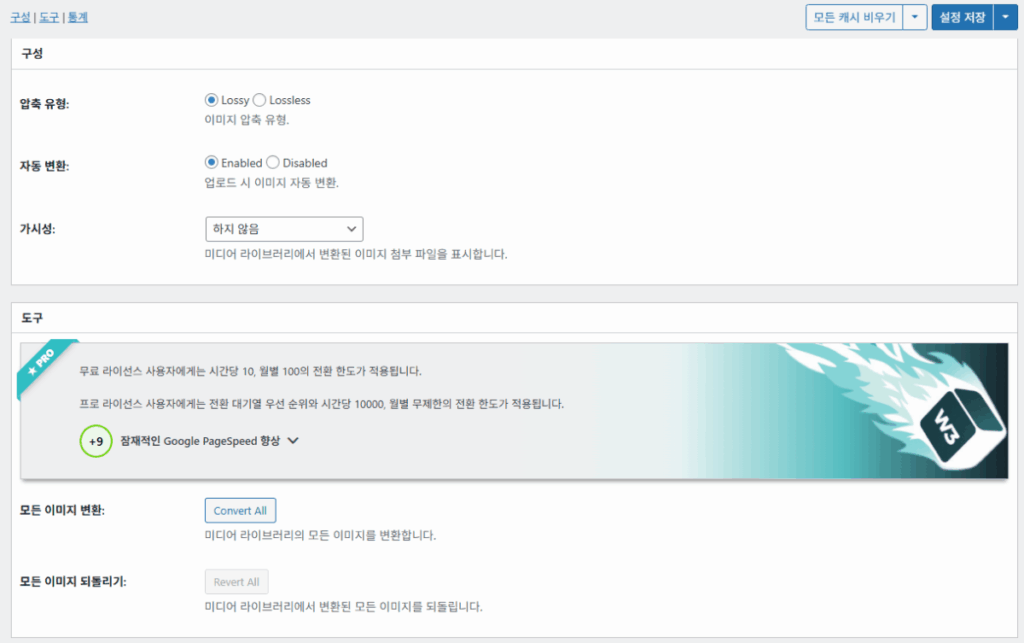
Khi đánh dấu [Enable Image Converter Extension] ở [Image Converter], bạn có thể chuyển hình ảnh trong Thư viện Media sang định dạng WebP hoặc AVIF.
example.com/wp-admin/admin.php?page=w3tc_general
DashboardSettingsToolsInfoSupportUpgrade
|||||||||||||||||
Empty All Caches
Purge via WP Cron
Enabling this will schedule a WP-Cron event that will flush all enabled Caches via a single cron job. Each cache’s advanced settings page features similar settings to this if you wish to schedule purges for specific caches only. If you prefer to use a system cron job instead of WP-Cron, you can schedule the following command to run at your desired interval: “wp w3tc flush all”. If the Always Cached extension is active and enabled, page cache entries will instead be added to the queue instead of being purged from the cache. Visit here for more information.
Enable WP-Cron Event
Enable
Start Time
This setting controls the initial start time of the cron job. If the selected time has already passed, it will schedule the job for the following day at the selected time.
Interval
This setting controls the interval that the cron job should occur.
CDN
Content Delivery Network (CDN) is a powerful feature that can significantly enhance the performance of your WordPress website. By leveraging a distributed network of servers located worldwide, a CDN helps deliver your website’s static files, such as images, CSS, and JavaScript, to visitors more efficiently. This reduces the latency and improves the loading speed of your website, resulting in a faster and smoother browsing experience for your users. With W3 Total Cache’s CDN integration, you can easily configure and connect your website to a CDN service of your choice, unleashing the full potential of your WordPress site’s speed optimization.
Basic SettingsPremium ServicesHelp
CDN:
Theme files, media library attachments, CSS, and JS files will load quickly for site visitors.
CDN Type:
Select the CDN type you wish to use.
Host the entire website with your compatible CDN provider to reduce page load time.
FSD CDN:
Enable★ PRO
Deliver visitors the lowest possible response and load times for all site content including HTML, media (e.g. images or fonts), CSS, and JavaScript. Show More ⌄ Learn more about Pro
Reverse Proxy
A reverse proxy is a server that sits between a client and a web server, acting as an intermediary for requests. It retrieves resources on behalf of the client from the server, and then returns the response to the client. By utilizing a reverse proxy, such as Varnish or Nginx, in conjunction with W3 Total Cache, you can significantly enhance the performance of your WordPress website by caching and serving static content directly from the reverse proxy server, reducing the load on your WordPress server and improving response times for visitors.
Enable reverse proxy caching via varnish
Varnish servers:
Specify the IP addresses of your varnish instances above. The VCL’s ACL must allow this request.
Trusted reverse proxies:
IP addresses or CIDR ranges of reverse proxies and load balancers in front of this site (one per line). Forwarded scheme and client-IP headers are used only for these addresses. Leave empty when PHP receives client connections directly. Developers may also supply this list via the w3tc_trusted_proxies filter.
User Experience
User Experience (UX) is a setting that focuses on enhancing the overall browsing experience for visitors of your website. By enabling this feature, you can optimize your website’s performance by minimizing load times, reducing server requests, and delivering content more efficiently. This ultimately leads to faster page loading, improved user satisfaction, and increased engagement, resulting in a speedier and more enjoyable WordPress website.
Basic Settings
Defer loading offscreen images.
Lazy Load Google Maps★ PRO
In addition to lazy loading images, with W3 Total Cache Pro you can lazy load Google Maps! More information and settings can be found on the User Experience page.
Disable Emoji
Remove emojis support from your website.
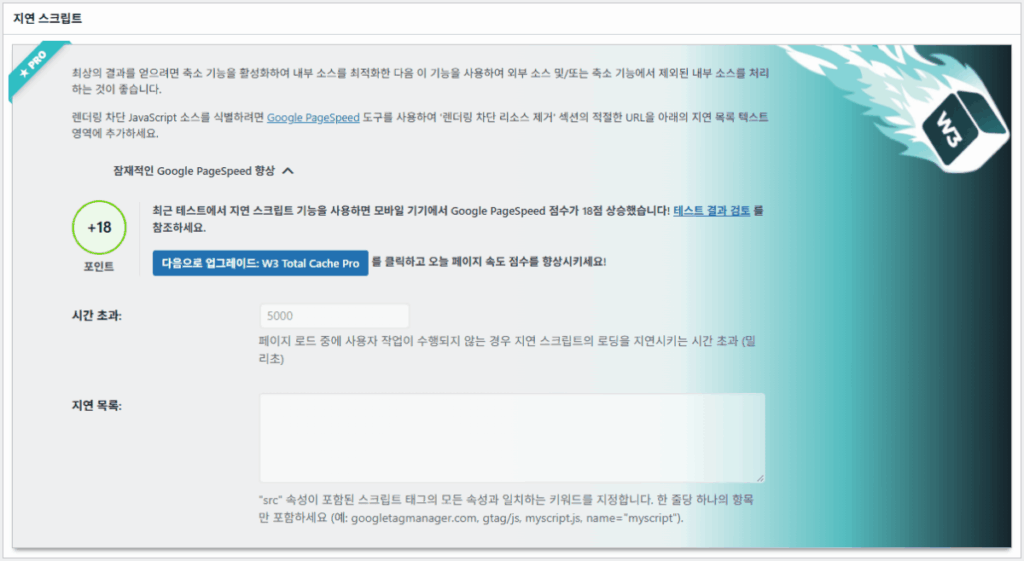
Delay Scripts★ PRO
Delay the loading of specified internal/external JavaScript sources on your pages separate from Minify.
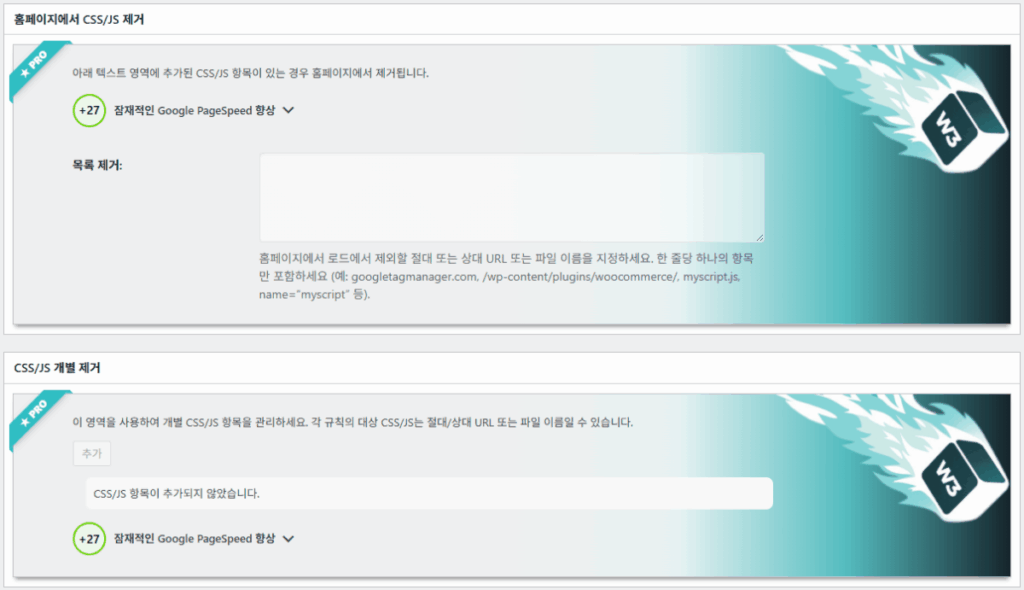
Remove Unwanted/Unused CSS/JS★ PRO
Removes specified CSS/JS tags from the homepage or on a per page basis.
Preload Requests★ PRO
DNS prefetching, pre-connecting, and preloading are essential web optimization techniques that enhance website performance by proactively resolving network-related tasks. Learn more about Pro
Disable wp-embed script
Remove wp-embed.js script from your website. oEmbed functionality still works but you will not be able to embed other WordPress posts on your pages.
Disable jquery-migrate on the front-end
Remove jquery-migrate support from your website front-end.
Image Converter
The Image Converter tool can be used to generate modern-format versions (e.g., WebP or AVIF) of media library images which offer superior lossless and lossy compression.
Enable Image Converter Extension
This extension allows for optimizing media library images to modern formats like WebP or AVIF.
As a free user you are limited to conversions of 10/hour and 100/month. The Pro license increases these rates to 10,000/hour and unlimited/month. Conversion rates are subject to change and documentation can be found here. Learn more about Pro
example.com/wp-admin/admin.php?page=w3tc_cdn
DashboardSettingsToolsInfoSupportUpgrade
||
Empty All Caches
General
Host attachments
Upload attachments
If checked, all attachments will be hosted with the CDN.
Host wp-includes/ files
Upload includes files
If checked, WordPress static core file types specified in the “wp-includes file types to upload” field below will be hosted with the CDN.
Host theme files
Upload theme files
If checked, all theme file types specified in the “theme file types to upload” field below will be hosted with the CDN.
Host minified CSS and JS files
Upload minify files
If checked, minified CSS and JS files will be hosted with the CDN.
Host custom files
Upload custom files
If checked, any file names or paths specified in the “custom file list” field below will be hosted with the CDN.
Force over-writing of existing files
If modified files are not always detected and replaced, use this option to over-write them.
Advanced
Only purge CDN manually
Purge CDN only if explicit purge button is clicked.
Disable CDN on SSL pages
When SSL pages are returned no CDN URLs will appear in HTML pages.
Use CDN links for the Media Library on admin pages
All Media Library content will use CDN links on administration pages.
Add CORS header
Add CORS headers to allow cross-domain assets usage.
Disable CDN for the following roles
Select user roles that will use the origin server exclusively:
Administrator
Editor
Author
Contributor
Subscriber
Disable CDN on the following pages:
Always ignore the specified pages / directories. Supports regular expression.
Automatically upload minify files
If CDN is enabled (and not using the origin pull method), your minified files will be automatically uploaded.
Export changed files automatically
Automatically attempt to find and upload changed files.
Auto upload interval:
3600seconds
Specify the interval between upload of changed files.
Re-transfer cycle interval:
900seconds
The number of seconds to wait before upload attempt.
Re-transfer cycle limit:
25
Number of files processed per upload attempt.
wp-includes file types to upload:
*.css;*.js;*.gif;*.png;*.jpg;*.xml
Specify the file types within the WordPress core to host with the CDN.
Theme file types to upload:
*.css;*.js;*.gif;*.png;*.jpg;*.ico;*.ttf;*.otf;*.woff;*.woff2;*.less
Specify the file types in the active theme to host with the CDN.
File types to import:
 
Automatically import files hosted with 3rd parties of these types (if used in your posts / pages) to your media library. Only common static types (images, CSS, JS, fonts, and media) are imported. Script, markup, and SVG types are ignored even if listed. Empty, *, and *.* use that static allowlist rather than every file.
Custom file list:
favicon.ico
{wp_content_dir}/gallery/*
{wp_content_dir}/uploads/avatars/*
{plugins_dir}/wordpress-seo/css/xml-sitemap.xsl
{plugins_dir}/wp-minify/min*
{plugins_dir}/*.js
{plugins_dir}/*.css
{plugins_dir}/*.gif
{plugins_dir}/*.jpg
{plugins_dir}/*.png
Specify any files outside of theme or other common directories to host with the CDN.
Rejected user agents:
Specify user agents that should not access files hosted with the CDN.
Rejected files:
{uploads_dir}/wpcf7_captcha/*
{uploads_dir}/imagerotator.swf
{plugins_dir}/wp-fb-autoconnect/facebook-platform/channel.html
Specify the path of files that should not use the CDN.
Set cookie domain to “example.com”
If using subdomain for CDN functionality, this setting helps prevent new users from sending cookies in requests to the CDN subdomain.
Note(s):
  • You can use placeholders {wp_content_dir}, {plugins_dir}, {uploads_dir} instead of writing folder paths (wp-content, wp-content/plugins, wp-content/uploads).
  • If using Amazon Web Services or Self-Hosted CDN types, enable HTTP compression in the “Media & Other Files” section on Browser Cache Settings tab.
example.com/wp-admin/admin.php?page=w3tc_userexperience
DashboardSettingsToolsInfoSupportUpgrade
Empty All Caches
Lazy loading is currently disabled.
Lazy Loading
Process HTML image tags
Process img tags
Process background images
Process background styles
Exclude words:
avia-bg-style-fixed
data-bgposition=
data-envira-src=
data-large_image=
data-lazy-original=
data-lazy-src=
data-lazyload=
data-lazysrc=
data-no-lazy=
data-src=
data-srcset=
fullurl=
lazy-slider-img=
loading=”eager”
no-lazy
rev-slidebg
skip-lazy
soliloquy-image
swatch-img
w3-total-cache
woocommerce/assets/images/placeholder.png
wpcf7_captcha
Exclude tags containing words
Threshold
 
The outer distance off the scrolling area from which to start loading the elements (example: 100px, 10%).
Script Embed method:
Use inline method only when your website has just a few pages
Google Maps
Lazy load google map
WP Google Map Plugin plugin
Google Maps Easy plugin
WP Google Maps plugin
Bấm vào mục đang sáng ở menu trái hoặc nút trên màn hình.

1️⃣ CDN

Có thể cài đặt tính năng này sau khi đăng ký nhà cung cấp CDN.

Tùy chọn

Mô tả

✅ Lưu trữ tệp đính kèm

Tải các tệp đính kèm như hình ảnh trong [wp-content/uploads] lên CDN

✅ Lưu trữ tệp wp-includes

Đưa các tệp tĩnh của lõi WordPress (js/css…) lên CDN

✅ Lưu trữ tệp giao diện

Đưa các tệp tĩnh của giao diện đang dùng (css/js/images…) lên CDN

✅ Lưu trữ tệp CSS/JS đã minify

Phục vụ các tệp CSS/JS do W3TC minify từ CDN

✅ Lưu trữ tệp tùy chỉnh

Đẩy đường dẫn hoặc tên tệp do người dùng tự chỉ định lên CDN

⚠️ Buộc ghi đè tệp hiện có

Dùng để buộc tải lại khi thay đổi không được phát hiện tự động

Hạng mục

Mô tả

Chỉ xóa CDN thủ công

Chỉ xóa tệp khỏi CDN khi nhấp nút xóa thủ công

Tắt CDN trên trang SSL

Không dùng URL CDN trên trang HTTPS

Dùng liên kết CDN trong trang quản trị

Hiển thị URL CDN cho media cả trong màn hình quản trị

Add CORS header

Thêm header phản hồi để cho phép CORS

Tắt CDN theo vai trò

Không áp dụng CDN cho các vai trò người dùng đã chọn (ví dụ: chỉ quản trị viên dùng bản gốc)

Danh sách trang loại trừ

Loại các đường dẫn đã chỉ định khỏi CDN (dùng được regex)

Tự động tải lên tệp đã minify

Tự động tải tệp đã minify lên CDN (kiểu Push)

Tự động xuất tệp đã thay đổi

Tự động tải lên khi phát hiện tệp thay đổi

Khoảng thời gian tự động tải lên

Khoảng thời gian tải lên sau khi phát hiện thay đổi (mặc định 3600 giây)

Khoảng thời gian / giới hạn gửi lại

Khoảng thời gian thử lại khi thất bại và giới hạn số tệp xử lý

Tệp wp-includes cần tải lên

Chỉ định định dạng tệp lõi đưa lên CDN

Định dạng tệp giao diện cần tải lên

Chỉ định định dạng tệp liên quan đến giao diện như CSS/JS/phông chữ

Định dạng tệp cần nhập

Chỉ định điều kiện tự động tải về các tệp được liên kết từ bên ngoài

Danh sách tệp tùy chỉnh

Chỉ định đường dẫn từng tệp gửi lên CDN (template, plugin bên ngoài…)

User agent bị từ chối

Chỉ định bot/user agent bị chặn truy cập tệp CDN

Đường dẫn tệp bị từ chối

Chỉ định đường dẫn tệp không dùng CDN như CAPTCHA, đường dẫn đặc biệt…

Đặt tên miền cookie

Chỉ định tên miền để tránh gửi cookie khi dùng CDN tên miền phụ

2️⃣ Reverse proxy

Phần mô tả lấy Varnish và Nginx làm ví dụ, nhưng vì Nginx được cấu hình trên máy chủ nên chỉ áp dụng trong plugin W3 Total Cache khi dùng Varnish.

3️⃣ Trải nghiệm người dùng: tải trì hoãn

Hơn 50% tính năng trong cài đặt nâng cao chỉ có ở bản premium.

Hạng mục

Mô tả

Khi nào nên dùng

✅ Xử lý thẻ hình ảnh HTML

[<img>]: thẻ được gắn thuộc tính lazy

Khi tải trì hoãn hình ảnh nội dung thông thường

✅ Xử lý ảnh nền

Áp dụng lazy cho [background-image] trong CSS

Khi là trang thiết kế có nhiều ảnh nền

Loại trừ từVí dụ
Thuộc tính loại trừ lazy[data-src], [data-lazy-src], [data-no-lazy], [loading=”eager”]…
Class loại trừ lazy[no-lazy], [skip-lazy], [lazy-slider-img], [rev-slidebg]…
Liên quan đến plugin/slider[soliloquy-image], [envira], [w3-total-cache], [wpcf7_captcha]…
Liên quan đến WooCommerce[swatch-img], [woocommerce/…/placeholder.png]…

“Ngưỡng” của tải trì hoãn là giá trị quy định hình ảnh hoặc phần tử nền nằm dưới khung nhìn (màn hình) của trình duyệt sẽ được tải trước từ khoảng cách bao xa. Ví dụ, nếu đặt 100px, phần tử sẽ được tải khi người dùng cuộn đến trong phạm vi 100 pixel; nếu đặt quá ngắn, hình ảnh tải chậm và người dùng có thể thấy như màn hình trống, nên thường 100~300px là phù hợp.

Sau đây là các cách nhúng script.

Cách nhúng

Mô tả

Vị trí hoặc thuộc tính

Bất đồng bộ (Async)

Chạy song song với quá trình tải trang và không chặn kết xuất

[<script async>]

Đồng bộ (trong head)

Chạy trước trong vùng [<head>] và có thể tạm thời chặn kết xuất (in the head)

[<head>] hoặc [<script>]

Nội tuyến (Inline)

Chèn script trực tiếp vào tài liệu HTML để chạy mà không cần yêu cầu riêng

Chèn bên trong [<script>mã</script>]

Cài đặt nâng cao trải nghiệm người dùng W3TC 2
Cài đặt nâng cao trải nghiệm người dùng W3TC 3

4️⃣ Trình chuyển đổi WebP

Trình chuyển đổi WebP W3TC_chi tiết (cài đặt nâng cao) 1
Trình chuyển đổi WebP W3TC_chi tiết (cài đặt nâng cao) 2

Ⅳ. Đánh giá tổng quan W3 Total Cache

Giao diện (UI) của W3 Total Cache không tệ nhưng rõ ràng là bất tiện. Nhiều nhà phát triển và người dùng chuyên nghiệp cũng chỉ ra điều này. So với các plugin mới như WP Rocket hay FlyingPress, hiệu năng trang hoàn toàn theo kịp, nhưng về trải nghiệm người dùng (UX) thì vẫn còn thiếu sót.

Nhiều tính năng là ưu điểm, nhưng với người mới, cấu trúc có thể quá phức tạp. Đặc biệt, do phải chuyển qua lại giữa các menu và có nhiều tùy chọn chi tiết, ngay cả nhà phát triển và quản trị viên trang có kinh nghiệm cũng có thể cài đặt sai. Dĩ nhiên không thể nhớ hết mọi cài đặt, nhưng khi sử dụng, đây là plugin caching nâng cao cho phép tinh chỉnh chi tiết.

Với hơn 1 triệu lượt cài đặt bản miễn phí, khó có thể coi nó chỉ là một plugin cũ — trên thực tế, hầu như không có plugin cache nào theo kịp sự đa dạng và phong phú về tính năng của nó.

Hạng mụcĐiểm (⭐)Nội dung đánh giá
🎛️ Giao diện⭐⭐⭐Nhiều menu, cấu trúc phức tạp. Rào cản với người dùng mới. UI có cảm giác cũ
⚙️ Đa dạng tính năng⭐⭐⭐⭐⭐Cache, CDN, Redis và gần như mọi tính năng. Khó tìm ra tính năng còn thiếu
🛠️ Linh hoạt trong cài đặt chi tiết⭐⭐⭐⭐Gần như mọi tính năng đều tinh chỉnh được. Cần chú ý xung đột giữa các cài đặt
🚀 Hiệu quả cải thiện hiệu năng⭐⭐⭐⭐⭐Hiệu năng rất tốt khi cài đặt tối ưu. Cache đối tượng/cache trình duyệt hiệu quả lớn
🧩 Khả năng tương thích⭐⭐⭐Có thể xung đột với một số hosting, giao diện và plugin.
📄 Tài liệu·hướng dẫn⭐⭐⭐⭐⭐Tài liệu chính thức phong phú
💡 Mức độ khuyên dùng⭐⭐⭐⭐(4.5)Khuyên dùng cho người dùng nâng cao. Người mới nên dùng WP Rocket, Cache Enabler…
📊 Điểm tổng hợp⭐⭐⭐⭐(4.5)Plugin hiệu năng cao thiên về tính năng. Cần thời gian làm quen. Nên cân nhắc trình độ người dùng

Ⅴ. Kiểm tra hiệu năng

Sau khi cài đặt plugin, bài kiểm tra tốc độ cuối cùng cho thấy tốc độ cải thiện rõ rệt hơn so với các plugin cache thông thường.

ℹ️ Thông báo tiếp thị liên kết
Nội dung trên trang này có chứa liên kết affiliate (tiếp thị liên kết). Khi khách truy cập mua sản phẩm hoặc dịch vụ qua các liên kết này, trang sẽ nhận hoa hồng từ bên bán. Trong quá trình đó, số tiền người mua phải trả (sẽ giảm khi có chương trình khuyến mãi ↓) không hề tăng lên. Giá, khuyến mãi và tình trạng hàng được đăng theo thời điểm viết bài và có thể khác với thực tế, vì vậy hãy kiểm tra lại lần cuối với bên bán trước khi mua. Việc chọn và đánh giá sản phẩm dựa trên tiêu chí riêng của trang; việc có nhận hoa hồng hay không không ảnh hưởng đến thứ tự giới thiệu hay nội dung đánh giá.

Để lại một bình luận

Email của bạn sẽ không được hiển thị công khai. Các trường bắt buộc được đánh dấu *

Prove your humanity: 1   +   1   =