Plugin W3 Total Cache: come configurarlo per l'ottimizzazione

Informativa sull'affiliazione v3.1
Informativa sull'affiliazione v3.2 (solo mobile)
Ambiente di test CloudwaysDebian 12Apache 2.4.69 + nginxPHP 8.2.34WordPress 7.1.3W3 Total Cache 2.10.7Verificato il 2026-10-18

Un sito WordPress rallenta inevitabilmente man mano che installi plugin. Per questo un plugin di cache è diventato uno dei plugin indispensabili di WordPress. Con oltre 1 milione di installazioni attive della versione gratuita e una valutazione di 4,4 stelle, il plugin W3 Total Cache (W3TC) è uno dei più usati.

Poiché le impostazioni di cache possono rompere alcune funzioni di altri plugin, se sei agli inizi con WordPress puoi usare un plugin semplice da configurare, come Cache Enabler o WP Super cache.

Se ti servono impostazioni e controllo dettagliati della cache, puoi usare il plugin W3 Total Cache, che offre funzioni potenti anche nella versione gratuita.

Ⅰ. Installazione di W3 Total Cache e guida di configurazione

  • ↳ Motori di ricerca (SEO: Search Engine Optimization)
  • ↳ Ottimizzazione delle prestazioni (WPO: Web Performance Optimization)
  • ↳ Caching integrato: supporta CDN e cache di pagina, minify, oggetti, frammenti e database.

Cerca W3 Total Cache, poi installa e attiva il plugin.

🧭 Simulatore di installazione e guida di configurazione di W3 Total Cache
Plugin di cachingSimulatore di percorso
📍Plugins›Add Plugin
Installare il plugin
Scrivi W3 Total Cache nella casella di ricerca e clicca [Install Now]; a installazione finita, clicca [Activate].
📍Performance›Setup Guide
Guida di configurazione
Dopo la prima installazione, andando su [Dashboard] vieni portato automaticamente alla [Setup Guide], perché non è ancora configurato nulla.
📍Performance›Dashboard
Bacheca
Ciò che imposti nella guida compare per funzione nel riquadro [General Settings], e le impostazioni dettagliate come la cache di pagina si fanno in [General Settings].
example.com/wp-admin/plugin-install.php
Add Plugins Upload Plugin
Plugins extend and expand the functionality of WordPress. You may install plugins from the WordPress Plugin Directory right on this page, or upload a plugin in .zip format by clicking the button above.
Search ResultsFeaturedPopularRecommendedFavorites
Search PluginsKeyword
922 items
W3 Total Cache
Installing...ActiveMore Details
Search Engine (SEO) & Performance Optimization (WPO) via caching. Integrated caching: CDN, Page, Minify, Object, Fragment, Database support.
By BoldGrid
★★★★★ (5,421)
Last Updated: 2 weeks ago
900,000+ Active Installations
✓ Compatible with your version of WordPress
example.com/wp-admin/admin.php?page=w3tc_setup_guide
DashboardSettingsToolsInfoSupportUpgrade
W3 Total CacheSetup Guide
TOTAL CACHE: Setup Guide
  • Welcome
  • Page Cache
  • Database Cache
  • Object Cache
  • Image Converter
  • Lazy Load
  • More Caching Options
Welcome to the W3 Total Cache Setup Guide!
By allowing us to collect data about how W3 Total Cache is used, we can improve our features and experience for everyone. This data will not include any personally identifiable information. Feel free to review our terms of use and privacy policy.
AcceptDecline
SKIPNEXT
example.com/wp-admin/admin.php?page=w3tc_dashboard
DashboardSettingsToolsInfoSupportUpgrade
W3 Total CacheDashboard
Flush caches with Empty All Caches
Account
License: Free
Status: Free license, no expiration
Upgrade to W3 Total Cache Pro now to unlock additional settings and features that can further improve your site’s performance and Google PageSpeed ratings.
Learn more about Pro
General Settings
Preview Modedisabled
Page Cachedisabled
Minifydisabled
Opcode Cacheenabled
Database Cachedisabled
Object Cachedisabled
Browser Cachedisabled
CDNdisabled
Reverse Proxydisabled
Statisticsdisabled
Fragment Cachedisabled
Debugdisabled
Settings can be modified by visiting General Settings
Image Optimization Summary
Enable Image Converter
PageSpeed Report
Before you can get started using the Google PageSpeed tool, you’ll first need to authorize access. Please click here.
Fai clic su una voce evidenziata nel menu a sinistra o su un pulsante dello schermo.

Dopo la prima installazione, andando alla pagina [Dashboard] vieni portato automaticamente alla [Setup Guide], perché non è ancora configurato nulla.

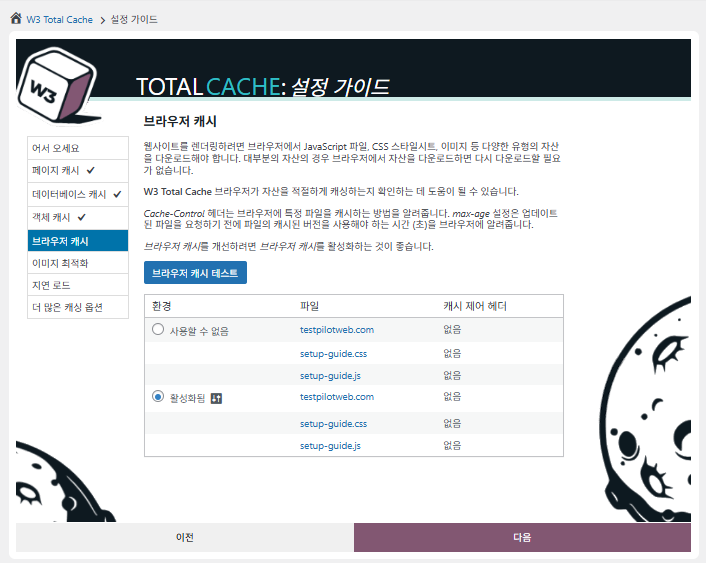
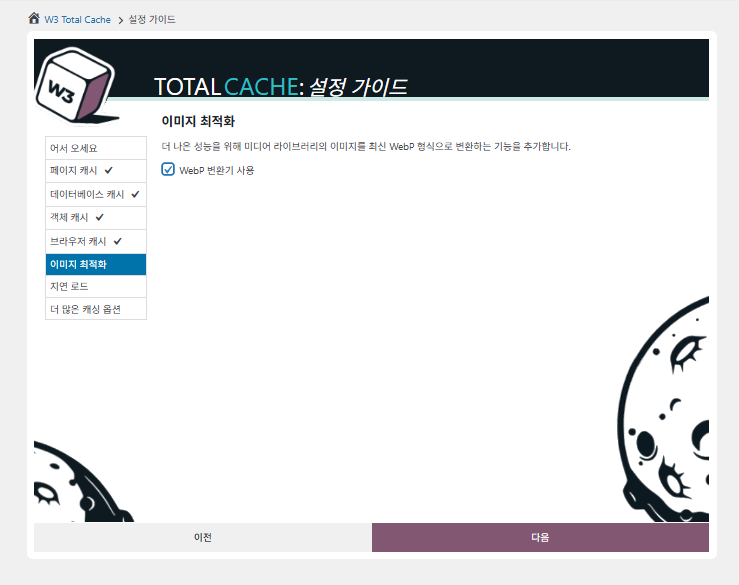
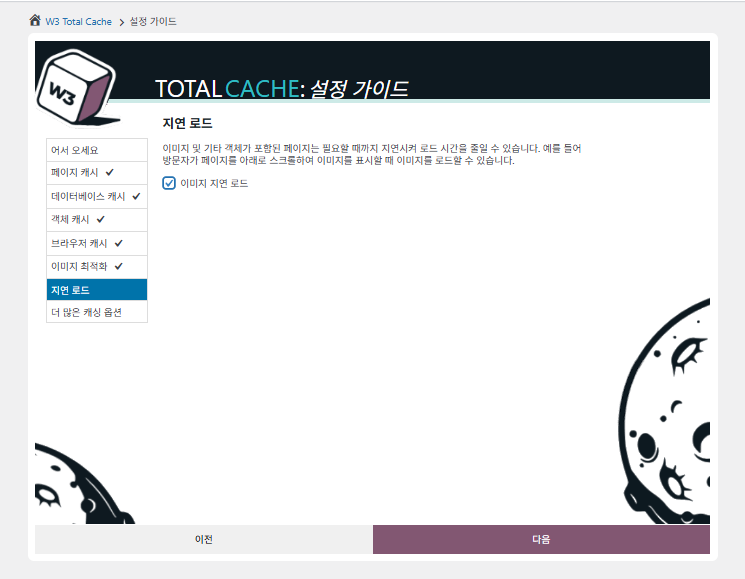
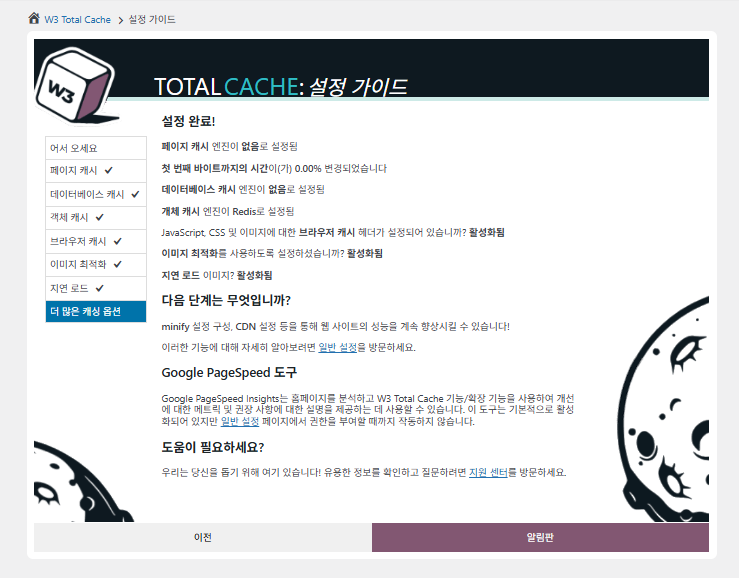
Nella guida di configurazione imposti ① cache di pagina, ② cache del database, ③ cache degli oggetti, ④ cache del browser, ⑤ ottimizzazione delle immagini, ⑥ lazy load e ⑦ altre opzioni di cache.
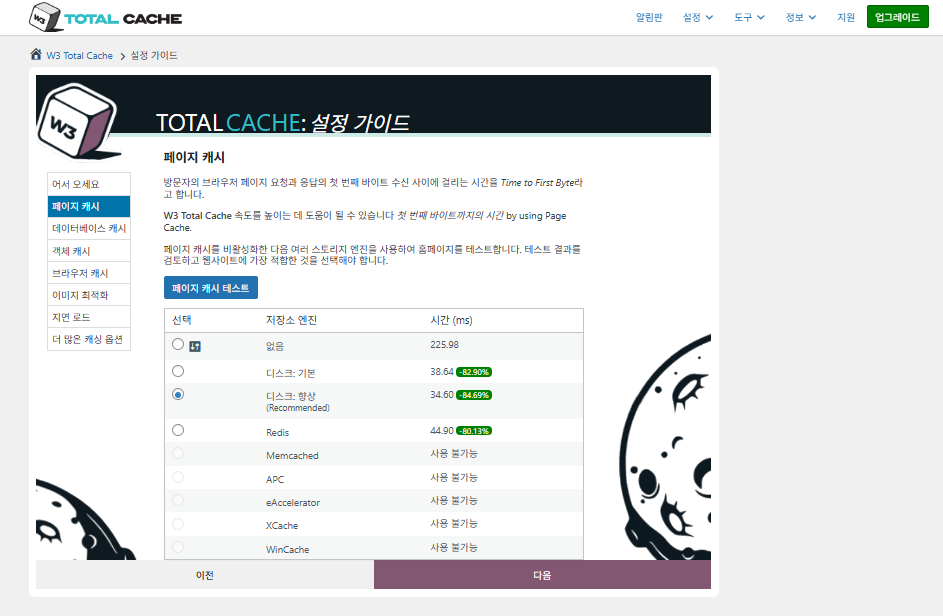
W3 Total Cache Setup Guide ① Cache di pagina_cache su disco (Enhanced selezionato)

Per la cache di pagina, la raccomandazione predefinita di W3TC è Disk: [Migliorato]. Come mostra la tabella, Disk: Enhanced è circa 10,3 ms più veloce di Disk: Basic, cioè circa il 17,8% di prestazioni migliori in termini di TTFB.
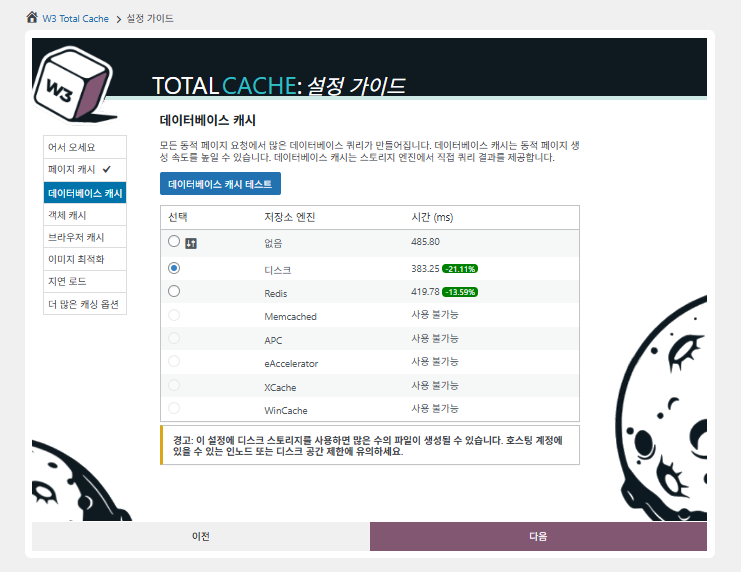
W3 Total Cache Setup Guide ② Cache del database_cache su disco selezionata

Per la cache del database, seleziona la cache su disco.
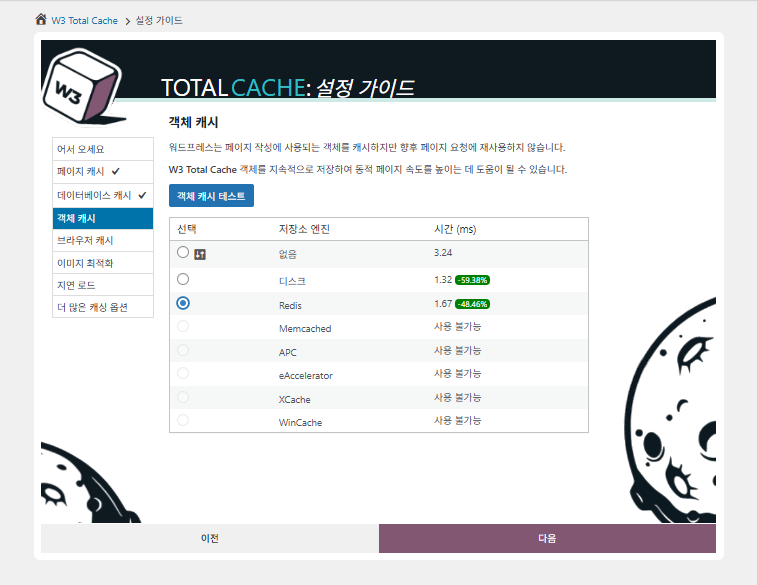
W3 Total Cache Setup Guide ③ Cache degli oggetti_Redis selezionato
W3 Total Cache Setup Guide ④ Cache del browser
W3 Total Cache Setup Guide ⑤ Ottimizzazione delle immagini - convertitore WebP
W3 Total Cache Setup Guide ⑥ Lazy load - caricamento differito delle immagini
W3 Total Cache Setup Guide ⑦ Altre opzioni di cache_da impostare dopo essere andati alla dashboard

Le impostazioni fatte nella guida ora compaiono nella dashboard.

Clicca sulla scheda [Settings] in alto a destra per configurare tutto, da [General Settings] alla cache di pagina e altro.
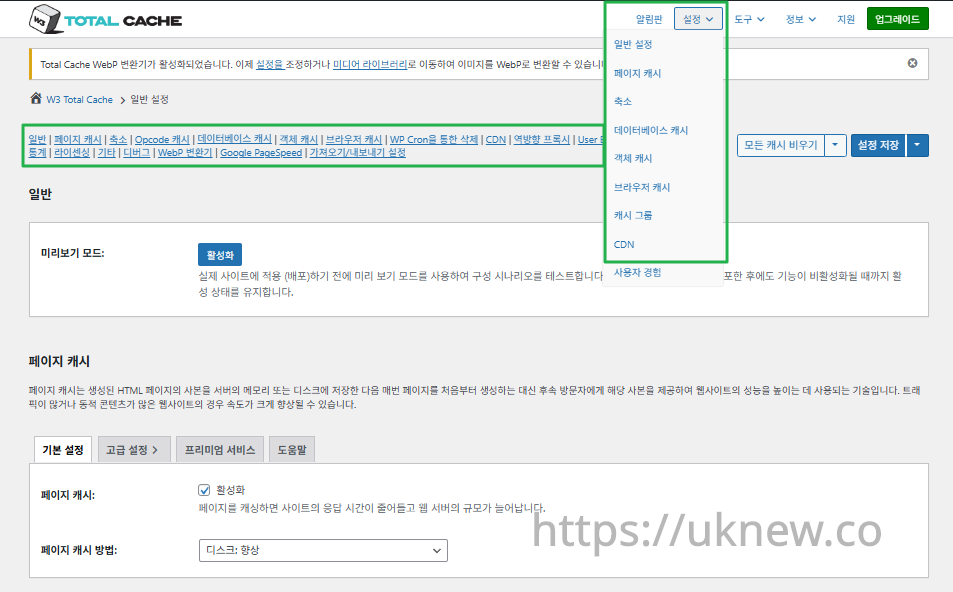
Dashboard di W3TC - Impostazioni__

ⓐ Le [impostazioni di pagina] nel menu di amministrazione a sinistra e ⓑ la scheda [Settings] in alto a destra portano ciascuna alla cache di pagina, Minify  e ad altre impostazioni avanzate. Andando a ogni pagina dal centro in alto della scheda General Settings, vedi tutto su cache di pagina e Minify, dalle impostazioni generali fino alle Impostazioni avanzate.

Ⅱ. Impostazioni di cache di W3 Total Cache

  • ↳ Funzioni di cache

Questa è la scheda General Settings nelle impostazioni di W3TC.

🧭 Simulatore delle impostazioni di cache di W3 Total Cache
Simulatore di percorso
📍Performance›General Settings›General
Modalità anteprima
Prima di distribuire le modifiche reali alla cache, puoi attivare [Preview mode] per testare in anticipo eventuali errori.
📍Performance›General Settings›Page Cache›Advanced Settings
Cache di pagina
Spunta [Enable] in [Page Cache], verifica che il metodo sia [Disk: Enhanced] e clicca [Save Settings]. Le opzioni dettagliate si impostano in [Advanced Settings].
📍Performance›General Settings›Minify›Advanced Settings
Minify
Spunta [Enable] in [Minify] e clicca [Save Settings], poi imposta in [Advanced Settings] le opzioni di minify per HTML, CSS e JS.
📍Performance›General Settings›Opcode Cache
Cache opcode
Per la cache opcode viene applicata automaticamente quella installata sul server; se non ce n'è, risulta disattivata.
📍Performance›General Settings›Database Cache›Object Cache
Cache del database e degli oggetti
Spunta [Enable] sia in [Database Cache] sia in [Object Cache] e salva. Le opzioni dettagliate si impostano nelle schermate [Database Cache] e [Object Cache].
📍Performance›General Settings›Browser Cache›Advanced Settings
Cache del browser
Spunta [Enable] in [Browser Cache] e salva, poi imposta in [Advanced Settings] le opzioni di cache per tipo di file.
example.com/wp-admin/admin.php?page=w3tc_general
DashboardSettingsToolsInfoSupportUpgrade
|||||||||||||||||
Empty All Caches
General
Preview mode:
Enable
Use preview mode to test configuration scenarios prior to releasing them (deploy) on the actual site. Preview mode remains active even after deploying settings until the feature is disabled.
Page Cache
Page cache is a technique used to speed up the performance of a website by storing a copy of the generated HTML page in the server’s memory or disk, and then serving that copy to subsequent visitors instead of generating the page from scratch each time. This can result in significant speed improvements for websites with high traffic or dynamic content.
Basic SettingsPremium ServicesHelp
Page Cache:
Caching pages will reduce the response time of your site and increase the scale of your web server.
Page Cache Method:
Minify
Minification is a technique used to reduce the file size of HTML, CSS, and JavaScript files by removing unnecessary characters such as whitespace, comments, and line breaks. This process can significantly improve the load times of web pages by reducing the amount of data that needs to be downloaded by the user’s browser.
Basic SettingsPremium ServicesHelp
Minify:
Minification can decrease file size of HTML, CSS, JS and feeds respectively by ~10% on average. Learn more
Minify mode:
Auto
Manual
Select manual mode to use fields on the Minify settings tab to specify files to be minified, otherwise files will be minified automatically. Learn more
Minify Cache Method:
Learn more
HTML minifier:
Learn more
JS minifier:
CSS minifier:
Opcode Cache
Opcode cache is a powerful feature that enhances the performance of a WordPress website by caching compiled PHP code. By storing pre-compiled code in memory, opcode cache eliminates the need for repetitive interpretation and compilation of PHP files, resulting in significantly faster execution times. Opcode cache reduces server load and improves response times, ultimately enhancing the overall speed and responsiveness of your WordPress site. If opcode cache is available on the hosting server it will automatically be selected in the dropdown and enabled.
Opcode Cache
Validate timestamps:
Enable
Once enabled, each file request will update the cache with the latest version. When this setting is off, the Opcode Cache will not check, instead PHP must be restarted in order for setting changes to be reflected.
Database Cache
Enable this setting to utilize the power of caching your WordPress site’s database queries. By storing frequently accessed database queries in memory, the database cache reduces the need for repetitive database interactions, resulting in faster page load times. This feature is particularly beneficial for websites with heavy database usage, improving overall performance and delivering a smoother user experience.
Basic SettingsPremium ServicesHelp
Database Cache:
Caching database objects decreases the response time of your site. Best used if object caching is not possible.
Database Cache Method:
Object Cache
Enable this option to utilize an object cache mechanism, which significantly enhances the performance of your WordPress website. Object caching stores frequently accessed database queries and complex data structures in memory, reducing the need to retrieve them from the database repeatedly. By doing so, it minimizes the processing time required to generate dynamic content, resulting in faster page loading times and improved overall site speed. Enabling object cache is particularly beneficial for websites with heavy database usage or high traffic volumes, as it helps alleviate the strain on the server by efficiently serving cached data.
Basic SettingsPremium ServicesHelp
Object Cache:
Object caching greatly increases performance for highly dynamic sites that use the Object Cache API.
Object Cache Method:
Browser Cache
Enabling browser caching will instruct visitors’ web browsers to store static files from your WordPress website, such as images, CSS, and JavaScript files, locally on their devices. By doing so, subsequent visits to your site will retrieve these cached files from the browser’s storage, reducing the need for repeated downloads. This results in faster page loading times and a smoother browsing experience for your visitors, ultimately improving the overall speed and performance of your WordPress website.
Basic SettingsPremium ServicesHelp
Browser Cache:
Enable HTTP compression and add headers to reduce server load and decrease file load time.
example.com/wp-admin/admin.php?page=w3tc_pgcache
DashboardSettingsToolsInfoSupportUpgrade
|||||||
Empty All Caches
Always Cached extension is currently disabled. To enable the extension click here.
General
Cache front page
For many blogs this is your most visited page, it is recommended that you cache it. Learn more
Cache feeds: site, categories, tags, comments
Even if using a feed proxy service enabling this option is still recommended. Learn more
Handle XML mime type
Return correct Content-Type header for XML files (e.g., feeds and sitemaps). Learn more
Cache SSL (HTTPS>) requests
Cache SSL requests (uniquely) for improved performance. Learn more
Cache URI with query string variables
Search result (and similar) pages will be cached if enabled. Learn more
Cache 404 (not found) pages
Reduce server load by caching 404 pages. If the disk enhanced method of disk caching is used, 404 pages will be returned with a 200 response code. Use at your own risk. Learn more
Don’t cache pages for logged in users
Unauthenticated users may view a cached version of the last authenticated user’s view of a given page. Disabling this option is not recommended. Learn more
Don’t cache pages for following user roles
Select user roles that should not receive cached pages: Learn more
Administrator
Editor
Author
Contributor
Subscriber
Aliases
Cache alias hostnames:
Enable
If the same WordPress content is accessed from different domains. Learn more
Additional home URLs:
Specify full home URLs of your mirrors so that plugin will flush it’s cache when content is changed. For example: http://my-site.comhttp://www.my-site.comhttps://my-site.com Learn more
Cache Preload
Automatically prime the page cache
Automatically primes the page cache using the settings configured below. Learn more
Update interval:
900seconds
The number of seconds to wait before creating another set of cached pages. Learn more
Pages per interval:
10
Limit the number of pages to create per batch. Fewer pages may be better for under-powered servers. Learn more
Sitemap URL:
 
A compliant sitemap can be used to specify the pages to maintain in the primed cache. Pages will be cached according to the priorities specified in the XML file. Learn more
Preload the sitemap once
Stop cache preloading after every URL in the sitemap has been processed. Disable and re-enable cache preloading to start a new pass.
Preload cache upon publishing a post
Only applies to pages, posts, and custom post types whose status transitioned from a non-published status to the “published” status. Learn more
Preload cache upon updating a post
Applies after updating any page, post, or custom post type with the final status being “published”. Learn more
Purge Policy:
Specify the pages and feeds to purge when posts are created, edited, or comments posted. The defaults are recommended because additional options may reduce server performance: Learn more
Front page
Post page
Blog feed
Post comments pages
Post author pages
Post terms pages
Post comments feed
Post author feed
Post terms feeds
Daily archive pages
Monthly archive pages
Yearly archive pages
rdf
rss
rss2 (default)
atom
Choose which feed types should be automatically purged. Learn more
Purge limit:
10
Specify number of pages that lists posts (archive etc.) that should be purged on post updates etc., i.e. example.com/ ... example.com/page/5.
0 means all pages that lists posts are purged, i.e. example.com/page/2 ... Learn more
Additional pages:
Specify additional pages to purge. Including parent page in path. Ex: parent/posts. Learn more
Purge sitemaps:
([a-z0-9_\-]*?)sitemap([a-z0-9_\-]*)?\.(?:xml|xsl)
Specify a regular expression that matches your sitemaps. Learn more
REST API
Use these controls to determine how the WordPress REST API responds to visitors and integrations. Caching API responses can dramatically reduce load when headless frontends, mobile apps, or third-party services request the same data repeatedly, but you can keep responses uncached for highly dynamic endpoints or disable the API altogether when it is not needed to reduce attack surface. Learn more
REST API
Don’t cache
Cache★ PRO
Disable REST API
If you’re using the WordPress API make sure to use caching to scale performance. Show More ▾
Advanced
Late initialization:
Enable
Enables support for WordPress functionality in fragment caching for the page caching engine. Use of this feature may increase response times. Learn more
Late caching:
Enable
Overwrites key of page caching via custom filters by postponing entry extraction during the init action. Learn more
Compatibility mode:
Enable
Decreases performance by ~20% at scale in exchange for increasing interoperability with more hosting environments and WordPress idiosyncrasies. Enable this option if you experience issues with the Apache rules. Learn more
Reject HEAD requests:
Disable caching of HEAD HTTP requests
If disabled, HEAD requests can often be cached resulting in “empty pages” being returned for subsequent requests for a URL. Learn more
Maximum lifetime of cache objects:
3600seconds
Determines the natural expiration time of cache items. The higher the value, the larger the cache.
Max lifetime is limited by the W3TC_CACHE_FILE_EXPIRE_MAX constant (2592000 seconds) which can be overridden in wp-config.php.
Garbage collection interval:
3600seconds
If caching to disk, specify how frequently expired cache data is removed. For busy sites, a lower value is best. Learn more
Comment cookie lifetime:
1800seconds
Significantly reduce the default TTL for comment cookies to reduce the number of authenticated user traffic. Enter -1 to revert to default TTL. Learn more
Accepted query strings:
ScCid
_branch_match_id
_bta_c
_bta_tid
_ga
_gl
_ke
adgroupid
adid
age-verified
ao_noptimize
campaignid
campid
click_id
cn-reloaded
customid
dicbo
dm_i
ef_id
epik
fb_action_ids
fb_action_types
fb_source
fbclid
gclid
gclsrc
gdffi
gdfms
gdftrk
hsa_acc
hsa_ad
hsa_cam
hsa_grp
hsa_kw
hsa_mt
hsa_net
hsa_src
hsa_tgt
hsa_ver
igshid
li_fat_id
matomo_campaign
matomo_cid
matomo_content
matomo_group
matomo_keyword
matomo_medium
matomo_placement
matomo_source
mc_cid
mc_eid
mkcid
mkevt
mkrid
mkwid
msclkid
mtm_campaign
mtm_cid
mtm_content
mtm_group
mtm_keyword
mtm_medium
mtm_placement
mtm_source
pcrid
piwik_campaign
piwik_keyword
piwik_kwd
pk_campaign
pk_cid
pk_content
pk_keyword
pk_kwd
pk_medium
pk_source
pp
redirect_log_mongo_id
redirect_mongo_id
ref
s_kwcid
sb_referer_host
si
sscid
tblci
toolid
trk_contact
trk_module
trk_msg
trk_sid
ttclid
twclid
usqp
utm_campaign
utm_content
utm_expid
utm_id
utm_medium
utm_source
utm_term
wbraid
Always cache URLs that use these query string name-value pairs. The value part is not required. But if used, separate name-value pairs with an equals sign (i.e., name=value). Each pair should be on their own line. Learn more
Rejected user agents:
Never send cache pages for these user agents. Learn more
Rejected cookies:
wptouch_switch_toggle
Never cache pages that use the specified cookies. Learn more
Never cache the following pages:
wp-.*\.php
index\.php
Always ignore the specified pages / directories. Supports regular expressions. Learn more
Never cache pages associated with these categories:
Always ignore all pages filed under the specified category slugs. Learn more
Never cache pages that use these tags:
Always ignore all pages filed under the specified tag slugs. Learn more
Never cache pages by these authors:
Always ignore all pages filed under the specified author usernames. Learn more
Never cache pages that use these custom fields:
Always ignore all pages filed under the specified custom fields. Separate name-value pairs with an equals sign (i.e., name=value). Learn more
Cache exception list:
wp-comments-popup.php
wp-links-opml.php
wp-locations.php
Cache the specified pages / directories even if listed in the “never cache the following pages” field. Supports regular expression. Learn more
Non-trailing slash pages:
sitemap(_index)?\.xml(\.gz)?
([a-z0-9_\-]+)?sitemap\.xsl
[a-z0-9_\-]+-sitemap([0-9]+)?\.xml(\.gz)?
Cache the specified pages even if they don’t have trailing slash. Learn more
Specify page headers:
Last-Modified
Content-Type
X-Pingback
P3P
Link
Specify additional page headers to cache. Learn more
Purge via WP Cron
Enabling this will schedule a WP-Cron event that will flush the Page Cache. If you prefer to use a system cron job instead of WP-Cron, you can schedule the following command to run at your desired interval: “wp w3tc flush posts”. If the Always Cached extension is active and enabled, page cache entries will instead be added to the queue instead of being purged from the cache. Learn more
Page Cache is disabled! Enable it here to enable this feature.
Enable WP-Cron Event
Enable
Start Time
This setting controls the initial start time of the cron job. If the selected time has already passed, it will schedule the job for the following day at the selected time.
Interval
This setting controls the interval that the cron job should occur.
Note(s)
  • Enable HTTP compression in the “HTML” section on Browser Cache Settings tab.
example.com/wp-admin/admin.php?page=w3tc_minify
DashboardSettingsToolsInfoSupportUpgrade
||||||
Empty All Caches
General
Rewrite URL structure
If disabled, CSS and JS embeddings will use GET variables instead of “fancy” links. Learn more
Disable minify for logged in users
Authenticated users will not receive minified pages if this option is enabled. Learn more
Minify error notification:
Notify when minify cache creation errors occur. Learn more
HTML & XML
HTML minify settings:
Enable
Inline CSS minification
Inline JS minification
Don’t minify feeds
Line break removal
Enable HTML minification and optionally remove whitespace from inline CSS, JS, and feeds. Learn more
Ignored comment stems:
google_ad_
RSPEAK_
mfunc
Do not remove comments that contain these terms. Learn more
JS
JS minify settings:
Enable
Minify enqueued and inline JavaScript files according to the settings below. Learn more
Minify method:
Choose how JavaScript files should be combined or minified when using automatic mode. Learn more
Minify engine settings:
Operations in areas:
Embed type:
Before </head>
After <body>
Preserved comment removal (not applied when combine only is active)
Line break removal (not safe, not applied when combine only is active)
Control where scripts are placed and whether they stay blocking or load asynchronously for each template area. Learn more
HTTP/2 push
Enable
For better performance, send files to browser before they are requested when using the HTTP/2 protocol. Not supported by “Disk: Enhanced” page cache method for Nginx Learn more
CSS
CSS minify settings:
Enable
Minify stylesheets and inline CSS snippets declared in the queues below. Learn more
Minify method:
Choose how stylesheets should be combined or minified when using automatic mode. Learn more
Minify engine settings:
Preserved comment removal (not applied when combine only is active)
Line break removal (not applied when combine only is active)
Eliminate render-blocking CSS by moving it to HTTP body★ PRO
Website visitors cannot navigate your website until a given page is ready – reduce the wait time with this feature. Show More ▾
Decide where CSS is placed and whether it should load synchronously or asynchronously for each template area. Learn more
@import handling:
Control how @import rules are handled when combining and minifying stylesheets. Learn more
HTTP/2 push
Enable
For better performance, send files to browser before they are requested when using the HTTP/2 protocol. Not supported by “Disk: Enhanced” page cache method for Nginx Learn more
Advanced
Update external files every:
86400seconds
Specify the interval between download and update of external files in the minify cache. Hint: 6 hours is 21600 seconds. 12 hours is 43200 seconds. 24 hours is 86400 seconds. Learn more
Garbage collection interval:
86400seconds
If caching to disk, specify how frequently expired cache data is removed. For busy sites, a lower value is best.
Max interval is limited by the W3TC_CACHE_FILE_EXPIRE_MAX constant (2592000 seconds) which can be overridden in wp-config.php. Learn more
Never minify the following pages:
Always ignore the specified pages / directories. Use relative paths. Omit: protocol, hostname, leading forward slash and query strings. Learn more
Never minify the following JS files:
Always ignore the specified JS files. Use relative paths. Omit: protocol, hostname, leading forward slash and query strings. Learn more
Never minify the following CSS files:
Always ignore the specified CSS files. Use relative paths. Omit: protocol, hostname, leading forward slash and query strings. Learn more
Rejected user agents:
Specify user agents that will never receive minified content. Learn more
Include external files/libraries:
Specify external files/libraries that should be combined. Learn more
Use regular expressions for file name matching
If external script file names vary, use regular expressions in the “Include external files/libraries” field to simplify matching. Learn more
Purge via WP Cron
Enabling this will schedule a WP-Cron event that will flush the Minify Cache. If you prefer to use a system cron job instead of WP-Cron, you can schedule the following command to run at your desired interval: “wp w3tc flush minify”. Learn more
Minify is disabled! Enable it here to enable this feature.
Enable WP-Cron Event
Enable
Start Time
This setting controls the initial start time of the cron job. If the selected time has already passed, it will schedule the job for the following day at the selected time.
Interval
This setting controls the interval that the cron job should occur.
Note(s):
  • Enable HTTP compression in the “Cascading Style Sheets & JavaScript” section on Browser Cache Settings tab.
  • The TTL of page cache files is set via the “Expires header lifetime” field in the “Cascading Style Sheets & JavaScript” section on Browser Cache Settings tab.
example.com/wp-admin/admin.php?page=w3tc_dbcache
DashboardSettingsToolsInfoSupportUpgrade
||
Empty All Caches
Database caching via Disk is currently disabled.
General
Don’t cache queries for logged in users
Enabling this option is recommended to maintain default WordPress behavior. Learn more
Advanced
Maximum lifetime of cache objects:
180seconds
Determines the natural expiration time of unchanged cache items. The higher the value, the larger the cache. Learn more
Garbage collection interval:
3600seconds
If caching to disk, specify how frequently expired cache data is removed. For busy sites, a lower value is best. Learn more
Never cache the following pages:
Always ignore the specified pages / directories. Supports regular expressions (See FAQ). Learn more
Ignored query stems:
gdsr_
wp_rg_
_wp_session_
_wc_session_
Do not cache queries that contain these terms. Any entered prefix (set in wp-config.php) will be replaced with current database prefix (default: wp_). Query stems can be identified using debug mode. Learn more
Reject query words:
^\s*insert\b
^\s*delete\b
^\s*update\b
^\s*replace\b
^\s*create\b
^\s*alter\b
^\s*show\b
^\s*set\b
\bautoload\s+=\s+’yes’
\bsql_calc_found_rows\b
\bfound_rows\(\)
Do not cache queries that contain these words or regular expressions. Learn more
Reject constants:
APP_REQUEST
DOING_CRON
DONOTCACHEDB
SHORTINIT
XMLRPC_REQUEST
Disable caching once specified constants defined. Learn more
Enable for WP-CLI
Enable
WP-CLI already uses Memcached, Redis, and other persistent engines. Enable this only if your database cache engine is Disk and you want WP-CLI to use it. Learn more
Purge via WP Cron
Enabling this will schedule a WP-Cron event that will flush the Database Cache. If you prefer to use a system cron job instead of WP-Cron, you can schedule the following command to run at your desired interval: “wp w3tc flush db”. Learn more
Database Cache is disabled! Enable it here to enable this feature.
Enable WP-Cron Event
Enable
Start Time
This setting controls the initial start time of the cron job. If the selected time has already passed, it will schedule the job for the following day at the selected time.
Interval
This setting controls the interval that the cron job should occur.
example.com/wp-admin/admin.php?page=w3tc_objectcache
DashboardSettingsToolsInfoSupportUpgrade
|
Empty All Caches
Object caching via Disk is currently disabled.
Advanced
Default lifetime of cache objects:
180seconds
Determines the natural expiration time of unchanged cache items. The higher the value, the larger the cache. Learn more
Garbage collection interval:
600seconds
If caching to disk, specify how frequently expired cache data is removed. For busy sites, a lower value is best. Learn more
Global groups:
Groups shared amongst sites in network mode. Learn more
Non-persistent groups:
counts
plugins
Groups that should not be cached. Learn more
Enable caching for wp-admin requests
Enabling this option will increase wp-admin performance, but may cause side-effects Learn more
Store transients in database
Store transients in database even when external cache is used, which allows transient values to survive object cache cleaning/expiration Learn more
Enable for WP-CLI
Enable
WP-CLI already uses Memcached, Redis, and other persistent engines. Enable this only if your object cache engine is Disk and you want WP-CLI to use it. Learn more
Purge via WP Cron
Enabling this will schedule a WP-Cron event that will flush the Object Cache. If you prefer to use a system cron job instead of WP-Cron, you can schedule the following command to run at your desired interval: “wp w3tc flush object”. Learn more
Object Cache is disabled! Enable it here to enable this feature.
Enable WP-Cron Event
Enable
Start Time
This setting controls the initial start time of the cron job. If the selected time has already passed, it will schedule the job for the following day at the selected time.
Interval
This setting controls the interval that the cron job should occur.
example.com/wp-admin/admin.php?page=w3tc_browsercache
DashboardSettingsToolsInfoSupportUpgrade
||||
Empty All Caches
General
Specify global browser cache policy.
Set Last-Modified header
Set the Last-Modified header to enable 304 Not Modified response. Learn more
Set expires header
Set the expires header to encourage browser caching of files. Learn more
Set cache control header
Set pragma and cache-control headers to encourage browser caching of files. Learn more
Set entity tag (eTag)
Set the ETag header to encourage browser caching of files. Learn more
Set W3 Total Cache header
Set this header to assist in identifying optimized files. Learn more
Enable HTTP (gzip) compression
Reduce the download time for text-based files. Learn more
Enable HTTP (brotli) compression
Reduce the download time for text-based files. Learn more
Prevent caching of objects after settings change
Whenever settings are changed, a new query string will be generated and appended to objects allowing the new policy to be applied. Learn more
Remove query strings from static resources
Resources with a “?” in the URL are not cached by some proxy caching servers. Learn more
Prevent caching exception list:
Do not add the prevent caching query string to the specified URIs. Supports regular expressions. Learn more
Disable cookies for static files
Removes Set-Cookie header for responses. Learn more
Do not process 404 errors for static objects with WordPress
Reduce server load by allowing the web server to handle 404 (not found) errors for static files (images etc).
If enabled – you may get 404 File Not Found response for some files generated on-the-fly by WordPress plugins. You may add those file URIs to 404 error exception list below to avoid that. Learn more
404 error exception list:
robots\.txt
[a-z0-9_\-]*sitemap[a-z0-9_\.\-]*\.(xml|xsl|html)(\.gz)?
Never process 404 (not found) events for the specified URIs. Learn more
Rewrite URL structure of objects
Generate unique URI for each file protected from caching by browser. Learn more
CSS & JS
Specify browser cache policy for Cascading Style Sheets and JavaScript files.
Set Last-Modified header
Set the Last-Modified header to enable 304 Not Modified response. Learn more
Set expires header
Set the expires header to encourage browser caching of files. Learn more
Expires header lifetime:
31536000seconds
Specify how long CSS and JS files should be cached (in seconds). Learn more
Set cache control header
Set pragma and cache-control headers to encourage browser caching of files. Learn more
Cache Control policy:
Choose the Cache-Control policy applied to CSS and JS responses.
The Expires header already sets the max-age. Learn more
Set entity tag (eTag)
Set the ETag header to encourage browser caching of files. Learn more
Set W3 Total Cache header
Set this header to assist in identifying optimized files. Learn more
Enable HTTP (gzip) compression
Reduce the download time for text-based files. Learn more
Enable HTTP (brotli) compression
Reduce the download time for text-based files. Learn more
Prevent caching of objects after settings change
Whenever settings are changed, a new query string will be generated and appended to objects allowing the new policy to be applied. Learn more
Remove query strings from static resources
Resources with a “?” in the URL are not cached by some proxy caching servers. Learn more
Disable cookies for static files
Removes Set-Cookie header for responses. Learn more
HTML & XML
Specify browser cache policy for posts, pages, feeds and text-based files.
Set Last-Modified header
Set the Last-Modified header to enable 304 Not Modified response. Learn more
Set expires header
Set the expires header to encourage browser caching of files. Learn more
Expires header lifetime:
3600seconds
Max lifetime is limited by the W3TC_CACHE_FILE_EXPIRE_MAX constant (2592000 seconds) which can be overridden in wp-config.php. Learn more
Set cache control header
Set pragma and cache-control headers to encourage browser caching of files. Learn more
Cache Control policy:
Choose the Cache-Control policy applied to HTML and XML responses. Learn more
Set entity tag (ETag)
Set the ETag header to encourage browser caching of files. Learn more
Set W3 Total Cache header
Set this header to assist in identifying optimized files. Learn more
Enable HTTP (gzip) compression
Reduce the download time for text-based files. Learn more
Enable HTTP (brotli) compression
Reduce the download time for text-based files. Learn more
Media & Other Files
Set Last-Modified header
Set the Last-Modified header to enable 304 Not Modified response. Learn more
Set expires header
Set the expires header to encourage browser caching of files. Learn more
Expires header lifetime:
31536000seconds
Specify how long media and other files files should be cached (in seconds). Learn more
Set cache control header
Set pragma and cache-control headers to encourage browser caching of files. Learn more
Cache Control policy:
Choose the Cache-Control policy applied to media and other files responses.
The Expires header already sets the max-age. Learn more
Set entity tag (ETag)
Set the ETag header to encourage browser caching of files. Learn more
Set W3 Total Cache header
Set this header to assist in identifying optimized files. Learn more
Enable HTTP (gzip) compression
Reduce the download time for text-based files. Learn more
Enable HTTP (brotli) compression
Reduce the download time for text-based files. Learn more
Prevent caching of objects after settings change
Whenever settings are changed, a new query string will be generated and appended to objects allowing the new policy to be applied. Learn more
Remove query strings from static resources
Resources with a “?” in the URL are not cached by some proxy caching servers. Learn more
Disable cookies for static files
Removes Set-Cookie header for responses. Learn more
Fai clic su una voce evidenziata nel menu a sinistra o su un pulsante dello schermo.

1️⃣ Modalità anteprima

Prima di distribuire le modifiche reali alla cache, puoi attivare la modalità anteprima per testare in anticipo eventuali errori.

W3TC General Settings modalità anteprima 2

[Preview]: cliccalo per testare mentre vedi le modifiche in anteprima e, se va tutto bene, clicca [Deploy] per applicarle al sito.

2️⃣ Cache di pagina

La guida ha già impostato la configurazione di base su [Disk: Enhanced]. Puoi cambiarla in seguito se, per esempio, dopo un trasloco il server usa un'altra cache.

Se un sito singolo (non multisito) usa anche sottodomini, puoi impostare la cache anche per i domini alias.

Livello del server

Intervallo di aggiornamento (s)

Pagine per intervallo

Descrizione

Server di fascia bassa (1 vCPU / 1 GB o meno)

1800 s (30 min)

5

Evita picchi di CPU durante la creazione della cache: usa un intervallo ampio e tieni minimo il numero di pagine

Server di fascia media (2 vCPU / 2–4 GB)

900 s (15 min)

10

Si consiglia di mantenere il valore predefinito; gestisce un po' di concorrenza

Server ad alte prestazioni (4 vCPU / 8 GB o più)

300 s (5 min)

20~30

Prepara la cache rapidamente; adatto a siti con molto traffico

REST API è l'interfaccia che WordPress offre per scambiare dati con l'esterno; permette di richiedere o modificare contenuti in formato JSON tramite URL. Così app mobili, app web esterne, l'editor a blocchi e altro possono sincronizzare o modificare i contenuti di WordPress in tempo reale.

La REST API serve non solo gli amministratori ma anche le richieste degli utenti comuni, consentendo uno scambio di dati efficiente che rende il sito più flessibile ed estensibile.

Opzione

Descrizione

Consigliato

Inizializzazione ritardata

Consente di richiamare funzioni di WordPress per il caching dei frammenti.

⚠️ Solo se ti serve un caching avanzato

Caching ritardato

Rimanda la generazione della chiave di cache a dopo i filtri utente, per un controllo più fine

⚠️ Solo quando sovrascrivi le chiavi

Modalità compatibilità

Rinuncia ad alcune ottimizzazioni per la compatibilità con l'hosting (circa il 20% più lento)

✅ Consigliato in caso di errori dell'hosting

Set di caratteri

Risolve problemi di codifica UTF-8

✅ Consigliato se compaiono caratteri strani

Rifiuta le richieste HEAD

Impedisce che le richieste HEAD creino cache vuote

✅ Evita pagine vuote inattese

Durata massima degli oggetti in cache

Per quanto tempo restano gli elementi in cache (s)

⏱ Più alto con poco traffico, più basso con molto

Intervallo di garbage collection

Ogni quanto vengono rimossi i dati di cache scaduti (s)

⏱ Più breve quanto più traffico hai

Durata del cookie dei commenti

Regola il TTL del cookie quando qualcuno commenta (predefinito 1800 s)

✅ Utile per ridurre il traffico degli utenti connessi

3️⃣ Minify

Nei file HTML, CSS e JS, Minify rimuove spazi, commenti e interruzioni di riga superflui, per ridurre le dimensioni dei file e migliorare la velocità di caricamento. Questo processo non cambia le funzionalità ma rende il codice più snello , così il browser può interpretarlo più in fretta.

Opzione

Descrizione

Consigliato

Automatico

W3TC rileva e minifica automaticamente i file HTML, CSS e JS.

✅ Adatto alla maggior parte degli utenti

Manuale

Si applica solo dopo che inserisci tu i percorsi dei file da minificare.

⚠️ Solo per utenti esperti che hanno bisogno di un controllo preciso

Opzione

Descrizione

Ambiente ideale

Disco (Disk)

Salva i file minificati sul disco del server

✅ Hosting condiviso tipico; il predefinito

APC / APCu

Salva in memoria usando la cache opcode di PHP

✅ Buone prestazioni su server dedicati/virtuali

eAccelerator

Una vecchia cache opcode di PHP

⚠️ Rilevante solo su server vecchi

XCache

Uno dei meccanismi di cache di PHP (poco usato)

❌ Sconsigliato (obsoleto)

WinCache

Cache PHP per server Windows

✅ Solo server IIS/Windows

Memcached

Salvato su server di cache distribuiti

✅ Più server, configurazioni a cluster

Redis

Mette in cache i file minificati in uno store chiave-valore veloce

✅ VPS ad alte prestazioni / più server

Opzione

Descrizione

Caratteristiche

Minify (predefinito)

Il minificatore HTML integrato di W3TC
Rimuove spazi, interruzioni di riga e commenti per ridurre l'HTML

Molto stabile e compatibile con la maggior parte dei siti

HTML Tidy

Riordina la struttura HTML mentre minifica
Prova persino a correggere errori di sintassi

Include la correzione della struttura → rischio di rompere il layout

OpzioneDescrizioneCaratteristicheScelta del minificatore JS
JSMin (predefinito)Minificatore JS semplice e veloce: rimuove spazi e commenti di baseMolto stabile, basso rischio di conflitti✅ Prima velocità/stabilità; siti WordPress tipici
Google Closure Compiler (servizio web)L'ottimizzatore JS avanzato di Google: comprime tramite la Google APIPreciso, ma una chiamata a un server esterno è necessaria → può essere lento⚠️ API esterna consentita; prima l'ottimizzazione precisa
Google Closure Compiler (Java locale)Esegue lo stesso motore nell'ambiente Java del server in localeOttimizzazione avanzata possibile, Java deve essere installato✅ Java installabile; quando vuoi un'ottimizzazione avanzata
NarcissusUn compressore classico che analizza e rigenera il JSUn approccio vecchio, praticamente non supportato—
YUI CompressorCompressore JS/CSS sviluppato da Yahoo; può mantenere i commenti preservatiVecchio ma ancora stabile—
Closure (da testare)——⚠️ Molto JS moderno (ES6+)
OpzioneDescrizione
✅ Minify (predefinito)Veloce e stabile; adatto alla maggior parte dei siti WordPress
⚠️ CSS TidyRiordina la struttura e corregge la sintassi; gli stili possono rompersi → da testare
⚠️ YUI Compressor (PHP)Logica di compressione vecchia, non più aggiornata → solo siti legacy
⚠️ YUI Compressor (Java)Richiede Java; compressione precisa, ma nessun supporto alla sintassi CSS moderna

La guida ha già impostato la configurazione di base su [Disk: Enhanced]. Puoi cambiarla in seguito se, per esempio, dopo un trasloco il server usa un'altra cache.

Voce

Descrizione

Riscrivi la struttura degli URL

Usa strutture di URL pulite per i link CSS/JS. Se disattivato, vengono emessi come basati su parametri GET URL come [?ver=xxx].

Per gli utenti connessi,
disattiva minify

Gli utenti connessi vedono i file originali, non quelli minificati. Utile durante il debug o lo sviluppo.

Riduci le notifiche di errore

Ti avvisa se si verifica un errore durante la creazione della cache del minify. Se disattivato, non compare alcun avviso.

Voce

Descrizione

Impostazioni minify HTML

Comprime i documenti HTML per ridurne le dimensioni, rimuovendo spazi, rientri e simili.

Minificazione CSS inline

Comprime il codice CSS dentro i tag [<style>].

Minificazione JS inline

Comprime il codice JS dentro i tag [<script>].

Non minificare i feed

Lascia i feed RSS/Atom (XML) non minificati, esattamente come sono.

Rimuovi le interruzioni di riga

Rimuove i caratteri di a capo nell'HTML → file più piccolo

Esempio

Uso

google_ad_

Protegge i commenti dello script degli annunci Google AdSense

RSPEAK_

Protegge i commenti di codice per screen reader/accessibilità

mfunc

Protegge i commenti di cache dei frammenti [<!– mfunc –>] di W3TC

Metodo di minify

Descrizione

Consigliato per

Combina & minifica (Combine & Minify)

Unisce più file JS in uno e li comprime allo stesso tempo

✅ Il più efficace nei casi tipici
: meno file + dimensioni minori

Solo combina (Combine Only)

Raggruppa i file in uno senza comprimerli

⚠️ Se temi conflitti JS: evita errori dovuti alla compressione

Solo minifica (Minify Only)

Mantiene il numero di file e comprime ciascuno singolarmente

⚠️ Su HTTP/2 + in caso di errori JS
Quando vuoi solo file più piccoli, senza unirli

Impostazioni del motore di minify

Descrizione

Posizione di inserimento: prima di [</head>]

Inserisce il JS dentro [<head>] (eseguito prima del caricamento della pagina)

Posizione di inserimento: dopo [<body>]

Inserisce il JS in fondo alla pagina (eseguito dopo il rendering)

Tipo di inserimento (Blocking / Non-blocking)

Se l'esecuzione del JS mette in pausa il rendering della pagina

Voce

Descrizione

Impostazione consigliata

Attiva HTTP/2 Push

Il server invia i file JS prima che il browser li richieda

✅ Può migliorare le prestazioni su HTTP/2

Avvertenze

Se il Page Cache di W3TC usa [Disk: Enhanced] con NGINX, HTTP/2 Push ❌ non funziona

✅ Funziona al meglio con Apache + HTTP/2

Metodo di minify

Descrizione

Consigliato per

Combina & minifica

Unisce i file CSS e poi li comprime

✅ Uso generale

Solo combina

Raggruppa i file senza comprimerli

⚠️ Se temi conflitti CSS

Solo minifica

Solo compressione, senza unione

✅ Adatto ai server HTTP/2

Impostazioni del motore di minify

Descrizione

Si applica quando

Rimuovi i commenti preservati(Preserved comment removal)

Rimuove note di licenza e commenti preservati nei file CSS per ridurne le dimensioni.

⚠️ Si applica solo con [Combine & Minify] o [Minify only] (※ non con [Combine only])

Rimuovi le interruzioni di riga(Line break removal)

Elimina i caratteri di a capo dal CSS per ottenere un file più compatto (leggermente più piccolo)

⚠️ Funziona solo con [Combine & Minify] o [Minify only] (※ ignorato con [Combine only])

Gestione di @import

Descrizione

Impostazione consigliata

None

Lascia le chiamate CSS [@import] così come sono

❌ Sconsigliato (blocca il rendering)

Bubble

Sposta [@import] in cima al file CSS

⚠️ Effetto limitato

Process

Include le chiamate [@import] nell'unione

✅ Consigliato (migliora le prestazioni)

Voce avanzata

Descrizione

Impostazione consigliata

Intervallo di aggiornamento dei file esterni(Update interval for external files)

Ogni quanto W3TC riscarica/minifica i file CSS/JS da CDN e URL esterni (in secondi)

✅ Mantieni il predefinito [86400] s (24 ore) ※ se i file esterni cambiano spesso, valuta [21600] (6 ore)

Intervallo di garbage collection(Garbage collection interval)

Ogni quanto vengono eliminati i file di cache scaduti (vale per la cache su disco)

✅ Consigliati [43200–86400] s (si può abbassare con molto traffico) ※ un limite massimo (2592000 s) si imposta in [wp-config.php]

Non minificare mai le pagine seguenti(Never minify the following pages)

Inserisci gli URL da escludere sempre dalla minificazione (percorsi relativi, senza query)

✅ Aggiungi admin, pagina di login, URL AJAX ecc. secondo necessità. Esempio: [wp-login.php], [wp-admin/], [my-custom-endpoint/]

File JS da non minificare mai

Indica i file JS che danno errori quando vengono minificati

⚠️ Aggiungi i file JS problematici quando li trovi. Esempio: [plugins/some-script.js]

File CSS da non minificare mai

Ti permette di creare eccezioni in caso di conflitti CSS

⚠️ Crea un'eccezione per il CSS che rompe il layout. Esempio: [themes/mytheme/style.css]

User agent rifiutati

Non serve file minificati a user agent specifici (crawler, bot ecc.)

✅ Indica solo i bot che devono aggirare la cache. Esempio: [Lighthouse], [GTmetrix], [Chrome-Lighthouse] ecc.

Includi file/librerie esterni(Include external files/libraries)

Aggiunge manualmente script CDN esterni all'elenco da unire

⚠️ Solo se vuoi minificare/unire file JS/CDN esterni. Esempio: [ajax.googleapis.com/…/jquery.min.js]

Consenti espressioni regolari

Ti permette di usare regex quando i nomi dei file variano

✅ Utile quando gli script esterni cambiano spesso numero di versione. Esempio: [cdn.example.com/js/lib-\d+\.js]

# EX: 
#File JS da non minificare mai:
plugins/some-plugin/assets/js/legacy-script.js
wp-includes/js/jquery/jquery.js

#CSS da non minificare mai:
themes/mytheme/style.css
# EX: 
#User agent rifiutati:
Lighthouse
Chrome-Lighthouse
GTmetrix

Voce

Descrizione

Impostazione consigliata

Usa l'evento WP-Cron(Enable WP-Cron event)

Per svuotare/aggiornare automaticamente la cache di pagina secondo una pianificazione, pianifica un'attività WP-Cron

✅ Attivazione consigliata (mantieni il predefinito)

Ora di inizio(Start time)

Quando WP-Cron viene eseguito per la prima volta (es. 12:00 am)

✅ Un orario di basso carico (es. tra mezzanotte e le 3)

Intervallo(Interval)

Ogni quanto WP-Cron svuota la cache Impostazioni

✅ Due volte al giorno o ogni ora (siti con molto traffico)

Alternativa con il cron di sistema

Al posto di WP-Cron puoi eseguire il comando [wp w3tc flush_posts] da un vero cron a livello di sistema operativo

Consigliato su server ad alte prestazioni (più preciso ed efficiente di WP-Cron)

4️⃣ Cache opcode

Per la cache opcode viene applicata automaticamente quella installata sul server; se non ce n'è, risulta disattivata.

5️⃣ Cache del database e degli oggetti: Memcached·Redis

Opzione

Descrizione

Ambiente consigliato

Disco

Salva i dati di cache sul disco del server

✅ Hosting condiviso / configurazioni di base

Memcached

Cache distribuita via rete; veloce

✅ Più server / cluster

I siti WordPress tipici usano spesso solo uno tra Memcached e Redis per la cache del database, ma in W3 Total Cache puoi dividerli: ⓐ uno per la cache del database e ⓑ l'altro per la cache degli oggetti.

📌 Tipico WordPress Sito
├─ Database Cache
│   └─ Memcached o Redis · solo uno (uso)
└─ Oggetti Cache
    └─ lo stesso Cache motore condiviso è comune

📌 W3 Total Cache (W3TC)
├─ Database Cache
│   └─ Memcached (uso) (esempio)
└─ Oggetti Cache
    └─ Redis (uso) (esempio)

🛠️ Strategia applicata
└─ Cache motore per ruolo — Separato Attivo possibile
    ├─ Server risorse distribuite
    ├─ Cache collo di bottiglia ridotto
    └─ Prestazioni Ottimizzazione flessibilità garantita

Nelle impostazioni di W3 Total Cache, per impostazione predefinita la cache del database è su Memcached e quella degli oggetti su Redis.

Voce

Descrizione

Raccomandazione o nota

Durata massima degli oggetti in cache

Scadenza naturale degli elementi di cache non modificati (s)

[180 s] (predefinito); troppo alto spreca memoria

Intervallo di garbage collection

Ogni quanto vengono eliminati i dati di cache scaduti (s)

[3600 s] (1 ora); abbassalo con uso intenso

Non mettere mai in cache le
pagine seguenti

Percorsi da escludere dalla cache (regex consentite)

Si consiglia di escludere pagine dinamiche come login, carrello e ricerca

Radici di query ignorate

Le query con prefisso corrispondente non vengono messe in cache

Dati di sessione/temporanei come [gdsr_], [wp_rg_]

Rifiuta query (Query Rejects)

Esclude le query che contengono parole chiave/schemi specifici (regex)

[insert], [update], [autoload], [found_rows()] ecc.

Reject Constants

Disattiva la cache DB quando sono definite le costanti WP indicate

[DOING_CRON], [XMLRPC_REQUEST] ecc.

Attiva per WP-CLI

Se usare la cache anche quando gira WP-CLI

✅ Più veloce se attivo (attenzione negli ambienti di test)

Opzione

Descrizione

Ambiente consigliato

Disco

Salva i dati di cache sul disco del server

✅ Hosting condiviso / configurazioni di base

Redis

Cache chiave-valore veloce; funziona bene con PHP-FPM

✅ Server ad alte prestazioni / VPS

W3TC Cache degli oggetti_impostazioni avanzate 1

Voce

Descrizione

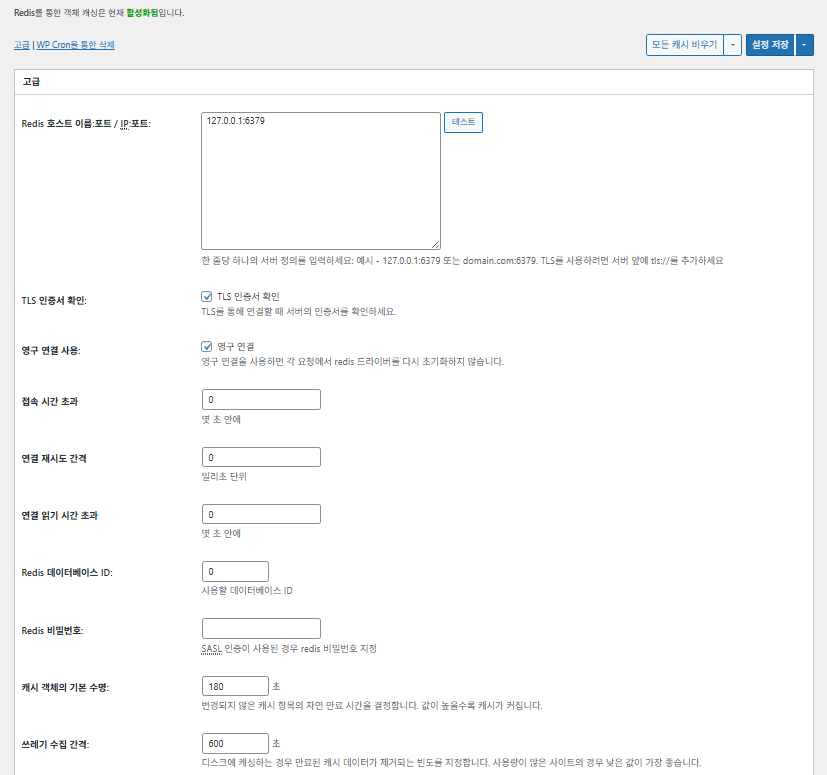
Host/IP di Redis

Formato [127.0.0.1:6379]. Per TLS usa il prefisso [tls://]

Verifica il certificato TLS

Controlla la validità del certificato quando usi TLS (facoltativo)

Usa connessioni persistenti

Riutilizza le connessioni Redis per prestazioni migliori

Timeout di connessione

Tempo massimo per connettersi a Redis (s)

Intervallo di nuovo tentativo di connessione

Attesa prima di riprovare dopo un errore (ms)

Timeout di lettura della connessione

Tempo massimo di attesa di una risposta (s)

Redis DB ID

Numero del database dentro Redis (predefinito [0])

Password di Redis

Inserimento di password o autenticazione SASL

Durata predefinita della cache

Tempo predefinito di conservazione degli elementi in cache (s). Predefinito 180 s

Intervallo di garbage collection

Ogni quanto viene eliminata la cache scaduta. Predefinito 600 s

Gruppi globali

Gruppi condivisi in modalità rete (per multisito)

Gruppi non persistenti

Gruppi esclusi dalla cache, es. [counts], [plugins]

Metti in cache le richieste wp-admin

Applica la cache anche all'area di amministrazione (⚠️ prova prima)

Salva i transient nel database

Mantiene i valori temporanei nel DB anche quando si usa una cache esterna

Attiva WP-CLI

Consente la cache anche per i comandi WP-CLI

6️⃣ Cache del browser

La cache del browser salva file statici come immagini, CSS e JS sul dispositivo del visitatore in locale, riducendo molto il tempo di caricamento nelle visite successive. Questo migliora la velocità di risposta della pagina e l'esperienza utente.

La maggior parte di queste impostazioni punta su controllo della cache e riduzione del carico del server. Sui siti con molto traffico o dove conta l'ottimizzazione delle risorse statiche, puoi attivarne molte senza problemi.

VoceGeneraleCSS e JSHTML e XMLMedia e altri file
Imposta l'header [Last-Modified]Include la data di ultima modifica del file per consentire risposte 304✅ Attivalo nella maggior parte dei casi✅ Adatto alla maggior parte dei server✅ Funziona con la maggior parte delle cache CDN/browser
Imposta l'header [Expires]Fa sì che il browser tenga in cache i file per un certo periodo✅ Predefinito 31536000 s (1 anno), consigliato✅ Predefinito [3600 s (1 ora)] ✅ [31536000 s] (1 anno) di default → adatto ai file statici
⏱️ Imposta la durata di Expires—⏱️ es. [31536000 s = 1 anno] · si può accorciare se usato con un CDN——
Imposta l'header [Cache-Control]Controlla la strategia di cache aggiungendo header pragma e cache-control✅ [“public, max-age=31536000”] consigliato✅ Imposta ad esempio [“public, max-age=3600”]✅ [“public, max-age=31536000”] consigliato
✅ Politica di controllo della cache—✅ Usa una politica con [max-age] · [“public, max-age=EXPIRES_SECONDS”] è il predefinito——
Imposta [ETag]Fornisce un entity tag che identifica il file – per rilevare le modifiche✅ Efficace all'interno dello stesso server✅ Se le cache non sono condivise tra server,
se ne consiglia l'uso
✅ Utile con un solo server
Imposta l'header W3TCAggiunge un header che indica se un file è stato ottimizzato da W3TC🔖 Non obbligatorio; per analisi🔖 Non obbligatorio (per il debug)🔖 Facoltativo
Compressione gzipCompressione che riduce i file di testo (ampiamente compatibile)✅ Supportato sulla maggior parte dei server✅ Supportato dalla maggior parte dei server✅ Nessun effetto sulle immagini
Compressione brotliRapporto di compressione più alto di gzip (solo browser supportati)✅ Richiede configurazione di Apache/Nginx✅ Attiva il modulo di Apache/nginx✅ Vale solo per i browser supportati
Impedisci la cache degli oggetti dopo una modifica delle impostazioniAggiunge una query string per invalidare la vecchia cache✅ Consigliato se le impostazioni cambiano spesso—✅ Le modifiche ai file hanno effetto subito
Rimuovi le query stringRimuove [?] dalle risorse statiche per migliorare la cache⚠️ Serve solo con alcuni CDN/proxy—✅ Applicabile ai file con versione
Rimuovi i cookieRimuove l'header [Set-Cookie] dalle risposte delle risorse statiche✅ Spuntalo nella maggior parte dei casi—✅ Immagini e simili non hanno bisogno di cookie
Non far gestire i 404 a WordPressIl server web gestisce i 404 dei file statici → meno carico su WP———
Elenco di URI di eccezione 404Indica gli schemi di URI che WP deve comunque gestire (es. sitemap, robots.txt)———
Riscrivi la struttura URL degli oggettiGenera URI univoci per aggirare le cache (es. [ver=xxxx])———

Ⅲ. Funzioni aggiuntive di W3 Total Cache

  • ↳ WP Cron, CDN, reverse proxy, esperienza utente, statistiche, convertitore WebP, Google PageSpeed, importazione/esportazione delle impostazioni

Svuotare la cache tramite WP Cron è un'impostazione globale.

🧭 Simulatore delle funzioni aggiuntive di W3 Total Cache
Simulatore di percorso
📍Performance›General Settings›Purge via WP Cron
WP Cron
Svuotare la cache con WP Cron è un'impostazione globale in cui fissi l'ora di inizio e l'intervallo.
📍Performance›General Settings›CDN›Advanced Settings
CDN
Dopo esserti registrato presso un fornitore CDN, spunta [Enable] in [CDN], scegli il [CDN Type] e salva; le opzioni dettagliate si impostano in [Advanced Settings].
📍Performance›General Settings›Reverse Proxy
Reverse proxy
Spunta [Enable reverse proxy caching via varnish] solo se usi Varnish. In [Varnish servers] inserisci l'indirizzo IP del tuo server Varnish.
📍Performance›General Settings›User Experience›Advanced Settings
Esperienza utente
Spunta [Lazy Load Images] e salva, poi imposta le opzioni di lazy load in [Advanced Settings]. Oltre il 50% delle funzioni delle impostazioni avanzate è disponibile nella versione premium.
📍Performance›General Settings›Image Converter
Convertitore WebP
Se spunti [Enable Image Converter Extension] in [Image Converter], puoi convertire le immagini della Libreria media in WebP o AVIF.
example.com/wp-admin/admin.php?page=w3tc_general
DashboardSettingsToolsInfoSupportUpgrade
|||||||||||||||||
Empty All Caches
Purge via WP Cron
Enabling this will schedule a WP-Cron event that will flush all enabled Caches via a single cron job. Each cache’s advanced settings page features similar settings to this if you wish to schedule purges for specific caches only. If you prefer to use a system cron job instead of WP-Cron, you can schedule the following command to run at your desired interval: “wp w3tc flush all”. If the Always Cached extension is active and enabled, page cache entries will instead be added to the queue instead of being purged from the cache. Visit here for more information.
Enable WP-Cron Event
Enable
Start Time
This setting controls the initial start time of the cron job. If the selected time has already passed, it will schedule the job for the following day at the selected time.
Interval
This setting controls the interval that the cron job should occur.
CDN
Content Delivery Network (CDN) is a powerful feature that can significantly enhance the performance of your WordPress website. By leveraging a distributed network of servers located worldwide, a CDN helps deliver your website’s static files, such as images, CSS, and JavaScript, to visitors more efficiently. This reduces the latency and improves the loading speed of your website, resulting in a faster and smoother browsing experience for your users. With W3 Total Cache’s CDN integration, you can easily configure and connect your website to a CDN service of your choice, unleashing the full potential of your WordPress site’s speed optimization.
Basic SettingsPremium ServicesHelp
CDN:
Theme files, media library attachments, CSS, and JS files will load quickly for site visitors.
CDN Type:
Select the CDN type you wish to use.
Host the entire website with your compatible CDN provider to reduce page load time.
FSD CDN:
Enable★ PRO
Deliver visitors the lowest possible response and load times for all site content including HTML, media (e.g. images or fonts), CSS, and JavaScript. Show More ⌄ Learn more about Pro
Reverse Proxy
A reverse proxy is a server that sits between a client and a web server, acting as an intermediary for requests. It retrieves resources on behalf of the client from the server, and then returns the response to the client. By utilizing a reverse proxy, such as Varnish or Nginx, in conjunction with W3 Total Cache, you can significantly enhance the performance of your WordPress website by caching and serving static content directly from the reverse proxy server, reducing the load on your WordPress server and improving response times for visitors.
Enable reverse proxy caching via varnish
Varnish servers:
Specify the IP addresses of your varnish instances above. The VCL’s ACL must allow this request.
Trusted reverse proxies:
IP addresses or CIDR ranges of reverse proxies and load balancers in front of this site (one per line). Forwarded scheme and client-IP headers are used only for these addresses. Leave empty when PHP receives client connections directly. Developers may also supply this list via the w3tc_trusted_proxies filter.
User Experience
User Experience (UX) is a setting that focuses on enhancing the overall browsing experience for visitors of your website. By enabling this feature, you can optimize your website’s performance by minimizing load times, reducing server requests, and delivering content more efficiently. This ultimately leads to faster page loading, improved user satisfaction, and increased engagement, resulting in a speedier and more enjoyable WordPress website.
Basic Settings
Defer loading offscreen images.
Lazy Load Google Maps★ PRO
In addition to lazy loading images, with W3 Total Cache Pro you can lazy load Google Maps! More information and settings can be found on the User Experience page.
Disable Emoji
Remove emojis support from your website.
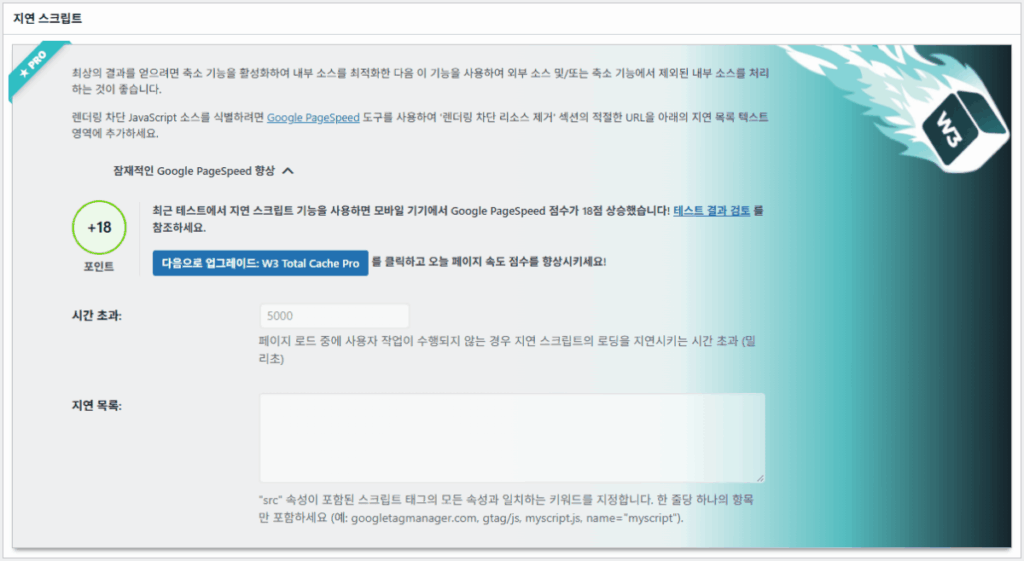
Delay Scripts★ PRO
Delay the loading of specified internal/external JavaScript sources on your pages separate from Minify.
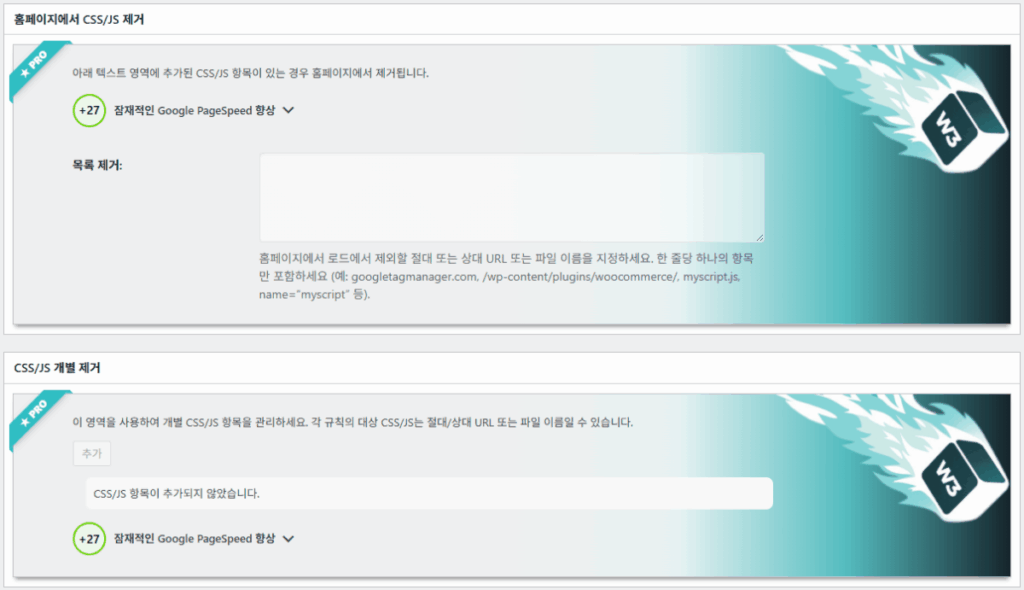
Remove Unwanted/Unused CSS/JS★ PRO
Removes specified CSS/JS tags from the homepage or on a per page basis.
Preload Requests★ PRO
DNS prefetching, pre-connecting, and preloading are essential web optimization techniques that enhance website performance by proactively resolving network-related tasks. Learn more about Pro
Disable wp-embed script
Remove wp-embed.js script from your website. oEmbed functionality still works but you will not be able to embed other WordPress posts on your pages.
Disable jquery-migrate on the front-end
Remove jquery-migrate support from your website front-end.
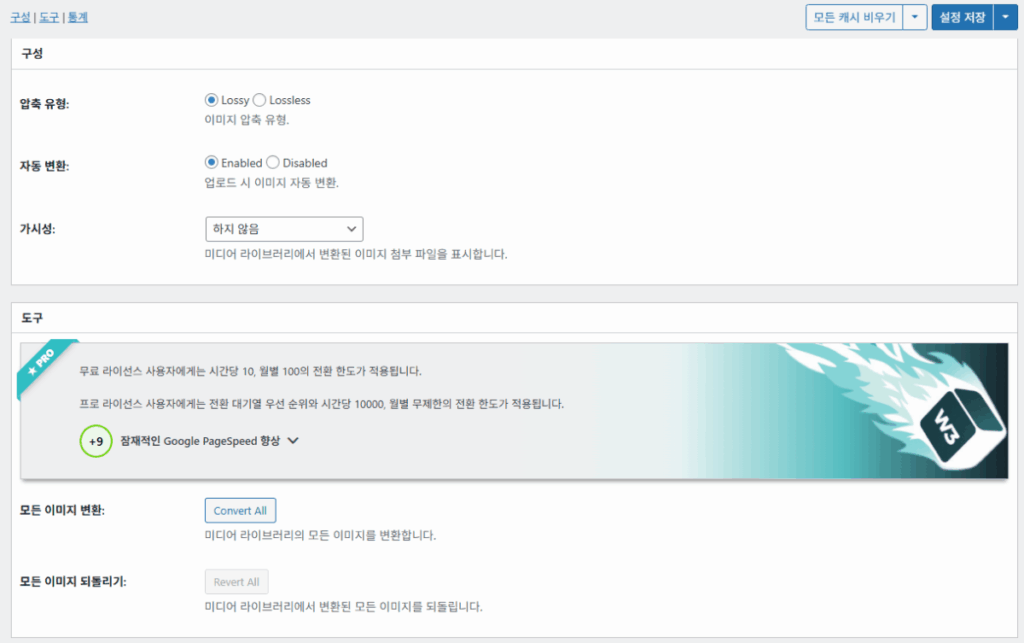
Image Converter
The Image Converter tool can be used to generate modern-format versions (e.g., WebP or AVIF) of media library images which offer superior lossless and lossy compression.
Enable Image Converter Extension
This extension allows for optimizing media library images to modern formats like WebP or AVIF.
As a free user you are limited to conversions of 10/hour and 100/month. The Pro license increases these rates to 10,000/hour and unlimited/month. Conversion rates are subject to change and documentation can be found here. Learn more about Pro
example.com/wp-admin/admin.php?page=w3tc_cdn
DashboardSettingsToolsInfoSupportUpgrade
||
Empty All Caches
General
Host attachments
Upload attachments
If checked, all attachments will be hosted with the CDN.
Host wp-includes/ files
Upload includes files
If checked, WordPress static core file types specified in the “wp-includes file types to upload” field below will be hosted with the CDN.
Host theme files
Upload theme files
If checked, all theme file types specified in the “theme file types to upload” field below will be hosted with the CDN.
Host minified CSS and JS files
Upload minify files
If checked, minified CSS and JS files will be hosted with the CDN.
Host custom files
Upload custom files
If checked, any file names or paths specified in the “custom file list” field below will be hosted with the CDN.
Force over-writing of existing files
If modified files are not always detected and replaced, use this option to over-write them.
Advanced
Only purge CDN manually
Purge CDN only if explicit purge button is clicked.
Disable CDN on SSL pages
When SSL pages are returned no CDN URLs will appear in HTML pages.
Use CDN links for the Media Library on admin pages
All Media Library content will use CDN links on administration pages.
Add CORS header
Add CORS headers to allow cross-domain assets usage.
Disable CDN for the following roles
Select user roles that will use the origin server exclusively:
Administrator
Editor
Author
Contributor
Subscriber
Disable CDN on the following pages:
Always ignore the specified pages / directories. Supports regular expression.
Automatically upload minify files
If CDN is enabled (and not using the origin pull method), your minified files will be automatically uploaded.
Export changed files automatically
Automatically attempt to find and upload changed files.
Auto upload interval:
3600seconds
Specify the interval between upload of changed files.
Re-transfer cycle interval:
900seconds
The number of seconds to wait before upload attempt.
Re-transfer cycle limit:
25
Number of files processed per upload attempt.
wp-includes file types to upload:
*.css;*.js;*.gif;*.png;*.jpg;*.xml
Specify the file types within the WordPress core to host with the CDN.
Theme file types to upload:
*.css;*.js;*.gif;*.png;*.jpg;*.ico;*.ttf;*.otf;*.woff;*.woff2;*.less
Specify the file types in the active theme to host with the CDN.
File types to import:
 
Automatically import files hosted with 3rd parties of these types (if used in your posts / pages) to your media library. Only common static types (images, CSS, JS, fonts, and media) are imported. Script, markup, and SVG types are ignored even if listed. Empty, *, and *.* use that static allowlist rather than every file.
Custom file list:
favicon.ico
{wp_content_dir}/gallery/*
{wp_content_dir}/uploads/avatars/*
{plugins_dir}/wordpress-seo/css/xml-sitemap.xsl
{plugins_dir}/wp-minify/min*
{plugins_dir}/*.js
{plugins_dir}/*.css
{plugins_dir}/*.gif
{plugins_dir}/*.jpg
{plugins_dir}/*.png
Specify any files outside of theme or other common directories to host with the CDN.
Rejected user agents:
Specify user agents that should not access files hosted with the CDN.
Rejected files:
{uploads_dir}/wpcf7_captcha/*
{uploads_dir}/imagerotator.swf
{plugins_dir}/wp-fb-autoconnect/facebook-platform/channel.html
Specify the path of files that should not use the CDN.
Set cookie domain to “example.com”
If using subdomain for CDN functionality, this setting helps prevent new users from sending cookies in requests to the CDN subdomain.
Note(s):
  • You can use placeholders {wp_content_dir}, {plugins_dir}, {uploads_dir} instead of writing folder paths (wp-content, wp-content/plugins, wp-content/uploads).
  • If using Amazon Web Services or Self-Hosted CDN types, enable HTTP compression in the “Media & Other Files” section on Browser Cache Settings tab.
example.com/wp-admin/admin.php?page=w3tc_userexperience
DashboardSettingsToolsInfoSupportUpgrade
Empty All Caches
Lazy loading is currently disabled.
Lazy Loading
Process HTML image tags
Process img tags
Process background images
Process background styles
Exclude words:
avia-bg-style-fixed
data-bgposition=
data-envira-src=
data-large_image=
data-lazy-original=
data-lazy-src=
data-lazyload=
data-lazysrc=
data-no-lazy=
data-src=
data-srcset=
fullurl=
lazy-slider-img=
loading=”eager”
no-lazy
rev-slidebg
skip-lazy
soliloquy-image
swatch-img
w3-total-cache
woocommerce/assets/images/placeholder.png
wpcf7_captcha
Exclude tags containing words
Threshold
 
The outer distance off the scrolling area from which to start loading the elements (example: 100px, 10%).
Script Embed method:
Use inline method only when your website has just a few pages
Google Maps
Lazy load google map
WP Google Map Plugin plugin
Google Maps Easy plugin
WP Google Maps plugin
Fai clic su una voce evidenziata nel menu a sinistra o su un pulsante dello schermo.

1️⃣ CDN

Lo configuri dopo esserti registrato presso un fornitore CDN.

Opzione

Descrizione

✅ Ospita gli allegati

Carica sul CDN allegati come le immagini in [wp-content/uploads]

✅ Ospita i file di wp-includes

Include nel CDN i file statici del core di WordPress (js/css ecc.)

✅ Ospita i file del tema

Include nel CDN i file statici del tema attivo (css/js/immagini ecc.)

✅ Ospita i file CSS/JS minificati

Serve dal CDN i file CSS/JS minificati da W3TC

✅ Ospita file personalizzati

Invia al CDN percorsi o nomi di file che indichi

⚠️ Forza la sovrascrittura dei file esistenti

Per forzare un nuovo caricamento quando le modifiche non vengono rilevate in automatico

Voce

Descrizione

Svuota il CDN solo manualmente

Rimuove i file dal CDN solo quando clicchi il pulsante di svuotamento manuale

Disattiva il CDN sulle pagine SSL

Non usa URL CDN nelle pagine HTTPS

Usa i link CDN nell'amministrazione

Mostra gli URL CDN dei media anche nelle schermate di amministrazione

Add CORS header

Aggiunge un header di risposta che consente CORS

Disattiva il CDN per ruolo

Non applica il CDN ai ruoli utente selezionati (es. solo gli amministratori usano l'origine)

Elenco delle pagine escluse

Esclude dal CDN i percorsi indicati (regex consentite)

Carica automaticamente i file minificati

Carica automaticamente i file minificati sul CDN (Push)

Esporta automaticamente i file modificati

Carica automaticamente quando rileva modifiche ai file

Intervallo di caricamento automatico

Intervallo di caricamento dopo il rilevamento delle modifiche (predefinito 3600 s)

Intervallo / limite di ritrasmissione

Intervallo di nuovo tentativo dopo gli errori e limite ai file elaborati

File di wp-includes da caricare

Indica quali tipi di file del core vanno sul CDN

Tipi di file del tema da caricare

Indica i tipi di file del tema, come CSS/JS/font

Tipi di file da importare

Imposta le condizioni per scaricare automaticamente i file collegati esternamente

Elenco di file personalizzati

Indica singoli percorsi di file da inviare al CDN (template, plugin esterni ecc.)

User agent rifiutati

Indica i bot/user agent da bloccare dai file CDN

Percorsi di file rifiutati

Indica i percorsi di file da tenere fuori dal CDN, come CAPTCHA e percorsi speciali

Imposta il dominio dei cookie

Indica un dominio per evitare l'invio di cookie quando usi un CDN su sottodominio

2️⃣ Reverse proxy

La descrizione usa come esempi Varnish e Nginx, ma poiché Nginx si configura sul server, applicalo nel plugin W3 Total Cache solo se usi Varnish.

3️⃣ Esperienza utente: lazy load

Nelle impostazioni avanzate, oltre il 50% delle funzioni è disponibile solo nella versione premium.

Voce

Descrizione

Quando usarlo

✅ Elabora i tag immagine HTML

[<img>]: i tag ricevono l'attributo lazy

Per il lazy loading delle normali immagini di contenuto

✅ Elabora le immagini di sfondo

Applica il lazy loading a [background-image] del CSS

Per siti curati nel design con molte immagini di sfondo

Escludi paroleEsempio
Attributi esclusi dal lazy[data-src], [data-lazy-src], [data-no-lazy], [loading=”eager”] ecc.
Classi escluse dal lazy[no-lazy], [skip-lazy], [lazy-slider-img], [rev-slidebg] ecc.
Plugin/slider[soliloquy-image], [envira], [w3-total-cache], [wpcf7_captcha] ecc.
WooCommerce[swatch-img], [woocommerce/…/placeholder.png] ecc.

La “soglia” del lazy loading stabilisce a quale distanza sotto il viewport (lo schermo) del browser immagini ed elementi di sfondo iniziano a caricarsi in anticipo. Per esempio con 100px un elemento si carica quando l'utente scorre fino a 100 pixel da esso; un valore troppo piccolo ritarda il caricamento delle immagini e l'utente può vedere aree vuote, quindi di solito 100–300px è adatto.

Seguono i metodi di inserimento degli script.

Metodo di inserimento

Descrizione

Posizione o attributo

Asincrono (Async)

Viene eseguito in parallelo al caricamento della pagina e non blocca il rendering

[<script async>]

Sincrono (nell'head)

Viene eseguito per primo nell'area [<head>] e può bloccare temporaneamente il rendering (in the head)

[<head>] o [<script>]

Inline

Inserisce lo script direttamente nel documento HTML, così viene eseguito senza una richiesta separata

Inserito dentro [<script>codice</script>]

W3TC Esperienza utente impostazioni avanzate 2
W3TC Esperienza utente impostazioni avanzate 3

4️⃣ Convertitore WebP

W3TC Convertitore WebP_dettagli (impostazioni avanzate) 1
W3TC Convertitore WebP_dettagli (impostazioni avanzate) 2

Ⅳ. Valutazione complessiva di W3 Total Cache

L'interfaccia (UI) di W3 Total Cache non è male, ma è chiaramente scomoda. Molti sviluppatori e utenti professionali lo fanno notare. Rispetto a plugin moderni come WP Rocket o FlyingPress, tiene il passo sulle prestazioni del sito, ma l'esperienza utente (UX) è carente.

Avere tante funzioni è un punto di forza, ma per i principianti la struttura può sembrare troppo complessa. In particolare, con frequenti salti tra i menu e molte opzioni di dettaglio, anche sviluppatori e amministratori esperti  possono commettere errori di configurazione. Ovviamente non ricorderai ogni impostazione, ma nell'uso è un plugin di caching avanzato che permette regolazioni fini.

Con oltre 1 milione di installazioni della versione gratuita, è difficile liquidarlo come un semplice plugin vecchio: nella pratica pochi plugin di cache eguagliano la varietà e la ricchezza delle sue funzioni.

VoceValutazione (⭐)Giudizio
🎛️ Interfaccia⭐⭐⭐Molti menu e una struttura complessa; un ostacolo per i nuovi utenti. La UI sembra datata
⚙️ Varietà di funzioni⭐⭐⭐⭐⭐Cache, CDN, Redis e quasi ogni altra funzione; difficile trovare qualcosa che manchi
🛠️ Flessibilità di regolazione⭐⭐⭐⭐Quasi tutto è regolabile; attenzione ai conflitti tra impostazioni
🚀 Guadagno di prestazioni⭐⭐⭐⭐⭐Prestazioni eccellenti una volta ottimizzato; cache degli oggetti/del browser fanno una grande differenza
🧩 Compatibilità⭐⭐⭐Può entrare in conflitto con alcuni hosting, temi e plugin.
📄 Documentazione e guide⭐⭐⭐⭐⭐Ampia documentazione ufficiale
💡 Consiglio per gli utenti⭐⭐⭐⭐(4.5)Consigliato agli utenti esperti; i principianti potrebbero preferire WP Rocket, Cache Enabler ecc.
📊 Valutazione complessiva⭐⭐⭐⭐(4.5)Un plugin potente e incentrato sulle funzioni. C'è una curva di apprendimento; considera il tuo livello

Ⅴ. Test di prestazioni

Dopo aver configurato il plugin, il test di velocità finale ha mostrato un miglioramento più evidente rispetto ai plugin di cache comuni.

ℹ️ Informativa sull'affiliazione
I contenuti di questo sito includono link di affiliazione. Se un visitatore acquista un prodotto o un servizio tramite uno di questi link, il sito riceve una commissione dal venditore. In questo processo l'importo pagato dall'acquirente (durante le promozioni l'importo scende↓) non aumenta. Prezzi, sconti e disponibilità indicati si riferiscono al momento della stesura e possono differire da quelli reali: prima di acquistare verifica sempre presso il venditore. I prodotti vengono scelti e valutati secondo criteri propri, e le commissioni non influiscono sull'ordine di presentazione né sul contenuto delle valutazioni.

Lascia un commento

Il tuo indirizzo email non sarà pubblicato. I campi obbligatori sono contrassegnati *

Dimostra di essere umano: 10   +   2   =