
gdisk Command: How to Partition a Disk in Linux


To set up Linux partitions (create, modify, delete), you use the fdisk command or the gdisk command. This article covers editing partition information with gdisk.
Before mounting, partition setup proceeds in the following order.
Until you save and exit, your partition changes are not applied to the disk.
✅ Setting Up Linux Partitions with the gdisk Command
gdisk is a partition management utility for Linux systems, like fdisk. fdisk is usually used for disks under 2TB, while parted or gdisk is used for large disks of 2TB or more.
gdisk -[options] [target device file]To check the configured partitions, apply the -l option to the gdisk or fdisk command.
gdisk -l
Disk /dev/xvda: 10 GiB, 10737418240 bytes, 20971520 sectors
Units: sectors of 1 * 512 = 512 bytes
Sector size (logical/physical): 512 bytes / 512 bytes
I/O size (minimum/optimal): 512 bytes / 512 bytes
Disklabel type: gpt
Disk identifier: 0EF4456F-5883-478F-B913-FBB62350113E

Device       Start      End  Sectors  Size Type
/dev/xvda1    2048   204799   202752   99M EFI System
/dev/xvda2  204800  2252799  2048000 1000M Linux filesystem
/dev/xvda3 2252800  2260991     8192    4M PowerPC PReP boot
/dev/xvda4 2260992  2263039     2048    1M BIOS boot
/dev/xvda5 2265088 20969471 18704384  8.9G Linux filesystem


Disk /dev/xvdf: 3 GiB, 3221225472 bytes, 6291456 sectors
Units: sectors of 1 * 512 = 512 bytes
Sector size (logical/physical): 512 bytes / 512 bytes
I/O size (minimum/optimal): 512 bytes / 512 bytes
1. gdisk options
This is the default screen shown after running gdisk.
gdisk /dev/xvdf
GPT fdisk (gdisk) version 1.0.7

Partition table scan:
  MBR: not present
  BSD: not present
  APM: not present
  GPT: not present

Creating new GPT entries in memory.

Command (? for help):
2. Checking with the p option in gdisk
Command (? for help): p
Disk /dev/xvda: 20971520 sectors, 10.0 GiB
Sector size (logical/physical): 512/512 bytes
Disk identifier (GUID): 0EF4456F-5883-478F-B913-FBB62350113E
Partition table holds up to 128 entries
Main partition table begins at sector 2 and ends at sector 33
First usable sector is 34, last usable sector is 20971486
Partitions will be aligned on 2048-sector boundaries
Total free space is 6077 sectors (3.0 MiB)

Number  Start (sector)    End (sector)  Size       Code  Name
   1            2048          204799   99.0 MiB    EF00  EFI System Partition
   2          204800         2252799   1000.0 MiB  8300  primary
   3         2252800         2260991   4.0 MiB     4100  primary
   4         2260992         2263039   1024.0 KiB  EF02  primary
   5         2265088        20969471   8.9 GiB     8300  primary
3. Creating a partition with gdisk
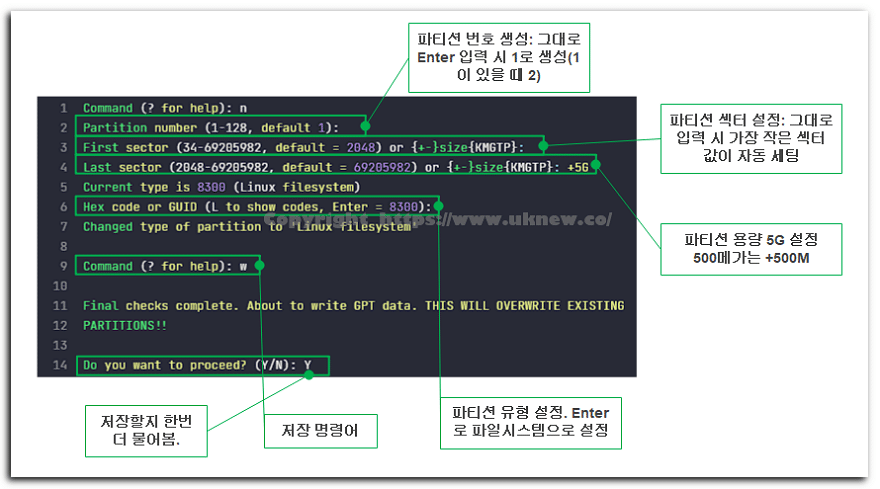
You can check partition types with the L command.
Hex code or GUID (L to show codes, Enter = 8300): L
Type search string, or <Enter> to show all codes:
0700 Microsoft basic data                0701 Microsoft Storage Replica
0702 ArcaOS Type 1                       0c01 Microsoft reserved
2700 Windows RE                          3000 ONIE boot
3001 ONIE config                         3900 Plan 9
4100 PowerPC PReP boot                   4200 Windows LDM data
4201 Windows LDM metadata                4202 Windows Storage Spaces
7501 IBM GPFS                            7f00 ChromeOS kernel
7f01 ChromeOS root                       7f02 ChromeOS reserved
8200 Linux swap                          8300 Linux filesystem
8301 Linux reserved                      8302 Linux /home
8303 Linux x86 root (/)                  8304 Linux x86-64 root (/)
8305 Linux ARM64 root (/)                8306 Linux /srv
8307 Linux ARM32 root (/)                8308 Linux dm-crypt
8309 Linux LUKS                          830a Linux IA-64 root (/)
830b Linux x86 root verity               830c Linux x86-64 root verity
830d Linux ARM32 root verity             830e Linux ARM64 root verity
830f Linux IA-64 root verity             8310 Linux /var
8311 Linux /var/tmp                      8312 Linux user's home
8313 Linux x86 /usr                      8314 Linux x86-64 /usr
8315 Linux ARM32 /usr                    8316 Linux ARM64 /usr
8317 Linux IA-64 /usr                    8318 Linux x86 /usr verity
Press the <Enter> key to see more codes, q to quit:
Enter 8200 for swap or 8300 for a Linux filesystem to set the partition type.
4. Deleting a partition with gdisk
Use the [d] option to delete a partition. Enter the number of the partition to delete; if there is only one partition, it is deleted automatically.
Command (? for help): d
Partition number (1-5): 3ℹ️ Affiliate Disclosure
This site's content contains affiliate links. When a visitor buys a product or service through one of them, the site receives a commission from the seller. The amount the buyer pays(it goes down during event discounts ↓)does not go up. Posted prices, discounts, and stock reflect the time of writing and may differ, so confirm with the seller before buying. Products are chosen and reviewed by our own standards, and commissions do not affect the order or content of reviews.