
WordPress theme check · plugin detection: enter a site address → hosting lookup
Check any site’s WordPress theme and detect its plugins just by entering its URL. You can look up the theme name and version in use, installed plugins, the hosting provider and even the IP range. We’ve also summarized cases where results are limited by path protection or a CDN, and compared external lookup sites.
You can check if the site was built with WordPress by pasting the URL. It does not matter whether you include https:// or not.
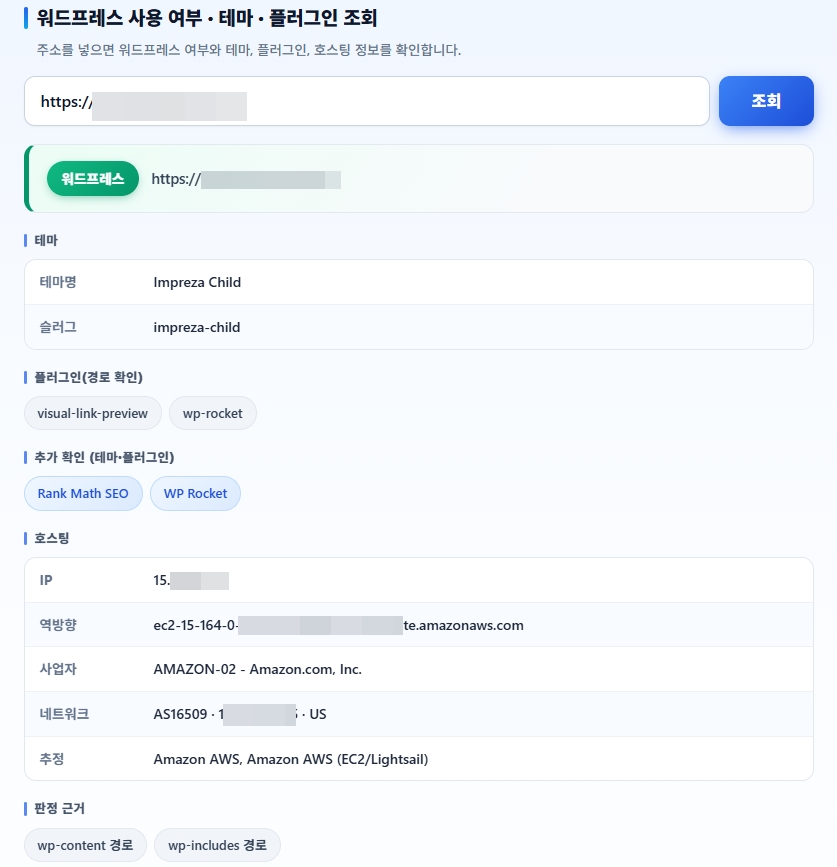
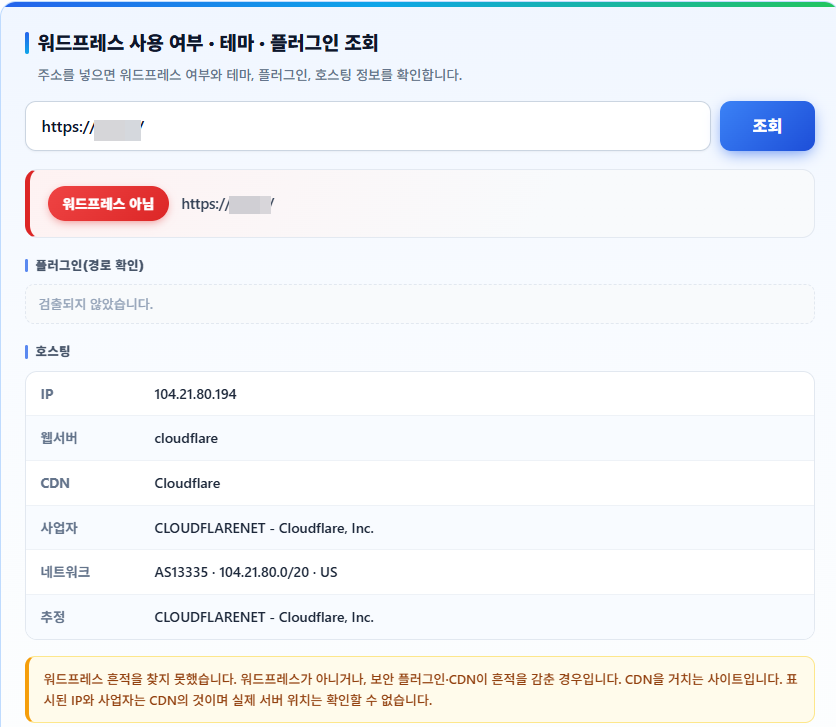
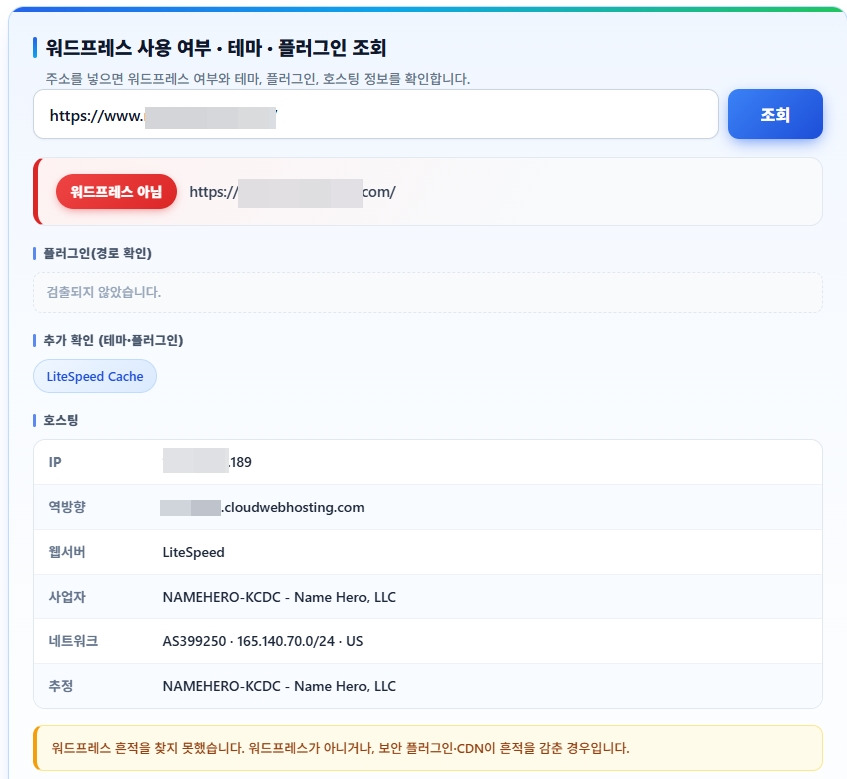
Even if you hide information using tools like Hide My WP, if you're using Lite Speed, it's virtually certain that the site runs on WordPress.
I. How to Check WordPress Plugins & Use the Theme Detector
Once you finish a WordPress plugin lookup, the results appear in this order: result badge, theme, plugins, hosting. Since there are several items, it can be confusing at first to know where to look. In particular, plugins are displayed in two separate sections, and the methods for identifying them differ, so
It’s not an error even if one field is left blank. Let’s go through each item in order to see what they mean.
1️⃣ Three Result Badges
Once the lookup is complete, a badge will appear above the address. The meaning varies depending on the color and text.
- Green: [WordPress] means the site is certainly built with WordPress. At least one trace has been found, such as the wp-content path, the generator meta tag, or the REST API link.
- Orange: [WordPress (paths hidden)] is indeed WordPress, but in this case, the paths to the themes and plugins are hidden. This is what happens when you rename the folders using a security plugin. It’s not that the tool couldn’t find them—it’s because the other site has hidden them.
- Red: "[Not WordPress]" indicates that no traces of WordPress have been found. The site may have been built using a different method, or a CDN may be hiding the origin information.
- Below the badge: Since the [Detection basis] field directly indicates which trace was used to make the determination, if there is only one piece of evidence, you can assume the level of certainty is low.
2️⃣ The Difference Between “Plugins (from paths)” and “Additional findings”
Plugins appear in two places on the results screen. They are separated because they are detected differently.
“Plugins (from paths)” displays results extracted directly from the file path. Since the path must remain in the source in the format /wp-content/plugins/name/ for it to be detected, the results are accurate; however, if a caching plugin combines multiple files into a single file, the path is lost and nothing is displayed.
“Additional findings (theme · plugins)” are results found from clues other than paths. These include words left in combined filenames, unique classes on the page, and response headers sent by the server. They are detected even if the path changes or disappears. Known items are displayed by their official names, while unknown items are displayed using the names (slugs) registered by the site. Theme names also appear here.
If the top section is empty and only the bottom section is filled, it’s a site with optimized assets; if the top section is filled but there are items missing from the bottom, it’s a plugin that leaves no trace. You need to look at both sections together to get a closer picture of the actual configuration.
3️⃣ Hosting and Network Information
The hosting section displays both server and network information.
There is one thing to keep in mind here. For websites that use a CDN, both the displayed IP address and the service provider belong to the CDN. You cannot determine where the actual server is located, and in this case, a note will appear below the results. Since the purpose of a CDN is to hide the origin server, the same applies even if you use a different lookup tool.
Even for the same company, the listing may vary. For example, since Cloudways uses infrastructure leased from another company rather than its own servers, the “Provider” field may list only that infrastructure provider, while the “Likely host” field may list both companies together.
II. If Themes and Plugins Do Not Appear
When checking WordPress themes (and plugins), you may sometimes find that the theme or plugin sections are empty. In most cases, this isn’t a problem with the tool itself; rather, the target site has hidden the information or changed its structure. There are three main reasons for this.
1️⃣ Path Protection Plugin
WordPress loads theme and plugin files from the /wp-content/themes/name/ and /wp-content/plugins/name/ paths. Lookup tools read these paths to find the names. In other words, simply changing the folder names blocks the lookup.
Security plugins like Hide My WP serve this purpose. They rename folders with random characters, change the login URL, and even rename the readme file. When you look up such a site, the result badge shows the orange “WordPress (paths hidden),” and the theme and plugin sections are empty.
It’s difficult to hide the fact that a site is built on WordPress. This is because it leaves traces that are independent of paths, such as REST API links and emoji scripts. As a result, while the site can still be identified, the specific details remain hidden.
However, it isn't completely blocked. Even if the folder name changes, the file names often remain the same, so some of the remaining words in the combined filename may still be flagged under the “Additional findings” section.
2️⃣ Sites that use a CDN
A CDN is an intermediary server located between visitors and the origin server. Cloudflare is the best-known example. When a lookup tool connects, it reaches the CDN server rather than the origin server, so both the displayed IP address and the provider are those of the CDN.
In this case, a message will appear below the results. It is not possible to determine which company hosts the origin server. Since one of the purposes of a CDN is to hide the origin server, you will get the same results even if you use a different lookup tool.
Depending on your CDN settings, the WordPress detection process itself may be blocked. If your security rules block automated access, the tool won’t be able to retrieve the page at all and will display “Not WordPress.” In this case, the site really is WordPress but is shown that way anyway.
3️⃣ When a path disappears due to asset optimization
Cache plugins combine multiple CSS and JS files into one to improve speed. WP Rocket or Autoptimize's file-combining feature is one example. When this happens, only a single merged file remains, without going through individual plugin folders, so the name can no longer be extracted from the path.
This is not an attempt to hide anything, but rather the result of optimization. That is why it is common to see “Plugins (from paths)” empty while “Additional findings” lists multiple entries. This is because traces remain in the combined file names or the unique classes assigned to the screen.
To sum up, the three cases turn out as follows. Path protection still lets the site be identified but blocks every detail, a CDN hides even the hosting information, and asset optimization removes only the paths while leaving traces. You can tell which one applies by comparing the result badge with the two plugin fields.
III. Comparison of WordPress Theme Checker Sites
IV. How to Keep Your Site from Being Looked Up
Up until now, we’ve been looking at other people’s sites. Conversely, you can use the same method to check how much information about your own site is exposed. If it becomes known which themes and plugins you’re using, attackers may try to exploit known vulnerabilities in those versions, so it’s best to at least hide the specific details.
First, let me make one thing clear: it’s impossible to hide this completely. That’s because you can’t prevent people from checking it directly by viewing the source code. The goal is simply to prevent automated search tools from extracting the list.
1️⃣ Path Protection Plugin
This is the most direct method. Plugins such as Hide My WP change the /wp-content/themes/ and /wp-content/plugins/ paths to random names. Since names can no longer be extracted from the paths, a lookup shows only “WordPress (Path Protected)” and the theme and plugin fields stay empty.
Features such as changing the login URL and renaming the README file are also included. Since automated scans typically start from the default path, simply changing the path can block a significant number of attack attempts.
Be sure to check the screen after applying the changes. Since this involves changing the path, the CSS or JS of some plugins may break. Please clear your cache and check both the desktop and mobile versions.
2️⃣ Implementing a CDN
If a CDN is used as an intermediary, the lookup tool connects to the CDN server rather than the origin server. The IP address, service provider, and network information are all displayed as belonging to the CDN, thereby concealing the actual server location.
Adding security rules here broadens the scope. If you configure the system to block requests deemed to be automated access, the scanning tool won’t be able to retrieve the page itself, so it won’t even be able to determine whether the site is running WordPress.
However, the stricter the rules, the greater the risk of blocking search engine crawlers as well. After adjusting your blocking rules, it’s safest to check the indexing status in Search Console.
3️⃣ Firewall Block
This blocks a specific lookup site’s access directly at the server firewall. If you add that site’s IP address or user agent to the blocklist, the lookup itself fails. It takes more work than the two methods above, and if the site changes its IP address, you have to block it again.
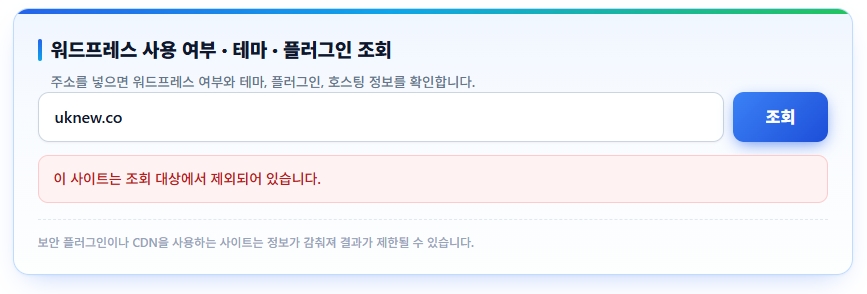
The lookup tool on this page also excludes certain domains from lookups. Since the information can still be found with other tools, this is not a complete block; the realistic goal is to stop automated lookups.
You don't need to apply all three measures. Path protection alone is enough to hide most of the details, and if you're already using a CDN, your hosting information is automatically hidden.
V. FAQ
ℹ️ Affiliate Disclosure
This site's content contains affiliate links. When a visitor buys a product or service through one of them, the site receives a commission from the seller. The amount the buyer pays(it goes down during event discounts ↓)does not go up. Posted prices, discounts, and stock reflect the time of writing and may differ, so confirm with the seller before buying. Products are chosen and reviewed by our own standards, and commissions do not affect the order or content of reviews.