
WordPress Update: The Dashboard Updates Screen and the Order for Core, Plugins and Themes


A WordPress update is the task of checking for and installing new versions of WordPress core, plugins, themes and translations from the Updates screen in the Dashboard. On a WordPress 7.1.3 site showing new versions for plugins and translations, I checked the Updates screen and the Plugins and Themes screens and put together the update order and where the auto-update settings are.
1️⃣ The WordPress Updates screen: Dashboard › Updates
When you open [Dashboard › Updates], the Plugins, Themes and Translations sections appear in turn below the current WordPress version, and an update button appears only in sections that have a new version.
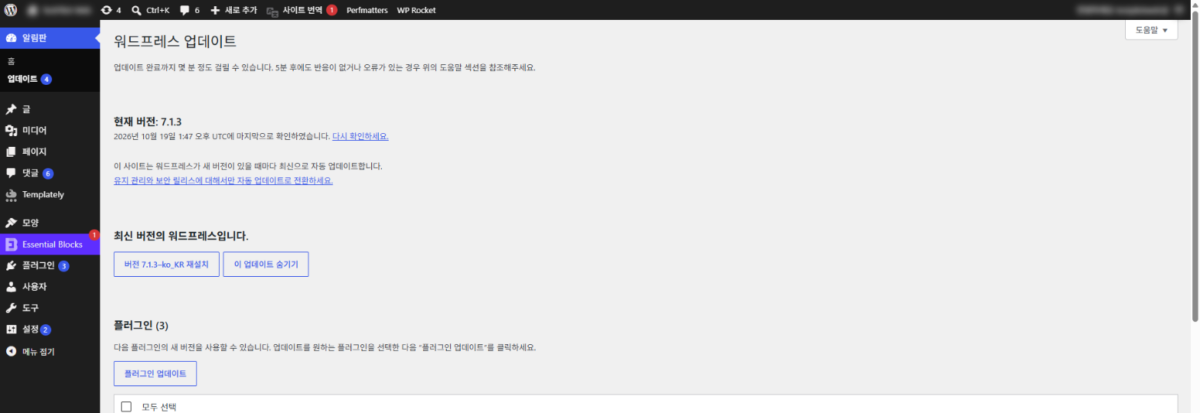
The number next to [Updates] in the left menu is the combined count for core, plugins, themes and translations; when I checked, it showed 4: 3 plugins plus 1 for translations. Translations count as 1 even when there are several files.
업데이트 완료까지 몇 분 정도 걸릴 수 있습니다. 5분 후에도 반응이 없거나 오류가 있는 경우 위의 도움말 섹션을 참조해주세요.
2026년 10월 19일 5:24 오전 UTC에 마지막으로 확인하였습니다. 다시 확인하세요.
이 사이트는 워드프레스가 새 버전이 있을 때마다 최신으로 자동 업데이트합니다.
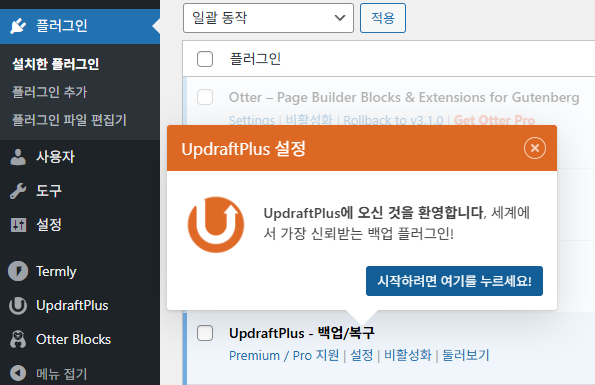
다음 플러그인의 새 버전을 사용할 수 있습니다. 업데이트를 원하는 플러그인을 선택한 다음 “플러그인 업데이트”를 클릭하세요.
다음 테마는 새 버전을 사용할 수 있습니다. 업데이트를 원하는 테마를 선택한 다음 “테마 업데이트”를 클릭하세요.
주의하세요: 테마 파일을 직접 수정했다면 모두 잃게 됩니다. 테마 수정은 자식 테마 사용을 고려하세요.
새 번역을 사용할 수 있습니다.
2️⃣ The update order for core, plugins and themes
There is no button that rolls an update back to the previous version, so before you update, make a WordPress backup first. The official WordPress documentation also advises backing up the database and files before updating.
Update in this order: core, plugins, themes, translations. When a core update is available, each plugin row shows two compatibility lines: one for your current WordPress version and one for the version you are updating to. If the line for the new version says [Not tested], the author has not tested the plugin on that version, so update core first and then check the screens where that plugin works before anything else.
Select plugins one at a time with the checkbox and click [Update Plugins]; when the update finishes, check the site's pages before moving on to the next plugin.
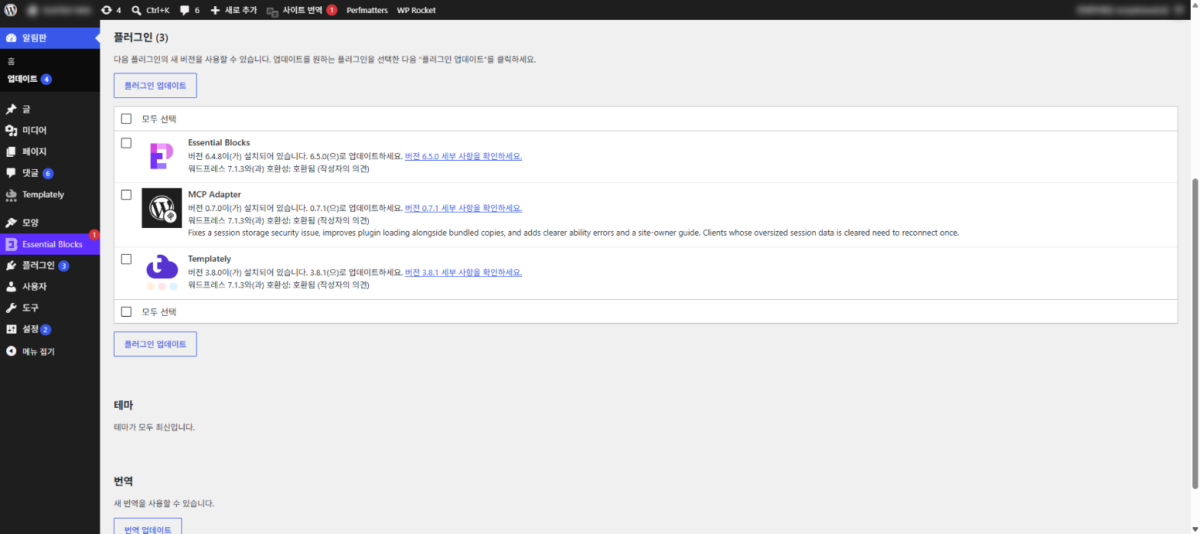
Themes are updated the same way after the plugins, and translations come last with [Update Translations]. After a plugin or theme update finishes, WordPress goes on to update its translations, so [Update Translations] only lists the items that are still left after that.
A site that has skipped more than two major versions is upgraded one major version at a time; the official documentation recommends this order to reduce the risk of conflicts and database damage. Files for older versions can be downloaded from the WordPress.org release archive.
3️⃣ WordPress auto-update settings
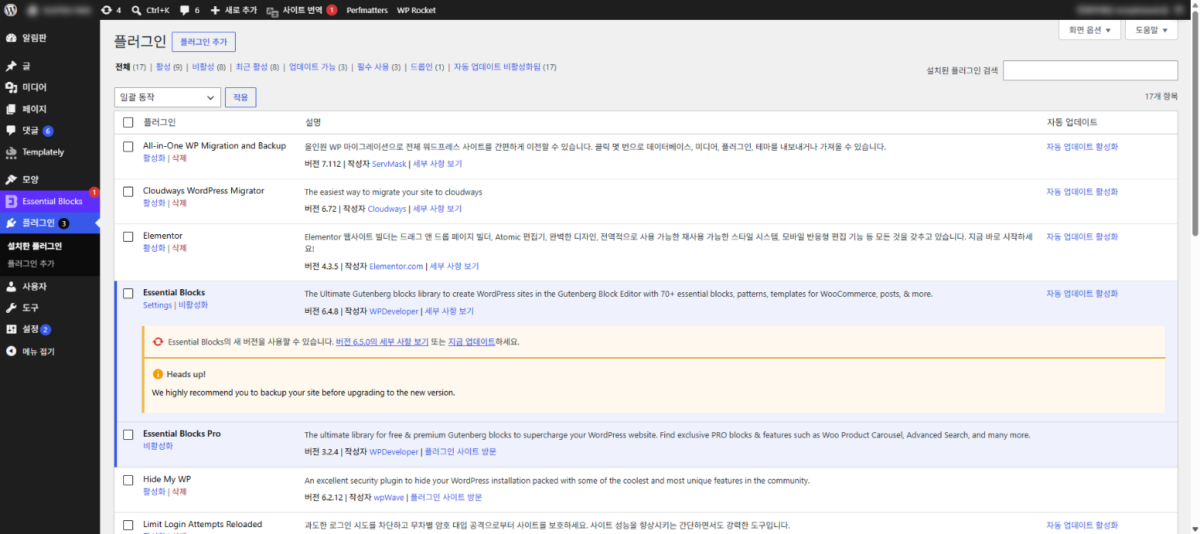
Auto-updates are set on a different screen for core, for plugins and for themes.
| What gets updated | Where to set it | Status when checked |
|---|---|---|
| WordPress core | Dashboard › Updates | Auto-updates for all new versions |
| Plugin | Plugins › Installed Plugins | All disabled |
| Theme | Appearance › Themes › Theme Details | Disabled |
Core auto-updates are in one of two states, updating to all new versions or only to maintenance and security releases, and you switch between them with the link in the [Current version] section of the Updates screen. Sites newly installed from WordPress 5.6 onward default to all new versions, while sites installed earlier auto-update only maintenance and security releases unless you changed it (per the official documentation).

For plugins, set them one by one with the [Enable auto-updates] link in the [Automatic Updates] column, or select several with the checkboxes and change them all at once from [Bulk actions]. When I checked, auto-updates were off for every plugin, and the column was empty for paid plugins that WordPress gets no update information for.
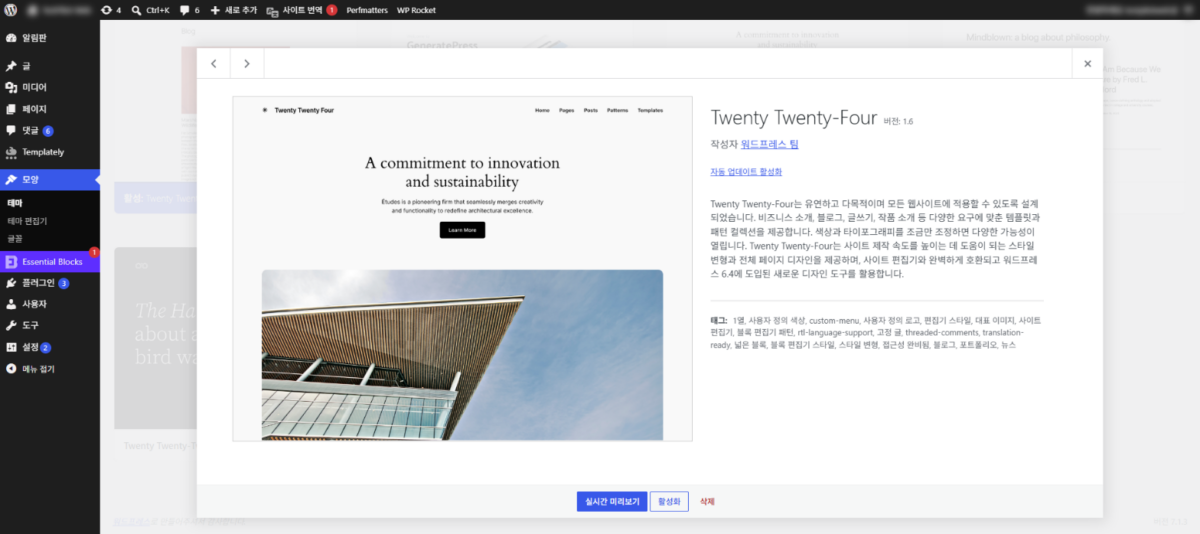
For themes, click a theme in [Appearance › Themes] to open its details, then click [Enable auto-updates] below the author.
Plugins and themes with auto-updates enabled are updated automatically twice a day, and the results are sent to the site admin email address. Because this runs at times when no admin is watching the screen, set up automatic backups before you enable it.
🔢 FAQ & Recommended Content
 Plugin
Deleting WordPress Plugins
Delete a plugin from the admin screen, then clean up the tables and options it leaves in the database.
Plugin
Deleting WordPress Plugins
Delete a plugin from the admin screen, then clean up the tables and options it leaves in the database.
 Plugin
WordPress Plugin: Definition and Role
Three criteria for deciding which plugins to keep and which to delete.
Plugin
WordPress Plugin: Definition and Role
Three criteria for deciding which plugins to keep and which to delete.
 Terms
The Difference Between an Update and an Upgrade
The difference in scope between the two words update and upgrade.
Terms
The Difference Between an Update and an Upgrade
The difference in scope between the two words update and upgrade.
ℹ️ Affiliate Disclosure
This site's content contains affiliate links. When a visitor buys a product or service through one of them, the site receives a commission from the seller. The amount the buyer pays(it goes down during event discounts ↓)does not go up. Posted prices, discounts, and stock reflect the time of writing and may differ, so confirm with the seller before buying. Products are chosen and reviewed by our own standards, and commissions do not affect the order or content of reviews.