I checked Cloudways email setup by connecting Gmail to a Vultr Seoul test server through the SMTP add-on. WordPress contact-form and password-reset emails fail to arrive because receiving servers filter mail sent directly from the server, and they only reach the inbox once an external sending service is connected. I have summarized the setup steps for the free SMTP add-on and the pricing of the Elastic Email, Rackspace and Titan add-ons as shown in the console in October 2026.
TOC
2-minute read
TOC
2-minute read
View more
1️⃣ Types of Cloudways Email Add-ons
Cloudways does not provide a mail server, so all email goes through an add-on that connects to an external service. There are two kinds of add-on: transactional email and mailboxes. Mail that the site sends, such as order confirmations and password resets, is handled by Elastic Email or the SMTP add-on, while mail sent and received at a you@yourdomain address is handled by a Rackspace mailbox.
For transactional email, a server can use only one of Elastic Email or SMTP, and mailbox add-ons are added per domain rather than per server. Mail sent directly by PHP from a cloud server is often classified as spam by the receiving server, which is why Cloudways itself recommends connecting an external sending service.
2️⃣ SMTP Add-on Setup [Gmail]
The SMTP add-on is configured in the [SMTP] menu of the server management screen; there is no subscription or fee, you only enter the account details of an external sending service. The connection takes the five steps below, and you first need an app password on the Gmail side.
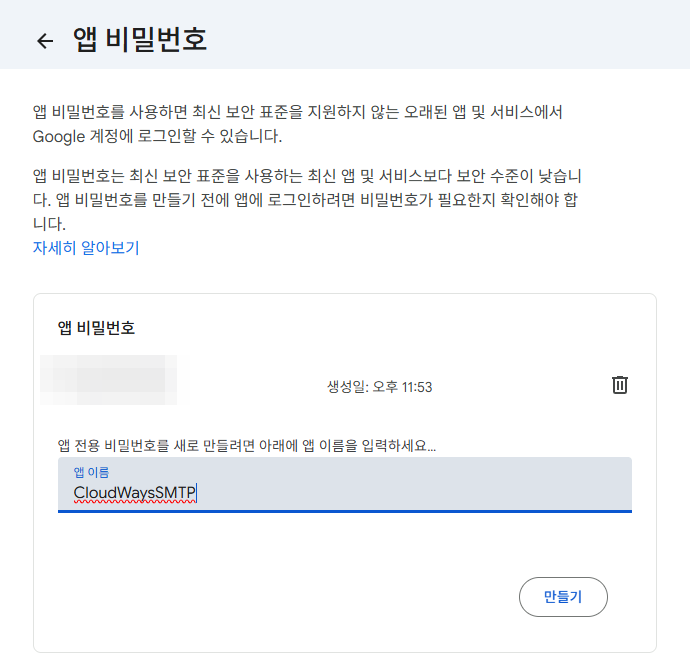
Gmail rejects SMTP logins with the account password, so turn on 2-Step Verification for the Google account and issue a 16-character password on the app passwords page . If 2-Step Verification is off, this page does not open, and the issued password is entered with the spaces removed.
Gmail SMTP connection steps
These are the steps verified on a Vultr Seoul 1GB test server on October 9, 2026. Click a step’s screenshot to open it larger.
1Open the SMTP menuSelect [SMTP] in the left menu of the server management screen. Before setup, only the [Select SMTP] box is shown and the [Send Test Email] button is disabled.
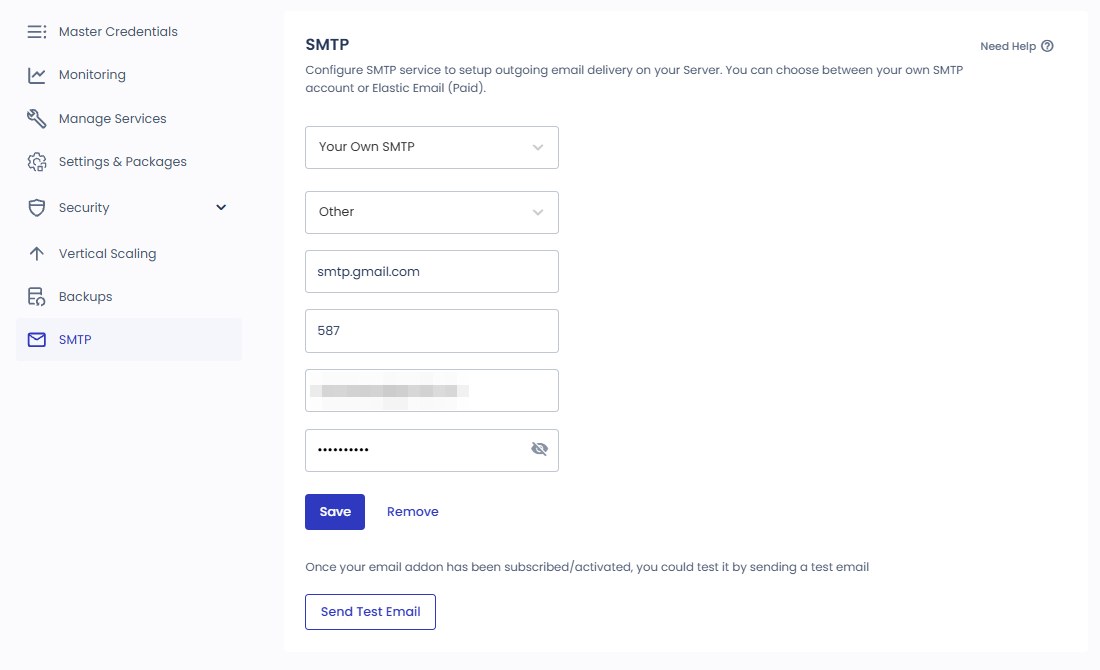
2Choose Your Own SMTP · OtherChoosing [Your Own SMTP] in [Select SMTP] shows the provider list; of the six options Mailgun, Mailgun – Europe, Mandrill, AuthSMTP, SendGrid and Other, Gmail goes through [Other].
3Enter the Gmail details · Saveport 587Enter smtp.gmail.com as Host, 587 as port, the Gmail address as Username and the 16-character app password as Password, then click [Save]. The [Configuring SMTP service on your Server] notice stays for about 30 seconds before the setting is applied; port 465 did not pass in the test.
4Send a test emailIn [Send Test Email], enter the sender and receiver addresses. On success the [Test SMTP email sent.] notice appears; on failure you get the error [Unable to send the email. It seems that the provided SMTP service credentials are incorrect.].
5Confirm deliverySetup is complete when the email titled [Email Functionality Validation from Your Cloudways Server] arrives in the receiver’s inbox. With this setting alone, WordPress wp_mail() sending also goes through Gmail, so a plugin such as WP Mail SMTP is not required.
Gmail does, however, rewrite the sender address to the authenticated Gmail account, so this is not suitable for sites that must keep the contact form’s sender on the site domain. In that case you would connect Elastic Email, or SendGrid or Mailgun with domain verification completed.
3️⃣ Elastic Email Add-on: Pricing and Setup
The Elastic Email add-on is Cloudways reselling the Elastic Email delivery service, and the fee is added to your Cloudways invoice. Packages come in 12 tiers by monthly sending volume, and the prices shown in the console on October 9, 2026 are in the table below.
Monthly volume
Monthly fee
Monthly volume
Monthly fee
1,000 emails
$0.10
25,000 emails
$2.30
3,000 emails
$0.30
50,000 emails
$8.00
5,000 emails
$0.50
100,000 emails
$15
8,000 emails
$0.80
250,000 emails
$25
12,000 emails
$1.10
500,000 emails
$37
15,000 emails
$1.40
1,000,000 emails
$57
One package can be attached to several servers, and the sending domain must be verified by adding SPF, DKIM, Tracking, MX and DMARC records to DNS before mail goes out. According to the support docs, you subscribe to a package under [Integrations] › [Add-Ons], then select Elastic Email in the [SMTP] menu of the server management screen to connect it.
4️⃣ Rackspace and Titan Mailbox Pricing
The Rackspace Email add-on is billed per mailbox and prorated by the days used, and webmail, IMAP and domain aliases work the same as with a direct Rackspace contract.
In August 2026, Titan Email was announced as a new mailbox add-on with three plans: Pro, Premium and Ultra. Migrating existing mail is free, and the support docs say that accounts without a Rackspace subscription before the Titan launch get Titan as their mailbox option. That said, the add-on list of the test account checked on October 9, 2026 still showed only Rackspace.
Item
Rackspace
Titan Pro
Titan Premium
Titan Ultra
Monthly fee per mailbox
$1.50
$1.99
$3.99
$8.99
Mailbox storage
25GB (fixed)
25GB
50GB
100GB
Migrating existing mail
$10 per migration
Free
Free
Free
Mobile apps
None
Yes
Yes
Yes
Management screen
Separate console
Cloudways dashboard
Cloudways dashboard
Cloudways dashboard
The prices in the table are monthly fees per mailbox; Rackspace is as shown in the console on October 9, 2026, and Titan as published on the official Cloudways blog on August 5, 2026.
5️⃣ Troubleshooting WordPress Emails That Do Not Arrive
If the test email returns [Unable to send the email. It seems that the provided SMTP service credentials are incorrect.], Gmail has rejected the login. The most common cause is entering the account password where the app password belongs; in the test, the same error kept repeating until an app password was issued and entered.
Field notesChecked 2026-10-09
SymptomThe test email failed three times with [Unable to send the email. It seems that the provided SMTP service credentials are incorrect.].
CauseThe Gmail account used had 2-Step Verification turned off, so the app passwords page would not open, and the password field held the account password. The Gmail response in the server mail queue was 534-5.7.9 Application-specific password required.
FixAfter issuing an app password on an account with 2-Step Verification turned on and entering it, both the test email and WordPress wp_mail() sending went through.
The checklist is: confirm that 2-Step Verification is on for the Google account, check whether an entry exists on the app passwords page, and if not, create one and save it again with [Update]. If the app passwords page shows [The setting you are looking for is not available for your account], that account has 2-Step Verification turned off.
🔢 FAQ & Recommended Content
Yes. The SMTP menu sits in the server management screen and the setting is stored per server, so every application installed on that server sends mail through that route. If you run several servers, each one must be set up separately, while a single Elastic Email package can be attached to multiple servers.
The application settings in the Cloudways console include a default sender (FROM) field where you can set an address such as noreply@yourdomain. With Gmail SMTP, however, Gmail rewrites the sender to the authenticated account address, so this setting is not reflected as is. To send from a domain address, connect Elastic Email, SendGrid or Mailgun with domain verification.
According to Google Help, a regular Gmail account is blocked with the message [You have reached a limit for sending mail] once it exceeds 500 emails a day or 500 recipients in one email, and sending resumes after 1 to 24 hours. A shop that sends many order confirmations would connect a sending service such as Elastic Email instead.
☁️Recommended Cloudways contentPost 21 · Tool 2
🗂️ Running Cloudways
📄 What Is Cloudways📄 Signup and basic setup📄 Domain connection📄 SSL setup
📋 Server & Application📄 Admin login📄 Staging Management📄 Billing · Pricing📄 Email · SMTP add-on📄 MCP · AI Server Management📄 SFTP and SSH Access📄 Migration📄 Backup📄 Vertical Scaling
📋 Hosting Comparison Top 7📄 What is cloud hosting📄 What is managed hosting📄 Web Hosting Costs📄 Cloudways for Small Businesses📄 Cloudways WooCommerce📄 Cloudways Alternatives
ℹ️ Affiliate Disclosure This site's content contains affiliate links. When a visitor buys a product or service through one of them, the site receives a commission from the seller. The amount the buyer pays(it goes down during event discounts ↓)does not go up. Posted prices, discounts, and stock reflect the time of writing and may differ, so confirm with the seller before buying. Products are chosen and reviewed by our own standards, and commissions do not affect the order or content of reviews.