
Cloudways Billing: Vultr Seoul Server Pricing and Hourly Rates
Cloudways billing came up again this time while I created a 1GB Vultr Seoul server. Signing up alone is not charged, but from the moment a server is created, $0.0208 per hour accrues, is bundled into an invoice on the 1st of each month and charged automatically to the registered card. I checked the price table, the payment method setup and when the invoice is issued on the actual billing screens.
The screenshots show the Cloudways screens in English as they are; with Chrome's translation feature you can view them in your own language, such as Korean.
1️⃣ How Billing Works & Price Table
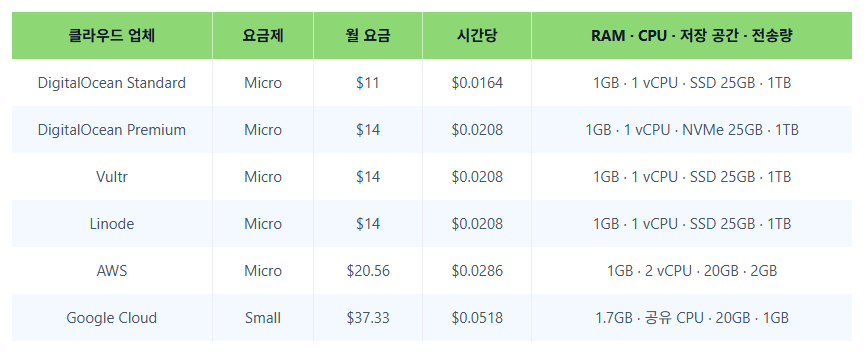
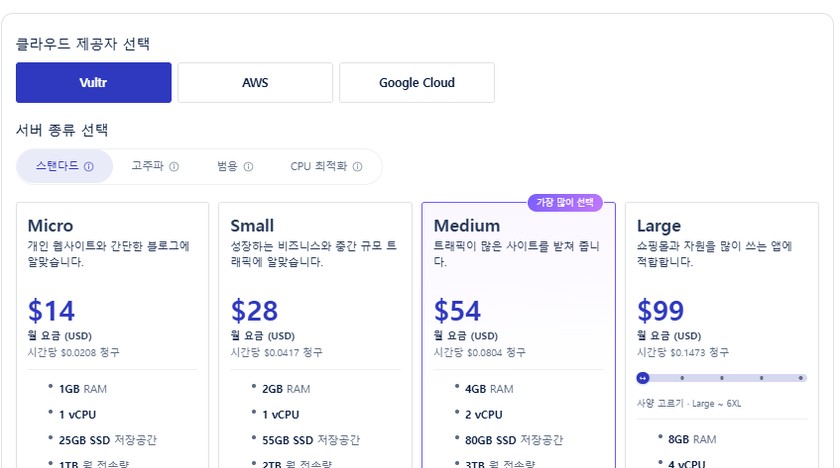
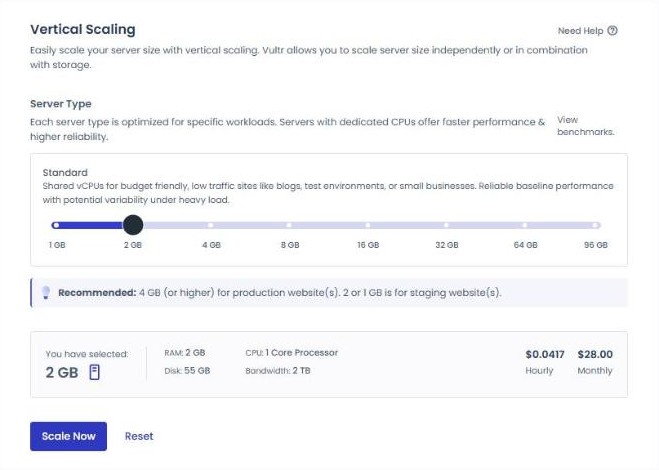
Cloudways calculates charges by the hours a server is used, and the server creation screen shows the monthly and hourly rates side by side. A 1GB Vultr Seoul server is $0.0208 per hour, $14 per month.
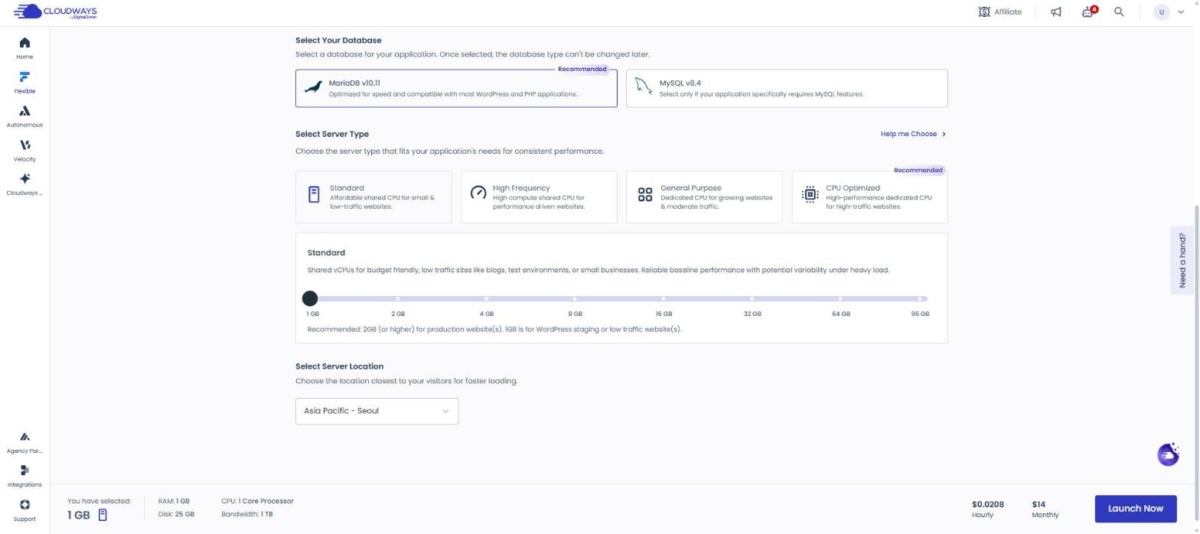
Usage charges are collected into one monthly bill, and when the billing cycle ends the amount is charged automatically to the primary payment method. If the billing address is in Korea, 10% VAT is added. The amount on the billing screen is an estimate calculated from this month's usage and can differ from the final invoice by up to 3%.
 Editor's Picks
Flexible Scalability
Managed VPS
Editor's Picks
Flexible Scalability
Managed VPS
Flexible managed hosting where you pick and run the cloud provider you want. CPU/RAM can be added the moment you need it, so it keeps up with traffic growth.
2️⃣ Registering a Cloudways Payment Method
A Cloudways payment method is registered from the [Billing] screen in the account menu at the top right: open the [Settings] tab and use the [Add Payment Method] button. One of the registered cards becomes the primary payment method and the rest are registered as backups. There must always be at least one payment method, so to delete the primary card you first have to register another card.
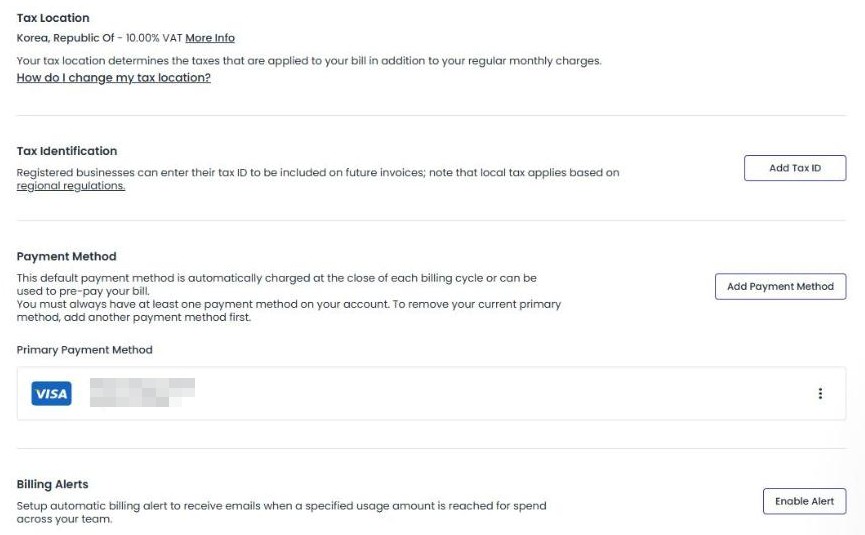
When I paid again this time, the primary card turned out to have expired in November 2023, so I switched the backup card to primary from the [⋮] menu to its right. Setting [Billing Alerts] on the same screen sends an email when usage reaches the amount you set.
3️⃣ Invoices and Usage History
Usage is checked on the [Overview] tab of the [Billing] screen, where three fields, [Total Charges], [Past Overdue] and [Pre-payments], appear under the month-to-date estimate. Even the day after the server was created the estimate still showed USD 0.00, with only a note that this month's usage would appear once it was available.
The [Billing History] tab lists invoices and payments one line at a time in three columns: date, description and amount. Invoices are issued on the 1st of each month for the previous month's usage, like [Invoice for September 2026], and the charge to the registered card is recorded a few days later as a [Payment] line.
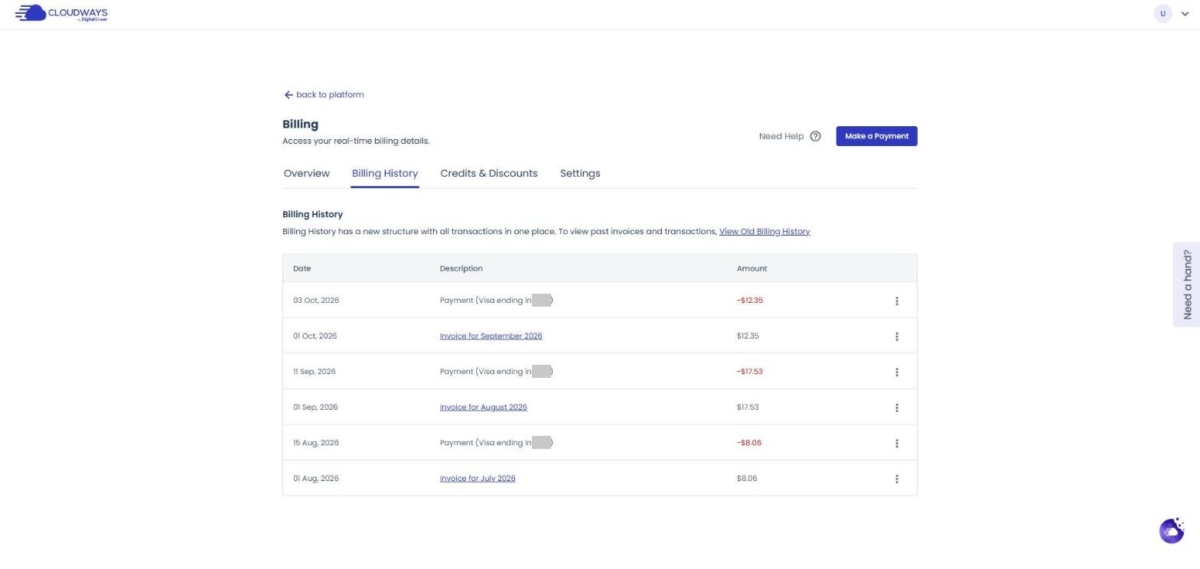
In this account's history, the $12.35 for September usage was invoiced on October 1 and paid on October 3, and the $17.53 for August usage was invoiced on September 1 and paid on September 11. Invoices from before the new screen are viewed in a separate window via the [View Old Billing History] link.
🔢 FAQ & Recommended Content






ℹ️ Affiliate Disclosure
This site's content contains affiliate links. When a visitor buys a product or service through one of them, the site receives a commission from the seller. The amount the buyer pays(it goes down during event discounts ↓)does not go up. Posted prices, discounts, and stock reflect the time of writing and may differ, so confirm with the seller before buying. Products are chosen and reviewed by our own standards, and commissions do not affect the order or content of reviews.