
Deleting a WordPress Plugin: How to Clean Up the Database Data It Leaves Behind
Deleting a WordPress plugin takes one button in the admin screen, but the tables and settings the plugin created often stay in the database. This site, too, still has 8 tables and 38 option rows left by an ad plugin and a comment plugin it removed long ago, as of 2026-10-09.
This guide goes in order, from deleting a plugin in the admin screen to cleaning up the shortcodes, folders and database data it leaves behind.
1️⃣ Deleting a Plugin in the Admin Screen
Under [Plugins] > [Installed Plugins], click [Deactivate] first, then click [Delete], which appears on the same row.
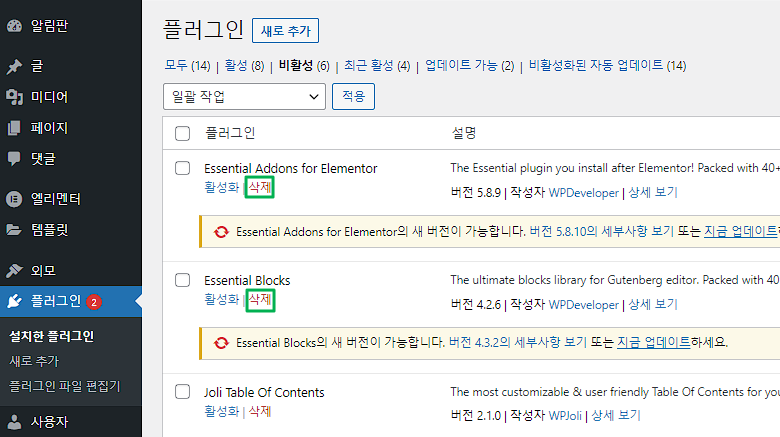
If the plugin includes cleanup code, it runs at this point; if not, only the files are removed and the data stays.
2️⃣ Why Data Remains After Deleting
When WordPress deletes a plugin, it runs that plugin's [uninstall.php] file or the function registered with [register_uninstall_hook]. Removing the data is left to this code, so plugins with no such code, or code that removes only part of it, leave their tables and options behind.
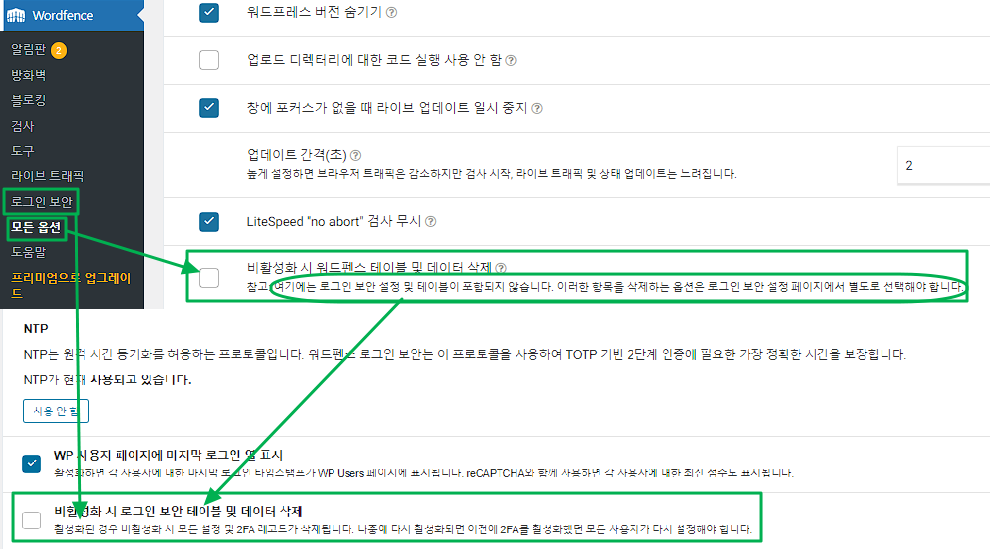
Some developers leave data on purpose, so that settings come back as they were if the plugin is reinstalled. Some plugins, such as Wordfence, offer an option in their settings to delete the data as well, and the Polylang multilingual plugin offers the same option.
3️⃣ How Leftover Data Affects the Site
Among leftover options, rows with [autoload] turned on are loaded into memory with the other settings every time a page opens. On this site, wpDiscuz's [wc_options] (15KB) and Advanced Ads' [advanced-ads-ab-module] (14KB) were rows like that.
Still, this site's autoload total is about 392KB and the leftover rows are about 39KB of it, which does not make a noticeable speed difference. WordPress's [Site Health] screen shows a warning when the autoload total exceeds 800KB.
After turning off autoload on the 23 leftover rows, Advanced Database Cleaner's [Autoload size] dropped from 391.52KB to 353.36KB.


Normally this is not a problem. Visitors who get cached pages do not go through PHP, so the autoload bundle is only loaded by requests that skip the cache, such as the admin screen, the first visit right after the cache is cleared, and bots. When many such requests arrive at once, each one unpacks the autoload bundle into memory, so the bigger a site's autoload grows, the faster server load climbs.
Options with autoload off and leftover tables are never read once the plugin is gone, so they do not affect speed; they only add to database size and backup size.
4️⃣ Cleaning Up What Is Left
Before touching the database, back it up in full first.
🔲 Shortcodes
Once a plugin is deleted, the shortcodes it placed in posts show up in the content as raw bracketed text. Until you edit each post, add the line below to your theme's [functions.php] so that the shortcode outputs nothing.
add_shortcode( 'pluginshortcode', '__return_false' );This site, too, used about ten shortcodes from a table plugin, removed them one by one along with its tables when the plugin was deleted over a security issue, and has not used shortcodes since.
🔲 Plugin Folder
If a folder was not removed from the admin screen, delete it directly under [wp-content/plugins] over FTP, cPanel or SSH.
🔲 DB Tables and Rows (phpMyAdmin)
Most hosts provide phpMyAdmin.
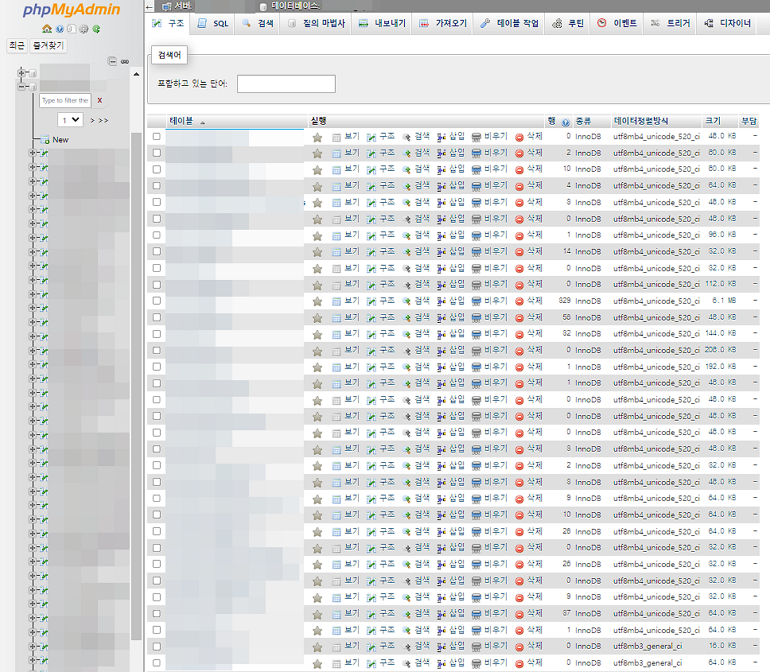
For leftover tables, find the tables with the plugin's name on the [Structure] tab and drop them. The screen below uses Yoast SEO as an example.
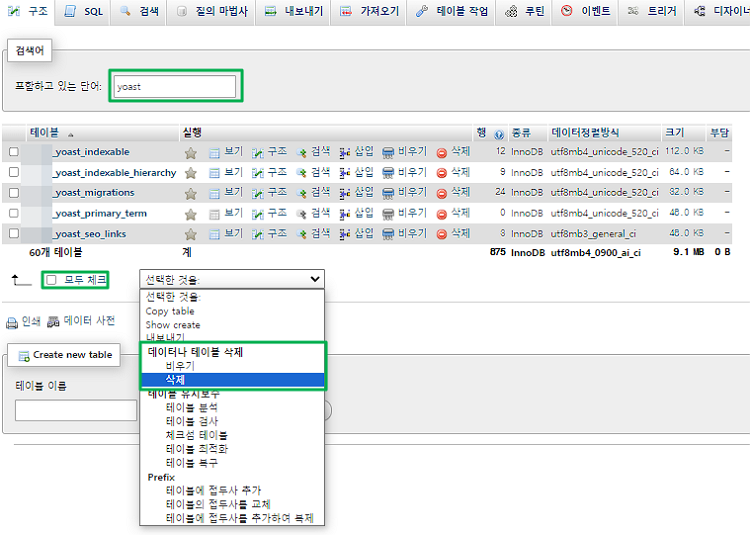
For rows such as options, search with the [%] wildcard on the [Search] tab, as in [%yoast%].
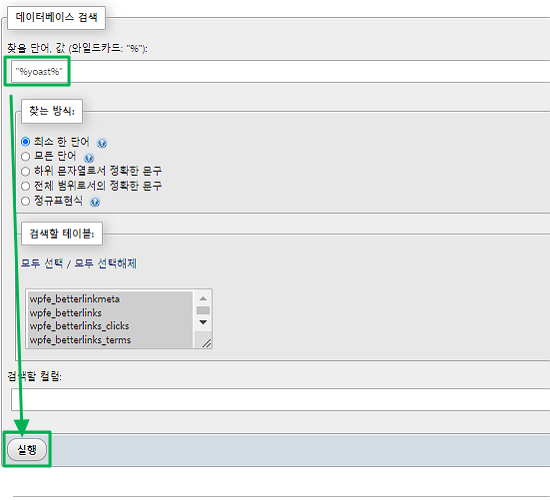
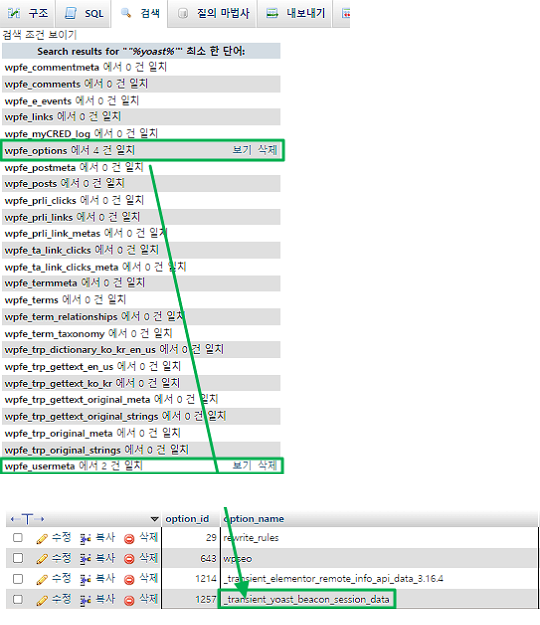
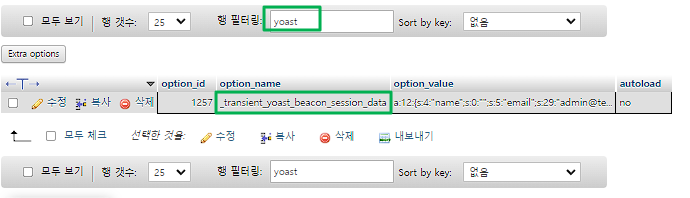
Filtering once more with [Filter rows] confirms whether the rows relate only to Yoast SEO.
Rows mostly remain in [wp_options], [wp_postmeta] and [wp_usermeta], and the [wp_] prefix in table names can differ from site to site. Deleting by name alone can remove rows other plugins use, so delete only rows you have confirmed belong to the plugin.
5️⃣ DB Cleanup Plugins
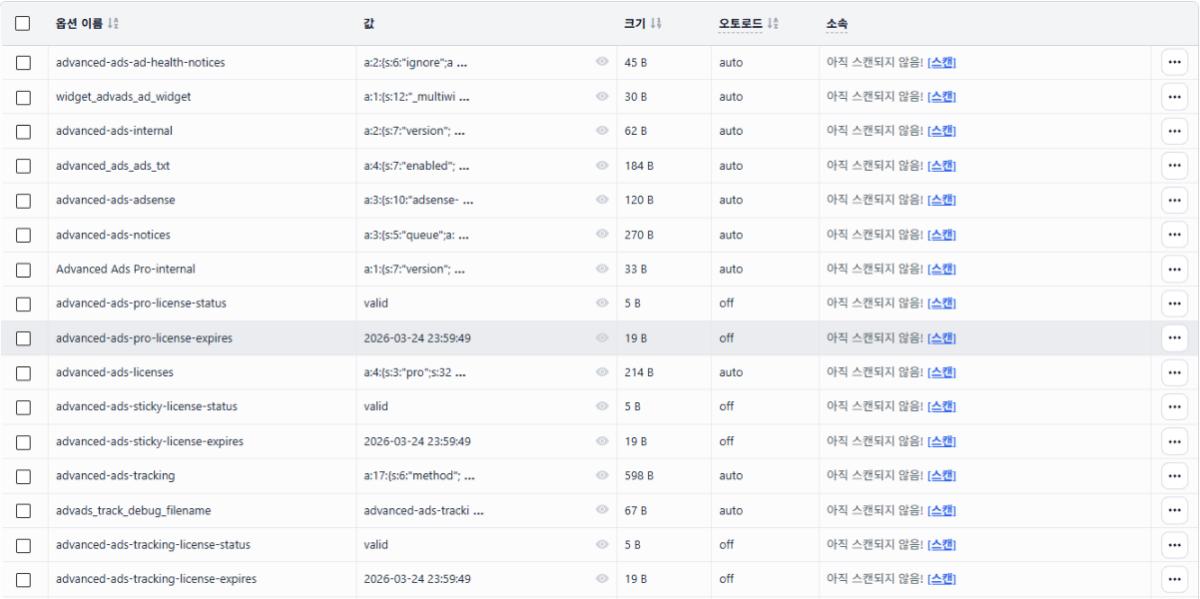
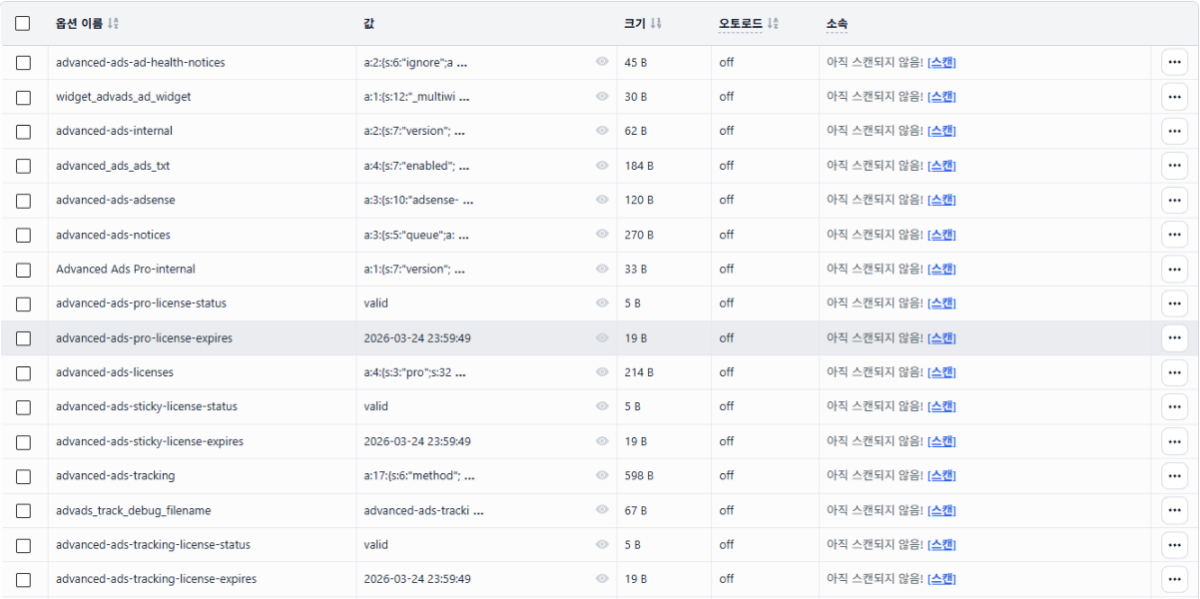
To clean up from the admin screen instead of phpMyAdmin, use Advanced Database Cleaner. This site uses it too, and it shows which plugin each option and table belongs to under [Belongs to], so you can tell which rows are safe to delete.
Rows whose [Belongs to] shows [Not scanned yet] are not unused rows; their owner is simply not known yet. On this site, many of the unfamiliar names turned out to be licenses and settings of plugins that are still active, such as Kadence Blocks Pro and WP Ghost, and deleting such rows deactivates the license or resets the settings.
So even for rows from a deleted plugin, do not delete them right away; turn off their autoload first. The values stay in place so you can undo it at any time, and if the site has no problems for a few days, delete them then.
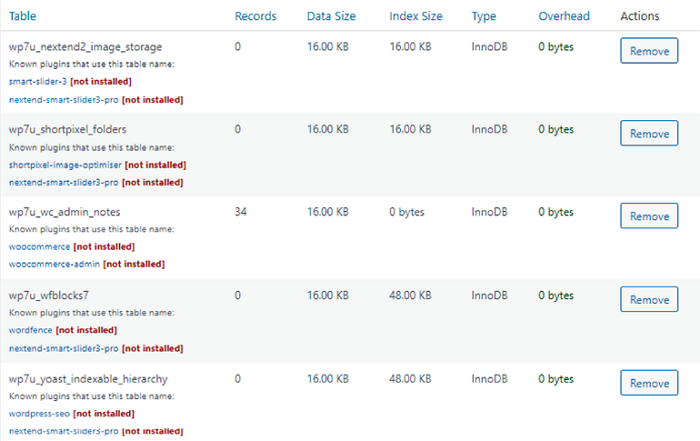
WP-Optimize can also delete leftover tables in its free version.

🔢 FAQ & Recommended Content

 Settings
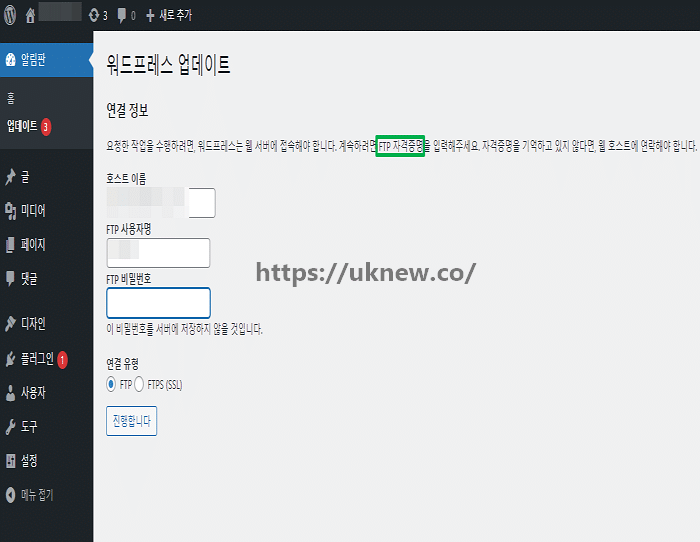
2 Ways to Stop the FTP Credentials Prompt
Two ways to get rid of the FTP login box that appears every time you install or update a plugin.
Settings
2 Ways to Stop the FTP Credentials Prompt
Two ways to get rid of the FTP login box that appears every time you install or update a plugin.
 Optimization
Perfmatters Review & Guide
Optimization settings organized over five years of use.
Optimization
Perfmatters Review & Guide
Optimization settings organized over five years of use.
 Performance
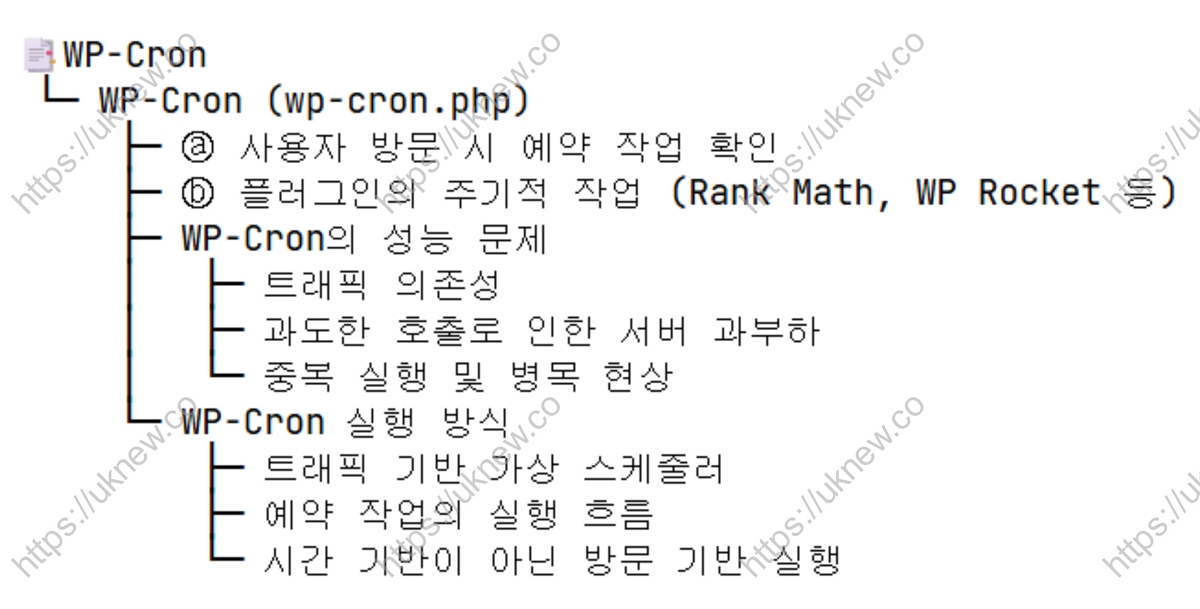
Disabling WP-Cron and Using System Cron
How to turn off wp-cron.php, which runs on every page load, and move it to a server cron job.
Performance
Disabling WP-Cron and Using System Cron
How to turn off wp-cron.php, which runs on every page load, and move it to a server cron job.
ℹ️ Affiliate Disclosure
This site's content contains affiliate links. When a visitor buys a product or service through one of them, the site receives a commission from the seller. The amount the buyer pays(it goes down during event discounts ↓)does not go up. Posted prices, discounts, and stock reflect the time of writing and may differ, so confirm with the seller before buying. Products are chosen and reviewed by our own standards, and commissions do not affect the order or content of reviews.