The Perfmatters plugin is a lightweight yet powerful tool among WordPress optimization plugins. It lets you easily control unnecessary scripts and resources to improve page load speed and minimize server load. After using it for more than five years, what stands out is that it goes beyond a simple speed boost and improves the stability and ease of management of the whole site.
This website currently uses WP Rocket Cache plugin and Perfmatterstogether. In this post, for Perfmatters applied on its own, I share the basic settings, reasons for each choice, and optimization results.
But as you run a site, you add various plugins to improve the visitor experience or extend features. The problem is that unnecessary scripts and resources pile up in the process, and page loading actually slows downoften as a result.
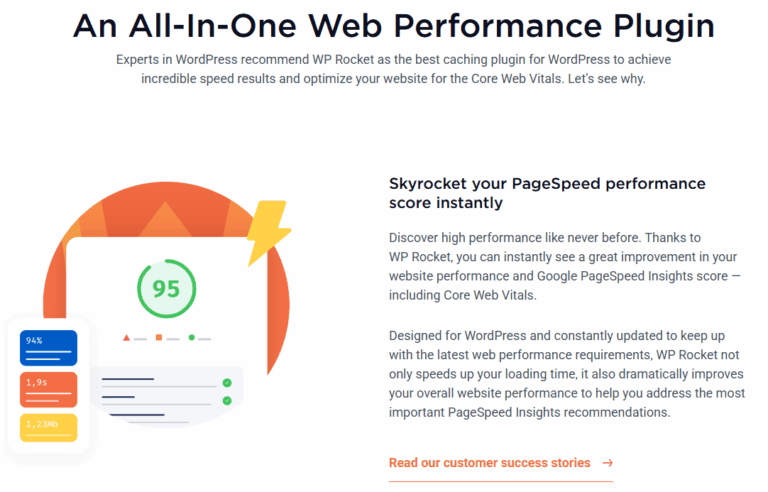
I went through the same experience while using WP Rocket, and although it may come down to my own limited experience and knowledge, I concluded that no other cache plugin was a better alternative.
1️⃣ Optimization Plugins Compared
Compared with clearfy, Autoptimize and Asset CleanUp, the reason I chose Perfmatterswas its most intuitive user interface and detailed explanations for each setting, so separate Googlingwas rarely needed.
PerfmattersChoice
The most intuitive user interface, with detailed explanations for every setting.
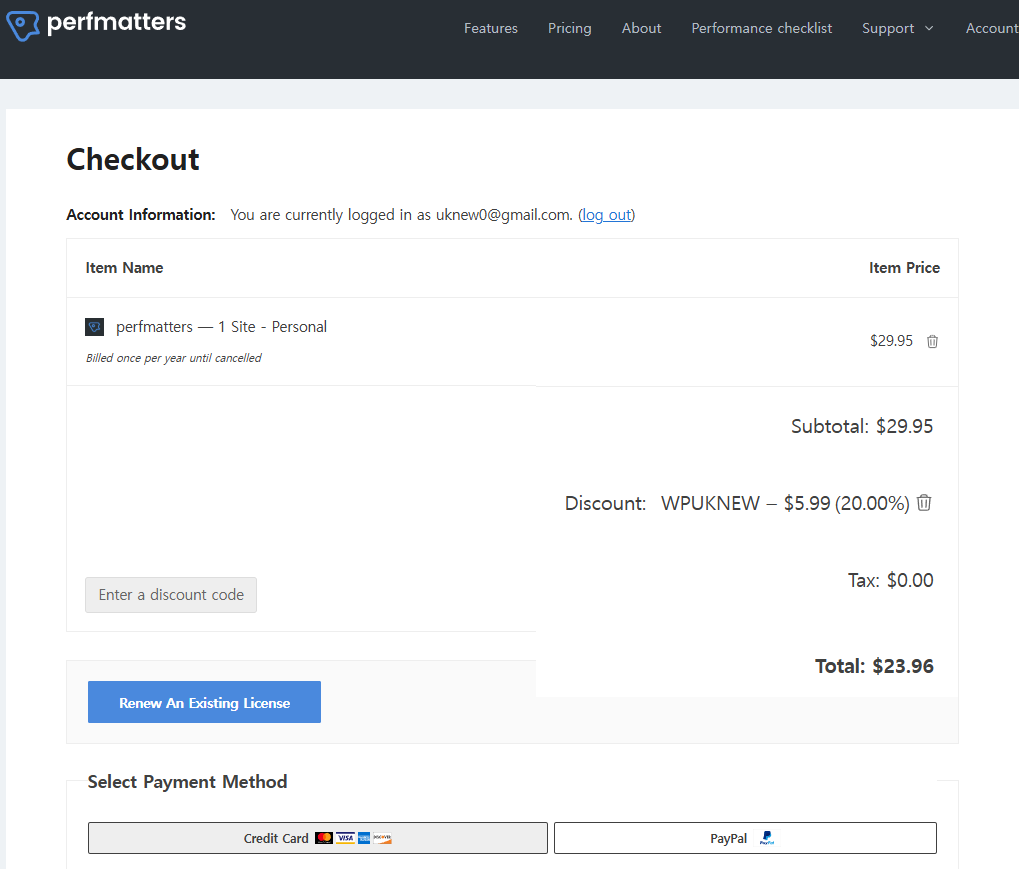
Enter the code in [Enter a discount code] on the checkout page to get 20% off.
Ⅱ. Perfmatters Basic Settings Guide
In WordPress, CSS and JS files are loaded globally, so it is common for code to load even on pages that do not use it, slowing the site down. Perfmattersprovides every feature a WordPress optimization plugin should have: removing code, controlling resources and minimizing requests.
This approach fundamentally reduces the ‘resource waste’ that a cache plugin alone cannot solve, so you get faster page loads and lower server load at the same time.
Starting from Perfmatters' General settings, we cover the basic database optimization and asset optimization features; Script Manager is set up by visiting the site from the admin page. We start the tutorial with General settings and will cover Script Manager later.
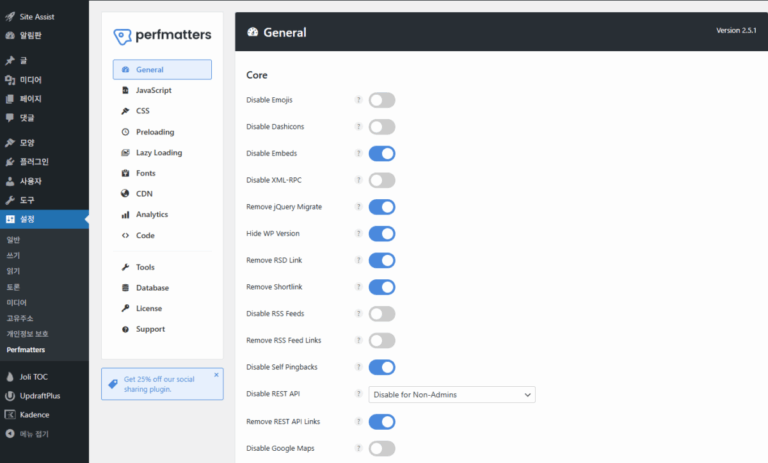
Perfmatters is an optimization-only plugin without caching. The optimization features in the General tab alone can greatly improve website performance.
WordPress's default emoji feature loads a separate JavaScript (wp-emoji-release.min.js) file, creating unnecessary requests; checking this stops the script from loading.
Ordinary emojis inside posts are drawn by the browser, so they are not affected. However, if you insert emojis directly in the header or footer , some themes may show display errors.
XML-RPC is vulnerable to brute-force attacks and more, so check to disable it. Keep it enabled only if you have plugins that use XML-RPC, such as JetPack.
Remove jQuery Migrate
This code lets old code and new code communicate; it is practically unnecessary, so check to remove it.
Hide WP Version
Exposing the WordPress version makes vulnerabilities easier to find, so check to remove it.
Remove RSD Link
RSD Linkis only needed by clients and mobile apps that connect via XML-RPC, so check to remove it.
Remove Shortlink
With permalinksin use, there is no need to keep shortlinks, so check it to remove them.
Category
Example
Description
Shortlink
[https://domain.com/?p=123]
Default link based on the post ID. The default form in older WordPress versions.
Permalink
[https://domain.com/post-name/]
Easy for people to read. The standard on most sites today.
Disable RSS Feeds
Check to disable if you do not provide RSS feeds to other sites.
Remove RSS Feed Links
Removes the links only when Disable RSS Feeds is checked.
Disable Self-Pingbacks
Self Pingbacks are created when you link from your site to your own site, so check to disable them. Pingbackscreate comment backlinks that do not help SEO much.
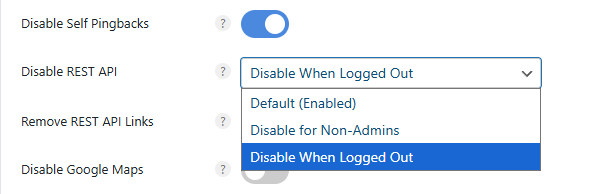
Disable REST API
The REST API is the communication channel through which apps, websites, plugins and external servicesexchange data inside WordPress in JSON format.
Situation
Description
✅ REST API enabled
When an external app or plugin visits [https://domain.com/wp-json/wp/v2/posts], it can receive the blog post list as JSON
⚙️ Examples of using the REST API
Used when a mobile app loads the list of WordPress posts, or when external tools (e.g. Rank Math, Elementor) automatically update site data
❌ When the REST API is disabled
Accessing the URL above blocks the data and rejects external requests
Left public, anyone can fetch basic site information, and many plugins, including Rank Math, use the REST API only in a logged-in admin environment.
Therefore, disabling it only for visitors who are not logged in (logged out)is the safest choice, and it helps security more than speed.
If you run the site alone, choose [Disable for Non-Admins]; if there are other authors, choose [Disable When Logged Out].
With Disable REST API applied (Logged Out), an error can occur even after an AI tool such as Claude is approved to connect.
If you get an error while connecting Claude over MCP, add the setting below as a code snippet.
It does not turn off the REST API itself; it only removes the related link meta tags from the page header to cut unnecessary requests.
Disable Google Maps
Some themes and plugins load the Google Maps API script automatically even on pages without maps; checking this blocks that script and reduces external requests.
If some posts include Google Maps, you can enter their post IDs in [Exclude Locations] so maps stay enabled on those posts.
The password strength meter script is meant to load only on the sign-up, password change and profile edit screens, but if a theme or plugin adds a form such as a login popup to every page, [zxcvbn.min.js] loads site-wide.
/wp-includes/js/zxcvbn.min.js
/wp-admin/js/password-strength-meter.min.js
Check to disable. You will rarely ever see this file.
Disable Comments
If your WordPress site does not use comments, check this to disable the comment feature.
Add a Blank Favicon
A fresh WordPress install has no [/favicon.ico] file, so performance tests show a 404 error; this option is for theme and plugin developers to get rid of that error. WordPress sites that already have a favicondo not need it.
Remove Global Styles
Since WordPress 5.9, core automatically inserts the [global-styles-inline-css] inline CSS into [<head>]. It is 150–200 lines of inline CSSmeant for FSE themes, but classic themes such as Kadence and GeneratePress keep getting it even without FSE, which increases HTML size and slightly lowers FCP/LCP.
On the 2.6.8 screen, the old [Separate Block Styles] toggle has become the [Block Style Behavior] dropdown. The default, [Separate Styles Inline (Default)], loads styles split by block.
WordPress has dedicated CSS for each block (paragraph, image, gallery, button, etc.), and by default even the CSS of blocks you do not use is bundled into a global stylesheetand loaded. Splitting it by block loads only the CSS for the blocks on the page.
CSS usage: up to 17% less
On some single-page sites, LCP improves by ~30–50 ms
The drop in TBT (Total Blocking Time) is minor, but the CSS parsing load decreases
Category
How it works
Load result
❌ Before (default)
Loads all block CSS at once
Includes a lot of unnecessary CSS
Block Style Behavior
Loads CSS only for blocks on the page
Slightly more CSS files, but total CSS size goes down
It has been officially supported since WordPress core 6.2, so themes and plugins such as Kadence, Spectra, GeneratePress have no problems. However, if a theme or plugin has its own CSS loading logic or an FSE-based (theme.json-centered) structure, style conflicts may occur.
This feature uses the [should_load_separate_core_block_assets] WordPress core filter. Note that the CSS is inserted inline in the body rather than the head of the website, so W3C validators may show warnings.
See also: Perfmatters docs
Type
Example
Reason
❌ FSE-based themes
Twenty Twenty-Four, Blockbase, etc.
Global styles (theme.json) depend on this CSS
⚠️ Older builder-style themes
Avada, WPBakery, Jupiter X, etc.
Duplicate loading between their own CSS structure and core CSS
⚠️ Block plugins based on legacy CSS
Older Ultimate Blocks, Stackable (old versions), etc.
Assume shared block CSS is loaded globally
Disable Heartbeat & Revisions
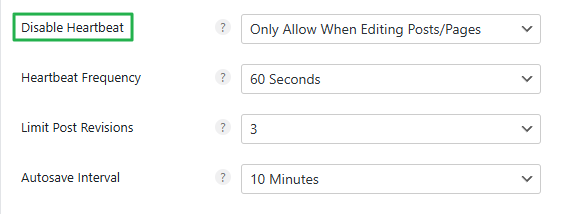
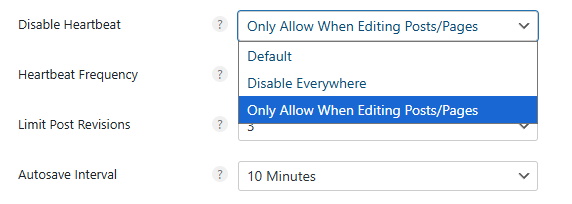
WordPress [Heartbeat] is a signal that checks whether the server and website are connected; on the dashboard it sends a POST request every 15 seconds to /wp-admin/admin-ajax.php. Allow it only when editing posts and pages and set the frequency to 60 seconds to lighten the server load.
Heartbeat
Allow only for posts and pages
If you leave post revisions at the default, they keep piling up in the database and slow things down, so allow only up to three.
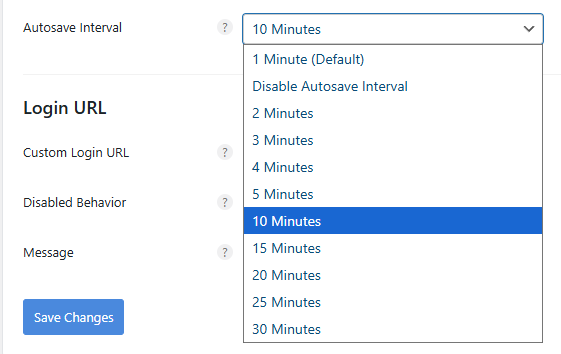
The default autosave interval for posts is one minute; here we set it to 10 minutes.
If writing posts in the admin uses a lot of server CPU, visitor pages can slow down whatever cache plugin you use. If you do not use Perfmatters, you can set these directly in wp-config.php.
General › Login URL
1 / 2
Item
Check / Uncheck
Brief description
Login URL setting
Replaces other plugins that hide the login URL
Login URL settings
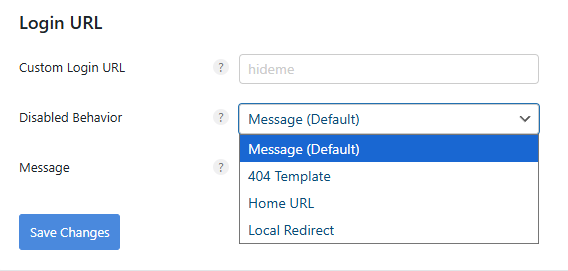
The WordPress admin dashboard defaults to yourdomain.com/wp-admin, which is a weak point for security. Instead of another plugin that hides the admin dashboard, you can use the feature Perfmatters provides.
JavaScript Deferdelays loading so that JavaScript runs only after the HTML document is parsed and shown: a feature that prevents render blocking. DOMContentLoaded delays are reduced, improving FCP and LCP.
Include Inline Scripts
Inside the HTML document (<script>…</script>), this option also delays short JavaScript written directly in the page. Inline scripts are often needed for initial behavior such as menu toggles, so leave it disabled unless you have a specific reason.
Include jQuery
Many plugins and themes depend on jQuery, so including jQuery in deferred loading can break parts of the site such as menu toggles, sliders and popups. Keep it disabledand enable it only after testing, when needed.
Excluded from Deferral
Enter the file paths of scripts that break when deferred (sliders, form validation, menus, etc.), and they are excluded from deferral and loaded immediately.
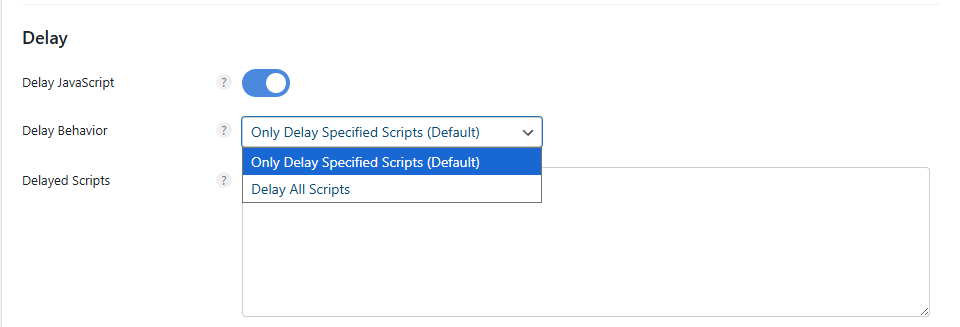
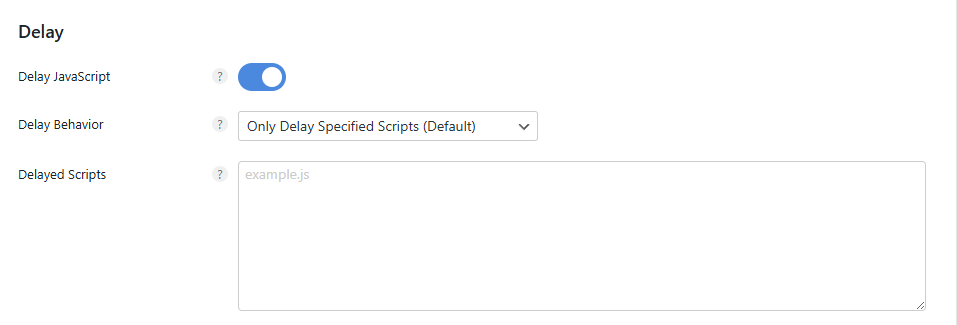
After the page loads, this option pauses JavaScript execution until user interaction (scroll, click, touch, etc.) occurs , deferring non-essential JavaScript such as ads, analytics and third-party tracking scripts to improve LCP (Largest Contentful Paint) and FCP.
If [Defer] runs scripts after HTML parsing, [Delay] postpones execution itself until the user acts. For scripts that must run right away, such as autoplay or initial popups, make an exception.
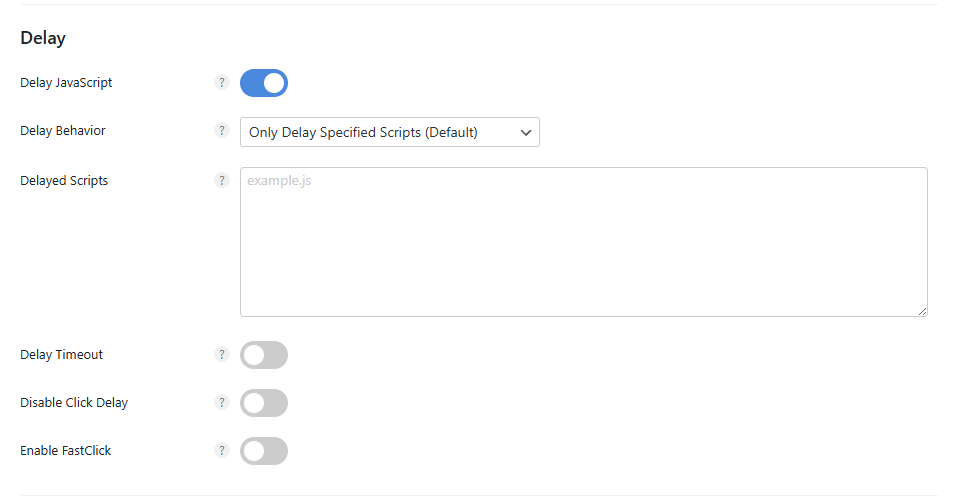
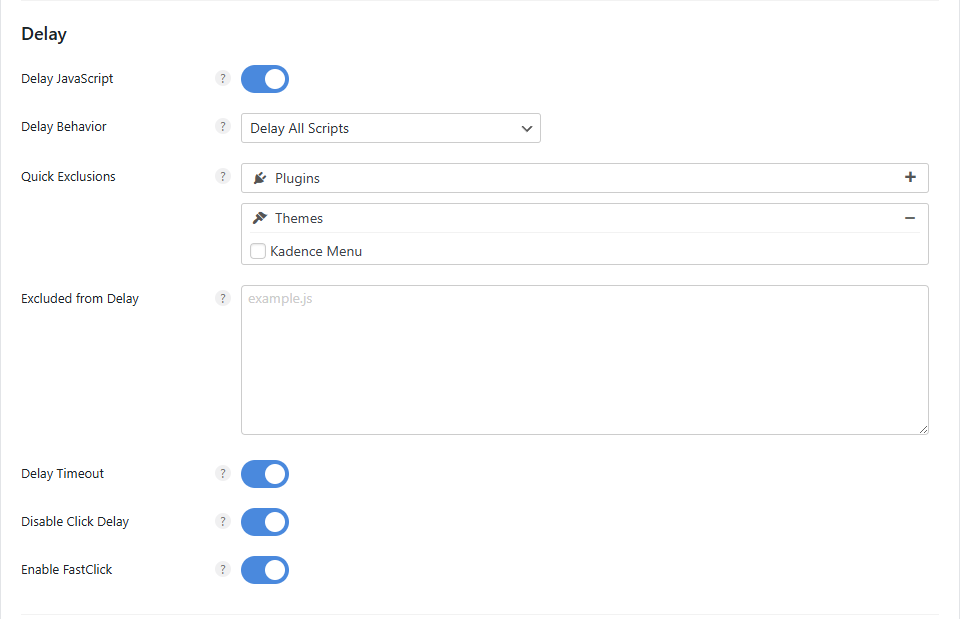
Delay JavaScript: if you enable it, we recommend turning on its three sub-options.
Option
Recommended
Description
Delay Behavior
Delay only ‘non-essential scripts’, not all JS Recommended: [Only Delay Specified Scripts (Default)]
Delay Timeout
Runs automatically after a set time even if the user does nothing (for ads and analytics, 15 seconds by default)
Disable Click Delay
Responds instantly to clicks (better INP, no UX delay)
Enable FastClick
Removes click response delay on mobile (prevents iOS touch delay)
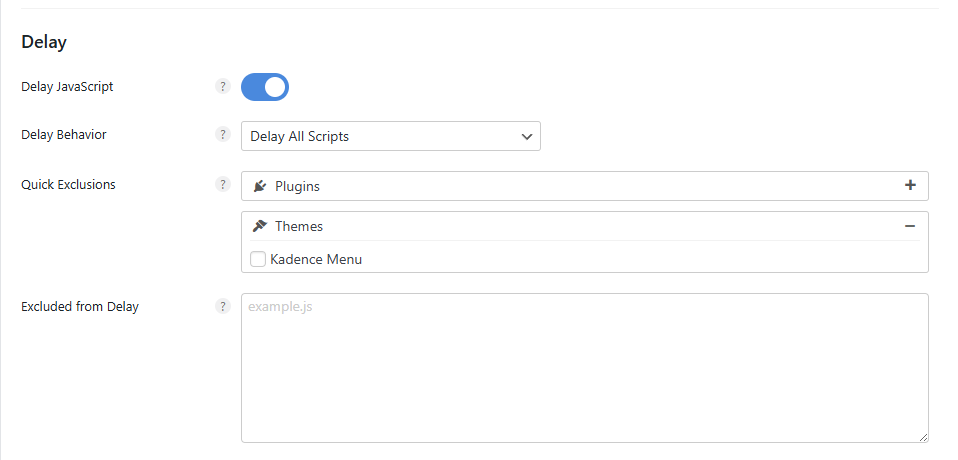
Delay Behavior
Decides whether to delay only specified scripts or all JavaScript.
Delaying all files can cause problems with certain plugins or themes; pick installed plugins and themes in [Quick Exclusions] to exclude them. If something is not on the list, enter it in [Excluded from Delay].
Delay Timeout
Even if the user does nothing (click, scroll, etc.), once a set time passes, the delayed JavaScript runs automatically. The default is 15 seconds.
In delayed mode, JS loads only after the user clicks something, and only then does the clicked action (opening a menu, pressing a button, etc.) run, so the response after a click may be slightly late. This option removes that response delay.
Situation
Default Delay JS state
With Disable Click Delay on
User click
Click event runs after JS loads → a slight delay
JS runs immediately → fast click response
Enable FastClick
With delayed execution on, you may have to click twice for something to work; this happens with every cache and optimization plugin. This option fixes it.
JavaScript › Minify
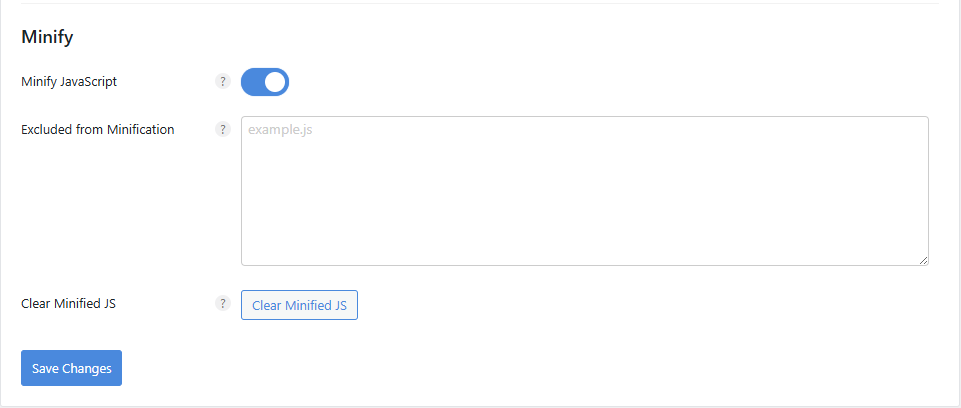
↳ Minify JavaScript (Minify JavaScript)
It removes unnecessary characters (spaces, line breaks, comments, etc.) from JavaScript files — a feature that minimizes file size— reducing both transfer size and parsing time.
Already minified files end in [.min.js]. If Google PageSpeed Insights or Lighthouse shows a [Minify JavaScript] warning, enable this option to compress even unminified scripts.
CSS › Unused
The CSS settings offer two methods: removing unused CSS and minifying CSS.
↳ Remove unused CSS (Remove Unused CSS)
A feature that finds and removes CSS code that is not actually used on the page. WordPress themes and plugins load CSS files on most pages, so unused CSS increases file size and render-blocking time and hurts LCP and FCP.
When enabled, it extracts only the CSS each page actually needsand inserts it, which is most effective on sites with large themes (Elementor, Divi, Avada, etc.) or many plugins. If some styles go missing, as with sliders or form builders, add them to [Excluded Stylesheets].
CSS Method Used
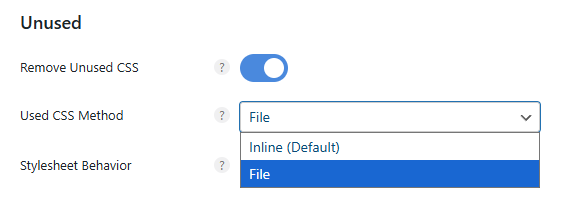
For the CSS in use, inserting it inline or loading it as a separate fileis possible.
Inline (default): Inserts the needed CSS directly in the HTML document. No external CSS request helps FCP and LCP, but each page's HTML gets bigger. Recommended for blog-style sites with little CSS.
File: Builds the CSS in use as a separate .css file and loads it. It can use the browser cache but adds one external request. Recommended for large sites or builder pages with lots of CSS.
Stylesheet Behavior
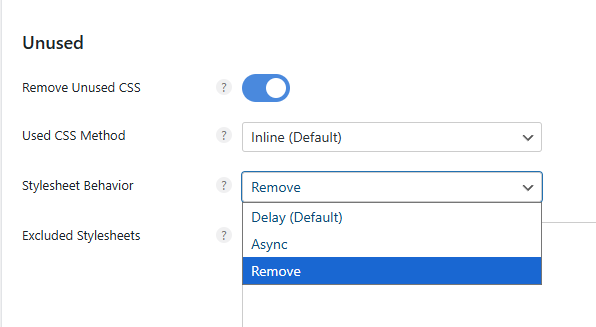
The Stylesheet Behavior option is a setting that decides how to handle unnecessary CSS files.
Settings
How it works
Features
🕒Delay (Default)
Loads stylesheets slightly delayed.
The default; it works reliably on most sites and helps initial rendering (FCP, LCP).
Enter a common CDN such as KeyCDN or Bunny CDN to serve CSS files from the CDN. Cloudflare automatically caches every resource delivered at the DNS level, so do not add it here.
CSS › Minify
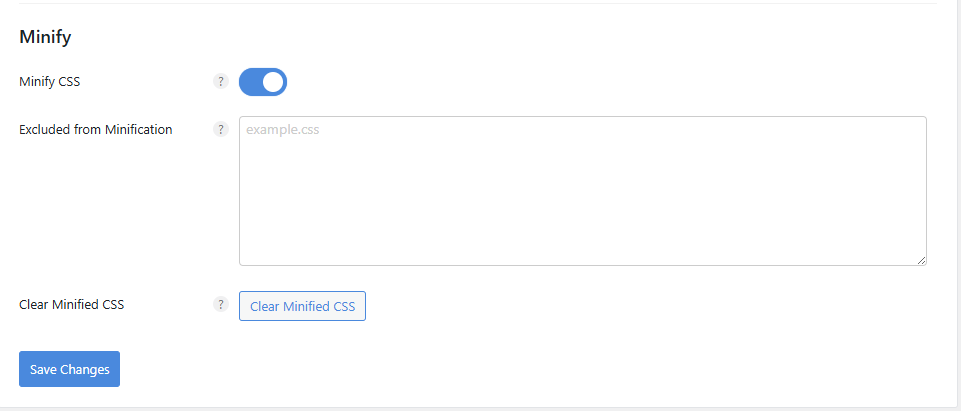
↳ Minify CSS files (Minify CSS)
Removes whitespace and comments from CSS files to reduce file size. If a plugin's features break or disappear on visitor pages, add that CSS file.
Preloading › Preload
It is a feature that loads resources in advance to speed up rendering, improving first-screen display (LCP) and page navigation speed. It consists of three parts: basic preload items, speculative loading and preconnect (Preconnect, DNS Prefetch).
Item
Server load impact
Core Web Vitals impact (LCP / FCP / TTFB)
Preload
🔸 Slight increase
✅ Better LCP / ⚠️ No change in TTFB
Speculative Loading
🔺 Medium to high
⚡ Better LCP and FCP on the next page / ⛔ Little effect on the current page
Preconnect
🔹 Very slight
✅ Better FCP and LCP (less delay connecting to external resources)
DNS Prefetch
⚪ Almost none
⚪ Possible slight FCP gain (indirect)
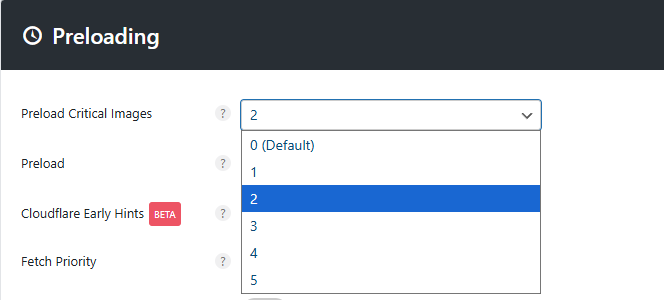
Preload Critical Images
Preloads important images to reduce LCP (Largest Contentful Paint) time.
Chrome handles at most two preloaded images with high priority, so specify only 2–3. Specifying too many puts load on the server and can show images before CSS, worsening the CLS (Cumulative Layout Shift) score.
Preload
Preloads resources such as fonts to improve Largest Contentful Paint(LCP).
Find targets in the Network tab of Google PageSpeed or Chrome DevTools. Preloading too many resources can increase total blocking time (TBT).
Cloudflare Early Hints
Early Hints (HTTP 103)is a feature that lets the browser start loading resources before the server has fully generated the HTML. It is similar to preload but kicks in earlier. Check it if you use Cloudflare.
The browser uses an HTML attribute that sets the order in which resources load, [<img fetchpriority="”high”">] or [“low”]. Preload is mandatory, Fetch Priority is a recommendation, so the browser has room to decide.
Image class names are usually separated by hyphens (-) or underscores (_), but if Chrome DevTools shows them without hyphens, enter them exactly as shown.
Disable Core Fetch
Since WordPress 6.3, core automatically adds the [<img fetchpriority="”high”">] attribute to the topmost image, but it does not always pick the LCP (largest content)correctly. Turning this option on blocks core's automatic setting, and in Perfmatters only the fetchpriority values you set apply.
Preloading › Speculative Loading
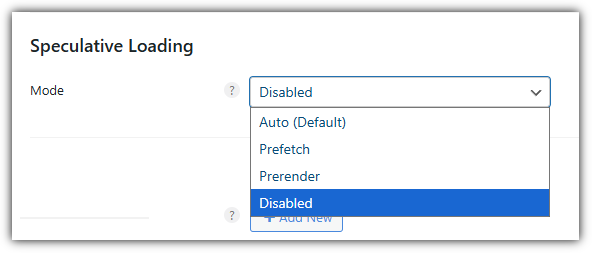
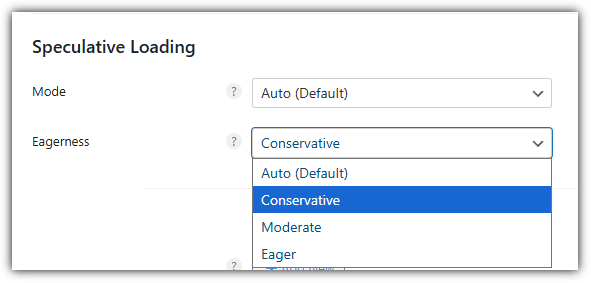
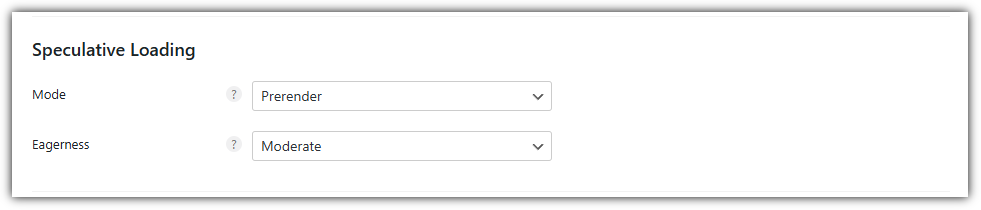
Speculative loading supports four modes: Auto (Default), Prefetch, Prerender and Disabled, and the three modes other than Disabled let you choose an eagerness of Auto (default), Conservative, Moderate or Eager.
Runs at the default Conservative level and is stable
Prefetch
Downloads the next page's resources in advance (without rendering)
Light load with a speed gain
Prerender
Prerenders the linked page in the background
Fastest page transitions but heavy server load
Disabled
Disables speculative loading completely
Removes all related code; suits slow servers and shared hosting
Speculative Loading
└─ Mode: Auto(Default), Prefetch, Eagerness
├─ Eagerness setting
│ ├─ Auto (default)
│ ├─ Conservative
│ ├─ Moderate
│ └─ Eager
│
└─ Disabled
Eagerness level
Description
Features
Auto (default)
WordPress core picks a suitable level automatically
Runs at the Conservative level by default
Conservative
Preloads only when click intent is clear
Most stable; saves resources
Moderate
Preloads on mouse hover (about 200 ms)
Good balance of speed and efficiency
Eager
Preloads immediately even on weak signals
Fastest but uses the most resources
Set it with in mind that it can use a lot of server CPU or slow down the site overall.
A cache plugin's [link preloading] (Instant Page / Prefetch) downloads a page in advance when you hover over a link. Speculative loading is more server-efficient, so use only one; if you use speculative loading, disable link preloading in your cache plugin.
Category
Instant Page (Prefetch)
Speculative Loading
Technique
Uses JavaScript to fetch in advance when hovering over an [<a>] tag
Based on the browser-native Speculation Rules API
When it runs
When the user hovers over a link
The browser predicts the ‘likelihood of navigation’ automatically (hover, click, touch and other signals)
What it loads
Fetches only the HTML of the linked page in advance
Both Prefetch (resources only) and Prerender (including rendering)
Level
Single fetch level (JavaScript-based)
Network and rendering level optimization inside the browser
WordPress Integration
Based on an external script (instant.page)
Integrated into WordPress 6.8 core
Performance efficiency
Fast, but the browser cannot be controlled
Faster and more stable, saves resources
Preloading › Connection
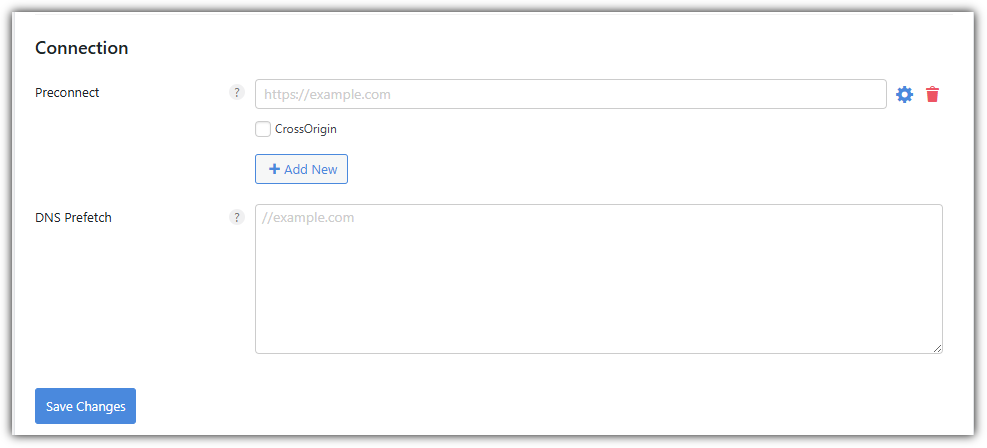
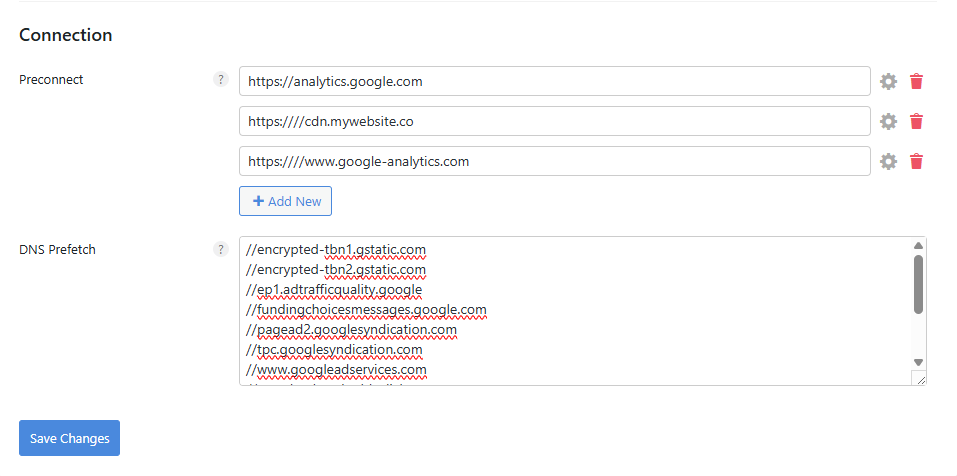
Before requesting external resources, it prepares the network connection in advance.
Item
Description
Preconnect
Creates network connections to external resources (fonts, CDN, analytics scripts, etc.) in advance. The browser sets up the connection early, before the HTTP request, removing round-trip latency.
DNS Prefetch
Resolves the domain name before the user clicks. For when you want to shave a little more off DNS lookup time.
Preconnect Applying it to every item loads server resources, so set only about 2–3.
//encrypted-tbn1.gstatic.com
//encrypted-tbn2.gstatic.com
//ep1.adtrafficquality.google
//fundingchoicesmessages.google.com
//pagead2.googlesyndication.com
//tpc.googlesyndication.com
//www.googleadservices.com
//googleads.g.doubleclick.net
//www.google.co.kr
//www.googletagservices.com
//www.youtube.com
//analytics.google.com
//www.google-analytics.com
Most cache plugins have Preconnect / Prefetch features, so turn these two off if you use a cache plugin.
Preconnect/DNS Prefetch
Applied
Perfmattersonly
When used with a cache plugin
Lazy Loading › Images
If Preload is for files shown on screen right away, Lazy Load is for images shown after scrolling. It delays loading until the user scrolls down and actually needs to see the image.
It implements the [Defer offscreen images] approach recommended by Google PageSpeed, so it does not affect SEO.
Images
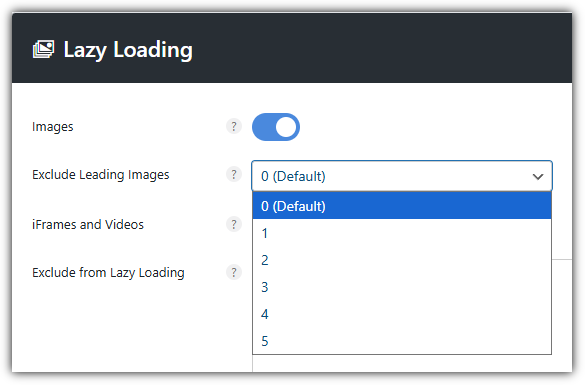
Preload Critical Images already preloads the top two images and automatically excludes them from LazyLoad, so also setting Exclude Leading Images can waste resources through duplicate processing.
Lazy loading does not apply to background images.
iFrames and Videos
A feature that lazy-loads iframes and videos; it applies to embedded content such as YouTube, Vimeo, SoundCloud and Google Maps, and to videos inserted with the [] tag.
If you have YouTube videos, enable the preview thumbnail feature. Instead of the actual iframe, it shows a lightweight thumbnail image and an SVG play iconand loads the iframe only on click, reducing TBT (Total Blocking Time).
Exclude from Lazy Loading
If you lazy-load images that must show as soon as the page opens, such as featured images or logos, the screen looks blank or flickers, and if the image counts toward LCP, the score gets worse. Enter the image's file path (example.png) or class name (class=”example”) to exclude it.
Using the GeneratePress theme: to exclude the logo, enter the [is-logo-image] class.
To exclude blog post featured images (thumbnails), enter [class=”attachment-full size-full”] class.
ShortPixelIna Imagifyor a similar plugin that serves WebP images outputs them in a [<picture>] tag. Entering the whole tag excludes every image on the site, so if possible, specify a particular class or path.
picture
.is-logo-image
.featured-image
/uploads/header/
Exclude by Parent Selector
When images such as featured images or galleries have no unique class in the img tag, this option excludes them by the parent container's class.
For example, if the parent selection looks like this,
<div class=”featured-gallery”>
<img src=”image1.jpg”>
</div>
enter it as below.
featured-gallery
Threshold
Adjusts the threshold so images load a little before they appear on screen.
The default is 0px; to soften images suddenly appearing as you scroll, raise it slightly to 100px or 200px . Sites with many ad scripts, such as those using Mediavine or AdThrive, should set at least 300px.
DOM Monitoring
It detects new elements added to the page and automatically lazy-loads newly added images, iframes and more. It is needed on sites with tabs, infinite scroll, sliders, AJAX pagination and the like — sites with dynamic content.
DOMContentLoadedmarks when the initial DOM is complete, while DOM Monitoring detects changes after that.
Add Image Dimensions
Adds missing width and height to images.
Fade In
Images popping in abruptly: a visual touch that turns this into a smooth transition.
⚙️Recommended Lazy Loading settings
The recommended Lazy Loading settings described above are as follows.
Option
Recommended
Description
Images
Lazy-load all images
Exclude Leading Images
⚙️ 0 (Default)
If an image count is set in PreLoad, keep it at 0
iFrames and Videos
Lazy-load YouTube and embedded videos
YouTube Preview Thumbnails
Loads only the thumbnail first; loads the video when clicked
Exclude from Lazy Loading
⛔ Leave empty
Set manually when you need to exclude specific files
Exclude by Parent Selector
⛔ Leave empty
Set manually when you need to exclude specific containers
Threshold
📏 300
Starts preloading near the viewport
DOM Monitoring
Keeps Lazy Load when the DOM changes dynamically
Add Image Dimensions
Prevents CLS (adds width/height automatically)
Fade In
Smooth fade-in effect (better UX)
Lazy Loading › CSS Background Images
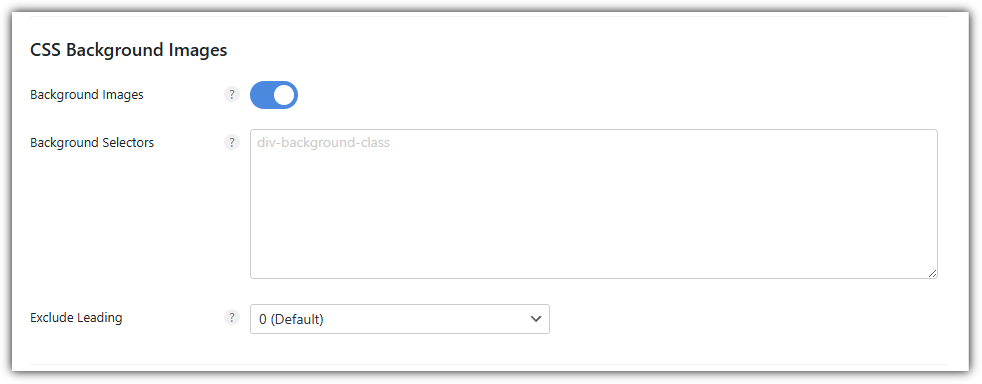
CSS Background Images
You can lazy-load background images in CSS stylesheets.
In the background selector, enter a specific ID or class found on the container holding the background image or on its parent container. Enter one per line without the prefix ([.], [#]).
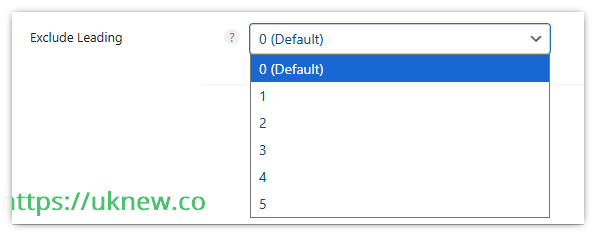
Exclude Leading excludes a set number of background image containers, counting from the first loaded, from lazy loading. Use Exclude Leading if you use many background images.
Option
Recommended
Description
Background Images
Lazy-loads the CSS [background-image:] property. (e.g. Hero section backgrounds)
Background Selectors
⛔ Leave empty
Enter only when specifying a particular background class (.div-background-class)
Exclude Leading
⚙️ 0 (Default)
The first background image loads immediately (main hero, etc.)
Lazy Loading › Lazy Elements
Lazy Elements
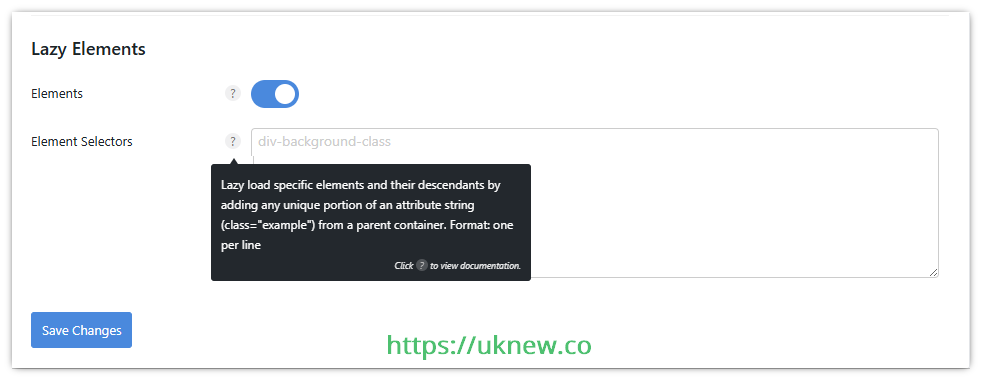
Enables lazy loading of elements in the DOM.
DOM(Document Object Model) is the element treethe browser builds by parsing an HTML document, and as it grows, the cost of memory use, style calculation time, layout recalculation (Reflow) increases.
Category
Number of nodes in the body
Status
Normal
800 or fewer
🟢 Normal
Warning
More than about 800
🟠 Caution
Error
More than about 1,400
🔴 Warning
Most cache plugins do not have this feature, so enable it even when using a cache plugin. You can also specify particular elements and parent containers.
Option
Recommended
Description
Elements
Lazy-loads HTML elements themselves (smaller DOM, lighter initial rendering)
Element Selectors
⛔ Leave empty
Enter only if you want to lazy-load elements in specific containers or sections
Fonts
The Fonts tab mainly decides whether to load Google Fonts locally or disable Google Fonts.
Local Google Fonts vs. disabling Google Fonts
Local Google Fonts
When using Local Google Fonts, disable the same feature in other themes or cache plugins.
Disable Google Fonts
Hosting Google Fonts locally means, instead of loading them from outside (Google's servers), storing them on your site and hosting them yourself, which reduces network requests and helps improve LCP .
Disable Google Fontsblocks Google Fonts entirely and replaces them with the browser's default font (e.g. Arial, Helvetica, sans-serif). It makes the fewest network requests, but design consistency may break.
Display Swap
Even before web fonts load, the browser shows text first in the system default font, so users can read the content right away and LCPand perceived speed improve. There is no CLS improvement.
Print Method
Local stylesheet output defaults to File; switching to Inline inserts the CSS directly into the HTML, which helps reduce render blocking and improve FCP and LCP. In exchange, the page size grows slightly.
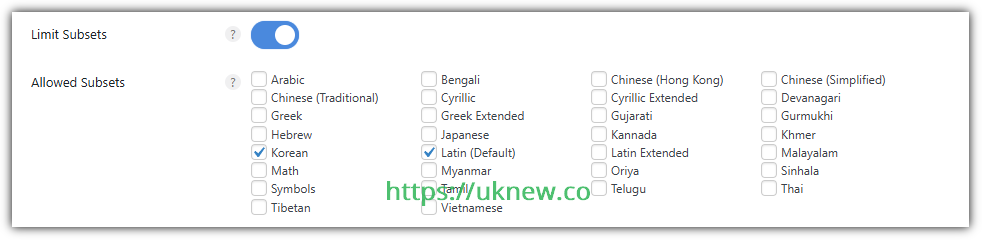
Limit Subsets
Loads only the character sets you need to reduce font file size. Characters of languages you do not select may not display, so the usual setup is Latin (Default) plus your own country's language.
With a multilingual plugin, a cache plugin that handles all Google Fonts and Display Swapin the cache is the better choice.
CDN URL
If you use a regular CDN other than Cloudflare CDN, enter its URL to serve local fonts from the CDN.
Clear local fonts
Deletes local fonts when you change the theme, pick different fonts, or pick different fonts in a cache plugin.
⤵️ Recommended Fonts settings
Item
Recommended
Description
Local Google Fonts
Hosts Google Fonts locally on your site instead of loading them from outside (Google's servers). Fewer network requests and less font loading delay help improve LCP.
Display Swap
Shows the system default font before web fonts load, reducing flash of unstyled text (FOUT) .Better LCP and perceived loading speed, but no CLS improvement.
Print Method
The default is File; choosing Inline inserts the CSS into the HTML, which helps minimize render blocking and improve FCP/LCP. However, the HTML size may grow slightly.
Limit Subsets
Loads only the character sets you need to reduce font size and speed up loading. E.g., choose [Latin(Default)] + [Korean]. Spanish is included in Latin, so there is no need to add it. Indian languages need a separate subset (Devanagari, etc.). Keep this even with a multilingual plugin.
CDN URL
⚙️ Optional
You can set a path if you use a separate CDN other than Cloudflare. Usually leave it empty.
Clear Local Fonts
🔁 Run when needed
When you change the theme, swap fonts or change cache plugins, it deletes existing local fonts and builds a new cache.
Google Fonts Disabled
Blocking Google Fonts completely removes the external requests, but every font the theme sets is removed and replaced with default fonts (Arial, etc.) . Design consistency may break, so keeping it disabled when using Local Google Fontsis recommended.
CDN
CDN URL rewriting works by entering the URL and then adding the directories to include. With both wp-content and wp-includes set, all images, CSS, JS and fonts are served from the CDN, and you can exclude files you do not want on the CDN.
Analytics
You can connect Google Analytics with plugins such as Google's Site Kit. However, just running a Google PageSpeed Insights test after installing Site Kit is enough to notice a performance drop. Enable this if you want to connect Google Analytics with local settings for better speed.
If you also set it up in Site Kit or in SEO plugins such as Yoast and RankMath, HTTP requests grow from one to two, so use only one of them.
Code › Snippets
The place to register PHP, CSS, JS and HTML code snippets and turn them on or off. Add one with [New Snippet].
Set up the snippet that prevents the Claude MCP connection error as shown below.
<> Code
All Snippets / MCP REST API exception
ActiveSave Snippet④
Name②
MCP REST API exception
Location
Everywhere⌄
Type
PHPJSCSSHTML
Code③
<?php
1// Let WP Rocket MCP (OAuth) requests through the Perfmatters REST API restriction
②Enter a name and leave [Location] as [Everywhere] and [Type] as [PHP].
③Use [Copy] on this screen to grab the code and paste it into the code box below the [<?php] line.
④Turn the switch to [Active] and click [Save Snippet].
Code › Global Scripts
Fields for code to put in the header, body and footer of the whole site. Use them for code that must be on every page, such as analytics or verification tags.
Code › Settings
Includes snippet export and import, editor theme and Safe Mode. If a snippet stops the site from opening, you can turn it off through the Recovery URL.
Tools › Plugin
The other features in the Tools tab are optional, and the image below is enough to understand them. There are two to enable: Script Manager, and the advanced options among the settings explained so far.
Tools › Settings
Database
If your cache plugin does not offer DB optimization, you can use Perfmatters' feature; either way, use whichever is more convenient.
Ⅲ. How to Use Perfmatters Script Manager
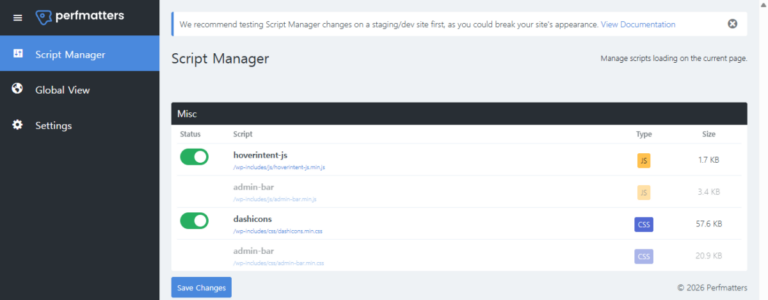
Perfmatters' Script Manager is available after clicking the ‘Visit Site’ button on the admin dashboard. The admin layout may differ depending on your theme and plugins, and you can stop unnecessary scripts from loading by turning off their enable buttons.
For example, if you keep Dashicons, which you could disable in Perfmatters' General settings, and need to disable them only on certain pages, you can do that in Script Manager.
Ⅳ. Conclusion & FAQ
Perfmatters is not just a [speed plugin] that removes scripts and resources but a tool that controls inefficiencies across the whole WordPress structure to raise both site stability and management efficiency.
What matters is not [turning on every feature] but understanding your site's character and plugin structure and applying features selectively.
Perfmatters is a plugin that makes the site structure itself lighter by controlling unnecessary code and requests. It controls how CSS, JS, fonts and images load to raise Core Web Vitals scores and reduce server load.
Perfmatters is [for improving site-wide performance], while Asset CleanUp is [for controlling individual resources].
For a typical WordPress site owner, Perfmatters is the more practical and stable choice.
The most effective combination is WP Rocket + Perfmatters.
WP Rocket handles static optimization such as caching, compression and preloading, while Perfmatters handles dynamic optimization by controlling code, resources and requests, so the two do not overlap.
ℹ️ Affiliate Disclosure This site's content contains affiliate links. When a visitor buys a product or service through one of them, the site receives a commission from the seller. The amount the buyer pays(it goes down during event discounts ↓)does not go up. Posted prices, discounts, and stock reflect the time of writing and may differ, so confirm with the seller before buying. Products are chosen and reviewed by our own standards, and commissions do not affect the order or content of reviews.