WP Rocket is a paid WordPress cache plugin that costs $59.95 a year. This guide walks through the basic setup of this plugin; the intuitive interface makes it easy to manage. Speed matters because it keeps visitors from leaving, whether they arrive from organic search or paid ads.
Setup is simple, and about 80% of WP Rocket's features run automatically, so you get strong results without much maintenance. After setup, we run speed tests with Chrome DevTools and Google PageSpeed.
TOC
5mn read
TOC
5mn read
View more
Ⅰ. Why Use the WP Rocket Plugin?
↳ What Is the WP Rocket Plugin⚡🚀
Cache plugins are often either too simple or so packed with options that admins can't decide. Among so many plugins, questions like “Which one should I use?” or “Is there an even faster plugin that pushes the Google page score past 90 all the way to 100?” never really go away for a WordPress admin running a site.
WP Rocket is one of the few plugins that are simple to set up yet powerful.
On the review site Trustpilot, it has a 4.6 rating. More than 3,000 people have reviewed it, and 93% of reviews are 5 stars. Many of the lower ratings came after the multi-license price increase in 2025.
2️⃣ WP Rocket Pricing & Promo Code
WP Rocket is billed yearly, and new buyers get a 20% discount promo code.
🚀 WP Rocket pricing · with 20% discountChecked 2026-10-04
Single
$59.95
$47.96/ year
1 website
Plus
$119.95
$95.96/ year
3 websites
Multi
$299.95
$239.96/ year
50 websites
The promo code is applied automatically when you go through the link below.
20% coupon after email sign-up · You also get news of the spring campaign (late March), the WP Rocket anniversary campaign (early July) and the Halloween campaign (late October) by email.
You can use only one discount route, and it applies differently depending on when you buy and what you buy (new, renewal or upgrade). Promotions last only a few days, and you can request a refund within 14 days of purchase.
Ⅱ. WP Rocket Features
↳ WP Rocket Step⚡🚀
Once the plugin is installed, click the [Settings] > [WP Rocket] tab in the WordPress admin.
You'll see tabs running from [Dashboard] to [Tutorials] and [Our Plugins].
The dashboard shows the license you are using and its expiry. Later, if you need to reset the cache, you can clear and preload [Cache Files] and clear [Priority Elements] on the right. If problems arise, you can get WP Rocket Support through [View My Account] on the right of the page or [Request Support] at the bottom.
Rocket Insights Score — Shows the performance score and LCP, TBT, CLS and TTFB of tracked pages.
Cache Files — Deletes all cache files and runs preloading.
Used CSS — Deletes the used CSS files.
Priority elements — Resets saved optimizations for automatic lazy rendering, critical images, preconnect to external domains and font preloading.
Rocket Insights
Rocket Insights is the tab that tests pages with GTmetrix and shows the performance score and LCP, TBT, CLS and TTFB. You can add page URLs to test, and turning on [Performance Monitoring] tests them automatically at the interval you set.
Content Delivery(CDN)
RocketCDN Free is included in the WP Rocket license and delivers three pages you choose from 10 edge locations. To apply it to the whole site, you upgrade to RocketCDN Pro at $7.99a month, and edge locations grow to more than 100.
If you use a separate CDN, enter the CNAME record set by your CDN provider in [Other CDN]. Note that this is for CDNs other than Cloudflare CDN; Cloudflare CDN can be enabled in Add-ons.
1 / 2
File Optimization · CSS Files
File optimization is the tab that reduces the size of CSS and JavaScript files and changes their load order. When a cache file is created, it is also applied to that page's CSSand JavaScript.
In the tree below, it falls under the server-side cache's Site cache.
💾 Cache
├── Server-side cache
│ ├── Site cache
│ │ ├─ Converted to static HTML files (CSS, JavaScript, etc.)
│ │ └─ Web cache storage location
│ │ ├─ Memory cache (RAM)
│ │ └─ Disk cache (HDD/SSD)
It splits into two features: CSS file optimization and JavaScript file optimization.
① CSS files
ⓐ Minify CSS files
↳ Minify CSS files removes whitespace and comments to reduce file size. If a plugin's layout breaks after enabling it, add that CSS file to the exclusion list.
In the exclusion list, write one path per line as shown below.
wp-content/plugins/Plugin/(.*).css
ⓑ Optimize CSS delivery
↳ Optimize CSS delivery removes render-blocking CSS and can be turned on together with Minify CSS files. You can choose only one method: [Remove Unused CSS] or [Load CSS Asynchronously].
Remove Unused CSS
WP Rocket recommends [Remove Unused CSS]. It strips CSS each page does not use to reduce page size and HTTP requests; for elements whose layout breaks after enabling it, add the file name, ID or class to [CSS safelist] to exclude them.
Load CSS Asynchronously
[Load CSS Asynchronously] builds the CSS needed for the first screen separately and loads the rest asynchronously. Use it instead when [Remove Unused CSS] causes problems.
File Optimization · JavaScript Files
② JavaScript files
JavaScript file settings fall into four: minify JavaScript files, combine JavaScript files, load JavaScript deferred and delay JavaScript execution.
Makes render-blocking JavaScript files run after HTML parsing finishes.
JavaScript Delayed execution
Better user experience
Delays loading JavaScript files until the user interacts, such as scrolling or clicking.
ⓐ Minify JavaScript files
Removes whitespace and comments to reduce file size. If some features stop working on visitor pages after enabling it, turn it off.
ⓑ Combine JavaScript files
Combines multiple JavaScript files into one to reduce HTTP requests. It is not recommended for sites on HTTP/2, and it cannot be selected when [Delay JavaScript execution] is on. If you see errors after enabling it, turn it off again and the site returns to normal.
ⓒ Load JavaScript deferred
Load JavaScript deferred postpones JavaScript execution until HTML parsing finishes, removing render-blocking JavaScript. First Contentful Paint (FCP)and Largest Contentful Paint (LCP)improve.
How does it work?
It adds the defer attribute to <script> tags so they do not block HTML parsing. This lets the web browser keep rendering other HTML elements while it downloads JavaScript files, so for the user, page loading feels faster.
When should you use Load JavaScript deferred?
It is mainly used for JavaScript files that are not essential for showing the initial screen of a web page.
File Optimization · Delay JavaScript execution
ⓓ Delay JavaScript execution
Delay JavaScript execution does not load JavaScript files until the visitor interacts with the page, such as scrolling or clicking.
One-click exclusions is a convenience feature from WP Rocket: check commonly used plugins, themes and services, and their JavaScript files are excluded from delayed execution.
One-click exclusionslets you exclude the following items by default. Offering checkboxes to pick them is a feature you rarely find in other cache plugins.
If what you need is not in the exclusion list, you can set exclusions yourself.
[Safe Mode for Delay JavaScript Execution] is a safe mode that excludes all of the site's own scripts from delay.
Media
Media is mainly about images, but this tab also has settings for YouTube and Google Fonts.
Set up ① lazy loading and ② image dimensions.
Lazy loading loads images, iframes and videos when they come into view, reducing HTTP requests. When [Replace YouTube iframe with preview image] is on, YouTube videos appear as a preview image first.
[Add missing image dimensions] fills in missing width and height attributes on images to reduce layout shift.
③ Under Fonts, [Preload fonts] loads fonts used on the first screen first, and [Self-host Google Fonts] downloads Google Fonts to your server and serves them from there.
1 / 2
Preload
Cache preloading applies to every cache plugin. By preloading content such as posts and pages before visitors arrive, a WordPress page already loads fast at the moment a visitor opens it.
When preload is on, WP Rocket finds the sitemap, stores every URL and builds the cache in advance. [Enable link preloading] downloads a page in advance when a visitor hovers over its link.
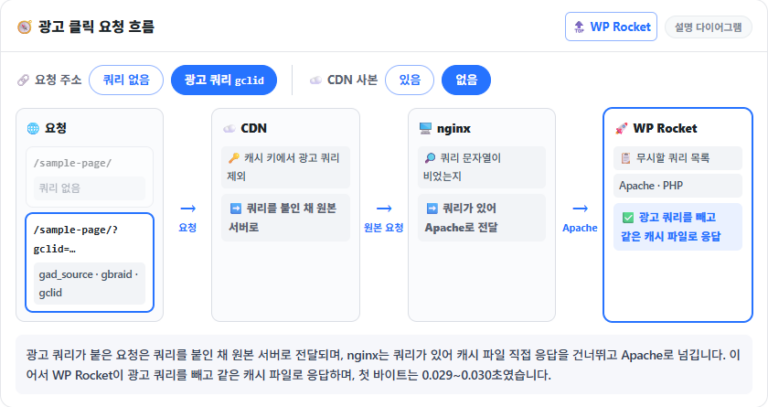
This is the result of checking that WP Rocket actually preloads the cache. Roughly up to about 30 per minute, and it creates even more preload cache when first building the cache.
Besides preloading, the ability to clear the cache of individual posts is very useful while running a site.
Advanced Rules
Personally, apart from setting the cache lifespan to 9 hours, I did not change anything else.
The default is 10 hours, and the screen advises lowering it below 10 hours if problems occur periodically.
Setting
Features
Details
Cache lifespan
Set how long cache files are valid
Sets when cache files are automatically deleted from the server.
Never cache URL(s)
Exclude specific pages from cache
Excludes URLs with sensitive information (login/logout pages) from the cache.
Never cache cookies
Exclude cache by specific cookies
Prevents page caching when a specific cookie is set in the browser.
Never cache user agent(s)
Exclude cache for specific users
Prevents visitors with specified user agents from seeing cached pages.
Always purge URL(s)
Force cache invalidation
Specifies URLs that are always removed from the cache whenever a post or page is updated.
Cache query string(s)
Cache specific URL parameters
Forces caching of URLs that include specific GET parameters (e.g. ?utm_source=google).
1 / 3
Database
The Database tab deletes revisions, auto drafts and trashed posts, spam and deleted comments, and transients, and optimizes tables. Cleanups cannot be undone, so back up the database before running them.
When [Schedule Automatic Cleanup] is on, it cleans up automatically at the interval you set.
1 / 2
Heartbeat
WordPress Heartbeat is an API that makes WordPress communicate periodicallybetween the web browser and the server. Like a beating heart, it sends regular signals to keep the connection to the server alive.
WordPress uses the Heartbeat API for several features. For example, while a user is editing a post in the WordPress editor, it is used to implement the lock feature that stops other users from editing the same post.
Heartbeat is also used to autosave posts as you write and to send real-time notifications on the admin dashboard.
[Reduce activity] cuts the signal from once a minute to once every two minutes. Turning it off completely may break plugins and themes that use this API.
1 / 2
Add-ons
Add-ons
Details
User cache
Creates a custom cache file for each logged-in user. In practice, I do not use it myself.
When WP Rocket clears its cache, it automatically clears the Varnish cache as well, keeping content up to date.
WebP compatibility
Builds a separate cache for browsers that support WebP images. WP Rocket does not create WebP images, and there is no need to turn it on if you use a plugin that serves WebP directly, such as IMAGIFY.
You can manage Cloudflare's cache from WP Rocket and enable optimal settings.
Sucuri
When WP Rocket clears its cache, it automatically syncs and clears the Sucuri cache.
1 / 2
Add-ons · Varnish
① Varnish Cache
On servers with Varnish cache, Varnish usually sits in front of the Apache or Nginx server. Varnish Cacheis a web accelerator that caches responses to dynamic website and API requests, reducing backend server load and improving page load speed.
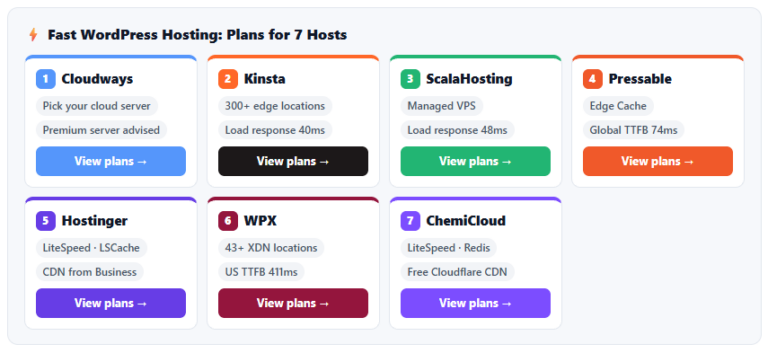
WP Engine , Flywheel, Cloudways or If hosted on WPX WP Rocket automatically detects the environment and enables the Varnish add-on.
SiteGround , Kinsta, Pressable In this case, since WP Rocket's cache is already synchronized with the server's cache, there is no need to enable this option.
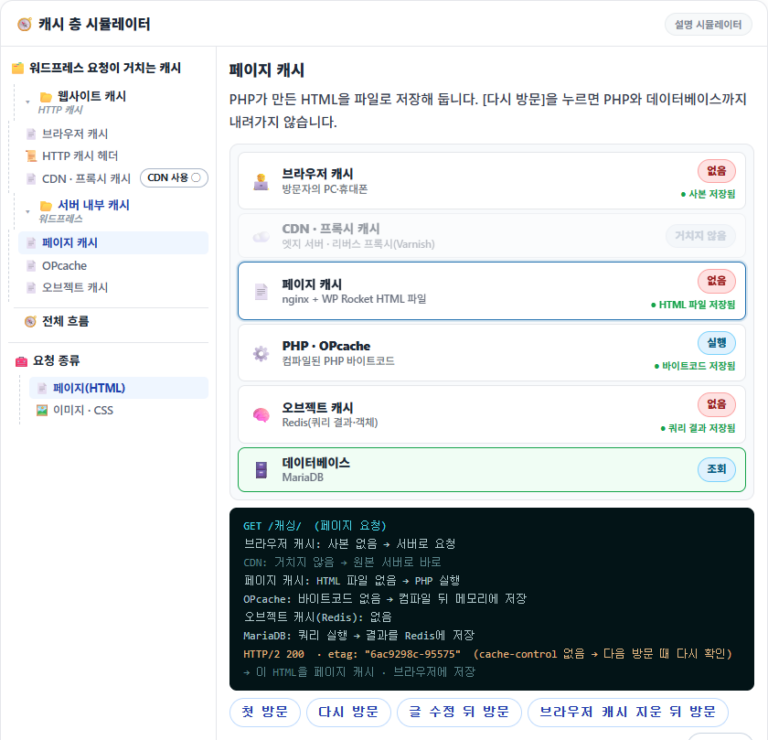
Varnish Cache stores the website's final output (HTML, images, etc.)and delivers it directly to users. OpCache and Redis, by contrast, cache the internal data or codethat make up a website, so they work differently.
Add-ons · Cloudflare
② Cloudflare settings
If you use Cloudflare, you can enable it to connect with WP Rocket, and it can be used alongside other existing CDNs.
When you enable Cloudflare, enter your account email, Global API key and zone ID to connect it.
Image Optimization
It is said that 50% of website load time is spent on images. Imagify is the plugin this page recommends installing; its free plan compresses up to 20 MB (about 200 images) a month and converts them to WebP or AVIF.
Tools
[Tools] lets you export the settings you made in WP Rocket.
You can export settings for testing and import them again, or download the settings file to your PC and upload it to restore your settings.
The newly added [MCP Server] connects AI tools to WP Rocket.
[Rollback] reverts to the previous version when something goes wrong, and [Update Inclusion and Exclusion Lists] manually refreshes the compatibility lists that are otherwise downloaded automatically every week.
Tutorials
However well a cache plugin explains itself and however good its performance, it is hard in practice to make 100% use of it.
Because the plugin page provides tutorials for each feature, users can keep improving performance even after installing WP Rocket and running the basic setup and tests.
1 / 2
Our Plugins
Because WP Rocket is used on so many WordPress sites, a great many plugins advertise that they work with it without conflicts. In practice, errors during cache setup are common to every plugin, so you need to find a reasonable compromise.
The company group.one acquired WP Mediain April 2021 and then, in May 2023, RankMath. This means WP Rocket, IMAGIFY and RankMath are products of the same company and work well together.
1 / 2
III. WP-Rocket Settings
Here are WP-Rocket's basic settings. [Default] marks options that are already checked.
Fills in missing width and height attributes on images to reduce layout shift.
FontsFonts
Preload fontsFonts (preload)Applied
Loads fonts used on the first screen first.
Self-host Google FontsSelf-host Google FontsApplied
Downloads Google Fonts to your server and serves them from there.
Preload
Preload CacheCache preload
Activate PreloadingActivate preloadingApplied
Enables cache preloading. This is the most basic setting every cache plugin aims for.
Exclude URLsExclude URLsLeft empty
Preload LinksLink preloading
Enable link preloadingEnable link preloadingApplied
Link preloading is a technique that downloads a page's content in advance when the user hovers over a link(or when the link appears on screen). It is like getting popcorn and drinks ready before the movie starts when you go to the theater.
Advanced Rules
Cache LifespanCache lifespan
10 Hours
Clear cache afterClear cache afterDefault
Deletes cache files older than this.
Never Cache URL(s)Never cache URL(s)
Never Cache URL(s)Never cache URL(s)Left empty
Never Cache CookiesNever cache cookies
Never Cache CookiesNever cache cookiesLeft empty
Never Cache User Agent(s)Never cache user agent(s)
Never Cache User Agent(s)Never cache user agent(s)Left empty
Post CleanupPost cleanup — applies to revisions, auto drafts and trashed posts.
RevisionsRevisionsApplied
Auto DraftsAuto draftsApplied
Trashed PostsTrashed postsApplied
Comments CleanupComment cleanup — deletes spam and deleted comments.
Spam CommentsSpam commentsApplied
Trashed CommentsDeleted commentsApplied
Transients CleanupTransients cleanup — clears all transients stored in the DB.
All transientsAll transientsApplied
Database CleanupDatabase cleanup
Optimize TablesOptimize tablesApplied
“Reduces database table overhead.” This is like removing unneeded paper and clips and keeping only the key information neatly organized, so you can use more cabinet space and find the document you want faster.
Runs the cleanup items above automatically at the interval you set.
Daily
FrequencyFrequency
Heartbeat
Heartbeat
Control HeartbeatControl HeartbeatDefault
The Heartbeat API is a signal that checks whether the server and website stay connected; reducing or turning it off lightens the load on the server.
Reduce or disable Heartbeat activityReduce or disable Heartbeat activity
Reduce activity
Behavior in backendBehavior in backendDefault
The signals continuously sent to the server based on user activity are reduced or turned off entirely to keep them from using server resources.
Reduce activity
Behavior in post editorBehavior in post editorDefault
In the post editor, while the user types, this refers to the small data signals (Heartbeat API) constantly exchanged with the server, such as fonts, colors and real-time autosave(revisions).
Reduce activity
Behavior in frontendBehavior in frontendDefault
It means the communication frequency is reduced by default so the frontend (the screen users see) does not keep exchanging data with the server unnecessarily.
Add-ons
One-click Rocket Add-onsOne-click Rocket add-ons
OFF
User CacheUser cacheNot applied
Creates a separate cache file for each logged-in user.
OFF
VarnishNot applied
Turn on when your server has Varnish.
OFF
WebP CompatibilityWebP compatibilityNot applied
No need to turn on if you use a plugin that serves WebP directly.
Rocket Add-onsRocket add-ons
OFF
CloudflareNot applied
Connects your account when you use Cloudflare.
OFF
SucuriNot applied
Syncs the cache when you use the Sucuri firewall.
Image Optimization
This tab has no settings.
Tools
This tab has no settings.
Tutorials
This tab has no settings.
Our Plugins
This tab has no settings.
Everything else is left at the most basic settings, and the IMAGIFY plugin is not installed. To test with these basic settings, download the file and import it; if errors appear, turn items off one at a time to find the cause.
Compared with other free plugins such as W3 Total Cache or LiteSpeed Cache, the settings screen is clean and easy to follow. Each option comes with a short explanation of what it does, so it's easy to get started.
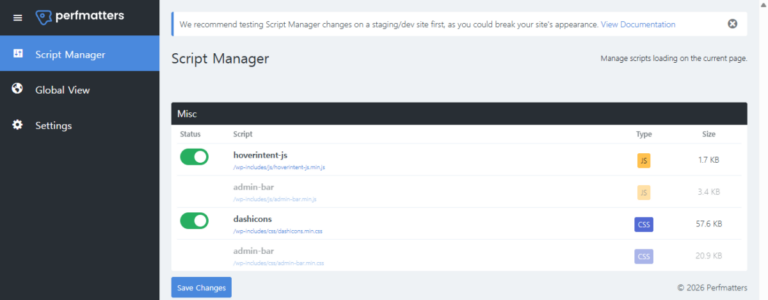
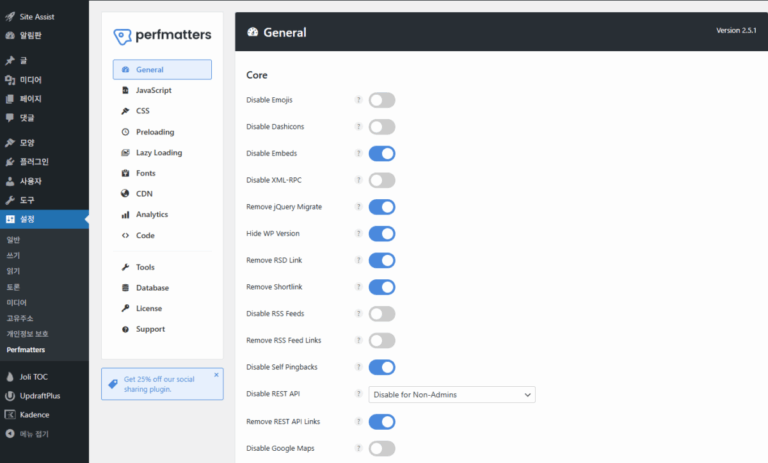
The “better plugin” depends on the server environment your website runs on and what you use it for. LiteSpeed Cache performs best only when the server runs on LiteSpeed (or OpenLiteSpeed). Perfmatters, on the other hand, has no page caching of its own but is an optimization plugin focused on keeping the site light and controlling scripts.
Premium managed hosts such as WP Engine, Kinsta and Pressable ban most free cache plugins (blacklist) for server stability. WP Rocket, however, is one of the only cache plugins these hosts officially allow. It works seamlessly with their server-side caching without conflicts.
On WooCommerce or other store sites, caching dynamic pages such as the cart, checkout and My Account causes serious problems like payment errors or other people's information showing up. WP Rocket detects store plugins and automatically excludes dynamic pages and logged-in user sessions from the cache.
It cleanly fixes slow loading caused by third-party scripts such as Google Analytics, Facebook Pixel and live chat. By delaying script execution until the visitor actually interacts, such as scrolling or clicking, it greatly raises Google's Core Web Vitals (LCP, INP, etc.) scores.
ℹ️ Affiliate Disclosure This site's content contains affiliate links. When a visitor buys a product or service through one of them, the site receives a commission from the seller. The amount the buyer pays(it goes down during event discounts ↓)does not go up. Posted prices, discounts, and stock reflect the time of writing and may differ, so confirm with the seller before buying. Products are chosen and reviewed by our own standards, and commissions do not affect the order or content of reviews.





![WP Rocket file optimization 3 - Optimize CSS delivery [English]](https://uknew.co/storage/2025/09/WP-Rocket-%ED%8C%8C%EC%9D%BC-%EC%B5%9C%EC%A0%81%ED%99%94-3-CSS-%EC%A0%84%EB%8B%AC-%EC%B5%9C%EC%A0%81%ED%99%94-%EC%98%81%EC%96%B4.png "WP Rocket Settings Guide: Default Setup for Each Menu and a 20% Promo Code 8")


![WP Rocket file optimization 4 - JavaScript settings_Combine JavaScript files [English]](https://uknew.co/storage/2025/09/WP-Rocket-%ED%8C%8C%EC%9D%BC-%EC%B5%9C%EC%A0%81%ED%99%94-4-JavaScript-%EC%84%A4%EC%A0%95_JavaScript-%ED%8C%8C%EC%9D%BC-%EA%B2%B0%ED%95%A9-%EC%98%81%EC%96%B4.png "WP Rocket Settings Guide: Default Setup for Each Menu and a 20% Promo Code 12")
![WP Rocket file optimization 4 - JavaScript settings_Load JavaScript deferred [English]](https://uknew.co/storage/2025/09/WP-Rocket-%ED%8C%8C%EC%9D%BC-%EC%B5%9C%EC%A0%81%ED%99%94-4-JavaScript-%EC%84%A4%EC%A0%95_JavaScript-%EC%A7%80%EC%97%B0-%EB%A1%9C%EB%93%9C-%EC%98%81%EC%96%B4.png "WP Rocket Settings Guide: Default Setup for Each Menu and a 20% Promo Code 13")


![WP Rocket advanced rules 2 [English]](https://uknew.co/storage/2025/09/WP-Rocket-%EA%B3%A0%EA%B8%89-%EA%B7%9C%EC%B9%99-2-%EC%98%81%EC%96%B4.png "WP Rocket Settings Guide: Default Setup for Each Menu and a 20% Promo Code 23")
![WP Rocket advanced rules 3 [English]](https://uknew.co/storage/2025/09/WP-Rocket-%EA%B3%A0%EA%B8%89-%EA%B7%9C%EC%B9%99-3-%EC%98%81%EC%96%B4.png "WP Rocket Settings Guide: Default Setup for Each Menu and a 20% Promo Code 24")


![WP Rocket - Heartbeat 2 [English]](https://uknew.co/storage/2025/09/WP-Rocket-Heartbeat-2-%EC%98%81%EC%96%B4.png "WP Rocket Settings Guide: Default Setup for Each Menu and a 20% Promo Code 28")
![WP Rocket - Add-ons 1_User cache (logged in)__Varnish cache [English]](https://uknew.co/storage/2025/09/WP-Rocket-%EC%B6%94%EA%B0%80-%EA%B8%B0%EB%8A%A51_%EC%82%AC%EC%9A%A9%EC%9E%90-%EC%BA%90%EC%8B%9C%EB%A1%9C%EA%B7%B8%EC%9D%B8__Varnish-%EC%BA%90%EC%8B%9C-%EC%98%81%EC%96%B4.png "WP Rocket Settings Guide: Default Setup for Each Menu and a 20% Promo Code 29")
![WP Rocket - Add-ons 2_WebP, Cloudflare integration, SUCURI cache [English]](https://uknew.co/storage/2025/09/WP-Rocket-%EC%B6%94%EA%B0%80-%EA%B8%B0%EB%8A%A52_WebP-CloudFlare-%ED%86%B5%ED%95%A9-SUCURI-%EC%BA%90%EC%8B%9C-%EC%98%81%EC%96%B4.png "WP Rocket Settings Guide: Default Setup for Each Menu and a 20% Promo Code 30")


![WP Rocket plugin - Tutorials 2 [English]](https://uknew.co/storage/2025/09/WP-Rocket-%ED%94%8C%EB%9F%AC%EA%B7%B8%EC%9D%B8-%ED%8A%9C%ED%86%A0%EB%A6%AC%EC%96%BC-2-%EC%98%81%EC%96%B4.png "WP Rocket Settings Guide: Default Setup for Each Menu and a 20% Promo Code 35")