
WordPress Site Editor: Full Site Editing with Block Themes vs the Customizer


The WordPress Site Editor is the admin screen where you edit the header and footer, templates and site-wide styles of a block theme with blocks, and you open it from the Appearance menu. I opened all 8 templates and 7 template parts myself in WordPress 7.1.3 with the Twenty Twenty-Five theme and summarized how it differs from the Customizer.
1️⃣ WordPress Site Editor screen: Appearance › Editor
The name of the item in the [Appearance] menu that opens the Site Editor depends on the theme you use. With a block theme it appears as [Editor]. GeneratePress, Astra and other classic themes that support editor styles or [theme.json] show [Design] instead, and other classic themes show [Patterns]. All three items open the same editor screen, [site-editor.php], but under [Design] you only get the Style Book and the patterns list, and under [Patterns] only the patterns list.

| Theme type | [Appearance] menu item | What you can use on the screen that opens | [Customize] menu |
|---|---|---|---|
| Block theme (Twenty Twenty-Five) | Editor | Styles · Templates · Patterns | ❌ |
| Classic with editor styles · theme.json support (GeneratePress · Astra) | Design | Style Book · patterns list | ✅ |
| Other classic themes (Ashe) | Patterns | Patterns list | ✅ |
When you open [Appearance › Editor], a dark panel titled [Design] appears on the left in place of the admin menu, and a preview of the site opens on the right. You carry out full site editing of a block theme from [Styles], [Templates] and [Patterns] on this screen.
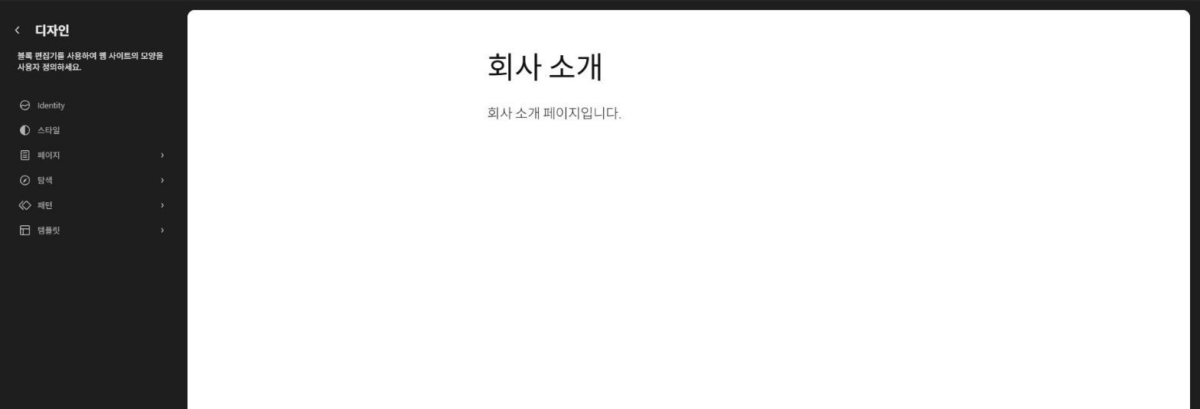
The [Theme File Editor], where you edit theme files directly as code, has a similar name to [Editor] but is a different screen; with a block theme it appears under the [Tools] menu.

The site title, tagline, logo and icon are set under [Identity] in the [Design] panel on the left.
Customize the appearance of your website using the block editor.
Navigation Menus are a curated collection of blocks that allow visitors to get around your site.
Manage what patterns are available when editing the site.
Create new templates, or reset any customizations made to the templates supplied by your theme.
Explore block styles and patterns to refine your site.
Preview your website's visual identity: colors, typography, and blocks.
Manage what patterns are available when editing the site.
Manage what patterns are available when editing the site.
Block patterns are pre-configured block layouts. Use them to get inspired or create new pages in a flash.
Add a new pageDesign everything on your site — from the header down to the footer, all using blocks and patterns.
Tweak your site, or give it a whole new look! Get creative — how about a new color palette or font?
Configure your site’s logo, header, menus, and more in the Customizer.
Open the CustomizerThere is a new kind of WordPress theme, called a block theme, that lets you build the site you’ve always wanted — with blocks and styles.
Learn about block themesCustomize the appearance of specific blocks for the whole site.
Choose a variation to change the look of the site.
A list of all patterns from all sources.
Includes every template part defined for any area.
Displays a static page unless a custom template has been applied to that page or a dedicated template exists.
A list of all patterns from all sources.
A list of all patterns from all sources.
2️⃣ Styles: site-wide colors and fonts, style variations
Colors and fonts you change in [Styles] apply to the whole site. To change only the fonts you open [Typography], to change only the colors [Color], and so on, opening the panel items one by one to set the site-wide values. In [Blocks] you set the look of each block type, such as the Quote block, for the whole site (based on the official documentation).
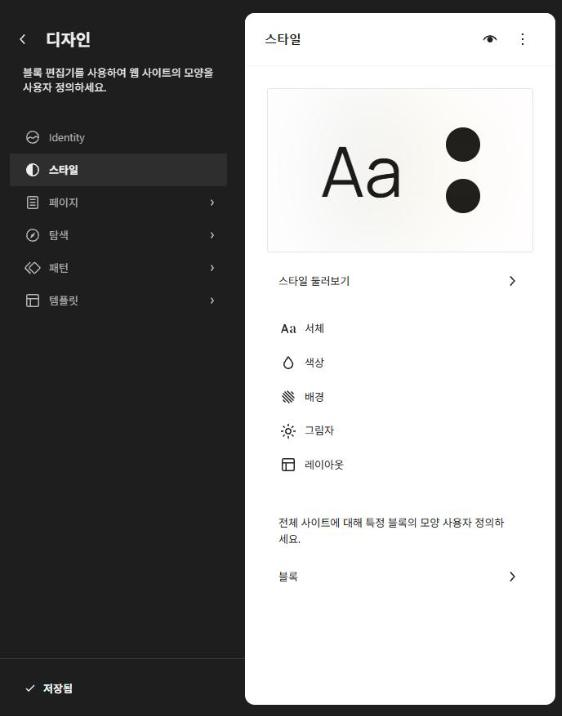
[Browse styles] is a list of variations that change the color and font combination in one go without switching themes; Twenty Twenty-Five 1.5 had 9 of them, including the default. When you want just one page to look different, change it in that page’s block settings instead of a variation, because a variation changes the look of the whole site at once.
3️⃣ Templates and template parts: editing the header and footer
The layout of the site title and menu in the header and footer is edited in template parts. Styles only change colors and fonts and leave this structure as it is.
| Category | Twenty Twenty-Five 1.5 | Role |
|---|---|---|
| Templates | 8 | The overall frame for each type of screen, such as pages, single posts, archives and 404 |
| Template Part | 7 (header 3 · footer 3 · general 1) | Headers and footers shared by several templates |
| Style Variations | 9 (including the default) | Site-wide color and font combinations |
Click [Pages] under [Templates] and the template editing screen opens, and the header and footer this template uses are listed under [Content] in the [Templates] tab on the right. Because template parts are shared by several templates, editing the header changes every template that uses the same header.
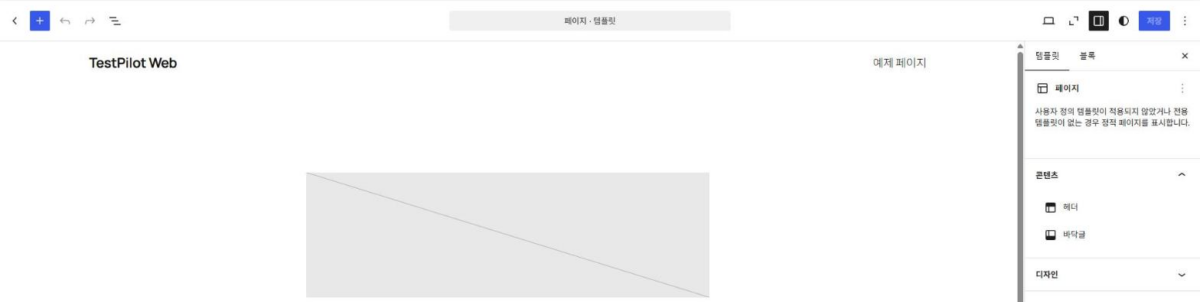
Your changes only show up for visitors after you click [Save] at the top right of the editing screen, and when nothing has changed the [Save] button stays disabled.
4️⃣ How it differs from the WordPress Customizer: classic themes and block themes
With a block theme, you make the same settings with blocks in the Site Editor instead of the [Customizer]. That is why, unless a plugin or theme uses the Customizer, a block theme does not show the [Customize] menu (based on the official documentation).
With the block theme Twenty Twenty-Five, the [Appearance] menu shows only three items, Themes, Editor and Fonts, and the role of the classic theme’s widgets and menus is taken over by template parts and [Navigation].
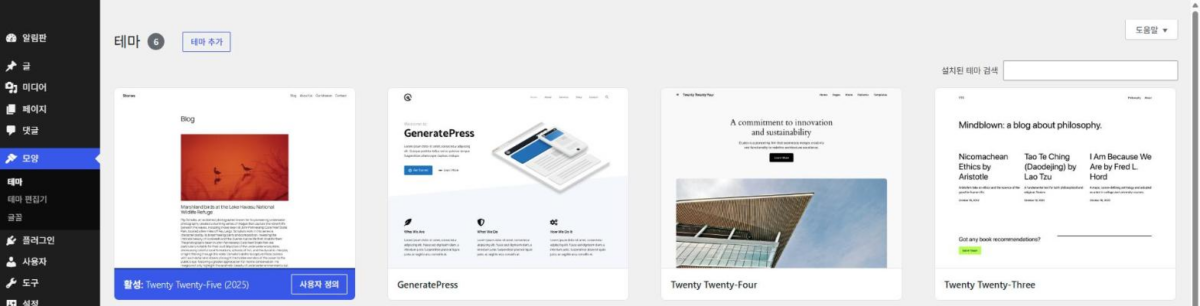
With a classic theme such as Astra or GeneratePress, the [Appearance] menu shows Themes, Design, Customize, Widgets, Fonts and Menus, and the [Theme File Editor] is also in this menu. Widgets and Menus appear only when the theme supports them, and themes that support a header image and background add [Header] and [Background].

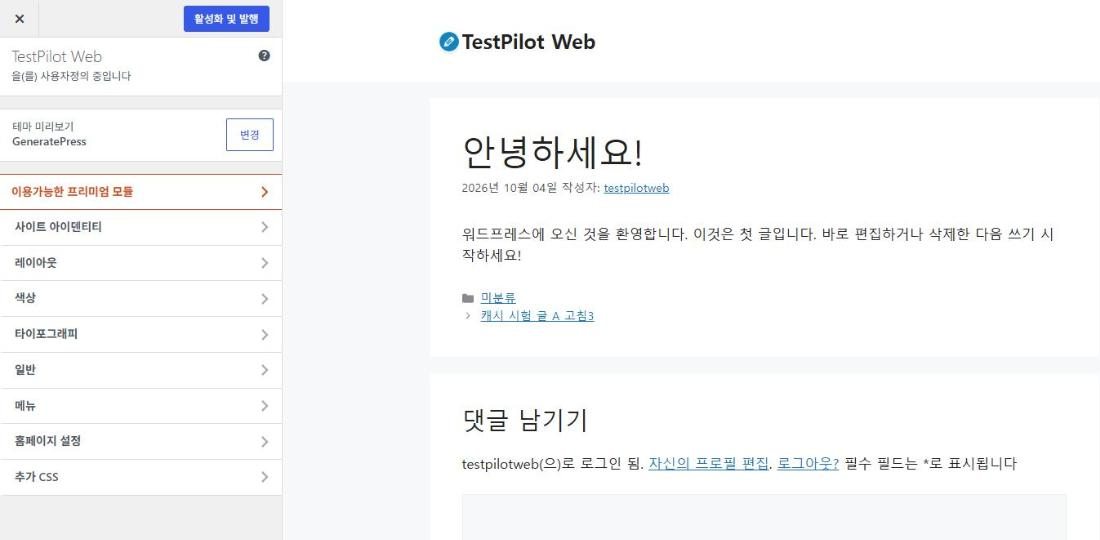
GeneratePress, opened with [Live Preview], adds Layout, Colors, Typography and General sections to the Customizer, and a [Menus] section for setting menu locations appears as well.
🔢 FAQ & Recommended Content

 Patterns
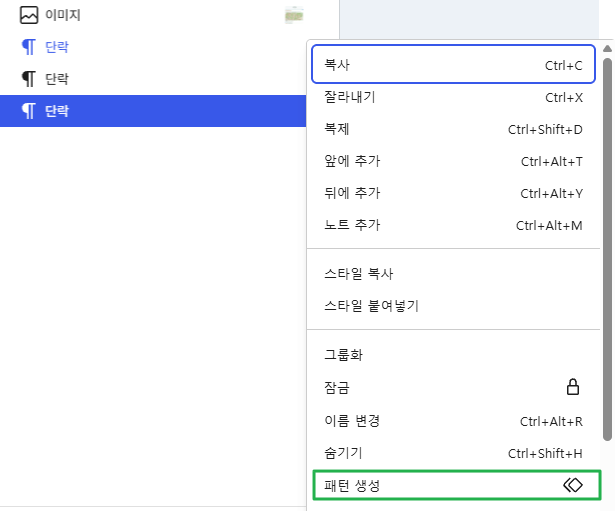
WordPress patterns
How to save block combinations you use often as patterns and insert them again.
Patterns
WordPress patterns
How to save block combinations you use often as patterns and insert them again.
 Editor
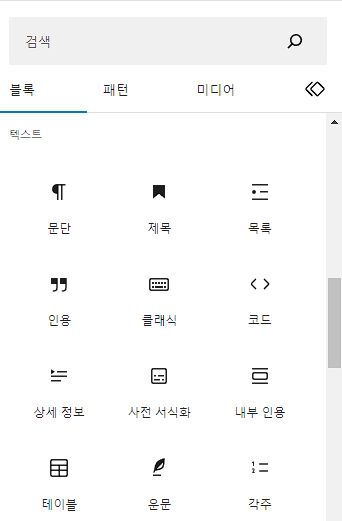
WordPress block editor overview
The screen layout and basic blocks of the Gutenberg block editor.
Editor
WordPress block editor overview
The screen layout and basic blocks of the Gutenberg block editor.
 Theme
WordPress child theme
What a child theme is for: keeping your code changes when the theme updates.
Theme
WordPress child theme
What a child theme is for: keeping your code changes when the theme updates.
ℹ️ Affiliate Disclosure
This site's content contains affiliate links. When a visitor buys a product or service through one of them, the site receives a commission from the seller. The amount the buyer pays(it goes down during event discounts ↓)does not go up. Posted prices, discounts, and stock reflect the time of writing and may differ, so confirm with the seller before buying. Products are chosen and reviewed by our own standards, and commissions do not affect the order or content of reviews.