
Installing WordPress: Two Ways to Upload It to a Linux Server, with wget and with FTP, and the Web Setup
Installing WordPress means uploading the WordPress files to the web root of a Linux server and then finishing the job on the browser's install screen by entering the database details and an administrator account. On an AlmaLinux 9.8 server the files are uploaded in two ways, with the wget command and by FTP, and the guide goes from choosing the language to the finished installation and checks that the admin page opens.
The installation files are WordPress 7.1.3 as of October 16, 2026; the 35.5 MB latest.zip unpacks into 3,782 files totaling 115 MB.
1️⃣ Preparing to install WordPress: web root, database and SSL
After the language and welcome screens, the install screen asks for a database name, a user and a password, so create the database before you open the install screen. You can create it in your hosting control panel or, if you connect to the server directly, follow the steps in Creating a MariaDB database and user to create it. Also check the web root path where the site files will go (for example /home/account/www) and the SSL certificate at this point.
If the server does not have a web server, PHP and a database yet, start with Installing APM on Rocky Linux and set them up first, in that order.
You can download the WordPress files from the wordpress.org download page as a zip or a tar.gz file.
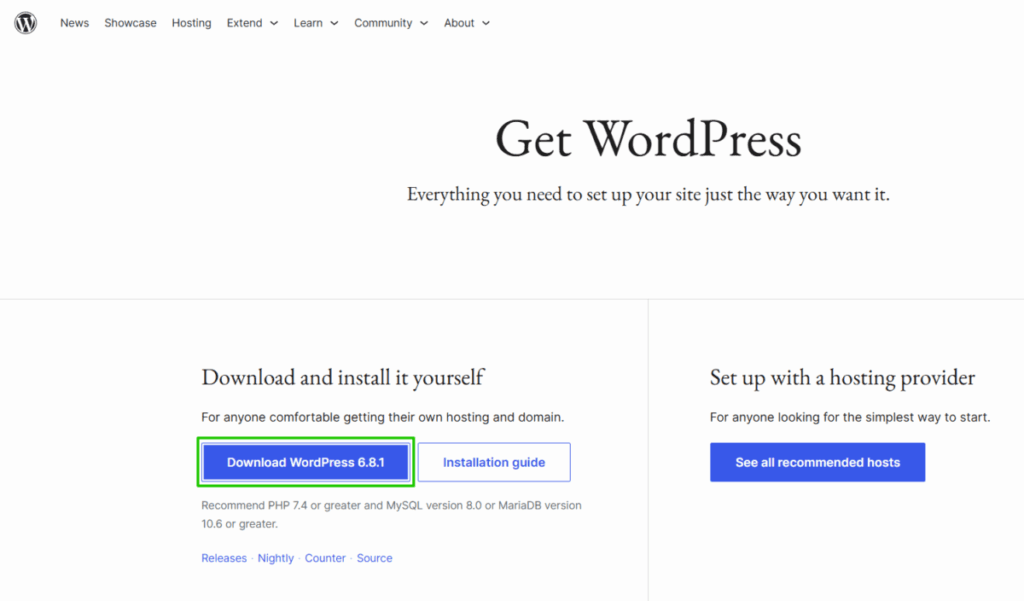
There are two ways to put the files on the server, wget and FTP, and you choose by whether you can run commands over SSH.
| Category | wget | FTP |
|---|---|---|
| What you need | SSH access | An FTP/SFTP account and FileZilla on your PC |
| File transfer route | The server downloads straight from wordpress.org | Your PC sends the 3,782 files one by one |
| Changing ownership | chown required | Not needed if you log in with the site account |
| Best suited for | A server where you can run commands over SSH | Hosting where you cannot run commands over SSH |
2️⃣ Installing WordPress with wget: downloading, unpacking and ownership over SSH
Connect to the server over SSH and download the installation file with wget from the parent folder of the web root (for example /home/account). The server fetches it straight from wordpress.org, so even the 35.5 MB file finishes downloading in a few seconds.
wget https://wordpress.org/latest.zip--2026-10-16 13:35:30-- https://wordpress.org/latest.zip
Resolving wordpress.org (wordpress.org)... 2620:109:b00a::4206:2afc, 66.6.42.252
Connecting to wordpress.org (wordpress.org)|2620:109:b00a::4206:2afc|:443... connected.
HTTP request sent, awaiting response... 200 OK
Length: 37226383 (36M) [application/zip]
Saving to: `latest.zip'
latest.zip 100%[===================================>] 35.50M 12.1MB/s in 2.9s
2026-10-16 13:35:34 (12.1 MB/s) - `latest.zip' saved [37226383/37226383]Unpack the downloaded latest.zip with unzip, and a wordpress folder appears in the same location.
unzip latest.zipArchive: latest.zip
creating: wordpress/
inflating: wordpress/wp-trackback.php
inflating: wordpress/xmlrpc.php
creating: wordpress/wp-content/
... (4,251 lines — 3,782 files · 468 folders)
inflating: wordpress/wp-login.phpMove the wordpress folder to the web root name (www here) and change its owner to the account PHP runs as. Here the owner is the site account and the group is nobody; the group name differs from server to server.
If a www folder already exists, running [mv wordpress/ www/] moves the whole wordpress folder inside www. In that case move only the contents with [mv wordpress/* www/], or empty the existing www folder first.
mv -v wordpress/ www/renamed 'wordpress/' -> 'www/'Find the account and group to give to chown in the user and group values of the PHP-FPM pool configuration file. Pool files are under [/etc/php-fpm.d/]: on a server with one pool per site, check the file named after the account, and on a server without that, the default file [www.conf].
grep -E '^(user|group) ' /etc/php-fpm.d/siteuser.confuser = siteuser
group = nobodyPut the user value from the result in the owner position and the group value in the group position, and run chown.
chown -R siteuser:nobody www/List the files to check that the owner has changed.
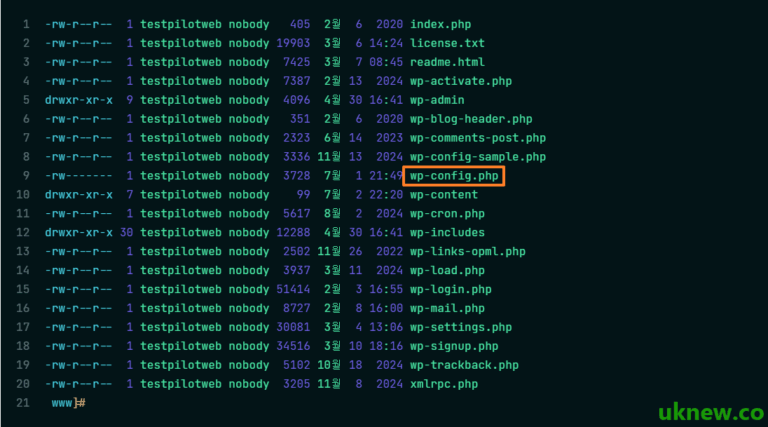
ls -l www/total 236
-rw-r--r-- 1 siteuser nobody 405 Feb 6 2020 index.php
-rw-r--r-- 1 siteuser nobody 19903 Jan 1 2026 license.txt
-rw-r--r-- 1 siteuser nobody 7407 Jul 6 16:51 readme.html
-rw-r--r-- 1 siteuser nobody 7718 Jul 7 03:06 wp-activate.php
drwxr-xr-x 9 siteuser nobody 4096 Oct 6 16:05 wp-admin
-rw-r--r-- 1 siteuser nobody 351 Feb 6 2020 wp-blog-header.php
-rw-r--r-- 1 siteuser nobody 2323 Jun 14 2023 wp-comments-post.php
... (rest omitted)When the list shows the site account and nobody in the owner and group columns, the work on the server is done, and you go on to open the install screen in a browser.
3️⃣ Installing WordPress over FTP: uploading with FileZilla
On hosting where you cannot run commands over SSH, upload the folder you unpacked on your PC to the account folder on the server with FileZilla (FTP/SFTP). FTP sends the 3,782 files from your PC one by one, so the upload takes longer than wget, where the server downloads the files itself.
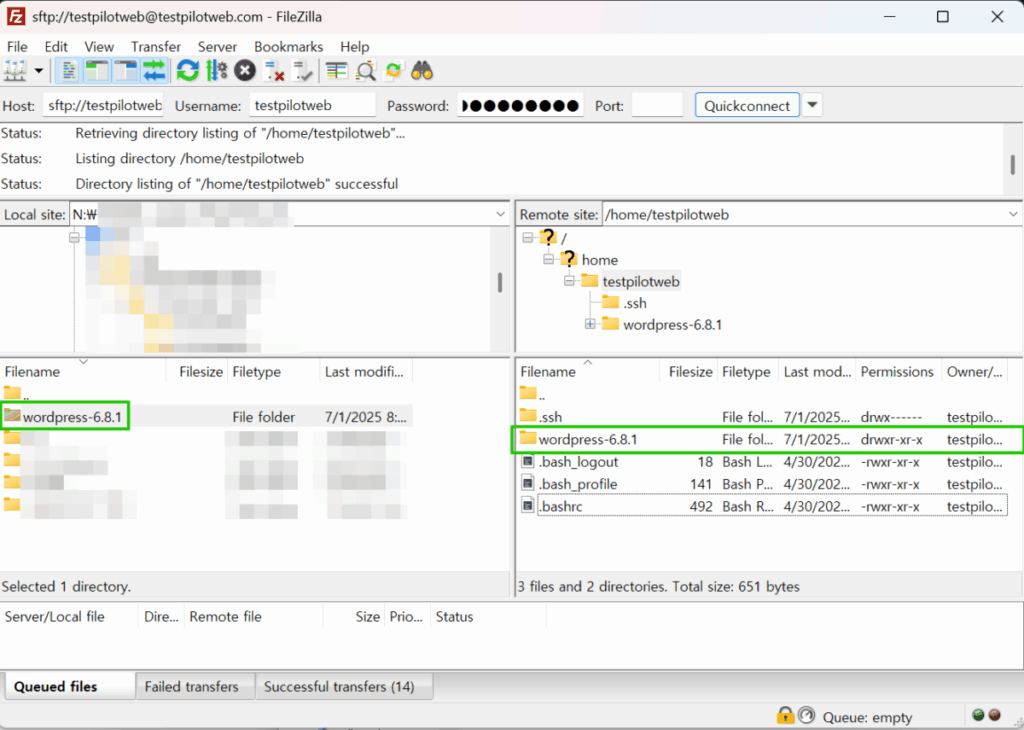
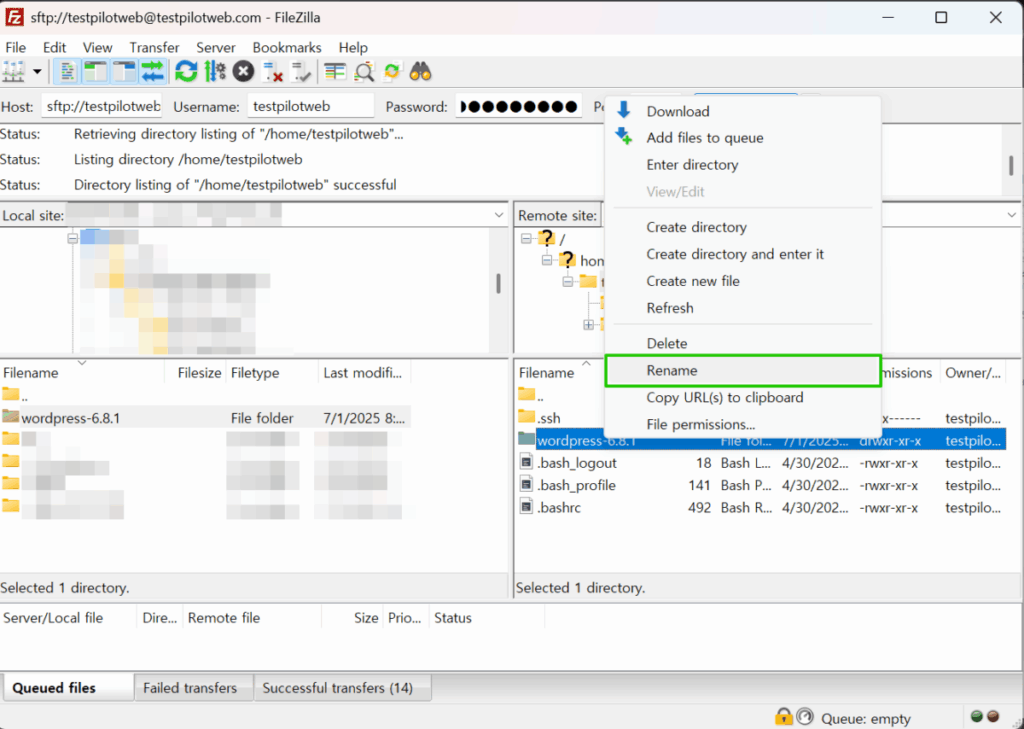
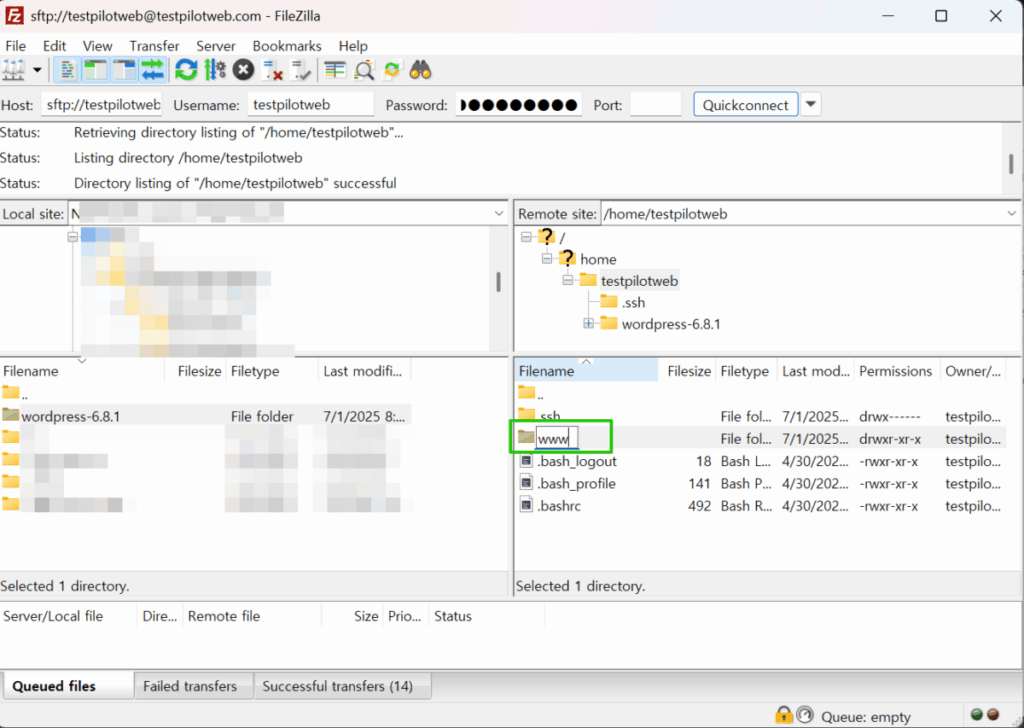
When the upload is finished, right-click the folder in the server pane on the right (Remote site), choose [Rename], and change the name to the web root name, [www].
Files uploaded with the site account become owned by that account, so the step of changing ownership with chown is not needed.
4️⃣ Web setup for WordPress: language, database and admin account
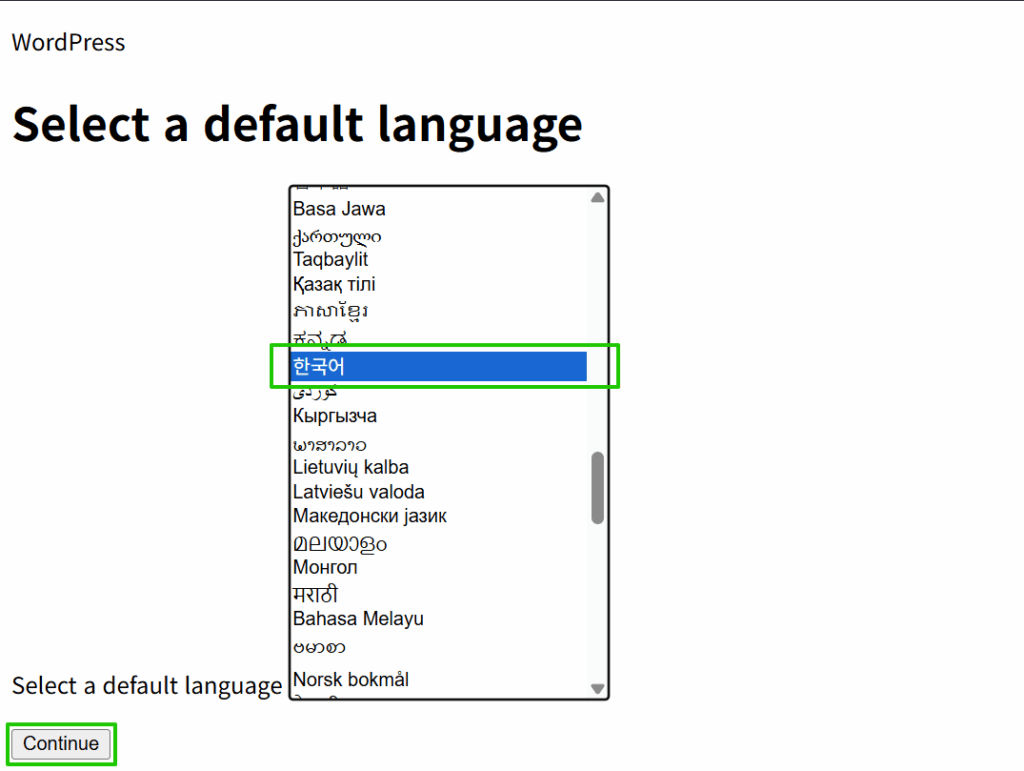
Once the files are uploaded, opening the domain shows the install screen instead of the site, because wp-config.php does not exist yet. On the first screen choose the install language and click [Continue], and the following screens appear in the language you chose. The picture below is the screen with Korean selected, and the pictures after it follow the default, English (United States).
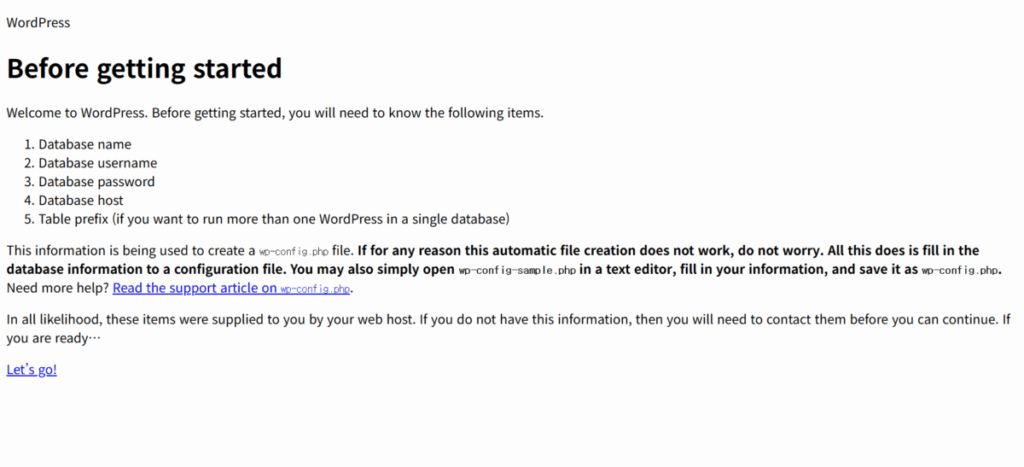
The next screen explains the information the installation needs. Check the five items — database name, username, password, database host and table prefix — and click [Let’s go!].
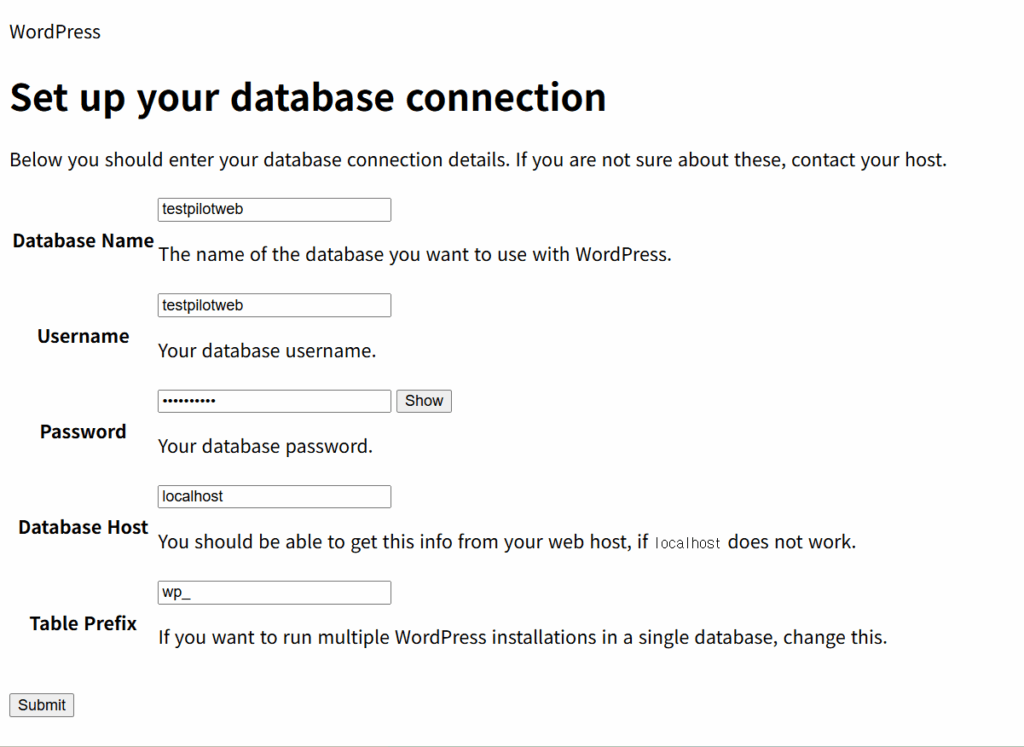
On the database connection screen, enter the database name, user and password you created beforehand. Leave the host as localhost if the database is on the same server, and you may change the table prefix from the default wp_ to another value. Click [Submit] when you are done.
If the connection details are correct, a confirmation screen with a [Run the installation] button opens, and clicking that button takes you to the site information screen.

On the site information screen, enter the site title, the administrator username, a password and an email address, and click [Install WordPress]. To keep search engines from collecting the site until you publish it, check [Discourage search engines from indexing this site]. You can change this setting again after the installation in [Settings › Reading].

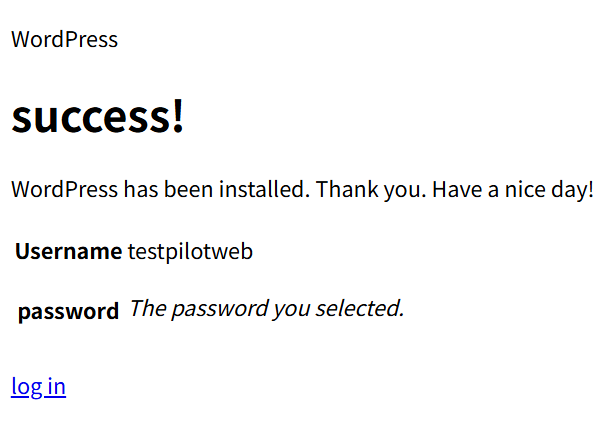
When the [Success!] screen appears, the installation is finished, and you can click [Log In] to sign in right away with the administrator account you entered.
5️⃣ Opening the admin page: logging in to wp-admin
Adding /wp-admin after the domain opens the login screen, where you enter the username and password you chose during installation.

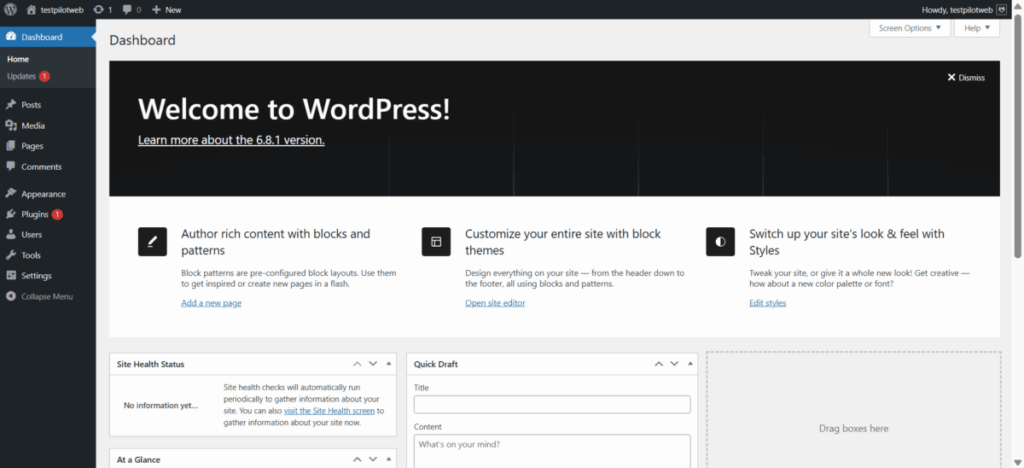
After you log in, the Dashboard screen appears with the menu on the left, and you can click through the screen each menu opens in the admin screen simulator of the WordPress dashboard post.
🔢 FAQ & Recommended Content
 Settings
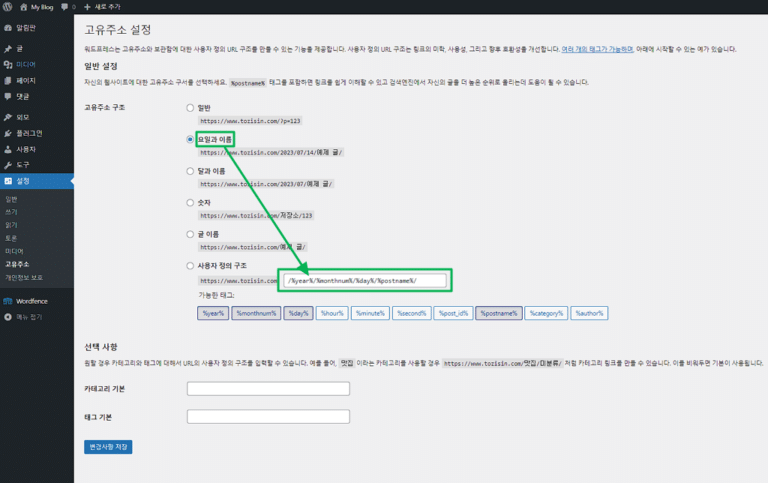
7 WordPress Admin Settings
The seven items you set in the General, Writing, Reading and Permalinks settings menus right after installation.
Settings
7 WordPress Admin Settings
The seven items you set in the General, Writing, Reading and Permalinks settings menus right after installation.
 Plugin
WordPress Plugin: Definition and Role
Three criteria for choosing a plugin that adds security, performance, SEO or backup features.
Plugin
WordPress Plugin: Definition and Role
Three criteria for choosing a plugin that adds security, performance, SEO or backup features.
 Hosting
WordPress hosting: five evaluation criteria
A guide to choosing hosting by stability and speed, for when you have not chosen the server to install on yet.
Hosting
WordPress hosting: five evaluation criteria
A guide to choosing hosting by stability and speed, for when you have not chosen the server to install on yet.
ℹ️ Affiliate Disclosure
This site's content contains affiliate links. When a visitor buys a product or service through one of them, the site receives a commission from the seller. The amount the buyer pays(it goes down during event discounts ↓)does not go up. Posted prices, discounts, and stock reflect the time of writing and may differ, so confirm with the seller before buying. Products are chosen and reviewed by our own standards, and commissions do not affect the order or content of reviews.