Plugin W3 Total Cache: como configurar para otimização

Aviso de afiliados v3.1
Aviso de afiliados v3.2 (somente celular)
Ambiente de teste CloudwaysDebian 12Apache 2.4.69 + nginxPHP 8.2.34WordPress 7.1.3W3 Total Cache 2.10.7Verificado em 2026-10-18

Um site WordPress inevitavelmente fica mais lento conforme você instala plugins. Por isso o plugin de cache virou um dos plugins indispensáveis do WordPress. Com mais de 1 milhão de instalações ativas na versão gratuita e nota 4,4 estrelas, o plugin W3 Total Cache (W3TC) é um dos mais usados.

Como as configurações de cache podem quebrar alguns recursos de outros plugins, se você está começando no WordPress pode usar um plugin simples de configurar, como Cache Enabler ou WP Super cache.

Se você precisa de configurações e controle detalhados de cache, pode usar o plugin W3 Total Cache, que oferece recursos poderosos até na versão gratuita.

Ⅰ. Instalação do W3 Total Cache e guia de configuração

  • ↳ Mecanismos de busca (SEO: Search Engine Optimization)
  • ↳ Otimização de desempenho (WPO: Web Performance Optimization)
  • ↳ Cache integrado: suporta CDN e cache de página, minify, objetos, fragmentos e banco de dados.

Pesquise W3 Total Cache e instale e ative o plugin.

🧭 Simulador de instalação e guia de configuração do W3 Total Cache
Plugin de cacheSimulador de caminho
📍Plugins›Add Plugin
Instalar o plugin
Digite W3 Total Cache na caixa de busca e clique em [Install Now]; ao terminar a instalação, clique em [Activate].
📍Performance›Setup Guide
Guia de configuração
Depois da primeira instalação, ir a [Dashboard] leva você automaticamente ao [Setup Guide], porque nada foi configurado ainda.
📍Performance›Dashboard
Painel
O que você define no guia aparece por recurso na caixa [General Settings], e ajustes detalhados como o cache de página são feitos em [General Settings].
example.com/wp-admin/plugin-install.php
Add Plugins Upload Plugin
Plugins extend and expand the functionality of WordPress. You may install plugins from the WordPress Plugin Directory right on this page, or upload a plugin in .zip format by clicking the button above.
Search ResultsFeaturedPopularRecommendedFavorites
Search PluginsKeyword
922 items
W3 Total Cache
Installing...ActiveMore Details
Search Engine (SEO) & Performance Optimization (WPO) via caching. Integrated caching: CDN, Page, Minify, Object, Fragment, Database support.
By BoldGrid
★★★★★ (5,421)
Last Updated: 2 weeks ago
900,000+ Active Installations
✓ Compatible with your version of WordPress
example.com/wp-admin/admin.php?page=w3tc_setup_guide
DashboardSettingsToolsInfoSupportUpgrade
W3 Total CacheSetup Guide
TOTAL CACHE: Setup Guide
  • Welcome
  • Page Cache
  • Database Cache
  • Object Cache
  • Image Converter
  • Lazy Load
  • More Caching Options
Welcome to the W3 Total Cache Setup Guide!
By allowing us to collect data about how W3 Total Cache is used, we can improve our features and experience for everyone. This data will not include any personally identifiable information. Feel free to review our terms of use and privacy policy.
AcceptDecline
SKIPNEXT
example.com/wp-admin/admin.php?page=w3tc_dashboard
DashboardSettingsToolsInfoSupportUpgrade
W3 Total CacheDashboard
Flush caches with Empty All Caches
Account
License: Free
Status: Free license, no expiration
Upgrade to W3 Total Cache Pro now to unlock additional settings and features that can further improve your site’s performance and Google PageSpeed ratings.
Learn more about Pro
General Settings
Preview Modedisabled
Page Cachedisabled
Minifydisabled
Opcode Cacheenabled
Database Cachedisabled
Object Cachedisabled
Browser Cachedisabled
CDNdisabled
Reverse Proxydisabled
Statisticsdisabled
Fragment Cachedisabled
Debugdisabled
Settings can be modified by visiting General Settings
Image Optimization Summary
Enable Image Converter
PageSpeed Report
Before you can get started using the Google PageSpeed tool, you’ll first need to authorize access. Please click here.
Clique num item destacado no menu à esquerda ou num botão da tela.

Depois da primeira instalação, ir à página [Dashboard] leva você automaticamente ao [Setup Guide], porque nada foi configurado ainda.

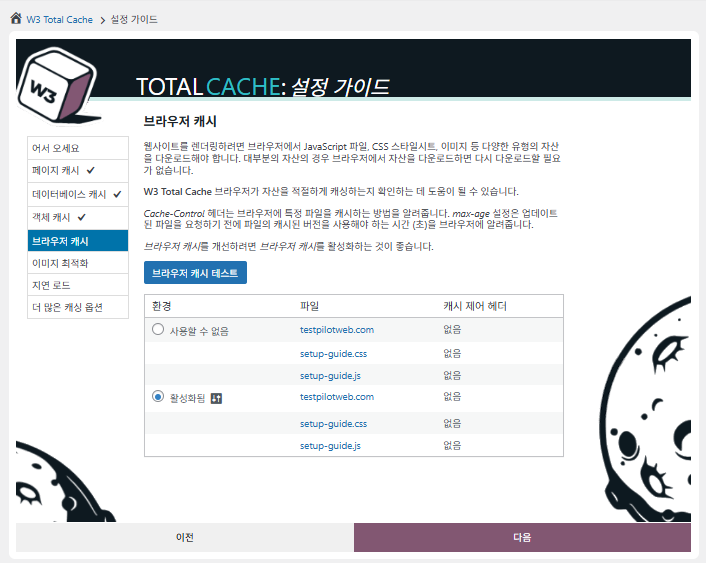
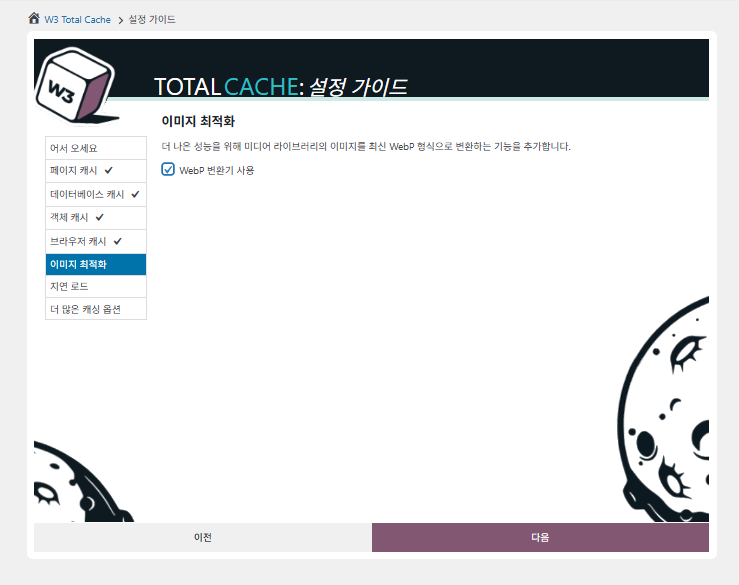
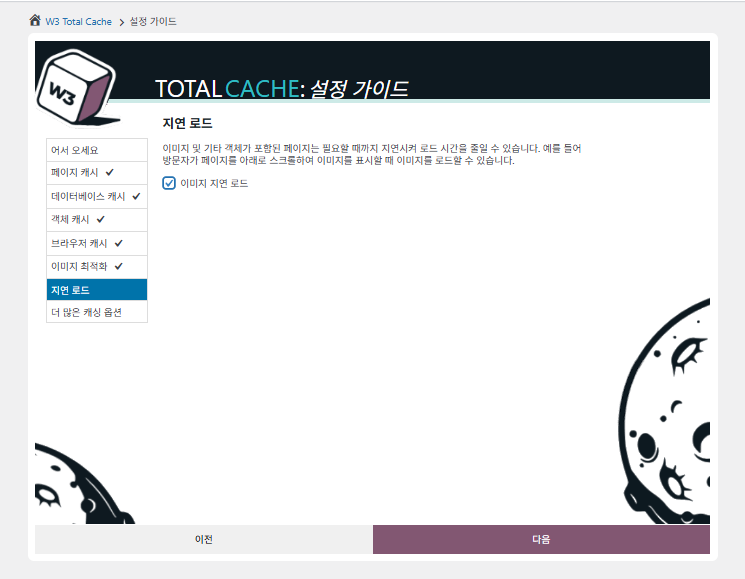
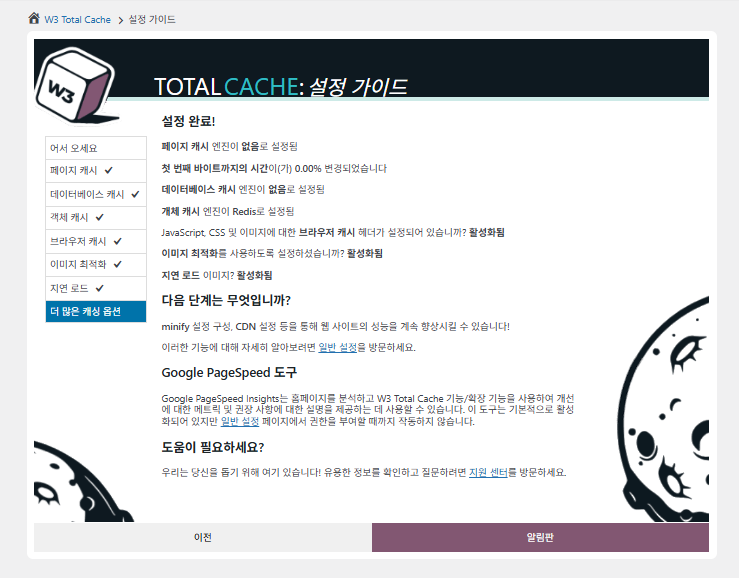
No guia de configuração você define ① cache de página, ② cache de banco de dados, ③ cache de objetos, ④ cache do navegador, ⑤ otimização de imagens, ⑥ lazy load e ⑦ outras opções de cache.
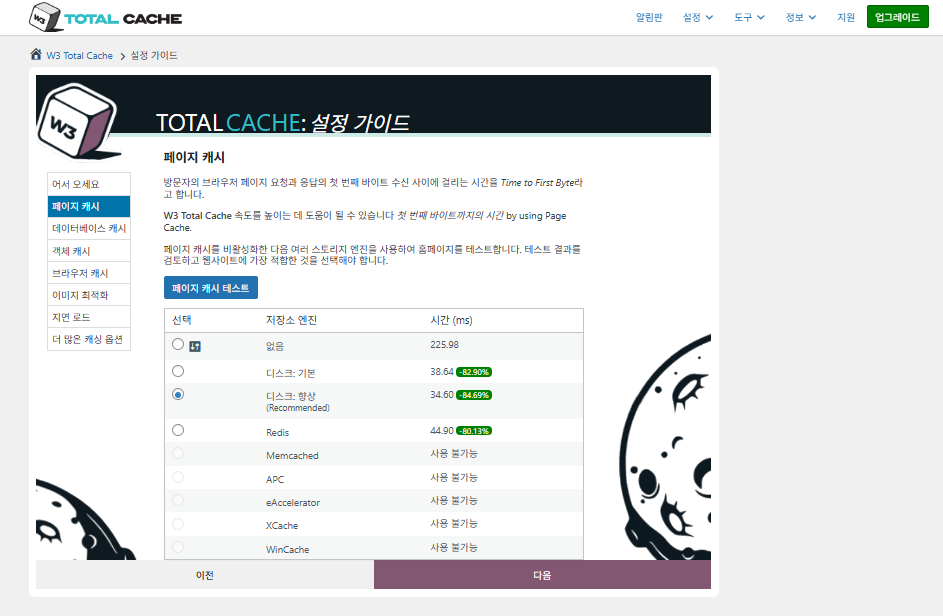
W3 Total Cache Setup Guide ① Cache de página_cache em disco (Enhanced selecionado)

Para o cache de página, a recomendação padrão do W3TC é Disk: [Aprimorado]. Como mostra a tabela, Disk: Enhanced é cerca de 10,3 ms mais rápido que Disk: Basic, o que dá cerca de 17,8% de desempenho melhor em TTFB.
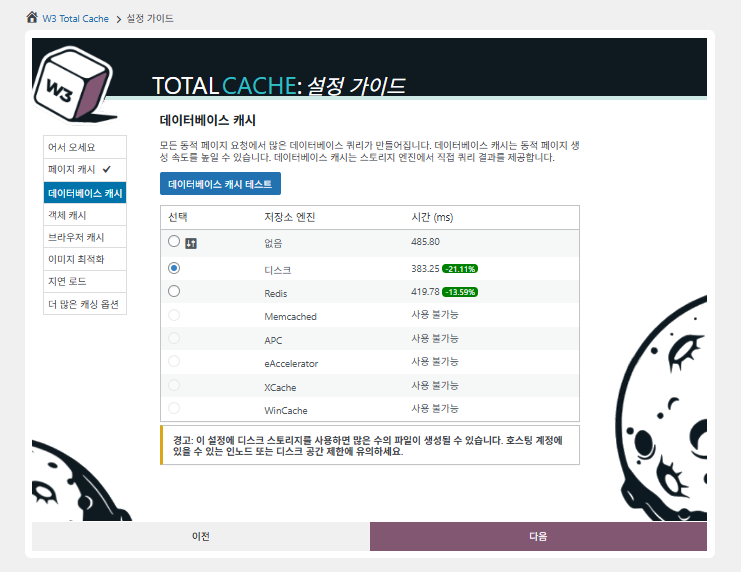
W3 Total Cache Setup Guide ② Cache de banco de dados_cache em disco selecionado

Para o cache de banco de dados, selecione o cache em disco.
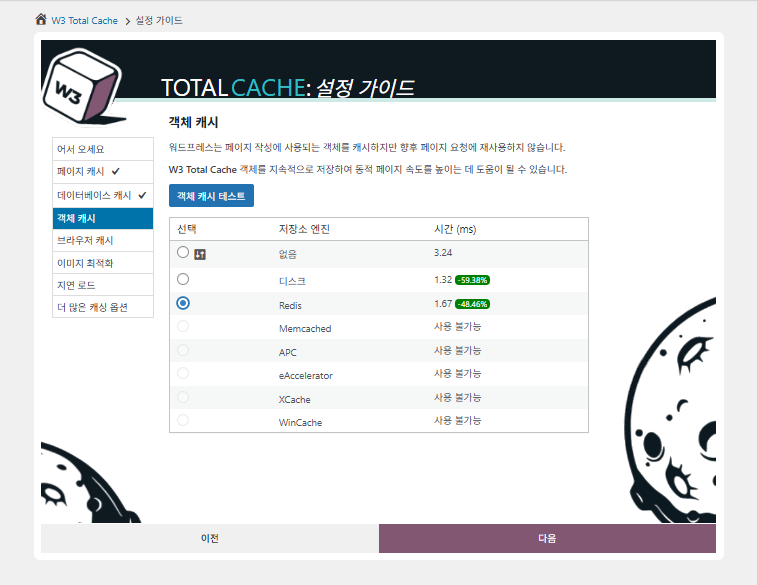
W3 Total Cache Setup Guide ③ Cache de objetos_Redis selecionado
W3 Total Cache Setup Guide ④ Cache do navegador
W3 Total Cache Setup Guide ⑤ Otimização de imagens - conversor WebP
W3 Total Cache Setup Guide ⑥ Lazy load - carregamento lento de imagens
W3 Total Cache Setup Guide ⑦ Outras opções de cache_configurar depois de ir ao painel

As configurações feitas no guia agora aparecem no painel.

Clique na aba [Settings] no canto superior direito para configurar tudo, de [General Settings] ao cache de página e mais.
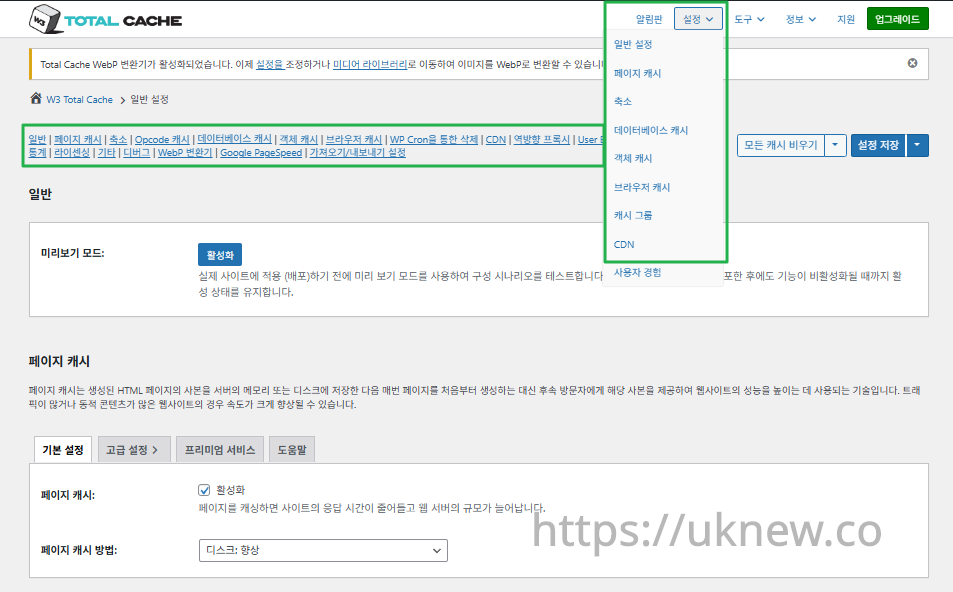
Painel do W3TC - Configurações__

ⓐ As [configurações da página] no menu do painel à esquerda e ⓑ a aba [Settings] no canto superior direito levam cada uma ao cache de página, Minify  e a outras configurações avançadas. Indo a cada página pelo topo central da aba General Settings, você vê tudo de cache de página e Minify, das configurações gerais até as Configurações avançadas.

Ⅱ. Configurações de cache do W3 Total Cache

  • ↳ Recursos de cache

Esta é a aba General Settings nas configurações do W3TC.

🧭 Simulador de configurações de cache do W3 Total Cache
Simulador de caminho
📍Performance›General Settings›General
Modo de pré-visualização
Antes de publicar as mudanças reais de cache, você pode ativar o [Preview mode] para testar erros antes.
📍Performance›General Settings›Page Cache›Advanced Settings
Cache de página
Marque [Enable] em [Page Cache], confira se o método é [Disk: Enhanced] e clique em [Save Settings]. As opções detalhadas ficam em [Advanced Settings].
📍Performance›General Settings›Minify›Advanced Settings
Minify
Marque [Enable] em [Minify] e clique em [Save Settings]; depois, em [Advanced Settings], defina as opções de minify de HTML, CSS e JS.
📍Performance›General Settings›Opcode Cache
Cache de opcode
No cache de opcode, o cache instalado no servidor é aplicado automaticamente; se não houver nenhum, fica desativado.
📍Performance›General Settings›Database Cache›Object Cache
Cache de banco de dados e de objetos
Marque [Enable] em [Database Cache] e em [Object Cache] e salve. As opções detalhadas ficam nas telas [Database Cache] e [Object Cache].
📍Performance›General Settings›Browser Cache›Advanced Settings
Cache do navegador
Marque [Enable] em [Browser Cache] e salve; depois, em [Advanced Settings], defina as opções de cache por tipo de arquivo.
example.com/wp-admin/admin.php?page=w3tc_general
DashboardSettingsToolsInfoSupportUpgrade
|||||||||||||||||
Empty All Caches
General
Preview mode:
Enable
Use preview mode to test configuration scenarios prior to releasing them (deploy) on the actual site. Preview mode remains active even after deploying settings until the feature is disabled.
Page Cache
Page cache is a technique used to speed up the performance of a website by storing a copy of the generated HTML page in the server’s memory or disk, and then serving that copy to subsequent visitors instead of generating the page from scratch each time. This can result in significant speed improvements for websites with high traffic or dynamic content.
Basic SettingsPremium ServicesHelp
Page Cache:
Caching pages will reduce the response time of your site and increase the scale of your web server.
Page Cache Method:
Minify
Minification is a technique used to reduce the file size of HTML, CSS, and JavaScript files by removing unnecessary characters such as whitespace, comments, and line breaks. This process can significantly improve the load times of web pages by reducing the amount of data that needs to be downloaded by the user’s browser.
Basic SettingsPremium ServicesHelp
Minify:
Minification can decrease file size of HTML, CSS, JS and feeds respectively by ~10% on average. Learn more
Minify mode:
Auto
Manual
Select manual mode to use fields on the Minify settings tab to specify files to be minified, otherwise files will be minified automatically. Learn more
Minify Cache Method:
Learn more
HTML minifier:
Learn more
JS minifier:
CSS minifier:
Opcode Cache
Opcode cache is a powerful feature that enhances the performance of a WordPress website by caching compiled PHP code. By storing pre-compiled code in memory, opcode cache eliminates the need for repetitive interpretation and compilation of PHP files, resulting in significantly faster execution times. Opcode cache reduces server load and improves response times, ultimately enhancing the overall speed and responsiveness of your WordPress site. If opcode cache is available on the hosting server it will automatically be selected in the dropdown and enabled.
Opcode Cache
Validate timestamps:
Enable
Once enabled, each file request will update the cache with the latest version. When this setting is off, the Opcode Cache will not check, instead PHP must be restarted in order for setting changes to be reflected.
Database Cache
Enable this setting to utilize the power of caching your WordPress site’s database queries. By storing frequently accessed database queries in memory, the database cache reduces the need for repetitive database interactions, resulting in faster page load times. This feature is particularly beneficial for websites with heavy database usage, improving overall performance and delivering a smoother user experience.
Basic SettingsPremium ServicesHelp
Database Cache:
Caching database objects decreases the response time of your site. Best used if object caching is not possible.
Database Cache Method:
Object Cache
Enable this option to utilize an object cache mechanism, which significantly enhances the performance of your WordPress website. Object caching stores frequently accessed database queries and complex data structures in memory, reducing the need to retrieve them from the database repeatedly. By doing so, it minimizes the processing time required to generate dynamic content, resulting in faster page loading times and improved overall site speed. Enabling object cache is particularly beneficial for websites with heavy database usage or high traffic volumes, as it helps alleviate the strain on the server by efficiently serving cached data.
Basic SettingsPremium ServicesHelp
Object Cache:
Object caching greatly increases performance for highly dynamic sites that use the Object Cache API.
Object Cache Method:
Browser Cache
Enabling browser caching will instruct visitors’ web browsers to store static files from your WordPress website, such as images, CSS, and JavaScript files, locally on their devices. By doing so, subsequent visits to your site will retrieve these cached files from the browser’s storage, reducing the need for repeated downloads. This results in faster page loading times and a smoother browsing experience for your visitors, ultimately improving the overall speed and performance of your WordPress website.
Basic SettingsPremium ServicesHelp
Browser Cache:
Enable HTTP compression and add headers to reduce server load and decrease file load time.
example.com/wp-admin/admin.php?page=w3tc_pgcache
DashboardSettingsToolsInfoSupportUpgrade
|||||||
Empty All Caches
Always Cached extension is currently disabled. To enable the extension click here.
General
Cache front page
For many blogs this is your most visited page, it is recommended that you cache it. Learn more
Cache feeds: site, categories, tags, comments
Even if using a feed proxy service enabling this option is still recommended. Learn more
Handle XML mime type
Return correct Content-Type header for XML files (e.g., feeds and sitemaps). Learn more
Cache SSL (HTTPS>) requests
Cache SSL requests (uniquely) for improved performance. Learn more
Cache URI with query string variables
Search result (and similar) pages will be cached if enabled. Learn more
Cache 404 (not found) pages
Reduce server load by caching 404 pages. If the disk enhanced method of disk caching is used, 404 pages will be returned with a 200 response code. Use at your own risk. Learn more
Don’t cache pages for logged in users
Unauthenticated users may view a cached version of the last authenticated user’s view of a given page. Disabling this option is not recommended. Learn more
Don’t cache pages for following user roles
Select user roles that should not receive cached pages: Learn more
Administrator
Editor
Author
Contributor
Subscriber
Aliases
Cache alias hostnames:
Enable
If the same WordPress content is accessed from different domains. Learn more
Additional home URLs:
Specify full home URLs of your mirrors so that plugin will flush it’s cache when content is changed. For example: http://my-site.comhttp://www.my-site.comhttps://my-site.com Learn more
Cache Preload
Automatically prime the page cache
Automatically primes the page cache using the settings configured below. Learn more
Update interval:
900seconds
The number of seconds to wait before creating another set of cached pages. Learn more
Pages per interval:
10
Limit the number of pages to create per batch. Fewer pages may be better for under-powered servers. Learn more
Sitemap URL:
 
A compliant sitemap can be used to specify the pages to maintain in the primed cache. Pages will be cached according to the priorities specified in the XML file. Learn more
Preload the sitemap once
Stop cache preloading after every URL in the sitemap has been processed. Disable and re-enable cache preloading to start a new pass.
Preload cache upon publishing a post
Only applies to pages, posts, and custom post types whose status transitioned from a non-published status to the “published” status. Learn more
Preload cache upon updating a post
Applies after updating any page, post, or custom post type with the final status being “published”. Learn more
Purge Policy:
Specify the pages and feeds to purge when posts are created, edited, or comments posted. The defaults are recommended because additional options may reduce server performance: Learn more
Front page
Post page
Blog feed
Post comments pages
Post author pages
Post terms pages
Post comments feed
Post author feed
Post terms feeds
Daily archive pages
Monthly archive pages
Yearly archive pages
rdf
rss
rss2 (default)
atom
Choose which feed types should be automatically purged. Learn more
Purge limit:
10
Specify number of pages that lists posts (archive etc.) that should be purged on post updates etc., i.e. example.com/ ... example.com/page/5.
0 means all pages that lists posts are purged, i.e. example.com/page/2 ... Learn more
Additional pages:
Specify additional pages to purge. Including parent page in path. Ex: parent/posts. Learn more
Purge sitemaps:
([a-z0-9_\-]*?)sitemap([a-z0-9_\-]*)?\.(?:xml|xsl)
Specify a regular expression that matches your sitemaps. Learn more
REST API
Use these controls to determine how the WordPress REST API responds to visitors and integrations. Caching API responses can dramatically reduce load when headless frontends, mobile apps, or third-party services request the same data repeatedly, but you can keep responses uncached for highly dynamic endpoints or disable the API altogether when it is not needed to reduce attack surface. Learn more
REST API
Don’t cache
Cache★ PRO
Disable REST API
If you’re using the WordPress API make sure to use caching to scale performance. Show More ▾
Advanced
Late initialization:
Enable
Enables support for WordPress functionality in fragment caching for the page caching engine. Use of this feature may increase response times. Learn more
Late caching:
Enable
Overwrites key of page caching via custom filters by postponing entry extraction during the init action. Learn more
Compatibility mode:
Enable
Decreases performance by ~20% at scale in exchange for increasing interoperability with more hosting environments and WordPress idiosyncrasies. Enable this option if you experience issues with the Apache rules. Learn more
Reject HEAD requests:
Disable caching of HEAD HTTP requests
If disabled, HEAD requests can often be cached resulting in “empty pages” being returned for subsequent requests for a URL. Learn more
Maximum lifetime of cache objects:
3600seconds
Determines the natural expiration time of cache items. The higher the value, the larger the cache.
Max lifetime is limited by the W3TC_CACHE_FILE_EXPIRE_MAX constant (2592000 seconds) which can be overridden in wp-config.php.
Garbage collection interval:
3600seconds
If caching to disk, specify how frequently expired cache data is removed. For busy sites, a lower value is best. Learn more
Comment cookie lifetime:
1800seconds
Significantly reduce the default TTL for comment cookies to reduce the number of authenticated user traffic. Enter -1 to revert to default TTL. Learn more
Accepted query strings:
ScCid
_branch_match_id
_bta_c
_bta_tid
_ga
_gl
_ke
adgroupid
adid
age-verified
ao_noptimize
campaignid
campid
click_id
cn-reloaded
customid
dicbo
dm_i
ef_id
epik
fb_action_ids
fb_action_types
fb_source
fbclid
gclid
gclsrc
gdffi
gdfms
gdftrk
hsa_acc
hsa_ad
hsa_cam
hsa_grp
hsa_kw
hsa_mt
hsa_net
hsa_src
hsa_tgt
hsa_ver
igshid
li_fat_id
matomo_campaign
matomo_cid
matomo_content
matomo_group
matomo_keyword
matomo_medium
matomo_placement
matomo_source
mc_cid
mc_eid
mkcid
mkevt
mkrid
mkwid
msclkid
mtm_campaign
mtm_cid
mtm_content
mtm_group
mtm_keyword
mtm_medium
mtm_placement
mtm_source
pcrid
piwik_campaign
piwik_keyword
piwik_kwd
pk_campaign
pk_cid
pk_content
pk_keyword
pk_kwd
pk_medium
pk_source
pp
redirect_log_mongo_id
redirect_mongo_id
ref
s_kwcid
sb_referer_host
si
sscid
tblci
toolid
trk_contact
trk_module
trk_msg
trk_sid
ttclid
twclid
usqp
utm_campaign
utm_content
utm_expid
utm_id
utm_medium
utm_source
utm_term
wbraid
Always cache URLs that use these query string name-value pairs. The value part is not required. But if used, separate name-value pairs with an equals sign (i.e., name=value). Each pair should be on their own line. Learn more
Rejected user agents:
Never send cache pages for these user agents. Learn more
Rejected cookies:
wptouch_switch_toggle
Never cache pages that use the specified cookies. Learn more
Never cache the following pages:
wp-.*\.php
index\.php
Always ignore the specified pages / directories. Supports regular expressions. Learn more
Never cache pages associated with these categories:
Always ignore all pages filed under the specified category slugs. Learn more
Never cache pages that use these tags:
Always ignore all pages filed under the specified tag slugs. Learn more
Never cache pages by these authors:
Always ignore all pages filed under the specified author usernames. Learn more
Never cache pages that use these custom fields:
Always ignore all pages filed under the specified custom fields. Separate name-value pairs with an equals sign (i.e., name=value). Learn more
Cache exception list:
wp-comments-popup.php
wp-links-opml.php
wp-locations.php
Cache the specified pages / directories even if listed in the “never cache the following pages” field. Supports regular expression. Learn more
Non-trailing slash pages:
sitemap(_index)?\.xml(\.gz)?
([a-z0-9_\-]+)?sitemap\.xsl
[a-z0-9_\-]+-sitemap([0-9]+)?\.xml(\.gz)?
Cache the specified pages even if they don’t have trailing slash. Learn more
Specify page headers:
Last-Modified
Content-Type
X-Pingback
P3P
Link
Specify additional page headers to cache. Learn more
Purge via WP Cron
Enabling this will schedule a WP-Cron event that will flush the Page Cache. If you prefer to use a system cron job instead of WP-Cron, you can schedule the following command to run at your desired interval: “wp w3tc flush posts”. If the Always Cached extension is active and enabled, page cache entries will instead be added to the queue instead of being purged from the cache. Learn more
Page Cache is disabled! Enable it here to enable this feature.
Enable WP-Cron Event
Enable
Start Time
This setting controls the initial start time of the cron job. If the selected time has already passed, it will schedule the job for the following day at the selected time.
Interval
This setting controls the interval that the cron job should occur.
Note(s)
  • Enable HTTP compression in the “HTML” section on Browser Cache Settings tab.
example.com/wp-admin/admin.php?page=w3tc_minify
DashboardSettingsToolsInfoSupportUpgrade
||||||
Empty All Caches
General
Rewrite URL structure
If disabled, CSS and JS embeddings will use GET variables instead of “fancy” links. Learn more
Disable minify for logged in users
Authenticated users will not receive minified pages if this option is enabled. Learn more
Minify error notification:
Notify when minify cache creation errors occur. Learn more
HTML & XML
HTML minify settings:
Enable
Inline CSS minification
Inline JS minification
Don’t minify feeds
Line break removal
Enable HTML minification and optionally remove whitespace from inline CSS, JS, and feeds. Learn more
Ignored comment stems:
google_ad_
RSPEAK_
mfunc
Do not remove comments that contain these terms. Learn more
JS
JS minify settings:
Enable
Minify enqueued and inline JavaScript files according to the settings below. Learn more
Minify method:
Choose how JavaScript files should be combined or minified when using automatic mode. Learn more
Minify engine settings:
Operations in areas:
Embed type:
Before </head>
After <body>
Preserved comment removal (not applied when combine only is active)
Line break removal (not safe, not applied when combine only is active)
Control where scripts are placed and whether they stay blocking or load asynchronously for each template area. Learn more
HTTP/2 push
Enable
For better performance, send files to browser before they are requested when using the HTTP/2 protocol. Not supported by “Disk: Enhanced” page cache method for Nginx Learn more
CSS
CSS minify settings:
Enable
Minify stylesheets and inline CSS snippets declared in the queues below. Learn more
Minify method:
Choose how stylesheets should be combined or minified when using automatic mode. Learn more
Minify engine settings:
Preserved comment removal (not applied when combine only is active)
Line break removal (not applied when combine only is active)
Eliminate render-blocking CSS by moving it to HTTP body★ PRO
Website visitors cannot navigate your website until a given page is ready – reduce the wait time with this feature. Show More ▾
Decide where CSS is placed and whether it should load synchronously or asynchronously for each template area. Learn more
@import handling:
Control how @import rules are handled when combining and minifying stylesheets. Learn more
HTTP/2 push
Enable
For better performance, send files to browser before they are requested when using the HTTP/2 protocol. Not supported by “Disk: Enhanced” page cache method for Nginx Learn more
Advanced
Update external files every:
86400seconds
Specify the interval between download and update of external files in the minify cache. Hint: 6 hours is 21600 seconds. 12 hours is 43200 seconds. 24 hours is 86400 seconds. Learn more
Garbage collection interval:
86400seconds
If caching to disk, specify how frequently expired cache data is removed. For busy sites, a lower value is best.
Max interval is limited by the W3TC_CACHE_FILE_EXPIRE_MAX constant (2592000 seconds) which can be overridden in wp-config.php. Learn more
Never minify the following pages:
Always ignore the specified pages / directories. Use relative paths. Omit: protocol, hostname, leading forward slash and query strings. Learn more
Never minify the following JS files:
Always ignore the specified JS files. Use relative paths. Omit: protocol, hostname, leading forward slash and query strings. Learn more
Never minify the following CSS files:
Always ignore the specified CSS files. Use relative paths. Omit: protocol, hostname, leading forward slash and query strings. Learn more
Rejected user agents:
Specify user agents that will never receive minified content. Learn more
Include external files/libraries:
Specify external files/libraries that should be combined. Learn more
Use regular expressions for file name matching
If external script file names vary, use regular expressions in the “Include external files/libraries” field to simplify matching. Learn more
Purge via WP Cron
Enabling this will schedule a WP-Cron event that will flush the Minify Cache. If you prefer to use a system cron job instead of WP-Cron, you can schedule the following command to run at your desired interval: “wp w3tc flush minify”. Learn more
Minify is disabled! Enable it here to enable this feature.
Enable WP-Cron Event
Enable
Start Time
This setting controls the initial start time of the cron job. If the selected time has already passed, it will schedule the job for the following day at the selected time.
Interval
This setting controls the interval that the cron job should occur.
Note(s):
  • Enable HTTP compression in the “Cascading Style Sheets & JavaScript” section on Browser Cache Settings tab.
  • The TTL of page cache files is set via the “Expires header lifetime” field in the “Cascading Style Sheets & JavaScript” section on Browser Cache Settings tab.
example.com/wp-admin/admin.php?page=w3tc_dbcache
DashboardSettingsToolsInfoSupportUpgrade
||
Empty All Caches
Database caching via Disk is currently disabled.
General
Don’t cache queries for logged in users
Enabling this option is recommended to maintain default WordPress behavior. Learn more
Advanced
Maximum lifetime of cache objects:
180seconds
Determines the natural expiration time of unchanged cache items. The higher the value, the larger the cache. Learn more
Garbage collection interval:
3600seconds
If caching to disk, specify how frequently expired cache data is removed. For busy sites, a lower value is best. Learn more
Never cache the following pages:
Always ignore the specified pages / directories. Supports regular expressions (See FAQ). Learn more
Ignored query stems:
gdsr_
wp_rg_
_wp_session_
_wc_session_
Do not cache queries that contain these terms. Any entered prefix (set in wp-config.php) will be replaced with current database prefix (default: wp_). Query stems can be identified using debug mode. Learn more
Reject query words:
^\s*insert\b
^\s*delete\b
^\s*update\b
^\s*replace\b
^\s*create\b
^\s*alter\b
^\s*show\b
^\s*set\b
\bautoload\s+=\s+’yes’
\bsql_calc_found_rows\b
\bfound_rows\(\)
Do not cache queries that contain these words or regular expressions. Learn more
Reject constants:
APP_REQUEST
DOING_CRON
DONOTCACHEDB
SHORTINIT
XMLRPC_REQUEST
Disable caching once specified constants defined. Learn more
Enable for WP-CLI
Enable
WP-CLI already uses Memcached, Redis, and other persistent engines. Enable this only if your database cache engine is Disk and you want WP-CLI to use it. Learn more
Purge via WP Cron
Enabling this will schedule a WP-Cron event that will flush the Database Cache. If you prefer to use a system cron job instead of WP-Cron, you can schedule the following command to run at your desired interval: “wp w3tc flush db”. Learn more
Database Cache is disabled! Enable it here to enable this feature.
Enable WP-Cron Event
Enable
Start Time
This setting controls the initial start time of the cron job. If the selected time has already passed, it will schedule the job for the following day at the selected time.
Interval
This setting controls the interval that the cron job should occur.
example.com/wp-admin/admin.php?page=w3tc_objectcache
DashboardSettingsToolsInfoSupportUpgrade
|
Empty All Caches
Object caching via Disk is currently disabled.
Advanced
Default lifetime of cache objects:
180seconds
Determines the natural expiration time of unchanged cache items. The higher the value, the larger the cache. Learn more
Garbage collection interval:
600seconds
If caching to disk, specify how frequently expired cache data is removed. For busy sites, a lower value is best. Learn more
Global groups:
Groups shared amongst sites in network mode. Learn more
Non-persistent groups:
counts
plugins
Groups that should not be cached. Learn more
Enable caching for wp-admin requests
Enabling this option will increase wp-admin performance, but may cause side-effects Learn more
Store transients in database
Store transients in database even when external cache is used, which allows transient values to survive object cache cleaning/expiration Learn more
Enable for WP-CLI
Enable
WP-CLI already uses Memcached, Redis, and other persistent engines. Enable this only if your object cache engine is Disk and you want WP-CLI to use it. Learn more
Purge via WP Cron
Enabling this will schedule a WP-Cron event that will flush the Object Cache. If you prefer to use a system cron job instead of WP-Cron, you can schedule the following command to run at your desired interval: “wp w3tc flush object”. Learn more
Object Cache is disabled! Enable it here to enable this feature.
Enable WP-Cron Event
Enable
Start Time
This setting controls the initial start time of the cron job. If the selected time has already passed, it will schedule the job for the following day at the selected time.
Interval
This setting controls the interval that the cron job should occur.
example.com/wp-admin/admin.php?page=w3tc_browsercache
DashboardSettingsToolsInfoSupportUpgrade
||||
Empty All Caches
General
Specify global browser cache policy.
Set Last-Modified header
Set the Last-Modified header to enable 304 Not Modified response. Learn more
Set expires header
Set the expires header to encourage browser caching of files. Learn more
Set cache control header
Set pragma and cache-control headers to encourage browser caching of files. Learn more
Set entity tag (eTag)
Set the ETag header to encourage browser caching of files. Learn more
Set W3 Total Cache header
Set this header to assist in identifying optimized files. Learn more
Enable HTTP (gzip) compression
Reduce the download time for text-based files. Learn more
Enable HTTP (brotli) compression
Reduce the download time for text-based files. Learn more
Prevent caching of objects after settings change
Whenever settings are changed, a new query string will be generated and appended to objects allowing the new policy to be applied. Learn more
Remove query strings from static resources
Resources with a “?” in the URL are not cached by some proxy caching servers. Learn more
Prevent caching exception list:
Do not add the prevent caching query string to the specified URIs. Supports regular expressions. Learn more
Disable cookies for static files
Removes Set-Cookie header for responses. Learn more
Do not process 404 errors for static objects with WordPress
Reduce server load by allowing the web server to handle 404 (not found) errors for static files (images etc).
If enabled – you may get 404 File Not Found response for some files generated on-the-fly by WordPress plugins. You may add those file URIs to 404 error exception list below to avoid that. Learn more
404 error exception list:
robots\.txt
[a-z0-9_\-]*sitemap[a-z0-9_\.\-]*\.(xml|xsl|html)(\.gz)?
Never process 404 (not found) events for the specified URIs. Learn more
Rewrite URL structure of objects
Generate unique URI for each file protected from caching by browser. Learn more
CSS & JS
Specify browser cache policy for Cascading Style Sheets and JavaScript files.
Set Last-Modified header
Set the Last-Modified header to enable 304 Not Modified response. Learn more
Set expires header
Set the expires header to encourage browser caching of files. Learn more
Expires header lifetime:
31536000seconds
Specify how long CSS and JS files should be cached (in seconds). Learn more
Set cache control header
Set pragma and cache-control headers to encourage browser caching of files. Learn more
Cache Control policy:
Choose the Cache-Control policy applied to CSS and JS responses.
The Expires header already sets the max-age. Learn more
Set entity tag (eTag)
Set the ETag header to encourage browser caching of files. Learn more
Set W3 Total Cache header
Set this header to assist in identifying optimized files. Learn more
Enable HTTP (gzip) compression
Reduce the download time for text-based files. Learn more
Enable HTTP (brotli) compression
Reduce the download time for text-based files. Learn more
Prevent caching of objects after settings change
Whenever settings are changed, a new query string will be generated and appended to objects allowing the new policy to be applied. Learn more
Remove query strings from static resources
Resources with a “?” in the URL are not cached by some proxy caching servers. Learn more
Disable cookies for static files
Removes Set-Cookie header for responses. Learn more
HTML & XML
Specify browser cache policy for posts, pages, feeds and text-based files.
Set Last-Modified header
Set the Last-Modified header to enable 304 Not Modified response. Learn more
Set expires header
Set the expires header to encourage browser caching of files. Learn more
Expires header lifetime:
3600seconds
Max lifetime is limited by the W3TC_CACHE_FILE_EXPIRE_MAX constant (2592000 seconds) which can be overridden in wp-config.php. Learn more
Set cache control header
Set pragma and cache-control headers to encourage browser caching of files. Learn more
Cache Control policy:
Choose the Cache-Control policy applied to HTML and XML responses. Learn more
Set entity tag (ETag)
Set the ETag header to encourage browser caching of files. Learn more
Set W3 Total Cache header
Set this header to assist in identifying optimized files. Learn more
Enable HTTP (gzip) compression
Reduce the download time for text-based files. Learn more
Enable HTTP (brotli) compression
Reduce the download time for text-based files. Learn more
Media & Other Files
Set Last-Modified header
Set the Last-Modified header to enable 304 Not Modified response. Learn more
Set expires header
Set the expires header to encourage browser caching of files. Learn more
Expires header lifetime:
31536000seconds
Specify how long media and other files files should be cached (in seconds). Learn more
Set cache control header
Set pragma and cache-control headers to encourage browser caching of files. Learn more
Cache Control policy:
Choose the Cache-Control policy applied to media and other files responses.
The Expires header already sets the max-age. Learn more
Set entity tag (ETag)
Set the ETag header to encourage browser caching of files. Learn more
Set W3 Total Cache header
Set this header to assist in identifying optimized files. Learn more
Enable HTTP (gzip) compression
Reduce the download time for text-based files. Learn more
Enable HTTP (brotli) compression
Reduce the download time for text-based files. Learn more
Prevent caching of objects after settings change
Whenever settings are changed, a new query string will be generated and appended to objects allowing the new policy to be applied. Learn more
Remove query strings from static resources
Resources with a “?” in the URL are not cached by some proxy caching servers. Learn more
Disable cookies for static files
Removes Set-Cookie header for responses. Learn more
Clique num item destacado no menu à esquerda ou num botão da tela.

1️⃣ Modo de pré-visualização

Antes de publicar as mudanças reais de cache, você pode ligar o modo de pré-visualização para testar erros antes.

W3TC General Settings modo de pré-visualização 2

[Preview]: clique para testar enquanto visualiza as mudanças e, se estiver tudo certo, clique em [Deploy] para aplicá-las ao site.

2️⃣ Cache de página

O guia já definiu a configuração básica como [Disk: Enhanced]. Você pode mudar depois se, por exemplo, uma migração de servidor fizer o servidor usar outro cache.

Se um site único (não multisite) também usa subdomínios, dá para configurar cache também para os domínios alias.

Nível de servidor

Intervalo de atualização (s)

Páginas por intervalo

Descrição

Servidor básico (1 vCPU / 1 GB ou menos)

1800 s (30 min)

5

Evite picos de CPU ao montar o cache: use um intervalo folgado e mantenha poucas páginas

Servidor intermediário (2 vCPU / 2–4 GB)

900 s (15 min)

10

Manter o padrão é recomendado; aguenta alguma concorrência

Servidor de alto desempenho (4 vCPU / 8 GB ou mais)

300 s (5 min)

20~30

Prepara o cache rápido; bom para sites com muito tráfego

REST API é a interface que o WordPress oferece para trocar dados com o mundo externo; com ela você pede ou altera conteúdo em formato JSON por URLs. Assim, apps móveis, apps web externos, o editor de blocos e outros podem sincronizar ou editar o conteúdo do WordPress em tempo real.

A REST API atende não só administradores, mas também pedidos de usuários comuns, permitindo uma troca de dados eficiente que deixa o site mais flexível e extensível.

Opção

Descrição

Recomendado

Inicialização tardia

Permite chamar funções do WordPress para o cache de fragmentos.

⚠️ Só quando precisar de cache avançado

Cache tardio

Adia a geração da chave de cache até depois dos filtros do usuário, permitindo um controle mais fino

⚠️ Só ao sobrescrever chaves

Modo de compatibilidade

Abre mão de algumas otimizações pela compatibilidade com a hospedagem (cerca de 20% mais lento)

✅ Recomendado quando há erros de hospedagem

Conjunto de caracteres

Corrige problemas de codificação UTF-8

✅ Recomendado se aparecerem caracteres estranhos

Rejeitar requisições HEAD

Impede que requisições HEAD criem caches vazios

✅ Evita páginas em branco inesperadas

Tempo de vida máximo dos objetos de cache

Por quanto tempo os itens em cache são mantidos (s)

⏱ Mais alto com pouco tráfego, mais baixo com muito

Intervalo de coleta de lixo

Com que frequência os dados de cache expirados são removidos (s)

⏱ Mais curto quanto mais tráfego houver

Tempo de vida do cookie de comentário

Ajusta o TTL do cookie quando alguém comenta (padrão 1800 s)

✅ Útil para reduzir o tráfego de usuários logados

3️⃣ Minify

Em arquivos HTML, CSS e JS, o Minify remove espaços, comentários e quebras de linha desnecessários, para reduzir o tamanho dos arquivos e melhorar a velocidade de carregamento. Esse processo não altera a funcionalidade mas deixa o código mais enxuto , e o navegador consegue interpretá-lo mais rápido.

Opção

Descrição

Recomendado

Automático

O W3TC detecta e minifica arquivos HTML, CSS e JS automaticamente.

✅ Serve para a maioria dos usuários

Manual

Só funciona depois que você mesmo informa os caminhos dos arquivos a minificar.

⚠️ Só para usuários avançados que precisam de controle preciso

Opção

Descrição

Ambiente ideal

Disco (Disk)

Guarda os arquivos minificados no disco do servidor

✅ Hospedagem compartilhada típica; o padrão

APC / APCu

Guarda na memória usando o cache de opcode do PHP

✅ Bom desempenho em servidores dedicados/virtuais

eAccelerator

Um cache de opcode antigo do PHP

⚠️ Só faz sentido em servidores antigos

XCache

Um dos mecanismos de cache do PHP (pouco usado)

❌ Não recomendado (ultrapassado)

WinCache

Cache PHP para servidores Windows

✅ Só servidores IIS/Windows

Memcached

Guardado em servidores de cache distribuídos

✅ Vários servidores, clusters

Redis

Guarda os arquivos minificados num armazenamento chave-valor rápido

✅ VPS de alto desempenho / vários servidores

Opção

Descrição

Características

Minify (padrão)

O minificador de HTML embutido do W3TC
Remove espaços, quebras de linha e comentários para encolher o HTML

Muito estável e compatível com a maioria dos sites

HTML Tidy

Organiza a estrutura do HTML enquanto minifica
Tenta até corrigir erros de sintaxe

Inclui correção de estrutura → risco de quebrar o layout

OpçãoDescriçãoCaracterísticasEscolha do minificador de JS
JSMin (padrão)Minificador de JS simples e rápido: remove espaços e comentários básicosMuito estável, baixo risco de conflitos✅ Velocidade/estabilidade em primeiro lugar; sites WordPress comuns
Google Closure Compiler (serviço web)O otimizador de JS avançado do Google: comprime pela API do GooglePreciso, mas uma chamada a servidor externo é necessária → pode ser lento⚠️ Uso de API externa liberado; otimização precisa em primeiro lugar
Google Closure Compiler (Java local)Executa o mesmo motor no ambiente Java do servidor localmenteOtimização avançada possível, É preciso ter Java instalado✅ Java pode ser instalado; quando você quer otimização avançada
NarcissusUm compressor clássico que analisa e regenera o JSUma abordagem antiga, praticamente sem suporte—
YUI CompressorCompressor de JS/CSS criado pelo Yahoo; pode manter comentários preservadosAntigo, mas ainda estável—
Closure (precisa de teste)——⚠️ Muito JS moderno (ES6+)
OpçãoDescrição
✅ Minify (padrão)Rápido e estável; serve para a maioria dos sites WordPress
⚠️ CSS TidyOrganiza a estrutura e corrige a sintaxe; estilos podem quebrar → precisa de teste
⚠️ YUI Compressor (PHP)Lógica de compressão antiga, sem atualizações → só sites legados
⚠️ YUI Compressor (Java)Precisa de Java; compressão precisa, mas sem suporte à sintaxe CSS moderna

O guia já definiu a configuração básica como [Disk: Enhanced]. Você pode mudar depois se, por exemplo, uma migração de servidor fizer o servidor usar outro cache.

Item

Descrição

Reescrever a estrutura de URL

Usa estruturas de URL limpas para os links de CSS/JS. Se desativado, eles saem como baseados em parâmetros GET URLs como [?ver=xxx].

Para usuários logados,
desativar o minify

Usuários logados veem os arquivos originais, não os minificados. Útil para depurar ou desenvolver.

Minimizar notificações de erro

Avisa se ocorrer um erro ao montar o cache do minify. Se desativado, nenhum aviso aparece.

Item

Descrição

Configurações de minify do HTML

Comprime documentos HTML para reduzir o tamanho, removendo espaços, recuos e afins.

Minificação de CSS inline

Comprime o código CSS dentro das tags [<style>].

Minificação de JS inline

Comprime o código JS dentro das tags [<script>].

Não minificar feeds

Mantém os feeds RSS/Atom (XML) sem minificar, exatamente como estão.

Remover quebras de linha

Remove os caracteres de quebra de linha do HTML → arquivo menor

Exemplo

Uso

google_ad_

Protege os comentários do script de anúncios do Google AdSense

RSPEAK_

Protege comentários de código para leitores de tela/acessibilidade

mfunc

Protege os comentários de cache de fragmentos [<!– mfunc –>] do W3TC

Método de minify

Descrição

Recomendado para

Combinar & minificar (Combine & Minify)

Junta vários arquivos JS em um e os comprime ao mesmo tempo

✅ O mais eficaz nos casos comuns
: menos arquivos + tamanho menor

Só combinar (Combine Only)

Junta os arquivos em um sem comprimi-los

⚠️ Quando há receio de conflitos de JS: evita erros causados pela compressão

Só minificar (Minify Only)

Mantém o número de arquivos e comprime cada um separadamente

⚠️ Em HTTP/2 + quando há erros de JS
Quando você só quer arquivos menores, sem juntar

Configurações do motor de minify

Descrição

Posição de inserção: antes de [</head>]

Insere o JS dentro de [<head>] (roda antes de a página carregar)

Posição de inserção: depois de [<body>]

Insere o JS no final da página (roda depois da renderização)

Tipo de inserção (Blocking / Non-blocking)

Se a execução do JS pausa a renderização da página

Item

Descrição

Configuração recomendada

Ativar HTTP/2 Push

O servidor envia os arquivos JS antes que o navegador os peça

✅ Pode melhorar o desempenho em HTTP/2

Cuidados

Se o Page Cache do W3TC usa [Disk: Enhanced] com NGINX, o HTTP/2 Push ❌ não funciona

✅ Funciona melhor com Apache + HTTP/2

Método de minify

Descrição

Recomendado para

Combinar & minificar

Junta os arquivos CSS e depois os comprime

✅ Uso geral

Só combinar

Junta os arquivos sem comprimir

⚠️ Se houver receio de conflitos de CSS

Só minificar

Só comprime, sem juntar

✅ Adequado para servidores HTTP/2

Configurações do motor de minify

Descrição

Vale quando

Remover comentários preservados(Preserved comment removal)

Remove avisos de licença e comentários preservados dos arquivos CSS para reduzir o tamanho.

⚠️ Só vale com [Combine & Minify] ou [Minify only] (※ não com [Combine only])

Remover quebras de linha(Line break removal)

Apaga os caracteres de quebra de linha do CSS para gerar um arquivo mais compacto (um pouco menor)

⚠️ Só funciona com [Combine & Minify] ou [Minify only] (※ ignorado com [Combine only])

Tratamento de @import

Descrição

Configuração recomendada

None

Mantém as chamadas [@import] do CSS como estão

❌ Não recomendado (bloqueia a renderização)

Bubble

Move [@import] para o topo do arquivo CSS

⚠️ Efeito limitado

Process

Inclui as chamadas [@import] na junção

✅ Recomendado (melhora o desempenho)

Item avançado

Descrição

Configuração recomendada

Intervalo de atualização de arquivos externos(Update interval for external files)

Com que frequência o W3TC baixa/minifica de novo arquivos CSS/JS de CDNs e URLs externas (em segundos)

✅ Mantenha o padrão [86400] s (24 horas) ※ se arquivos externos mudam muito, considere [21600] (6 horas)

Intervalo de coleta de lixo(Garbage collection interval)

Com que frequência os arquivos de cache expirados são apagados (vale para cache em disco)

✅ [43200–86400] s recomendado (pode ser menor com muito tráfego) ※ um limite máximo (2592000 s) pode ser definido em [wp-config.php]

Nunca minificar as páginas a seguir(Never minify the following pages)

Informe as URLs a sempre excluir do minify (caminhos relativos, sem queries)

✅ Adicione admin, página de login, URLs de AJAX etc. conforme a necessidade. Exemplo: [wp-login.php], [wp-admin/], [my-custom-endpoint/]

Arquivos JS que nunca serão minificados

Indique os arquivos JS que dão erro quando minificados

⚠️ Adicione os arquivos JS problemáticos quando encontrá-los. Exemplo: [plugins/some-script.js]

Arquivos CSS que nunca serão minificados

Permite criar exceções quando há conflitos de CSS

⚠️ Crie uma exceção para o CSS que quebra o layout. Exemplo: [themes/mytheme/style.css]

User agents rejeitados

Não entrega arquivos minificados a user agents específicos (crawlers, bots etc.)

✅ Indique só os bots que precisam ignorar o cache. Exemplo: [Lighthouse], [GTmetrix], [Chrome-Lighthouse] etc.

Incluir arquivos/bibliotecas externos(Include external files/libraries)

Adiciona manualmente scripts de CDN externos à lista de junção

⚠️ Só quando quiser minificar/juntar arquivos JS/CDN externos. Exemplo: [ajax.googleapis.com/…/jquery.min.js]

Permitir expressões regulares

Permite casar com regex quando os padrões de nome de arquivo variam

✅ Útil quando scripts externos mudam muito de número de versão. Exemplo: [cdn.example.com/js/lib-\d+\.js]

# EX: 
#Arquivos JS que nunca serão minificados:
plugins/some-plugin/assets/js/legacy-script.js
wp-includes/js/jquery/jquery.js

#CSS que nunca será minificado:
themes/mytheme/style.css
# EX: 
#User agents rejeitados:
Lighthouse
Chrome-Lighthouse
GTmetrix

Item

Descrição

Configuração recomendada

Usar evento do WP-Cron(Enable WP-Cron event)

Para limpar/atualizar o cache de página automaticamente num horário, agende uma tarefa do WP-Cron

✅ Ativar é recomendado (manter o padrão)

Horário de início(Start time)

Quando o WP-Cron roda pela primeira vez (ex.: 12:00 am)

✅ Um horário de pouca carga (ex.: entre meia-noite e 3 da manhã)

Intervalo(Interval)

Com que frequência o WP-Cron limpa o cache Configurações

✅ Duas vezes ao dia ou a cada hora (sites com muito tráfego)

Alternativa com cron do sistema

Em vez do WP-Cron, você pode rodar o comando [wp w3tc flush_posts] num cron real do sistema operacional

Recomendado em servidores de alto desempenho (mais preciso e eficiente que o WP-Cron)

4️⃣ Cache de opcode

No cache de opcode, o cache instalado no servidor é aplicado automaticamente; se não houver nenhum, fica desativado.

5️⃣ Cache de banco de dados e de objetos: Memcached·Redis

Opção

Descrição

Ambiente recomendado

Disco

Guarda os dados de cache no disco do servidor

✅ Hospedagem compartilhada / configurações básicas

Memcached

Cache distribuído pela rede; rápido

✅ Vários servidores / cluster

Sites WordPress comuns costumam usar só um, Memcached ou Redis, para o cache de banco de dados, mas no W3 Total Cache dá para separar: ⓐ um para o cache de banco de dados e ⓑ o outro para o cache de objetos.

📌 Típico WordPress Site
├─ Banco de Dados Cache
│   └─ Memcached ou Redis · só um (uso)
└─ Objeto Cache
    └─ o mesmo Cache motor compartilhado é comum

📌 W3 Total Cache (W3TC)
├─ Banco de Dados Cache
│   └─ Memcached (uso) (exemplo)
└─ Objeto Cache
    └─ Redis (uso) (exemplo)

🛠️ Estratégia aplicada
└─ Cache motor por função — Separado Aplicado possível
    ├─ Servidor recursos distribuídos
    ├─ Cache gargalo reduzido
    └─ Desempenho Otimização flexibilidade garantida

Nas configurações do W3 Total Cache, por padrão o cache de banco de dados fica em Memcached e o cache de objetos em Redis.

Item

Descrição

Recomendação ou observação

Tempo de vida máximo dos objetos de cache

Tempo natural de expiração de itens de cache não alterados (s)

[180 s] (padrão); alto demais desperdiça memória

Intervalo de coleta de lixo

Com que frequência os dados de cache expirados são apagados (s)

[3600 s] (1 hora); reduza com uso intenso

Nunca fazer cache das
páginas a seguir

Caminhos a excluir do cache (regex permitido)

Excluir páginas dinâmicas como login, carrinho e busca é recomendado

Radicais de query ignorados

Queries com prefixo correspondente não vão para o cache

Dados de sessão/temporários como [gdsr_], [wp_rg_]

Rejeitar queries (Query Rejects)

Exclui queries que contêm palavras-chave/padrões específicos (regex)

[insert], [update], [autoload], [found_rows()] etc.

Reject Constants

Desativa o cache de BD quando as constantes WP listadas estão definidas

[DOING_CRON], [XMLRPC_REQUEST] etc.

Ativar para WP-CLI

Se o cache também é usado quando o WP-CLI roda

✅ Mais rápido quando ativado (cuidado em ambientes de teste)

Opção

Descrição

Ambiente recomendado

Disco

Guarda os dados de cache no disco do servidor

✅ Hospedagem compartilhada / configurações básicas

Redis

Cache chave-valor rápido; funciona bem com PHP-FPM

✅ Servidores de alto desempenho / VPS

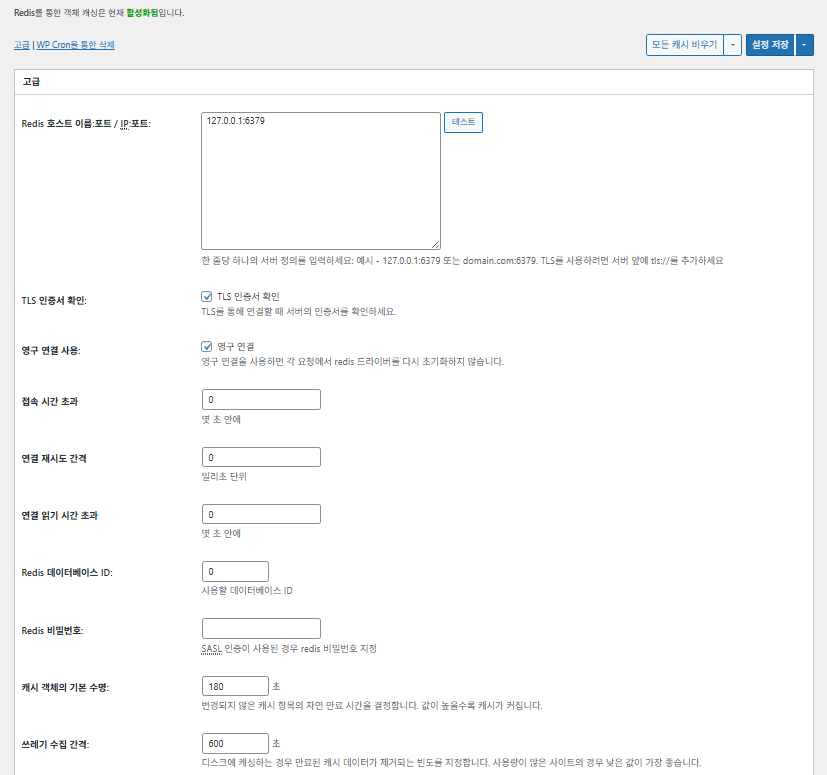
W3TC Cache de objetos_configurações avançadas 1

Item

Descrição

Host/IP do Redis

Formato [127.0.0.1:6379]. Para TLS, use o prefixo [tls://]

Verificar certificado TLS

Verifica a validade do certificado ao usar TLS (opcional)

Usar conexões persistentes

Reaproveita conexões Redis para melhor desempenho

Tempo limite de conexão

Tempo máximo para conectar ao Redis (s)

Intervalo para nova tentativa de conexão

Espera antes de tentar de novo após uma falha (ms)

Tempo limite de leitura da conexão

Tempo máximo de espera por uma resposta (s)

Redis DB ID

Número do banco de dados dentro do Redis (padrão [0])

Senha do Redis

Campo de senha ou autenticação SASL

Tempo de vida padrão do cache

Tempo padrão de retenção dos itens de cache (s). Padrão 180 s

Intervalo de coleta de lixo

Com que frequência o cache expirado é apagado. Padrão 600 s

Grupos globais

Grupos compartilhados no modo rede (para multisite)

Grupos não persistentes

Grupos excluídos do cache, ex.: [counts], [plugins]

Fazer cache de requisições do wp-admin

Aplica o cache também à área de administração (⚠️ teste antes)

Guardar transients no banco de dados

Mantém valores temporários no BD mesmo com um cache externo em uso

Ativar WP-CLI

Permite o cache também para comandos do WP-CLI

6️⃣ Cache do navegador

O cache do navegador guarda arquivos estáticos como imagens, CSS e JS no dispositivo do visitante localmente, reduzindo muito o tempo de carregamento nas visitas seguintes. Isso melhora a velocidade de resposta da página e a experiência do usuário.

A maioria dessas configurações foca em controle de cache e redução da carga do servidor. Em sites com muito tráfego ou onde a otimização de recursos estáticos importa, pode ativar muitas delas sem problema.

ItemGeralCSS e JSHTML e XMLMídia e outros arquivos
Definir o cabeçalho [Last-Modified]Inclui a data da última modificação do arquivo para permitir respostas 304✅ Ative na maioria dos casos✅ Serve para a maioria dos servidores✅ Funciona com a maioria dos caches de CDN/navegador
Definir o cabeçalho [Expires]Faz o navegador guardar os arquivos em cache por um período✅ Padrão 31536000 s (1 ano), recomendado✅ Padrão [3600 s (1 hora)] ✅ [31536000 s] (1 ano) por padrão → bom para arquivos estáticos
⏱️ Definir o tempo do Expires—⏱️ ex.: [31536000 s = 1 ano] · pode ser menor quando usado com CDN——
Definir o cabeçalho [Cache-Control]Controla a estratégia de cache adicionando cabeçalhos pragma e cache-control✅ [“public, max-age=31536000”] recomendado✅ Defina como, por exemplo, [“public, max-age=3600”]✅ [“public, max-age=31536000”] recomendado
✅ Política de controle de cache—✅ Use uma política com [max-age] · [“public, max-age=EXPIRES_SECONDS”] é o padrão——
Definir [ETag]Fornece uma entity tag que identifica o arquivo – para detectar mudanças✅ Eficaz dentro do mesmo servidor✅ Se os caches não são compartilhados entre servidores,
o uso é recomendado
✅ Útil com um único servidor
Definir cabeçalho W3TCAdiciona um cabeçalho que mostra se o arquivo foi otimizado pelo W3TC🔖 Não obrigatório; para análise🔖 Não obrigatório (para depuração)🔖 Opcional
Compressão gzipCompressão que encolhe arquivos de texto (ampla compatibilidade)✅ Suportado na maioria dos servidores✅ Suportado pela maioria dos servidores✅ Sem efeito nas imagens
Compressão brotliTaxa de compressão maior que a do gzip (só navegadores compatíveis)✅ Exige configuração do Apache/Nginx✅ Ative o módulo do Apache/nginx✅ Só vale para navegadores compatíveis
Impedir cache de objetos após mudar configuraçõesAdiciona uma query string para invalidar o cache antigo✅ Recomendado se as configurações mudam muito—✅ Mudanças nos arquivos valem na hora
Remover query stringsRemove [?] dos recursos estáticos para melhorar o cache⚠️ Só é necessário com algumas CDNs/proxies—✅ Pode ser aplicado a arquivos versionados
Remover cookiesRemove o cabeçalho [Set-Cookie] das respostas de recursos estáticos✅ Marque na maioria dos casos—✅ Imagens e afins não precisam de cookies
Não deixar o WordPress tratar 404sO servidor web trata os 404 de arquivos estáticos → menos carga no WP———
Lista de URIs de exceção de 404Indica padrões de URI que o WP ainda deve tratar (ex.: sitemap, robots.txt)———
Reescrever a estrutura de URL dos objetosGera URIs únicas para contornar caches (ex.: [ver=xxxx])———

Ⅲ. Recursos extras do W3 Total Cache

  • ↳ WP Cron, CDN, proxy reverso, experiência do usuário, estatísticas, conversor WebP, Google PageSpeed, importar/exportar configurações

Limpar o cache pelo WP Cron é uma configuração global.

🧭 Simulador de recursos extras do W3 Total Cache
Simulador de caminho
📍Performance›General Settings›Purge via WP Cron
WP Cron
Limpar o cache com o WP Cron é uma configuração global em que você define o horário de início e o intervalo.
📍Performance›General Settings›CDN›Advanced Settings
CDN
Depois de se cadastrar num provedor de CDN, marque [Enable] em [CDN], escolha o [CDN Type] e salve; as opções detalhadas ficam em [Advanced Settings].
📍Performance›General Settings›Reverse Proxy
Proxy reverso
Marque [Enable reverse proxy caching via varnish] só se usar Varnish. Em [Varnish servers], informe o endereço IP do seu servidor Varnish.
📍Performance›General Settings›User Experience›Advanced Settings
Experiência do usuário
Marque [Lazy Load Images] e salve; depois defina as opções de lazy load em [Advanced Settings]. Mais de 50% dos recursos das configurações avançadas só existem na versão premium.
📍Performance›General Settings›Image Converter
Conversor WebP
Se marcar [Enable Image Converter Extension] em [Image Converter], dá para converter as imagens da Biblioteca de Mídia para WebP ou AVIF.
example.com/wp-admin/admin.php?page=w3tc_general
DashboardSettingsToolsInfoSupportUpgrade
|||||||||||||||||
Empty All Caches
Purge via WP Cron
Enabling this will schedule a WP-Cron event that will flush all enabled Caches via a single cron job. Each cache’s advanced settings page features similar settings to this if you wish to schedule purges for specific caches only. If you prefer to use a system cron job instead of WP-Cron, you can schedule the following command to run at your desired interval: “wp w3tc flush all”. If the Always Cached extension is active and enabled, page cache entries will instead be added to the queue instead of being purged from the cache. Visit here for more information.
Enable WP-Cron Event
Enable
Start Time
This setting controls the initial start time of the cron job. If the selected time has already passed, it will schedule the job for the following day at the selected time.
Interval
This setting controls the interval that the cron job should occur.
CDN
Content Delivery Network (CDN) is a powerful feature that can significantly enhance the performance of your WordPress website. By leveraging a distributed network of servers located worldwide, a CDN helps deliver your website’s static files, such as images, CSS, and JavaScript, to visitors more efficiently. This reduces the latency and improves the loading speed of your website, resulting in a faster and smoother browsing experience for your users. With W3 Total Cache’s CDN integration, you can easily configure and connect your website to a CDN service of your choice, unleashing the full potential of your WordPress site’s speed optimization.
Basic SettingsPremium ServicesHelp
CDN:
Theme files, media library attachments, CSS, and JS files will load quickly for site visitors.
CDN Type:
Select the CDN type you wish to use.
Host the entire website with your compatible CDN provider to reduce page load time.
FSD CDN:
Enable★ PRO
Deliver visitors the lowest possible response and load times for all site content including HTML, media (e.g. images or fonts), CSS, and JavaScript. Show More ⌄ Learn more about Pro
Reverse Proxy
A reverse proxy is a server that sits between a client and a web server, acting as an intermediary for requests. It retrieves resources on behalf of the client from the server, and then returns the response to the client. By utilizing a reverse proxy, such as Varnish or Nginx, in conjunction with W3 Total Cache, you can significantly enhance the performance of your WordPress website by caching and serving static content directly from the reverse proxy server, reducing the load on your WordPress server and improving response times for visitors.
Enable reverse proxy caching via varnish
Varnish servers:
Specify the IP addresses of your varnish instances above. The VCL’s ACL must allow this request.
Trusted reverse proxies:
IP addresses or CIDR ranges of reverse proxies and load balancers in front of this site (one per line). Forwarded scheme and client-IP headers are used only for these addresses. Leave empty when PHP receives client connections directly. Developers may also supply this list via the w3tc_trusted_proxies filter.
User Experience
User Experience (UX) is a setting that focuses on enhancing the overall browsing experience for visitors of your website. By enabling this feature, you can optimize your website’s performance by minimizing load times, reducing server requests, and delivering content more efficiently. This ultimately leads to faster page loading, improved user satisfaction, and increased engagement, resulting in a speedier and more enjoyable WordPress website.
Basic Settings
Defer loading offscreen images.
Lazy Load Google Maps★ PRO
In addition to lazy loading images, with W3 Total Cache Pro you can lazy load Google Maps! More information and settings can be found on the User Experience page.
Disable Emoji
Remove emojis support from your website.
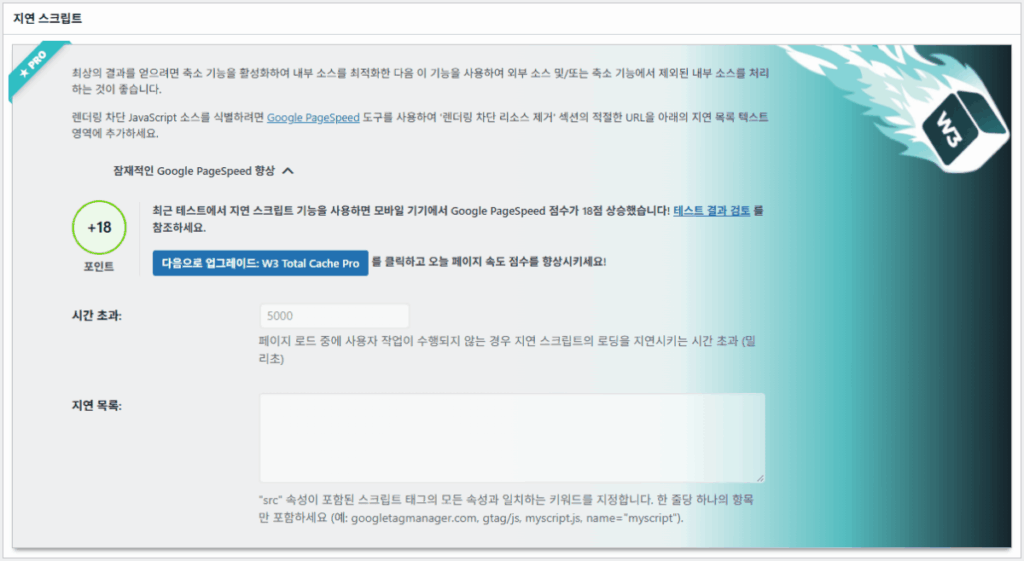
Delay Scripts★ PRO
Delay the loading of specified internal/external JavaScript sources on your pages separate from Minify.
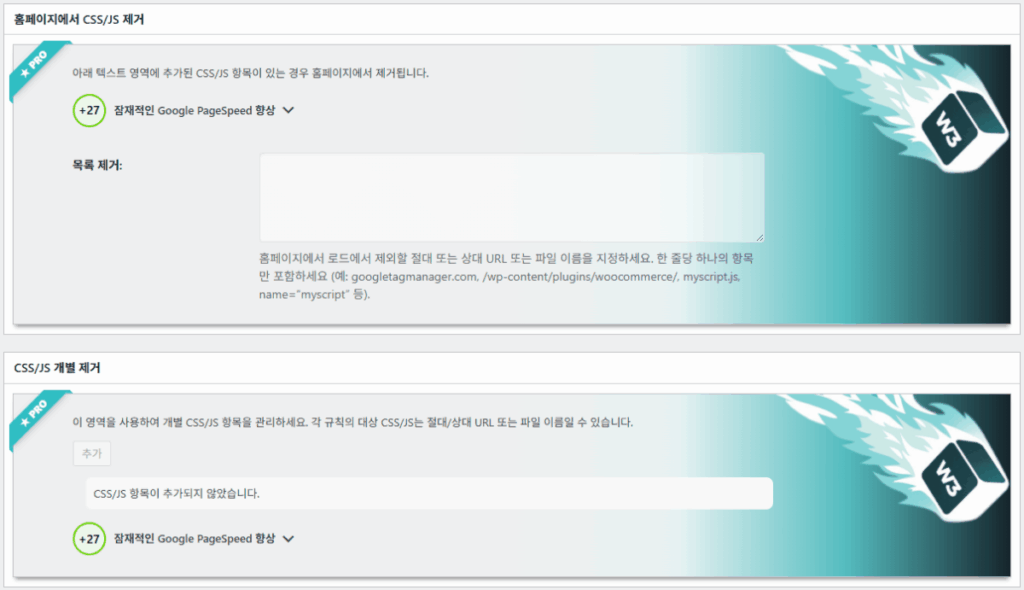
Remove Unwanted/Unused CSS/JS★ PRO
Removes specified CSS/JS tags from the homepage or on a per page basis.
Preload Requests★ PRO
DNS prefetching, pre-connecting, and preloading are essential web optimization techniques that enhance website performance by proactively resolving network-related tasks. Learn more about Pro
Disable wp-embed script
Remove wp-embed.js script from your website. oEmbed functionality still works but you will not be able to embed other WordPress posts on your pages.
Disable jquery-migrate on the front-end
Remove jquery-migrate support from your website front-end.
Image Converter
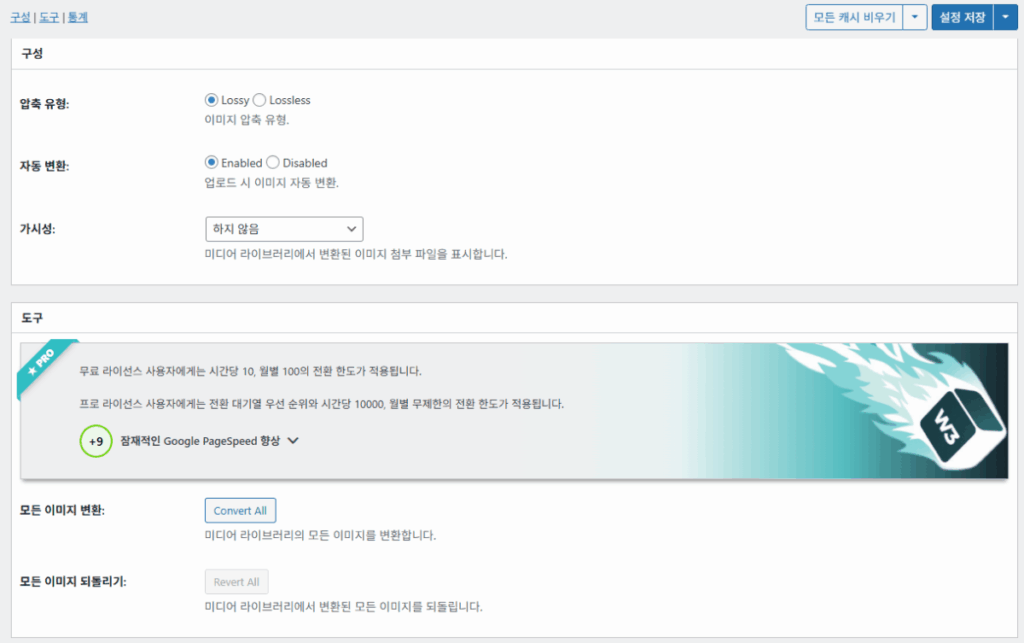
The Image Converter tool can be used to generate modern-format versions (e.g., WebP or AVIF) of media library images which offer superior lossless and lossy compression.
Enable Image Converter Extension
This extension allows for optimizing media library images to modern formats like WebP or AVIF.
As a free user you are limited to conversions of 10/hour and 100/month. The Pro license increases these rates to 10,000/hour and unlimited/month. Conversion rates are subject to change and documentation can be found here. Learn more about Pro
example.com/wp-admin/admin.php?page=w3tc_cdn
DashboardSettingsToolsInfoSupportUpgrade
||
Empty All Caches
General
Host attachments
Upload attachments
If checked, all attachments will be hosted with the CDN.
Host wp-includes/ files
Upload includes files
If checked, WordPress static core file types specified in the “wp-includes file types to upload” field below will be hosted with the CDN.
Host theme files
Upload theme files
If checked, all theme file types specified in the “theme file types to upload” field below will be hosted with the CDN.
Host minified CSS and JS files
Upload minify files
If checked, minified CSS and JS files will be hosted with the CDN.
Host custom files
Upload custom files
If checked, any file names or paths specified in the “custom file list” field below will be hosted with the CDN.
Force over-writing of existing files
If modified files are not always detected and replaced, use this option to over-write them.
Advanced
Only purge CDN manually
Purge CDN only if explicit purge button is clicked.
Disable CDN on SSL pages
When SSL pages are returned no CDN URLs will appear in HTML pages.
Use CDN links for the Media Library on admin pages
All Media Library content will use CDN links on administration pages.
Add CORS header
Add CORS headers to allow cross-domain assets usage.
Disable CDN for the following roles
Select user roles that will use the origin server exclusively:
Administrator
Editor
Author
Contributor
Subscriber
Disable CDN on the following pages:
Always ignore the specified pages / directories. Supports regular expression.
Automatically upload minify files
If CDN is enabled (and not using the origin pull method), your minified files will be automatically uploaded.
Export changed files automatically
Automatically attempt to find and upload changed files.
Auto upload interval:
3600seconds
Specify the interval between upload of changed files.
Re-transfer cycle interval:
900seconds
The number of seconds to wait before upload attempt.
Re-transfer cycle limit:
25
Number of files processed per upload attempt.
wp-includes file types to upload:
*.css;*.js;*.gif;*.png;*.jpg;*.xml
Specify the file types within the WordPress core to host with the CDN.
Theme file types to upload:
*.css;*.js;*.gif;*.png;*.jpg;*.ico;*.ttf;*.otf;*.woff;*.woff2;*.less
Specify the file types in the active theme to host with the CDN.
File types to import:
 
Automatically import files hosted with 3rd parties of these types (if used in your posts / pages) to your media library. Only common static types (images, CSS, JS, fonts, and media) are imported. Script, markup, and SVG types are ignored even if listed. Empty, *, and *.* use that static allowlist rather than every file.
Custom file list:
favicon.ico
{wp_content_dir}/gallery/*
{wp_content_dir}/uploads/avatars/*
{plugins_dir}/wordpress-seo/css/xml-sitemap.xsl
{plugins_dir}/wp-minify/min*
{plugins_dir}/*.js
{plugins_dir}/*.css
{plugins_dir}/*.gif
{plugins_dir}/*.jpg
{plugins_dir}/*.png
Specify any files outside of theme or other common directories to host with the CDN.
Rejected user agents:
Specify user agents that should not access files hosted with the CDN.
Rejected files:
{uploads_dir}/wpcf7_captcha/*
{uploads_dir}/imagerotator.swf
{plugins_dir}/wp-fb-autoconnect/facebook-platform/channel.html
Specify the path of files that should not use the CDN.
Set cookie domain to “example.com”
If using subdomain for CDN functionality, this setting helps prevent new users from sending cookies in requests to the CDN subdomain.
Note(s):
  • You can use placeholders {wp_content_dir}, {plugins_dir}, {uploads_dir} instead of writing folder paths (wp-content, wp-content/plugins, wp-content/uploads).
  • If using Amazon Web Services or Self-Hosted CDN types, enable HTTP compression in the “Media & Other Files” section on Browser Cache Settings tab.
example.com/wp-admin/admin.php?page=w3tc_userexperience
DashboardSettingsToolsInfoSupportUpgrade
Empty All Caches
Lazy loading is currently disabled.
Lazy Loading
Process HTML image tags
Process img tags
Process background images
Process background styles
Exclude words:
avia-bg-style-fixed
data-bgposition=
data-envira-src=
data-large_image=
data-lazy-original=
data-lazy-src=
data-lazyload=
data-lazysrc=
data-no-lazy=
data-src=
data-srcset=
fullurl=
lazy-slider-img=
loading=”eager”
no-lazy
rev-slidebg
skip-lazy
soliloquy-image
swatch-img
w3-total-cache
woocommerce/assets/images/placeholder.png
wpcf7_captcha
Exclude tags containing words
Threshold
 
The outer distance off the scrolling area from which to start loading the elements (example: 100px, 10%).
Script Embed method:
Use inline method only when your website has just a few pages
Google Maps
Lazy load google map
WP Google Map Plugin plugin
Google Maps Easy plugin
WP Google Maps plugin
Clique num item destacado no menu à esquerda ou num botão da tela.

1️⃣ CDN

Você configura isso depois de se cadastrar num provedor de CDN.

Opção

Descrição

✅ Hospedar anexos

Envia anexos como imagens em [wp-content/uploads] para a CDN

✅ Hospedar arquivos do wp-includes

Inclui na CDN os arquivos estáticos do núcleo do WordPress (js/css etc.)

✅ Hospedar arquivos do tema

Inclui na CDN os arquivos estáticos do tema ativo (css/js/imagens etc.)

✅ Hospedar arquivos CSS/JS minificados

Entrega pela CDN os arquivos CSS/JS minificados pelo W3TC

✅ Hospedar arquivos personalizados

Envia à CDN caminhos ou nomes de arquivo que você indicar

⚠️ Forçar a substituição de arquivos existentes

Para forçar novo envio quando as mudanças não são detectadas automaticamente

Item

Descrição

Limpar a CDN só manualmente

Remove arquivos da CDN só quando você clica no botão de limpeza manual

Desativar CDN em páginas SSL

Não usa URLs da CDN em páginas HTTPS

Usar links da CDN no painel

Mostra URLs da CDN para mídia também nas telas do painel

Add CORS header

Adiciona um cabeçalho de resposta que permite CORS

Desativar CDN por função

Não aplica a CDN para as funções de usuário selecionadas (ex.: só administradores usam a origem)

Lista de páginas excluídas

Exclui da CDN os caminhos indicados (regex permitido)

Enviar arquivos minificados automaticamente

Envia os arquivos minificados à CDN automaticamente (Push)

Exportar arquivos alterados automaticamente

Envia automaticamente quando detecta mudanças nos arquivos

Intervalo de envio automático

Intervalo de envio depois de detectar mudanças (padrão 3600 s)

Intervalo / limite de reenvio

Intervalo de nova tentativa após falhas e limite de arquivos processados

Arquivos do wp-includes a enviar

Indica quais tipos de arquivo do núcleo vão para a CDN

Tipos de arquivo do tema a enviar

Indica tipos de arquivo do tema, como CSS/JS/fontes

Tipos de arquivo a importar

Define condições para baixar automaticamente arquivos com link externo

Lista de arquivos personalizados

Indica caminhos de arquivos individuais a enviar à CDN (templates, plugins externos etc.)

User agents rejeitados

Indica bots/user agents a bloquear dos arquivos da CDN

Caminhos de arquivo rejeitados

Indica caminhos de arquivo que ficam fora da CDN, como CAPTCHAs e caminhos especiais

Definir domínio do cookie

Indica um domínio para não enviar cookies ao usar uma CDN em subdomínio

2️⃣ Proxy reverso

A descrição usa Varnish e Nginx como exemplo, mas como o Nginx é configurado no servidor, aplique isso no plugin W3 Total Cache só se usar Varnish.

3️⃣ Experiência do usuário: lazy load

Nas configurações avançadas, mais de 50% dos recursos só existem na versão premium.

Item

Descrição

Quando usar

✅ Processar tags de imagem HTML

[<img>]: as tags recebem o atributo lazy

Para lazy loading de imagens comuns de conteúdo

✅ Processar imagens de fundo

Aplica lazy loading ao [background-image] do CSS

Para sites com muito design e muitas imagens de fundo

Excluir palavrasExemplo
Atributos excluídos do lazy[data-src], [data-lazy-src], [data-no-lazy], [loading=”eager”] etc.
Classes excluídas do lazy[no-lazy], [skip-lazy], [lazy-slider-img], [rev-slidebg] etc.
Plugins/sliders[soliloquy-image], [envira], [w3-total-cache], [wpcf7_captcha] etc.
WooCommerce[swatch-img], [woocommerce/…/placeholder.png] etc.

O “limite” do lazy loading define a que distância abaixo da viewport (tela) do navegador as imagens e elementos de fundo começam a carregar antes. Por exemplo, com 100px um elemento carrega quando o usuário rola até 100 pixels dele; um valor pequeno demais atrasa o carregamento das imagens e o usuário pode ver áreas vazias, então 100–300px costuma ser adequado.

A seguir, os métodos de inserção de scripts.

Método de inserção

Descrição

Posição ou atributo

Assíncrono (Async)

Roda em paralelo com o carregamento da página e não bloqueia a renderização

[<script async>]

Síncrono (no head)

Roda primeiro na área [<head>] e pode bloquear a renderização temporariamente (in the head)

[<head>] ou [<script>]

Inline

Insere o script direto no documento HTML, e ele roda sem requisição separada

Inserido dentro de [<script>código</script>]

W3TC Experiência do usuário configurações avançadas 2
W3TC Experiência do usuário configurações avançadas 3

4️⃣ Conversor WebP

W3TC Conversor WebP_detalhes (configurações avançadas) 1
W3TC Conversor WebP_detalhes (configurações avançadas) 2

Ⅳ. Avaliação geral do W3 Total Cache

A interface (UI) do W3 Total Cache não é ruim, mas é claramente incômoda. Muitos desenvolvedores e usuários profissionais apontam o mesmo. Comparado a plugins modernos como WP Rocket ou FlyingPress, ele acompanha no desempenho do site, mas a experiência do usuário (UX) deixa a desejar.

Ter muitos recursos é uma vantagem, mas para iniciantes a estrutura pode parecer complexa demais. Principalmente com idas e vindas frequentes entre menus e muitas opções detalhadas, até desenvolvedores e administradores de site experientes  podem errar na configuração. Claro que você não vai lembrar de cada ajuste, mas no uso ele é um plugin de cache avançado que permite ajustes finos.

Com mais de 1 milhão de instalações da versão gratuita, é difícil descartá-lo como só um plugin antigo — na prática, poucos plugins de cache chegam perto da variedade e riqueza dos seus recursos.

ItemNota (⭐)Avaliação
🎛️ Interface⭐⭐⭐Muitos menus e estrutura complexa; uma barreira para novos usuários. A UI parece datada
⚙️ Variedade de recursos⭐⭐⭐⭐⭐Cache, CDN, Redis e quase todos os outros recursos; difícil achar algo que falte
🛠️ Flexibilidade de ajuste fino⭐⭐⭐⭐Quase tudo pode ser ajustado; atenção a conflitos entre configurações
🚀 Ganho de desempenho⭐⭐⭐⭐⭐Desempenho excelente depois de otimizado; cache de objetos/navegador faz grande diferença
🧩 Compatibilidade⭐⭐⭐Pode entrar em conflito com algumas hospedagens, temas e plugins.
📄 Documentação e guias⭐⭐⭐⭐⭐Documentação oficial extensa
💡 Recomendação para usuários⭐⭐⭐⭐(4.5)Recomendado para usuários avançados; iniciantes talvez prefiram WP Rocket, Cache Enabler etc.
📊 Nota geral⭐⭐⭐⭐(4.5)Um plugin poderoso e focado em recursos. Há uma curva de aprendizado; leve em conta seu nível

Ⅴ. Teste de desempenho

Depois de configurar o plugin, o teste final de velocidade mostrou um ganho mais visível do que com plugins de cache comuns.

ℹ️ Aviso de afiliados
O conteúdo deste site contém links de afiliados. Quando um visitante compra um produto ou serviço por meio de um desses links, o site recebe uma comissão do vendedor. O valor que o comprador paga (em promoções, ele diminui ↓) não aumenta por causa disso. Preços, descontos e informações de estoque valem para o momento em que o texto foi escrito e podem ter mudado, por isso confirme com o vendedor antes de comprar. Os produtos são escolhidos e avaliados por critérios próprios, e o recebimento de comissão não influencia a ordem de apresentação nem o conteúdo das avaliações.

Deixe um comentário

O seu endereço de e-mail não será publicado. Campos obrigatórios são marcados com *

Demonstre sua humanidade: 8   +   9   =