ปลั๊กอิน W3 Total Cache: วิธีตั้งค่าเพื่อเพิ่มประสิทธิภาพ

ประกาศแอฟฟิลิเอต Ver 3.1
ประกาศแอฟฟิลิเอต Ver 3.2 (เฉพาะมือถือ)
สภาพแวดล้อมทดสอบ CloudwaysDebian 12Apache 2.4.69 + nginxPHP 8.2.34WordPress 7.1.3W3 Total Cache 2.10.7ตรวจสอบ 2026-10-18

เว็บไซต์ WordPress ย่อมช้าลงทุกครั้งที่ติดตั้งปลั๊กอินเพิ่ม ปลั๊กอินแคชจึงกลายเป็นหนึ่งในปลั๊กอินที่ WordPress ขาดไม่ได้ ด้วยยอดติดตั้งที่ใช้งานอยู่มากกว่า 1 ล้านครั้งของเวอร์ชันฟรีและคะแนน 4.4 ดาว ปลั๊กอิน W3 Total Cache (W3TC) จึงเป็นหนึ่งในปลั๊กอินที่มีผู้ใช้มากที่สุด

การตั้งค่าแคชอาจทำให้ฟังก์ชันบางอย่างของปลั๊กอินอื่นที่ใช้อยู่ทำงานไม่ได้ ถ้าเพิ่งเริ่มใช้ WordPress จึงใช้ปลั๊กอินที่ตั้งค่าได้ง่ายอย่าง Cache Enabler หรือ WP Super cache ได้

ถ้าต้องการตั้งค่าและควบคุมแคชอย่างละเอียด ก็ใช้ปลั๊กอิน W3 Total Cache ที่มีฟังก์ชันทรงพลังแม้ในเวอร์ชันฟรีได้

Ⅰ. การติดตั้ง W3 Total Cache และ Setup Guide

  • ↳ เครื่องมือค้นหา (SEO: Search Engine Optimization)
  • ↳ การเพิ่มประสิทธิภาพเว็บ (WPO: Web Performance Optimization)
  • ↳ แคชแบบครบวงจร: รองรับ CDN หน้าเว็บ Minify ออบเจ็กต์ แฟรกเมนต์ และฐานข้อมูล

ค้นหา W3 Total Cache แล้วติดตั้งและเปิดใช้งานปลั๊กอิน

🧭 ตัวจำลองการติดตั้ง W3 Total Cache และ Setup Guide
ปลั๊กอินแคชซิมูเลเตอร์เส้นทาง
📍Plugins›Add Plugin
ติดตั้งปลั๊กอิน
พิมพ์ W3 Total Cache ในช่องค้นหาแล้วคลิก [Install Now] เมื่อติดตั้งเสร็จให้คลิก [Activate]
📍Performance›Setup Guide
Setup Guide
หลังติดตั้งครั้งแรก เมื่อไปที่ [Dashboard] จะถูกพาไปยัง [Setup Guide] โดยอัตโนมัติ เพราะยังไม่ได้ตั้งค่าใดๆ
📍Performance›Dashboard
แผงควบคุม
สิ่งที่ตั้งค่าในคู่มือจะแสดงแยกตามฟังก์ชันในกล่อง [General Settings] ส่วนการตั้งค่าโดยละเอียดอย่างแคชหน้าเว็บให้ทำใน [General Settings]
example.com/wp-admin/plugin-install.php
Add Plugins Upload Plugin
Plugins extend and expand the functionality of WordPress. You may install plugins from the WordPress Plugin Directory right on this page, or upload a plugin in .zip format by clicking the button above.
Search ResultsFeaturedPopularRecommendedFavorites
Search PluginsKeyword
922 items
W3 Total Cache
Installing...ActiveMore Details
Search Engine (SEO) & Performance Optimization (WPO) via caching. Integrated caching: CDN, Page, Minify, Object, Fragment, Database support.
By BoldGrid
★★★★★ (5,421)
Last Updated: 2 weeks ago
900,000+ Active Installations
✓ Compatible with your version of WordPress
example.com/wp-admin/admin.php?page=w3tc_setup_guide
DashboardSettingsToolsInfoSupportUpgrade
W3 Total CacheSetup Guide
TOTAL CACHE: Setup Guide
  • Welcome
  • Page Cache
  • Database Cache
  • Object Cache
  • Image Converter
  • Lazy Load
  • More Caching Options
Welcome to the W3 Total Cache Setup Guide!
By allowing us to collect data about how W3 Total Cache is used, we can improve our features and experience for everyone. This data will not include any personally identifiable information. Feel free to review our terms of use and privacy policy.
AcceptDecline
SKIPNEXT
example.com/wp-admin/admin.php?page=w3tc_dashboard
DashboardSettingsToolsInfoSupportUpgrade
W3 Total CacheDashboard
Flush caches with Empty All Caches
Account
License: Free
Status: Free license, no expiration
Upgrade to W3 Total Cache Pro now to unlock additional settings and features that can further improve your site’s performance and Google PageSpeed ratings.
Learn more about Pro
General Settings
Preview Modedisabled
Page Cachedisabled
Minifydisabled
Opcode Cacheenabled
Database Cachedisabled
Object Cachedisabled
Browser Cachedisabled
CDNdisabled
Reverse Proxydisabled
Statisticsdisabled
Fragment Cachedisabled
Debugdisabled
Settings can be modified by visiting General Settings
Image Optimization Summary
Enable Image Converter
PageSpeed Report
Before you can get started using the Google PageSpeed tool, you’ll first need to authorize access. Please click here.
คลิกช่องที่ไฮไลต์ในเมนูซ้ายหรือปุ่มบนหน้าจอ

หลังติดตั้งครั้งแรก เมื่อไปที่หน้า [Dashboard] จะถูกพาไปยัง [Setup Guide] โดยอัตโนมัติ เพราะยังไม่ได้ตั้งค่าใดๆ

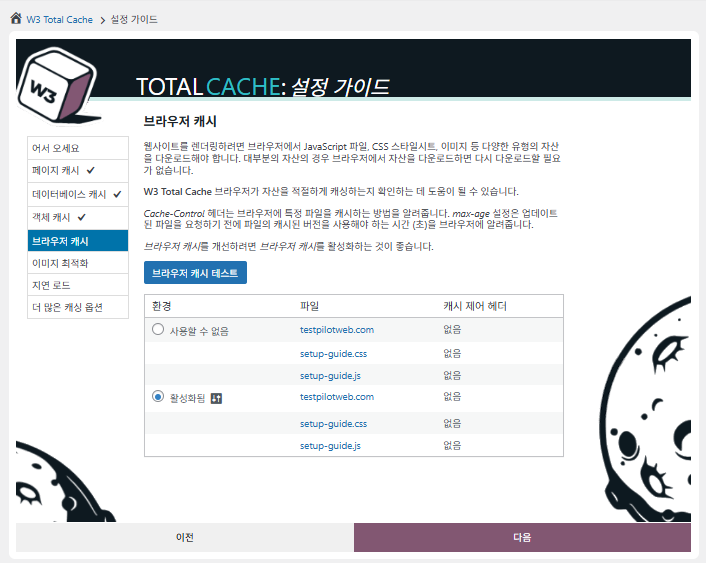
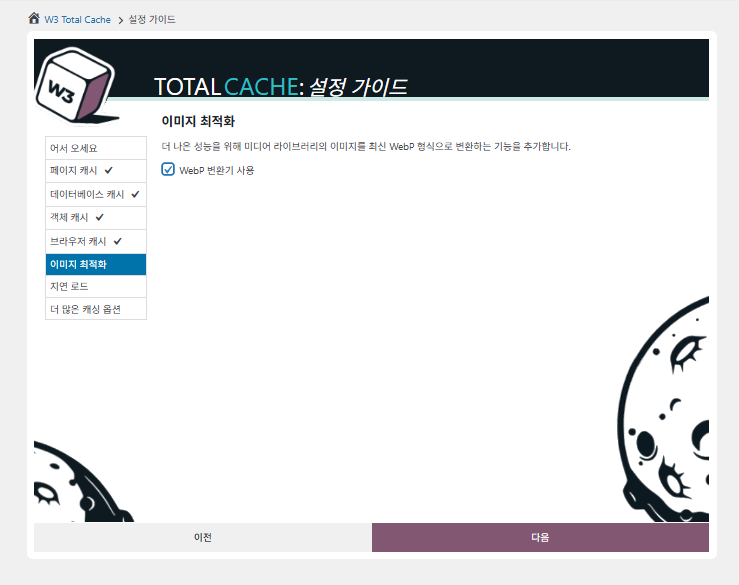
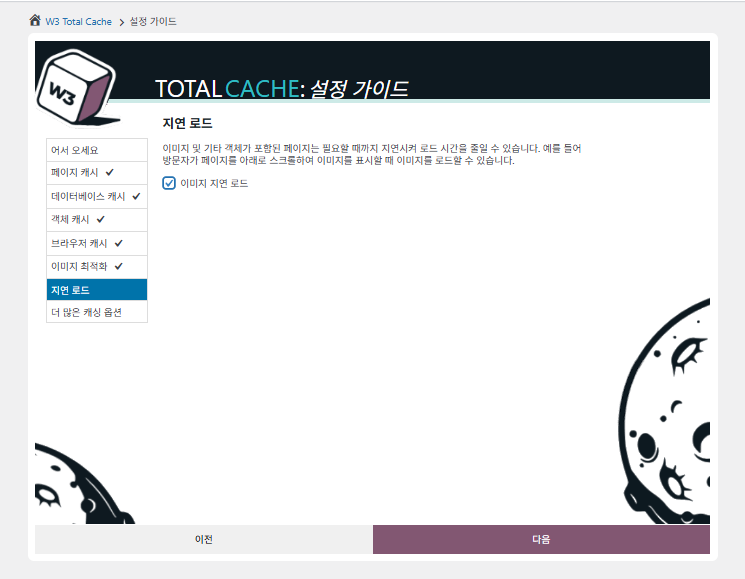
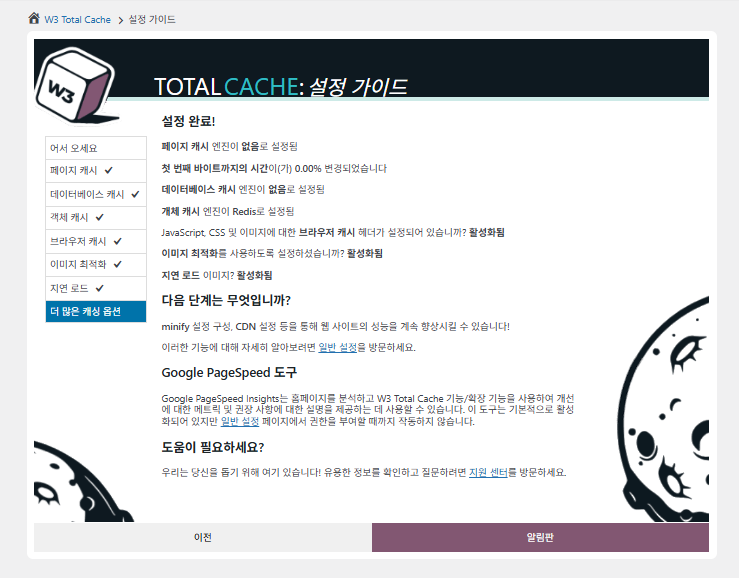
ใน Setup Guide ตั้งค่าได้ทั้ง ① แคชหน้าเว็บ ② แคชฐานข้อมูล ③ แคชออบเจ็กต์ ④ แคชเบราว์เซอร์ ⑤ การปรับแต่งรูปภาพ ⑥ โหลดแบบหน่วงเวลา และ ⑦ ตัวเลือกแคชอื่นๆ
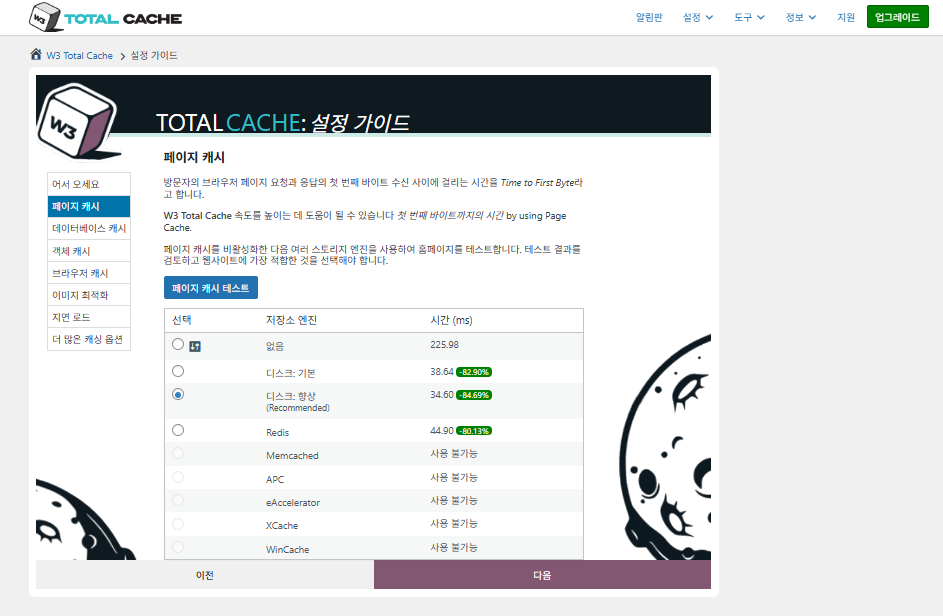
Setup Guide ของ W3 Total Cache ① แคชหน้าเว็บ_แคชดิสก์ (เลือก Enhanced)

สำหรับการตั้งค่าแคชหน้าเว็บ ค่าที่ W3TC แนะนำเป็นค่าเริ่มต้นคือ Disk: [Enhanced] จากตารางจะเห็นว่า Disk: Enhanced เร็วกว่า Disk: Basic ประมาณ 10.3ms หรือดีขึ้นราว 17.8% เมื่อวัดจาก TTFB
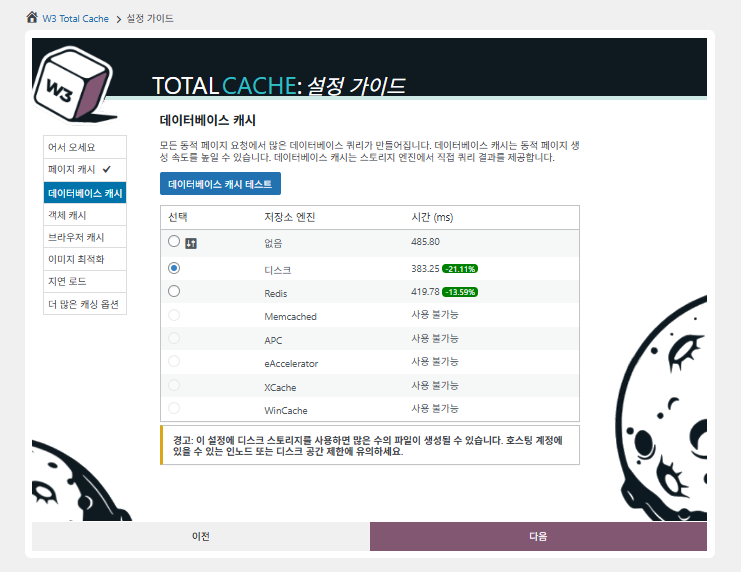
Setup Guide ของ W3 Total Cache ② แคชฐานข้อมูล_เลือกแคชดิสก์

สำหรับแคชฐานข้อมูล ให้เลือกแคชแบบดิสก์
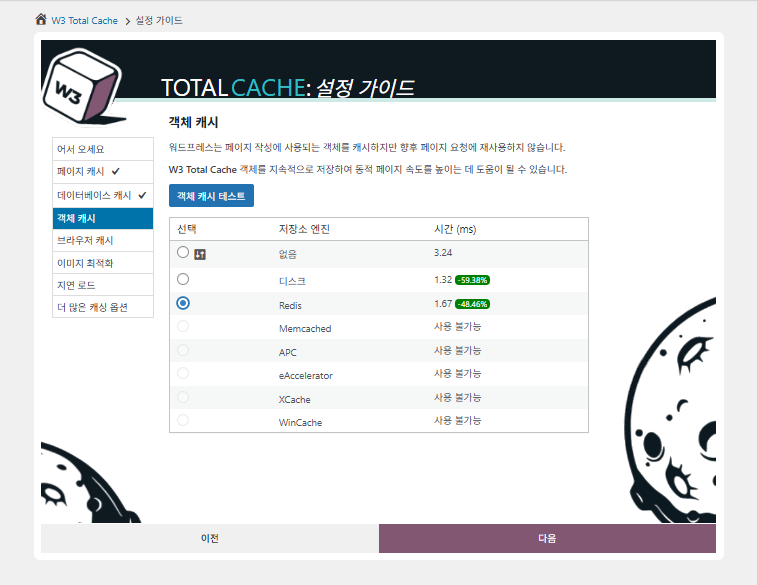
Setup Guide ของ W3 Total Cache ③ แคชออบเจ็กต์_เลือก Redis
Setup Guide ของ W3 Total Cache ④ แคชเบราว์เซอร์
Setup Guide ของ W3 Total Cache ⑤ การปรับแต่งรูปภาพ-ใช้ตัวแปลง WebP
Setup Guide ของ W3 Total Cache ⑥ โหลดแบบหน่วงเวลา-โหลดรูปภาพแบบหน่วงเวลา
Setup Guide ของ W3 Total Cache ⑦ ตัวเลือกแคชอื่นๆ_ตั้งค่าหลังไปที่แดชบอร์ด

การตั้งค่าที่ทำในคู่มือแสดงในแดชบอร์ดแล้ว

คลิกแท็บ [Settings] ที่มุมขวาบนเพื่อตั้งค่าตั้งแต่ [General Settings] ไปจนถึงแคชหน้าเว็บและอื่นๆ
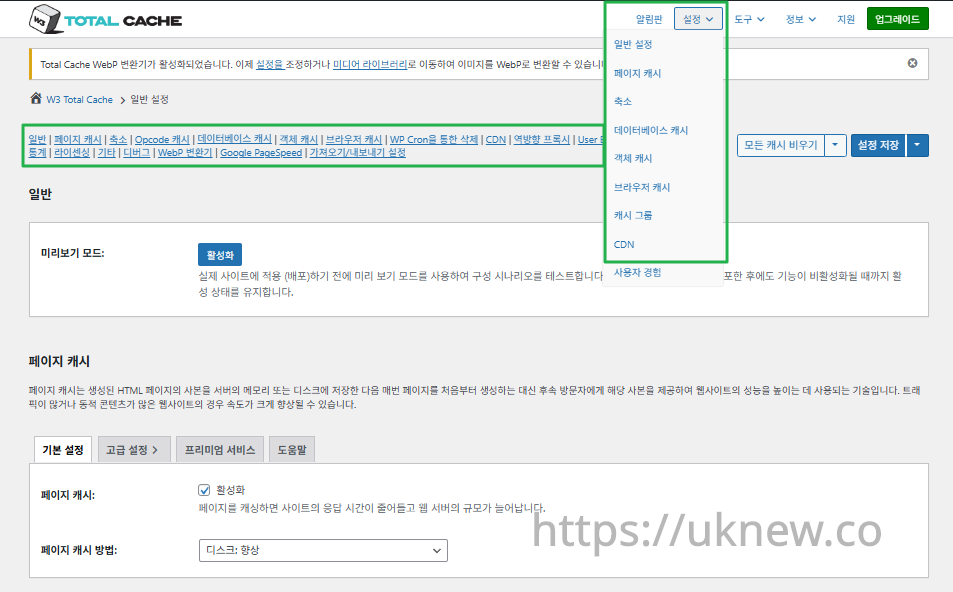
แดชบอร์ด W3TC-การตั้งค่า__

ⓐ [การตั้งค่าในแต่ละหน้า] ของเมนูผู้ดูแลด้านซ้าย และ ⓑ แท็บ [Settings] ที่มุมขวาบน ต่างก็พาไปยังแคชหน้าเว็บ Minify และ การตั้งค่าขั้นสูงอื่นๆ เมื่อเข้าไปที่แต่ละหน้าจากกึ่งกลางด้านบนของแท็บ General Settings จะตรวจดูการตั้งค่าแคชหน้าเว็บและ Minify ตั้งแต่การตั้งค่าทั่วไปจนถึง การตั้งค่าขั้นสูงได้

Ⅱ. การตั้งค่าแคชของ W3 Total Cache

  • ↳ ฟังก์ชันแคช

นี่คือแท็บ General Settings ในการตั้งค่าของ W3TC

🧭 ตัวจำลองการตั้งค่าแคชของ W3 Total Cache
ซิมูเลเตอร์เส้นทาง
📍Performance›General Settings›General
โหมดแสดงตัวอย่าง
ก่อนนำการตั้งค่าแคชไปใช้จริง เปิด [Preview mode] เพื่อทดสอบข้อผิดพลาดล่วงหน้าได้
📍Performance›General Settings›Page Cache›Advanced Settings
แคชหน้าเว็บ
ติ๊ก [Enable] ที่ [Page Cache] ตรวจสอบว่าวิธีเป็น [Disk: Enhanced] แล้วคลิก [Save Settings] รายการโดยละเอียดตั้งค่าใน [Advanced Settings]
📍Performance›General Settings›Minify›Advanced Settings
Minify
ติ๊ก [Enable] ที่ [Minify] แล้วคลิก [Save Settings] จากนั้นตั้งค่ารายการ Minify ของ HTML, CSS, JS ใน [Advanced Settings]
📍Performance›General Settings›Opcode Cache
แคช opcode
สำหรับแคช opcode จะใช้ opcode ที่ติดตั้งบนเซิร์ฟเวอร์โดยอัตโนมัติ ถ้าไม่ได้ติดตั้งจะถูกตั้งเป็นปิดใช้งาน
📍Performance›General Settings›Database Cache›Object Cache
แคชฐานข้อมูล·ออบเจ็กต์
ติ๊ก [Enable] ทั้งที่ [Database Cache] และ [Object Cache] แล้วบันทึก รายการโดยละเอียดตั้งค่าในหน้าจอ [Database Cache] และ [Object Cache]
📍Performance›General Settings›Browser Cache›Advanced Settings
แคชเบราว์เซอร์
ติ๊ก [Enable] ที่ [Browser Cache] แล้วบันทึก จากนั้นตั้งค่ารายการแคชตามประเภทไฟล์ใน [Advanced Settings]
example.com/wp-admin/admin.php?page=w3tc_general
DashboardSettingsToolsInfoSupportUpgrade
|||||||||||||||||
Empty All Caches
General
Preview mode:
Enable
Use preview mode to test configuration scenarios prior to releasing them (deploy) on the actual site. Preview mode remains active even after deploying settings until the feature is disabled.
Page Cache
Page cache is a technique used to speed up the performance of a website by storing a copy of the generated HTML page in the server’s memory or disk, and then serving that copy to subsequent visitors instead of generating the page from scratch each time. This can result in significant speed improvements for websites with high traffic or dynamic content.
Basic SettingsPremium ServicesHelp
Page Cache:
Caching pages will reduce the response time of your site and increase the scale of your web server.
Page Cache Method:
Minify
Minification is a technique used to reduce the file size of HTML, CSS, and JavaScript files by removing unnecessary characters such as whitespace, comments, and line breaks. This process can significantly improve the load times of web pages by reducing the amount of data that needs to be downloaded by the user’s browser.
Basic SettingsPremium ServicesHelp
Minify:
Minification can decrease file size of HTML, CSS, JS and feeds respectively by ~10% on average. Learn more
Minify mode:
Auto
Manual
Select manual mode to use fields on the Minify settings tab to specify files to be minified, otherwise files will be minified automatically. Learn more
Minify Cache Method:
Learn more
HTML minifier:
Learn more
JS minifier:
CSS minifier:
Opcode Cache
Opcode cache is a powerful feature that enhances the performance of a WordPress website by caching compiled PHP code. By storing pre-compiled code in memory, opcode cache eliminates the need for repetitive interpretation and compilation of PHP files, resulting in significantly faster execution times. Opcode cache reduces server load and improves response times, ultimately enhancing the overall speed and responsiveness of your WordPress site. If opcode cache is available on the hosting server it will automatically be selected in the dropdown and enabled.
Opcode Cache
Validate timestamps:
Enable
Once enabled, each file request will update the cache with the latest version. When this setting is off, the Opcode Cache will not check, instead PHP must be restarted in order for setting changes to be reflected.
Database Cache
Enable this setting to utilize the power of caching your WordPress site’s database queries. By storing frequently accessed database queries in memory, the database cache reduces the need for repetitive database interactions, resulting in faster page load times. This feature is particularly beneficial for websites with heavy database usage, improving overall performance and delivering a smoother user experience.
Basic SettingsPremium ServicesHelp
Database Cache:
Caching database objects decreases the response time of your site. Best used if object caching is not possible.
Database Cache Method:
Object Cache
Enable this option to utilize an object cache mechanism, which significantly enhances the performance of your WordPress website. Object caching stores frequently accessed database queries and complex data structures in memory, reducing the need to retrieve them from the database repeatedly. By doing so, it minimizes the processing time required to generate dynamic content, resulting in faster page loading times and improved overall site speed. Enabling object cache is particularly beneficial for websites with heavy database usage or high traffic volumes, as it helps alleviate the strain on the server by efficiently serving cached data.
Basic SettingsPremium ServicesHelp
Object Cache:
Object caching greatly increases performance for highly dynamic sites that use the Object Cache API.
Object Cache Method:
Browser Cache
Enabling browser caching will instruct visitors’ web browsers to store static files from your WordPress website, such as images, CSS, and JavaScript files, locally on their devices. By doing so, subsequent visits to your site will retrieve these cached files from the browser’s storage, reducing the need for repeated downloads. This results in faster page loading times and a smoother browsing experience for your visitors, ultimately improving the overall speed and performance of your WordPress website.
Basic SettingsPremium ServicesHelp
Browser Cache:
Enable HTTP compression and add headers to reduce server load and decrease file load time.
example.com/wp-admin/admin.php?page=w3tc_pgcache
DashboardSettingsToolsInfoSupportUpgrade
|||||||
Empty All Caches
Always Cached extension is currently disabled. To enable the extension click here.
General
Cache front page
For many blogs this is your most visited page, it is recommended that you cache it. Learn more
Cache feeds: site, categories, tags, comments
Even if using a feed proxy service enabling this option is still recommended. Learn more
Handle XML mime type
Return correct Content-Type header for XML files (e.g., feeds and sitemaps). Learn more
Cache SSL (HTTPS>) requests
Cache SSL requests (uniquely) for improved performance. Learn more
Cache URI with query string variables
Search result (and similar) pages will be cached if enabled. Learn more
Cache 404 (not found) pages
Reduce server load by caching 404 pages. If the disk enhanced method of disk caching is used, 404 pages will be returned with a 200 response code. Use at your own risk. Learn more
Don’t cache pages for logged in users
Unauthenticated users may view a cached version of the last authenticated user’s view of a given page. Disabling this option is not recommended. Learn more
Don’t cache pages for following user roles
Select user roles that should not receive cached pages: Learn more
Administrator
Editor
Author
Contributor
Subscriber
Aliases
Cache alias hostnames:
Enable
If the same WordPress content is accessed from different domains. Learn more
Additional home URLs:
Specify full home URLs of your mirrors so that plugin will flush it’s cache when content is changed. For example: http://my-site.comhttp://www.my-site.comhttps://my-site.com Learn more
Cache Preload
Automatically prime the page cache
Automatically primes the page cache using the settings configured below. Learn more
Update interval:
900seconds
The number of seconds to wait before creating another set of cached pages. Learn more
Pages per interval:
10
Limit the number of pages to create per batch. Fewer pages may be better for under-powered servers. Learn more
Sitemap URL:
 
A compliant sitemap can be used to specify the pages to maintain in the primed cache. Pages will be cached according to the priorities specified in the XML file. Learn more
Preload the sitemap once
Stop cache preloading after every URL in the sitemap has been processed. Disable and re-enable cache preloading to start a new pass.
Preload cache upon publishing a post
Only applies to pages, posts, and custom post types whose status transitioned from a non-published status to the “published” status. Learn more
Preload cache upon updating a post
Applies after updating any page, post, or custom post type with the final status being “published”. Learn more
Purge Policy:
Specify the pages and feeds to purge when posts are created, edited, or comments posted. The defaults are recommended because additional options may reduce server performance: Learn more
Front page
Post page
Blog feed
Post comments pages
Post author pages
Post terms pages
Post comments feed
Post author feed
Post terms feeds
Daily archive pages
Monthly archive pages
Yearly archive pages
rdf
rss
rss2 (default)
atom
Choose which feed types should be automatically purged. Learn more
Purge limit:
10
Specify number of pages that lists posts (archive etc.) that should be purged on post updates etc., i.e. example.com/ ... example.com/page/5.
0 means all pages that lists posts are purged, i.e. example.com/page/2 ... Learn more
Additional pages:
Specify additional pages to purge. Including parent page in path. Ex: parent/posts. Learn more
Purge sitemaps:
([a-z0-9_\-]*?)sitemap([a-z0-9_\-]*)?\.(?:xml|xsl)
Specify a regular expression that matches your sitemaps. Learn more
REST API
Use these controls to determine how the WordPress REST API responds to visitors and integrations. Caching API responses can dramatically reduce load when headless frontends, mobile apps, or third-party services request the same data repeatedly, but you can keep responses uncached for highly dynamic endpoints or disable the API altogether when it is not needed to reduce attack surface. Learn more
REST API
Don’t cache
Cache★ PRO
Disable REST API
If you’re using the WordPress API make sure to use caching to scale performance. Show More ▾
Advanced
Late initialization:
Enable
Enables support for WordPress functionality in fragment caching for the page caching engine. Use of this feature may increase response times. Learn more
Late caching:
Enable
Overwrites key of page caching via custom filters by postponing entry extraction during the init action. Learn more
Compatibility mode:
Enable
Decreases performance by ~20% at scale in exchange for increasing interoperability with more hosting environments and WordPress idiosyncrasies. Enable this option if you experience issues with the Apache rules. Learn more
Reject HEAD requests:
Disable caching of HEAD HTTP requests
If disabled, HEAD requests can often be cached resulting in “empty pages” being returned for subsequent requests for a URL. Learn more
Maximum lifetime of cache objects:
3600seconds
Determines the natural expiration time of cache items. The higher the value, the larger the cache.
Max lifetime is limited by the W3TC_CACHE_FILE_EXPIRE_MAX constant (2592000 seconds) which can be overridden in wp-config.php.
Garbage collection interval:
3600seconds
If caching to disk, specify how frequently expired cache data is removed. For busy sites, a lower value is best. Learn more
Comment cookie lifetime:
1800seconds
Significantly reduce the default TTL for comment cookies to reduce the number of authenticated user traffic. Enter -1 to revert to default TTL. Learn more
Accepted query strings:
ScCid
_branch_match_id
_bta_c
_bta_tid
_ga
_gl
_ke
adgroupid
adid
age-verified
ao_noptimize
campaignid
campid
click_id
cn-reloaded
customid
dicbo
dm_i
ef_id
epik
fb_action_ids
fb_action_types
fb_source
fbclid
gclid
gclsrc
gdffi
gdfms
gdftrk
hsa_acc
hsa_ad
hsa_cam
hsa_grp
hsa_kw
hsa_mt
hsa_net
hsa_src
hsa_tgt
hsa_ver
igshid
li_fat_id
matomo_campaign
matomo_cid
matomo_content
matomo_group
matomo_keyword
matomo_medium
matomo_placement
matomo_source
mc_cid
mc_eid
mkcid
mkevt
mkrid
mkwid
msclkid
mtm_campaign
mtm_cid
mtm_content
mtm_group
mtm_keyword
mtm_medium
mtm_placement
mtm_source
pcrid
piwik_campaign
piwik_keyword
piwik_kwd
pk_campaign
pk_cid
pk_content
pk_keyword
pk_kwd
pk_medium
pk_source
pp
redirect_log_mongo_id
redirect_mongo_id
ref
s_kwcid
sb_referer_host
si
sscid
tblci
toolid
trk_contact
trk_module
trk_msg
trk_sid
ttclid
twclid
usqp
utm_campaign
utm_content
utm_expid
utm_id
utm_medium
utm_source
utm_term
wbraid
Always cache URLs that use these query string name-value pairs. The value part is not required. But if used, separate name-value pairs with an equals sign (i.e., name=value). Each pair should be on their own line. Learn more
Rejected user agents:
Never send cache pages for these user agents. Learn more
Rejected cookies:
wptouch_switch_toggle
Never cache pages that use the specified cookies. Learn more
Never cache the following pages:
wp-.*\.php
index\.php
Always ignore the specified pages / directories. Supports regular expressions. Learn more
Never cache pages associated with these categories:
Always ignore all pages filed under the specified category slugs. Learn more
Never cache pages that use these tags:
Always ignore all pages filed under the specified tag slugs. Learn more
Never cache pages by these authors:
Always ignore all pages filed under the specified author usernames. Learn more
Never cache pages that use these custom fields:
Always ignore all pages filed under the specified custom fields. Separate name-value pairs with an equals sign (i.e., name=value). Learn more
Cache exception list:
wp-comments-popup.php
wp-links-opml.php
wp-locations.php
Cache the specified pages / directories even if listed in the “never cache the following pages” field. Supports regular expression. Learn more
Non-trailing slash pages:
sitemap(_index)?\.xml(\.gz)?
([a-z0-9_\-]+)?sitemap\.xsl
[a-z0-9_\-]+-sitemap([0-9]+)?\.xml(\.gz)?
Cache the specified pages even if they don’t have trailing slash. Learn more
Specify page headers:
Last-Modified
Content-Type
X-Pingback
P3P
Link
Specify additional page headers to cache. Learn more
Purge via WP Cron
Enabling this will schedule a WP-Cron event that will flush the Page Cache. If you prefer to use a system cron job instead of WP-Cron, you can schedule the following command to run at your desired interval: “wp w3tc flush posts”. If the Always Cached extension is active and enabled, page cache entries will instead be added to the queue instead of being purged from the cache. Learn more
Page Cache is disabled! Enable it here to enable this feature.
Enable WP-Cron Event
Enable
Start Time
This setting controls the initial start time of the cron job. If the selected time has already passed, it will schedule the job for the following day at the selected time.
Interval
This setting controls the interval that the cron job should occur.
Note(s)
  • Enable HTTP compression in the “HTML” section on Browser Cache Settings tab.
example.com/wp-admin/admin.php?page=w3tc_minify
DashboardSettingsToolsInfoSupportUpgrade
||||||
Empty All Caches
General
Rewrite URL structure
If disabled, CSS and JS embeddings will use GET variables instead of “fancy” links. Learn more
Disable minify for logged in users
Authenticated users will not receive minified pages if this option is enabled. Learn more
Minify error notification:
Notify when minify cache creation errors occur. Learn more
HTML & XML
HTML minify settings:
Enable
Inline CSS minification
Inline JS minification
Don’t minify feeds
Line break removal
Enable HTML minification and optionally remove whitespace from inline CSS, JS, and feeds. Learn more
Ignored comment stems:
google_ad_
RSPEAK_
mfunc
Do not remove comments that contain these terms. Learn more
JS
JS minify settings:
Enable
Minify enqueued and inline JavaScript files according to the settings below. Learn more
Minify method:
Choose how JavaScript files should be combined or minified when using automatic mode. Learn more
Minify engine settings:
Operations in areas:
Embed type:
Before </head>
After <body>
Preserved comment removal (not applied when combine only is active)
Line break removal (not safe, not applied when combine only is active)
Control where scripts are placed and whether they stay blocking or load asynchronously for each template area. Learn more
HTTP/2 push
Enable
For better performance, send files to browser before they are requested when using the HTTP/2 protocol. Not supported by “Disk: Enhanced” page cache method for Nginx Learn more
CSS
CSS minify settings:
Enable
Minify stylesheets and inline CSS snippets declared in the queues below. Learn more
Minify method:
Choose how stylesheets should be combined or minified when using automatic mode. Learn more
Minify engine settings:
Preserved comment removal (not applied when combine only is active)
Line break removal (not applied when combine only is active)
Eliminate render-blocking CSS by moving it to HTTP body★ PRO
Website visitors cannot navigate your website until a given page is ready – reduce the wait time with this feature. Show More ▾
Decide where CSS is placed and whether it should load synchronously or asynchronously for each template area. Learn more
@import handling:
Control how @import rules are handled when combining and minifying stylesheets. Learn more
HTTP/2 push
Enable
For better performance, send files to browser before they are requested when using the HTTP/2 protocol. Not supported by “Disk: Enhanced” page cache method for Nginx Learn more
Advanced
Update external files every:
86400seconds
Specify the interval between download and update of external files in the minify cache. Hint: 6 hours is 21600 seconds. 12 hours is 43200 seconds. 24 hours is 86400 seconds. Learn more
Garbage collection interval:
86400seconds
If caching to disk, specify how frequently expired cache data is removed. For busy sites, a lower value is best.
Max interval is limited by the W3TC_CACHE_FILE_EXPIRE_MAX constant (2592000 seconds) which can be overridden in wp-config.php. Learn more
Never minify the following pages:
Always ignore the specified pages / directories. Use relative paths. Omit: protocol, hostname, leading forward slash and query strings. Learn more
Never minify the following JS files:
Always ignore the specified JS files. Use relative paths. Omit: protocol, hostname, leading forward slash and query strings. Learn more
Never minify the following CSS files:
Always ignore the specified CSS files. Use relative paths. Omit: protocol, hostname, leading forward slash and query strings. Learn more
Rejected user agents:
Specify user agents that will never receive minified content. Learn more
Include external files/libraries:
Specify external files/libraries that should be combined. Learn more
Use regular expressions for file name matching
If external script file names vary, use regular expressions in the “Include external files/libraries” field to simplify matching. Learn more
Purge via WP Cron
Enabling this will schedule a WP-Cron event that will flush the Minify Cache. If you prefer to use a system cron job instead of WP-Cron, you can schedule the following command to run at your desired interval: “wp w3tc flush minify”. Learn more
Minify is disabled! Enable it here to enable this feature.
Enable WP-Cron Event
Enable
Start Time
This setting controls the initial start time of the cron job. If the selected time has already passed, it will schedule the job for the following day at the selected time.
Interval
This setting controls the interval that the cron job should occur.
Note(s):
  • Enable HTTP compression in the “Cascading Style Sheets & JavaScript” section on Browser Cache Settings tab.
  • The TTL of page cache files is set via the “Expires header lifetime” field in the “Cascading Style Sheets & JavaScript” section on Browser Cache Settings tab.
example.com/wp-admin/admin.php?page=w3tc_dbcache
DashboardSettingsToolsInfoSupportUpgrade
||
Empty All Caches
Database caching via Disk is currently disabled.
General
Don’t cache queries for logged in users
Enabling this option is recommended to maintain default WordPress behavior. Learn more
Advanced
Maximum lifetime of cache objects:
180seconds
Determines the natural expiration time of unchanged cache items. The higher the value, the larger the cache. Learn more
Garbage collection interval:
3600seconds
If caching to disk, specify how frequently expired cache data is removed. For busy sites, a lower value is best. Learn more
Never cache the following pages:
Always ignore the specified pages / directories. Supports regular expressions (See FAQ). Learn more
Ignored query stems:
gdsr_
wp_rg_
_wp_session_
_wc_session_
Do not cache queries that contain these terms. Any entered prefix (set in wp-config.php) will be replaced with current database prefix (default: wp_). Query stems can be identified using debug mode. Learn more
Reject query words:
^\s*insert\b
^\s*delete\b
^\s*update\b
^\s*replace\b
^\s*create\b
^\s*alter\b
^\s*show\b
^\s*set\b
\bautoload\s+=\s+’yes’
\bsql_calc_found_rows\b
\bfound_rows\(\)
Do not cache queries that contain these words or regular expressions. Learn more
Reject constants:
APP_REQUEST
DOING_CRON
DONOTCACHEDB
SHORTINIT
XMLRPC_REQUEST
Disable caching once specified constants defined. Learn more
Enable for WP-CLI
Enable
WP-CLI already uses Memcached, Redis, and other persistent engines. Enable this only if your database cache engine is Disk and you want WP-CLI to use it. Learn more
Purge via WP Cron
Enabling this will schedule a WP-Cron event that will flush the Database Cache. If you prefer to use a system cron job instead of WP-Cron, you can schedule the following command to run at your desired interval: “wp w3tc flush db”. Learn more
Database Cache is disabled! Enable it here to enable this feature.
Enable WP-Cron Event
Enable
Start Time
This setting controls the initial start time of the cron job. If the selected time has already passed, it will schedule the job for the following day at the selected time.
Interval
This setting controls the interval that the cron job should occur.
example.com/wp-admin/admin.php?page=w3tc_objectcache
DashboardSettingsToolsInfoSupportUpgrade
|
Empty All Caches
Object caching via Disk is currently disabled.
Advanced
Default lifetime of cache objects:
180seconds
Determines the natural expiration time of unchanged cache items. The higher the value, the larger the cache. Learn more
Garbage collection interval:
600seconds
If caching to disk, specify how frequently expired cache data is removed. For busy sites, a lower value is best. Learn more
Global groups:
Groups shared amongst sites in network mode. Learn more
Non-persistent groups:
counts
plugins
Groups that should not be cached. Learn more
Enable caching for wp-admin requests
Enabling this option will increase wp-admin performance, but may cause side-effects Learn more
Store transients in database
Store transients in database even when external cache is used, which allows transient values to survive object cache cleaning/expiration Learn more
Enable for WP-CLI
Enable
WP-CLI already uses Memcached, Redis, and other persistent engines. Enable this only if your object cache engine is Disk and you want WP-CLI to use it. Learn more
Purge via WP Cron
Enabling this will schedule a WP-Cron event that will flush the Object Cache. If you prefer to use a system cron job instead of WP-Cron, you can schedule the following command to run at your desired interval: “wp w3tc flush object”. Learn more
Object Cache is disabled! Enable it here to enable this feature.
Enable WP-Cron Event
Enable
Start Time
This setting controls the initial start time of the cron job. If the selected time has already passed, it will schedule the job for the following day at the selected time.
Interval
This setting controls the interval that the cron job should occur.
example.com/wp-admin/admin.php?page=w3tc_browsercache
DashboardSettingsToolsInfoSupportUpgrade
||||
Empty All Caches
General
Specify global browser cache policy.
Set Last-Modified header
Set the Last-Modified header to enable 304 Not Modified response. Learn more
Set expires header
Set the expires header to encourage browser caching of files. Learn more
Set cache control header
Set pragma and cache-control headers to encourage browser caching of files. Learn more
Set entity tag (eTag)
Set the ETag header to encourage browser caching of files. Learn more
Set W3 Total Cache header
Set this header to assist in identifying optimized files. Learn more
Enable HTTP (gzip) compression
Reduce the download time for text-based files. Learn more
Enable HTTP (brotli) compression
Reduce the download time for text-based files. Learn more
Prevent caching of objects after settings change
Whenever settings are changed, a new query string will be generated and appended to objects allowing the new policy to be applied. Learn more
Remove query strings from static resources
Resources with a “?” in the URL are not cached by some proxy caching servers. Learn more
Prevent caching exception list:
Do not add the prevent caching query string to the specified URIs. Supports regular expressions. Learn more
Disable cookies for static files
Removes Set-Cookie header for responses. Learn more
Do not process 404 errors for static objects with WordPress
Reduce server load by allowing the web server to handle 404 (not found) errors for static files (images etc).
If enabled – you may get 404 File Not Found response for some files generated on-the-fly by WordPress plugins. You may add those file URIs to 404 error exception list below to avoid that. Learn more
404 error exception list:
robots\.txt
[a-z0-9_\-]*sitemap[a-z0-9_\.\-]*\.(xml|xsl|html)(\.gz)?
Never process 404 (not found) events for the specified URIs. Learn more
Rewrite URL structure of objects
Generate unique URI for each file protected from caching by browser. Learn more
CSS & JS
Specify browser cache policy for Cascading Style Sheets and JavaScript files.
Set Last-Modified header
Set the Last-Modified header to enable 304 Not Modified response. Learn more
Set expires header
Set the expires header to encourage browser caching of files. Learn more
Expires header lifetime:
31536000seconds
Specify how long CSS and JS files should be cached (in seconds). Learn more
Set cache control header
Set pragma and cache-control headers to encourage browser caching of files. Learn more
Cache Control policy:
Choose the Cache-Control policy applied to CSS and JS responses.
The Expires header already sets the max-age. Learn more
Set entity tag (eTag)
Set the ETag header to encourage browser caching of files. Learn more
Set W3 Total Cache header
Set this header to assist in identifying optimized files. Learn more
Enable HTTP (gzip) compression
Reduce the download time for text-based files. Learn more
Enable HTTP (brotli) compression
Reduce the download time for text-based files. Learn more
Prevent caching of objects after settings change
Whenever settings are changed, a new query string will be generated and appended to objects allowing the new policy to be applied. Learn more
Remove query strings from static resources
Resources with a “?” in the URL are not cached by some proxy caching servers. Learn more
Disable cookies for static files
Removes Set-Cookie header for responses. Learn more
HTML & XML
Specify browser cache policy for posts, pages, feeds and text-based files.
Set Last-Modified header
Set the Last-Modified header to enable 304 Not Modified response. Learn more
Set expires header
Set the expires header to encourage browser caching of files. Learn more
Expires header lifetime:
3600seconds
Max lifetime is limited by the W3TC_CACHE_FILE_EXPIRE_MAX constant (2592000 seconds) which can be overridden in wp-config.php. Learn more
Set cache control header
Set pragma and cache-control headers to encourage browser caching of files. Learn more
Cache Control policy:
Choose the Cache-Control policy applied to HTML and XML responses. Learn more
Set entity tag (ETag)
Set the ETag header to encourage browser caching of files. Learn more
Set W3 Total Cache header
Set this header to assist in identifying optimized files. Learn more
Enable HTTP (gzip) compression
Reduce the download time for text-based files. Learn more
Enable HTTP (brotli) compression
Reduce the download time for text-based files. Learn more
Media & Other Files
Set Last-Modified header
Set the Last-Modified header to enable 304 Not Modified response. Learn more
Set expires header
Set the expires header to encourage browser caching of files. Learn more
Expires header lifetime:
31536000seconds
Specify how long media and other files files should be cached (in seconds). Learn more
Set cache control header
Set pragma and cache-control headers to encourage browser caching of files. Learn more
Cache Control policy:
Choose the Cache-Control policy applied to media and other files responses.
The Expires header already sets the max-age. Learn more
Set entity tag (ETag)
Set the ETag header to encourage browser caching of files. Learn more
Set W3 Total Cache header
Set this header to assist in identifying optimized files. Learn more
Enable HTTP (gzip) compression
Reduce the download time for text-based files. Learn more
Enable HTTP (brotli) compression
Reduce the download time for text-based files. Learn more
Prevent caching of objects after settings change
Whenever settings are changed, a new query string will be generated and appended to objects allowing the new policy to be applied. Learn more
Remove query strings from static resources
Resources with a “?” in the URL are not cached by some proxy caching servers. Learn more
Disable cookies for static files
Removes Set-Cookie header for responses. Learn more
คลิกช่องที่ไฮไลต์ในเมนูซ้ายหรือปุ่มบนหน้าจอ

1️⃣ โหมดแสดงตัวอย่าง

ก่อนนำการตั้งค่าแคชไปใช้จริง เปิดโหมดแสดงตัวอย่างเพื่อทดสอบข้อผิดพลาดล่วงหน้าได้

โหมดแสดงตัวอย่าง General Settings ของ W3TC2

[Preview]: คลิกปุ่มนี้เพื่อทดสอบพร้อมดูตัวอย่างการเปลี่ยนแปลง ถ้าไม่มีปัญหาให้คลิก [Deploy] เพื่อนำไปใช้กับเว็บไซต์

2️⃣ แคชหน้าเว็บ

คู่มือตั้งค่าพื้นฐานเป็น [Disk: Enhanced] ไว้แล้ว ถ้าภายหลังเซิร์ฟเวอร์ใช้แคชต่างไป เช่น เพราะย้ายเซิร์ฟเวอร์ ก็เปลี่ยนได้

ถ้าเว็บไซต์เดี่ยว (ไม่ใช่มัลติไซต์) ใช้ซับโดเมนเพิ่มด้วย ก็ตั้งค่าแคชให้โดเมนนามแฝงได้เช่นกัน

ระดับสเปกเซิร์ฟเวอร์

ช่วงเวลาอัปเดต (วินาที)

จำนวนหน้าต่อรอบ

คำอธิบาย

เซิร์ฟเวอร์สเปกต่ำ (1vCPU/1GB หรือน้อยกว่า)

1800 วินาที (30 นาที)

5

ต้องป้องกัน CPU พุ่งสูงขณะสร้างแคช ตั้งช่วงเวลาให้ห่างพอและลดจำนวนหน้าให้น้อยที่สุด

เซิร์ฟเวอร์สเปกกลาง (2vCPU/2~4GB)

900 วินาที (15 นาที)

10

แนะนำให้คงค่าเริ่มต้นไว้ รองรับการประมวลผลพร้อมกันได้ระดับหนึ่ง

เซิร์ฟเวอร์ประสิทธิภาพสูง (4vCPU/8GB ขึ้นไป)

300 วินาที (5 นาที)

20~30

เตรียมแคชได้รวดเร็ว เหมาะกับเว็บไซต์ที่มีทราฟฟิกสูง

REST API คืออินเทอร์เฟซที่ WordPress มีไว้แลกเปลี่ยนข้อมูลกับภายนอก ช่วยให้ขอหรือจัดการคอนเทนต์ในรูปแบบ JSON ผ่าน URL ได้ ด้วยวิธีนี้ แอปมือถือ เว็บแอปภายนอก ตัวแก้ไขบล็อก และอื่นๆ จึงซิงก์หรือแก้ไขคอนเทนต์ WordPress ได้แบบเรียลไทม์

REST API ไม่ได้ใช้แค่กับคำขอของผู้ดูแล แต่ยังใช้กับคำขอของผู้ใช้ทั่วไปด้วย ช่วยให้รับส่งข้อมูลได้อย่างมีประสิทธิภาพ เว็บไซต์จึงยืดหยุ่นและขยายได้มากขึ้น

ตัวเลือก

คำอธิบาย

แนะนำ

การเริ่มต้นภายหลัง

อนุญาตให้เรียกใช้ฟังก์ชันของ WordPress เพื่อแคชแบบแฟรกเมนต์

⚠️ ใช้เฉพาะเมื่อต้องการแคชขั้นสูง

การแคชภายหลัง

เลื่อนการสร้างคีย์แคชไปหลังตัวกรองของผู้ใช้ ทำให้ตั้งค่าแคชได้ละเอียดขึ้น

⚠️ ใช้เฉพาะเมื่อเขียนทับคีย์

โหมดความเข้ากันได้

ยอมสละการปรับแต่งบางส่วนเพื่อให้เข้ากับโฮสติ้ง (ประสิทธิภาพลดลงราว 20%)

✅ แนะนำเมื่อเกิดข้อผิดพลาดจากโฮสติ้ง

ชุดอักขระ

แก้ปัญหาการเข้ารหัสที่เกี่ยวกับ UTF-8

✅ แนะนำเมื่อแสดงอักขระแปลกๆ

ปฏิเสธคำขอ HEAD

ป้องกันไม่ให้คำขอ HEAD สร้างแคชว่าง

✅ ป้องกันหน้าว่างที่ไม่คาดคิด

อายุสูงสุดของออบเจ็กต์แคช

ระยะเวลาเก็บรายการที่แคชไว้ (วินาที)

⏱ ทราฟฟิกน้อยตั้งสูง ทราฟฟิกมากตั้งต่ำ

ช่วงเวลาเก็บกวาดขยะ

รอบการลบข้อมูลแคชที่หมดอายุ (วินาที)

⏱ ทราฟฟิกยิ่งมาก ยิ่งตั้งให้สั้น

อายุคุกกี้ความคิดเห็น

ปรับ TTL ของคุกกี้เมื่อเขียนความคิดเห็น (ค่าเริ่มต้น 1800 วินาที)

✅ มีประโยชน์เมื่อต้องการลดทราฟฟิกของผู้ใช้ที่ล็อกอิน

3️⃣ Minify

ในไฟล์ HTML, CSS, JS ฟังก์ชัน Minify ลบช่องว่าง คอมเมนต์ และการขึ้นบรรทัดใหม่ที่ไม่จำเป็นออก, เป็นเทคนิคที่ช่วยลดขนาดไฟล์และเพิ่มความเร็วในการโหลด กระบวนการนี้ ไม่เปลี่ยนการทำงาน เพียงทำให้โค้ดกระชับขึ้น เบราว์เซอร์จึงประมวลผลได้เร็วขึ้น

ตัวเลือก

คำอธิบาย

แนะนำ

อัตโนมัติ

W3TC ตรวจหาไฟล์ HTML, CSS, JS และทำ Minify ให้โดยอัตโนมัติ

✅ เหมาะกับผู้ใช้ส่วนใหญ่

กำหนดเอง

จะมีผลก็ต่อเมื่อผู้ใช้ป้อนพาธของไฟล์ที่จะทำ Minify เอง

⚠️ สำหรับผู้ใช้ขั้นสูงที่ต้องการควบคุมอย่างละเอียดเท่านั้น

ตัวเลือก

คำอธิบาย

สภาพแวดล้อมที่ใช้

ดิสก์ (Disk)

เก็บไฟล์ที่ทำ Minify แล้วไว้บนดิสก์ของเซิร์ฟเวอร์

✅ แชร์โฮสติ้งทั่วไป ค่าเริ่มต้น

APC / APCu

เก็บไว้ในหน่วยความจำโดยใช้แคช opcode ของ PHP

✅ ประสิทธิภาพดีบนเซิร์ฟเวอร์เฉพาะ/เสมือน

eAccelerator

แคช opcode ของ PHP แบบเก่า

⚠️ ใช้กับเซิร์ฟเวอร์รุ่นเก่าเท่านั้น

XCache

หนึ่งในกลไกแคชของ PHP (แทบไม่มีใครใช้)

❌ ไม่แนะนำ (ล้าสมัย)

WinCache

แคช PHP สำหรับเซิร์ฟเวอร์ Windows

✅ สำหรับเซิร์ฟเวอร์ IIS/Windows เท่านั้น

Memcached

เก็บไว้บนเซิร์ฟเวอร์แคชแบบกระจาย

✅ หลายเซิร์ฟเวอร์ สภาพแวดล้อมคลัสเตอร์

Redis

แคชไฟล์ที่ทำ Minify แล้วไว้ในที่เก็บแบบคีย์-ค่าที่รวดเร็ว

✅ VPS ประสิทธิภาพสูง / หลายเซิร์ฟเวอร์

ตัวเลือก

คำอธิบาย

ลักษณะ

Minify (ค่าเริ่มต้น)

ตัวบีบอัด HTML ที่มีมาในตัวของ W3TC
ลบช่องว่าง การขึ้นบรรทัดใหม่ และคอมเมนต์ เพื่อลดขนาด HTML

เสถียรสูงและเข้ากันได้กับเว็บไซต์ส่วนใหญ่

HTML Tidy

จัดโครงสร้าง HTML ไปพร้อมกับทำ Minify
พยายามแก้ข้อผิดพลาดทางไวยากรณ์ไปด้วย

มีฟังก์ชันแก้โครงสร้าง → เสี่ยงที่เลย์เอาต์จะพัง

ตัวเลือกคำอธิบายลักษณะการเลือกตัว Minify JS
JSMin (ค่าเริ่มต้น)ตัวบีบอัด JS ที่เรียบง่ายและรวดเร็ว: ลบช่องว่างและคอมเมนต์พื้นฐานเสถียรสูง ความเสี่ยงที่จะขัดแย้งต่ำ✅ เน้นความเร็ว/ความเสถียร เว็บไซต์ WordPress ทั่วไป
Google Closure Compiler (เว็บเซอร์วิส)เครื่องมือปรับแต่ง JS ขั้นสูงของ Google: บีบอัดผ่าน Google APIแม่นยำ แต่ ต้องเรียกเซิร์ฟเวอร์ภายนอก → อาจช้าได้⚠️ ยอมให้ใช้ API ภายนอก เน้นการปรับแต่งที่แม่นยำ
Google Closure Compiler (Java ในเครื่อง)รันเอนจินบีบอัดตัวเดียวกัน ในสภาพแวดล้อม Java ของเซิร์ฟเวอร์แทนเว็บเซอร์วิสปรับแต่งขั้นสูงได้ ต้องติดตั้ง Java✅ ติดตั้ง Java ได้ และต้องการการปรับแต่งขั้นสูง
Narcissusตัวบีบอัดแบบดั้งเดิมที่พาร์ส JS แล้วสร้างใหม่วิธีเก่า แทบเลิกสนับสนุนแล้ว—
YUI Compressorเครื่องมือบีบอัด JS/CSS ที่ Yahoo พัฒนา เก็บคอมเมนต์ที่สงวนไว้ได้เก่าแต่ยังเสถียร—
Closure (ต้องทดสอบ)——⚠️ ใช้ JS รุ่นใหม่ (ES6+) มาก
ตัวเลือกคำอธิบาย
✅ Minify (ค่าเริ่มต้น)เร็วและเสถียร เหมาะกับเว็บไซต์ WordPress ส่วนใหญ่
⚠️ CSS Tidyมีฟังก์ชันจัดโครงสร้างและแก้ไวยากรณ์ สไตล์อาจพัง → ต้องทดสอบ
⚠️ YUI Compressor (PHP)ตรรกะการบีบอัดรุ่นเก่า หยุดอัปเดตแล้ว → เฉพาะเว็บไซต์รุ่นเก่า
⚠️ YUI Compressor (Java)ต้องใช้ Java บีบอัดได้ละเอียด แต่ไม่รองรับไวยากรณ์ CSS รุ่นใหม่

คู่มือตั้งค่าพื้นฐานเป็น [Disk: Enhanced] ไว้แล้ว ถ้าภายหลังเซิร์ฟเวอร์ใช้แคชต่างไป เช่น เพราะย้ายเซิร์ฟเวอร์ ก็เปลี่ยนได้

รายการ

คำอธิบาย

เขียนโครงสร้าง URL ใหม่

ใช้โครงสร้าง URL ที่สะอาดกับลิงก์ CSS/JS ถ้าปิดใช้งาน จะแสดงเป็น URL แบบพารามิเตอร์ GET อย่าง [?ver=xxx]

สำหรับผู้ใช้ที่ล็อกอิน,
ปิด Minify

ผู้ใช้ที่ล็อกอินจะเห็น ไฟล์ต้นฉบับ ไม่ใช่ไฟล์ที่ทำ Minify แล้ว มีประโยชน์ขณะดีบักหรือพัฒนา

ลดการแจ้งเตือนข้อผิดพลาด

แจ้งเตือนเมื่อเกิดข้อผิดพลาดขณะสร้างแคช Minify (Minify Cache) ถ้าปิดใช้งานจะไม่แสดงคำเตือน

รายการ

คำอธิบาย

การตั้งค่า Minify HTML

บีบอัดเอกสาร HTML เพื่อลดขนาด โดยลบช่องว่าง การเยื้อง และอื่นๆ

Minify CSS แบบอินไลน์

บีบอัดโค้ด CSS ภายในแท็ก [<style>]

Minify JS แบบอินไลน์

บีบอัดโค้ด JS ภายในแท็ก [<script>]

ไม่ทำ Minify กับฟีด

ไม่ทำ Minify กับฟีด RSS/Atom (XML) และคงไว้ตามต้นฉบับ

ลบการขึ้นบรรทัดใหม่

ลบอักขระขึ้นบรรทัดใหม่ใน HTML → ขนาดไฟล์เล็กลง

ตัวอย่าง

การใช้งาน

google_ad_

ปกป้องคอมเมนต์ในสคริปต์โฆษณา Google AdSense

RSPEAK_

ปกป้องคอมเมนต์ในโค้ดสำหรับโปรแกรมอ่านหน้าจอ/การเข้าถึง

mfunc

ปกป้องคอมเมนต์ [<!– mfunc –>] สำหรับแคชแฟรกเมนต์ของ W3TC

วิธี Minify

คำอธิบาย

สถานการณ์ที่แนะนำ

รวม & Minify (Combine & Minify)

รวมไฟล์ JS หลายไฟล์เป็นไฟล์เดียวพร้อมบีบอัดไปด้วย

✅ ได้ผลดีที่สุดในสถานการณ์ทั่วไป
: จำนวนไฟล์ลดลง + ขนาดเล็กลง

รวมอย่างเดียว (Combine Only)

รวมหลายไฟล์เป็นไฟล์เดียวแต่ไม่บีบอัด

⚠️ เมื่อกังวลว่า JS จะขัดแย้ง: ป้องกันข้อผิดพลาดจากการบีบอัด

Minify อย่างเดียว (Minify Only)

คงจำนวนไฟล์ไว้และบีบอัดแต่ละไฟล์แยกกัน

⚠️ สภาพแวดล้อม HTTP/2 + เมื่อเกิดข้อผิดพลาด JS
เมื่อต้องการลดขนาดอย่างเดียวโดยไม่รวมไฟล์

การตั้งค่าเอนจิน Minify

คำอธิบาย

ตำแหน่งแทรก: ก่อน [</head>]

แทรก JS ไว้ใน [<head>] (ทำงานก่อนโหลดหน้า)

ตำแหน่งแทรก: หลัง [<body>]

แทรก JS ไว้ล่างสุดของหน้า (ทำงานหลังเรนเดอร์)

ประเภทการแทรก (Blocking / Non-blocking)

จะให้การทำงานของ JS หยุดการเรนเดอร์หน้าหรือไม่

รายการ

คำอธิบาย

การตั้งค่าที่แนะนำ

เปิดใช้ HTTP/2 Push

เซิร์ฟเวอร์พุชไฟล์ JS ล่วงหน้าก่อนที่เบราว์เซอร์จะขอ

✅ ถ้าเป็นสภาพแวดล้อม HTTP/2 จะเพิ่มประสิทธิภาพได้

ข้อควรระวัง

ถ้าใช้ Page Cache ของ W3TC แบบ [Disk: Enhanced] + NGINX, HTTP/2 Push จะ ❌ ไม่ทำงาน

✅ ทำงานได้ดีที่สุดบน Apache + HTTP/2

วิธี Minify

คำอธิบาย

สถานการณ์ที่แนะนำ

รวม & Minify

รวมไฟล์ CSS แล้วบีบอัด

✅ ใช้งานทั่วไป

รวมอย่างเดียว

รวมไฟล์แต่ไม่บีบอัด

⚠️ เมื่อกังวลว่า CSS จะขัดแย้ง

Minify อย่างเดียว

บีบอัดอย่างเดียว ไม่รวมไฟล์

✅ เหมาะกับเซิร์ฟเวอร์ HTTP/2

การตั้งค่าเอนจิน Minify

คำอธิบาย

เงื่อนไขการใช้

ลบคอมเมนต์ที่สงวนไว้(Preserved comment removal)

ลบข้อมูลลิขสิทธิ์หรือคอมเมนต์ที่คงไว้ในไฟล์ CSS เพื่อลดขนาด

⚠️ มีผลเฉพาะ [รวม & Minify] หรือ [Minify อย่างเดียว] (※ ไม่มีผลเมื่อเป็น [รวมอย่างเดียว])

ลบการขึ้นบรรทัดใหม่(Line break removal)

ลบอักขระขึ้นบรรทัดใหม่ใน CSS เพื่อสร้างไฟล์ที่กระชับขึ้น (ขนาดไฟล์ลดลงเล็กน้อย)

⚠️ ทำงานเฉพาะ [รวม & Minify] หรือ [Minify อย่างเดียว] (※ ถูกข้ามเมื่อเป็น [รวมอย่างเดียว])

การจัดการ @import

คำอธิบาย

การตั้งค่าที่แนะนำ

None

คงการเรียก CSS แบบ [@import] ไว้ตามเดิม

❌ ไม่แนะนำ (บล็อกการเรนเดอร์)

Bubble

ย้าย [@import] ขึ้นไปไว้ด้านบนของไฟล์ CSS

⚠️ ได้ผลจำกัด

Process

รวมการเรียก [@import] เข้าไปในการรวมไฟล์

✅ แนะนำ (ช่วยเพิ่มประสิทธิภาพ)

รายการขั้นสูง

คำอธิบาย

การตั้งค่าที่แนะนำ

ช่วงเวลาอัปเดตไฟล์ภายนอก(Update interval for external files)

ช่วงเวลาที่ W3TC ดาวน์โหลด/ทำ Minify ไฟล์ CSS/JS จาก CDN และ URL ภายนอกใหม่ (หน่วยวินาที)

✅ คงค่าเริ่มต้น [86400] วินาที (24 ชั่วโมง) ※ ถ้ามีไฟล์ภายนอกที่เปลี่ยนบ่อย ลองพิจารณา [21600] (6 ชั่วโมง)

ช่วงเวลาเก็บกวาดขยะ(Garbage collection interval)

รอบการลบไฟล์แคชที่หมดอายุ (ใช้กับแคชแบบดิสก์)

✅ แนะนำ [43200~86400] วินาที (ทราฟฟิกมากลดลงได้) ※ ตั้งค่าขีดจำกัดสูงสุด (2592000 วินาที) ได้ใน [wp-config.php]

อย่าทำ Minify กับหน้าต่อไปนี้(Never minify the following pages)

ป้อน URL ที่ ต้องยกเว้นเสมอ จากการทำ Minify (พาธแบบสัมพัทธ์ ไม่รวมคิวรี)

✅ เพิ่มหน้าผู้ดูแล หน้าล็อกอิน URL ของ AJAX และอื่นๆ ตามต้องการ ตัวอย่าง: [wp-login.php], [wp-admin/], [my-custom-endpoint/]

ไฟล์ JS ที่จะไม่ทำ Minify เด็ดขาด

ระบุไฟล์ JS เฉพาะที่เกิดข้อผิดพลาดเมื่อทำ Minify

⚠️ เพิ่มเมื่อพบไฟล์ JS ที่มีปัญหา ตัวอย่าง: [plugins/some-script.js]

ไฟล์ CSS ที่จะไม่ทำ Minify เด็ดขาด

ยกเว้นได้เมื่อเกิด CSS ขัดแย้ง

⚠️ ถ้ามี CSS ที่ทำให้เลย์เอาต์พัง ให้ตั้งเป็นข้อยกเว้น ตัวอย่าง: [themes/mytheme/style.css]

User Agent ที่ถูกปฏิเสธ

ไม่ส่งไฟล์ที่ทำ Minify แล้วให้ User-Agent บางตัว (ครอว์เลอร์ บอต ฯลฯ)

✅ ระบุเฉพาะบอตที่ต้องข้ามแคช ตัวอย่าง: [Lighthouse], [GTmetrix], [Chrome-Lighthouse] ฯลฯ

รวมไฟล์/ไลบรารีภายนอก(Include external files/libraries)

เพิ่มสคริปต์ CDN ภายนอกเข้าในรายการรวมไฟล์ด้วยตนเอง

⚠️ ใช้เฉพาะเมื่อต้องการทำ Minify/รวม JS/CDN ภายนอก ตัวอย่าง: [ajax.googleapis.com/…/jquery.min.js]

อนุญาตให้ใช้นิพจน์ปรกติ

จับคู่ด้วยนิพจน์ปรกติได้เมื่อรูปแบบชื่อไฟล์ไม่คงที่

✅ มีประโยชน์เมื่อสคริปต์ภายนอกเปลี่ยนเลขเวอร์ชันบ่อย ตัวอย่าง: [cdn.example.com/js/lib-\d+\.js]

# EX: 
#ไฟล์ JS ที่จะไม่ทำ Minify เด็ดขาด:
plugins/some-plugin/assets/js/legacy-script.js
wp-includes/js/jquery/jquery.js

#CSS ที่จะไม่ทำ Minify เด็ดขาด:
themes/mytheme/style.css
# EX: 
#User Agent ที่ถูกปฏิเสธ:
Lighthouse
Chrome-Lighthouse
GTmetrix

รายการ

คำอธิบาย

การตั้งค่าที่แนะนำ

ใช้อีเวนต์ WP-Cron(Enable WP-Cron event)

เพื่อลบ/รีเฟรชแคชหน้าเว็บโดยอัตโนมัติเป็นระยะ ตั้งเวลางาน WP-Cron

✅ แนะนำให้เปิดใช้ (คงค่าเริ่มต้น)

เวลาเริ่ม(Start time)

เวลาที่ WP-Cron จะทำงานครั้งแรก (เช่น 12:00 am)

✅ ช่วงที่เซิร์ฟเวอร์มีภาระน้อย (เช่น ระหว่างเที่ยงคืนถึงตีสาม)

ช่วงเวลา(Interval)

WP-Cron จะลบแคชบ่อยแค่ไหน — ตั้งค่า

✅ วันละสองครั้งหรือรายชั่วโมง (เว็บไซต์ที่มีทราฟฟิกสูง)

ทางเลือก: ครอนของระบบ

แทนที่จะใช้ WP-Cron สามารถรันคำสั่ง [wp w3tc flush_posts] ด้วยครอนระดับ OS จริงได้

แนะนำสำหรับเซิร์ฟเวอร์ประสิทธิภาพสูง (แม่นยำและมีประสิทธิภาพกว่า WP-Cron)

4️⃣ แคช opcode

สำหรับแคช opcode จะใช้ opcode ที่ติดตั้งบนเซิร์ฟเวอร์โดยอัตโนมัติ ถ้าไม่ได้ติดตั้งจะถูกตั้งเป็นปิดใช้งาน

5️⃣ แคชฐานข้อมูลและแคชออบเจ็กต์: Memcached·Redis

ตัวเลือก

คำอธิบาย

สภาพแวดล้อมที่แนะนำ

ดิสก์

เก็บข้อมูลแคชไว้บนดิสก์ของเซิร์ฟเวอร์

✅ แชร์โฮสติ้ง / สภาพแวดล้อมพื้นฐาน

Memcached

แคชแบบกระจายผ่านเครือข่าย ความเร็วสูง

✅ หลายเซิร์ฟเวอร์ / คลัสเตอร์

เว็บไซต์ WordPress ทั่วไปมักใช้ Memcached หรือ Redis เพียงตัวเดียวเป็นแคชฐานข้อมูล แต่ใน W3 Total Cache แยกใช้ได้ คือ ⓐ ตัวหนึ่งสำหรับแคชฐานข้อมูล และ ⓑ อีกตัวสำหรับแคชออบเจ็กต์

📌 แบบทั่วไป: WordPress เว็บไซต์
├─ ฐานข้อมูล แคช
│   └─ Memcached หรือ Redis · ตัวเดียวเท่านั้นที่ ใช้ได้
└─ ออบเจ็กต์ แคช
    └─ ใช้ แคช เอนจิน ตัวเดียวกันร่วมกัน เป็นกรณีที่ พบบ่อย

📌 W3 Total Cache (W3TC)
├─ ฐานข้อมูล แคช
│   └─ Memcached ใช้ได้ (ตัวอย่าง)
└─ ออบเจ็กต์ แคช
    └─ Redis ใช้ได้ (ตัวอย่าง)

🛠️ การประยุกต์ใช้ เชิงกลยุทธ์
└─ แคช เอนจิน ตาม บทบาท แยก ใช้ ได้
    ├─ เซิร์ฟเวอร์ ทรัพยากร กระจายออก
    ├─ แคช คอขวด ลดลง
    └─ ประสิทธิภาพ การปรับแต่ง ความยืดหยุ่น เพิ่มขึ้น

ในการตั้งค่าของ W3 Total Cache ค่าเริ่มต้นคือแคชฐานข้อมูลใช้ Memcached และแคชออบเจ็กต์ใช้ Redis

รายการ

คำอธิบาย

คำแนะนำหรือหมายเหตุ

อายุสูงสุดของออบเจ็กต์แคช

เวลาหมดอายุตามปกติของรายการแคชที่ไม่มีการเปลี่ยนแปลง (วินาที)

[180 วินาที] (ค่าเริ่มต้น) ถ้ามากเกินไปจะเปลืองหน่วยความจำ

ช่วงเวลาเก็บกวาดขยะ

รอบการลบข้อมูลแคชที่หมดอายุ (วินาที)

[3600 วินาที] (1 ชั่วโมง) ถ้าใช้งานมากให้ลดลง

อย่าแคช
หน้าต่อไปนี้

พาธที่จะยกเว้นจากการแคช (ใช้นิพจน์ปรกติได้)

แนะนำให้ยกเว้นหน้าไดนามิก เช่น ล็อกอิน ตะกร้าสินค้า และการค้นหา

Query stem ที่ถูกละเว้น

ไม่แคชคิวรีที่มีคำนำหน้าตรงกัน

ข้อมูลเซสชัน/ชั่วคราว เช่น [gdsr_], [wp_rg_]

ปฏิเสธคิวรี (Query Rejects)

ยกเว้นคิวรีที่มีคีย์เวิร์ด/รูปแบบเฉพาะ (นิพจน์ปรกติ)

[insert], [update], [autoload], [found_rows()] ฯลฯ

Reject Constants

ปิดแคช DB เมื่อมีการกำหนดค่าคงที่ WP ที่ระบุไว้

[DOING_CRON], [XMLRPC_REQUEST] ฯลฯ

เปิดใช้สำหรับ WP-CLI

จะใช้แคชขณะ WP-CLI ทำงานด้วยหรือไม่

✅ เปิดใช้แล้วได้เปรียบด้านประสิทธิภาพ (ระวังในสภาพแวดล้อมทดสอบ)

ตัวเลือก

คำอธิบาย

สภาพแวดล้อมที่แนะนำ

ดิสก์

เก็บข้อมูลแคชไว้บนดิสก์ของเซิร์ฟเวอร์

✅ แชร์โฮสติ้ง / สภาพแวดล้อมพื้นฐาน

Redis

แคชความเร็วสูงแบบคีย์-ค่า ทำงานเข้ากับ PHP-FPM ได้ดี

✅ เซิร์ฟเวอร์ประสิทธิภาพสูง / VPS

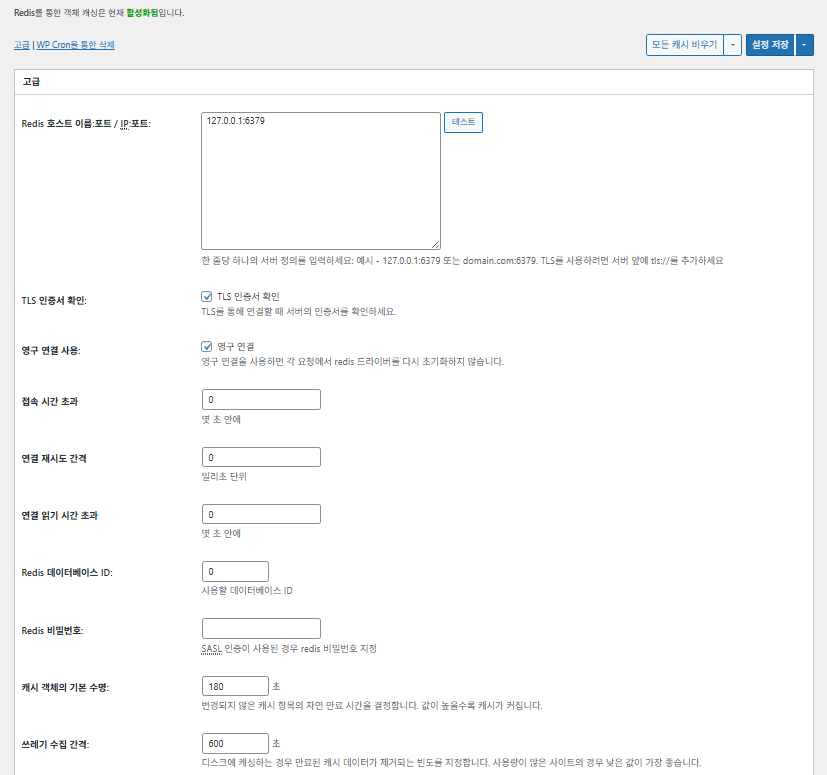
แคชออบเจ็กต์ (Object) ของ W3TC_การตั้งค่าขั้นสูง 1

รายการ

คำอธิบาย

โฮสต์/IP ของ Redis

รูปแบบ [127.0.0.1:6379] สำหรับ TLS ให้ใช้คำนำหน้า [tls://]

ตรวจสอบใบรับรอง TLS

ตรวจความถูกต้องของใบรับรองเมื่อใช้ TLS (ไม่บังคับ)

ใช้การเชื่อมต่อแบบถาวร

ใช้การเชื่อมต่อ Redis ซ้ำเพื่อเพิ่มประสิทธิภาพ

หมดเวลาการเชื่อมต่อ

เวลาสูงสุดที่อนุญาตในการเชื่อมต่อ Redis (วินาที)

ช่วงเวลาลองเชื่อมต่อใหม่

เวลารอก่อนลองใหม่เมื่อล้มเหลว (ms)

หมดเวลาการอ่านการเชื่อมต่อ

เวลาสูงสุดในการรอการตอบกลับ (วินาที)

Redis DB ID

ระบุหมายเลข DB ใน Redis (ค่าเริ่มต้น [0])

รหัสผ่าน Redis

รหัสผ่านหรือข้อมูลสำหรับยืนยันตัวตนแบบ SASL

อายุแคชเริ่มต้น

เวลาเก็บรายการแคชเริ่มต้น (วินาที) ค่าเริ่มต้น 180 วินาที

ช่วงเวลาเก็บกวาดขยะ

รอบการลบแคชที่หมดอายุ ค่าเริ่มต้น 600 วินาที

กลุ่มส่วนกลาง

กลุ่มที่ใช้ร่วมกันในโหมดเครือข่าย (สำหรับมัลติไซต์)

กลุ่มไม่ถาวร

กลุ่มที่ยกเว้นจากการแคช เช่น [counts], [plugins]

แคชคำขอ wp-admin

ใช้แคชกับส่วนผู้ดูแลด้วย (⚠️ ต้องทดสอบ)

เก็บ transient ใน DB

เก็บค่าชั่วคราวไว้ใน DB แม้ใช้แคชภายนอกอยู่

เปิดใช้ WP-CLI

อนุญาตให้ใช้แคชกับคำสั่ง WP-CLI ด้วย

6️⃣ แคชเบราว์เซอร์

แคชเบราว์เซอร์จะเก็บไฟล์คงที่อย่างรูปภาพ CSS และ JS ไว้บนอุปกรณ์ของ ผู้เข้าชมเอง ทำให้โหลดเร็วขึ้นมากเมื่อกลับมาเข้าชมอีกครั้ง ช่วยให้หน้าเว็บตอบสนองเร็วขึ้นและประสบการณ์ผู้ใช้ดีขึ้น

การตั้งค่าส่วนใหญ่เน้นที่ การควบคุมแคชและการลดภาระเซิร์ฟเวอร์ สำหรับเว็บไซต์ที่มีทราฟฟิกสูงหรือให้ความสำคัญกับการปรับแต่งทรัพยากรคงที่ จะเปิดใช้หลายรายการก็ไม่เป็นปัญหา

รายการทั่วไปCSS และ JSHTML และ XMLสื่อและไฟล์อื่นๆ
ตั้งค่าเฮดเดอร์ [Last-Modified]ใส่วันที่แก้ไขล่าสุดของไฟล์เพื่อให้ตอบกลับ 304 ได้✅ ส่วนใหญ่เปิดใช้✅ เหมาะกับเซิร์ฟเวอร์ส่วนใหญ่✅ ใช้ได้ผลกับแคช CDN/เบราว์เซอร์ส่วนใหญ่
ตั้งค่าเฮดเดอร์ [Expires]ให้เบราว์เซอร์แคชไฟล์ไว้ช่วงเวลาหนึ่ง✅ ค่าเริ่มต้น 31536000 วินาที (1 ปี) แนะนำ✅ ค่าเริ่มต้น [3600 วินาที (1 ชั่วโมง)] ✅ ค่าเริ่มต้น [31536000 วินาที] (1 ปี) → เหมาะกับไฟล์คงที่
⏱️ ตั้งเวลาหมดอายุ Expires—⏱️ เช่น [31536000 วินาที = 1 ปี] · ถ้าใช้ร่วมกับ CDN ปรับให้สั้นลงได้——
ตั้งค่าเฮดเดอร์ [Cache-Control]ควบคุมกลยุทธ์การแคชด้วยการเพิ่มเฮดเดอร์ pragma และ cache-control✅ แนะนำ [“public, max-age=31536000”]✅ ตั้งค่าเป็น [“public, max-age=3600”] เป็นต้น✅ แนะนำ [“public, max-age=31536000”]
✅ นโยบายควบคุมแคช—✅ ใช้แบบที่มี [max-age] · ใช้ [“public, max-age=EXPIRES_SECONDS”] เป็นค่าเริ่มต้น——
ตั้งค่า [ETag]ให้แท็กเอนทิตีสำหรับระบุไฟล์ – ใช้ตรวจจับการเปลี่ยนแปลง✅ ได้ผลเมื่อใช้ภายในเซิร์ฟเวอร์เดียวกัน✅ ถ้าไม่มีการแชร์แคชระหว่างเซิร์ฟเวอร์
แนะนำให้ใช้
✅ มีประโยชน์เมื่อใช้เซิร์ฟเวอร์เดียว
ตั้งค่าเฮดเดอร์ W3TCแทรกเฮดเดอร์เพื่อระบุว่าไฟล์ผ่านการปรับแต่งโดย W3TC หรือไม่🔖 ไม่จำเป็น ใช้เพื่อวิเคราะห์🔖 ไม่จำเป็น (สำหรับดีบัก)🔖 เลือกได้ว่าจะใช้หรือไม่
การบีบอัด gzipวิธีบีบอัดเพื่อลดขนาดไฟล์ข้อความ (เข้ากันได้เกือบทั้งหมด)✅ เซิร์ฟเวอร์ส่วนใหญ่รองรับ✅ รองรับบนเซิร์ฟเวอร์ส่วนใหญ่✅ ไม่มีผลกับรูปภาพ
การบีบอัด brotliอัตราการบีบอัดสูงกว่า gzip (เฉพาะเบราว์เซอร์ที่รองรับ)✅ ต้องตั้งค่า Apache/Nginx✅ เปิดใช้โมดูล Apache/nginx✅ มีผลเฉพาะเบราว์เซอร์ที่รองรับ
ป้องกันการแคชออบเจ็กต์เมื่อเปลี่ยนการตั้งค่าเพิ่มสตริงคิวรีเพื่อทำให้แคชเก่าใช้ไม่ได้✅ แนะนำเมื่อเปลี่ยนการตั้งค่าบ่อย—✅ เปลี่ยนไฟล์แล้วมีผลทันที
ลบสตริงคิวรีลบ [?] ออกจากทรัพยากรคงที่เพื่อเพิ่มอัตราการแคช⚠️ จำเป็นเฉพาะกับ CDN/พร็อกซีบางตัว—✅ ใช้กับไฟล์ที่มีการจัดการเวอร์ชันได้
ลบคุกกี้ลบเฮดเดอร์ [Set-Cookie] ออกจากการตอบกลับของทรัพยากรคงที่✅ ติ๊กไว้ในกรณีส่วนใหญ่—✅ รูปภาพและอื่นๆ ไม่ต้องใช้คุกกี้
ไม่ให้ WordPress จัดการการตอบกลับ 404404 ของไฟล์คงที่ให้เว็บเซิร์ฟเวอร์จัดการ → ภาระของ WP ลดลง———
รายการ URI ยกเว้น 404ระบุรูปแบบ URI ที่ให้ WP จัดการเอง (เช่น sitemap, robots.txt)———
เขียนโครงสร้าง URL ของออบเจ็กต์ใหม่สร้าง URI เฉพาะเพื่อข้ามแคช (เช่น รูปแบบ [ver=xxxx])———

Ⅲ. ฟังก์ชันเสริมของ W3 Total Cache

  • ↳ WP Cron, CDN, รีเวิร์สพร็อกซี, ประสบการณ์ผู้ใช้, สถิติ, ตัวแปลง WebP, Google PageSpeed, การตั้งค่านำเข้า/ส่งออก

การลบแคชด้วย WP Cron เป็น การตั้งค่าระดับส่วนกลาง.

🧭 ตัวจำลองฟังก์ชันเสริมของ W3 Total Cache
ซิมูเลเตอร์เส้นทาง
📍Performance›General Settings›Purge via WP Cron
WP Cron
การลบแคชด้วย WP Cron เป็นการตั้งค่าระดับส่วนกลาง ใช้กำหนดเวลาเริ่มและช่วงเวลา
📍Performance›General Settings›CDN›Advanced Settings
CDN
หลังสมัครผู้ให้บริการ CDN ให้ติ๊ก [Enable] ที่ [CDN] เลือก [CDN Type] แล้วบันทึก รายการโดยละเอียดตั้งค่าใน [Advanced Settings]
📍Performance›General Settings›Reverse Proxy
รีเวิร์สพร็อกซี
ติ๊ก [Enable reverse proxy caching via varnish] เฉพาะเมื่อใช้ Varnish และป้อนที่อยู่ IP ของเซิร์ฟเวอร์ Varnish ใน [Varnish servers]
📍Performance›General Settings›User Experience›Advanced Settings
ประสบการณ์ผู้ใช้
ติ๊ก [Lazy Load Images] แล้วบันทึก จากนั้นตั้งค่ารายการโหลดแบบหน่วงเวลาใน [Advanced Settings] ฟังก์ชันในการตั้งค่าขั้นสูงกว่า 50% ใช้ได้ในเวอร์ชันพรีเมียม
📍Performance›General Settings›Image Converter
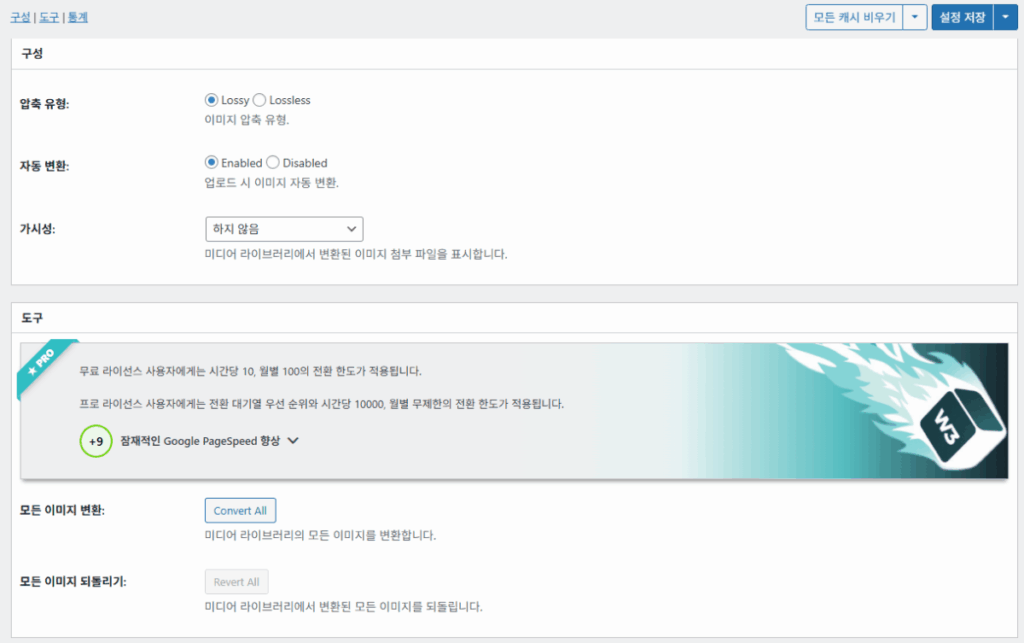
ตัวแปลง WebP
ถ้าติ๊ก [Enable Image Converter Extension] ที่ [Image Converter] จะแปลงรูปภาพในคลังสื่อเป็นรูปแบบ WebP หรือ AVIF ได้
example.com/wp-admin/admin.php?page=w3tc_general
DashboardSettingsToolsInfoSupportUpgrade
|||||||||||||||||
Empty All Caches
Purge via WP Cron
Enabling this will schedule a WP-Cron event that will flush all enabled Caches via a single cron job. Each cache’s advanced settings page features similar settings to this if you wish to schedule purges for specific caches only. If you prefer to use a system cron job instead of WP-Cron, you can schedule the following command to run at your desired interval: “wp w3tc flush all”. If the Always Cached extension is active and enabled, page cache entries will instead be added to the queue instead of being purged from the cache. Visit here for more information.
Enable WP-Cron Event
Enable
Start Time
This setting controls the initial start time of the cron job. If the selected time has already passed, it will schedule the job for the following day at the selected time.
Interval
This setting controls the interval that the cron job should occur.
CDN
Content Delivery Network (CDN) is a powerful feature that can significantly enhance the performance of your WordPress website. By leveraging a distributed network of servers located worldwide, a CDN helps deliver your website’s static files, such as images, CSS, and JavaScript, to visitors more efficiently. This reduces the latency and improves the loading speed of your website, resulting in a faster and smoother browsing experience for your users. With W3 Total Cache’s CDN integration, you can easily configure and connect your website to a CDN service of your choice, unleashing the full potential of your WordPress site’s speed optimization.
Basic SettingsPremium ServicesHelp
CDN:
Theme files, media library attachments, CSS, and JS files will load quickly for site visitors.
CDN Type:
Select the CDN type you wish to use.
Host the entire website with your compatible CDN provider to reduce page load time.
FSD CDN:
Enable★ PRO
Deliver visitors the lowest possible response and load times for all site content including HTML, media (e.g. images or fonts), CSS, and JavaScript. Show More ⌄ Learn more about Pro
Reverse Proxy
A reverse proxy is a server that sits between a client and a web server, acting as an intermediary for requests. It retrieves resources on behalf of the client from the server, and then returns the response to the client. By utilizing a reverse proxy, such as Varnish or Nginx, in conjunction with W3 Total Cache, you can significantly enhance the performance of your WordPress website by caching and serving static content directly from the reverse proxy server, reducing the load on your WordPress server and improving response times for visitors.
Enable reverse proxy caching via varnish
Varnish servers:
Specify the IP addresses of your varnish instances above. The VCL’s ACL must allow this request.
Trusted reverse proxies:
IP addresses or CIDR ranges of reverse proxies and load balancers in front of this site (one per line). Forwarded scheme and client-IP headers are used only for these addresses. Leave empty when PHP receives client connections directly. Developers may also supply this list via the w3tc_trusted_proxies filter.
User Experience
User Experience (UX) is a setting that focuses on enhancing the overall browsing experience for visitors of your website. By enabling this feature, you can optimize your website’s performance by minimizing load times, reducing server requests, and delivering content more efficiently. This ultimately leads to faster page loading, improved user satisfaction, and increased engagement, resulting in a speedier and more enjoyable WordPress website.
Basic Settings
Defer loading offscreen images.
Lazy Load Google Maps★ PRO
In addition to lazy loading images, with W3 Total Cache Pro you can lazy load Google Maps! More information and settings can be found on the User Experience page.
Disable Emoji
Remove emojis support from your website.
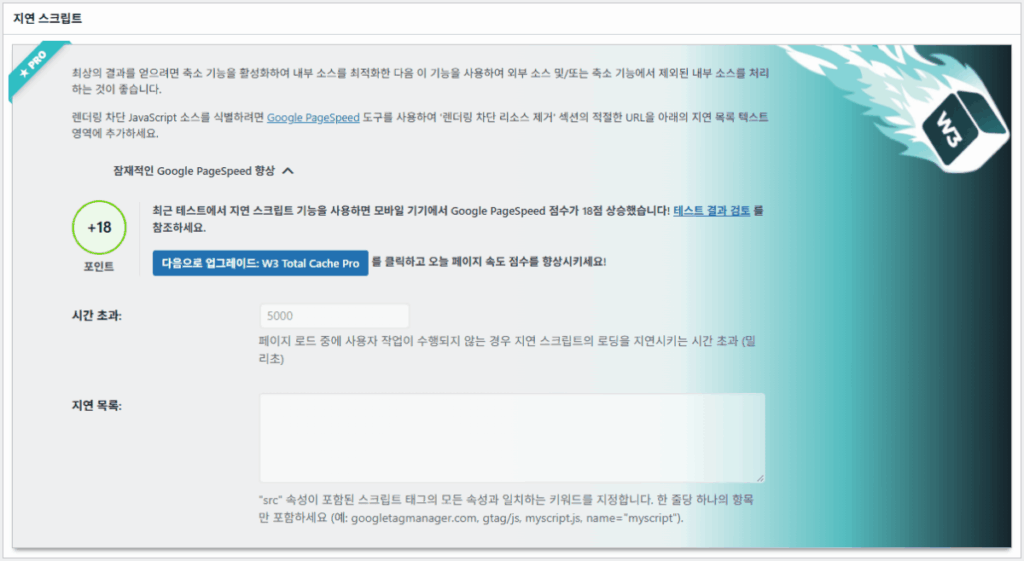
Delay Scripts★ PRO
Delay the loading of specified internal/external JavaScript sources on your pages separate from Minify.
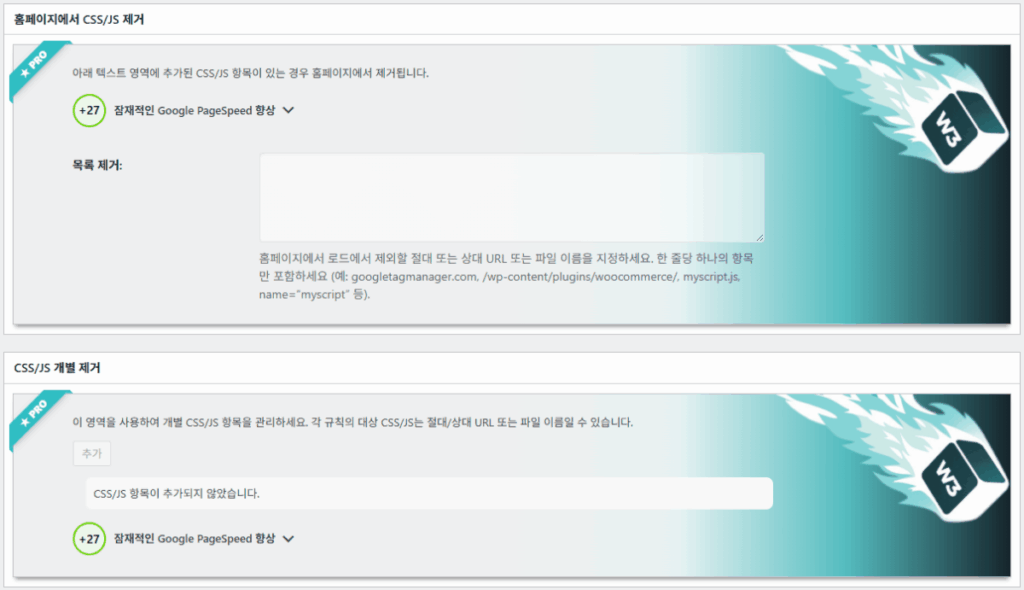
Remove Unwanted/Unused CSS/JS★ PRO
Removes specified CSS/JS tags from the homepage or on a per page basis.
Preload Requests★ PRO
DNS prefetching, pre-connecting, and preloading are essential web optimization techniques that enhance website performance by proactively resolving network-related tasks. Learn more about Pro
Disable wp-embed script
Remove wp-embed.js script from your website. oEmbed functionality still works but you will not be able to embed other WordPress posts on your pages.
Disable jquery-migrate on the front-end
Remove jquery-migrate support from your website front-end.
Image Converter
The Image Converter tool can be used to generate modern-format versions (e.g., WebP or AVIF) of media library images which offer superior lossless and lossy compression.
Enable Image Converter Extension
This extension allows for optimizing media library images to modern formats like WebP or AVIF.
As a free user you are limited to conversions of 10/hour and 100/month. The Pro license increases these rates to 10,000/hour and unlimited/month. Conversion rates are subject to change and documentation can be found here. Learn more about Pro
example.com/wp-admin/admin.php?page=w3tc_cdn
DashboardSettingsToolsInfoSupportUpgrade
||
Empty All Caches
General
Host attachments
Upload attachments
If checked, all attachments will be hosted with the CDN.
Host wp-includes/ files
Upload includes files
If checked, WordPress static core file types specified in the “wp-includes file types to upload” field below will be hosted with the CDN.
Host theme files
Upload theme files
If checked, all theme file types specified in the “theme file types to upload” field below will be hosted with the CDN.
Host minified CSS and JS files
Upload minify files
If checked, minified CSS and JS files will be hosted with the CDN.
Host custom files
Upload custom files
If checked, any file names or paths specified in the “custom file list” field below will be hosted with the CDN.
Force over-writing of existing files
If modified files are not always detected and replaced, use this option to over-write them.
Advanced
Only purge CDN manually
Purge CDN only if explicit purge button is clicked.
Disable CDN on SSL pages
When SSL pages are returned no CDN URLs will appear in HTML pages.
Use CDN links for the Media Library on admin pages
All Media Library content will use CDN links on administration pages.
Add CORS header
Add CORS headers to allow cross-domain assets usage.
Disable CDN for the following roles
Select user roles that will use the origin server exclusively:
Administrator
Editor
Author
Contributor
Subscriber
Disable CDN on the following pages:
Always ignore the specified pages / directories. Supports regular expression.
Automatically upload minify files
If CDN is enabled (and not using the origin pull method), your minified files will be automatically uploaded.
Export changed files automatically
Automatically attempt to find and upload changed files.
Auto upload interval:
3600seconds
Specify the interval between upload of changed files.
Re-transfer cycle interval:
900seconds
The number of seconds to wait before upload attempt.
Re-transfer cycle limit:
25
Number of files processed per upload attempt.
wp-includes file types to upload:
*.css;*.js;*.gif;*.png;*.jpg;*.xml
Specify the file types within the WordPress core to host with the CDN.
Theme file types to upload:
*.css;*.js;*.gif;*.png;*.jpg;*.ico;*.ttf;*.otf;*.woff;*.woff2;*.less
Specify the file types in the active theme to host with the CDN.
File types to import:
 
Automatically import files hosted with 3rd parties of these types (if used in your posts / pages) to your media library. Only common static types (images, CSS, JS, fonts, and media) are imported. Script, markup, and SVG types are ignored even if listed. Empty, *, and *.* use that static allowlist rather than every file.
Custom file list:
favicon.ico
{wp_content_dir}/gallery/*
{wp_content_dir}/uploads/avatars/*
{plugins_dir}/wordpress-seo/css/xml-sitemap.xsl
{plugins_dir}/wp-minify/min*
{plugins_dir}/*.js
{plugins_dir}/*.css
{plugins_dir}/*.gif
{plugins_dir}/*.jpg
{plugins_dir}/*.png
Specify any files outside of theme or other common directories to host with the CDN.
Rejected user agents:
Specify user agents that should not access files hosted with the CDN.
Rejected files:
{uploads_dir}/wpcf7_captcha/*
{uploads_dir}/imagerotator.swf
{plugins_dir}/wp-fb-autoconnect/facebook-platform/channel.html
Specify the path of files that should not use the CDN.
Set cookie domain to “example.com”
If using subdomain for CDN functionality, this setting helps prevent new users from sending cookies in requests to the CDN subdomain.
Note(s):
  • You can use placeholders {wp_content_dir}, {plugins_dir}, {uploads_dir} instead of writing folder paths (wp-content, wp-content/plugins, wp-content/uploads).
  • If using Amazon Web Services or Self-Hosted CDN types, enable HTTP compression in the “Media & Other Files” section on Browser Cache Settings tab.
example.com/wp-admin/admin.php?page=w3tc_userexperience
DashboardSettingsToolsInfoSupportUpgrade
Empty All Caches
Lazy loading is currently disabled.
Lazy Loading
Process HTML image tags
Process img tags
Process background images
Process background styles
Exclude words:
avia-bg-style-fixed
data-bgposition=
data-envira-src=
data-large_image=
data-lazy-original=
data-lazy-src=
data-lazyload=
data-lazysrc=
data-no-lazy=
data-src=
data-srcset=
fullurl=
lazy-slider-img=
loading=”eager”
no-lazy
rev-slidebg
skip-lazy
soliloquy-image
swatch-img
w3-total-cache
woocommerce/assets/images/placeholder.png
wpcf7_captcha
Exclude tags containing words
Threshold
 
The outer distance off the scrolling area from which to start loading the elements (example: 100px, 10%).
Script Embed method:
Use inline method only when your website has just a few pages
Google Maps
Lazy load google map
WP Google Map Plugin plugin
Google Maps Easy plugin
WP Google Maps plugin
คลิกช่องที่ไฮไลต์ในเมนูซ้ายหรือปุ่มบนหน้าจอ

1️⃣ CDN

ตั้งค่าฟังก์ชันนี้ได้หลังสมัครผู้ให้บริการ CDN

ตัวเลือก

คำอธิบาย

✅ โฮสต์ไฟล์แนบ

อัปโหลดไฟล์แนบ เช่น รูปภาพใน [wp-content/uploads] ไปยัง CDN

✅ โฮสต์ไฟล์ wp-includes

รวมไฟล์คงที่ของแกน WordPress (js/css ฯลฯ) ไว้ใน CDN

✅ โฮสต์ไฟล์ธีม

รวมไฟล์คงที่ของธีมที่ใช้งานอยู่ (css/js/images ฯลฯ) ไว้ใน CDN

✅ โฮสต์ไฟล์ CSS/JS ที่ทำ Minify แล้ว

ให้บริการไฟล์ CSS/JS ที่ W3TC ทำ Minify แล้วจาก CDN

✅ โฮสต์ไฟล์ที่กำหนดเอง

พุชพาธหรือชื่อไฟล์ที่ผู้ใช้ระบุเองไปยัง CDN

⚠️ บังคับเขียนทับไฟล์เดิม

ใช้บังคับอัปโหลดใหม่เมื่อตรวจไม่พบการแก้ไขโดยอัตโนมัติ

รายการ

คำอธิบาย

ลบ CDN ด้วยตนเองเท่านั้น

ลบไฟล์ออกจาก CDN เฉพาะเมื่อคลิกปุ่มลบด้วยตนเอง

ปิด CDN บนหน้า SSL

ไม่ใช้ URL ของ CDN บนหน้า HTTPS

ใช้ลิงก์ CDN ในหน้าผู้ดูแล

แสดง URL ของ CDN สำหรับสื่อในหน้าผู้ดูแลด้วย

Add CORS header

เพิ่มเฮดเดอร์การตอบกลับเพื่ออนุญาต CORS

ปิด CDN ตามบทบาท

ไม่ใช้ CDN กับบทบาทผู้ใช้ที่เลือก (เช่น ให้เฉพาะผู้ดูแลใช้ต้นฉบับ)

รายการหน้าที่ยกเว้น

ยกเว้นพาธที่ระบุจาก CDN (ใช้นิพจน์ปรกติได้)

อัปโหลดไฟล์ที่ทำ Minify แล้วโดยอัตโนมัติ

อัปโหลดไฟล์ที่ทำ Minify แล้วไปยัง CDN อัตโนมัติ (แบบ Push)

ส่งออกไฟล์ที่เปลี่ยนแปลงโดยอัตโนมัติ

อัปโหลดอัตโนมัติเมื่อตรวจพบการแก้ไขไฟล์

ช่วงเวลาอัปโหลดอัตโนมัติ

ช่วงเวลาอัปโหลดหลังตรวจพบการเปลี่ยนแปลงไฟล์ (ค่าเริ่มต้น 3600 วินาที)

ช่วงเวลา / ขีดจำกัดการส่งซ้ำ

ช่วงเวลาลองใหม่เมื่อล้มเหลวและจำกัดจำนวนไฟล์ที่ประมวลผล

ไฟล์ wp-includes ที่จะอัปโหลด

ระบุรูปแบบไฟล์แกนที่จะรวมไว้ใน CDN

รูปแบบไฟล์ธีมที่จะอัปโหลด

ระบุรูปแบบไฟล์ที่เกี่ยวกับธีม เช่น CSS/JS/ฟอนต์

รูปแบบไฟล์ที่จะนำเข้า

กำหนดเงื่อนไขการดาวน์โหลดอัตโนมัติสำหรับไฟล์ที่ลิงก์จากภายนอก

รายการไฟล์ที่กำหนดเอง

ระบุพาธของแต่ละไฟล์ที่จะส่งไปยัง CDN (เทมเพลต ปลั๊กอินภายนอก ฯลฯ)

User Agent ที่ถูกปฏิเสธ

ระบุบอต/User Agent ที่จะบล็อกไม่ให้เข้าถึงไฟล์ CDN

พาธไฟล์ที่ถูกปฏิเสธ

ระบุพาธไฟล์ที่ไม่ใช้ CDN เช่น CAPTCHA และพาธพิเศษ

ตั้งค่าโดเมนคุกกี้

ระบุโดเมนเพื่อป้องกันการส่งคุกกี้เมื่อใช้ CDN แบบซับโดเมน

2️⃣ รีเวิร์สพร็อกซี

คำอธิบายยกตัวอย่าง Varnish และ Nginx แต่เนื่องจาก Nginx ตั้งค่าที่เซิร์ฟเวอร์ จึงใช้ในปลั๊กอิน W3 Total Cache เฉพาะเมื่อใช้ Varnish

3️⃣ ประสบการณ์ผู้ใช้: โหลดแบบหน่วงเวลา

ฟังก์ชันในการตั้งค่าขั้นสูงกว่า 50% ใช้ได้ในเวอร์ชันพรีเมียม

รายการ

คำอธิบาย

ควรใช้เมื่อไร

✅ ประมวลผลแท็กรูปภาพ HTML

[<img>] แท็กจะได้รับแอตทริบิวต์ lazy

สำหรับโหลดรูปภาพในเนื้อหาทั่วไปแบบหน่วงเวลา

✅ ประมวลผลภาพพื้นหลัง

ใช้ lazy กับ [background-image] ของ CSS

เมื่อเป็นเว็บไซต์ที่เน้นดีไซน์และมีภาพพื้นหลังเยอะ

ยกเว้นคำตัวอย่าง
แอตทริบิวต์ที่ยกเว้น Lazy[data-src], [data-lazy-src], [data-no-lazy], [loading=”eager”] ฯลฯ
คลาสที่ยกเว้น Lazy[no-lazy], [skip-lazy], [lazy-slider-img], [rev-slidebg] ฯลฯ
เกี่ยวกับปลั๊กอิน/สไลเดอร์[soliloquy-image], [envira], [w3-total-cache], [wpcf7_captcha] ฯลฯ
เกี่ยวกับ WooCommerce[swatch-img], [woocommerce/…/placeholder.png] ฯลฯ

“เกณฑ์” ของการโหลดแบบหน่วงเวลาคือค่าที่กำหนดว่ารูปภาพหรือองค์ประกอบพื้นหลังที่อยู่ใต้วิวพอร์ต (หน้าจอ) ของเบราว์เซอร์จะเริ่มโหลดล่วงหน้าเมื่ออยู่ห่างแค่ไหน เช่น ถ้าตั้ง 100px องค์ประกอบนั้นจะโหลดเมื่อผู้ใช้เลื่อนเข้าใกล้ภายใน 100 พิกเซล ถ้าตั้งสั้นเกินไป รูปภาพจะโหลดช้าและผู้ใช้อาจเห็นเป็นหน้าว่าง โดยทั่วไปจึงเหมาะที่ 100~300px

ต่อไปนี้คือวิธีการแทรกสคริปต์

วิธีการแทรก

คำอธิบาย

ตำแหน่งหรือแอตทริบิวต์

อะซิงโครนัส (Async)

ทำงานคู่ขนานกับการโหลดหน้าและไม่บล็อกการเรนเดอร์

[<script async>]

ซิงโครนัส (ในส่วน head)

ทำงานก่อนในส่วน [<head>] และอาจบล็อกการเรนเดอร์ชั่วคราว (in the head)

[<head>] หรือ [<script>]

อินไลน์ (Inline)

แทรกสคริปต์ลงในเอกสาร HTML โดยตรง จึงทำงานได้โดยไม่ต้องส่งคำขอแยก

แทรกไว้ใน [<script>โค้ด</script>]

การตั้งค่าขั้นสูงด้านประสบการณ์ผู้ใช้ของ W3TC 2
การตั้งค่าขั้นสูงด้านประสบการณ์ผู้ใช้ของ W3TC 3

4️⃣ ตัวแปลง WebP

ตัวแปลง WebP ของ W3TC_รายละเอียด (การตั้งค่าขั้นสูง) 1
ตัวแปลง WebP ของ W3TC_รายละเอียด (การตั้งค่าขั้นสูง) 2

Ⅳ. ประเมินภาพรวมของ W3 Total Cache

อินเทอร์เฟซ (UI) ของ W3 Total Cache ไม่ได้แย่ แต่ใช้งานไม่สะดวกอย่างชัดเจน นักพัฒนาและผู้ใช้มืออาชีพหลายคนก็ชี้จุดเดียวกัน เมื่อเทียบกับปลั๊กอินรุ่นใหม่อย่าง WP Rocket หรือ FlyingPress ด้านประสิทธิภาพของเว็บไซต์ตามทันได้สบาย แต่ด้านประสบการณ์ผู้ใช้ (UX) ยังน่าเสียดายอยู่.

การมีฟังก์ชันเยอะเป็นข้อดี แต่ สำหรับมือใหม่ โครงสร้างอาจรู้สึกซับซ้อนเกินไป โดยเฉพาะการต้องสลับเมนูบ่อยและตัวเลือกย่อยมีมาก แม้แต่นักพัฒนาและผู้ดูแลเว็บไซต์ที่ชำนาญก็ อาจตั้งค่าผิดพลาดได้ แน่นอนว่าจำทุกอย่างที่ตั้งไว้ไม่ได้ แต่ในการใช้งานจริง มันคือ ปลั๊กอินแคชขั้นสูงที่ปรับแต่งได้อย่างละเอียด.

ด้วยยอดติดตั้งเวอร์ชันฟรีกว่า 1 ล้านครั้ง จึงยากที่จะมองว่าเป็นแค่ปลั๊กอินเก่า ในความเป็นจริงแทบไม่มีปลั๊กอินแคชตัวไหนที่มีฟังก์ชันหลากหลายและครบครันเทียบเท่า

รายการคะแนน (⭐)รายละเอียดการประเมิน
🎛️ อินเทอร์เฟซ⭐⭐⭐เมนูเยอะ โครงสร้างซับซ้อน เป็นอุปสรรคสำหรับผู้ใช้ใหม่ UI ดูเก่า
⚙️ ความหลากหลายของฟังก์ชัน⭐⭐⭐⭐⭐แคช CDN Redis และเกือบทุกฟังก์ชัน หาฟังก์ชันที่ไม่มีได้ยาก
🛠️ ความยืดหยุ่นในการตั้งค่าโดยละเอียด⭐⭐⭐⭐ปรับแต่งรายละเอียดได้เกือบทุกฟังก์ชัน ต้องระวังการตั้งค่าขัดแย้งกัน
🚀 การเพิ่มประสิทธิภาพ⭐⭐⭐⭐⭐ถ้าตั้งค่าเหมาะสมประสิทธิภาพดีมาก แคชออบเจ็กต์/แคชเบราว์เซอร์ได้ผลมาก
🧩 ความเข้ากันได้⭐⭐⭐อาจขัดแย้งกับโฮสติ้ง ธีม และปลั๊กอินบางตัว
📄 เอกสาร·คู่มือ⭐⭐⭐⭐⭐เอกสารทางการมีมาก
💡 ระดับการแนะนำของผู้ใช้⭐⭐⭐⭐(4.5)แนะนำสำหรับผู้ใช้ขั้นสูง มือใหม่แนะนำ WP Rocket, Cache Enabler ฯลฯ
📊 คะแนนรวม⭐⭐⭐⭐(4.5)ปลั๊กอินประสิทธิภาพสูงที่เน้นฟังก์ชัน ต้องใช้เวลาเรียนรู้ ควรพิจารณาระดับของผู้ใช้

Ⅴ. ทดสอบประสิทธิภาพ

หลังตั้งค่าปลั๊กอิน การทดสอบความเร็วครั้งสุดท้ายแสดงให้เห็นว่าความเร็วดีขึ้นชัดเจนกว่าปลั๊กอินแคชทั่วไป

ℹ️ ประกาศเรื่องลิงก์แอฟฟิลิเอต
เนื้อหาของเว็บไซต์นี้มีลิงก์แอฟฟิลิเอต หากผู้เข้าชมซื้อสินค้าหรือบริการผ่านลิงก์เหล่านี้ เว็บไซต์นี้จะได้รับค่าคอมมิชชันจากผู้ขาย ในกระบวนการนี้ ราคาที่ผู้ซื้อจ่าย(ราคาจะลดลงเมื่อมีโปรโมชัน↓)จะไม่สูงขึ้นแต่อย่างใด ราคา ส่วนลด และข้อมูลสต็อกที่แสดงเป็นข้อมูล ณ เวลาที่เขียนและอาจต่างจากความเป็นจริง โปรดตรวจสอบกับผู้ขายอีกครั้งก่อนซื้อ การเลือกและการประเมินสินค้าเขียนตามเกณฑ์ของเราเอง และการได้รับค่าคอมมิชชันหรือไม่ไม่มีผลต่อลำดับการแนะนำหรือเนื้อหาการประเมิน

ใส่ความเห็น

อีเมลของคุณจะไม่แสดงให้คนอื่นเห็น ช่องข้อมูลจำเป็นถูกทำเครื่องหมาย *

Prove your humanity: 8   +   7   =