
wp-config.php Basic Settings: File & Memory, Revisions — SSH, SFTP, cPanel Setup Guide
The wp-config.php file is the most important configuration file: on a WordPress website it holds the core information, everything WordPress needs to connect to its database and run, so it works as the heart of the site.
Ⅰ. What wp-config.php Does
This file contains the following sensitive settings.
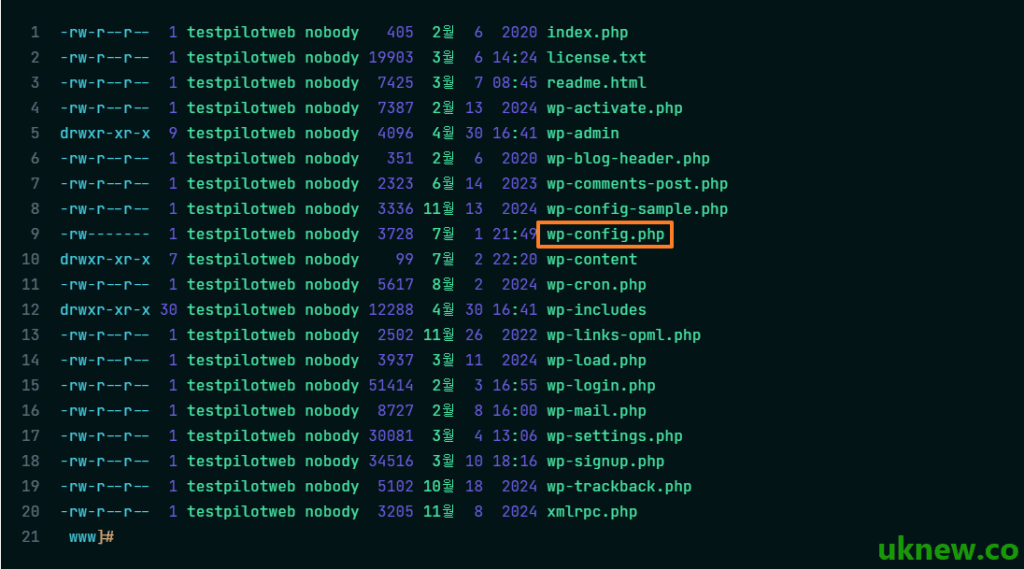
Because of this, the wp-config.php file is the top target, the first thing outside attackers go after. If its permissions are set wrong or its contents are exposed, the whole database can leak or attackers can take over admin rights, which makes it a serious security vulnerability. The first step in hardening WordPress security is therefore keeping this file safe.
1️⃣ Where wp-config.php Is Located
wp-config.php sits in the top-level folder where WordPress is installed, next to the [wp-admin], [wp-content] and [wp-includes] folders. On cPanel hosting that folder is [public_html]; on a VPS it goes in the web root (e.g. [/var/www/html/wp-config.php]).
If you cannot see the file in the top-level folder, check the folder one level up. WordPress looks for wp-config.php in the installation folder first and, if it is not there, loads it from the folder directly above.
2️⃣ How to Open wp-config.php
In your hosting control panel's [File Manager], go to the top-level folder, right-click wp-config.php and choose [Edit]. This lets you edit it right in the browser without any other program.
An FTP client (FileZilla): download the file to your computer, edit it in an editor and upload it again. Keep a separate copy of the original before uploading so you can restore it right away if something breaks.
On servers such as a VPS that you reach over SSH, run an editor followed by the file path, as with [vi]; [nano] opens it the same way.
vi /var/www/html/wp-config.php3️⃣ wp-config-sample.php and the Basic Structure
A freshly downloaded WordPress package has no wp-config.php, only [wp-config-sample.php] in the same place. When you enter your database details on the install screen, WordPress creates wp-config.php from this file; copying and renaming it yourself gives the same result.
define( 'DB_NAME', 'database_name_here' );
define( 'DB_USER', 'username_here' );
define( 'DB_PASSWORD', 'password_here' );
define( 'DB_HOST', 'localhost' );
define( 'DB_CHARSET', 'utf8mb4' );
define( 'DB_COLLATE', '' );

define( 'AUTH_KEY',         'put your unique phrase here' );
define( 'SECURE_AUTH_KEY',  'put your unique phrase here' );
define( 'LOGGED_IN_KEY',    'put your unique phrase here' );
define( 'NONCE_KEY',        'put your unique phrase here' );
define( 'AUTH_SALT',        'put your unique phrase here' );
define( 'SECURE_AUTH_SALT', 'put your unique phrase here' );
define( 'LOGGED_IN_SALT',   'put your unique phrase here' );
define( 'NONCE_SALT',       'put your unique phrase here' );

$table_prefix = 'wp_';

define( 'WP_DEBUG', false );
The four lines [DB_NAME], [DB_USER], [DB_PASSWORD] and [DB_HOST] take the database details from your host. If even one value is wrong, visitors see the [Error establishing a database connection] message instead of the site.
The eight lines from [AUTH_KEY] to [NONCE_SALT] encrypt login cookies; get a fresh set from [https://api.wordpress.org/secret-key/1.1/salt/] and replace them all at once. Changing them logs out every signed-in user.
[$table_prefix] is the prefix added to database table names, [wp_] by default, and it keeps several WordPress installs apart when they share one database. Setting [WP_DEBUG] to [true] shows PHP errors, which appear on screen, so keep it at [false] on a live site.
Ⅱ. Basic wp-config.php Settings to Apply After Installing WordPress
All setting lines go above the /* That’s all, stop editing! Happy publishing. */ comment. In the simulator below, choose how you connect (SSH, cPanel or FTP) and open wp-config.php; the setting you pick on the left jumps straight to its line.
- Setting constants (define) go above: Most WordPress setting constants (define) must be defined /* That’s all, stop editing! Happy publishing. */ directly above the comment so that WordPress loads them correctly while it initializes its settings.
- WordPress loading starts below: Below this comment are the [ABSPATH] definition and the code [require_once( ABSPATH . ‘wp-settings.php’ );]. From the moment this [wp-settings.php] file loads, WordPress's core features actually start running.
and WP_MAX_MEMORY_LIMIT is the “extended limit for admin and internal tasks”.
You need to set both to get full control of WordPress memory.
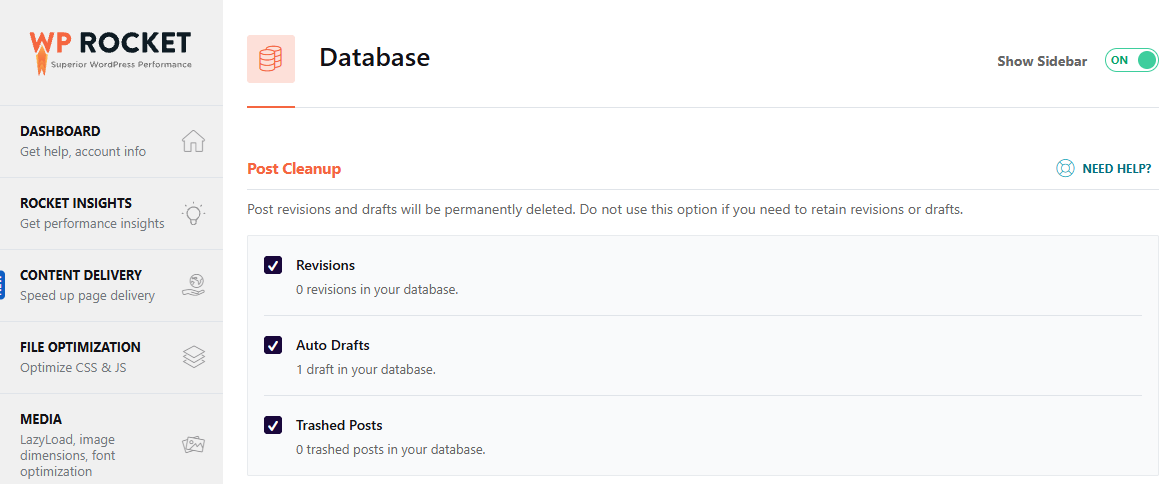

/wp-admin/admin-ajax.php, through which it makes AJAX calls from the browser. In the WordPress dashboard, this file sends a POST request every 15 seconds.
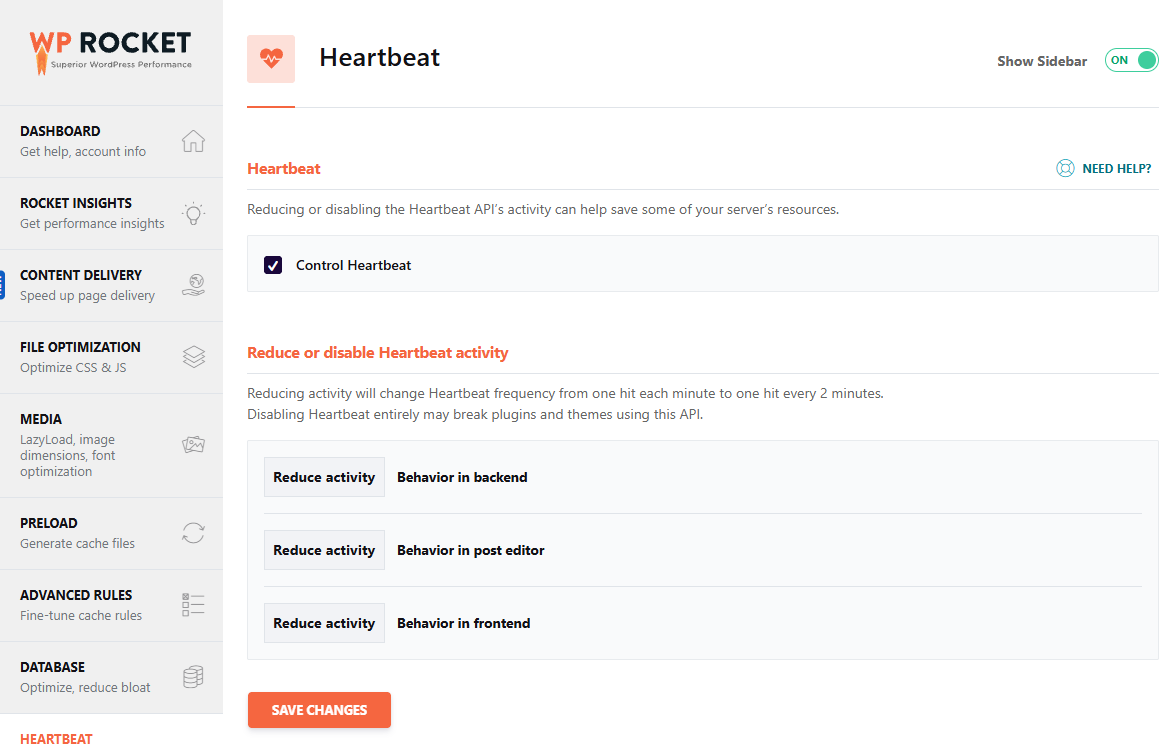

/** Disable Heartbeat everywhere except post editor */
add_action('init', function() {
    global $pagenow;
    if ($pagenow != 'post.php' && $pagenow != 'post-new.php') {
        wp_deregister_script('heartbeat');
    }
}, 1);🔢 FAQ & Recommended Content

 Performance
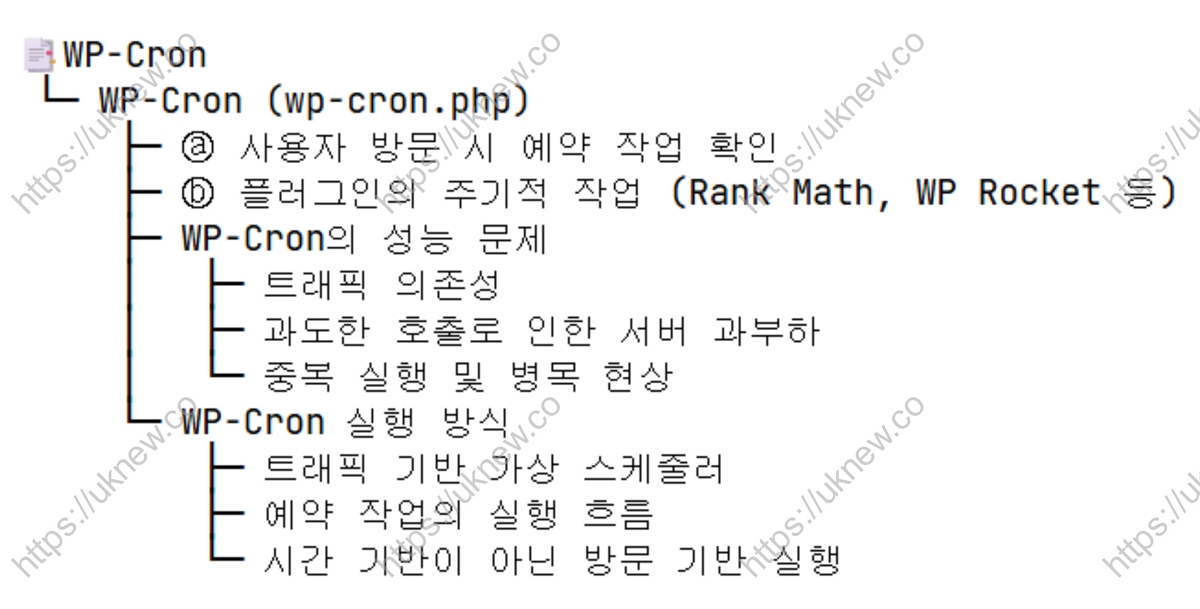
Disabling WP-Cron and Using System Cron
How to turn off wp-cron.php, which runs on every page load, and move it to a server cron job.
Performance
Disabling WP-Cron and Using System Cron
How to turn off wp-cron.php, which runs on every page load, and move it to a server cron job.
 Settings
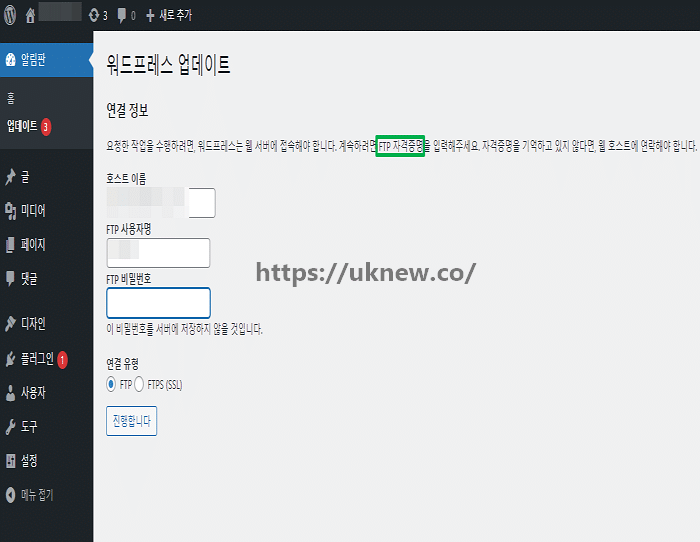
2 Ways to Stop the FTP Credentials Prompt
Two ways to remove the FTP login box that appears every time you update a plugin.
Settings
2 Ways to Stop the FTP Credentials Prompt
Two ways to remove the FTP login box that appears every time you update a plugin.
 Error
Critical Error: Causes and Fix
How the cause was found and fixed when the [There has been a critical error] message appeared.
Error
Critical Error: Causes and Fix
How the cause was found and fixed when the [There has been a critical error] message appeared.
ℹ️ Affiliate Disclosure
This site's content contains affiliate links. When a visitor buys a product or service through one of them, the site receives a commission from the seller. The amount the buyer pays(it goes down during event discounts ↓)does not go up. Posted prices, discounts, and stock reflect the time of writing and may differ, so confirm with the seller before buying. Products are chosen and reviewed by our own standards, and commissions do not affect the order or content of reviews.