
Linux vi Commands: Vim's 3 Modes and Visual Mode
Opening vi and finding that nothing you type appears, or closing the window because you can't figure out how to get out — almost everyone who touches a server for the first time goes through this once. The Linux vi command's Normal and Insert modes are separate, so once you know which mode you're in, the rest takes just a few keys. This post lays out the three modes and the commands for each in tables, and lets you type vi yourself on a virtual server in your browser.
On AlmaLinux 9.8, both vi and vim come from the vim 8.2 package, and the screens and messages in this post were opened with vim. If it isn't installed, install it with [dnf -y install vim-enhanced].


✅ The Three vi Modes
In vi, the same key does different things depending on the mode. A file opens in Normal mode; i takes you into Insert mode to type, Esc brings you back, and a colon [:] takes you to Last-line mode to save and quit.
| Mode | Key to enter | Task |
|---|---|---|
| Normal mode | Where vi starts · Esc from any other mode | Move the cursor, delete, copy, paste, undo |
| Insert mode | i a I A o O | Type text. [-- INSERT --] at the bottom of the screen |
| Last-line mode | : | Save, quit, substitute, line numbers. A : appears at the bottom of the screen |
| Visual mode | v V Ctrl-v | Select a range, then delete, copy or insert on all lines |
There are three ways to open a file from the console.
| Command | Description |
|---|---|
| vi filename | Opens the file in Normal mode. If the file doesn't exist, it's created and [New] is shown |
| vi +20 filename | Opens with the cursor on line 20 |
| view filename= vi -R | Opens read-only. Editing shows a [W10] warning, saving gives [E45] |
Type [vi httpd.conf] on the virtual server below to open vi, and the left menu switches to commands inside vi. Clicking a chip sends that key to the screen, or you can type it on your keyboard.
✅ Linux vi Command Reference
🔲 Moving the cursor
| Key | Description |
|---|---|
| h j k l← ↓ ↑ → | Move one character. Arrow keys work too |
| 0 · ^ | Start of line (0) · first non-blank character (^) |
| $ | End of line |
| w · b · e | Start of next word · start of previous word · end of next word |
| gg · G | First line · last line of the file |
| 20Gsame as :20 | Go to line 20. Change the number for any line |
| H · M · L | Top · middle · bottom line of the screen |
| Ctrl-f · Ctrl-b | One screen down · up |
| Ctrl-d · Ctrl-u | Half a screen down · up |
🔲 Entering Insert mode
Whichever key you use to enter, press Esc when you're done typing. cw, cc, C and s delete and drop you straight into Insert mode, so fixing a word or line is faster than pressing x and i separately.
| Key | Description |
|---|---|
| i · a | Start typing before (i) · after (a) the cursor |
| I · A | Start typing at the start (I) · end (A) of the line |
| o · O | Open a blank line below (o) · above (O) and start typing |
| cw | Delete from the cursor to the end of the word and start typing |
| cc | Delete the whole line and start typing |
| C | Delete from the cursor to the end of the line and start typing |
| s | Delete one character and start typing |
| Esc | Stop typing and return to Normal mode |
🔲 Deleting and editing
Follow d with a movement key and that range is deleted. dw deletes a word, dd a line, dG everything to the end of the file, and a number in front repeats it that many times.
| Key | Description |
|---|---|
| x · X | Delete the character under (x) · before (X) the cursor. 3x deletes three |
| dw | Delete from the cursor to the end of the word |
| dd | Delete the line. 3dd deletes three lines |
| D= d$ | Delete from the cursor to the end of the line |
| d0 | Delete from the start of the line up to the cursor |
| dG | Delete from the current line to the end of the file |
| :6d · :6,10d | Delete line 6 · delete lines 6–10 |
| J | Join the next line onto the end of the current line |
| r | Replace the character under the cursor with the next key you type |
| ~ | Toggle upper/lower case |
| >> · << | Indent · unindent the line |
🔲 Copy, paste and undo
Deleted text can be pasted with p just like copied text, so pressing dd and then p moves a line down. u steps back through several changes, and Ctrl-r redoes what you undid.
| Key | Description |
|---|---|
| yy | Copy the line. 3yy copies three lines |
| yw | Copy from the cursor to the end of the word |
| p · P | Paste below (p) · above (P). For a character-wise copy, after · before the cursor |
| :1 co 7same as :1 t 7 | Copy line 1 below line 7 |
| :1,7 co 8 | Copy lines 1–7 below line 8 |
| :1 m 8 | Move line 1 below line 8 |
| u | Undo. Press again to keep going back |
| Ctrl-r | Redo what you undid |
| . | Repeat the last change |
🔲 Search and replace
Substitution is done in Last-line mode. Without a range it affects only the current line, [%] covers the whole file, and without g at the end only the first match on each line changes.
| Key | Description |
|---|---|
| /string | Search down from the cursor. At the end it wraps to the top: [search hit BOTTOM, continuing at TOP] |
| ?string | Search up from the cursor |
| n · N | Next match in the same direction (n) · opposite direction (N) |
| * | Search down for the word under the cursor |
| :s/old/new/ | First old on the current line to new |
| :s/old/new/g | Every old on the current line to new |
| :%s/old/new/g | Every old in the whole file to new |
| :10,20s/old/new/g | Every old on lines 10–20 to new |
| :%s/old/new/gc | Ask before each change (y change · n skip · a all · q quit) |
🔲 Save, quit and line numbers
| Key | Description |
|---|---|
| :w | Save. When done: [36L, 1094B written] |
| :w filename | Save under another name. The original file stays as is |
| :wq= :x = ZZ | Save and quit |
| :q | Quit. If there are unsaved changes: [E37: No write since last change] |
| :q! | Quit without saving |
| :set nu · :set nonu | Show · hide line numbers |
✅ Commenting Out a Column with Vim Visual Block Mode
To put the same text at the start of several lines, use Visual Block mode instead of pressing i on each line. In Normal mode, v selects by character, Shift-v by line and Ctrl-v by column.


Here's how to comment out a whole block of a config file. Put the cursor on the first character of the first line, press Ctrl-v, move down with j to select the lines, then press I, type # and press Esc.
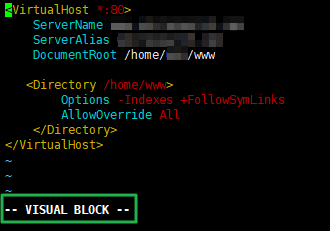

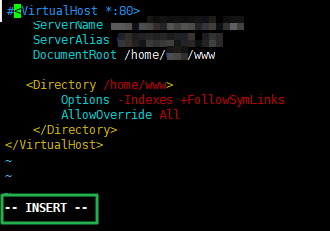
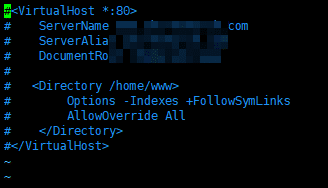
Removing the comments works the same way. Put the cursor on the # of the first line, select down with Ctrl-v, press x, and the selected column is deleted at once. You can try it as-is on vhost.conf in the simulator above.
ℹ️ Affiliate Disclosure
This site's content contains affiliate links. When a visitor buys a product or service through one of them, the site receives a commission from the seller. The amount the buyer pays(it goes down during event discounts ↓)does not go up. Posted prices, discounts, and stock reflect the time of writing and may differ, so confirm with the seller before buying. Products are chosen and reviewed by our own standards, and commissions do not affect the order or content of reviews.