Wtyczka W3 Total Cache: jak ją skonfigurować pod optymalizację

Informacja o linkach partnerskich v3.1
Informacja o linkach partnerskich v3.2 (wersja mobilna)
Środowisko testowe CloudwaysDebian 12Apache 2.4.69 + nginxPHP 8.2.34WordPress 7.1.3W3 Total Cache 2.10.7Sprawdzono 2026-10-18

Strona na WordPressie nieuchronnie zwalnia wraz z instalowaniem wtyczek. Dlatego wtyczka cache stała się jedną z niezbędnych wtyczek WordPressa. Z ponad 1 milionem aktywnych instalacji darmowej wersji i oceną 4,4 gwiazdki wtyczka W3 Total Cache (W3TC) należy do najczęściej używanych.

Ponieważ ustawienia cache mogą psuć niektóre funkcje innych wtyczek, jeśli dopiero zaczynasz z WordPressem, możesz użyć wtyczki prostej w konfiguracji, takiej jak Cache Enabler lub WP Super cache.

Jeśli potrzebujesz szczegółowych ustawień i kontroli cache, możesz użyć wtyczki W3 Total Cache, która nawet w darmowej wersji ma rozbudowane funkcje.

Ⅰ. Instalacja W3 Total Cache i przewodnik konfiguracji

  • ↳ Wyszukiwarki (SEO: Search Engine Optimization)
  • ↳ Optymalizacja wydajności (WPO: Web Performance Optimization)
  • ↳ Zintegrowany cache: obsługuje CDN oraz cache stron, minify, obiektów, fragmentów i bazy danych.

Wyszukaj W3 Total Cache, a potem zainstaluj i włącz wtyczkę.

🧭 Symulator instalacji i przewodnika konfiguracji W3 Total Cache
Wtyczka cacheSymulator ścieżki
📍Plugins›Add Plugin
Instalacja wtyczki
Wpisz W3 Total Cache w polu wyszukiwania i kliknij [Install Now]; po instalacji kliknij [Activate].
📍Performance›Setup Guide
Przewodnik konfiguracji
Po pierwszej instalacji wejście w [Dashboard] przenosi automatycznie do [Setup Guide], bo nic nie jest jeszcze skonfigurowane.
📍Performance›Dashboard
Kokpit
To, co ustawisz w przewodniku, widać według funkcji w polu [General Settings], a szczegółowe ustawienia, np. cache stron, robi się w [General Settings].
example.com/wp-admin/plugin-install.php
Add Plugins Upload Plugin
Plugins extend and expand the functionality of WordPress. You may install plugins from the WordPress Plugin Directory right on this page, or upload a plugin in .zip format by clicking the button above.
Search ResultsFeaturedPopularRecommendedFavorites
Search PluginsKeyword
922 items
W3 Total Cache
Installing...ActiveMore Details
Search Engine (SEO) & Performance Optimization (WPO) via caching. Integrated caching: CDN, Page, Minify, Object, Fragment, Database support.
By BoldGrid
★★★★★ (5,421)
Last Updated: 2 weeks ago
900,000+ Active Installations
✓ Compatible with your version of WordPress
example.com/wp-admin/admin.php?page=w3tc_setup_guide
DashboardSettingsToolsInfoSupportUpgrade
W3 Total CacheSetup Guide
TOTAL CACHE: Setup Guide
  • Welcome
  • Page Cache
  • Database Cache
  • Object Cache
  • Image Converter
  • Lazy Load
  • More Caching Options
Welcome to the W3 Total Cache Setup Guide!
By allowing us to collect data about how W3 Total Cache is used, we can improve our features and experience for everyone. This data will not include any personally identifiable information. Feel free to review our terms of use and privacy policy.
AcceptDecline
SKIPNEXT
example.com/wp-admin/admin.php?page=w3tc_dashboard
DashboardSettingsToolsInfoSupportUpgrade
W3 Total CacheDashboard
Flush caches with Empty All Caches
Account
License: Free
Status: Free license, no expiration
Upgrade to W3 Total Cache Pro now to unlock additional settings and features that can further improve your site’s performance and Google PageSpeed ratings.
Learn more about Pro
General Settings
Preview Modedisabled
Page Cachedisabled
Minifydisabled
Opcode Cacheenabled
Database Cachedisabled
Object Cachedisabled
Browser Cachedisabled
CDNdisabled
Reverse Proxydisabled
Statisticsdisabled
Fragment Cachedisabled
Debugdisabled
Settings can be modified by visiting General Settings
Image Optimization Summary
Enable Image Converter
PageSpeed Report
Before you can get started using the Google PageSpeed tool, you’ll first need to authorize access. Please click here.
Kliknij podświetloną pozycję w lewym menu albo przycisk na ekranie.

Po pierwszej instalacji wejście na stronę [Dashboard] przenosi automatycznie do [Setup Guide], bo nic nie jest jeszcze skonfigurowane.

W przewodniku konfiguracji ustawisz ① cache stron, ② cache bazy danych, ③ cache obiektów, ④ cache przeglądarki, ⑤ optymalizację obrazów, ⑥ lazy load i ⑦ inne opcje cache.
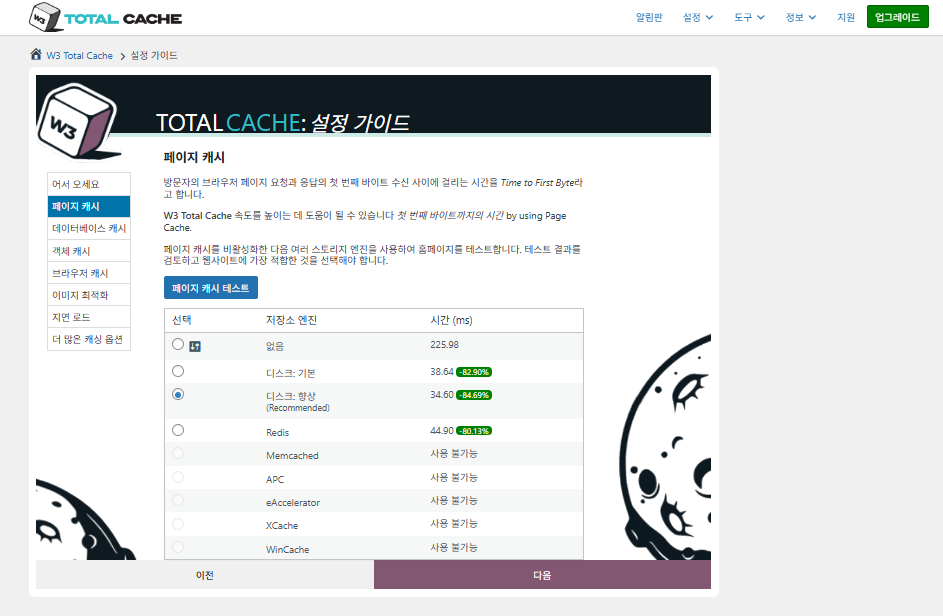
W3 Total Cache Setup Guide ① Cache stron_cache na dysku (wybrane Enhanced)

Dla cache stron domyślne zalecenie W3TC to Disk: [Ulepszony]. Jak pokazuje tabela, Disk: Enhanced jest o około 10,3 ms szybszy niż Disk: Basic, czyli o około 17,8% lepszy pod względem TTFB.
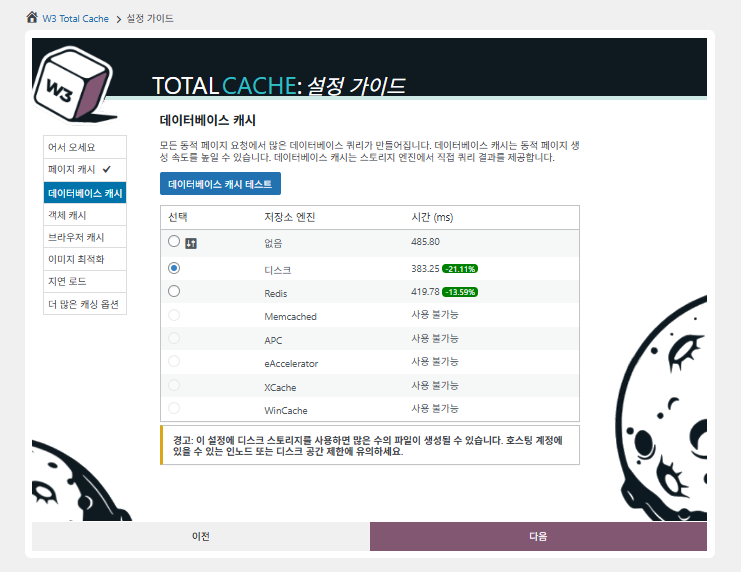
W3 Total Cache Setup Guide ② Cache bazy danych_wybrany cache na dysku

Dla cache bazy danych wybierz cache na dysku.
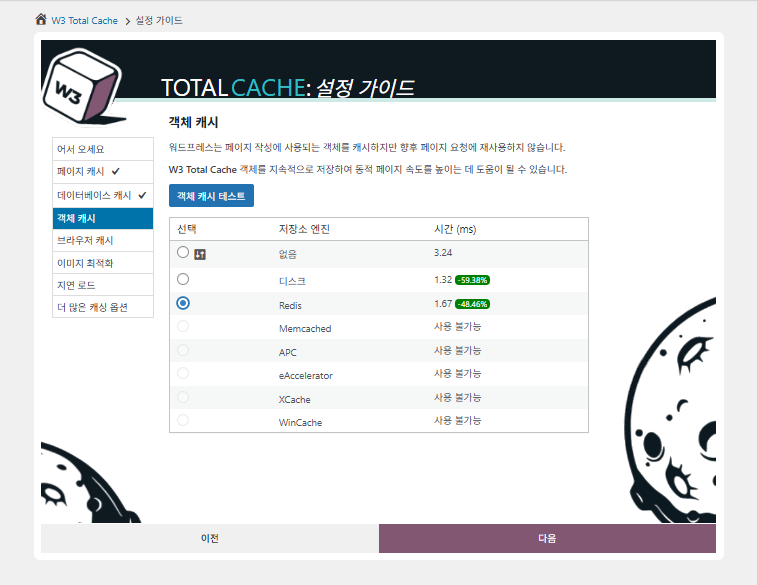
W3 Total Cache Setup Guide ③ Cache obiektów_wybrany Redis
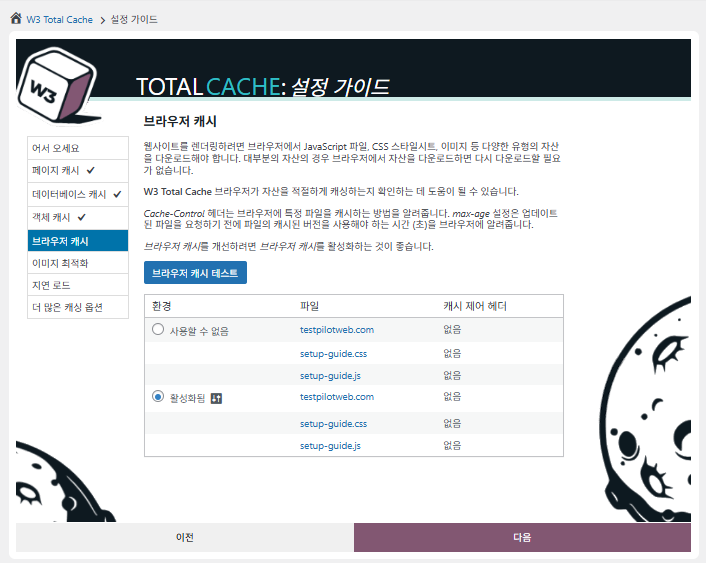
W3 Total Cache Setup Guide ④ Cache przeglądarki
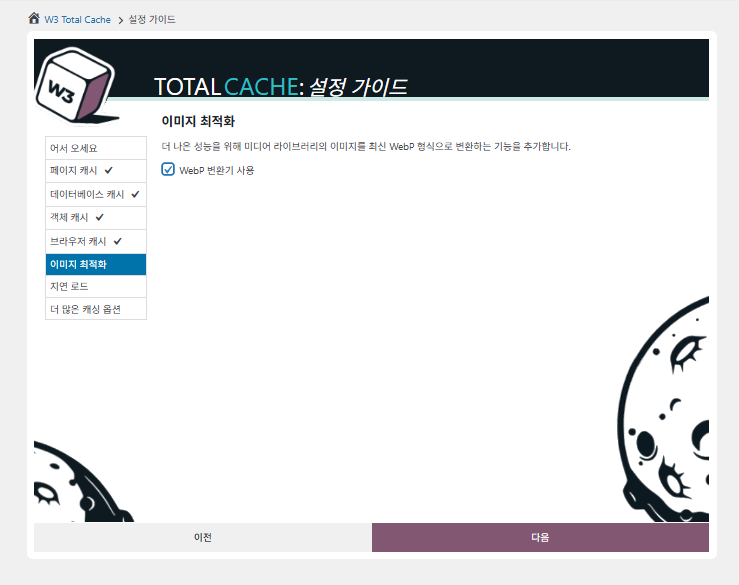
W3 Total Cache Setup Guide ⑤ Optymalizacja obrazów - konwerter WebP
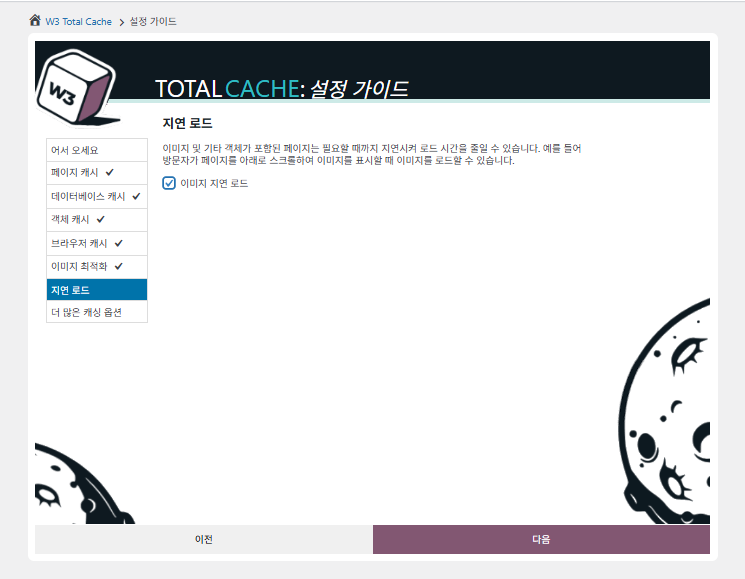
W3 Total Cache Setup Guide ⑥ Lazy load - leniwe ładowanie obrazów
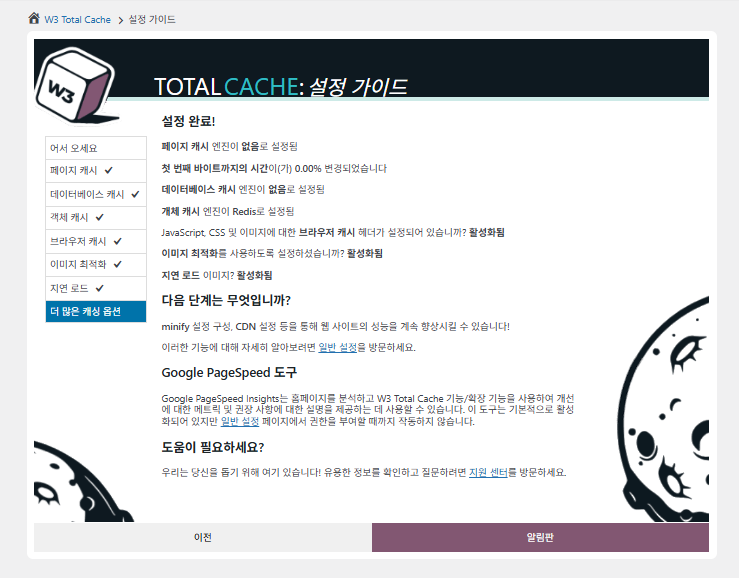
W3 Total Cache Setup Guide ⑦ Inne opcje cache_ustaw po przejściu do kokpitu

Ustawienia z przewodnika są już widoczne w kokpicie.

Kliknij kartę [Settings] w prawym górnym rogu, by skonfigurować wszystko od [General Settings] po cache stron i więcej.
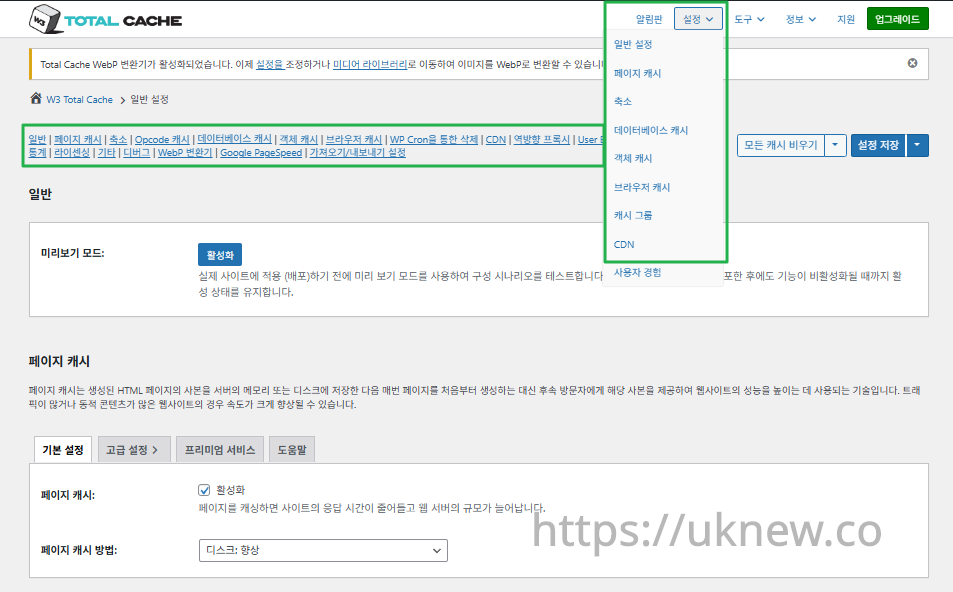
Kokpit W3TC - Ustawienia__

ⓐ [Ustawienia strony] w lewym menu administracyjnym oraz ⓑ karta [Settings] w prawym górnym rogu prowadzą do cache stron, Minify  i innych ustawień zaawansowanych. Przechodząc do każdej strony z górnej środkowej części karty General Settings, zobaczysz wszystko o cache stron i Minify, od ustawień ogólnych po Ustawienia zaawansowane.

Ⅱ. Ustawienia cache W3 Total Cache

  • ↳ Funkcje cache

To karta General Settings w ustawieniach W3TC.

🧭 Symulator ustawień cache W3 Total Cache
Symulator ścieżki
📍Performance›General Settings›General
Tryb podglądu
Zanim wdrożysz prawdziwe zmiany cache, możesz włączyć [Preview mode] i z góry sprawdzić błędy.
📍Performance›General Settings›Page Cache›Advanced Settings
Cache strony
Zaznacz [Enable] w [Page Cache], sprawdź, czy metoda to [Disk: Enhanced], i kliknij [Save Settings]. Szczegóły ustawisz w [Advanced Settings].
📍Performance›General Settings›Minify›Advanced Settings
Minify
Zaznacz [Enable] w [Minify] i kliknij [Save Settings], a potem w [Advanced Settings] ustaw opcje minify dla HTML, CSS i JS.
📍Performance›General Settings›Opcode Cache
Cache opcode
Dla cache opcode automatycznie stosowany jest ten zainstalowany na serwerze; jeśli go nie ma, opcja jest wyłączona.
📍Performance›General Settings›Database Cache›Object Cache
Cache bazy danych i obiektów
Zaznacz [Enable] w [Database Cache] i [Object Cache] i zapisz. Szczegóły ustawisz na ekranach [Database Cache] i [Object Cache].
📍Performance›General Settings›Browser Cache›Advanced Settings
Cache przeglądarki
Zaznacz [Enable] w [Browser Cache] i zapisz, a potem w [Advanced Settings] ustaw opcje cache dla każdego typu plików.
example.com/wp-admin/admin.php?page=w3tc_general
DashboardSettingsToolsInfoSupportUpgrade
|||||||||||||||||
Empty All Caches
General
Preview mode:
Enable
Use preview mode to test configuration scenarios prior to releasing them (deploy) on the actual site. Preview mode remains active even after deploying settings until the feature is disabled.
Page Cache
Page cache is a technique used to speed up the performance of a website by storing a copy of the generated HTML page in the server’s memory or disk, and then serving that copy to subsequent visitors instead of generating the page from scratch each time. This can result in significant speed improvements for websites with high traffic or dynamic content.
Basic SettingsPremium ServicesHelp
Page Cache:
Caching pages will reduce the response time of your site and increase the scale of your web server.
Page Cache Method:
Minify
Minification is a technique used to reduce the file size of HTML, CSS, and JavaScript files by removing unnecessary characters such as whitespace, comments, and line breaks. This process can significantly improve the load times of web pages by reducing the amount of data that needs to be downloaded by the user’s browser.
Basic SettingsPremium ServicesHelp
Minify:
Minification can decrease file size of HTML, CSS, JS and feeds respectively by ~10% on average. Learn more
Minify mode:
Auto
Manual
Select manual mode to use fields on the Minify settings tab to specify files to be minified, otherwise files will be minified automatically. Learn more
Minify Cache Method:
Learn more
HTML minifier:
Learn more
JS minifier:
CSS minifier:
Opcode Cache
Opcode cache is a powerful feature that enhances the performance of a WordPress website by caching compiled PHP code. By storing pre-compiled code in memory, opcode cache eliminates the need for repetitive interpretation and compilation of PHP files, resulting in significantly faster execution times. Opcode cache reduces server load and improves response times, ultimately enhancing the overall speed and responsiveness of your WordPress site. If opcode cache is available on the hosting server it will automatically be selected in the dropdown and enabled.
Opcode Cache
Validate timestamps:
Enable
Once enabled, each file request will update the cache with the latest version. When this setting is off, the Opcode Cache will not check, instead PHP must be restarted in order for setting changes to be reflected.
Database Cache
Enable this setting to utilize the power of caching your WordPress site’s database queries. By storing frequently accessed database queries in memory, the database cache reduces the need for repetitive database interactions, resulting in faster page load times. This feature is particularly beneficial for websites with heavy database usage, improving overall performance and delivering a smoother user experience.
Basic SettingsPremium ServicesHelp
Database Cache:
Caching database objects decreases the response time of your site. Best used if object caching is not possible.
Database Cache Method:
Object Cache
Enable this option to utilize an object cache mechanism, which significantly enhances the performance of your WordPress website. Object caching stores frequently accessed database queries and complex data structures in memory, reducing the need to retrieve them from the database repeatedly. By doing so, it minimizes the processing time required to generate dynamic content, resulting in faster page loading times and improved overall site speed. Enabling object cache is particularly beneficial for websites with heavy database usage or high traffic volumes, as it helps alleviate the strain on the server by efficiently serving cached data.
Basic SettingsPremium ServicesHelp
Object Cache:
Object caching greatly increases performance for highly dynamic sites that use the Object Cache API.
Object Cache Method:
Browser Cache
Enabling browser caching will instruct visitors’ web browsers to store static files from your WordPress website, such as images, CSS, and JavaScript files, locally on their devices. By doing so, subsequent visits to your site will retrieve these cached files from the browser’s storage, reducing the need for repeated downloads. This results in faster page loading times and a smoother browsing experience for your visitors, ultimately improving the overall speed and performance of your WordPress website.
Basic SettingsPremium ServicesHelp
Browser Cache:
Enable HTTP compression and add headers to reduce server load and decrease file load time.
example.com/wp-admin/admin.php?page=w3tc_pgcache
DashboardSettingsToolsInfoSupportUpgrade
|||||||
Empty All Caches
Always Cached extension is currently disabled. To enable the extension click here.
General
Cache front page
For many blogs this is your most visited page, it is recommended that you cache it. Learn more
Cache feeds: site, categories, tags, comments
Even if using a feed proxy service enabling this option is still recommended. Learn more
Handle XML mime type
Return correct Content-Type header for XML files (e.g., feeds and sitemaps). Learn more
Cache SSL (HTTPS>) requests
Cache SSL requests (uniquely) for improved performance. Learn more
Cache URI with query string variables
Search result (and similar) pages will be cached if enabled. Learn more
Cache 404 (not found) pages
Reduce server load by caching 404 pages. If the disk enhanced method of disk caching is used, 404 pages will be returned with a 200 response code. Use at your own risk. Learn more
Don’t cache pages for logged in users
Unauthenticated users may view a cached version of the last authenticated user’s view of a given page. Disabling this option is not recommended. Learn more
Don’t cache pages for following user roles
Select user roles that should not receive cached pages: Learn more
Administrator
Editor
Author
Contributor
Subscriber
Aliases
Cache alias hostnames:
Enable
If the same WordPress content is accessed from different domains. Learn more
Additional home URLs:
Specify full home URLs of your mirrors so that plugin will flush it’s cache when content is changed. For example: http://my-site.comhttp://www.my-site.comhttps://my-site.com Learn more
Cache Preload
Automatically prime the page cache
Automatically primes the page cache using the settings configured below. Learn more
Update interval:
900seconds
The number of seconds to wait before creating another set of cached pages. Learn more
Pages per interval:
10
Limit the number of pages to create per batch. Fewer pages may be better for under-powered servers. Learn more
Sitemap URL:
 
A compliant sitemap can be used to specify the pages to maintain in the primed cache. Pages will be cached according to the priorities specified in the XML file. Learn more
Preload the sitemap once
Stop cache preloading after every URL in the sitemap has been processed. Disable and re-enable cache preloading to start a new pass.
Preload cache upon publishing a post
Only applies to pages, posts, and custom post types whose status transitioned from a non-published status to the “published” status. Learn more
Preload cache upon updating a post
Applies after updating any page, post, or custom post type with the final status being “published”. Learn more
Purge Policy:
Specify the pages and feeds to purge when posts are created, edited, or comments posted. The defaults are recommended because additional options may reduce server performance: Learn more
Front page
Post page
Blog feed
Post comments pages
Post author pages
Post terms pages
Post comments feed
Post author feed
Post terms feeds
Daily archive pages
Monthly archive pages
Yearly archive pages
rdf
rss
rss2 (default)
atom
Choose which feed types should be automatically purged. Learn more
Purge limit:
10
Specify number of pages that lists posts (archive etc.) that should be purged on post updates etc., i.e. example.com/ ... example.com/page/5.
0 means all pages that lists posts are purged, i.e. example.com/page/2 ... Learn more
Additional pages:
Specify additional pages to purge. Including parent page in path. Ex: parent/posts. Learn more
Purge sitemaps:
([a-z0-9_\-]*?)sitemap([a-z0-9_\-]*)?\.(?:xml|xsl)
Specify a regular expression that matches your sitemaps. Learn more
REST API
Use these controls to determine how the WordPress REST API responds to visitors and integrations. Caching API responses can dramatically reduce load when headless frontends, mobile apps, or third-party services request the same data repeatedly, but you can keep responses uncached for highly dynamic endpoints or disable the API altogether when it is not needed to reduce attack surface. Learn more
REST API
Don’t cache
Cache★ PRO
Disable REST API
If you’re using the WordPress API make sure to use caching to scale performance. Show More ▾
Advanced
Late initialization:
Enable
Enables support for WordPress functionality in fragment caching for the page caching engine. Use of this feature may increase response times. Learn more
Late caching:
Enable
Overwrites key of page caching via custom filters by postponing entry extraction during the init action. Learn more
Compatibility mode:
Enable
Decreases performance by ~20% at scale in exchange for increasing interoperability with more hosting environments and WordPress idiosyncrasies. Enable this option if you experience issues with the Apache rules. Learn more
Reject HEAD requests:
Disable caching of HEAD HTTP requests
If disabled, HEAD requests can often be cached resulting in “empty pages” being returned for subsequent requests for a URL. Learn more
Maximum lifetime of cache objects:
3600seconds
Determines the natural expiration time of cache items. The higher the value, the larger the cache.
Max lifetime is limited by the W3TC_CACHE_FILE_EXPIRE_MAX constant (2592000 seconds) which can be overridden in wp-config.php.
Garbage collection interval:
3600seconds
If caching to disk, specify how frequently expired cache data is removed. For busy sites, a lower value is best. Learn more
Comment cookie lifetime:
1800seconds
Significantly reduce the default TTL for comment cookies to reduce the number of authenticated user traffic. Enter -1 to revert to default TTL. Learn more
Accepted query strings:
ScCid
_branch_match_id
_bta_c
_bta_tid
_ga
_gl
_ke
adgroupid
adid
age-verified
ao_noptimize
campaignid
campid
click_id
cn-reloaded
customid
dicbo
dm_i
ef_id
epik
fb_action_ids
fb_action_types
fb_source
fbclid
gclid
gclsrc
gdffi
gdfms
gdftrk
hsa_acc
hsa_ad
hsa_cam
hsa_grp
hsa_kw
hsa_mt
hsa_net
hsa_src
hsa_tgt
hsa_ver
igshid
li_fat_id
matomo_campaign
matomo_cid
matomo_content
matomo_group
matomo_keyword
matomo_medium
matomo_placement
matomo_source
mc_cid
mc_eid
mkcid
mkevt
mkrid
mkwid
msclkid
mtm_campaign
mtm_cid
mtm_content
mtm_group
mtm_keyword
mtm_medium
mtm_placement
mtm_source
pcrid
piwik_campaign
piwik_keyword
piwik_kwd
pk_campaign
pk_cid
pk_content
pk_keyword
pk_kwd
pk_medium
pk_source
pp
redirect_log_mongo_id
redirect_mongo_id
ref
s_kwcid
sb_referer_host
si
sscid
tblci
toolid
trk_contact
trk_module
trk_msg
trk_sid
ttclid
twclid
usqp
utm_campaign
utm_content
utm_expid
utm_id
utm_medium
utm_source
utm_term
wbraid
Always cache URLs that use these query string name-value pairs. The value part is not required. But if used, separate name-value pairs with an equals sign (i.e., name=value). Each pair should be on their own line. Learn more
Rejected user agents:
Never send cache pages for these user agents. Learn more
Rejected cookies:
wptouch_switch_toggle
Never cache pages that use the specified cookies. Learn more
Never cache the following pages:
wp-.*\.php
index\.php
Always ignore the specified pages / directories. Supports regular expressions. Learn more
Never cache pages associated with these categories:
Always ignore all pages filed under the specified category slugs. Learn more
Never cache pages that use these tags:
Always ignore all pages filed under the specified tag slugs. Learn more
Never cache pages by these authors:
Always ignore all pages filed under the specified author usernames. Learn more
Never cache pages that use these custom fields:
Always ignore all pages filed under the specified custom fields. Separate name-value pairs with an equals sign (i.e., name=value). Learn more
Cache exception list:
wp-comments-popup.php
wp-links-opml.php
wp-locations.php
Cache the specified pages / directories even if listed in the “never cache the following pages” field. Supports regular expression. Learn more
Non-trailing slash pages:
sitemap(_index)?\.xml(\.gz)?
([a-z0-9_\-]+)?sitemap\.xsl
[a-z0-9_\-]+-sitemap([0-9]+)?\.xml(\.gz)?
Cache the specified pages even if they don’t have trailing slash. Learn more
Specify page headers:
Last-Modified
Content-Type
X-Pingback
P3P
Link
Specify additional page headers to cache. Learn more
Purge via WP Cron
Enabling this will schedule a WP-Cron event that will flush the Page Cache. If you prefer to use a system cron job instead of WP-Cron, you can schedule the following command to run at your desired interval: “wp w3tc flush posts”. If the Always Cached extension is active and enabled, page cache entries will instead be added to the queue instead of being purged from the cache. Learn more
Page Cache is disabled! Enable it here to enable this feature.
Enable WP-Cron Event
Enable
Start Time
This setting controls the initial start time of the cron job. If the selected time has already passed, it will schedule the job for the following day at the selected time.
Interval
This setting controls the interval that the cron job should occur.
Note(s)
  • Enable HTTP compression in the “HTML” section on Browser Cache Settings tab.
example.com/wp-admin/admin.php?page=w3tc_minify
DashboardSettingsToolsInfoSupportUpgrade
||||||
Empty All Caches
General
Rewrite URL structure
If disabled, CSS and JS embeddings will use GET variables instead of “fancy” links. Learn more
Disable minify for logged in users
Authenticated users will not receive minified pages if this option is enabled. Learn more
Minify error notification:
Notify when minify cache creation errors occur. Learn more
HTML & XML
HTML minify settings:
Enable
Inline CSS minification
Inline JS minification
Don’t minify feeds
Line break removal
Enable HTML minification and optionally remove whitespace from inline CSS, JS, and feeds. Learn more
Ignored comment stems:
google_ad_
RSPEAK_
mfunc
Do not remove comments that contain these terms. Learn more
JS
JS minify settings:
Enable
Minify enqueued and inline JavaScript files according to the settings below. Learn more
Minify method:
Choose how JavaScript files should be combined or minified when using automatic mode. Learn more
Minify engine settings:
Operations in areas:
Embed type:
Before </head>
After <body>
Preserved comment removal (not applied when combine only is active)
Line break removal (not safe, not applied when combine only is active)
Control where scripts are placed and whether they stay blocking or load asynchronously for each template area. Learn more
HTTP/2 push
Enable
For better performance, send files to browser before they are requested when using the HTTP/2 protocol. Not supported by “Disk: Enhanced” page cache method for Nginx Learn more
CSS
CSS minify settings:
Enable
Minify stylesheets and inline CSS snippets declared in the queues below. Learn more
Minify method:
Choose how stylesheets should be combined or minified when using automatic mode. Learn more
Minify engine settings:
Preserved comment removal (not applied when combine only is active)
Line break removal (not applied when combine only is active)
Eliminate render-blocking CSS by moving it to HTTP body★ PRO
Website visitors cannot navigate your website until a given page is ready – reduce the wait time with this feature. Show More ▾
Decide where CSS is placed and whether it should load synchronously or asynchronously for each template area. Learn more
@import handling:
Control how @import rules are handled when combining and minifying stylesheets. Learn more
HTTP/2 push
Enable
For better performance, send files to browser before they are requested when using the HTTP/2 protocol. Not supported by “Disk: Enhanced” page cache method for Nginx Learn more
Advanced
Update external files every:
86400seconds
Specify the interval between download and update of external files in the minify cache. Hint: 6 hours is 21600 seconds. 12 hours is 43200 seconds. 24 hours is 86400 seconds. Learn more
Garbage collection interval:
86400seconds
If caching to disk, specify how frequently expired cache data is removed. For busy sites, a lower value is best.
Max interval is limited by the W3TC_CACHE_FILE_EXPIRE_MAX constant (2592000 seconds) which can be overridden in wp-config.php. Learn more
Never minify the following pages:
Always ignore the specified pages / directories. Use relative paths. Omit: protocol, hostname, leading forward slash and query strings. Learn more
Never minify the following JS files:
Always ignore the specified JS files. Use relative paths. Omit: protocol, hostname, leading forward slash and query strings. Learn more
Never minify the following CSS files:
Always ignore the specified CSS files. Use relative paths. Omit: protocol, hostname, leading forward slash and query strings. Learn more
Rejected user agents:
Specify user agents that will never receive minified content. Learn more
Include external files/libraries:
Specify external files/libraries that should be combined. Learn more
Use regular expressions for file name matching
If external script file names vary, use regular expressions in the “Include external files/libraries” field to simplify matching. Learn more
Purge via WP Cron
Enabling this will schedule a WP-Cron event that will flush the Minify Cache. If you prefer to use a system cron job instead of WP-Cron, you can schedule the following command to run at your desired interval: “wp w3tc flush minify”. Learn more
Minify is disabled! Enable it here to enable this feature.
Enable WP-Cron Event
Enable
Start Time
This setting controls the initial start time of the cron job. If the selected time has already passed, it will schedule the job for the following day at the selected time.
Interval
This setting controls the interval that the cron job should occur.
Note(s):
  • Enable HTTP compression in the “Cascading Style Sheets & JavaScript” section on Browser Cache Settings tab.
  • The TTL of page cache files is set via the “Expires header lifetime” field in the “Cascading Style Sheets & JavaScript” section on Browser Cache Settings tab.
example.com/wp-admin/admin.php?page=w3tc_dbcache
DashboardSettingsToolsInfoSupportUpgrade
||
Empty All Caches
Database caching via Disk is currently disabled.
General
Don’t cache queries for logged in users
Enabling this option is recommended to maintain default WordPress behavior. Learn more
Advanced
Maximum lifetime of cache objects:
180seconds
Determines the natural expiration time of unchanged cache items. The higher the value, the larger the cache. Learn more
Garbage collection interval:
3600seconds
If caching to disk, specify how frequently expired cache data is removed. For busy sites, a lower value is best. Learn more
Never cache the following pages:
Always ignore the specified pages / directories. Supports regular expressions (See FAQ). Learn more
Ignored query stems:
gdsr_
wp_rg_
_wp_session_
_wc_session_
Do not cache queries that contain these terms. Any entered prefix (set in wp-config.php) will be replaced with current database prefix (default: wp_). Query stems can be identified using debug mode. Learn more
Reject query words:
^\s*insert\b
^\s*delete\b
^\s*update\b
^\s*replace\b
^\s*create\b
^\s*alter\b
^\s*show\b
^\s*set\b
\bautoload\s+=\s+’yes’
\bsql_calc_found_rows\b
\bfound_rows\(\)
Do not cache queries that contain these words or regular expressions. Learn more
Reject constants:
APP_REQUEST
DOING_CRON
DONOTCACHEDB
SHORTINIT
XMLRPC_REQUEST
Disable caching once specified constants defined. Learn more
Enable for WP-CLI
Enable
WP-CLI already uses Memcached, Redis, and other persistent engines. Enable this only if your database cache engine is Disk and you want WP-CLI to use it. Learn more
Purge via WP Cron
Enabling this will schedule a WP-Cron event that will flush the Database Cache. If you prefer to use a system cron job instead of WP-Cron, you can schedule the following command to run at your desired interval: “wp w3tc flush db”. Learn more
Database Cache is disabled! Enable it here to enable this feature.
Enable WP-Cron Event
Enable
Start Time
This setting controls the initial start time of the cron job. If the selected time has already passed, it will schedule the job for the following day at the selected time.
Interval
This setting controls the interval that the cron job should occur.
example.com/wp-admin/admin.php?page=w3tc_objectcache
DashboardSettingsToolsInfoSupportUpgrade
|
Empty All Caches
Object caching via Disk is currently disabled.
Advanced
Default lifetime of cache objects:
180seconds
Determines the natural expiration time of unchanged cache items. The higher the value, the larger the cache. Learn more
Garbage collection interval:
600seconds
If caching to disk, specify how frequently expired cache data is removed. For busy sites, a lower value is best. Learn more
Global groups:
Groups shared amongst sites in network mode. Learn more
Non-persistent groups:
counts
plugins
Groups that should not be cached. Learn more
Enable caching for wp-admin requests
Enabling this option will increase wp-admin performance, but may cause side-effects Learn more
Store transients in database
Store transients in database even when external cache is used, which allows transient values to survive object cache cleaning/expiration Learn more
Enable for WP-CLI
Enable
WP-CLI already uses Memcached, Redis, and other persistent engines. Enable this only if your object cache engine is Disk and you want WP-CLI to use it. Learn more
Purge via WP Cron
Enabling this will schedule a WP-Cron event that will flush the Object Cache. If you prefer to use a system cron job instead of WP-Cron, you can schedule the following command to run at your desired interval: “wp w3tc flush object”. Learn more
Object Cache is disabled! Enable it here to enable this feature.
Enable WP-Cron Event
Enable
Start Time
This setting controls the initial start time of the cron job. If the selected time has already passed, it will schedule the job for the following day at the selected time.
Interval
This setting controls the interval that the cron job should occur.
example.com/wp-admin/admin.php?page=w3tc_browsercache
DashboardSettingsToolsInfoSupportUpgrade
||||
Empty All Caches
General
Specify global browser cache policy.
Set Last-Modified header
Set the Last-Modified header to enable 304 Not Modified response. Learn more
Set expires header
Set the expires header to encourage browser caching of files. Learn more
Set cache control header
Set pragma and cache-control headers to encourage browser caching of files. Learn more
Set entity tag (eTag)
Set the ETag header to encourage browser caching of files. Learn more
Set W3 Total Cache header
Set this header to assist in identifying optimized files. Learn more
Enable HTTP (gzip) compression
Reduce the download time for text-based files. Learn more
Enable HTTP (brotli) compression
Reduce the download time for text-based files. Learn more
Prevent caching of objects after settings change
Whenever settings are changed, a new query string will be generated and appended to objects allowing the new policy to be applied. Learn more
Remove query strings from static resources
Resources with a “?” in the URL are not cached by some proxy caching servers. Learn more
Prevent caching exception list:
Do not add the prevent caching query string to the specified URIs. Supports regular expressions. Learn more
Disable cookies for static files
Removes Set-Cookie header for responses. Learn more
Do not process 404 errors for static objects with WordPress
Reduce server load by allowing the web server to handle 404 (not found) errors for static files (images etc).
If enabled – you may get 404 File Not Found response for some files generated on-the-fly by WordPress plugins. You may add those file URIs to 404 error exception list below to avoid that. Learn more
404 error exception list:
robots\.txt
[a-z0-9_\-]*sitemap[a-z0-9_\.\-]*\.(xml|xsl|html)(\.gz)?
Never process 404 (not found) events for the specified URIs. Learn more
Rewrite URL structure of objects
Generate unique URI for each file protected from caching by browser. Learn more
CSS & JS
Specify browser cache policy for Cascading Style Sheets and JavaScript files.
Set Last-Modified header
Set the Last-Modified header to enable 304 Not Modified response. Learn more
Set expires header
Set the expires header to encourage browser caching of files. Learn more
Expires header lifetime:
31536000seconds
Specify how long CSS and JS files should be cached (in seconds). Learn more
Set cache control header
Set pragma and cache-control headers to encourage browser caching of files. Learn more
Cache Control policy:
Choose the Cache-Control policy applied to CSS and JS responses.
The Expires header already sets the max-age. Learn more
Set entity tag (eTag)
Set the ETag header to encourage browser caching of files. Learn more
Set W3 Total Cache header
Set this header to assist in identifying optimized files. Learn more
Enable HTTP (gzip) compression
Reduce the download time for text-based files. Learn more
Enable HTTP (brotli) compression
Reduce the download time for text-based files. Learn more
Prevent caching of objects after settings change
Whenever settings are changed, a new query string will be generated and appended to objects allowing the new policy to be applied. Learn more
Remove query strings from static resources
Resources with a “?” in the URL are not cached by some proxy caching servers. Learn more
Disable cookies for static files
Removes Set-Cookie header for responses. Learn more
HTML & XML
Specify browser cache policy for posts, pages, feeds and text-based files.
Set Last-Modified header
Set the Last-Modified header to enable 304 Not Modified response. Learn more
Set expires header
Set the expires header to encourage browser caching of files. Learn more
Expires header lifetime:
3600seconds
Max lifetime is limited by the W3TC_CACHE_FILE_EXPIRE_MAX constant (2592000 seconds) which can be overridden in wp-config.php. Learn more
Set cache control header
Set pragma and cache-control headers to encourage browser caching of files. Learn more
Cache Control policy:
Choose the Cache-Control policy applied to HTML and XML responses. Learn more
Set entity tag (ETag)
Set the ETag header to encourage browser caching of files. Learn more
Set W3 Total Cache header
Set this header to assist in identifying optimized files. Learn more
Enable HTTP (gzip) compression
Reduce the download time for text-based files. Learn more
Enable HTTP (brotli) compression
Reduce the download time for text-based files. Learn more
Media & Other Files
Set Last-Modified header
Set the Last-Modified header to enable 304 Not Modified response. Learn more
Set expires header
Set the expires header to encourage browser caching of files. Learn more
Expires header lifetime:
31536000seconds
Specify how long media and other files files should be cached (in seconds). Learn more
Set cache control header
Set pragma and cache-control headers to encourage browser caching of files. Learn more
Cache Control policy:
Choose the Cache-Control policy applied to media and other files responses.
The Expires header already sets the max-age. Learn more
Set entity tag (ETag)
Set the ETag header to encourage browser caching of files. Learn more
Set W3 Total Cache header
Set this header to assist in identifying optimized files. Learn more
Enable HTTP (gzip) compression
Reduce the download time for text-based files. Learn more
Enable HTTP (brotli) compression
Reduce the download time for text-based files. Learn more
Prevent caching of objects after settings change
Whenever settings are changed, a new query string will be generated and appended to objects allowing the new policy to be applied. Learn more
Remove query strings from static resources
Resources with a “?” in the URL are not cached by some proxy caching servers. Learn more
Disable cookies for static files
Removes Set-Cookie header for responses. Learn more
Kliknij podświetloną pozycję w lewym menu albo przycisk na ekranie.

1️⃣ Tryb podglądu

Zanim wdrożysz prawdziwe zmiany cache, możesz włączyć tryb podglądu i z góry sprawdzić błędy.

W3TC General Settings tryb podglądu 2

[Preview]: kliknij, by testować, podglądając zmiany, a jeśli wszystko gra, kliknij [Deploy], by zastosować je na stronie.

2️⃣ Cache stron

Przewodnik ustawił już podstawę na [Disk: Enhanced]. Możesz to później zmienić, jeśli np. po przeprowadzce serwer używa innego cache.

Jeśli pojedyncza strona (nie multisite) używa też subdomen, możesz ustawić cache także dla domen-aliasów.

Klasa serwera

Interwał aktualizacji (s)

Stron na interwał

Opis

Słaby serwer (1 vCPU / 1 GB lub mniej)

1800 s (30 min)

5

Unikaj skoków CPU przy budowaniu cache: daj długi interwał i ogranicz liczbę stron

Średni serwer (2 vCPU / 2–4 GB)

900 s (15 min)

10

Zalecane jest zostawienie domyślnej wartości; obsłuży trochę współbieżności

Wydajny serwer (4 vCPU / 8 GB lub więcej)

300 s (5 min)

20~30

Szybko przygotowuje cache; dobre dla stron z dużym ruchem

REST API to interfejs, który WordPress udostępnia do wymiany danych ze światem zewnętrznym; pozwala przez adresy URL pobierać lub zmieniać treści w formacie JSON. Dzięki temu aplikacje mobilne, zewnętrzne aplikacje webowe, edytor bloków i inne mogą w czasie rzeczywistym synchronizować lub edytować treści WordPressa.

REST API obsługuje nie tylko administratorów, ale i żądania zwykłych użytkowników, umożliwiając wydajną wymianę danych, która czyni stronę bardziej elastyczną i rozszerzalną.

Opcja

Opis

Polecany

Późna inicjalizacja

Pozwala wywoływać funkcje WordPressa na potrzeby cache fragmentów.

⚠️ Tylko gdy potrzebujesz zaawansowanego cache

Późne cache'owanie

Odkłada tworzenie klucza cache na po filtrach użytkownika, co daje dokładniejszą kontrolę

⚠️ Tylko przy nadpisywaniu kluczy

Tryb zgodności

Rezygnuje z części optymalizacji dla zgodności z hostingiem (ok. 20% wolniej)

✅ Zalecane przy błędach hostingu

Zestaw znaków

Naprawia problemy z kodowaniem UTF-8

✅ Zalecane, gdy pojawiają się dziwne znaki

Odrzucaj żądania HEAD

Zapobiega tworzeniu pustego cache przez żądania HEAD

✅ Zapobiega nieoczekiwanym pustym stronom

Maksymalny czas życia obiektów cache

Jak długo trzymane są elementy cache (s)

⏱ Wyżej przy małym ruchu, niżej przy dużym

Interwał odśmiecania

Jak często usuwane są wygasłe dane cache (s)

⏱ Krócej, im większy ruch

Czas życia ciasteczka komentarza

Ustawia TTL ciasteczka, gdy ktoś komentuje (domyślnie 1800 s)

✅ Przydatne do ograniczenia ruchu zalogowanych użytkowników

3️⃣ Minify

W plikach HTML, CSS i JS Minify usuwa zbędne spacje, komentarze i znaki nowej linii, aby zmniejszyć rozmiar plików i przyspieszyć ładowanie. Ten proces nie zmienia działania tylko upraszcza kod , dzięki czemu przeglądarka szybciej go przetwarza.

Opcja

Opis

Polecany

Automatyczny

W3TC sam wykrywa i minifikuje pliki HTML, CSS i JS.

✅ Dla większości użytkowników

Ręczny

Działa dopiero, gdy sam wpiszesz ścieżki plików do minifikacji.

⚠️ Tylko dla zaawansowanych, którzy potrzebują precyzyjnej kontroli

Opcja

Opis

Najlepsze środowisko

Dysk (Disk)

Zapisuje zminifikowane pliki na dysku serwera

✅ Typowy hosting współdzielony; domyślnie

APC / APCu

Zapisuje w pamięci z użyciem cache opcode PHP

✅ Dobrze działa na serwerach dedykowanych/wirtualnych

eAccelerator

Stary cache opcode PHP

⚠️ Ma znaczenie tylko na starych serwerach

XCache

Jeden z mechanizmów cache PHP (rzadko używany)

❌ Niezalecane (przestarzałe)

WinCache

Cache PHP dla serwerów Windows

✅ Tylko serwery IIS/Windows

Memcached

Zapisywane na rozproszonych serwerach cache

✅ Wiele serwerów, klastry

Redis

Trzyma zminifikowane pliki w szybkim magazynie klucz-wartość

✅ Wydajne VPS / wiele serwerów

Opcja

Opis

Cechy

Minify (domyślnie)

Wbudowany minifikator HTML W3TC
Usuwa spacje, znaki nowej linii i komentarze, by zmniejszyć HTML

Bardzo stabilny i zgodny z większością stron

HTML Tidy

Porządkuje strukturę HTML podczas minifikacji
Próbuje nawet poprawiać błędy składni

Zawiera korektę struktury → ryzyko rozbicia układu

OpcjaOpisCechyWybór minifikatora JS
JSMin (domyślnie)Prosty, szybki minifikator JS: usuwa podstawowe spacje i komentarzeBardzo stabilny, małe ryzyko konfliktów✅ Najpierw szybkość/stabilność; typowe strony WordPress
Google Closure Compiler (usługa sieciowa)Zaawansowany optymalizator JS Google: kompresuje przez Google APIDokładny, ale wymaga wywołania zewnętrznego serwera → może działać wolno⚠️ Zewnętrzne API dozwolone; najpierw precyzyjna optymalizacja
Google Closure Compiler (lokalna Java)Uruchamia ten sam silnik w środowisku Java na serwerze lokalnieMożliwa zaawansowana optymalizacja, wymagana instalacja Javy✅ Javę można zainstalować; gdy chcesz zaawansowanej optymalizacji
NarcissusKlasyczny kompresor, który parsuje i generuje JS od nowaStare podejście, praktycznie bez wsparcia—
YUI CompressorKompresor JS/CSS od Yahoo; może zachować chronione komentarzeStary, ale wciąż stabilny—
Closure (wymaga testów)——⚠️ Dużo nowoczesnego JS (ES6+)
OpcjaOpis
✅ Minify (domyślnie)Szybki i stabilny; pasuje do większości stron WordPress
⚠️ CSS TidyPorządkuje strukturę i poprawia składnię; style mogą się rozjechać → wymaga testów
⚠️ YUI Compressor (PHP)Stara logika kompresji, bez aktualizacji → tylko stare strony
⚠️ YUI Compressor (Java)Wymaga Javy; precyzyjna kompresja, ale bez obsługi nowoczesnej składni CSS

Przewodnik ustawił już podstawę na [Disk: Enhanced]. Możesz to później zmienić, jeśli np. po przeprowadzce serwer używa innego cache.

Pozycja

Opis

Przepisz strukturę URL

Używa czystej struktury URL dla linków CSS/JS. Po wyłączeniu są wyświetlane jako oparte na parametrach GET adresy URL, np. [?ver=xxx].

Dla zalogowanych użytkowników,
wyłącz minify

Zalogowani użytkownicy widzą oryginalne pliki, a nie zminifikowane. Przydatne przy debugowaniu lub programowaniu.

Ograniczaj powiadomienia o błędach

Powiadamia, gdy przy budowaniu cache minify wystąpi błąd. Po wyłączeniu ostrzeżenie się nie pojawia.

Pozycja

Opis

Ustawienia minify HTML

Kompresuje dokumenty HTML, usuwając spacje, wcięcia itp., by zmniejszyć ich rozmiar.

Minifikacja CSS inline

Kompresuje kod CSS w znacznikach [<style>].

Minifikacja JS inline

Kompresuje kod JS w znacznikach [<script>].

Nie minifikuj kanałów

Zostawia kanały RSS/Atom (XML) bez minifikacji, dokładnie takie, jakie są.

Usuń znaki nowej linii

Usuwa znaki nowej linii w HTML → mniejszy plik

Przykład

Przeznaczenie

google_ad_

Chroni komentarze skryptu reklam Google AdSense

RSPEAK_

Chroni komentarze kodu dla czytników ekranu/dostępności

mfunc

Chroni komentarze cache fragmentów [<!– mfunc –>] W3TC

Metoda minify

Opis

Zalecane dla

Łączenie & minifikacja (Combine & Minify)

Łączy kilka plików JS w jeden i jednocześnie je kompresuje

✅ Najskuteczniejsze w typowych przypadkach
: mniej plików + mniejszy rozmiar

Tylko łączenie (Combine Only)

Łączy pliki w jeden bez kompresji

⚠️ Gdy obawiasz się konfliktów JS: unika błędów z kompresji

Tylko minifikacja (Minify Only)

Zachowuje liczbę plików i kompresuje każdy osobno

⚠️ Przy HTTP/2 + gdy występują błędy JS
Gdy chcesz tylko mniejszych plików, bez łączenia

Ustawienia silnika minify

Opis

Miejsce wstawienia: przed [</head>]

Wstawia JS wewnątrz [<head>] (działa przed załadowaniem strony)

Miejsce wstawienia: po [<body>]

Wstawia JS na samym dole strony (działa po wyrenderowaniu)

Typ wstawienia (Blocking / Non-blocking)

Czy wykonanie JS wstrzymuje renderowanie strony

Pozycja

Opis

Zalecane ustawienie

Włącz HTTP/2 Push

Serwer wypycha pliki JS, zanim przeglądarka o nie poprosi

✅ Może poprawić wydajność przy HTTP/2

Zastrzeżenia

Jeśli Page Cache W3TC używa [Disk: Enhanced] z NGINX, HTTP/2 Push ❌ nie działa

✅ Najlepiej działa z Apache + HTTP/2

Metoda minify

Opis

Zalecane dla

Łączenie & minifikacja

Łączy pliki CSS, a potem je kompresuje

✅ Ogólne zastosowanie

Tylko łączenie

Łączy pliki bez kompresji

⚠️ Gdy obawiasz się konfliktów CSS

Tylko minifikacja

Tylko kompresja, bez łączenia

✅ Pasuje do serwerów HTTP/2

Ustawienia silnika minify

Opis

Działa, gdy

Usuń chronione komentarze(Preserved comment removal)

Usuwa informacje o licencji i chronione komentarze z plików CSS, by zmniejszyć ich rozmiar.

⚠️ Działa tylko przy [Combine & Minify] lub [Minify only] (※ nie przy [Combine only])

Usuń znaki nowej linii(Line break removal)

Usuwa znaki nowej linii z CSS, dając bardziej zwarty plik (nieco mniejszy)

⚠️ Działa tylko przy [Combine & Minify] lub [Minify only] (※ ignorowane przy [Combine only])

Obsługa @import

Opis

Zalecane ustawienie

None

Zostawia wywołania CSS [@import] bez zmian

❌ Niezalecane (blokuje renderowanie)

Bubble

Przenosi [@import] na początek pliku CSS

⚠️ Ograniczony efekt

Process

Włącza wywołania [@import] do łączenia

✅ Zalecane (poprawia wydajność)

Opcja zaawansowana

Opis

Zalecane ustawienie

Interwał aktualizacji plików zewnętrznych(Update interval for external files)

Jak często W3TC ponownie pobiera/minifikuje pliki CSS/JS z CDN i zewnętrznych adresów (w sekundach)

✅ Zostaw domyślne [86400] s (24 godziny) ※ jeśli pliki zewnętrzne często się zmieniają, rozważ [21600] (6 godzin)

Interwał odśmiecania(Garbage collection interval)

Jak często usuwane są wygasłe pliki cache (dotyczy cache na dysku)

✅ Zalecane [43200–86400] s (przy dużym ruchu można mniej) ※ górny limit (2592000 s) ustawisz w [wp-config.php]

Nigdy nie minifikuj poniższych stron(Never minify the following pages)

Wpisz adresy URL, które zawsze mają być wyłączone z minifikacji (ścieżki względne, bez zapytań)

✅ W razie potrzeby dodaj panel admina, stronę logowania, adresy AJAX itp. Przykład: [wp-login.php], [wp-admin/], [my-custom-endpoint/]

Pliki JS, których nigdy nie minifikować

Wskaż pliki JS, które po minifikacji powodują błędy

⚠️ Dodawaj problematyczne pliki JS, gdy je znajdziesz. Przykład: [plugins/some-script.js]

Pliki CSS, których nigdy nie minifikować

Pozwala robić wyjątki przy konfliktach CSS

⚠️ Zrób wyjątek dla CSS, który psuje układ. Przykład: [themes/mytheme/style.css]

Odrzucone user agenty

Nie podaje zminifikowanych plików wybranym user agentom (crawlery, boty itp.)

✅ Wskaż tylko boty, które muszą omijać cache. Przykład: [Lighthouse], [GTmetrix], [Chrome-Lighthouse] itp.

Dołącz pliki/biblioteki zewnętrzne(Include external files/libraries)

Ręcznie dodaje zewnętrzne skrypty z CDN do listy łączenia

⚠️ Tylko gdy chcesz minifikować/łączyć zewnętrzne pliki JS/CDN. Przykład: [ajax.googleapis.com/…/jquery.min.js]

Zezwól na wyrażenia regularne

Pozwala dopasować regexem, gdy wzorce nazw plików się zmieniają

✅ Przydatne, gdy zewnętrzne skrypty często zmieniają numer wersji. Przykład: [cdn.example.com/js/lib-\d+\.js]

# EX: 
#Pliki JS, których nigdy nie minifikować:
plugins/some-plugin/assets/js/legacy-script.js
wp-includes/js/jquery/jquery.js

#CSS, którego nigdy nie minifikować:
themes/mytheme/style.css
# EX: 
#Odrzucone user agenty:
Lighthouse
Chrome-Lighthouse
GTmetrix

Pozycja

Opis

Zalecane ustawienie

Użyj zdarzenia WP-Cron(Enable WP-Cron event)

Aby automatycznie czyścić/odświeżać cache stron według harmonogramu, zaplanuj zadanie WP-Cron

✅ Zalecane włączenie (zostaw domyślne)

Godzina startu(Start time)

Kiedy WP-Cron uruchomi się pierwszy raz (np. 12:00 am)

✅ Pora małego obciążenia (np. między północą a 3:00)

Interwał(Interval)

Jak często WP-Cron czyści cache Ustawienia

✅ Dwa razy dziennie lub co godzinę (strony z dużym ruchem)

Alternatywa: cron systemowy

Zamiast WP-Cron możesz uruchamiać polecenie [wp w3tc flush_posts] z prawdziwego crona systemowego

Zalecane na wydajnych serwerach (dokładniejsze i wydajniejsze niż WP-Cron)

4️⃣ Cache opcode

Dla cache opcode automatycznie stosowany jest ten zainstalowany na serwerze; jeśli go nie ma, opcja jest wyłączona.

5️⃣ Cache bazy danych i obiektów: Memcached·Redis

Opcja

Opis

Zalecane środowisko

Dysk

Zapisuje dane cache na dysku serwera

✅ Hosting współdzielony / podstawowe konfiguracje

Memcached

Rozproszony cache sieciowy; szybki

✅ Wiele serwerów / klaster

Typowe strony WordPress często używają do cache bazy danych tylko jednego z Memcached lub Redis, ale w W3 Total Cache możesz je rozdzielić: ⓐ jeden na cache bazy danych, ⓑ drugi na cache obiektów.

📌 Typowa WordPress Witryna
├─ Baza danych Cache
│   └─ Memcached lub Redis · tylko jeden (użycie)
└─ Obiektów Cache
    └─ ten sam Cache silnik współdzielony jest często

📌 W3 Total Cache (W3TC)
├─ Baza danych Cache
│   └─ Memcached (użycie) (przykład)
└─ Obiektów Cache
    └─ Redis (użycie) (przykład)

🛠️ Strategia stosowana
└─ Cache silnik według roli — Oddzielone Włączone możliwe
    ├─ Serwer zasoby rozłożone
    ├─ Cache wąskie gardło zmniejszone
    └─ Wydajność Optymalizacja elastyczność zapewniona

W ustawieniach W3 Total Cache domyślnie cache bazy danych używa Memcached, a cache obiektów Redis.

Pozycja

Opis

Zalecenie lub uwaga

Maksymalny czas życia obiektów cache

Naturalny czas wygaśnięcia niezmienionych elementów cache (s)

[180 s] (domyślnie); za dużo marnuje pamięć

Interwał odśmiecania

Jak często usuwane są wygasłe dane cache (s)

[3600 s] (1 godzina); zmniejsz przy dużym użyciu

Nigdy nie cache'uj
poniższych stron

Ścieżki wyłączone z cache (regex dozwolony)

Zaleca się wyłączenie stron dynamicznych, takich jak logowanie, koszyk i wyszukiwanie

Ignorowane rdzenie zapytań

Zapytania z pasującym prefiksem nie są cache'owane

Dane sesji/tymczasowe, np. [gdsr_], [wp_rg_]

Odrzucanie zapytań (Query Rejects)

Wyklucza zapytania z określonymi słowami/wzorcami (regex)

[insert], [update], [autoload], [found_rows()] itp.

Reject Constants

Wyłącza cache bazy, gdy zdefiniowane są wskazane stałe WP

[DOING_CRON], [XMLRPC_REQUEST] itp.

Włącz dla WP-CLI

Czy używać cache także podczas działania WP-CLI

✅ Szybciej po włączeniu (uwaga w środowiskach testowych)

Opcja

Opis

Zalecane środowisko

Dysk

Zapisuje dane cache na dysku serwera

✅ Hosting współdzielony / podstawowe konfiguracje

Redis

Szybki cache klucz-wartość; dobrze działa z PHP-FPM

✅ Wydajne serwery / VPS

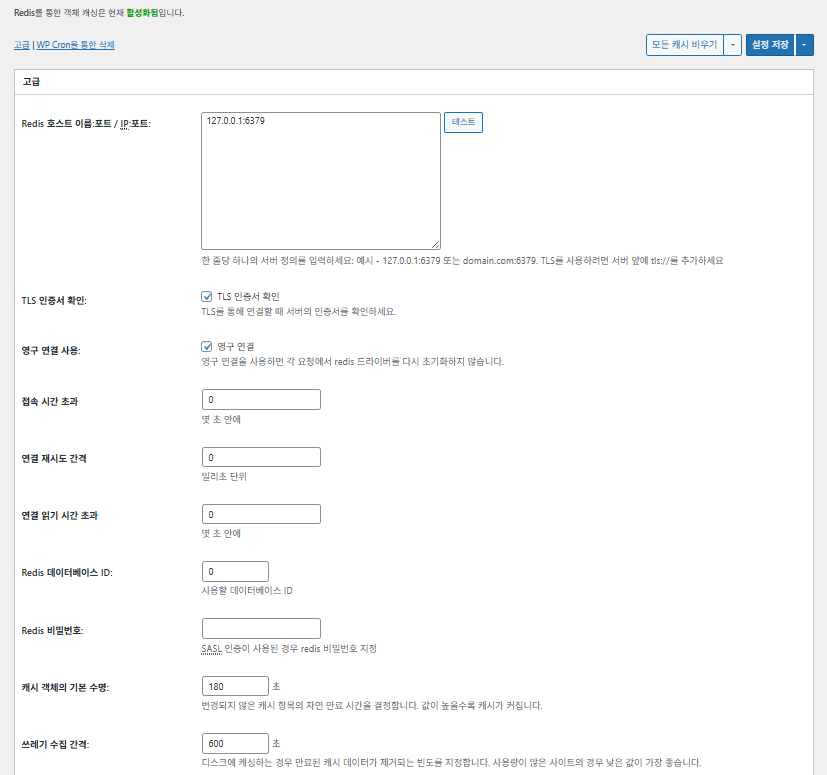
W3TC Cache obiektów_ustawienia zaawansowane 1

Pozycja

Opis

Host/IP Redis

Format [127.0.0.1:6379]. Dla TLS użyj prefiksu [tls://]

Weryfikuj certyfikat TLS

Sprawdza ważność certyfikatu przy TLS (opcjonalnie)

Używaj trwałych połączeń

Ponownie używa połączeń Redis dla lepszej wydajności

Limit czasu połączenia

Maksymalny czas na połączenie z Redis (s)

Interwał ponawiania połączenia

Czas oczekiwania przed ponowieniem po błędzie (ms)

Limit czasu odczytu połączenia

Maksymalny czas oczekiwania na odpowiedź (s)

Redis DB ID

Numer bazy danych w Redis (domyślnie [0])

Hasło Redis

Pole hasła lub uwierzytelniania SASL

Domyślny czas życia cache

Domyślny czas trzymania elementów cache (s). Domyślnie 180 s

Interwał odśmiecania

Jak często usuwany jest wygasły cache. Domyślnie 600 s

Grupy globalne

Grupy współdzielone w trybie sieci (dla multisite)

Grupy nietrwałe

Grupy wyłączone z cache, np. [counts], [plugins]

Cache'uj żądania wp-admin

Stosuje cache także w panelu administracyjnym (⚠️ najpierw przetestuj)

Przechowuj transienty w bazie danych

Trzyma wartości tymczasowe w bazie nawet przy zewnętrznym cache

Włącz WP-CLI

Pozwala na cache także dla poleceń WP-CLI

6️⃣ Cache przeglądarki

Cache przeglądarki zapisuje pliki statyczne, takie jak obrazy, CSS i JS na urządzeniu odwiedzającego lokalnie, co znacznie skraca czas ładowania przy kolejnych wizytach. Poprawia to szybkość odpowiedzi strony i doświadczenie użytkownika.

Większość tych ustawień skupia się na kontroli cache i zmniejszaniu obciążenia serwera. Na stronach z dużym ruchem lub tam, gdzie liczy się optymalizacja zasobów statycznych, możesz spokojnie włączyć wiele z nich.

PozycjaOgólneCSS i JSHTML i XMLMedia i inne pliki
Ustaw nagłówek [Last-Modified]Dołącza datę ostatniej modyfikacji pliku, by umożliwić odpowiedzi 304✅ W większości przypadków włącz✅ Pasuje do większości serwerów✅ Działa z większością cache CDN/przeglądarki
Ustaw nagłówek [Expires]Sprawia, że przeglądarka trzyma pliki w cache przez określony czas✅ Domyślnie 31536000 s (1 rok), zalecane✅ Domyślnie [3600 s (1 godzina)] ✅ Domyślnie [31536000 s] (1 rok) → dobre dla plików statycznych
⏱️ Ustaw czas Expires—⏱️ np. [31536000 s = 1 rok] · przy CDN można skrócić——
Ustaw nagłówek [Cache-Control]Steruje strategią cache, dodając nagłówki pragma i cache-control✅ Zalecane [“public, max-age=31536000”]✅ Ustaw np. [“public, max-age=3600”]✅ Zalecane [“public, max-age=31536000”]
✅ Zasady kontroli cache—✅ Użyj zasady z [max-age] · domyślnie [“public, max-age=EXPIRES_SECONDS”]——
Ustaw [ETag]Dostarcza znacznik encji identyfikujący plik – do wykrywania zmian✅ Skuteczne w obrębie jednego serwera✅ Jeśli cache nie jest współdzielony między serwerami,
zalecane jest użycie
✅ Przydatne przy jednym serwerze
Ustaw nagłówek W3TCDodaje nagłówek pokazujący, czy plik zoptymalizował W3TC🔖 Nieobowiązkowe; do analizy🔖 Nieobowiązkowe (do debugowania)🔖 Opcjonalne
Kompresja gzipKompresja zmniejszająca pliki tekstowe (szeroko zgodna)✅ Obsługiwane na większości serwerów✅ Obsługiwane przez większość serwerów✅ Bez wpływu na obrazy
Kompresja brotliWyższy stopień kompresji niż gzip (tylko obsługiwane przeglądarki)✅ Wymaga konfiguracji Apache/Nginx✅ Włącz moduł Apache/nginx✅ Działa tylko w obsługiwanych przeglądarkach
Zapobiegaj cache obiektów po zmianie ustawieńDodaje ciąg zapytania, by unieważnić stary cache✅ Zalecane, gdy ustawienia często się zmieniają—✅ Zmiany plików działają od razu
Usuń ciągi zapytańUsuwa [?] z zasobów statycznych, by lepiej je cache'ować⚠️ Potrzebne tylko przy niektórych CDN/proxy—✅ Można stosować do plików z wersjonowaniem
Usuń ciasteczkaUsuwa nagłówek [Set-Cookie] z odpowiedzi dla zasobów statycznych✅ W większości przypadków zaznacz—✅ Obrazy itp. nie potrzebują ciasteczek
Nie pozwalaj WordPressowi obsługiwać 404Serwer WWW obsługuje 404 dla plików statycznych → mniejsze obciążenie WP———
Lista URI wyjątków 404Wskazuje wzorce URI, które WP ma nadal obsługiwać (np. sitemap, robots.txt)———
Przepisz strukturę URL obiektówGeneruje unikalne URI, by ominąć cache (np. [ver=xxxx])———

Ⅲ. Dodatkowe funkcje W3 Total Cache

  • ↳ WP Cron, CDN, odwrotne proxy, doświadczenie użytkownika, statystyki, konwerter WebP, Google PageSpeed, import/eksport ustawień

Czyszczenie cache przez WP Cron to ustawienie globalne.

🧭 Symulator dodatkowych funkcji W3 Total Cache
Symulator ścieżki
📍Performance›General Settings›Purge via WP Cron
WP Cron
Czyszczenie cache przez WP Cron to ustawienie globalne, w którym podajesz godzinę startu i interwał.
📍Performance›General Settings›CDN›Advanced Settings
CDN
Po rejestracji u dostawcy CDN zaznacz [Enable] w [CDN], wybierz [CDN Type] i zapisz; szczegóły ustawisz w [Advanced Settings].
📍Performance›General Settings›Reverse Proxy
Odwrotne proxy
Zaznacz [Enable reverse proxy caching via varnish] tylko wtedy, gdy używasz Varnisha. W [Varnish servers] wpisz adres IP swojego serwera Varnish.
📍Performance›General Settings›User Experience›Advanced Settings
Doświadczenie użytkownika
Zaznacz [Lazy Load Images] i zapisz, a potem ustaw opcje lazy load w [Advanced Settings]. Ponad 50% funkcji ustawień zaawansowanych jest w wersji premium.
📍Performance›General Settings›Image Converter
Konwerter WebP
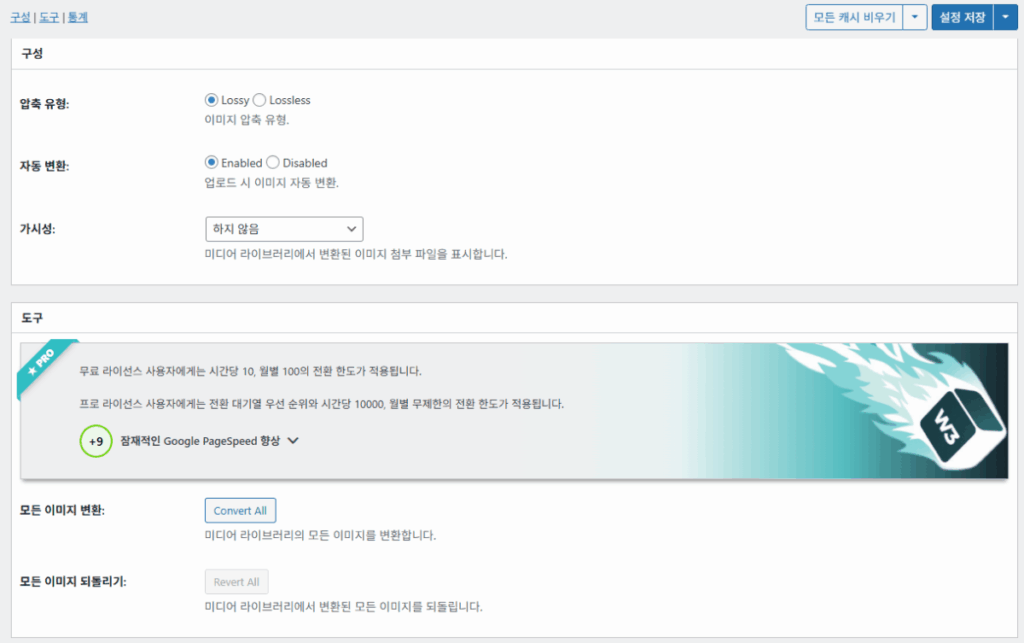
Jeśli zaznaczysz [Enable Image Converter Extension] w [Image Converter], możesz konwertować obrazy z Biblioteki mediów do WebP lub AVIF.
example.com/wp-admin/admin.php?page=w3tc_general
DashboardSettingsToolsInfoSupportUpgrade
|||||||||||||||||
Empty All Caches
Purge via WP Cron
Enabling this will schedule a WP-Cron event that will flush all enabled Caches via a single cron job. Each cache’s advanced settings page features similar settings to this if you wish to schedule purges for specific caches only. If you prefer to use a system cron job instead of WP-Cron, you can schedule the following command to run at your desired interval: “wp w3tc flush all”. If the Always Cached extension is active and enabled, page cache entries will instead be added to the queue instead of being purged from the cache. Visit here for more information.
Enable WP-Cron Event
Enable
Start Time
This setting controls the initial start time of the cron job. If the selected time has already passed, it will schedule the job for the following day at the selected time.
Interval
This setting controls the interval that the cron job should occur.
CDN
Content Delivery Network (CDN) is a powerful feature that can significantly enhance the performance of your WordPress website. By leveraging a distributed network of servers located worldwide, a CDN helps deliver your website’s static files, such as images, CSS, and JavaScript, to visitors more efficiently. This reduces the latency and improves the loading speed of your website, resulting in a faster and smoother browsing experience for your users. With W3 Total Cache’s CDN integration, you can easily configure and connect your website to a CDN service of your choice, unleashing the full potential of your WordPress site’s speed optimization.
Basic SettingsPremium ServicesHelp
CDN:
Theme files, media library attachments, CSS, and JS files will load quickly for site visitors.
CDN Type:
Select the CDN type you wish to use.
Host the entire website with your compatible CDN provider to reduce page load time.
FSD CDN:
Enable★ PRO
Deliver visitors the lowest possible response and load times for all site content including HTML, media (e.g. images or fonts), CSS, and JavaScript. Show More ⌄ Learn more about Pro
Reverse Proxy
A reverse proxy is a server that sits between a client and a web server, acting as an intermediary for requests. It retrieves resources on behalf of the client from the server, and then returns the response to the client. By utilizing a reverse proxy, such as Varnish or Nginx, in conjunction with W3 Total Cache, you can significantly enhance the performance of your WordPress website by caching and serving static content directly from the reverse proxy server, reducing the load on your WordPress server and improving response times for visitors.
Enable reverse proxy caching via varnish
Varnish servers:
Specify the IP addresses of your varnish instances above. The VCL’s ACL must allow this request.
Trusted reverse proxies:
IP addresses or CIDR ranges of reverse proxies and load balancers in front of this site (one per line). Forwarded scheme and client-IP headers are used only for these addresses. Leave empty when PHP receives client connections directly. Developers may also supply this list via the w3tc_trusted_proxies filter.
User Experience
User Experience (UX) is a setting that focuses on enhancing the overall browsing experience for visitors of your website. By enabling this feature, you can optimize your website’s performance by minimizing load times, reducing server requests, and delivering content more efficiently. This ultimately leads to faster page loading, improved user satisfaction, and increased engagement, resulting in a speedier and more enjoyable WordPress website.
Basic Settings
Defer loading offscreen images.
Lazy Load Google Maps★ PRO
In addition to lazy loading images, with W3 Total Cache Pro you can lazy load Google Maps! More information and settings can be found on the User Experience page.
Disable Emoji
Remove emojis support from your website.
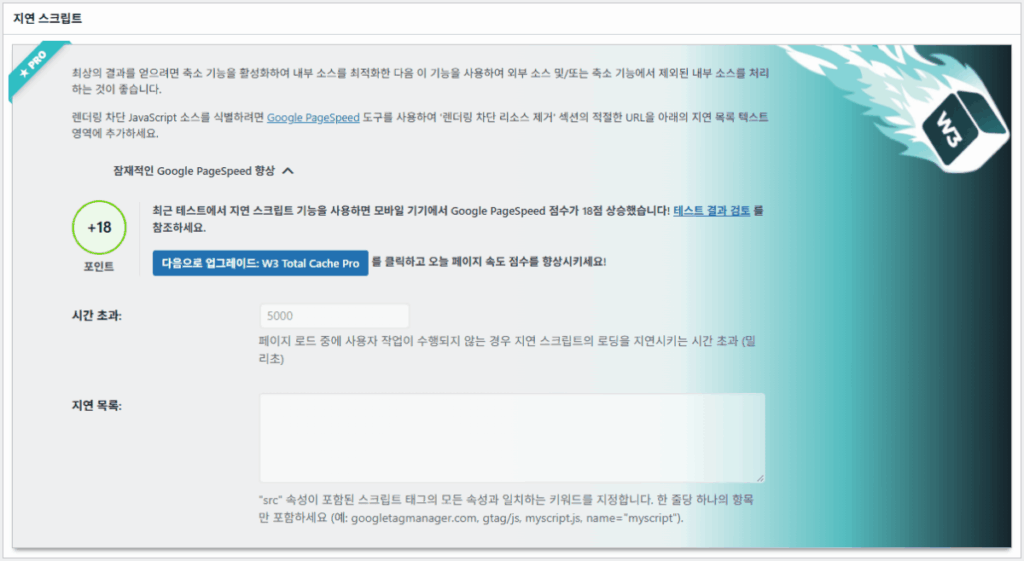
Delay Scripts★ PRO
Delay the loading of specified internal/external JavaScript sources on your pages separate from Minify.
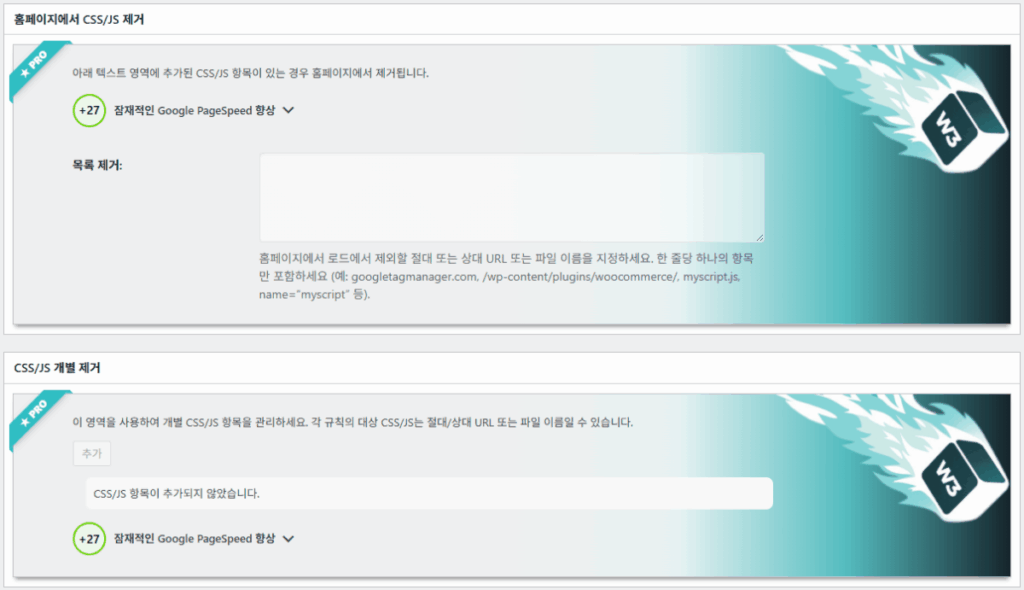
Remove Unwanted/Unused CSS/JS★ PRO
Removes specified CSS/JS tags from the homepage or on a per page basis.
Preload Requests★ PRO
DNS prefetching, pre-connecting, and preloading are essential web optimization techniques that enhance website performance by proactively resolving network-related tasks. Learn more about Pro
Disable wp-embed script
Remove wp-embed.js script from your website. oEmbed functionality still works but you will not be able to embed other WordPress posts on your pages.
Disable jquery-migrate on the front-end
Remove jquery-migrate support from your website front-end.
Image Converter
The Image Converter tool can be used to generate modern-format versions (e.g., WebP or AVIF) of media library images which offer superior lossless and lossy compression.
Enable Image Converter Extension
This extension allows for optimizing media library images to modern formats like WebP or AVIF.
As a free user you are limited to conversions of 10/hour and 100/month. The Pro license increases these rates to 10,000/hour and unlimited/month. Conversion rates are subject to change and documentation can be found here. Learn more about Pro
example.com/wp-admin/admin.php?page=w3tc_cdn
DashboardSettingsToolsInfoSupportUpgrade
||
Empty All Caches
General
Host attachments
Upload attachments
If checked, all attachments will be hosted with the CDN.
Host wp-includes/ files
Upload includes files
If checked, WordPress static core file types specified in the “wp-includes file types to upload” field below will be hosted with the CDN.
Host theme files
Upload theme files
If checked, all theme file types specified in the “theme file types to upload” field below will be hosted with the CDN.
Host minified CSS and JS files
Upload minify files
If checked, minified CSS and JS files will be hosted with the CDN.
Host custom files
Upload custom files
If checked, any file names or paths specified in the “custom file list” field below will be hosted with the CDN.
Force over-writing of existing files
If modified files are not always detected and replaced, use this option to over-write them.
Advanced
Only purge CDN manually
Purge CDN only if explicit purge button is clicked.
Disable CDN on SSL pages
When SSL pages are returned no CDN URLs will appear in HTML pages.
Use CDN links for the Media Library on admin pages
All Media Library content will use CDN links on administration pages.
Add CORS header
Add CORS headers to allow cross-domain assets usage.
Disable CDN for the following roles
Select user roles that will use the origin server exclusively:
Administrator
Editor
Author
Contributor
Subscriber
Disable CDN on the following pages:
Always ignore the specified pages / directories. Supports regular expression.
Automatically upload minify files
If CDN is enabled (and not using the origin pull method), your minified files will be automatically uploaded.
Export changed files automatically
Automatically attempt to find and upload changed files.
Auto upload interval:
3600seconds
Specify the interval between upload of changed files.
Re-transfer cycle interval:
900seconds
The number of seconds to wait before upload attempt.
Re-transfer cycle limit:
25
Number of files processed per upload attempt.
wp-includes file types to upload:
*.css;*.js;*.gif;*.png;*.jpg;*.xml
Specify the file types within the WordPress core to host with the CDN.
Theme file types to upload:
*.css;*.js;*.gif;*.png;*.jpg;*.ico;*.ttf;*.otf;*.woff;*.woff2;*.less
Specify the file types in the active theme to host with the CDN.
File types to import:
 
Automatically import files hosted with 3rd parties of these types (if used in your posts / pages) to your media library. Only common static types (images, CSS, JS, fonts, and media) are imported. Script, markup, and SVG types are ignored even if listed. Empty, *, and *.* use that static allowlist rather than every file.
Custom file list:
favicon.ico
{wp_content_dir}/gallery/*
{wp_content_dir}/uploads/avatars/*
{plugins_dir}/wordpress-seo/css/xml-sitemap.xsl
{plugins_dir}/wp-minify/min*
{plugins_dir}/*.js
{plugins_dir}/*.css
{plugins_dir}/*.gif
{plugins_dir}/*.jpg
{plugins_dir}/*.png
Specify any files outside of theme or other common directories to host with the CDN.
Rejected user agents:
Specify user agents that should not access files hosted with the CDN.
Rejected files:
{uploads_dir}/wpcf7_captcha/*
{uploads_dir}/imagerotator.swf
{plugins_dir}/wp-fb-autoconnect/facebook-platform/channel.html
Specify the path of files that should not use the CDN.
Set cookie domain to “example.com”
If using subdomain for CDN functionality, this setting helps prevent new users from sending cookies in requests to the CDN subdomain.
Note(s):
  • You can use placeholders {wp_content_dir}, {plugins_dir}, {uploads_dir} instead of writing folder paths (wp-content, wp-content/plugins, wp-content/uploads).
  • If using Amazon Web Services or Self-Hosted CDN types, enable HTTP compression in the “Media & Other Files” section on Browser Cache Settings tab.
example.com/wp-admin/admin.php?page=w3tc_userexperience
DashboardSettingsToolsInfoSupportUpgrade
Empty All Caches
Lazy loading is currently disabled.
Lazy Loading
Process HTML image tags
Process img tags
Process background images
Process background styles
Exclude words:
avia-bg-style-fixed
data-bgposition=
data-envira-src=
data-large_image=
data-lazy-original=
data-lazy-src=
data-lazyload=
data-lazysrc=
data-no-lazy=
data-src=
data-srcset=
fullurl=
lazy-slider-img=
loading=”eager”
no-lazy
rev-slidebg
skip-lazy
soliloquy-image
swatch-img
w3-total-cache
woocommerce/assets/images/placeholder.png
wpcf7_captcha
Exclude tags containing words
Threshold
 
The outer distance off the scrolling area from which to start loading the elements (example: 100px, 10%).
Script Embed method:
Use inline method only when your website has just a few pages
Google Maps
Lazy load google map
WP Google Map Plugin plugin
Google Maps Easy plugin
WP Google Maps plugin
Kliknij podświetloną pozycję w lewym menu albo przycisk na ekranie.

1️⃣ CDN

Skonfigurujesz to po rejestracji u dostawcy CDN.

Opcja

Opis

✅ Hostuj załączniki

Wysyła załączniki, np. obrazy z [wp-content/uploads], do CDN

✅ Hostuj pliki wp-includes

Dołącza do CDN statyczne pliki rdzenia WordPressa (js/css itp.)

✅ Hostuj pliki motywu

Dołącza do CDN statyczne pliki aktywnego motywu (css/js/obrazy itp.)

✅ Hostuj zminifikowane pliki CSS/JS

Podaje z CDN pliki CSS/JS zminifikowane przez W3TC

✅ Hostuj własne pliki

Wysyła do CDN wskazane ścieżki lub nazwy plików

⚠️ Wymuś nadpisanie istniejących plików

Do wymuszenia ponownego wysłania, gdy zmiany nie są wykrywane automatycznie

Pozycja

Opis

Czyść CDN tylko ręcznie

Usuwa pliki z CDN tylko po kliknięciu przycisku ręcznego czyszczenia

Wyłącz CDN na stronach SSL

Nie używa adresów CDN na stronach HTTPS

Używaj linków CDN w panelu

Pokazuje adresy CDN mediów także w ekranach panelu

Add CORS header

Dodaje nagłówek odpowiedzi zezwalający na CORS

Wyłącz CDN według roli

Nie stosuje CDN dla wybranych ról (np. tylko administratorzy korzystają z originu)

Lista wykluczonych stron

Wyklucza z CDN wskazane ścieżki (regex dozwolony)

Automatycznie wysyłaj zminifikowane pliki

Automatycznie wysyła zminifikowane pliki do CDN (Push)

Automatycznie eksportuj zmienione pliki

Automatycznie wysyła po wykryciu zmian w plikach

Interwał automatycznego wysyłania

Interwał wysyłania po wykryciu zmian (domyślnie 3600 s)

Interwał / limit ponownego przesyłania

Interwał ponawiania po błędach i limit przetwarzanych plików

Pliki wp-includes do wysłania

Określa, które typy plików rdzenia trafiają do CDN

Typy plików motywu do wysłania

Określa typy plików motywu, np. CSS/JS/czcionki

Typy plików do importu

Ustala warunki automatycznego pobierania plików z zewnętrznych linków

Lista własnych plików

Wskazuje pojedyncze ścieżki plików do wysłania do CDN (szablony, zewnętrzne wtyczki itp.)

Odrzucone user agenty

Wskazuje boty/user agenty blokowane dla plików CDN

Odrzucone ścieżki plików

Wskazuje ścieżki plików trzymane poza CDN, np. CAPTCHA i ścieżki specjalne

Ustaw domenę ciasteczek

Wskazuje domenę, by nie wysyłać ciasteczek przy CDN na subdomenie

2️⃣ Odwrotne proxy

Opis podaje jako przykład Varnish i Nginx, ale ponieważ Nginx konfiguruje się na serwerze, stosuj to we wtyczce W3 Total Cache tylko wtedy, gdy używasz Varnisha.

3️⃣ Doświadczenie użytkownika: lazy load

W ustawieniach zaawansowanych ponad 50% funkcji jest dostępnych tylko w wersji premium.

Pozycja

Opis

Kiedy używać

✅ Przetwarzaj znaczniki obrazów HTML

[<img>]: znaczniki dostają atrybut lazy

Do leniwego ładowania zwykłych obrazów w treści

✅ Przetwarzaj obrazy tła

Stosuje leniwe ładowanie do CSS [background-image]

Dla stron z bogatym designem i wieloma obrazami tła

Wykluczone słowaPrzykład
Atrybuty wyłączone z lazy[data-src], [data-lazy-src], [data-no-lazy], [loading=”eager”] itp.
Klasy wyłączone z lazy[no-lazy], [skip-lazy], [lazy-slider-img], [rev-slidebg] itp.
Wtyczki/slidery[soliloquy-image], [envira], [w3-total-cache], [wpcf7_captcha] itp.
WooCommerce[swatch-img], [woocommerce/…/placeholder.png] itp.

„Próg” leniwego ładowania określa, jak daleko poniżej obszaru widoku (ekranu) przeglądarki obrazy i elementy tła zaczynają ładować się z wyprzedzeniem. Przy 100px element ładuje się, gdy użytkownik przewinie na 100 pikseli od niego; zbyt mała wartość opóźnia ładowanie obrazów i użytkownik może widzieć puste miejsca, więc zwykle odpowiednie jest 100–300px.

Dalej są sposoby osadzania skryptów.

Sposób osadzenia

Opis

Miejsce lub atrybut

Asynchronicznie (Async)

Działa równolegle z ładowaniem strony i nie blokuje renderowania

[<script async>]

Synchronicznie (w head)

Działa jako pierwszy w obszarze [<head>] i może chwilowo blokować renderowanie (in the head)

[<head>] lub [<script>]

Inline

Wstawia skrypt bezpośrednio do dokumentu HTML, więc działa bez osobnego żądania

Wstawiany wewnątrz [<script>kod</script>]

W3TC Doświadczenie użytkownika ustawienia zaawansowane 2
W3TC Doświadczenie użytkownika ustawienia zaawansowane 3

4️⃣ Konwerter WebP

W3TC Konwerter WebP_szczegóły (ustawienia zaawansowane) 1
W3TC Konwerter WebP_szczegóły (ustawienia zaawansowane) 2

Ⅳ. Ogólna ocena W3 Total Cache

Interfejs (UI) W3 Total Cache nie jest zły, ale wyraźnie niewygodny. Wielu programistów i profesjonalnych użytkowników mówi to samo. W porównaniu z nowoczesnymi wtyczkami, takimi jak WP Rocket czy FlyingPress, nadąża pod względem wydajności strony, ale doświadczenie użytkownika (UX) wypada słabiej.

Mnogość funkcji to zaleta, ale dla początkujących struktura może wydawać się zbyt złożona. Zwłaszcza przez częste przechodzenie między menu i wiele szczegółowych opcji nawet doświadczeni programiści i administratorzy  mogą popełnić błędy w konfiguracji. Oczywiście nie zapamiętasz każdego ustawienia, ale w użyciu to zaawansowana wtyczka cache pozwalająca na precyzyjne strojenie.

Przy ponad 1 milionie instalacji darmowej wersji trudno uznać ją po prostu za starą wtyczkę — w praktyce niewiele wtyczek cache dorównuje jej zakresowi i bogactwu funkcji.

PozycjaOcena (⭐)Opinia
🎛️ Interfejs⭐⭐⭐Dużo menu i złożona struktura; bariera dla nowych użytkowników. UI wygląda staro
⚙️ Zakres funkcji⭐⭐⭐⭐⭐Cache, CDN, Redis i prawie każda inna funkcja; trudno znaleźć czegoś brak
🛠️ Elastyczność strojenia⭐⭐⭐⭐Prawie wszystko da się dostroić; uważaj na konflikty ustawień
🚀 Zysk wydajności⭐⭐⭐⭐⭐Świetna wydajność po optymalizacji; cache obiektów/przeglądarki robi dużą różnicę
🧩 Zgodność⭐⭐⭐Może kolidować z niektórymi hostingami, motywami i wtyczkami.
📄 Dokumentacja i poradniki⭐⭐⭐⭐⭐Obszerna oficjalna dokumentacja
💡 Rekomendacja dla użytkowników⭐⭐⭐⭐(4.5)Polecane zaawansowanym; początkujący mogą woleć WP Rocket, Cache Enabler itp.
📊 Ocena ogólna⭐⭐⭐⭐(4.5)Mocna wtyczka nastawiona na funkcje. Wymaga nauki; weź pod uwagę swój poziom

Ⅴ. Test wydajności

Po skonfigurowaniu wtyczki końcowy test szybkości pokazał wyraźniejszy wzrost niż przy typowych wtyczkach cache.

ℹ️ Informacja o linkach partnerskich
Treści tej witryny zawierają linki partnerskie. Jeśli odwiedzający kupi produkt lub usługę przez taki link, witryna otrzymuje od sprzedawcy prowizję. Kwota płacona przy tym przez kupującego (podczas promocji spada↓) nie wzrasta. Podane ceny, rabaty i dostępność odnoszą się do chwili pisania i mogą różnić się od stanu faktycznego, dlatego przed zakupem sprawdź je u sprzedawcy. Produkty wybieramy i oceniamy według własnych kryteriów, a prowizja nie wpływa ani na kolejność prezentacji, ani na treść ocen.

Dodaj komentarz

Twój adres email nie zostanie opublikowany. Wymagane pola są oznaczone *

Prove your humanity: 10   +   8   =