Plugin W3 Total Cache: cómo configurarlo para optimizar

Aviso de afiliados v3.1
Aviso de afiliados v3.2 (móvil)
Entorno de prueba CloudwaysDebian 12Apache 2.4.69 + nginxPHP 8.2.34WordPress 7.1.3W3 Total Cache 2.10.7Verificado el 2026-10-18

Un sitio WordPress se vuelve inevitablemente más lento a medida que instalas plugins. Por eso, un plugin de caché se ha convertido en uno de los imprescindibles de WordPress. Con más de 1 millón de instalaciones activas de la versión gratuita y una valoración de 4,4 estrellas, el plugin W3 Total Cache (W3TC) es uno de los más utilizados.

Como la configuración de la caché puede hacer que algunas funciones de otros plugins dejen de funcionar, si acabas de empezar con WordPress puedes usar uno fácil de configurar, como Cache Enabler o WP Super cache.

Si necesitas ajustes y control detallados de la caché, puedes usar el plugin W3 Total Cache, que ofrece funciones potentes incluso en su versión gratuita.

Ⅰ. Instalación de W3 Total Cache y guía de configuración

  • ↳ Buscadores (SEO: Search Engine Optimization)
  • ↳ Optimización del rendimiento (WPO: Web Performance Optimization)
  • ↳ Caché integrada: admite CDN, página, minificación, objetos, fragmentos y base de datos.

Busca W3 Total Cache e instala y activa el plugin.

🧭 Simulador de instalación y guía de configuración de W3 Total Cache
Plugin de cachéSimulador de ruta
📍Plugins›Add Plugin
Instalar el plugin
Escribe W3 Total Cache en el campo de búsqueda y haz clic en [Install Now]; cuando termine la instalación, haz clic en [Activate].
📍Performance›Setup Guide
Guía de configuración
Tras la primera instalación, al ir a [Dashboard] se te lleva automáticamente a la [Setup Guide], porque aún no hay nada configurado.
📍Performance›Dashboard
Panel
Lo que configuras en la guía aparece por función en el cuadro [General Settings], y los ajustes detallados, como la caché de página, se hacen en [General Settings].
example.com/wp-admin/plugin-install.php
Add Plugins Upload Plugin
Plugins extend and expand the functionality of WordPress. You may install plugins from the WordPress Plugin Directory right on this page, or upload a plugin in .zip format by clicking the button above.
Search ResultsFeaturedPopularRecommendedFavorites
Search PluginsKeyword
922 items
W3 Total Cache
Installing...ActiveMore Details
Search Engine (SEO) & Performance Optimization (WPO) via caching. Integrated caching: CDN, Page, Minify, Object, Fragment, Database support.
By BoldGrid
★★★★★ (5,421)
Last Updated: 2 weeks ago
900,000+ Active Installations
✓ Compatible with your version of WordPress
example.com/wp-admin/admin.php?page=w3tc_setup_guide
DashboardSettingsToolsInfoSupportUpgrade
W3 Total CacheSetup Guide
TOTAL CACHE: Setup Guide
  • Welcome
  • Page Cache
  • Database Cache
  • Object Cache
  • Image Converter
  • Lazy Load
  • More Caching Options
Welcome to the W3 Total Cache Setup Guide!
By allowing us to collect data about how W3 Total Cache is used, we can improve our features and experience for everyone. This data will not include any personally identifiable information. Feel free to review our terms of use and privacy policy.
AcceptDecline
SKIPNEXT
example.com/wp-admin/admin.php?page=w3tc_dashboard
DashboardSettingsToolsInfoSupportUpgrade
W3 Total CacheDashboard
Flush caches with Empty All Caches
Account
License: Free
Status: Free license, no expiration
Upgrade to W3 Total Cache Pro now to unlock additional settings and features that can further improve your site’s performance and Google PageSpeed ratings.
Learn more about Pro
General Settings
Preview Modedisabled
Page Cachedisabled
Minifydisabled
Opcode Cacheenabled
Database Cachedisabled
Object Cachedisabled
Browser Cachedisabled
CDNdisabled
Reverse Proxydisabled
Statisticsdisabled
Fragment Cachedisabled
Debugdisabled
Settings can be modified by visiting General Settings
Image Optimization Summary
Enable Image Converter
PageSpeed Report
Before you can get started using the Google PageSpeed tool, you’ll first need to authorize access. Please click here.
Pulsa un elemento activo del menú izquierdo o un botón de la pantalla.

Tras la primera instalación, al ir a la página [Dashboard] se te lleva automáticamente a la [Setup Guide], porque aún no hay nada configurado.

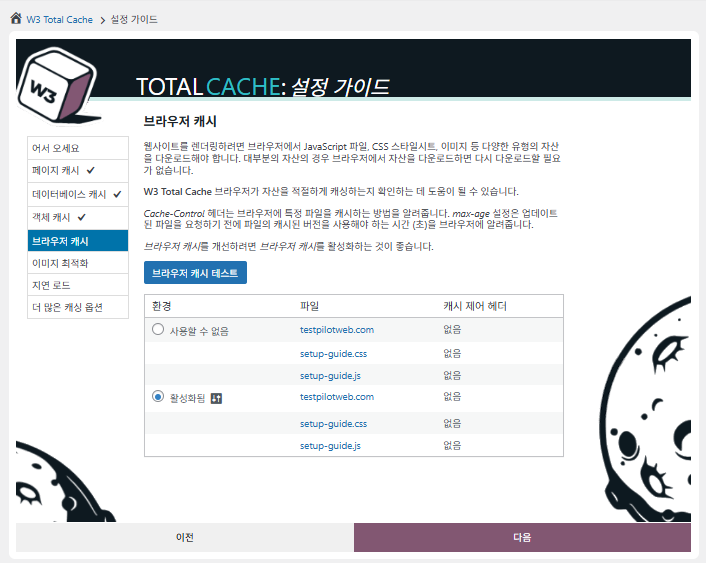
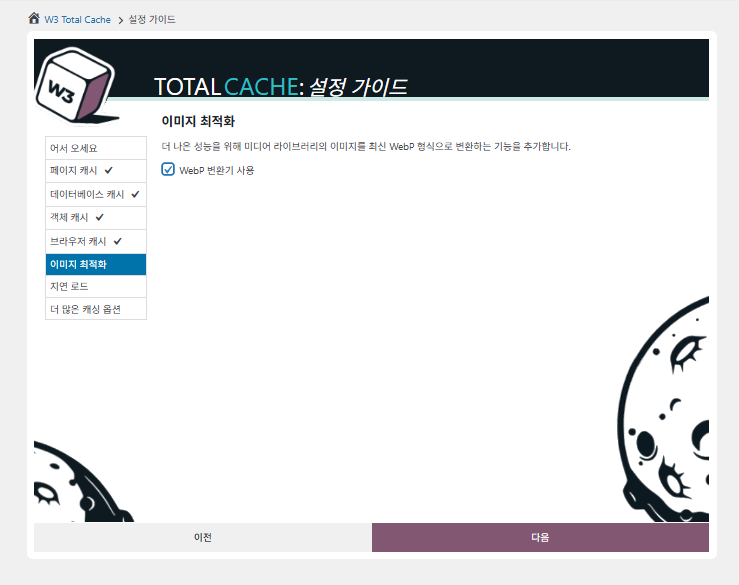
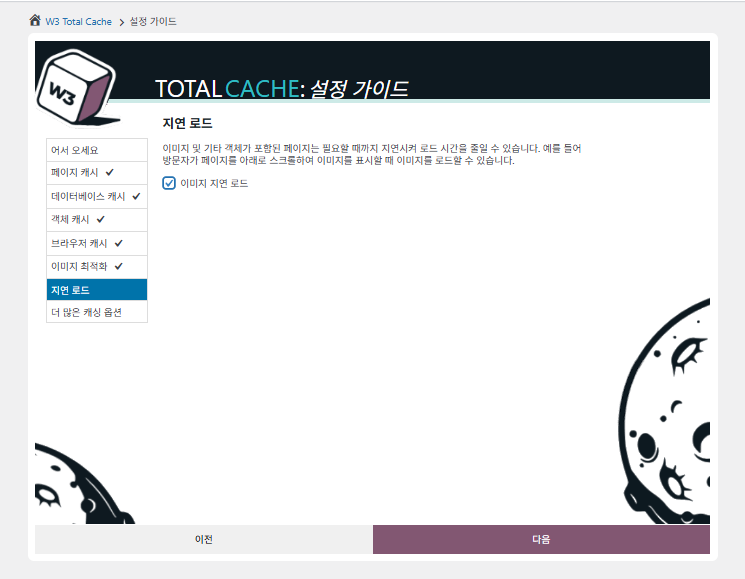
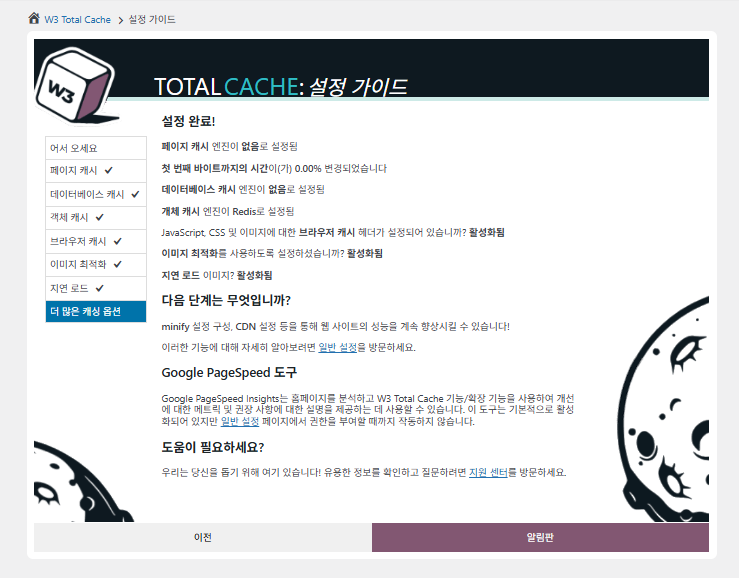
En la guía de configuración puedes ajustar ① caché de página, ② caché de base de datos, ③ caché de objetos, ④ caché del navegador, ⑤ optimización de imágenes, ⑥ carga diferida y ⑦ otras opciones de caché.
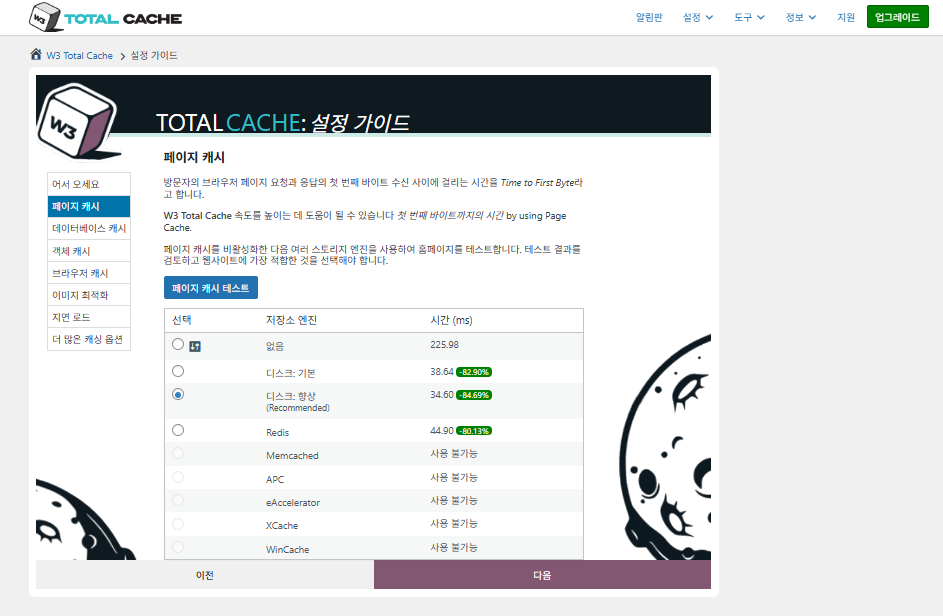
Guía de configuración de W3 Total Cache ① Caché de página_caché en disco (Enhanced)

Para la caché de página, la recomendación predeterminada de W3TC es Disk: [Mejorada]. Como muestra la tabla, Disk: Enhanced es unos 10,3 ms más rápido que Disk: Basic, lo que supone un rendimiento un 17,8 % mejor en TTFB.
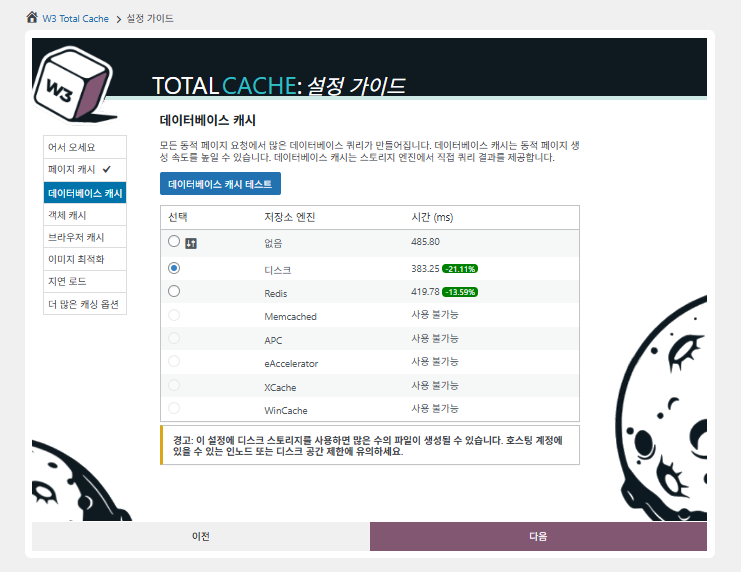
Guía de configuración de W3 Total Cache ② Caché de base de datos_caché en disco

En la caché de base de datos, elige la caché en disco.
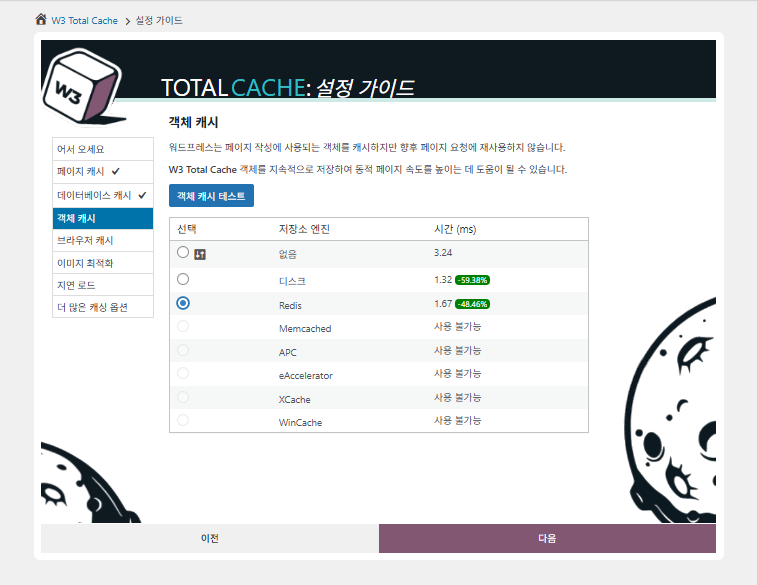
Guía de configuración de W3 Total Cache ③ Caché de objetos_Redis
Guía de configuración de W3 Total Cache ④ Caché del navegador
Guía de configuración de W3 Total Cache ⑤ Optimización de imágenes - conversor WebP
Guía de configuración de W3 Total Cache ⑥ Carga diferida - imágenes
Guía de configuración de W3 Total Cache ⑦ Otras opciones de caché_se ajustan desde el panel

Lo configurado en la guía ya se refleja en el panel.

Haz clic en la pestaña [Settings] arriba a la derecha para configurar desde [General Settings] hasta la caché de página y más.
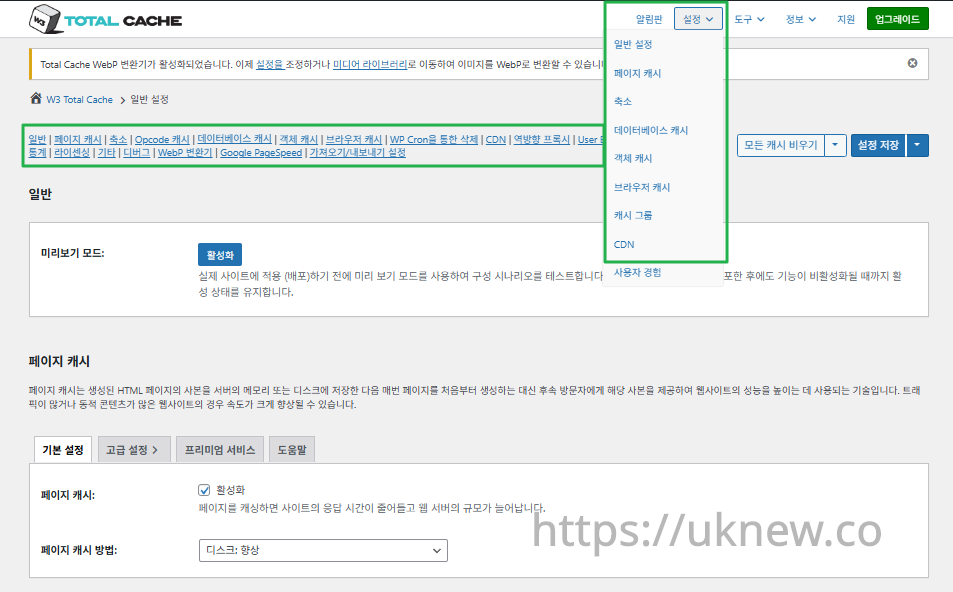
W3TC panel - ajustes__

ⓐ La [configuración en la página] del menú izquierdo y ⓑ la pestaña [Settings] de arriba a la derecha llevan a la caché de página, Minificar y demás ajustes avanzados. Si vas a cada página desde la parte superior central de la pestaña General Settings, verás la caché de página y Minify desde los ajustes generales hasta los Ajustes avanzados.

Ⅱ. Ajustes de caché de W3 Total Cache

  • ↳ Funciones de caché

Esta es la pestaña General Settings dentro de los ajustes de W3TC.

🧭 Simulador de ajustes de caché de W3 Total Cache
Simulador de ruta
📍Performance›General Settings›General
Modo de vista previa
Antes de desplegar los cambios de caché reales, puedes activar [Preview mode] para probar errores con antelación.
📍Performance›General Settings›Page Cache›Advanced Settings
Caché de página
Marca [Enable] en [Page Cache], comprueba que el método sea [Disk: Enhanced] y haz clic en [Save Settings]. Las opciones detalladas se configuran en [Advanced Settings].
📍Performance›General Settings›Minify›Advanced Settings
Reducir
Marca [Enable] en [Minify], haz clic en [Save Settings] y luego configura las opciones de minificación de HTML, CSS y JS en [Advanced Settings].
📍Performance›General Settings›Opcode Cache
Caché de opcode
En la caché de opcode se aplica automáticamente la instalada en el servidor; si no hay ninguna, queda desactivada.
📍Performance›General Settings›Database Cache›Object Cache
Caché de base de datos y de objetos
Marca [Enable] tanto en [Database Cache] como en [Object Cache] y guarda. Las opciones detalladas se configuran en las pantallas [Database Cache] y [Object Cache].
📍Performance›General Settings›Browser Cache›Advanced Settings
Caché del navegador
Marca [Enable] en [Browser Cache] y guarda; después configura las opciones de caché por tipo de archivo en [Advanced Settings].
example.com/wp-admin/admin.php?page=w3tc_general
DashboardSettingsToolsInfoSupportUpgrade
|||||||||||||||||
Empty All Caches
General
Preview mode:
Enable
Use preview mode to test configuration scenarios prior to releasing them (deploy) on the actual site. Preview mode remains active even after deploying settings until the feature is disabled.
Page Cache
Page cache is a technique used to speed up the performance of a website by storing a copy of the generated HTML page in the server’s memory or disk, and then serving that copy to subsequent visitors instead of generating the page from scratch each time. This can result in significant speed improvements for websites with high traffic or dynamic content.
Basic SettingsPremium ServicesHelp
Page Cache:
Caching pages will reduce the response time of your site and increase the scale of your web server.
Page Cache Method:
Minify
Minification is a technique used to reduce the file size of HTML, CSS, and JavaScript files by removing unnecessary characters such as whitespace, comments, and line breaks. This process can significantly improve the load times of web pages by reducing the amount of data that needs to be downloaded by the user’s browser.
Basic SettingsPremium ServicesHelp
Minify:
Minification can decrease file size of HTML, CSS, JS and feeds respectively by ~10% on average. Learn more
Minify mode:
Auto
Manual
Select manual mode to use fields on the Minify settings tab to specify files to be minified, otherwise files will be minified automatically. Learn more
Minify Cache Method:
Learn more
HTML minifier:
Learn more
JS minifier:
CSS minifier:
Opcode Cache
Opcode cache is a powerful feature that enhances the performance of a WordPress website by caching compiled PHP code. By storing pre-compiled code in memory, opcode cache eliminates the need for repetitive interpretation and compilation of PHP files, resulting in significantly faster execution times. Opcode cache reduces server load and improves response times, ultimately enhancing the overall speed and responsiveness of your WordPress site. If opcode cache is available on the hosting server it will automatically be selected in the dropdown and enabled.
Opcode Cache
Validate timestamps:
Enable
Once enabled, each file request will update the cache with the latest version. When this setting is off, the Opcode Cache will not check, instead PHP must be restarted in order for setting changes to be reflected.
Database Cache
Enable this setting to utilize the power of caching your WordPress site’s database queries. By storing frequently accessed database queries in memory, the database cache reduces the need for repetitive database interactions, resulting in faster page load times. This feature is particularly beneficial for websites with heavy database usage, improving overall performance and delivering a smoother user experience.
Basic SettingsPremium ServicesHelp
Database Cache:
Caching database objects decreases the response time of your site. Best used if object caching is not possible.
Database Cache Method:
Object Cache
Enable this option to utilize an object cache mechanism, which significantly enhances the performance of your WordPress website. Object caching stores frequently accessed database queries and complex data structures in memory, reducing the need to retrieve them from the database repeatedly. By doing so, it minimizes the processing time required to generate dynamic content, resulting in faster page loading times and improved overall site speed. Enabling object cache is particularly beneficial for websites with heavy database usage or high traffic volumes, as it helps alleviate the strain on the server by efficiently serving cached data.
Basic SettingsPremium ServicesHelp
Object Cache:
Object caching greatly increases performance for highly dynamic sites that use the Object Cache API.
Object Cache Method:
Browser Cache
Enabling browser caching will instruct visitors’ web browsers to store static files from your WordPress website, such as images, CSS, and JavaScript files, locally on their devices. By doing so, subsequent visits to your site will retrieve these cached files from the browser’s storage, reducing the need for repeated downloads. This results in faster page loading times and a smoother browsing experience for your visitors, ultimately improving the overall speed and performance of your WordPress website.
Basic SettingsPremium ServicesHelp
Browser Cache:
Enable HTTP compression and add headers to reduce server load and decrease file load time.
example.com/wp-admin/admin.php?page=w3tc_pgcache
DashboardSettingsToolsInfoSupportUpgrade
|||||||
Empty All Caches
Always Cached extension is currently disabled. To enable the extension click here.
General
Cache front page
For many blogs this is your most visited page, it is recommended that you cache it. Learn more
Cache feeds: site, categories, tags, comments
Even if using a feed proxy service enabling this option is still recommended. Learn more
Handle XML mime type
Return correct Content-Type header for XML files (e.g., feeds and sitemaps). Learn more
Cache SSL (HTTPS>) requests
Cache SSL requests (uniquely) for improved performance. Learn more
Cache URI with query string variables
Search result (and similar) pages will be cached if enabled. Learn more
Cache 404 (not found) pages
Reduce server load by caching 404 pages. If the disk enhanced method of disk caching is used, 404 pages will be returned with a 200 response code. Use at your own risk. Learn more
Don’t cache pages for logged in users
Unauthenticated users may view a cached version of the last authenticated user’s view of a given page. Disabling this option is not recommended. Learn more
Don’t cache pages for following user roles
Select user roles that should not receive cached pages: Learn more
Administrator
Editor
Author
Contributor
Subscriber
Aliases
Cache alias hostnames:
Enable
If the same WordPress content is accessed from different domains. Learn more
Additional home URLs:
Specify full home URLs of your mirrors so that plugin will flush it’s cache when content is changed. For example: http://my-site.comhttp://www.my-site.comhttps://my-site.com Learn more
Cache Preload
Automatically prime the page cache
Automatically primes the page cache using the settings configured below. Learn more
Update interval:
900seconds
The number of seconds to wait before creating another set of cached pages. Learn more
Pages per interval:
10
Limit the number of pages to create per batch. Fewer pages may be better for under-powered servers. Learn more
Sitemap URL:
 
A compliant sitemap can be used to specify the pages to maintain in the primed cache. Pages will be cached according to the priorities specified in the XML file. Learn more
Preload the sitemap once
Stop cache preloading after every URL in the sitemap has been processed. Disable and re-enable cache preloading to start a new pass.
Preload cache upon publishing a post
Only applies to pages, posts, and custom post types whose status transitioned from a non-published status to the “published” status. Learn more
Preload cache upon updating a post
Applies after updating any page, post, or custom post type with the final status being “published”. Learn more
Purge Policy:
Specify the pages and feeds to purge when posts are created, edited, or comments posted. The defaults are recommended because additional options may reduce server performance: Learn more
Front page
Post page
Blog feed
Post comments pages
Post author pages
Post terms pages
Post comments feed
Post author feed
Post terms feeds
Daily archive pages
Monthly archive pages
Yearly archive pages
rdf
rss
rss2 (default)
atom
Choose which feed types should be automatically purged. Learn more
Purge limit:
10
Specify number of pages that lists posts (archive etc.) that should be purged on post updates etc., i.e. example.com/ ... example.com/page/5.
0 means all pages that lists posts are purged, i.e. example.com/page/2 ... Learn more
Additional pages:
Specify additional pages to purge. Including parent page in path. Ex: parent/posts. Learn more
Purge sitemaps:
([a-z0-9_\-]*?)sitemap([a-z0-9_\-]*)?\.(?:xml|xsl)
Specify a regular expression that matches your sitemaps. Learn more
REST API
Use these controls to determine how the WordPress REST API responds to visitors and integrations. Caching API responses can dramatically reduce load when headless frontends, mobile apps, or third-party services request the same data repeatedly, but you can keep responses uncached for highly dynamic endpoints or disable the API altogether when it is not needed to reduce attack surface. Learn more
REST API
Don’t cache
Cache★ PRO
Disable REST API
If you’re using the WordPress API make sure to use caching to scale performance. Show More ▾
Advanced
Late initialization:
Enable
Enables support for WordPress functionality in fragment caching for the page caching engine. Use of this feature may increase response times. Learn more
Late caching:
Enable
Overwrites key of page caching via custom filters by postponing entry extraction during the init action. Learn more
Compatibility mode:
Enable
Decreases performance by ~20% at scale in exchange for increasing interoperability with more hosting environments and WordPress idiosyncrasies. Enable this option if you experience issues with the Apache rules. Learn more
Reject HEAD requests:
Disable caching of HEAD HTTP requests
If disabled, HEAD requests can often be cached resulting in “empty pages” being returned for subsequent requests for a URL. Learn more
Maximum lifetime of cache objects:
3600seconds
Determines the natural expiration time of cache items. The higher the value, the larger the cache.
Max lifetime is limited by the W3TC_CACHE_FILE_EXPIRE_MAX constant (2592000 seconds) which can be overridden in wp-config.php.
Garbage collection interval:
3600seconds
If caching to disk, specify how frequently expired cache data is removed. For busy sites, a lower value is best. Learn more
Comment cookie lifetime:
1800seconds
Significantly reduce the default TTL for comment cookies to reduce the number of authenticated user traffic. Enter -1 to revert to default TTL. Learn more
Accepted query strings:
ScCid
_branch_match_id
_bta_c
_bta_tid
_ga
_gl
_ke
adgroupid
adid
age-verified
ao_noptimize
campaignid
campid
click_id
cn-reloaded
customid
dicbo
dm_i
ef_id
epik
fb_action_ids
fb_action_types
fb_source
fbclid
gclid
gclsrc
gdffi
gdfms
gdftrk
hsa_acc
hsa_ad
hsa_cam
hsa_grp
hsa_kw
hsa_mt
hsa_net
hsa_src
hsa_tgt
hsa_ver
igshid
li_fat_id
matomo_campaign
matomo_cid
matomo_content
matomo_group
matomo_keyword
matomo_medium
matomo_placement
matomo_source
mc_cid
mc_eid
mkcid
mkevt
mkrid
mkwid
msclkid
mtm_campaign
mtm_cid
mtm_content
mtm_group
mtm_keyword
mtm_medium
mtm_placement
mtm_source
pcrid
piwik_campaign
piwik_keyword
piwik_kwd
pk_campaign
pk_cid
pk_content
pk_keyword
pk_kwd
pk_medium
pk_source
pp
redirect_log_mongo_id
redirect_mongo_id
ref
s_kwcid
sb_referer_host
si
sscid
tblci
toolid
trk_contact
trk_module
trk_msg
trk_sid
ttclid
twclid
usqp
utm_campaign
utm_content
utm_expid
utm_id
utm_medium
utm_source
utm_term
wbraid
Always cache URLs that use these query string name-value pairs. The value part is not required. But if used, separate name-value pairs with an equals sign (i.e., name=value). Each pair should be on their own line. Learn more
Rejected user agents:
Never send cache pages for these user agents. Learn more
Rejected cookies:
wptouch_switch_toggle
Never cache pages that use the specified cookies. Learn more
Never cache the following pages:
wp-.*\.php
index\.php
Always ignore the specified pages / directories. Supports regular expressions. Learn more
Never cache pages associated with these categories:
Always ignore all pages filed under the specified category slugs. Learn more
Never cache pages that use these tags:
Always ignore all pages filed under the specified tag slugs. Learn more
Never cache pages by these authors:
Always ignore all pages filed under the specified author usernames. Learn more
Never cache pages that use these custom fields:
Always ignore all pages filed under the specified custom fields. Separate name-value pairs with an equals sign (i.e., name=value). Learn more
Cache exception list:
wp-comments-popup.php
wp-links-opml.php
wp-locations.php
Cache the specified pages / directories even if listed in the “never cache the following pages” field. Supports regular expression. Learn more
Non-trailing slash pages:
sitemap(_index)?\.xml(\.gz)?
([a-z0-9_\-]+)?sitemap\.xsl
[a-z0-9_\-]+-sitemap([0-9]+)?\.xml(\.gz)?
Cache the specified pages even if they don’t have trailing slash. Learn more
Specify page headers:
Last-Modified
Content-Type
X-Pingback
P3P
Link
Specify additional page headers to cache. Learn more
Purge via WP Cron
Enabling this will schedule a WP-Cron event that will flush the Page Cache. If you prefer to use a system cron job instead of WP-Cron, you can schedule the following command to run at your desired interval: “wp w3tc flush posts”. If the Always Cached extension is active and enabled, page cache entries will instead be added to the queue instead of being purged from the cache. Learn more
Page Cache is disabled! Enable it here to enable this feature.
Enable WP-Cron Event
Enable
Start Time
This setting controls the initial start time of the cron job. If the selected time has already passed, it will schedule the job for the following day at the selected time.
Interval
This setting controls the interval that the cron job should occur.
Note(s)
  • Enable HTTP compression in the “HTML” section on Browser Cache Settings tab.
example.com/wp-admin/admin.php?page=w3tc_minify
DashboardSettingsToolsInfoSupportUpgrade
||||||
Empty All Caches
General
Rewrite URL structure
If disabled, CSS and JS embeddings will use GET variables instead of “fancy” links. Learn more
Disable minify for logged in users
Authenticated users will not receive minified pages if this option is enabled. Learn more
Minify error notification:
Notify when minify cache creation errors occur. Learn more
HTML & XML
HTML minify settings:
Enable
Inline CSS minification
Inline JS minification
Don’t minify feeds
Line break removal
Enable HTML minification and optionally remove whitespace from inline CSS, JS, and feeds. Learn more
Ignored comment stems:
google_ad_
RSPEAK_
mfunc
Do not remove comments that contain these terms. Learn more
JS
JS minify settings:
Enable
Minify enqueued and inline JavaScript files according to the settings below. Learn more
Minify method:
Choose how JavaScript files should be combined or minified when using automatic mode. Learn more
Minify engine settings:
Operations in areas:
Embed type:
Before </head>
After <body>
Preserved comment removal (not applied when combine only is active)
Line break removal (not safe, not applied when combine only is active)
Control where scripts are placed and whether they stay blocking or load asynchronously for each template area. Learn more
HTTP/2 push
Enable
For better performance, send files to browser before they are requested when using the HTTP/2 protocol. Not supported by “Disk: Enhanced” page cache method for Nginx Learn more
CSS
CSS minify settings:
Enable
Minify stylesheets and inline CSS snippets declared in the queues below. Learn more
Minify method:
Choose how stylesheets should be combined or minified when using automatic mode. Learn more
Minify engine settings:
Preserved comment removal (not applied when combine only is active)
Line break removal (not applied when combine only is active)
Eliminate render-blocking CSS by moving it to HTTP body★ PRO
Website visitors cannot navigate your website until a given page is ready – reduce the wait time with this feature. Show More ▾
Decide where CSS is placed and whether it should load synchronously or asynchronously for each template area. Learn more
@import handling:
Control how @import rules are handled when combining and minifying stylesheets. Learn more
HTTP/2 push
Enable
For better performance, send files to browser before they are requested when using the HTTP/2 protocol. Not supported by “Disk: Enhanced” page cache method for Nginx Learn more
Advanced
Update external files every:
86400seconds
Specify the interval between download and update of external files in the minify cache. Hint: 6 hours is 21600 seconds. 12 hours is 43200 seconds. 24 hours is 86400 seconds. Learn more
Garbage collection interval:
86400seconds
If caching to disk, specify how frequently expired cache data is removed. For busy sites, a lower value is best.
Max interval is limited by the W3TC_CACHE_FILE_EXPIRE_MAX constant (2592000 seconds) which can be overridden in wp-config.php. Learn more
Never minify the following pages:
Always ignore the specified pages / directories. Use relative paths. Omit: protocol, hostname, leading forward slash and query strings. Learn more
Never minify the following JS files:
Always ignore the specified JS files. Use relative paths. Omit: protocol, hostname, leading forward slash and query strings. Learn more
Never minify the following CSS files:
Always ignore the specified CSS files. Use relative paths. Omit: protocol, hostname, leading forward slash and query strings. Learn more
Rejected user agents:
Specify user agents that will never receive minified content. Learn more
Include external files/libraries:
Specify external files/libraries that should be combined. Learn more
Use regular expressions for file name matching
If external script file names vary, use regular expressions in the “Include external files/libraries” field to simplify matching. Learn more
Purge via WP Cron
Enabling this will schedule a WP-Cron event that will flush the Minify Cache. If you prefer to use a system cron job instead of WP-Cron, you can schedule the following command to run at your desired interval: “wp w3tc flush minify”. Learn more
Minify is disabled! Enable it here to enable this feature.
Enable WP-Cron Event
Enable
Start Time
This setting controls the initial start time of the cron job. If the selected time has already passed, it will schedule the job for the following day at the selected time.
Interval
This setting controls the interval that the cron job should occur.
Note(s):
  • Enable HTTP compression in the “Cascading Style Sheets & JavaScript” section on Browser Cache Settings tab.
  • The TTL of page cache files is set via the “Expires header lifetime” field in the “Cascading Style Sheets & JavaScript” section on Browser Cache Settings tab.
example.com/wp-admin/admin.php?page=w3tc_dbcache
DashboardSettingsToolsInfoSupportUpgrade
||
Empty All Caches
Database caching via Disk is currently disabled.
General
Don’t cache queries for logged in users
Enabling this option is recommended to maintain default WordPress behavior. Learn more
Advanced
Maximum lifetime of cache objects:
180seconds
Determines the natural expiration time of unchanged cache items. The higher the value, the larger the cache. Learn more
Garbage collection interval:
3600seconds
If caching to disk, specify how frequently expired cache data is removed. For busy sites, a lower value is best. Learn more
Never cache the following pages:
Always ignore the specified pages / directories. Supports regular expressions (See FAQ). Learn more
Ignored query stems:
gdsr_
wp_rg_
_wp_session_
_wc_session_
Do not cache queries that contain these terms. Any entered prefix (set in wp-config.php) will be replaced with current database prefix (default: wp_). Query stems can be identified using debug mode. Learn more
Reject query words:
^\s*insert\b
^\s*delete\b
^\s*update\b
^\s*replace\b
^\s*create\b
^\s*alter\b
^\s*show\b
^\s*set\b
\bautoload\s+=\s+’yes’
\bsql_calc_found_rows\b
\bfound_rows\(\)
Do not cache queries that contain these words or regular expressions. Learn more
Reject constants:
APP_REQUEST
DOING_CRON
DONOTCACHEDB
SHORTINIT
XMLRPC_REQUEST
Disable caching once specified constants defined. Learn more
Enable for WP-CLI
Enable
WP-CLI already uses Memcached, Redis, and other persistent engines. Enable this only if your database cache engine is Disk and you want WP-CLI to use it. Learn more
Purge via WP Cron
Enabling this will schedule a WP-Cron event that will flush the Database Cache. If you prefer to use a system cron job instead of WP-Cron, you can schedule the following command to run at your desired interval: “wp w3tc flush db”. Learn more
Database Cache is disabled! Enable it here to enable this feature.
Enable WP-Cron Event
Enable
Start Time
This setting controls the initial start time of the cron job. If the selected time has already passed, it will schedule the job for the following day at the selected time.
Interval
This setting controls the interval that the cron job should occur.
example.com/wp-admin/admin.php?page=w3tc_objectcache
DashboardSettingsToolsInfoSupportUpgrade
|
Empty All Caches
Object caching via Disk is currently disabled.
Advanced
Default lifetime of cache objects:
180seconds
Determines the natural expiration time of unchanged cache items. The higher the value, the larger the cache. Learn more
Garbage collection interval:
600seconds
If caching to disk, specify how frequently expired cache data is removed. For busy sites, a lower value is best. Learn more
Global groups:
Groups shared amongst sites in network mode. Learn more
Non-persistent groups:
counts
plugins
Groups that should not be cached. Learn more
Enable caching for wp-admin requests
Enabling this option will increase wp-admin performance, but may cause side-effects Learn more
Store transients in database
Store transients in database even when external cache is used, which allows transient values to survive object cache cleaning/expiration Learn more
Enable for WP-CLI
Enable
WP-CLI already uses Memcached, Redis, and other persistent engines. Enable this only if your object cache engine is Disk and you want WP-CLI to use it. Learn more
Purge via WP Cron
Enabling this will schedule a WP-Cron event that will flush the Object Cache. If you prefer to use a system cron job instead of WP-Cron, you can schedule the following command to run at your desired interval: “wp w3tc flush object”. Learn more
Object Cache is disabled! Enable it here to enable this feature.
Enable WP-Cron Event
Enable
Start Time
This setting controls the initial start time of the cron job. If the selected time has already passed, it will schedule the job for the following day at the selected time.
Interval
This setting controls the interval that the cron job should occur.
example.com/wp-admin/admin.php?page=w3tc_browsercache
DashboardSettingsToolsInfoSupportUpgrade
||||
Empty All Caches
General
Specify global browser cache policy.
Set Last-Modified header
Set the Last-Modified header to enable 304 Not Modified response. Learn more
Set expires header
Set the expires header to encourage browser caching of files. Learn more
Set cache control header
Set pragma and cache-control headers to encourage browser caching of files. Learn more
Set entity tag (eTag)
Set the ETag header to encourage browser caching of files. Learn more
Set W3 Total Cache header
Set this header to assist in identifying optimized files. Learn more
Enable HTTP (gzip) compression
Reduce the download time for text-based files. Learn more
Enable HTTP (brotli) compression
Reduce the download time for text-based files. Learn more
Prevent caching of objects after settings change
Whenever settings are changed, a new query string will be generated and appended to objects allowing the new policy to be applied. Learn more
Remove query strings from static resources
Resources with a “?” in the URL are not cached by some proxy caching servers. Learn more
Prevent caching exception list:
Do not add the prevent caching query string to the specified URIs. Supports regular expressions. Learn more
Disable cookies for static files
Removes Set-Cookie header for responses. Learn more
Do not process 404 errors for static objects with WordPress
Reduce server load by allowing the web server to handle 404 (not found) errors for static files (images etc).
If enabled – you may get 404 File Not Found response for some files generated on-the-fly by WordPress plugins. You may add those file URIs to 404 error exception list below to avoid that. Learn more
404 error exception list:
robots\.txt
[a-z0-9_\-]*sitemap[a-z0-9_\.\-]*\.(xml|xsl|html)(\.gz)?
Never process 404 (not found) events for the specified URIs. Learn more
Rewrite URL structure of objects
Generate unique URI for each file protected from caching by browser. Learn more
CSS & JS
Specify browser cache policy for Cascading Style Sheets and JavaScript files.
Set Last-Modified header
Set the Last-Modified header to enable 304 Not Modified response. Learn more
Set expires header
Set the expires header to encourage browser caching of files. Learn more
Expires header lifetime:
31536000seconds
Specify how long CSS and JS files should be cached (in seconds). Learn more
Set cache control header
Set pragma and cache-control headers to encourage browser caching of files. Learn more
Cache Control policy:
Choose the Cache-Control policy applied to CSS and JS responses.
The Expires header already sets the max-age. Learn more
Set entity tag (eTag)
Set the ETag header to encourage browser caching of files. Learn more
Set W3 Total Cache header
Set this header to assist in identifying optimized files. Learn more
Enable HTTP (gzip) compression
Reduce the download time for text-based files. Learn more
Enable HTTP (brotli) compression
Reduce the download time for text-based files. Learn more
Prevent caching of objects after settings change
Whenever settings are changed, a new query string will be generated and appended to objects allowing the new policy to be applied. Learn more
Remove query strings from static resources
Resources with a “?” in the URL are not cached by some proxy caching servers. Learn more
Disable cookies for static files
Removes Set-Cookie header for responses. Learn more
HTML & XML
Specify browser cache policy for posts, pages, feeds and text-based files.
Set Last-Modified header
Set the Last-Modified header to enable 304 Not Modified response. Learn more
Set expires header
Set the expires header to encourage browser caching of files. Learn more
Expires header lifetime:
3600seconds
Max lifetime is limited by the W3TC_CACHE_FILE_EXPIRE_MAX constant (2592000 seconds) which can be overridden in wp-config.php. Learn more
Set cache control header
Set pragma and cache-control headers to encourage browser caching of files. Learn more
Cache Control policy:
Choose the Cache-Control policy applied to HTML and XML responses. Learn more
Set entity tag (ETag)
Set the ETag header to encourage browser caching of files. Learn more
Set W3 Total Cache header
Set this header to assist in identifying optimized files. Learn more
Enable HTTP (gzip) compression
Reduce the download time for text-based files. Learn more
Enable HTTP (brotli) compression
Reduce the download time for text-based files. Learn more
Media & Other Files
Set Last-Modified header
Set the Last-Modified header to enable 304 Not Modified response. Learn more
Set expires header
Set the expires header to encourage browser caching of files. Learn more
Expires header lifetime:
31536000seconds
Specify how long media and other files files should be cached (in seconds). Learn more
Set cache control header
Set pragma and cache-control headers to encourage browser caching of files. Learn more
Cache Control policy:
Choose the Cache-Control policy applied to media and other files responses.
The Expires header already sets the max-age. Learn more
Set entity tag (ETag)
Set the ETag header to encourage browser caching of files. Learn more
Set W3 Total Cache header
Set this header to assist in identifying optimized files. Learn more
Enable HTTP (gzip) compression
Reduce the download time for text-based files. Learn more
Enable HTTP (brotli) compression
Reduce the download time for text-based files. Learn more
Prevent caching of objects after settings change
Whenever settings are changed, a new query string will be generated and appended to objects allowing the new policy to be applied. Learn more
Remove query strings from static resources
Resources with a “?” in the URL are not cached by some proxy caching servers. Learn more
Disable cookies for static files
Removes Set-Cookie header for responses. Learn more
Pulsa un elemento activo del menú izquierdo o un botón de la pantalla.

1️⃣ Modo de vista previa

Antes de desplegar los cambios de caché reales, puedes activar el modo de vista previa para probar errores con antelación.

W3TC modo de vista previa de General Settings2

[Preview]: haz clic para probar mientras previsualizas los cambios y, si todo va bien, haz clic en [Deploy] para aplicarlos al sitio.

2️⃣ Caché de página

La guía ya dejó el ajuste básico en [Disk: Enhanced]. Puedes cambiarlo más adelante si, por ejemplo, tras una migración el servidor usa otra caché.

Si un sitio único (no multisitio) usa además subdominios, también puedes configurar la caché para los dominios alias.

Nivel del servidor

Intervalo de actualización (s)

Páginas por intervalo

Descripción

Servidor modesto (1 vCPU / 1 GB o menos)

1800 s (30 min)

5

Hay que evitar picos de CPU al generar la caché: intervalo amplio y mínimo de páginas

Servidor medio (2 vCPU / 2–4 GB)

900 s (15 min)

10

Se recomienda mantener el valor predeterminado; admite cierta concurrencia

Servidor potente (4 vCPU / 8 GB o más)

300 s (5 min)

20~30

Prepara la caché rápido; ideal para sitios con mucho tráfico

API REST es la interfaz que ofrece WordPress para intercambiar datos con el exterior; permite solicitar o manipular contenido en formato JSON mediante URL. Gracias a ella, apps móviles, aplicaciones web externas, el editor de bloques y otros pueden sincronizar o editar contenido de WordPress en tiempo real.

La REST API sirve tanto a administradores como a peticiones de usuarios normales y permite una comunicación de datos eficiente que aumenta la flexibilidad y escalabilidad del sitio.

Opción

Descripción

Recomendado

Inicialización tardía

Permite llamar a funciones de WordPress para la caché de fragmentos.

⚠️ Solo si necesitas caché avanzada

Caché tardía

Retrasa la generación de la clave de caché hasta después de los filtros del usuario, para un control más fino

⚠️ Solo al sobrescribir claves

Modo de compatibilidad

Renuncia a algunas optimizaciones por compatibilidad con el hosting (rendimiento ~20 % menor)

✅ Recomendado si hay errores del hosting

Juego de caracteres

Soluciona problemas de codificación UTF-8

✅ Recomendado si aparecen caracteres raros

Rechazar peticiones HEAD

Evita que las peticiones HEAD generen cachés vacías

✅ Evita páginas en blanco inesperadas

Vida máxima de los objetos de caché

Tiempo que se conservan los elementos en caché (s)

⏱ Más alto con poco tráfico, más bajo con mucho

Intervalo de recolección de basura

Cada cuánto se eliminan los datos de caché caducados (s)

⏱ Más corto cuanto más tráfico

Vida de la cookie de comentarios

Ajusta el TTL de la cookie al comentar (predeterminado: 1800 s)

✅ Útil para reducir el tráfico de usuarios autenticados

3️⃣ Minificación (Minify)

En los archivos HTML, CSS y JS, Minify elimina espacios, comentarios y saltos de línea innecesarios, para reducir el tamaño de los archivos y mejorar la velocidad de carga. Este proceso no cambia la funcionalidad y solo deja el código más compacto , así el navegador puede interpretarlo más rápido.

Opción

Descripción

Recomendado

Automático

W3TC detecta y minifica automáticamente los archivos HTML, CSS y JS.

✅ Adecuado para la mayoría

Manual

Solo se aplica si introduces tú mismo las rutas de los archivos que quieres minificar.

⚠️ Solo para usuarios avanzados que necesitan control preciso

Opción

Descripción

Entorno adecuado

Disco (Disk)

Guarda los archivos minificados en el disco del servidor

✅ Hosting compartido típico; valor predeterminado

APC / APCu

Guarda en memoria usando la caché de opcode de PHP

✅ Buen rendimiento en servidores dedicados/virtuales

eAccelerator

Una caché de opcode de PHP antigua

⚠️ Solo en servidores antiguos

XCache

Uno de los mecanismos de caché de PHP (apenas se usa)

❌ No recomendado (obsoleto)

WinCache

Caché de PHP para servidores Windows

✅ Solo servidores IIS/Windows

Memcached

Se guarda en servidores de caché distribuidos

✅ Varios servidores, clústeres

Redis

Guarda en caché los archivos minificados en un almacén clave-valor rápido

✅ VPS potentes / varios servidores

Opción

Descripción

Características

Minify (predeterminado)

Minificador HTML integrado de W3TC
Elimina espacios, saltos de línea y comentarios para reducir el HTML

Muy estable y compatible con la mayoría de sitios

HTML Tidy

Ordena la estructura HTML mientras minifica
Incluso intenta corregir errores de sintaxis

Incluye corrección de estructura → riesgo de romper el diseño

OpciónDescripciónCaracterísticasElegir el minificador JS
JSMin (predeterminado)Minificador JS simple y rápido: elimina espacios y comentarios básicosMuy estable, poco riesgo de conflictos✅ Prioriza velocidad/estabilidad; sitios WordPress habituales
Google Closure Compiler (servicio web)Optimizador JS avanzado de Google: comprime a través de la API de GooglePreciso, pero requiere una llamada a un servidor externo → puede ser lento⚠️ Se permite usar una API externa; prima la optimización fina
Google Closure Compiler (Java local)Ejecuta el mismo motor en el entorno Java del servidor en su lugarOptimización avanzada posible, requiere Java instalado✅ Se puede instalar Java; si quieres una optimización avanzada
NarcissusCompresor clásico que analiza y regenera el JSEnfoque antiguo, prácticamente sin soporte—
YUI CompressorCompresor JS/CSS creado por Yahoo; puede conservar los comentarios protegidosAntiguo pero aún estable—
Closure (requiere pruebas)——⚠️ Mucho JS moderno (ES6+)
OpciónDescripción
✅ Minify (predeterminado)Rápido y estable; adecuado para la mayoría de sitios WordPress
⚠️ CSS TidyOrdena la estructura y corrige la sintaxis; puede romper estilos → requiere pruebas
⚠️ YUI Compressor (PHP)Lógica de compresión antigua, sin actualizaciones → solo sitios antiguos
⚠️ YUI Compressor (Java)Requiere Java; compresión precisa, pero no admite la sintaxis CSS moderna

La guía ya dejó el ajuste básico en [Disk: Enhanced]. Puedes cambiarlo más adelante si, por ejemplo, tras una migración el servidor usa otra caché.

Categoría

Descripción

Reescribir la estructura de URL

Usa estructuras de URL limpias para los enlaces CSS/JS. Si se desactiva, se generan como URL basadas en parámetros GET como [?ver=xxx].

Para usuarios conectados,
desactivar la minificación

Los usuarios conectados ven los archivos originales, no los minificados. Útil al depurar o desarrollar.

Minimizar avisos de error

Te avisa si hay un error al generar la caché de minificación. Si se desactiva, no se muestra ningún aviso.

Categoría

Descripción

Ajustes de minificación HTML

Comprime los documentos HTML para reducir su tamaño eliminando espacios, sangrías, etc.

Minificación de CSS en línea

Comprime el código CSS dentro de las etiquetas [<style>].

Minificación de JS en línea

Comprime el código JS dentro de las etiquetas [<script>].

No minificar los feeds

Deja los feeds RSS/Atom (XML) sin minificar, tal cual.

Eliminar saltos de línea

Elimina los saltos de línea del HTML → archivos más pequeños

Ejemplo

Uso

google_ad_

Protege los comentarios de los scripts de anuncios de Google AdSense

RSPEAK_

Protege los comentarios de código para lectores de pantalla/accesibilidad

mfunc

Protege los comentarios [<!– mfunc –>] de la caché de fragmentos de W3TC

Método de minificación

Descripción

Cuándo usarlo

Combinar y minificar (Combine & Minify)

Combina varios archivos JS en uno y los comprime a la vez

✅ Lo más eficaz en casos normales
: menos archivos + menor tamaño

Solo combinar (Combine Only)

Agrupa los archivos en uno sin comprimirlos

⚠️ Si preocupan los conflictos JS: evita errores por la compresión

Solo minificar (Minify Only)

Mantiene el número de archivos y comprime cada uno por separado

⚠️ Con HTTP/2 + si hay errores JS
Si solo quieres reducir el tamaño, sin combinar

Ajustes del motor de minificación

Descripción

Ubicación: antes de [</head>]

Inserta el JS dentro de [<head>] (se ejecuta antes de cargar la página)

Ubicación: después de [<body>]

Inserta el JS al final de la página (se ejecuta tras el renderizado)

Tipo de inserción (Blocking / Non-blocking)

Si la ejecución de JS detiene el renderizado de la página

Categoría

Descripción

Ajuste recomendado

Activar HTTP/2 Push

El servidor envía los archivos JS antes de que el navegador los pida

✅ Puede mejorar el rendimiento con HTTP/2

Precauciones

Si la Page Cache de W3TC usa [Disk: Enhanced] con NGINX, HTTP/2 Push ❌ no funciona

✅ Funciona mejor con Apache + HTTP/2

Método de minificación

Descripción

Cuándo usarlo

Combinar y minificar

Une los archivos CSS y luego los comprime

✅ Uso general

Solo combinar

Agrupa sin comprimir

⚠️ Si preocupan los conflictos CSS

Solo minificar

Solo comprime, sin combinar

✅ Adecuado para servidores HTTP/2

Ajustes del motor de minificación

Descripción

Se aplica si

Eliminar comentarios protegidos(Preserved comment removal)

Elimina avisos de licencia y comentarios protegidos de los archivos CSS para reducir su tamaño.

⚠️ Solo se aplica con [Combinar y minificar] o [Solo minificar] (※ no con [Solo combinar])

Eliminar saltos de línea(Line break removal)

Borra los saltos de línea del CSS para generar un archivo más compacto (algo más pequeño)

⚠️ Solo funciona con [Combinar y minificar] o [Solo minificar] (※ se ignora con [Solo combinar])

Tratamiento de @import

Descripción

Ajuste recomendado

None

Deja tal cual las llamadas CSS [@import]

❌ No recomendado (bloquea el renderizado)

Bubble

Sube [@import] al principio del archivo CSS

⚠️ Efecto limitado

Process

Incluye las llamadas [@import] en la combinación

✅ Recomendado (mejora el rendimiento)

Opción avanzada

Descripción

Ajuste recomendado

Intervalo de actualización de archivos externos(Update interval for external files)

Cada cuánto W3TC vuelve a descargar/minificar los archivos CSS/JS de CDN y URL externas (en segundos)

✅ Mantén el valor predeterminado [86400] s (24 horas) ※ si hay archivos externos que cambian a menudo, considera [21600] (6 horas)

Intervalo de recolección de basura(Garbage collection interval)

Cada cuánto se borran los archivos de caché caducados (para caché en disco)

✅ Se recomiendan [43200–86400] s (puede bajarse con mucho tráfico) ※ en [wp-config.php] se puede fijar un máximo (2592000 s)

No minificar nunca las siguientes páginas(Never minify the following pages)

Introduce las URL que quieres excluir siempre de la minificación (rutas relativas, sin consultas)

✅ Añade el admin, la página de acceso, las URL AJAX, etc. según haga falta. Ejemplo: [wp-login.php], [wp-admin/], [my-custom-endpoint/]

Archivos JS que no se minifican nunca

Indica los archivos JS que dan error al minificarse

⚠️ Añade los archivos JS problemáticos cuando los encuentres. Ejemplo: [plugins/some-script.js]

Archivos CSS que no se minifican nunca

Permite hacer excepciones si hay conflictos CSS

⚠️ Haz una excepción con el CSS que rompa el diseño. Ejemplo: [themes/mytheme/style.css]

Agentes de usuario rechazados

No sirve archivos minificados a ciertos User-Agent (rastreadores, bots, etc.)

✅ Indica solo los bots que deben saltarse la caché. Ejemplo: [Lighthouse], [GTmetrix], [Chrome-Lighthouse], etc.

Incluir archivos/bibliotecas externos(Include external files/libraries)

Añade a mano scripts de CDN externos a la lista de combinación

⚠️ Solo si quieres minificar/combinar JS o CDN externos. Ejemplo: [ajax.googleapis.com/…/jquery.min.js]

Permitir expresiones regulares

Permite usar regex cuando los nombres de archivo varían

✅ Útil si los scripts externos cambian a menudo de número de versión. Ejemplo: [cdn.example.com/js/lib-\d+\.js]

# EX: 
#Archivos JS que no se minifican nunca:
plugins/some-plugin/assets/js/legacy-script.js
wp-includes/js/jquery/jquery.js

#CSS que no se minifica nunca:
themes/mytheme/style.css
# EX: 
#Agentes de usuario rechazados:
Lighthouse
Chrome-Lighthouse
GTmetrix

Categoría

Descripción

Ajuste recomendado

Usar el evento WP-Cron(Enable WP-Cron event)

Para borrar/renovar la caché de página automáticamente de forma periódica, programa una tarea de WP-Cron

✅ Se recomienda activarlo (mantener el valor predeterminado)

Hora de inicio(Start time)

Cuándo se ejecuta WP-Cron por primera vez (p. ej., 12:00 am)

✅ Una hora de poca carga (p. ej., entre medianoche y las 3)

Intervalo(Interval)

Frecuencia con la que WP-Cron borra la caché: Ajustes

✅ Dos veces al día o cada hora (sitios con mucho tráfico)

Alternativa con cron del sistema

En lugar de WP-Cron, puedes ejecutar el comando [wp w3tc flush_posts] con un cron real del sistema operativo

Recomendado en servidores potentes (más preciso y eficiente que WP-Cron)

4️⃣ Caché de opcode

En la caché de opcode se aplica automáticamente la instalada en el servidor; si no hay ninguna, queda desactivada.

5️⃣ Caché de base de datos y caché de objetos: Memcached·Redis

Opción

Descripción

Entorno recomendado

Disco

Guarda los datos de caché en el disco del servidor

✅ Hosting compartido / entornos básicos

Memcached

Caché distribuida en red; rápida

✅ Varios servidores / clúster

Los sitios WordPress típicos suelen usar solo Memcached o Redis para la caché de base de datos, pero en W3 Total Cache puedes repartirlos: ⓐ uno para la caché de base de datos y ⓑ el otro para la caché de objetos.

📌 Típico: WordPress Sitio
├─ Base de datos Caché
│   └─ Memcached o Redis · solo uno usar
└─ Objetos Caché
    └─ el mismo Caché motor compartido es frecuente

📌 W3 Total Caché (W3TC)
├─ Base de datos Caché
│   └─ Memcached usar (ejemplo)
└─ Objetos Caché
    └─ Redis usar (ejemplo)

🛠️ Estrategia aplicada
└─ Caché motor según su función: Separado Aplicado posible
    ├─ Servidor recursos distribuidos
    ├─ Caché cuello de botella (reducción)
    └─ Rendimiento Optimización flexibilidad garantizada

En los ajustes de W3 Total Cache, por defecto la caché de base de datos usa Memcached y la de objetos, Redis.

Categoría

Descripción

Recomendación o nota

Vida máxima de los objetos de caché

Caducidad natural de los elementos de caché sin cambios (s)

[180 s] (predeterminado); si es muy alto se desperdicia memoria

Intervalo de recolección de basura

Cada cuánto se borran los datos de caché caducados (s)

[3600 s] (1 hora); redúcelo si el uso es alto

No almacenar en caché
las páginas siguientes

Rutas que se excluyen de la caché (se admiten regex)

Se recomienda excluir páginas dinámicas como acceso, carrito y búsqueda

Raíces de consulta ignoradas

No se guardan en caché las consultas con ese prefijo

Datos de sesión/temporales como [gdsr_], [wp_rg_]

Rechazar consultas (Query Rejects)

Excluye las consultas con ciertas palabras clave/patrones (regex)

[insert], [update], [autoload], [found_rows()], etc.

Reject Constants

Desactiva la caché de BD cuando están definidas las constantes de WP indicadas

[DOING_CRON], [XMLRPC_REQUEST], etc.

Activar para WP-CLI

Si se usa la caché también al ejecutar WP-CLI

✅ Más rápido si se activa (cuidado en entornos de prueba)

Opción

Descripción

Entorno recomendado

Disco

Guarda los datos de caché en el disco del servidor

✅ Hosting compartido / entornos básicos

Redis

Caché rápida de clave-valor; funciona bien con PHP-FPM

✅ Servidores potentes / VPS

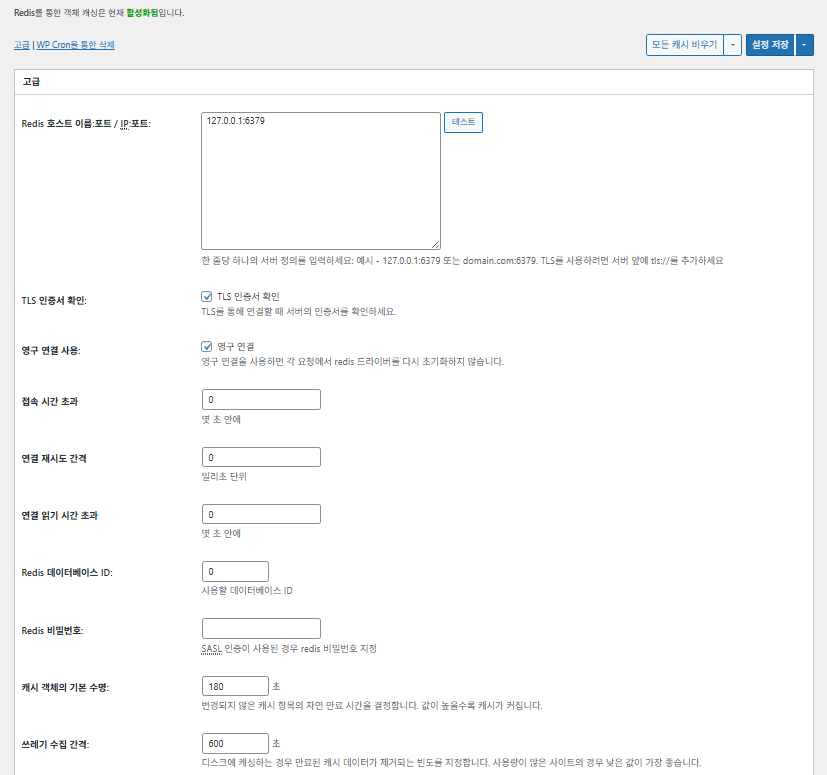
W3TC caché de objetos (Object)_ajustes avanzados 1

Categoría

Descripción

Host/IP de Redis

Formato [127.0.0.1:6379]. Para TLS, usa el prefijo [tls://]

Verificar el certificado TLS

Comprueba la validez del certificado al usar TLS (opcional)

Usar conexiones persistentes

Reutiliza las conexiones Redis para mejorar el rendimiento

Tiempo de espera de conexión

Tiempo máximo permitido para conectar con Redis (s)

Intervalo de reintento de conexión

Espera antes de reintentar tras un fallo (ms)

Tiempo de espera de lectura

Tiempo máximo de espera de respuesta (s)

Redis DB ID

Número de base de datos dentro de Redis (predeterminado [0])

Contraseña de Redis

Contraseña o datos de autenticación SASL

Vida de caché predeterminada

Tiempo predeterminado que se conservan los elementos (s). Por defecto 180 s

Intervalo de recolección de basura

Cada cuánto se borra la caché caducada. Por defecto 600 s

Grupos globales

Grupos compartidos en modo red (para multisitio)

Grupos no persistentes

Grupos excluidos de la caché, p. ej. [counts], [plugins]

Cachear peticiones de wp-admin

Aplica la caché también al área de administración (⚠️ prueba antes)

Guardar transients en la base de datos

Mantiene valores temporales en la BD aunque se use una caché externa

Activar WP-CLI

Permite la caché también en los comandos de WP-CLI

6️⃣ Caché del navegador

La caché del navegador guarda archivos estáticos como imágenes, CSS y JS en el dispositivo del visitante, lo que reduce mucho la carga en las visitas repetidas. Así mejoran la velocidad de respuesta y la experiencia de usuario.

La mayoría de estos ajustes se centran en el control de la caché y la reducción de la carga del servidor. En sitios con mucho tráfico o donde importa optimizar los recursos estáticos, no hay problema en activar muchos.

CategoríaGeneralCSS y JSHTML y XMLMedios y otros archivos
Definir la cabecera [Last-Modified]Incluye la fecha de última modificación para permitir respuestas 304✅ Activar en la mayoría de casos✅ Adecuado para la mayoría de servidores✅ Válido para la mayoría de cachés CDN/del navegador
Definir la cabecera [Expires]Hace que el navegador guarde los archivos durante un tiempo✅ Predeterminado 31536000 s (1 año), recomendado✅ Predeterminado [3600 s (1 hora)] ✅ [31536000 s] (1 año) por defecto → adecuado para archivos estáticos
⏱️ Definir la caducidad de Expires—⏱️ Ej.: [31536000 s = 1 año] · se puede acortar si se usa con una CDN——
Definir la cabecera [Cache-Control]Controla la estrategia de caché añadiendo las cabeceras pragma y cache-control✅ Se recomienda [“public, max-age=31536000”]✅ Configúralo, por ejemplo, como [“public, max-age=3600”]✅ Se recomienda [“public, max-age=31536000”]
✅ Política de control de caché—✅ Usa un método que incluya [max-age] · [“public, max-age=EXPIRES_SECONDS”] se usa por defecto——
Definir [ETag]Ofrece una etiqueta de entidad que identifica el archivo – para detectar cambios✅ Eficaz si se usa dentro del mismo servidor✅ Si no se comparte la caché entre servidores,
se recomienda usarlo
✅ Útil si trabajas con un solo servidor
Definir la cabecera de W3TCAñade una cabecera que indica si W3TC optimizó el archivo🔖 No obligatorio; para análisis🔖 No obligatorio (para depuración)🔖 Opcional
Compresión gzipCompresión que reduce los archivos de texto (muy compatible)✅ Compatible con la mayoría de servidores✅ La mayoría de servidores lo admiten✅ No afecta a las imágenes
Compresión brotliMayor tasa de compresión que gzip (solo navegadores compatibles)✅ Requiere configurar Apache/Nginx✅ Activar el módulo de Apache/nginx✅ Solo se aplica a navegadores compatibles
Evitar la caché de objetos tras cambiar ajustesAñade una cadena de consulta para invalidar la caché anterior✅ Recomendado si cambias los ajustes a menudo—✅ Los cambios de archivos se aplican al instante
Eliminar cadenas de consultaQuita [?] de los recursos estáticos para mejorar la tasa de caché⚠️ Solo es necesario con algunas CDN/proxies—✅ Se puede aplicar a archivos versionados
Eliminar cookiesQuita la cabecera [Set-Cookie] de las respuestas de recursos estáticos✅ Márcalo en la mayoría de casos—✅ Las imágenes y similares no necesitan cookies
Que WordPress no gestione los 404El servidor web gestiona los 404 de archivos estáticos → menos carga para WP———
Lista de URI excepción para 404Indica patrones de URI que WP debe seguir gestionando (p. ej., sitemap, robots.txt)———
Reescribir la estructura de URL de objetosGenera URI únicas para saltarse la caché (p. ej., [ver=xxxx])———

Ⅲ. Funciones adicionales de W3 Total Cache

  • ↳ WP Cron, CDN, proxy inverso, experiencia de usuario, estadísticas, conversor WebP, Google PageSpeed, importar/exportar ajustes

Purgar la caché mediante WP Cron es un ajuste global.

🧭 Simulador de funciones adicionales de W3 Total Cache
Simulador de ruta
📍Performance›General Settings›Purge via WP Cron
WP Cron
El borrado de caché con WP Cron es un ajuste global en el que defines la hora de inicio y el intervalo.
📍Performance›General Settings›CDN›Advanced Settings
CDN
Tras darte de alta en un proveedor de CDN, marca [Enable] en [CDN], elige el [CDN Type] y guarda; las opciones detalladas se configuran en [Advanced Settings].
📍Performance›General Settings›Reverse Proxy
Proxy inverso
Marca [Enable reverse proxy caching via varnish] solo si usas Varnish. En [Varnish servers] introduce la dirección IP del servidor Varnish.
📍Performance›General Settings›User Experience›Advanced Settings
Experiencia de usuario
Marca [Lazy Load Images], guarda y luego configura las opciones de carga diferida en [Advanced Settings]. Más del 50 % de las funciones de los ajustes avanzados están disponibles en la versión premium.
📍Performance›General Settings›Image Converter
Conversor WebP
Si marcas [Enable Image Converter Extension] en [Image Converter], puedes convertir las imágenes de la biblioteca de medios a WebP o AVIF.
example.com/wp-admin/admin.php?page=w3tc_general
DashboardSettingsToolsInfoSupportUpgrade
|||||||||||||||||
Empty All Caches
Purge via WP Cron
Enabling this will schedule a WP-Cron event that will flush all enabled Caches via a single cron job. Each cache’s advanced settings page features similar settings to this if you wish to schedule purges for specific caches only. If you prefer to use a system cron job instead of WP-Cron, you can schedule the following command to run at your desired interval: “wp w3tc flush all”. If the Always Cached extension is active and enabled, page cache entries will instead be added to the queue instead of being purged from the cache. Visit here for more information.
Enable WP-Cron Event
Enable
Start Time
This setting controls the initial start time of the cron job. If the selected time has already passed, it will schedule the job for the following day at the selected time.
Interval
This setting controls the interval that the cron job should occur.
CDN
Content Delivery Network (CDN) is a powerful feature that can significantly enhance the performance of your WordPress website. By leveraging a distributed network of servers located worldwide, a CDN helps deliver your website’s static files, such as images, CSS, and JavaScript, to visitors more efficiently. This reduces the latency and improves the loading speed of your website, resulting in a faster and smoother browsing experience for your users. With W3 Total Cache’s CDN integration, you can easily configure and connect your website to a CDN service of your choice, unleashing the full potential of your WordPress site’s speed optimization.
Basic SettingsPremium ServicesHelp
CDN:
Theme files, media library attachments, CSS, and JS files will load quickly for site visitors.
CDN Type:
Select the CDN type you wish to use.
Host the entire website with your compatible CDN provider to reduce page load time.
FSD CDN:
Enable★ PRO
Deliver visitors the lowest possible response and load times for all site content including HTML, media (e.g. images or fonts), CSS, and JavaScript. Show More ⌄ Learn more about Pro
Reverse Proxy
A reverse proxy is a server that sits between a client and a web server, acting as an intermediary for requests. It retrieves resources on behalf of the client from the server, and then returns the response to the client. By utilizing a reverse proxy, such as Varnish or Nginx, in conjunction with W3 Total Cache, you can significantly enhance the performance of your WordPress website by caching and serving static content directly from the reverse proxy server, reducing the load on your WordPress server and improving response times for visitors.
Enable reverse proxy caching via varnish
Varnish servers:
Specify the IP addresses of your varnish instances above. The VCL’s ACL must allow this request.
Trusted reverse proxies:
IP addresses or CIDR ranges of reverse proxies and load balancers in front of this site (one per line). Forwarded scheme and client-IP headers are used only for these addresses. Leave empty when PHP receives client connections directly. Developers may also supply this list via the w3tc_trusted_proxies filter.
User Experience
User Experience (UX) is a setting that focuses on enhancing the overall browsing experience for visitors of your website. By enabling this feature, you can optimize your website’s performance by minimizing load times, reducing server requests, and delivering content more efficiently. This ultimately leads to faster page loading, improved user satisfaction, and increased engagement, resulting in a speedier and more enjoyable WordPress website.
Basic Settings
Defer loading offscreen images.
Lazy Load Google Maps★ PRO
In addition to lazy loading images, with W3 Total Cache Pro you can lazy load Google Maps! More information and settings can be found on the User Experience page.
Disable Emoji
Remove emojis support from your website.
Delay Scripts★ PRO
Delay the loading of specified internal/external JavaScript sources on your pages separate from Minify.
Remove Unwanted/Unused CSS/JS★ PRO
Removes specified CSS/JS tags from the homepage or on a per page basis.
Preload Requests★ PRO
DNS prefetching, pre-connecting, and preloading are essential web optimization techniques that enhance website performance by proactively resolving network-related tasks. Learn more about Pro
Disable wp-embed script
Remove wp-embed.js script from your website. oEmbed functionality still works but you will not be able to embed other WordPress posts on your pages.
Disable jquery-migrate on the front-end
Remove jquery-migrate support from your website front-end.
Image Converter
The Image Converter tool can be used to generate modern-format versions (e.g., WebP or AVIF) of media library images which offer superior lossless and lossy compression.
Enable Image Converter Extension
This extension allows for optimizing media library images to modern formats like WebP or AVIF.
As a free user you are limited to conversions of 10/hour and 100/month. The Pro license increases these rates to 10,000/hour and unlimited/month. Conversion rates are subject to change and documentation can be found here. Learn more about Pro
example.com/wp-admin/admin.php?page=w3tc_cdn
DashboardSettingsToolsInfoSupportUpgrade
||
Empty All Caches
General
Host attachments
Upload attachments
If checked, all attachments will be hosted with the CDN.
Host wp-includes/ files
Upload includes files
If checked, WordPress static core file types specified in the “wp-includes file types to upload” field below will be hosted with the CDN.
Host theme files
Upload theme files
If checked, all theme file types specified in the “theme file types to upload” field below will be hosted with the CDN.
Host minified CSS and JS files
Upload minify files
If checked, minified CSS and JS files will be hosted with the CDN.
Host custom files
Upload custom files
If checked, any file names or paths specified in the “custom file list” field below will be hosted with the CDN.
Force over-writing of existing files
If modified files are not always detected and replaced, use this option to over-write them.
Advanced
Only purge CDN manually
Purge CDN only if explicit purge button is clicked.
Disable CDN on SSL pages
When SSL pages are returned no CDN URLs will appear in HTML pages.
Use CDN links for the Media Library on admin pages
All Media Library content will use CDN links on administration pages.
Add CORS header
Add CORS headers to allow cross-domain assets usage.
Disable CDN for the following roles
Select user roles that will use the origin server exclusively:
Administrator
Editor
Author
Contributor
Subscriber
Disable CDN on the following pages:
Always ignore the specified pages / directories. Supports regular expression.
Automatically upload minify files
If CDN is enabled (and not using the origin pull method), your minified files will be automatically uploaded.
Export changed files automatically
Automatically attempt to find and upload changed files.
Auto upload interval:
3600seconds
Specify the interval between upload of changed files.
Re-transfer cycle interval:
900seconds
The number of seconds to wait before upload attempt.
Re-transfer cycle limit:
25
Number of files processed per upload attempt.
wp-includes file types to upload:
*.css;*.js;*.gif;*.png;*.jpg;*.xml
Specify the file types within the WordPress core to host with the CDN.
Theme file types to upload:
*.css;*.js;*.gif;*.png;*.jpg;*.ico;*.ttf;*.otf;*.woff;*.woff2;*.less
Specify the file types in the active theme to host with the CDN.
File types to import:
 
Automatically import files hosted with 3rd parties of these types (if used in your posts / pages) to your media library. Only common static types (images, CSS, JS, fonts, and media) are imported. Script, markup, and SVG types are ignored even if listed. Empty, *, and *.* use that static allowlist rather than every file.
Custom file list:
favicon.ico
{wp_content_dir}/gallery/*
{wp_content_dir}/uploads/avatars/*
{plugins_dir}/wordpress-seo/css/xml-sitemap.xsl
{plugins_dir}/wp-minify/min*
{plugins_dir}/*.js
{plugins_dir}/*.css
{plugins_dir}/*.gif
{plugins_dir}/*.jpg
{plugins_dir}/*.png
Specify any files outside of theme or other common directories to host with the CDN.
Rejected user agents:
Specify user agents that should not access files hosted with the CDN.
Rejected files:
{uploads_dir}/wpcf7_captcha/*
{uploads_dir}/imagerotator.swf
{plugins_dir}/wp-fb-autoconnect/facebook-platform/channel.html
Specify the path of files that should not use the CDN.
Set cookie domain to “example.com”
If using subdomain for CDN functionality, this setting helps prevent new users from sending cookies in requests to the CDN subdomain.
Note(s):
  • You can use placeholders {wp_content_dir}, {plugins_dir}, {uploads_dir} instead of writing folder paths (wp-content, wp-content/plugins, wp-content/uploads).
  • If using Amazon Web Services or Self-Hosted CDN types, enable HTTP compression in the “Media & Other Files” section on Browser Cache Settings tab.
example.com/wp-admin/admin.php?page=w3tc_userexperience
DashboardSettingsToolsInfoSupportUpgrade
Empty All Caches
Lazy loading is currently disabled.
Lazy Loading
Process HTML image tags
Process img tags
Process background images
Process background styles
Exclude words:
avia-bg-style-fixed
data-bgposition=
data-envira-src=
data-large_image=
data-lazy-original=
data-lazy-src=
data-lazyload=
data-lazysrc=
data-no-lazy=
data-src=
data-srcset=
fullurl=
lazy-slider-img=
loading=”eager”
no-lazy
rev-slidebg
skip-lazy
soliloquy-image
swatch-img
w3-total-cache
woocommerce/assets/images/placeholder.png
wpcf7_captcha
Exclude tags containing words
Threshold
 
The outer distance off the scrolling area from which to start loading the elements (example: 100px, 10%).
Script Embed method:
Use inline method only when your website has just a few pages
Google Maps
Lazy load google map
WP Google Map Plugin plugin
Google Maps Easy plugin
WP Google Maps plugin
Pulsa un elemento activo del menú izquierdo o un botón de la pantalla.

1️⃣ CDN

Puedes configurarlo después de darte de alta en un proveedor de CDN.

Opción

Descripción

✅ Alojar archivos adjuntos

Sube a la CDN los adjuntos de [wp-content/uploads], como imágenes

✅ Alojar archivos de wp-includes

Incluye en la CDN los archivos estáticos del núcleo de WordPress (js/css, etc.)

✅ Alojar archivos del tema

Incluye en la CDN los archivos estáticos del tema activo (css/js/imágenes, etc.)

✅ Alojar archivos CSS/JS minificados

Sirve desde la CDN los CSS/JS minificados por W3TC

✅ Alojar archivos personalizados

Envía a la CDN las rutas o nombres de archivo que indiques

⚠️ Forzar la sobrescritura de archivos existentes

Para forzar una nueva subida si los cambios no se detectan solos

Categoría

Descripción

Purgar la CDN solo a mano

Solo borra archivos de la CDN al pulsar el botón de purga manual

Desactivar la CDN en páginas SSL

No usa URL de CDN en páginas HTTPS

Usar enlaces de CDN en el administrador

Muestra URL de CDN para los medios también en el administrador

Add CORS header

Añade una cabecera de respuesta que permite CORS

Desactivar la CDN por rol

No aplica la CDN a los roles elegidos (p. ej., solo los administradores usan el origen)

Lista de páginas excluidas

Excluye de la CDN las rutas indicadas (se admiten regex)

Subir automáticamente los archivos minificados

Sube automáticamente a la CDN los archivos minificados (Push)

Exportar automáticamente los archivos modificados

Sube automáticamente al detectar cambios en los archivos

Intervalo de subida automática

Intervalo de subida tras detectar cambios (predeterminado 3600 s)

Intervalo / límite de reenvío

Intervalo de reintento tras fallos y límite de archivos procesados

Archivos de wp-includes que se suben

Indica qué tipos de archivos del núcleo van a la CDN

Tipos de archivos del tema que se suben

Indica tipos de archivos del tema como CSS/JS/fuentes

Tipos de archivo que se importan

Fija las condiciones para descargar automáticamente archivos enlazados externos

Lista de archivos personalizados

Indica rutas de archivos sueltos que se envían a la CDN (plantillas, plugins externos, etc.)

Agentes de usuario rechazados

Indica los bots/agentes de usuario que no pueden acceder a los archivos de la CDN

Rutas de archivo rechazadas

Indica rutas que se mantienen fuera de la CDN, como CAPTCHA y rutas especiales

Definir el dominio de las cookies

Indica un dominio para que no se envíen cookies al usar una CDN en un subdominio

2️⃣ Proxy inverso

La descripción pone Varnish y Nginx como ejemplos, pero como Nginx se configura en el servidor, aplícalo en el plugin W3 Total Cache solo si usas Varnish.

3️⃣ Experiencia de usuario: carga diferida

En los ajustes avanzados, más del 50 % de las funciones solo están en la versión premium.

Categoría

Descripción

Cuándo usarlo

✅ Procesar etiquetas de imagen HTML

[<img>]: se les aplica el atributo lazy

Para cargar en diferido las imágenes normales del contenido

✅ Procesar imágenes de fondo

Aplica la carga diferida a [background-image] de CSS

Para sitios con mucho diseño y muchas imágenes de fondo

Excluir palabrasEjemplo
Atributos excluidos de lazy[data-src], [data-lazy-src], [data-no-lazy], [loading=”eager”], etc.
Clases excluidas de lazy[no-lazy], [skip-lazy], [lazy-slider-img], [rev-slidebg], etc.
Plugins/sliders[soliloquy-image], [envira], [w3-total-cache], [wpcf7_captcha], etc.
WooCommerce[swatch-img], [woocommerce/…/placeholder.png], etc.

El «umbral» de la carga diferida indica a qué distancia por debajo de la ventana del navegador (pantalla) empiezan a cargarse las imágenes y elementos de fondo. Por ejemplo, con 100px un elemento se carga cuando el usuario se acerca a menos de 100 píxeles al desplazarse; un valor demasiado corto retrasa la carga y el usuario puede ver huecos en blanco, así que lo normal es 100–300px.

A continuación, los métodos de inserción de scripts.

Método de inserción

Descripción

Ubicación o atributo

Asíncrono (Async)

Se ejecuta en paralelo a la carga de la página y no bloquea el renderizado

[<script async>]

Síncrono (en el head)

Se ejecuta primero en el área [<head>] y puede bloquear el renderizado temporalmente (in the head)

[<head>] o [<script>]

En línea (Inline)

Inserta el script directamente en el documento HTML y se ejecuta sin otra petición

Insertado dentro de [<script>código</script>]

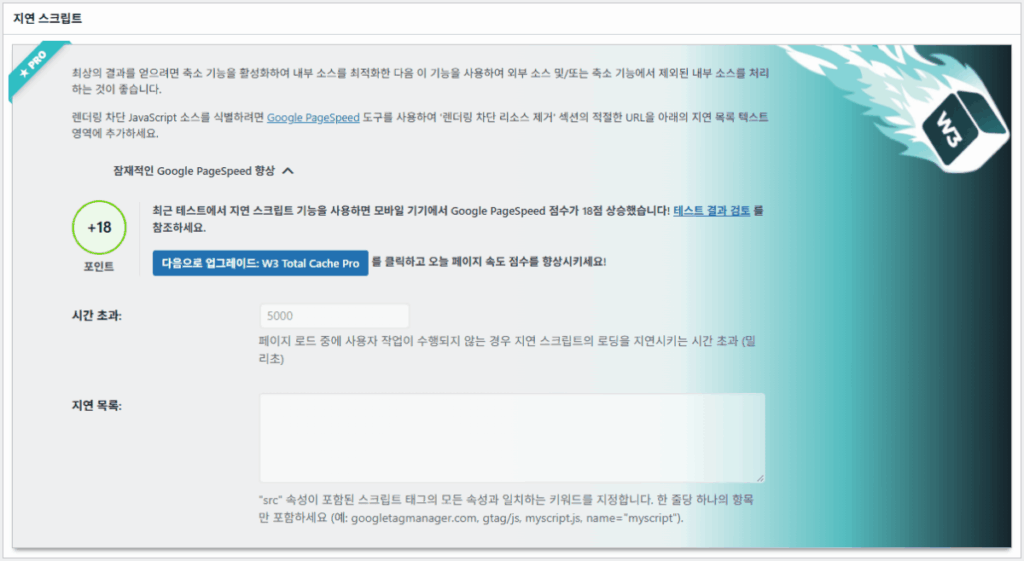
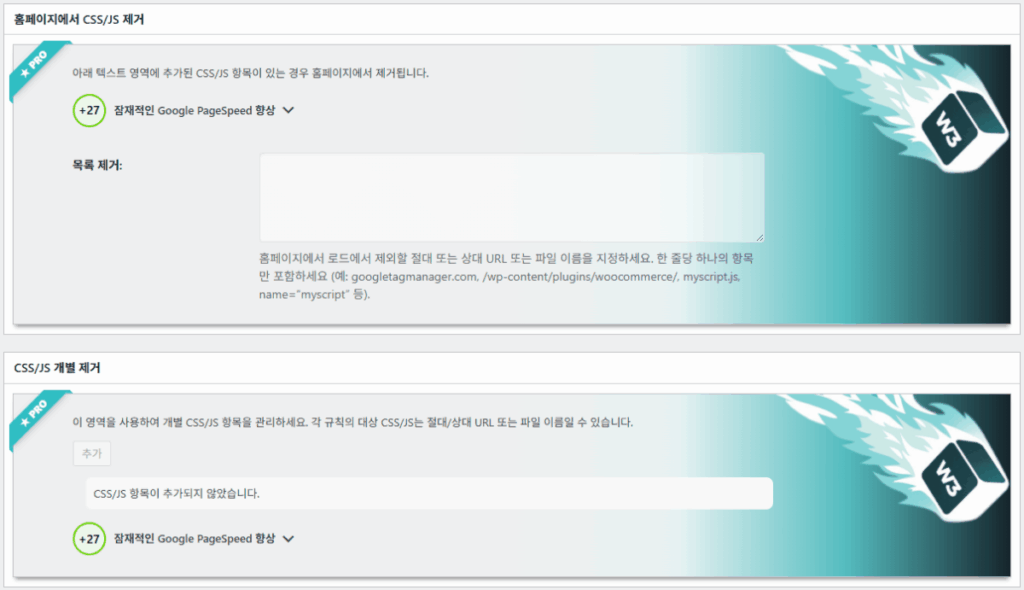
W3TC experiencia de usuario ajustes avanzados 2
W3TC experiencia de usuario ajustes avanzados 3

4️⃣ Conversor WebP

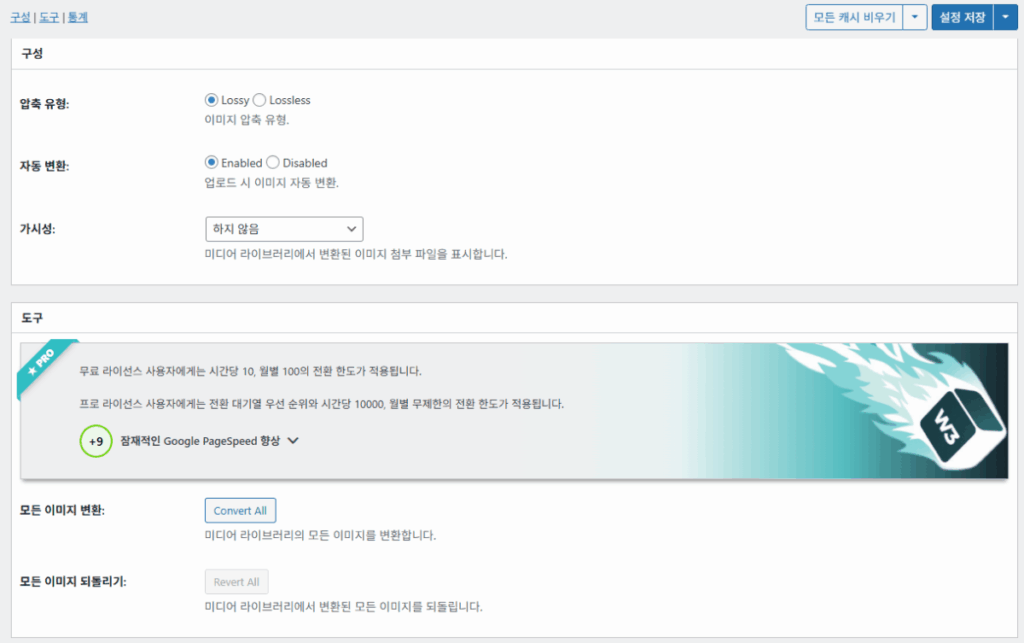
W3TC conversor WebP_detalle (ajustes avanzados) 1
W3TC conversor WebP_detalle (ajustes avanzados) 2

Ⅳ. Valoración general de W3 Total Cache

La interfaz (UI) de W3 Total Cache no es mala, pero es claramente incómoda. Muchos desarrolladores y usuarios profesionales señalan lo mismo. Comparado con plugins modernos como WP Rocket o FlyingPress, puede seguirles el ritmo en rendimiento, pero en experiencia de usuario (UX) se queda corto.

Tener muchas funciones es una ventaja, pero para los principiantes la estructura puede resultar demasiado compleja. Sobre todo, con tantos saltos entre menús y opciones detalladas, incluso desarrolladores y administradores con experiencia pueden cometer errores de configuración. Es normal no recordar cada ajuste, pero en el uso diario es un plugin de caché avanzado que permite ajustes muy finos.

Con más de 1 millón de instalaciones de la versión gratuita, cuesta verlo como un simple plugin antiguo: en la práctica, pocos plugins de caché igualan la variedad y riqueza de sus funciones.

CategoríaPuntuación (⭐)Valoración
🎛️ Interfaz⭐⭐⭐Muchos menús y estructura compleja; una barrera para usuarios nuevos. La UI se ve anticuada
⚙️ Variedad de funciones⭐⭐⭐⭐⭐Caché, CDN, Redis y casi cualquier función; cuesta encontrar algo que falte
🛠️ Flexibilidad de ajuste fino⭐⭐⭐⭐Casi todo se puede ajustar al detalle; cuidado con los conflictos entre ajustes
🚀 Mejora de rendimiento⭐⭐⭐⭐⭐Rendimiento excelente una vez optimizado; la caché de objetos/navegador marca mucha diferencia
🧩 Compatibilidad⭐⭐⭐Puede chocar con algunos hostings, temas y plugins.
📄 Documentación y guías⭐⭐⭐⭐⭐Abundante documentación oficial
💡 Recomendación de usuarios⭐⭐⭐⭐(4.5)Recomendado para usuarios avanzados; para principiantes, mejor WP Rocket, Cache Enabler, etc.
📊 Valoración global⭐⭐⭐⭐(4.5)Plugin potente centrado en funciones. Tiene curva de aprendizaje; ten en cuenta tu nivel

Ⅴ. Prueba de rendimiento

Tras configurar el plugin, la prueba de velocidad final mostró una mejora más notable que con los plugins de caché habituales.

ℹ️ Aviso de afiliados
El contenido de este sitio incluye enlaces de afiliado. Cuando un visitante compra un producto o servicio a través de uno de ellos, el sitio recibe una comisión del vendedor. El importe que paga el comprador(baja durante las promociones ↓)no aumenta. Los precios, descuentos y existencias publicados corresponden al momento de redacción y pueden variar, así que confírmalos con el vendedor antes de comprar. Los productos se eligen y evalúan con criterios propios, y las comisiones no influyen en el orden ni en el contenido de las reseñas.

Deja una respuesta

Tu dirección de correo electrónico no será publicada. Los campos obligatorios están marcados con *

Demuestra que eres humano: 7   +   3   =