W3 Total Cache Plugin: optimal einrichten

Affiliate-Hinweis v3.1
Affiliate-Hinweis v3.2 (mobil)
Testumgebung CloudwaysDebian 12Apache 2.4.69 + nginxPHP 8.2.34WordPress 7.1.3W3 Total Cache 2.10.7Geprüft am 2026-10-18

Eine WordPress-Website wird mit jedem Plugin zwangsläufig langsamer. Deshalb gehört ein Cache-Plugin inzwischen zu den unverzichtbaren WordPress-Plugins. Mit über 1 Million aktiven Installationen der Gratisversion und einer Bewertung von 4,4 Sternen ist das Plugin W3 Total Cache (W3TC) eines der meistgenutzten Plugins.

Da Cache-Einstellungen Funktionen anderer Plugins stören können, kannst du als WordPress-Einsteiger ein einfach einzurichtendes Plugin wie Cache Enabler oder WP Super cache verwenden.

Brauchst du detaillierte Cache-Einstellungen und Kontrolle, kannst du W3 Total Cache nutzen, das schon in der Gratisversion starke Funktionen bietet.

Ⅰ. W3 Total Cache installieren und Setup Guide

  • ↳ Suchmaschinen (SEO: Search Engine Optimization)
  • ↳ Performance-Optimierung (WPO: Web Performance Optimization)
  • ↳ Integriertes Caching: unterstützt CDN, Seite, Minify, Objekt, Fragment und Datenbank.

Suche nach W3 Total Cache, installiere und aktiviere das Plugin.

🧭 Simulator: W3 Total Cache installieren und Setup Guide
Caching-PluginPfad-Simulator
📍Plugins›Add Plugin
Plugin installieren
Gib W3 Total Cache in das Suchfeld ein und klicke auf [Install Now]; wenn die Installation fertig ist, klicke auf [Activate].
📍Performance›Setup Guide
Setup Guide
Nach der ersten Installation landest du beim Aufruf von [Dashboard] automatisch im [Setup Guide], weil noch nichts eingerichtet ist.
📍Performance›Dashboard
Dashboard
Was du im Guide einstellst, erscheint nach Funktionen geordnet im Kasten [General Settings]; Detaileinstellungen wie der Seiten-Cache erfolgen in [General Settings].
example.com/wp-admin/plugin-install.php
Add Plugins Upload Plugin
Plugins extend and expand the functionality of WordPress. You may install plugins from the WordPress Plugin Directory right on this page, or upload a plugin in .zip format by clicking the button above.
Search ResultsFeaturedPopularRecommendedFavorites
Search PluginsKeyword
922 items
W3 Total Cache
Installing...ActiveMore Details
Search Engine (SEO) & Performance Optimization (WPO) via caching. Integrated caching: CDN, Page, Minify, Object, Fragment, Database support.
By BoldGrid
★★★★★ (5,421)
Last Updated: 2 weeks ago
900,000+ Active Installations
✓ Compatible with your version of WordPress
example.com/wp-admin/admin.php?page=w3tc_setup_guide
DashboardSettingsToolsInfoSupportUpgrade
W3 Total CacheSetup Guide
TOTAL CACHE: Setup Guide
  • Welcome
  • Page Cache
  • Database Cache
  • Object Cache
  • Image Converter
  • Lazy Load
  • More Caching Options
Welcome to the W3 Total Cache Setup Guide!
By allowing us to collect data about how W3 Total Cache is used, we can improve our features and experience for everyone. This data will not include any personally identifiable information. Feel free to review our terms of use and privacy policy.
AcceptDecline
SKIPNEXT
example.com/wp-admin/admin.php?page=w3tc_dashboard
DashboardSettingsToolsInfoSupportUpgrade
W3 Total CacheDashboard
Flush caches with Empty All Caches
Account
License: Free
Status: Free license, no expiration
Upgrade to W3 Total Cache Pro now to unlock additional settings and features that can further improve your site’s performance and Google PageSpeed ratings.
Learn more about Pro
General Settings
Preview Modedisabled
Page Cachedisabled
Minifydisabled
Opcode Cacheenabled
Database Cachedisabled
Object Cachedisabled
Browser Cachedisabled
CDNdisabled
Reverse Proxydisabled
Statisticsdisabled
Fragment Cachedisabled
Debugdisabled
Settings can be modified by visiting General Settings
Image Optimization Summary
Enable Image Converter
PageSpeed Report
Before you can get started using the Google PageSpeed tool, you’ll first need to authorize access. Please click here.
Klicke links im Menü auf einen aktiven Eintrag oder auf eine Schaltfläche im Bildschirm.

Nach der ersten Installation landest du beim Aufruf der Seite [Dashboard] automatisch im [Setup Guide], weil noch nichts eingerichtet ist.

Im Setup Guide richtest du ① Seiten-Cache, ② Datenbank-Cache, ③ Objekt-Cache, ④ Browser-Cache, ⑤ Bildoptimierung, ⑥ Lazy Load und ⑦ weitere Cache-Optionen ein.
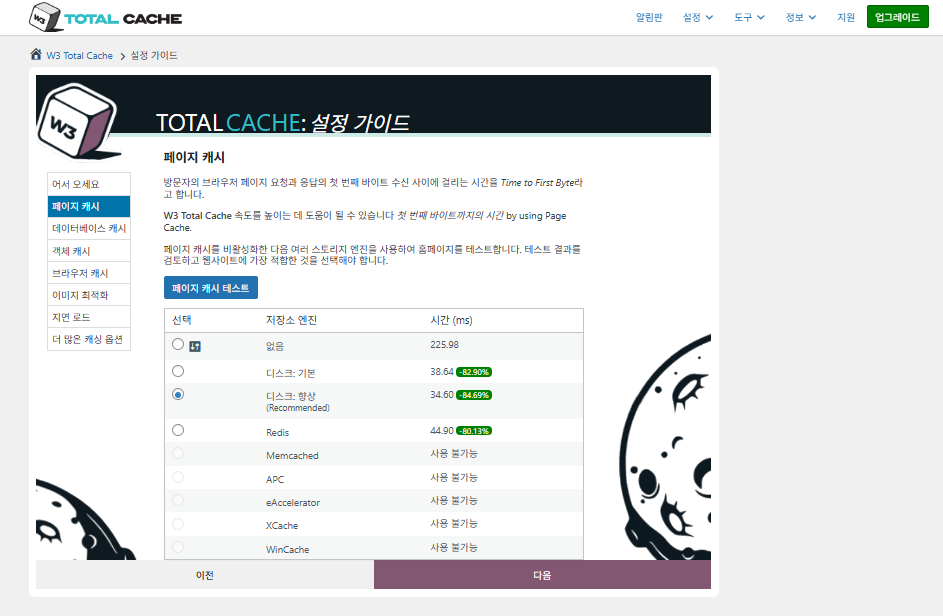
W3 Total Cache Setup Guide ① Seiten-Cache_Disk-Cache (Enhanced gewählt)

Beim Seiten-Cache empfiehlt W3TC standardmäßig Disk: [Erweitert]. Wie die Tabelle zeigt, ist Disk: Enhanced etwa 10,3 ms schneller als Disk: Basic – gemessen an der TTFB rund 17,8 % mehr Leistung.
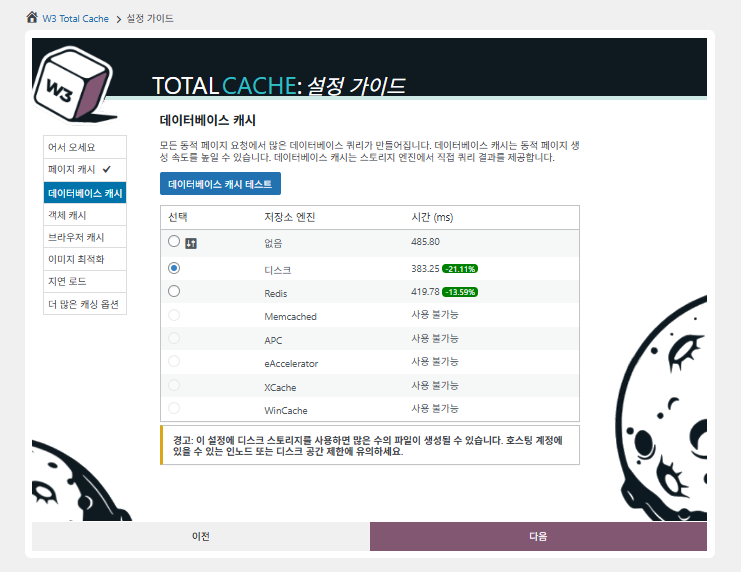
W3 Total Cache Setup Guide ② Datenbank-Cache_Disk-Cache gewählt

Wähle beim Datenbank-Cache den Disk-Cache.
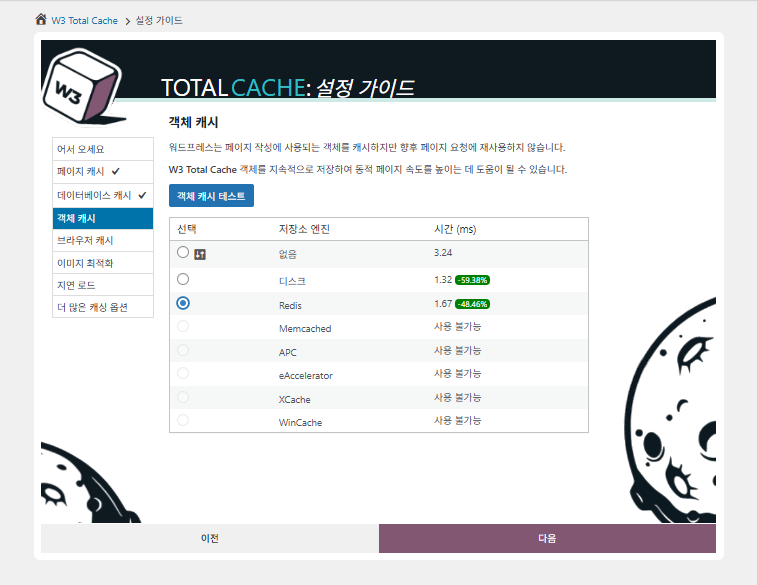
W3 Total Cache Setup Guide ③ Objekt-Cache_Redis gewählt
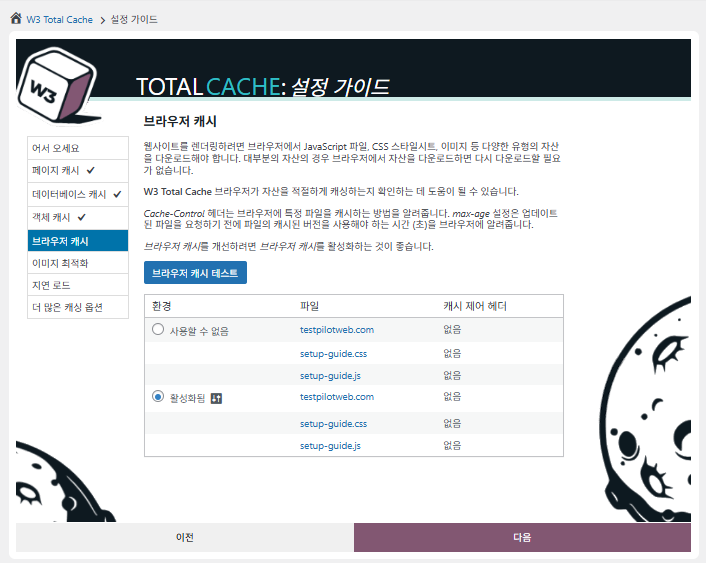
W3 Total Cache Setup Guide ④ Browser-Cache
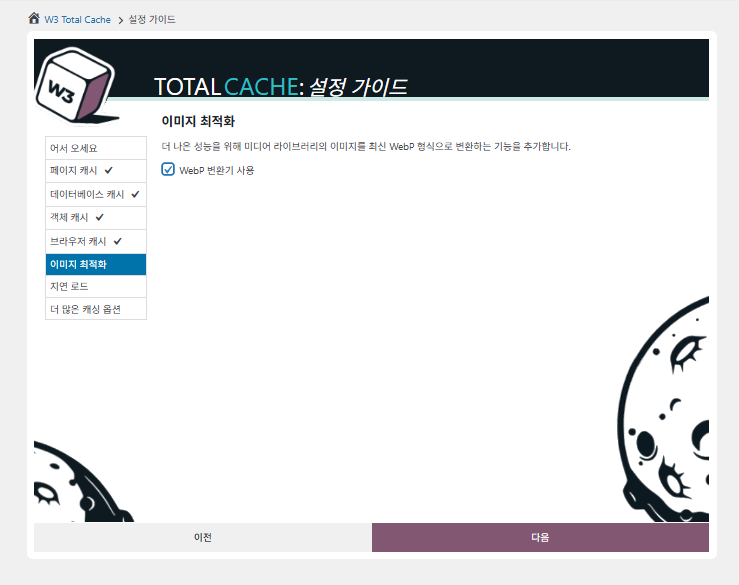
W3 Total Cache Setup Guide ⑤ Bildoptimierung - WebP-Konverter
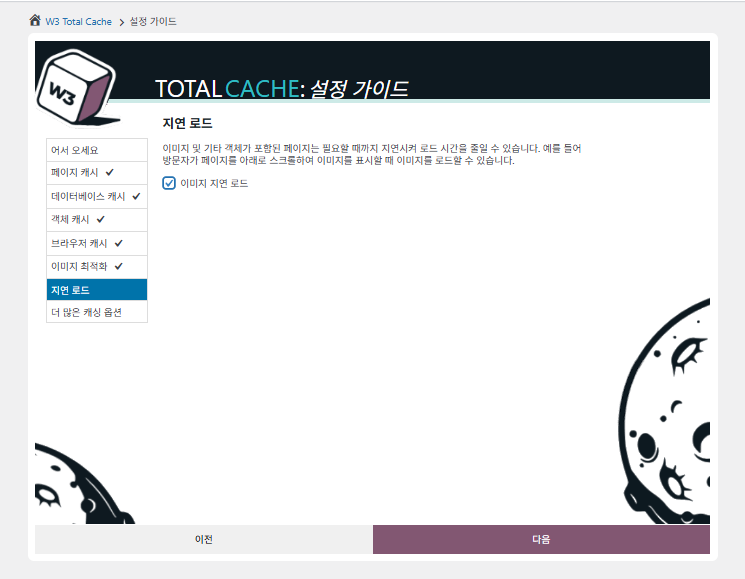
W3 Total Cache Setup Guide ⑥ Lazy Load - Bilder
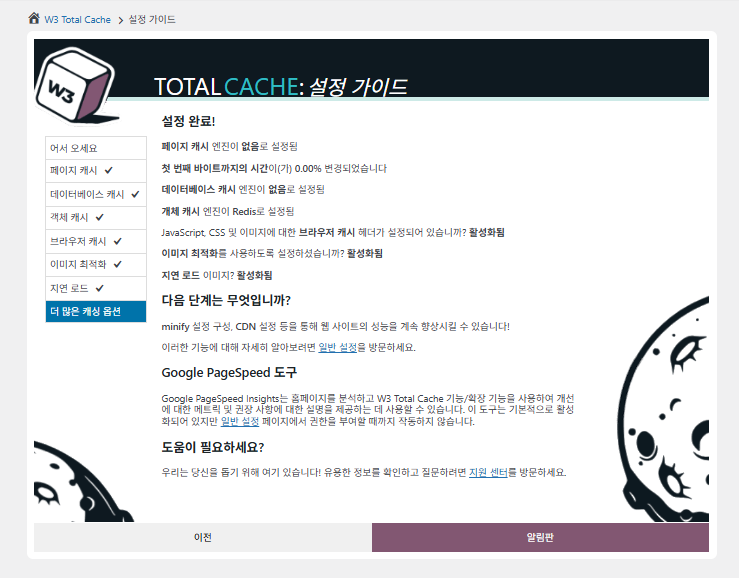
W3 Total Cache Setup Guide ⑦ Weitere Cache-Optionen_nach Wechsel ins Dashboard einstellen

Die im Guide gewählten Einstellungen erscheinen jetzt im Dashboard.

Über den Tab [Settings] oben rechts richtest du alles von [General Settings] bis zum Seiten-Cache ein.
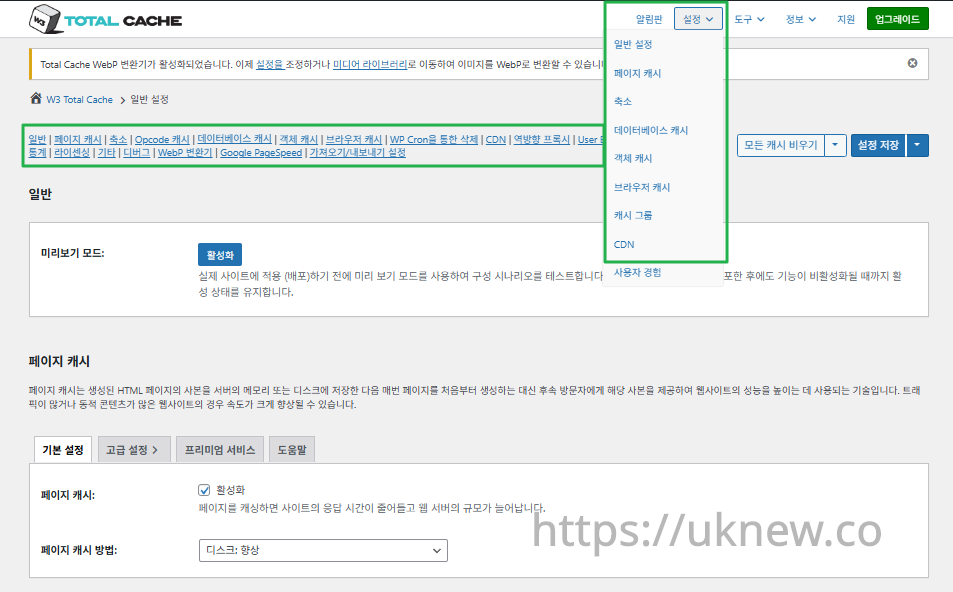
W3TC Dashboard - Einstellungen__

ⓐ Die [Einstellungen auf der Seite] im linken Adminmenü und ⓑ der Tab [Settings] oben rechts führen jeweils zu Seiten-Cache, Minify und weiteren erweiterten Einstellungen. Gehst du oben mittig im Tab General Settings auf die einzelnen Seiten, siehst du für Seiten-Cache und Minify alles von den allgemeinen bis zu den Erweiterte Einstellungen.

Ⅱ. Cache-Einstellungen von W3 Total Cache

  • ↳ Cache-Funktionen

Das ist der Tab General Settings in den W3TC-Einstellungen.

🧭 Simulator: Cache-Einstellungen von W3 Total Cache
Pfad-Simulator
📍Performance›General Settings›General
Vorschaumodus
Bevor du Cache-Änderungen live schaltest, kannst du [Preview mode] aktivieren und vorab auf Fehler testen.
📍Performance›General Settings›Page Cache›Advanced Settings
Seiten-Cache
Setze bei [Page Cache] das Häkchen bei [Enable], prüfe, ob die Methode [Disk: Enhanced] ist, und klicke auf [Save Settings]. Die Details stellst du unter [Advanced Settings] ein.
📍Performance›General Settings›Minify›Advanced Settings
Minify
Setze bei [Minify] das Häkchen bei [Enable], klicke auf [Save Settings] und stelle danach unter [Advanced Settings] die Minify-Optionen für HTML, CSS und JS ein.
📍Performance›General Settings›Opcode Cache
Opcode-Cache
Beim Opcode-Cache wird der auf dem Server installierte Opcode-Cache automatisch genutzt; ist keiner installiert, steht er auf deaktiviert.
📍Performance›General Settings›Database Cache›Object Cache
Datenbank- und Objekt-Cache
Setze bei [Database Cache] und bei [Object Cache] jeweils das Häkchen bei [Enable] und speichere. Die Details stellst du in den Bildschirmen [Database Cache] und [Object Cache] ein.
📍Performance›General Settings›Browser Cache›Advanced Settings
Browser-Cache
Setze bei [Browser Cache] das Häkchen bei [Enable] und speichere; danach stellst du unter [Advanced Settings] die Cache-Optionen je Dateityp ein.
example.com/wp-admin/admin.php?page=w3tc_general
DashboardSettingsToolsInfoSupportUpgrade
|||||||||||||||||
Empty All Caches
General
Preview mode:
Enable
Use preview mode to test configuration scenarios prior to releasing them (deploy) on the actual site. Preview mode remains active even after deploying settings until the feature is disabled.
Page Cache
Page cache is a technique used to speed up the performance of a website by storing a copy of the generated HTML page in the server’s memory or disk, and then serving that copy to subsequent visitors instead of generating the page from scratch each time. This can result in significant speed improvements for websites with high traffic or dynamic content.
Basic SettingsPremium ServicesHelp
Page Cache:
Caching pages will reduce the response time of your site and increase the scale of your web server.
Page Cache Method:
Minify
Minification is a technique used to reduce the file size of HTML, CSS, and JavaScript files by removing unnecessary characters such as whitespace, comments, and line breaks. This process can significantly improve the load times of web pages by reducing the amount of data that needs to be downloaded by the user’s browser.
Basic SettingsPremium ServicesHelp
Minify:
Minification can decrease file size of HTML, CSS, JS and feeds respectively by ~10% on average. Learn more
Minify mode:
Auto
Manual
Select manual mode to use fields on the Minify settings tab to specify files to be minified, otherwise files will be minified automatically. Learn more
Minify Cache Method:
Learn more
HTML minifier:
Learn more
JS minifier:
CSS minifier:
Opcode Cache
Opcode cache is a powerful feature that enhances the performance of a WordPress website by caching compiled PHP code. By storing pre-compiled code in memory, opcode cache eliminates the need for repetitive interpretation and compilation of PHP files, resulting in significantly faster execution times. Opcode cache reduces server load and improves response times, ultimately enhancing the overall speed and responsiveness of your WordPress site. If opcode cache is available on the hosting server it will automatically be selected in the dropdown and enabled.
Opcode Cache
Validate timestamps:
Enable
Once enabled, each file request will update the cache with the latest version. When this setting is off, the Opcode Cache will not check, instead PHP must be restarted in order for setting changes to be reflected.
Database Cache
Enable this setting to utilize the power of caching your WordPress site’s database queries. By storing frequently accessed database queries in memory, the database cache reduces the need for repetitive database interactions, resulting in faster page load times. This feature is particularly beneficial for websites with heavy database usage, improving overall performance and delivering a smoother user experience.
Basic SettingsPremium ServicesHelp
Database Cache:
Caching database objects decreases the response time of your site. Best used if object caching is not possible.
Database Cache Method:
Object Cache
Enable this option to utilize an object cache mechanism, which significantly enhances the performance of your WordPress website. Object caching stores frequently accessed database queries and complex data structures in memory, reducing the need to retrieve them from the database repeatedly. By doing so, it minimizes the processing time required to generate dynamic content, resulting in faster page loading times and improved overall site speed. Enabling object cache is particularly beneficial for websites with heavy database usage or high traffic volumes, as it helps alleviate the strain on the server by efficiently serving cached data.
Basic SettingsPremium ServicesHelp
Object Cache:
Object caching greatly increases performance for highly dynamic sites that use the Object Cache API.
Object Cache Method:
Browser Cache
Enabling browser caching will instruct visitors’ web browsers to store static files from your WordPress website, such as images, CSS, and JavaScript files, locally on their devices. By doing so, subsequent visits to your site will retrieve these cached files from the browser’s storage, reducing the need for repeated downloads. This results in faster page loading times and a smoother browsing experience for your visitors, ultimately improving the overall speed and performance of your WordPress website.
Basic SettingsPremium ServicesHelp
Browser Cache:
Enable HTTP compression and add headers to reduce server load and decrease file load time.
example.com/wp-admin/admin.php?page=w3tc_pgcache
DashboardSettingsToolsInfoSupportUpgrade
|||||||
Empty All Caches
Always Cached extension is currently disabled. To enable the extension click here.
General
Cache front page
For many blogs this is your most visited page, it is recommended that you cache it. Learn more
Cache feeds: site, categories, tags, comments
Even if using a feed proxy service enabling this option is still recommended. Learn more
Handle XML mime type
Return correct Content-Type header for XML files (e.g., feeds and sitemaps). Learn more
Cache SSL (HTTPS>) requests
Cache SSL requests (uniquely) for improved performance. Learn more
Cache URI with query string variables
Search result (and similar) pages will be cached if enabled. Learn more
Cache 404 (not found) pages
Reduce server load by caching 404 pages. If the disk enhanced method of disk caching is used, 404 pages will be returned with a 200 response code. Use at your own risk. Learn more
Don’t cache pages for logged in users
Unauthenticated users may view a cached version of the last authenticated user’s view of a given page. Disabling this option is not recommended. Learn more
Don’t cache pages for following user roles
Select user roles that should not receive cached pages: Learn more
Administrator
Editor
Author
Contributor
Subscriber
Aliases
Cache alias hostnames:
Enable
If the same WordPress content is accessed from different domains. Learn more
Additional home URLs:
Specify full home URLs of your mirrors so that plugin will flush it’s cache when content is changed. For example: http://my-site.comhttp://www.my-site.comhttps://my-site.com Learn more
Cache Preload
Automatically prime the page cache
Automatically primes the page cache using the settings configured below. Learn more
Update interval:
900seconds
The number of seconds to wait before creating another set of cached pages. Learn more
Pages per interval:
10
Limit the number of pages to create per batch. Fewer pages may be better for under-powered servers. Learn more
Sitemap URL:
 
A compliant sitemap can be used to specify the pages to maintain in the primed cache. Pages will be cached according to the priorities specified in the XML file. Learn more
Preload the sitemap once
Stop cache preloading after every URL in the sitemap has been processed. Disable and re-enable cache preloading to start a new pass.
Preload cache upon publishing a post
Only applies to pages, posts, and custom post types whose status transitioned from a non-published status to the “published” status. Learn more
Preload cache upon updating a post
Applies after updating any page, post, or custom post type with the final status being “published”. Learn more
Purge Policy:
Specify the pages and feeds to purge when posts are created, edited, or comments posted. The defaults are recommended because additional options may reduce server performance: Learn more
Front page
Post page
Blog feed
Post comments pages
Post author pages
Post terms pages
Post comments feed
Post author feed
Post terms feeds
Daily archive pages
Monthly archive pages
Yearly archive pages
rdf
rss
rss2 (default)
atom
Choose which feed types should be automatically purged. Learn more
Purge limit:
10
Specify number of pages that lists posts (archive etc.) that should be purged on post updates etc., i.e. example.com/ ... example.com/page/5.
0 means all pages that lists posts are purged, i.e. example.com/page/2 ... Learn more
Additional pages:
Specify additional pages to purge. Including parent page in path. Ex: parent/posts. Learn more
Purge sitemaps:
([a-z0-9_\-]*?)sitemap([a-z0-9_\-]*)?\.(?:xml|xsl)
Specify a regular expression that matches your sitemaps. Learn more
REST API
Use these controls to determine how the WordPress REST API responds to visitors and integrations. Caching API responses can dramatically reduce load when headless frontends, mobile apps, or third-party services request the same data repeatedly, but you can keep responses uncached for highly dynamic endpoints or disable the API altogether when it is not needed to reduce attack surface. Learn more
REST API
Don’t cache
Cache★ PRO
Disable REST API
If you’re using the WordPress API make sure to use caching to scale performance. Show More ▾
Advanced
Late initialization:
Enable
Enables support for WordPress functionality in fragment caching for the page caching engine. Use of this feature may increase response times. Learn more
Late caching:
Enable
Overwrites key of page caching via custom filters by postponing entry extraction during the init action. Learn more
Compatibility mode:
Enable
Decreases performance by ~20% at scale in exchange for increasing interoperability with more hosting environments and WordPress idiosyncrasies. Enable this option if you experience issues with the Apache rules. Learn more
Reject HEAD requests:
Disable caching of HEAD HTTP requests
If disabled, HEAD requests can often be cached resulting in “empty pages” being returned for subsequent requests for a URL. Learn more
Maximum lifetime of cache objects:
3600seconds
Determines the natural expiration time of cache items. The higher the value, the larger the cache.
Max lifetime is limited by the W3TC_CACHE_FILE_EXPIRE_MAX constant (2592000 seconds) which can be overridden in wp-config.php.
Garbage collection interval:
3600seconds
If caching to disk, specify how frequently expired cache data is removed. For busy sites, a lower value is best. Learn more
Comment cookie lifetime:
1800seconds
Significantly reduce the default TTL for comment cookies to reduce the number of authenticated user traffic. Enter -1 to revert to default TTL. Learn more
Accepted query strings:
ScCid
_branch_match_id
_bta_c
_bta_tid
_ga
_gl
_ke
adgroupid
adid
age-verified
ao_noptimize
campaignid
campid
click_id
cn-reloaded
customid
dicbo
dm_i
ef_id
epik
fb_action_ids
fb_action_types
fb_source
fbclid
gclid
gclsrc
gdffi
gdfms
gdftrk
hsa_acc
hsa_ad
hsa_cam
hsa_grp
hsa_kw
hsa_mt
hsa_net
hsa_src
hsa_tgt
hsa_ver
igshid
li_fat_id
matomo_campaign
matomo_cid
matomo_content
matomo_group
matomo_keyword
matomo_medium
matomo_placement
matomo_source
mc_cid
mc_eid
mkcid
mkevt
mkrid
mkwid
msclkid
mtm_campaign
mtm_cid
mtm_content
mtm_group
mtm_keyword
mtm_medium
mtm_placement
mtm_source
pcrid
piwik_campaign
piwik_keyword
piwik_kwd
pk_campaign
pk_cid
pk_content
pk_keyword
pk_kwd
pk_medium
pk_source
pp
redirect_log_mongo_id
redirect_mongo_id
ref
s_kwcid
sb_referer_host
si
sscid
tblci
toolid
trk_contact
trk_module
trk_msg
trk_sid
ttclid
twclid
usqp
utm_campaign
utm_content
utm_expid
utm_id
utm_medium
utm_source
utm_term
wbraid
Always cache URLs that use these query string name-value pairs. The value part is not required. But if used, separate name-value pairs with an equals sign (i.e., name=value). Each pair should be on their own line. Learn more
Rejected user agents:
Never send cache pages for these user agents. Learn more
Rejected cookies:
wptouch_switch_toggle
Never cache pages that use the specified cookies. Learn more
Never cache the following pages:
wp-.*\.php
index\.php
Always ignore the specified pages / directories. Supports regular expressions. Learn more
Never cache pages associated with these categories:
Always ignore all pages filed under the specified category slugs. Learn more
Never cache pages that use these tags:
Always ignore all pages filed under the specified tag slugs. Learn more
Never cache pages by these authors:
Always ignore all pages filed under the specified author usernames. Learn more
Never cache pages that use these custom fields:
Always ignore all pages filed under the specified custom fields. Separate name-value pairs with an equals sign (i.e., name=value). Learn more
Cache exception list:
wp-comments-popup.php
wp-links-opml.php
wp-locations.php
Cache the specified pages / directories even if listed in the “never cache the following pages” field. Supports regular expression. Learn more
Non-trailing slash pages:
sitemap(_index)?\.xml(\.gz)?
([a-z0-9_\-]+)?sitemap\.xsl
[a-z0-9_\-]+-sitemap([0-9]+)?\.xml(\.gz)?
Cache the specified pages even if they don’t have trailing slash. Learn more
Specify page headers:
Last-Modified
Content-Type
X-Pingback
P3P
Link
Specify additional page headers to cache. Learn more
Purge via WP Cron
Enabling this will schedule a WP-Cron event that will flush the Page Cache. If you prefer to use a system cron job instead of WP-Cron, you can schedule the following command to run at your desired interval: “wp w3tc flush posts”. If the Always Cached extension is active and enabled, page cache entries will instead be added to the queue instead of being purged from the cache. Learn more
Page Cache is disabled! Enable it here to enable this feature.
Enable WP-Cron Event
Enable
Start Time
This setting controls the initial start time of the cron job. If the selected time has already passed, it will schedule the job for the following day at the selected time.
Interval
This setting controls the interval that the cron job should occur.
Note(s)
  • Enable HTTP compression in the “HTML” section on Browser Cache Settings tab.
example.com/wp-admin/admin.php?page=w3tc_minify
DashboardSettingsToolsInfoSupportUpgrade
||||||
Empty All Caches
General
Rewrite URL structure
If disabled, CSS and JS embeddings will use GET variables instead of “fancy” links. Learn more
Disable minify for logged in users
Authenticated users will not receive minified pages if this option is enabled. Learn more
Minify error notification:
Notify when minify cache creation errors occur. Learn more
HTML & XML
HTML minify settings:
Enable
Inline CSS minification
Inline JS minification
Don’t minify feeds
Line break removal
Enable HTML minification and optionally remove whitespace from inline CSS, JS, and feeds. Learn more
Ignored comment stems:
google_ad_
RSPEAK_
mfunc
Do not remove comments that contain these terms. Learn more
JS
JS minify settings:
Enable
Minify enqueued and inline JavaScript files according to the settings below. Learn more
Minify method:
Choose how JavaScript files should be combined or minified when using automatic mode. Learn more
Minify engine settings:
Operations in areas:
Embed type:
Before </head>
After <body>
Preserved comment removal (not applied when combine only is active)
Line break removal (not safe, not applied when combine only is active)
Control where scripts are placed and whether they stay blocking or load asynchronously for each template area. Learn more
HTTP/2 push
Enable
For better performance, send files to browser before they are requested when using the HTTP/2 protocol. Not supported by “Disk: Enhanced” page cache method for Nginx Learn more
CSS
CSS minify settings:
Enable
Minify stylesheets and inline CSS snippets declared in the queues below. Learn more
Minify method:
Choose how stylesheets should be combined or minified when using automatic mode. Learn more
Minify engine settings:
Preserved comment removal (not applied when combine only is active)
Line break removal (not applied when combine only is active)
Eliminate render-blocking CSS by moving it to HTTP body★ PRO
Website visitors cannot navigate your website until a given page is ready – reduce the wait time with this feature. Show More ▾
Decide where CSS is placed and whether it should load synchronously or asynchronously for each template area. Learn more
@import handling:
Control how @import rules are handled when combining and minifying stylesheets. Learn more
HTTP/2 push
Enable
For better performance, send files to browser before they are requested when using the HTTP/2 protocol. Not supported by “Disk: Enhanced” page cache method for Nginx Learn more
Advanced
Update external files every:
86400seconds
Specify the interval between download and update of external files in the minify cache. Hint: 6 hours is 21600 seconds. 12 hours is 43200 seconds. 24 hours is 86400 seconds. Learn more
Garbage collection interval:
86400seconds
If caching to disk, specify how frequently expired cache data is removed. For busy sites, a lower value is best.
Max interval is limited by the W3TC_CACHE_FILE_EXPIRE_MAX constant (2592000 seconds) which can be overridden in wp-config.php. Learn more
Never minify the following pages:
Always ignore the specified pages / directories. Use relative paths. Omit: protocol, hostname, leading forward slash and query strings. Learn more
Never minify the following JS files:
Always ignore the specified JS files. Use relative paths. Omit: protocol, hostname, leading forward slash and query strings. Learn more
Never minify the following CSS files:
Always ignore the specified CSS files. Use relative paths. Omit: protocol, hostname, leading forward slash and query strings. Learn more
Rejected user agents:
Specify user agents that will never receive minified content. Learn more
Include external files/libraries:
Specify external files/libraries that should be combined. Learn more
Use regular expressions for file name matching
If external script file names vary, use regular expressions in the “Include external files/libraries” field to simplify matching. Learn more
Purge via WP Cron
Enabling this will schedule a WP-Cron event that will flush the Minify Cache. If you prefer to use a system cron job instead of WP-Cron, you can schedule the following command to run at your desired interval: “wp w3tc flush minify”. Learn more
Minify is disabled! Enable it here to enable this feature.
Enable WP-Cron Event
Enable
Start Time
This setting controls the initial start time of the cron job. If the selected time has already passed, it will schedule the job for the following day at the selected time.
Interval
This setting controls the interval that the cron job should occur.
Note(s):
  • Enable HTTP compression in the “Cascading Style Sheets & JavaScript” section on Browser Cache Settings tab.
  • The TTL of page cache files is set via the “Expires header lifetime” field in the “Cascading Style Sheets & JavaScript” section on Browser Cache Settings tab.
example.com/wp-admin/admin.php?page=w3tc_dbcache
DashboardSettingsToolsInfoSupportUpgrade
||
Empty All Caches
Database caching via Disk is currently disabled.
General
Don’t cache queries for logged in users
Enabling this option is recommended to maintain default WordPress behavior. Learn more
Advanced
Maximum lifetime of cache objects:
180seconds
Determines the natural expiration time of unchanged cache items. The higher the value, the larger the cache. Learn more
Garbage collection interval:
3600seconds
If caching to disk, specify how frequently expired cache data is removed. For busy sites, a lower value is best. Learn more
Never cache the following pages:
Always ignore the specified pages / directories. Supports regular expressions (See FAQ). Learn more
Ignored query stems:
gdsr_
wp_rg_
_wp_session_
_wc_session_
Do not cache queries that contain these terms. Any entered prefix (set in wp-config.php) will be replaced with current database prefix (default: wp_). Query stems can be identified using debug mode. Learn more
Reject query words:
^\s*insert\b
^\s*delete\b
^\s*update\b
^\s*replace\b
^\s*create\b
^\s*alter\b
^\s*show\b
^\s*set\b
\bautoload\s+=\s+’yes’
\bsql_calc_found_rows\b
\bfound_rows\(\)
Do not cache queries that contain these words or regular expressions. Learn more
Reject constants:
APP_REQUEST
DOING_CRON
DONOTCACHEDB
SHORTINIT
XMLRPC_REQUEST
Disable caching once specified constants defined. Learn more
Enable for WP-CLI
Enable
WP-CLI already uses Memcached, Redis, and other persistent engines. Enable this only if your database cache engine is Disk and you want WP-CLI to use it. Learn more
Purge via WP Cron
Enabling this will schedule a WP-Cron event that will flush the Database Cache. If you prefer to use a system cron job instead of WP-Cron, you can schedule the following command to run at your desired interval: “wp w3tc flush db”. Learn more
Database Cache is disabled! Enable it here to enable this feature.
Enable WP-Cron Event
Enable
Start Time
This setting controls the initial start time of the cron job. If the selected time has already passed, it will schedule the job for the following day at the selected time.
Interval
This setting controls the interval that the cron job should occur.
example.com/wp-admin/admin.php?page=w3tc_objectcache
DashboardSettingsToolsInfoSupportUpgrade
|
Empty All Caches
Object caching via Disk is currently disabled.
Advanced
Default lifetime of cache objects:
180seconds
Determines the natural expiration time of unchanged cache items. The higher the value, the larger the cache. Learn more
Garbage collection interval:
600seconds
If caching to disk, specify how frequently expired cache data is removed. For busy sites, a lower value is best. Learn more
Global groups:
Groups shared amongst sites in network mode. Learn more
Non-persistent groups:
counts
plugins
Groups that should not be cached. Learn more
Enable caching for wp-admin requests
Enabling this option will increase wp-admin performance, but may cause side-effects Learn more
Store transients in database
Store transients in database even when external cache is used, which allows transient values to survive object cache cleaning/expiration Learn more
Enable for WP-CLI
Enable
WP-CLI already uses Memcached, Redis, and other persistent engines. Enable this only if your object cache engine is Disk and you want WP-CLI to use it. Learn more
Purge via WP Cron
Enabling this will schedule a WP-Cron event that will flush the Object Cache. If you prefer to use a system cron job instead of WP-Cron, you can schedule the following command to run at your desired interval: “wp w3tc flush object”. Learn more
Object Cache is disabled! Enable it here to enable this feature.
Enable WP-Cron Event
Enable
Start Time
This setting controls the initial start time of the cron job. If the selected time has already passed, it will schedule the job for the following day at the selected time.
Interval
This setting controls the interval that the cron job should occur.
example.com/wp-admin/admin.php?page=w3tc_browsercache
DashboardSettingsToolsInfoSupportUpgrade
||||
Empty All Caches
General
Specify global browser cache policy.
Set Last-Modified header
Set the Last-Modified header to enable 304 Not Modified response. Learn more
Set expires header
Set the expires header to encourage browser caching of files. Learn more
Set cache control header
Set pragma and cache-control headers to encourage browser caching of files. Learn more
Set entity tag (eTag)
Set the ETag header to encourage browser caching of files. Learn more
Set W3 Total Cache header
Set this header to assist in identifying optimized files. Learn more
Enable HTTP (gzip) compression
Reduce the download time for text-based files. Learn more
Enable HTTP (brotli) compression
Reduce the download time for text-based files. Learn more
Prevent caching of objects after settings change
Whenever settings are changed, a new query string will be generated and appended to objects allowing the new policy to be applied. Learn more
Remove query strings from static resources
Resources with a “?” in the URL are not cached by some proxy caching servers. Learn more
Prevent caching exception list:
Do not add the prevent caching query string to the specified URIs. Supports regular expressions. Learn more
Disable cookies for static files
Removes Set-Cookie header for responses. Learn more
Do not process 404 errors for static objects with WordPress
Reduce server load by allowing the web server to handle 404 (not found) errors for static files (images etc).
If enabled – you may get 404 File Not Found response for some files generated on-the-fly by WordPress plugins. You may add those file URIs to 404 error exception list below to avoid that. Learn more
404 error exception list:
robots\.txt
[a-z0-9_\-]*sitemap[a-z0-9_\.\-]*\.(xml|xsl|html)(\.gz)?
Never process 404 (not found) events for the specified URIs. Learn more
Rewrite URL structure of objects
Generate unique URI for each file protected from caching by browser. Learn more
CSS & JS
Specify browser cache policy for Cascading Style Sheets and JavaScript files.
Set Last-Modified header
Set the Last-Modified header to enable 304 Not Modified response. Learn more
Set expires header
Set the expires header to encourage browser caching of files. Learn more
Expires header lifetime:
31536000seconds
Specify how long CSS and JS files should be cached (in seconds). Learn more
Set cache control header
Set pragma and cache-control headers to encourage browser caching of files. Learn more
Cache Control policy:
Choose the Cache-Control policy applied to CSS and JS responses.
The Expires header already sets the max-age. Learn more
Set entity tag (eTag)
Set the ETag header to encourage browser caching of files. Learn more
Set W3 Total Cache header
Set this header to assist in identifying optimized files. Learn more
Enable HTTP (gzip) compression
Reduce the download time for text-based files. Learn more
Enable HTTP (brotli) compression
Reduce the download time for text-based files. Learn more
Prevent caching of objects after settings change
Whenever settings are changed, a new query string will be generated and appended to objects allowing the new policy to be applied. Learn more
Remove query strings from static resources
Resources with a “?” in the URL are not cached by some proxy caching servers. Learn more
Disable cookies for static files
Removes Set-Cookie header for responses. Learn more
HTML & XML
Specify browser cache policy for posts, pages, feeds and text-based files.
Set Last-Modified header
Set the Last-Modified header to enable 304 Not Modified response. Learn more
Set expires header
Set the expires header to encourage browser caching of files. Learn more
Expires header lifetime:
3600seconds
Max lifetime is limited by the W3TC_CACHE_FILE_EXPIRE_MAX constant (2592000 seconds) which can be overridden in wp-config.php. Learn more
Set cache control header
Set pragma and cache-control headers to encourage browser caching of files. Learn more
Cache Control policy:
Choose the Cache-Control policy applied to HTML and XML responses. Learn more
Set entity tag (ETag)
Set the ETag header to encourage browser caching of files. Learn more
Set W3 Total Cache header
Set this header to assist in identifying optimized files. Learn more
Enable HTTP (gzip) compression
Reduce the download time for text-based files. Learn more
Enable HTTP (brotli) compression
Reduce the download time for text-based files. Learn more
Media & Other Files
Set Last-Modified header
Set the Last-Modified header to enable 304 Not Modified response. Learn more
Set expires header
Set the expires header to encourage browser caching of files. Learn more
Expires header lifetime:
31536000seconds
Specify how long media and other files files should be cached (in seconds). Learn more
Set cache control header
Set pragma and cache-control headers to encourage browser caching of files. Learn more
Cache Control policy:
Choose the Cache-Control policy applied to media and other files responses.
The Expires header already sets the max-age. Learn more
Set entity tag (ETag)
Set the ETag header to encourage browser caching of files. Learn more
Set W3 Total Cache header
Set this header to assist in identifying optimized files. Learn more
Enable HTTP (gzip) compression
Reduce the download time for text-based files. Learn more
Enable HTTP (brotli) compression
Reduce the download time for text-based files. Learn more
Prevent caching of objects after settings change
Whenever settings are changed, a new query string will be generated and appended to objects allowing the new policy to be applied. Learn more
Remove query strings from static resources
Resources with a “?” in the URL are not cached by some proxy caching servers. Learn more
Disable cookies for static files
Removes Set-Cookie header for responses. Learn more
Klicke links im Menü auf einen aktiven Eintrag oder auf eine Schaltfläche im Bildschirm.

1️⃣ Vorschaumodus

Bevor du Cache-Änderungen live schaltest, kannst du im Vorschaumodus vorab auf Fehler testen.

W3TC Vorschaumodus der General Settings2

[Preview]: Klicke darauf, um die Änderungen in der Vorschau zu testen; passt alles, übernimmst du sie mit [Deploy] auf die Website.

2️⃣ Seiten-Cache

Der Guide hat die Grundeinstellung bereits auf [Disk: Enhanced] gesetzt. Ändert sich später etwa durch einen Serverumzug der verwendete Cache, kannst du sie anpassen.

Nutzt eine einzelne Website (kein Multisite) zusätzlich Subdomains, kannst du auch für Alias-Domains den Cache einrichten.

Server-Ausstattung

Update-Intervall (Sek.)

Seiten pro Intervall

Beschreibung

Kleiner Server (1 vCPU / 1 GB oder weniger)

1800 Sek. (30 Min.)

5

CPU-Spitzen beim Cache-Aufbau vermeiden: großzügiges Intervall, möglichst wenige Seiten

Mittlerer Server (2 vCPU / 2–4 GB)

900 Sek. (15 Min.)

10

Standardwert beibehalten; verkraftet etwas Parallelität

Leistungsstarker Server (4 vCPU / 8 GB oder mehr)

300 Sek. (5 Min.)

20~30

Baut den Cache schnell auf; gut für Websites mit viel Traffic

REST API ist die Schnittstelle, über die WordPress Daten mit der Außenwelt austauscht; per URL lassen sich Inhalte im JSON-Format abrufen oder bearbeiten. So können Mobile Apps, externe Web-Apps, der Block-Editor und mehr WordPress-Inhalte in Echtzeit abgleichen oder ändern.

Die REST API bedient nicht nur Admins, sondern auch Anfragen normaler Nutzer und ermöglicht effizienten Datenaustausch – das macht die Website flexibler und erweiterbar.

Option

Beschreibung

Empfohlen

Späte Initialisierung

Erlaubt WordPress-Funktionsaufrufe für Fragment-Caching.

⚠️ Nur bei Bedarf an erweitertem Caching

Spätes Caching

Verschiebt die Cache-Key-Erzeugung hinter die Nutzerfilter und erlaubt feinere Cache-Einstellungen

⚠️ Nur beim Überschreiben von Keys

Kompatibilitätsmodus

Verzichtet zugunsten der Hosting-Kompatibilität auf einige Optimierungen (ca. 20 % langsamer)

✅ Empfohlen bei Hosting-Fehlern

Zeichensatz

Behebt UTF-8-Kodierungsprobleme

✅ Empfohlen bei seltsamen Zeichen

HEAD-Anfragen ablehnen

Verhindert, dass HEAD-Anfragen leere Caches erzeugen

✅ Verhindert unerwartete leere Seiten

Maximale Lebensdauer von Cache-Objekten

Haltedauer gecachter Einträge (Sek.)

⏱ Wenig Traffic: höher, viel Traffic: niedriger

Garbage-Collection-Intervall

Wie oft abgelaufene Cache-Daten entfernt werden (Sek.)

⏱ Je mehr Traffic, desto kürzer

Lebensdauer des Kommentar-Cookies

Passt die Cookie-TTL beim Kommentieren an (Standard: 1800 Sek.)

✅ Nützlich, um Traffic angemeldeter Nutzer zu senken

3️⃣ Minify

In HTML-, CSS- und JS-Dateien entfernt Minify unnötige Leerzeichen, Kommentare und Zeilenumbrüche, um die Dateigröße zu verringern und die Ladezeit zu verbessern. Dieser Vorgang ändert nichts an der Funktion und macht nur den Code schlanker , damit der Browser ihn schneller verarbeiten kann.

Option

Beschreibung

Empfohlen

Automatisch

W3TC erkennt HTML-, CSS- und JS-Dateien automatisch und minifiziert sie.

✅ Für die meisten Nutzer geeignet

Manuell

Greift nur, wenn du die Pfade der zu minifizierenden Dateien selbst einträgst.

⚠️ Nur für Fortgeschrittene, die genaue Kontrolle brauchen

Option

Beschreibung

Einsatzumgebung

Festplatte (Disk)

Speichert minifizierte Dateien auf der Server-Festplatte

✅ Typisches Shared Hosting; Standard

APC / APCu

Speichert im Arbeitsspeicher über den Opcode-Cache von PHP

✅ Stark auf dedizierten/virtuellen Servern

eAccelerator

Ein alter PHP-Opcode-Cache

⚠️ Nur auf alten Servern relevant

XCache

Einer der Cache-Mechanismen von PHP (kaum genutzt)

❌ Nicht empfohlen (veraltet)

WinCache

PHP-Cache für Windows-Server

✅ Nur IIS-/Windows-Server

Memcached

Speicherung auf verteilten Cache-Servern

✅ Mehrere Server, Cluster

Redis

Cacht minifizierte Dateien in einem schnellen Key-Value-Speicher

✅ Leistungsstarke VPS / mehrere Server

Option

Beschreibung

Merkmale

Minify (Standard)

Der eingebaute HTML-Minifier von W3TC
Entfernt Leerzeichen, Zeilenumbrüche und Kommentare und verkleinert so das HTML

Sehr stabil und mit den meisten Websites kompatibel

HTML Tidy

Räumt beim Minifizieren die HTML-Struktur auf
Versucht sogar, Syntaxfehler zu beheben

Mit Strukturkorrektur → Layout kann brechen

OptionBeschreibungMerkmaleJS-Minifier wählen
JSMin (Standard)Einfacher, schneller JS-Minifier: entfernt grundlegende Leerzeichen und KommentareSehr stabil, geringes Konfliktrisiko✅ Fokus auf Tempo/Stabilität; normale WordPress-Websites
Google Closure Compiler (Webdienst)Googles fortgeschrittener JS-Optimierer: komprimiert über die Google-APIGenau, aber ein externer Serveraufruf ist nötig → kann langsam sein⚠️ Externe API erlaubt; feine Optimierung hat Vorrang
Google Closure Compiler (lokales Java)Führt dieselbe Engine in der Java-Umgebung des Servers ausErweiterte Optimierung möglich, Java muss installiert sein✅ Java installierbar; wenn du fortgeschrittene Optimierung willst
NarcissusKlassischer Minifier, der JS parst und neu erzeugtAlter Ansatz, praktisch nicht mehr unterstützt—
YUI CompressorVon Yahoo entwickelter JS/CSS-Kompressor; kann geschützte Kommentare behaltenAlt, aber weiterhin stabil—
Closure (Test nötig)——⚠️ Viel modernes JS (ES6+)
OptionBeschreibung
✅ Minify (Standard)Schnell und stabil; passt für die meisten WordPress-Websites
⚠️ CSS TidyRäumt die Struktur auf und korrigiert die Syntax; Styles können brechen → Test nötig
⚠️ YUI Compressor (PHP)Alte Komprimierungslogik, nicht mehr gepflegt → nur für alte Websites
⚠️ YUI Compressor (Java)Braucht Java; präzise Komprimierung, aber keine Unterstützung für moderne CSS-Syntax

Der Guide hat die Grundeinstellung bereits auf [Disk: Enhanced] gesetzt. Ändert sich später etwa durch einen Serverumzug der verwendete Cache, kannst du sie anpassen.

Kategorie

Beschreibung

URL-Struktur umschreiben

Nutzt saubere URL-Strukturen für CSS-/JS-Links. Deaktiviert, werden sie als URLs auf Basis von GET-Parametern wie [?ver=xxx] ausgegeben.

Für angemeldete Nutzer,
Minify deaktivieren

Angemeldete Nutzer sehen die Originaldateien statt der minifizierten. Praktisch beim Debuggen oder Entwickeln.

Fehlerhinweise minimieren

Meldet Fehler beim Aufbau des Minify-Caches. Deaktiviert, erscheint keine Warnung.

Kategorie

Beschreibung

HTML-Minify-Einstellungen

Komprimiert HTML-Dokumente und verkleinert sie, indem Leerzeichen, Einrückungen usw. entfernt werden.

Inline-CSS minifizieren

Komprimiert den CSS-Code in [<style>]-Tags.

Inline-JS minifizieren

Komprimiert den JS-Code in [<script>]-Tags.

Feeds nicht minifizieren

Lässt RSS-/Atom-Feeds (XML) unverändert und ohne Minify.

Zeilenumbrüche entfernen

Entfernt Zeilenumbrüche im HTML → kleinere Datei

Beispiel

Einsatz

google_ad_

Schützt Kommentare in Google-AdSense-Werbeskripten

RSPEAK_

Schützt Code-Kommentare für Screenreader/Barrierefreiheit

mfunc

Schützt die Fragment-Cache-Kommentare [<!– mfunc –>] von W3TC

Minify-Methode

Beschreibung

Empfohlen für

Kombinieren und minifizieren (Combine & Minify)

Fasst mehrere JS-Dateien zu einer zusammen und komprimiert sie zugleich

✅ Im Normalfall am wirksamsten
: weniger Dateien + kleinere Größe

Nur kombinieren (Combine Only)

Bündelt Dateien zu einer, ohne zu komprimieren

⚠️ Bei Sorge vor JS-Konflikten: vermeidet Fehler durch Komprimierung

Nur minifizieren (Minify Only)

Behält die Dateianzahl und komprimiert jede Datei einzeln

⚠️ Bei HTTP/2 + JS-Fehlern
Wenn du nur verkleinern willst, ohne zusammenzufassen

Minify-Engine-Einstellungen

Beschreibung

Einfügeposition: vor [</head>]

Fügt das JS in [<head>] ein (läuft vor dem Laden der Seite)

Einfügeposition: nach [<body>]

Fügt das JS ganz unten auf der Seite ein (läuft nach dem Rendern)

Einfügetyp (Blocking / Non-blocking)

Ob die JS-Ausführung das Rendern der Seite anhält

Kategorie

Beschreibung

Empfohlene Einstellung

HTTP/2 Push aktivieren

Der Server schickt JS-Dateien, bevor der Browser sie anfordert

✅ Kann unter HTTP/2 die Performance verbessern

Hinweise

Nutzt W3TC den Page Cache mit [Disk: Enhanced] + NGINX, funktioniert HTTP/2 Push ❌ nicht

✅ Funktioniert am besten mit Apache + HTTP/2

Minify-Methode

Beschreibung

Empfohlen für

Kombinieren und minifizieren

Fasst CSS-Dateien zusammen und komprimiert sie dann

✅ Normaler Einsatz

Nur kombinieren

Bündelt ohne zu komprimieren

⚠️ Bei Sorge vor CSS-Konflikten

Nur minifizieren

Nur komprimieren, nicht zusammenfassen

✅ Passend für HTTP/2-Server

Minify-Engine-Einstellungen

Beschreibung

Gilt bei

Geschützte Kommentare entfernen(Preserved comment removal)

Entfernt Lizenzhinweise und geschützte Kommentare in CSS-Dateien, um sie zu verkleinern.

⚠️ Gilt nur bei [Kombinieren und minifizieren] oder [Nur minifizieren] (※ nicht bei [Nur kombinieren])

Zeilenumbrüche entfernen(Line break removal)

Löscht Zeilenumbrüche im CSS und erzeugt so eine kompaktere Datei (etwas kleiner)

⚠️ Wirkt nur bei [Kombinieren und minifizieren] oder [Nur minifizieren] (※ bei [Nur kombinieren] ignoriert)

@import-Verarbeitung

Beschreibung

Empfohlene Einstellung

None

Lässt [@import]-Aufrufe im CSS unverändert

❌ Nicht empfohlen (blockiert das Rendern)

Bubble

Verschiebt [@import] an den Anfang der CSS-Datei

⚠️ Begrenzte Wirkung

Process

Bezieht [@import]-Aufrufe in die Zusammenfassung ein

✅ Empfohlen (verbessert die Performance)

Erweiterte Option

Beschreibung

Empfohlene Einstellung

Update-Intervall für externe Dateien(Update interval for external files)

Wie oft W3TC CSS-/JS-Dateien von CDNs und externen URLs neu lädt/minifiziert (in Sekunden)

✅ Standard [86400] Sek. (24 Std.) beibehalten ※ bei oft wechselnden externen Dateien auch [21600] (6 Std.) erwägen

Garbage-Collection-Intervall(Garbage collection interval)

Wie oft abgelaufene Cache-Dateien gelöscht werden (bei Disk-Cache)

✅ [43200–86400] Sek. empfohlen (bei viel Traffic auch niedriger) ※ Obergrenze (2592000 Sek.) in [wp-config.php] einstellbar

Folgende Seiten nie minifizieren(Never minify the following pages)

Gib die URLs ein, die immer ausgeschlossen von Minify bleiben sollen (relative Pfade, ohne Query)

✅ Admin-, Login- und AJAX-URLs usw. bei Bedarf ergänzen. Beispiel: [wp-login.php], [wp-admin/], [my-custom-endpoint/]

JS-Dateien, die nie minifiziert werden

Gib JS-Dateien an, die beim Minifizieren Fehler auslösen

⚠️ Problematische JS-Dateien hinzufügen, sobald du sie findest. Beispiel: [plugins/some-script.js]

CSS-Dateien, die nie minifiziert werden

Erlaubt Ausnahmen bei CSS-Konflikten

⚠️ CSS, das das Layout zerstört, als Ausnahme eintragen. Beispiel: [themes/mytheme/style.css]

Abgelehnte User Agents

Liefert bestimmten User Agents (Crawler, Bots usw.) keine minifizierten Dateien

✅ Nur Bots eintragen, die den Cache umgehen müssen. Beispiel: [Lighthouse], [GTmetrix], [Chrome-Lighthouse] usw.

Externe Dateien/Bibliotheken einbeziehen(Include external files/libraries)

Fügt externe CDN-Skripte manuell zur Zusammenfassung hinzu

⚠️ Nur, wenn du externes JS/CDN minifizieren/zusammenfassen willst. Beispiel: [ajax.googleapis.com/…/jquery.min.js]

Reguläre Ausdrücke erlauben

Erlaubt Abgleich per Regex, wenn Dateinamen variieren

✅ Nützlich, wenn externe Skripte oft die Versionsnummer wechseln. Beispiel: [cdn.example.com/js/lib-\d+\.js]

# EX: 
#JS-Dateien, die nie minifiziert werden:
plugins/some-plugin/assets/js/legacy-script.js
wp-includes/js/jquery/jquery.js

#CSS, das nie minifiziert wird:
themes/mytheme/style.css
# EX: 
#Abgelehnte User Agents:
Lighthouse
Chrome-Lighthouse
GTmetrix

Kategorie

Beschreibung

Empfohlene Einstellung

WP-Cron-Ereignis nutzen(Enable WP-Cron event)

Um den Seiten-Cache regelmäßig automatisch zu leeren/zu erneuern, plane einen WP-Cron-Job ein

✅ Aktivieren empfohlen (Standard beibehalten)

Startzeit(Start time)

Wann WP-Cron zum ersten Mal läuft (z. B. 12:00 am)

✅ Eine Zeit mit wenig Last (z. B. zwischen Mitternacht und 3 Uhr)

Intervall(Interval)

WP-Cron: wie oft der Cache geleert wird – Einstellung

✅ Zweimal täglich oder stündlich (Websites mit viel Traffic)

Alternative: System-Cron

Statt WP-Cron kannst du den Befehl [wp w3tc flush_posts] per echtem Cron auf Betriebssystemebene ausführen

Empfohlen auf leistungsstarken Servern (genauer und effizienter als WP-Cron)

4️⃣ Opcode-Cache

Beim Opcode-Cache wird der auf dem Server installierte Opcode-Cache automatisch genutzt; ist keiner installiert, steht er auf deaktiviert.

5️⃣ Datenbank-Cache und Objekt-Cache: Memcached·Redis

Option

Beschreibung

Empfohlene Umgebung

Festplatte

Speichert Cache-Daten auf der Server-Festplatte

✅ Shared Hosting / Standardumgebung

Memcached

Netzwerkbasierter verteilter Cache; schnell

✅ Mehrere Server / Cluster

Typische WordPress-Websites nutzen für den Datenbank-Cache oft nur Memcached oder Redis, in W3 Total Cache kannst du sie aber aufteilen: ⓐ einen für den Datenbank-Cache und ⓑ den anderen für den Objekt-Cache.

📌 Typische WordPress Website
├─ Datenbank Cache
│   └─ Memcached oder Redis · nur eins nutzen
└─ Objekt Cache
    └─ dieselbe Cache Engine geteilt ist häufig

📌 W3 Total Cache (W3TC)
├─ Datenbank Cache
│   └─ Memcached nutzen (Beispiel)
└─ Objekt Cache
    └─ Redis nutzen (Beispiel)

🛠️ Angewandte Strategie
└─ Cache Engine nach Rolle – Getrennt verwenden möglich
    ├─ Server Ressourcen verteilen
    ├─ Cache Engpass verringern
    └─ Performance Optimierung Flexibilität sichern

In den Einstellungen von W3 Total Cache ist standardmäßig Memcached für den Datenbank-Cache und Redis für den Objekt-Cache vorgesehen.

Kategorie

Beschreibung

Empfehlung oder Hinweis

Maximale Lebensdauer von Cache-Objekten

Natürliche Ablaufzeit unveränderter Cache-Einträge (Sek.)

[180 Sek.] (Standard); zu hoch verschwendet Speicher

Garbage-Collection-Intervall

Wie oft abgelaufene Cache-Daten gelöscht werden (Sek.)

[3600 Sek.] (1 Std.); bei starker Nutzung verringern

Folgende Seiten nie
cachen

Vom Caching ausgeschlossene Pfade (Regex möglich)

Dynamische Seiten wie Login, Warenkorb und Suche besser ausschließen

Ignorierte Query-Stems

Abfragen mit passendem Präfix werden nicht gecacht

Sitzungs-/Temporärdaten wie [gdsr_], [wp_rg_]

Abfragen ablehnen (Query Rejects)

Schließt Abfragen mit bestimmten Schlüsselwörtern/Mustern aus (Regex)

[insert], [update], [autoload], [found_rows()] usw.

Reject Constants

Deaktiviert den DB-Cache, wenn die angegebenen WP-Konstanten definiert sind

[DOING_CRON], [XMLRPC_REQUEST] usw.

Für WP-CLI aktivieren

Ob der Cache auch bei WP-CLI-Läufen genutzt wird

✅ Aktiviert schneller (Vorsicht in Testumgebungen)

Option

Beschreibung

Empfohlene Umgebung

Festplatte

Speichert Cache-Daten auf der Server-Festplatte

✅ Shared Hosting / Standardumgebung

Redis

Schneller Key-Value-Cache; arbeitet gut mit PHP-FPM

✅ Leistungsstarke Server / VPS

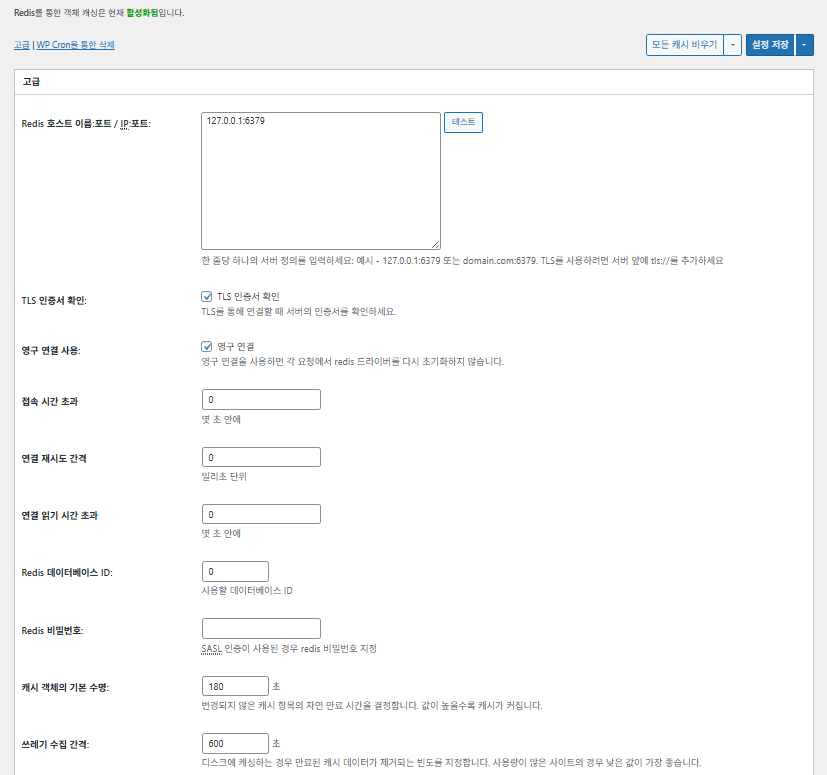
W3TC Objekt-Cache (Object)_erweiterte Einstellungen 1

Kategorie

Beschreibung

Redis-Host/IP

Format [127.0.0.1:6379]. Für TLS das Präfix [tls://] verwenden

TLS-Zertifikat prüfen

Prüft bei TLS die Gültigkeit des Zertifikats (optional)

Persistente Verbindungen nutzen

Nutzt Redis-Verbindungen wieder für mehr Performance

Verbindungs-Timeout

Maximal erlaubte Zeit für den Verbindungsaufbau zu Redis (Sek.)

Intervall für Verbindungswiederholung

Wartezeit bis zum neuen Versuch nach einem Fehler (ms)

Lese-Timeout der Verbindung

Maximale Wartezeit auf eine Antwort (Sek.)

Redis DB ID

Datenbanknummer in Redis (Standard [0])

Redis-Passwort

Passwort oder SASL-Authentifizierung

Standard-Cache-Lebensdauer

Standard-Haltedauer von Cache-Einträgen (Sek.). Standard 180 Sek.

Garbage-Collection-Intervall

Wie oft abgelaufener Cache gelöscht wird. Standard 600 Sek.

Globale Gruppen

In Netzwerkmodus geteilte Gruppen (für Multisite)

Nicht persistente Gruppen

Vom Caching ausgeschlossene Gruppen, z. B. [counts], [plugins]

wp-admin-Anfragen cachen

Cacht auch den Admin-Bereich (⚠️ vorher testen)

Transients in der Datenbank speichern

Hält temporäre Werte auch bei externem Cache in der DB

WP-CLI aktivieren

Erlaubt den Cache auch für WP-CLI-Befehle

6️⃣ Browser-Cache

Browser-Caching speichert statische Dateien wie Bilder, CSS und JS auf dem Gerät des Besuchers und verkürzt so die Ladezeit bei erneuten Besuchen deutlich. Das verbessert Antwortzeit und Nutzererlebnis.

Die meisten dieser Einstellungen zielen auf Cache-Steuerung und weniger Serverlast. Bei viel Traffic oder wenn die Optimierung statischer Ressourcen wichtig ist, kannst du ruhig viele davon aktivieren.

KategorieAllgemeinCSS und JSHTML und XMLMedien und andere Dateien
[Last-Modified]-Header setzenFügt das Änderungsdatum der Datei hinzu, um 304-Antworten zu ermöglichen✅ Meist aktivieren✅ Für die meisten Server geeignet✅ Wirksam bei den meisten CDN-/Browser-Caches
[Expires]-Header setzenLässt den Browser Dateien eine Zeit lang cachen✅ Standard 31536000 Sek. (1 Jahr), empfohlen✅ Standard [3600 Sek. (1 Stunde)] ✅ Standardmäßig [31536000 Sek.] (1 Jahr) → passt für statische Dateien
⏱️ Expires-Ablaufzeit einstellen—⏱️ Bsp.: [31536000 Sek. = 1 Jahr] · bei Einsatz mit CDN kürzer einstellbar——
[Cache-Control]-Header setzenSteuert die Caching-Strategie über zusätzliche pragma- und cache-control-Header✅ [“public, max-age=31536000”] empfohlen✅ Z. B. auf [“public, max-age=3600”] setzen✅ [“public, max-age=31536000”] empfohlen
✅ Cache-Control-Richtlinie—✅ Eine Variante mit [max-age] verwenden · [“public, max-age=EXPIRES_SECONDS”] ist der Standard——
[ETag] setzenLiefert ein Entity-Tag zur Dateikennung – zum Erkennen von Änderungen✅ Wirksam innerhalb desselben Servers✅ Wenn kein Cache zwischen Servern geteilt wird,
wird es empfohlen
✅ Nützlich beim Betrieb eines einzelnen Servers
W3TC-Header setzenFügt einen Header ein, der zeigt, ob W3TC die Datei optimiert hat🔖 Nicht nötig; für Analysen🔖 Nicht nötig (zum Debuggen)🔖 Optional
gzip-KomprimierungKomprimierung, die Textdateien verkleinert (weitgehend kompatibel)✅ Von den meisten Servern unterstützt✅ Wird von den meisten Servern unterstützt✅ Kein Einfluss auf Bilder
brotli-KomprimierungHöhere Kompressionsrate als gzip (nur unterstützte Browser)✅ Apache-/Nginx-Konfiguration nötig✅ Apache-/nginx-Modul aktivieren✅ Gilt nur für unterstützte Browser
Caching von Objekten nach Einstellungsänderungen verhindernHängt einen Query-String an, um alten Cache ungültig zu machen✅ Empfohlen bei häufigen Einstellungsänderungen—✅ Dateiänderungen greifen sofort
Query-Strings entfernenEntfernt [?] aus statischen Ressourcen und verbessert die Cache-Quote⚠️ Nur bei manchen CDNs/Proxys nötig—✅ Auf versionierte Dateien anwendbar
Cookies entfernenEntfernt den [Set-Cookie]-Header aus Antworten für statische Ressourcen✅ In den meisten Fällen aktivieren—✅ Bilder u. Ä. brauchen keine Cookies
WordPress verarbeitet keine 404404 für statische Dateien übernimmt der Webserver → weniger WP-Last———
404-Ausnahme-URI-ListeLegt URI-Muster fest, die WP weiterhin selbst verarbeitet (z. B. sitemap, robots.txt)———
Objekt-URL-Struktur umschreibenErzeugt eindeutige URIs zum Umgehen von Caches (z. B. [ver=xxxx])———

Ⅲ. Zusatzfunktionen von W3 Total Cache

  • ↳ WP Cron, CDN, Reverse Proxy, Benutzererfahrung, Statistik, WebP-Konverter, Google PageSpeed, Einstellungen importieren/exportieren

Das Leeren des Caches über WP Cron ist eine globale Einstellung.

🧭 Simulator: Zusatzfunktionen von W3 Total Cache
Pfad-Simulator
📍Performance›General Settings›Purge via WP Cron
WP Cron
Das Leeren des Caches per WP Cron ist eine globale Einstellung, in der du Startzeit und Intervall festlegst.
📍Performance›General Settings›CDN›Advanced Settings
CDN
Nach der Anmeldung bei einem CDN-Anbieter setzt du bei [CDN] das Häkchen bei [Enable], wählst den [CDN Type] und speicherst; die Details stellst du unter [Advanced Settings] ein.
📍Performance›General Settings›Reverse Proxy
Reverse Proxy
Setze das Häkchen bei [Enable reverse proxy caching via varnish] nur, wenn du Varnish nutzt. In [Varnish servers] trägst du die IP-Adresse des Varnish-Servers ein.
📍Performance›General Settings›User Experience›Advanced Settings
Benutzererfahrung
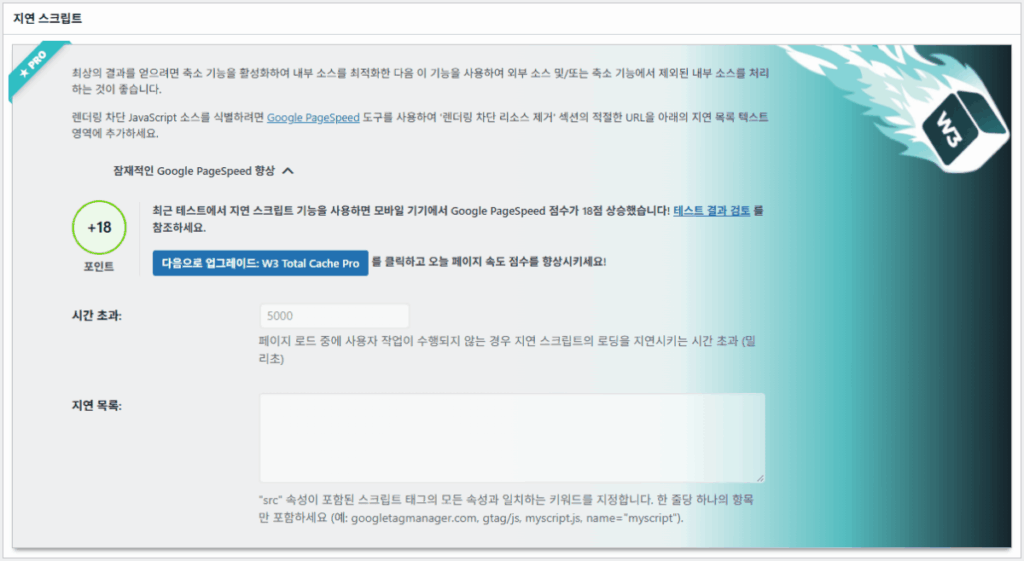
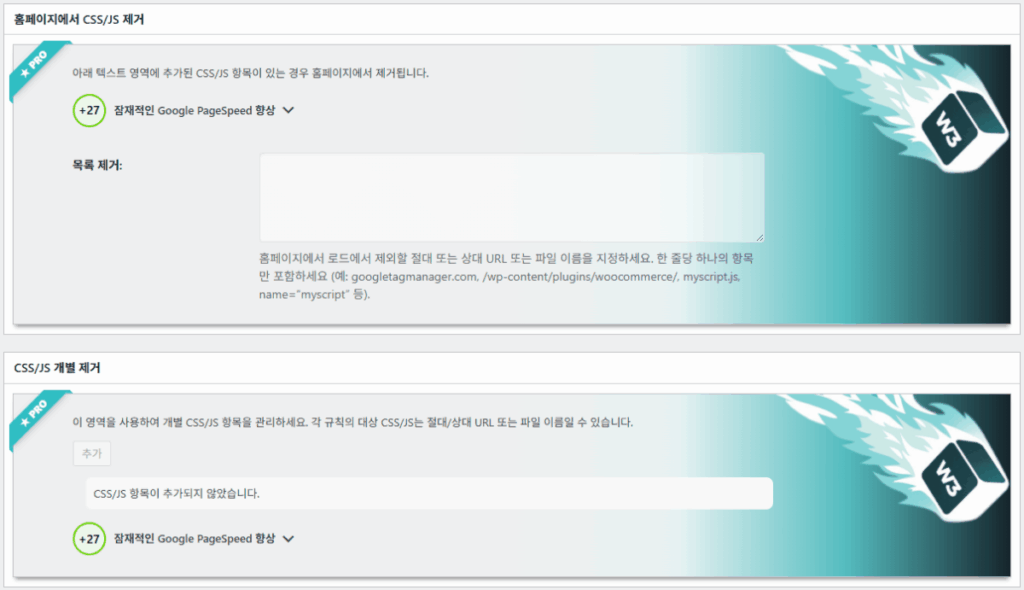
Setze das Häkchen bei [Lazy Load Images], speichere und stelle danach unter [Advanced Settings] die Lazy-Load-Optionen ein. Über 50 % der Funktionen in den erweiterten Einstellungen gibt es in der Premium-Version.
📍Performance›General Settings›Image Converter
WebP-Konverter
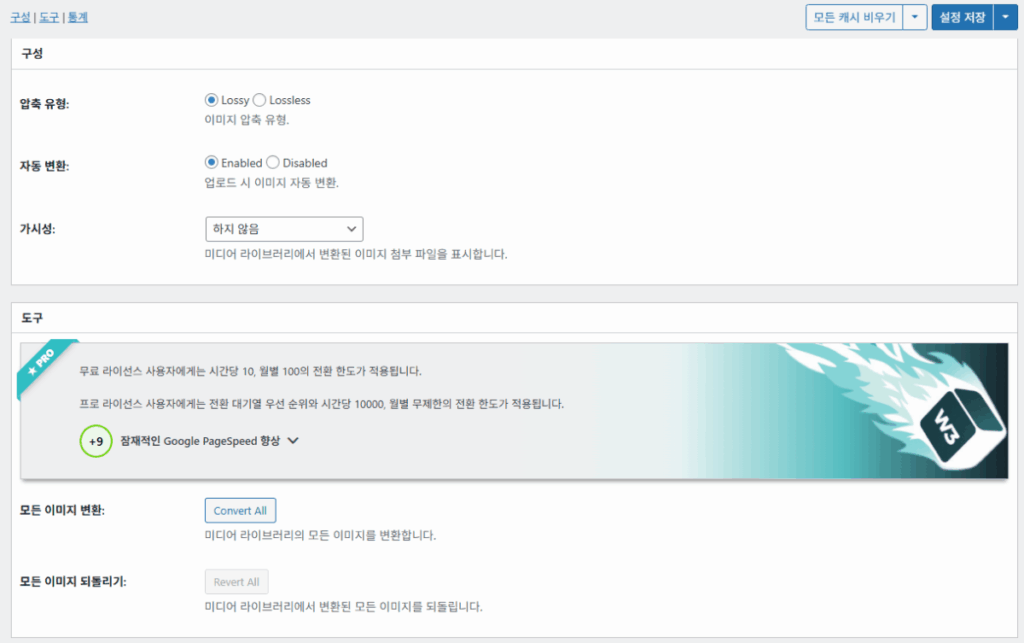
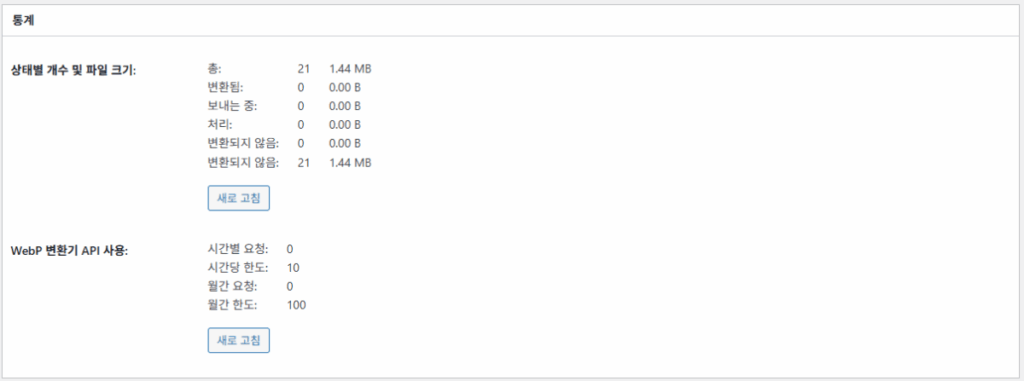
Wenn du bei [Image Converter] das Häkchen bei [Enable Image Converter Extension] setzt, kannst du Bilder der Mediathek in WebP oder AVIF umwandeln.
example.com/wp-admin/admin.php?page=w3tc_general
DashboardSettingsToolsInfoSupportUpgrade
|||||||||||||||||
Empty All Caches
Purge via WP Cron
Enabling this will schedule a WP-Cron event that will flush all enabled Caches via a single cron job. Each cache’s advanced settings page features similar settings to this if you wish to schedule purges for specific caches only. If you prefer to use a system cron job instead of WP-Cron, you can schedule the following command to run at your desired interval: “wp w3tc flush all”. If the Always Cached extension is active and enabled, page cache entries will instead be added to the queue instead of being purged from the cache. Visit here for more information.
Enable WP-Cron Event
Enable
Start Time
This setting controls the initial start time of the cron job. If the selected time has already passed, it will schedule the job for the following day at the selected time.
Interval
This setting controls the interval that the cron job should occur.
CDN
Content Delivery Network (CDN) is a powerful feature that can significantly enhance the performance of your WordPress website. By leveraging a distributed network of servers located worldwide, a CDN helps deliver your website’s static files, such as images, CSS, and JavaScript, to visitors more efficiently. This reduces the latency and improves the loading speed of your website, resulting in a faster and smoother browsing experience for your users. With W3 Total Cache’s CDN integration, you can easily configure and connect your website to a CDN service of your choice, unleashing the full potential of your WordPress site’s speed optimization.
Basic SettingsPremium ServicesHelp
CDN:
Theme files, media library attachments, CSS, and JS files will load quickly for site visitors.
CDN Type:
Select the CDN type you wish to use.
Host the entire website with your compatible CDN provider to reduce page load time.
FSD CDN:
Enable★ PRO
Deliver visitors the lowest possible response and load times for all site content including HTML, media (e.g. images or fonts), CSS, and JavaScript. Show More ⌄ Learn more about Pro
Reverse Proxy
A reverse proxy is a server that sits between a client and a web server, acting as an intermediary for requests. It retrieves resources on behalf of the client from the server, and then returns the response to the client. By utilizing a reverse proxy, such as Varnish or Nginx, in conjunction with W3 Total Cache, you can significantly enhance the performance of your WordPress website by caching and serving static content directly from the reverse proxy server, reducing the load on your WordPress server and improving response times for visitors.
Enable reverse proxy caching via varnish
Varnish servers:
Specify the IP addresses of your varnish instances above. The VCL’s ACL must allow this request.
Trusted reverse proxies:
IP addresses or CIDR ranges of reverse proxies and load balancers in front of this site (one per line). Forwarded scheme and client-IP headers are used only for these addresses. Leave empty when PHP receives client connections directly. Developers may also supply this list via the w3tc_trusted_proxies filter.
User Experience
User Experience (UX) is a setting that focuses on enhancing the overall browsing experience for visitors of your website. By enabling this feature, you can optimize your website’s performance by minimizing load times, reducing server requests, and delivering content more efficiently. This ultimately leads to faster page loading, improved user satisfaction, and increased engagement, resulting in a speedier and more enjoyable WordPress website.
Basic Settings
Defer loading offscreen images.
Lazy Load Google Maps★ PRO
In addition to lazy loading images, with W3 Total Cache Pro you can lazy load Google Maps! More information and settings can be found on the User Experience page.
Disable Emoji
Remove emojis support from your website.
Delay Scripts★ PRO
Delay the loading of specified internal/external JavaScript sources on your pages separate from Minify.
Remove Unwanted/Unused CSS/JS★ PRO
Removes specified CSS/JS tags from the homepage or on a per page basis.
Preload Requests★ PRO
DNS prefetching, pre-connecting, and preloading are essential web optimization techniques that enhance website performance by proactively resolving network-related tasks. Learn more about Pro
Disable wp-embed script
Remove wp-embed.js script from your website. oEmbed functionality still works but you will not be able to embed other WordPress posts on your pages.
Disable jquery-migrate on the front-end
Remove jquery-migrate support from your website front-end.
Image Converter
The Image Converter tool can be used to generate modern-format versions (e.g., WebP or AVIF) of media library images which offer superior lossless and lossy compression.
Enable Image Converter Extension
This extension allows for optimizing media library images to modern formats like WebP or AVIF.
As a free user you are limited to conversions of 10/hour and 100/month. The Pro license increases these rates to 10,000/hour and unlimited/month. Conversion rates are subject to change and documentation can be found here. Learn more about Pro
example.com/wp-admin/admin.php?page=w3tc_cdn
DashboardSettingsToolsInfoSupportUpgrade
||
Empty All Caches
General
Host attachments
Upload attachments
If checked, all attachments will be hosted with the CDN.
Host wp-includes/ files
Upload includes files
If checked, WordPress static core file types specified in the “wp-includes file types to upload” field below will be hosted with the CDN.
Host theme files
Upload theme files
If checked, all theme file types specified in the “theme file types to upload” field below will be hosted with the CDN.
Host minified CSS and JS files
Upload minify files
If checked, minified CSS and JS files will be hosted with the CDN.
Host custom files
Upload custom files
If checked, any file names or paths specified in the “custom file list” field below will be hosted with the CDN.
Force over-writing of existing files
If modified files are not always detected and replaced, use this option to over-write them.
Advanced
Only purge CDN manually
Purge CDN only if explicit purge button is clicked.
Disable CDN on SSL pages
When SSL pages are returned no CDN URLs will appear in HTML pages.
Use CDN links for the Media Library on admin pages
All Media Library content will use CDN links on administration pages.
Add CORS header
Add CORS headers to allow cross-domain assets usage.
Disable CDN for the following roles
Select user roles that will use the origin server exclusively:
Administrator
Editor
Author
Contributor
Subscriber
Disable CDN on the following pages:
Always ignore the specified pages / directories. Supports regular expression.
Automatically upload minify files
If CDN is enabled (and not using the origin pull method), your minified files will be automatically uploaded.
Export changed files automatically
Automatically attempt to find and upload changed files.
Auto upload interval:
3600seconds
Specify the interval between upload of changed files.
Re-transfer cycle interval:
900seconds
The number of seconds to wait before upload attempt.
Re-transfer cycle limit:
25
Number of files processed per upload attempt.
wp-includes file types to upload:
*.css;*.js;*.gif;*.png;*.jpg;*.xml
Specify the file types within the WordPress core to host with the CDN.
Theme file types to upload:
*.css;*.js;*.gif;*.png;*.jpg;*.ico;*.ttf;*.otf;*.woff;*.woff2;*.less
Specify the file types in the active theme to host with the CDN.
File types to import:
 
Automatically import files hosted with 3rd parties of these types (if used in your posts / pages) to your media library. Only common static types (images, CSS, JS, fonts, and media) are imported. Script, markup, and SVG types are ignored even if listed. Empty, *, and *.* use that static allowlist rather than every file.
Custom file list:
favicon.ico
{wp_content_dir}/gallery/*
{wp_content_dir}/uploads/avatars/*
{plugins_dir}/wordpress-seo/css/xml-sitemap.xsl
{plugins_dir}/wp-minify/min*
{plugins_dir}/*.js
{plugins_dir}/*.css
{plugins_dir}/*.gif
{plugins_dir}/*.jpg
{plugins_dir}/*.png
Specify any files outside of theme or other common directories to host with the CDN.
Rejected user agents:
Specify user agents that should not access files hosted with the CDN.
Rejected files:
{uploads_dir}/wpcf7_captcha/*
{uploads_dir}/imagerotator.swf
{plugins_dir}/wp-fb-autoconnect/facebook-platform/channel.html
Specify the path of files that should not use the CDN.
Set cookie domain to “example.com”
If using subdomain for CDN functionality, this setting helps prevent new users from sending cookies in requests to the CDN subdomain.
Note(s):
  • You can use placeholders {wp_content_dir}, {plugins_dir}, {uploads_dir} instead of writing folder paths (wp-content, wp-content/plugins, wp-content/uploads).
  • If using Amazon Web Services or Self-Hosted CDN types, enable HTTP compression in the “Media & Other Files” section on Browser Cache Settings tab.
example.com/wp-admin/admin.php?page=w3tc_userexperience
DashboardSettingsToolsInfoSupportUpgrade
Empty All Caches
Lazy loading is currently disabled.
Lazy Loading
Process HTML image tags
Process img tags
Process background images
Process background styles
Exclude words:
avia-bg-style-fixed
data-bgposition=
data-envira-src=
data-large_image=
data-lazy-original=
data-lazy-src=
data-lazyload=
data-lazysrc=
data-no-lazy=
data-src=
data-srcset=
fullurl=
lazy-slider-img=
loading=”eager”
no-lazy
rev-slidebg
skip-lazy
soliloquy-image
swatch-img
w3-total-cache
woocommerce/assets/images/placeholder.png
wpcf7_captcha
Exclude tags containing words
Threshold
 
The outer distance off the scrolling area from which to start loading the elements (example: 100px, 10%).
Script Embed method:
Use inline method only when your website has just a few pages
Google Maps
Lazy load google map
WP Google Map Plugin plugin
Google Maps Easy plugin
WP Google Maps plugin
Klicke links im Menü auf einen aktiven Eintrag oder auf eine Schaltfläche im Bildschirm.

1️⃣ CDN

Einrichten kannst du das, nachdem du dich bei einem CDN-Anbieter registriert hast.

Option

Beschreibung

✅ Anhänge hosten

Lädt Anhänge wie Bilder aus [wp-content/uploads] ins CDN hoch

✅ wp-includes-Dateien hosten

Nimmt statische Core-Dateien von WordPress (js/css usw.) ins CDN auf

✅ Theme-Dateien hosten

Nimmt statische Dateien des aktiven Themes (css/js/Bilder usw.) ins CDN auf

✅ Minifizierte CSS-/JS-Dateien hosten

Liefert die von W3TC minifizierten CSS-/JS-Dateien über das CDN aus

✅ Eigene Dateien hosten

Schiebt selbst angegebene Pfade oder Dateinamen ins CDN

⚠️ Vorhandene Dateien zwangsweise überschreiben

Zum erzwungenen erneuten Hochladen, wenn Änderungen nicht automatisch erkannt werden

Kategorie

Beschreibung

CDN nur manuell leeren

Entfernt Dateien aus dem CDN nur per Klick auf die manuelle Lösch-Schaltfläche

CDN auf SSL-Seiten deaktivieren

Nutzt auf HTTPS-Seiten keine CDN-URLs

CDN-Links im Admin nutzen

Zeigt CDN-URLs für Medien auch im Admin-Bereich

Add CORS header

Fügt einen Antwort-Header hinzu, der CORS erlaubt

CDN je nach Rolle deaktivieren

Wendet das CDN für gewählte Rollen nicht an (z. B. nur Admins nutzen das Original)

Liste ausgeschlossener Seiten

Schließt angegebene Pfade vom CDN aus (Regex möglich)

Minifizierte Dateien automatisch hochladen

Lädt minifizierte Dateien automatisch ins CDN hoch (Push)

Geänderte Dateien automatisch exportieren

Lädt automatisch hoch, sobald Änderungen erkannt werden

Intervall für automatisches Hochladen

Upload-Intervall nach erkannter Änderung (Standard 3600 Sek.)

Intervall / Limit für erneute Übertragung

Wiederholungsintervall nach Fehlern und Limit der verarbeiteten Dateien

Hochzuladende wp-includes-Dateien

Legt fest, welche Core-Dateitypen ins CDN kommen

Hochzuladende Theme-Dateitypen

Legt theme-bezogene Dateitypen wie CSS/JS/Schriften fest

Zu importierende Dateitypen

Legt fest, wann extern verlinkte Dateien automatisch heruntergeladen werden

Liste eigener Dateien

Legt einzelne Dateipfade fest, die ins CDN gehen (Templates, externe Plugins usw.)

Abgelehnte User Agents

Legt Bots/User Agents fest, die von CDN-Dateien ausgesperrt werden

Abgelehnte Dateipfade

Legt Dateipfade fest, die nicht über das CDN laufen, etwa CAPTCHAs und Sonderpfade

Cookie-Domain festlegen

Legt eine Domain fest, damit bei einem Subdomain-CDN keine Cookies mitgeschickt werden

2️⃣ Reverse Proxy

Die Beschreibung nennt Varnish und Nginx als Beispiele; da Nginx auf dem Server eingerichtet wird, setzt du das im Plugin W3 Total Cache nur ein, wenn du Varnish nutzt.

3️⃣ Benutzererfahrung: Lazy Load

In den erweiterten Einstellungen gibt es über 50 % der Funktionen nur in der Premium-Version.

Kategorie

Beschreibung

Wann einsetzen

✅ HTML-Bild-Tags verarbeiten

[<img>]-Tags erhalten das lazy-Attribut

Für Lazy Loading normaler Inhaltsbilder

✅ Hintergrundbilder verarbeiten

Wendet Lazy Loading auf CSS-[background-image] an

Für designlastige Websites mit vielen Hintergrundbildern

Wörter ausschließenBeispiel
Lazy-Ausschluss-Attribute[data-src], [data-lazy-src], [data-no-lazy], [loading=”eager”] usw.
Lazy-Ausschluss-Klassen[no-lazy], [skip-lazy], [lazy-slider-img], [rev-slidebg] usw.
Plugins/Slider[soliloquy-image], [envira], [w3-total-cache], [wpcf7_captcha] usw.
WooCommerce[swatch-img], [woocommerce/…/placeholder.png] usw.

Der „Schwellenwert“ beim Lazy Loading legt fest, aus welcher Entfernung unterhalb des Browser-Viewports (Bildschirm) Bilder und Hintergrundelemente vorab geladen werden. Bei 100px etwa lädt ein Element, sobald man beim Scrollen bis auf 100 Pixel herankommt; ist der Wert zu klein, laden Bilder zu spät und wirken wie leere Flächen – üblich sind 100–300px.

Als Nächstes die Einbindungsarten für Skripte.

Einbindungsart

Beschreibung

Position oder Attribut

Asynchron (Async)

Läuft parallel zum Laden der Seite und blockiert das Rendern nicht

[<script async>]

Synchron (im Head)

Läuft zuerst im Bereich [<head>] und kann das Rendern kurz blockieren (in the head)

[<head>] oder [<script>]

Inline

Fügt das Skript direkt ins HTML-Dokument ein, sodass es ohne zusätzliche Anfrage läuft

Eingefügt in [<script>Code</script>]

W3TC Benutzererfahrung erweiterte Einstellungen 2
W3TC Benutzererfahrung erweiterte Einstellungen 3

4️⃣ WebP-Konverter

W3TC WebP-Konverter_Details (erweiterte Einstellungen) 1
W3TC WebP-Konverter_Details (erweiterte Einstellungen) 2

Ⅳ. Gesamtbewertung von W3 Total Cache

Die Oberfläche (UI) von W3 Total Cache ist nicht schlecht, aber eindeutig unbequem. Viele Entwickler und Profis sehen das genauso. Im Vergleich mit modernen Plugins wie WP Rocket oder FlyingPress kann es bei der Performance gut mithalten, bei der Nutzererfahrung (UX) hapert es aber.

Viele Funktionen sind ein Vorteil, aber für Einsteiger wirkt die Struktur womöglich zu komplex. Gerade weil man oft zwischen Menüs wechselt und es viele Detailoptionen gibt, können selbst erfahrene Entwickler und Admins Einstellungsfehler machen. Man merkt sich natürlich nicht jede Einstellung, aber im Einsatz ist es ein fortgeschrittenes Caching-Plugin mit feiner Abstimmung.

Mit über 1 Million Installationen der Gratisversion lässt es sich kaum als bloß altes Plugin abtun – kaum ein Cache-Plugin erreicht diese Vielfalt und Funktionsfülle.

KategorieBewertung (⭐)Einschätzung
🎛️ Oberfläche⭐⭐⭐Viele Menüs, komplexe Struktur; hohe Einstiegshürde. Die UI wirkt altmodisch
⚙️ Funktionsvielfalt⭐⭐⭐⭐⭐Cache, CDN, Redis und fast alles andere; schwer, etwas Fehlendes zu finden
🛠️ Flexibilität der Feineinstellungen⭐⭐⭐⭐Fast alles fein einstellbar; auf Konflikte zwischen Einstellungen achten
🚀 Performance-Gewinn⭐⭐⭐⭐⭐Optimal eingestellt sehr starke Performance; Objekt-/Browser-Cache bringen viel
🧩 Kompatibilität⭐⭐⭐Kann mit manchen Hostern, Themes und Plugins kollidieren.
📄 Dokumentation und Anleitungen⭐⭐⭐⭐⭐Umfangreiche offizielle Dokumentation
💡 Nutzerempfehlung⭐⭐⭐⭐(4.5)Für Fortgeschrittene empfohlen; Einsteigern eher WP Rocket, Cache Enabler usw.
📊 Gesamtbewertung⭐⭐⭐⭐(4.5)Leistungsstarkes, funktionsorientiertes Plugin. Mit Lernkurve; das eigene Niveau beachten

Ⅴ. Performance-Test

Nach der Einrichtung zeigte der abschließende Speedtest eine deutlichere Beschleunigung als bei typischen Cache-Plugins.

ℹ️ Affiliate-Hinweis
Die Inhalte dieser Website enthalten Affiliate-Links. Kauft ein Besucher über einen dieser Links ein Produkt oder eine Dienstleistung, erhält die Website vom Verkäufer eine Provision. Der Betrag, den der Käufer zahlt(bei Aktionsrabatten sinkt er ↓), steigt dadurch nicht. Angegebene Preise, Rabatte und Lagerbestände entsprechen dem Stand bei Erstellung und können abweichen; prüfe sie daher vor dem Kauf beim Verkäufer. Produkte werden nach eigenen Kriterien ausgewählt und bewertet, und Provisionen beeinflussen weder die Reihenfolge noch den Inhalt der Bewertungen.

Schreibe einen Kommentar

Deine E-Mail-Adresse wird nicht veröffentlicht. Erforderliche Felder sind mit * markiert

Beweisen Sie, dass Sie ein Mensch sind: 5   +   2   =