W3 Total Cacheプラグイン:最適化の設定方法

公正取引委員会の広告文 Ver 3.1
公正取引委員会の広告文 Ver 3.2(モバイル専用)
テスト環境 CloudwaysDebian 12Apache 2.4.69 + nginxPHP 8.2.34WordPress 7.1.3W3 Total Cache 2.10.72026-10-18 確認

WordPressサイトはプラグインを入れるほど必然的に遅くなります。そのため、キャッシュプラグインはWordPressの必須プラグインのひとつになっています。 無料版で100万以上の有効インストールと4.4点の評価を得ているW3 Total Cache(W3TC)プラグインは、多くのユーザーが使っているプラグインのひとつです。

キャッシュ設定は使用中のほかのプラグインの一部機能が動かなくなることがあるため、WordPressを始めたばかりなら、簡単に設定できる Cache Enabler または WP Super cacheを使えます。

細かなキャッシュ設定と制御が必要なら、無料版でも強力な機能を備えたW3 Total Cacheプラグインを使えます。

Ⅰ. W3 Total Cacheのインストールと設定ガイド

  • ↳ 検索エンジン(SEO: Search Engine Optimization)
  • ↳ パフォーマンス最適化(WPO: Web Performance Optimization)
  • ↳ 統合キャッシュ:CDN、ページ、縮小、オブジェクト、フラグメント、データベースに対応。

W3 Total Cacheを検索して、プラグインをインストールし有効化します。

🧭 W3 Total Cacheのインストールと設定ガイドのシミュレーター
キャッシュプラグインパスシミュレーター
📍Plugins›Add Plugin
プラグインのインストール
検索欄にW3 Total Cacheと入力して[Install Now]をクリックし、インストールが終わったら[Activate]をクリックします。
📍Performance›Setup Guide
設定ガイド
初回インストール後に[Dashboard]へ移動すると、自動的に[Setup Guide]に移動します。まだ何も設定されていないためです。
📍Performance›Dashboard
ダッシュボード
ガイドで設定した内容は[General Settings]ボックスに機能ごとに表示され、ページキャッシュなどの詳細設定は[General Settings]で行います。
example.com/wp-admin/plugin-install.php
Add Plugins Upload Plugin
Plugins extend and expand the functionality of WordPress. You may install plugins from the WordPress Plugin Directory right on this page, or upload a plugin in .zip format by clicking the button above.
Search ResultsFeaturedPopularRecommendedFavorites
Search PluginsKeyword
922 items
W3 Total Cache
Installing...ActiveMore Details
Search Engine (SEO) & Performance Optimization (WPO) via caching. Integrated caching: CDN, Page, Minify, Object, Fragment, Database support.
By BoldGrid
★★★★★ (5,421)
Last Updated: 2 weeks ago
900,000+ Active Installations
✓ Compatible with your version of WordPress
example.com/wp-admin/admin.php?page=w3tc_setup_guide
DashboardSettingsToolsInfoSupportUpgrade
W3 Total CacheSetup Guide
TOTAL CACHE: Setup Guide
  • Welcome
  • Page Cache
  • Database Cache
  • Object Cache
  • Image Converter
  • Lazy Load
  • More Caching Options
Welcome to the W3 Total Cache Setup Guide!
By allowing us to collect data about how W3 Total Cache is used, we can improve our features and experience for everyone. This data will not include any personally identifiable information. Feel free to review our terms of use and privacy policy.
AcceptDecline
SKIPNEXT
example.com/wp-admin/admin.php?page=w3tc_dashboard
DashboardSettingsToolsInfoSupportUpgrade
W3 Total CacheDashboard
Flush caches with Empty All Caches
Account
License: Free
Status: Free license, no expiration
Upgrade to W3 Total Cache Pro now to unlock additional settings and features that can further improve your site’s performance and Google PageSpeed ratings.
Learn more about Pro
General Settings
Preview Modedisabled
Page Cachedisabled
Minifydisabled
Opcode Cacheenabled
Database Cachedisabled
Object Cachedisabled
Browser Cachedisabled
CDNdisabled
Reverse Proxydisabled
Statisticsdisabled
Fragment Cachedisabled
Debugdisabled
Settings can be modified by visiting General Settings
Image Optimization Summary
Enable Image Converter
PageSpeed Report
Before you can get started using the Google PageSpeed tool, you’ll first need to authorize access. Please click here.
左メニューの有効な項目か画面のボタンを押します。

初回インストール後に[Dashboard]ページへ移動すると、自動的に[Setup Guide]に移動します。まだ何も設定されていないためです。

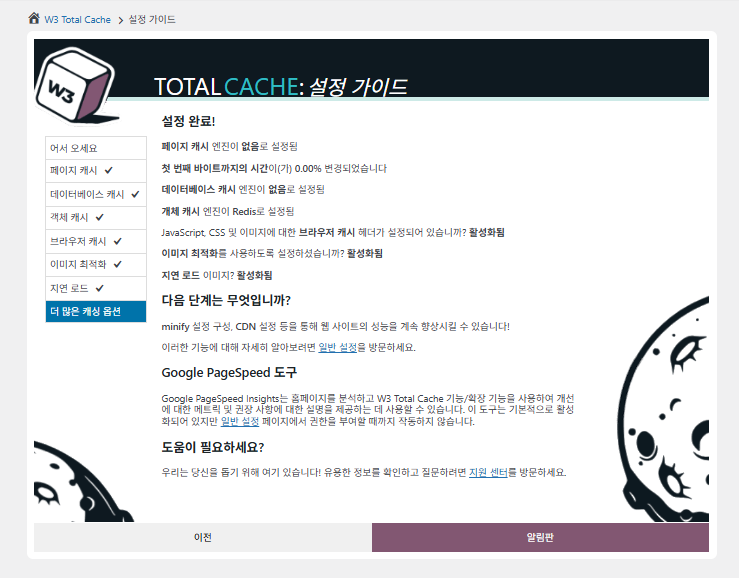
設定ガイドでは、①ページキャッシュ、②データベースキャッシュ、③オブジェクトキャッシュ、④ブラウザーキャッシュ、⑤画像最適化、⑥遅延読み込み、⑦その他のキャッシュオプションを設定できます。
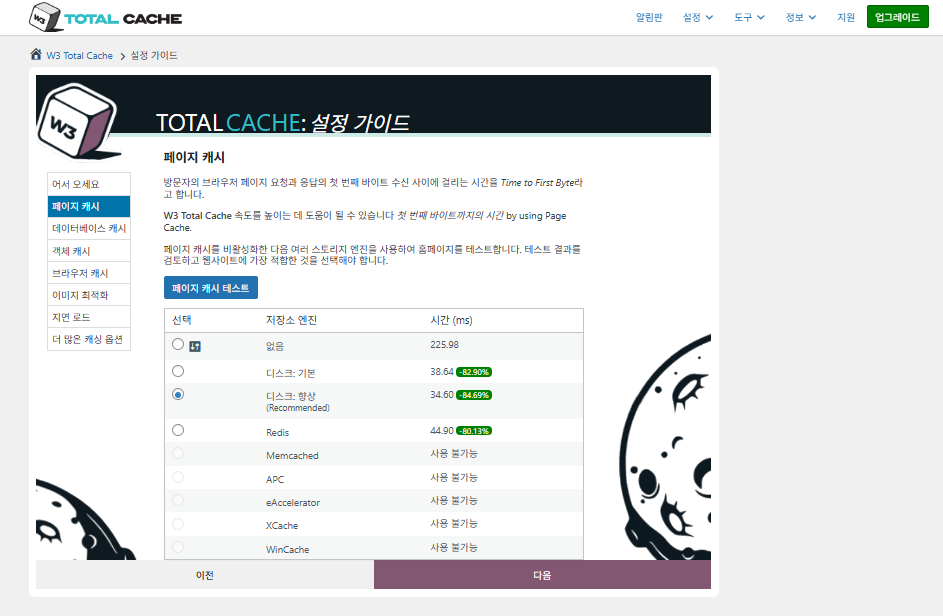
W3 Total Cache 設定ガイド ①ページキャッシュ_ディスクキャッシュ(Enhancedを選択)

ページキャッシュの設定では、W3TCの既定の推奨はDisk: [向上]です。表のとおり、Disk: EnhancedはDisk: Basicより約10.3ms速く、TTFB基準で約17.8%向上した性能です。
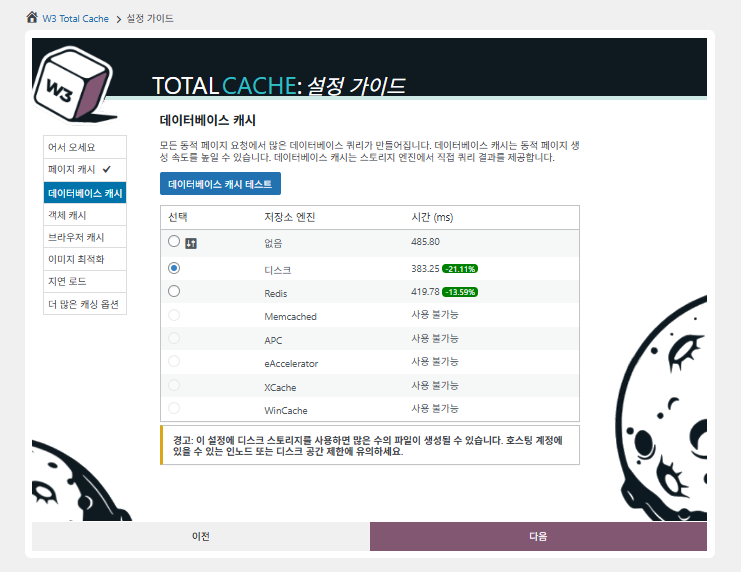
W3 Total Cache 設定ガイド ②データベースキャッシュ_ディスクキャッシュを選択

データベースキャッシュではディスクキャッシュを選択します。

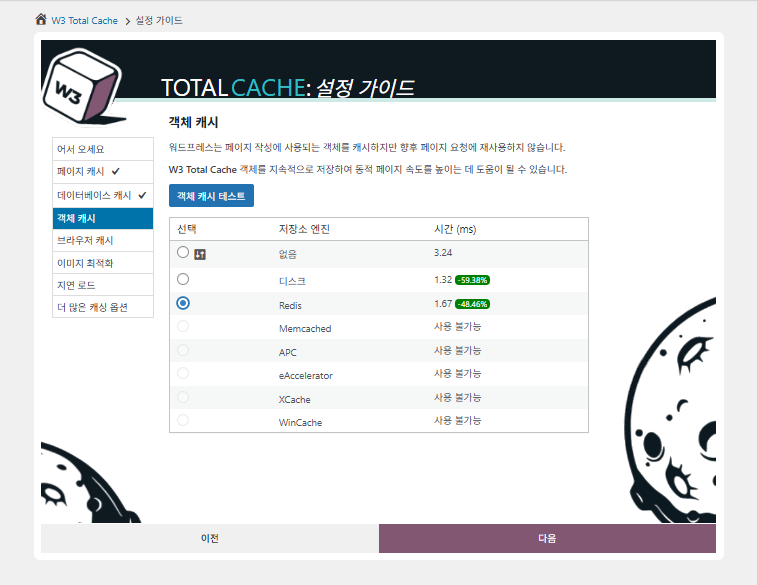
W3 Total Cache 設定ガイド ③オブジェクトキャッシュ_Redisを選択
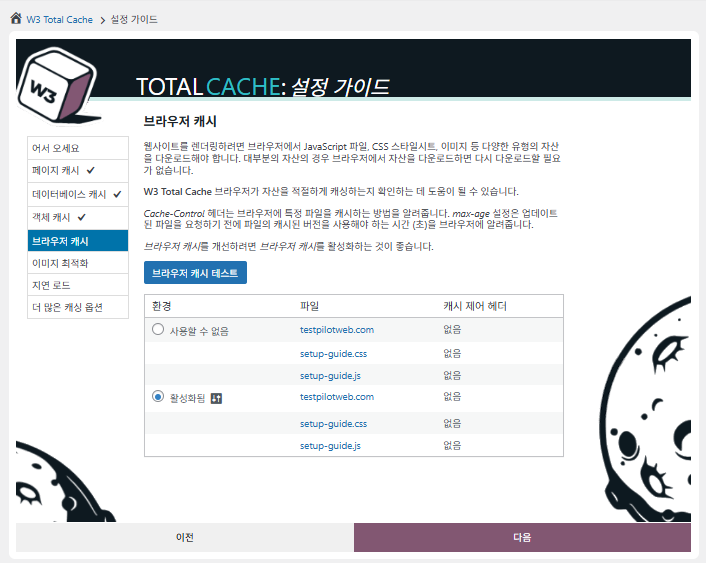
W3 Total Cache 設定ガイド ④ブラウザーキャッシュ
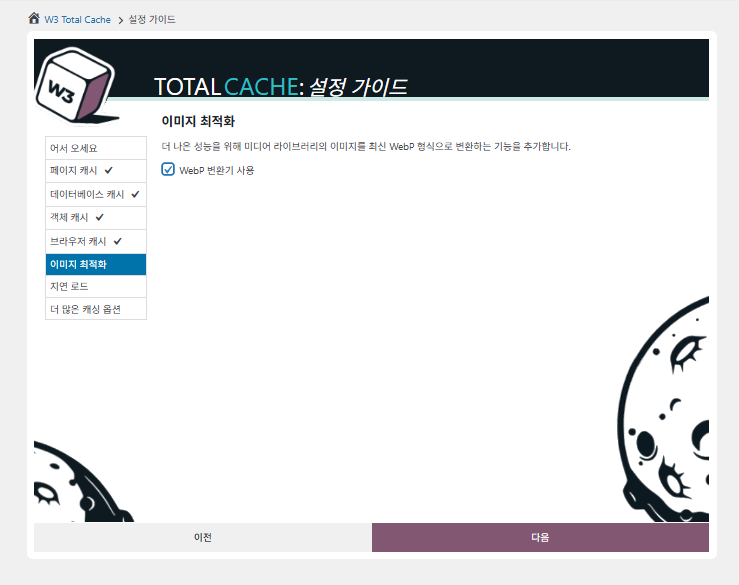
W3 Total Cache 設定ガイド ⑤画像最適化-WebP変換を使用
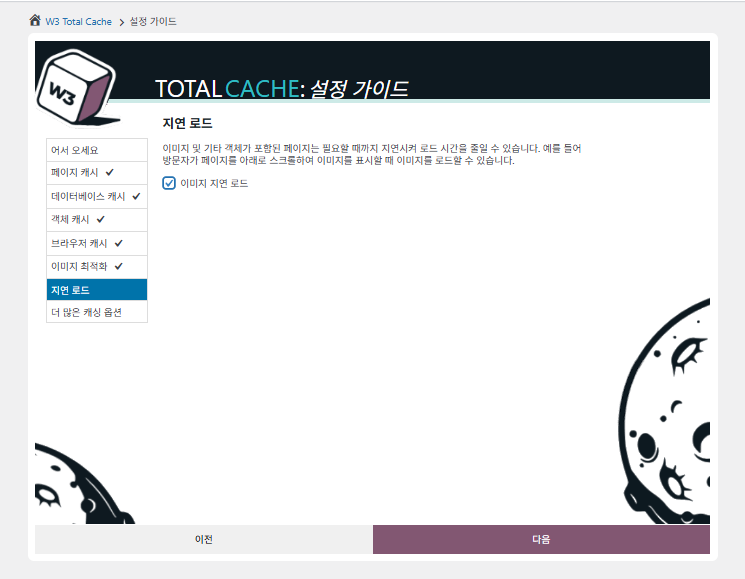
W3 Total Cache 設定ガイド ⑥遅延読み込み-画像の遅延読み込み
W3 Total Cache 設定ガイド ⑦その他のキャッシュオプション設定_ダッシュボードに移動して設定

ガイドで設定した内容がダッシュボードに反映されました。

右上の[Settings]タブをクリックして、[General Settings]からページキャッシュなどの設定を進められます。
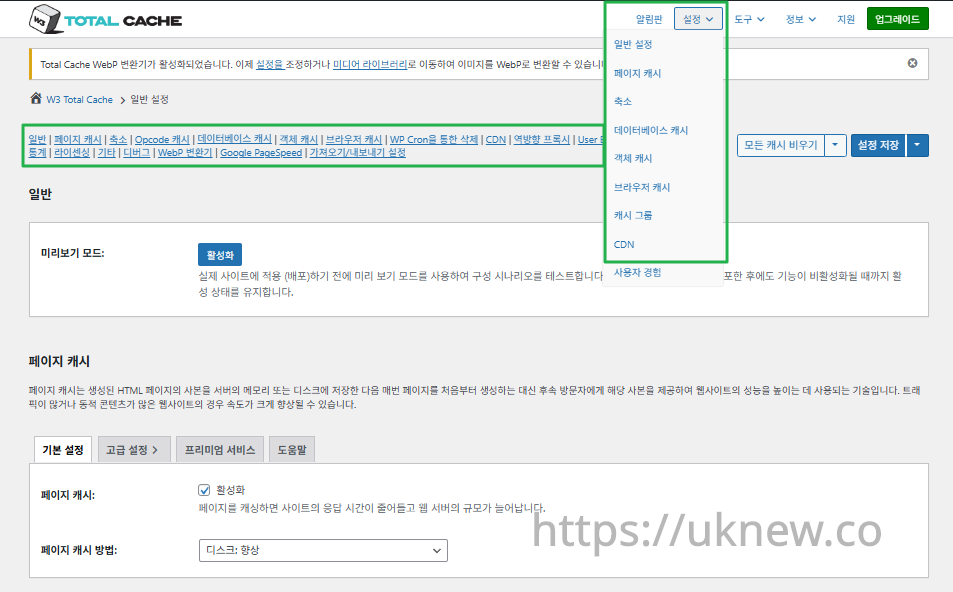
W3TC ダッシュボード-設定__

ⓐ左側の管理画面の[ページでの設定]と ⓑ右上の[Settings]タブは それぞれページキャッシュ、 Minify 設定などの 詳細設定へ移動し、一般設定タブ中央上部の各ページに移動すると、ページキャッシュとMinifyの設定を一般設定から 詳細設定まで確認できます。

Ⅱ. W3 Total Cacheのキャッシュ設定

  • ↳ キャッシュ機能

W3TCの設定タブのうち、一般設定タブです。

🧭 W3 Total Cacheのキャッシュ設定シミュレーター
パスシミュレーター
📍Performance›General Settings›General
プレビューモード
実際のキャッシュ適用内容をデプロイする前に、[Preview mode]を有効にしてエラーなどを事前にテストできます。
📍Performance›General Settings›Page Cache›Advanced Settings
ページキャッシュ
[Page Cache]の[Enable]にチェックを入れ、方式が[Disk: Enhanced]になっているか確認してから[Save Settings]をクリックします。詳細項目は[Advanced Settings]で設定します。
📍Performance›General Settings›Minify›Advanced Settings
縮小
[Minify]の[Enable]にチェックを入れて[Save Settings]をクリックしたあと、[Advanced Settings]でHTML・CSS・JSの縮小項目を設定します。
📍Performance›General Settings›Opcode Cache
Opcodeキャッシュ
Opcodeキャッシュは、サーバーにインストールされたOpcodeが自動で適用され、インストールされていない場合は無効に設定されます。
📍Performance›General Settings›Database Cache›Object Cache
データベース・オブジェクトキャッシュ
[Database Cache]と[Object Cache]の[Enable]にそれぞれチェックを入れて保存します。詳細項目は[Database Cache]と[Object Cache]の画面で設定します。
📍Performance›General Settings›Browser Cache›Advanced Settings
ブラウザキャッシュ
[Browser Cache]の[Enable]にチェックを入れて保存したあと、[Advanced Settings]でファイルの種類ごとのキャッシュ項目を設定します。
example.com/wp-admin/admin.php?page=w3tc_general
DashboardSettingsToolsInfoSupportUpgrade
|||||||||||||||||
Empty All Caches
General
Preview mode:
Enable
Use preview mode to test configuration scenarios prior to releasing them (deploy) on the actual site. Preview mode remains active even after deploying settings until the feature is disabled.
Page Cache
Page cache is a technique used to speed up the performance of a website by storing a copy of the generated HTML page in the server’s memory or disk, and then serving that copy to subsequent visitors instead of generating the page from scratch each time. This can result in significant speed improvements for websites with high traffic or dynamic content.
Basic SettingsPremium ServicesHelp
Page Cache:
Caching pages will reduce the response time of your site and increase the scale of your web server.
Page Cache Method:
Minify
Minification is a technique used to reduce the file size of HTML, CSS, and JavaScript files by removing unnecessary characters such as whitespace, comments, and line breaks. This process can significantly improve the load times of web pages by reducing the amount of data that needs to be downloaded by the user’s browser.
Basic SettingsPremium ServicesHelp
Minify:
Minification can decrease file size of HTML, CSS, JS and feeds respectively by ~10% on average. Learn more
Minify mode:
Auto
Manual
Select manual mode to use fields on the Minify settings tab to specify files to be minified, otherwise files will be minified automatically. Learn more
Minify Cache Method:
Learn more
HTML minifier:
Learn more
JS minifier:
CSS minifier:
Opcode Cache
Opcode cache is a powerful feature that enhances the performance of a WordPress website by caching compiled PHP code. By storing pre-compiled code in memory, opcode cache eliminates the need for repetitive interpretation and compilation of PHP files, resulting in significantly faster execution times. Opcode cache reduces server load and improves response times, ultimately enhancing the overall speed and responsiveness of your WordPress site. If opcode cache is available on the hosting server it will automatically be selected in the dropdown and enabled.
Opcode Cache
Validate timestamps:
Enable
Once enabled, each file request will update the cache with the latest version. When this setting is off, the Opcode Cache will not check, instead PHP must be restarted in order for setting changes to be reflected.
Database Cache
Enable this setting to utilize the power of caching your WordPress site’s database queries. By storing frequently accessed database queries in memory, the database cache reduces the need for repetitive database interactions, resulting in faster page load times. This feature is particularly beneficial for websites with heavy database usage, improving overall performance and delivering a smoother user experience.
Basic SettingsPremium ServicesHelp
Database Cache:
Caching database objects decreases the response time of your site. Best used if object caching is not possible.
Database Cache Method:
Object Cache
Enable this option to utilize an object cache mechanism, which significantly enhances the performance of your WordPress website. Object caching stores frequently accessed database queries and complex data structures in memory, reducing the need to retrieve them from the database repeatedly. By doing so, it minimizes the processing time required to generate dynamic content, resulting in faster page loading times and improved overall site speed. Enabling object cache is particularly beneficial for websites with heavy database usage or high traffic volumes, as it helps alleviate the strain on the server by efficiently serving cached data.
Basic SettingsPremium ServicesHelp
Object Cache:
Object caching greatly increases performance for highly dynamic sites that use the Object Cache API.
Object Cache Method:
Browser Cache
Enabling browser caching will instruct visitors’ web browsers to store static files from your WordPress website, such as images, CSS, and JavaScript files, locally on their devices. By doing so, subsequent visits to your site will retrieve these cached files from the browser’s storage, reducing the need for repeated downloads. This results in faster page loading times and a smoother browsing experience for your visitors, ultimately improving the overall speed and performance of your WordPress website.
Basic SettingsPremium ServicesHelp
Browser Cache:
Enable HTTP compression and add headers to reduce server load and decrease file load time.
example.com/wp-admin/admin.php?page=w3tc_pgcache
DashboardSettingsToolsInfoSupportUpgrade
|||||||
Empty All Caches
Always Cached extension is currently disabled. To enable the extension click here.
General
Cache front page
For many blogs this is your most visited page, it is recommended that you cache it. Learn more
Cache feeds: site, categories, tags, comments
Even if using a feed proxy service enabling this option is still recommended. Learn more
Handle XML mime type
Return correct Content-Type header for XML files (e.g., feeds and sitemaps). Learn more
Cache SSL (HTTPS>) requests
Cache SSL requests (uniquely) for improved performance. Learn more
Cache URI with query string variables
Search result (and similar) pages will be cached if enabled. Learn more
Cache 404 (not found) pages
Reduce server load by caching 404 pages. If the disk enhanced method of disk caching is used, 404 pages will be returned with a 200 response code. Use at your own risk. Learn more
Don’t cache pages for logged in users
Unauthenticated users may view a cached version of the last authenticated user’s view of a given page. Disabling this option is not recommended. Learn more
Don’t cache pages for following user roles
Select user roles that should not receive cached pages: Learn more
Administrator
Editor
Author
Contributor
Subscriber
Aliases
Cache alias hostnames:
Enable
If the same WordPress content is accessed from different domains. Learn more
Additional home URLs:
Specify full home URLs of your mirrors so that plugin will flush it’s cache when content is changed. For example: http://my-site.comhttp://www.my-site.comhttps://my-site.com Learn more
Cache Preload
Automatically prime the page cache
Automatically primes the page cache using the settings configured below. Learn more
Update interval:
900seconds
The number of seconds to wait before creating another set of cached pages. Learn more
Pages per interval:
10
Limit the number of pages to create per batch. Fewer pages may be better for under-powered servers. Learn more
Sitemap URL:
 
A compliant sitemap can be used to specify the pages to maintain in the primed cache. Pages will be cached according to the priorities specified in the XML file. Learn more
Preload the sitemap once
Stop cache preloading after every URL in the sitemap has been processed. Disable and re-enable cache preloading to start a new pass.
Preload cache upon publishing a post
Only applies to pages, posts, and custom post types whose status transitioned from a non-published status to the “published” status. Learn more
Preload cache upon updating a post
Applies after updating any page, post, or custom post type with the final status being “published”. Learn more
Purge Policy:
Specify the pages and feeds to purge when posts are created, edited, or comments posted. The defaults are recommended because additional options may reduce server performance: Learn more
Front page
Post page
Blog feed
Post comments pages
Post author pages
Post terms pages
Post comments feed
Post author feed
Post terms feeds
Daily archive pages
Monthly archive pages
Yearly archive pages
rdf
rss
rss2 (default)
atom
Choose which feed types should be automatically purged. Learn more
Purge limit:
10
Specify number of pages that lists posts (archive etc.) that should be purged on post updates etc., i.e. example.com/ ... example.com/page/5.
0 means all pages that lists posts are purged, i.e. example.com/page/2 ... Learn more
Additional pages:
Specify additional pages to purge. Including parent page in path. Ex: parent/posts. Learn more
Purge sitemaps:
([a-z0-9_\-]*?)sitemap([a-z0-9_\-]*)?\.(?:xml|xsl)
Specify a regular expression that matches your sitemaps. Learn more
REST API
Use these controls to determine how the WordPress REST API responds to visitors and integrations. Caching API responses can dramatically reduce load when headless frontends, mobile apps, or third-party services request the same data repeatedly, but you can keep responses uncached for highly dynamic endpoints or disable the API altogether when it is not needed to reduce attack surface. Learn more
REST API
Don’t cache
Cache★ PRO
Disable REST API
If you’re using the WordPress API make sure to use caching to scale performance. Show More ▾
Advanced
Late initialization:
Enable
Enables support for WordPress functionality in fragment caching for the page caching engine. Use of this feature may increase response times. Learn more
Late caching:
Enable
Overwrites key of page caching via custom filters by postponing entry extraction during the init action. Learn more
Compatibility mode:
Enable
Decreases performance by ~20% at scale in exchange for increasing interoperability with more hosting environments and WordPress idiosyncrasies. Enable this option if you experience issues with the Apache rules. Learn more
Reject HEAD requests:
Disable caching of HEAD HTTP requests
If disabled, HEAD requests can often be cached resulting in “empty pages” being returned for subsequent requests for a URL. Learn more
Maximum lifetime of cache objects:
3600seconds
Determines the natural expiration time of cache items. The higher the value, the larger the cache.
Max lifetime is limited by the W3TC_CACHE_FILE_EXPIRE_MAX constant (2592000 seconds) which can be overridden in wp-config.php.
Garbage collection interval:
3600seconds
If caching to disk, specify how frequently expired cache data is removed. For busy sites, a lower value is best. Learn more
Comment cookie lifetime:
1800seconds
Significantly reduce the default TTL for comment cookies to reduce the number of authenticated user traffic. Enter -1 to revert to default TTL. Learn more
Accepted query strings:
ScCid
_branch_match_id
_bta_c
_bta_tid
_ga
_gl
_ke
adgroupid
adid
age-verified
ao_noptimize
campaignid
campid
click_id
cn-reloaded
customid
dicbo
dm_i
ef_id
epik
fb_action_ids
fb_action_types
fb_source
fbclid
gclid
gclsrc
gdffi
gdfms
gdftrk
hsa_acc
hsa_ad
hsa_cam
hsa_grp
hsa_kw
hsa_mt
hsa_net
hsa_src
hsa_tgt
hsa_ver
igshid
li_fat_id
matomo_campaign
matomo_cid
matomo_content
matomo_group
matomo_keyword
matomo_medium
matomo_placement
matomo_source
mc_cid
mc_eid
mkcid
mkevt
mkrid
mkwid
msclkid
mtm_campaign
mtm_cid
mtm_content
mtm_group
mtm_keyword
mtm_medium
mtm_placement
mtm_source
pcrid
piwik_campaign
piwik_keyword
piwik_kwd
pk_campaign
pk_cid
pk_content
pk_keyword
pk_kwd
pk_medium
pk_source
pp
redirect_log_mongo_id
redirect_mongo_id
ref
s_kwcid
sb_referer_host
si
sscid
tblci
toolid
trk_contact
trk_module
trk_msg
trk_sid
ttclid
twclid
usqp
utm_campaign
utm_content
utm_expid
utm_id
utm_medium
utm_source
utm_term
wbraid
Always cache URLs that use these query string name-value pairs. The value part is not required. But if used, separate name-value pairs with an equals sign (i.e., name=value). Each pair should be on their own line. Learn more
Rejected user agents:
Never send cache pages for these user agents. Learn more
Rejected cookies:
wptouch_switch_toggle
Never cache pages that use the specified cookies. Learn more
Never cache the following pages:
wp-.*\.php
index\.php
Always ignore the specified pages / directories. Supports regular expressions. Learn more
Never cache pages associated with these categories:
Always ignore all pages filed under the specified category slugs. Learn more
Never cache pages that use these tags:
Always ignore all pages filed under the specified tag slugs. Learn more
Never cache pages by these authors:
Always ignore all pages filed under the specified author usernames. Learn more
Never cache pages that use these custom fields:
Always ignore all pages filed under the specified custom fields. Separate name-value pairs with an equals sign (i.e., name=value). Learn more
Cache exception list:
wp-comments-popup.php
wp-links-opml.php
wp-locations.php
Cache the specified pages / directories even if listed in the “never cache the following pages” field. Supports regular expression. Learn more
Non-trailing slash pages:
sitemap(_index)?\.xml(\.gz)?
([a-z0-9_\-]+)?sitemap\.xsl
[a-z0-9_\-]+-sitemap([0-9]+)?\.xml(\.gz)?
Cache the specified pages even if they don’t have trailing slash. Learn more
Specify page headers:
Last-Modified
Content-Type
X-Pingback
P3P
Link
Specify additional page headers to cache. Learn more
Purge via WP Cron
Enabling this will schedule a WP-Cron event that will flush the Page Cache. If you prefer to use a system cron job instead of WP-Cron, you can schedule the following command to run at your desired interval: “wp w3tc flush posts”. If the Always Cached extension is active and enabled, page cache entries will instead be added to the queue instead of being purged from the cache. Learn more
Page Cache is disabled! Enable it here to enable this feature.
Enable WP-Cron Event
Enable
Start Time
This setting controls the initial start time of the cron job. If the selected time has already passed, it will schedule the job for the following day at the selected time.
Interval
This setting controls the interval that the cron job should occur.
Note(s)
  • Enable HTTP compression in the “HTML” section on Browser Cache Settings tab.
example.com/wp-admin/admin.php?page=w3tc_minify
DashboardSettingsToolsInfoSupportUpgrade
||||||
Empty All Caches
General
Rewrite URL structure
If disabled, CSS and JS embeddings will use GET variables instead of “fancy” links. Learn more
Disable minify for logged in users
Authenticated users will not receive minified pages if this option is enabled. Learn more
Minify error notification:
Notify when minify cache creation errors occur. Learn more
HTML & XML
HTML minify settings:
Enable
Inline CSS minification
Inline JS minification
Don’t minify feeds
Line break removal
Enable HTML minification and optionally remove whitespace from inline CSS, JS, and feeds. Learn more
Ignored comment stems:
google_ad_
RSPEAK_
mfunc
Do not remove comments that contain these terms. Learn more
JS
JS minify settings:
Enable
Minify enqueued and inline JavaScript files according to the settings below. Learn more
Minify method:
Choose how JavaScript files should be combined or minified when using automatic mode. Learn more
Minify engine settings:
Operations in areas:
Embed type:
Before </head>
After <body>
Preserved comment removal (not applied when combine only is active)
Line break removal (not safe, not applied when combine only is active)
Control where scripts are placed and whether they stay blocking or load asynchronously for each template area. Learn more
HTTP/2 push
Enable
For better performance, send files to browser before they are requested when using the HTTP/2 protocol. Not supported by “Disk: Enhanced” page cache method for Nginx Learn more
CSS
CSS minify settings:
Enable
Minify stylesheets and inline CSS snippets declared in the queues below. Learn more
Minify method:
Choose how stylesheets should be combined or minified when using automatic mode. Learn more
Minify engine settings:
Preserved comment removal (not applied when combine only is active)
Line break removal (not applied when combine only is active)
Eliminate render-blocking CSS by moving it to HTTP body★ PRO
Website visitors cannot navigate your website until a given page is ready – reduce the wait time with this feature. Show More ▾
Decide where CSS is placed and whether it should load synchronously or asynchronously for each template area. Learn more
@import handling:
Control how @import rules are handled when combining and minifying stylesheets. Learn more
HTTP/2 push
Enable
For better performance, send files to browser before they are requested when using the HTTP/2 protocol. Not supported by “Disk: Enhanced” page cache method for Nginx Learn more
Advanced
Update external files every:
86400seconds
Specify the interval between download and update of external files in the minify cache. Hint: 6 hours is 21600 seconds. 12 hours is 43200 seconds. 24 hours is 86400 seconds. Learn more
Garbage collection interval:
86400seconds
If caching to disk, specify how frequently expired cache data is removed. For busy sites, a lower value is best.
Max interval is limited by the W3TC_CACHE_FILE_EXPIRE_MAX constant (2592000 seconds) which can be overridden in wp-config.php. Learn more
Never minify the following pages:
Always ignore the specified pages / directories. Use relative paths. Omit: protocol, hostname, leading forward slash and query strings. Learn more
Never minify the following JS files:
Always ignore the specified JS files. Use relative paths. Omit: protocol, hostname, leading forward slash and query strings. Learn more
Never minify the following CSS files:
Always ignore the specified CSS files. Use relative paths. Omit: protocol, hostname, leading forward slash and query strings. Learn more
Rejected user agents:
Specify user agents that will never receive minified content. Learn more
Include external files/libraries:
Specify external files/libraries that should be combined. Learn more
Use regular expressions for file name matching
If external script file names vary, use regular expressions in the “Include external files/libraries” field to simplify matching. Learn more
Purge via WP Cron
Enabling this will schedule a WP-Cron event that will flush the Minify Cache. If you prefer to use a system cron job instead of WP-Cron, you can schedule the following command to run at your desired interval: “wp w3tc flush minify”. Learn more
Minify is disabled! Enable it here to enable this feature.
Enable WP-Cron Event
Enable
Start Time
This setting controls the initial start time of the cron job. If the selected time has already passed, it will schedule the job for the following day at the selected time.
Interval
This setting controls the interval that the cron job should occur.
Note(s):
  • Enable HTTP compression in the “Cascading Style Sheets & JavaScript” section on Browser Cache Settings tab.
  • The TTL of page cache files is set via the “Expires header lifetime” field in the “Cascading Style Sheets & JavaScript” section on Browser Cache Settings tab.
example.com/wp-admin/admin.php?page=w3tc_dbcache
DashboardSettingsToolsInfoSupportUpgrade
||
Empty All Caches
Database caching via Disk is currently disabled.
General
Don’t cache queries for logged in users
Enabling this option is recommended to maintain default WordPress behavior. Learn more
Advanced
Maximum lifetime of cache objects:
180seconds
Determines the natural expiration time of unchanged cache items. The higher the value, the larger the cache. Learn more
Garbage collection interval:
3600seconds
If caching to disk, specify how frequently expired cache data is removed. For busy sites, a lower value is best. Learn more
Never cache the following pages:
Always ignore the specified pages / directories. Supports regular expressions (See FAQ). Learn more
Ignored query stems:
gdsr_
wp_rg_
_wp_session_
_wc_session_
Do not cache queries that contain these terms. Any entered prefix (set in wp-config.php) will be replaced with current database prefix (default: wp_). Query stems can be identified using debug mode. Learn more
Reject query words:
^\s*insert\b
^\s*delete\b
^\s*update\b
^\s*replace\b
^\s*create\b
^\s*alter\b
^\s*show\b
^\s*set\b
\bautoload\s+=\s+’yes’
\bsql_calc_found_rows\b
\bfound_rows\(\)
Do not cache queries that contain these words or regular expressions. Learn more
Reject constants:
APP_REQUEST
DOING_CRON
DONOTCACHEDB
SHORTINIT
XMLRPC_REQUEST
Disable caching once specified constants defined. Learn more
Enable for WP-CLI
Enable
WP-CLI already uses Memcached, Redis, and other persistent engines. Enable this only if your database cache engine is Disk and you want WP-CLI to use it. Learn more
Purge via WP Cron
Enabling this will schedule a WP-Cron event that will flush the Database Cache. If you prefer to use a system cron job instead of WP-Cron, you can schedule the following command to run at your desired interval: “wp w3tc flush db”. Learn more
Database Cache is disabled! Enable it here to enable this feature.
Enable WP-Cron Event
Enable
Start Time
This setting controls the initial start time of the cron job. If the selected time has already passed, it will schedule the job for the following day at the selected time.
Interval
This setting controls the interval that the cron job should occur.
example.com/wp-admin/admin.php?page=w3tc_objectcache
DashboardSettingsToolsInfoSupportUpgrade
|
Empty All Caches
Object caching via Disk is currently disabled.
Advanced
Default lifetime of cache objects:
180seconds
Determines the natural expiration time of unchanged cache items. The higher the value, the larger the cache. Learn more
Garbage collection interval:
600seconds
If caching to disk, specify how frequently expired cache data is removed. For busy sites, a lower value is best. Learn more
Global groups:
Groups shared amongst sites in network mode. Learn more
Non-persistent groups:
counts
plugins
Groups that should not be cached. Learn more
Enable caching for wp-admin requests
Enabling this option will increase wp-admin performance, but may cause side-effects Learn more
Store transients in database
Store transients in database even when external cache is used, which allows transient values to survive object cache cleaning/expiration Learn more
Enable for WP-CLI
Enable
WP-CLI already uses Memcached, Redis, and other persistent engines. Enable this only if your object cache engine is Disk and you want WP-CLI to use it. Learn more
Purge via WP Cron
Enabling this will schedule a WP-Cron event that will flush the Object Cache. If you prefer to use a system cron job instead of WP-Cron, you can schedule the following command to run at your desired interval: “wp w3tc flush object”. Learn more
Object Cache is disabled! Enable it here to enable this feature.
Enable WP-Cron Event
Enable
Start Time
This setting controls the initial start time of the cron job. If the selected time has already passed, it will schedule the job for the following day at the selected time.
Interval
This setting controls the interval that the cron job should occur.
example.com/wp-admin/admin.php?page=w3tc_browsercache
DashboardSettingsToolsInfoSupportUpgrade
||||
Empty All Caches
General
Specify global browser cache policy.
Set Last-Modified header
Set the Last-Modified header to enable 304 Not Modified response. Learn more
Set expires header
Set the expires header to encourage browser caching of files. Learn more
Set cache control header
Set pragma and cache-control headers to encourage browser caching of files. Learn more
Set entity tag (eTag)
Set the ETag header to encourage browser caching of files. Learn more
Set W3 Total Cache header
Set this header to assist in identifying optimized files. Learn more
Enable HTTP (gzip) compression
Reduce the download time for text-based files. Learn more
Enable HTTP (brotli) compression
Reduce the download time for text-based files. Learn more
Prevent caching of objects after settings change
Whenever settings are changed, a new query string will be generated and appended to objects allowing the new policy to be applied. Learn more
Remove query strings from static resources
Resources with a “?” in the URL are not cached by some proxy caching servers. Learn more
Prevent caching exception list:
Do not add the prevent caching query string to the specified URIs. Supports regular expressions. Learn more
Disable cookies for static files
Removes Set-Cookie header for responses. Learn more
Do not process 404 errors for static objects with WordPress
Reduce server load by allowing the web server to handle 404 (not found) errors for static files (images etc).
If enabled – you may get 404 File Not Found response for some files generated on-the-fly by WordPress plugins. You may add those file URIs to 404 error exception list below to avoid that. Learn more
404 error exception list:
robots\.txt
[a-z0-9_\-]*sitemap[a-z0-9_\.\-]*\.(xml|xsl|html)(\.gz)?
Never process 404 (not found) events for the specified URIs. Learn more
Rewrite URL structure of objects
Generate unique URI for each file protected from caching by browser. Learn more
CSS & JS
Specify browser cache policy for Cascading Style Sheets and JavaScript files.
Set Last-Modified header
Set the Last-Modified header to enable 304 Not Modified response. Learn more
Set expires header
Set the expires header to encourage browser caching of files. Learn more
Expires header lifetime:
31536000seconds
Specify how long CSS and JS files should be cached (in seconds). Learn more
Set cache control header
Set pragma and cache-control headers to encourage browser caching of files. Learn more
Cache Control policy:
Choose the Cache-Control policy applied to CSS and JS responses.
The Expires header already sets the max-age. Learn more
Set entity tag (eTag)
Set the ETag header to encourage browser caching of files. Learn more
Set W3 Total Cache header
Set this header to assist in identifying optimized files. Learn more
Enable HTTP (gzip) compression
Reduce the download time for text-based files. Learn more
Enable HTTP (brotli) compression
Reduce the download time for text-based files. Learn more
Prevent caching of objects after settings change
Whenever settings are changed, a new query string will be generated and appended to objects allowing the new policy to be applied. Learn more
Remove query strings from static resources
Resources with a “?” in the URL are not cached by some proxy caching servers. Learn more
Disable cookies for static files
Removes Set-Cookie header for responses. Learn more
HTML & XML
Specify browser cache policy for posts, pages, feeds and text-based files.
Set Last-Modified header
Set the Last-Modified header to enable 304 Not Modified response. Learn more
Set expires header
Set the expires header to encourage browser caching of files. Learn more
Expires header lifetime:
3600seconds
Max lifetime is limited by the W3TC_CACHE_FILE_EXPIRE_MAX constant (2592000 seconds) which can be overridden in wp-config.php. Learn more
Set cache control header
Set pragma and cache-control headers to encourage browser caching of files. Learn more
Cache Control policy:
Choose the Cache-Control policy applied to HTML and XML responses. Learn more
Set entity tag (ETag)
Set the ETag header to encourage browser caching of files. Learn more
Set W3 Total Cache header
Set this header to assist in identifying optimized files. Learn more
Enable HTTP (gzip) compression
Reduce the download time for text-based files. Learn more
Enable HTTP (brotli) compression
Reduce the download time for text-based files. Learn more
Media & Other Files
Set Last-Modified header
Set the Last-Modified header to enable 304 Not Modified response. Learn more
Set expires header
Set the expires header to encourage browser caching of files. Learn more
Expires header lifetime:
31536000seconds
Specify how long media and other files files should be cached (in seconds). Learn more
Set cache control header
Set pragma and cache-control headers to encourage browser caching of files. Learn more
Cache Control policy:
Choose the Cache-Control policy applied to media and other files responses.
The Expires header already sets the max-age. Learn more
Set entity tag (ETag)
Set the ETag header to encourage browser caching of files. Learn more
Set W3 Total Cache header
Set this header to assist in identifying optimized files. Learn more
Enable HTTP (gzip) compression
Reduce the download time for text-based files. Learn more
Enable HTTP (brotli) compression
Reduce the download time for text-based files. Learn more
Prevent caching of objects after settings change
Whenever settings are changed, a new query string will be generated and appended to objects allowing the new policy to be applied. Learn more
Remove query strings from static resources
Resources with a “?” in the URL are not cached by some proxy caching servers. Learn more
Disable cookies for static files
Removes Set-Cookie header for responses. Learn more
左メニューの有効な項目か画面のボタンを押します。

1️⃣ プレビューモード

実際のキャッシュ適用内容をデプロイする前に、プレビューモードを設定してエラーなどを事前にテストできます。

W3TC 一般設定のプレビューモード2

[Preview]をクリックして変更内容をプレビューしながらテストし、問題がなければ[Deploy]をクリックしてサイトに反映します。

2️⃣ ページキャッシュ

基本設定はガイドで[Disk: Enhanced]に設定されています。今後サーバー移転などでサーバーが使うキャッシュが変わる場合に変更できます。

マルチサイトではない単一サイトでサブドメインを追加で使う場合、エイリアスドメインにもキャッシュを設定できます。

サーバースペック

更新間隔(秒)

間隔あたりのページ数

説明

低スペックサーバー(1vCPU/1GB以下)

1800秒(30分)

5

キャッシュ生成時のCPU使用率の急上昇を防ぐ必要あり。間隔を広めに取り、ページ数も最小限に

中スペックサーバー(2vCPU/2~4GB)

900秒(15分)

10

既定値のままを推奨。ある程度の同時処理が可能

高性能サーバー(4vCPU/8GB以上)

300秒(5分)

20~30

キャッシュを素早く準備できる。トラフィックの多いサイトに有利

REST APIは、WordPressが外部とデータをやり取りするために提供するインターフェースで、URLを通じてJSON形式でコンテンツを要求したり操作したりできます。これにより、モバイルアプリや外部のWebアプリ、ブロックエディターなどがWordPressのコンテンツをリアルタイムで連携・編集できます。

REST APIは管理者だけでなく一般ユーザーのリクエストにも使われ、効率的なデータ通信を可能にしてサイトの柔軟性と拡張性を高めます。

オプション

説明

おすすめ

遅延初期化

フラグメントキャッシュのためにWordPressの関数呼び出しを許可します。

⚠️高度なキャッシュが必要な場合のみ使用

遅延キャッシュ

キャッシュキーの生成をユーザーフィルターの後まで遅らせ、より細かなキャッシュ設定が可能

⚠️ キーを上書きする場合のみ使用

互換モード

ホスティングとの互換性のため一部の最適化を諦める(性能が約20%低下)

✅ ホスティングでエラーが出る場合に推奨

文字セット

UTF-8関連のエンコード問題を解決

✅ 文字化けする場合に推奨

HEADリクエストを拒否

HEADリクエストが空のキャッシュを作るのを防止

✅ 予期しない空白ページを防止

キャッシュオブジェクトの最大寿命

キャッシュされた項目の保持時間(秒)

⏱ トラフィックが少なければ高く、多ければ低く

ガベージコレクション間隔

期限切れのキャッシュデータを削除する周期(秒)

⏱ トラフィックが多いほど短く設定

コメントCookieの寿命

コメント投稿時のCookieのTTLを調整(既定値は1800秒)

✅ 認証ユーザーのトラフィックを減らしたいときに便利

3️⃣ 縮小(Minify)

Minify機能は、HTML・CSS・JSファイルから 不要な空白・コメント・改行を削除して ファイルサイズを減らし読み込み速度を改善する手法です。この処理は 機能を変えずに コードだけをより簡潔にし、 ブラウザーがより速く解釈できるようになります。

オプション

説明

おすすめ

自動

W3TCがHTML・CSS・JSファイルを自動で検出して縮小します。

✅ ほとんどのユーザーに適している

手動

縮小するファイルのパスを自分で入力した場合にのみ適用されます。

⚠️ 細かな制御が必要な上級者のみ

オプション

説明

利用環境

ディスク(Disk)

縮小したファイルをサーバーのディスクに保存

✅ 一般的な共有ホスティング、既定値

APC / APCu

PHPのOpcodeキャッシュを使ってメモリに保存

✅ 専用/仮想サーバーで高性能

eAccelerator

古いPHP Opcodeキャッシュ方式

⚠️ 古いサーバーでのみ該当

XCache

PHPのキャッシュ機構のひとつ(ほとんど使われない)

❌ 非推奨(古い)

WinCache

Windowsサーバー用のPHPキャッシュ

✅ IIS/Windowsサーバー専用

Memcached

分散キャッシュサーバーに保存

✅ 複数サーバー、クラスター環境

Redis

高速なキーバリューストアに縮小ファイルをキャッシュ

✅ 高性能VPS / 複数サーバー環境

オプション

説明

特徴

Minify(既定値)

W3TC標準のHTML圧縮ツール
空白・改行・コメントを削除してHTMLを小さくする

安定性が高く、ほとんどのサイトと互換性がある

HTML Tidy

HTMLの構造を整えながら縮小も行う
構文エラーの修正まで試みる

構造補正機能あり → レイアウトが崩れるおそれ

オプション説明特徴JS縮小ツールの選択
JSMin(既定値)シンプルで速いJS圧縮ツール。基本的な空白・コメントを削除安定性が高く、衝突のリスクが低い✅ 速度/安定性重視、一般的なWordPressサイト
Google Closure Compiler(Webサービス)Googleの高度なJS最適化ツール。Google API経由で圧縮精度は高いが 外部サーバー呼び出し が必要 → 遅くなることがある⚠️ 外部APIの使用を許容、精密な最適化を優先
Google Closure Compiler(ローカルJava)同じ圧縮エンジンを サーバー内のJava環境で実行高度な最適化が可能、 Javaのインストールが必要✅ Javaをインストールでき、高度な最適化をしたいとき
NarcissusJSを解析して再生成する古典的な圧縮ツール古い方式で、 サポート終了同然—
YUI CompressorYahooが開発したJS/CSS圧縮ツール。保持コメントを残せる古いが今も安定している—
Closure(テストが必要)——⚠️ 最新のJS(ES6+)を多く使う
オプション説明
✅ Minify(既定値)高速で安定、ほとんどのWordPressサイトに適している
⚠️ CSS Tidy構造の整理と文法の補正機能あり、スタイルが崩れる可能性 → テストが必要
⚠️ YUI Compressor (PHP)旧バージョンの圧縮ロジック、更新停止 → 古いサイト限定
⚠️ YUI Compressor (Java)Javaが必要、精密な圧縮が可能だが最新のCSS文法には未対応

基本設定はガイドで[Disk: Enhanced]に設定されています。今後サーバー移転などでサーバーが使うキャッシュが変わる場合に変更できます。

項目

説明

URL構造の書き換え

CSS/JSのリンクにすっきりしたURL構造を使います。無効にすると[?ver=xxx]のような GETパラメーターベースの URLで出力されます。

ログインユーザーに対して
縮小を無効化

ログインユーザーには 縮小(Minify)されたファイルではなく元のファイルが表示されます。デバッグや開発中に便利です。

エラー通知を最小化

縮小キャッシュ(Minify Cache)の生成時にエラーが出ると知らせます。無効にすると警告は表示されません。

項目

説明

HTML縮小の設定

HTML文書を圧縮して容量を減らします。空白やインデントなどを削除します。

インラインCSSの縮小

[<style>]タグ内のCSSコードを圧縮します。

インラインJSの縮小

[<script>]タグ内のJSコードを圧縮します。

フィードを縮小しない

RSS/Atomフィード(XML)は縮小せず、元のまま保ちます。

改行を削除

HTML内の改行文字を削除 → ファイルサイズが減る

例

用途

google_ad_

Google AdSense広告スクリプトのコメントを保護

RSPEAK_

スクリーンリーダー/アクセシビリティ用コードのコメントを保護

mfunc

W3TCの[<!– mfunc –>]フラグメントキャッシュ用コメントを保護

縮小方式

説明

おすすめの状況

結合と縮小(Combine & Minify)

複数のJSファイルを1つに結合し、同時に圧縮

✅ 一般的な状況で最も効果的
:ファイル数の削減 + 容量の縮小

結合のみ(Combine Only)

複数のファイルを1つにまとめるが圧縮はしない

⚠️ JSの衝突が心配なとき、圧縮によるエラーを防止

縮小のみ(Minify Only)

ファイル数はそのままで、各ファイルを個別に圧縮

⚠️ HTTP/2環境 + JSエラー発生時
結合せずに容量だけを減らしたいとき

縮小エンジンの設定

説明

挿入位置:[</head>]の前

JSを[<head>]内に挿入(ページ読み込み前に実行)

挿入位置:[<body>]の後

JSをページの一番下に挿入(レンダリング後に実行)

挿入タイプ(Blocking / Non-blocking)

JSの実行でページのレンダリングを止めるかどうか

項目

説明

おすすめ設定

HTTP/2 Pushを有効化

ブラウザーが要求する前にサーバーがJSファイルを先回りしてプッシュ

✅ HTTP/2環境なら性能向上が見込める

注意事項

W3TCでPage Cacheを[Disk: Enhanced] + NGINXで使う場合、HTTP/2 Pushは❌動作しない

✅ Apache + HTTP/2環境で最もよく動作

縮小方式

説明

おすすめの状況

結合と縮小

CSSファイルを結合してから圧縮

✅ 一般的な用途

結合のみ

まとめるが圧縮はしない

⚠️ CSSの衝突が心配なとき

縮小のみ

圧縮のみで結合しない

✅ HTTP/2サーバーに適している

縮小エンジンの設定

説明

適用条件

保持コメントの削除(Preserved comment removal)

CSSファイル内のライセンス情報や保持コメントを削除して容量を減らします。

⚠️ [結合と縮小]または[縮小のみ]でのみ適用(※[結合のみ]では適用されない)

改行を削除(Line break removal)

CSSから改行文字を削除して、より圧縮されたファイルを生成(ファイルサイズが少し減る)

⚠️ [結合と縮小]または[縮小のみ]でのみ動作(※[結合のみ]では無視される)

@importの処理

説明

おすすめ設定

None

[@import]によるCSSの呼び出しをそのまま残す

❌ 非推奨(レンダリングがブロックされる)

Bubble

[@import]をCSSファイルの先頭に移動

⚠️ 効果は限定的

Process

[@import]の呼び出しを結合の対象に含める

✅ おすすめ(性能改善の効果あり)

詳細項目

説明

おすすめ設定

外部ファイルの更新間隔(Update interval for external files)

CDNや外部URLのCSS/JSファイルをW3TCが再ダウンロード/縮小する間隔(秒単位)

✅ 既定値[86400]秒(24時間)のまま ※頻繁に変わる外部ファイルがあれば[21600](6時間)も検討

ガベージコレクション間隔(Garbage collection interval)

期限切れのキャッシュファイルを削除する周期(ディスクキャッシュの場合)

✅ [43200~86400]秒を推奨(トラフィックが多ければ下げてもよい)※[wp-config.php]で上限値(2592000秒)を設定可能

次のページを縮小しない(Never minify the following pages)

縮小から 常に除外するURL を入力(相対パス、クエリを除く)

✅ 管理画面・ログインページ・AJAXのURLなどを必要に応じて追加。例:[wp-login.php]、[wp-admin/]、[my-custom-endpoint/]

決して縮小しないJSファイル

縮小するとエラーが出る特定のJSファイルを指定

⚠️ 問題のあるJSファイルが見つかったら追加。例:[plugins/some-script.js]

決して縮小しないCSSファイル

CSSの衝突が起きたときに例外処理できる

⚠️ レイアウトが崩れるCSSがあれば例外処理。例:[themes/mytheme/style.css]

拒否するユーザーエージェント

特定のUser-Agent(クローラー、ボットなど)には縮小ファイルを提供しない

✅ キャッシュの回避が必要なボットだけを指定。例:[Lighthouse]、[GTmetrix]、[Chrome-Lighthouse]など

外部ファイル/ライブラリを含める(Include external files/libraries)

外部CDNのスクリプトを結合対象に手動で追加

⚠️ 外部のJS/CDNを縮小/結合したい場合のみ使用。例:[ajax.googleapis.com/…/jquery.min.js]

正規表現の使用を許可

ファイル名のパターンが一定でない場合に正規表現で一致させられる

✅ 外部スクリプトがバージョン番号で頻繁に変わるときに便利。例:[cdn.example.com/js/lib-\d+\.js]

# EX: 
#決して縮小しないJSファイル:
plugins/some-plugin/assets/js/legacy-script.js
wp-includes/js/jquery/jquery.js

#決して縮小しないCSS:
themes/mytheme/style.css
# EX: 
#拒否するユーザーエージェント:
Lighthouse
Chrome-Lighthouse
GTmetrix

項目

説明

おすすめ設定

WP-Cronイベントを使用(Enable WP-Cron event)

ページキャッシュを定期的に自動削除/更新するための WP-Cronジョブの予約

✅ 有効化を推奨 (既定値のまま)

開始時間(Start time)

WP-Cronが最初に実行される時間(12:00 amなど)

✅ サーバー負荷の少ない時間(例:深夜0時~3時の間)

間隔(Interval)

WP-Cronが どのくらいの頻度でキャッシュを削除するか 設定

✅ 1日2回または1時間ごと(トラフィックの多いサイト)

システムcronの代替

WP-Cronの代わりに、実際のOSレベルで[wp w3tc flush_posts]コマンドをcronで実行できる

高性能サーバーで推奨(WP-Cronより正確で効率的)

4️⃣ Opcodeキャッシュ

Opcodeキャッシュは、サーバーにインストールされたOpcodeが自動で適用されます。インストールされていない場合は無効に設定されます。

5️⃣ データベースキャッシュとオブジェクトキャッシュ:Memcached・Redis

オプション

説明

おすすめの環境

ディスク

キャッシュデータをサーバーのディスクに保存

✅ 共有ホスティング / 基本環境

Memcached

ネットワークベースの分散キャッシュ、高速

✅ 複数サーバー / クラスター

一般的なWordPressサイトではデータベースキャッシュにMemcachedかRedisのどちらか一方だけを使うことが多いですが、W3 Total Cacheではⓐ一方をデータベースキャッシュに、ⓑもう一方をオブジェクトキャッシュにと、分けて使えます。

📌 一般的な WordPress サイト
├─ データベース キャッシュ
│   └─ Memcached または Redis 中 どちらか一つだけ 使用
└─ オブジェクト キャッシュ
    └─ 同じ キャッシュ エンジンを 共有する ことが 多い

📌 W3 Total キャッシュ (W3TC)
├─ データベース キャッシュ
│   └─ Memcached 使用 (例)
└─ オブジェクト キャッシュ
    └─ Redis 使用 (例)

🛠️ 応用 戦略
└─ キャッシュ エンジンを 役割に 応じて 分離 適用 可能
    ├─ サーバー リソース 分散
    ├─ キャッシュ ボトルネック 減少
    └─ パフォーマンス 最適化 柔軟性 確保

W3 Total Cacheの設定では、データベースキャッシュはMemcached、オブジェクトキャッシュはRedisを使うように設定されているのが既定です。

項目

説明

推奨または参考

キャッシュオブジェクトの最大寿命

変更されていないキャッシュ項目が自然に期限切れになる時間(秒)

[180秒](既定値)、大きすぎるとメモリの無駄

ガベージコレクション間隔

期限切れのキャッシュデータを削除する周期(秒)

[3600秒](1時間)、利用が多ければ短く

次のページを
キャッシュしない

キャッシュから除外するパス(正規表現可)

ログイン・カート・検索などの動的ページは除外を推奨

無視するクエリステム

接頭辞が一致するクエリはキャッシュしない

[gdsr_]、[wp_rg_]などセッション・一時データ系

クエリの拒否(Query Rejects)

特定のキーワード/パターンを含むクエリを除外(正規表現)

[insert]、[update]、[autoload]、[found_rows()]など

Reject Constants

指定したWP定数が定義されているとDBキャッシュを無効化

[DOING_CRON]、[XMLRPC_REQUEST]など

WP-CLIで有効化

WP-CLIの実行時にもキャッシュを使うかどうか

✅ 有効にすると性能面で有利(テスト環境では注意)

オプション

説明

おすすめの環境

ディスク

キャッシュデータをサーバーのディスクに保存

✅ 共有ホスティング / 基本環境

Redis

キーバリューストアベースの高速キャッシュ、PHP-FPM環境とよく動作

✅ 高性能サーバー / VPS

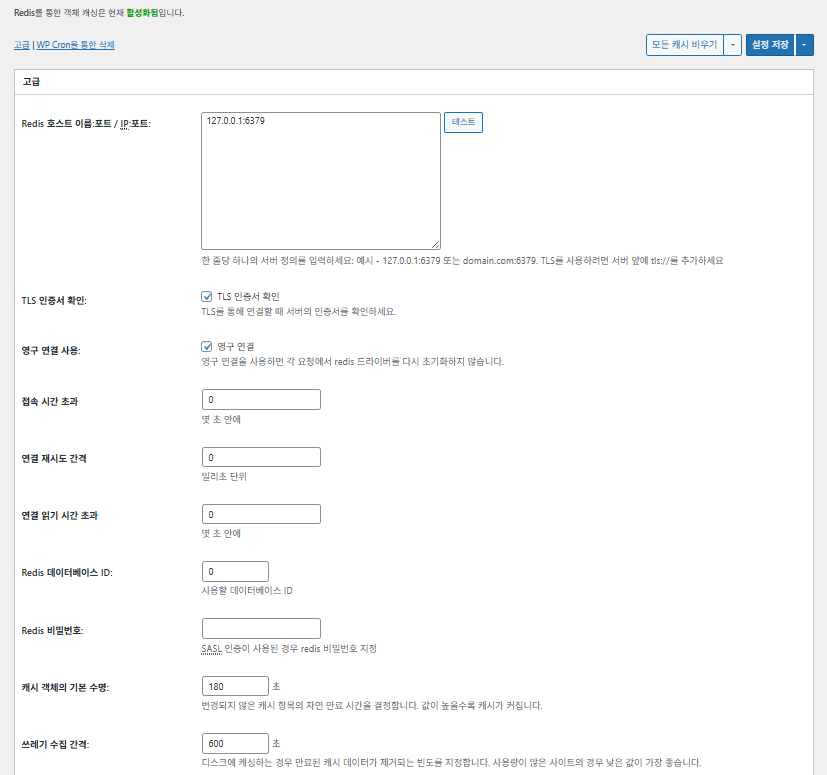
W3TC オブジェクト(Object)キャッシュ_詳細設定 1

項目

説明

Redisのホスト/IP

[127.0.0.1:6379]形式。TLSは[tls://]接頭辞を使用

TLS証明書の確認

TLS使用時に証明書の有効性を確認(任意)

永続接続を使用

Redis接続を再利用して性能向上

接続タイムアウト

Redis接続時に許容される最大時間(秒)

接続の再試行間隔

失敗時に再試行するまでの待機時間(ms)

接続読み取りタイムアウト

応答を待つ最大時間(秒)

Redis DB ID

Redis内のDB番号を指定(既定[0])

Redisのパスワード

パスワードまたはSASL認証用の入力

既定のキャッシュ寿命

キャッシュ項目の既定の保持時間(秒)。既定180秒

ガベージコレクション間隔

期限切れキャッシュの削除周期。既定600秒

グローバルグループ

ネットワークモードで共有されるグループ(マルチサイト用)

非永続グループ

キャッシュ対象外のグループ。例:[counts]、[plugins]

wp-adminリクエストのキャッシュ

管理画面にもキャッシュを適用(⚠️テストが必要)

トランジェントをDBに保存

外部キャッシュの使用中もDBに一時的な値を保持

WP-CLIを有効化

WP-CLIコマンドでもキャッシュの有効化を許可

6️⃣ ブラウザキャッシュ

ブラウザーキャッシュは 訪問者の端末に画像・CSS・JSなどの静的ファイルを保存し、再訪問時の読み込み時間を大きく短縮する機能です。これによりページの応答速度とユーザー体験が向上します。

ほとんどが キャッシュ制御とサーバー負荷の軽減に重点を置いた設定です。トラフィックが多いサイトや静的リソースの最適化が重要な環境では、多くを有効にしても問題ありません。

項目一般CSSおよびJSHTMLおよびXMLメディアおよびその他のファイル
[Last-Modified]ヘッダーの設定304応答を可能にするため、ファイルの最終更新日を含める✅ ほとんどの場合は有効化✅ ほとんどのサーバーに適している✅ ほとんどのCDN/ブラウザキャッシュに有効
[Expires]ヘッダーの設定ブラウザーに一定期間ファイルをキャッシュさせる✅ 既定値31536000秒(1年)、おすすめ✅ 既定値[3600秒(1時間)] ✅ [31536000秒](1年)が既定 → 静的ファイルに適している
⏱️ Expiresの有効期限の設定—⏱️ 例:[31536000秒 = 1年] · CDNと併用するときは短く調整できる——
[Cache-Control]ヘッダーの設定pragma・cache-controlヘッダーを追加してキャッシュ戦略を制御✅ [“public, max-age=31536000”]がおすすめ✅ [“public, max-age=3600”]などに設定✅ [“public, max-age=31536000”]がおすすめ
✅ キャッシュ制御ポリシー—✅ [max-age]を含む方式を使用 · [“public, max-age=EXPIRES_SECONDS”]を既定値として使用——
[ETag]の設定ファイル識別用のエンティティタグを提供 – 変更の検出用✅ 同一サーバー内で使う場合に効果的✅ サーバー間でキャッシュを共有しないなら
使用を推奨
✅ サーバー単独で運用する場合に有用
W3TCヘッダーの設定W3TCで最適化されたファイルかどうかを識別するヘッダーを挿入🔖 必須ではない、分析目的🔖 必須ではない(デバッグ用)🔖 使うかどうか選べる
gzip圧縮テキストファイルの容量を減らす圧縮方式(ほとんど互換)✅ ほとんどのサーバーで対応✅ ほとんどのサーバーでサポートされる✅ 画像には影響なし
brotli圧縮gzipより高い圧縮率の方式(対応ブラウザー限定)✅ Apache/Nginxの設定が必要✅ Apache/nginxのモジュールを有効化✅ 対応ブラウザーに限り適用
設定変更時のオブジェクトのキャッシュを防止クエリ文字列を追加して以前のキャッシュを無効化✅ 設定変更が多い場合におすすめ—✅ ファイル変更時にすぐ反映される
クエリ文字列の削除静的リソースから[?]を削除してキャッシュ率を向上⚠️ 一部のCDN/プロキシでのみ必要—✅ バージョン管理されたファイルに適用可能
Cookieの削除静的リソースの応答から[Set-Cookie]ヘッダーを削除✅ ほとんどの場合チェック—✅ 画像などにCookieは不要
WordPressで404応答を処理しない静的ファイルの404はWebサーバーが処理 → WPの負荷が減る———
404例外URIのリストWPで直接処理する特定のURIパターンを指定(例:sitemap、robots.txtなど)———
オブジェクトURL構造の書き換えキャッシュ回避のために固有のURIを生成([ver=xxxx]形式など)———

Ⅲ. W3 Total Cacheの追加機能

  • ↳ WP Cron、CDN、リバースプロキシ、ユーザーエクスペリエンス、統計、WebP変換、Google PageSpeed、インポート/エクスポート設定

WP Cronを使ったキャッシュの削除は 全体設定です。

🧭 W3 Total Cacheの追加機能シミュレーター
パスシミュレーター
📍Performance›General Settings›Purge via WP Cron
WP Cron
WP Cronによるキャッシュ削除はグローバル設定で、開始時刻と間隔を決めます。
📍Performance›General Settings›CDN›Advanced Settings
CDN
CDN事業者に登録したあと、[CDN]の[Enable]にチェックを入れて[CDN Type]を選んで保存し、詳細項目は[Advanced Settings]で設定します。
📍Performance›General Settings›Reverse Proxy
リバースプロキシ
Varnishを使う場合にのみ[Enable reverse proxy caching via varnish]にチェックを入れます。[Varnish servers]にはVarnishサーバーのIPアドレスを入力します。
📍Performance›General Settings›User Experience›Advanced Settings
ユーザーエクスペリエンス
[Lazy Load Images]にチェックを入れて保存したあと、[Advanced Settings]で遅延読み込みの項目を設定します。高度な設定の50%以上の機能はプレミアム版で使えます。
📍Performance›General Settings›Image Converter
WebP変換
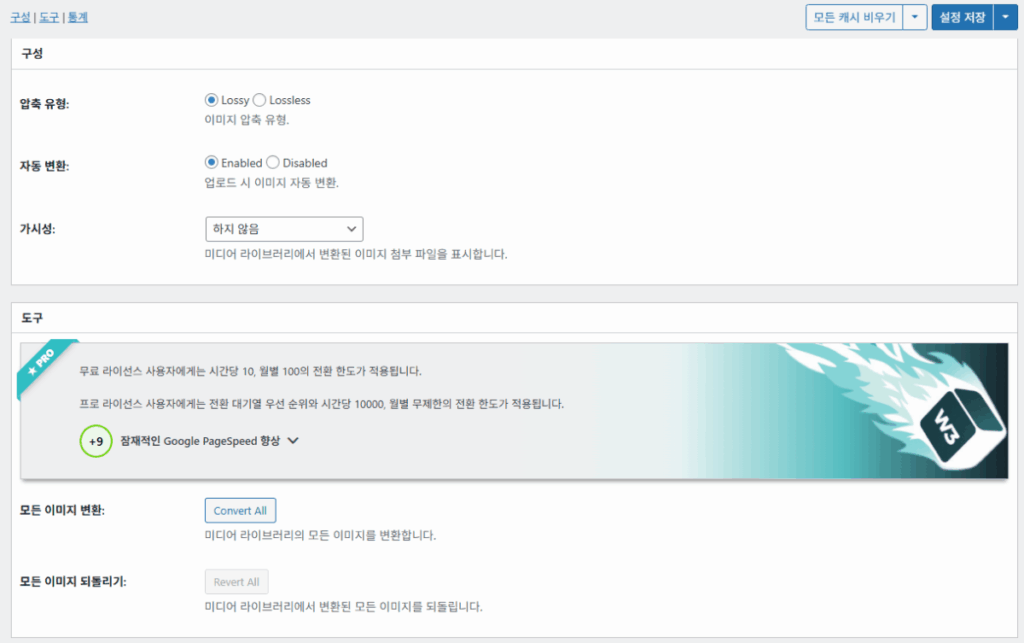
[Image Converter]の[Enable Image Converter Extension]にチェックを入れると、メディアライブラリーの画像をWebPやAVIF形式に変換できます。
example.com/wp-admin/admin.php?page=w3tc_general
DashboardSettingsToolsInfoSupportUpgrade
|||||||||||||||||
Empty All Caches
Purge via WP Cron
Enabling this will schedule a WP-Cron event that will flush all enabled Caches via a single cron job. Each cache’s advanced settings page features similar settings to this if you wish to schedule purges for specific caches only. If you prefer to use a system cron job instead of WP-Cron, you can schedule the following command to run at your desired interval: “wp w3tc flush all”. If the Always Cached extension is active and enabled, page cache entries will instead be added to the queue instead of being purged from the cache. Visit here for more information.
Enable WP-Cron Event
Enable
Start Time
This setting controls the initial start time of the cron job. If the selected time has already passed, it will schedule the job for the following day at the selected time.
Interval
This setting controls the interval that the cron job should occur.
CDN
Content Delivery Network (CDN) is a powerful feature that can significantly enhance the performance of your WordPress website. By leveraging a distributed network of servers located worldwide, a CDN helps deliver your website’s static files, such as images, CSS, and JavaScript, to visitors more efficiently. This reduces the latency and improves the loading speed of your website, resulting in a faster and smoother browsing experience for your users. With W3 Total Cache’s CDN integration, you can easily configure and connect your website to a CDN service of your choice, unleashing the full potential of your WordPress site’s speed optimization.
Basic SettingsPremium ServicesHelp
CDN:
Theme files, media library attachments, CSS, and JS files will load quickly for site visitors.
CDN Type:
Select the CDN type you wish to use.
Host the entire website with your compatible CDN provider to reduce page load time.
FSD CDN:
Enable★ PRO
Deliver visitors the lowest possible response and load times for all site content including HTML, media (e.g. images or fonts), CSS, and JavaScript. Show More ⌄ Learn more about Pro
Reverse Proxy
A reverse proxy is a server that sits between a client and a web server, acting as an intermediary for requests. It retrieves resources on behalf of the client from the server, and then returns the response to the client. By utilizing a reverse proxy, such as Varnish or Nginx, in conjunction with W3 Total Cache, you can significantly enhance the performance of your WordPress website by caching and serving static content directly from the reverse proxy server, reducing the load on your WordPress server and improving response times for visitors.
Enable reverse proxy caching via varnish
Varnish servers:
Specify the IP addresses of your varnish instances above. The VCL’s ACL must allow this request.
Trusted reverse proxies:
IP addresses or CIDR ranges of reverse proxies and load balancers in front of this site (one per line). Forwarded scheme and client-IP headers are used only for these addresses. Leave empty when PHP receives client connections directly. Developers may also supply this list via the w3tc_trusted_proxies filter.
User Experience
User Experience (UX) is a setting that focuses on enhancing the overall browsing experience for visitors of your website. By enabling this feature, you can optimize your website’s performance by minimizing load times, reducing server requests, and delivering content more efficiently. This ultimately leads to faster page loading, improved user satisfaction, and increased engagement, resulting in a speedier and more enjoyable WordPress website.
Basic Settings
Defer loading offscreen images.
Lazy Load Google Maps★ PRO
In addition to lazy loading images, with W3 Total Cache Pro you can lazy load Google Maps! More information and settings can be found on the User Experience page.
Disable Emoji
Remove emojis support from your website.
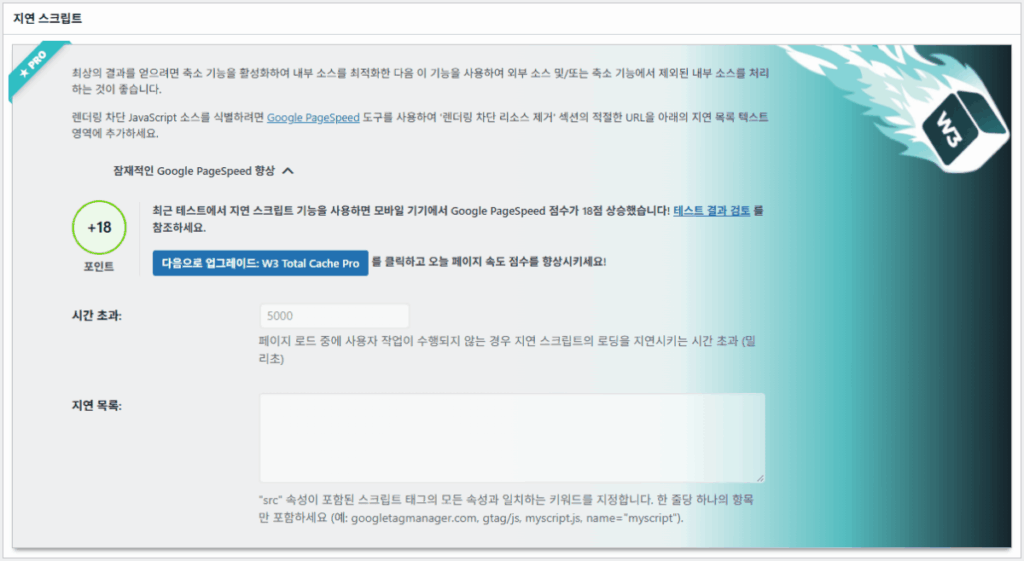
Delay Scripts★ PRO
Delay the loading of specified internal/external JavaScript sources on your pages separate from Minify.
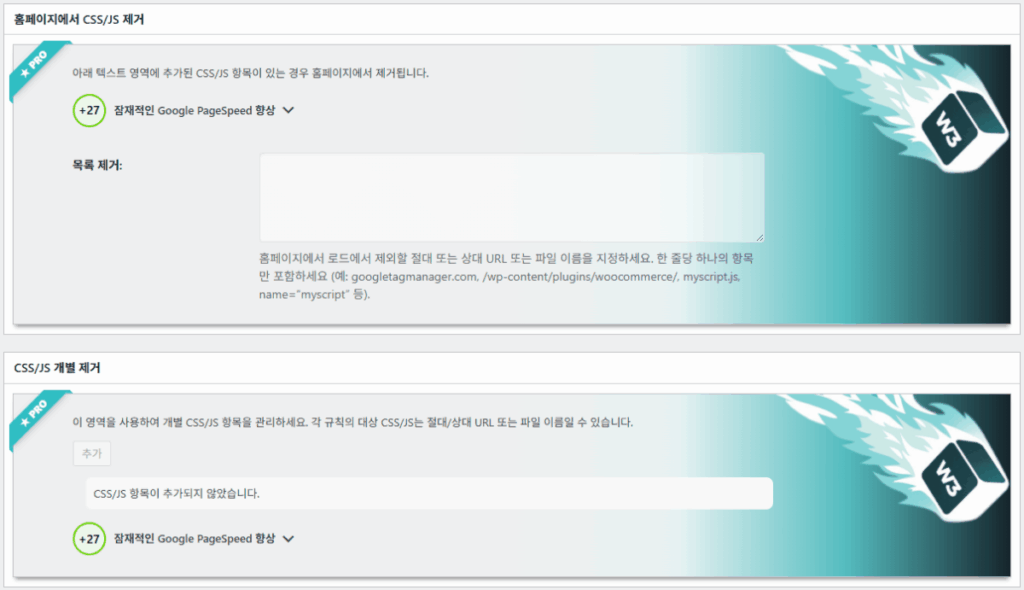
Remove Unwanted/Unused CSS/JS★ PRO
Removes specified CSS/JS tags from the homepage or on a per page basis.
Preload Requests★ PRO
DNS prefetching, pre-connecting, and preloading are essential web optimization techniques that enhance website performance by proactively resolving network-related tasks. Learn more about Pro
Disable wp-embed script
Remove wp-embed.js script from your website. oEmbed functionality still works but you will not be able to embed other WordPress posts on your pages.
Disable jquery-migrate on the front-end
Remove jquery-migrate support from your website front-end.
Image Converter
The Image Converter tool can be used to generate modern-format versions (e.g., WebP or AVIF) of media library images which offer superior lossless and lossy compression.
Enable Image Converter Extension
This extension allows for optimizing media library images to modern formats like WebP or AVIF.
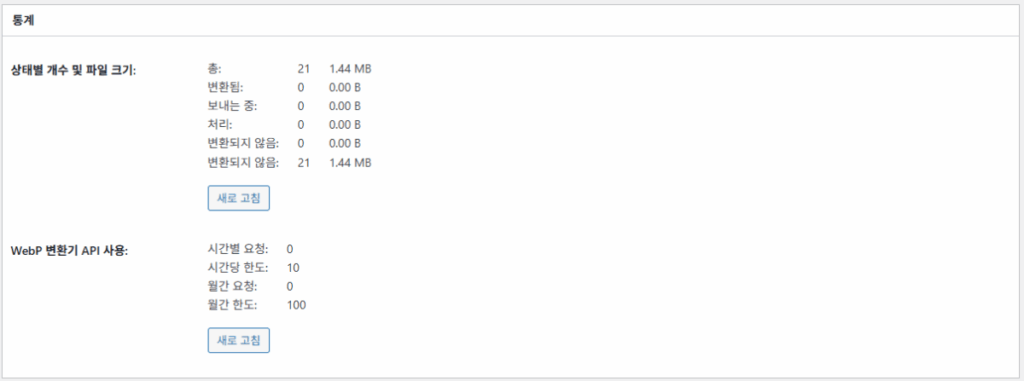
As a free user you are limited to conversions of 10/hour and 100/month. The Pro license increases these rates to 10,000/hour and unlimited/month. Conversion rates are subject to change and documentation can be found here. Learn more about Pro
example.com/wp-admin/admin.php?page=w3tc_cdn
DashboardSettingsToolsInfoSupportUpgrade
||
Empty All Caches
General
Host attachments
Upload attachments
If checked, all attachments will be hosted with the CDN.
Host wp-includes/ files
Upload includes files
If checked, WordPress static core file types specified in the “wp-includes file types to upload” field below will be hosted with the CDN.
Host theme files
Upload theme files
If checked, all theme file types specified in the “theme file types to upload” field below will be hosted with the CDN.
Host minified CSS and JS files
Upload minify files
If checked, minified CSS and JS files will be hosted with the CDN.
Host custom files
Upload custom files
If checked, any file names or paths specified in the “custom file list” field below will be hosted with the CDN.
Force over-writing of existing files
If modified files are not always detected and replaced, use this option to over-write them.
Advanced
Only purge CDN manually
Purge CDN only if explicit purge button is clicked.
Disable CDN on SSL pages
When SSL pages are returned no CDN URLs will appear in HTML pages.
Use CDN links for the Media Library on admin pages
All Media Library content will use CDN links on administration pages.
Add CORS header
Add CORS headers to allow cross-domain assets usage.
Disable CDN for the following roles
Select user roles that will use the origin server exclusively:
Administrator
Editor
Author
Contributor
Subscriber
Disable CDN on the following pages:
Always ignore the specified pages / directories. Supports regular expression.
Automatically upload minify files
If CDN is enabled (and not using the origin pull method), your minified files will be automatically uploaded.
Export changed files automatically
Automatically attempt to find and upload changed files.
Auto upload interval:
3600seconds
Specify the interval between upload of changed files.
Re-transfer cycle interval:
900seconds
The number of seconds to wait before upload attempt.
Re-transfer cycle limit:
25
Number of files processed per upload attempt.
wp-includes file types to upload:
*.css;*.js;*.gif;*.png;*.jpg;*.xml
Specify the file types within the WordPress core to host with the CDN.
Theme file types to upload:
*.css;*.js;*.gif;*.png;*.jpg;*.ico;*.ttf;*.otf;*.woff;*.woff2;*.less
Specify the file types in the active theme to host with the CDN.
File types to import:
 
Automatically import files hosted with 3rd parties of these types (if used in your posts / pages) to your media library. Only common static types (images, CSS, JS, fonts, and media) are imported. Script, markup, and SVG types are ignored even if listed. Empty, *, and *.* use that static allowlist rather than every file.
Custom file list:
favicon.ico
{wp_content_dir}/gallery/*
{wp_content_dir}/uploads/avatars/*
{plugins_dir}/wordpress-seo/css/xml-sitemap.xsl
{plugins_dir}/wp-minify/min*
{plugins_dir}/*.js
{plugins_dir}/*.css
{plugins_dir}/*.gif
{plugins_dir}/*.jpg
{plugins_dir}/*.png
Specify any files outside of theme or other common directories to host with the CDN.
Rejected user agents:
Specify user agents that should not access files hosted with the CDN.
Rejected files:
{uploads_dir}/wpcf7_captcha/*
{uploads_dir}/imagerotator.swf
{plugins_dir}/wp-fb-autoconnect/facebook-platform/channel.html
Specify the path of files that should not use the CDN.
Set cookie domain to “example.com”
If using subdomain for CDN functionality, this setting helps prevent new users from sending cookies in requests to the CDN subdomain.
Note(s):
  • You can use placeholders {wp_content_dir}, {plugins_dir}, {uploads_dir} instead of writing folder paths (wp-content, wp-content/plugins, wp-content/uploads).
  • If using Amazon Web Services or Self-Hosted CDN types, enable HTTP compression in the “Media & Other Files” section on Browser Cache Settings tab.
example.com/wp-admin/admin.php?page=w3tc_userexperience
DashboardSettingsToolsInfoSupportUpgrade
Empty All Caches
Lazy loading is currently disabled.
Lazy Loading
Process HTML image tags
Process img tags
Process background images
Process background styles
Exclude words:
avia-bg-style-fixed
data-bgposition=
data-envira-src=
data-large_image=
data-lazy-original=
data-lazy-src=
data-lazyload=
data-lazysrc=
data-no-lazy=
data-src=
data-srcset=
fullurl=
lazy-slider-img=
loading=”eager”
no-lazy
rev-slidebg
skip-lazy
soliloquy-image
swatch-img
w3-total-cache
woocommerce/assets/images/placeholder.png
wpcf7_captcha
Exclude tags containing words
Threshold
 
The outer distance off the scrolling area from which to start loading the elements (example: 100px, 10%).
Script Embed method:
Use inline method only when your website has just a few pages
Google Maps
Lazy load google map
WP Google Map Plugin plugin
Google Maps Easy plugin
WP Google Maps plugin
左メニューの有効な項目か画面のボタンを押します。

1️⃣ CDN

CDN事業者に登録したあとで機能を設定できます。

オプション

説明

✅ 添付ファイルのホスト

[wp-content/uploads]内の画像などの添付ファイルをCDNにアップロード

✅ wp-includesファイルのホスト

WordPressコアの静的ファイル(js/cssなど)をCDNに含める

✅ テーマファイルのホスト

有効なテーマの静的ファイル(css/js/imagesなど)をCDNに含める

✅ 縮小したCSS/JSファイルのホスト

W3TCが縮小したCSS/JSファイルをCDNから配信

✅ カスタムファイルのホスト

自分で指定したパスやファイル名をCDNにプッシュ

⚠️ 既存ファイルを強制上書き

変更が自動で検出されない場合に強制的に再アップロードするため

項目

説明

CDNは手動でのみ削除

手動削除ボタンを押したときだけCDNからファイルを削除

SSLページでCDNを無効化

HTTPSページではCDNのURLを使わない

管理画面でCDNリンクを使用

管理画面でもメディアにCDNのURLを表示

Add CORS header

CORSを許可するための応答ヘッダーを追加

ロール別にCDNを無効化

選択したユーザーロールにだけCDNを適用しない(例:管理者だけ元のファイルを使用)

ページの除外リスト

指定したパスはCDNから除外(正規表現可)

縮小ファイルを自動アップロード

Minifyされたファイルを自動でCDNにアップロード(Push方式)

変更されたファイルを自動でエクスポート

ファイルの変更を検出すると自動アップロード

自動アップロード間隔

ファイル変更を検出してからのアップロード間隔(既定3600秒)

再送信間隔 / 制限

失敗時の再試行間隔と処理するファイル数の制限

アップロードするwp-includesファイル

CDNに含めるコアファイルの形式を指定

アップロードするテーマファイルの形式

CSS/JS/フォントなどテーマ関連のファイル形式を指定

インポートするファイルの形式

外部リンクされたファイルを自動ダウンロードする条件を指定

カスタムファイルのリスト

CDNに送る個別のファイルパスを指定(テンプレート、外部プラグインなど)

拒否するユーザーエージェント

CDNファイルへのアクセスを遮断するボット/ユーザーエージェントを指定

拒否するファイルパス

CAPTCHAや特殊なパスなどCDNの適用から除外するファイルパスを指定

Cookieドメインの設定

サブドメインのCDNを使うときにCookieの送信を防ぐためのドメインを指定

2️⃣ リバースプロキシ

説明ではVarnishとNginxを例に挙げていますが、Nginxはサーバー側で設定するため、Varnishを使う場合にのみW3 Total Cacheプラグインに適用します。

3️⃣ ユーザーエクスペリエンス:遅延読み込み

詳細設定の機能の50%以上はプレミアム版で使えます。

項目

説明

使用をすすめる場面

✅ HTML画像タグの処理

[<img>]タグにlazy属性を適用

一般的なコンテンツ画像を遅延読み込みするとき

✅ 背景画像の処理

CSSの[background-image]にlazyを適用

背景画像の多いデザイン重視のサイトのとき

除外する語句例
Lazyの除外属性[data-src]、[data-lazy-src]、[data-no-lazy]、[loading=”eager”]など
Lazyの除外クラス[no-lazy]、[skip-lazy]、[lazy-slider-img]、[rev-slidebg]など
プラグイン/スライダー関連[soliloquy-image]、[envira]、[w3-total-cache]、[wpcf7_captcha]など
WooCommerce関連[swatch-img]、[woocommerce/…/placeholder.png]など

遅延読み込みの「しきい値」は、ブラウザーのビューポート(画面)の下にある画像や背景要素を、どれくらい離れた距離から先に読み込むかを決める値です。たとえば100pxにすると、ユーザーがスクロールで100ピクセル以内に近づいたときにその要素が読み込まれます。短すぎると画像の読み込みが遅れてユーザーには空白に見えることがあるため、通常は100~300pxが適当です。

次はスクリプトの埋め込み方式です。

埋め込み方式

説明

位置または属性

非同期(Async)

ページの読み込みと並行して実行され、レンダリングを妨げない

[<script async>]

同期(headで)

[<head>]領域で先に実行され、レンダリングを一時的に妨げることがある(in the head)

[<head>]または[<script>]

インライン(Inline)

HTML文書内に直接スクリプトを挿入し、別のリクエストなしで実行

[<script>コード</script>]内に挿入

W3TC ユーザーエクスペリエンス 詳細設定 2
W3TC ユーザーエクスペリエンス 詳細設定 3

4️⃣ WebP変換

W3TC WebP変換_詳細(詳細設定) 1
W3TC WebP変換_詳細(詳細設定) 2

Ⅳ. W3 Total Cacheの総合評価

W3 Total Cacheのインターフェース(UI)は悪くはありませんが、明らかに不便です。多くの開発者や上級ユーザーも同じ点を指摘しています。WP RocketやFlyingPressのような最新のプラグインと比べると、 サイトの性能では十分についていけますが、ユーザー体験(UX)の面では物足りなさがありします。

機能が多いのは長所ですが、 初心者には複雑すぎると感じられる構造です。特にメニュー間の移動が多く、細かなオプションも多いため、熟練した開発者やサイト管理者でも 設定ミスをすることがあります。設定した内容をすべて覚えていられるわけではありませんが、それだけ使ううえで 細かな調整ができる高度なキャッシュプラグインです。

無料版で100万人以上がインストールしたプラグインで、単に古いプラグインと見なすには、その機能の多様さと豊富さに並ぶキャッシュプラグインは事実上見つけにくいでしょう。

項目評価(⭐基準)評価内容
🎛️ インターフェース⭐⭐⭐メニューが多く構造が複雑。新規ユーザーには参入障壁。UIは古い印象
⚙️ 機能の多様性⭐⭐⭐⭐⭐キャッシュ、CDN、Redisなどほぼすべての機能。ない機能を探すほうが難しい
🛠️ 細かな設定の柔軟性⭐⭐⭐⭐ほぼすべての機能を細かく調整可能。設定間の衝突に注意が必要
🚀 性能向上の効果⭐⭐⭐⭐⭐設定を最適化すれば性能は非常に優秀。オブジェクトキャッシュ/ブラウザーキャッシュの効果が大きい
🧩 互換性⭐⭐⭐一部のホスティング・テーマ・プラグインと衝突する可能性あり。
📄 ドキュメント・ガイド⭐⭐⭐⭐⭐公式ドキュメントが豊富
💡 ユーザーのおすすめ度⭐⭐⭐⭐(4.5)上級者におすすめ。初心者にはWP Rocket、Cache Enablerなどがおすすめ
📊 総合評価⭐⭐⭐⭐(4.5)機能性重視の高性能プラグイン。学習コストあり。ユーザーのレベルを考慮する必要あり

Ⅴ. パフォーマンステスト

プラグインの設定後に最終的な速度テストをすると、一般的なキャッシュプラグインより目立つ速度向上を確認できました。

ℹ️ 提携について
当サイトのコンテンツにはアフィリエイトリンクが含まれています。訪問者がこのリンクを通じて商品やサービスを購入すると、当サイトは販売元から手数料を受け取ります。この過程において、購入者が支払う金額(イベント割引適用で金額が下がります↓)は上昇しません。掲載されている価格・割引・在庫情報は作成時点のものであり、実際とは異なる場合がありますので、ご購入前に販売元にて最終確認をお願いいたします。商品の選定および評価は独自の基準に基づいて行われており、手数料の支払いの有無は紹介順や評価内容に影響を与えません。

コメントを残す

メールアドレスが公開されることはありません。 ※ が付いている欄は必須項目です

人間であることを証明してください: 2   +   5   =