
How to Check Linux Kernel Version: uname, hostnamectl, and Distro Version
uname -r, which prints the version number of the kernel running on the server in one line, is the most basic command to check the Linux kernel version. Checking uname, hostnamectl, and the version files in turn on an AlmaLinux 9 server and a Debian 12 server, each server showed the same kernel version whichever method was used. However, the actual Debian 12 patch version 6.1.187 appeared separately in uname -v and in the list of installed kernel packages.
The outputs below are the results exactly as run on the two servers. Only the host names, machine IDs, boot IDs, the kernel version number of the AlmaLinux server, and the build and install details were replaced with example values. Commands ran as root on the AlmaLinux server and as a regular user on the Debian server.
1️⃣ Commands to Check the Linux Kernel Version
Check the version of the kernel currently running with uname -r.
uname -r5.14.0-687.10.1.el9_8.x86_64On the Debian 12 server, the same command printed a number in a different format. Each distribution numbers its versions in its own way.
uname -r6.1.0-53-amd64-a prints everything on one line, from the kernel name to the host name, kernel version, build information, architecture, and operating system.
uname -aLinux server1 5.14.0-687.10.1.el9_8.x86_64 #1 SMP PREEMPT_DYNAMIC Tue Jun 2 10:15:42 EDT 2026 x86_64 x86_64 x86_64 GNU/LinuxTo see only the kernel name, version, and architecture without the host name and build information, combine -s, -r, and -m as -srm. Even with the order changed, as in -mrs, the result came out in the same order: kernel name, kernel release, architecture.
uname -srmLinux 5.14.0-687.10.1.el9_8.x86_64 x86_64🔲 Linux Kernel Version Check Simulator
In the simulator below, you can type uname, hostnamectl, cat to read the version files, and rpm to list the kernels, and see the results for yourself.
2️⃣ uname Command Options
uname prints one piece of system information per option. Run without options, it prints only the kernel name Linux, the same as -s.
| Option | Information shown | AlmaLinux 9.8 server output | Debian 12 server -a output | |
|---|---|---|---|---|
| -s | Kernel name | Linux | Linux | |
| -n | Host name | server1 | server2 | |
| -r | Kernel release (version number) | 5.14.0-687.10.1.el9_8.x86_64 | 6.1.0-53-amd64 | |
| -v | Kernel build info and build time | #1 SMP PREEMPT_DYNAMIC Tue Jun 2 10:15:42 EDT 2026 | #1 SMP PREEMPT_DYNAMIC Debian 6.1.187-1 (2026-09-07) | |
| -m | Hardware architecture | x86_64 | x86_64 | |
| -p | Processor type | x86_64 | Not in -a output | |
| -i | Hardware platform | x86_64 | Not in -a output | |
| -o | Operating system | GNU/Linux | GNU/Linux | |
| -a | All of the above on one line | From -s to -o in order | The rest in order, without -p and -i |
-v prints the kernel's build information. The date at the end is when the kernel was built, so it differs from the date it was installed on the server. On the AlmaLinux server, the build time was June 2 and the kernel package was installed on June 4.
-p and -i are options marked non-portable in the help text. On systems where the value is unknown, they are also left out of the -a output.
3️⃣ Linux Kernel Version Number Structure
In the version number printed by uname -r, the front part is the base kernel version, and the part after the hyphen is the number added by the distribution.
el9_8 means a kernel built for Enterprise Linux 9.8, the same number as this server's distribution version 9.8.
For Debian 12's 6.1.0-53-amd64, the leading 6.1.0 alone does not tell the patch level. Check the patch level with uname -v.
uname -v#1 SMP PREEMPT_DYNAMIC Debian 6.1.187-1 (2026-09-07)The Debian 6.1.187-1 at the end is the actual patch version. Use this number when comparing with kernel versions in security advisories.
4️⃣ Check the Linux Kernel with /proc/version and hostnamectl
Besides uname, the kernel version can be checked in the /proc/version file and with hostnamectl. Files under /proc are virtual files created by the kernel, so you only need to read them with cat.
cat /proc/versionLinux version 5.14.0-687.10.1.el9_8.x86_64 (mockbuild@x64-builder01.almalinux.org) (gcc (GCC) 11.5.0 20240719 (Red Hat 11.5.0-5), GNU ld version 2.35.2-63.el9) #1 SMP PREEMPT_DYNAMIC Tue Jun 2 10:15:42 EDT 2026/proc/version also shows the compiler gcc 11.5.0 and the linker version, which are not in uname -a. If you only need the version number, read /proc/sys/kernel/osrelease. The result was the same as uname -r.
cat /proc/sys/kernel/osrelease5.14.0-687.10.1.el9_8.x86_64hostnamectl prints the operating system name, kernel version, and architecture on one screen along with the host name. Below is the result run as a regular user on the Debian 12 server.
hostnamectl Static hostname: server2
Icon name: computer-vm
Chassis: vm 🖴
Machine ID: 3b9e0f6a2c1d4e8b9a7c5d3e1f0a2b4c
Boot ID: b7e3d1a04c9f4e2a8d6c5b1f0e2a9c47
Virtualization: microsoft
Operating System: Debian GNU/Linux 12 (bookworm)
Kernel: Linux 6.1.0-53-amd64
Architecture: x86-64The Operating System line is the distribution name and version, and the Kernel line combines uname -s and uname -r. On the AlmaLinux server, grep picked only the needed lines to check the kernel and distribution at once.
hostnamectl | grep -E 'Operating System|Kernel|Architecture'Operating System: AlmaLinux 9.8 (Olive Jaguar)
Kernel: Linux 5.14.0-687.10.1.el9_8.x86_64
Architecture: x86-645️⃣ Check the Linux Distribution Version
The distribution name and version are in the /etc/os-release file. The os-release manual describes this file as holding operating system identification data. Its contents are written one per line as name=value, like shell variables.
Below is the os-release of the Debian 12 server.
cat /etc/os-releasePRETTY_NAME="Debian GNU/Linux 12 (bookworm)"
NAME="Debian GNU/Linux"
VERSION_ID="12"
VERSION="12 (bookworm)"
VERSION_CODENAME=bookworm
ID=debian
HOME_URL="https://www.debian.org/"
SUPPORT_URL="https://www.debian.org/support"
BUG_REPORT_URL="https://bugs.debian.org/"PRETTY_NAME is the human-readable distribution name, and VERSION_ID is the version number. For files with many lines, like the os-release of the AlmaLinux server, pick only the needed lines with grep.
grep -E '^(NAME|VERSION|ID|VERSION_ID|PRETTY_NAME)=' /etc/os-releaseNAME="AlmaLinux"
VERSION="9.8 (Olive Jaguar)"
ID="almalinux"
VERSION_ID="9.8"
PRETTY_NAME="AlmaLinux 9.8 (Olive Jaguar)"RHEL-family distributions such as AlmaLinux also keep release files in /etc that state the distribution name and version on one line. The AlmaLinux server had four release files, and redhat-release and system-release were links to almalinux-release.
ls -l /etc/*-release-rw-r--r-- 1 root root 37 May 19 07:33 /etc/almalinux-release
lrwxrwxrwx. 1 root root 21 May 19 07:33 /etc/os-release -> ../usr/lib/os-release
lrwxrwxrwx 1 root root 17 May 19 07:33 /etc/redhat-release -> almalinux-release
lrwxrwxrwx 1 root root 17 May 19 07:33 /etc/system-release -> almalinux-releaseSo reading any of almalinux-release, redhat-release, or system-release gave the same single line.
cat /etc/redhat-releaseAlmaLinux release 9.8 (Olive Jaguar)On the Debian 12 server, VERSION_ID in os-release only said 12. The detailed version, such as 12.15, is in /etc/debian_version.
cat /etc/debian_version12.15lsb_release -a also prints the distribution name and version. On the Debian 12 server, it printed four lines.
lsb_release -aDistributor ID: Debian
Description: Debian GNU/Linux 12 (bookworm)
Release: 12
Codename: bookwormlsb_release was not installed on the AlmaLinux server, so the same command ended with a [command not found] error.
lsb_release -abash: lsb_release: command not foundIn that case, check the same information by reading /etc/os-release instead of installing another package.
6️⃣ Installed Linux Kernels and Checking for a Reboot
uname -r prints only the one kernel currently running, so check all kernels installed on the server in the package list. On the RHEL family, rpm -q --last kernel also prints the install dates.
rpm -q --last kernelkernel-5.14.0-687.10.1.el9_8.x86_64 Thu Jun 4 11:47:44 2026
kernel-5.14.0-427.13.1.el9_4.x86_64 Wed Jun 12 11:44:52 2024
kernel-5.14.0-362.13.1.el9_3.x86_64 Mon Jan 15 12:30:31 2024The three kernels on the AlmaLinux server were installed between January 2024 and June 2026; all started with 5.14.0, and only the release number after it and el9_3, el9_4, and el9_8 differed. So on AlmaLinux 9, you need to compare up to the release number after the hyphen to tell whether the kernel is the latest.
On the Debian family, check the kernel package list with dpkg.
dpkg -l 'linux-image*' | grep '^ii'ii linux-image-6.1.0-50-amd64 6.1.176-1 amd64 Linux 6.1 for 64-bit PCs (signed)
ii linux-image-6.1.0-53-amd64 6.1.187-1 amd64 Linux 6.1 for 64-bit PCs (signed)
ii linux-image-amd64 6.1.187-1 amd64 Linux for 64-bit PCs (meta-package)The third column is the actual patch version. While the kernel package went from 6.1.176 to 6.1.187, the 6.1.0 in the package name stayed the same, and only the middle number changed from 50 to 53.
Even after installing a new kernel, the old kernel keeps running until you reboot. On the RHEL family, check the kernel to be used at the next boot with grubby --default-kernel.
grubby --default-kernel/boot/vmlinuz-5.14.0-687.10.1.el9_8.x86_64On this server, the next boot kernel and the running kernel were the same 5.14.0-687.10.1.el9_8. needs-restarting -r from the yum-utils package checks whether core libraries or services were updated after boot and prints whether a reboot is needed.
needs-restarting -rNo core libraries or services have been updated since boot-up.
Reboot should not be necessary.[Reboot should not be necessary] means no reboot is needed.
If core packages such as kernel, glibc, or systemd were updated after boot, their names appear under [Core libraries or services have been updated since boot-up:], followed by [Reboot is required to fully utilize these updates.]. The exit code is then 1, so pick a time to reboot and restart the server.
🔢 FAQ & Recommended Content

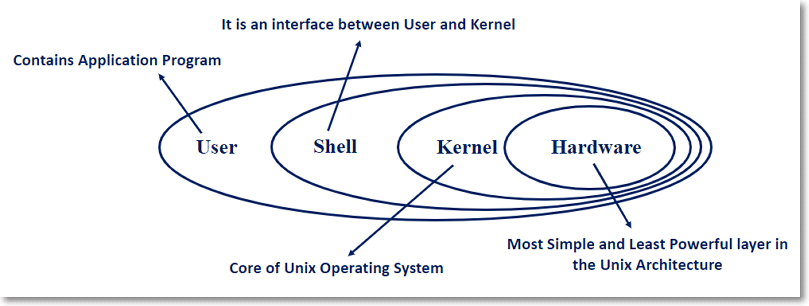 Kernel
What Is the Linux Kernel? | Kernel Version
An overview of the kernel's role, turning shell commands into work the hardware can process, and of what the kernel version means.

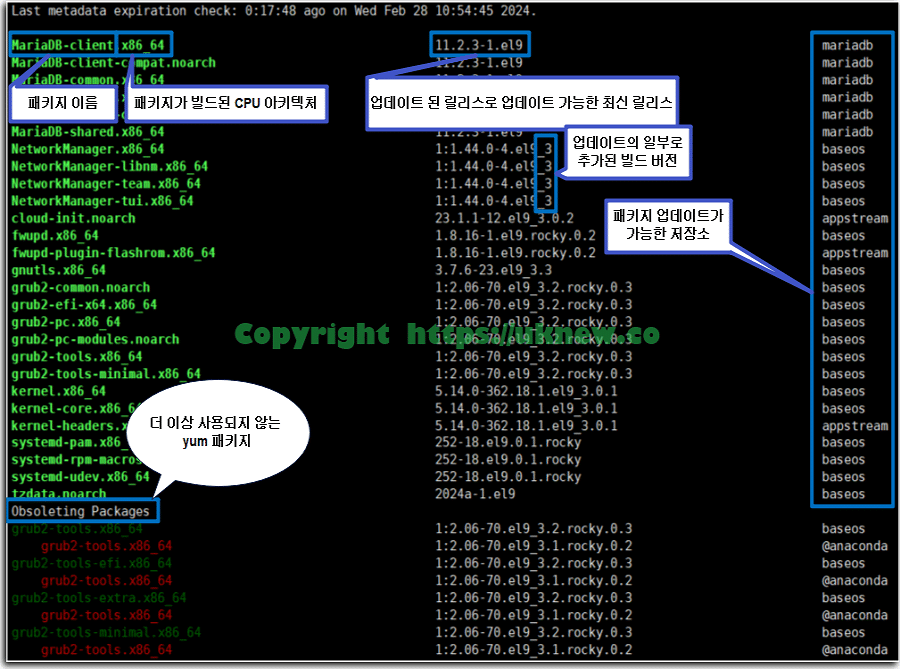 Packages
yum command | usage | options | yum-utils | package and repository management🔝
How to install and update packages with yum on Red Hat-family distributions, and how to manage repositories.
ℹ️ Affiliate Disclosure
This site's content contains affiliate links. When a visitor buys a product or service through one of them, the site receives a commission from the seller. The amount the buyer pays(it goes down during event discounts ↓)does not go up. Posted prices, discounts, and stock reflect the time of writing and may differ, so confirm with the seller before buying. Products are chosen and reviewed by our own standards, and commissions do not affect the order or content of reviews.