
Claude MCP: What It Is, How to Use It, and Setup
What you can ask Claude to do depends on the MCPs you've connected. Claude MCPis the standard that lets Claude connect directly to external tools such as files, servers, and calendars. This guide goes in order from the basics to Claude Desktop setup and how to use it in practice.
Ⅰ. What Is Claude MCP
Claude MCPstands for Model Context Protocol, the common standard Claude uses to reach programs and data outside itself. Anthropic open-sourced it in November 2024, and since it was donated to the Linux Foundation in December 2025, ChatGPT, Gemini, VS Code, and Cursor all use the same standard.
1️⃣ A Connection Standard Between Claude and External Tools
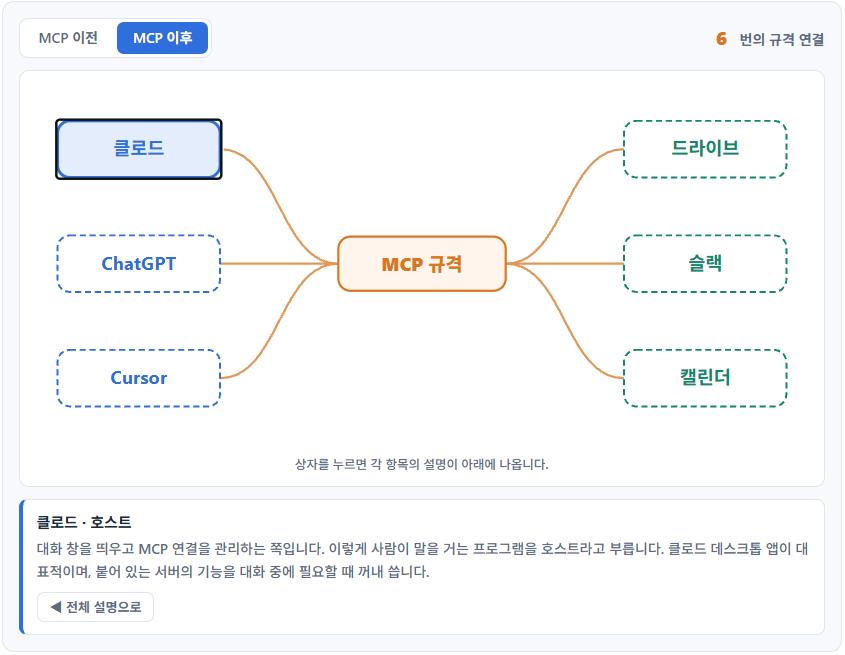
Before MCP, every pairing of an AI and a program needed its own connection code. The code that connected Claude to Drive was different from the code for Slack, and even for the same Drive, the code for another AI was different again.
MCP places a single standard in the middle: programs offer their features according to the standard, and AIs read them according to the standard. It's the same idea as a USB port.
Inside the standard, there is a host that opens the chat window (such as Claude Desktop) and a server that offers features. You don't need to memorize them, but [host] and [server] keep appearing in settings screens and error messages, so it helps to know what they mean.
2️⃣ What [Server] Means in MCP
An MCP server is a small program that gives Claude one capability. If it reads and writes your calendar, it's a calendar MCP server; if it reads files on your computer, it's a file system MCP server.
It doesn't refer to hardware the way "Linux server" or "hosting server" usually does. So [installing an MCP server] doesn't mean bringing in a machine; it means setting up that small program and telling Claude about it.
Ⅱ. Two Types of MCP Servers
MCP servers come in two types depending on where they run, and if you don't know the difference, you'll look for the settings menu in the wrong place.
1️⃣ Local Servers That Run on Your Computer
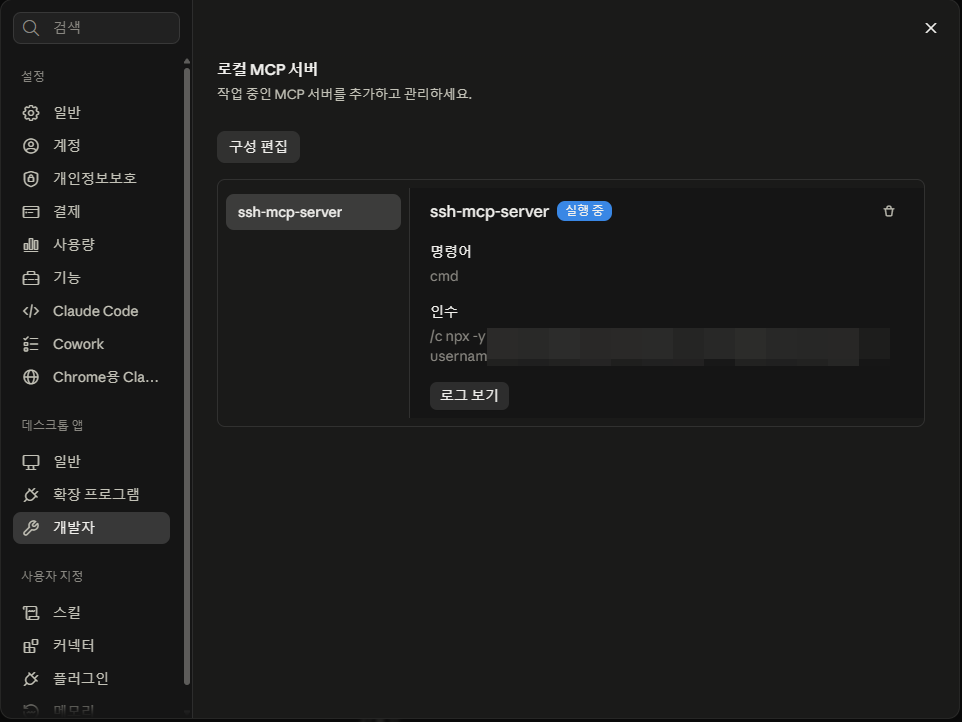
A local server is a program that runs inside your PC, and Claude Desktop launches it directly and talks to it. Use this type to read files on your hard drive or run commands on your PC.
To register one, install a tool reviewed by Anthropic under [Settings › Extensions] in Claude Desktop, or write it directly into the config file (claude_desktop_config.json). A local server added this way appears only in the desktop app, not on claude.ai in a browser.
2️⃣ Remote Connectors That Attach to Cloud Services
A remote connector attaches to an MCP server that is available on the internet; services already in the cloud, such as Google Calendar, Gmail, Slack, and Notion, belong here. In Claude Desktop you add them under [Settings › Connectors], and with the same account they also appear on claude.ai and in the mobile app.
Adding a connector in the desktop app doesn't mean the connection starts from your PC. Connections to remote servers start from Anthropic's cloud no matter which app you add them in, so even if you write a remote server address into the config file, the desktop app won't connect to it.
Remote goes through the Connectors menu; local goes through Extensions or the config file. Keep the two apart and you won't get stuck in the setup in Chapter Ⅲ.
Ⅲ. Claude Desktop MCP Setup
Remote connectors are added on the [Settings › Connectors] screen; local servers don't appear there. Click through the real screens in the simulator below to see the steps in order.


Picking from the directory is the default, and you enter an address in [Add custom connector] only when the server isn't registered. The custom option only takes a name and an HTTPS address, so you can't enter a program on your own computer there.
The directory mixes verified connectors with [Community] ones uploaded by outside developers, so check the mark next to the name when choosing. A connector can read your account's data the moment it's attached. It's better not to attach one whose maker you don't know, and the custom add screen carries the same warning.
Once connected, a new item appears in the list with a check under Status.
Ⅳ. How to Use Claude MCP
Attaching a connector doesn't mean Claude does everything on its own. When it needs to call a tool during a conversation, a confirmation screen saying [Claude wants to use this tool] appears first, and you choose Deny, Always allow, or Allow once along with the tool's name.
If being asked every time gets tedious, go to [Settings › Connectors], click the connector, and set its [Tool permissions] in advance. You choose from Always allow · Needs approval · Blocked · Custom, and since read-only and write tools are listed separately, you can leave reads open and require confirmation for writes.
Using it is simply a matter of asking in plain words. Ask something like [Show me my site list], and Claude picks and calls the tools it needs and uses the results in its answer, so you don't need to memorize or specify tool names.
What you can ask for depends on the connectors you've attached. With a calendar attached it schedules events, and with Drive attached it finds documents; anything without a connector won't happen no matter how you ask.
Ⅴ. When the Connection Doesn't Work
If a connector shows a check in the list but its tools still don't work, check two places: whether the service has that feature enabled, and whether Claude's tool permissions are blocking it.
Some services that provide connectors keep a separate AI access setting in their account settings. On WordPress.com, you turn on access and enable read and write permissions separately on the [AI and MCP] screen in account settings.
If calling a tool shows a notice that [this feature is not enabled in settings], this is the cause; go to the settings address shown in the notice and turn it on.
If it still fails after enabling everything on the service side, check Claude's tool permissions. If the connector's permission in [Settings › Connectors] is [Needs approval] or [Blocked], it can be blocked regardless of the service's settings, and switching it to [Always allow] often makes it work right away.
If nothing changes after checking both, disconnect and reconnect. If you enabled permissions on the service side later, the connector may still be holding the old permission list it received when first attached, and reconnecting fetches a fresh list.
Ⅵ. FAQ
ℹ️ Affiliate Disclosure
This site's content contains affiliate links. When a visitor buys a product or service through one of them, the site receives a commission from the seller. The amount the buyer pays(it goes down during event discounts ↓)does not go up. Posted prices, discounts, and stock reflect the time of writing and may differ, so confirm with the seller before buying. Products are chosen and reviewed by our own standards, and commissions do not affect the order or content of reviews.