
journalctl command: usage, logs by service and cleaning up journal size
The journalctl command is the tool for picking out and reading the logs that services and the kernel leave in the systemd journal. On Linux systems that use systemd, systemd-journald collects these logs into the journal. Reading logs by service, time and priority on an AlmaLinux 9 server and a Debian 12 server showed that a regular account sees only its own logs, and that a server keeping its journal in memory cannot select a previous boot.
The output below comes from the two servers. Host names, accounts, boot IDs, process numbers on the AlmaLinux server and the systemd package release were replaced with example values, and both servers printed times in UTC.
1️⃣ How to use the journalctl command and read recent logs
Running journalctl without options opens the journal in less starting from its oldest line, so to see recent logs set the number of lines with -n. If you leave out the number after -n, you get 10 lines.
journalctl -n 3Oct 28 07:14:06 server1 systemd[1]: session-3017.scope: Deactivated successfully.
Oct 28 07:14:06 server1 systemd[1]: session-3017.scope: Consumed 3.934s CPU time.
Oct 28 07:14:07 server1 sudo[851987]: pam_unix(sudo:session): session closed for user userEach line consists of the time, the host name, the program that wrote the log with its process number, and the message. Adding -r reverses the order so the most recent line comes to the top. In the crond log on the AlmaLinux server, the CMDEND line written last was at the top.
journalctl -r -u crond -n 3Oct 28 07:01:01 server1 CROND[841384]: (root) CMDEND (run-parts /etc/cron.hourly)
Oct 28 07:01:01 server1 run-parts[841394]: (/etc/cron.hourly) starting 0anacron
Oct 28 07:01:01 server1 CROND[841388]: (root) CMD (run-parts /etc/cron.hourly)-f does not exit after printing the last line and keeps printing new lines as they arrive. On the Debian 12 server, the last logger line was left on screen with -q and -t myapp, and two more lines were written with logger. The two lines appeared right below it.
journalctl -q -f -n 1 -t myappOct 28 07:12:46 server2 myapp[347704]: journalctl error test
Oct 28 07:14:35 server2 myapp[347881]: follow line 1
Oct 28 07:14:36 server2 myapp[347877]: follow line 2-f does not stop until you press Ctrl+C, so use it to watch the log while a service restarts.
In less, lines wider than the screen are cut off on the right, and you see the cut part with the arrow keys. Output sent to a pipe or a file does not go through less. To print straight to the terminal without less, add --no-pager.
2️⃣ journalctl logs by service
Recent lines mix logs from many services, so to see the log of one service, give the unit name with -u. The .service at the end of the unit name can be left out.
journalctl -u crond -n 4Oct 28 06:01:01 server1 CROND[802926]: (root) CMDEND (run-parts /etc/cron.hourly)
Oct 28 07:01:01 server1 CROND[841388]: (root) CMD (run-parts /etc/cron.hourly)
Oct 28 07:01:01 server1 run-parts[841394]: (/etc/cron.hourly) starting 0anacron
Oct 28 07:01:01 server1 CROND[841384]: (root) CMDEND (run-parts /etc/cron.hourly)Writing -u twice mixes the logs of two services in time order. Selecting crond and nginx together from 08:00 to 08:15 on October 18 on the AlmaLinux server gave four crond lines at 08:01 followed by two nginx reload lines at 08:12.
journalctl -u nginx -u crond --since '2026-10-18 08:00' --until '2026-10-18 08:15'Oct 18 08:01:01 server1 CROND[381522]: (root) CMD (run-parts /etc/cron.hourly)
Oct 18 08:01:01 server1 run-parts[381528]: (/etc/cron.hourly) starting 0anacron
Oct 18 08:01:01 server1 run-parts[381534]: (/etc/cron.hourly) finished 0anacron
Oct 18 08:01:01 server1 CROND[381518]: (root) CMDEND (run-parts /etc/cron.hourly)
Oct 18 08:12:30 server1 systemd[1]: Reloading nginx - high performance web server...
Oct 18 08:12:30 server1 systemd[1]: Reloaded nginx - high performance web server.systemctl status prints only the last 10 log lines under the service status, so check older logs with journalctl -u. Right after you run systemctl restart on a service, run journalctl -u to check the startup log.
Logs that scripts or cron jobs wrote with logger are found by their tag (identifier), not by a unit. After -t, write the same name that was given to logger's -t.
logger -t myapp 'journalctl test message'On the Debian 12 server, logger printed nothing on screen, and the lines it wrote were found with -t myapp.
journalctl -q -t myappOct 28 07:12:44 server2 myapp[347693]: journalctl test message-g keeps only the lines whose message contains certain text. If you write the text all in lowercase, the match ignores case.
journalctl -u crond -g anacron -n 2Oct 28 07:01:01 server1 run-parts[841394]: (/etc/cron.hourly) starting 0anacron-n counts lines before -g filters them, so of the last two crond lines only the one containing anacron remained.
3️⃣ Logs by time range and by boot
--since and --until set the start and end of the time range to print. If there is a space between the date and the time, wrap the value in single quotes.
| --since value | Meaning and when to use it |
|---|---|
| '2026-10-28 06:00' | From 06:00:00 that day (seconds default to 00 if omitted), when you know when the problem started |
| today | From 00:00:00 today, to see only today's logs |
| yesterday | From 00:00:00 yesterday until now; add --until today to see only yesterday |
| '-2h' | From 2 hours ago, to see what just happened (measured below) |
| '1 hour ago' | From 1 hour ago, same as -1h |
On the AlmaLinux server, the last 2 hours started with the crond lines written at 06:01; below are the first four of them.
journalctl -u crond --since '-2h' | head -4Oct 28 06:01:01 server1 CROND[802930]: (root) CMD (run-parts /etc/cron.hourly)
Oct 28 06:01:01 server1 run-parts[802936]: (/etc/cron.hourly) starting 0anacron
Oct 28 06:01:01 server1 CROND[802926]: (root) CMDEND (run-parts /etc/cron.hourly)
Oct 28 07:01:01 server1 CROND[841388]: (root) CMD (run-parts /etc/cron.hourly)-b keeps only logs since the current boot. When looking for why a server restarted, first check the boot list to see whether logs from the previous boot remain.
journalctl -b -u crond -n 2Oct 28 07:01:01 server1 run-parts[841394]: (/etc/cron.hourly) starting 0anacron
Oct 28 07:01:01 server1 CROND[841384]: (root) CMDEND (run-parts /etc/cron.hourly)--list-boots prints, for each boot kept in the journal, its number, boot ID, and the times of its first and last lines.
journalctl --list-bootsIDX BOOT ID FIRST ENTRY LAST ENTRY
0 4f1c2a9be0d34c7a8e6b5d20c1f3a7e9 Sat 2026-10-17 08:29:26 UTC Wed 2026-10-28 07:16:10 UTCThe AlmaLinux server does not keep its journal on disk, so it had only one boot record. Because of that, -b -1 for the previous boot only printed a notice and ended.
journalctl -b -1Specifying boot ID or boot offset has no effect, no persistent journal was found.Logs from a previous boot can be read with -b -1 only on servers that store the journal on disk (/var/log/journal).
4️⃣ journalctl error logs and kernel logs
-p selects lines by log priority. Giving one level shows that level and all levels more important than it, and you can write the level either as a name or as a number.
| Level | Numeric | Meaning |
|---|---|---|
| emerg | 0 | The system is unusable |
| alert | 1 | Action must be taken immediately |
| crit | 2 | Critical error |
| err | 3 | Error |
| warning | 4 | Warning |
| notice | 5 | Normal but worth noting; the level of lines written by logger without -p |
| info | 6 | Info |
| debug | 7 | Debug message |
After writing one err-level line with logger and selecting with -p err, the notice-level line with the same tag (journalctl test message) dropped out and only the err line remained.
logger -t myapp -p user.err 'journalctl error test'; journalctl -q -t myapp -p errOct 28 07:12:46 server2 myapp[347704]: journalctl error testJoining two levels with two dots prints only that range. Selecting warning..err leaves only warning and error levels.
journalctl -q -t myapp -p warning..errOct 28 07:12:46 server2 myapp[347704]: journalctl error test-k keeps only kernel messages and prints only lines since the current boot.
journalctl -k -n 3Oct 26 10:14:25 server1 systemd-rc-local-generator[96245]: /etc/rc.d/rc.local is not marked executable, skipping.
Oct 27 10:47:57 server1 systemd-rc-local-generator[512078]: /etc/rc.d/rc.local is not marked executable, skipping.
Oct 27 11:01:10 server1 systemd-rc-local-generator[520023]: /etc/rc.d/rc.local is not marked executable, skipping.The last three -k lines on the AlmaLinux server were all systemd-rc-local-generator lines. These lines are messages written to the kernel log buffer, so they are stored with _TRANSPORT set to kernel and also appear with -k.
5️⃣ journalctl output formats
-o changes the format of each line. The default short is almost the same as a syslog file, and short-iso changes the time to ISO 8601 format including the time zone. Switching to short-iso on the AlmaLinux server added +0000 to the end of the time.
journalctl -u crond -n 2 -o short-iso2026-10-28T07:01:01+0000 server1 run-parts[841394]: (/etc/cron.hourly) starting 0anacron
2026-10-28T07:01:01+0000 server1 CROND[841384]: (root) CMDEND (run-parts /etc/cron.hourly)cat removes the time and the host name and prints only the message, so use it when passing messages to grep or another program.
journalctl -u crond -n 2 -o cat(/etc/cron.hourly) starting 0anacron
(root) CMDEND (run-parts /etc/cron.hourly)json and json-pretty print the fields stored in the journal as names and values. When you choose fields with --output-fields, the cursor, time and boot ID fields always come along. Even when only four fields were chosen on the Debian 12 server, __CURSOR, _BOOT_ID and two time fields appeared with them.
journalctl -q -t myapp -n 1 -o json-pretty --output-fields=MESSAGE,PRIORITY,SYSLOG_IDENTIFIER,_PID{
"__REALTIME_TIMESTAMP" : "1793171676664200",
"_PID" : "347877",
"SYSLOG_IDENTIFIER" : "myapp",
"MESSAGE" : "follow line 2",
"__CURSOR" : "s=2a6f0c1d9e8b47a3b5c4d3e2f1a0b9c8;i=1a2b3;b=b7e3d1a04c9f4e2a8d6c5b1f0e2a9c47;m=17cf8fe36f5;t=65ee150cf1188;x=1f2e3d4c5b6a7980",
"_BOOT_ID" : "b7e3d1a04c9f4e2a8d6c5b1f0e2a9c47",
"PRIORITY" : "5",
"__MONOTONIC_TIMESTAMP" : "1636264982261"
}6️⃣ Journal storage location and cleaning up its size
Whether the journal lives in memory or on disk is decided by the Storage= value in journald.conf. The default auto stores it on disk if the /var/log/journal folder exists and in memory (/run/log/journal) if it does not.
The AlmaLinux server had no /var/log/journal folder, so its journal was only in /run/log/journal.
ls -ld /var/log/journal /run/log/journalls: cannot access '/var/log/journal': No such file or directory
drwxr-sr-x+ 4 root systemd-journal 80 Oct 17 08:30 /run/log/journalThe Debian 12 server had both folders, and its journal was building up on disk.
ls -ld /var/log/journal /run/log/journaldrwxr-sr-x+ 2 root systemd-journal 40 Oct 9 08:43 /run/log/journal
drwxr-sr-x+ 4 root systemd-journal 4096 Sep 24 12:52 /var/log/journalTo keep logs after a reboot, change Storage= in journald.conf to persistent and restart systemd-journald. According to the official manual, the /var/log/journal folder is created automatically when needed. The settings were not changed for this article.
A journal kept on disk works like an aircraft black box that you pull out and read after an incident.
--disk-usage prints the combined size of archived journal files and the files currently in use. On a regular account of the Debian 12 server, with the [Hint] notice at the top hidden by -q, the result was a single line: 6.6M.
journalctl -q --disk-usageArchived and active journals take up 6.6M in the file system.The maximum size of a journal stored on disk is set with SystemMaxUse=. If no value is given, the limit is 10% of the file system size (up to 4G), and the journald.conf on the Debian 12 server had 50M written in it.
grep -v '^#' /etc/systemd/journald.conf | grep -v '^$'[Journal]
SystemMaxUse=50MTo shrink old journals right away, set the size to keep with --vacuum-size or the period to keep with --vacuum-time. Both commands delete journal files, so they were not run for this article.
journalctl --vacuum-size=200M--vacuum-size=200M deletes archived journal files starting with the oldest until the total size is below 200M.
journalctl --vacuum-time=2weeks--vacuum-time=2weeks deletes archive files that contain only lines older than 2 weeks.
vacuum deletes only archived files and leaves the files currently in use, so even after running it the --disk-usage number may not drop to the size you set.
Text logs under /var/log are written by rsyslog, which works separately from journald. That is why the two logs are read and sized differently.
| Item | journald(journalctl) | rsyslog |
|---|---|---|
| How to read | journalctl | cat, less, grep |
| Stored in | /run/log/journal or /var/log/journal | /var/log/messages (RHEL family) or /var/log/syslog (Debian family) |
| Size management | SystemMaxUse and others in journald.conf | logrotate |
7️⃣ journalctl read permissions and options
🔲 Read permissions
Running journalctl as an account other than root shows a [Hint] message at the top, and only the logs that account wrote are visible. Searching for nginx logs as a regular account on the Debian 12 server printed only [-- No entries --] after the notice.
journalctl -u nginx -n 5Hint: You are currently not seeing messages from other users and the system.
Users in groups 'adm', 'systemd-journal' can see all messages.
Pass -q to turn off this notice.
-- No entries --According to id -nG, this account belonged to only one group, and it was not in the adm or systemd-journal groups the notice mentions.
id -nGuserThe official manual explains that accounts in the systemd-journal, adm and wheel groups can read the whole journal. adm and wheel come with other permissions set by the distribution, and wheel often allows administrative work as well, so the systemd-journal group is the right fit for an account that only reads logs.
usermod -aG systemd-journal userThe usermod command that adds the group was not run for this article. After adding the group, log in again and check the groups with id -nG. An account with administrator rights also sees all logs when it runs sudo journalctl.
The [Hint] message is hidden with -q. Even with -q, though, the visible logs are only the lines that account wrote. --user reads that account's user journal and works only on servers that store the journal on disk. On the Debian 12 server, which keeps its journal on disk, that account's systemd lines and logger lines appeared.
journalctl --user -n 3Oct 28 07:12:35 server2 systemd[347665]: Reached target default.target - Main User Target.
Oct 28 07:12:35 server2 systemd[347665]: Startup finished in 181ms.
Oct 28 07:12:44 server2 myapp[347693]: journalctl test message🔲 journalctl command options
📌 Main options: results from this article
| Option | Task | Result in this article | |
|---|---|---|---|
| -n lines | Print only the last few lines; 10 lines if the number is left out | -n 3 shows the last three lines | |
| -r | Reverse the order, newest line at the top | In the crond log, the CMDEND line written last is at the top | |
| -f | Keep printing new lines after the last line | The two lines written with logger follow right below | |
| -q | Hide notices such as [Hint] | The --disk-usage result of a regular Debian 12 account is a single line: 6.6M | |
| -u unit | Print only that service's log | With -u written twice, four crond lines are followed by two nginx reload lines in time order | |
| -t tag | Print only logs with the tag given to logger -t | -t myapp shows the lines written with logger | |
| -g text | Print only lines whose message contains that text | Of the last two crond lines, only the one containing anacron remains | |
| --since, --until | Start and end of the time range to print | --since '-2h' starts at the crond lines written at 06:01 | |
| -b | Only logs since the current boot; -b -1 is the previous boot | On the AlmaLinux server, which does not keep its journal on disk, -b -1 only shows the [no persistent journal was found] notice | |
| --list-boots | List of boots kept in the journal | The AlmaLinux server has only one boot record | |
| -p level | Print only that priority and more important levels | -p err drops the notice line and keeps only the err line; warning..err gives the same single line | |
| -k | Print only kernel messages from the current boot | The last three lines are all systemd-rc-local-generator lines | |
| -o format | Change the output format of each line | short-iso adds +0000 to the end of the time; cat leaves only the message | |
| --output-fields fields | Choose fields in json output | Even with only four fields chosen, __CURSOR, _BOOT_ID and two time fields come along | |
| --disk-usage | Print the total size taken by journal files | 6.6M on a regular account of the Debian 12 server | |
| --user | Read that account's user journal | On the Debian 12 server, that account's systemd lines and logger lines appear | |
| --utc | Print times in UTC | Even on the AlmaLinux server with its own time zone, the crond log times switch to UTC | |
| field=value | Print only lines with that field value | _PID=347704 shows only the one err line written by logger |
📎 Other options: per the official manual
| Option | Task | |
|---|---|---|
| --no-pager | Print straight to the terminal without going through less | |
| -e, --pager-end | Open less at the end of the journal; 1000 lines unless -n is given | |
| -x, --catalog | Add explanation text from the message catalog to log lines | |
| -a, --all | Print fields in full, even with unprintable characters or very long values | |
| -N, --fields | Print all field names used in the journal | |
| -F, --field= field | Print all values that field has | |
| -D folder | Read the journal in the given folder instead of the default location | |
| --file= file | Read the given journal file; can be given more than once | |
| --vacuum-size= size | Delete archived journal files, oldest first, until below the given size | |
| --vacuum-time= period | Delete archive files that contain only lines older than the given period | |
| --vacuum-files= count | Delete archived journal files, keeping only the given number | |
| --rotate | Archive the journal files in use and start new ones | |
| --flush | Move the journal from memory (/run/log/journal) to disk (/var/log/journal) when storage is persistent |
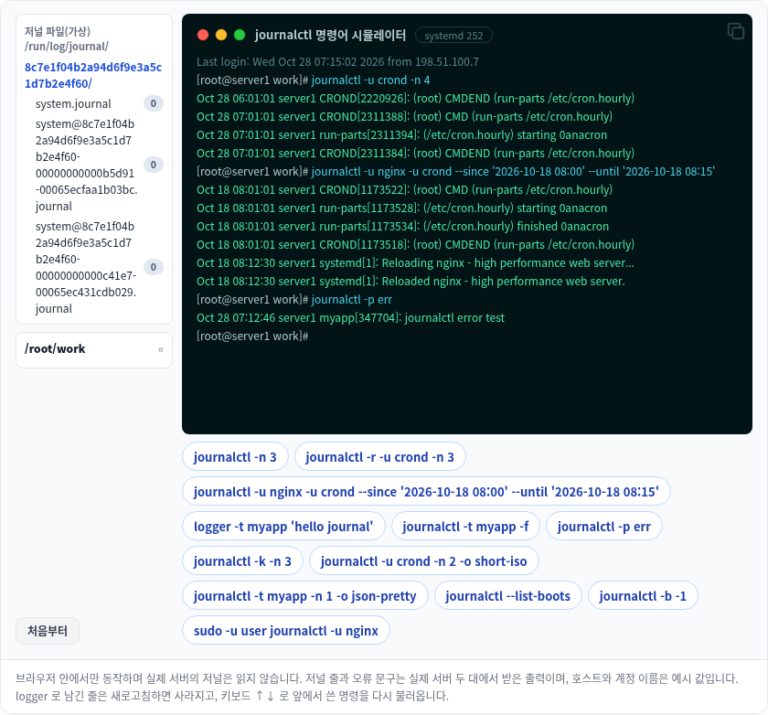
🔲 journalctl command simulator
In the simulator below, you can type commands yourself to check recent logs, logs by service, time ranges, priorities and output formats.
🔢 FAQ & Recommended Content



ℹ️ Affiliate Disclosure
This site's content contains affiliate links. When a visitor buys a product or service through one of them, the site receives a commission from the seller. The amount the buyer pays(it goes down during event discounts ↓)does not go up. Posted prices, discounts, and stock reflect the time of writing and may differ, so confirm with the seller before buying. Products are chosen and reviewed by our own standards, and commissions do not affect the order or content of reviews.