
Permission denied in Linux: 10 cases including /dev/null
Permission denied is a Linux error that appears when your current account has no permission to use that file, folder, or command. Pick your case from the command name and path at the start of the error line, check the permissions and owner with ls -l, and run it again with the right permissions or account to fix it.
The output below comes from the root account on an AlmaLinux 9.8 server and a regular account on a Debian 12 server; account and host names and the timestamps in the /dev/null output are example values.
1️⃣ Finding the cause of Permission denied
An error line ends in the form [command: target: Permission denied], and the command name and path in front of it show where it was blocked. In the diagram below, pick the error message that looks like the one on your screen to see the command to check first and where to read in this article.
2️⃣ Common Permission denied errors
🔲 File read and write permissions
To read a file, the account needs read (r) permission; to change it or create a new one, it needs write (w) permission. secret.txt, with permissions set to 600, can be read and written only by its owner, root.
ls -l secret.txt-rw------- 1 root root 16 Oct 29 00:29 secret.txtrunuser -u daemon -- cat secret.txtcat: secret.txt: Permission deniedReading the same file as another account, daemon, was refused right away. Creating a file inside a folder without write permission gives the same error: on the Debian 12 server, touch as a regular account was blocked in a lock folder whose permissions were set to 000.
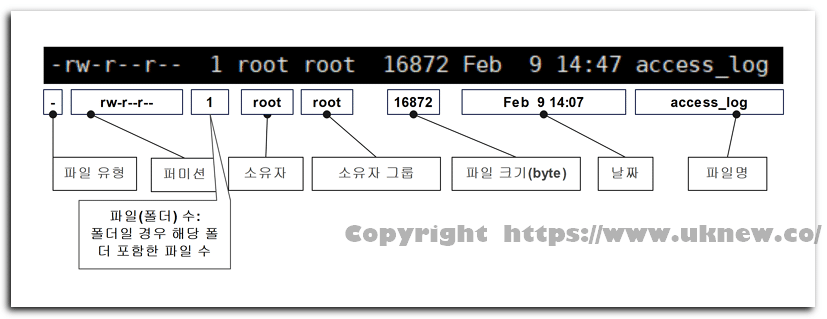
touch ~/touchtest/lock/x.txttouch: cannot touch '/home/user/touchtest/lock/x.txt': Permission deniedIn the first column of ls -l, check whether r and w are present for the owner, the group, and other accounts, in that order, then add permissions only for the account that needs them with chmod, or change the owner with chown.
🔲 Folder traverse permission
Even if the file permissions are right, you cannot reach a file when a folder in the middle of the path lacks the x permission. On a folder, x is the permission to pass through it and go inside, and r is the permission to read the list of names inside.
ls -ld web web/cssdrw-r--r-- 3 root root 35 Oct 29 00:29 web
drw-r--r-- 2 root root 23 Oct 29 00:29 web/cssrunuser -u daemon -- ls -l webls: cannot access 'web/css': Permission denied
ls: cannot access 'web/index.html': Permission denied
total 0
d????????? ? ? ? ? ? css
-????????? ? ? ? ? ? index.htmlThe web folder has only r, so daemon could read the names inside, css and index.html, but without x their permissions and sizes were left as question marks. Conversely, the site folder, which has x but no r, blocked the listing, while a file whose name was already known could be read.
ls -ld sitedrwx--x--x 2 root root 24 Oct 29 00:29 siterunuser -u daemon -- ls sitels: cannot open directory 'site': Permission deniedrunuser -u daemon -- cat site/index.html<h1>index</h1>If the path is long, use ls -ld to check each folder for x starting from the top, and add to the blocked folder only the x the account needs to pass through.
🔲 Execute permission
To run a script as ./file name, the file needs the x permission. deploy.sh, with permissions 644, was refused.
ls -l deploy.sh-rw-r--r-- 1 root root 8 Oct 29 00:29 deploy.sh./deploy.shbash: line 1: ./deploy.sh: Permission deniedAfter chmod u+x added x for the owner, the first column changed to [-rwxr--r--].
chmod u+x deploy.shls -l deploy.sh-rwxr--r-- 1 root root 8 Oct 29 00:29 deploy.shIf running is refused even with the x permission, check whether the file system holding that file is mounted with noexec.
🔲 Reading root-only information
A regular account cannot read information the system keeps for root, such as processes started by root or other accounts' password information. On the Debian 12 server, opening the fd folder of process 1 as a regular account gave a permission error.
ls /proc/1/fdls: cannot open directory '/proc/1/fd': Permission deniedchage -l daemonchage: Permission denied.Another account's password expiry information was blocked for the same reason; /etc/shadow, which holds it, is a file kept unreadable to regular users. For errors like these, do not widen the permissions; run the command again with sudo or as root.
🔲 When > is blocked even with sudo
sudo runs only the command written after it as root, while opening a file for redirection (>) is handled by the current account's shell before the command runs. So if you redirect the output of sudo echo to a file only root can write, the error line starts with the shell name, in the form [bash: file path: Permission denied].
sudo echo x > /root/test.txtTo do the redirection as root too, wrap the whole line in sh -c so the shell itself runs with sudo; the official sudo manual also gives an example of running inside sh -c so the redirection works.
sudo sh -c 'echo x > /root/test.txt'tee takes standard input and writes it directly to the files you give it, so when you run tee with sudo, the file is opened by tee with root privileges. tee also prints what it receives to the screen once more.
echo x | sudo tee /root/test.txt🔲 SSH login refused
If [account@server address:] comes before Permission denied and an authentication method such as publickey is in parentheses, the login was refused at the authentication step, and the place to check is different from file permissions. On the server, sshd has StrictModes set to the default yes, so before accepting a login it checks the permissions and owner of that account's home folder and files. If any one of the home folder, the ~/.ssh folder, and ~/.ssh/authorized_keys is writable by another account, sshd does not use that key file, so check with ls -ld that none of the three gives w permission to other accounts.
⌨️ Permission denied simulator
The simulator below starts as the root account, and with runuser you can become another account, daemon, and see for yourself the output when file reads, folder traversal, and execute permission are blocked.
3️⃣ Rare Permission denied errors
If you are refused even though the permission bits are right, something outside the permission bits blocked it, such as an SELinux policy or a noexec mount. If execution is refused even as root, check whether the file has no x bit at all.
On a server with SELinux enabled, Permission denied appears when an SELinux policy blocks the action even if the permission bits are right, so in that case check SELinux's denial records first. On servers running the audit daemon, denials are recorded in /var/log/audit/audit.log as [avc: denied], together with the blocked action, the command name (comm), and the target name (name).
Check whether SELinux is enabled with getenforce, then run ausearch as root to see today's denials.
getenforceausearch -m AVC,USER_AVC,SELINUX_ERR,USER_SELINUX_ERR -ts todayrsync daemon transfers that failed with [Permission denied (13)] were also a case of SELinux blocking access to the module path.
On a file system mounted with noexec, files cannot be run directly, so even with x shown in ls -l, they are refused with [bash: script path: Permission denied]. Give the folder to findmnt -T to see where it is mounted and with which options; if the options include noexec, this is your case.
findmnt -T /tmp -o TARGET,OPTIONSroot bypasses most permission checks, but execution is allowed only when at least one of the owner, the group, or other accounts has x. That is why a script with no x at all is refused even when root runs it with ./.
Running deploy.sh, whose first column was [-rw-r--r-- 1 root root], with ./ as root returned [bash: line 1: ./deploy.sh: Permission denied].
🔲 When /dev/null has become a regular file
If the lines below appear one after another before the shell prompt right after you log in over SSH as a regular account, first check whether /dev/null, the character device every account uses to discard output, has turned into a regular file owned by root. The number of lines varies by server with the number of profile scripts read at login, and on the same server the error did not appear after switching to root.
-bash: /dev/null: Permission denied
-bash: /dev/null: Permission denied
-bash: /dev/null: Permission denied
...
ls -l /dev/null-rw-r--r-- 1 root root 55 Jan 10 09:00 /dev/nullstat -c %F /dev/nullregular fileThe first column was [-rw-r--r--] and the size field showed 55: error text discarded by other commands had piled up in the file. If a cleanup command line containing the pattern below runs as root, rm deletes the device file, and the 2>/dev/null redirection of the next command creates a new regular file owned by root under the same name.
rm -f /dev/null 2>/dev/nullRun the line below as root. Creating the new device under a neighboring name and then overwriting with mv leaves no moment when the name is missing, so no other redirection gets a gap to create a regular file again between deleting and creating.
mknod -m 666 /dev/null.new c 1 3 && mv -f /dev/null.new /dev/null && ls -l /dev/nullcrw-rw-rw- 1 root root 1, 3 Jan 10 09:05 /dev/nullstat -c %F /dev/nullcharacter special fileThe [c 1 3] in mknod is the number of /dev/null in the kernel's device number list. After the repair, echo x > /dev/null as a regular account also finished without errors. A reboot can also bring it back, but the one line above, which does not stop the server, is faster.
| Check | Before the fix | After the fix |
|---|---|---|
| ls -l first column | -rw-r--r-- | crw-rw-rw- |
| ls -l size field | 55 | 1, 3 |
| stat -c %F | regular file | character special file |
| Writing as a regular account | Permission denied | No error |
Send output you want to discard only as far as >/dev/null or 2>/dev/null, and unless you are repairing it, never put /dev/null as the target of rm or mv.
🔢 FAQ & Recommended Content
 Web server · 403
Apache 403 error after installing APM (403 Forbidden)
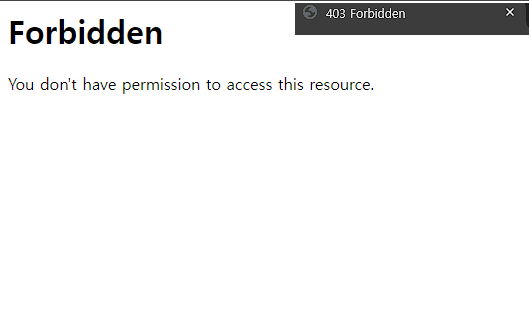
An article on a case where the web server could not read the web folder, left Permission denied in error_log, and showed 403.
 Web server · 503
503 error after installing APM
An article that uses error.log to check a case where Apache could not connect to the php-fpm socket and returned 503.

ℹ️ Affiliate Disclosure
This site's content contains affiliate links. When a visitor buys a product or service through one of them, the site receives a commission from the seller. The amount the buyer pays(it goes down during event discounts ↓)does not go up. Posted prices, discounts, and stock reflect the time of writing and may differ, so confirm with the seller before buying. Products are chosen and reviewed by our own standards, and commissions do not affect the order or content of reviews.