
ping command: Linux ping options and checking 100% packet loss
On a Linux server, the ping command checks whether packets reach another server and how long the round trip takes. Pinging example.com from AlmaLinux 9 and Debian 12 servers with a count set by -c gave round-trip times of 1–3 ms, while a server that blocks ICMP showed 100% packet loss in ping even though it answered web requests.
The output below comes from an AlmaLinux 9.8 server (root account) and a Debian 12 server (regular account). Every ping was run with the number of packets set by -c. Private IP addresses of intermediate routers were replaced with example values, and addresses resolved from public domains such as example.com were left as they were.
1️⃣ How to use the ping command
ping sends an ICMP echo request to the other server and prints, one line at a time, how long it took for the echo reply to come back. Linux ping keeps sending until you stop it with Ctrl+C unless you set a count with -c (per the official manual), so run it with a count from the start, as in -c 4.
ping -c 4 example.comPING example.com (172.66.147.243) 56(84) bytes of data.
64 bytes from 172.66.147.243 (172.66.147.243): icmp_seq=1 ttl=58 time=1.46 ms
64 bytes from 172.66.147.243 (172.66.147.243): icmp_seq=2 ttl=58 time=1.30 ms
64 bytes from 172.66.147.243 (172.66.147.243): icmp_seq=3 ttl=58 time=1.28 ms
64 bytes from 172.66.147.243 (172.66.147.243): icmp_seq=4 ttl=58 time=1.30 ms
--- example.com ping statistics ---
4 packets transmitted, 4 received, 0% packet loss, time 3003ms
rtt min/avg/max/mdev = 1.279/1.336/1.464/0.074 msSending four packets to example.com from the Debian 12 server got a reply to all four, with round-trip times of 1.28–1.46 ms. What each line shows is listed below.
| Output | What it shows |
|---|---|
| PING example.com (172.66.147.243) 56(84) bytes of data. | The address the name resolved to and the size being sent — 56 bytes of data plus a 20-byte IP header and an 8-byte ICMP header make 84 bytes |
| 64 bytes from … | Size of the reply that came back (56 bytes of data + 8-byte ICMP header) |
| icmp_seq=1 | Sequence number of the packet sent |
| ttl=58 | TTL left in the reply packet — it drops by 1 at each router it passes |
| time=1.46 ms | Round-trip time of that packet |
| 4 packets transmitted, 4 received, 0% packet loss | Packets sent, packets received and the share that got no reply |
| time 3003ms | Time from sending the first packet until ping finished |
| rtt min/avg/max/mdev | Minimum, average and maximum round-trip time and how widely they vary (mdev) |
mdev shows how far round-trip times stray from the average, and the official manual explains that a larger value means less even round-trip times. In this run, where all four replies came back within 1.5 ms, mdev was 0.074 ms.
Running the same command on the AlmaLinux 9 server sent the packets to the IPv6 address of example.com, and the first line showed only 56 data bytes without the 84.
ping -c 4 example.comPING example.com(2606:4700:10::ac42:93f3 (2606:4700:10::ac42:93f3)) 56 data bytes
64 bytes from 2606:4700:10::ac42:93f3 (2606:4700:10::ac42:93f3): icmp_seq=1 ttl=51 time=2.20 ms
64 bytes from 2606:4700:10::ac42:93f3 (2606:4700:10::ac42:93f3): icmp_seq=2 ttl=54 time=2.30 ms
64 bytes from 2606:4700:10::ac42:93f3 (2606:4700:10::ac42:93f3): icmp_seq=3 ttl=51 time=2.55 ms
64 bytes from 2606:4700:10::ac42:93f3 (2606:4700:10::ac42:93f3): icmp_seq=4 ttl=54 time=2.26 ms
--- example.com ping statistics ---
4 packets transmitted, 4 received, 0% packet loss, time 3004ms
rtt min/avg/max/mdev = 2.203/2.326/2.547/0.131 msCheck the installed ping version with -V. The Debian 12 server had iputils 20221126 and the AlmaLinux 9 server had iputils 20210202.
ping -Vping from iputils 20221126
libcap: yes, IDN: yes, NLS: no, error.h: yes, getrandom(): yes, __fpending(): yesping -Vping from iputils 202102022️⃣ ping count and interval options
Among the ping options, -c is the number of packets to send and -i is the interval between them (seconds). The default interval is 1 second, and adding -i 0.5 cut the time to send four packets from 3003 ms to 1502 ms.
ping -c 4 -i 0.5 example.comPING example.com (172.66.147.243) 56(84) bytes of data.
64 bytes from 172.66.147.243 (172.66.147.243): icmp_seq=1 ttl=58 time=1.26 ms
64 bytes from 172.66.147.243 (172.66.147.243): icmp_seq=2 ttl=58 time=1.31 ms
64 bytes from 172.66.147.243 (172.66.147.243): icmp_seq=3 ttl=58 time=1.37 ms
64 bytes from 172.66.147.243 (172.66.147.243): icmp_seq=4 ttl=58 time=1.44 ms
--- example.com ping statistics ---
4 packets transmitted, 4 received, 0% packet loss, time 1502ms
rtt min/avg/max/mdev = 1.264/1.343/1.436/0.065 msAccording to the iputils 20210202 manual on the AlmaLinux 9 server, only root can set an interval shorter than 0.2 seconds, while the iputils 20221126 manual on the Debian 12 server puts that limit at 2 ms. Short intervals can put a load on the other server and the network.
-w is the time (seconds) after which ping stops altogether, no matter how many packets were sent. Used with -c, ping stops once it gets the set number of replies or when the -w time runs out. Running -c 10 -w 3 sent only three packets and stopped after 3 seconds.
ping -c 10 -w 3 example.comPING example.com (172.66.147.243) 56(84) bytes of data.
64 bytes from 172.66.147.243 (172.66.147.243): icmp_seq=1 ttl=58 time=1.34 ms
64 bytes from 172.66.147.243 (172.66.147.243): icmp_seq=2 ttl=58 time=1.27 ms
64 bytes from 172.66.147.243 (172.66.147.243): icmp_seq=3 ttl=58 time=1.34 ms
--- example.com ping statistics ---
3 packets transmitted, 3 received, 0% packet loss, time 2002ms
rtt min/avg/max/mdev = 1.272/1.318/1.342/0.032 msAll three got a reply, but because the set count of 10 was not reached, ping exited with code 1. The official manual also says that when -c and -w are used together, ping exits with 1 if it does not get the set number of replies.
-W is the time (seconds) to wait for a single reply. According to the official manual, this value applies only when no reply comes back at all; for a host that does reply, ping waits twice the round-trip time.
To see only the summary without the reply lines, add -q. Sending four packets left only the first line and the statistics at the end.
ping -c 4 -q example.comPING example.com (104.20.23.154) 56(84) bytes of data.
--- example.com ping statistics ---
4 packets transmitted, 4 received, 0% packet loss, time 3005ms
rtt min/avg/max/mdev = 1.551/1.649/1.715/0.060 ms3️⃣ ping packet size and IPv6 options
Change the size of the data sent with -s. Adding -s 1000 turned the first line into 1000(1028) bytes and the reply lines into 1008 bytes.
ping -c 2 -s 1000 example.comPING example.com (172.66.147.243) 1000(1028) bytes of data.
1008 bytes from 172.66.147.243 (172.66.147.243): icmp_seq=1 ttl=58 time=1.21 ms
1008 bytes from 172.66.147.243 (172.66.147.243): icmp_seq=2 ttl=58 time=1.31 ms
--- example.com ping statistics ---
2 packets transmitted, 2 received, 0% packet loss, time 1001ms
rtt min/avg/max/mdev = 1.214/1.262/1.311/0.048 ms1028 is 1000 bytes of data plus a 20-byte IP header and an 8-byte ICMP header, and 1008 is the data plus only the ICMP header. Round-trip times were 1.21–1.31 ms, not much different from sending the default size (56 bytes).
-t sets the TTL of the packets sent. The TTL drops by 1 at each router, and when it reaches 0 that router drops the packet and sends back [Time to live exceeded].
ping -c 2 -t 3 example.comPING example.com (172.66.147.243) 56(84) bytes of data.
From 192.0.2.103 (192.0.2.103) icmp_seq=1 Time to live exceeded
From 192.0.2.103 (192.0.2.103) icmp_seq=2 Time to live exceeded
--- example.com ping statistics ---
2 packets transmitted, 0 received, +2 errors, 100% packet loss, time 1001msWith the TTL lowered to 3, the third router sent back [Time to live exceeded] both times. Raising the TTL one step at a time from 1, the first reply from example.com came at 8.
-4 and -6 limit the address type to send to, either IPv4 or IPv6. The AlmaLinux 9 server sent to the IPv6 address of example.com even without an option, so -4 was added to send to the IPv4 address.
ping -4 -c 4 example.comPING (172.66.147.243) 56(84) bytes of data.
64 bytes from 172.66.147.243 (172.66.147.243): icmp_seq=1 ttl=54 time=2.64 ms
64 bytes from 172.66.147.243 (172.66.147.243): icmp_seq=2 ttl=54 time=2.55 ms
64 bytes from 172.66.147.243 (172.66.147.243): icmp_seq=3 ttl=54 time=2.57 ms
64 bytes from 172.66.147.243 (172.66.147.243): icmp_seq=4 ttl=54 time=2.58 ms
--- ping statistics ---
4 packets transmitted, 4 received, 0% packet loss, time 3003ms
rtt min/avg/max/mdev = 2.553/2.585/2.642/0.033 msWith iputils 20210202 on the AlmaLinux 9 server, adding -4 left the name field empty in the first line and the statistics line. Running the same command with iputils 20221126 on the Debian 12 server showed example.com as usual.
On the Debian 12 server, which has no default IPv6 route, adding -6 ended right away with [connect: Network is unreachable] and no reply lines.
ping -6 -c 2 example.comping: connect: Network is unreachable🔲 ping command options
📌 Main options: results from this article
| Option | Task | Result in this article | |
|---|---|---|---|
| -c count | Sets how many packets to send and stops after sending that many | -c 4 on the Debian 12 server sent four packets and got four replies, round trip 1.28–1.46 ms | |
| -i interval | Interval between packets (seconds), default 1 second | -i 0.5 cut the time to send four packets from 3003 ms to 1502 ms | |
| -w time | Time (seconds) after which ping stops altogether, no matter how many packets were sent | -c 10 -w 3 sent only three packets after 3 seconds and exited with code 1 | |
| -W time | Time (seconds) to wait for a single reply when no reply comes back at all | -W 1 sent twice to 192.0.2.1: [100% packet loss], exit code 1 | |
| -q | Prints only the first line and the statistics at the end, without reply lines | After sending four packets, only the first line and the statistics line remained | |
| -s size | Size of the data sent (bytes), default 56 | -s 1000 gave 1000(1028) bytes in the first line and 1008 bytes in the reply lines | |
| -t TTL | TTL of the packets sent | -t 3: the third router sent back [Time to live exceeded] both times | |
| -4 | Sends to IPv4 addresses only | On the AlmaLinux 9 server, sent to the IPv4 address instead of IPv6; the name field came out empty | |
| -6 | Sends to IPv6 addresses only | On the Debian 12 server with no default IPv6 route: [connect: Network is unreachable] | |
| -D | Puts the Unix time (seconds.microseconds) in front of each reply line | A timestamp such as [1793227536.574201] appears in front of each reply line | |
| -V | Prints version information | Debian 12 has iputils 20221126, AlmaLinux 9 has iputils 20210202 |
📎 Other options: per the official manual
| Option | Task | |
|---|---|---|
| -n | Prints addresses as numbers only, without resolving them to names | |
| -I interface | Sets the interface or source address to send from | |
| -A | Adjusts the sending interval to the round-trip time on its own; minimum interval 200 ms for non-root users | |
| -f | Flood ping that sends fast without waiting for replies; interval 0 is root only | |
| -l count | Number of packets to send ahead without waiting for replies; more than 3 is root only | |
| -M do | Sets the Path MTU Discovery mode; do blocks fragmentation (want and dont are also accepted) | |
| -p pattern | Byte pattern to fill the packets sent, up to 16 bytes | |
| -O | Reports requests that got no reply before the next packet is sent; used together with -D for logging | |
| -R | Records the route taken (IPv4 only; many hosts ignore this option) | |
| -b | Allows sending to a broadcast address | |
| -a | Makes a sound each time a reply arrives |
🔲 ping command simulator
In the simulator below, you can type commands yourself to see the results of counts and intervals, packet sizes and sending to an address that does not reply.
4️⃣ ping gets no reply
[100% packet loss] means not a single reply came back for the packets sent. Sending twice to 192.0.2.1, an address reserved for documentation, with -W 1 printed only the statistics and no reply lines.
ping -c 2 -W 1 192.0.2.1PING 192.0.2.1 (192.0.2.1) 56(84) bytes of data.
--- 192.0.2.1 ping statistics ---
2 packets transmitted, 0 received, 100% packet loss, time 1024msWhen no reply came back at all, ping exited with code 1, and when replies came back it exited with 0. Scripts use this value to check whether another server is responding.
ping -c 2 -W 1 192.0.2.1 > /dev/null; echo $?; ping -c 1 example.com > /dev/null; echo $?1
0ping checks only ICMP, so a server that blocks ICMP can answer web requests while ignoring ping. Pinging amazon.com twice from the Debian 12 server gave [100% packet loss], while a curl web request to the same address got a 301 response.
ping -c 2 -W 1 amazon.comPING amazon.com (98.82.161.185) 56(84) bytes of data.
--- amazon.com ping statistics ---
2 packets transmitted, 0 received, 100% packet loss, time 1002mscurl -sI https://amazon.com/ | head -1HTTP/1.1 301 Moved PermanentlyA server that blocks ICMP is like a shop that has taken its doorbell off the wall.
Some cloud servers respond to ping only after ICMP is allowed in their firewall rules. An Oracle Cloud VM instance responded to ping after the ICMP type in the public subnet security list was changed to 8.
If ping cannot resolve the name to an IP address, it ends right away with [Name or service not known] and no first line, with exit code 2. .invalid is a name reserved so that it never resolves anywhere, which is why it was used to check this error.
ping -c 1 no-such-host.invalidping: no-such-host.invalid: Name or service not knownIf this error appears for a real domain, use the nslookup command to check whether the DNS server returns an address for that name. The four outputs seen when there was no reply, and what to check next, are listed below.
| Output | Meaning | What to check next |
|---|---|---|
| 100% packet loss | Not a single reply came back for the packets sent | curl for the web service, ICMP allow rule for the firewall |
| Name or service not known | Could not resolve the name to an IP address | DNS response with nslookup |
| connect: Network is unreachable | No route out for that address type | Send to the IPv4 address with -4 |
| Time to live exceeded | TTL reached 0 at an intermediate router | Raise the -t value or drop it and send again |
🔢 FAQ & Recommended Content
 Network · Configuration
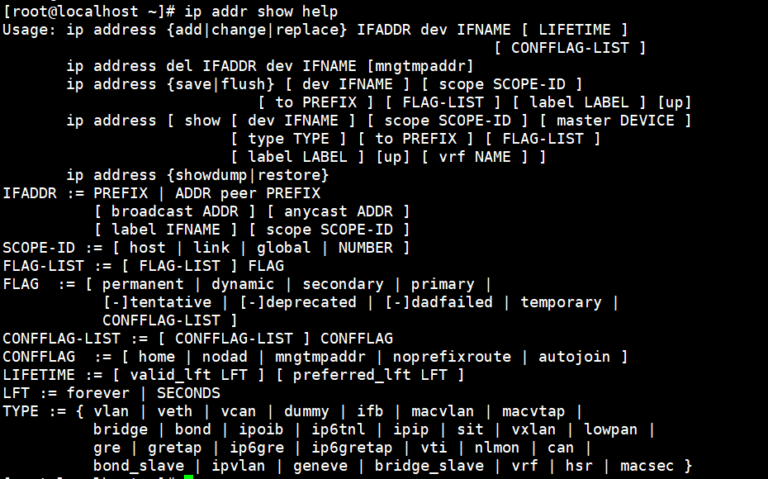
[Linux] ip command: managing network interfaces and settings
The ip command for checking and managing a server's network interfaces, IP addresses and routing settings.
 Network · DNS
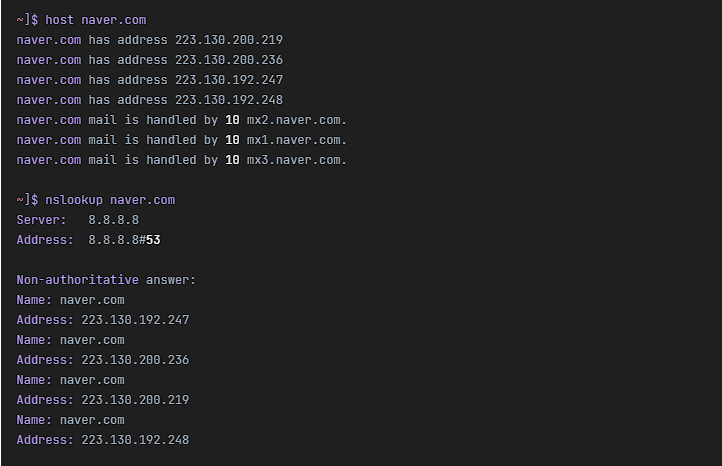
Linux host command | DNS lookup command
The host command for finding the IP address of a host name or turning an IP address back into a host name.
 Remote access · transfer
SSH command: options and how to use it
Options and usage of the SSH command, which connects to a remote server over an encrypted connection to run commands.
ℹ️ Affiliate Disclosure
This site's content contains affiliate links. When a visitor buys a product or service through one of them, the site receives a commission from the seller. The amount the buyer pays(it goes down during event discounts ↓)does not go up. Posted prices, discounts, and stock reflect the time of writing and may differ, so confirm with the seller before buying. Products are chosen and reviewed by our own standards, and commissions do not affect the order or content of reviews.