
Linux find Command: The -name, -type, -size, -mtime Options and -delete
The Linux find command walks down from a starting folder and finds files and folders that match conditions such as name, type, size, modification time and permissions. When we made ten files in a test folder on an AlmaLinux 9 server and ran it, changing one condition at a time, we ended up passing found files to other commands with -exec and, when deleting, checking the list first with the same conditions before using -delete.
The test folder paths and file times in the result boxes were changed to example values. For the output from the Debian 12 server, only the home folder path is an example value and the rest is unchanged.
1️⃣ How to use the Linux find command
The basic form is [find starting-path conditions]. If you leave out the starting path, find searches the current folder (.), and if you leave out conditions, it prints every file and folder under the starting path.
We tested in /root/work, set up with three folders and ten files as shown below.
find /root/work/root/work
/root/work/docs
/root/work/docs/readme.txt
/root/work/docs/guide.txt
/root/work/docs/old.tmp
/root/work/logs
/root/work/logs/app.log
/root/work/logs/cache.tmp
/root/work/backup
/root/work/report.txt
/root/work/README.md
/root/work/run.sh
/root/work/my notes.txt
/root/work/empty.txtfind does not sort results by name; in this run, on reaching the docs folder it printed all the files inside first and then moved on to logs.
If you chain several conditions, only files matching all of them remain.
-name compares only the file name with the pattern, not the path. Wrap the pattern in single quotes so the shell passes it to find as is instead of expanding * first.
find /root/work -name '*.txt'/root/work/docs/readme.txt
/root/work/docs/guide.txt
/root/work/report.txt
/root/work/my notes.txt
/root/work/empty.txt-name is case-sensitive. Searching for names starting with readme found only docs/readme.txt, and switching to -iname found README.md as well.
find /root/work -name 'readme*'/root/work/docs/readme.txtfind /root/work -iname 'readme*'/root/work/docs/readme.txt
/root/work/README.mdfind is in the findutils package. The version on the first line of [find --version] was findutils 4.8 on the AlmaLinux 9.8 server and 4.9 on the Debian 12 server.
2️⃣ find -type d and -maxdepth
-type f keeps only regular files and -type d keeps only folders.
find /root/work -type d/root/work
/root/work/docs
/root/work/logs
/root/work/backupThe starting path /root/work is also a folder, so it appeared on the first line. Switching to -type f on the same path showed all ten files.
-maxdepth sets how many levels below the starting path find goes. With -maxdepth 1, the files in docs and logs dropped out, leaving only the five files directly under /root/work.
find /root/work -maxdepth 1 -type f/root/work/report.txt
/root/work/README.md
/root/work/run.sh
/root/work/my notes.txt
/root/work/empty.txtConversely, -mindepth 2 skipped what is directly under the starting path and printed only the five files inside subfolders.
find /root/work -mindepth 2 -type f/root/work/docs/readme.txt
/root/work/docs/guide.txt
/root/work/docs/old.tmp
/root/work/logs/app.log
/root/work/logs/cache.tmpThe man page advises writing global options such as -maxdepth right after the starting path. Writing -maxdepth 1 after -type f still gave the same five files, and in a terminal one warning line tells you to put global options first (per the man page).
To check only how many folders or files there are, pipe the output to wc -l. Counting the -type d output gave 4, including the starting path.
find /root/work -type d | wc -l4Adding -maxdepth 1 still gave 4, because all three subfolders are directly under the starting path.
find /root/work -maxdepth 1 -type d | wc -l4Counting only files inside subfolders with -mindepth 2 gave 5.
find /root/work -mindepth 2 -type f | wc -l53️⃣ find command size and time conditions
A + before a number means greater than that value, - means less than it, and no sign means exactly that value. The units for -size are in the table below (per the man page).
| Unit | Size | Yes |
|---|---|---|
| c | 1 byte | -size +500c |
| k | 1,024 bytes | -size +1k |
| M | 1,048,576 bytes | -size +1M |
| G | 1,073,741,824 bytes | -size +1G |
| (none) | 512-byte blocks | -size +2 |
find /root/work -type f -size +1k/root/work/docs/guide.txt
/root/work/logs/app.log
/root/work/report.txtThe files larger than 1k were guide.txt at 5,000 bytes, app.log at 2MB and report.txt at 1,200 bytes.
find /root/work -size +1M/root/work/logs/app.logWriting -size twice to set a range left only the two files larger than 1k and smaller than 100k.
find /root/work -type f -size +1k -size -100k/root/work/docs/guide.txt
/root/work/report.txt-size divides the size by the unit and rounds up before comparing. So README.md at 300 bytes also counts as 1k, and -size -1k found only empty.txt, whose size is 0.
find /root/work -type f -size -1k/root/work/empty.txtTo test time conditions, we set the modification time of README.md, my notes.txt and docs/readme.txt to 3 days ago and of the two .tmp files to 10 days ago. Each file keeps three times, access, modify and change, which you can check with the stat command.
-mtime counts the time since the last modification in 24-hour units. -mtime -1 found the five files created within 24 hours.
find /root/work -type f -mtime -1/root/work/docs/guide.txt
/root/work/logs/app.log
/root/work/report.txt
/root/work/run.sh
/root/work/empty.txt-mtime +7 found only the two .tmp files set to 10 days ago. Use this form to check the list before deleting old logs or temporary files.
find /root/work -type f -mtime +7/root/work/docs/old.tmp
/root/work/logs/cache.tmp-mmin does the same calculation in minutes. -mmin -60 gave the same five files as -mtime -1.
find /root/work -type f -mmin -60/root/work/docs/guide.txt
/root/work/logs/app.log
/root/work/report.txt
/root/work/run.sh
/root/work/empty.txt-newer finds files modified later than a reference file. Using README.md, set to 3 days ago, as the reference found the five files created after it.
find /root/work -type f -newer /root/work/README.md/root/work/docs/guide.txt
/root/work/logs/app.log
/root/work/report.txt
/root/work/run.sh
/root/work/empty.txt-empty finds both files of size 0 and folders with nothing inside, showing the empty folder backup and empty.txt.
find /root/work -empty/root/work/backup
/root/work/empty.txt4️⃣ find -perm and -user conditions
Writing only a number after -perm finds files whose permissions are exactly that value. -perm 644 left out run.sh at 755 and my notes.txt at 600, and found eight files.
find /root/work -type f -perm 644/root/work/docs/readme.txt
/root/work/docs/guide.txt
/root/work/docs/old.tmp
/root/work/logs/app.log
/root/work/logs/cache.tmp
/root/work/report.txt
/root/work/README.md
/root/work/empty.txtA - before the mode finds files that have all the given permissions. Only run.sh had the owner execute permission (u+x).
find /root/work -type f -perm -u+x/root/work/run.shA / before the mode finds files with any one of the given permissions. 6000 is SUID (4000) plus SGID (2000), and this form is used to audit servers for files that run with the owner's or group's permissions the moment they are executed.
The test folder had no such file, so we gave run.sh SUID and ran it, and run.sh appeared.
chmod u+s /root/work/run.shfind /root/work -type f -perm /6000/root/work/run.shOlder references show -perm +6000 in the same place. Running it as written ended with an [invalid mode] error.
find /root/work -type f -perm +6000find: invalid mode '+6000'The + form was removed in findutils 4.5.12 (per the man page), so write / instead. We removed the SUID given for the test with chmod u-s.
-user filters by owner name. All the test files are owned by root, so -user root alone filters nothing out; adding -name to pick .log files left only app.log.
find /root/work -type f -user root -name '*.log'/root/work/logs/app.log-nouser finds files whose owner UID has no matching account. It is used to audit files left on a server after an account is deleted; after changing guide.txt's owner to the nonexistent UID 1500, guide.txt appeared.
chown 1500:1500 /root/work/docs/guide.txtfind /root/work -nouser/root/work/docs/guide.txt-nogroup does the same check for the owning group, and guide.txt, with its group also changed to 1500, appeared. After the test we restored it with chown root:root.
With -o between conditions, either one matching is enough. When using it with another condition such as -type f, group the conditions joined by -o in parentheses. Put a backslash before each parenthesis so the shell does not interpret it first, and leave spaces between the parentheses and the conditions.
find /root/work -type f \( -name '*.log' -o -name '*.tmp' \)/root/work/docs/old.tmp
/root/work/logs/app.log
/root/work/logs/cache.tmp! negates the condition right after it. Looking for files that are not .txt found five.
find /root/work -type f ! -name '*.txt'/root/work/docs/old.tmp
/root/work/logs/app.log
/root/work/logs/cache.tmp
/root/work/README.md
/root/work/run.sh5️⃣ Using find -exec
-exec runs the command written after it for each found file, with the found path in place of {}. The ; at the end of the command is written as \; so the shell does not read it as a command separator first.
find /root/work -name '*.log' -exec ls -l {} \;-rw-r--r-- 1 root root 2097152 Oct 5 14:10 /root/work/logs/app.logIf you end with + instead of \;, the found paths are collected and the command runs only once. Comparing with echo, \; printed the five paths on five lines and + on one line.
find /root/work -name '*.txt' -exec echo {} \;/root/work/docs/readme.txt
/root/work/docs/guide.txt
/root/work/report.txt
/root/work/my notes.txt
/root/work/empty.txtfind /root/work -name '*.txt' -exec echo {} +/root/work/docs/readme.txt /root/work/docs/guide.txt /root/work/report.txt /root/work/my notes.txt /root/work/empty.txtFor commands that take several paths, such as ls, group with + to reduce the number of runs. We checked the sizes of the three files larger than 1k with a single ls -lh.
find /root/work -type f -size +1k -exec ls -lh {} +-rw-r--r-- 1 root root 4.9K Oct 5 14:10 /root/work/docs/guide.txt
-rw-r--r-- 1 root root 2.0M Oct 5 14:10 /root/work/logs/app.log
-rw-r--r-- 1 root root 1.2K Oct 5 14:10 /root/work/report.txt-exec is also used to set web folder permissions in bulk, 644 for files and 755 for folders. Before running it, we first looked for files with different values, and run.sh and my notes.txt appeared.
find /root/work -type f ! -perm 644/root/work/run.sh
/root/work/my notes.txtFiles and folders need different permissions, so run -type f and -type d separately. chmod also takes several paths, so we ended with +.
find /root/work -type f -exec chmod 644 {} +find /root/work -type d -exec chmod 755 {} +Searching again with the same condition found nothing, and the backup folder, changed to 700 beforehand, became 755 too.
However, run.sh also became 644, so running it gave [Permission denied]. In folders with executable files mixed in, give those files execute permission again with chmod +x.
To change only files inside subfolders, add -mindepth 2. Running with 660 changed only the five files in docs and logs, and we restored them to 644 after checking.
find /root/work -mindepth 2 -type f -exec chmod 660 {} +find /root/work -type f -perm 660/root/work/docs/readme.txt
/root/work/docs/guide.txt
/root/work/docs/old.tmp
/root/work/logs/app.log
/root/work/logs/cache.tmpJoining find and grep lets you search by file content rather than name. To simulate a web shell audit, we made four PHP files in a separate folder /root/site and put the string [base64_decode] in html-cache.php and photo.php in the upload folder.
find /root/site -type f/root/site/lib/func.php
/root/site/upload/html-cache.php
/root/site/upload/photo.php
/root/site/index.phpIf you know the web shell's name, find it with -name. Adding -maxdepth 2 to go down only as far as the upload folder found html-cache.php alone.
find /root/site -maxdepth 2 -type f -name 'html*.php'/root/site/upload/html-cache.phpphoto.php, given an ordinary name, did not appear here. Running grep -l through -exec prints only the paths of files containing the string, and both files appeared.
find /root/site -name '*.php' -exec grep -l 'base64_decode' {} +/root/site/upload/html-cache.php
/root/site/upload/photo.php[base64_decode] is a function that also appears in WordPress core files, so open the files found and check their contents before deleting them.
-print0 puts a null character instead of a newline between paths. The null character is invisible on screen, so the paths came out joined on one line.
find /root/work -name '*.txt' -print0/root/work/docs/readme.txt/root/work/docs/guide.txt/root/work/report.txt/root/work/my notes.txt/root/work/empty.txtTo pass names with spaces such as my notes.txt to another command without breaking them, pair -print0 output with xargs -0 (per the man page).
6️⃣ Deleting files with find and options
Before deleting, first run the same conditions without deleting and check the list of files to delete with your own eyes.
find /root/work -name '*.tmp'/root/work/docs/old.tmp
/root/work/logs/cache.tmp-exec rm {} \; runs rm for each found file. Running it only on the logs folder deleted cache.tmp and left only app.log.
find /root/work/logs -name '*.tmp' -exec rm {} \;ls /root/work/logsapp.log-delete makes find delete directly without running rm. It printed nothing when run, and searching again with the same condition found no .tmp files left.
find /root/work -name '*.tmp' -deletefind /root/work -name '*.tmp'-delete must go after the conditions. find evaluates the command line from the front as one expression, so with -delete at the very front it tries to delete everything under the starting path before looking at any condition (per the man page).
🔲 find command options
📌 Main options: results from this article
| Option | Task | Result in this article | |
|---|---|---|---|
| -name | Finds names matching a pattern (case-sensitive) | '*.txt' gives five files; 'readme*' gives only docs/readme.txt | |
| -iname | Compares names regardless of case | 'readme*' gives both docs/readme.txt and README.md | |
| -type f, -type d | Keeps only regular files (f) or folders (d) | -type d gives four folders including the starting path; -type f gives ten files | |
| -maxdepth | Goes down only N levels below the starting path | -maxdepth 1 leaves only the five files directly under /root/work | |
| -mindepth | Skips levels above N below the starting path | -mindepth 2 gives only the five files inside subfolders | |
| -size | Finds by size (+ larger, - smaller, units c, k, M, G) | -size +1k gives three files; -size -1k gives only empty.txt | |
| -mtime | Compares time since content was modified in 24-hour units | -mtime -1 gives five files; -mtime +7 gives two .tmp files | |
| -mmin | Compares time since modification in minutes | -mmin -60 gives the same five files as -mtime -1 | |
| -ctime | Compares in 24-hour units, up to the time file information such as permissions and name changed | -ctime -1 gives all ten test files | |
| -newer | Finds items modified later than a reference file | Five files found with README.md, set to 3 days ago, as the reference | |
| -empty | Finds files of size 0 and empty folders | Gives the empty folder backup and empty.txt | |
| -perm | Finds by permissions (a number alone is that exact value, - in front means all given permissions, / means any of them) | -perm 644 gives eight files, -perm -u+x gives run.sh, and -perm /6000 gives run.sh after SUID is set | |
| -user | Filters by owner name | With -name '*.log', gives app.log; a nonexistent account ends with an error | |
| -nouser | Finds items whose owner UID has no matching account | Gives guide.txt, with its UID changed to 1500 | |
| -nogroup | Finds items whose group GID has no matching group | Gives guide.txt, with its GID changed to 1500 | |
| -o | Keeps items matching either one (group in parentheses when used with other conditions) | Grouping .log and .tmp gives three files | |
| ! | Negates the condition right after it | Gives five files that are not .txt | |
| -exec | Runs the command after it for each found file (path in place of {}) | Ending with + prints five paths on one line with a single echo | |
| -print0 | Puts a null character instead of a newline between paths | The null character is invisible, so paths are joined on one line | |
| -delete | find deletes found files directly (goes after the conditions) | Printed nothing; searching again found no .tmp files |
📎 Other options: per the official manual
| Option | Task | |
|---|---|---|
| -L | Follows symbolic links and uses the information of the target file | |
| -path | Compares the whole path, not the name, with a shell pattern | |
| -regex | Compares the whole path with a regular expression | |
| -iregex | Compares like -regex, regardless of case | |
| -atime | Compares time since last access in 24-hour units | |
| -cnewer | Finds items whose status changed later than the reference file's modification time | |
| -group | Filters by owning group name | |
| -xdev | Does not descend into folders on other file systems | |
| -daystart | Counts time conditions from midnight today instead of 24 hours ago | |
| -prune | If it is a folder, does not descend into it | |
| -quit | Ends right away (-print -quit prints only the first result) | |
| -printf | Prints in a format you define | |
| -ls | Prints found files in ls -dils form | |
| -fprint | Saves found paths to a specified file instead of the screen | |
| -ok | Runs like -exec but asks first | |
| -execdir | Runs like -exec but runs the command in the found file's folder |
🔲 find command simulator
The simulator below is a virtual server holding the same test folder, where you can run conditions such as -name, -type, -size, -mtime and -perm, plus -exec and -delete, yourself.
7️⃣ find command errors
If you write a pattern without quotes, the shell applies the rules of Wildcards and expands it first into file names in the current folder. Moving to the docs folder and writing *.txt without quotes made the shell pass the two names guide.txt and readme.txt, giving the error below.
cd /root/work/docsfind /root/work -name *.txtfind: paths must precede expression: `readme.txt'
find: possible unquoted pattern after predicate `-name'?The exit code was 1.
Leaving out \; or + at the end of -exec gave [missing argument to `-exec’].
find /root/work -name '*.log' -exec ls -l {}find: missing argument to `-exec'A nonexistent starting path gives [No such file or directory] and ends with exit code 1.
find /nonexistent-dir -name xfind: '/nonexistent-dir': No such file or directoryAn account name that does not exist in -user, or a value other than the defined letters such as f and d in -type, ends right away with an error without starting the search.
find /root/work -user nosuchuserfind: 'nosuchuser' is not the name of a known userfind /root/work -type xfind: Unknown argument to -type: xUnder a regular account on the Debian 12 server, we changed the permissions of the lock folder inside the test folder to 000 and then searched the test folder. It could not read inside lock, so [Permission denied] appeared and the exit code was 1.
find ~/findtest/home/user/findtest
/home/user/findtest/report.txt
/home/user/findtest/lock
find: '/home/user/findtest/lock': Permission denied
/home/user/findtest/docs
/home/user/findtest/docs/readme.txtTo hide only the error lines, add 2>/dev/null. The error text disappeared, but the exit code stayed 1.
find ~/findtest -name '*.txt' 2>/dev/null/home/user/findtest/report.txt
/home/user/findtest/docs/readme.txt🔢 FAQ & Recommended Content

 Content search
Linux grep command
An article on the grep command, which finds text inside files and prints those lines, and its options.
 Deletion
Linux rm Command: rm -rf Options and Deleting Without Confirmation
An article on the -r and -f options and confirmation prompts of the rm command for deleting files and folders.
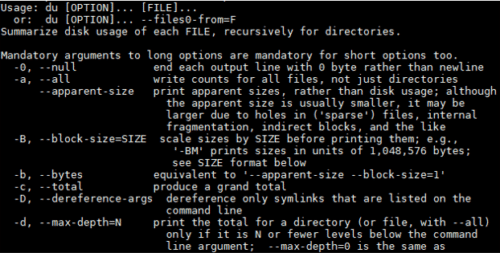 Disk usage
du command: checking file disk usage
An article on adding up the disk space used by folders and files with the du command.
ℹ️ Affiliate Disclosure
This site's content contains affiliate links. When a visitor buys a product or service through one of them, the site receives a commission from the seller. The amount the buyer pays(it goes down during event discounts ↓)does not go up. Posted prices, discounts, and stock reflect the time of writing and may differ, so confirm with the seller before buying. Products are chosen and reviewed by our own standards, and commissions do not affect the order or content of reviews.