
sftp Command: Connecting, Transferring Files with put and get, and Using Batch Mode
The sftp command is OpenSSH's file transfer program for exchanging files with a server connected over SSH; after connecting, you move between remote folders at the sftp> prompt, uploading with put and fetching with get. On an AlmaLinux 9 test server, connecting with key authentication, exchanging files and folders, and also running a -b batch file showed that a file with the same name was overwritten without asking and that a batch stopped on the spot when a command in the middle failed, ending with exit code 1.
The output below is exactly what was received after creating the accounts user1 and admin1 on an AlmaLinux 9 test server and connecting over localhost from admin1 to user1 on the same server. The connection name server is an example name written in admin1's SSH configuration so that it connects to 127.0.0.1, which is why the error lines show 127.0.0.1. The account and file names are example values too, and for a real remote server you write that server's address or name in place of server.
1️⃣ How to connect with the sftp command
Writing [account@server] after sftp connects over SSH and then shows the sftp> prompt. On the test server, the ed25519 key created under admin1 had been registered in user1's authorized_keys, so no password was asked for.
sftp user1@serverThe authenticity of host 'server (127.0.0.1)' can't be established.
This key is not known by any other names.
Are you sure you want to continue connecting (yes/no/[fingerprint])? yes
Warning: Permanently added 'server' (ED25519) to the list of known hosts.
Connected to server.
sftp> pwd
Remote working directory: /home/user1
sftp> byeA server you connect to for the first time shows a question to verify the host key, and on the real screen one more line, a key fingerprint line that differs for each server, appears after the first line (it was left out of the box above). When yes was entered, the server was added to known_hosts, and the sftp> prompt appeared after the [Connected to server.] line.
pwd prints the remote working folder. To end an sftp connection, enter bye; exit and quit do the same thing as bye.
For an account with no key registered, the server asks for a password when connecting, and in interactive use you type it at this question to connect. On the test server, the same command was run after setting a temporary password for user1 with admin1's key not registered.
sftp user1@serveruser1@server's password:
Connected to server.The password typed did not appear on the screen, and the sftp> prompt appeared after the [Connected to server.] line.
For a server whose SSH port was changed to a number other than 22, specify the port number with -P. After one more SSH server was started on port 2222 on the test server, the connection was made with -P 2222.
sftp -P 2222 user1@serverConnected to server.
sftp> pwd
Remote working directory: /home/user1
sftp> bye-P, which specifies the port, is uppercase, and lowercase -p is the option that preserves a file's modification time and permissions.
If the key file was created under a name other than the default, specify the private key file with -i. Below is the result of connecting with user1_key and running only pwd and bye. -b - is the batch mode that reads commands from standard input, and here it was used only to check the connection result.
sftp -i ~/.ssh/user1_key -b - user1@serversftp> pwd
Remote working directory: /home/user1
sftp> byeWhen -v was added to check the connection process, the only key tried was user1_key, specified with -i, and authentication used the publickey method.
To make the same SFTP connection with a GUI program such as FileZilla, see the What Is FTP? (&SFTP) article, and for the settings to connect with the account and key received from a hosting provider, see the How to Connect to Cloudways via SFTP, How to Connect to AWS Lightsail via SFTP articles.
2️⃣ sftp usage and basic commands
ls, cd and pwd run at the sftp> prompt work on the remote server. The local folder on the side where sftp was run is handled with lls, lcd and lpwd, which have an l in front, and files to upload are found with lls.
The boxes below are results of connecting anew every few command lines, so the remote working folder starts at /home/user1 and the local working folder at /home/admin1.
Entering help shows the available commands, each with a description on one line.
helpAvailable commands:
bye Quit sftp
cd path Change remote directory to 'path'
chgrp [-h] grp path Change group of file 'path' to 'grp'
chmod [-h] mode path Change permissions of file 'path' to 'mode'
chown [-h] own path Change owner of file 'path' to 'own'
copy oldpath newpath Copy remote file
cp oldpath newpath Copy remote file
df [-hi] [path] Display statistics for current directory or
filesystem containing 'path'
exit Quit sftp
get [-afpR] remote [local] Download file
help Display this help text
lcd path Change local directory to 'path'
lls [ls-options [path]] Display local directory listing
lmkdir path Create local directory
ln [-s] oldpath newpath Link remote file (-s for symlink)
lpwd Print local working directory
ls [-1afhlnrSt] [path] Display remote directory listing
lumask umask Set local umask to 'umask'
mkdir path Create remote directory
progress Toggle display of progress meter
put [-afpR] local [remote] Upload file
pwd Display remote working directory
quit Quit sftp
reget [-fpR] remote [local] Resume download file
rename oldpath newpath Rename remote file
reput [-fpR] local [remote] Resume upload file
rm path Delete remote file
rmdir path Remove remote directory
symlink oldpath newpath Symlink remote file
version Show SFTP version
!command Execute 'command' in local shell
! Escape to local shell
? Synonym for helpIn the list, bye, exit and quit all had the same description, [Quit sftp].
ls prints the listing of the remote working folder, and adding -l also shows permissions, owner, size and modification time.
lsconfig docs draft.txt logs memo.txt notes.txt old.txt
run.sh ls -ldrwxr-xr-x ? user1 user1 4096 Jan 1 2026 config
drwxr-xr-x ? user1 user1 4096 Jan 1 2026 docs
-rw-r--r-- ? user1 user1 6 Jan 1 2026 draft.txt
drwxr-xr-x ? user1 user1 4096 Jan 1 2026 logs
-rw-r--r-- ? user1 user1 10 Jan 1 2026 memo.txt
-rw-r--r-- ? user1 user1 13 Jan 1 2026 notes.txt
-rw-r--r-- ? user1 user1 4 Jan 1 2026 old.txt
-rw-r--r-- ? user1 user1 18 Jan 1 2026 run.shThe remote working folder was changed to docs with cd and then checked with pwd.
cd docspwdRemote working directory: /home/user1/docsOn the local side, lpwd checks the current folder and lls prints the listing. Local ls options can be added after lls as they are, so lls -l worked too.
lpwdLocal working directory: /home/admin1llsmemo.txt
report.txt
sitells -ltotal 12
-rw-r--r--. 1 admin1 admin1 9 Jan 1 2026 memo.txt
-rw-r--r--. 1 admin1 admin1 15 Jan 1 2026 report.txt
drwxr-xr-x. 3 admin1 admin1 4096 Jan 1 2026 siteWhen the local working folder was changed to site with lcd, the path from lpwd also changed to /home/admin1/site.
lcd sitelpwdLocal working directory: /home/admin1/siteRemote folders are created with mkdir and removed with rmdir. The listing was checked with ls after creating and after removing.
mkdir backuplsbackup config docs draft.txt logs memo.txt notes.txt
old.txt run.sh rmdir backuplsconfig docs draft.txt logs memo.txt notes.txt old.txt
run.sh Files are deleted with rm and given a new name with rename. After old.txt was deleted, draft.txt was changed to final.txt.
rm old.txtlsconfig docs draft.txt logs memo.txt notes.txt run.sh rename draft.txt final.txtlsconfig docs final.txt logs memo.txt notes.txt run.sh chmod changes the permissions of a remote file. When run.sh was changed to 755, the permissions column of ls -l changed to -rwxr-xr-x.
ls -l run.sh-rw-r--r-- ? user1 user1 18 Jan 1 2026 run.shchmod 755 run.shls -l run.sh-rwxr-xr-x ? user1 user1 18 Jan 1 2026 run.shThe permissions of notes.txt were changed to 600 so that only the owner can read and write it.
chmod 600 notes.txtls -l notes.txt-rw------- ? user1 user1 13 Jan 1 2026 notes.txtdf prints the capacity of the remote file system. With -h added, it was shown in GB.
df -h Size Used Avail (root) %Capacity
23.1GB 6.2GB 15.8GB 16.9GB 26%Putting ! in front of a command runs that command in the local shell. !ls -l showed the local files in admin1's home folder.
!ls -ltotal 12
-rw-r--r--. 1 admin1 admin1 9 Jan 1 2026 memo.txt
-rw-r--r--. 1 admin1 admin1 15 Jan 1 2026 report.txt
drwxr-xr-x. 3 admin1 admin1 4096 Jan 1 2026 site!pwd/home/admin1Entering ! by itself exits to the local shell, and when exit was entered, the sftp> prompt came back.
3️⃣ Uploading and downloading files with sftp
put uploads a local file to the remote working folder, and get fetches a remote file to the local working folder. First, a 50MB file, backup.tar.gz, was created with head -c.
head -c 50M /dev/urandom > backup.tar.gzWhen this file was uploaded interactively, a line showing which path it was being uploaded to appeared first, and the line below it showed the file name, progress, size, speed and elapsed time.
put backup.tar.gzUploading backup.tar.gz to /home/user1/backup.tar.gz
backup.tar.gz 100% 50MB 92.5MB/s 00:00 If another name is written after get, the file is saved under that name.
get backup.tar.gz restore.tar.gzFetching /home/user1/backup.tar.gz to restore.tar.gz
backup.tar.gz 100% 50MB 194.3MB/s 00:00 cmp prints nothing when two files are the same, so echo was added after it, and comparing the uploaded file with the file fetched back printed same.
cmp backup.tar.gz restore.tar.gz && echo samesameWhen put and get were run in batch mode to upload report.txt and fetch notes.txt, no result lines appeared other than the sftp> command lines. The fetched file was checked with lls -l, and notes.txt, whose permissions had earlier been changed to 600, still had permissions of 600 even when fetched without -p.
Folders are transferred only with -r added. When the site folder was uploaded without -r, an error saying it is not a regular file appeared.
put sitelocal "site/" is not a regular fileput -r siteEntering site/
Entering site/cssWith -r added, an Entering line appeared for each folder, and the css folder and index.html were uploaded under the remote site, with style.css under css. To fetch a remote folder, add -r to get as well.
get -r logsRetrieving /home/user1/logsChecking with lls -l logs showed that app.log and error.log had been downloaded. When fetching the docs folder was attempted without -r, get also ended with the [not a regular file] error.
get docsdownload /home/user1/docs/: not a regular fileAdding -p preserves the source's modification time and permissions. After the modification time of the local report.txt was set to January 1, it was uploaded with -p under the name report-p.txt.
put -p report.txt report-p.txtls -l report-p.txt-rw-r--r-- ? user1 user1 15 Jan 1 2026 report-p.txtreport-p.txt kept the source's modification time as it was, while report.txt, uploaded earlier without -p, changed to the time of upload. readme.txt, fetched with get -p, also kept the remote file's modification time.
get -p docs/readme.txtlls -l readme.txt-rw-r--r--. 1 admin1 admin1 7 Jan 1 2026 readme.txtEven if a file with the same name already exists, put overwrites it without asking. The contents of the local memo.txt and the remote memo.txt were checked first.
cat memo.txtlocal v2ssh user1@server cat memo.txtremote v1put memo.txtssh user1@server cat memo.txtlocal v2The remote memo.txt changed to the local contents with no confirmation question, and put run interactively also uploaded right away without asking. If there is a remote file that must be kept, upload by writing a different name after put.
Sending a few files once also takes just one line with the scp command, and for repeatedly syncing the same folder, what fits is sending only the changed files with the rsync command. sftp is the right fit when you pick the files to move while viewing the remote list with the connection open, or when you run several commands in turn from a batch file. On the test server, sftp and scp were in the same openssh-clients package, and rsync was in the rsync package.
| Command | Best for |
|---|---|
| ssh | Connecting to a remote server with a shell or running remote commands |
| sftp | Uploading and fetching files while viewing the remote list with the connection open, running several commands from a batch file |
| scp | Copying files and folders with one command line |
| rsync | Comparing source and destination and transferring only the changed files |
4️⃣ sftp batch mode
Typing put and get one line at a time at the sftp> prompt cannot be used as is in cron or a shell script. If you give -b a file containing commands, sftp runs the commands in that file in turn and exits. Batch mode cannot take a password, so the manual also advises using it together with authentication that needs no input, such as key authentication.
upload.batch is a batch file that uploads report.txt to the remote public_html folder. The remote public_html folder must exist before the batch file is run. In this article it was created beforehand with [put -r site public_html] from the practical examples below.
cat upload.batchcd public_html
put report.txt
ls -lThis file was run with -b, and, as in a script, the output was discarded and success was checked by the exit code.
if sftp -b upload.batch user1@server > /dev/null; then echo "upload OK"; else echo "upload FAILED (rc=$?)"; fiupload OKIf a command in the middle of a batch file fails, sftp stops on the spot. This was checked with fail.batch, which includes cd nodir, a move to a folder that does not exist.
cat fail.batchcd public_html
cd nodir
put memo.txt
ls -lsftp -b fail.batch user1@server; echo "rc=$?"sftp> cd public_html
sftp> cd nodir
stat remote: No such file or directory
rc=1After the [No such file or directory] error at cd nodir, put and ls were not run, and the exit code was 1. The manual explains that the batch is stopped when commands such as cd, get, put, rm and ls fail. Running the if statement with the same file printed [upload FAILED (rc=1)].
if sftp -b fail.batch user1@server > /dev/null; then echo "upload OK"; else echo "upload FAILED (rc=$?)"; fistat remote: No such file or directory
upload FAILED (rc=1)Put - in front of a command that should let the batch move on to the next line even if it fails. fail-dash.batch, in which only cd nodir of fail.batch was changed to -cd nodir, was run.
cat fail-dash.batchcd public_html
-cd nodir
put memo.txt
ls -lsftp -b fail-dash.batch user1@serversftp> cd public_html
sftp> -cd nodir
stat remote: No such file or directory
sftp> put memo.txt
sftp> ls -lThe same error occurred at -cd nodir, but put memo.txt and ls -l on the following lines were still run, and the exit code was 0. The ls -l listing lines, stamped with date and time, were left out of the box above, and memo.txt had been uploaded in that listing.
To feed commands through standard input instead of a file, use -b -. In a shell script they were fed as a here document as shown below, and the commands sftp ran appeared along with it as sftp> lines. The listing also contained memo.txt, uploaded by fail-dash.batch.
sftp -b - user1@server <<'EOF'
cd public_html
ls
EOF
sftp> cd public_html
sftp> ls
css index.html memo.txt report.txt Batch mode cannot answer questions, so a server connected to for the first time fails at host key verification. Connecting with the name localhost, which is not in known_hosts, printed [Host key verification failed.] and the exit code was 255.
sftp -b - user1@localhostHost key verification failed.
Connection closedSo for a server that a script connects to for the first time, connect once with interactive sftp or ssh to register the host key in known_hosts first.
🔲 sftp command options
| Option | Copy | Description |
|---|---|---|
| -P | Specifies the SSH server's port number for the connection | |
| -i | Specifies the private key file for public key authentication | |
| -b | Runs the commands in a batch file in turn and stops at a failed command | |
| -b - | Reads batch commands from standard input | |
| -v | Prints the connection process as debug1 lines | |
| put -r | Uploads a local folder including subfolders | |
| get -r | Downloads a remote folder including subfolders | |
| put -p | Uploads while preserving modification time and permissions | |
| get -p | Downloads while preserving modification time and permissions | |
| ls -l | Prints the remote listing with permissions, owner, size and modification time | |
| df -h | Prints remote file system capacity in units such as GB | |
| !command | Runs a command in the local shell, and entering ! by itself moves to the local shell |
| Option | Copy | Description |
|---|---|---|
| -4 | Connects over IPv4 addresses only | |
| -6 | Connects over IPv6 addresses only | |
| -a | Resumes an interrupted transfer without overwriting | |
| -C | Turns on compression with ssh's -C and transfers | |
| -F | Specifies the user configuration file for ssh to read | |
| -J | Connects to the target server through a jump host | |
| -l | Limits transfer bandwidth in Kbit/s | |
| -N | Turns off the quiet mode that -b turns on | |
| -o | Specifies ssh options in ssh_config format | |
| -p | Transfers while preserving a file's modification time, access time and permissions | |
| -q | Does not print the progress line or ssh's warning and diagnostic messages | |
| -r | Transfers a folder including subfolders | |
| ls -a | Also prints files starting with a dot (.) | |
| ls -t | Sorts by modification time | |
| reget | Resumes an interrupted download (same as get -a) | |
| reput | Resumes an interrupted upload (same as put -a) | |
| lmkdir | Creates a local folder | |
| progress | Turns the progress line on or off |
🔲 sftp command simulator
In the simulator below, entering the sftp connections and sftp> prompt commands run in this article with the chips or the keyboard shows the same output. put and get run interactively show even the Uploading and Fetching lines and the progress line. The simulator starts with the key registered, so [sftp user1@server] from the password connection box also connects without asking for a password.
5️⃣ Practical sftp command examples
Connecting and the basic commands can be tried by typing them directly above, in the sftp command simulator.
🔲 Backing up a configuration file and uploading a folder with sftp
Before editing a remote configuration file, fetching it under a different name gives a copy to use when rolling back. app.conf was fetched as app.conf.bak by writing the name to save as after get, and the fetched contents were checked with !cat.
get config/app.conf app.conf.bak!cat app.conf.bakport=8080
log=/var/log/app.logTo upload a whole web folder, write the remote folder name after put -r. When public_html, a name that did not yet exist on the remote side, was written, a folder was created under that name, and checking with ls -l showed the css folder and index.html from inside site directly under public_html.
put -r site public_htmlEntering site/
Entering site/cssIf you write the name of a folder that already exists, the site folder itself is uploaded under that folder. After www was created with mkdir and the command was run in the same form, the path of index.html became www/site/index.html.
mkdir wwwput -r site wwwEntering site/
Entering site/cssThe whole folder is uploaded if the remote folder exists and only its contents if it does not, so before uploading, first check with ls whether the remote folder exists.
🔲 Common mistakes when using sftp
If you give -P a number different from the server's SSH port, it ends at the connection stage. A connection was attempted with -P 2222 while no SSH server was on port 2222.
sftp -P 2222 user1@serverssh: connect to host 127.0.0.1 port 2222: Connection refused
Connection closedNo SSH server was listening on that port, so [Connection refused] appeared and the exit code was 255. When this error appears, first check that the number given to -P matches the server's SSH port.
If a private key file is left open so that other users can read it too, ssh does not use that key. A connection was attempted after changing the permissions of the default key id_ed25519 to 644.
chmod 644 ~/.ssh/id_ed25519sftp -b - user1@server@@@@@@@@@@@@@@@@@@@@@@@@@@@@@@@@@@@@@@@@@@@@@@@@@@@@@@@@@@@
@ WARNING: UNPROTECTED PRIVATE KEY FILE! @
@@@@@@@@@@@@@@@@@@@@@@@@@@@@@@@@@@@@@@@@@@@@@@@@@@@@@@@@@@@
Permissions 0644 for '/home/admin1/.ssh/id_ed25519' are too open.
It is required that your private key files are NOT accessible by others.
This private key will be ignored.
Load key "/home/admin1/.ssh/id_ed25519": bad permissions
user1@127.0.0.1: Permission denied (publickey,gssapi-keyex,gssapi-with-mic,password).
Connection closedThe key was ignored with the [UNPROTECTED PRIVATE KEY FILE] warning, and with no other means of authentication it ended with [Permission denied]. When the permissions were restored to 600, the same command connected.
chmod 600 ~/.ssh/id_ed25519sftp -b - user1@serversftp> pwd
Remote working directory: /home/user1
sftp> byeThe same warning appeared when the key specified with -i was 644, and in this case ssh did not try the default key id_ed25519 even though it was 600, so no connection was made.
After authentication failed several times within a short period, the connection was closed before authentication even when connecting again with user1_key, specified with -i, right after its permissions were restored to 600.
sftp -i ~/.ssh/user1_key -b - user1@serverConnection closed by 127.0.0.1 port 22
Connection closedOn the OpenSSH 9.9p1 test server, a [penalty: failed authentication] line was left in the server log, and the same command connected about 1 minute 25 seconds later.
Mistyping the account name also gives the same [Permission denied] line. This is the result of writing user1 as usr1.
sftp -b - usr1@serverusr1@127.0.0.1: Permission denied (publickey,gssapi-keyex,gssapi-with-mic,password).
Connection closedThe output is the same as for a key problem, so when this line appears, check the account name in front of @ first, along with the key file.
put also fails if the remote path is written wrong. The path /home/user1, which contains the account name, was written as /home/usr1.
put report.txt /home/usr1/report.txtdest open "/home/usr1/report.txt": No such file or directoryWhen a folder that does not exist was written in the local path for get to save to, the error was [open local].
get notes.txt nodir/notes.txtopen local "nodir/notes.txt": No such file or directoryget also overwrites without asking if a file with the same name exists locally. After the local notes.txt was edited, the remote notes.txt was fetched with get.
echo "local edit" > notes.txtcat notes.txtlocal editget notes.txtcat notes.txtremote notesThe contents edited locally were replaced by the remote file's contents. To keep the local file, write a different name to save as after get.
🔲 Checking sftp output and exit codes
In sftp's ls -l, the second column showed ? instead of the link count. lls -l, which runs the local ls as is, shows the link count in that column (1 for a file, 3 for the site folder), and a dot (.) was attached to the end of the permissions. So if the second column is ?, it is a remote listing, and if it is a number, a local listing.
In batch mode chmod produced no result line other than the sftp> command line, and when the permissions of tmpdir, created with mkdir, were changed interactively, a single [Changing mode on] line appeared.
mkdir tmpdirchmod 700 tmpdirChanging mode on /home/user1/tmpdirThe [Connected to server.] line and the Uploading and Fetching lines of put and get did not appear in -b batch mode. This is because, as the manual's description of -N says, -b also turns on quiet mode.
The beginning of an error line tells you whether the error occurred on the remote or the local side. The remote cd error was [stat remote], and running put on a file that does not exist locally printed [stat nolocal.txt], with that file name in place of remote.
cd nodirstat remote: No such file or directoryput nolocal.txtstat nolocal.txt: No such file or directoryRunning get on a file that does not exist on the remote side ended with [not found.] along with the full remote path.
get nofile.txtFile "/home/user1/nofile.txt" not found.The exit code was 255 when the connection stage failed and 1 when cd, put or get in a batch failed after connecting, and in a script this value distinguishes the stage at which it stopped. However, ls run without arguments after cd /root had an exit code of 0 even though [Permission denied] appeared, so for a batch that reads a listing, check the output as well.
🔢 FAQ & Recommended Content

 SSH access
SSH Command: How to Use the -l, -p, and -i Options and Check Connection Errors
How to use the SSH command: connecting to a remote server in the account@server form, and checking the -l, -p and -i options and connection errors with ssh -v.
 SSH settings
SSH Configuration – /etc/ssh/sshd_config File Features and Settings
An article covering the items in the SSH server configuration file /etc/ssh/sshd_config and the SSH daemon commands.
 File transfer
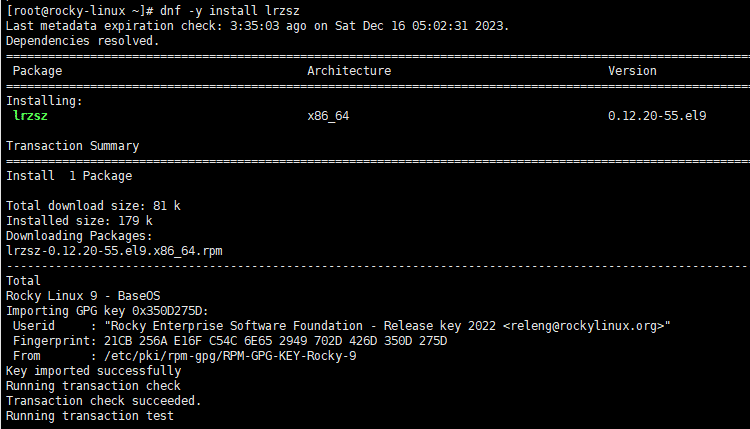
Linux: installing the lrzsz tool and uploading (rz) and downloading (sz) files
Installing and using lrzsz, which uploads files with rz and downloads them with sz from within the terminal.
ℹ️ Affiliate Disclosure
This site's content contains affiliate links. When a visitor buys a product or service through one of them, the site receives a commission from the seller. The amount the buyer pays(it goes down during event discounts ↓)does not go up. Posted prices, discounts, and stock reflect the time of writing and may differ, so confirm with the seller before buying. Products are chosen and reviewed by our own standards, and commissions do not affect the order or content of reviews.