
WordPress Plugin Update: Bulk Update, zip Replacement, and WP-CLI
A WordPress plugin update replaces a plugin that shows a new version on the Installed Plugins screen with the latest release. On WordPress 7.1.3, timing how long the visitor side switches to the maintenance screen for each update method showed that updating five plugins at once from the Dashboard Updates screen meant about 10 seconds of 503, while the bulk action on the Installed Plugins screen finished in 1–2 seconds.
1️⃣ Check for WordPress plugin updates
The first sign that a plugin has a new version is the number next to [Plugins] in the left menu. The number is how many plugins have a new version, and on the site checked here it showed 7.
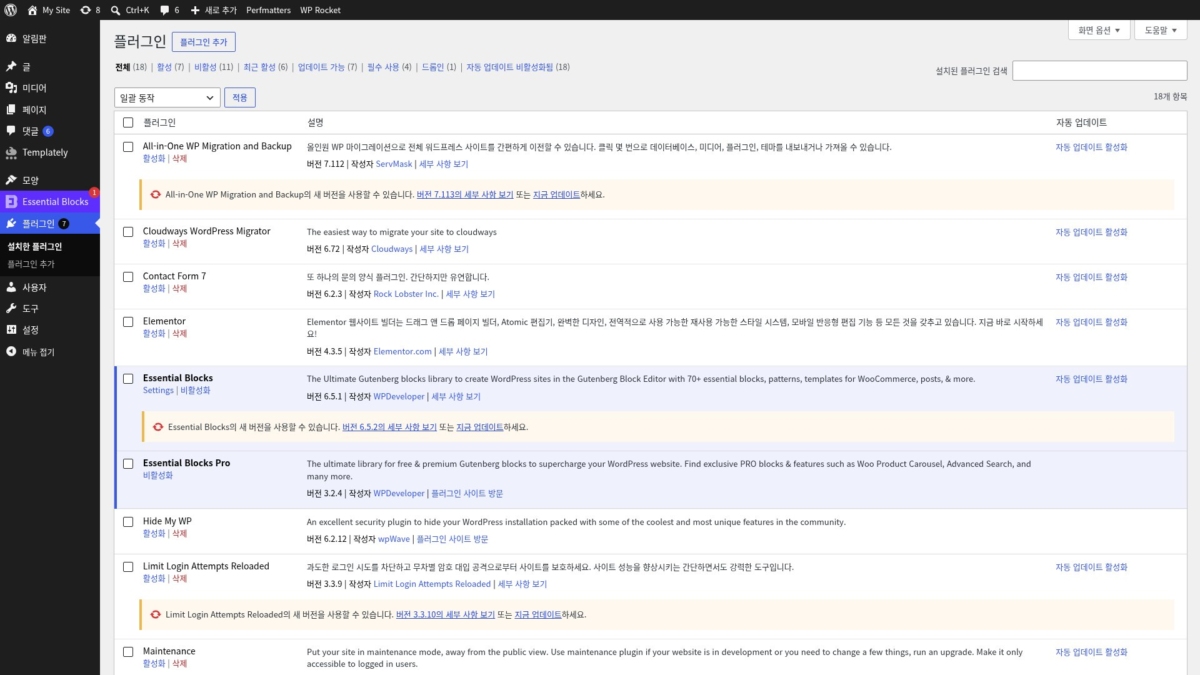
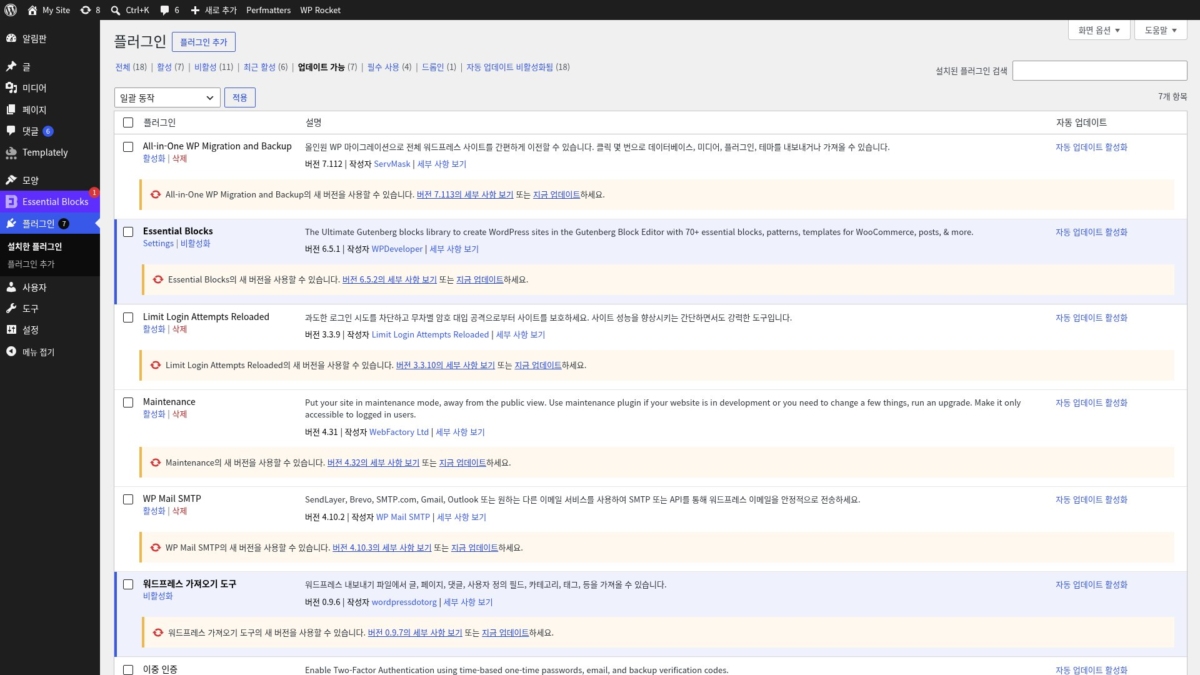
Open [Plugins › Installed Plugins] and a yellow bar such as [There is a new version of Maintenance available. View version 4.32 details or update now.] appears under that plugin's row. When you have many plugins, click [Update Available (7)] above the list to show only the plugins that have a new version.
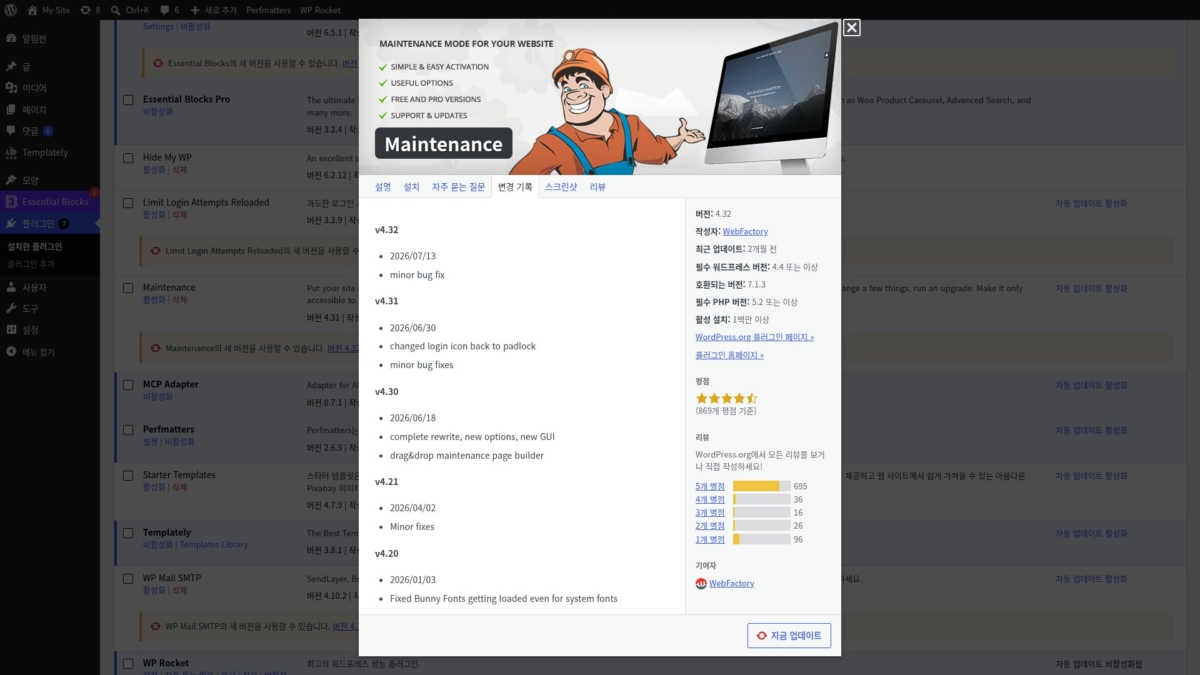
[View version 4.32 details] in the new-version row opens the same window as [View details] next to the description. The difference is that the window opens straight on the [Changelog] tab.
Clicking it on the Maintenance row showed the date and the changes for each version on the left side of the window. The right side showed the version, author, last update, compatible WordPress version, required PHP version, and number of active installations. Click [Update Now] at the bottom of the window to update right there.
2️⃣ Update plugins one by one
Once you have read the changelog, update plugins one at a time with [Update Now] in the new-version row. The row changes to [Updating...], and a few seconds later to [Updated!], and the number in the left menu drops by one.
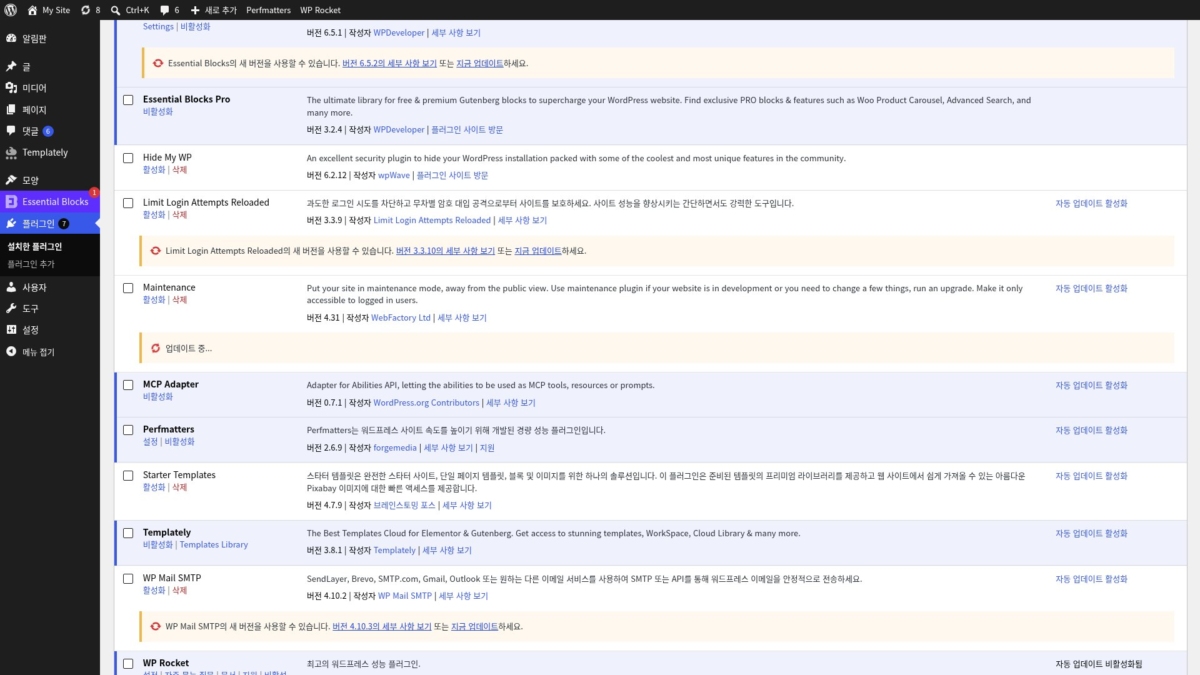
While an inactive plugin was updating, the visitor side stayed the same. While the active WordPress Importer was updating, a [.maintenance] file appeared in the site root, and for those 2 seconds or so visitors got the maintenance screen with a 503 response code.
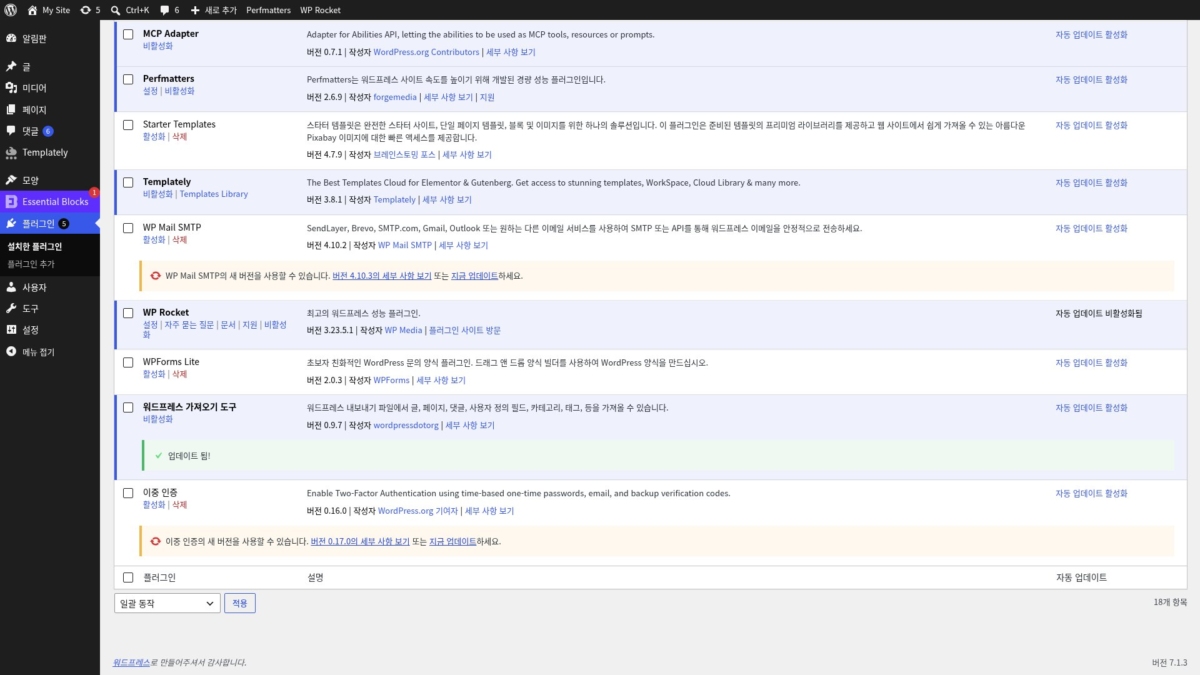
After Maintenance and then WordPress Importer were updated, the number in the left menu dropped from 7 to 5. A finished row also shows the new version number.
3️⃣ Bulk update plugins
To update several plugins at once, select them with the checkboxes, choose [Update] under [Bulk actions], and click [Apply]. With five selected, the rows went through [Updating...] one by one from the top, and when all were done a [5 plugins successfully updated.] notice appeared at the top of the screen.
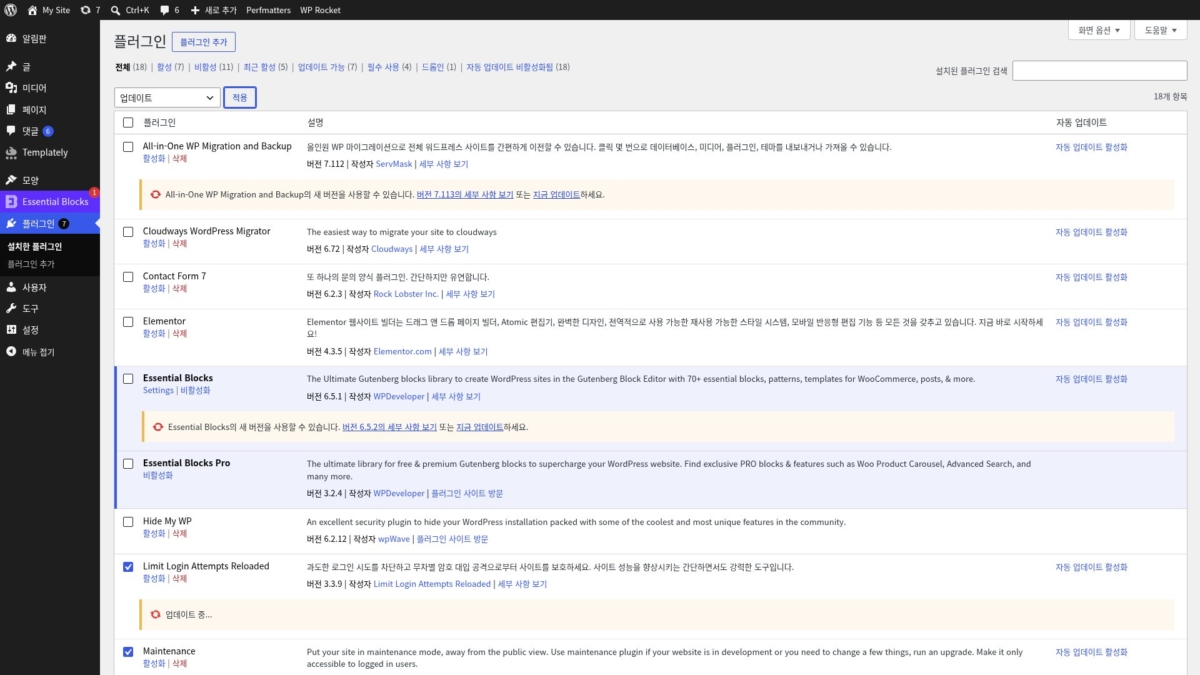
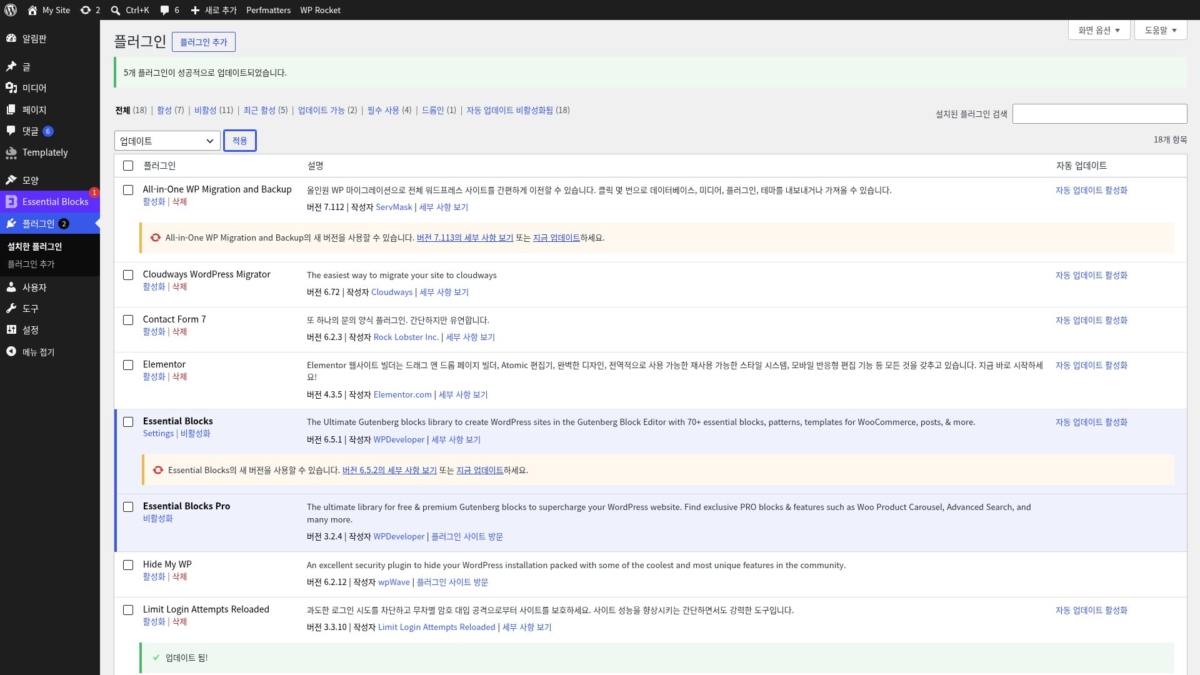
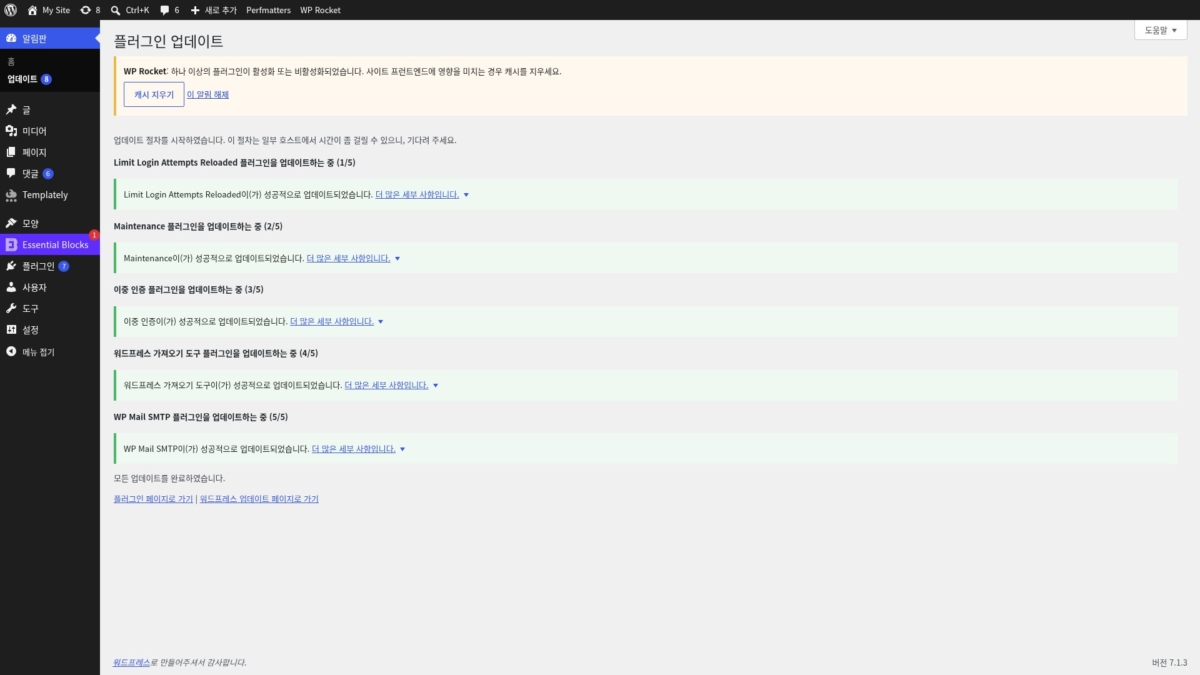
The bulk action on this screen updates plugins one at a time in order, so the maintenance screen appears only briefly on an active plugin's turn. On a site where only one of the five plugins was active, the 503 response ended in 1–2 seconds, and it was the same with three selected.
If you update the same plugins under [Dashboard › Updates] on the WordPress Updates screen using the [Update Plugins] button, the result is different. If even one of the selected plugins is active, this screen keeps the maintenance screen up until the whole batch is finished. Five plugins meant about 10 seconds of 503, and three meant about 6 seconds. At busy times, the bulk action on the Installed Plugins screen keeps the maintenance window shorter.
| Update method | Selected | Maintenance screen (503) |
|---|---|---|
| Update Now, inactive plugin | 1 | None |
| Update Now, active plugin | 1 | About 2 seconds |
| Installed Plugins screen bulk action | 5 · 3 | 1–2 seconds (only on an active plugin's turn) |
| Dashboard › Updates, Update Plugins | 5 | About 10 seconds |
| Dashboard › Updates, Update Plugins | 3 | About 6 seconds |
| zip upload replacement, inactive plugin | 1 | None |
| WP-CLI update, inactive plugin | 1 | None |
전체 (3) | | | |
An excellent security plugin to hide your WordPress installation packed with some of the coolest and most unique features in the community.
최고의 워드프레스 성능 플러그인.
Put your site in maintenance mode, away from the public view. Use maintenance plugin if your website is in development or you need to change a few things, run an upgrade. Make it only accessible to logged in users.
WP Maintenance plugin allows the WordPress site administrator to close the website for maintenance, enable “503 Service temporarily unavailable”, set a temporary page with authorization, which can be edited via the plugin settings. Add your logo, background image, select the desired color and text – all with easy maintenance builder. Maintenance uses Bunny Fonts for EU GDPR compliance.
Need pre-made themes and over 8 million free images to build maintenance, coming soon & landing pages faster? Have a look at WP Maintenance PRO plugin.
Having problems with spam or bots? Try our free Advanced Google ReCaptcha plugin. It’s used on over 200,000 sites and provides great protection!
- over 200 themes in the PRO version
- Full-screen background (Backstretch)
- Blur background effect
- Upload your own logo
- Configurable colors: fonts, icons, background
- Customize title, headline, text
- User login on frontend
- Admin bar status
- 503 error on/off
- Google analytics support
- Exclude selected pages from Maintenance mode
- Support for all popular caching plugins
- mtnc_load_maintenance_page_for_this_user filter for modifying show sees the maintenance page
Follow the usual routine;
- Open WordPress admin, go to Plugins, click Add New
- Enter “maintenance” in search and hit Enter
- Locate the Maintenance plugin by searching for our mascot, click “Install Now”
- Activate & open plugin’s settings page located in the main WP admin menu
Or if needed, upload manually;
- Download the plugin.
- Unzip it and upload to /wp-content/plugins/
- Open WordPress admin – Plugins and click “Activate” next to the plugin
- Activate & open plugin’s settings page located in the main WP admin menu
Try to check in different browser. If you a logged as WordPress user you see the website in normal mode.
The site will not be visible to search engines only if “503 Service Temporarily Unavailable” option is enabled.
You can use your “normal” WP administrator access or create a new user in WordPress dashboard – Users.
Please post the question on the support forum.
You can report security bugs through the Patchstack Vulnerability Disclosure Program. The Patchstack team help validate, triage and handle any security vulnerabilities. Report a security vulnerability.
- 2026/07/13
- minor bug fix
- 2026/06/30
- changed login icon back to padlock
- minor bug fixes
- 2026/06/18
- complete rewrite, new options, new GUI
- drag and drop maintenance page builder
Maintenance page with default design and layout
Log in form is built into the maintenance page
(871개 평점 기준)
WordPress.org에서 모든 리뷰를 보거나 직접 작성하세요!
4️⃣ Update with a zip file
For a plugin that shows no new-version row, upload a zip file to replace it. On the Add Plugin screen, click [Upload Plugin], choose the new version's zip, and click [Install Now]. A notice says the same plugin is already installed, and a table compares the current version with the uploaded version side by side.
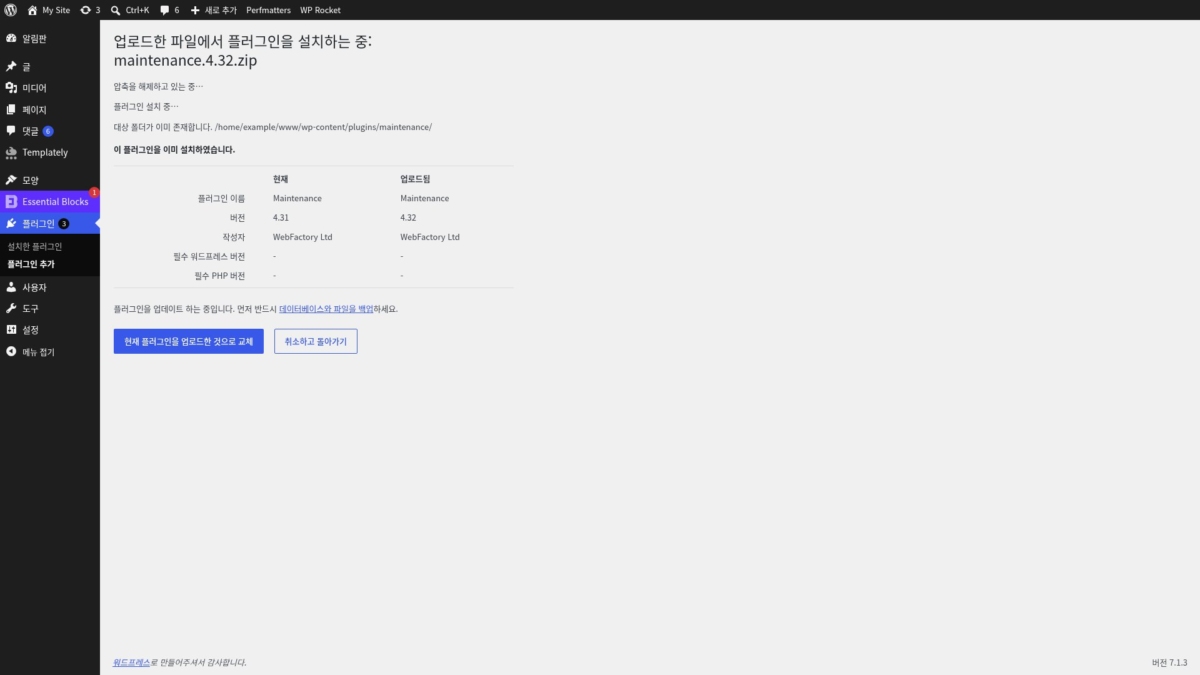
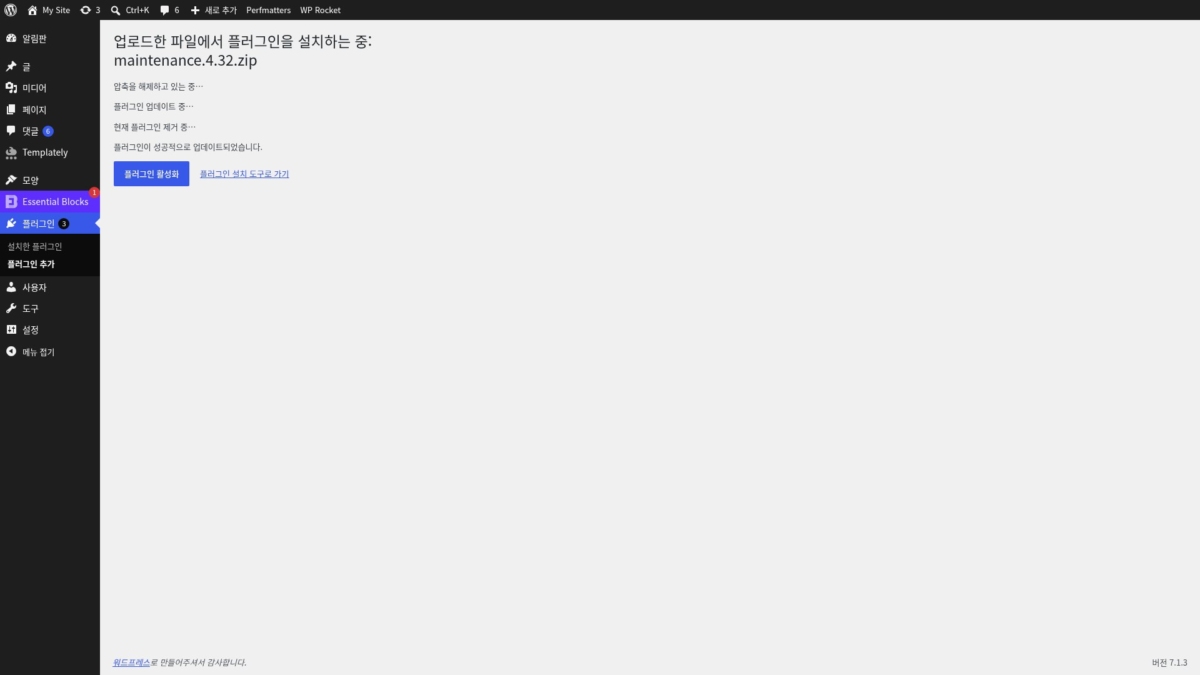
Click [Replace current with uploaded] under the table to remove the current plugin and install the uploaded version. When it finishes, [Plugin updated successfully.] appears, and you can turn it on right away with [Activate Plugin] below. While the inactive Maintenance went from 4.31 to 4.32 this way, the visitor side stayed the same with no 503.
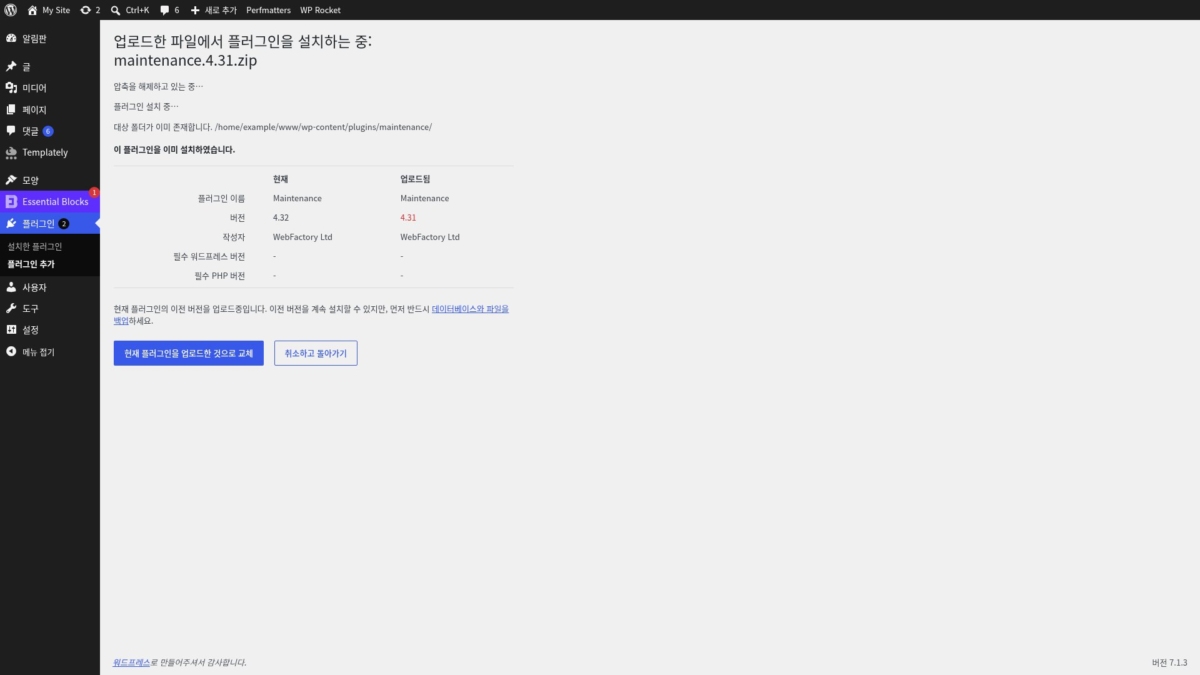
The same screen also works for rolling back. Uploading the 4.31 zip while 4.32 was installed turned the uploaded version red and added a notice to back up first because you are uploading an older version. Replacing it anyway returned it to 4.31 with the message [Plugin downgraded successfully.].
If an update breaks the site, this is how to go straight back to the previous version. To get an old zip, open [Advanced View] on the plugin's WordPress.org page, pick a version under [Previous Versions] at the bottom, and click [Download] to save it to your computer.
5️⃣ Update with WP-CLI
If you can reach the server over SSH, use WP-CLI to finish the job with a single command. Shared hosting that only offers a file manager can't run it, so use the screen methods above.
To list only the plugins that have a new version, add [--update=available].
wp plugin list --update=available --fields=name,status,version,update_versionname status version update_version
all-in-one-wp-migration inactive 7.112 7.113
essential-blocks active 6.5.1 6.5.2
maintenance inactive 4.31 4.32To update, run the command with the plugin name. It prints one line per step, from the download to removing the old version, and ends with a table showing how the version changed.
wp plugin update maintenanceDownloading update from https://downloads.wordpress.org/plugin/maintenance.4.32.zip...
Unpacking the update...
Installing the latest version...
Removing the old version of the plugin...
Plugin updated successfully.
Success: Updated 1 of 1 plugins.
name old_version new_version status
maintenance 4.31 4.32 UpdatedTo roll back to an older version, add [--version] and [--force] to install. Even if a plugin with the same name is already there, it is removed and that version is installed.
wp plugin install maintenance --version=4.31 --forceInstalling Maintenance (4.31)
Downloading installation package from https://downloads.wordpress.org/plugin/maintenance.4.31.zip...
Unpacking the package...
Installing the plugin...
Removing the old version of the plugin...
Plugin updated successfully.
Success: Installed 1 of 1 plugins.While the inactive Maintenance went up and down with WP-CLI, the visitor side also stayed the same with no 503.
🔢 FAQ & Recommended Content
 Plugin
Deleting WordPress Plugins
Delete a plugin from the admin screen, then clean up the tables and options it leaves in the database.
 Plugin
WordPress Plugin: Definition and Role
Three criteria for deciding which plugins to keep and which to delete.
 Terms
The Difference Between an Update and an Upgrade
The difference in scope between the two words update and upgrade.
ℹ️ Affiliate Disclosure
This site's content contains affiliate links. When a visitor buys a product or service through one of them, the site receives a commission from the seller. The amount the buyer pays(it goes down during event discounts ↓)does not go up. Posted prices, discounts, and stock reflect the time of writing and may differ, so confirm with the seller before buying. Products are chosen and reviewed by our own standards, and commissions do not affect the order or content of reviews.