
How to Log In to the WordPress Admin Page on Cloudways
You enter the Cloudways WordPress admin page through the Admin Panel address on the application’s Access Details screen, and after setting the domain as Primary this address had changed to the new domain cw.testpilotweb.com. The admin account name is created from your Cloudways sign-up email, and you can view or change the password on the same screen.
1️⃣ Checking the Cloudways WordPress Admin Credentials

The first screen that opens when you select an application, [Access Details], contains [Application URL] and [Admin Panel]; the [Username] and [Password] under [Admin Panel] are the WordPress admin account. The pencil button lets you change the admin password and the database and Redis passwords.
Further down the same screen there is a new [Password Protection] (New) option that lets only authorized users access the site, and it is off by default.
Clicking the icon next to the [Admin Panel] address opens the WordPress login screen, where you log in with the account details above.

The connected domain appears in [← Go to cw.testpilotweb.com] below the login screen, and a padlock in the address bar means SSL is applied as well. If you have not installed SSL yet, start with Cloudways SSL Setup.
2️⃣ Changing the URL
If you set the domain as Primary in [Domain Management], the WordPress address has already changed. When you set Primary, Cloudways searches and replaces the domain name in the database, and in practice all of the site’s links and feed addresses came out as https://cw.testpilotweb.com. The order of adding the domain and setting it as Primary is covered in Cloudways domain connection.
If you only added the domain as an alias without setting it as Primary, log in and change the WordPress Address (URL) and Site Address (URL) under [Settings] > [General] yourself. Below is an example changed to testpilotweb.com.
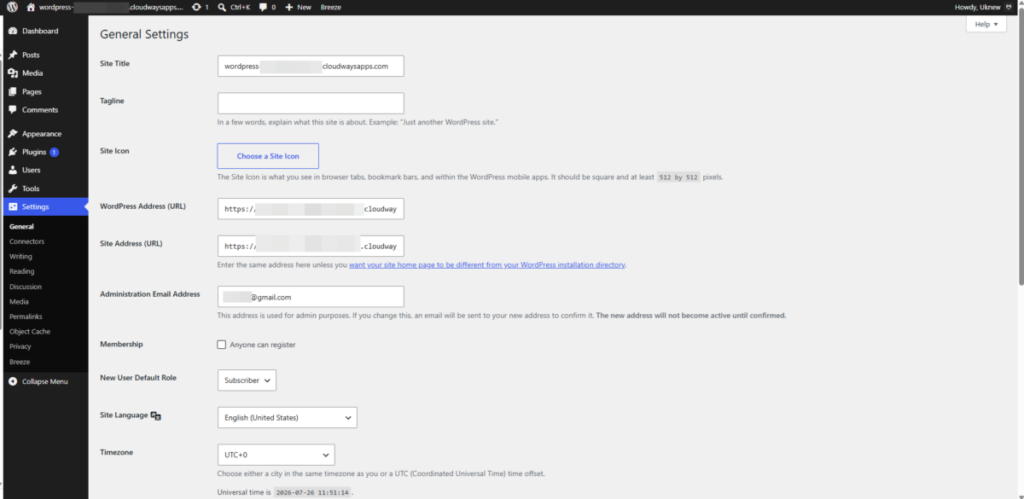
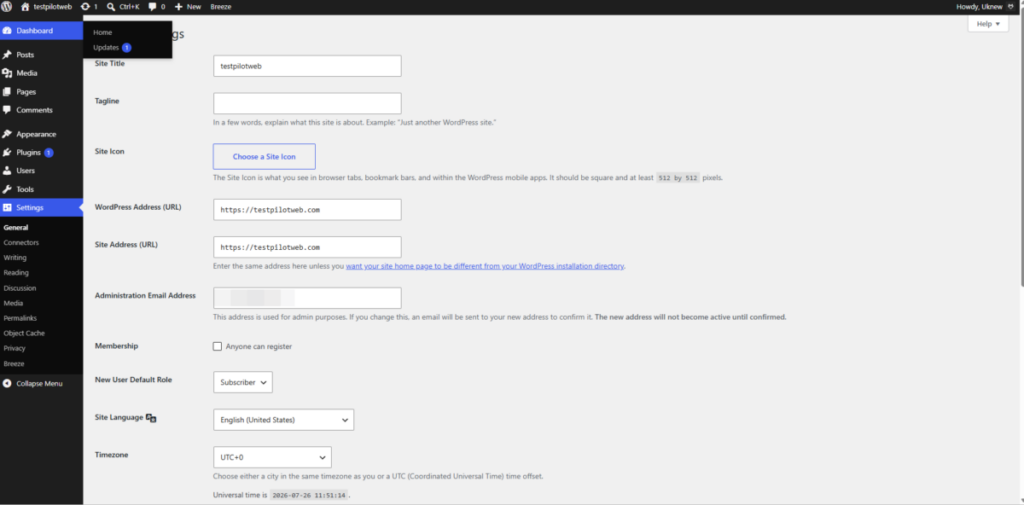
The site title was shown as the domain name (cw.testpilotweb.com), and the rest can be changed one by one, starting with the site title, in the WordPress General tab of the Settings page.
ℹ️ Affiliate Disclosure
This site's content contains affiliate links. When a visitor buys a product or service through one of them, the site receives a commission from the seller. The amount the buyer pays(it goes down during event discounts ↓)does not go up. Posted prices, discounts, and stock reflect the time of writing and may differ, so confirm with the seller before buying. Products are chosen and reviewed by our own standards, and commissions do not affect the order or content of reviews.