
ss command: checking Linux ports and processes, compared with netstat
On a Linux server, the ss command shows which ports are open and who is connected. ss is the iproute2 socket tool that replaces netstat. Listing listening (LISTEN) ports and connections with ss on a Debian 12 server showed that, from a regular account, the names of programs started by other accounts do not appear in the Process column even with -p.
The output below was produced with an English locale. The addresses of the server and its peers are shown as example addresses.
1️⃣ Basic ss command usage and output columns
Running ss without options leaves out listening ports and shows only sockets with an established connection. On the test server, the first lines were all Unix sockets (u_str, u_dgr) that programs inside the server use to talk to each other.
ss | head -n 5Netid State Recv-Q Send-Q Local Address:Port Peer Address:Port Process
u_str ESTAB 0 0 * 1013903 * 1013904
u_dgr ESTAB 0 0 * 1013960 * 13394
u_str ESTAB 0 0 * 1013907 * 1013908
u_str ESTAB 0 0 * 46066198 * 46066199So to see only TCP connections, add -t. The Unix sockets drop out, and service names such as ssh and https appear where the port numbers would be.
ss -tState Recv-Q Send-Q Local Address:Port Peer Address:Port Process
ESTAB 0 0 203.0.113.10:ssh 198.51.100.7:51114
ESTAB 0 0 203.0.113.10:26676 192.0.2.15:https
ESTAB 0 0 203.0.113.10:29714 192.0.2.16:httpsAdding -n as well keeps the port numbers as they are instead of turning them into service names.
ss -tnState Recv-Q Send-Q Local Address:Port Peer Address:Port Process
ESTAB 0 0 203.0.113.10:22 198.51.100.7:51114
ESTAB 0 0 203.0.113.10:26676 192.0.2.15:443
ESTAB 0 0 203.0.113.10:29714 192.0.2.16:443The Recv-Q and Send-Q columns mean different things depending on the socket state. On a connected socket, Recv-Q is the number of bytes received but not yet read by the program, and Send-Q is the number of bytes sent but not yet acknowledged by the peer.
On a listening socket, Recv-Q is the number of connections waiting in the queue and Send-Q is the maximum size of the queue. These meanings come from the netstat(8) man page in net-tools.
2️⃣ Checking Linux ports (-tln, -uln, -tulpn)
The output without options does not include ports waiting for connections, so to check open ports, add -l, which selects only listening sockets. [ss -tln] prints the listening TCP ports as numbers.
ss -tlnState Recv-Q Send-Q Local Address:Port Peer Address:PortProcess
LISTEN 0 128 0.0.0.0:22 0.0.0.0:*
LISTEN 0 511 0.0.0.0:80 0.0.0.0:*
LISTEN 0 511 0.0.0.0:443 0.0.0.0:*
LISTEN 0 511 127.0.0.1:8080 0.0.0.0:*
LISTEN 0 128 [::]:22 [::]:*
LISTEN 0 511 [::]:80 [::]:*
LISTEN 0 511 [::]:443 [::]:*A Local Address of 0.0.0.0 accepts connections arriving on every IPv4 address of the server, while 127.0.0.1 can be reached only from inside the server. [::] means every IPv6 address, so ports 22, 80 and 443 are open on both IPv4 and IPv6.
Without -n, the port numbers turn into service names. Port 8080 shows up as http-alt.
ss -tlState Recv-Q Send-Q Local Address:Port Peer Address:PortProcess
LISTEN 0 128 0.0.0.0:ssh 0.0.0.0:*
LISTEN 0 511 0.0.0.0:http 0.0.0.0:*
LISTEN 0 511 0.0.0.0:https 0.0.0.0:*
LISTEN 0 511 127.0.0.1:http-alt 0.0.0.0:*
LISTEN 0 128 [::]:ssh [::]:*
LISTEN 0 511 [::]:http [::]:*
LISTEN 0 511 [::]:https [::]:*UDP does not set up connections, so even its listening sockets have no LISTEN state. Every entry in the state column of the [ss -uln] output was UNCONN. Port 68 (bootpc) is the DHCP client and port 123 (ntp) is for time synchronization.
ss -ulnState Recv-Q Send-Q Local Address:Port Peer Address:PortProcess
UNCONN 0 0 0.0.0.0:68 0.0.0.0:*
UNCONN 0 0 203.0.113.10:123 0.0.0.0:*
UNCONN 0 0 127.0.0.1:123 0.0.0.0:*
UNCONN 0 0 0.0.0.0:123 0.0.0.0:*
UNCONN 0 0 [::1]:123 [::]:*
UNCONN 0 0 [::]:123 [::]:*To see TCP and UDP at once, combine the options as in [ss -tulpn]. When more than one type is shown, a Netid column is added at the front.
ss -tulpnNetid State Recv-Q Send-Q Local Address:Port Peer Address:PortProcess
udp UNCONN 0 0 0.0.0.0:68 0.0.0.0:*
udp UNCONN 0 0 203.0.113.10:123 0.0.0.0:*
udp UNCONN 0 0 127.0.0.1:123 0.0.0.0:*
udp UNCONN 0 0 0.0.0.0:123 0.0.0.0:*
udp UNCONN 0 0 [::1]:123 [::]:*
udp UNCONN 0 0 [::]:123 [::]:*
tcp LISTEN 0 128 0.0.0.0:22 0.0.0.0:*
tcp LISTEN 0 511 0.0.0.0:80 0.0.0.0:*
tcp LISTEN 0 511 0.0.0.0:443 0.0.0.0:*
tcp LISTEN 0 511 127.0.0.1:8080 0.0.0.0:*
tcp LISTEN 0 128 [::]:22 [::]:*
tcp LISTEN 0 511 [::]:80 [::]:*
tcp LISTEN 0 511 [::]:443 [::]:*3️⃣ Checking processes with the ss command (-p)
-p is the option that prints the program using each socket in the Process column. Yet when [ss -tlnp] was run from a regular account on the test server, the Process column stayed empty as shown below, as if the option had not taken effect.
ss -tlnpState Recv-Q Send-Q Local Address:Port Peer Address:PortProcess
LISTEN 0 128 0.0.0.0:22 0.0.0.0:*
LISTEN 0 511 0.0.0.0:80 0.0.0.0:*
LISTEN 0 511 0.0.0.0:443 0.0.0.0:*
LISTEN 0 511 127.0.0.1:8080 0.0.0.0:*
LISTEN 0 128 [::]:22 [::]:*
LISTEN 0 511 [::]:80 [::]:*
LISTEN 0 511 [::]:443 [::]:*ss finds the process using a socket by reading each process's fd folder under /proc. A regular account cannot open the fd folder of a process started by another account, so that program's name does not go into the column. Opening the folder of process 1, started by root, from a regular account gives a permission error.
ls /proc/1/fdls: cannot open directory '/proc/1/fd': Permission deniedA program started by your own account does appear in the Process column, even from a regular account. This was checked by starting python3's simple web server on port 8000 of 127.0.0.1.
python3 -m http.server 8000 --bind 127.0.0.1 &Once it is running, add [sport = :8000] to list only the line for port 8000.
ss -tlnp sport = :8000State Recv-Q Send-Q Local Address:Port Peer Address:PortProcess
LISTEN 0 5 127.0.0.1:8000 0.0.0.0:* users:(("python3",pid=343015,fd=3))The parentheses after users hold the program name, the pid and the file descriptor number (fd), in that order.
When you are done checking, stop the simple web server with [kill %1]. Running [ss -tln sport = :8000] again after that leaves only the header line, with no line for port 8000.
Run from the root account, ss can read every process's information, so the Process column is filled in. When several processes listen on one port together, the users parentheses list one entry for each of them. The program names and pids in the root output below are example values.
ss -tlnp sport = :443State Recv-Q Send-Q Local Address:Port Peer Address:PortProcess
LISTEN 0 511 0.0.0.0:443 0.0.0.0:* users:(("app",pid=2101,fd=6),("app",pid=2100,fd=6))
LISTEN 0 511 [::]:443 [::]:* users:(("app",pid=2101,fd=7),("app",pid=2100,fd=7))To find a program by its port number, you can also use the lsof command in the form [lsof -i :443].
In the diagram below, you can switch accounts to compare how the Process column changes with each account.
4️⃣ ss state and port filter options
Even after checking the open ports, you still have to pick out who is connected to them right now. ss keeps only the lines you want when you add filter conditions after the options.
Writing a state name after state leaves only the sockets in that state. The output of [ss -tn state established] has no State column and starts from the Recv-Q column.
ss -tn state establishedRecv-Q Send-Q Local Address:Port Peer Address:Port Process
0 0 203.0.113.10:22 198.51.100.7:51114
0 0 203.0.113.10:26676 192.0.2.15:443
0 0 203.0.113.10:29714 192.0.2.16:443Ports are filtered with dport (the peer's port) and sport (your own port). Connections going out from the server to outside https servers are picked with [dport = :443].
ss -tn dport = :443State Recv-Q Send-Q Local Address:Port Peer Address:PortProcess
ESTAB 0 0 203.0.113.10:26676 192.0.2.15:443
ESTAB 0 0 203.0.113.10:29714 192.0.2.16:443Using sport together with -l lets you check just whether that port is listening.
ss -tln sport = :22State Recv-Q Send-Q Local Address:Port Peer Address:PortProcess
LISTEN 0 128 0.0.0.0:22 0.0.0.0:*
LISTEN 0 128 [::]:22 [::]:*Group several conditions with parentheses and or, and wrap them in single quotes so the shell does not read the parentheses first. Below is the result of picking only ssh connections, following the man page example.
ss -tn state established '( dport = :ssh or sport = :ssh )'Recv-Q Send-Q Local Address:Port Peer Address:Port Process
0 0 203.0.113.10:22 198.51.100.7:51114TIME-WAIT is the state a connection stays in for a short while after it closes. It does not appear in the default output, so you have to pick it out with [state time-wait] to see it.
ss -tn state time-waitRecv-Q Send-Q Local Address:Port Peer Address:PortProcess
0 0 127.0.0.1:28750 127.0.0.1:80
0 0 127.0.0.1:57698 127.0.0.1:8080
0 0 [::1]:31936 [::1]:80If you mistype a state name, the command ends right away with a single [wrong state name] error line. Below is the result of entering foo on purpose. The names you can use are listed on the TCP-STATES line of the [ss -h] output.
ss -tn state fooss: wrong state name: foo📌 Main options: results from this article
| Option | Task | Result in this article | |
|---|---|---|---|
| -t | Shows TCP sockets only | Unix sockets drop out, and service names such as ssh and https appear in the port position | |
| -n | Shows port numbers instead of service names | In ss -tn, ssh shows as 22 and https as 443 | |
| -l | Shows listening (LISTEN) sockets only | ss -tln lists listening ports such as 22, 80 and 443 | |
| -u | Shows UDP sockets only | Every entry in the state column of ss -uln is UNCONN | |
| -p | Shows the program using each socket in the Process column | From a regular account, only the python3 started by my account shows a name and pid; programs of other accounts are blank | |
| -s | Summarizes counts by type instead of listing sockets | estab 9 on the TCP line matches the 9 lines of the state established output without the header line | |
| -4 | Shows IPv4 sockets only | In ss -t4ln, the lines starting with [::] drop out | |
| -6 | Shows IPv6 sockets only | In ss -t6ln, the lines starting with 0.0.0.0 and 127.0.0.1 drop out | |
| -H | Shows only socket lines, without the header line | The line count of ss -H -tln | wc -l does not include the header line | |
| state STATE | Keeps only the sockets in that state | The state established output starts from Recv-Q with no State column; an unknown name gives [wrong state name: foo] | |
| dport = :PORT | Filters by the peer's port | dport = :443 shows two lines of connections going out to outside https servers | |
| sport = :PORT | Filters by your own port | sport = :22 used with -l shows two listening lines for port 22, IPv4 and IPv6 | |
| src ADDRESS | Keeps only the sockets on that address | ss -tln src 127.0.0.1 shows only the 127.0.0.1 ports that accept connections from inside the server |
📎 Other options: per the official manual
| Option | Task | |
|---|---|---|
| -a, --all | Shows listening and connected sockets together | |
| -r, --resolve | Resolves addresses and port numbers to names | |
| -e, --extended | Shows detailed information such as uid and inode for each socket | |
| -o, --options | Shows timer information such as TCP retransmission and keepalive | |
| -m, --memory | Shows the memory used by each socket | |
| -i, --info | Shows internal TCP information (rtt, cwnd and so on) | |
| -x, --unix | Shows Unix domain sockets only | |
| -w, --raw | Shows RAW sockets only | |
| -f FAMILY | Selects by socket family, such as unix, inet, inet6, link or netlink | |
| -Q, --no-queues | Shows the output without the Recv-Q and Send-Q columns | |
| -K, --kill | Forcibly closes the sockets that match the filter; sockets the kernel does not support are skipped | |
| -E, --events | Keeps showing sockets as they close | |
| -V, --version | Prints version information |
🔲 ss command simulator
In the simulator below, you can type the options and filters covered so far yourself and compare the output with [netstat -tln].
5️⃣ ss socket summary (-s)
-s prints a summary of counts by type instead of the socket list. According to the man page, it gathers the numbers from various statistics rather than counting the list one by one.
ss -sTotal: 340
TCP: 48 (estab 9, closed 15, orphaned 0, timewait 13)
Transport Total IP IPv6
RAW 0 0 0
UDP 8 4 4
TCP 33 25 8
INET 41 29 12
FRAG 0 0 0estab on the TCP line is the number of connections established right now, so you can compare it with the number of lines printed by [state established] at the same moment.
ss -tn state established | wc -l10Taking the one header line out of the 10 output lines leaves 9, which matched estab 9 from -s. timewait 13 is the number of TIME-WAIT sockets, which were visible only when picked with [state time-wait].
6️⃣ ss command compared with netstat
netstat ships in the net-tools package, whose man page describes netstat as mostly obsolete and recommends ss instead. Scripts written for the netstat output format, however, cannot read ss output as is, because the column order and address notation differ.
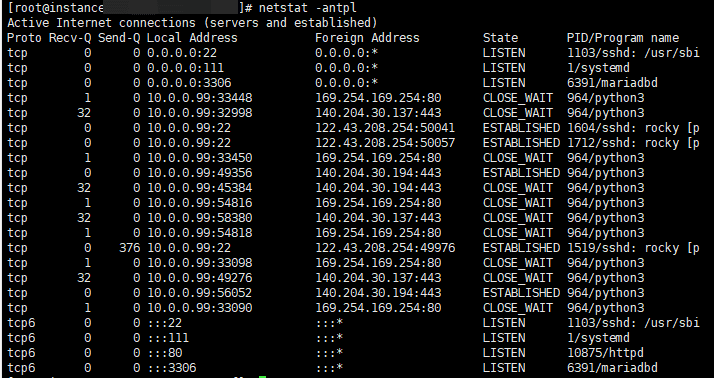
Printing the listening TCP ports on the same server with both commands showed that netstat puts the state at the very end and writes IPv6 addresses like :::22.
netstat -tlnActive Internet connections (only servers)
Proto Recv-Q Send-Q Local Address Foreign Address State
tcp 0 0 0.0.0.0:22 0.0.0.0:* LISTEN
tcp 0 0 0.0.0.0:80 0.0.0.0:* LISTEN
tcp 0 0 0.0.0.0:443 0.0.0.0:* LISTEN
tcp 0 0 127.0.0.1:8080 0.0.0.0:* LISTEN
tcp6 0 0 :::22 :::* LISTEN
tcp6 0 0 :::80 :::* LISTEN
tcp6 0 0 :::443 :::* LISTENIn ss, the state comes first, and IPv6 addresses are wrapped in square brackets, like [::]:22.
ss -tlnState Recv-Q Send-Q Local Address:Port Peer Address:PortProcess
LISTEN 0 128 0.0.0.0:22 0.0.0.0:*
LISTEN 0 511 0.0.0.0:80 0.0.0.0:*
LISTEN 0 511 0.0.0.0:443 0.0.0.0:*
LISTEN 0 511 127.0.0.1:8080 0.0.0.0:*
LISTEN 0 128 [::]:22 [::]:*
LISTEN 0 511 [::]:80 [::]:*
LISTEN 0 511 [::]:443 [::]:*Common netstat options map to ss and ip commands as follows.
| netstat | Replacement command / what it shows |
|---|---|
| netstat -tln | ss -tlnListening TCP ports, as numbers |
| netstat -tulpn | ss -tulpnListening TCP and UDP ports and their programs |
| netstat -tan | ss -tanAll TCP sockets, as numbers |
| netstat -r | ip routeRouting table |
| netstat -i | ip -s linkNetwork interface statistics |
🔢 FAQ & Recommended Content




ℹ️ Affiliate Disclosure
This site's content contains affiliate links. When a visitor buys a product or service through one of them, the site receives a commission from the seller. The amount the buyer pays(it goes down during event discounts ↓)does not go up. Posted prices, discounts, and stock reflect the time of writing and may differ, so confirm with the seller before buying. Products are chosen and reviewed by our own standards, and commissions do not affect the order or content of reviews.