
WP Mail SMTP: Setting Up SMTP in WordPress and What to Check When Emails Fail to Send
WordPress SMTP is a setting that sends the emails your site generates, such as password resets and contact notifications, through a mail service like Gmail so they reach the inbox instead of falling into the spam folder. This guide installs the WP Mail SMTP plugin, follows the setup steps on screen, and covers where to check when emails do not arrive.
By default, WordPress sends mail with the server's PHP mail function, and the SMTP setting replaces that route with the SMTP server of an external sending service. This check was done by installing WP Mail SMTP 4.10.2 on a WordPress 7.1.3 site.
Every email the site sends, including comment notifications, goes through the same [wp_mail] function, so this one setting applies to all of them.
When you send through SMTP, the sender address is determined by the account used for sending, and sending from a free Gmail account makes it that account's @gmail.com address. To send from your site's domain address (such as admin@example.com), the mail has to go through hosting mail, a domain-connected Google Workspace, or a sending service that has verified the domain.
1️⃣ How WordPress sends email: the PHP mail function and spam classification
WordPress has no mail server of its own, so notification emails passed on by the PHP mail function are sent on its behalf by the hosting server's mail transfer program.
Unless you set one separately, the sender address is also assigned automatically in the form wordpress@domain. The receiving server checks the sending server's credentials against the domain's SPF and DKIM records, so mail sent from a hosting server that is not in those records is classified as spam or rejected.
2️⃣ Installing WP Mail SMTP: adding the plugin and the first screen
On the WordPress.org plugin directory, the plugin has more than 4 million active installations and a rating of 4.8 based on 5,206 reviews (checked on October 19, 2026). Version 4.10.2, released on October 8, 2026, requires WordPress 5.5 and PHP 7.4 or higher.
If your hosting offers an SMTP add-on, connect it at the server level; in environments where you cannot change server settings, such as shared hosting, you change the sending route in the plugin instead. Search for WP Mail SMTP under Plugins › Add Plugin, then install and activate it.

The first search result is the WP Mail SMTP by WPForms card, and on a site where it is already installed and activated, the button on the right shows [Active] instead of [Install Now], as in the screenshot.
A WP Mail SMTP item is added to the admin menu, and the WP Mail SMTP › Settings screen shows a notice box saying that no mailer has been set up yet.

Under WP Mail SMTP in the left menu, submenus such as Settings and Tools open. Some menu names, such as [Setup Checklist] and [Dashboard], are shown in English when the admin language has no translation for them.
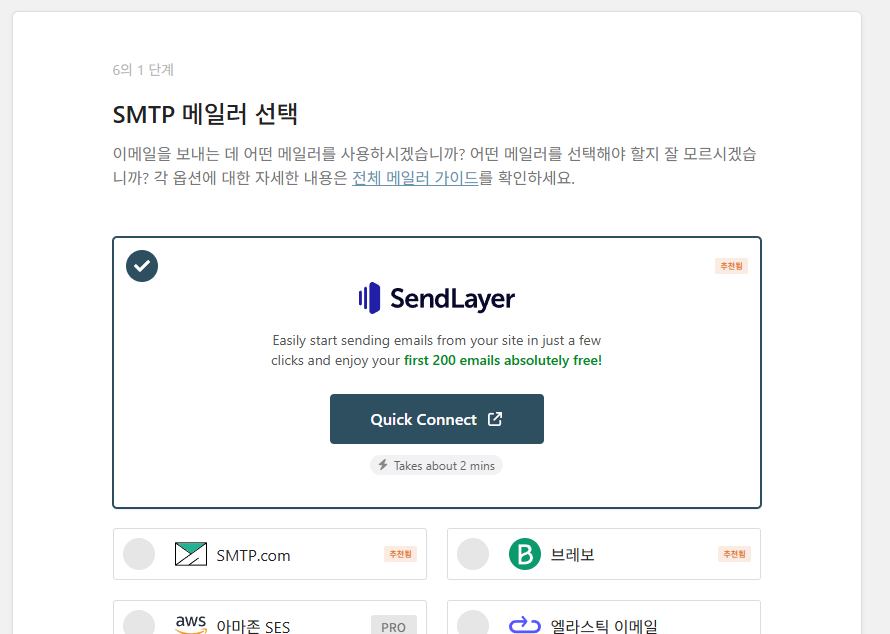
The first screen that opens after activation is a 6-step setup wizard, and in step 1, choosing an SMTP mailer, the recommended mailer SendLayer is shown at the top with a note that the first 200 emails are free. If you skip the wizard and fill in the same items directly on the settings screen, the result is the same, so this guide follows the order of the settings screen. You can reopen the wizard with [Launch Setup Wizard] in the primary connection box.
3️⃣ Choosing a mailer: 15 free ones and 3 Pro-only ones
The Mailer field has 19 options, including the default (none). Amazon SES, 365 / Outlook and Zoho Mail can be chosen only on the Pro plans. The default (none) keeps sending through PHP mail as it is, so the screen also carries the notice [won't improve email deliverability].
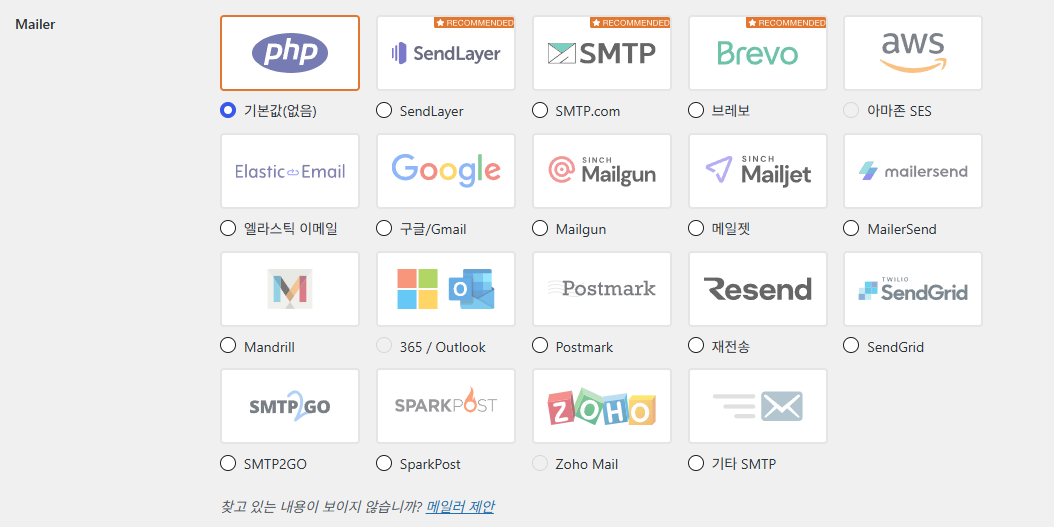
| Category | Mailer | Plan | Sending method |
|---|---|---|---|
| Default | Default (none) | Lite (free) | PHP mail of the hosting server |
| Recommended | SendLayer, SMTP.com, Brevo | Lite (free) | Sending service API |
| Mail account | Google / Gmail | Lite (free) | Gmail API (Google account authorization) |
| Sending service | Elastic Email, Mailgun, Mailjet, MailerSend, Mandrill, Postmark, Resend, SendGrid, SMTP2GO, SparkPost | Lite (free) | Sending service API |
| Pro only | Amazon SES, 365 / Outlook, Zoho Mail | Pro | Cannot be selected on the Lite screen |
| Other SMTP | Other SMTP | Lite (free) | SMTP server (host · port · account) |
To send with a mail account you already use, choose Google / Gmail or Other SMTP. The Google / Gmail mailer sends through the Gmail API instead of SMTP, and you enter the Client ID and Client Secret of a Google web application and then authorize the account.
Connecting a Gmail account costs nothing, but Gmail replaces the sender address with the address of the authorized account when it sends. A free Gmail account is therefore not suitable for a site that has to keep its domain as the sender address.
Sites that send a large volume of email choose the mailer of a dedicated sending service, for example SendLayer, Brevo, SendGrid or a similar one. Other SMTP is easier to set up than the API methods, but the provider may limit bulk sending.
4️⃣ Other SMTP setup steps: from From Email to the password
Under WP Mail SMTP › Settings › General, in the primary connection, enter the SMTP account address in From Email and the site name in From Name. Leave [Force From Email] and [Return Path] turned on.
If you use a mail provider such as Yahoo or Outlook.com, the From Email must be the same as that account's address. [Force From Email] is the item that stops other plugins from changing the sender address.

Under the [Launch Setup Wizard] button, the primary connection lists From Email, [Force From Email], From Name, [Force From Name] and [Return Path] in that order.

When you choose Other SMTP in Mailer, input fields open below. Fill in SMTP Host, Encryption, SMTP Username and SMTP Password, leave Authentication turned on, and click [Save Settings]. For Gmail, enter smtp.gmail.com as the host, TLS as the encryption, your Gmail address as the username, and the 16-character app password as the password.
The SMTP port changes automatically when you choose the encryption: 25 for None, 465 for SSL and 587 for TLS, and when you choose TLS the Auto TLS row disappears from the screen.
On most servers you choose TLS for encryption. Gmail rejects SMTP logins made with the account password, so you have to turn on 2-Step Verification for the Google account and issue an app password, and the 16 characters issued are entered without spaces. The app password page does not open for an account with 2-Step Verification turned off.
Below the password field there is a note recommending that you keep the password in the WordPress configuration file instead of the database. In [wp-config.php], define the [WPMS_ON] constant as true and the [WPMS_SMTP_PASS] constant as the app password, and those values are applied instead of the password field on the screen.
사이트에 WP 메일 SMTP를 완전히 설정하는 데 필요한 각 단계를 안내해 드립니다.
이메일이 전송되는 이메일 주소입니다.
이메일 제공업체(Yahoo, Outlook.com 등)를 사용하는 경우 해당 계정의 이메일 주소여야 합니다.
다른 플러그인이 이를 변경할 수 있으므로 이를 방지하려면 아래 설정을 사용하십시오.
선택하면 위의 보낸 이메일 설정이 다른 플러그인에서 설정한 값을 무시하고 모든 이메일에 사용됩니다.
이메일을 보낸 이름입니다.
체크하면 위의 발신인 이름 설정이 모든 이메일에 사용되며 다른 플러그인에서 설정한 값은 무시됩니다.
반환 경로는 미전송 영수증(또는 반송 메시지)을 보낼 위치를 나타냅니다.
선택하지 않으면 반송 메시지가 손실될 수 있습니다.
찾고 있는 내용이 보이지 않습니까? 메일러 제안
현재 기본(없음) 메일러가 선택되어 있어 이메일 전송 가능성이 향상되지 않습니다. 다른 이메일 제공업체를 선택하고 간편한 설정 마법사에서 구성합니다.
Gmail 메일러는 적은 수의 이메일을 보내는 사이트에서 잘 작동합니다. 그러나 Gmail의 API에는 설정 중에 문제를 일으킬 수 있는 속도 제한과 여러 추가 제한이 있습니다.
많은 양의 이메일을 보낼 것으로 예상되거나 웹 호스트가 호환되지 않는 경우 Gmail API 제한 사항이 있다면 다른 메일러 옵션을 고려하는 것이 좋습니다.
워드프레스닷컴의 Gmail 메일러는 구글 API를 통해 모든 Gmail 또는 구글 워크스페이스 계정에서 작동합니다. 기본 이메일 주소 또는 Gmail 별칭으로 워드프레스 이메일을 보낼 수 있으며, SMTP 자격 증명을 사용하여 Gmail에 연결하는 것보다 더 안전합니다. 이제 원클릭 설정 기능을 통해 앱 사용을 위해 Google 계정에 권한을 부여하기만 하면 모든 과정이 자동으로 처리됩니다. 또는 수동으로 연결할 수도 있는데, 다른 메일러 옵션보다 몇 가지 단계가 더 복잡하므로 자세한 가이드를 통해 과정을 안내해 드립니다.
시작하려면 Gmail 문서를 읽어 보세요.
자체 앱을 만들 필요 없이 빠르고 쉽게 Google에 연결할 수 있는 방법을 제공합니다.
이 URL을 구글 웹 애플리케이션의 “승인된 리디렉션 URI” 입력란에 복사하세요.
계속 진행하려면 먼저 클라이언트 ID 및 클라이언트 암호로 설정을 저장해야 합니다.
기타 SMTP 옵션을 사용하면 공급자의 API를 사용하는 대신 SMTP 서버를 통해 이메일을 보낼 수 있습니다. 이것은 쉽고 편리하지만 다른 메일러보다 덜 안전합니다. 제공업체에서 대량의 이메일 전송을 허용하지 않을 수 있습니다. 이 경우 다른 메일러를 사용하세요.
시작하려면 기타 SMTP를 읽어보세요. 문서.
대부분의 서버에서 TLS는 권장 옵션입니다. SMTP 공급자가 SSL 및 TLS 옵션을 모두 제공하는 경우 TLS를 사용하는 것이 좋습니다.
기본적으로 TLS 암호화는 서버에서 지원하는 경우 자동으로 사용됩니다(권장). 경우에 따라 서버 구성 오류로 인해 문제가 발생할 수 있으며 비활성화해야 할 수도 있습니다.
비밀번호는 데이터베이스에서 암호화되지만 보안 강화를 위해 사이트의 워드프레스 구성 파일을 사용하여 비밀번호를 설정하는 것이 좋습니다. 더 알아보기
이메일 분실에 대해 걱정하지 마십시오. 추가 연결을 추가한 다음 백업 연결로 설정하십시오. 기본 연결로 전송하지 못한 이메일은 선택한 백업 연결을 통해 전송됩니다. WP 메일 SMTP 프로로 업그레이드하세요!
추가 연결을 추가하면 여기에서 선택할 수 있습니다.
테스트 이메일을 보낼 이메일 주소를 입력하세요.
이 이메일을 HTML 또는 일반 텍스트 형식으로 보내십시오.
[시뮬레이터] 실제 화면에서는 입력한 수신 주소로 테스트 이메일이 발송됩니다.
이 페이지에서 다양한 플러그인 디버깅 이벤트를 보고 구성할 수 있습니다. 이메일 전송 오류를 보고 디버깅 이벤트를 활성화하여 이메일 전송 문제를 감지할 수 있습니다.
이메일 전송 오류
이 디버그 이벤트는 항상 활성화되어 있으며 아래 표에 모든 이메일 전송 오류를 기록합니다.
이메일 전송 디버그
이메일 전송 프로세스를 디버깅하려면 이 항목을 선택하십시오. 활성화되면 모든 디버그 이벤트가 아래 표에 기록됩니다. 이 설정은 더 짧은 디버깅 기간에만 활성화하고 나중에 비활성화해야 합니다.
5️⃣ Testing WordPress SMTP: what to check when emails do not arrive
After saving, go to the Email Test tab under WP Mail SMTP › Tools, enter the address in Send To, and click [Send Email]. The Send To field is pre-filled with the email of the logged-in account, and the HTML toggle is on by default.

If the test fails, check the values you entered and the account status first rather than reinstalling the plugin. With Gmail, entering the account password is rejected with the [Application-specific password required] error, so issue the app password again and enter it. Also check that the From Email and the SMTP Username belong to the same account.
If the connection itself drops, set the encryption and port combination to TLS and 587, and if the result is the same, ask your hosting support whether the host blocks external SMTP ports. If sending is rejected because another plugin changes the sender address, check that [Force From Email] is turned on.
If the test passes but the email is not in the inbox, look in the spam folder first, then check whether the SPF and DKIM records required by the sending service have been added to the domain's DNS. To check whether the records are in effect, use the WHOIS domain lookup to search for the TXT records.
The error details of a failed send are recorded in the Debug Events tab under Tools.

On this tab, [Email Sending Errors] is always on even in Lite, and [Debug Email Sending], which records the whole sending process, is off by default.
6️⃣ WP Mail SMTP Pro differences: email log, backup connection and pricing
The free Lite version includes 15 mailers (including Other SMTP) and the email test. The email log and reports that keep sent mail, the backup connection that sends through another connection when the primary connection fails, and failure alerts are included from Pro. Lite is enough for a site that only needs mail to go out, and a store or membership site that has to keep a record of whether mail was sent would choose Pro.
Pricing is an annual subscription, the first-year price in the table below is a discounted price, and renewals are billed at the regular price. Elite is a plan that adds done-for-you setup and priority support to all the Pro features.
| Item | Lite (free) | Pro | Elite | Developer | Agency |
|---|---|---|---|---|---|
| Annual price (first year) | $0 | $49 | $99 | $199 | $399 |
| Regular price (renewal) | — | $99 | $149 | $249 | $449 |
| Number of sites | No limit | 1 | 1 | 20 | 100 |
| Support | WordPress.org forum | Standard | first | first | first |
| Email log · reports · tracking | ❌ | ✅ | ✅ | ✅ | ✅ |
| Backup connection · Smart Routing · failure alerts | ❌ | ✅ | ✅ | ✅ | ✅ |
| Mailers: Amazon SES · 365/Outlook · Zoho Mail | ❌ | ✅ | ✅ | ✅ | ✅ |
| Refund | — | 14 days | 14 days | 14 days | 14 days |
The values in the table were checked on October 16, 2026 on the wpmailsmtp.com pricing page and the WordPress.org plugin page, and a refund is possible within 14 days of payment.
🔢 FAQ & Recommended Content


 Plugins · Conflict test
WordPress Plugin Conflict Test: Health Check & Troubleshooting
How to test for plugin conflicts as an administrator only, without deactivating all plugins and while leaving the visitor-facing site untouched.
Plugins · Conflict test
WordPress Plugin Conflict Test: Health Check & Troubleshooting
How to test for plugin conflicts as an administrator only, without deactivating all plugins and while leaving the visitor-facing site untouched.
 Plugin · Comment spam
WordPress Akismet spam protection plugin
The plan selection and setup steps of the Akismet plugin, which filters comment spam automatically.
Plugin · Comment spam
WordPress Akismet spam protection plugin
The plan selection and setup steps of the Akismet plugin, which filters comment spam automatically.
ℹ️ Affiliate Disclosure
This site's content contains affiliate links. When a visitor buys a product or service through one of them, the site receives a commission from the seller. The amount the buyer pays(it goes down during event discounts ↓)does not go up. Posted prices, discounts, and stock reflect the time of writing and may differ, so confirm with the seller before buying. Products are chosen and reviewed by our own standards, and commissions do not affect the order or content of reviews.