
Elementor: Installing the Free Version and Building Pages | Elementor Free vs Pro Differences


Elementor is a WordPress page builder plugin: an editor for building pages by dragging and dropping widgets onto the screen visitors see, instead of the admin edit screen. I installed the free version 4.3.5 on a WordPress 7.1.3 site, published a page with a heading, a paragraph, and a button, and compared the free version with the Pro plans using the official pricing table.
1️⃣ What Is Elementor: How It Differs from the Block Editor
Elementor is WordPress's second editor, installed alongside the Block Editor. For each post and page, you choose whether to write it in the block editor or edit it with Elementor, and on pages edited with Elementor you adjust the layout and styles directly on the screen visitors see.
2️⃣ Installing Elementor for Free: Adding the Plugin and the Editor Screen
Installation itself works like any other plugin, but the screens change right after activation. Search for Elementor in [Plugins › Add Plugin], install it, and activate it, and an [Edit with Elementor] item appears in the admin bar when you view the site. The editor opens as a separate screen, with [action=elementor] added to the page's edit URL.

In the WordPress.org plugin directory, Elementor has more than 10 million active installations and a rating of 4.5 from 7,319 reviews. Version 4.3.5, released on October 13, 2026, requires WordPress 6.8 or later and PHP 7.4 or later.
The editor is split into a widget panel on the left and a preview on the right. In version 4.3.5, the panel starts with the Atomic Elements group, with items such as Flexbox, Heading, and Button. The editor's text appears in English until a language pack is installed and then follows the language of the admin screens. The form widgets and the Pro group at the bottom of the panel carry a lock, so you can see on one screen what the free version can and cannot use.
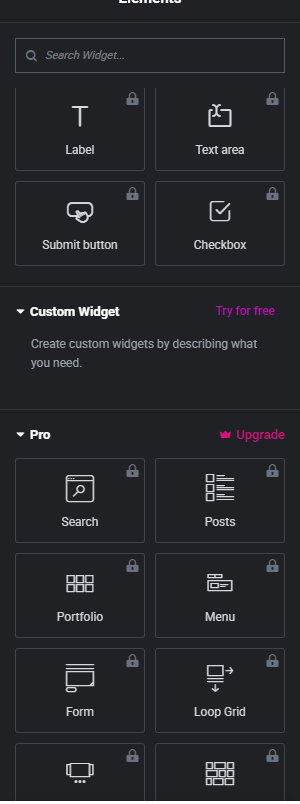
3️⃣ Building a Page with Elementor: Flexbox Containers and Widgets
In Elementor, you build a page by placing a Flexbox container first and then putting widgets inside it. Create a page with [Pages › Add Page], open the Elementor editor, then click [+] on the empty screen and choose Flexbox.
Clicking the container's [+] opens the widget panel, and clicking Heading, Paragraph, and Button in turn places them inside the selected container.
To change the text, click a widget and edit it in the input field of the left panel. In the container's [Layout], set [Direction] to vertical and [Gap] to 16px, and the three widgets stack from top to bottom.

Click [Publish] and the page goes live right away with a [Your Page is live] notice; on the visitor's screen, the area built with Elementor sits between the theme's header and footer.

The large text at the top of the image is the page title shown by the theme; the heading, paragraph, and button below it are the widgets placed in Elementor's Flexbox container.
4️⃣ Elementor Pro Differences: Widget Count, Theme Builder, and Pricing
The free version takes you as far as building page content with more than 40 widgets. The Theme Builder, which creates templates for the site's header, footer, and post lists, and the form, popup, and eCommerce widgets are in Elementor Pro.
| Item | Free | Essential | Advanced Solo | Advanced | One |
|---|---|---|---|---|---|
| Annual price | $0 | $60 | $84 | $108 | $180 (renews at $228) |
| Number of sites | No license | 1 | 1 | 3 | 1 |
| Pro widgets | 0 (40+ free widgets) | 57 | 85 | 85 | 85 |
| Theme Builder | ❌ | ✅ | ✅ | ✅ | ✅ |
| Dynamic content | ❌ | ✅ | ✅ | ✅ | ✅ |
| Form Builder | ❌ | ✅ | ✅ | ✅ | ✅ |
| Popup Builder | ❌ | ❌ | ✅ | ✅ | ✅ |
| Custom code · CSS | ❌ | ❌ | ✅ | ✅ | ✅ |
| eCommerce features | ❌ | ❌ | ✅ | ✅ | ✅ |
| Cloud template storage | ❌ | 10 | 20 | 30 | 30 |
| AI generation · image optimization · accessibility credits | ❌ | ❌ | ❌ | ❌ | 25,000 per month |
The values in the table were checked on October 16, 2026 on the elementor.com pricing page and the WordPress.org plugin page. Refunds are possible within 30 days, for annual payments only.
Essential includes the Theme Builder and the Form Builder but leaves out the Popup Builder, custom CSS, and eCommerce features. Sites that need an online store or popups end up choosing Advanced Solo or higher.
5️⃣ When Elementor Is Not a Good Fit: Sites Where the Block Editor Is Enough
For sites where body text matters more than page design, such as text-focused blogs, the block editor and a theme are enough. Elementor suits pages where you have to arrange the layout yourself, such as landing pages and company profiles.
The text of a page built with Elementor is also saved as a copy in the WordPress post content, but the layout and styles are generated by the plugin. If you deactivate the plugin, the heading, paragraph, and button text stays while the container layout and button colors disappear, so once you build a page with Elementor, you end up keeping the plugin.
🔢 FAQ & Recommended Content
 Themes · Selection criteria
WordPress Themes: 4 Use Cases and Features & Choosing a Recommended Theme by Speed
A roundup of recommended themes by use case, the difference between one-time-purchase and annual-subscription premium themes, and speed measurements.
Themes · Selection criteria
WordPress Themes: 4 Use Cases and Features & Choosing a Recommended Theme by Speed
A roundup of recommended themes by use case, the difference between one-time-purchase and annual-subscription premium themes, and speed measurements.
 Themes · Free
Best Free WordPress Themes: Top 9
Compares 9 free themes you can start with at no cost, by speed and features.
Themes · Free
Best Free WordPress Themes: Top 9
Compares 9 free themes you can start with at no cost, by speed and features.
 Plugins · Conflict test
WordPress Plugin Conflict Test: Health Check & Troubleshooting
How to test for plugin conflicts as an administrator only, without deactivating all plugins and while leaving the visitor-facing site untouched.
Plugins · Conflict test
WordPress Plugin Conflict Test: Health Check & Troubleshooting
How to test for plugin conflicts as an administrator only, without deactivating all plugins and while leaving the visitor-facing site untouched.
ℹ️ Affiliate Disclosure
This site's content contains affiliate links. When a visitor buys a product or service through one of them, the site receives a commission from the seller. The amount the buyer pays(it goes down during event discounts ↓)does not go up. Posted prices, discounts, and stock reflect the time of writing and may differ, so confirm with the seller before buying. Products are chosen and reviewed by our own standards, and commissions do not affect the order or content of reviews.