
WordPress Multisite: 2 Structures, Subdomain and Subdirectory
WordPress Multisite is a feature that groups multiple sites into a network and manages them from a single WordPress installation. On WordPress running on an Nginx + Apache setup, we turned on Multisite from the Network Setup screen, added one subsite, and checked the menu paths and the lines that go into the configuration files.
1️⃣ WordPress Multisite and the Network Admin
In Multisite, every site in the network shares a single WordPress installation. Core files, plugins, and themes are shared too, so the server does not get a separate WordPress folder for each site.
What each site gets separately are its database tables and media upload folder, while only the user tables are shared across the whole network. The first site uses the existing [/wp-content/uploads/], and from the next site on, each site uses its site-number folder under [/wp-content/uploads/sites/].
The user who manages the whole network is the Super Admin. The Network Admin screens appear after the network is created and are shown only to Super Admins.
Users are created as network accounts, but they need a role on each site before they can access that site. Site administrators also have fewer permissions: only Super Admins can install themes and plugins or edit other users' profiles.
The diagram below shows how one installation branches out through the network into multiple sites, along with the site addresses for each address type.
2️⃣ Subdomain vs subdirectory: address format and selection limits
When you set up the network, you choose one of two site address types: subdomain or subdirectory. A subdomain address looks like site1.example.com, and a subdirectory (subfolder) address looks like example.com/site1.
| Item | Subdomain | Subdirectory |
|---|---|---|
| Site address | site1.example.com | example.com/site1 |
| Name in the official docs | Domain-based | Path-based |
| Server-side preparation | Point subdomains to the WordPress installation folder in DNS and on the server | No extra setup if permalinks work |
| When users create sites themselves | Wildcard subdomains required | No extra requirements |
| When it cannot be chosen | When the WordPress address has a path, or is localhost or an IP address | Sites with posts published more than a month ago |
| Main site post URL | No change | /blog/ added before post URLs |
Subdirectory mode needs no extra setup on a server where permalinks work, but it cannot be chosen on a site that has posts published more than a month ago. This limit prevents conflicts between existing post URLs and new site addresses, so such sites are installed in subdomain mode.
In a subdirectory network, [/blog/] is added to the main site's post URLs. This keeps them from overlapping with subsite addresses, and it is not added to static page URLs.
Changing the mode later takes several steps. According to the official docs, changing only the [SUBDOMAIN_INSTALL] value and the rewrite rules does not move existing site addresses, and DNS and certificates also have to be set up separately.
3️⃣ Before network setup: backups, permalinks, and server requirements
Network setup changes the files and database of an existing site, so the official docs advise backing up first unless the site is a fresh install.
Back up the database and files, confirm that permalinks work, then deactivate all active plugins. Reactivate the plugins after the network is created.
If you plan to move WordPress to run from its own folder, finish that before enabling Multisite. If you use a www address with subdomain mode, make [WordPress Address (URL)] and [Site Address (URL)] the same, and finish any domain change before setup as well.
If the WordPress address has a port number other than :80 or :443, you cannot create a network.
The server must handle the Multisite rewrite rules, and Apache needs mod_rewrite.
In an Nginx + Apache setup, Nginx passes requests to Apache and Apache reads .htaccess. After replacing .htaccess with the rules shown on the Network Setup screen, the subsite addresses opened, and no extra rules were added on the Nginx side.
On servers that use only Nginx, WordPress does not create the rewrite rules, so the Nginx configuration from the official docs has to be added directly to the server configuration file.
In environments where you cannot change the server configuration yourself, such as shared hosting, requirements like wildcard subdomains need to be arranged with the hosting provider (per the official docs).
4️⃣ Network setup steps
The [WP_ALLOW_MULTISITE] constant added to wp-config.php only shows the [Tools] › [Network Setup] menu; it does not enable Multisite by itself. The network is enabled only after you install it on that screen and add the lines shown there to wp-config.php and .htaccess.
Open wp-config.php and add a line defining [WP_ALLOW_MULTISITE] as true above the stop-editing comment. The stop-editing comment is the /* That’s all, stop editing! Happy publishing. */ line; after saving, refresh the browser.
define( 'WP_ALLOW_MULTISITE', true );After refreshing, [Network Setup] is added below [Erase Personal Data] in the [Tools] menu, and clicking it opens the [Create a Network of WordPress Sites] screen.
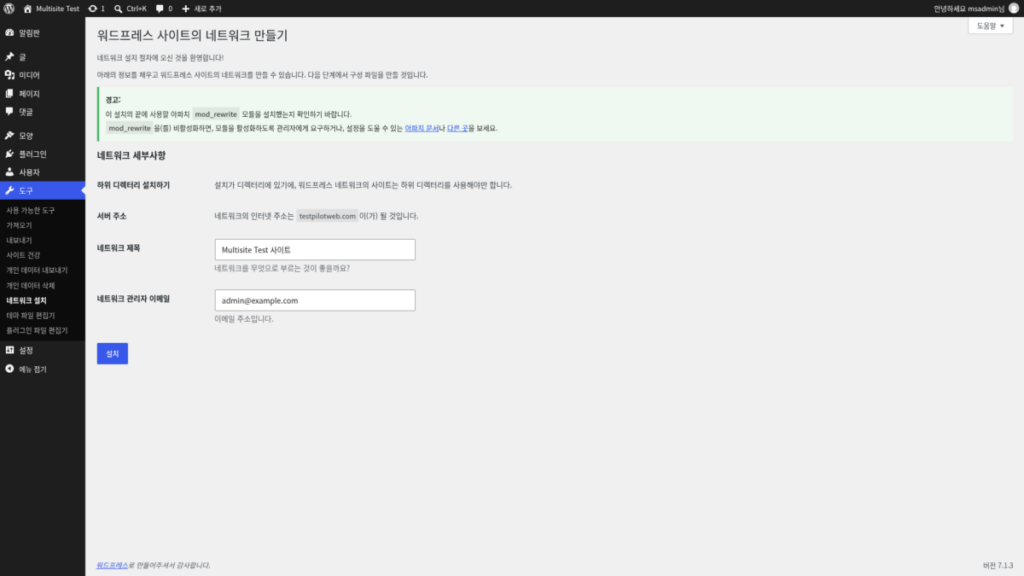
WordPress installed in a subfolder shows only the [Sub-directory Installation] row, with no field for choosing the address type. The text in that row is [Because your installation is in a directory, the sites in your WordPress network must use sub-directories.]
Check [Network Title] and [Network Admin Email], then click [Install].
According to the official docs, on installations where you can choose the address type, choosing subdomains shows a wildcard DNS notice, and this requirement only applies to networks where users create sites themselves.
After installation, the screen shows wp-config.php lines and .htaccess rules tailored to that site. Back up both files, paste the lines into wp-config.php below the [WP_ALLOW_MULTISITE] line, and replace the existing WordPress rules in .htaccess with the new ones.
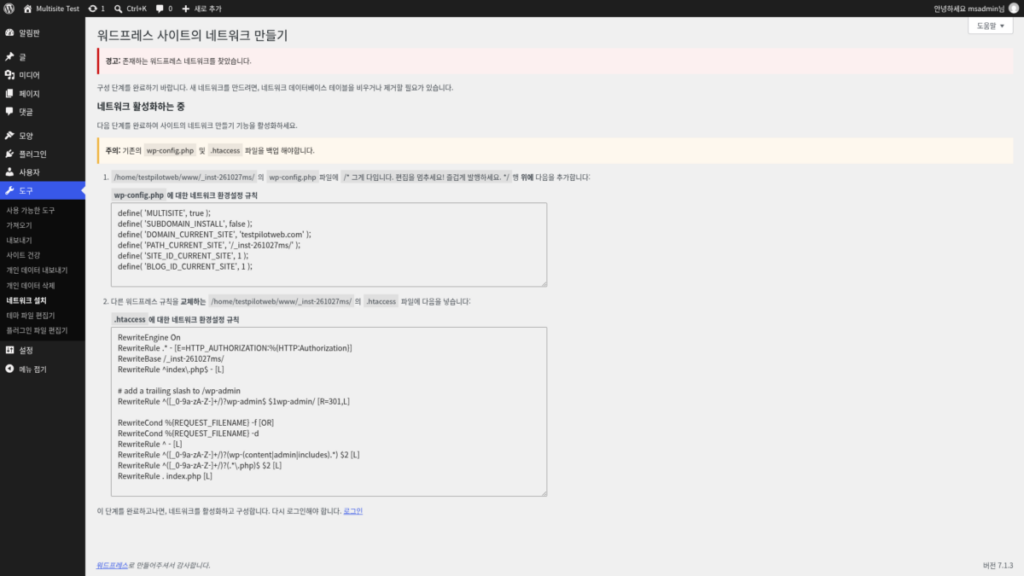
The instructions on the post-install screen show the stop-editing comment translated into the admin language, but the comment inside wp-config.php stays in English.
The lines added to wp-config.php are six constants, including [MULTISITE] and [SUBDOMAIN_INSTALL]. The [SUBDOMAIN_INSTALL] value is true for subdomains and false for subdirectories.
[DOMAIN_CURRENT_SITE] and [PATH_CURRENT_SITE] hold the site's domain and installation path. Below are the lines for an install at the root of example.com in subdirectory mode.
define( 'MULTISITE', true );
define( 'SUBDOMAIN_INSTALL', false );
define( 'DOMAIN_CURRENT_SITE', 'example.com' );
define( 'PATH_CURRENT_SITE', '/' );
define( 'SITE_ID_CURRENT_SITE', 1 );
define( 'BLOG_ID_CURRENT_SITE', 1 );
In the same case, the WordPress rules in .htaccess are replaced with the following, and the [RewriteBase] line holds the installation path.
RewriteEngine On
RewriteRule .* - [E=HTTP_AUTHORIZATION:%{HTTP:Authorization}]
RewriteBase /
RewriteRule ^index\.php$ - [L]

# add a trailing slash to /wp-admin
RewriteRule ^([_0-9a-zA-Z-]+/)?wp-admin$ $1wp-admin/ [R=301,L]

RewriteCond %{REQUEST_FILENAME} -f [OR]
RewriteCond %{REQUEST_FILENAME} -d
RewriteRule ^ - [L]
RewriteRule ^([_0-9a-zA-Z-]+/)?(wp-(content|admin|includes).*) $2 [L]
RewriteRule ^([_0-9a-zA-Z-]+/)?(.*\.php)$ $2 [L]
RewriteRule . index.php [L]
After saving both files, log in again through the [Log In] link on the screen, and [Network Admin] appears under [My Sites] in the admin bar. If you cannot log in, clear your browser cache and cookies and log in again.
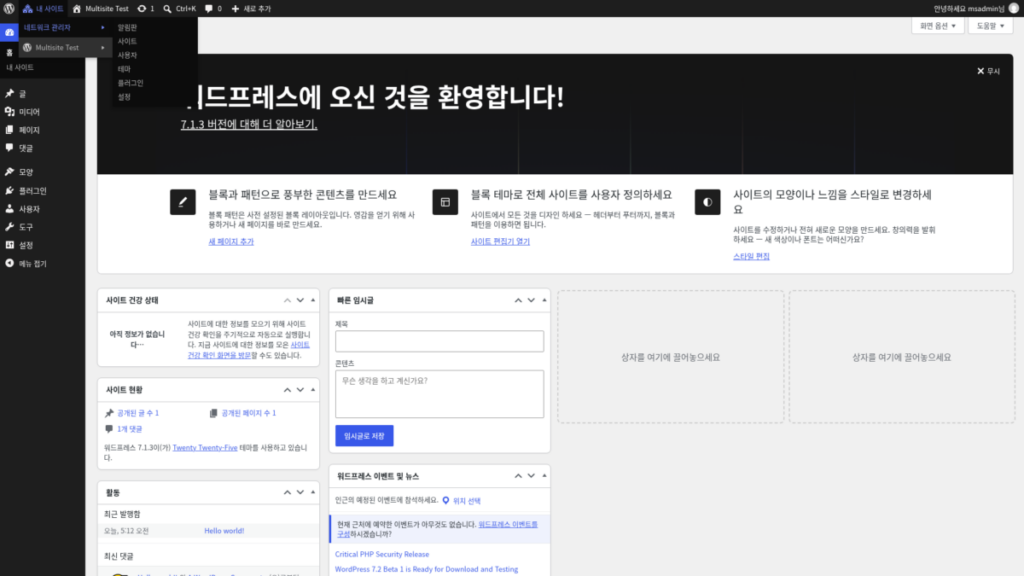
[Network Admin] has six menus: Dashboard, Sites, Users, Themes, Plugins, and Settings. Clicking [Sites] opens the list of sites in the network.
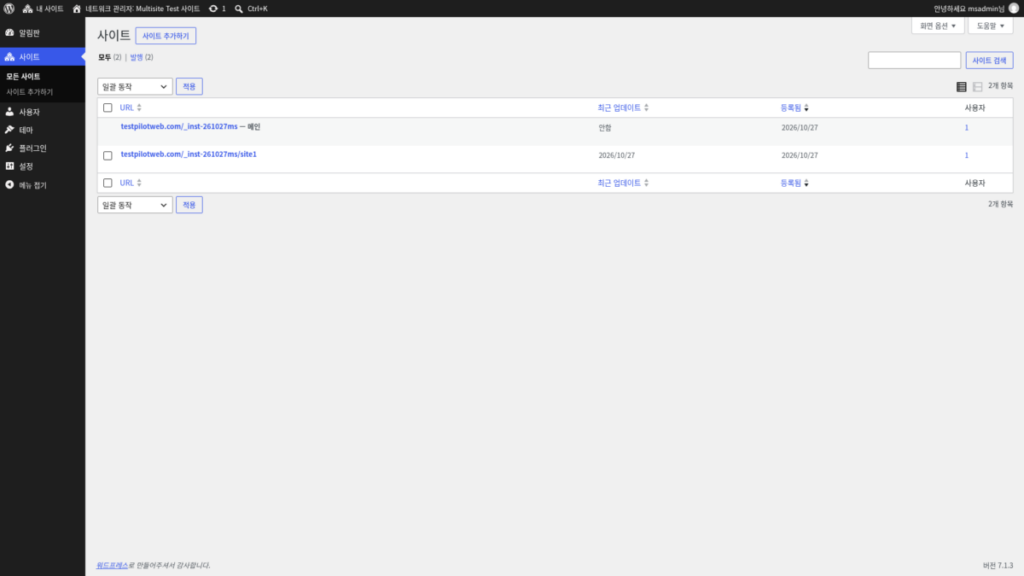
Add subsites from [Add Site] next to the list title, or from [Sites] › [Add Site] on the left.
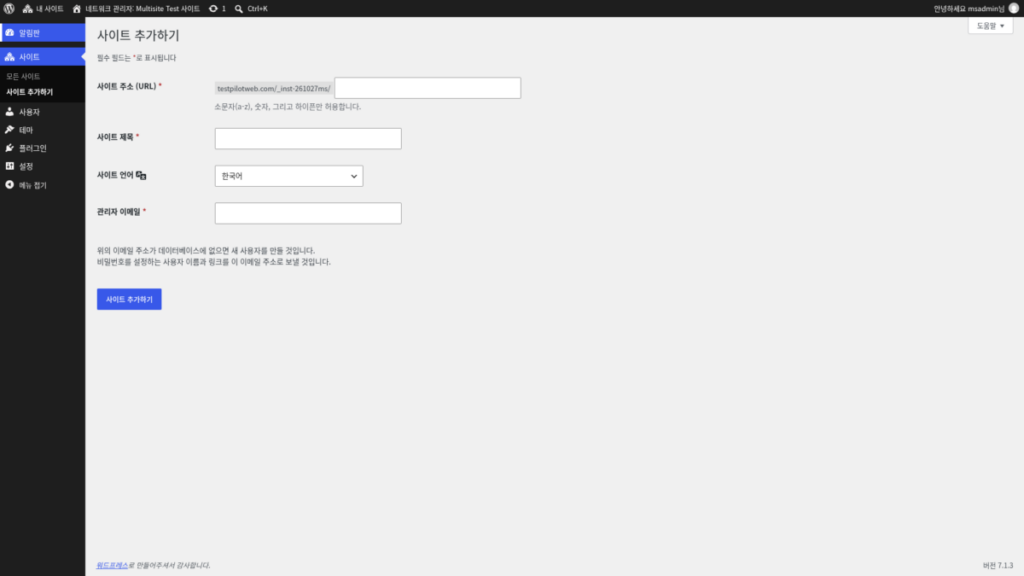
[Site Address (URL)] accepts only lowercase letters, numbers, and hyphens, and if the [Admin Email] address is not in the database, a new user is created.
After adding one subsite, a [sites/2] folder appeared in the uploads folder, and 10 tables with the site number after the prefix, like [wp_2_], were added to the database.
A subsite's permalinks do not follow the main site's settings and start with the default structure that includes the year, month, day, and post name, so set them separately in the subsite's permalink settings.
In the simulator below, you can click through the path from [Tools] › [Network Setup] to [Add Site] in order.
네트워크 설치 절차에 오신 것을 환영합니다!
아래의 정보를 채우고 워드프레스 사이트의 네트워크를 만들 수 있습니다. 다음 단계에서 구성 파일을 만들 것입니다.
다음 단계를 완료하여 사이트의 네트워크 만들기 기능을 활성화하세요.
- /var/www/html/wp/의 wp-config.php파일에 /* 그게 다입니다. 편집을 멈추세요! 즐겁게 발행하세요. */행 위에 다음을 추가합니다:wp-config.php에 대한 네트워크 환경설정 규칙define( 'MULTISITE', true );define( 'SUBDOMAIN_INSTALL', false );define( 'DOMAIN_CURRENT_SITE', 'example.com' );define( 'PATH_CURRENT_SITE', '/wp/' );define( 'SITE_ID_CURRENT_SITE', 1 );define( 'BLOG_ID_CURRENT_SITE', 1 );
- 다른 워드프레스 규칙을 교체하는 /var/www/html/wp/의 .htaccess 파일에 다음을 넣습니다:.htaccess에 대한 네트워크 환경설정 규칙RewriteEngine OnRewriteRule .* – [E=HTTP_AUTHORIZATION:%{HTTP:Authorization}]RewriteBase /wp/RewriteRule ^index\.php$ – [L]# add a trailing slash to /wp-adminRewriteRule ^([_0-9a-zA-Z-]+/)?wp-admin$ $1wp-admin/ [R=301,L]RewriteCond %{REQUEST_FILENAME} -f [OR]RewriteCond %{REQUEST_FILENAME} -dRewriteRule ^ – [L]RewriteRule ^([_0-9a-zA-Z-]+/)?(wp-(content|admin|includes).*) $2 [L]RewriteRule ^([_0-9a-zA-Z-]+/)?(.*\.php)$ $2 [L]RewriteRule . index.php [L]
이 단계를 완료하고나면, 네트워크를 활성화하고 구성합니다. 다시 로그인해야 합니다.
위의 이메일 주소가 데이터베이스에 없으면 새 사용자를 만들 것입니다.
비밀번호를 설정하는 사용자 이름과 링크를 이 이메일 주소로 보낼 것입니다.
5️⃣ When Multisite is not a good fit
Multisite fits cases like regional sites, where themes and plugins are shared and content is run separately. If sites need to share data or users closely, the official docs note that Multisite may not be the best approach.
If only the design needs to look different, you can handle it on a single site with a plugin that switches themes or stylesheets. When each user group should see different information, that can also be handled on a single site with plugins that change permissions and menus.
Check the plugins you use first, too. Not every plugin in the plugin directory works on Multisite, so the official docs advise checking support on the plugin page or with the developer.
🔢 FAQ & Recommended Content
 Server
WordPress htaccess basic settings
A post covering the default .htaccess rules for regular sites and for Multisite separately.
Server
WordPress htaccess basic settings
A post covering the default .htaccess rules for regular sites and for Multisite separately.
 SEO
Subdomain VS Subfolder
A post comparing subdomains and subfolders to see which is better for SEO.
SEO
Subdomain VS Subfolder
A post comparing subdomains and subfolders to see which is better for SEO.
 Settings
WordPress permalinks and slugs
Explains the permalink structure and slugs set separately for each subsite.
Settings
WordPress permalinks and slugs
Explains the permalink structure and slugs set separately for each subsite.
ℹ️ Affiliate Disclosure
This site's content contains affiliate links. When a visitor buys a product or service through one of them, the site receives a commission from the seller. The amount the buyer pays(it goes down during event discounts ↓)does not go up. Posted prices, discounts, and stock reflect the time of writing and may differ, so confirm with the seller before buying. Products are chosen and reviewed by our own standards, and commissions do not affect the order or content of reviews.