
WordPress User Roles: Differences Between Administrator, Editor, Author, Contributor, and Subscriber
WordPress user roles are the feature that sets what each user may do, such as writing and publishing posts or installing plugins, based on the role assigned to them. To decide how much to hand over to writers and site managers, I added users and changed their roles on WordPress 7.1.3, then compared the result with the core list of default capabilities and summed up the differences between the five roles in a table.
In the core defaults, the administrator has 50 capabilities, the editor 26, the author 7, the contributor 3 and the subscriber 1. The counts exclude the old-style user level capabilities.
1️⃣ How WordPress User Roles Work: A Role Is a Bundle of Capabilities
The role name itself doesn't decide what a user can do. A role is a name for a bundle of capabilities, and every time a user opens a menu or clicks a button, WordPress checks whether that user has the capability for the task. It's like an office access badge that opens different doors on each floor.
For example, the Media menu appears only with the [upload_files] capability, and by default the roles that have it are administrator, editor and author. Log in as a contributor and there's no Media in the admin menu, and you can't upload image files in the post editor either.
The capabilities in a role grow with plugins. On the site I checked, a page builder plugin had added 4 capabilities each to the editor, author and contributor roles, and they stayed in the roles even after the plugin was deactivated.
2️⃣ The Five WordPress User Roles: What Each Can Do
Since a contributor also writes posts, you might expect them to be able to publish, but contributors don't have the publish capability. A contributor's editor shows a [Submit for Review] button instead of [Publish], and submitted posts stay in Pending status until an editor or administrator publishes them.
| What they can do | Administrator | Editor | Author | Contributor | Subscriber |
|---|---|---|---|---|---|
| View the dashboard and own profile | ✓ | ✓ | ✓ | ✓ | ✓ |
| Write own posts and save drafts | ✓ | ✓ | ✓ | ✓ | ✕ |
| Publish own posts | ✓ | ✓ | ✓ | ✕ | ✕ |
| Edit or delete own published posts | ✓ | ✓ | ✓ | ✕ | ✕ |
| Upload media files | ✓ | ✓ | ✓ | ✕ | ✕ |
| Edit or delete others' posts | ✓ | ✓ | ✕ | ✕ | ✕ |
| Create and publish pages | ✓ | ✓ | ✕ | ✕ | ✕ |
| Manage categories | ✓ | ✓ | ✕ | ✕ | ✕ |
| Approve comments on others' posts | ✓ | ✓ | ✕ | ✕ | ✕ |
| Save HTML containing scripts | ✓ | ✓ | ✕ | ✕ | ✕ |
| Install and update themes and plugins | ✓ | ✕ | ✕ | ✕ | ✕ |
| Add users and change roles | ✓ | ✕ | ✕ | ✕ | ✕ |
| Change the Settings menu | ✓ | ✕ | ✕ | ✕ | ✕ |
| Export and import | ✓ | ✕ | ✕ | ✕ | ✕ |
The table is based on the default capability list in WordPress 7.1.3 core and applies to sites that aren't multisite.
An author can publish their own posts and edit or delete them after publishing, but can't edit other people's posts or pages. An editor manages all posts, pages, categories and comments, while only the administrator can change themes, plugins, users and the Settings menu.
A subscriber can open only the dashboard and their own profile after logging in; changing the admin language and the toolbar on the profile screen is explained in the Changing the WordPress Language article. In the core default list, the subscriber role holds a single capability, [read].
3️⃣ How to Add a User and Change a Role in WordPress
Even if you know the differences between roles, leaving the role field as it is when adding a user creates the new user as a subscriber, the default. That's because the initial value of the role field follows New User Default Role under Settings › General.
You add users under Users › [Add User], and the two required fields are Username and Email. When the screen opens, the password field already shows a generated password and its strength, and clicking [Generate Password] replaces it with a new value.
With [Send the new user an email about their account] turned on, the new user receives a [Login Details] email. It contains the username and a link to set the password, but not the password itself.
You change an existing user's role under Users › [All Users]. Check the user, choose a role under [Change role to…] and click [Change], and the [Changed roles.] notice appears.
When I left the username or email empty and clicked [Add User], the empty field was outlined in red and no account was created. With a malformed email, two lines appeared together: [Error: The email address is not correct.] and [Error: Please enter an email address.]
4️⃣ The New User Default Role and Membership Settings
The default role for new users is set in [New User Default Role] under Settings › General, and it starts as Subscriber. On the same screen, [Anyone can register] is off at first; turning it on gives accounts that visitors register the default role.

With registration on and the default role set to Author, anyone who signs up can publish posts and upload files. For the other fields under Settings › General, see WordPress admin page settings for the full process.
Since WordPress 7.0, Administrator and Editor have been removed from the default role list; on sites already set to Administrator or Editor, that value stays in the list. On the WordPress 7.1.3 site I checked, the list showed three: Subscriber, Contributor and Author.
5️⃣ How to Choose a WordPress User Role
Contributor suits outside writers whose posts you review before publishing, but because contributors can't upload images, it doesn't suit writers whose posts have lots of photos. Writers you trust to publish get Author, and managers who also edit other people's posts get Editor.
The administrator role includes installing plugins, deleting users and site settings, so give it only to the person who runs the site. Someone who manages only content gets Editor instead of Administrator.
In a multisite, a separate Super Admin manages the whole network, and each site's administrator can't install plugins or themes or delete users. The capability to save HTML containing scripts as is is also reserved for the Super Admin.
On the site I checked, after adding a sample user as an author and changing them to an editor, the per-role count above the list changed from [Author (1)] to [Editor (1)]. Before taking on outside writers, first check that New User Default Role under Settings › General is Subscriber.
🔢 FAQ & Recommended Content
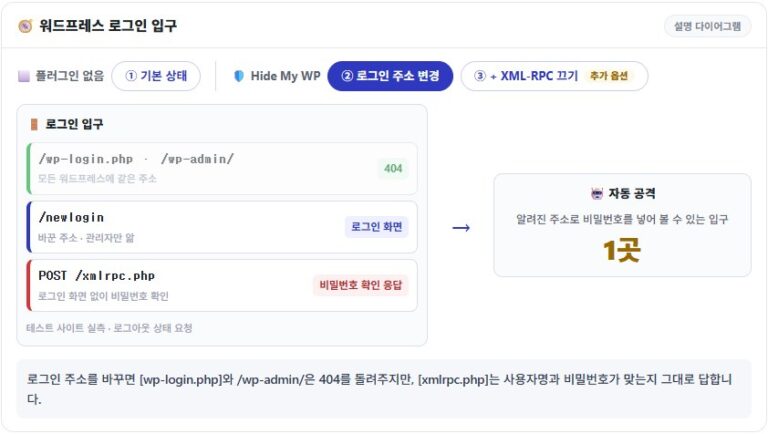
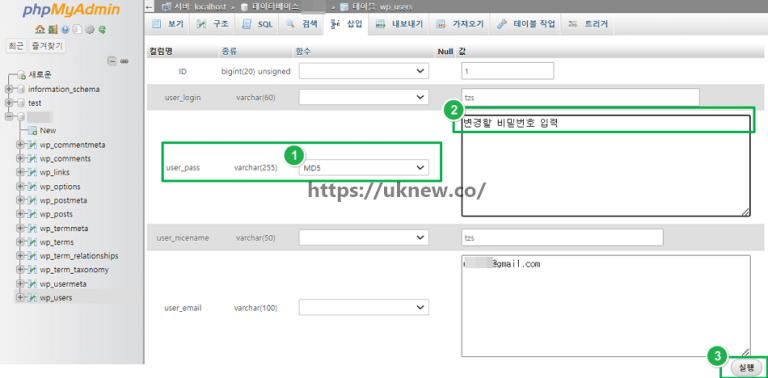 Password · Reset
Lost WordPress Admin Password: Change and Reset
How to change the admin password from the login screen, the profile and phpMyAdmin.
Password · Reset
Lost WordPress Admin Password: Change and Reset
How to change the admin password from the login screen, the profile and phpMyAdmin.
 Login · Attack blocking
9 Ways to Stop Brute-Force Attacks on WordPress
Nine settings that cut down login attempts that try to guess passwords.
Login · Attack blocking
9 Ways to Stop Brute-Force Attacks on WordPress
Nine settings that cut down login attempts that try to guess passwords.
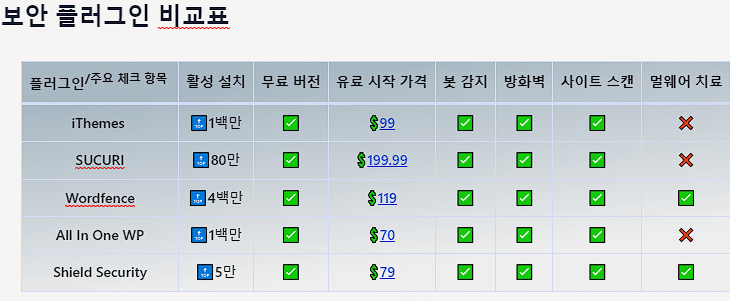 Security plugins · Comparison
WordPress Security Plugins: Best 5 Compared
A comparison of five security plugins with a firewall and malware scanning.
Security plugins · Comparison
WordPress Security Plugins: Best 5 Compared
A comparison of five security plugins with a firewall and malware scanning.
ℹ️ Affiliate Disclosure
This site's content contains affiliate links. When a visitor buys a product or service through one of them, the site receives a commission from the seller. The amount the buyer pays(it goes down during event discounts ↓)does not go up. Posted prices, discounts, and stock reflect the time of writing and may differ, so confirm with the seller before buying. Products are chosen and reviewed by our own standards, and commissions do not affect the order or content of reviews.