Cloudways Staging Management provides an isolated environment where you can test new code, plugins and themes without affecting your live WordPress site. When I picked the same server and created a staging application, one more copy marked Staging appeared in the application list. Even on cPanel hosting, you can create a WordPress staging site if Softaculous is installed.
Creating a staging site gives you a copy of your live site. When you are ready, one button moves just the parts that changed, or everything, to the live site. In the other direction, you can bring the live site's current content into staging so the two sites match before you start working.
TOC
8mn read
TOC
8mn read
View more
1️⃣ 4 Advantages of Cloudways Staging Management
You leave the live site that visitors actually reach untouched and first try out design and feature changes on a practice site (staging) that is an exact copy.
1. Password-Protected Site
Ordinary visitors and search engines should not get into the practice site, so a login prompt (password) blocks outside access by default. You can turn it on and off when needed.
2. Applied in One Click
When you move changes made on the practice site to the real website, there is no need to copy and paste them one by one: a single button click applies them.
3. Granular Control (Pick What to Move)
You can move everything you worked on in the practice site, or pick just the web files or just the database and apply them to the real site.
4. SSL-Enabled Staging (Secure Connection)
The practice site also comes with a security certificate (https) preinstalled, so you can test without errors under the same security conditions as the live environment.
2️⃣ How to Use Cloudways Staging Management
In the Cloudways admin panel, go to [My Applications] › your application › [Staging Management].
Click [Launch Staging Application] and a window opens where you choose the server for the staging application.
After I chose a server and clicked [Continue], the server list opened and [Creating staging application] appeared on the server card.
Open the [Applications] tab and the staging app, with Staging- in front of the original name, sits at the top of the list.
Click [Launch Staging Application] and a window opens where you choose the server for the staging application.
📍My Applications›my-app›Staging Management›Select a Server
Choose server
From the list, choose either [New Server], which creates a new server, or the current server (same server), then click [Continue].
📍Flexible›My Servers
Creating
You are taken to the server list, and the server card shows [Creating staging application]. Creation took about 7–9 minutes.
📍Flexible›My Applications
Created
An application with [Staging-] in front of the original application name is added to the top of the list, together with a [Staging] label.
unified.cloudways.com/apps/…
CLOUDWAYSmy-server › my-app › Staging Management
Staging Management
Need Help ⓘ
Cloudways Staging gives you an isolated environment where you can test new code, plugins, themes without breaking your live site. Creating a staging site will create a copy of your live site. Once you are ready, you can push selective or complete changes to your live site with the push of a button. You can also pull from the live site to update your staging site in order to sync it before working on it.
Create a Staging EnvironmentYou can set up a staging environment in a few minutes.
Staging Management provide you the following benefits
Password Protected SitesBy default, htpasswd is enabled on your staging environment for maximum security. You have the option to disable the staging’s password protection.
SSH and SFTP AccessNo more manually copying changes from a test server to production. Effortlessly transfer changes between your live site and staging with a single click.
Granular ControlsHave precise control over the content and updates you want to transfer from staging to your live sites. Choose to transfer only files, only the database, or both.
SSL-Enabled StagingSSL certificates are pre-installed on all staging applications. You can use Let’s Encrypt certificate or your custom SSL certificate.
unified.cloudways.com/apps/…
CLOUDWAYSmy-server › my-app › Staging Management
Staging Management
Need Help ⓘ
Cloudways Staging gives you an isolated environment where you can test new code, plugins, themes without breaking your live site. Creating a staging site will create a copy of your live site. Once you are ready, you can push selective or complete changes to your live site with the push of a button. You can also pull from the live site to update your staging site in order to sync it before working on it.
Create a Staging EnvironmentYou can set up a staging environment in a few minutes.
Staging Management provide you the following benefits
Password Protected SitesBy default, htpasswd is enabled on your staging environment for maximum security. You have the option to disable the staging’s password protection.
SSH and SFTP AccessNo more manually copying changes from a test server to production. Effortlessly transfer changes between your live site and staging with a single click.
Granular ControlsHave precise control over the content and updates you want to transfer from staging to your live sites. Choose to transfer only files, only the database, or both.
SSL-Enabled StagingSSL certificates are pre-installed on all staging applications. You can use Let’s Encrypt certificate or your custom SSL certificate.
Select a Server to Staging the Application
unified.cloudways.com/apps/…
CLOUDWAYSmy-server › my-app › Staging Management
Staging Management
Need Help ⓘ
Cloudways Staging gives you an isolated environment where you can test new code, plugins, themes without breaking your live site. Creating a staging site will create a copy of your live site. Once you are ready, you can push selective or complete changes to your live site with the push of a button. You can also pull from the live site to update your staging site in order to sync it before working on it.
Create a Staging EnvironmentYou can set up a staging environment in a few minutes.
Staging Management provide you the following benefits
Password Protected SitesBy default, htpasswd is enabled on your staging environment for maximum security. You have the option to disable the staging’s password protection.
SSH and SFTP AccessNo more manually copying changes from a test server to production. Effortlessly transfer changes between your live site and staging with a single click.
Granular ControlsHave precise control over the content and updates you want to transfer from staging to your live sites. Choose to transfer only files, only the database, or both.
SSL-Enabled StagingSSL certificates are pre-installed on all staging applications. You can use Let’s Encrypt certificate or your custom SSL certificate.
Select a Server to Staging the Application
my-server (same server)Database: MariaDB 10.11▾
ⓘYou are cloning an app that uses a different PHP version onto a smaller server. When multiple PHP versions are enabled per app, we recommend a server of 4 GB or higher for the best performance.
unified.cloudways.com/server
CLOUDWAYSFlexible › My Servers
Recover Server+ Add Server
1 to 1 of 1 Servers
Provider ▾Status ▾Sort by: Date Created ▾
my-server1 GB - Standard · 203.0.113.24 · London · 9th October, 2026
Creating staging applicationStaging Application Creation is in progress …View Credentials
unified.cloudways.com/apps
CLOUDWAYSFlexible › My Applications
Recover Application+ Add Application
1 to 2 of 2 Applications
Server ▾App Type ▾Environment ▾Sort by: Date Created ▾
Click an enabled item in the left menu or a button on the screen.
The staging app keeps almost the same menu as the original app, so beyond installing plugins and themes you can also test settings such as cron jobs, SSL and backups.
Once a staging application exists, [Pull] and [Push] appear in the original application's [Staging Management].
📍My Applications›my-app›Staging Management›Pull
Pull window
[Pull] moves changes from staging to live. In the window, you choose what to move from [Web Application Files] and [Database].
📍My Applications›my-app›Staging Management›Pull
Pick what to move
For files you choose between [Overwrite] and [Incremental], and for the database between [Full DB] and [Selected Tables]. You can take a backup of live before moving.
📍My Applications›my-app›Staging Management›Push
Push
[Push] works the other way, moving changes from live to staging.
📍My Applications›my-app›Staging Management›Push
Push window
The Push window has the same options, but no backup question. [Proceed] turns on once you choose at least one thing to move.
unified.cloudways.com/apps/…/staging
CLOUDWAYSmy-server › my-app › Staging Management
Staging Management
Need Help ⓘ
Manage the Staging environment for your applications
Copy Data from Staging to LiveYou can pull the changes you made on Staging application to the Live application.
Staging-my-app ▾
Copy Data from Live to StagingYou can push the changes of the Live application to Staging application.
Staging-my-app ▾
Deployment LogsYou can view the deployment logs for all the Push and Pull requests.View LogsTo restore your application to a previous state, please use the Backup and Restore feature.
unified.cloudways.com/apps/…/staging
CLOUDWAYSmy-server › my-app › Staging Management
Staging Management
Need Help ⓘ
Manage the Staging environment for your applications
Copy Data from Staging to LiveYou can pull the changes you made on Staging application to the Live application.
Staging-my-app ▾
Copy Data from Live to StagingYou can push the changes of the Live application to Staging application.
Staging-my-app ▾
Deployment LogsYou can view the deployment logs for all the Push and Pull requests.View LogsTo restore your application to a previous state, please use the Backup and Restore feature.
Copy from Staging to Live
This process will copy the changes from Staging Application to the Live Application.
Do you want to backup your Live Application before moving data from Staging? This may take a while.
unified.cloudways.com/apps/…/staging
CLOUDWAYSmy-server › my-app › Staging Management
Staging Management
Need Help ⓘ
Manage the Staging environment for your applications
Copy Data from Staging to LiveYou can pull the changes you made on Staging application to the Live application.
Staging-my-app ▾
Copy Data from Live to StagingYou can push the changes of the Live application to Staging application.
Staging-my-app ▾
Deployment LogsYou can view the deployment logs for all the Push and Pull requests.View LogsTo restore your application to a previous state, please use the Backup and Restore feature.
Copy from Staging to Live
This process will copy the changes from Staging Application to the Live Application.
Exclude path ⓘ
public_html/SaveCancel
+ Add additional paths
Do you want to backup your Live Application before moving data from Staging? This may take a while.
unified.cloudways.com/apps/…/staging
CLOUDWAYSmy-server › my-app › Staging Management
Staging Management
Need Help ⓘ
Manage the Staging environment for your applications
Copy Data from Staging to LiveYou can pull the changes you made on Staging application to the Live application.
Staging-my-app ▾
Copy Data from Live to StagingYou can push the changes of the Live application to Staging application.
Staging-my-app ▾
Deployment LogsYou can view the deployment logs for all the Push and Pull requests.View LogsTo restore your application to a previous state, please use the Backup and Restore feature.
unified.cloudways.com/apps/…/staging
CLOUDWAYSmy-server › my-app › Staging Management
Staging Management
Need Help ⓘ
Manage the Staging environment for your applications
Copy Data from Staging to LiveYou can pull the changes you made on Staging application to the Live application.
Staging-my-app ▾
Copy Data from Live to StagingYou can push the changes of the Live application to Staging application.
Staging-my-app ▾
Deployment LogsYou can view the deployment logs for all the Push and Pull requests.View LogsTo restore your application to a previous state, please use the Backup and Restore feature.
Copy from Live to Staging.
This process will copy the changes from Live Application to the Staging Application.
Exclude path ⓘ
public_html/SaveCancel
+ Add additional paths
Click an enabled item in the left menu or a button on the screen.
🔣 Using the UpdraftPlus Backup Plugin
For a simple job such as testing a single plugin, you can use the UpdraftPlus plugin, which restores WordPress themes, plugins and the database all at once. You make a backup file before installing a plugin or changing settings, then restore it when the test is over.
There is no need to restore with commands on the server or from the hosting control panel—the mouse alone is enough.
Yes. On a test server I picked the current server (same server) to create it, and the server selection window showed a notice that an app with a different PHP version would be cloned to a smaller server. It said a server with 4GB or more is recommended if your apps use several PHP versions. When I clicked [Continue], the staging application was created as usual.
In the [Applications] list, click ⋮ › [Delete Application] on the staging application's row, then type DELETE in the confirmation window. The confirmation window warns that an application without a backup cannot be restored once it is deleted. On the test server, it disappeared from the list 3–4 minutes after I deleted it.
ℹ️ Affiliate Disclosure This site's content contains affiliate links. When a visitor buys a product or service through one of them, the site receives a commission from the seller. The amount the buyer pays(it goes down during event discounts ↓)does not go up. Posted prices, discounts, and stock reflect the time of writing and may differ, so confirm with the seller before buying. Products are chosen and reviewed by our own standards, and commissions do not affect the order or content of reviews.


 Cloudways
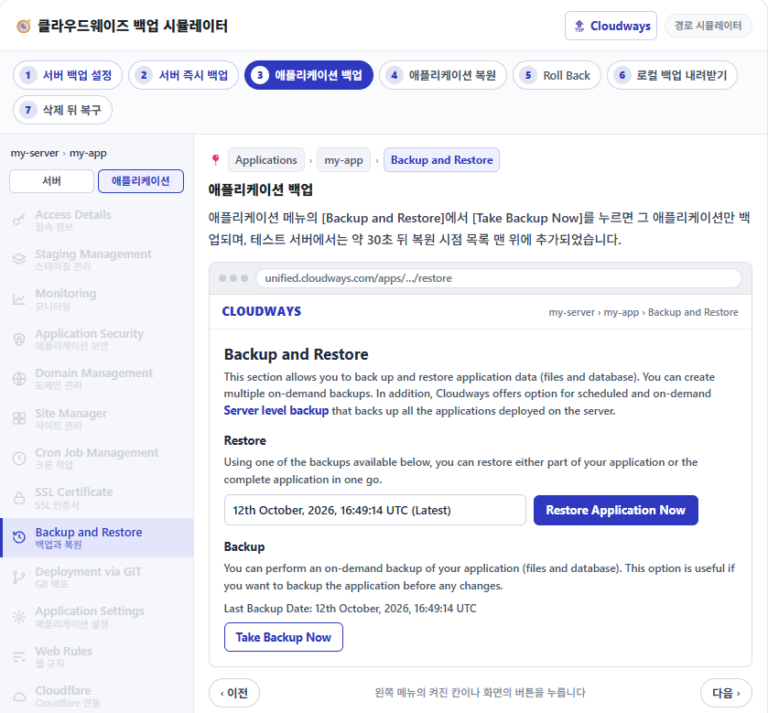
 Backup
Server backup frequency and retention, and how to pick and restore a single application.
Cloudways
Cloudways Backup
Server backup frequency and retention, and how to pick and restore a single application.

 Cloudways
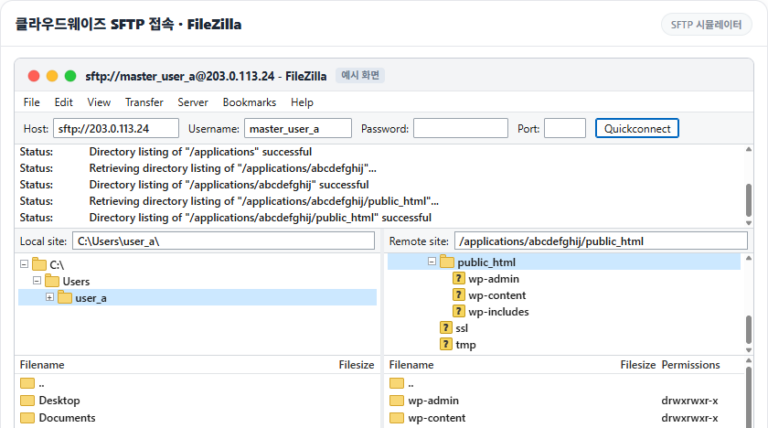
How to connect to Cloudways via SFTP & SSH
Covers FileZilla settings, SSH key registration and the IP whitelist.
Cloudways
How to connect to Cloudways via SFTP & SSH
Covers FileZilla settings, SSH key registration and the IP whitelist.