
WordPress Export and Import: Moving Posts and Pages with the Built-in Tools (XML)


With the WordPress export feature, you can download posts, pages, comments, custom fields and categories as a single XML file in WXR format from the Tools › Export menu in the admin screen. On a WordPress 7.1.3 site, I exported a test post, deleted it and uploaded the file again with the importer: the test post came back with the same post ID, together with its comments, categories and custom fields.
1️⃣ The WordPress export screen: what to export and the filters
You set the scope of the content to move on the [Tools] › [Export] screen, and the choices are [All content], [Posts], [Pages] and [Media]. Pick one and click [Download Export File], and the XML file is saved to your computer right away. Post types created by plugins also appear in this list.
Choosing [Posts] opens filters for category, author, date range and status; [Pages] lets you choose author, date range and status, and [Media] only the date range. The date list shows only the months that have posts.
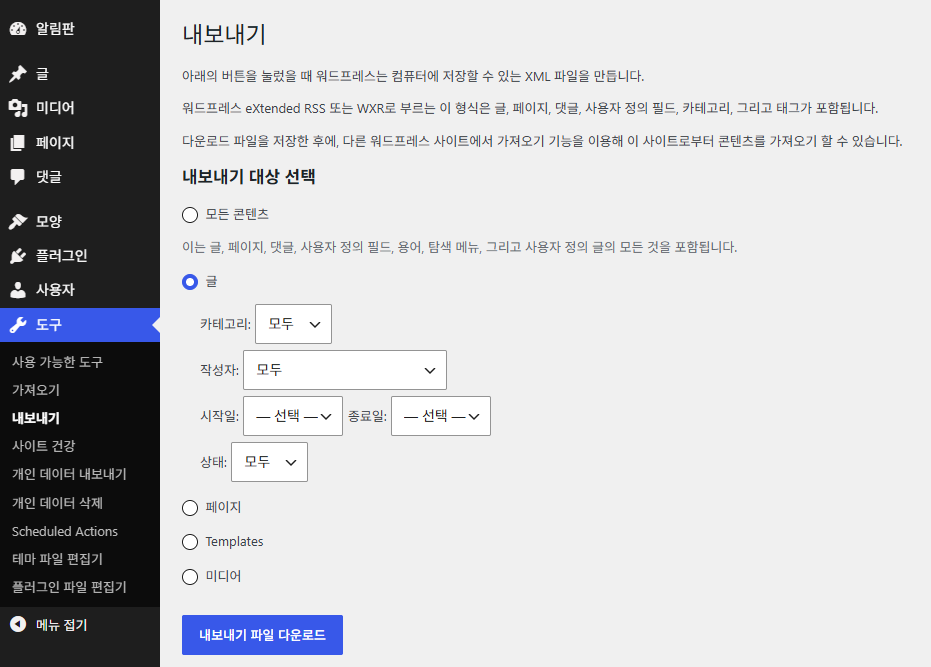
[All content] adds two things that the [Posts] and [Pages] files do not have: the navigation menus and the site-wide style settings (global styles). On a site with 8 posts, 3 pages and 6 comments, the [All content] file was about 64KB, larger than the [Posts] (about 49KB) and [Pages] (about 14KB) files combined.
If you export with [Status: All], the file includes not only published posts but also drafts and posts in the trash; in my test, 1 of the 8 exported posts was a trashed post. To move only published posts, set the status to [Published].
When you click the button below WordPress will create an XML file for you to save to your computer.
This format, which is called WordPress eXtended RSS or WXR, will contain your posts, pages, comments, custom fields, categories, and tags.
Once you’ve saved the download file, you can use the Import function in another WordPress installation to import the content from this site.
This will contain all of your posts, pages, comments, custom fields, terms, navigation menus, and custom posts.
If you have posts or comments in another system, WordPress can import those into this site. To get started, choose a system to import from below:
If the importer you need is not listed, search the plugin directory to see if an importer is available.
Howdy! Upload your WordPress eXtended RSS (WXR) file and we’ll import the posts, pages, comments, custom fields, categories, and tags into this site.
Choose a WXR (.xml) file to upload, then click Upload file and import.
Choose a file from your computer: (Maximum size: 2 GB) Click No file chosenmysite.WordPress.2026-10-19.xml
To make it simpler for you to edit and save the imported content, you may want to reassign the author of the imported item to an existing user of this site, such as your primary administrator account.
If a new user is created by WordPress, a new password will be randomly generated and the new user’s role will be set as subscriber. Manually changing the new user’s details will be necessary.
1. Import author: admin (admin)
Post “Export test post” already exists.
All done. Have fun!
Remember to update the passwords and roles of imported users.
2️⃣ What goes into the export file: WXR and media URLs
The downloaded file is named in the form [sitename.WordPress.date.xml], and it contains posts, pages, comments, custom fields, categories, tags and author information in WXR 1.2 format.
The export file does not include themes, plugins, values from the settings screens or user passwords, so it cannot serve as a site backup. Media items are not included as files either, only as a single [wp:attachment_url] address line.
3️⃣ WordPress import: installing WordPress Importer and uploading the file
The site that receives the exported file needs an importer installed separately. [Tools] › [Import] lists [WordPress] alongside importers for moving from other systems, such as Blogger, Tumblr and RSS, and at first all of them only show an [Install Now] link.
To import the export file, click [Install Now] in the [WordPress] row to install the WordPress Importer plugin. If the link stops at [Installing…], reload the screen.
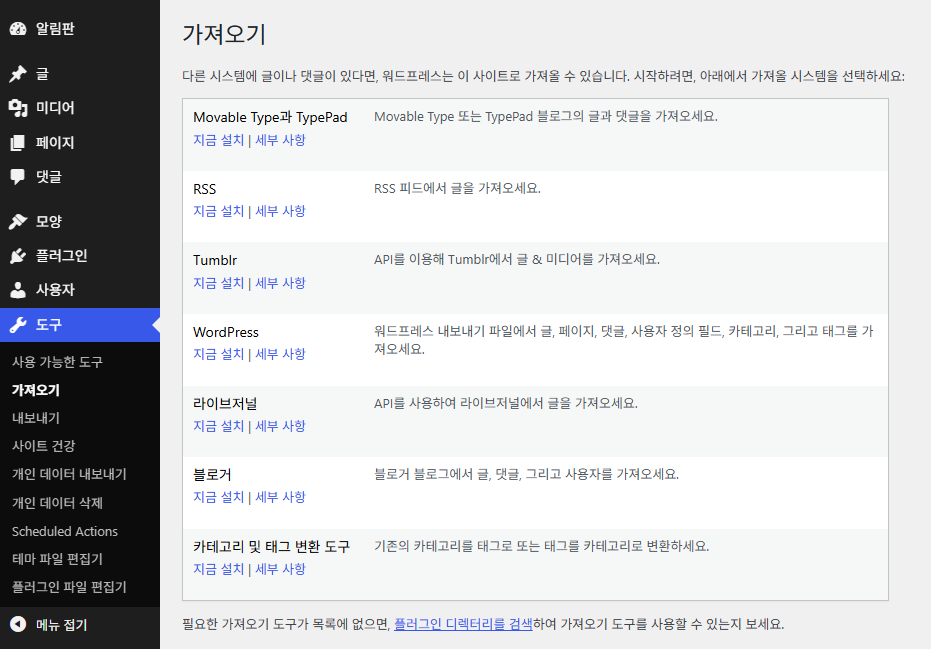
Clicking [Run Importer] activates the plugin and opens the [Import WordPress] screen. Choose the export file with [Choose File] and click [Upload file and import]; the size you can upload is shown in [Maximum size] on the same line.
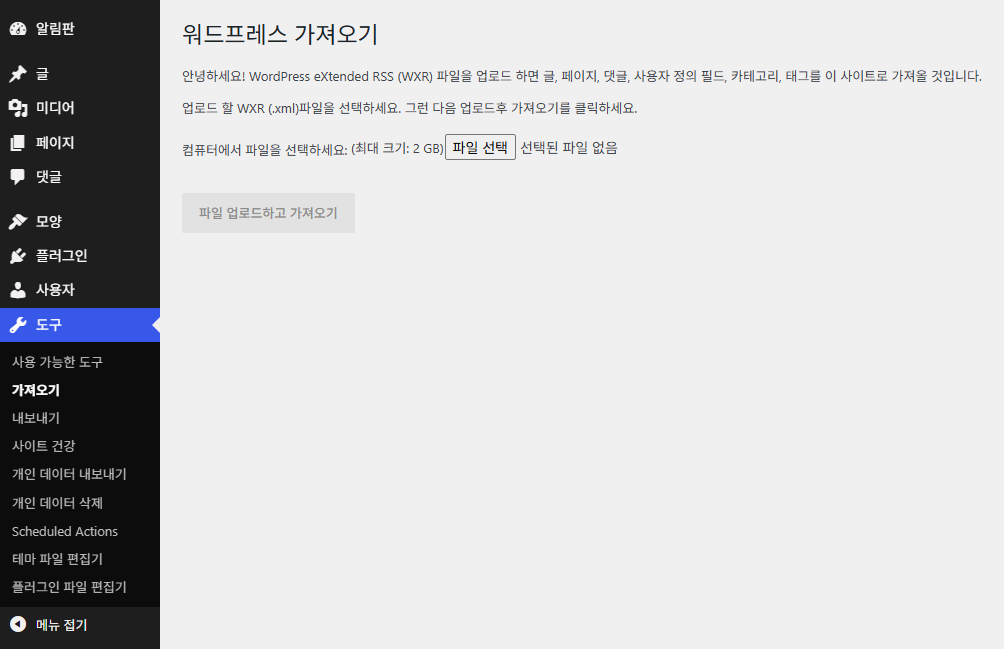
This limit follows PHP's upload settings (upload_max_filesize · post_max_size); on a server where both values were 2048M, it showed as [Maximum size: 2 GB].
4️⃣ Author assignment and attachments: the import options
After you upload the file, a screen with three sections opens: [Assign Authors], [Import Attachments] and [Content Options]. For each author you either create a new user or assign the posts to an existing user of the receiving site; a newly created user gets a random password and the role Subscriber.
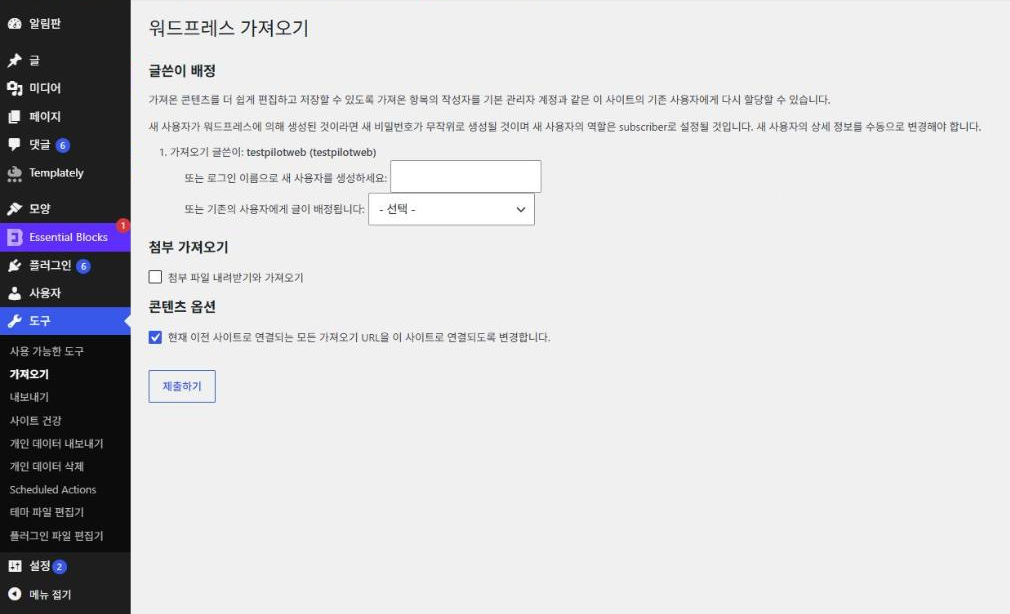
[Download and import file attachments] is off by default. When you turn it on, media is downloaded from the old site address written in the export file, so the old site must stay reachable at that address during the import.
The URL change under [Content Options] is on by default and replaces addresses inside the imported posts that point to the old site with the new site's address. This feature works on WordPress 6.7 or later.
After I clicked [Submit], [All done. Have fun!] appeared, and the deleted test post came back with the same post ID. The categories were created with new IDs but kept the same slugs, and the custom field values and comments came in as well.
If you import the same file once more, [Post “…” already exists.] appears and that post is not created again.
5️⃣ What the built-in tools cannot move: migrating a whole site
To move themes, plugins, settings and media files in one go, use a migration plugin or a manual migration, both of which move the site files and database together. A manual migration connects to the old server over SSH, backs up the site files and database, and then restores them on the new server.
🔢 FAQ & Recommended Content

 Backup plugin
UpdraftPlus Plugin Settings
Settings for a plugin that backs up files and the database on a fixed schedule.
Backup plugin
UpdraftPlus Plugin Settings
Settings for a plugin that backs up files and the database on a fixed schedule.

 Plugin management
Deleting WordPress Plugins
How to delete a plugin in the admin screen and then clean up what it leaves in the database.
Plugin management
Deleting WordPress Plugins
How to delete a plugin in the admin screen and then clean up what it leaves in the database.
ℹ️ Affiliate Disclosure
This site's content contains affiliate links. When a visitor buys a product or service through one of them, the site receives a commission from the seller. The amount the buyer pays(it goes down during event discounts ↓)does not go up. Posted prices, discounts, and stock reflect the time of writing and may differ, so confirm with the seller before buying. Products are chosen and reviewed by our own standards, and commissions do not affect the order or content of reviews.