
All-in-One WP Migration: Export, Import and File Size Limits of the WordPress Migration Plugin


All-in-One WP Migration is a WordPress migration plugin that exports the database and files into a single backup file and restores the same site once you upload that file to a new server. I installed version 7.112 on a WordPress 7.1.3 site, created an export file, and imported it back into the same site up to the completion window.
1️⃣ What a WordPress migration plugin does: how it differs from manual migration
With a plugin, the move takes two steps in the admin screen, export and import, without connecting to the server. You create an export file on the old site, install WordPress and the same plugin on the new site, and then import that file. The import only goes ahead after you confirm the overwrite once more, and from that point the content of the new site changes. The plugin bundles the file copy and the database dump, which you do separately in a manual migration, into a single file.
The export file contains the database, media library, themes, must-use plugins and plugins, and you can exclude each item in the advanced options. As of October 19, 2026, the WordPress.org plugin directory lists the plugin with more than 5 million active installations and a rating of 4.5 (7,672 reviews). Version 7.112, released on October 7, 2026, runs on WordPress 3.3 and PHP 5.3 or later.
2️⃣ The All-in-One WP Migration export screen: search/replace and advanced options
In [Plugins › Add Plugin], you install and activate All-in-One WP Migration. The admin menu then gets [Export], [Import] and [Backups] items, and [Reset Hub] and [Schedules] carry a Premium label.
The search/replace field at the top of the export screen changes text inside the database as it exports, and you use it when the address changes during a migration to replace the old address with the new one. Click [Add] to keep several replacement pairs.
In [Advanced options] you choose what not to take to the new site. Leaving out spam comments and post revisions makes the database lighter, and the themes and plugins you will reinstall on the new server are taken out of the file with [Exclude themes] and [Exclude plugins]. The option to encrypt the backup with a password is in the same place.
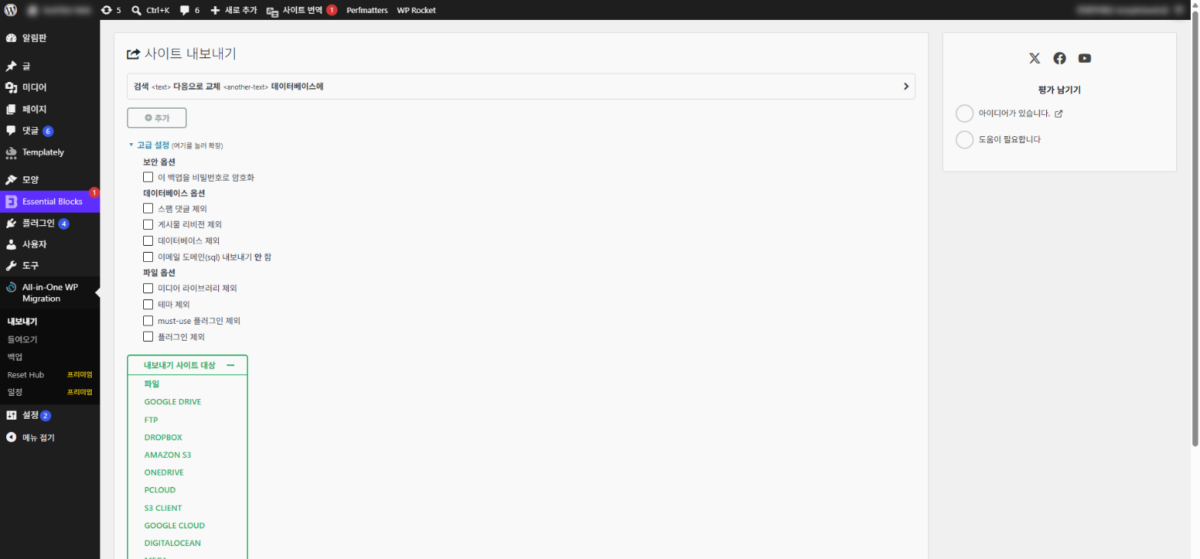
You pick the items to leave out with the checkboxes in the expanded [Advanced options], and only the items you tick are left out of the file. After choosing, click [File] under [Export Site To] below to start the export.
In the free version you can export only to [File]; the other fifteen destinations, such as Google Drive, FTP, Dropbox and Amazon S3, lead to an offer for a paid extension when you click them.
Your host restricts uploads to 2 GB. Our Unlimited Extension bypasses this!
If you prefer a manual fix, follow our step-by-step guide on raising your upload limit.
이 파일을 가져오면 일치하는 콘텐츠만 바뀝니다. 다른 항목은 변경되지 않습니다. 먼저 전체 재설정이 필요하신가요? Unlimited Extension에서 Reset Hub를 사용해 보세요.
현재 백업이 있는지 확인하세요. 계속하시겠습니까?
» 마이그레이션 경험 검토
» 실시간 위협 보호로 사이트 보호
3️⃣ Running the export: file creation time and what makes up the 365 MB
When you choose File under Export Site To, a progress window opens in the middle of the screen, and the step that compresses the plugin files shows the number of files and the progress. Even on a site whose uploads folder held only 32 KB, it took 20 seconds to reach the completion window, and the [Download] button showed a size of 365 MB.

When compression finishes, the progress window changes to the completion window, and the green [Download] button shows the site address together with the file size. Clicking the button downloads the .wpress file to your computer, and the file stays on the server even if you click [Close].
Of the 365 MB, the plugins folder took up 213 MB, language files 108 MB and the themes folder 22 MB. The plugins folder alone held more than 10,000 files, so the compression step took the longest. If you plan to reinstall the plugins on the new site, you can shrink the file with [Exclude plugins] in the advanced options.
After you close the completion window, the file remains in the [ai1wm-backups] folder inside [wp-content], and the Backups menu lists it with its name, date and a size of 364.56 MB. Once you have downloaded it, delete that file on the server to free up disk space.
4️⃣ The import screen and file size limits: the server upload limit and the Unlimited Extension
Import uploads the file through the browser, so the file size you can upload is capped by the new server's PHP upload limit. Below the import screen, the message [Your host restricts uploads to 2 GB. Our Unlimited Extension bypasses this!] appears together with that server's limit.
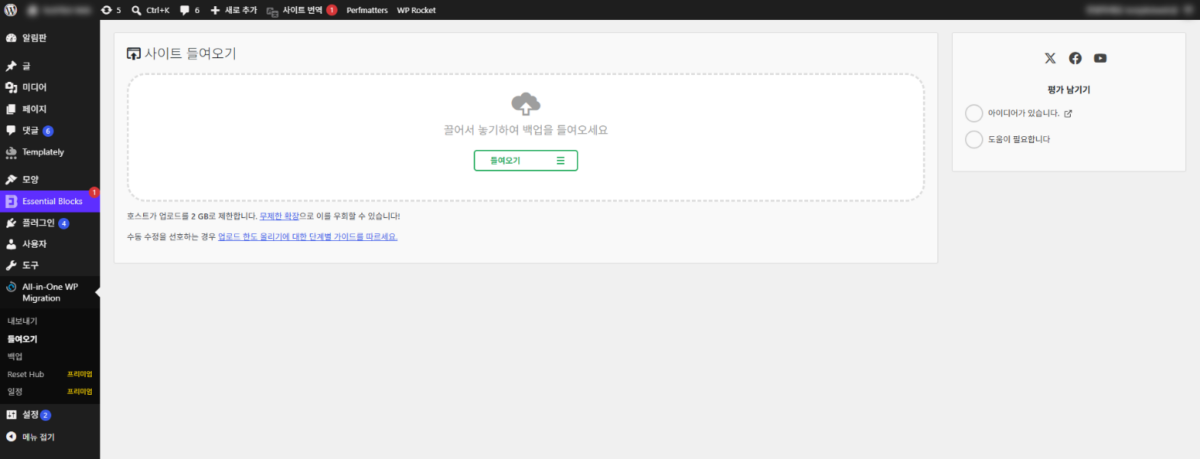
Drag the .wpress file you want to upload onto the dotted area, or pick it with the [Import] button.
In the [Import] list, click [File] and choose the .wpress file; the upload progress counts up to 100%, and once the compatibility check is done, a confirmation window appears.
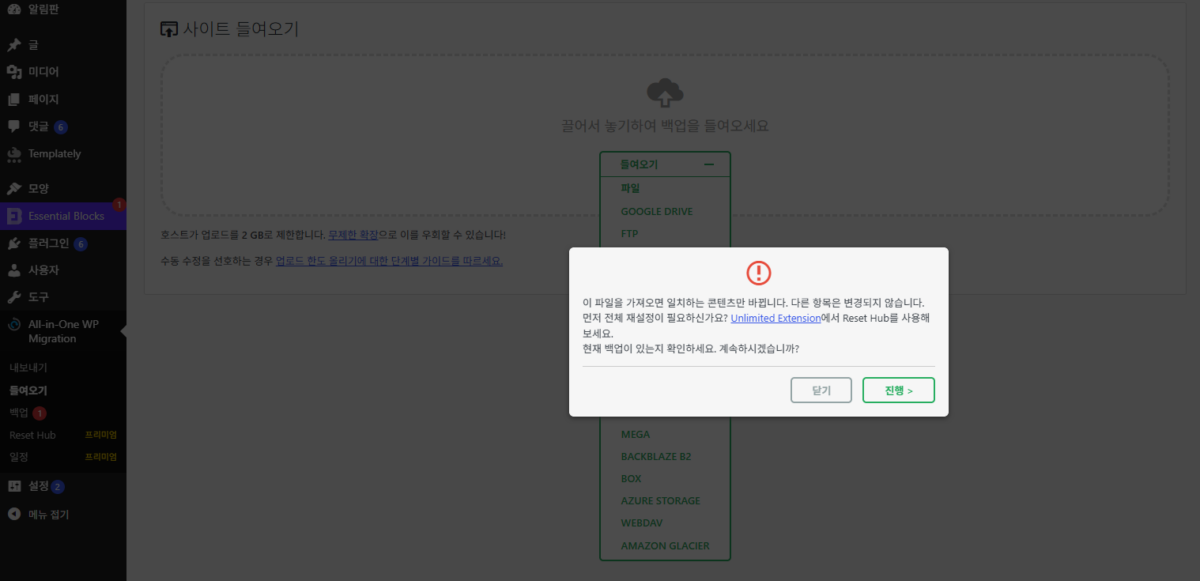
The confirmation window shows the message [Importing this file will only replace matching content. Other items stay unchanged.] and a reminder to make sure you have a current backup; click [Proceed] to start the import. Items that are not in the file stay on the new site as they are, so to empty the site before importing you need [Reset Hub], a premium feature.
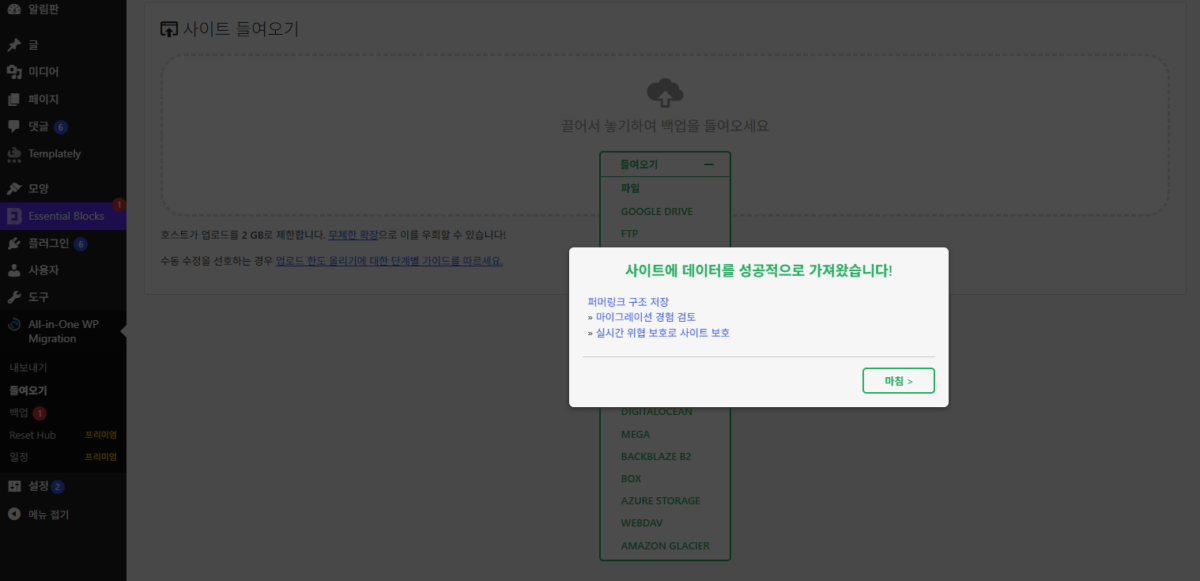
The completion window shows the message [Your site has been imported successfully!] and a [Save permalinks structure] link; click [Finish] to return to the import screen. When I imported a 2 MB file containing only the database back into the site it came from, it took less than a minute from [Proceed] to the completion window, and I did not have to log in again.
This limit comes from the server's PHP settings [upload_max_filesize] and [post_max_size] and varies from host to host. If the exported file is larger than this value, you either raise the PHP settings or use the Unlimited Extension, which restores from a file uploaded directly to the server. The [raising your upload limit] link on the screen leads to the manual fix guide.
The Unlimited Extension costs $69 a year for up to 50 sites and bypasses the PHP upload limit, execution time and memory limits. It also includes restoring directly from a file uploaded to the server and WP-CLI commands.
| Item | Free | Unlimited Extension |
|---|---|---|
| Annual price | $0 | $69 (up to 50 sites) |
| Export (File) | possible | possible |
| Import file size | Server PHP upload limit (2 GB in my test) | No limit (bypasses the PHP limit) |
| Execution time and memory limits | Follows server settings | Bypassed |
| Restore directly from a file on the server | ✕ | ✓ |
| WP-CLI commands | ✕ | ✓ |
| Reset Hub | Marked Premium | ✓ |
| Number of sites | No limit | 50 (local development sites not counted) |
The values in the table were checked on the servmask.com product page (October 19, 2026) and in the version 7.112 admin screen (October 16).
5️⃣ When a migration plugin is not the right fit: hosting migration tools and manual migration
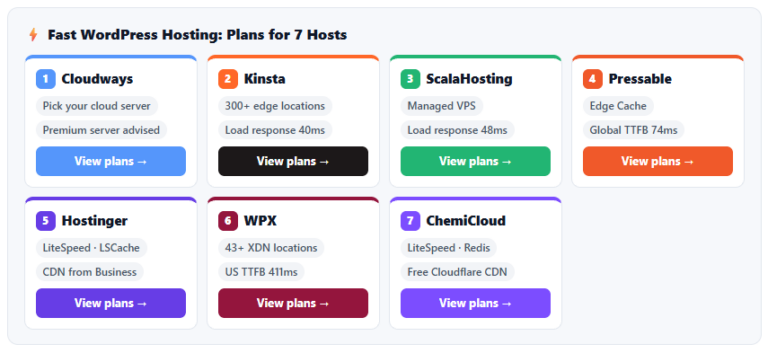
A site whose file is larger than the upload limit is moved with a hosting migration tool or by manual migration. If the host you are moving to provides its own migration tool, use that first; Cloudways uses the WordPress Migrator to move the site to a new application.
If you can reach both servers over SSH, a manual migration, which moves the files and database directly, works without this upload limit. If you only need to move posts, pages and comments and will install the theme and plugins again, you can also use the XML file from WordPress's built-in export feature.
🔢 FAQ & Recommended Content
 Hosting · Evaluation criteria
What Is WordPress Hosting? 5 Criteria for Stability and Speed
Criteria for choosing a host by five items: stability, speed, ease of use, support and price.
Hosting · Evaluation criteria
What Is WordPress Hosting? 5 Criteria for Stability and Speed
Criteria for choosing a host by five items: stability, speed, ease of use, support and price.
 Backup · Restore
3 Ways to Back Up and Restore WordPress
A comparison of three methods: hosting backup services, backup plugins and SSH backups.
Backup · Restore
3 Ways to Back Up and Restore WordPress
A comparison of three methods: hosting backup services, backup plugins and SSH backups.
 Backup plugin
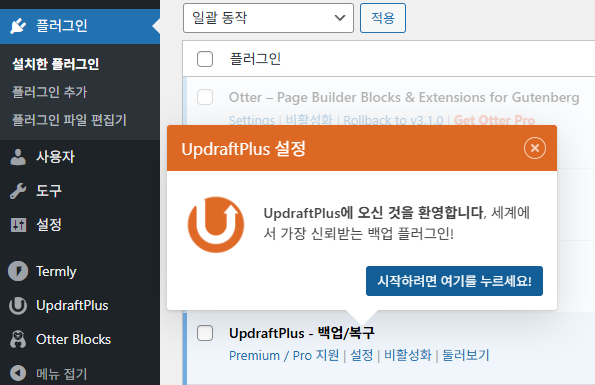
UpdraftPlus Plugin Settings: Easy and Reliable Backups
Steps to install the UpdraftPlus backup plugin and set its basic options.
Backup plugin
UpdraftPlus Plugin Settings: Easy and Reliable Backups
Steps to install the UpdraftPlus backup plugin and set its basic options.
ℹ️ Affiliate Disclosure
This site's content contains affiliate links. When a visitor buys a product or service through one of them, the site receives a commission from the seller. The amount the buyer pays(it goes down during event discounts ↓)does not go up. Posted prices, discounts, and stock reflect the time of writing and may differ, so confirm with the seller before buying. Products are chosen and reviewed by our own standards, and commissions do not affect the order or content of reviews.