
How to Install a WordPress Plugin: Search and Install, ZIP Upload and Activation


To install a WordPress plugin, you open the Add Plugin screen under the Plugins menu in the admin area and either search the official directory or upload a zip file. On a WordPress 7.1.3 test site, I searched for Classic Editor, took it all the way from installation to deletion, and captured every screen along the way.
1️⃣ The Add Plugin screen
Open [Plugins › Add Plugin] and type a plugin's name into the search box at the top to find it; if you don't know the name, the [Popular] tab lets you browse widely used plugins.
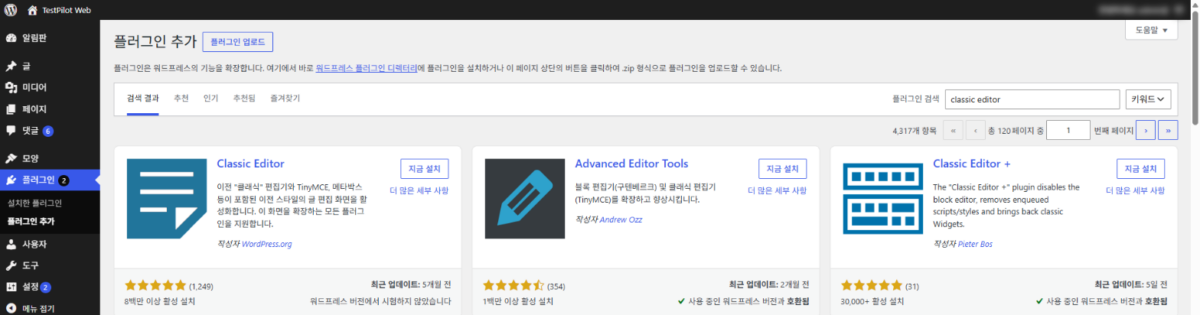
When choosing from the search results, first check the Last Updated date and the WordPress version compatibility notice at the bottom of each card.
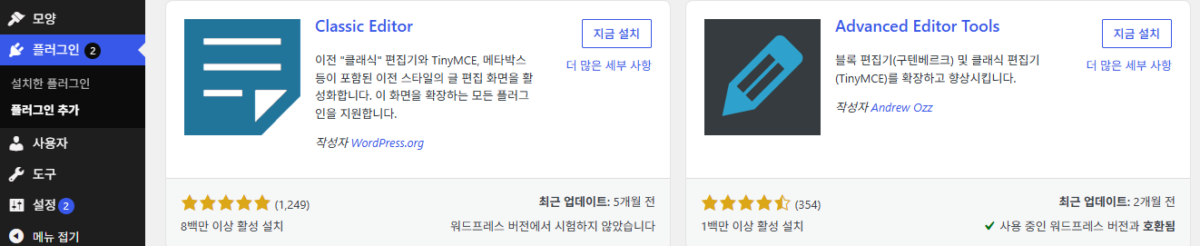
[Untested with your version of WordPress] means the author has not marked the plugin as tested on the latest version; Classic Editor carried this notice and still installed and activated normally on the test site.
2️⃣ Installing a WordPress plugin: search, install and activate
When you click [Install Now] on the card, the button changes to [Installing...], then [Installed!], and finally [Activate]. Use the [Activate] button to activate the plugin.

Clicking [Activate] takes you to the [Installed Plugins] screen, where the notice [Plugin activated.] appears at the top.
.zip 형식의 플러그인을 가지고 있다면, 여기에 업로드하여 설치하거나 업데이트할 수도 있습니다.
압축을 해제하고 있는 중…
플러그인 설치 중…
플러그인을 성공적으로 설치하였습니다.
정말로 ““을(를) 삭제하시겠습니까?


3️⃣ Installing by uploading a zip file
Paid plugins bought from places like CodeCanyon are not in the official directory, so they are installed from a zip file; clicking [Upload Plugin] at the top of the [Add Plugin] screen opens the upload box.

Pick the zip file with [Choose File] and click [Install Now]; WordPress then unpacks the archive and installs the plugin, one step after the other.

Click [Activate Plugin] below [Plugin installed successfully.] to activate it right away.
4️⃣ Managing installed plugins: deactivation, deletion and auto-updates
Deletion comes after deactivation: on the [Installed Plugins] screen, [Delete] appears only on the rows of inactive plugins.
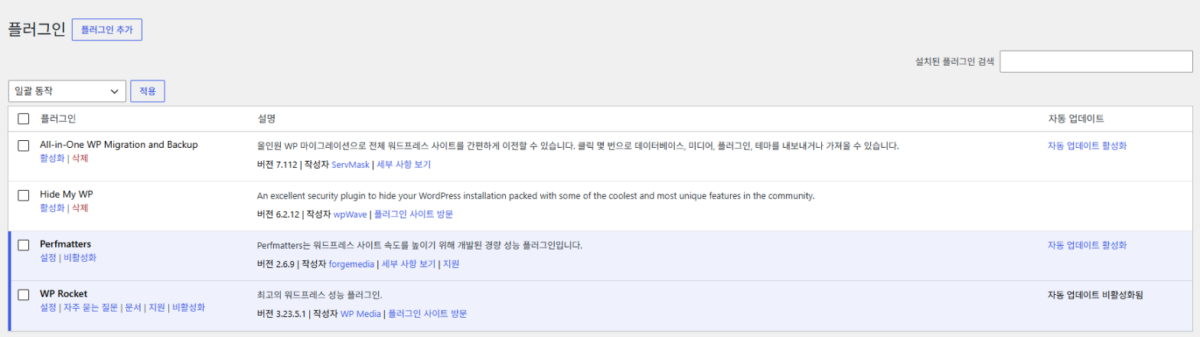
Clicking [Delete] opens a confirmation dialog, and the files are removed only after you click [OK].
Clicking [Enable auto-updates] on the right makes WordPress update that plugin automatically whenever a new version comes out, and the link text changes to [Disable auto-updates].
5️⃣ The “Destination folder already exists” error
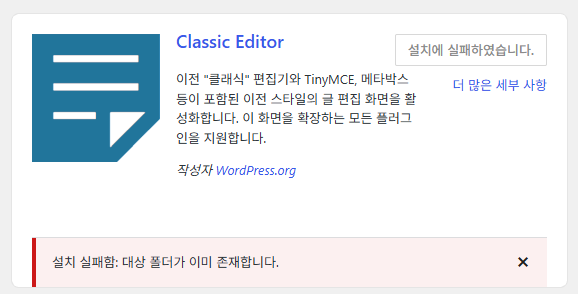
If [Installation failed: Destination folder already exists.] appears, check the [Installed Plugins] list first. This notice shows up when a folder with the same name and files in it already sits in [wp-content/plugins] on the server, and the button changes to [Installation failed.].
To see whether it is on the list, enter the plugin name in the [Search installed plugins] box; if it is there, the installation has already finished, so just click [Activate] on that row.

If the results show [No plugins found for], the folder is a leftover from an interrupted install, so delete it from [wp-content/plugins] with SFTP or a file manager and click [Install Now] again; the plugin then installs normally.
🔢 FAQ & Recommended Content

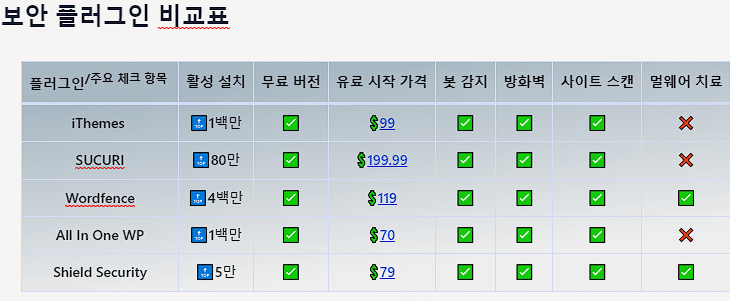 Security
WordPress Security Plugins: Best 5
Compares five security plugins feature by feature.
Security
WordPress Security Plugins: Best 5
Compares five security plugins feature by feature.
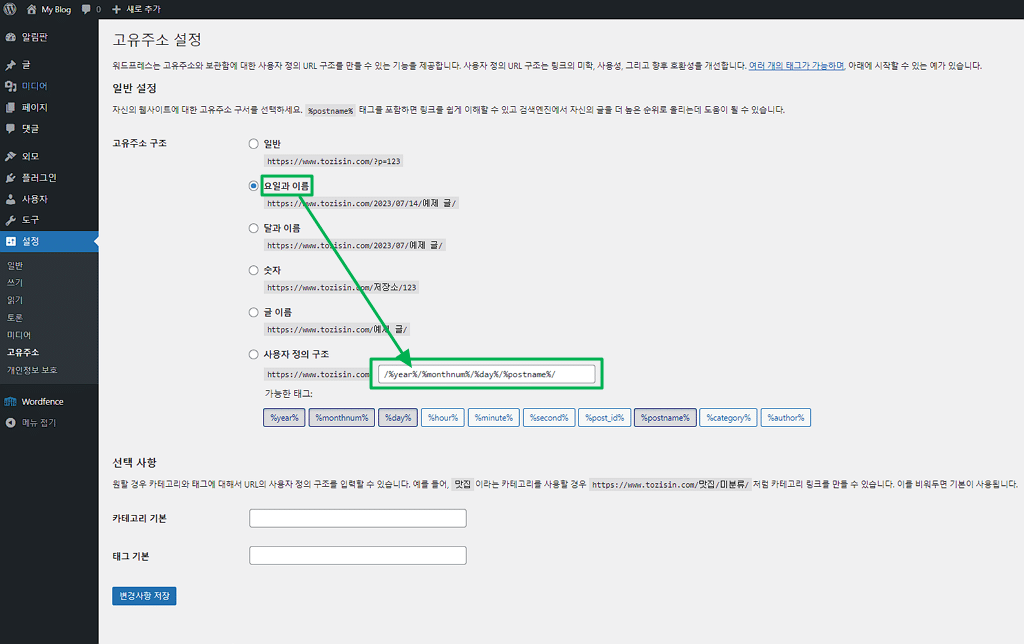 Admin settings
7 WordPress Admin Settings
Covers the seven screens under the [Settings] menu, such as General, Writing and Reading.
Admin settings
7 WordPress Admin Settings
Covers the seven screens under the [Settings] menu, such as General, Writing and Reading.
 Config file
wp-config.php Basic Settings
Default values set in wp-config.php, such as file editing, memory and revisions.
Config file
wp-config.php Basic Settings
Default values set in wp-config.php, such as file editing, memory and revisions.
ℹ️ Affiliate Disclosure
This site's content contains affiliate links. When a visitor buys a product or service through one of them, the site receives a commission from the seller. The amount the buyer pays(it goes down during event discounts ↓)does not go up. Posted prices, discounts, and stock reflect the time of writing and may differ, so confirm with the seller before buying. Products are chosen and reviewed by our own standards, and commissions do not affect the order or content of reviews.