
How to Make a WordPress Website: From Choosing a Domain and Hosting to Publishing Your First Page


To make a WordPress website, you go through registering a domain, signing up for hosting, installing WordPress, choosing a theme and publishing your first page, in that order. This guide sets out the criteria and costs to decide at each step for anyone opening a site for the first time. The screens I went through myself in the WordPress 7.1.3 admin area, from choosing a theme to publishing the first page, are recreated in a simulator.
1️⃣ Steps to make a WordPress website
Before installing WordPress, get the domain and hosting ready. The domain is the address visitors type in, the hosting is the server your files go on, and the installation screen only opens once you have both. After installation, you move on to choosing a theme and publishing your first page.
Since you sign up and pay with each provider for the domain and the hosting, have an email address and a payment method ready before you start. Cost: about $15 a year for the domain and $4–35 a month for hosting, while themes and plugins can start out free.
2️⃣ Registering a domain: choosing your site address
After registering the domain, you have to point its nameservers to your hosting provider's addresses before the site connects to the server. In Namecheap, you choose [Custom DNS] in the [NAMESERVERS] field on the domain details screen and enter the addresses your host gives you; the change can take up to 48 hours to take effect.
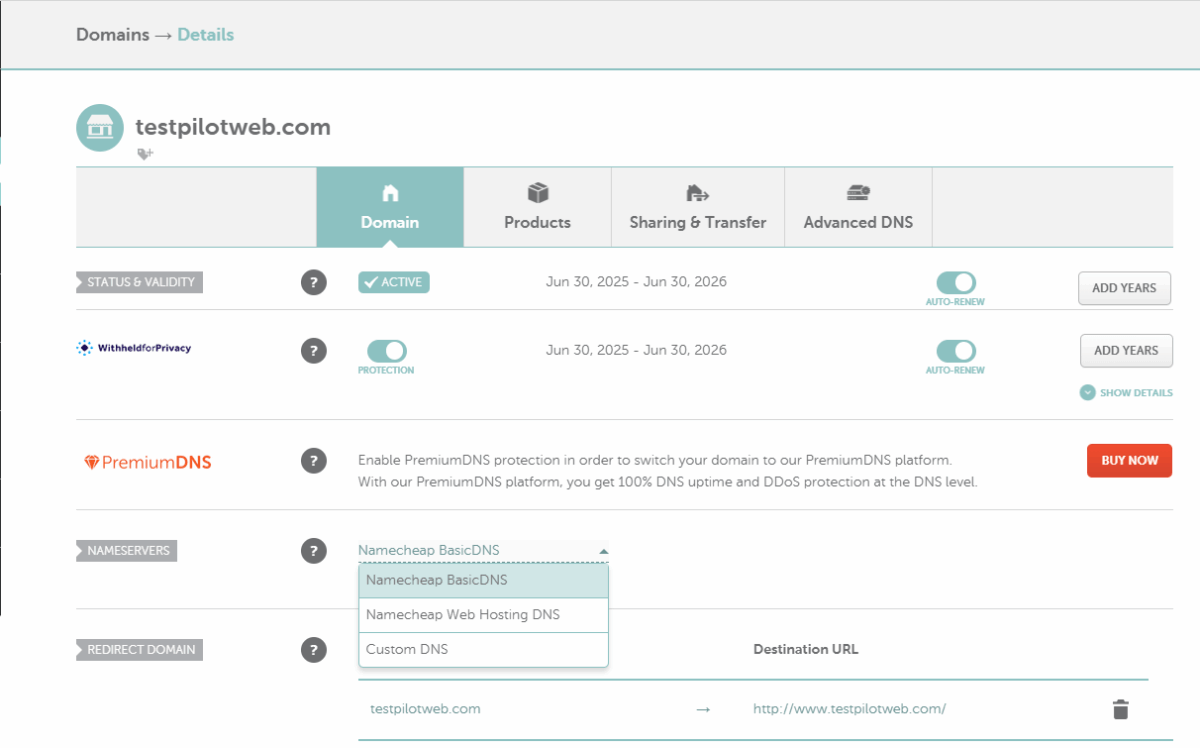
Buying a .com domain at Namecheap costs $14.98 for the first year and $18.48 a year from the second year, billed annually (as of October 9, 2026). The WHOIS privacy protection that hides the registrant's details is the [WithheldforPrivacy] shown on the screen above, and it is active from the moment of purchase. If you choose hosting such as Hostinger Premium, whose annual plan includes a free domain for the first year, this step happens together with the hosting sign-up.
3️⃣ Choosing hosting: the server WordPress will run on
Hosting determines what your site costs and how fast it runs. Provider choice comes down to stability, speed, ease of use, support and price — five criteria worth comparing side by side.
Shared hosting: Cost is the lowest of all, but CPU and memory are capped, so it does not suit sites that get crowds of visitors; such sites end up choosing a managed cloud or managed hosting.
4️⃣ Installing WordPress: automatic and manual installation
Depending on the type of hosting, WordPress is installed either automatically or manually. On a managed cloud (Cloudways and similar), WordPress is installed together with the application when you create it.
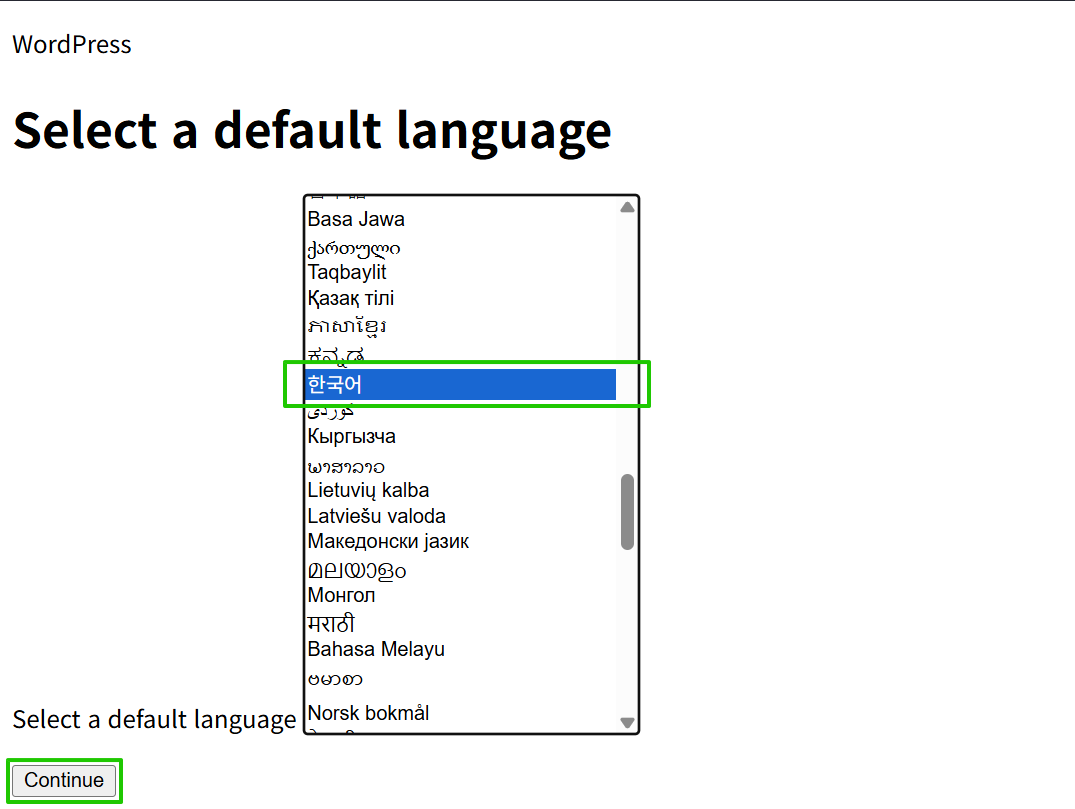
When you install WordPress manually on a Linux server, you either upload the files downloaded from wordpress.org over FTP or download them on the server with wget and unpack them. When you then open the site address, the language selection screen below appears first, followed by the database details, the site title and the admin account, in that order.
5️⃣ Choosing a theme: start with a free one
Start with one of the free themes in the official directory, and switch to a paid theme only when you need a feature it lacks; that keeps costs down. Right after installation, the default theme Twenty Twenty-Five is active. On the Appearance › Themes screen, use [Add Theme] to search the 8,712 free themes (as of October 19, 2026) and install one.
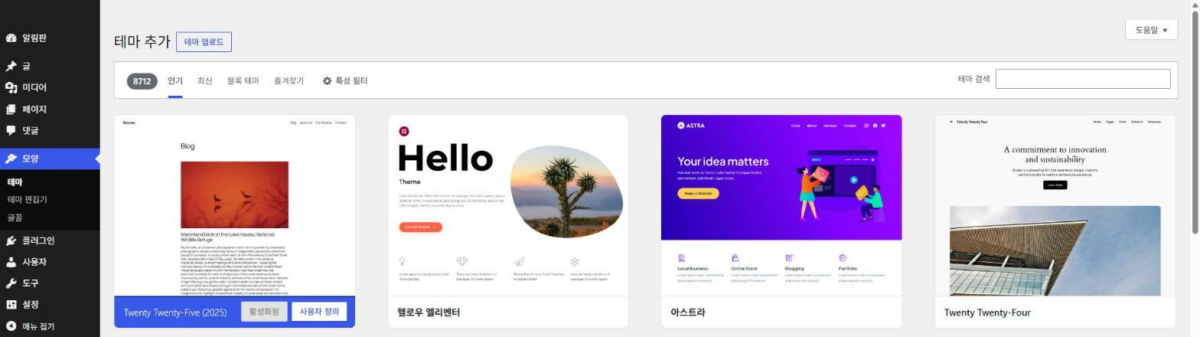
Find the theme you want by typing its name into the [Search themes] box at the top, check how it looks with the [Preview] button that appears when you hover over the card, then click [Install].
Paid themes: Purpose and billing model (one-time purchase or annual subscription) decide which one to pick.
6️⃣ Publishing the first page: permalink settings and choosing the homepage
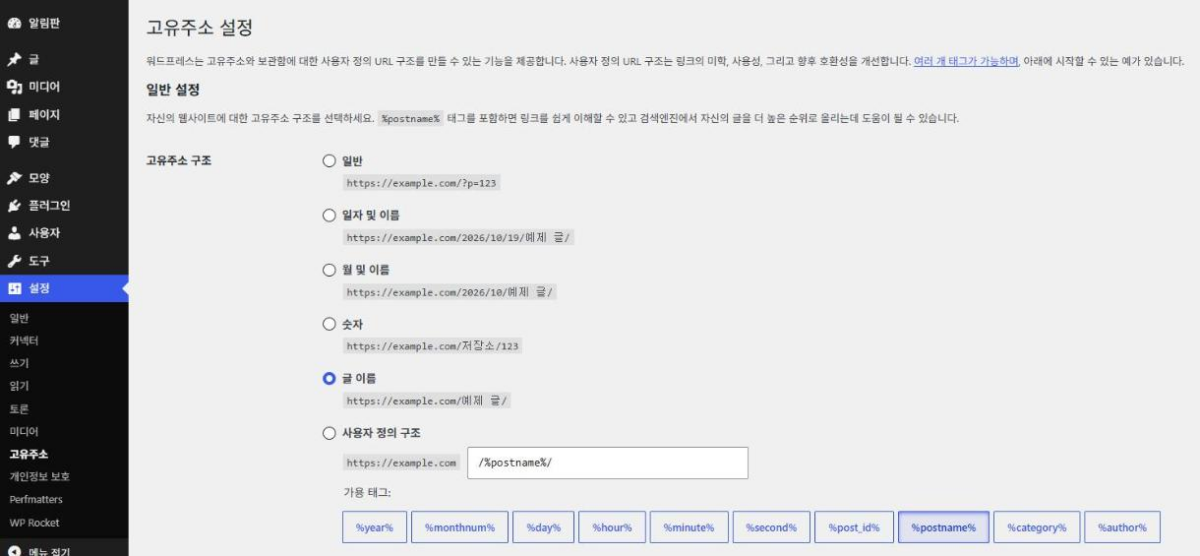
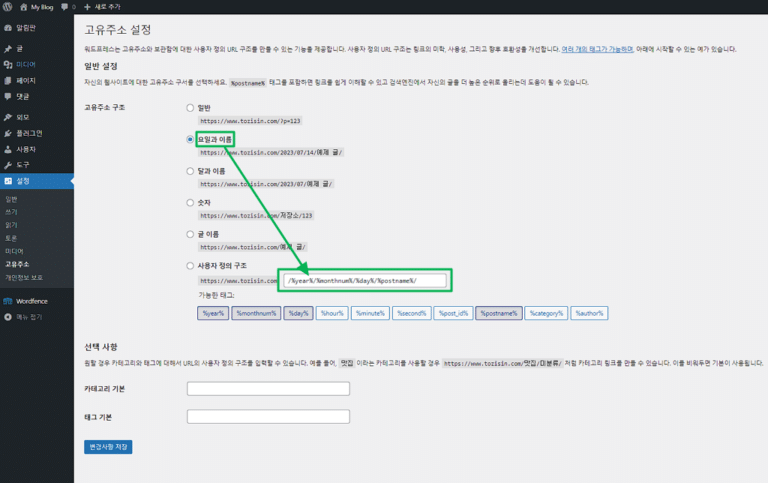
Before writing your first page, switch Settings › Permalinks to [Post name]. A fresh WordPress install defaults to [Day and name], which includes the date, and if you change the Permalink structure after posts have piled up, the old addresses turn into 404s, so it is settled before the first post.
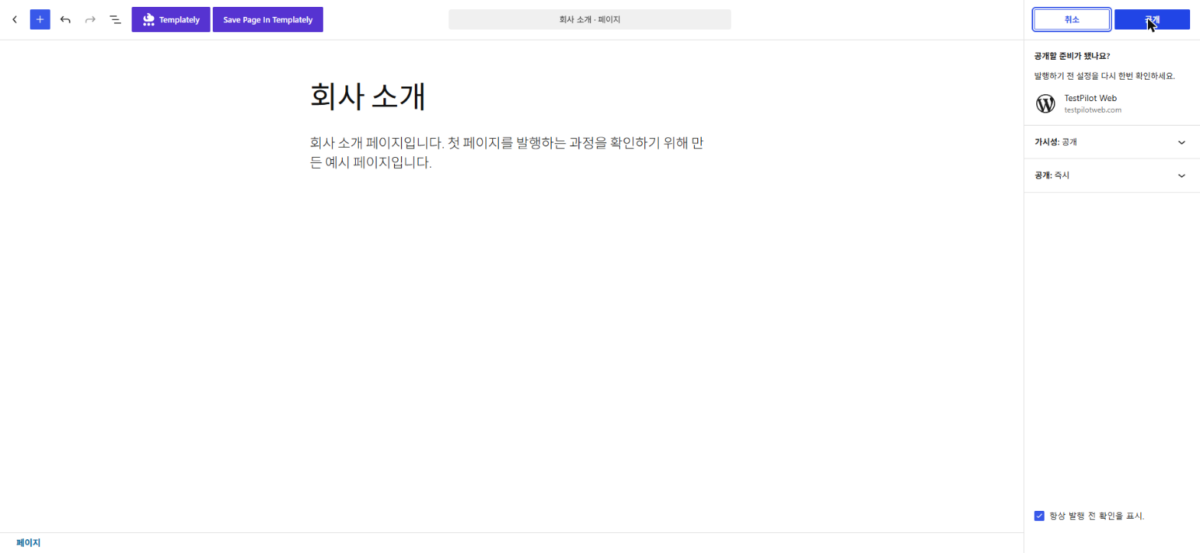
For the first page, enter a title and body under Pages › Add Page, then click [Publish] at the top right. In the [Are you ready to publish?] panel, check the visibility and publish timing and click [Publish] again; the page address and a [View Page] button then appear.
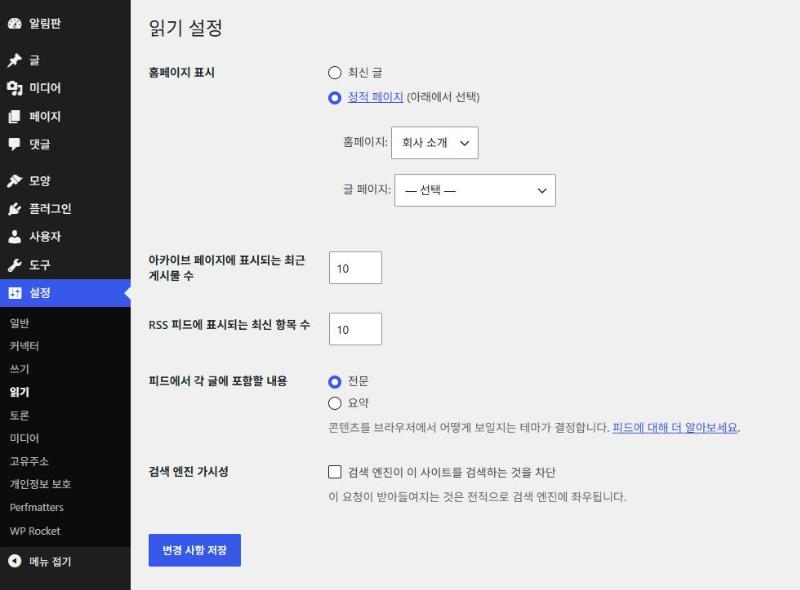
If you are building a post-centered WordPress blog, leave Your homepage displays under Settings › Reading at its default, [Your latest posts]. If you need a fixed front page such as an About Us page, choose [A static page] and set the page you published as the homepage.
This is the About Us page.
Double-check your settings before publishing.
🔢 FAQ & Recommended Content

 Plugins · Installation
How to Install a WordPress Plugin: Search and Install, ZIP Upload and Activation
The steps for installing and activating a plugin from the Add Plugin screen, either by searching the official directory or by uploading a zip file.
Plugins · Installation
How to Install a WordPress Plugin: Search and Install, ZIP Upload and Activation
The steps for installing and activating a plugin from the Add Plugin screen, either by searching the official directory or by uploading a zip file.
 Settings · Basics
7 WordPress Admin Settings: General, Writing, Reading and More
After installation, the steps for checking basic settings in the Settings menu, such as the site title and address, membership and time zone.
Settings · Basics
7 WordPress Admin Settings: General, Writing, Reading and More
After installation, the steps for checking basic settings in the Settings menu, such as the site title and address, membership and time zone.

ℹ️ Affiliate Disclosure
This site's content contains affiliate links. When a visitor buys a product or service through one of them, the site receives a commission from the seller. The amount the buyer pays(it goes down during event discounts ↓)does not go up. Posted prices, discounts, and stock reflect the time of writing and may differ, so confirm with the seller before buying. Products are chosen and reviewed by our own standards, and commissions do not affect the order or content of reviews.