
Cloudways Dashboard: Account Home Screen, Menu Layout, Servers and Apps
The Cloudways dashboard is the Home screen that opens first when you log in to your account, and the menus leading to servers, applications, plans and add-ons are grouped on the left. Clicking through the menus and cards one by one on a test account showed that server setup starts from the Flexible menu, monthly flat-rate products from Autonomous and add-ons from Integrations.
1️⃣ Cloudways Dashboard Home Screen
When you open the Home screen, three cards appear at the top, and below them come [See What’s New in Cloudways], [Applications] and [Quick Start Guides].

On the test account, the [Flexible] card showed Servers 1 and Applications 2, and clicking the card’s arrow went to the server list. Clicking [Try Now] on the [Autonomous] card opened an introduction screen.
The left menu stays in place when you move between screens. The table below shows the screen that opened for each menu item, and [Agency Par…] at the bottom left is [Agency Partnership] with its text cut off.
| Left menu | Screen that opens |
|---|---|
| home | The dashboard you see first after logging in |
| Flexible | Server list (Servers) |
| Autonomous | Plan selection screen (account with no applications) |
| Velocity | Node.js application introduction screen |
| Cloudways AI | Managed AI Agents screen |
| Agency Partnership | Agency partner application form |
| Integrations | Add-Ons list |
| Support | Support Center screen |
The [See What’s New in Cloudways] section is split into a Site Manager card on the left and news cards that rotate automatically on the right. The right card alternated between news about Velocity, Cloudflare Enterprise and Managed AI Agents, and clicking the arrow at the right of the title row collapses both cards.
To check server notifications, click the robot icon in the top bar to open the [Cloudways Bot] list.

The test account had SafeUpdates weekly reports, WordPress setup notifications and Access Token creation notifications piled up.
To check invoices, go to [Billing] in the account menu at the top right.

The same menu also has [My Account], [My Teams] and [Logout]. None of these are in the left menu, so account settings are found here.
The [Applications] section splits recent applications into [Flexible Apps] and [Autonomous Apps] tabs. Each row shows the application name, server name, project and date, and clicking the arrow icon at the right of a row opened that site in a new tab.

Clicking ⋮ at the end of a row expands three items: [Clone App/Create Staging], [Migrate App] and [Delete Application]. Cloning, migrating and deleting can be started from Home without going into the application screen.

At the very bottom, [Quick Start Guides] has four cards covering creating a server, the migration plugin, SSL certificates and taking a site live. [Knowledge Base] at the top right opens the official help in a new tab.
☁️ Cloudways Dashboard Simulator
In the simulator below you can click the tabs, menus and cards yourself; the account name and server name are example values.
Fully managed WordPress hosting that auto scales to meet the needs of your growing business.
Deploy and manage Node.js applications with the flexibility to build, scale, and grow with ease.
Your central solution for safe updates, performance monitoring, visual regression testing, and site management.
Fully managed hosting for WordPress that autoscales to meet the needs of your growing business.
Experience faster load times and optimized performance using Lightning Stack.
Fully managed WordPress hosting built on Kubernetes with auto scaling for growing sites. More traffic, No fear of downtime.
Try Autonomous’ simplicity and autoscaling for free before committing
- Website: 1
- Bandwidth: 150 GB
- Disk Space: 20 GB
- Visits: Unmetered
- Baseline Autoscale Servers: 1
- PHP Workers: 100/server
- AutoscalingFree Autoscaling
For Growing businesses that need autoscaling
- Website: 1
- Bandwidth: 150 GB
- Disk Space: 20 GB
- Visits: Unmetered
- Baseline Autoscale Servers: 1
- PHP Workers: 100/server
- Autoscaling$0.07/hour/server beyond baseline
For Optimized WooCommerce experiences
- Website: 1
- Bandwidth: 250 GB
- Disk Space: 50 GB
- Visits: Unmetered
- Baseline Autoscale Servers: 2
- PHP Workers: 100/server
- Autoscaling$0.10/hour/server beyond baseline
For LMS platforms & large WooCommerce stores
- Website: 1
- Bandwidth: 1000 GB
- Disk Space: 100 GB
- Visits: Unmetered
- Baseline Autoscale Servers: 3
- PHP Workers: 100/server
- Autoscaling$0.12/hour/server beyond baseline
Create & send automated white-label recurring invoices and collect payments through seamless stripe integration. Save time from juggling multiple 3rd party tools.
Site Manager gives you everything you need to manage your sites in one place. Update plugins, handle users, schedule maintenance, and track performance directly from Cloudways platform.
Automatically detects and removes malware from apps and servers with scheduled scans, reports, and automated cleanup.
This Add on ensures that the application migration process goes smoothly and that your application is moved to its new home with minimum downtime without any hassle.
Build professional websites or online stores in mere hours without a single line of code with Astra Pro. Save time, money, and the headspace for maximizing profits.
Give every visitor 69% faster load times and a more reliable, secure experience across all your sites, backed by Cloudflare’s enterprise-grade global network.
DNS Made Easy is a top provider that offers best DNS management services and tools. Sign up for free and enjoy the fastest and most reliable managed DNS.
Discover Elastic Email that will help you grow your contact lists, send emails in an even more efficient way and customize your experience with Elastic Email to fit your needs.
Rackspace Email is an affordable, business-class email hosting solution with anytime, anywhere access and a 100% uptime guarantee
2️⃣ Cloudways Flexible Servers and Applications
The Home cards only show the number of servers and applications, so setup starts from the left [Flexible] menu. Clicking the menu opens the server list, and hovering the mouse over the menu also brings up a second column.

In the second column, [My Applications] and [My Servers] are menus leading to lists, and [Add Application] and [Add Server] are shortcuts for creating new ones. The server row in the middle shows the server size, IP address and region.
On Cloudways, one site is one application, and you put several applications on one server. Server resizing and the firewall are set on the server screen, and domains and SSL on the application screen.
3️⃣ Cloudways Autonomous Pricing
Unlike Flexible, where you choose the server size yourself, Autonomous is an auto-scaling product on a flat monthly plan. Hovering the mouse over the left [Autonomous] menu opens a panel introducing Kubernetes-based autoscaling.

Clicking the menu on a test account with no applications opened the plan screen straight away. Four pricing cards appear below the field for choosing between [WordPress] and [woo].

| Item | 3 Days Free Trial | Growth | Scale | Plus |
|---|---|---|---|---|
| Monthly fee | $0 | $99 | $199 | $399 |
| Website | 1 | 1 | 1 | 1 |
| Bandwidth | 150 GB | 150 GB | 250 GB | 1000 GB |
| Disk Space | 20 GB | 20 GB | 50 GB | 100 GB |
| Visits | Unmetered | Unmetered | Unmetered | Unmetered |
| Baseline Autoscale Servers | 1 | 1 | 2 | 3 |
| PHP Workers | 100/server | 100/server | 100/server | 100/server |
| Autoscaling | Free Autoscaling | $0.07/hour/server | $0.10/hour/server | $0.12/hour/server |
※ Prices are for WordPress on the Autonomous pricing screen as of October 31, 2026.
All four plans have 1 Website and 100 PHP Workers per server. Moving up to a higher paid plan increases bandwidth, disk and the number of baseline servers, and servers added automatically beyond the baseline are charged an hourly rate per server.
Autonomous suits sites that get sudden surges of visitors, and since each plan has 1 Website, you would choose Flexible if you run several sites. This check covered only the values shown on screen; no Autonomous application was actually created.
4️⃣ Cloudways Integrations Add-Ons
When you add mail or security features after settling on a server and plan, go to the left [Integrations] menu. Clicking the menu opens the [Add-Ons] list.

The badge at the bottom left of each card shows whether it is in use; on the test account only [Application Migration] was [Enabled] and the other eight cards were [Disabled].
Before choosing an add-on, check the text below the card description first. [Site Manager], [Malware Protection], [Astra Pro] and [Cloudflare Enterprise] carry [Available for Cloudways Flexible only], so they are Flexible-only.
[Application Migration] is an add-on for requesting a Cloudways Migration, and its card shows Autonomous: Unlimited and Flexible: 5 Free. [Elastic Email] and [Rackspace Email] are used when setting up Cloudways email.
🔢 FAQ & Recommended Content

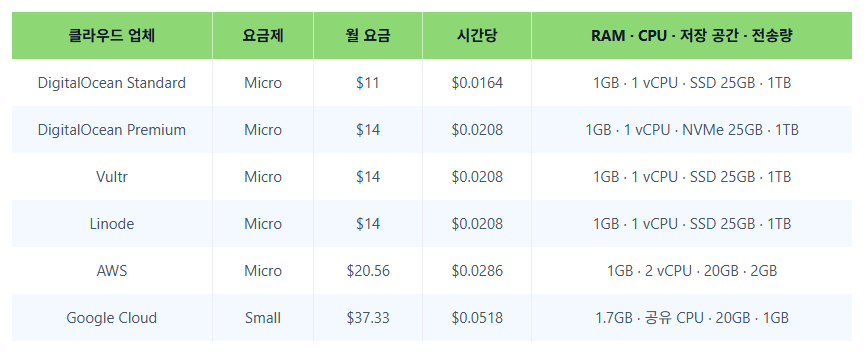
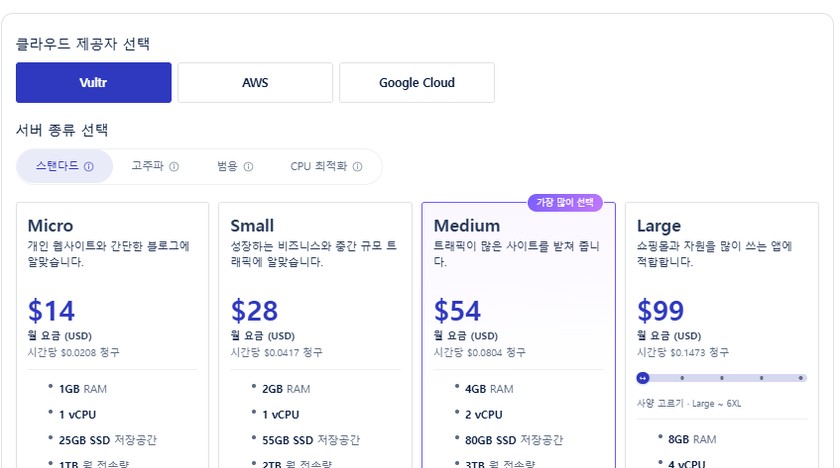 Payment
Cloudways Billing: Server Pricing and Hourly Rates
How server pricing and hourly charges are billed.
Payment
Cloudways Billing: Server Pricing and Hourly Rates
How server pricing and hourly charges are billed.
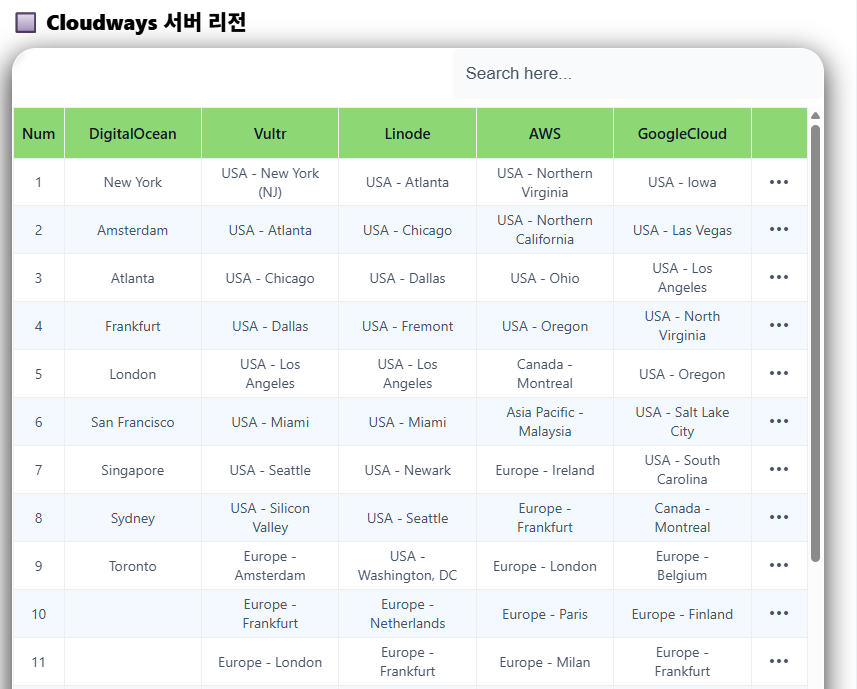 Sign-up
Cloudways: Signing Up and Basic Setup
Sign up for Cloudways with server cost and performance in mind, then complete the basic setup.
Sign-up
Cloudways: Signing Up and Basic Setup
Sign up for Cloudways with server cost and performance in mind, then complete the basic setup.
ℹ️ Affiliate Disclosure
This site's content contains affiliate links. When a visitor buys a product or service through one of them, the site receives a commission from the seller. The amount the buyer pays(it goes down during event discounts ↓)does not go up. Posted prices, discounts, and stock reflect the time of writing and may differ, so confirm with the seller before buying. Products are chosen and reviewed by our own standards, and commissions do not affect the order or content of reviews.