Object Cache Pro on Cloudways: Varnish, Redis and Breeze Plugin Settings, and How to Purge the Cache

Affiliate disclosure v3.1
Affiliate disclosure v3.2 (mobile)
Test environment CloudwaysLightning stackWordPress 7.1.3Breeze 2.6.1Object Cache Pro 1.25.5Checked 2026-10-19

In the Cloudways cache setup, Varnish on the server stores finished pages and Redis stores database query results, and Cloudways-optimized WordPress comes with the Breeze and Object Cache Pro plugins already installed. Checking the response headers of a Lightning Stack test application showed that the first page had been served from the same Varnish copy for more than 9 hours, and edits to a post only show up after Breeze or WP Rocket purges the cache.

1️⃣ Cloudways cache structure

A Cloudways server comes with the web servers Nginx and Apache, the page cache Varnish, the object cache Redis, PHP-FPM and MariaDB installed together. For each application you pick one of two stacks under [Application Settings] › [WebStack]: the Hybrid Stack, which uses Nginx and Apache together, or the Lightning Stack, which uses Nginx only. The Lightning Stack does not read [.htaccess].

Cloudways application menu: opening the WebStack tab under Application Settings to choose between Lightning Stack and Hybrid Stack
The [WebStack] tab in the application's [Application Settings]
🗂️ Cloudways cache setup
📂 Web server
NginxLightning Stack uses only Nginx and PHP-FPM
ApacheHybrid Stack processes .htaccess rules
📂 Page cache
VarnishStores page copies on the server, switched on or off per app
BreezeWordPress plugin page cache
📂 Object cache
Redis · Object Cache ProStores database query results
📂 WordPress runtime
PHP-FPMRuns PHP code
MariaDBDatabase

2️⃣ Varnish settings and exclusion rules

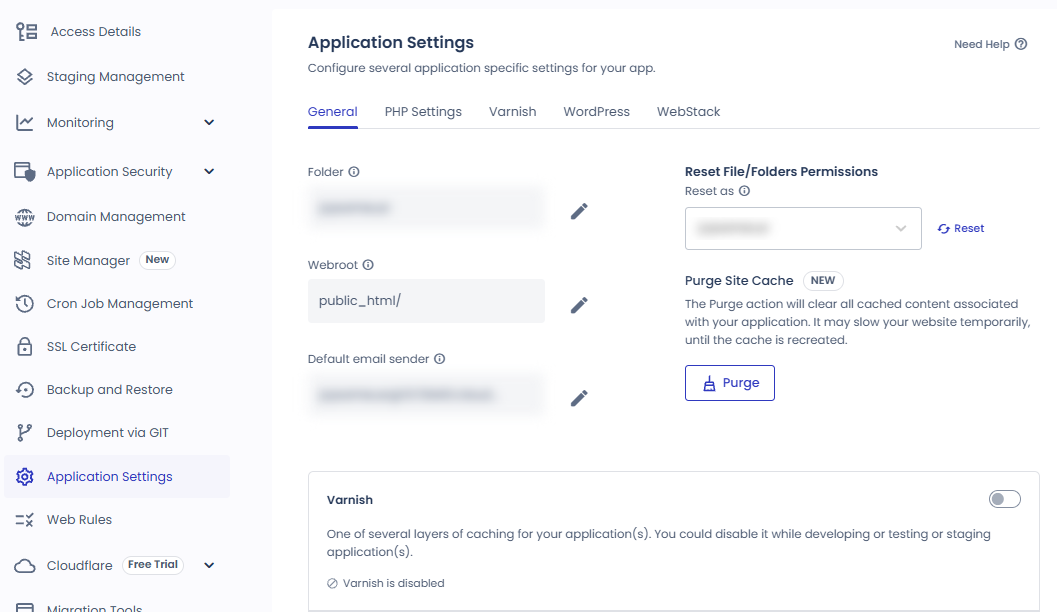
Varnish is on by default on every Cloudways server, and when it is on at the server level it applies to every application on that server. To turn it off for one application only, switch off [Varnish] under [Application Settings] › [General] of that application.

Cloudways application menu: the General tab under Application Settings, with the on/off switch of the Varnish row at the bottom
The [General] tab of the application's [Application Settings] and the [Varnish] switch

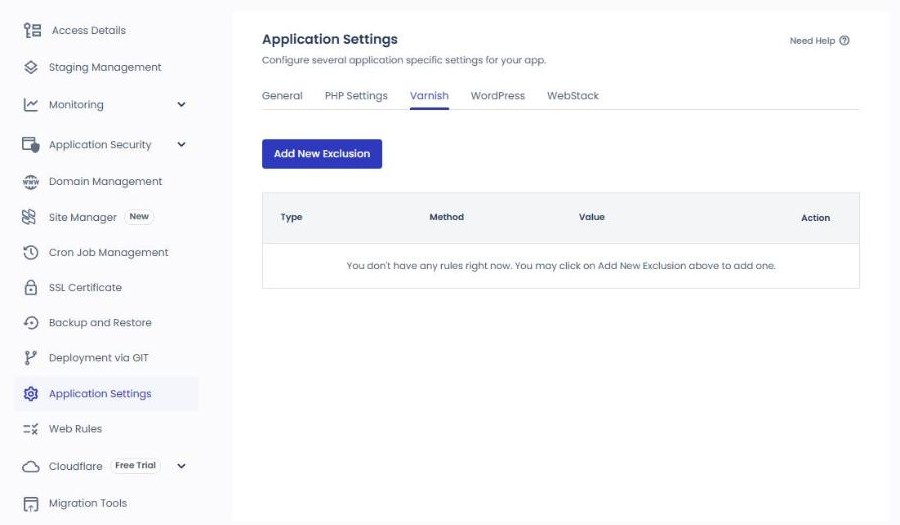
The WordPress login and admin screens, the WooCommerce cart and checkout pages, and requests that carry a login cookie are excluded from the cache from the start. To exclude additional URLs or cookies, add them with [Add New Exclusion] on the [Varnish] tab of [Application Settings]. Enter a URL as a path without the domain, like [/booking/].

Cloudways application menu: the Varnish tab under Application Settings, with the Add New Exclusion button and an empty exclusion rule table
The [Varnish] tab in the application's [Application Settings]

When the test application was requested with a login cookie attached, the response had no [x-cache] header, while the first page requested without a cookie showed [x-cache: HIT] and [age: 33254]. [age] is the number of seconds since the Varnish copy was created, which here is about 9 hours 14 minutes.

Varnish is used with WordPress and Magento 2, and it is not suited to Laravel or PHP applications you build yourself.

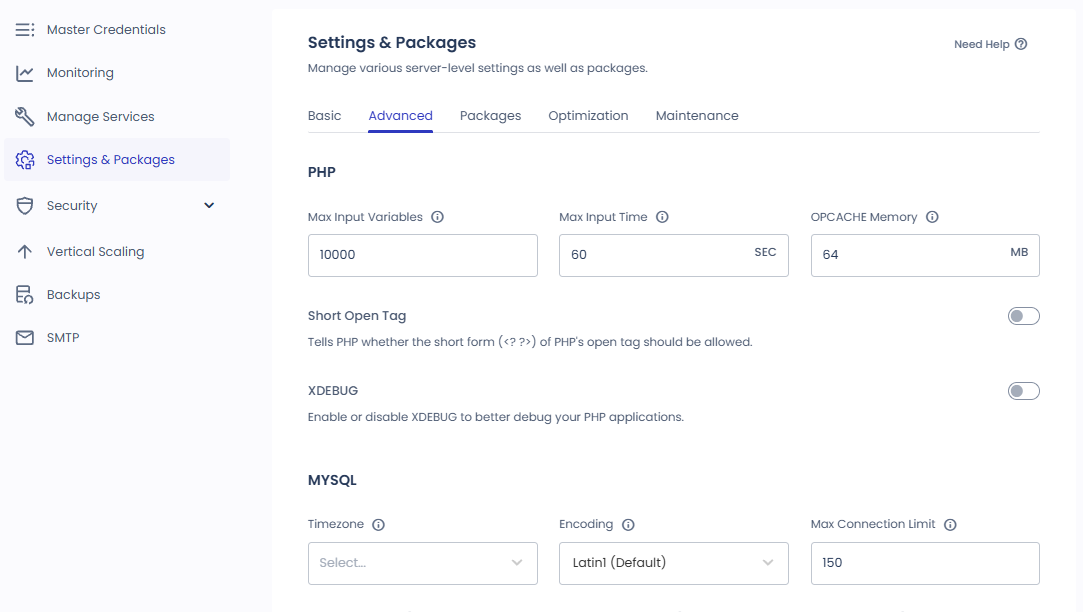
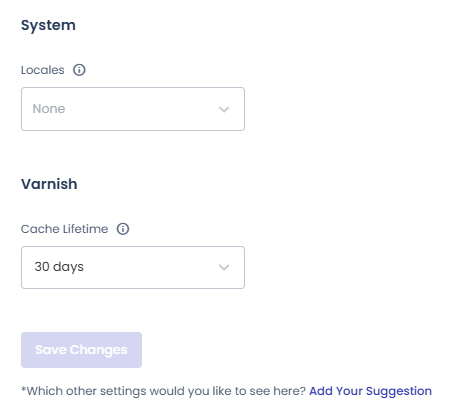
The cache lifetime (TTL) is set in the Varnish [Cache Lifetime] under [Settings & Packages] › [Advanced] of the server, and on a newly created test server the value was 30 days. The values you can choose are 4, 8, 14 and 24 hours and 7, 14 and 30 days, and because this value works per server, it applies to every application on it, staging included.

Cloudways server menu: the Advanced tab under Settings & Packages, with the PHP and MySQL settings fields
The [Advanced] tab of the server's [Settings & Packages]
Cloudways Settings & Packages, Advanced tab: the Cache Lifetime field in the Varnish group at the bottom, with 30 days selected
[Cache Lifetime] of Varnish at the bottom of the [Advanced] tab
🧭 Cloudways cache settings simulator
CloudwaysPath simulator
my-server › my-app
📍my-server›my-app›Application Settings›General
Turn off Varnish
Turning off [Varnish] under [General] removes only this application from the Varnish cache.
📍my-app›Application Settings›Varnish
Add a cache exclusion
Use [Add New Exclusion] to add a URL or cookie to leave out of the cache.
📍my-server›Settings & Packages›Advanced
Cache Lifetime
Choose the Varnish [Cache Lifetime]; it applies to every application on the server.
📍my-app›Application Settings›WordPress
Object Cache Pro
Switches [Object Cache Pro] on and off.
unified.cloudways.com/apps/…
CLOUDWAYSmy-server › my-app › Application Settings
Application Settings
GeneralPHP SettingsVarnishWordPressWebStack
Folder · Webrootpublic_html/
Default email sender
Reset File/Folders Permissions
Purge Site CacheNew
Varnish
HTTPS Redirection
SSH Shell Access
Geo IP Detection
CORS Header
Device Detection
Ignore Query String
Application Access
unified.cloudways.com/apps/…
CLOUDWAYSmy-server › my-app › Application Settings
Application Settings
GeneralPHP SettingsVarnishWordPressWebStack
클라우드웨이즈 Application Settings Varnish 탭 Add New Exclusion 화면
unified.cloudways.com/server/…
CLOUDWAYSmy-server › Settings & Packages
Settings & Packages
BasicAdvancedPackagesOptimizationMaintenance
클라우드웨이즈 Settings & Packages Advanced Varnish Cache Lifetime 설정
Cache Lifetime
unified.cloudways.com/apps/…
CLOUDWAYSmy-server › my-app › Application Settings
Application Settings
GeneralPHP SettingsVarnishWordPressWebStack
클라우드웨이즈 Application Settings WordPress 탭 Object Cache Pro 설정
Object Cache Pro
WordPress Multisite
XMLRPC Access
Direct PHP Files Access
Cron Optimizer
Click a highlighted item in the left menu or a highlighted switch on the screen

3️⃣ Redis and Object Cache Pro

Even when Varnish stores a page, requests that are excluded from the cache, such as those of logged-in users or a shopping cart, make WordPress query the database to build the page. Object Cache Pro is a plugin that stores these query results in Redis memory so that the database is not consulted when the same data is requested again.

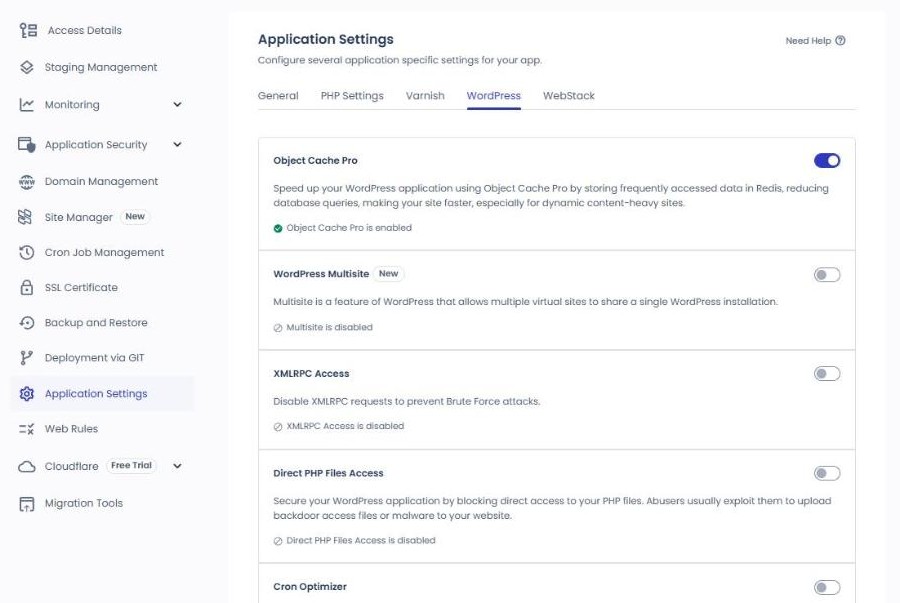
On Cloudways-optimized WordPress and WooCommerce applications, Object Cache Pro is installed and activated when the application is created, and Cloudways users can use it for free. You turn it on and off on the [Application Settings] › [WordPress] tab of the application, and a newly created test application also had it on from the start.

Cloudways Application Settings, WordPress tab: the Object Cache Pro switch
The [Object Cache Pro] switch at the very top of the [Application Settings] › [WordPress] tab

Installing it together with another object cache plugin such as Redis Object Cache or WP Redis causes a conflict, so delete that plugin first. Turning off the Redis service on the server deactivates Object Cache Pro for every application, and it cannot be used on PHP versions lower than 7.4.

4️⃣ Choosing between Breeze and WP Rocket

The page cache works with Varnish alone, without Breeze. However, Varnish does not know on its own that a post has changed, so the old page is shown until the cache lifetime passes or you purge it yourself.

Breeze is a free cache plugin that comes installed on Cloudways-optimized WordPress, and you open its settings screen from [Settings] › [Breeze] in the admin menu.

In the application that was checked, [Cache System] was on, and the internal cache was cleared every 1440 minutes (1 day). If [Auto Purge Varnish] on the [VARNISH] tab is on, publishing a new post or page or receiving a comment also purges the Varnish cache.

Breeze settings screen: the BASIC OPTIONS tab with Cache System on, Mobile Cache off, Purge Cache After 1440, Gzip Compression on, Browser Cache on and Lazy Load Images off
The [BASIC OPTIONS] tab of the Breeze settings

If you use WP Rocket, deactivate and delete other optimization plugins such as Breeze. Right after a site that had been using WP Rocket was moved to a new application with the Migrator plugin, the first page's HTML contained both Breeze's cache marker and WP Rocket's lazy-loading script. So after moving a site, check first whether Breeze is on.

WP Rocket's [Varnish] tab has an automatic purge option that does the same job as Breeze when turned on, and Object Cache Pro can be used together with page cache plugins such as Breeze and WP Rocket.

5️⃣ Purging the cache

To purge the cache right away, use the [Breeze] menu in the WordPress admin toolbar at the top.

Breeze screen: the Breeze menu in the admin bar expanded, showing Purge All Cache, Purge Varnish Cache and Purge Internal Cache under Purge Modules, Purge Object Cache, Settings and Support
The [Breeze] menu in the admin toolbar

If you are connected over SSH, the following command purges the plugin cache and the Varnish cache together.

wp breeze purge --cache=all

[--cache=varnish] purges only the Varnish cache.

wp breeze purge --cache=varnish

[--cache=local] purges only the plugin cache.

wp breeze purge --cache=local

On a site with a proxy such as Cloudflare in front, changes may not show up right away even after you purge Varnish, and in that case you purge the Cloudflare cache as well.

🔢 FAQ & Recommended Content

Varnish caches 404 pages too, for 5 minutes.

The default exclusion list is based on English URLs such as [/cart], so a translated URL such as the German [/warenkorb] has to be added separately to the Varnish exclusion rules.

If you turn off Object Cache Pro in the application settings, the plugin is deactivated and deleted. If you turn off the Redis service of the server instead, the plugin is only deactivated and stays installed, and it is activated again when you turn Redis back on.

☁️ Recommended Cloudways content Post 19 · Tool 2
🗂️ Running Cloudways
📄 Signup and basic setup 📄 Domain connection 📄 SSL setup
📋 Server & Application 📄 Admin login 📄 Staging Management 📄 Billing · Pricing 📄 Email · SMTP add-on 📄 MCP · AI Server Management 📄 SFTP and SSH Access 📄 Migration 📄 Backup 📄 Vertical Scaling
📋 Hosting Comparison Top 7 📄 What is cloud hosting 📄 What is managed hosting 📄 Web Hosting Costs 📄 Cloudways for Small Businesses 📄 Cloudways WooCommerce
🛠️ Whois Domain Lookup 🛠️ Theme Checker · Plugin Detector
📡 Varnish Cache documentation 📡 Object Cache Pro documentation 📡 Breeze plugin (WordPress.org directory)
No search results.
Cloudways server & application settings
Cloudways · Menus
Cloudways Server & Application Settings: 22 Menus in a Simulator and What Each Side Does
The 8 server menus and 14 application menus reproduced in a simulator, with a table comparing which side handles the same job.
Read post →Current article
How to Log In to the WordPress Admin Page on Cloudways
Cloudways · Admin
How to Log In to the WordPress Admin Page on Cloudways
How to get into the WordPress admin with the Admin Panel details. It shows where the values on the Access Details screen are used.
Read post →Current article
How to use Cloudways Staging Management
Cloudways · Staging
How to Use Cloudways Staging Management (WordPress Staging Site)
The steps to create a staging site and push it live. A post that actually ran the application's Staging Management menu.
Read post →Current article
Cloudways billing: Vultr Seoul server price table
Cloudways · Billing
Cloudways Billing: Vultr Seoul Server Pricing, Hourly Rates & Promo Code
Hourly billing, payment method setup, and the invoice issued on the 1st of each month, checked on screen while creating a 1GB Vultr Seoul server.
Read post →Current article
Cloudways email SMTP add-on setup
Cloudways · Email
Cloudways Email: SMTP Add-on Setup, Sending Errors, and Rackspace·Elastic Email Pricing
Connected Gmail to the free SMTP add-on, verified the test email and wp_mail() sending, and summarized Elastic Email, Rackspace and Titan pricing.
Read post →Current article
Cloudways MCP Access Token scope
Cloudways · MCP
Cloudways MCP: Access Token Permissions, Connecting Claude and Cursor, and Managing Servers with AI
Connected to Claude Code with a Read-Only token to query the server list, service status, and CPU usage, and confirmed that cache purging is rejected.
Read post →Current article
Cloudways SFTP connection – FileZilla simulator
Cloudways · SFTP·SSH
How to Connect to Cloudways via SFTP & SSH: FileZilla Setup, SSH Key Registration, and IP Whitelisting
FileZilla SFTP, the web SSH terminal and PowerShell connections recreated in simulators, plus SSH key registration and the IP whitelist checked on a test server.
Read post →Current article
Cloudways migration simulator
Cloudways · Migration
Cloudways Migration: WordPress Migrator Plugin, Free Migration Request, and DNS Change
We moved a test site to a new application with the Migrator plugin, rebuilt the six steps as a simulator, and confirmed the migration took about 5 minutes.
Read post →Current article
Cloudways backup simulator
Cloudways · Backup
Cloudways Backup: Server Backup Frequency and Retention, Application Restore and Backup Download
We rebuilt the server backup, application restore, and Roll Back paths as a simulator and confirmed that a backup took about 30 seconds and a restore about 1 minute 30 seconds.
Read post →Current article
Cloudways server scaling: Vertical Scaling screen
Cloudways · Scaling
Cloudways Vertical Scaling: Increasing Server RAM and CPU, and Cautions When Scaling Down
Comparing a Vultr Seoul 1 GB server's size selection screen with the official help, this post turns whether each provider can scale down and the steps to scale down by cloning into a simulator and a diagram.
Read post →Current article
BEST WordPress hosting comparison TOP 7
Hosting · Comparison
BEST WordPress Hosting Comparison: Top 7 Hosting Picks for 2026
Seven WordPress hosts compared on speed, price and support. You can see where Cloudways stands against the other providers.
Read post →Current article
Cloud hosting resource pool structure and auto scaling
Hosting · Cloud
What Is Cloud Hosting? Resource Pools, Auto Scaling, Cloud VPS vs. VPS, Pros and Cons
Resource pools, auto scaling and the difference between cloud VPS and ordinary VPS. Read this to judge which kind a Cloudways server is.
Read post →Current article
What a managed WordPress host takes care of
Hosting · Managed
What Is Managed WordPress Hosting? What the Host Manages, Managed VPS Differences, Pros and Cons
What the provider handles for updates, backups, security and caching, and how that differs from a managed VPS.
Read post →Current article
Web hosting cost comparison diagram: the right type for a small business website — shop site, booking site or small online store
Hosting · Costs
Small Business Web Hosting Costs: Shared, Cloud and Managed Hosting for a WordPress Website, and What to Manage
Official prices for shared hosting, managed cloud and managed WordPress, checked on the same day, compared by monthly cost for a shop website and the work to manage each month.
Read post →Current article
Cloudways small business operations check simulator: the application Site Manager screen
Cloudways · Small Business
Cloudways for Small Businesses: One Month on a Vultr Seoul 1GB Server — Costs and What to Manage
I ran WordPress on a Vultr Seoul 1GB server for 184 hours and the estimated bill came to $4.76; the backup, update, and SSL menus to check each month are recreated in a simulator.
Read post →Current article
Cloudways WooCommerce store first byte by URL: cache off vs Breeze on
Cloudways · WooCommerce
Cloudways WooCommerce: From Installing a Small Online Store to Excluding Cart and Checkout from Cache
WooCommerce was installed on a test server and run through a test order, then cart and checkout pages were excluded from cache and the product page’s first byte was confirmed going from 532.4ms to 54.9ms.
Read post →Current article

ℹ️ Affiliate Disclosure
This site's content contains affiliate links. When a visitor buys a product or service through one of them, the site receives a commission from the seller. The amount the buyer pays(it goes down during event discounts ↓)does not go up. Posted prices, discounts, and stock reflect the time of writing and may differ, so confirm with the seller before buying. Products are chosen and reviewed by our own standards, and commissions do not affect the order or content of reviews.

Leave a Reply

Your email address will not be published. Required fields are marked *

Prove your humanity: 8   +   6   =