Since September 2026, Flexible servers let you change the Cloudways PHP version separately for each application. We switched one WordPress application on a test server from PHP 8.2 to 8.3 and back to 8.2, and checked the order of the screens and how long each change took.
For the PHP remote code execution vulnerability (PHP2Shell) disclosed on October 21, 2026, Cloudways applied patches to each PHP version: 5.6, 7.4 and 8.0–8.4. Its status page stated that customers did not need to take any action. A follow-up notice on October 23 reported regressions in some of the patches, and one of them, which allows remote code execution depending on the configuration, was assigned CVE-2026-115560. Cloudways stated that the mitigation it had applied in advance blocks this issue as well, and that again no customer action is needed.
So you change the version when moving from 8.1 or earlier, where official PHP support has ended, to a supported version, or when you keep different versions per application for plugin compatibility. Security support for PHP 8.2 also ends on December 31, 2026, so when you move, choose 8.3 or later (per the official PHP site · checked 2026-10-27).
TOC
3mn read
TOC
3mn read
View more
1️⃣ Where to change the Cloudways PHP version
↪️ Application and server default
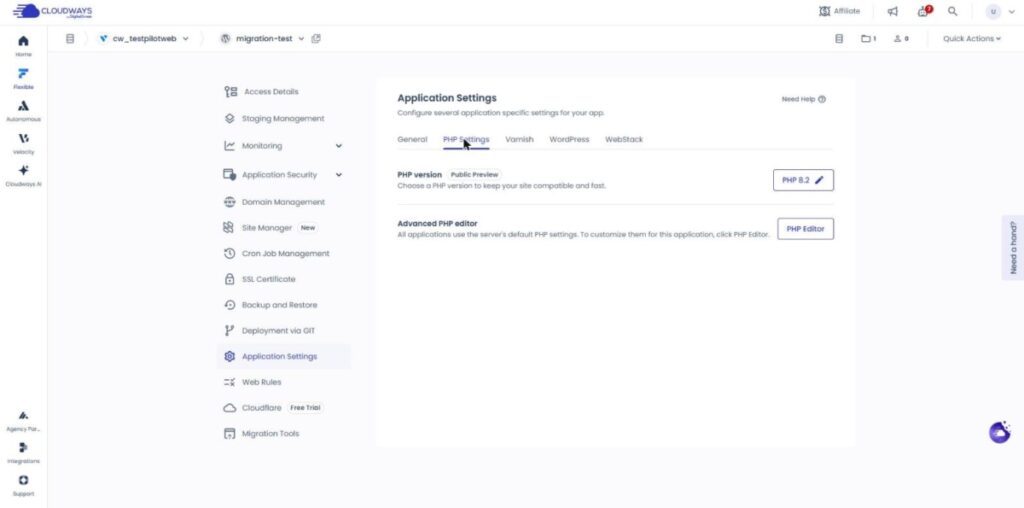
On Flexible servers, the PHP version comes in two kinds: the version chosen for each application and the server default. Previously it was mostly managed per server, so all applications on a server used the same version. Now you change it for that application only, in the [PHP Settings] tab of the application's [Application Settings] screen.
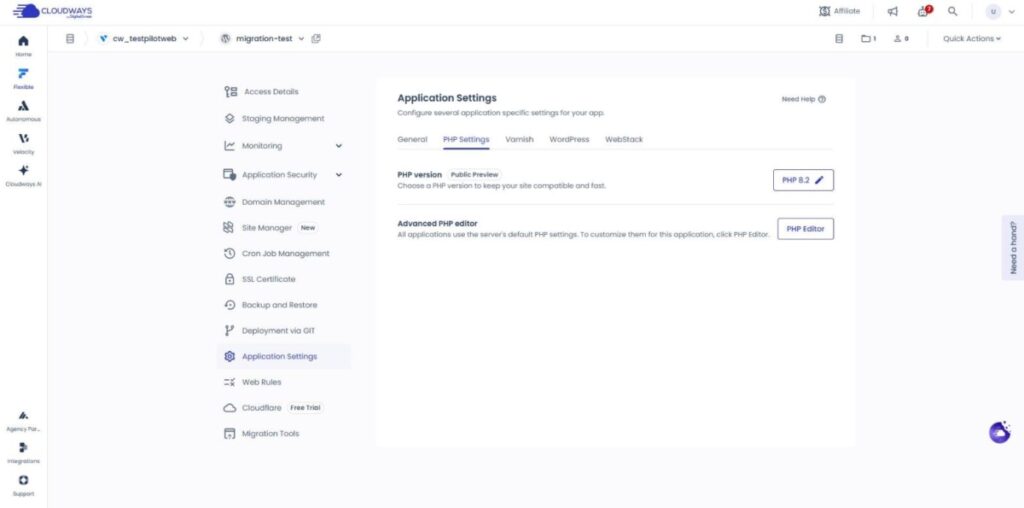
The [PHP 8.2 ✎] button on the right of the [PHP version] row in the [PHP Settings] tab shows the version the application currently uses. You change the version with this button.
Even if the server default changes, applications that have already chosen their own version keep running on that version. The server default is applied as the starting version for newly created applications (per the official docs).
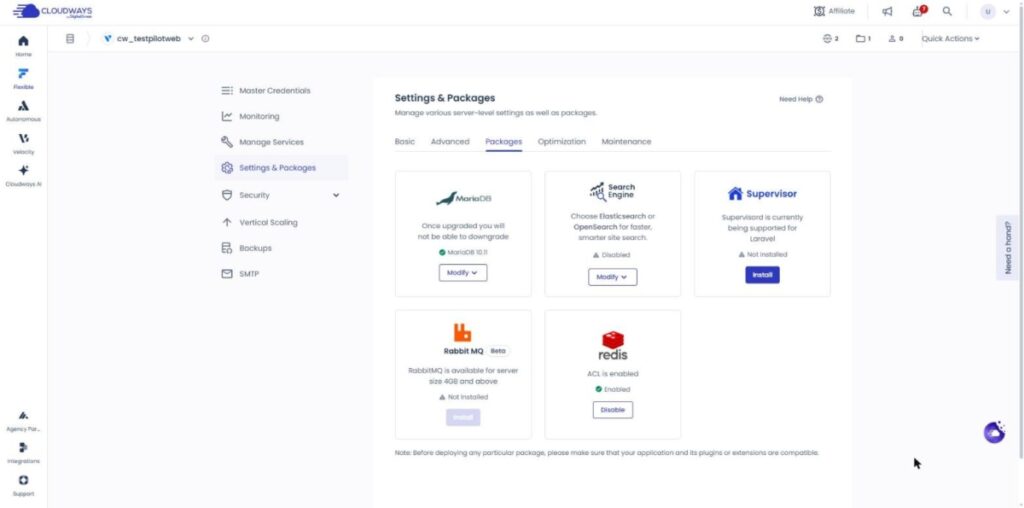
On a server with per-application version selection turned on, the [Packages] tab of [Settings & Packages] did not show a PHP entry. The tab only showed package cards such as MariaDB and redis.
The database manager and Imunify run on the server default version regardless of the version chosen for an application. The table below shows what a value changed in each of the two places applies to.
Item
Application PHP version
Server default PHP version
Where to change it
Application Settings › PHP Settings
Not shown in the Packages tab (servers with the per-app feature on)
Scope
Only the chosen application
Server default
Newly created applications
—
Start with this version
Applications with their own chosen version
Keep the chosen version
Not affected by a change
WP-CLI
Follows the application version
—
Database manager · Imunify
—
Run on the server version
Available servers
Debian 11 or later
—
※ Based on the official Cloudways Flexible docs · checked 2026-10-24
Changing the PHP version can make plugins or themes that are not compatible with the new version throw errors, so first check whether the plugins and themes you use support the version you are switching to. The official docs recommend changing it on a staging application first and checking there.
The version change window recommends creating an application backup before the change, and the official docs recommend a server backup. This backup is what you roll back to if errors occur.
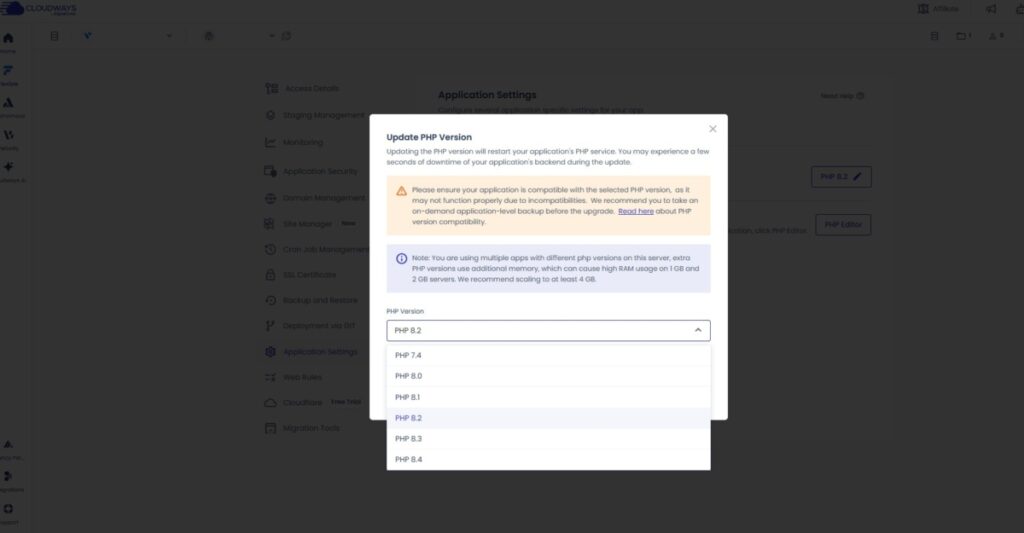
The versions you can choose are 7.4, 8.0, 8.1, 8.2, 8.3 and 8.4, and 8.4 appears only on Debian 11 and 12 servers. Per-application version changes are also available only on servers with Debian 11 or later, so if 8.4 is missing from the list, check the server's Debian version first.
The list we opened on the test server on October 28, 2026 also ran from PHP 7.4 to 8.4, with no 8.5 yet.
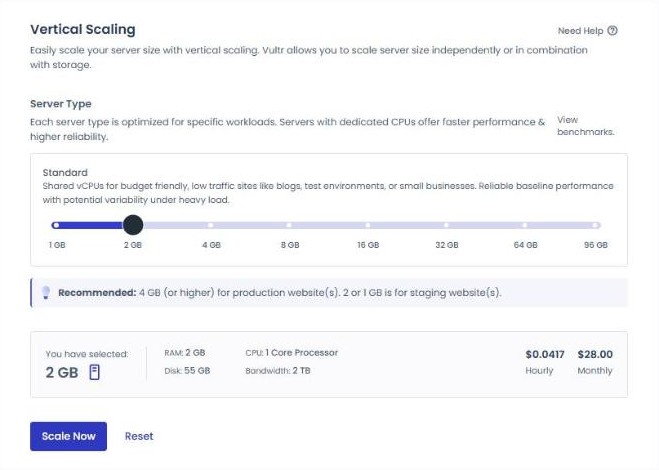
The official docs recommend 4GB of RAM or more for servers that keep different versions per application, so on a server with 1GB or 2GB of memory it is better to stick to one version.
3️⃣ Steps to change the PHP version
Even after these checks, the backend can stop for a few seconds while the version changes, so do it at a time when there are few visitors.
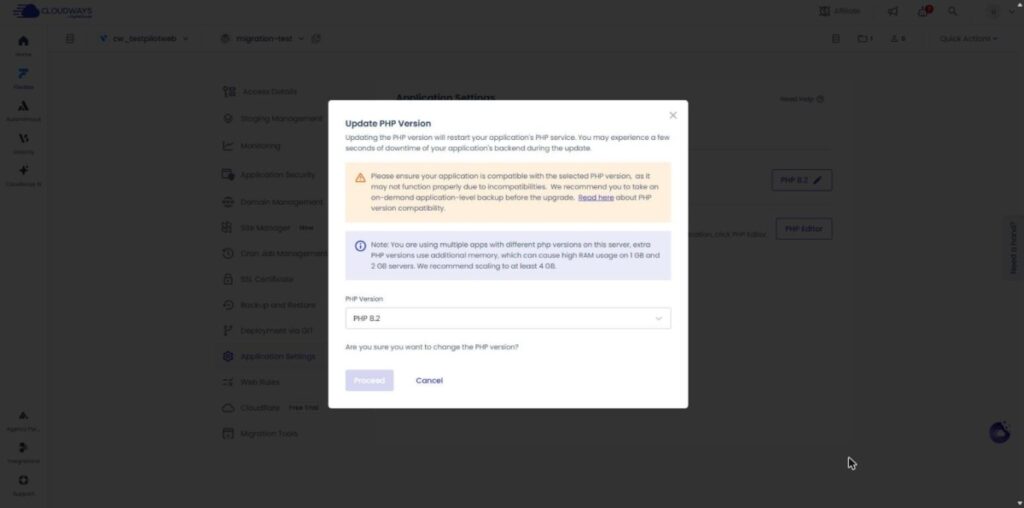
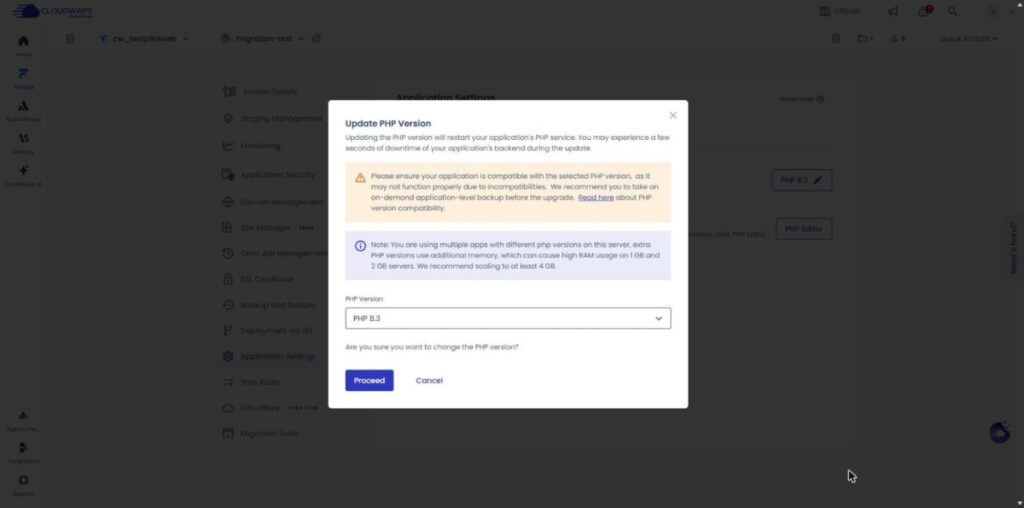
In the [Applications] tab, choose the application and open the [PHP Settings] tab in [Application Settings]. Clicking the [PHP 8.2 ✎] button in the [PHP version] row opens the [Update PHP Version] window.
The window shows a notice that the PHP service restarts and the backend may stop for a few seconds, along with a recommendation to back up the application, and [Proceed] stays dimmed until you choose a version.
Choosing 8.3 in the [PHP Version] field enables [Proceed], and clicking it starts the change.
Configure several application specific settings for your app.
GeneralPHP SettingsVarnishWordPressWebStack
PHP versionPublic PreviewChoose a PHP version to keep your site compatible and fast.
Advanced PHP editorAll applications use the server's default PHP settings. To customize them for this application, click PHP Editor.
Update PHP Version
Updating the PHP version will restart your application's PHP service. You may experience a few seconds of downtime of your application's backend during the update.
Click a highlighted item in the left menu or a button on the screen
4️⃣ Checks after changing the PHP version
↪️ Site Health, cron, rolling back
After changing the version, open [Tools › Site Health] in the WordPress admin and, in the [Server] section of the [Info] tab, check that the [PHP version] row shows the version you chose. This value is the PHP version that actually handles requests to the site.
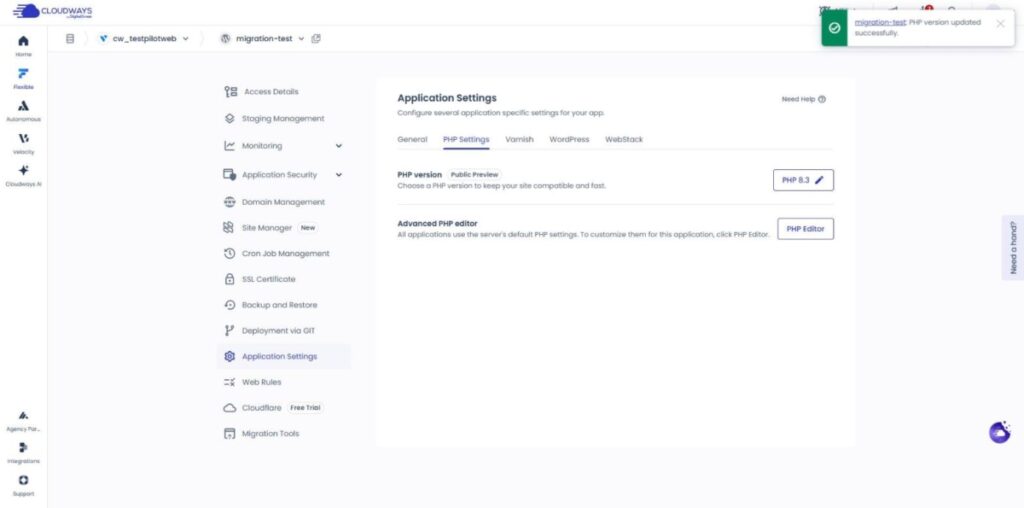
On the test application, the [PHP version updated successfully.] completion notice appeared about five and a half minutes after [Proceed]. The number on the button in the [PHP Settings] tab also changed to 8.3.
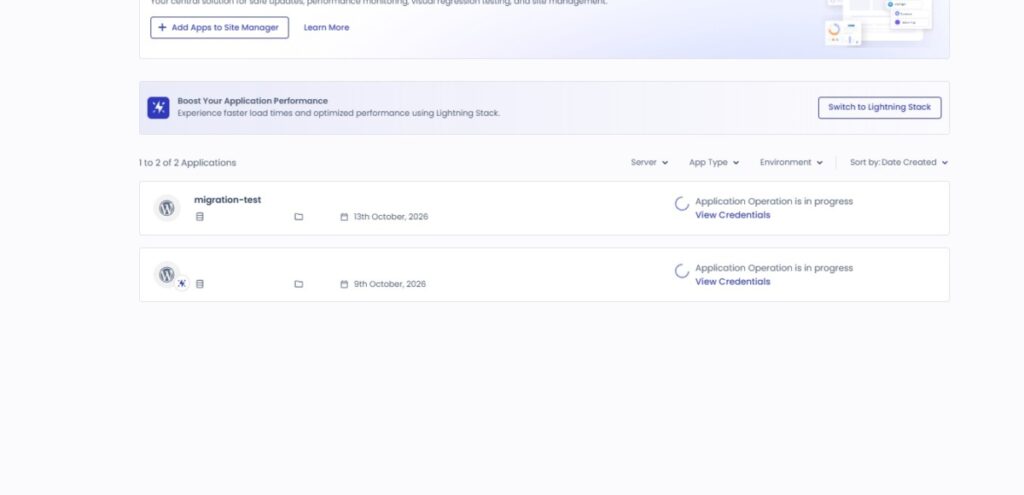
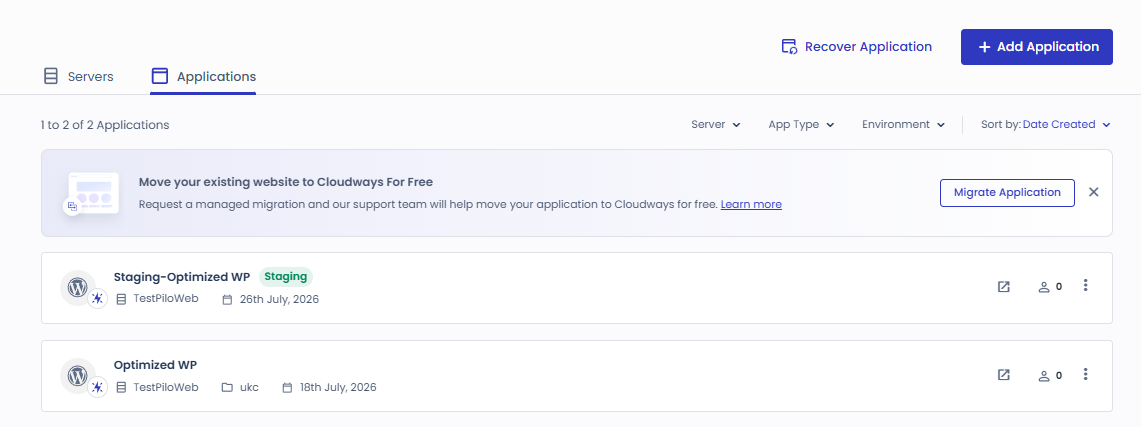
On the same test server with two applications, when we changed one application from 8.2 to 8.4, the [Applications] list showed both applications as [Application Operation is in progress].
After the operation finished, the other application was still on 8.2.
Even if the home page opens, go on to check that the admin area, key pages, contact forms and plugin features work normally.
WP-CLI follows the PHP version chosen for the application automatically, while cron jobs you registered yourself run on the chosen version only if you write the PHP executable with its full path (per the official docs).
If errors occur, roll back to the previous version in the same [PHP Settings] tab and check the error log. If rolling back the version does not fix it, restore from the backup you made before the change.
Rolling the test application back to 8.2 took about 4 minutes 43 seconds, and the same screen showed the version as [PHP 8.2 ✎].
🔢 FAQ & Recommended Content
On Autonomous you also change the version in [PHP Settings] on the application screen, and the official docs say to create an application backup instead of a server backup before the change. PHP 8.4 can only be chosen on Flexible.
PHP 5.6 and 7.0–7.3 have been unsupported since August 15, 2022, so applications on these versions can only be changed upward. Once upgraded, they cannot go back down to these versions (per the official docs).
Per the official docs, a new server starts with PHP 8.2, and new applications created on that server are also set to the server default version. If you need a different version, change it in [PHP Settings] after creating the application.
☁️Recommended Cloudways contentPost 21 · Tool 2
🗂️ Running Cloudways
📄 What Is Cloudways📄 Signup and basic setup📄 Domain connection📄 SSL setup
📋 Server & Application📄 Admin login📄 Staging Management📄 Billing · Pricing📄 Email · SMTP add-on📄 MCP · AI Server Management📄 SFTP and SSH Access📄 Migration📄 Backup📄 Vertical Scaling
📋 Hosting Comparison Top 7📄 What is cloud hosting📄 What is managed hosting📄 Web Hosting Costs📄 Cloudways for Small Businesses📄 Cloudways WooCommerce📄 Cloudways Alternatives
ℹ️ Affiliate Disclosure This site's content contains affiliate links. When a visitor buys a product or service through one of them, the site receives a commission from the seller. The amount the buyer pays(it goes down during event discounts ↓)does not go up. Posted prices, discounts, and stock reflect the time of writing and may differ, so confirm with the seller before buying. Products are chosen and reviewed by our own standards, and commissions do not affect the order or content of reviews.